Menu, Functions and Security Profile 
Oracle HRMS Functional Document 
Element Entry Validation 
Method 1 & 2 
Part 9 
Note: This Document is created only for Class Room Training Purpose 
By 
Regintala Chandra Sekhar 
ora17hr@gmail.com 
Regintala Chandra Sekhar Page 1 ora17hr@gmail.com
Menu, Functions and Security Profile 
Table of Contents 
Element Entry Validation:......................................................................................................................................................... 3 
Method 1 : Using Input Parameters .................................................................................................................................. 3 
Method 2: Using Fast Formula ............................................................................................................................................ 4 
Regintala Chandra Sekhar Page 2 ora17hr@gmail.com
If you have any queries regarding this document please see the part 1, 2, 3, 4, 5, 6, 7,8 & Part 9 
documents . Set the Date: 01-Jan-2013 and check the Payroll Process Result if you have any runs roll 
back it 
Element Entry Validation: 
Method 1 : Using Input Parameters 
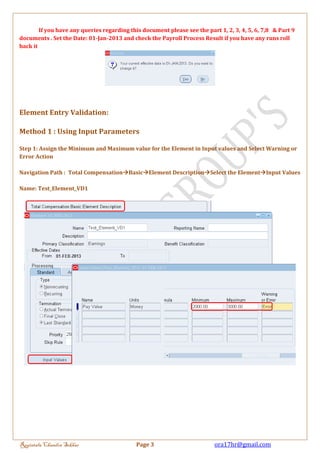
Step 1: Assign the Minimum and Maximum value for the Element in Input values and Select Warning or 
Error Action 
Navigation Path : Total CompensationBasicElement DescriptionSelect the ElementInput Values 
Name: Test_Element_VD1 
Regintala Chandra Sekhar Page 3 ora17hr@gmail.com
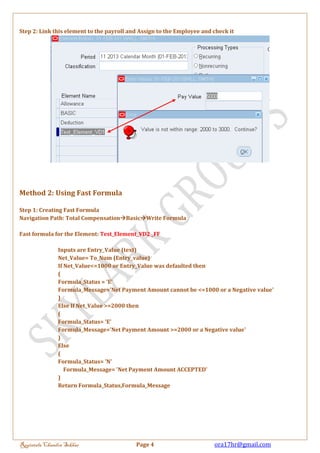
Step 2: Link this element to the payroll and Assign to the Employee and check it 
Method 2: Using Fast Formula 
Step 1: Creating Fast Formula 
Navigation Path: Total CompensationBasicWrite Formula 
Fast formula for the Element: Test_Element_VD2 _FF 
Inputs are Entry_Value (text) 
Net_Value= To_Num (Entry_value) 
If Net_Value<=1000 or Entry_Value was defaulted then 
( 
Formula_Status = 'E' 
Formula_Message='Net Payment Amount cannot be <=1000 or a Negative value' 
) 
Else If Net_Value >=2000 then 
( 
Formula_Status= 'E' 
Formula_Message='Net Payment Amount >=2000 or a Negative value' 
) 
Else 
( 
Formula_Status= 'N' 
Formula_Message= 'Net Payment Amount ACCEPTED' 
) 
Return Formula_Status,Formula_Message 
Regintala Chandra Sekhar Page 4 ora17hr@gmail.com
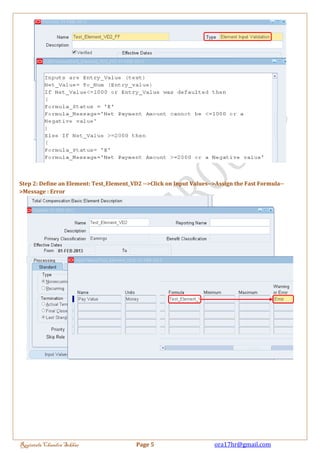
Step 2: Define an Element: Test_Element_VD2 -->Click on Input Values-->Assign the Fast Formula-- 
>Message : Error 
Regintala Chandra Sekhar Page 5 ora17hr@gmail.com
Step 3: Link to the Payroll and assign to the employee -->Enter the Pay Value-->You will get Error 
Message 
Thank you....... 
Regintala Chandra Sekhar 
You can get more documents on my blogger: http://ora17hr.blogspot.com 
Facebook Group: www.facebook.com/groups/ora17hr 
Regintala Chandra Sekhar Page 6 ora17hr@gmail.com

9 element entry_validation_part_9

  • 1.
    Menu, Functions andSecurity Profile Oracle HRMS Functional Document Element Entry Validation Method 1 & 2 Part 9 Note: This Document is created only for Class Room Training Purpose By Regintala Chandra Sekhar ora17hr@gmail.com Regintala Chandra Sekhar Page 1 ora17hr@gmail.com
  • 2.
    Menu, Functions andSecurity Profile Table of Contents Element Entry Validation:......................................................................................................................................................... 3 Method 1 : Using Input Parameters .................................................................................................................................. 3 Method 2: Using Fast Formula ............................................................................................................................................ 4 Regintala Chandra Sekhar Page 2 ora17hr@gmail.com
  • 3.
    If you haveany queries regarding this document please see the part 1, 2, 3, 4, 5, 6, 7,8 & Part 9 documents . Set the Date: 01-Jan-2013 and check the Payroll Process Result if you have any runs roll back it Element Entry Validation: Method 1 : Using Input Parameters Step 1: Assign the Minimum and Maximum value for the Element in Input values and Select Warning or Error Action Navigation Path : Total CompensationBasicElement DescriptionSelect the ElementInput Values Name: Test_Element_VD1 Regintala Chandra Sekhar Page 3 ora17hr@gmail.com
  • 4.
    Step 2: Linkthis element to the payroll and Assign to the Employee and check it Method 2: Using Fast Formula Step 1: Creating Fast Formula Navigation Path: Total CompensationBasicWrite Formula Fast formula for the Element: Test_Element_VD2 _FF Inputs are Entry_Value (text) Net_Value= To_Num (Entry_value) If Net_Value<=1000 or Entry_Value was defaulted then ( Formula_Status = 'E' Formula_Message='Net Payment Amount cannot be <=1000 or a Negative value' ) Else If Net_Value >=2000 then ( Formula_Status= 'E' Formula_Message='Net Payment Amount >=2000 or a Negative value' ) Else ( Formula_Status= 'N' Formula_Message= 'Net Payment Amount ACCEPTED' ) Return Formula_Status,Formula_Message Regintala Chandra Sekhar Page 4 ora17hr@gmail.com
  • 5.
    Step 2: Definean Element: Test_Element_VD2 -->Click on Input Values-->Assign the Fast Formula-- >Message : Error Regintala Chandra Sekhar Page 5 ora17hr@gmail.com
  • 6.
    Step 3: Linkto the Payroll and assign to the employee -->Enter the Pay Value-->You will get Error Message Thank you....... Regintala Chandra Sekhar You can get more documents on my blogger: http://ora17hr.blogspot.com Facebook Group: www.facebook.com/groups/ora17hr Regintala Chandra Sekhar Page 6 ora17hr@gmail.com