Menu, Functions and Security Profile 
Oracle HRMS Functional Document 
Jobs and Positions Setup's 
(SIT’s & EIT’s) 
Part 4 
Note: This Document is created only for Class Room Training Purpose 
By 
Regintala Chandra Sekhar 
ora17hr@gmail.com 
Regintala Chandra Sekhar Page 1 ora17hr@gmail.com
Menu, Functions and Security Profile 
Table of Contents 
JOB's .................................................................................................................................................................................................. 3 
(a). Changing the Default Job Group: we can change our Default Job Group .................................................... 3 
(b). Creating Job ....................................................................................................................................................................... 3 
Special Information Types aka SIT (Jobs) ........................................................................................................................... 4 
(a). Using Seed Special Information .................................................................................................................................. 4 
(b). Creating the SIT for Job ................................................................................................................................................. 7 
Extra Information Type (Jobs): ............................................................................................................................................... 9 
POSITIONS ................................................................................................................................................................................... 12 
Position Type 1 : Single Incumbent ................................................................................................................................ 12 
Position Type 2 : Shared .................................................................................................................................................... 13 
Position Type 3 : Pooled ..................................................................................................................................................... 14 
Position Type 4 : None ........................................................................................................................................................ 15 
Creating Position Hierarchy: ................................................................................................................................................ 16 
Special Information Type (SIT's) for Position ................................................................................................................ 17 
Extra Information Type (EIT's) for Position ................................................................................................................... 18 
Regintala Chandra Sekhar Page 2 ora17hr@gmail.com
If you have any queries regarding this document please see the part1, 2 and Part 3 documents . 
Set the Date: 01-Jan-2013 and check the Payroll Process Result if you have any runs roll back it 
JOB's 
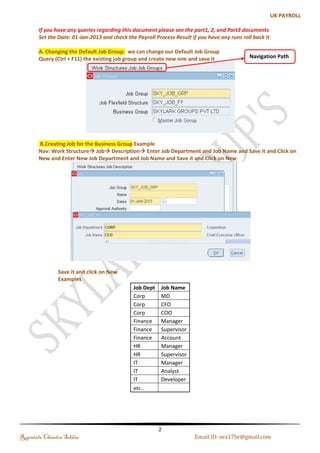
(a). Changing the Default Job Group: we can change our Default Job Group 
Query (Ctrl + F11) the existing job group and create new one and save it 
Navigation Path 
(b). Creating Job 
Navigation Path: Work Structure Job Description Enter Job Department and Job Name and Save it and 
Click on New and Enter New Job Department and Job Name and Save it and Click on New 
Save it and click on New 
Regintala Chandra Sekhar Page 3 ora17hr@gmail.com
Examples 
Job Dept Job Name 
Corp MD 
Corp CFO 
Corp COO 
Finance Manager 
Finance Supervisor 
Finance Account 
HR Manager 
HR Supervisor 
IT Manager 
IT Analyst 
IT Developer 
etc.. 
Special Information Types aka SIT (Jobs) 
Special Information Types or SIT's are commonly used in Oracle Human Resource module to capture 
additional information for employees, jobs and positions. 
(a). Using Seed Special Information 
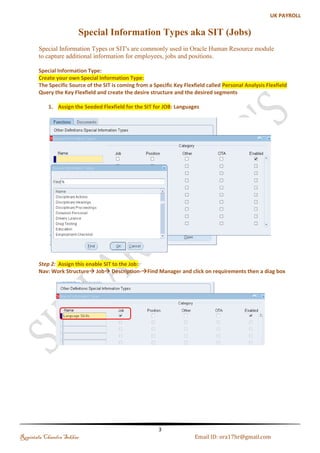
Step 1: Assign the Seeded Flexfield for the SIT for JOB: Languages 
Create your own Special Information Type: The Specific Source of the SIT is coming from a Specific Key 
Flexfield called Personal Analysis Flexfield. Query the Key Flexfield and create the desire structure and the 
desired segments 
Regintala Chandra Sekhar Page 4 ora17hr@gmail.com
Step 2: Assign this enable SIT to the Job: 
Navigation : Work Structure Job Description-Find Manager and click on requirements then a diag box 
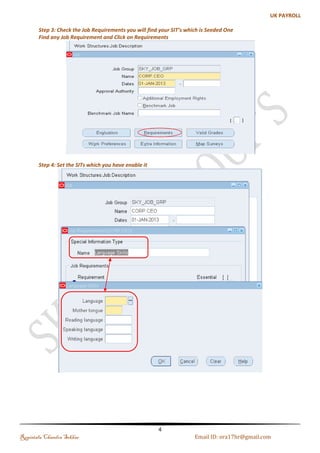
Step 3: Check the Job Requirements you will find your SIT’s which is Seeded One 
Find any Job Requirement and Click on Requirements 
Regintala Chandra Sekhar Page 5 ora17hr@gmail.com
Step 4: Set the SITs which you have enable it 
Navigation : Work Structures Job Description Requirements Special Information Types 
Language Skills 
Regintala Chandra Sekhar Page 6 ora17hr@gmail.com
(b). Creating the SIT for Job 
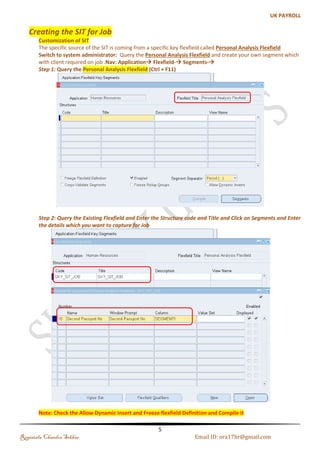
Customization of SIT 
The specific source of the SIT is coming from a specific Key Flexfield called Personal Analysis Flexfield 
Navigation : Application Flexfield Segments 
Step 1: Query the Personal Analysis Flexfield (Ctrl + F11) 
Step 2: Query the Existing (Personal Analysis Flexfield) and Enter the Structure code and Title and Click 
on Segments and Enter the details which you want to capture for Job 
Note: Check the Allow Dynamic Insert and Freeze Flexfield Definition and Compile it 
Regintala Chandra Sekhar Page 7 ora17hr@gmail.com
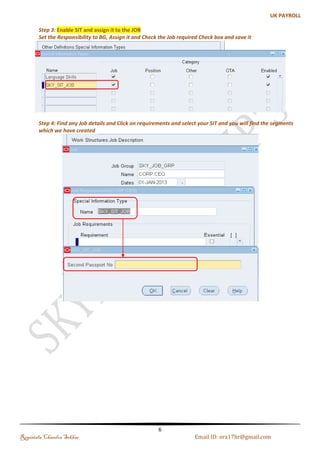
Step 3: Enable sit and assign it to the Job 
Set the Responsibility to BG, Assign it and Check the Job required Check box and save it 
Step 4: Find any Job details and Click on requirements and select your SIT and you will find the 
segments which we have created 
Regintala Chandra Sekhar Page 8 ora17hr@gmail.com
Extra Information Type (Jobs): 
Steps: 
1. Set the request group to the responsibility 
2. Query the Specific DFF (Extra Job Information) 
3. Unfreeze 
4. Create the Desired segment and structures 
5. Run the process Register Extra Information Type (EITS) 
6. Enable the EIT 
7. Assign the EIT to the Job 
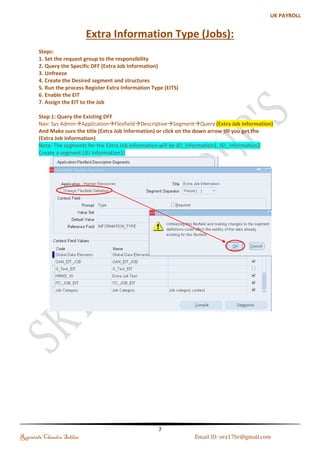
Step 1: Query the Existing DFF 
Navigation : System Administrator ApplicationFlexfieldDescriptiveSegmentQuery (Extra Job 
Information) And Make sure the title (Extra Job Information) or click on the down arrow till you get the 
(Extra Job Information) 
Note: The segments for the Extra Job Information will be JEI_information1, JEI_information2 
Create a segment (JEI Information1) 
Regintala Chandra Sekhar Page 9 ora17hr@gmail.com
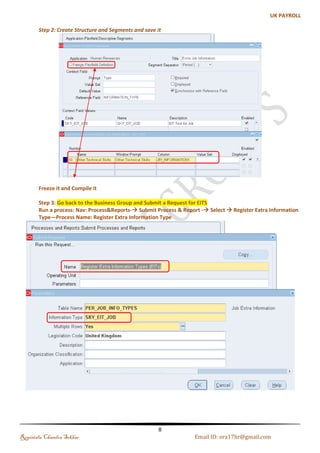
Step 2: Create Structure and Segments and save it 
Freeze it and Compile it 
Step 3: Go back to the Business Group and Submit a Request for EITS 
Navigation : Process & Reports- Submit Process & Report  Select  Register Extra Information Type— 
Process Name: Register Extra Information Type 
Regintala Chandra Sekhar Page 10 ora17hr@gmail.com
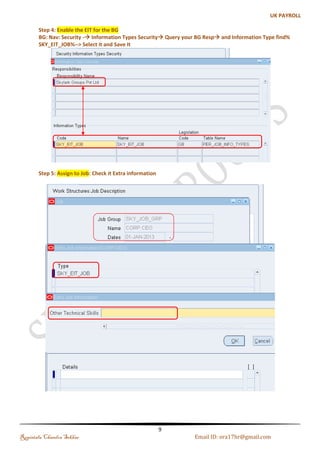
Step 4: Enable EIT for the BG 
Navigation: Security  Information Types Security Query your BG Resp and Information Type find% 
SKY_EIT_JOB%--> Select it and Save It 
Step 5: Assign to Job: Check it Extra information 
Regintala Chandra Sekhar Page 11 ora17hr@gmail.com
POSITIONS 
Note: To define a Position called CEO or any Position which is going to be associated with the business group. 
The Business Group has to be set the classification as HR Organization. 
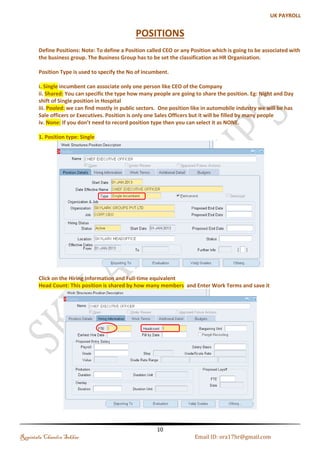
Position Type is used to specify the No of incumbent. 
I. Single incumbent can associate only one person like CEO of the Company 
II. Shared: You can specific the type how many people are going to share the position. Eg: Night 
and Day shift of Single position in Hospital 
III. Pooled: we can find mostly in public sectors. One position like in automobile industry we will 
be has Sale officers or Executives. Position is only one Sales Officers but it will be filled by many 
people 
IV. None: If you don’t need to record position type then you can select it as NONE. 
Position Type 1 : Single Incumbent 
Step 1: Creating Position and Position Type: Single Incumbent 
Regintala Chandra Sekhar Page 12 ora17hr@gmail.com
Step 2: Click on the Hiring Information and Full-time equivalent 
Head Count: This position is shared by how many members and Enter Work Terms and save it 
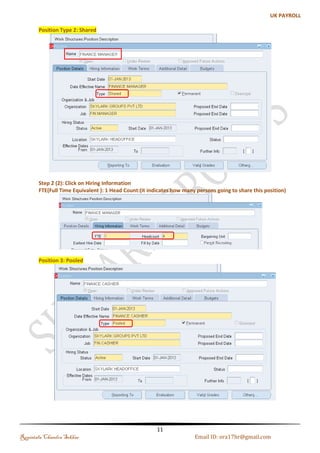
Position Type 2 : Shared 
Step 1: Creating Position and Position Type: Shared 
Regintala Chandra Sekhar Page 13 ora17hr@gmail.com
Step 2 : Click on Hiring Information 
FTE(Full Time Equivalent ): 1 Head Count:(it indicates how many persons going to share this position) 
Position Type 3 : Pooled 
Step 1: Creating Position and Position Type: Pooled 
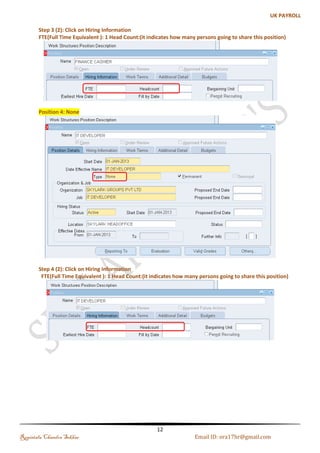
Step 2 : Click on Hiring Information 
FTE(Full Time Equivalent ): 1 Head Count:(it indicates how many persons going to share this position) 
Regintala Chandra Sekhar Page 14 ora17hr@gmail.com
Position Type 4 : None 
Step 1: Creating Position and Position Type: None 
Step 2: Click on Hiring Information 
FTE(Full Time Equivalent ): 1 Head Count:(it indicates how many persons going to share this position) 
Regintala Chandra Sekhar Page 15 ora17hr@gmail.com
Creating Position Hierarchy: 
You need to define each and every position in the Organization to create Organizational Hierarchy 
Step 1: Enter the Hierarchy Name (Sky_Position_Hierarchy) and Check the Primary Check box 
Step 2: Query the Hierarchy and Click on Open Editor 
Regintala Chandra Sekhar Page 16 ora17hr@gmail.com
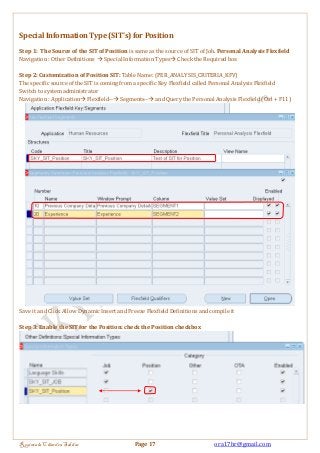
Special Information Type (SIT's) for Position 
Step 1: The Source of the SIT of Position is same as the source of SIT of Job. Personal Analysis Flexfield 
Navigation : Other Definitions  Special Information Types Check the Required box 
Step 2: Customization of Position SIT: Table Name: (PER_ANALYSIS_CRITERIA_KFV) 
The specific source of the SIT is coming from a specific Key Flexfield called Personal Analysis Flexfield 
Switch to system administrator 
Navigation : Application Flexfield-- Segments-- and Query the Personal Analysis Flexfield (Ctrl + F11) 
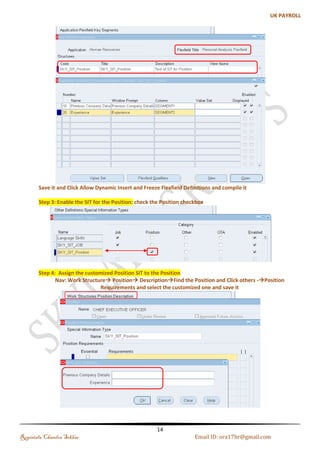
Save it and Click Allow Dynamic Insert and Freeze Flexfield Definitions and compile it 
Step 3: Enable the SIT for the Position: check the Position checkbox 
Regintala Chandra Sekhar Page 17 ora17hr@gmail.com
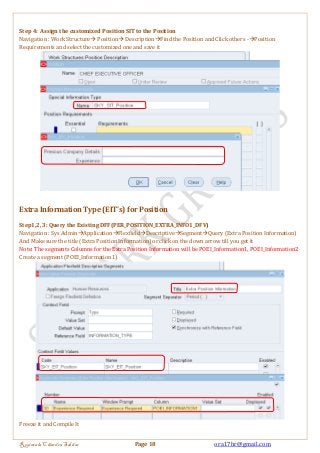
Step 4: Assign the customized Position SIT to the Position 
Navigation : Work Structure Position DescriptionFind the Position and Click others -Position 
Requirements and select the customized one and save it 
Extra Information Type (EIT's) for Position 
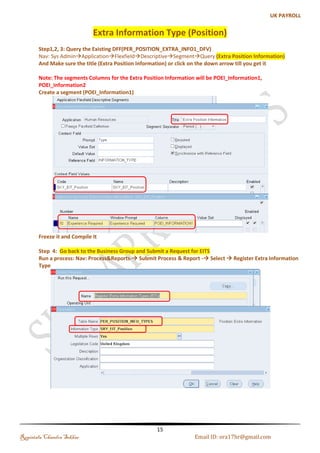
Step1,2, 3: Query the Existing DFF(PER_POSITION_EXTRA_INFO1_DFV) 
Navigation : Sys AdminApplicationFlexfieldDescriptiveSegmentQuery (Extra Position Information) 
And Make sure the title (Extra Position Information) or click on the down arrow till you get it 
Note: The segments Columns for the Extra Position Information will be POEI_Information1, POEI_Information2 
Create a segment (POEI_Information1) 
Freeze it and Compile It 
Regintala Chandra Sekhar Page 18 ora17hr@gmail.com
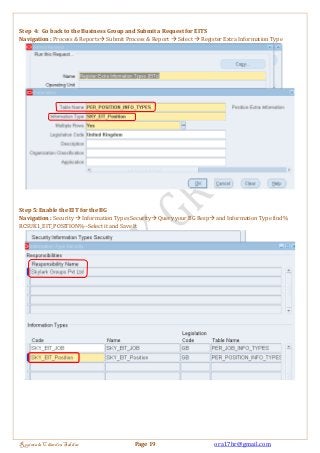
Step 4: Go back to the Business Group and Submit a Request for EITS 
Navigation : Process & Reports Submit Process & Report  Select  Register Extra Information Type 
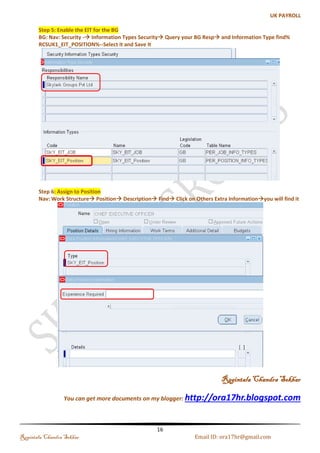
Step 5: Enable the EIT for the BG 
Navigation : Security  Information Types Security Query your BG Resp and Information Type find% 
RCSUK1_EIT_POSITION%--Select it and Save It 
Regintala Chandra Sekhar Page 19 ora17hr@gmail.com
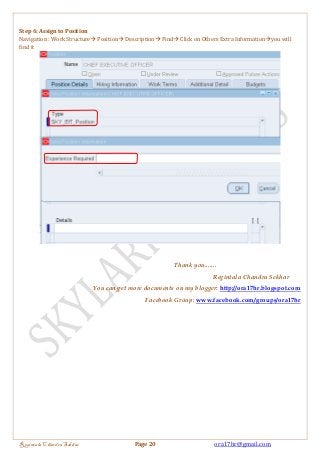
Step 6: Assign to Position 
Navigation : Work Structure Position Description Find Click on Others Extra Informationyou will 
find it 
Thank you....... 
Regintala Chandra Sekhar 
You can get more documents on my blogger: http://ora17hr.blogspot.com 
Facebook Group: www.facebook.com/groups/ora17hr 
Regintala Chandra Sekhar Page 20 ora17hr@gmail.com

4 jobs and_position_(sit_s___eit_s)_part_4

  • 1.
    Menu, Functions andSecurity Profile Oracle HRMS Functional Document Jobs and Positions Setup's (SIT’s & EIT’s) Part 4 Note: This Document is created only for Class Room Training Purpose By Regintala Chandra Sekhar ora17hr@gmail.com Regintala Chandra Sekhar Page 1 ora17hr@gmail.com
  • 2.
    Menu, Functions andSecurity Profile Table of Contents JOB's .................................................................................................................................................................................................. 3 (a). Changing the Default Job Group: we can change our Default Job Group .................................................... 3 (b). Creating Job ....................................................................................................................................................................... 3 Special Information Types aka SIT (Jobs) ........................................................................................................................... 4 (a). Using Seed Special Information .................................................................................................................................. 4 (b). Creating the SIT for Job ................................................................................................................................................. 7 Extra Information Type (Jobs): ............................................................................................................................................... 9 POSITIONS ................................................................................................................................................................................... 12 Position Type 1 : Single Incumbent ................................................................................................................................ 12 Position Type 2 : Shared .................................................................................................................................................... 13 Position Type 3 : Pooled ..................................................................................................................................................... 14 Position Type 4 : None ........................................................................................................................................................ 15 Creating Position Hierarchy: ................................................................................................................................................ 16 Special Information Type (SIT's) for Position ................................................................................................................ 17 Extra Information Type (EIT's) for Position ................................................................................................................... 18 Regintala Chandra Sekhar Page 2 ora17hr@gmail.com
  • 3.
    If you haveany queries regarding this document please see the part1, 2 and Part 3 documents . Set the Date: 01-Jan-2013 and check the Payroll Process Result if you have any runs roll back it JOB's (a). Changing the Default Job Group: we can change our Default Job Group Query (Ctrl + F11) the existing job group and create new one and save it Navigation Path (b). Creating Job Navigation Path: Work Structure Job Description Enter Job Department and Job Name and Save it and Click on New and Enter New Job Department and Job Name and Save it and Click on New Save it and click on New Regintala Chandra Sekhar Page 3 ora17hr@gmail.com
  • 4.
    Examples Job DeptJob Name Corp MD Corp CFO Corp COO Finance Manager Finance Supervisor Finance Account HR Manager HR Supervisor IT Manager IT Analyst IT Developer etc.. Special Information Types aka SIT (Jobs) Special Information Types or SIT's are commonly used in Oracle Human Resource module to capture additional information for employees, jobs and positions. (a). Using Seed Special Information Step 1: Assign the Seeded Flexfield for the SIT for JOB: Languages Create your own Special Information Type: The Specific Source of the SIT is coming from a Specific Key Flexfield called Personal Analysis Flexfield. Query the Key Flexfield and create the desire structure and the desired segments Regintala Chandra Sekhar Page 4 ora17hr@gmail.com
  • 5.
    Step 2: Assignthis enable SIT to the Job: Navigation : Work Structure Job Description-Find Manager and click on requirements then a diag box Step 3: Check the Job Requirements you will find your SIT’s which is Seeded One Find any Job Requirement and Click on Requirements Regintala Chandra Sekhar Page 5 ora17hr@gmail.com
  • 6.
    Step 4: Setthe SITs which you have enable it Navigation : Work Structures Job Description Requirements Special Information Types Language Skills Regintala Chandra Sekhar Page 6 ora17hr@gmail.com
  • 7.
    (b). Creating theSIT for Job Customization of SIT The specific source of the SIT is coming from a specific Key Flexfield called Personal Analysis Flexfield Navigation : Application Flexfield Segments Step 1: Query the Personal Analysis Flexfield (Ctrl + F11) Step 2: Query the Existing (Personal Analysis Flexfield) and Enter the Structure code and Title and Click on Segments and Enter the details which you want to capture for Job Note: Check the Allow Dynamic Insert and Freeze Flexfield Definition and Compile it Regintala Chandra Sekhar Page 7 ora17hr@gmail.com
  • 8.
    Step 3: Enablesit and assign it to the Job Set the Responsibility to BG, Assign it and Check the Job required Check box and save it Step 4: Find any Job details and Click on requirements and select your SIT and you will find the segments which we have created Regintala Chandra Sekhar Page 8 ora17hr@gmail.com
  • 9.
    Extra Information Type(Jobs): Steps: 1. Set the request group to the responsibility 2. Query the Specific DFF (Extra Job Information) 3. Unfreeze 4. Create the Desired segment and structures 5. Run the process Register Extra Information Type (EITS) 6. Enable the EIT 7. Assign the EIT to the Job Step 1: Query the Existing DFF Navigation : System Administrator ApplicationFlexfieldDescriptiveSegmentQuery (Extra Job Information) And Make sure the title (Extra Job Information) or click on the down arrow till you get the (Extra Job Information) Note: The segments for the Extra Job Information will be JEI_information1, JEI_information2 Create a segment (JEI Information1) Regintala Chandra Sekhar Page 9 ora17hr@gmail.com
  • 10.
    Step 2: CreateStructure and Segments and save it Freeze it and Compile it Step 3: Go back to the Business Group and Submit a Request for EITS Navigation : Process & Reports- Submit Process & Report  Select  Register Extra Information Type— Process Name: Register Extra Information Type Regintala Chandra Sekhar Page 10 ora17hr@gmail.com
  • 11.
    Step 4: EnableEIT for the BG Navigation: Security  Information Types Security Query your BG Resp and Information Type find% SKY_EIT_JOB%--> Select it and Save It Step 5: Assign to Job: Check it Extra information Regintala Chandra Sekhar Page 11 ora17hr@gmail.com
  • 12.
    POSITIONS Note: Todefine a Position called CEO or any Position which is going to be associated with the business group. The Business Group has to be set the classification as HR Organization. Position Type is used to specify the No of incumbent. I. Single incumbent can associate only one person like CEO of the Company II. Shared: You can specific the type how many people are going to share the position. Eg: Night and Day shift of Single position in Hospital III. Pooled: we can find mostly in public sectors. One position like in automobile industry we will be has Sale officers or Executives. Position is only one Sales Officers but it will be filled by many people IV. None: If you don’t need to record position type then you can select it as NONE. Position Type 1 : Single Incumbent Step 1: Creating Position and Position Type: Single Incumbent Regintala Chandra Sekhar Page 12 ora17hr@gmail.com
  • 13.
    Step 2: Clickon the Hiring Information and Full-time equivalent Head Count: This position is shared by how many members and Enter Work Terms and save it Position Type 2 : Shared Step 1: Creating Position and Position Type: Shared Regintala Chandra Sekhar Page 13 ora17hr@gmail.com
  • 14.
    Step 2 :Click on Hiring Information FTE(Full Time Equivalent ): 1 Head Count:(it indicates how many persons going to share this position) Position Type 3 : Pooled Step 1: Creating Position and Position Type: Pooled Step 2 : Click on Hiring Information FTE(Full Time Equivalent ): 1 Head Count:(it indicates how many persons going to share this position) Regintala Chandra Sekhar Page 14 ora17hr@gmail.com
  • 15.
    Position Type 4: None Step 1: Creating Position and Position Type: None Step 2: Click on Hiring Information FTE(Full Time Equivalent ): 1 Head Count:(it indicates how many persons going to share this position) Regintala Chandra Sekhar Page 15 ora17hr@gmail.com
  • 16.
    Creating Position Hierarchy: You need to define each and every position in the Organization to create Organizational Hierarchy Step 1: Enter the Hierarchy Name (Sky_Position_Hierarchy) and Check the Primary Check box Step 2: Query the Hierarchy and Click on Open Editor Regintala Chandra Sekhar Page 16 ora17hr@gmail.com
  • 17.
    Special Information Type(SIT's) for Position Step 1: The Source of the SIT of Position is same as the source of SIT of Job. Personal Analysis Flexfield Navigation : Other Definitions  Special Information Types Check the Required box Step 2: Customization of Position SIT: Table Name: (PER_ANALYSIS_CRITERIA_KFV) The specific source of the SIT is coming from a specific Key Flexfield called Personal Analysis Flexfield Switch to system administrator Navigation : Application Flexfield-- Segments-- and Query the Personal Analysis Flexfield (Ctrl + F11) Save it and Click Allow Dynamic Insert and Freeze Flexfield Definitions and compile it Step 3: Enable the SIT for the Position: check the Position checkbox Regintala Chandra Sekhar Page 17 ora17hr@gmail.com
  • 18.
    Step 4: Assignthe customized Position SIT to the Position Navigation : Work Structure Position DescriptionFind the Position and Click others -Position Requirements and select the customized one and save it Extra Information Type (EIT's) for Position Step1,2, 3: Query the Existing DFF(PER_POSITION_EXTRA_INFO1_DFV) Navigation : Sys AdminApplicationFlexfieldDescriptiveSegmentQuery (Extra Position Information) And Make sure the title (Extra Position Information) or click on the down arrow till you get it Note: The segments Columns for the Extra Position Information will be POEI_Information1, POEI_Information2 Create a segment (POEI_Information1) Freeze it and Compile It Regintala Chandra Sekhar Page 18 ora17hr@gmail.com
  • 19.
    Step 4: Goback to the Business Group and Submit a Request for EITS Navigation : Process & Reports Submit Process & Report  Select  Register Extra Information Type Step 5: Enable the EIT for the BG Navigation : Security  Information Types Security Query your BG Resp and Information Type find% RCSUK1_EIT_POSITION%--Select it and Save It Regintala Chandra Sekhar Page 19 ora17hr@gmail.com
  • 20.
    Step 6: Assignto Position Navigation : Work Structure Position Description Find Click on Others Extra Informationyou will find it Thank you....... Regintala Chandra Sekhar You can get more documents on my blogger: http://ora17hr.blogspot.com Facebook Group: www.facebook.com/groups/ora17hr Regintala Chandra Sekhar Page 20 ora17hr@gmail.com