
BitLocker Drive Encryption
Module Overview
BitLocker Concepts
BitLocker Architecture
Getting Started with BitLocker Drive Encryption
BitLocker Administration
1Microsoft Confidential - For Internal Use Only
Microsoft Confidential - For Internal Use Only
BitLocker Concepts
BitLocker Concepts
Microsoft Confidential - For Internal Use Only 3
BitLocker helps prevent unauthorized access to data on lost or stolen computers
by combining two major data-protection procedures:
Encrypting the entire Windows operating system volume on the hard disk and any
associated data volumes.
Verifying the integrity of early boot components and boot configuration data.
The most secure implementation of BitLocker leverages the enhanced security capabilities
of a Trusted Platform Module (TPM) version 1.2. The TPM is a hardware component
installed in many newer computers by the computer manufacturers. It works with BitLocker
to help protect user data and to ensure that a computer running Windows Vista has not
been tampered with while the system was offline.
On computers that do not have a TPM version 1.2, you can still use BitLocker to encrypt
the Windows operating system volume. However, this implementation will require the user
to insert a USB startup key to start the computer or resume from hibernation, and does
not provide the pre-startup system integrity verification offered by BitLocker working with
a TPM.
Microsoft Confidential - For Internal Use Only 4
Offline data enhancements
BitLocker helps protect data while the system is offline by:
Encrypting the entire Windows operating system volume, including both user data
and system files, the hibernation file, the page file, and temporary files.
Providing an umbrella protection for non-Microsoft applications, which benefit
automatically when installed on the encrypted volume.
Microsoft Confidential - For Internal Use Only 5
System integrity verification
BitLocker uses the TPM to verify the integrity of early boot components and boot
configuration data. This helps ensure that BitLocker makes the encrypted volume accessible
only if those components have not been tampered with and the encrypted drive is located in
the original computer.
BitLocker helps ensure the integrity of the startup process by:
Providing a method to check that early boot file integrity has been maintained, and help
ensure that there has been no adversarial modification of those files, such as with boot sector
viruses or rootkits.
Enhancing protection to mitigate offline software-based attacks. Any alternative software that
might start the system does not have access to the decryption keys for the Windows
operating system volume.
Locking the system when tampered with. If any monitored files have been tampered with, the
system does not start. This alerts the user to the tampering, since the system fails to start as
usual. In the event that system lockout occurs, BitLocker offers a simple recovery process.
Implementing BitLocker on Servers
Microsoft Confidential - For Internal Use Only 6
For Windows Server 2008 servers in a shared or potentially non-secure
environment, such as a branch office location, BitLocker can offer the same level of
data protection that it offers on client computers.
This additional feature, which is available for Windows Server 2008, enables an IT
administrator to encrypt both the operating system volume and additional data
volumes on the same server.
By default, BitLocker is not installed with Windows Server 2008. Add BitLocker from
the Windows Server 2008 Server Manager page. You must restart after installing
BitLocker on a server. Using WMI, you can enable BitLocker remotely.
PIN support
Startup key support
Data volumes
Volumes other than the operating system volume and the system volume are called data
volumes. BitLocker encryption of data volumes is supported only in Windows Server 2008.
BitLocker encrypts Windows Server 2008 data volumes the same way that it encrypts the
operating system volume. The operating system can read a BitLocker-protected data volume
as normal.
Microsoft Confidential - For Internal Use Only
BitLocker Architecture
Microsoft Confidential - For Internal Use Only 8
BitLocker helps protect the operating system volume of the hard disk from
unauthorized access while the computer is offline. To achieve this, BitLocker uses
full-volume encryption and the security enhancements offered by the TPM.
On computers that have a TPM, BitLocker also supports multifactor authentication.
BitLocker uses the TPM to perform system integrity checks on critical early boot
components. The TPM collects and stores measurements from multiple early boot
components and boot configuration data to create a system identifier for that
computer, much like a fingerprint.
If the early boot components are changed or tampered with, such as by changing
the BIOS, changing the master boot record (MBR), or moving the hard disk to a
different computer, the TPM prevents BitLocker from unlocking the encrypted
volume and the computer enters recovery mode.
If the TPM verifies system integrity, BitLocker unlocks the protected volume. The
operating system then starts and system protection becomes the responsibility of
the user and the operating system.
BitLocker Architecture
Microsoft Confidential - For Internal Use Only 9
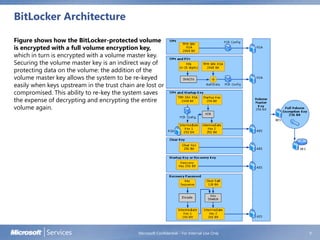
Figure shows how the BitLocker-protected volume
is encrypted with a full volume encryption key,
which in turn is encrypted with a volume master key.
Securing the volume master key is an indirect way of
protecting data on the volume: the addition of the
volume master key allows the system to be re-keyed
easily when keys upstream in the trust chain are lost or
compromised. This ability to re-key the system saves
the expense of decrypting and encrypting the entire
volume again.
Microsoft Confidential - For Internal Use Only 10
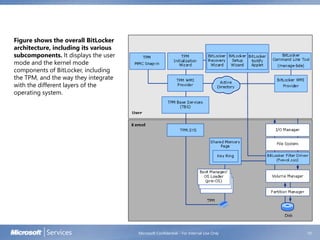
Figure shows the overall BitLocker
architecture, including its various
subcomponents. It displays the user
mode and the kernel mode
components of BitLocker, including
the TPM, and the way they integrate
with the different layers of the
operating system.
TPM-only scenario
Microsoft Confidential - For Internal Use Only 11
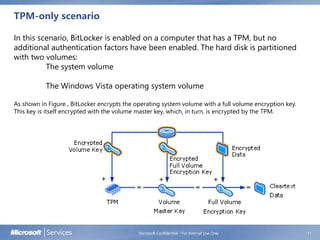
In this scenario, BitLocker is enabled on a computer that has a TPM, but no
additional authentication factors have been enabled. The hard disk is partitioned
with two volumes:
The system volume
The Windows Vista operating system volume
As shown in Figure , BitLocker encrypts the operating system volume with a full volume encryption key.
This key is itself encrypted with the volume master key, which, in turn, is encrypted by the TPM.
Microsoft Confidential - For Internal Use Only 12
Enhanced authentication scenarios
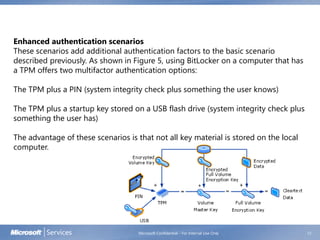
These scenarios add additional authentication factors to the basic scenario
described previously. As shown in Figure 5, using BitLocker on a computer that has
a TPM offers two multifactor authentication options:
The TPM plus a PIN (system integrity check plus something the user knows)
The TPM plus a startup key stored on a USB flash drive (system integrity check plus
something the user has)
The advantage of these scenarios is that not all key material is stored on the local
computer.
Microsoft Confidential - For Internal Use Only
Getting Started with BitLocker Drive Encryption
13
Microsoft Confidential - For Internal Use Only 14
BitLocker Drive Encryption provides enhanced protection against data theft or
exposure on computers that are lost or stolen as well as providing protection for
removable drives such as USB flash drives and external hard drives through
BitLocker To Go™.
Microsoft Confidential - For Internal Use Only 15
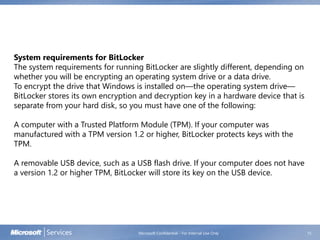
System requirements for BitLocker
The system requirements for running BitLocker are slightly different, depending on
whether you will be encrypting an operating system drive or a data drive.
To encrypt the drive that Windows is installed on—the operating system drive—
BitLocker stores its own encryption and decryption key in a hardware device that is
separate from your hard disk, so you must have one of the following:
A computer with a Trusted Platform Module (TPM). If your computer was
manufactured with a TPM version 1.2 or higher, BitLocker protects keys with the
TPM.
A removable USB device, such as a USB flash drive. If your computer does not have
a version 1.2 or higher TPM, BitLocker will store its key on the USB device.
Microsoft Confidential - For Internal Use Only 16
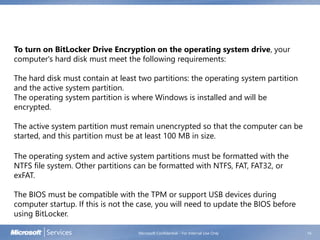
To turn on BitLocker Drive Encryption on the operating system drive, your
computer's hard disk must meet the following requirements:
The hard disk must contain at least two partitions: the operating system partition
and the active system partition.
The operating system partition is where Windows is installed and will be
encrypted.
The active system partition must remain unencrypted so that the computer can be
started, and this partition must be at least 100 MB in size.
The operating system and active system partitions must be formatted with the
NTFS file system. Other partitions can be formatted with NTFS, FAT, FAT32, or
exFAT.
The BIOS must be compatible with the TPM or support USB devices during
computer startup. If this is not the case, you will need to update the BIOS before
using BitLocker.
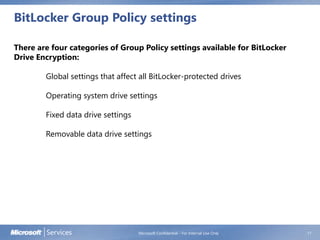
BitLocker Group Policy settings
Microsoft Confidential - For Internal Use Only 17
There are four categories of Group Policy settings available for BitLocker
Drive Encryption:
Global settings that affect all BitLocker-protected drives
Operating system drive settings
Fixed data drive settings
Removable data drive settings
Bitlocker Operations
Microsoft Confidential - For Internal Use Only 20
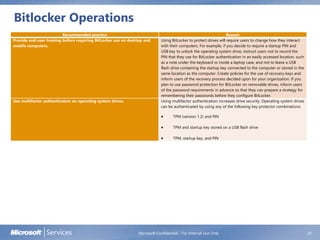
Recommended practice Reason
Provide end-user training before requiring BitLocker use on desktop and
mobile computers.
Using BitLocker to protect drives will require users to change how they interact
with their computers. For example, if you decide to require a startup PIN and
USB key to unlock the operating system drive, instruct users not to record the
PIN that they use for BitLocker authentication in an easily accessed location, such
as a note under the keyboard or inside a laptop case, and not to leave a USB
flash drive containing the startup key connected to the computer or stored in the
same location as the computer. Create policies for the use of recovery keys and
inform users of the recovery process decided upon for your organization. If you
plan to use password protection for BitLocker on removable drives, inform users
of the password requirements in advance so that they can prepare a strategy for
remembering their passwords before they configure BitLocker.
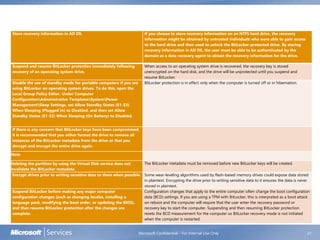
Use multifactor authentication on operating system drives. Using multifactor authentication increases drive security. Operating system drives
can be authenticated by using any of the following key protector combinations:
 TPM (version 1.2) and PIN
 TPM and startup key stored on a USB flash drive
 TPM, startup key, and PIN
Microsoft Confidential - For Internal Use Only 21
Store recovery information in AD DS. If you choose to store recovery information on an NTFS hard drive, the recovery
information might be obtained by untrusted individuals who were able to gain access
to the hard drive and then used to unlock the BitLocker-protected drive. By storing
recovery information in AD DS, the user must be able to be authenticated by the
domain as a data recovery agent to obtain the recovery information for the drive.
Suspend and resume BitLocker protection immediately following
recovery of an operating system drive.
When access to an operating system drive is recovered, the recovery key is stored
unencrypted on the hard disk, and the drive will be unprotected until you suspend and
resume BitLocker.
Disable the use of standby mode for portable computers if you are
using BitLocker on operating system drives. To do this, open the
Local Group Policy Editor. Under Computer
ConfigurationAdministrative TemplatesSystemPower
ManagementSleep Settings, set Allow Standby States (S1-S3)
When Sleeping (Plugged In) to Disabled, and then set Allow
Standby States (S1-S3) When Sleeping (On Battery) to Disabled.
BitLocker protection is in effect only when the computer is turned off or in hibernation.
If there is any concern that BitLocker keys have been compromised,
it is recommended that you either format the drive to remove all
instances of the BitLocker metadata from the drive or that you
decrypt and encrypt the entire drive again.
Note
Deleting the partition by using the Virtual Disk service does not
invalidate the BitLocker metadata.
The BitLocker metadata must be removed before new BitLocker keys will be created.
Encrypt drives prior to writing sensitive data to them when possible. Some wear-leveling algorithms used by flash-based memory drives could expose data stored
in plaintext. Encrypting the drive prior to writing sensitive data to it ensures the data is never
stored in plaintext.
Suspend BitLocker before making any major computer
configuration changes (such as changing locales, installing a
language pack, modifying the boot order, or updating the BIOS),
and then resume BitLocker protection after the changes are
complete.
Configuration changes that apply to the entire computer often change the boot configuration
data (BCD) settings. If you are using a TPM with BitLocker, this is interpreted as a boot attack
on reboot and the computer will require that the user enter the recovery password or
recovery key to start the computer. Suspending and then resuming BitLocker protection
resets the BCD measurement for the computer so BitLocker recovery mode is not initiated
when the computer is restarted.
Unlocking Removable Drives on Windows XP and
Windows Vista
Microsoft Confidential - For Internal Use Only 22
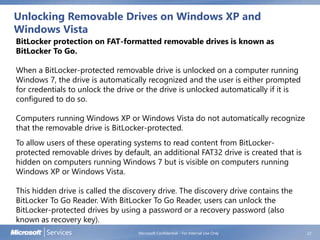
BitLocker protection on FAT-formatted removable drives is known as
BitLocker To Go.
When a BitLocker-protected removable drive is unlocked on a computer running
Windows 7, the drive is automatically recognized and the user is either prompted
for credentials to unlock the drive or the drive is unlocked automatically if it is
configured to do so.
Computers running Windows XP or Windows Vista do not automatically recognize
that the removable drive is BitLocker-protected.
To allow users of these operating systems to read content from BitLocker-
protected removable drives by default, an additional FAT32 drive is created that is
hidden on computers running Windows 7 but is visible on computers running
Windows XP or Windows Vista.
This hidden drive is called the discovery drive. The discovery drive contains the
BitLocker To Go Reader. With BitLocker To Go Reader, users can unlock the
BitLocker-protected drives by using a password or a recovery password (also
known as recovery key).
Backing Up BitLocker and TPM Recovery Information to
AD DS
Microsoft Confidential - For Internal Use Only 23
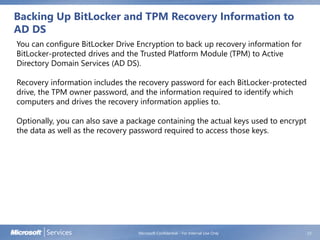
You can configure BitLocker Drive Encryption to back up recovery information for
BitLocker-protected drives and the Trusted Platform Module (TPM) to Active
Directory Domain Services (AD DS).
Recovery information includes the recovery password for each BitLocker-protected
drive, the TPM owner password, and the information required to identify which
computers and drives the recovery information applies to.
Optionally, you can also save a package containing the actual keys used to encrypt
the data as well as the recovery password required to access those keys.
Using AD DS to store BitLocker recovery information
Microsoft Confidential - For Internal Use Only 24
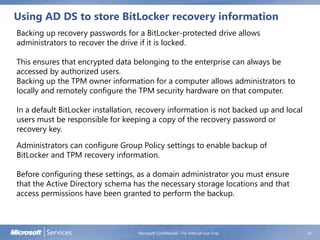
Backing up recovery passwords for a BitLocker-protected drive allows
administrators to recover the drive if it is locked.
This ensures that encrypted data belonging to the enterprise can always be
accessed by authorized users.
Backing up the TPM owner information for a computer allows administrators to
locally and remotely configure the TPM security hardware on that computer.
In a default BitLocker installation, recovery information is not backed up and local
users must be responsible for keeping a copy of the recovery password or
recovery key.
Administrators can configure Group Policy settings to enable backup of
BitLocker and TPM recovery information.
Before configuring these settings, as a domain administrator you must ensure
that the Active Directory schema has the necessary storage locations and that
access permissions have been granted to perform the backup.
Storing BitLocker recovery information in AD DS
Microsoft Confidential - For Internal Use Only 25
Backed up BitLocker recovery information is stored in a child object of the
computer object. That is, the computer object is the container for a BitLocker
recovery object.
Each BitLocker recovery object includes the recovery password and other recovery
information. More than one BitLocker recovery object can exist under each
computer object because multiple recovery passwords can be associated with a
BitLocker-protected drive and multiple BitLocker-protected drives can be
associated with a computer.
The name of the BitLocker recovery object incorporates a globally unique identifier
(GUID) and date and time information, for a fixed length of 63 characters. The form
is:
<Object Creation Date and Time><Recovery GUID>
For example:
2005-09-30T17:08:23-08:00{063EA4E1-220C-4293-BA01-4754620A96E7}
Microsoft Confidential - For Internal Use Only
BitLocker Administration
Administration
Microsoft Confidential - For Internal Use Only 28
The administrator can manage BitLocker using the BitLocker control panel,
accessible from the Security item in the Windows 7 Control Panel.
A command-line management tool, manage-bde.wsf, is also available for IT
administrators to perform scripting functionality remotely.
Key management
Once the volume has been encrypted and protected with BitLocker, the Manage
Keys page in the BitLocker control panel enables local and domain
administrators to duplicate keys and reset the PIN.
BitLocker configuration and TPM management
The BitLocker control panel, accessible from the Security item in the Windows 7
Control Panel, displays BitLocker status and provides the functionality to enable
or disable BitLocker. If BitLocker is actively encrypting or decrypting data due to
a recent installation or uninstall request, the progress status appears.
An administrator can also use the BitLocker control panel to access the TPM
management MMC.
Administration
Microsoft Confidential - For Internal Use Only 29
System Recovery
A number of scenarios can trigger a recovery process, for example:
Moving the BitLocker-protected drive into a new computer.
Installing a new motherboard with a new TPM.
Turning off, disabling, or clearing the TPM.
Updating the BIOS
Updating optional read-only memory (option ROM)
Upgrading critical early boot components that cause system integrity
validation to fail.
Forgetting the PIN when PIN authentication has been enabled.
Losing the USB flash drive containing the startup key when startup key
authentication has been enabled.
Administration
Microsoft Confidential - For Internal Use Only 30
Recovery setup
Using Group Policy, an IT administrator can choose what recovery methods to
require, deny, or make optional for users who enable BitLocker. The recovery
password can be stored in Active Directory Domain Services (AD DS), and the
administrator can make this option mandatory, prohibited, or optional for each user
of the computer. Additionally, the recovery data can be stored on a USB flash drive.
Recovery scenarios
In BitLocker, recovery consists of decrypting a copy of the volume master key using
either a recovery key stored on a USB flash drive or a cryptographic key derived
from a recovery password. The TPM is not involved in any recovery scenarios, so
recovery is still possible if the TPM fails boot component validation, malfunctions,
or is removed.
Administration
Microsoft Confidential - For Internal Use Only 31
Recovery password
The recovery password is a 48-digit, randomly-generated number that can be
created during BitLocker setup. If the computer enters recovery mode, the user
will be prompted to type this password using the function keys (F0 through F9).
The recovery password can be managed and copied after BitLocker is enabled.
Using the BitLocker control panel, the recovery password can be printed or
saved to a file for future use.
A domain administrator can configure Group Policy to generate recovery
passwords automatically and transparently back them up to AD DS as soon as
BitLocker is enabled. The domain administrator can also choose to prevent
BitLocker from encrypting a drive unless the computer is connected to the
network and AD DS backup of the recovery password is successful.
Recovery key
The recovery key can be created and saved to a USB flash drive during BitLocker
setup; it can also be managed and copied after BitLocker is enabled. If the
computer enters recovery mode, the user will be prompted to insert the
recovery key into the computer.
Questions
Microsoft Confidential - For Internal Use Only 32
© 2008 Microsoft Corporation. All rights reserved.
This presentation is for informational purposes only. Microsoft makes no warranties, express or implied, in this summary.
Disclaimer – Terms of Use
© 2008 Microsoft Corporation. All rights reserved.
Information in this document, including URL and other Internet Web site references, is subject to change without
notice. Unless otherwise noted, the companies, organizations, products, domain names, e-mail addresses, logos,
people, places, and events depicted herein are fictitious, and no association with any real company, organization,
product, domain name, e-mail address, logo, person, place, or event is intended or should be inferred. Complying
with all applicable copyright laws is the responsibility of the user. Without limiting the rights under copyright, no
part of this document may be reproduced, stored in or introduced into a retrieval system, or transmitted in any
form or by any means (electronic, mechanical, photocopying, recording, or otherwise), or for any purpose, without
the express written permission of Microsoft Corporation.
For more information, see Use of Microsoft Copyrighted Content at
http://www.microsoft.com/about/legal/permissions/.
Microsoft may have patents, patent applications, trademarks, copyrights, or other intellectual property rights
covering subject matter in this document. Except as expressly provided in any written license agreement from
Microsoft, the furnishing of this document does not give you any license to these patents, trademarks, copyrights,
or other intellectual property.
The Microsoft company name and Microsoft products mentioned herein may be either registered trademarks or
trademarks of Microsoft Corporation in the United States and/or other countries. The names of actual companies
and products mentioned herein may be the trademarks of their respective owners.
This document reflects current views and assumptions as of the date of development and is subject to
change. Actual and future results and trends may differ materially from any forward-looking
statements. Microsoft assumes no responsibility for errors or omissions in the materials.
THIS DOCUMENT IS FOR INFORMATIONAL AND TRAINING PURPOSES ONLY AND IS PROVIDED "AS IS"
WITHOUT WARRANTY OF ANY KIND, WHETHER EXPRESS OR IMPLIED, INCLUDING BUT NOT LIMITED TO
THE IMPLIED WARRANTIES OF MERCHANTABILITY, FITNESS FOR A PARTICULAR PURPOSE, AND NON-
INFRINGEMENT.
Microsoft Confidential - For Internal Use Only

03 bit locker-mod03

  • 1.
  • 2.
    Module Overview BitLocker Concepts BitLockerArchitecture Getting Started with BitLocker Drive Encryption BitLocker Administration 1Microsoft Confidential - For Internal Use Only
  • 3.
    Microsoft Confidential -For Internal Use Only BitLocker Concepts
  • 4.
    BitLocker Concepts Microsoft Confidential- For Internal Use Only 3 BitLocker helps prevent unauthorized access to data on lost or stolen computers by combining two major data-protection procedures: Encrypting the entire Windows operating system volume on the hard disk and any associated data volumes. Verifying the integrity of early boot components and boot configuration data. The most secure implementation of BitLocker leverages the enhanced security capabilities of a Trusted Platform Module (TPM) version 1.2. The TPM is a hardware component installed in many newer computers by the computer manufacturers. It works with BitLocker to help protect user data and to ensure that a computer running Windows Vista has not been tampered with while the system was offline. On computers that do not have a TPM version 1.2, you can still use BitLocker to encrypt the Windows operating system volume. However, this implementation will require the user to insert a USB startup key to start the computer or resume from hibernation, and does not provide the pre-startup system integrity verification offered by BitLocker working with a TPM.
  • 5.
    Microsoft Confidential -For Internal Use Only 4 Offline data enhancements BitLocker helps protect data while the system is offline by: Encrypting the entire Windows operating system volume, including both user data and system files, the hibernation file, the page file, and temporary files. Providing an umbrella protection for non-Microsoft applications, which benefit automatically when installed on the encrypted volume.
  • 6.
    Microsoft Confidential -For Internal Use Only 5 System integrity verification BitLocker uses the TPM to verify the integrity of early boot components and boot configuration data. This helps ensure that BitLocker makes the encrypted volume accessible only if those components have not been tampered with and the encrypted drive is located in the original computer. BitLocker helps ensure the integrity of the startup process by: Providing a method to check that early boot file integrity has been maintained, and help ensure that there has been no adversarial modification of those files, such as with boot sector viruses or rootkits. Enhancing protection to mitigate offline software-based attacks. Any alternative software that might start the system does not have access to the decryption keys for the Windows operating system volume. Locking the system when tampered with. If any monitored files have been tampered with, the system does not start. This alerts the user to the tampering, since the system fails to start as usual. In the event that system lockout occurs, BitLocker offers a simple recovery process.
  • 7.
    Implementing BitLocker onServers Microsoft Confidential - For Internal Use Only 6 For Windows Server 2008 servers in a shared or potentially non-secure environment, such as a branch office location, BitLocker can offer the same level of data protection that it offers on client computers. This additional feature, which is available for Windows Server 2008, enables an IT administrator to encrypt both the operating system volume and additional data volumes on the same server. By default, BitLocker is not installed with Windows Server 2008. Add BitLocker from the Windows Server 2008 Server Manager page. You must restart after installing BitLocker on a server. Using WMI, you can enable BitLocker remotely. PIN support Startup key support Data volumes Volumes other than the operating system volume and the system volume are called data volumes. BitLocker encryption of data volumes is supported only in Windows Server 2008. BitLocker encrypts Windows Server 2008 data volumes the same way that it encrypts the operating system volume. The operating system can read a BitLocker-protected data volume as normal.
  • 8.
    Microsoft Confidential -For Internal Use Only BitLocker Architecture
  • 9.
    BitLocker Architecture Microsoft Confidential- For Internal Use Only 8 BitLocker helps protect the operating system volume of the hard disk from unauthorized access while the computer is offline. To achieve this, BitLocker uses full-volume encryption and the security enhancements offered by the TPM. On computers that have a TPM, BitLocker also supports multifactor authentication. BitLocker uses the TPM to perform system integrity checks on critical early boot components. The TPM collects and stores measurements from multiple early boot components and boot configuration data to create a system identifier for that computer, much like a fingerprint. If the early boot components are changed or tampered with, such as by changing the BIOS, changing the master boot record (MBR), or moving the hard disk to a different computer, the TPM prevents BitLocker from unlocking the encrypted volume and the computer enters recovery mode. If the TPM verifies system integrity, BitLocker unlocks the protected volume. The operating system then starts and system protection becomes the responsibility of the user and the operating system.
  • 10.
    BitLocker Architecture Microsoft Confidential- For Internal Use Only 9 Figure shows how the BitLocker-protected volume is encrypted with a full volume encryption key, which in turn is encrypted with a volume master key. Securing the volume master key is an indirect way of protecting data on the volume: the addition of the volume master key allows the system to be re-keyed easily when keys upstream in the trust chain are lost or compromised. This ability to re-key the system saves the expense of decrypting and encrypting the entire volume again.
  • 11.
    Microsoft Confidential -For Internal Use Only 10 Figure shows the overall BitLocker architecture, including its various subcomponents. It displays the user mode and the kernel mode components of BitLocker, including the TPM, and the way they integrate with the different layers of the operating system.
  • 12.
    TPM-only scenario Microsoft Confidential- For Internal Use Only 11 In this scenario, BitLocker is enabled on a computer that has a TPM, but no additional authentication factors have been enabled. The hard disk is partitioned with two volumes: The system volume The Windows Vista operating system volume As shown in Figure , BitLocker encrypts the operating system volume with a full volume encryption key. This key is itself encrypted with the volume master key, which, in turn, is encrypted by the TPM.
  • 13.
    Microsoft Confidential -For Internal Use Only 12 Enhanced authentication scenarios These scenarios add additional authentication factors to the basic scenario described previously. As shown in Figure 5, using BitLocker on a computer that has a TPM offers two multifactor authentication options: The TPM plus a PIN (system integrity check plus something the user knows) The TPM plus a startup key stored on a USB flash drive (system integrity check plus something the user has) The advantage of these scenarios is that not all key material is stored on the local computer.
  • 14.
    Microsoft Confidential -For Internal Use Only Getting Started with BitLocker Drive Encryption 13
  • 15.
    Microsoft Confidential -For Internal Use Only 14 BitLocker Drive Encryption provides enhanced protection against data theft or exposure on computers that are lost or stolen as well as providing protection for removable drives such as USB flash drives and external hard drives through BitLocker To Go™.
  • 16.
    Microsoft Confidential -For Internal Use Only 15 System requirements for BitLocker The system requirements for running BitLocker are slightly different, depending on whether you will be encrypting an operating system drive or a data drive. To encrypt the drive that Windows is installed on—the operating system drive— BitLocker stores its own encryption and decryption key in a hardware device that is separate from your hard disk, so you must have one of the following: A computer with a Trusted Platform Module (TPM). If your computer was manufactured with a TPM version 1.2 or higher, BitLocker protects keys with the TPM. A removable USB device, such as a USB flash drive. If your computer does not have a version 1.2 or higher TPM, BitLocker will store its key on the USB device.
  • 17.
    Microsoft Confidential -For Internal Use Only 16 To turn on BitLocker Drive Encryption on the operating system drive, your computer's hard disk must meet the following requirements: The hard disk must contain at least two partitions: the operating system partition and the active system partition. The operating system partition is where Windows is installed and will be encrypted. The active system partition must remain unencrypted so that the computer can be started, and this partition must be at least 100 MB in size. The operating system and active system partitions must be formatted with the NTFS file system. Other partitions can be formatted with NTFS, FAT, FAT32, or exFAT. The BIOS must be compatible with the TPM or support USB devices during computer startup. If this is not the case, you will need to update the BIOS before using BitLocker.
  • 18.
    BitLocker Group Policysettings Microsoft Confidential - For Internal Use Only 17 There are four categories of Group Policy settings available for BitLocker Drive Encryption: Global settings that affect all BitLocker-protected drives Operating system drive settings Fixed data drive settings Removable data drive settings
  • 19.
    Bitlocker Operations Microsoft Confidential- For Internal Use Only 20 Recommended practice Reason Provide end-user training before requiring BitLocker use on desktop and mobile computers. Using BitLocker to protect drives will require users to change how they interact with their computers. For example, if you decide to require a startup PIN and USB key to unlock the operating system drive, instruct users not to record the PIN that they use for BitLocker authentication in an easily accessed location, such as a note under the keyboard or inside a laptop case, and not to leave a USB flash drive containing the startup key connected to the computer or stored in the same location as the computer. Create policies for the use of recovery keys and inform users of the recovery process decided upon for your organization. If you plan to use password protection for BitLocker on removable drives, inform users of the password requirements in advance so that they can prepare a strategy for remembering their passwords before they configure BitLocker. Use multifactor authentication on operating system drives. Using multifactor authentication increases drive security. Operating system drives can be authenticated by using any of the following key protector combinations:  TPM (version 1.2) and PIN  TPM and startup key stored on a USB flash drive  TPM, startup key, and PIN
  • 20.
    Microsoft Confidential -For Internal Use Only 21 Store recovery information in AD DS. If you choose to store recovery information on an NTFS hard drive, the recovery information might be obtained by untrusted individuals who were able to gain access to the hard drive and then used to unlock the BitLocker-protected drive. By storing recovery information in AD DS, the user must be able to be authenticated by the domain as a data recovery agent to obtain the recovery information for the drive. Suspend and resume BitLocker protection immediately following recovery of an operating system drive. When access to an operating system drive is recovered, the recovery key is stored unencrypted on the hard disk, and the drive will be unprotected until you suspend and resume BitLocker. Disable the use of standby mode for portable computers if you are using BitLocker on operating system drives. To do this, open the Local Group Policy Editor. Under Computer ConfigurationAdministrative TemplatesSystemPower ManagementSleep Settings, set Allow Standby States (S1-S3) When Sleeping (Plugged In) to Disabled, and then set Allow Standby States (S1-S3) When Sleeping (On Battery) to Disabled. BitLocker protection is in effect only when the computer is turned off or in hibernation. If there is any concern that BitLocker keys have been compromised, it is recommended that you either format the drive to remove all instances of the BitLocker metadata from the drive or that you decrypt and encrypt the entire drive again. Note Deleting the partition by using the Virtual Disk service does not invalidate the BitLocker metadata. The BitLocker metadata must be removed before new BitLocker keys will be created. Encrypt drives prior to writing sensitive data to them when possible. Some wear-leveling algorithms used by flash-based memory drives could expose data stored in plaintext. Encrypting the drive prior to writing sensitive data to it ensures the data is never stored in plaintext. Suspend BitLocker before making any major computer configuration changes (such as changing locales, installing a language pack, modifying the boot order, or updating the BIOS), and then resume BitLocker protection after the changes are complete. Configuration changes that apply to the entire computer often change the boot configuration data (BCD) settings. If you are using a TPM with BitLocker, this is interpreted as a boot attack on reboot and the computer will require that the user enter the recovery password or recovery key to start the computer. Suspending and then resuming BitLocker protection resets the BCD measurement for the computer so BitLocker recovery mode is not initiated when the computer is restarted.
  • 21.
    Unlocking Removable Driveson Windows XP and Windows Vista Microsoft Confidential - For Internal Use Only 22 BitLocker protection on FAT-formatted removable drives is known as BitLocker To Go. When a BitLocker-protected removable drive is unlocked on a computer running Windows 7, the drive is automatically recognized and the user is either prompted for credentials to unlock the drive or the drive is unlocked automatically if it is configured to do so. Computers running Windows XP or Windows Vista do not automatically recognize that the removable drive is BitLocker-protected. To allow users of these operating systems to read content from BitLocker- protected removable drives by default, an additional FAT32 drive is created that is hidden on computers running Windows 7 but is visible on computers running Windows XP or Windows Vista. This hidden drive is called the discovery drive. The discovery drive contains the BitLocker To Go Reader. With BitLocker To Go Reader, users can unlock the BitLocker-protected drives by using a password or a recovery password (also known as recovery key).
  • 22.
    Backing Up BitLockerand TPM Recovery Information to AD DS Microsoft Confidential - For Internal Use Only 23 You can configure BitLocker Drive Encryption to back up recovery information for BitLocker-protected drives and the Trusted Platform Module (TPM) to Active Directory Domain Services (AD DS). Recovery information includes the recovery password for each BitLocker-protected drive, the TPM owner password, and the information required to identify which computers and drives the recovery information applies to. Optionally, you can also save a package containing the actual keys used to encrypt the data as well as the recovery password required to access those keys.
  • 23.
    Using AD DSto store BitLocker recovery information Microsoft Confidential - For Internal Use Only 24 Backing up recovery passwords for a BitLocker-protected drive allows administrators to recover the drive if it is locked. This ensures that encrypted data belonging to the enterprise can always be accessed by authorized users. Backing up the TPM owner information for a computer allows administrators to locally and remotely configure the TPM security hardware on that computer. In a default BitLocker installation, recovery information is not backed up and local users must be responsible for keeping a copy of the recovery password or recovery key. Administrators can configure Group Policy settings to enable backup of BitLocker and TPM recovery information. Before configuring these settings, as a domain administrator you must ensure that the Active Directory schema has the necessary storage locations and that access permissions have been granted to perform the backup.
  • 24.
    Storing BitLocker recoveryinformation in AD DS Microsoft Confidential - For Internal Use Only 25 Backed up BitLocker recovery information is stored in a child object of the computer object. That is, the computer object is the container for a BitLocker recovery object. Each BitLocker recovery object includes the recovery password and other recovery information. More than one BitLocker recovery object can exist under each computer object because multiple recovery passwords can be associated with a BitLocker-protected drive and multiple BitLocker-protected drives can be associated with a computer. The name of the BitLocker recovery object incorporates a globally unique identifier (GUID) and date and time information, for a fixed length of 63 characters. The form is: <Object Creation Date and Time><Recovery GUID> For example: 2005-09-30T17:08:23-08:00{063EA4E1-220C-4293-BA01-4754620A96E7}
  • 25.
    Microsoft Confidential -For Internal Use Only BitLocker Administration
  • 26.
    Administration Microsoft Confidential -For Internal Use Only 28 The administrator can manage BitLocker using the BitLocker control panel, accessible from the Security item in the Windows 7 Control Panel. A command-line management tool, manage-bde.wsf, is also available for IT administrators to perform scripting functionality remotely. Key management Once the volume has been encrypted and protected with BitLocker, the Manage Keys page in the BitLocker control panel enables local and domain administrators to duplicate keys and reset the PIN. BitLocker configuration and TPM management The BitLocker control panel, accessible from the Security item in the Windows 7 Control Panel, displays BitLocker status and provides the functionality to enable or disable BitLocker. If BitLocker is actively encrypting or decrypting data due to a recent installation or uninstall request, the progress status appears. An administrator can also use the BitLocker control panel to access the TPM management MMC.
  • 27.
    Administration Microsoft Confidential -For Internal Use Only 29 System Recovery A number of scenarios can trigger a recovery process, for example: Moving the BitLocker-protected drive into a new computer. Installing a new motherboard with a new TPM. Turning off, disabling, or clearing the TPM. Updating the BIOS Updating optional read-only memory (option ROM) Upgrading critical early boot components that cause system integrity validation to fail. Forgetting the PIN when PIN authentication has been enabled. Losing the USB flash drive containing the startup key when startup key authentication has been enabled.
  • 28.
    Administration Microsoft Confidential -For Internal Use Only 30 Recovery setup Using Group Policy, an IT administrator can choose what recovery methods to require, deny, or make optional for users who enable BitLocker. The recovery password can be stored in Active Directory Domain Services (AD DS), and the administrator can make this option mandatory, prohibited, or optional for each user of the computer. Additionally, the recovery data can be stored on a USB flash drive. Recovery scenarios In BitLocker, recovery consists of decrypting a copy of the volume master key using either a recovery key stored on a USB flash drive or a cryptographic key derived from a recovery password. The TPM is not involved in any recovery scenarios, so recovery is still possible if the TPM fails boot component validation, malfunctions, or is removed.
  • 29.
    Administration Microsoft Confidential -For Internal Use Only 31 Recovery password The recovery password is a 48-digit, randomly-generated number that can be created during BitLocker setup. If the computer enters recovery mode, the user will be prompted to type this password using the function keys (F0 through F9). The recovery password can be managed and copied after BitLocker is enabled. Using the BitLocker control panel, the recovery password can be printed or saved to a file for future use. A domain administrator can configure Group Policy to generate recovery passwords automatically and transparently back them up to AD DS as soon as BitLocker is enabled. The domain administrator can also choose to prevent BitLocker from encrypting a drive unless the computer is connected to the network and AD DS backup of the recovery password is successful. Recovery key The recovery key can be created and saved to a USB flash drive during BitLocker setup; it can also be managed and copied after BitLocker is enabled. If the computer enters recovery mode, the user will be prompted to insert the recovery key into the computer.
  • 30.
    Questions Microsoft Confidential -For Internal Use Only 32
  • 31.
    © 2008 MicrosoftCorporation. All rights reserved. This presentation is for informational purposes only. Microsoft makes no warranties, express or implied, in this summary.
  • 32.
    Disclaimer – Termsof Use © 2008 Microsoft Corporation. All rights reserved. Information in this document, including URL and other Internet Web site references, is subject to change without notice. Unless otherwise noted, the companies, organizations, products, domain names, e-mail addresses, logos, people, places, and events depicted herein are fictitious, and no association with any real company, organization, product, domain name, e-mail address, logo, person, place, or event is intended or should be inferred. Complying with all applicable copyright laws is the responsibility of the user. Without limiting the rights under copyright, no part of this document may be reproduced, stored in or introduced into a retrieval system, or transmitted in any form or by any means (electronic, mechanical, photocopying, recording, or otherwise), or for any purpose, without the express written permission of Microsoft Corporation. For more information, see Use of Microsoft Copyrighted Content at http://www.microsoft.com/about/legal/permissions/. Microsoft may have patents, patent applications, trademarks, copyrights, or other intellectual property rights covering subject matter in this document. Except as expressly provided in any written license agreement from Microsoft, the furnishing of this document does not give you any license to these patents, trademarks, copyrights, or other intellectual property. The Microsoft company name and Microsoft products mentioned herein may be either registered trademarks or trademarks of Microsoft Corporation in the United States and/or other countries. The names of actual companies and products mentioned herein may be the trademarks of their respective owners. This document reflects current views and assumptions as of the date of development and is subject to change. Actual and future results and trends may differ materially from any forward-looking statements. Microsoft assumes no responsibility for errors or omissions in the materials. THIS DOCUMENT IS FOR INFORMATIONAL AND TRAINING PURPOSES ONLY AND IS PROVIDED "AS IS" WITHOUT WARRANTY OF ANY KIND, WHETHER EXPRESS OR IMPLIED, INCLUDING BUT NOT LIMITED TO THE IMPLIED WARRANTIES OF MERCHANTABILITY, FITNESS FOR A PARTICULAR PURPOSE, AND NON- INFRINGEMENT. Microsoft Confidential - For Internal Use Only