Bit locker Drive Encryption: How it Works and How it Compares
The document provides an overview of BitLocker Drive Encryption, highlighting its mechanisms, deployment steps, and potential risks. It explains how BitLocker secures data through full volume encryption using AES keys and discusses recovery methods and policies for managing encrypted drives. Additionally, it outlines implementation considerations, including hardware requirements and limitations with removable storage encryption.
How BitLocker Works
BitLocker
For fixed disk
Full volume encryption
BitLocker To Go
For removable disks
Trusted Platform Module (TPM)
Secure, tamper resistant key storage
Takes system measurements and can
prevent system booting if possible tampering
detected
5.
How BitLocker Works
Risksaddressed
BitLocker on system volume
• Protect data stored there-in
• Protect OS from tampering
BitLocker to Go
• Prevent data leakage to removable drives
• Combine with group policies that prevent writing
to unprotected removable drives
6.
How BitLocker Works
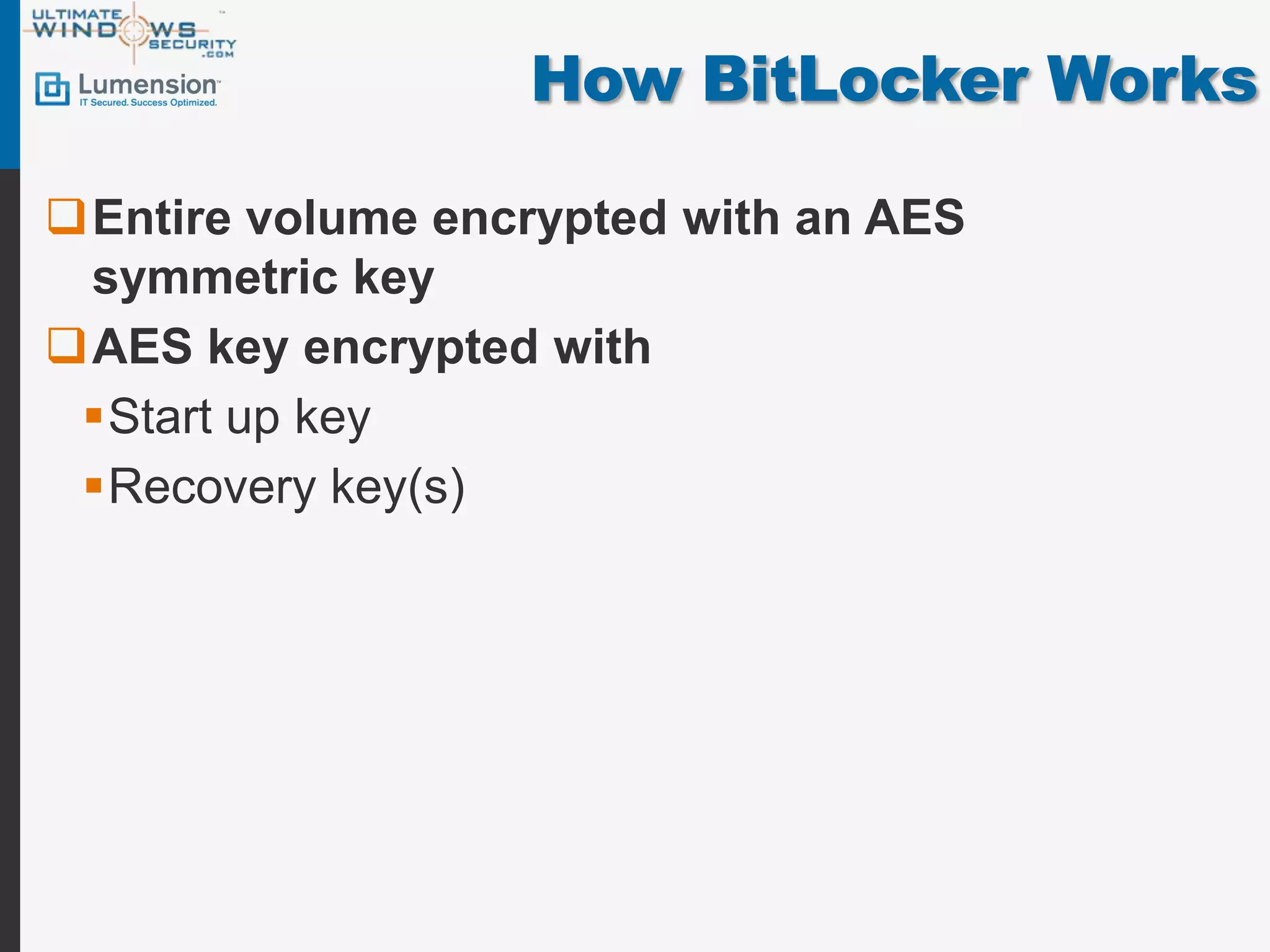
Entirevolume encrypted with an AES
symmetric key
AES key encrypted with
Start up key
Recovery key(s)
7.
How BitLocker Works
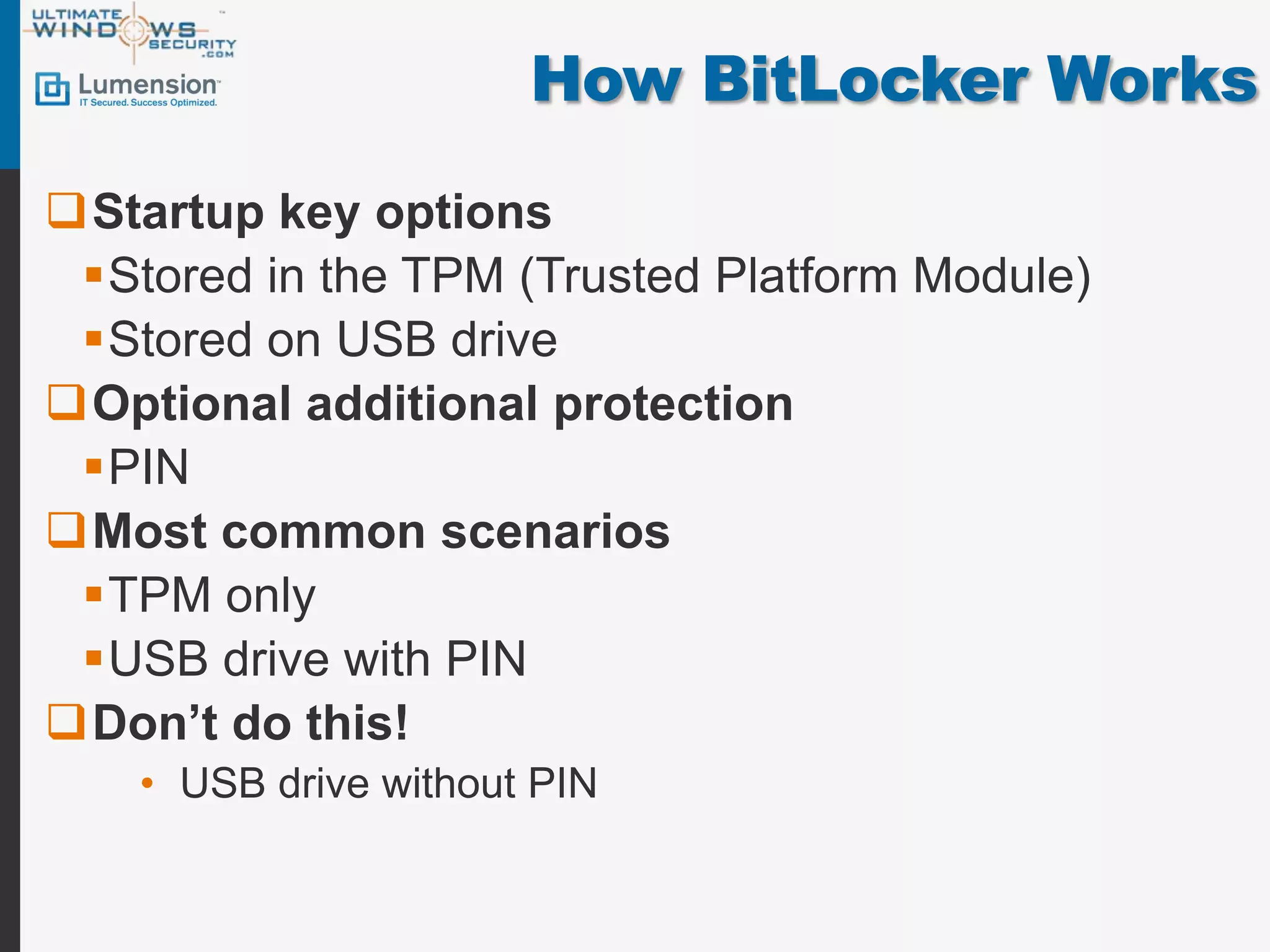
Startupkey options
Stored in the TPM (Trusted Platform Module)
Stored on USB drive
Optional additional protection
PIN
Most common scenarios
TPM only
USB drive with PIN
Don’t do this!
• USB drive without PIN
8.
How BitLocker Works
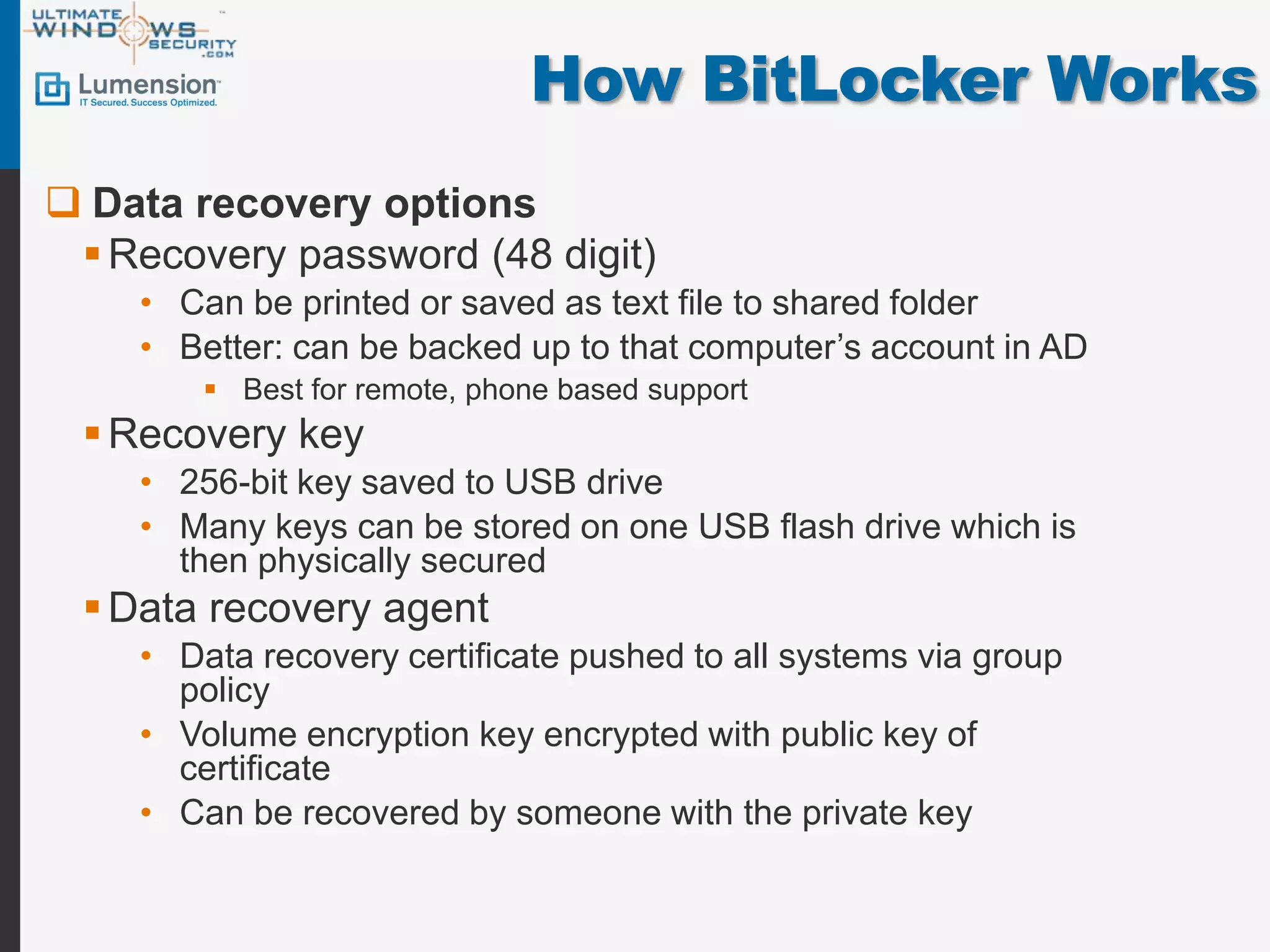
Data recovery options
Recovery password (48 digit)
• Can be printed or saved as text file to shared folder
• Better: can be backed up to that computer’s account in AD
Best for remote, phone based support
Recovery key
• 256-bit key saved to USB drive
• Many keys can be stored on one USB flash drive which is
then physically secured
Data recovery agent
• Data recovery certificate pushed to all systems via group
policy
• Volume encryption key encrypted with public key of
certificate
• Can be recovered by someone with the private key
9.
How BitLocker Works
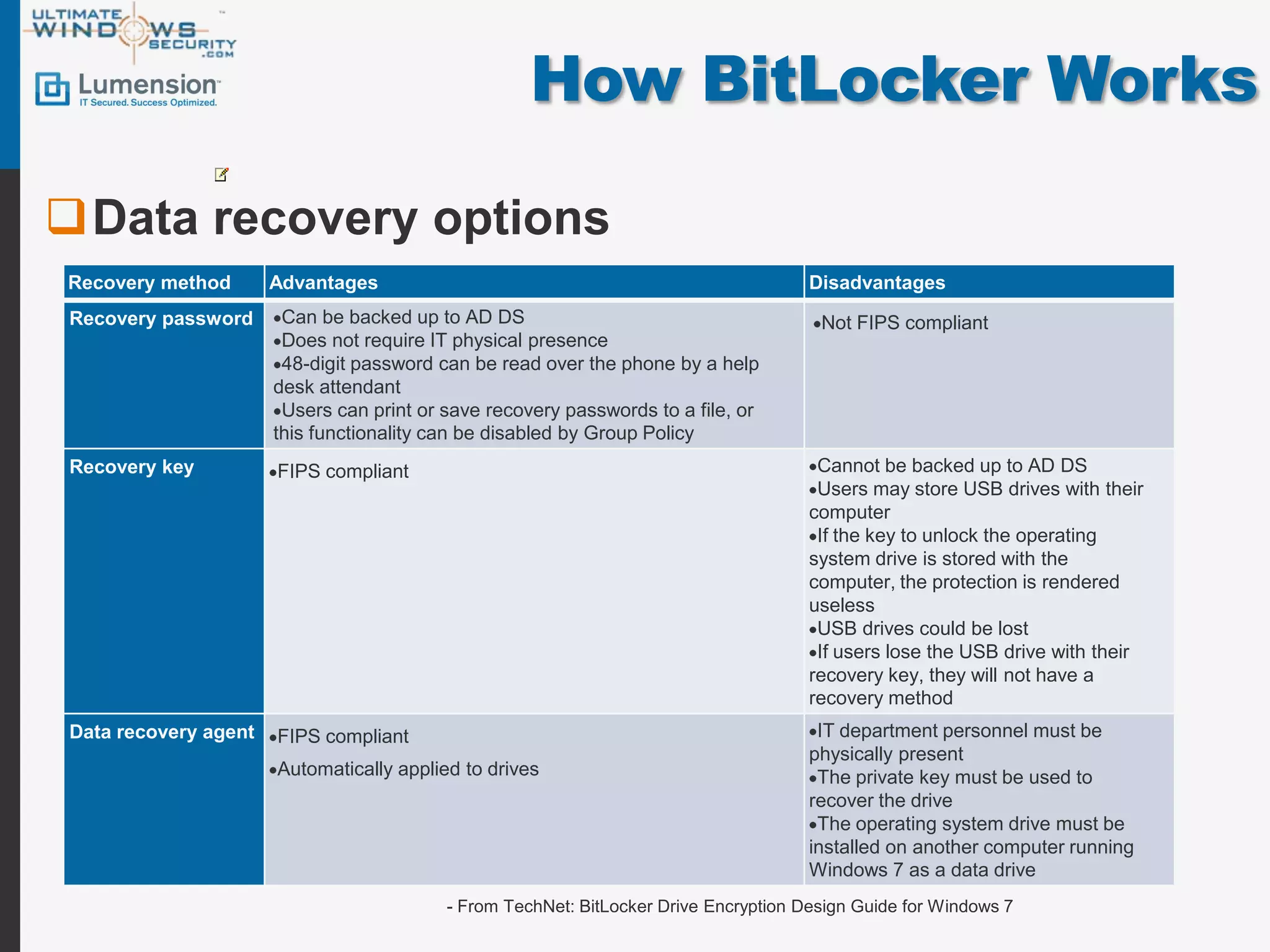
Datarecovery options
Recovery method Advantages Disadvantages
Recovery password Can be backed up to AD DS Not FIPS compliant
Does not require IT physical presence
48-digit password can be read over the phone by a help
desk attendant
Users can print or save recovery passwords to a file, or
this functionality can be disabled by Group Policy
Recovery key FIPS compliant Cannot be backed up to AD DS
Users may store USB drives with their
computer
If the key to unlock the operating
system drive is stored with the
computer, the protection is rendered
useless
USB drives could be lost
If users lose the USB drive with their
recovery key, they will not have a
recovery method
Data recovery agent FIPS compliant IT department personnel must be
physically present
Automatically applied to drives The private key must be used to
recover the drive
The operating system drive must be
installed on another computer running
Windows 7 as a data drive
- From TechNet: BitLocker Drive Encryption Design Guide for Windows 7
10.
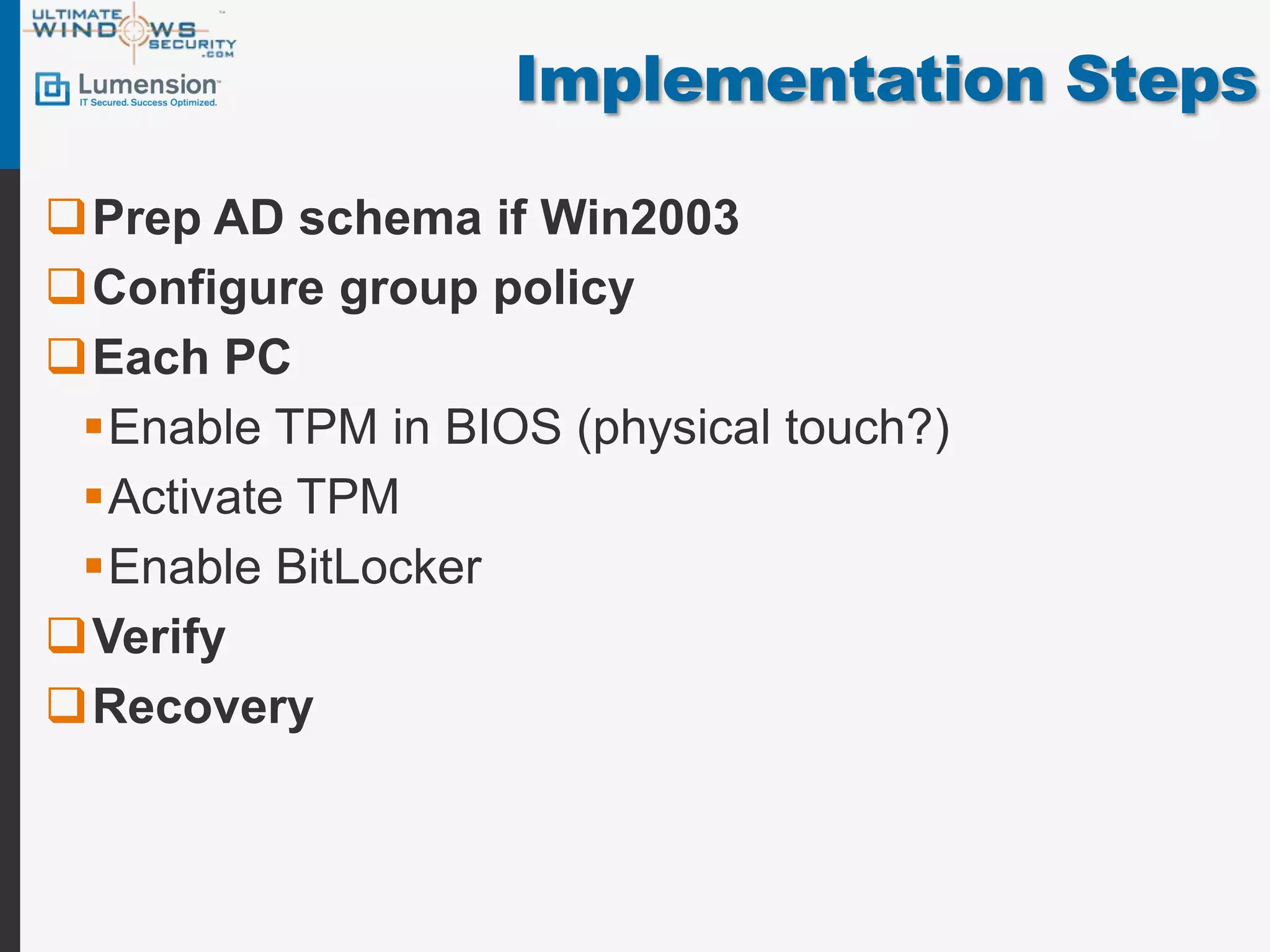
Implementation Steps
Prep ADschema if Win2003
Configure group policy
Each PC
Enable TPM in BIOS (physical touch?)
Activate TPM
Enable BitLocker
Verify
Recovery
11.
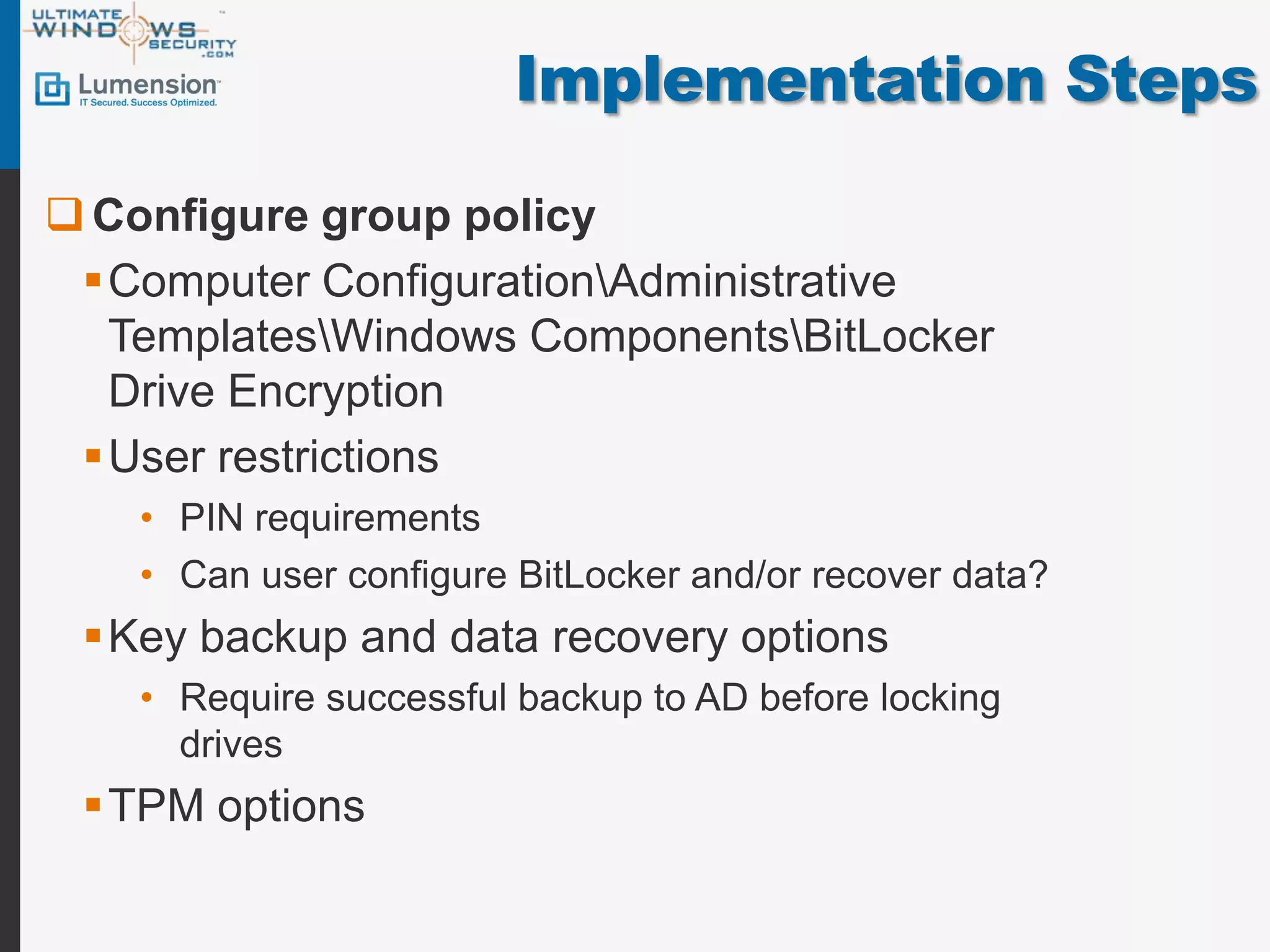
Implementation Steps
Configuregroup policy
Computer ConfigurationAdministrative
TemplatesWindows ComponentsBitLocker
Drive Encryption
User restrictions
• PIN requirements
• Can user configure BitLocker and/or recover data?
Key backup and data recovery options
• Require successful backup to AD before locking
drives
TPM options
12.
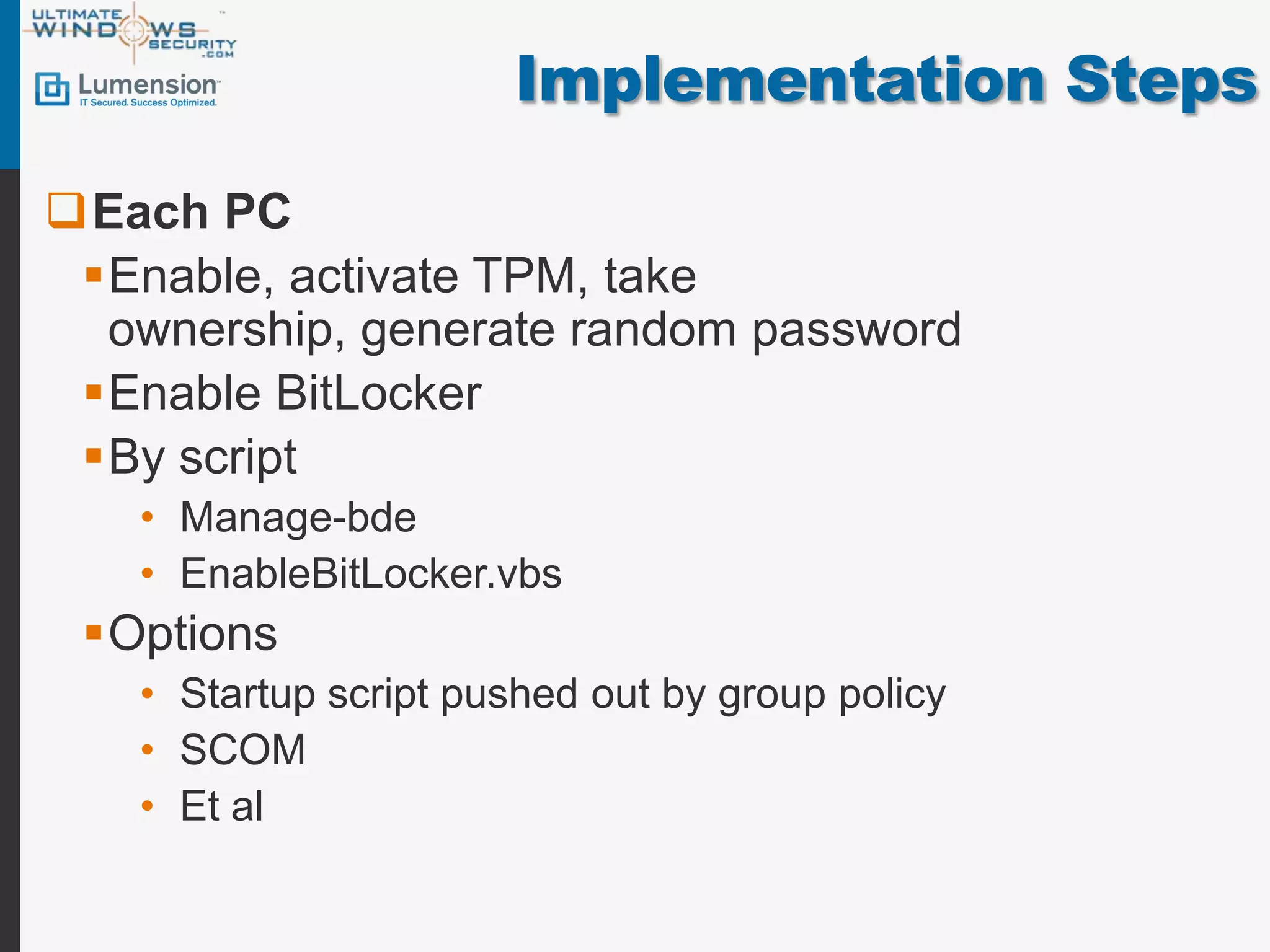
Implementation Steps
Each PC
Enable, activate TPM, take
ownership, generate random password
Enable BitLocker
By script
• Manage-bde
• EnableBitLocker.vbs
Options
• Startup script pushed out by group policy
• SCOM
• Et al
13.
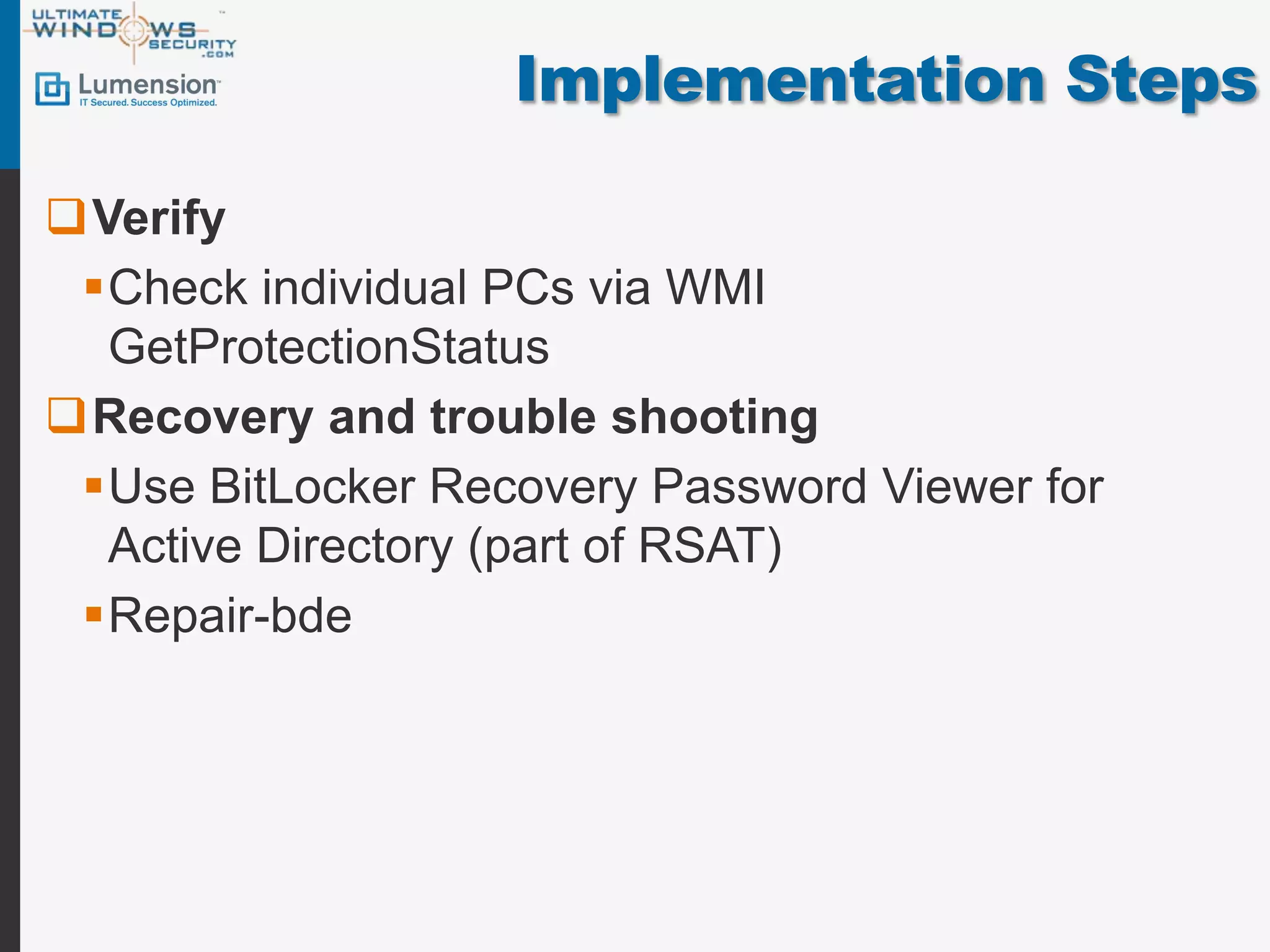
Implementation Steps
Verify
Checkindividual PCs via WMI
GetProtectionStatus
Recovery and trouble shooting
Use BitLocker Recovery Password Viewer for
Active Directory (part of RSAT)
Repair-bde
14.
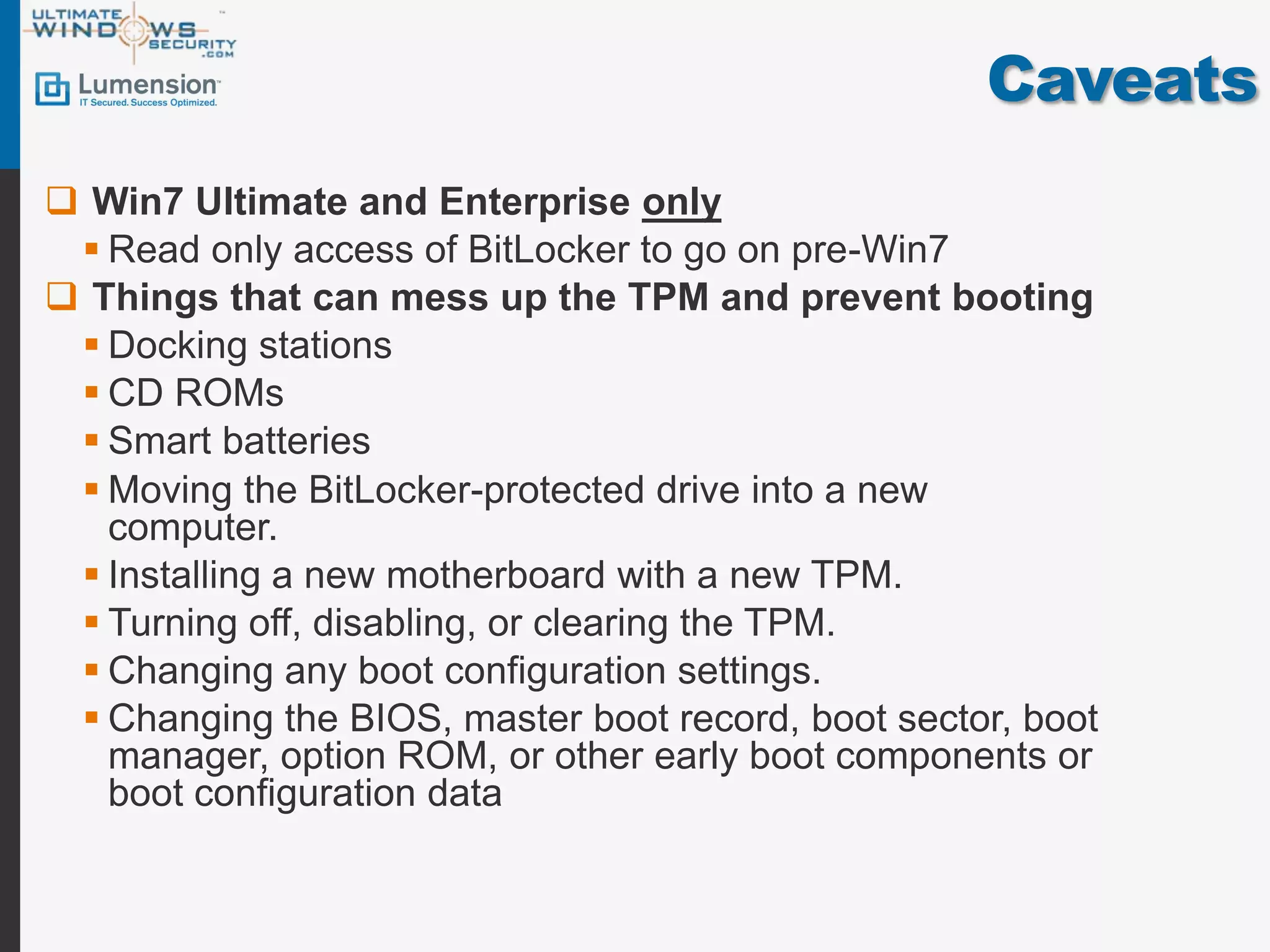
Caveats
Win7 Ultimateand Enterprise only
Read only access of BitLocker to go on pre-Win7
Things that can mess up the TPM and prevent booting
Docking stations
CD ROMs
Smart batteries
Moving the BitLocker-protected drive into a new
computer.
Installing a new motherboard with a new TPM.
Turning off, disabling, or clearing the TPM.
Changing any boot configuration settings.
Changing the BIOS, master boot record, boot sector, boot
manager, option ROM, or other early boot components or
boot configuration data
15.
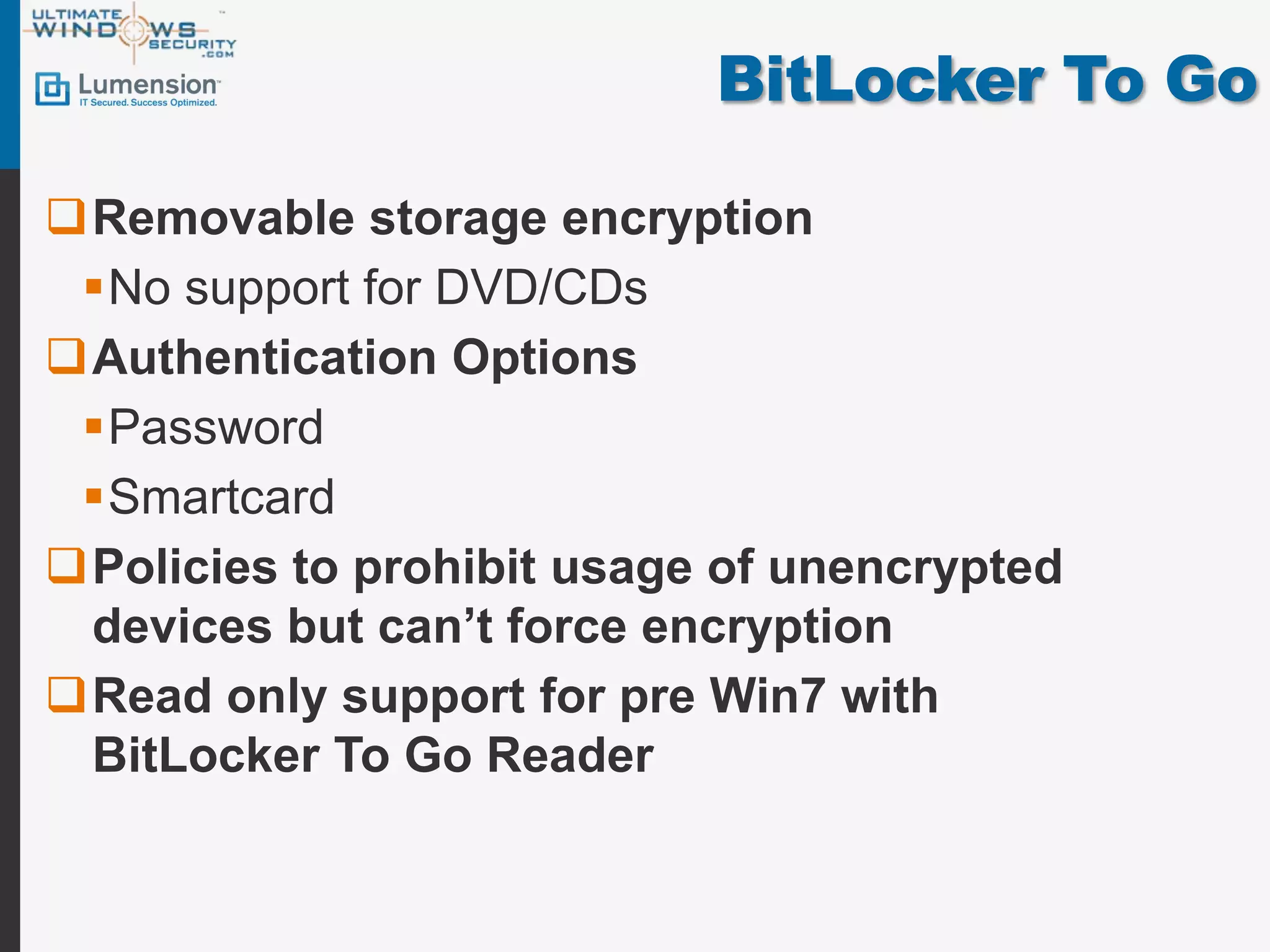
BitLocker To Go
Removablestorage encryption
No support for DVD/CDs
Authentication Options
Password
Smartcard
Policies to prohibit usage of unencrypted
devices but can’t force encryption
Read only support for pre Win7 with
BitLocker To Go Reader
16.
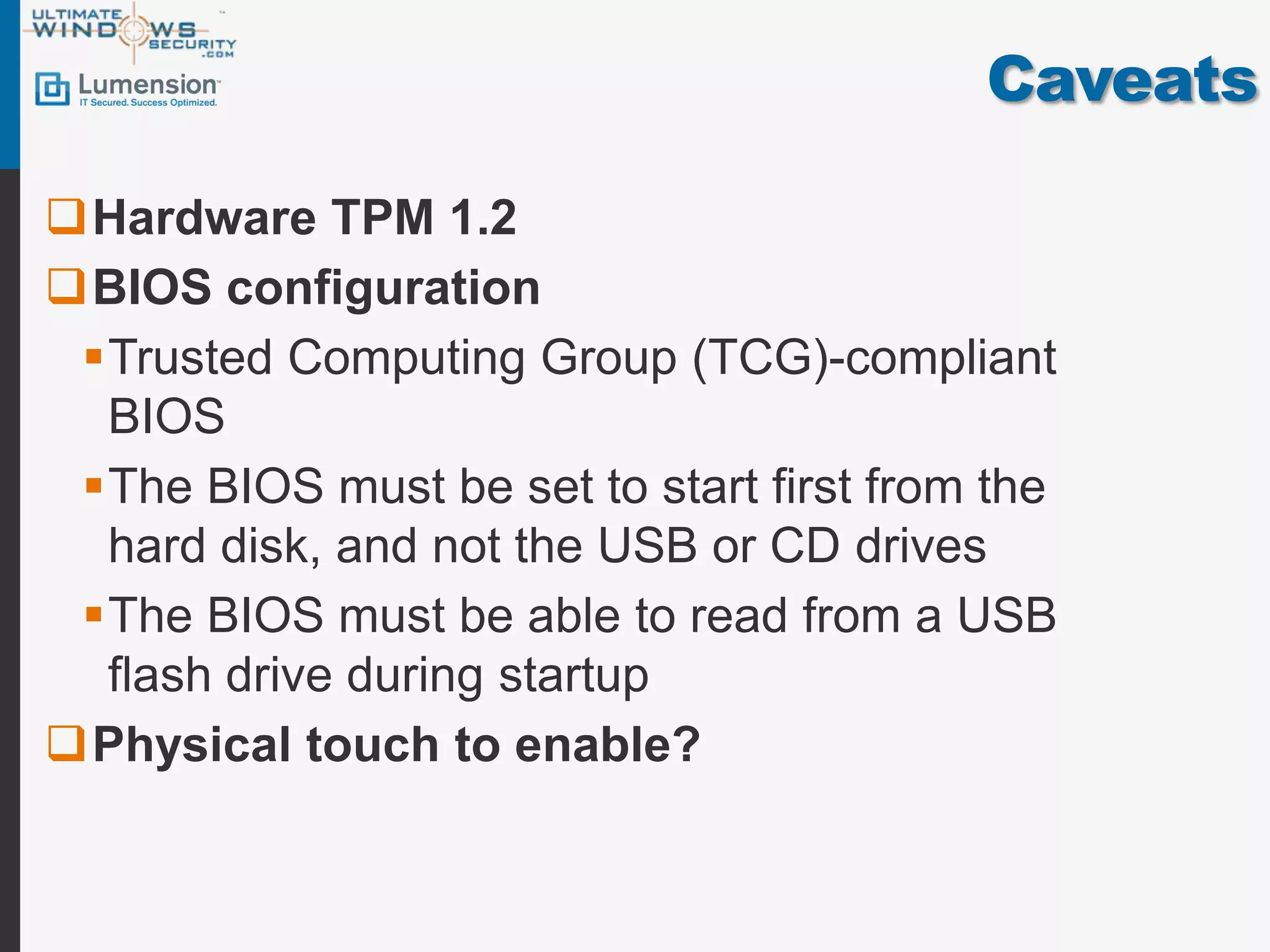
Caveats
Hardware TPM 1.2
BIOSconfiguration
Trusted Computing Group (TCG)-compliant
BIOS
The BIOS must be set to start first from the
hard disk, and not the USB or CD drives
The BIOS must be able to read from a USB
flash drive during startup
Physical touch to enable?
17.
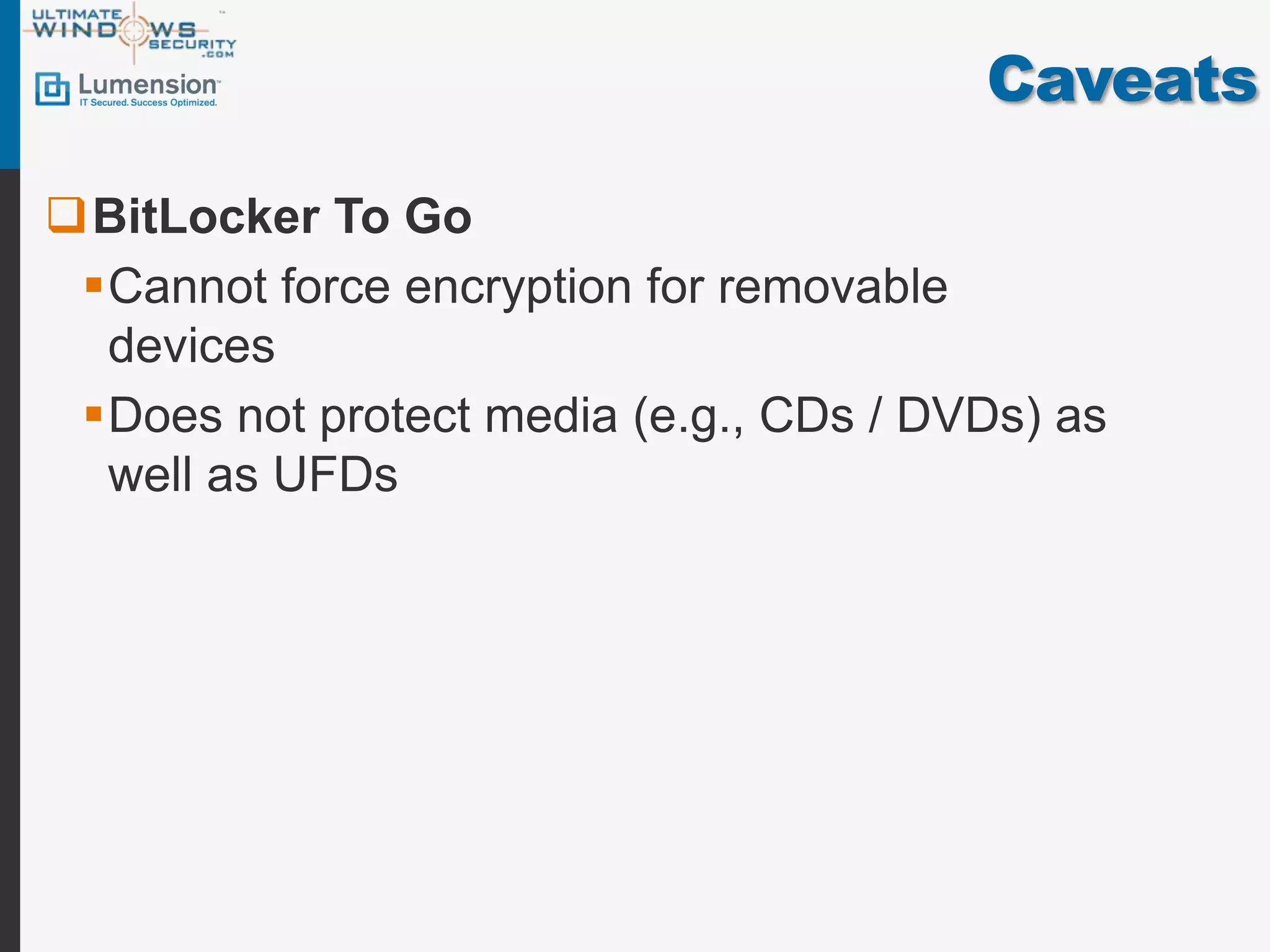
Caveats
BitLocker To Go
Cannot force encryption for removable
devices
Does not protect media (e.g., CDs / DVDs) as
well as UFDs
18.
Caveats
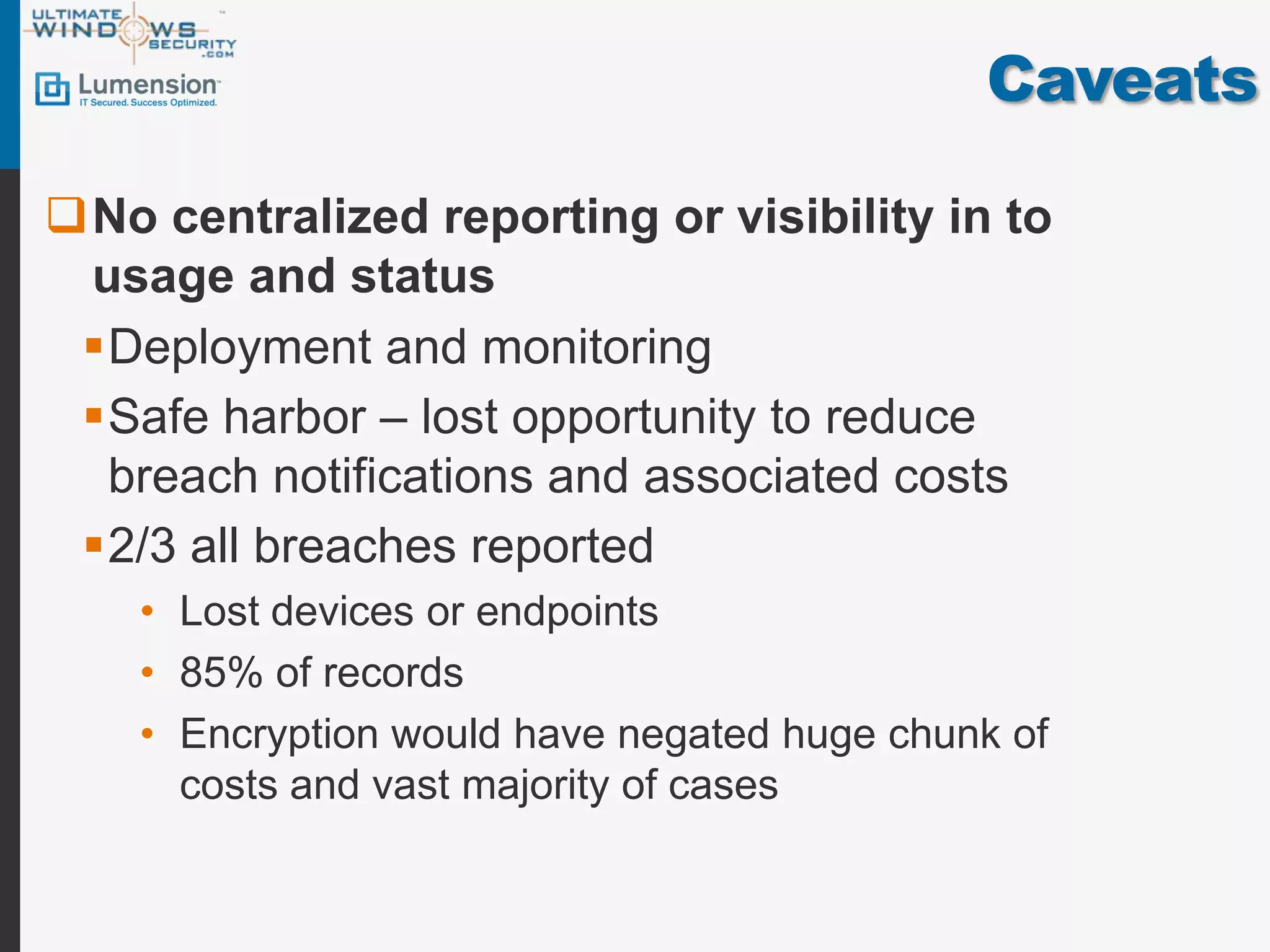
No centralized reportingor visibility in to
usage and status
Deployment and monitoring
Safe harbor – lost opportunity to reduce
breach notifications and associated costs
2/3 all breaches reported
• Lost devices or endpoints
• 85% of records
• Encryption would have negated huge chunk of
costs and vast majority of cases
19.
Brought to youby
http://www.lumension.com/Solutions/Intelligent-Whitelisting.aspx
Speakers
Chris Merritt
Director, Solutions Marketing