Using Internet Explorer Enkhmandakh
 
Regular visitors to Hints and Things will know that the ethos of the site is to provide basic, simple but useful information on a variety of subjects.  The use of computers is one of the subjects in question and, with this in mind, we have been very lucky in obtaining permission to reproduce some Course Notes supplied by  Bear Computer Services Limited . Before using this information please read the Important Notice at the foot of the page.
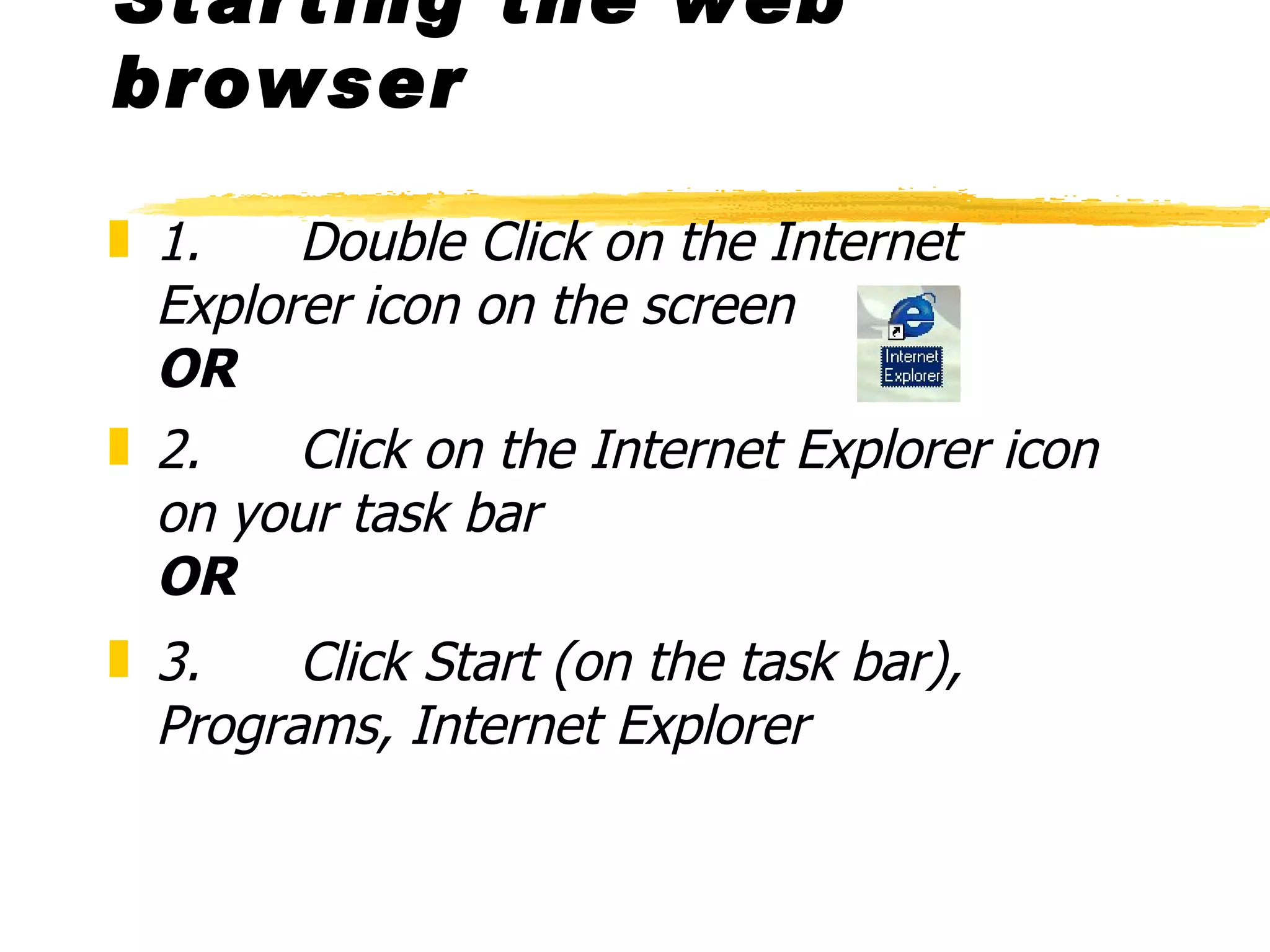
Starting the web browser 1.      Double Click on the Internet Explorer   icon on the screen  OR 2.      Click on the Internet Explorer   icon on your task bar OR 3.      Click Start (on the task bar), Programs, Internet Explorer
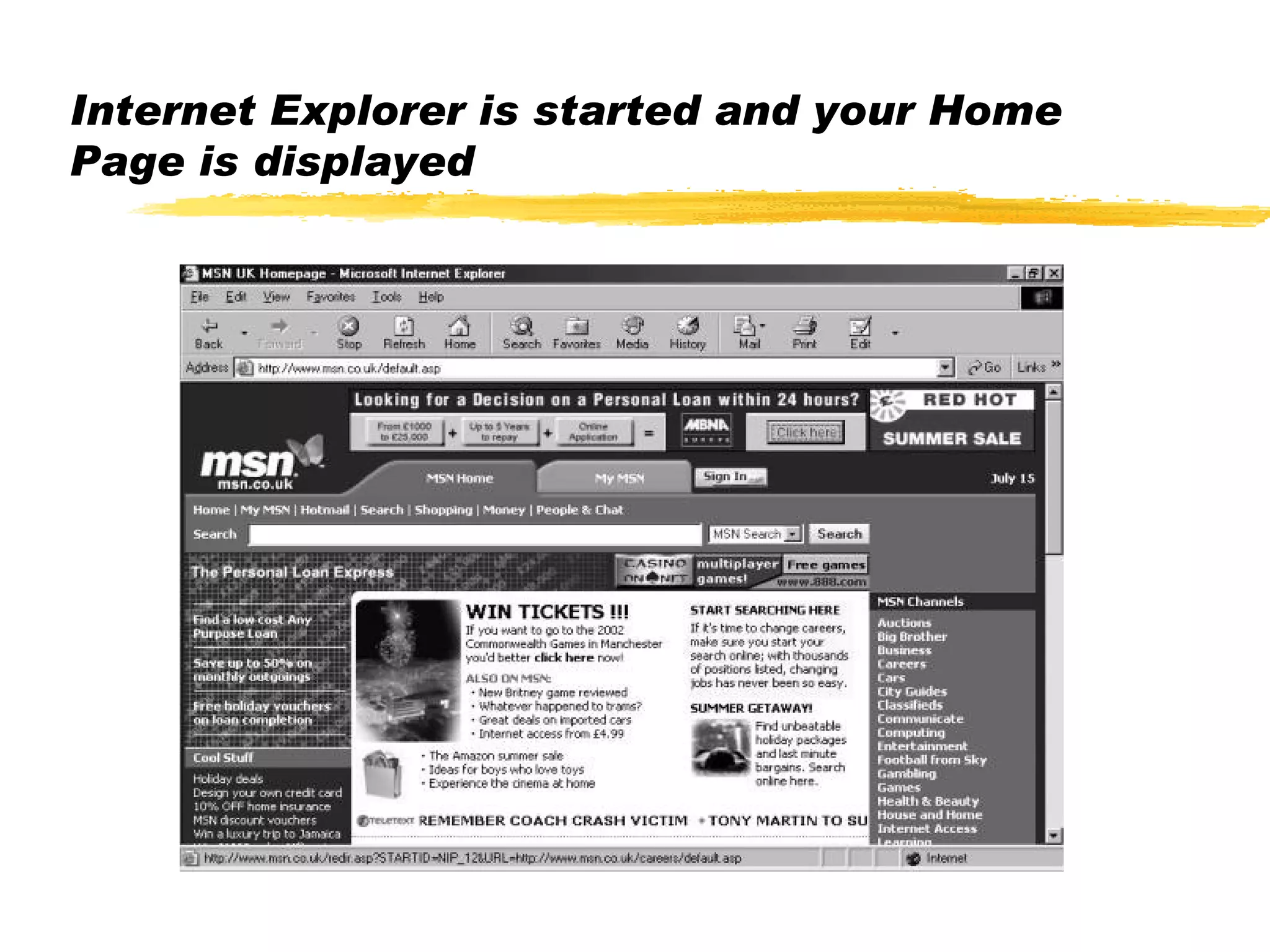
Internet Explorer is started and your Home Page is displayed
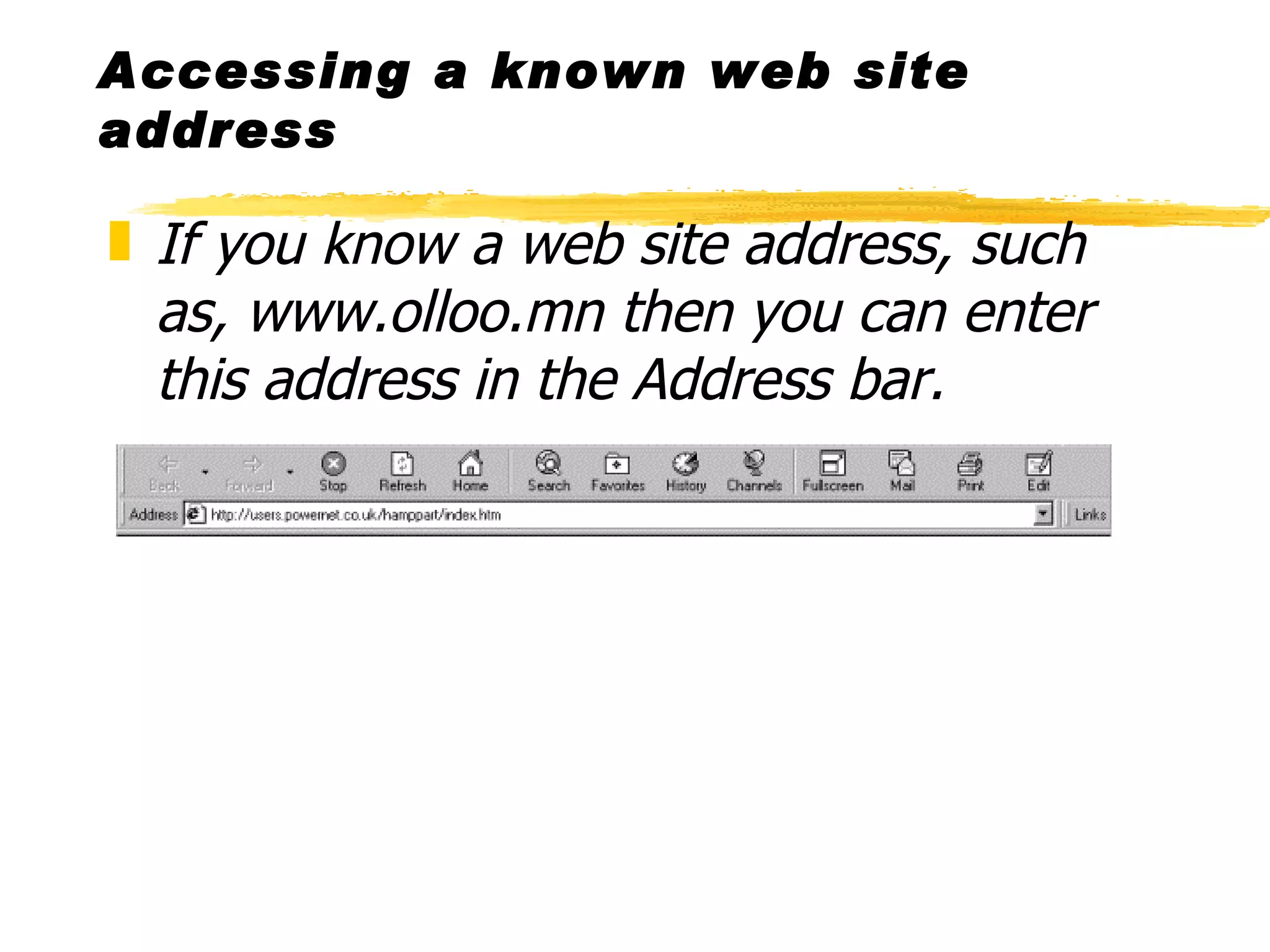
Accessing a known web site address If you know a web site address, such as, www.olloo.mn then you can enter this address in the Address bar.
The example address above is preceded with ‘http://’ you don’t have to type this in as part of the address. 1.      Start Internet Explorer. 2.      Click on the Address bar.  Any existing address will be highlighted. 3.      Type the web site address.  i.e. www.bbc.co.uk 4.      Press Enter.
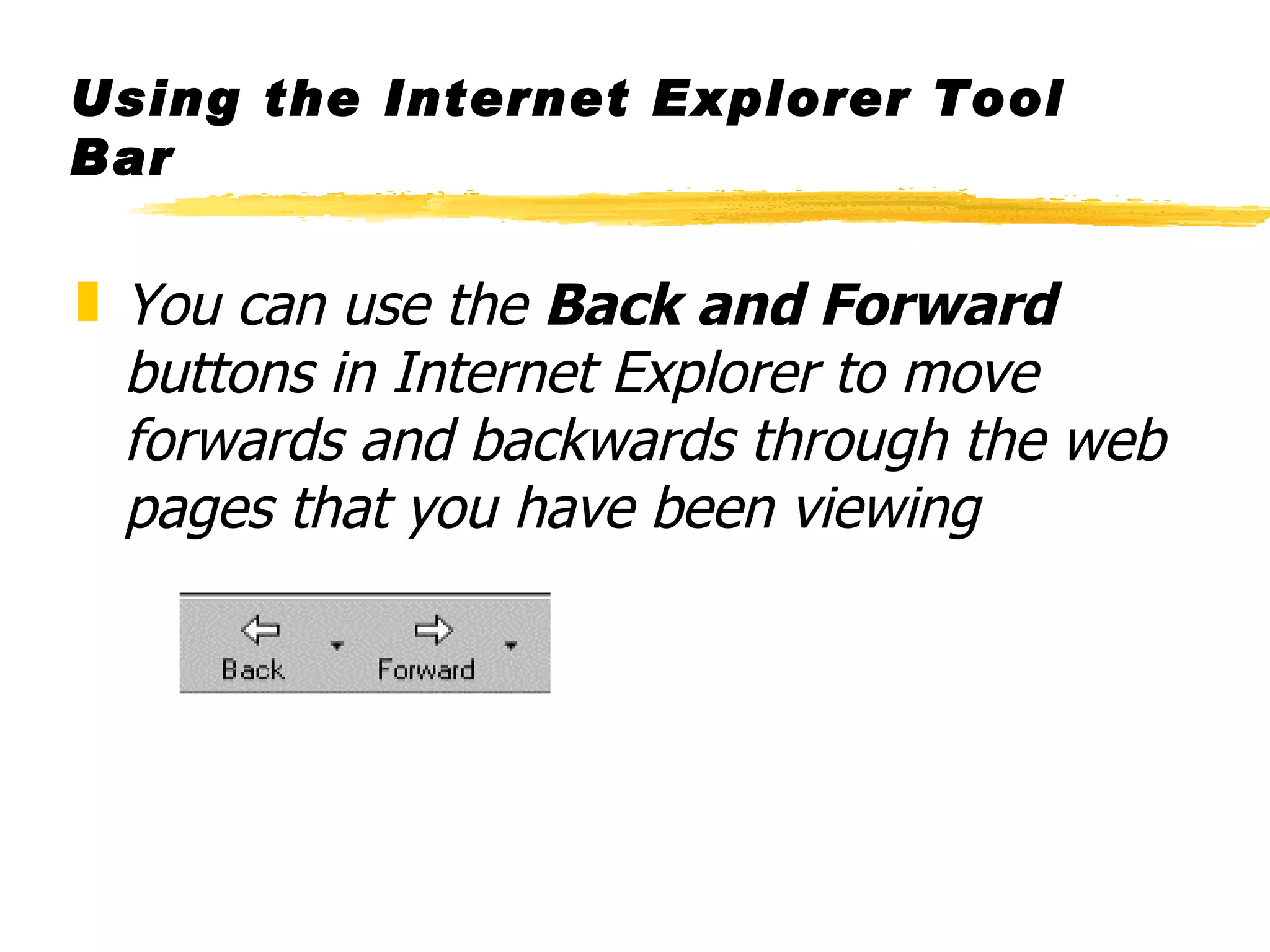
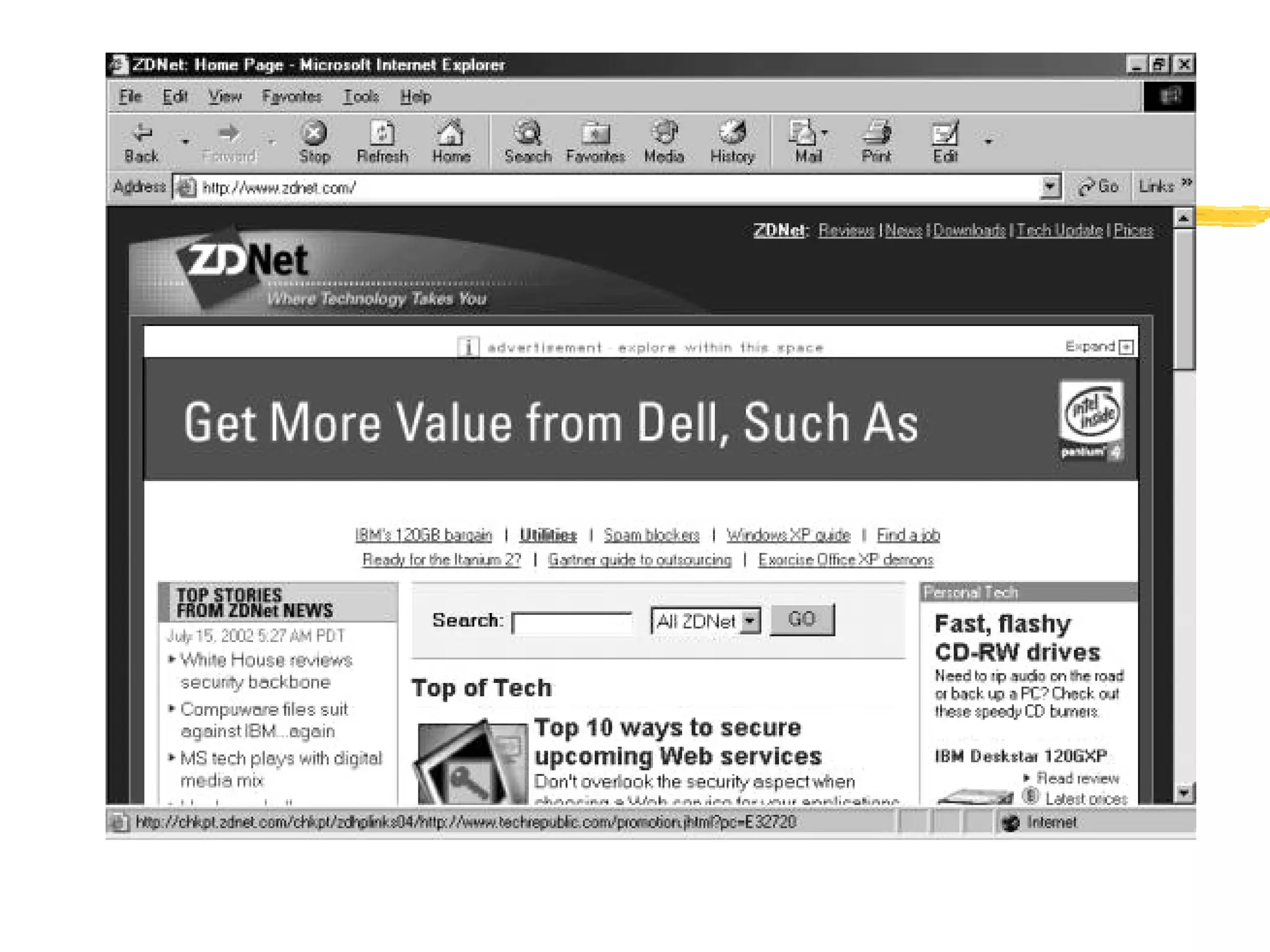
Using the Internet Explorer Tool Bar You can use the  Back and Forward  buttons in Internet Explorer to move forwards and backwards through the web pages that you have been viewing
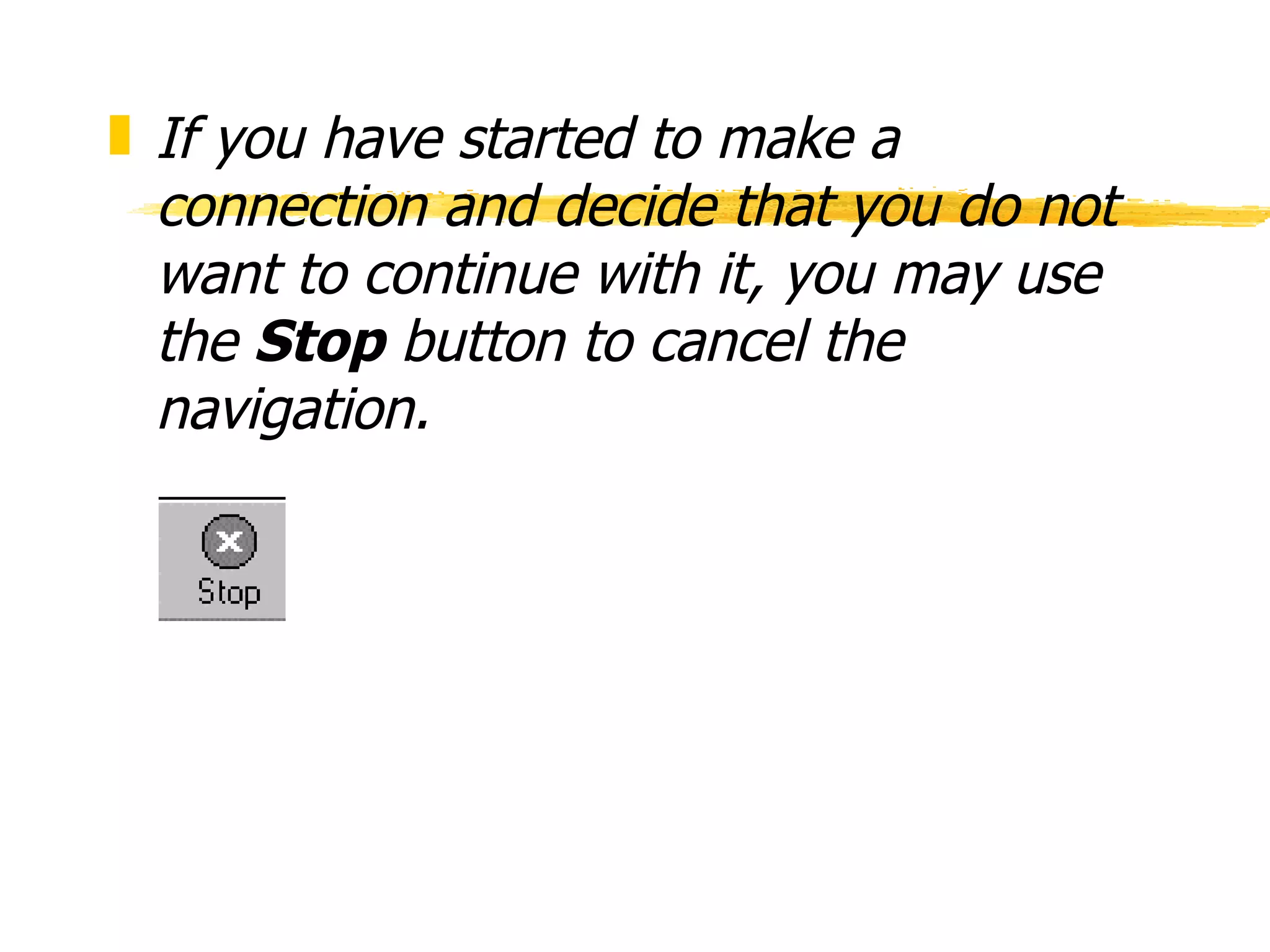
If you have started to make a connection and decide that you do not want to continue with it, you may use the  Stop  button to cancel the navigation.
You may occasionally need to  Refresh  a web page to ensure that you have the latest version of it.
The  Home  button will move you back to your home web page.
The other really useful button in the tool bar is the  Print  button, as its name implies, it will print the page you are looking at to the default printer
Navigating a web page Once you have loaded a web page you can navigate around that page and other pages that are linked to it.  You can identify a link by the fact that the mouse pointer changes to a (pointing) hand when you move across it. These links, which may be pictures or text, may go to another web page or to a different place in the same web page.  To make links easier to identify they are sometimes underlined if they are text, see the illustration below.
 
1.      To use one of the links, position your cursor over link you want to use.  The mouse pointer will change.  2.      Click on this link. A new web page will be displayed or you will be moved to a new position within the same page.
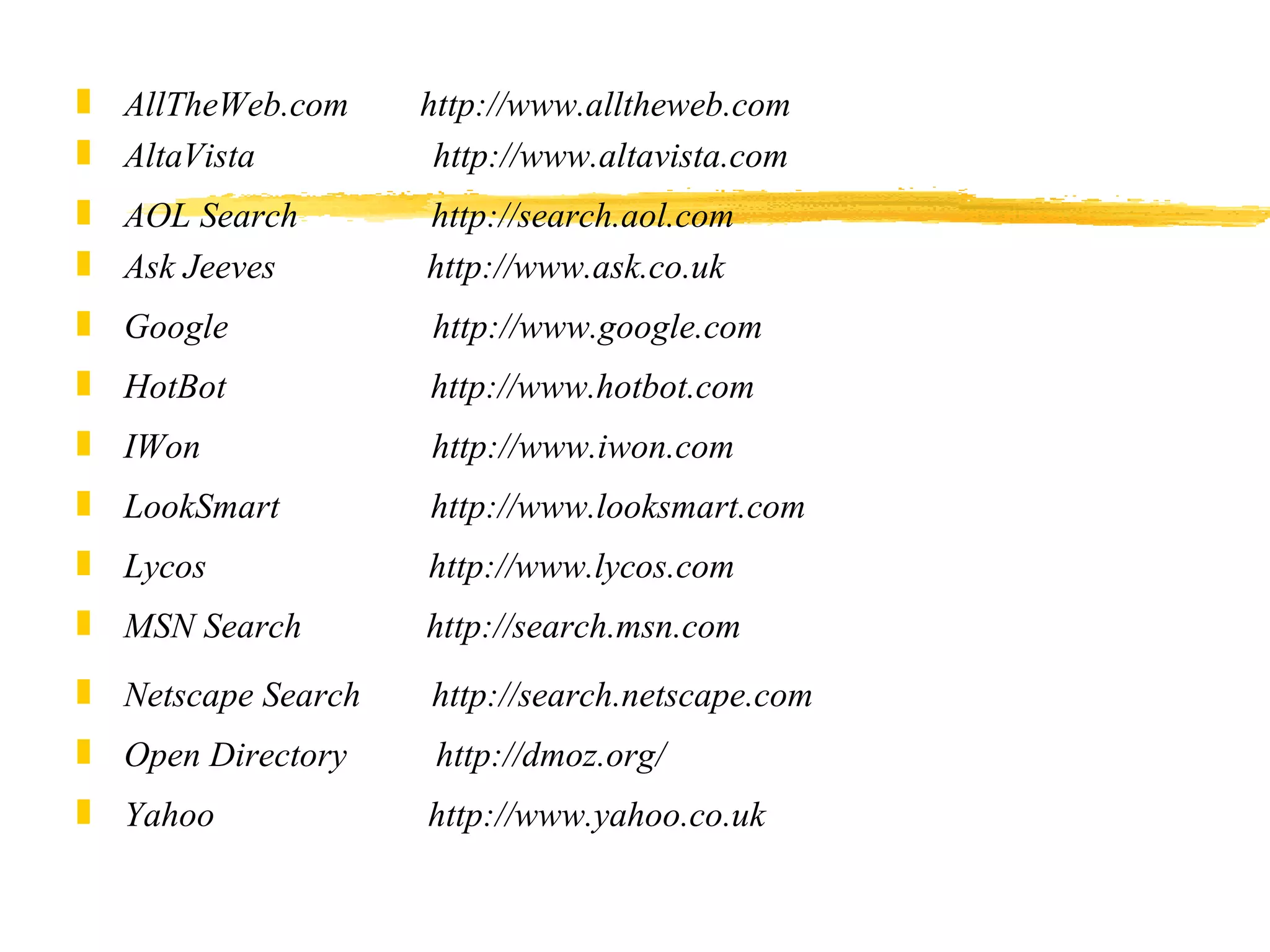
Specialist Search Engine web sites You do not have to use the search engine built in to Internet Explorer, you can use one of the hundreds of internet search engine web sites that are available, some of these include
AllTheWeb.com        http://www.alltheweb.com  AltaVista                    http://www.altavista.com AOL Search               http://search.aol.com  Ask Jeeves                 http://www.ask.co.uk Google                        http://www.google.com HotBot                       http://www.hotbot.com IWon                          http://www.iwon.com LookSmart                 http://www.looksmart.com Lycos                         http://www.lycos.com MSN Search              http://search.msn.com Netscape Search        http://search.netscape.com Open Directory           http://dmoz.org/ Yahoo                        http://www.yahoo.co.uk
To use one of the above sites :-    1.     Click into the Address bar. 2.     Enter the address of the search engine you want to use. 3.     Press Enter Some search engines allow you to narrow down the search by first selecting a category i.e. Computers, Hobbies, select the category if necessary. 4.     Type keywords that identify the information that you want to look for i.e. childrens free software 5.     Click on the Search button (next to the keywords you just typed)
You may find information on the internet that you want to keep, this may include text or pictures.  Be careful when you do this to ensure that you are not breaking any copyrights.
To save the current page on your computer 1.     On the File menu, click Save As. 2.     Select the folder you want to save the page in. 3.     In the File Name box, type a name for the page, and then click Save. Note: Internet Explorer saves only the text on a page, not the graphics
To save a picture 1.     Right-click the picture 2.     Click Save Target As. 3.     Select the folder you want to save the page in. 4.     In the File Name box, type a name for the item, and then click Save.

0 How To Use Internet Enhmandah

  • 1.
  • 2.
  • 3.
    Regular visitors toHints and Things will know that the ethos of the site is to provide basic, simple but useful information on a variety of subjects.  The use of computers is one of the subjects in question and, with this in mind, we have been very lucky in obtaining permission to reproduce some Course Notes supplied by Bear Computer Services Limited . Before using this information please read the Important Notice at the foot of the page.
  • 4.
    Starting the webbrowser 1.      Double Click on the Internet Explorer icon on the screen OR 2.      Click on the Internet Explorer icon on your task bar OR 3.      Click Start (on the task bar), Programs, Internet Explorer
  • 5.
    Internet Explorer isstarted and your Home Page is displayed
  • 6.
    Accessing a knownweb site address If you know a web site address, such as, www.olloo.mn then you can enter this address in the Address bar.
  • 7.
    The example addressabove is preceded with ‘http://’ you don’t have to type this in as part of the address. 1.      Start Internet Explorer. 2.      Click on the Address bar.  Any existing address will be highlighted. 3.      Type the web site address.  i.e. www.bbc.co.uk 4.      Press Enter.
  • 8.
    Using the InternetExplorer Tool Bar You can use the Back and Forward buttons in Internet Explorer to move forwards and backwards through the web pages that you have been viewing
  • 9.
    If you havestarted to make a connection and decide that you do not want to continue with it, you may use the Stop button to cancel the navigation.
  • 10.
    You may occasionallyneed to Refresh a web page to ensure that you have the latest version of it.
  • 11.
    The Home button will move you back to your home web page.
  • 12.
    The other reallyuseful button in the tool bar is the Print button, as its name implies, it will print the page you are looking at to the default printer
  • 13.
    Navigating a webpage Once you have loaded a web page you can navigate around that page and other pages that are linked to it.  You can identify a link by the fact that the mouse pointer changes to a (pointing) hand when you move across it. These links, which may be pictures or text, may go to another web page or to a different place in the same web page.  To make links easier to identify they are sometimes underlined if they are text, see the illustration below.
  • 14.
  • 15.
    1.      To useone of the links, position your cursor over link you want to use.  The mouse pointer will change. 2.      Click on this link. A new web page will be displayed or you will be moved to a new position within the same page.
  • 16.
    Specialist Search Engineweb sites You do not have to use the search engine built in to Internet Explorer, you can use one of the hundreds of internet search engine web sites that are available, some of these include
  • 17.
    AllTheWeb.com        http://www.alltheweb.com AltaVista                    http://www.altavista.com AOL Search               http://search.aol.com Ask Jeeves                 http://www.ask.co.uk Google                       http://www.google.com HotBot                       http://www.hotbot.com IWon                          http://www.iwon.com LookSmart                 http://www.looksmart.com Lycos                         http://www.lycos.com MSN Search              http://search.msn.com Netscape Search        http://search.netscape.com Open Directory          http://dmoz.org/ Yahoo                        http://www.yahoo.co.uk
  • 18.
    To use oneof the above sites :-   1.     Click into the Address bar. 2.     Enter the address of the search engine you want to use. 3.     Press Enter Some search engines allow you to narrow down the search by first selecting a category i.e. Computers, Hobbies, select the category if necessary. 4.     Type keywords that identify the information that you want to look for i.e. childrens free software 5.     Click on the Search button (next to the keywords you just typed)
  • 19.
    You may findinformation on the internet that you want to keep, this may include text or pictures.  Be careful when you do this to ensure that you are not breaking any copyrights.
  • 20.
    To save thecurrent page on your computer 1.     On the File menu, click Save As. 2.     Select the folder you want to save the page in. 3.     In the File Name box, type a name for the page, and then click Save. Note: Internet Explorer saves only the text on a page, not the graphics
  • 21.
    To save apicture 1.     Right-click the picture 2.     Click Save Target As. 3.     Select the folder you want to save the page in. 4.     In the File Name box, type a name for the item, and then click Save.