Browsing Experience of IE 10
Windows Internet Explorer 10
                (abbreviated as IE10)
IE 10 is the next version of Internet Explorer currently
being developed by Microsoft , and the successor of
Internet Explorer 9.
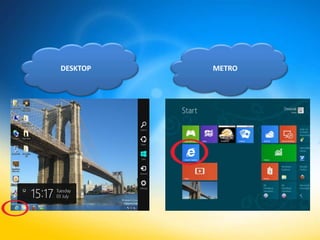
DESKTOP   METRO
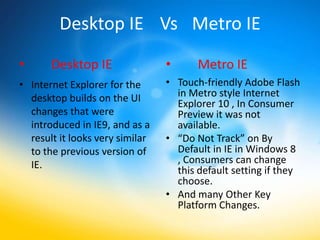
Desktop IE Vs Metro IE
•      Desktop IE                •      Metro IE
• Internet Explorer for the      • Touch-friendly Adobe Flash
  desktop builds on the UI         in Metro style Internet
                                   Explorer 10 , In Consumer
  changes that were                Preview it was not
  introduced in IE9, and as a      available.
  result it looks very similar   • “Do Not Track” on By
  to the previous version of       Default in IE in Windows 8
  IE.                              , Consumers can change
                                   this default setting if they
                                   choose.
                                 • And many Other Key
                                   Platform Changes.
Metro
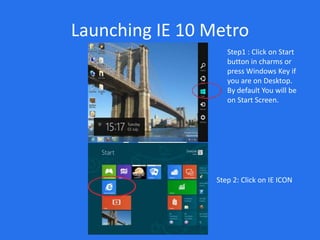
Launching IE 10 Metro
                    Step1 : Click on Start
                    button in charms or
                    press Windows Key if
                    you are on Desktop.
                    By default You will be
                    on Start Screen.


                 Step 2: Click on IE ICON
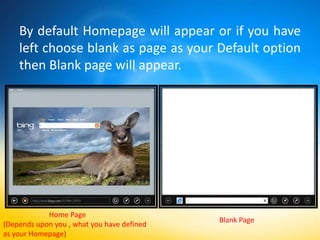
By default Homepage will appear or if you have
    left choose blank as page as your Default option
    then Blank page will appear.


            Home Page
                                            Blank Page
(Depends upon you , what you have defined
as your Homepage)
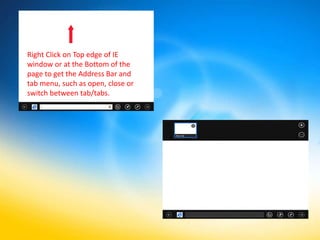
Right Click on Top edge of IE
window or at the Bottom of the
page to get the Address Bar and
tab menu, such as open, close or
switch between tab/tabs.
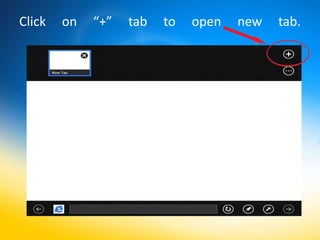
Click   on   “+”   tab   to   open   new   tab.
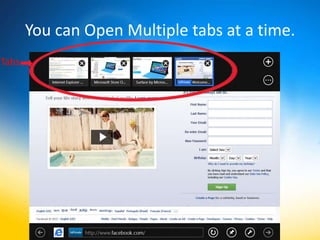
You can Open Multiple tabs at a time.
Tabs
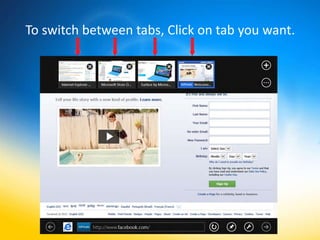
To switch between tabs, Click on tab you want.
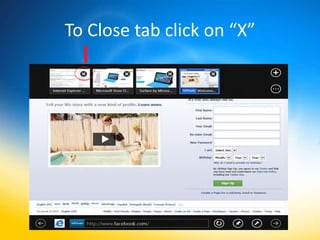
To Close tab click on “X”
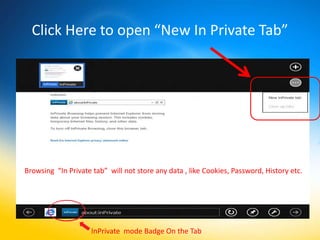
Click Here to open “New In Private Tab”


Browsing “In Private tab” will not store any data , like Cookies, Password, History etc.


                     InPrivate mode Badge On the Tab
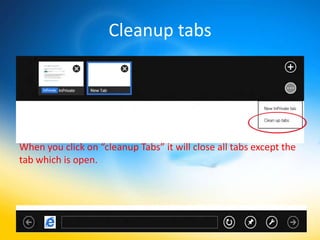
Cleanup tabs


When you click on “cleanup Tabs” it will close all tabs except the
tab which is open.
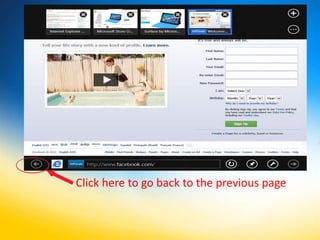
Click here to go back to the previous page
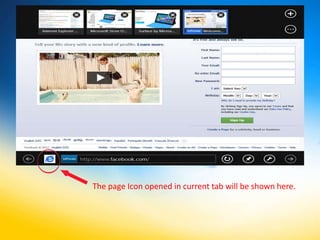
The page Icon opened in current tab will be shown here.
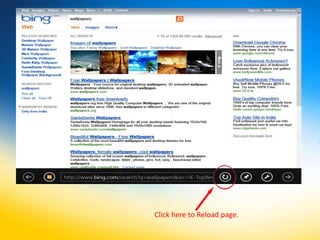
Click here to Reload page.
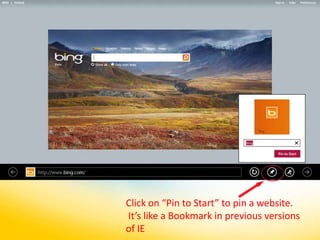
Click on “Pin to Start” to pin a website.
It’s like a Bookmark in previous versions
of IE
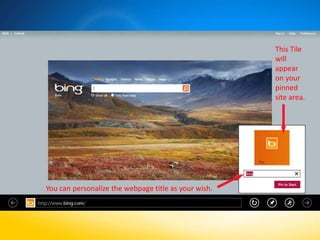
This Tile
                                                      will
                                                      appear
                                                      on your
                                                      pinned
                                                      site area.


You can personalize the webpage title as your wish.
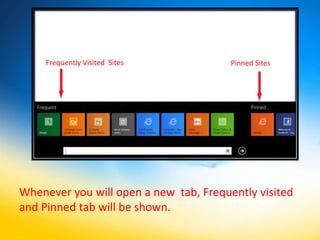
Frequently Visited Sites           Pinned Sites


Whenever you will open a new tab, Frequently visited
and Pinned tab will be shown.
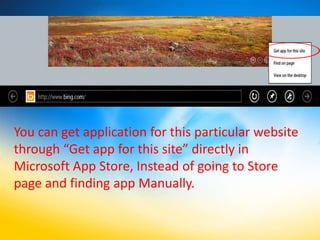
You can get application for this particular website
through “Get app for this site” directly in
Microsoft App Store, Instead of going to Store
page and finding app Manually.
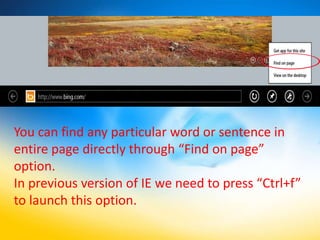
You can find any particular word or sentence in
entire page directly through “Find on page”
option.
In previous version of IE we need to press “Ctrl+f”
to launch this option.
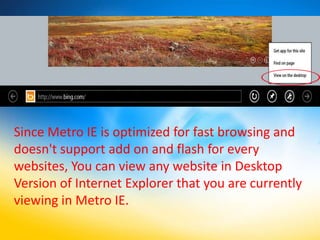
Since Metro IE is optimized for fast browsing and
doesn't support add on and flash for every
websites, You can view any website in Desktop
Version of Internet Explorer that you are currently
viewing in Metro IE.
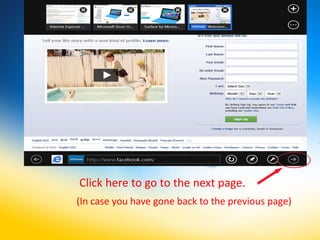
Click here to go to the next page.
(In case you have gone back to the previous page)
Desktop
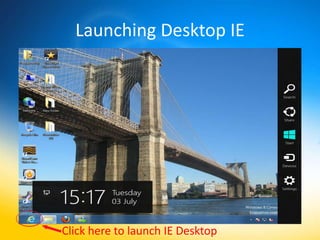
Launching Desktop IE


Click here to launch IE Desktop
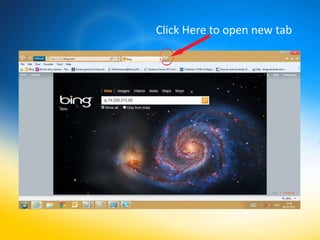
Click Here to open new tab
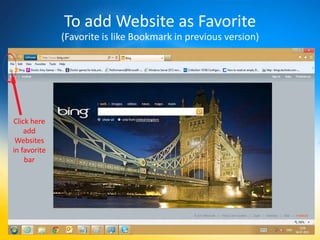
To add Website as Favorite
              (Favorite is like Bookmark in previous version)


Click here
    add
 Websites
in favorite
    bar
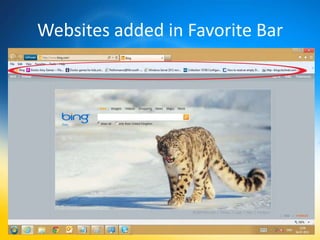
Websites added in Favorite Bar
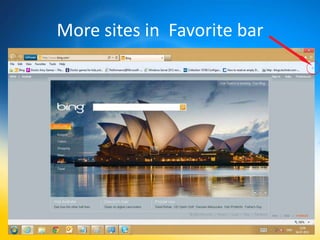
More sites in Favorite bar
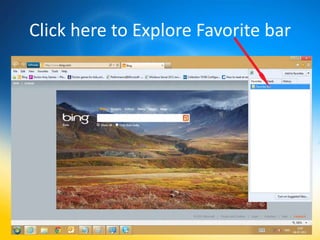
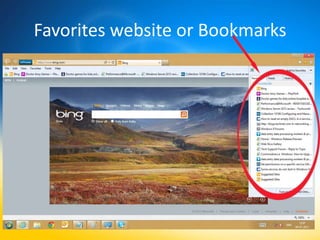
Click here to Explore Favorite bar
Favorites website or Bookmarks
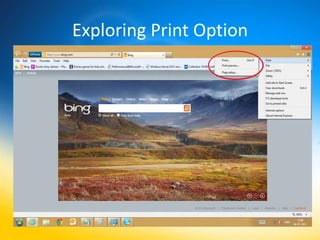
Exploring Print Option
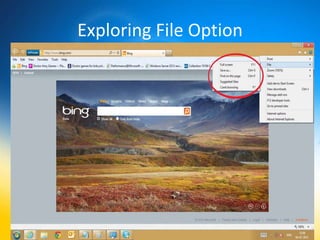
Exploring File Option
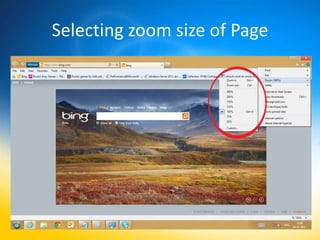
Selecting zoom size of Page
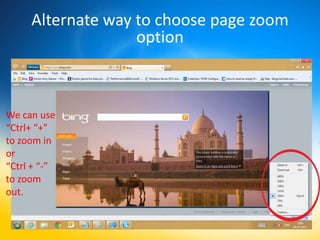
Alternate way to choose page zoom
                   option


We can use
“Ctrl+ “+”
to zoom in
or
“Ctrl + “-”
to zoom
out.
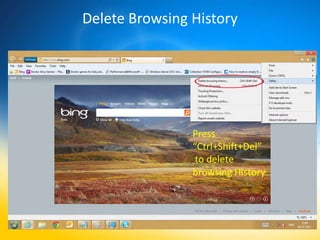
Delete Browsing History


                Press
                “Ctrl+Shift+Del”
                 to delete
                browsing History
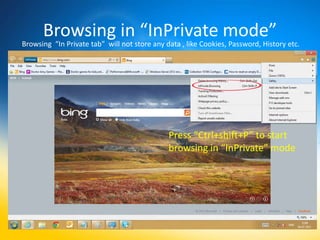
Browsing in “InPrivate mode”
Browsing “In Private tab” will not store any data , like Cookies, Password, History etc.


                                              Press “Ctrl+shift+P” to start
                                              browsing in “InPrivate” mode
Enable Browsing in “Add on free”
            mode
       • (For fast browsing)
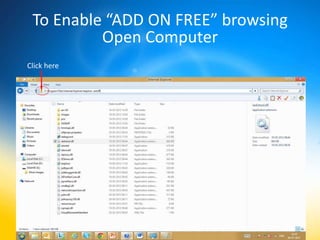
To Enable “ADD ON FREE” browsing
          Open Computer
Click here
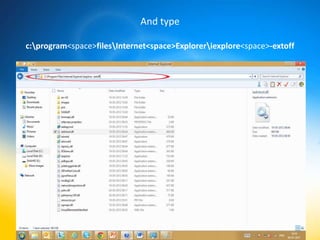
And type

c:program<space>filesInternet<space>Exploreriexplore<space>-extoff
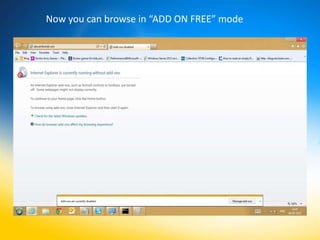
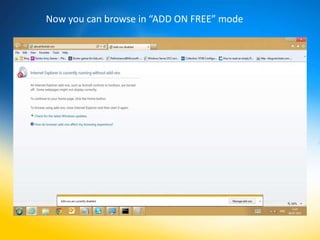
Now you can browse in “ADD ON FREE” mode
Enabling “ADD ON FREE” Browsing
            Through Command Prompt
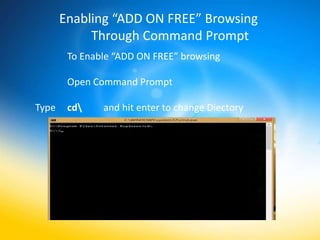
        To Enable “ADD ON FREE” browsing

        Open Command Prompt

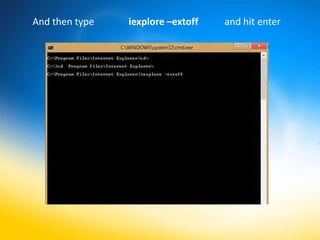
Type    cd    and hit enter to change Diectory
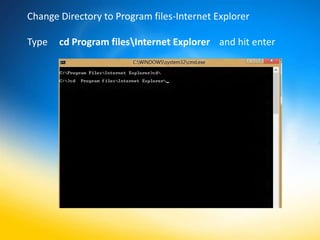
Change Directory to Program files-Internet Explorer

Type   cd Program filesInternet Explorer and hit enter
And then type   iexplore –extoff   and hit enter
Now you can browse in “ADD ON FREE” mode
FLASH
                  for


• Works on both Desktop and Metro
  (For some specific sites for Metro)
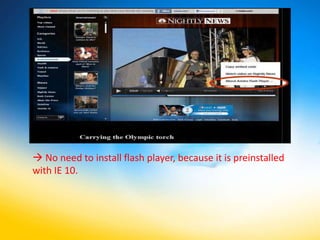
 No need to install flash player, because it is preinstalled
with IE 10.
SEARCHING
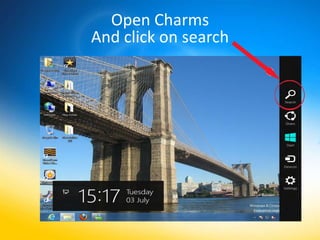
Open Charms
And click on search
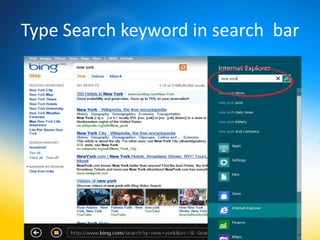
Type Search keyword in search bar
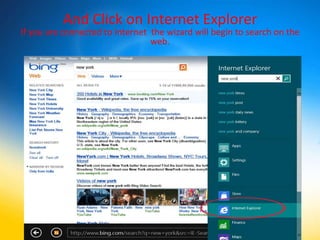
And Click on Internet Explorer
If you are connected to Internet the wizard will begin to search on the
                                 web.
SHARING Website
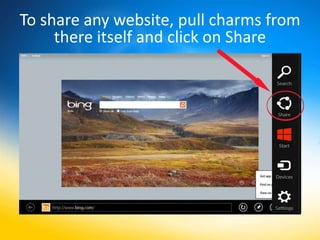
To share any website, pull charms from
     there itself and click on Share
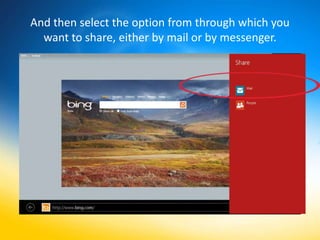
And then select the option from through which you
  want to share, either by mail or by messenger.
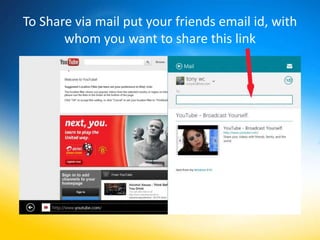
To Share via mail put your friends email id, with
       whom you want to share this link
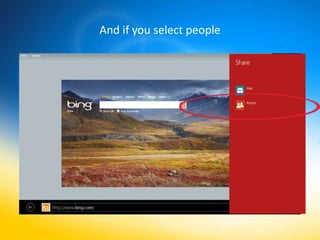
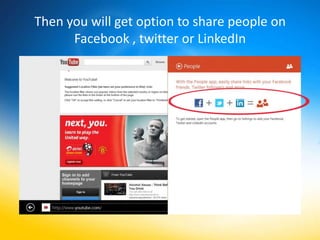
And if you select people
Then you will get option to share people on
      Facebook , twitter or LinkedIn
Setting IE as a default browser in
            windows 8
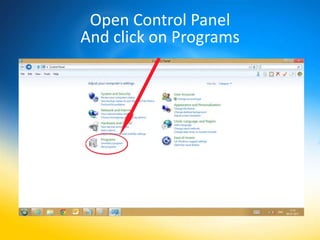
Open Control Panel
And click on Programs
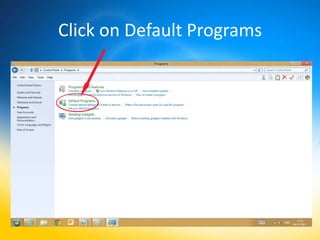
Click on Default Programs
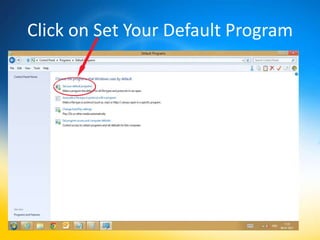
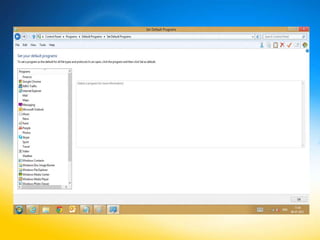
Click on Set Your Default Program
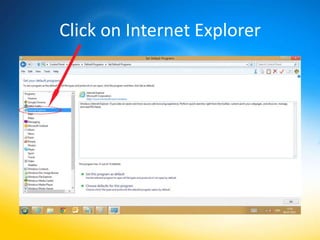
Click on Internet Explorer
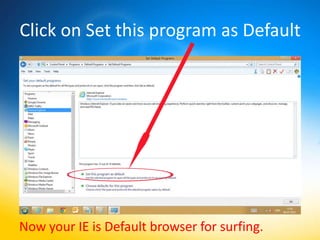
Click on Set this program as Default


Now your IE is Default browser for surfing.
Settings
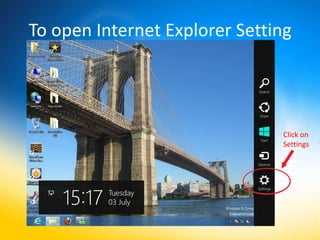
To open Internet Explorer Setting


                               Click on
                               Settings
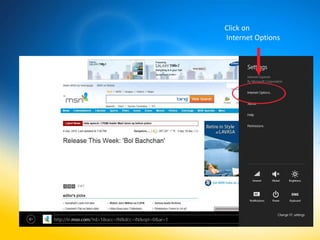
Click on
Internet Options
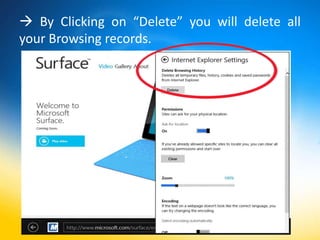
 By Clicking on “Delete” you will delete all
your Browsing records.
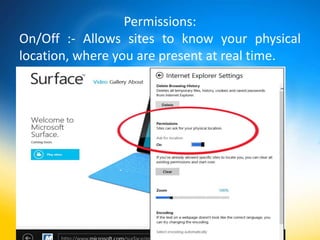
Permissions:
On/Off :- Allows sites to know your physical
location, where you are present at real time.
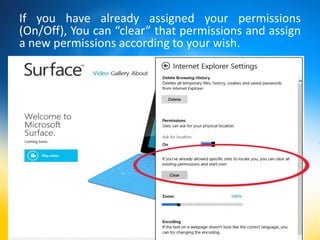
If you have already assigned your permissions
(On/Off), You can “clear” that permissions and assign
a new permissions according to your wish.
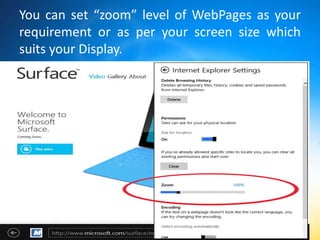
You can set “zoom” level of WebPages as your
requirement or as per your screen size which
suits your Display.
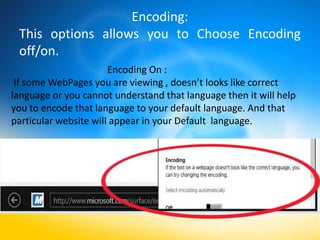
Encoding:
 This options allows you to Choose Encoding
 off/on.
                       Encoding On :
 If some WebPages you are viewing , doesn’t looks like correct
language or you cannot understand that language then it will help
you to encode that language to your default language. And that
particular website will appear in your Default language.
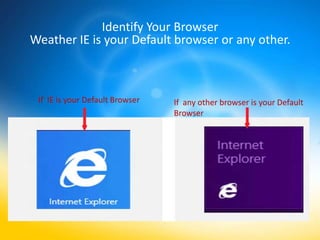
Identify Your Browser
Weather IE is your Default browser or any other.


 If IE is your Default Browser   If any other browser is your Default
                                 Browser
Hope you enjoyed

Thanks for Watching

All about Internet Explorer 10

  • 1.
  • 2.
    Windows Internet Explorer10 (abbreviated as IE10) IE 10 is the next version of Internet Explorer currently being developed by Microsoft , and the successor of Internet Explorer 9.
  • 3.
    DESKTOP METRO
  • 4.
    Desktop IE VsMetro IE • Desktop IE • Metro IE • Internet Explorer for the • Touch-friendly Adobe Flash desktop builds on the UI in Metro style Internet Explorer 10 , In Consumer changes that were Preview it was not introduced in IE9, and as a available. result it looks very similar • “Do Not Track” on By to the previous version of Default in IE in Windows 8 IE. , Consumers can change this default setting if they choose. • And many Other Key Platform Changes.
  • 5.
  • 6.
    Launching IE 10Metro Step1 : Click on Start button in charms or press Windows Key if you are on Desktop. By default You will be on Start Screen. Step 2: Click on IE ICON
  • 7.
    By default Homepagewill appear or if you have left choose blank as page as your Default option then Blank page will appear. Home Page Blank Page (Depends upon you , what you have defined as your Homepage)
  • 8.
    Right Click onTop edge of IE window or at the Bottom of the page to get the Address Bar and tab menu, such as open, close or switch between tab/tabs.
  • 9.
    Click on “+” tab to open new tab.
  • 10.
    You can OpenMultiple tabs at a time. Tabs
  • 11.
    To switch betweentabs, Click on tab you want.
  • 12.
    To Close tabclick on “X”
  • 13.
    Click Here toopen “New In Private Tab” Browsing “In Private tab” will not store any data , like Cookies, Password, History etc. InPrivate mode Badge On the Tab
  • 14.
    Cleanup tabs When youclick on “cleanup Tabs” it will close all tabs except the tab which is open.
  • 15.
    Click here togo back to the previous page
  • 16.
    The page Iconopened in current tab will be shown here.
  • 17.
    Click here toReload page.
  • 18.
    Click on “Pinto Start” to pin a website. It’s like a Bookmark in previous versions of IE
  • 19.
    This Tile will appear on your pinned site area. You can personalize the webpage title as your wish.
  • 20.
    Frequently Visited Sites Pinned Sites Whenever you will open a new tab, Frequently visited and Pinned tab will be shown.
  • 21.
    You can getapplication for this particular website through “Get app for this site” directly in Microsoft App Store, Instead of going to Store page and finding app Manually.
  • 22.
    You can findany particular word or sentence in entire page directly through “Find on page” option. In previous version of IE we need to press “Ctrl+f” to launch this option.
  • 23.
    Since Metro IEis optimized for fast browsing and doesn't support add on and flash for every websites, You can view any website in Desktop Version of Internet Explorer that you are currently viewing in Metro IE.
  • 24.
    Click here togo to the next page. (In case you have gone back to the previous page)
  • 25.
  • 26.
    Launching Desktop IE Clickhere to launch IE Desktop
  • 27.
    Click Here toopen new tab
  • 28.
    To add Websiteas Favorite (Favorite is like Bookmark in previous version) Click here add Websites in favorite bar
  • 29.
    Websites added inFavorite Bar
  • 30.
    More sites inFavorite bar
  • 31.
    Click here toExplore Favorite bar
  • 32.
  • 33.
  • 34.
  • 35.
  • 36.
    Alternate way tochoose page zoom option We can use “Ctrl+ “+” to zoom in or “Ctrl + “-” to zoom out.
  • 37.
    Delete Browsing History Press “Ctrl+Shift+Del” to delete browsing History
  • 38.
    Browsing in “InPrivatemode” Browsing “In Private tab” will not store any data , like Cookies, Password, History etc. Press “Ctrl+shift+P” to start browsing in “InPrivate” mode
  • 39.
    Enable Browsing in“Add on free” mode • (For fast browsing)
  • 40.
    To Enable “ADDON FREE” browsing Open Computer Click here
  • 41.
  • 42.
    Now you canbrowse in “ADD ON FREE” mode
  • 43.
    Enabling “ADD ONFREE” Browsing Through Command Prompt To Enable “ADD ON FREE” browsing Open Command Prompt Type cd and hit enter to change Diectory
  • 44.
    Change Directory toProgram files-Internet Explorer Type cd Program filesInternet Explorer and hit enter
  • 45.
    And then type iexplore –extoff and hit enter
  • 46.
    Now you canbrowse in “ADD ON FREE” mode
  • 47.
    FLASH for • Works on both Desktop and Metro (For some specific sites for Metro)
  • 48.
     No needto install flash player, because it is preinstalled with IE 10.
  • 49.
  • 50.
  • 51.
    Type Search keywordin search bar
  • 52.
    And Click onInternet Explorer If you are connected to Internet the wizard will begin to search on the web.
  • 53.
  • 54.
    To share anywebsite, pull charms from there itself and click on Share
  • 55.
    And then selectthe option from through which you want to share, either by mail or by messenger.
  • 56.
    To Share viamail put your friends email id, with whom you want to share this link
  • 57.
    And if youselect people
  • 58.
    Then you willget option to share people on Facebook , twitter or LinkedIn
  • 59.
    Setting IE asa default browser in windows 8
  • 60.
    Open Control Panel Andclick on Programs
  • 61.
  • 62.
    Click on SetYour Default Program
  • 64.
  • 65.
    Click on Setthis program as Default Now your IE is Default browser for surfing.
  • 66.
  • 67.
    To open InternetExplorer Setting Click on Settings
  • 68.
  • 69.
     By Clickingon “Delete” you will delete all your Browsing records.
  • 70.
    Permissions: On/Off :- Allowssites to know your physical location, where you are present at real time.
  • 71.
    If you havealready assigned your permissions (On/Off), You can “clear” that permissions and assign a new permissions according to your wish.
  • 72.
    You can set“zoom” level of WebPages as your requirement or as per your screen size which suits your Display.
  • 73.
    Encoding: This optionsallows you to Choose Encoding off/on. Encoding On : If some WebPages you are viewing , doesn’t looks like correct language or you cannot understand that language then it will help you to encode that language to your default language. And that particular website will appear in your Default language.
  • 74.
    Identify Your Browser WeatherIE is your Default browser or any other. If IE is your Default Browser If any other browser is your Default Browser
  • 75.