Setting up and sharing your Personal Stream
With a  Personal Stream … You will have instant access to the articles that matters to you personally You get full control over content alerts and can change them whenever you want You get a repository of your articles on your own Eqentia page, via email, RSS, your blog, a widget or Twitter.
Your  Personal Stream  can be: Private Great for competitive intelligence, saving articles to read later, curating  articles  for publishing into a public  portal , or Public Great for promoting and sharing what you're reading, collecting and favoring You can change between private and public at any time.
In this tutorial, you’ll learn how to: Add content to a  Personal Stream Curate a  Personal Stream Share and publish a  Personal Stream  or specific  Articles  from it
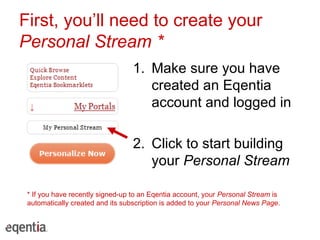
First, you’ll need to create your  Personal Stream * 1. Make sure you have created an Eqentia account and logged in  2. Click to start building your  Personal Stream * If you have recently signed-up to an Eqentia account, your  Personal Stream  is automatically created and its subscription is added to your  Personal News Page .
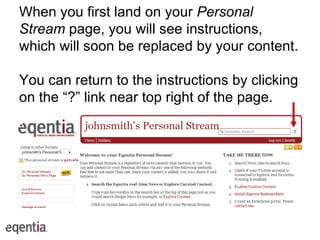
When you first land on your  Personal Stream  page, you will see instructions, which will soon be replaced by your content.  You can return to the instructions by clicking on the “?” link near top right of the page.
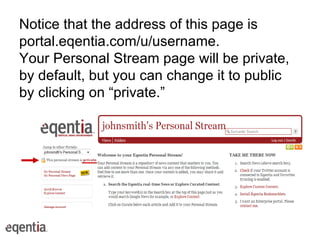
Notice that the address of this page is portal.eqentia.com/u/username. Your Personal Stream page will be private, by default, but you can change it to public by clicking on “private.”
Adding content There are several ways to add content to your  Personal Stream : Search for articles in the Eqentia database Import and sync your Twitter Favorites Import and sync from Google Reader Grab interesting articles using the  MarkIt  bookmarklet Create instant filters using the  InstAlert  bookmarklet Add articles while browsing your  Personal News Page  or any Eqentia  Curated Portal
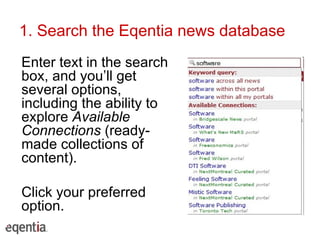
1. Search the Eqentia news database Enter text in the search box, and you’ll get several options, including the ability to explore  Available Connections  (ready-made collections of content). Click your preferred option.
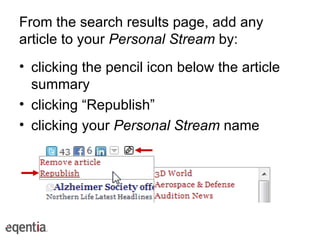
From the search results page, add any article to your  Personal Stream  by: clicking the pencil icon below the article summary clicking “Republish” clicking your  Personal Stream  name
2. Import your Twitter Favorites If you connected your Twitter ID to Eqentia, you now need to: Visit your “Manage Account” page Under “Personal Stream” select “Sync Twitter Favorites”  Click “Update” Within a few minutes, you will start to see your favorite tweets in your  Personal Stream . From now on, new Twitter Favorites will appear automatically.
If you did not log in to Eqentia using your Twitter ID: Click on “Manage Account” Click on the “Connect with Twitter” Down the page, under “Personal Stream,” select “Sync Twitter Favorites” Click “Update”
3. Import from Google Reader Your  Personal Stream  can automatically import any of your Google Reader content that you have “starred” and/or “shared on Facebook” To enable this, go to “Manage Account,” click on the “Connect to Google Reader” button, select the appropriate Sync action you’d like, and click “Update”
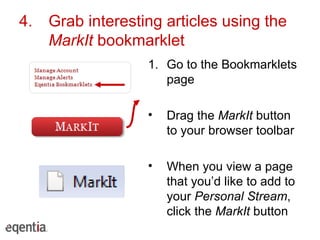
4.  Grab interesting articles using the  MarkIt  bookmarklet Go to the Bookmarklets page Drag the  MarkIt  button to your browser toolbar When you view a page that you’d like to add to your  Personal Stream , click the  MarkIt  button
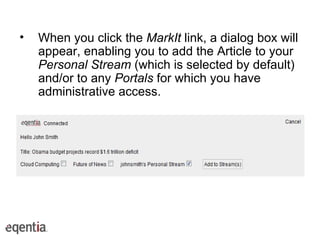
When you click the  MarkIt  link, a dialog box will appear, enabling you to add the Article to your  Personal Stream  (which is selected by default) and/or to any  Portals  for which you have administrative access.
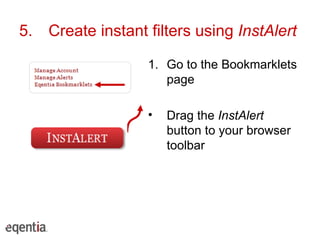
5.  Create instant filters using  InstAlert Go to the Bookmarklets page Drag the  InstAlert  button to your browser toolbar
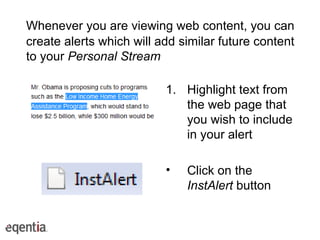
Whenever you are viewing web content, you can create alerts which will add similar future content to your  Personal Stream Highlight text from the web page that you wish to include in your alert Click on the  InstAlert  button
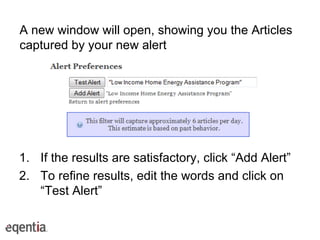
A new window will open, showing you the Articles captured by your new alert If the results are satisfactory, click “Add Alert” To refine results, edit the words and click on “Test Alert”
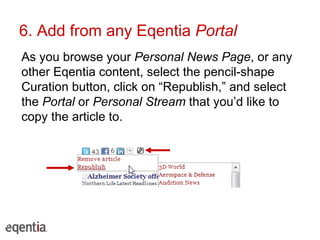
6. Add from any Eqentia  Portal As you browse your  Personal News Page , or any other Eqentia content, select the pencil-shape Curation button, click on “Republish,” and select the  Portal  or  Personal Stream  that you’d like to copy the article to.
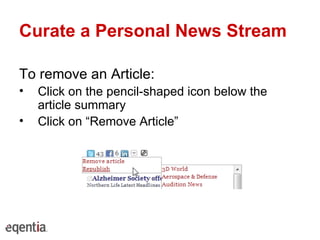
Curate a Personal News Stream To remove an Article: Click on the pencil-shaped icon below the article summary Click on “Remove Article”
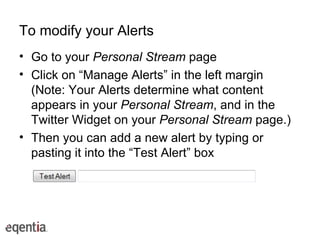
To modify your Alerts Go to your  Personal Stream  page Click on “Manage Alerts” in the left margin (Note: Your Alerts determine what content appears in your  Personal Stream , and in the Twitter Widget on your  Personal Stream  page.) Then you can add a new alert by typing or pasting it into the “Test Alert” box
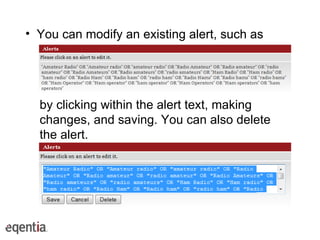
You can modify an existing alert, such as by clicking within the alert text, making changes, and saving. You can also delete the alert.
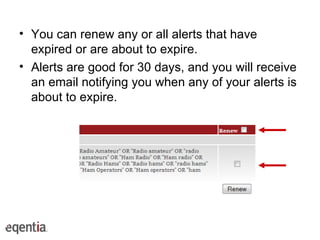
You can renew any or all alerts that have expired or are about to expire. Alerts are good for 30 days, and you will receive an email notifying you when any of your alerts is about to expire.
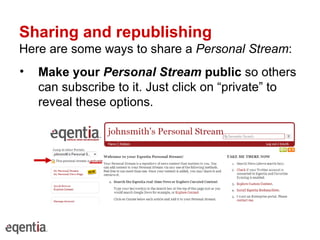
Sharing and republishing Here are some ways to share a  Personal Stream : Make your  Personal Stream  public  so others can subscribe to it. Just click on “private” to reveal these options.
When your  Personal Stream  is public, other Eqentia users can click on the button near the top right to subscribe. They will then see your  Personal Stream  on their  Personal News Page .
RSS output to websites and feed readers Click the RSS button near the top right of your Personal Stream page Copy the RSS feed URL from the browser address bar to your feed reader or other application (e.g. a blog widget) or share the address with friends and colleagues. (They can view it in any web browser.)
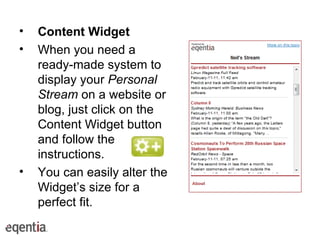
Content Widget   When you need a ready-made system to display your  Personal Stream  on a website or blog, just click on the Content Widget button and follow the instructions.  You can easily alter the Widget’s size for a perfect fit.
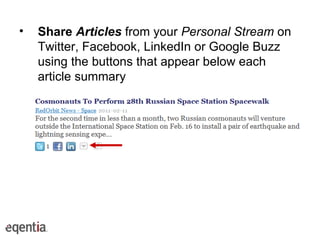
Share  Articles  from your  Personal Stream  on Twitter, Facebook, LinkedIn or Google Buzz using the buttons that appear below each article summary
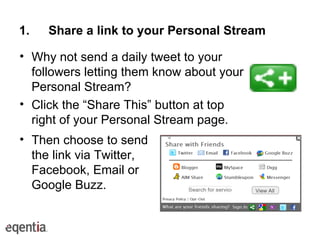
Share a link to your Personal Stream Why not send a daily tweet to your followers letting them know about your Personal Stream? Click the “Share This” button at top right of your Personal Stream page. Then choose to send the link via Twitter, Facebook, Email or Google Buzz.
Tweet your entire Personal Stream * Eqentia can automatically tweet a link to each article that appears in your Personal Stream, or to articles on certain topics only. Tweets are sent as soon as we fetch each article. Tweets can be sent from your existing Twitter account, or you can create a new Twitter account for them. This is a premium account feature. Contact us for details.
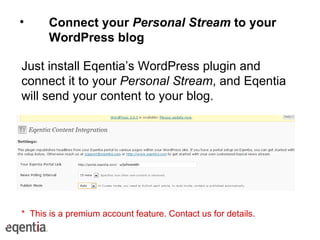
Connect your  Personal Stream  to your WordPress blog Just install Eqentia’s WordPress plugin and connect it to your  Personal Stream , and Eqentia will send your content to your blog. *  This is a premium account feature. Contact us for details.
Email Digest You - and anyone who has subscribed to your  Personal Stream  - will automatically receive a daily  Email Digest  of your  Personal Stream . You and your subscribers can opt out of the  Email Digest  by going to “Manage Account” and changing the email preferences. You and your subscribers can also specify whether you wish the  Email Digest  to include all headlines (Full) or the Top Stories based on social attention.
Thanks for watching! For addition information or assistance, please contact us at  [email_address] Copyright © 2011 Eqentia Inc.

Personal stream setup

  • 1.
    Setting up andsharing your Personal Stream
  • 2.
    With a Personal Stream … You will have instant access to the articles that matters to you personally You get full control over content alerts and can change them whenever you want You get a repository of your articles on your own Eqentia page, via email, RSS, your blog, a widget or Twitter.
  • 3.
    Your PersonalStream can be: Private Great for competitive intelligence, saving articles to read later, curating articles for publishing into a public portal , or Public Great for promoting and sharing what you're reading, collecting and favoring You can change between private and public at any time.
  • 4.
    In this tutorial,you’ll learn how to: Add content to a Personal Stream Curate a Personal Stream Share and publish a Personal Stream or specific Articles from it
  • 5.
    First, you’ll needto create your Personal Stream * 1. Make sure you have created an Eqentia account and logged in 2. Click to start building your Personal Stream * If you have recently signed-up to an Eqentia account, your Personal Stream is automatically created and its subscription is added to your Personal News Page .
  • 6.
    When you firstland on your Personal Stream page, you will see instructions, which will soon be replaced by your content. You can return to the instructions by clicking on the “?” link near top right of the page.
  • 7.
    Notice that theaddress of this page is portal.eqentia.com/u/username. Your Personal Stream page will be private, by default, but you can change it to public by clicking on “private.”
  • 8.
    Adding content Thereare several ways to add content to your Personal Stream : Search for articles in the Eqentia database Import and sync your Twitter Favorites Import and sync from Google Reader Grab interesting articles using the MarkIt bookmarklet Create instant filters using the InstAlert bookmarklet Add articles while browsing your Personal News Page or any Eqentia Curated Portal
  • 9.
    1. Search theEqentia news database Enter text in the search box, and you’ll get several options, including the ability to explore Available Connections (ready-made collections of content). Click your preferred option.
  • 10.
    From the searchresults page, add any article to your Personal Stream by: clicking the pencil icon below the article summary clicking “Republish” clicking your Personal Stream name
  • 11.
    2. Import yourTwitter Favorites If you connected your Twitter ID to Eqentia, you now need to: Visit your “Manage Account” page Under “Personal Stream” select “Sync Twitter Favorites” Click “Update” Within a few minutes, you will start to see your favorite tweets in your Personal Stream . From now on, new Twitter Favorites will appear automatically.
  • 12.
    If you didnot log in to Eqentia using your Twitter ID: Click on “Manage Account” Click on the “Connect with Twitter” Down the page, under “Personal Stream,” select “Sync Twitter Favorites” Click “Update”
  • 13.
    3. Import fromGoogle Reader Your Personal Stream can automatically import any of your Google Reader content that you have “starred” and/or “shared on Facebook” To enable this, go to “Manage Account,” click on the “Connect to Google Reader” button, select the appropriate Sync action you’d like, and click “Update”
  • 14.
    4. Grabinteresting articles using the MarkIt bookmarklet Go to the Bookmarklets page Drag the MarkIt button to your browser toolbar When you view a page that you’d like to add to your Personal Stream , click the MarkIt button
  • 15.
    When you clickthe MarkIt link, a dialog box will appear, enabling you to add the Article to your Personal Stream (which is selected by default) and/or to any Portals for which you have administrative access.
  • 16.
    5. Createinstant filters using InstAlert Go to the Bookmarklets page Drag the InstAlert button to your browser toolbar
  • 17.
    Whenever you areviewing web content, you can create alerts which will add similar future content to your Personal Stream Highlight text from the web page that you wish to include in your alert Click on the InstAlert button
  • 18.
    A new windowwill open, showing you the Articles captured by your new alert If the results are satisfactory, click “Add Alert” To refine results, edit the words and click on “Test Alert”
  • 19.
    6. Add fromany Eqentia Portal As you browse your Personal News Page , or any other Eqentia content, select the pencil-shape Curation button, click on “Republish,” and select the Portal or Personal Stream that you’d like to copy the article to.
  • 20.
    Curate a PersonalNews Stream To remove an Article: Click on the pencil-shaped icon below the article summary Click on “Remove Article”
  • 21.
    To modify yourAlerts Go to your Personal Stream page Click on “Manage Alerts” in the left margin (Note: Your Alerts determine what content appears in your Personal Stream , and in the Twitter Widget on your Personal Stream page.) Then you can add a new alert by typing or pasting it into the “Test Alert” box
  • 22.
    You can modifyan existing alert, such as by clicking within the alert text, making changes, and saving. You can also delete the alert.
  • 23.
    You can renewany or all alerts that have expired or are about to expire. Alerts are good for 30 days, and you will receive an email notifying you when any of your alerts is about to expire.
  • 24.
    Sharing and republishingHere are some ways to share a Personal Stream : Make your Personal Stream public so others can subscribe to it. Just click on “private” to reveal these options.
  • 25.
    When your Personal Stream is public, other Eqentia users can click on the button near the top right to subscribe. They will then see your Personal Stream on their Personal News Page .
  • 26.
    RSS output towebsites and feed readers Click the RSS button near the top right of your Personal Stream page Copy the RSS feed URL from the browser address bar to your feed reader or other application (e.g. a blog widget) or share the address with friends and colleagues. (They can view it in any web browser.)
  • 27.
    Content Widget When you need a ready-made system to display your Personal Stream on a website or blog, just click on the Content Widget button and follow the instructions. You can easily alter the Widget’s size for a perfect fit.
  • 28.
    Share Articles from your Personal Stream on Twitter, Facebook, LinkedIn or Google Buzz using the buttons that appear below each article summary
  • 29.
    Share a linkto your Personal Stream Why not send a daily tweet to your followers letting them know about your Personal Stream? Click the “Share This” button at top right of your Personal Stream page. Then choose to send the link via Twitter, Facebook, Email or Google Buzz.
  • 30.
    Tweet your entirePersonal Stream * Eqentia can automatically tweet a link to each article that appears in your Personal Stream, or to articles on certain topics only. Tweets are sent as soon as we fetch each article. Tweets can be sent from your existing Twitter account, or you can create a new Twitter account for them. This is a premium account feature. Contact us for details.
  • 31.
    Connect your Personal Stream to your WordPress blog Just install Eqentia’s WordPress plugin and connect it to your Personal Stream , and Eqentia will send your content to your blog. * This is a premium account feature. Contact us for details.
  • 32.
    Email Digest You- and anyone who has subscribed to your Personal Stream - will automatically receive a daily Email Digest of your Personal Stream . You and your subscribers can opt out of the Email Digest by going to “Manage Account” and changing the email preferences. You and your subscribers can also specify whether you wish the Email Digest to include all headlines (Full) or the Top Stories based on social attention.
  • 33.
    Thanks for watching!For addition information or assistance, please contact us at [email_address] Copyright © 2011 Eqentia Inc.