HOW TO USE
Evernote is a free tool
that let’s you organize
and store all of your
files in one place
and you can access
them anywhere you
go.
Here’s how it works!
Open a Browser.
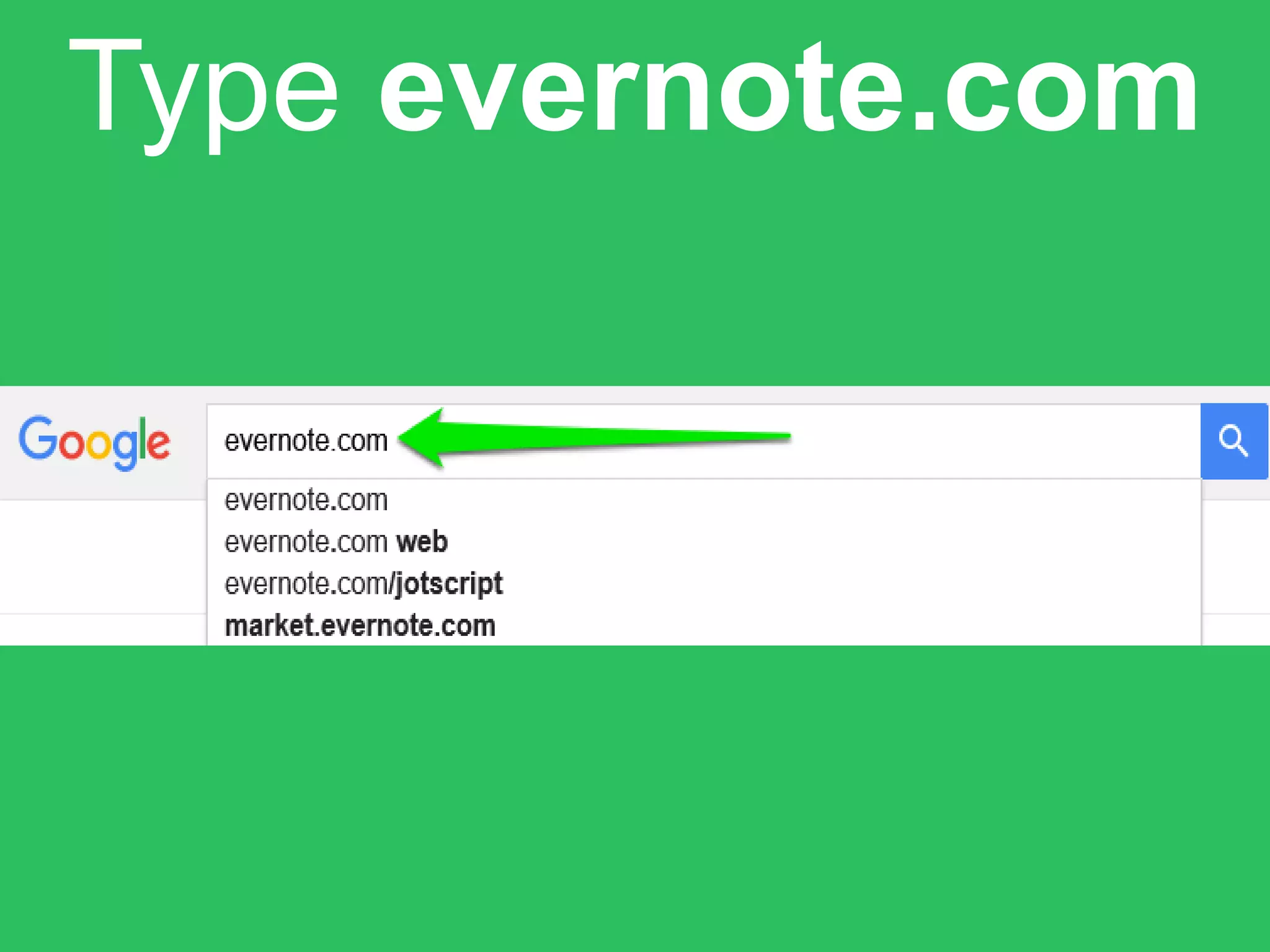
Type evernote.com
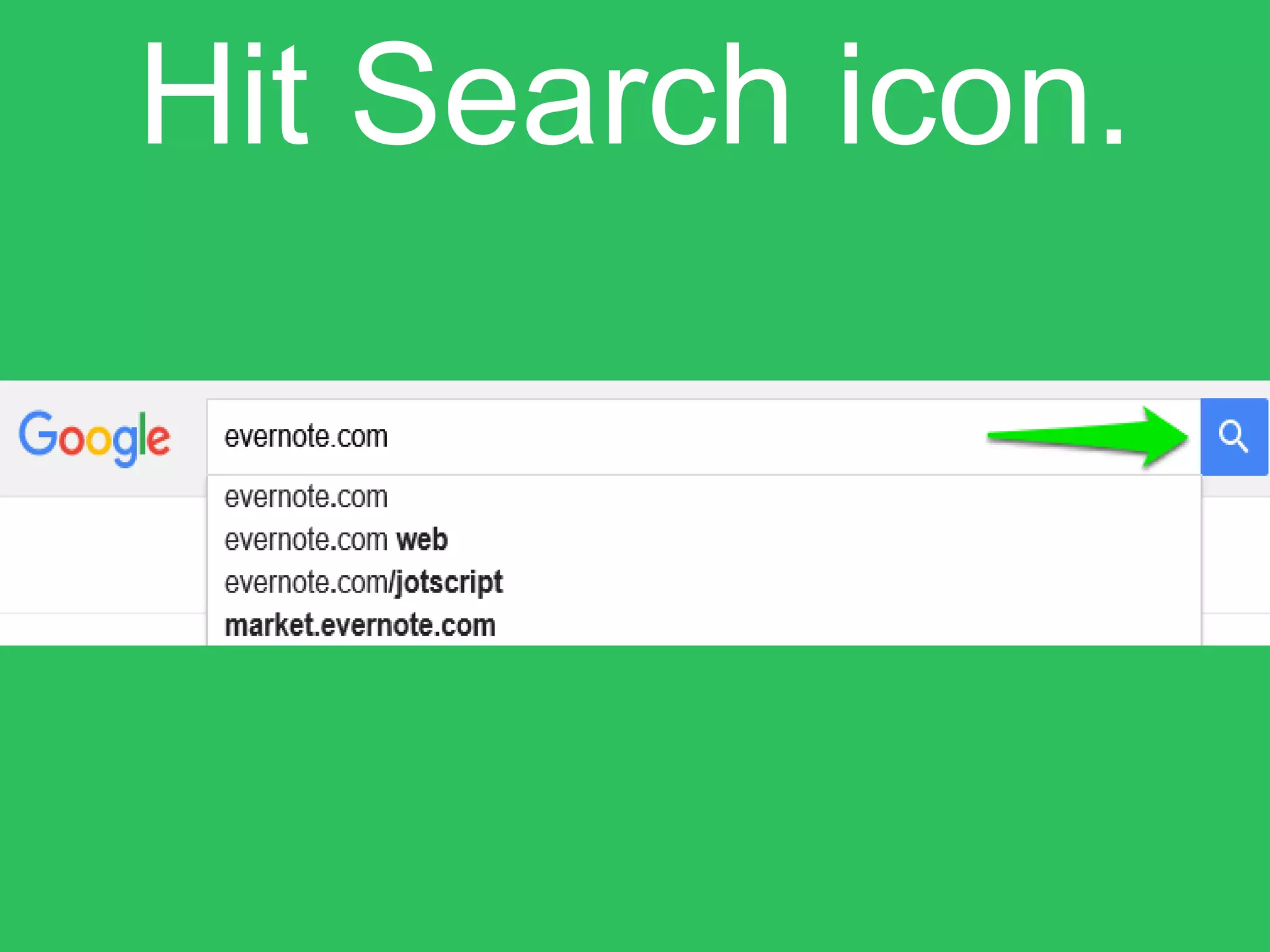
Hit Search icon.
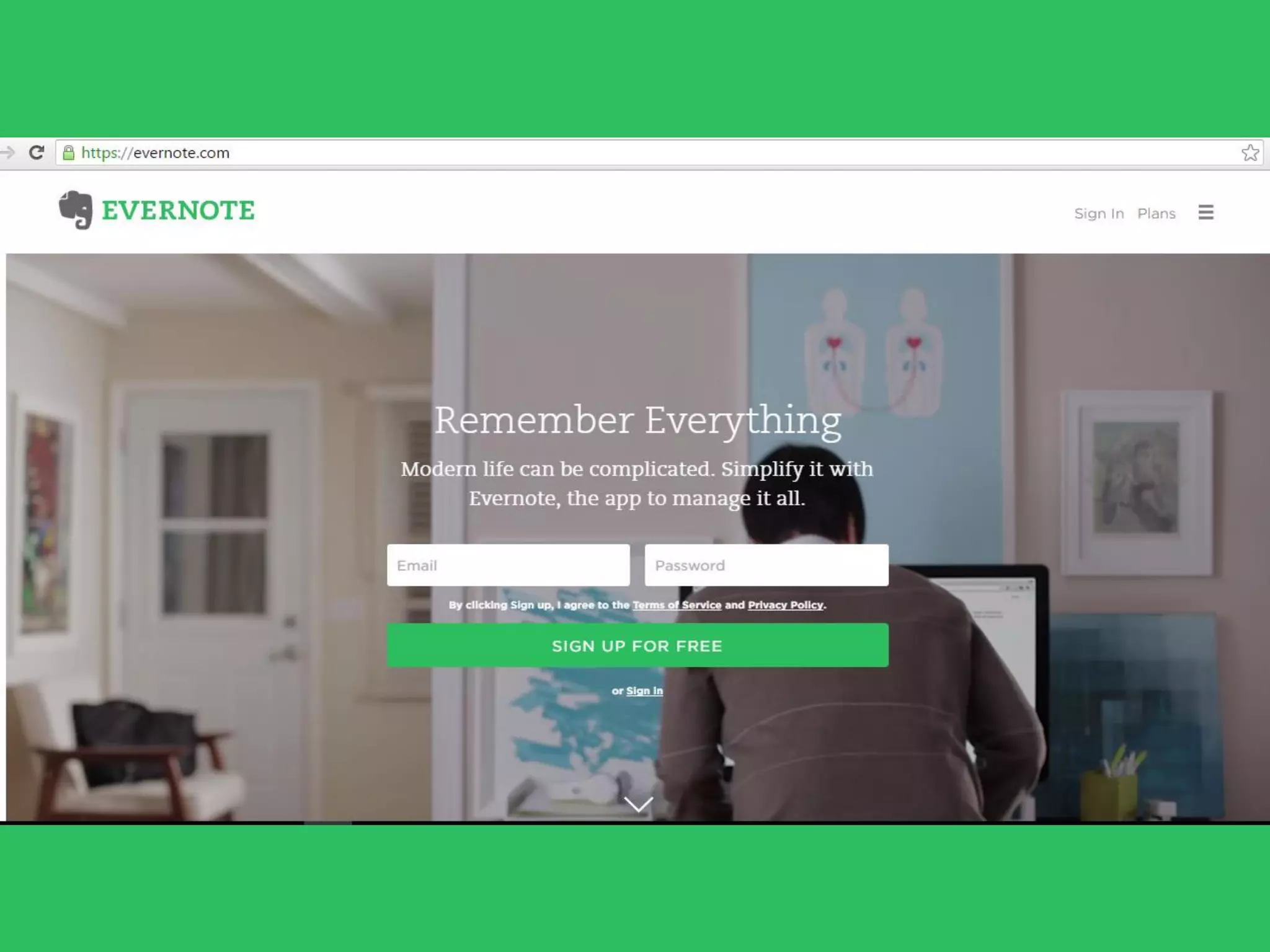
You will be directed to
evernote site.
You can opt to sign-in
using an email.
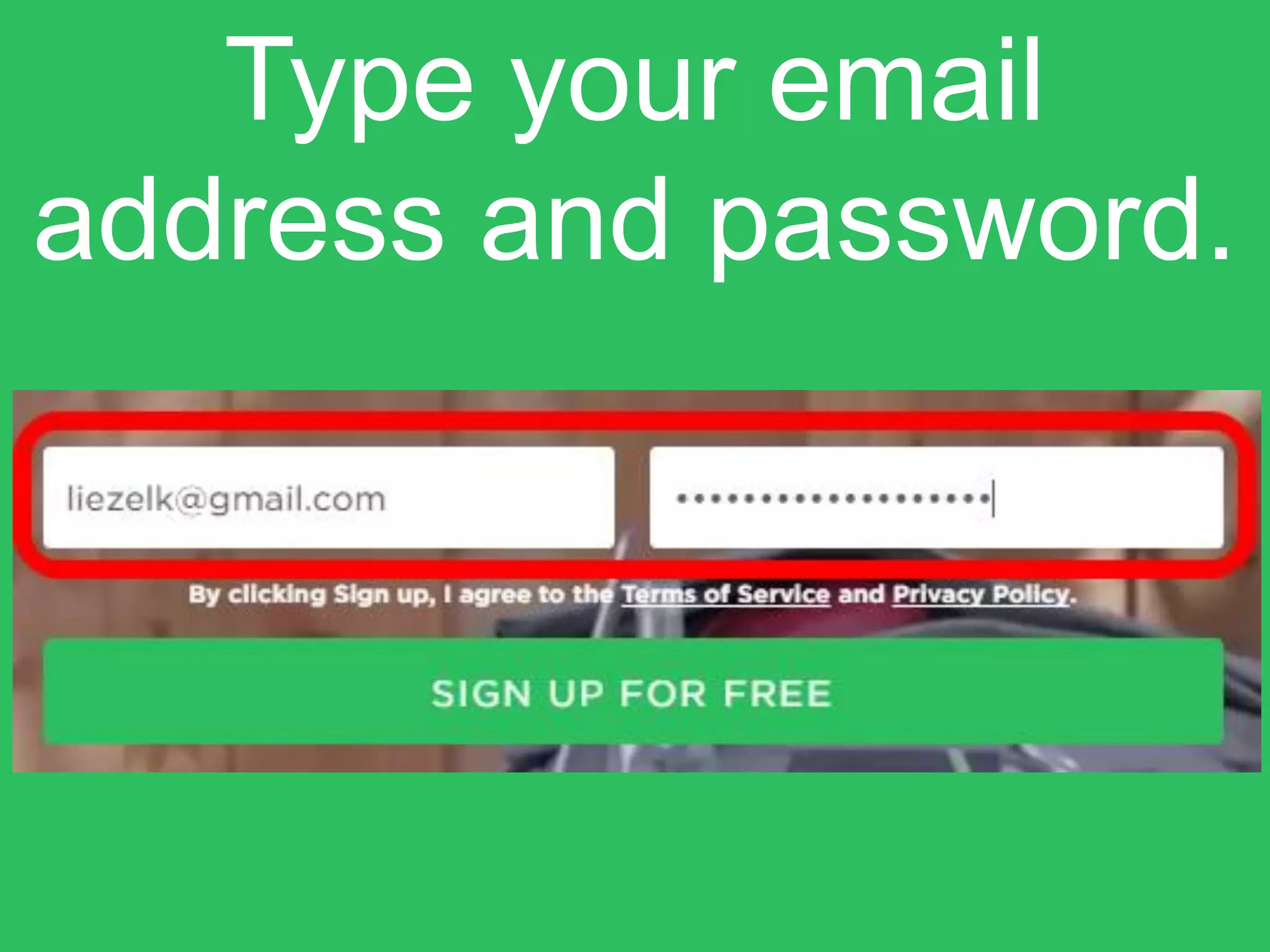
Type your email
address and password.
Click
“Sign up for free”.
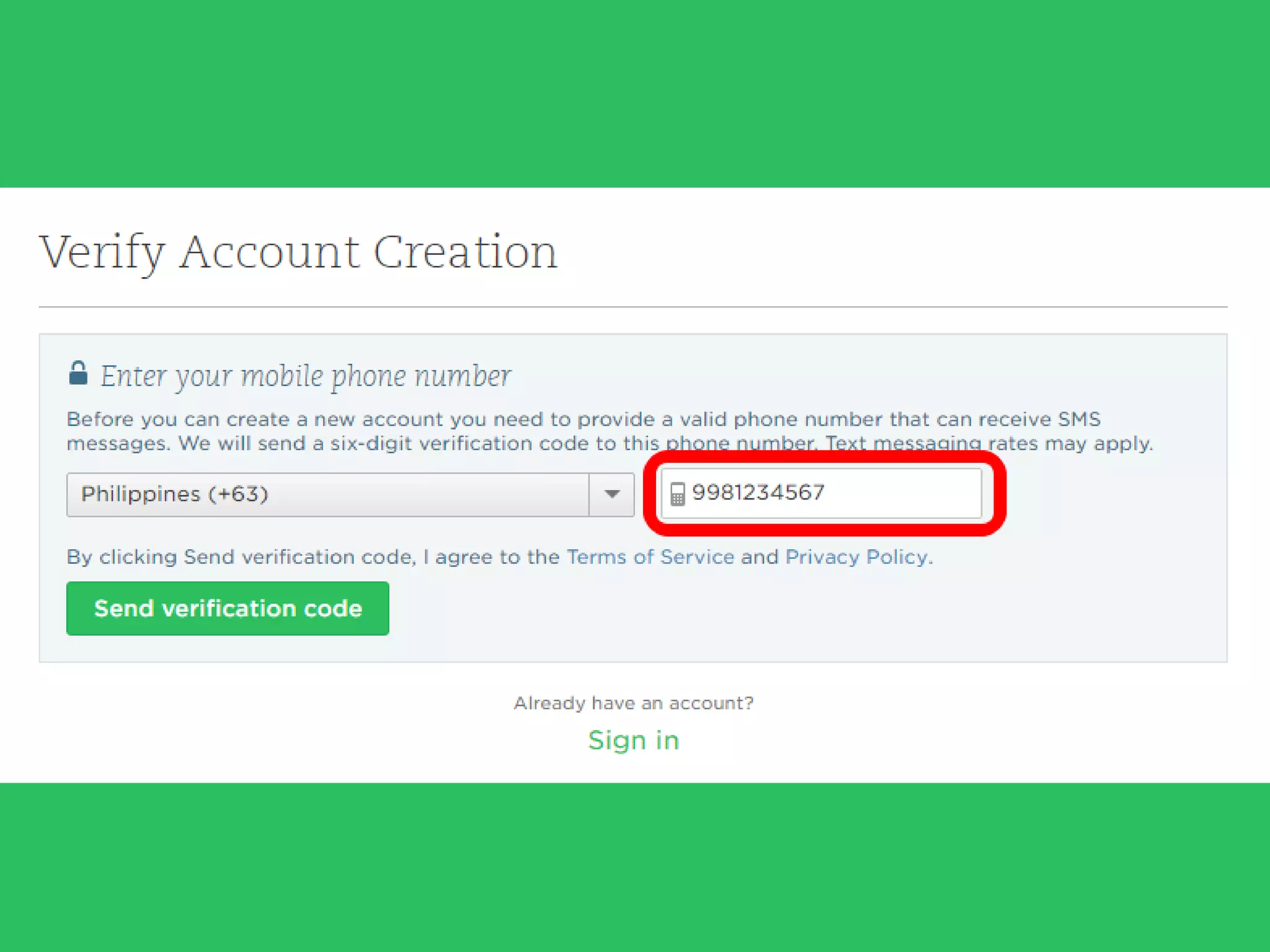
Enter your mobile
phone number
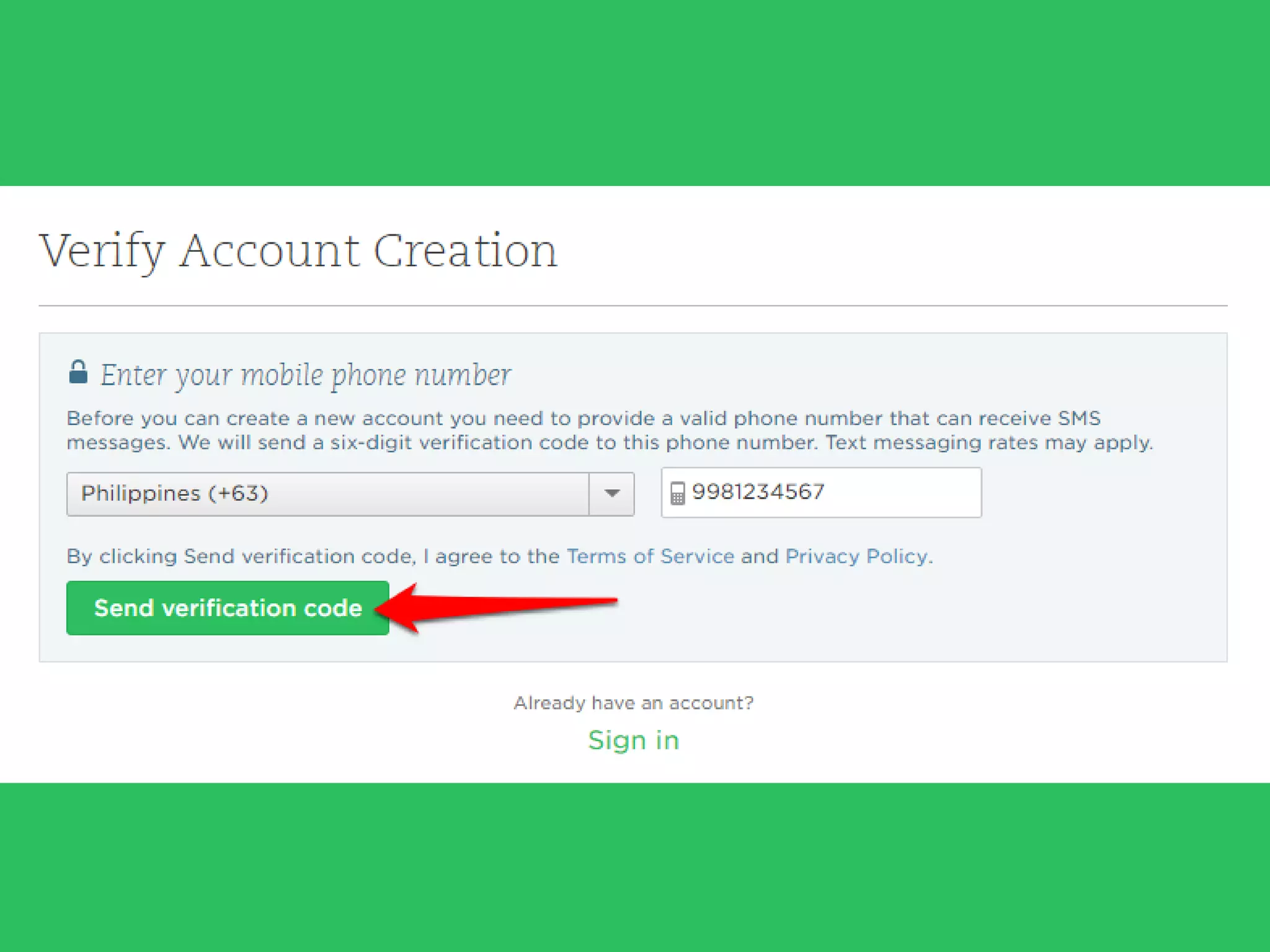
Click
“Send verification
code”.
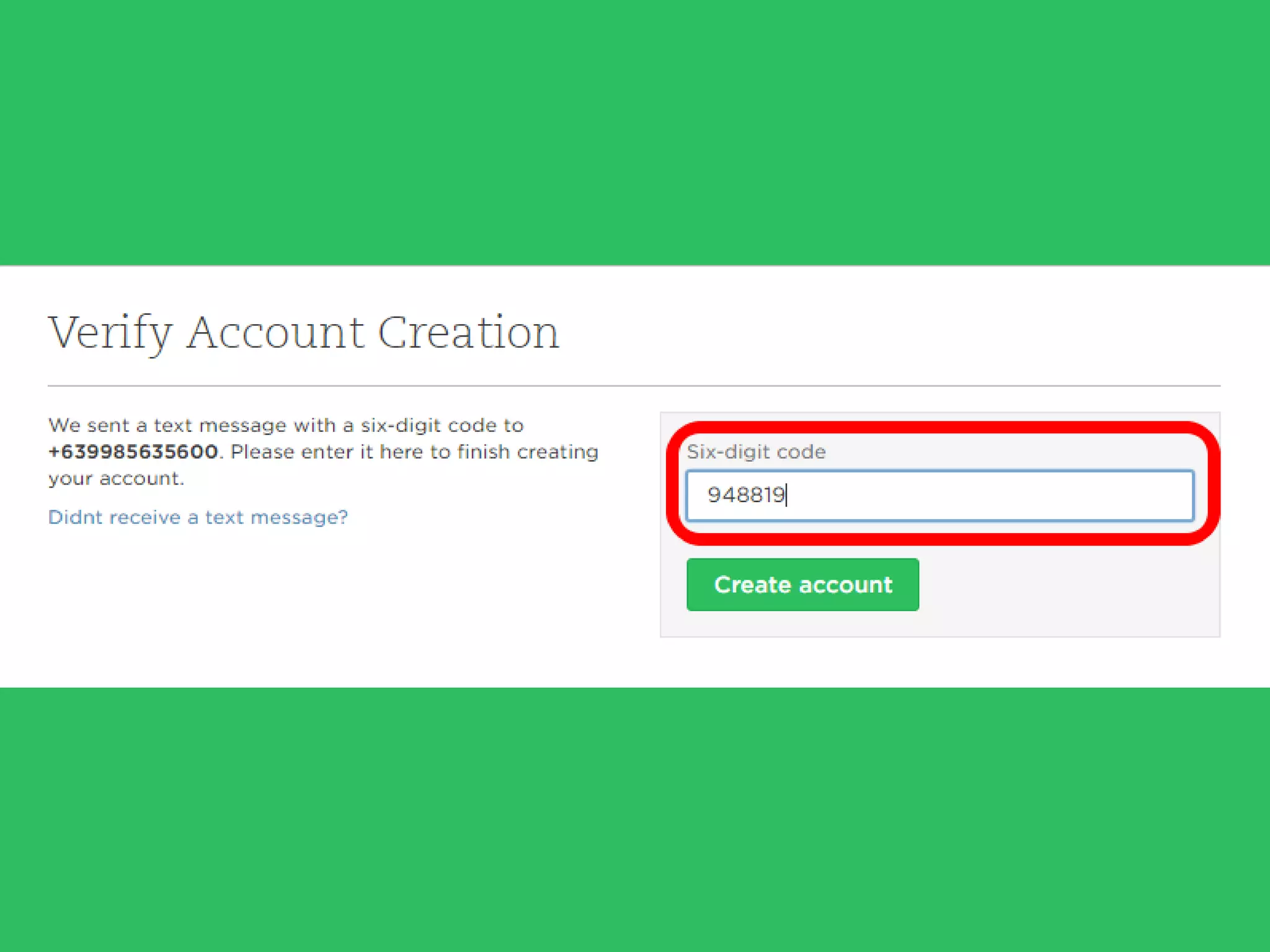
Enter the six digit
code you have
received.
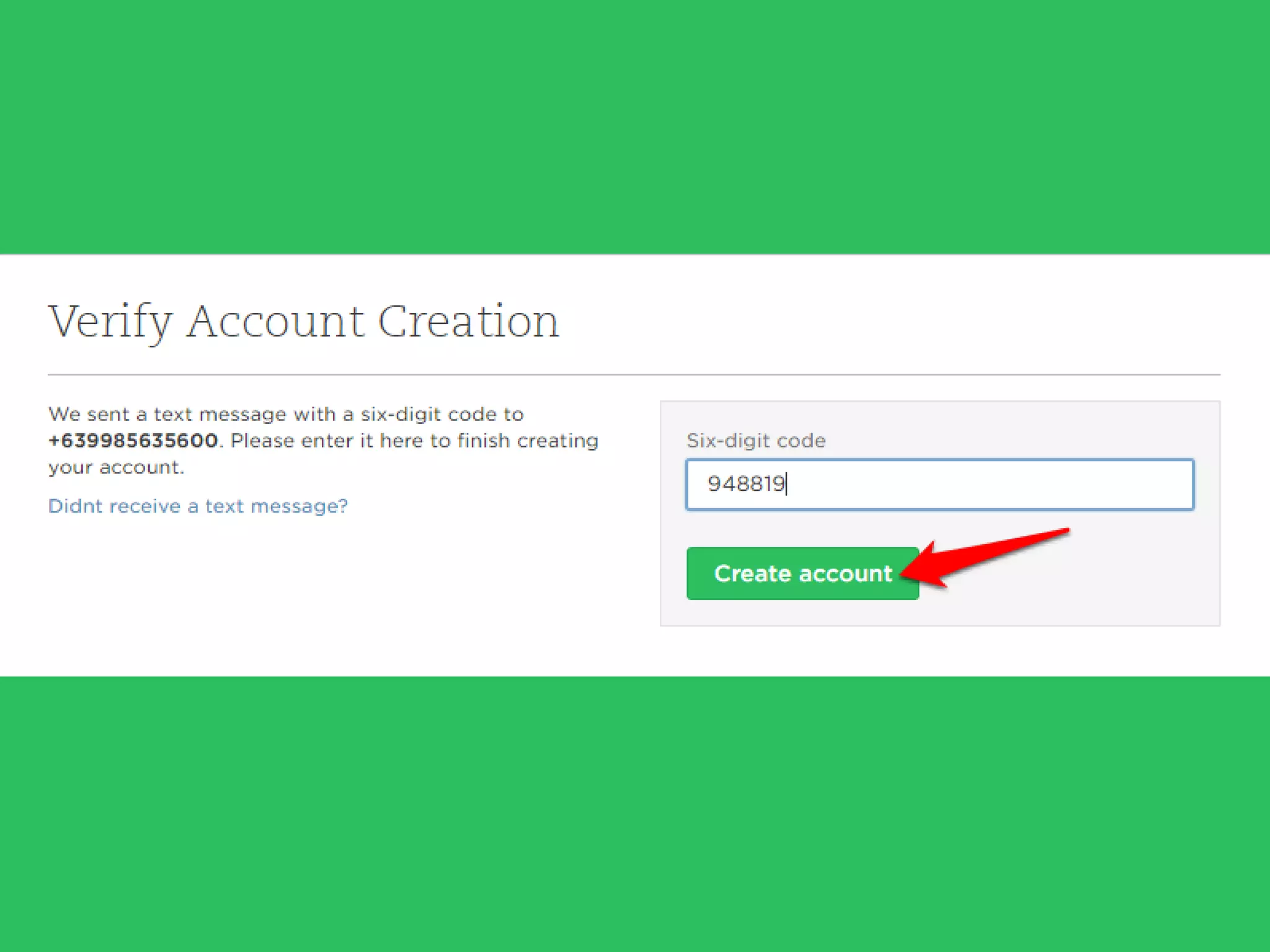
Click
“Create Account”.
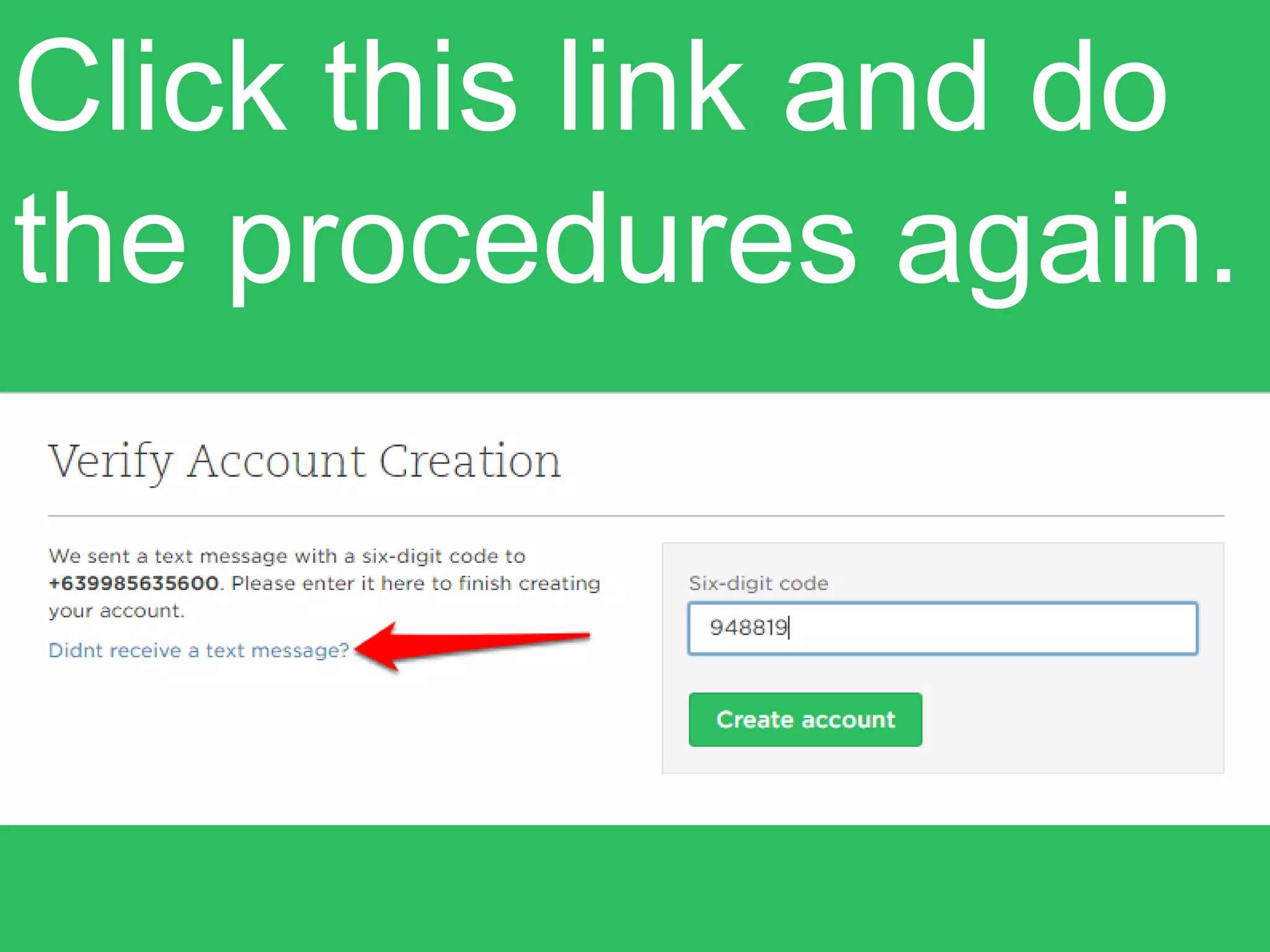
In case, you didn’t
received a text
message?
Click this link and do
the procedures again.
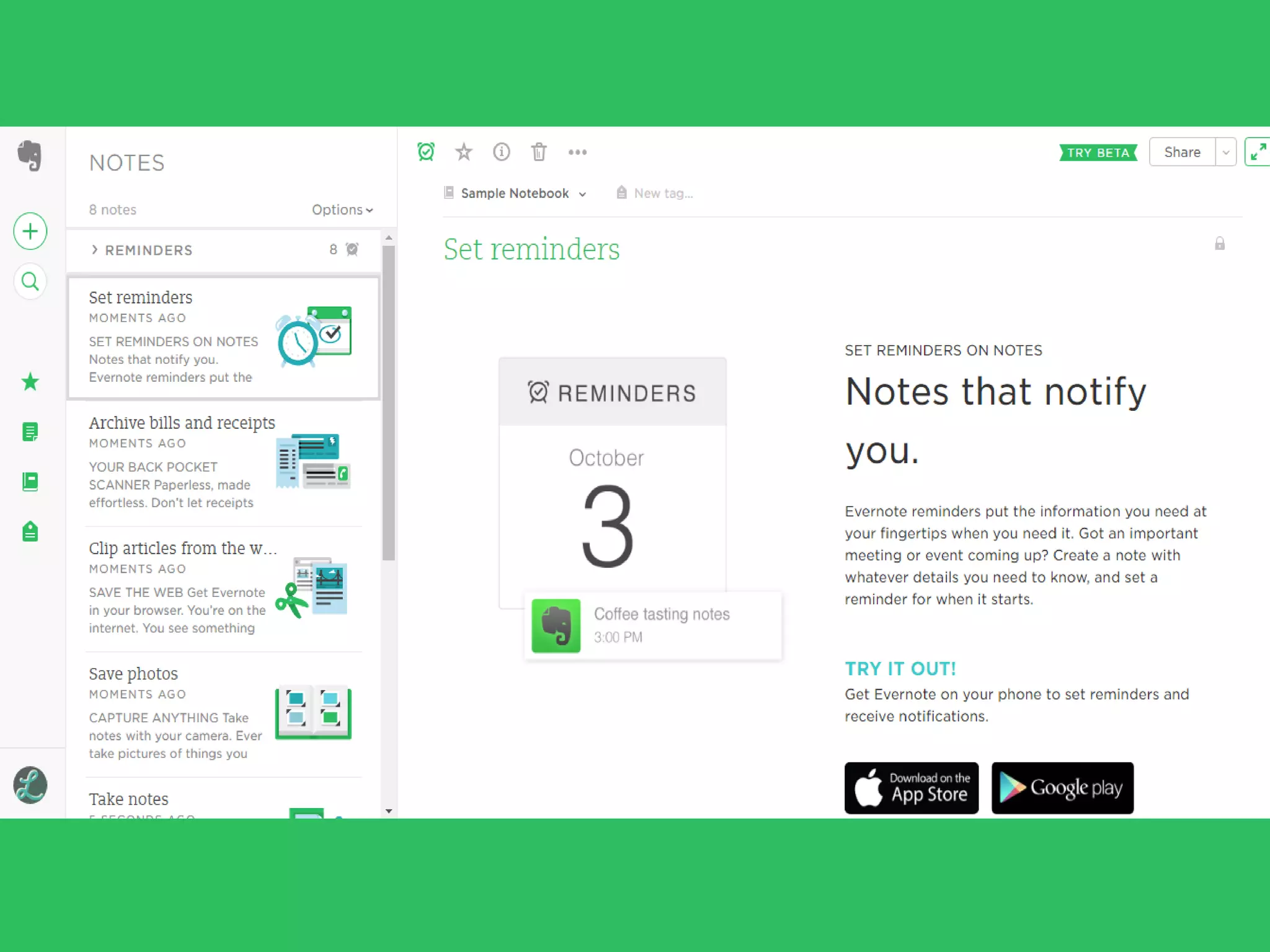
This is how it looks like
on your first sign in.
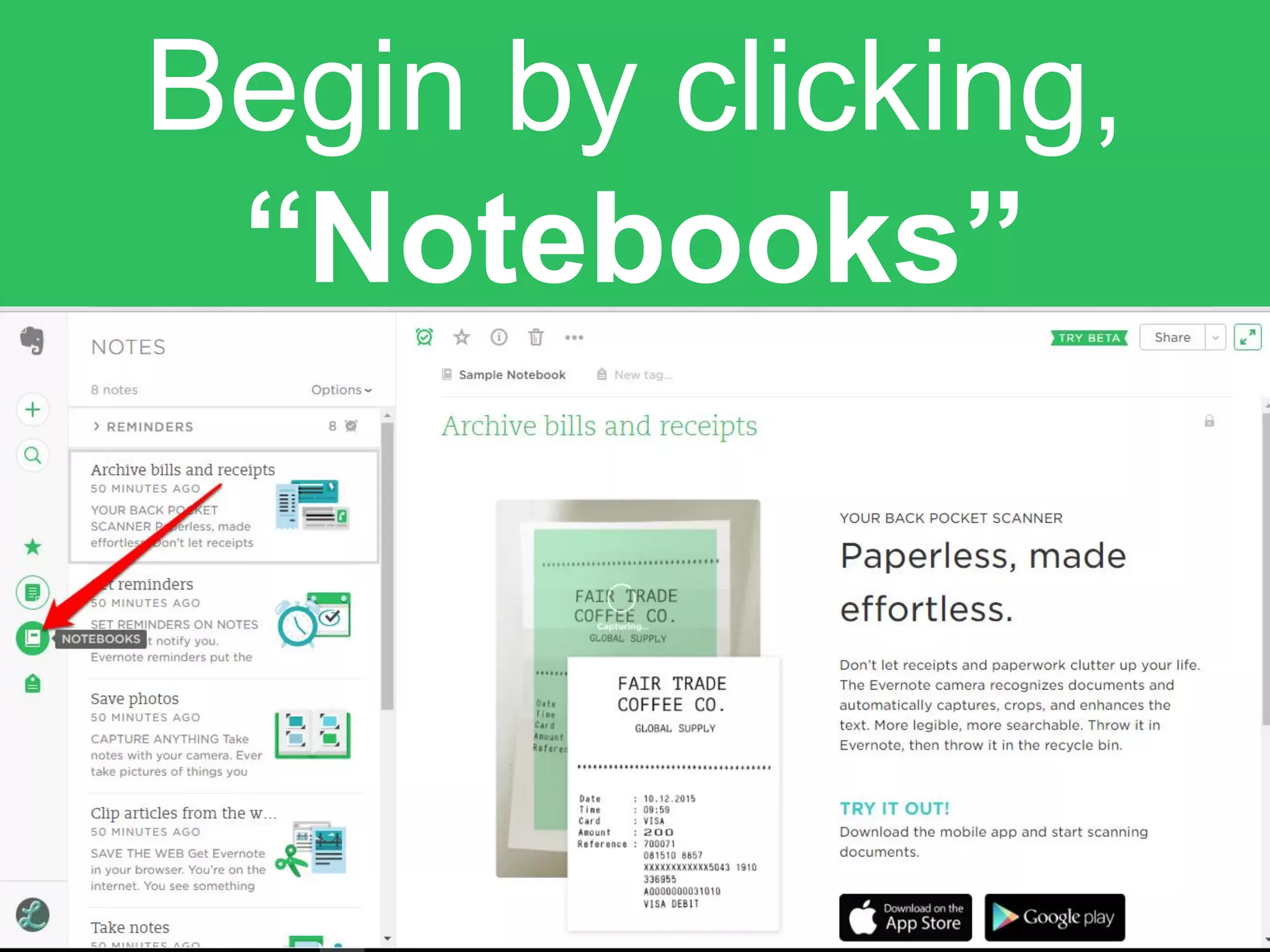
Begin by clicking,
“Notebooks”
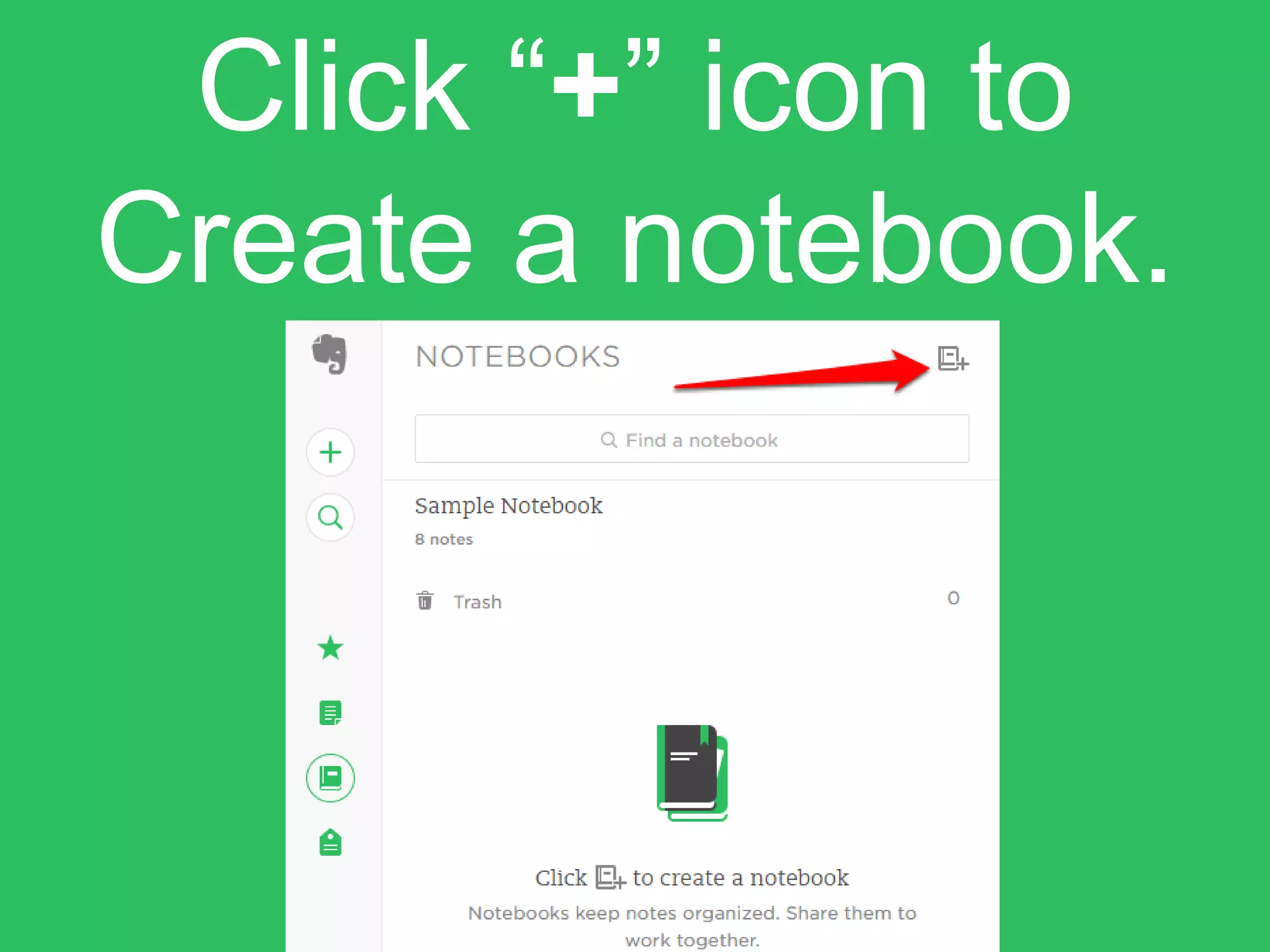
Click “+” icon to
Create a notebook.
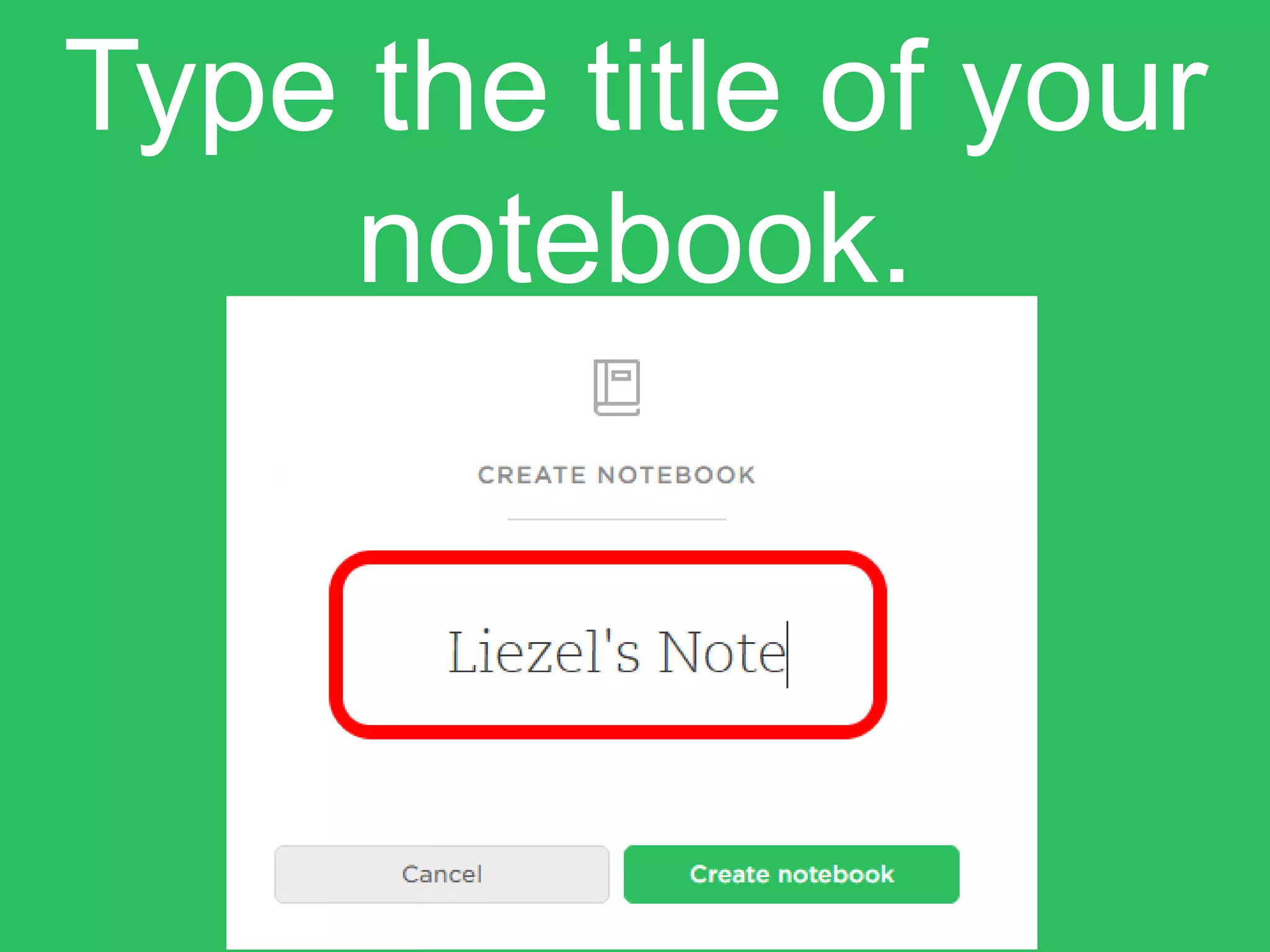
Type the title of your
notebook.
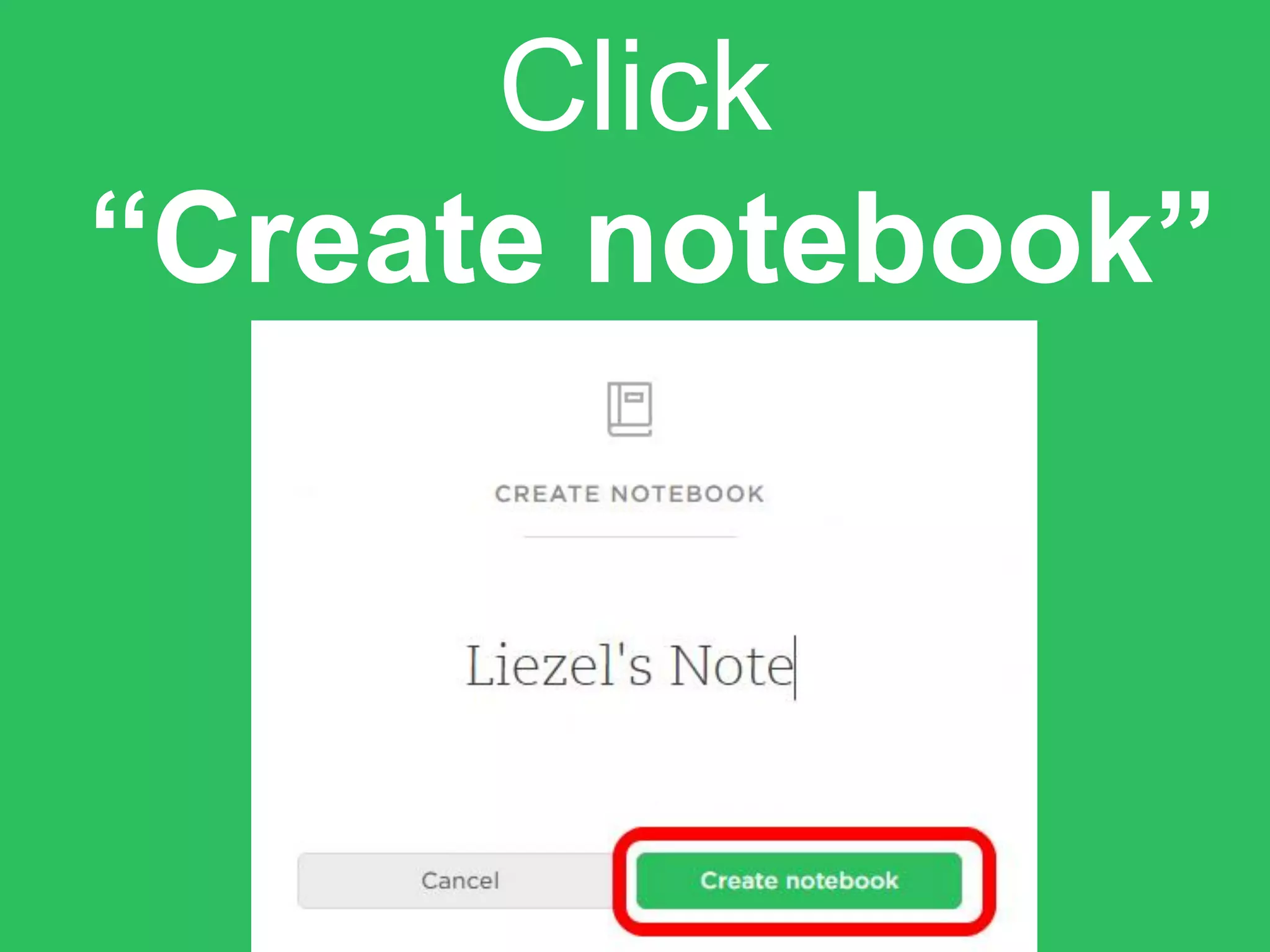
Click
“Create notebook”
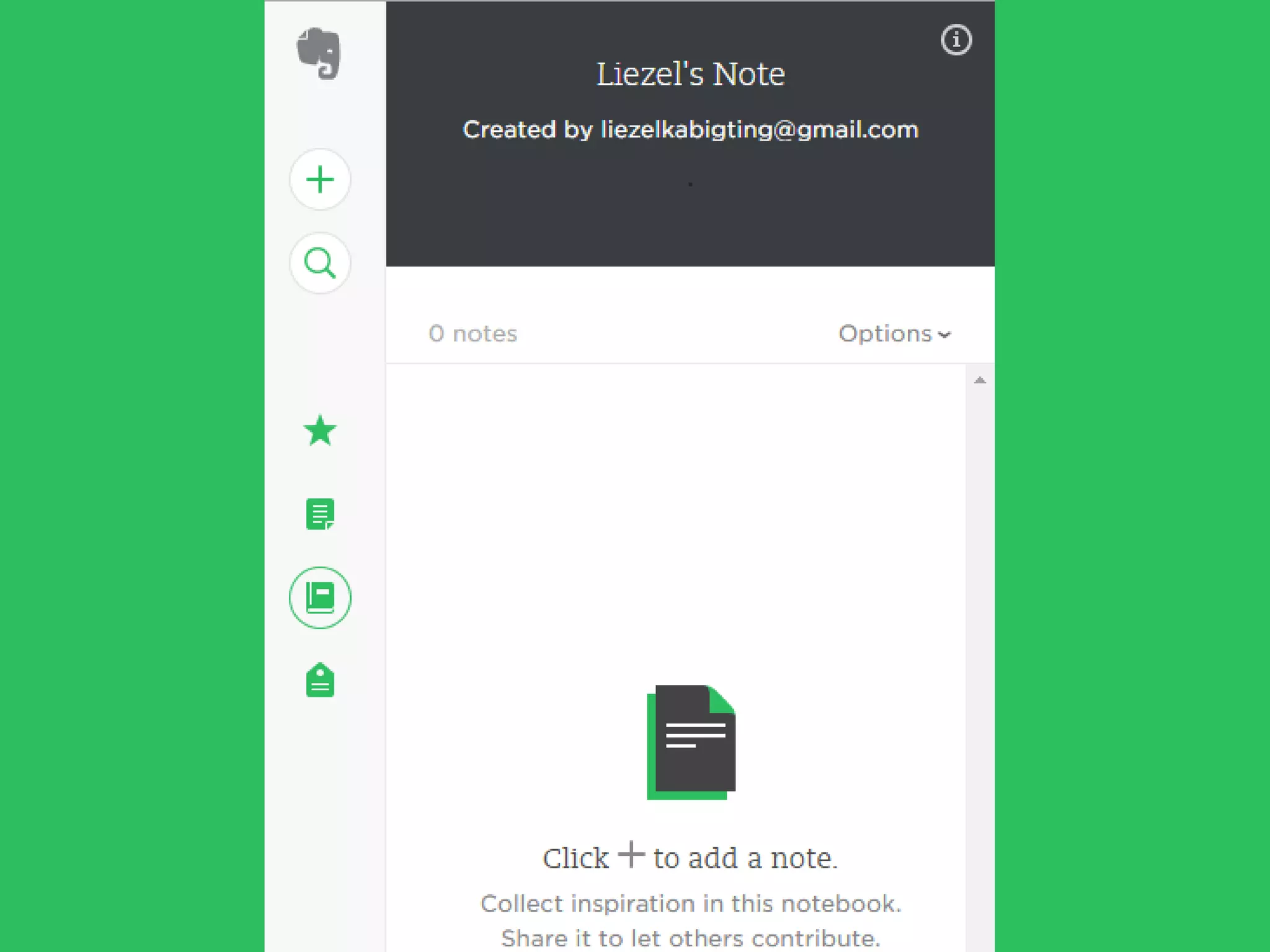
You now have a newly
created notebook!
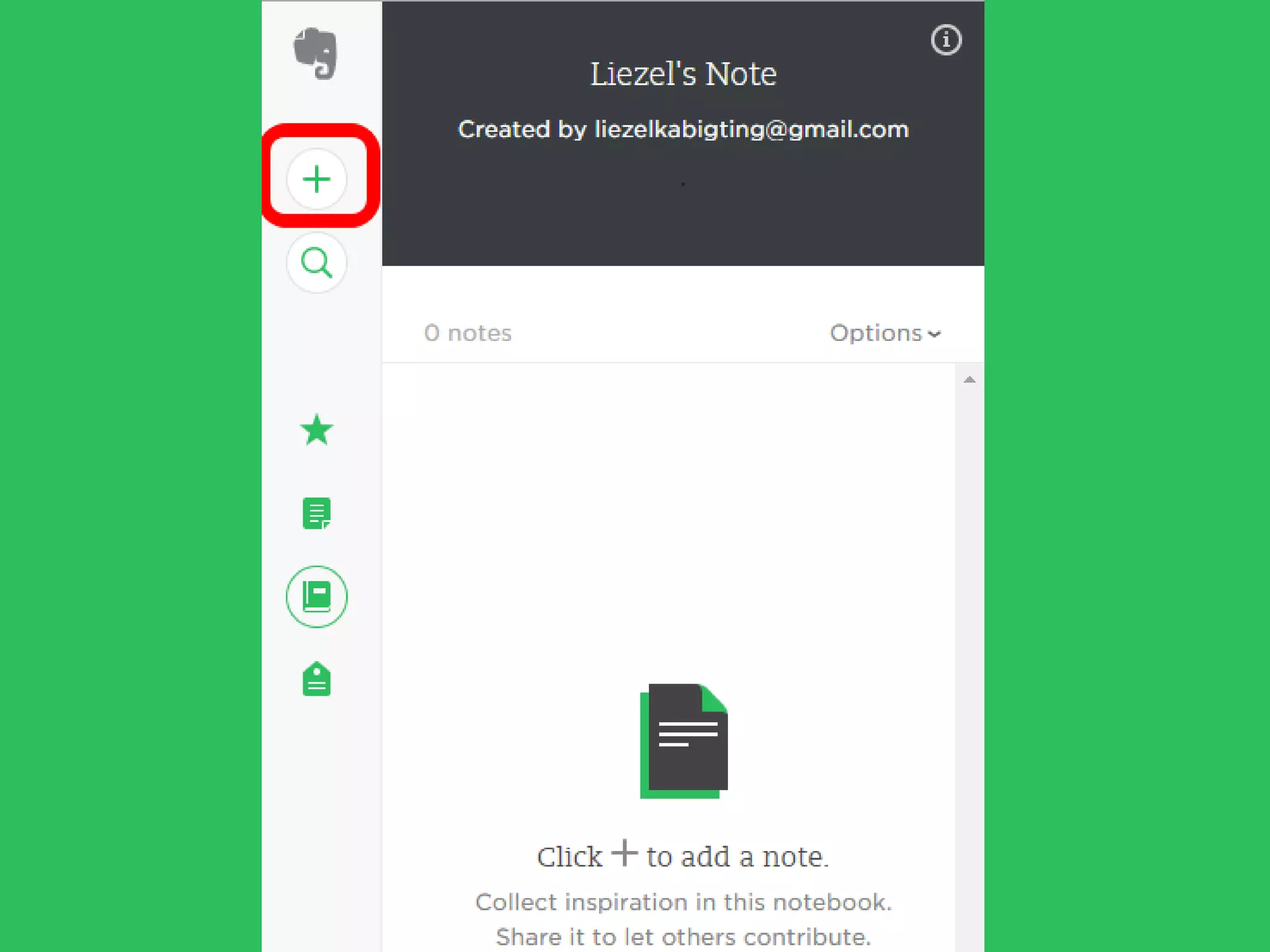
To create a note, click
the “+” icon
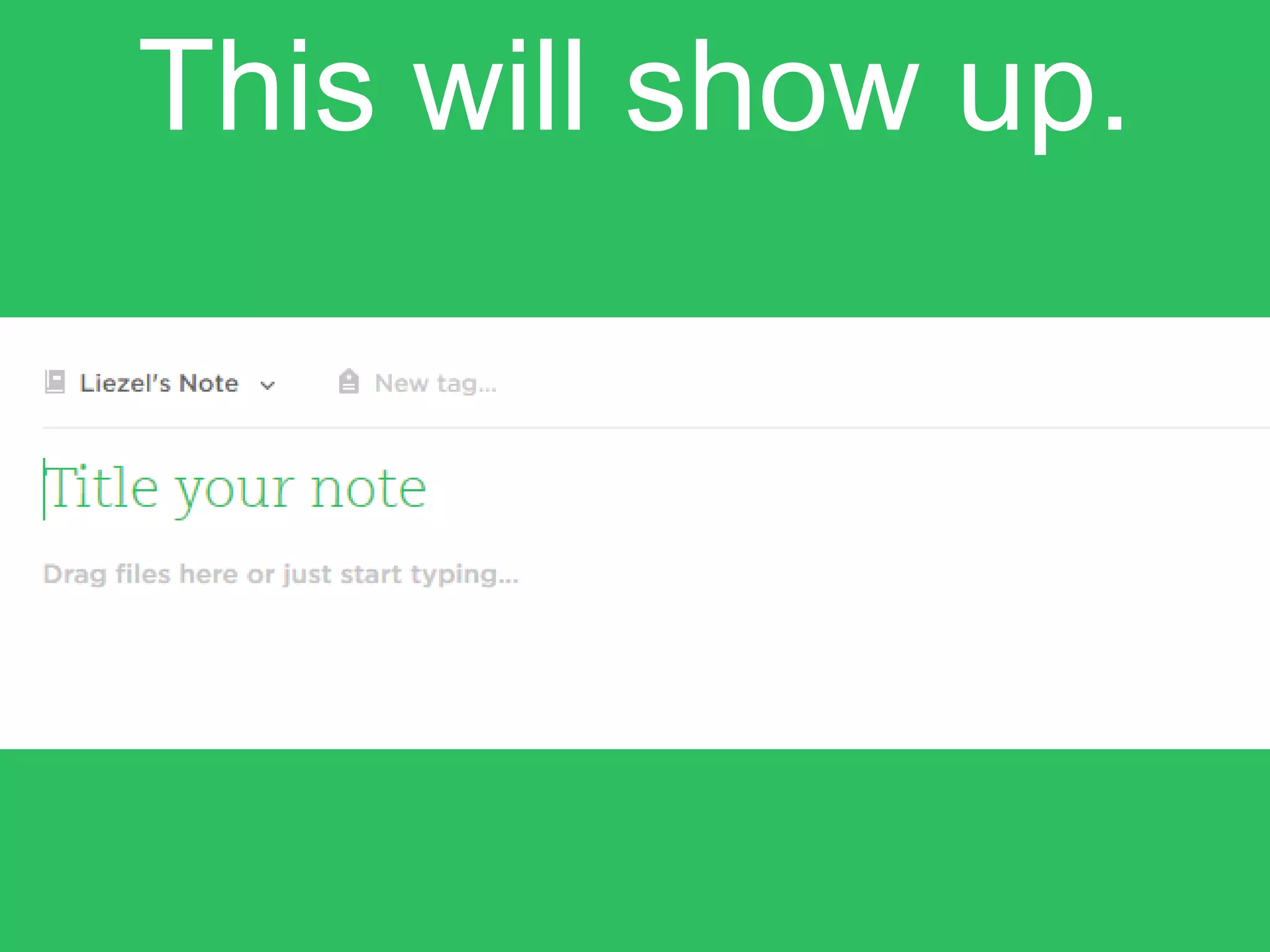
This will show up.
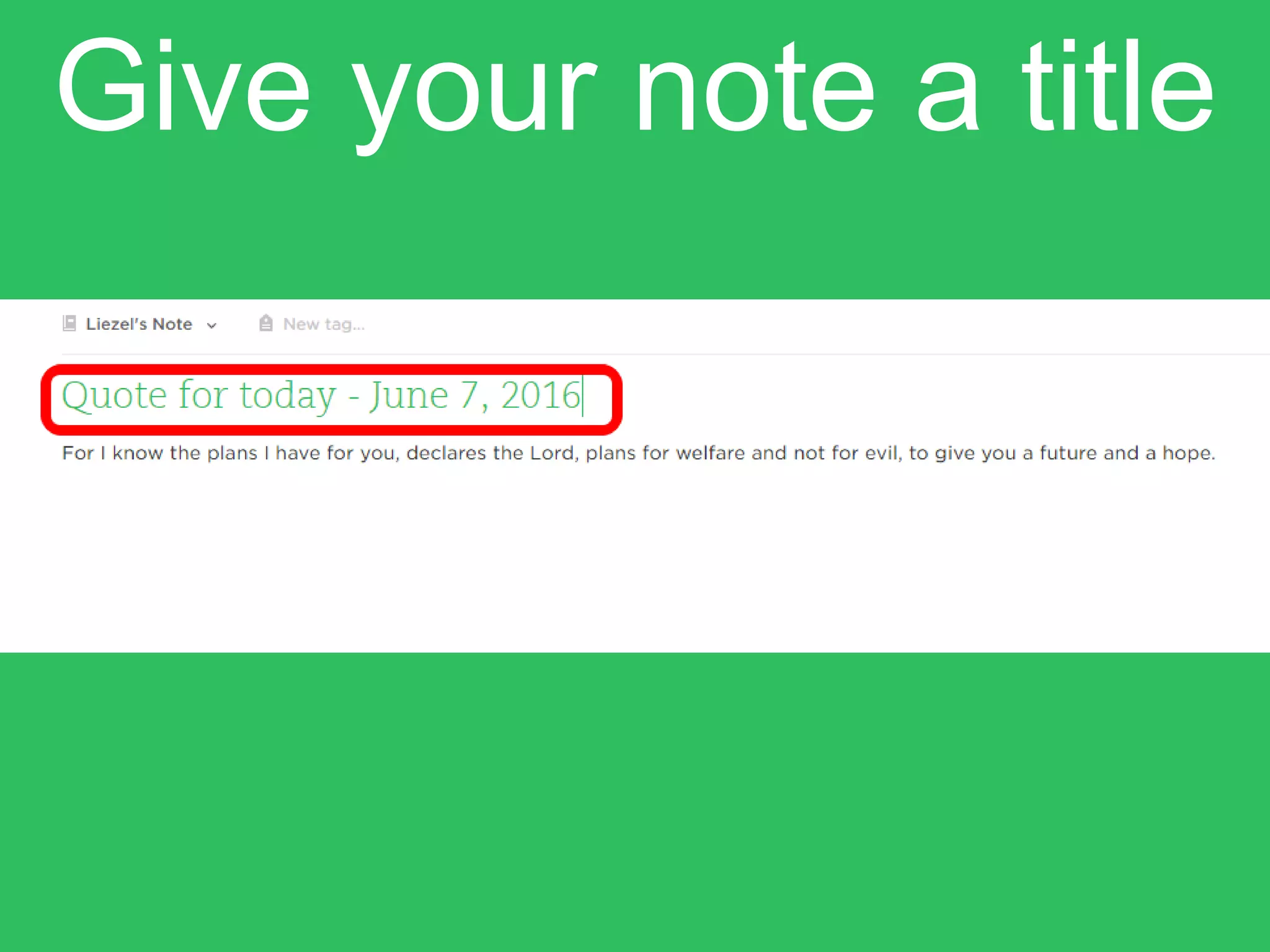
Give your note a title
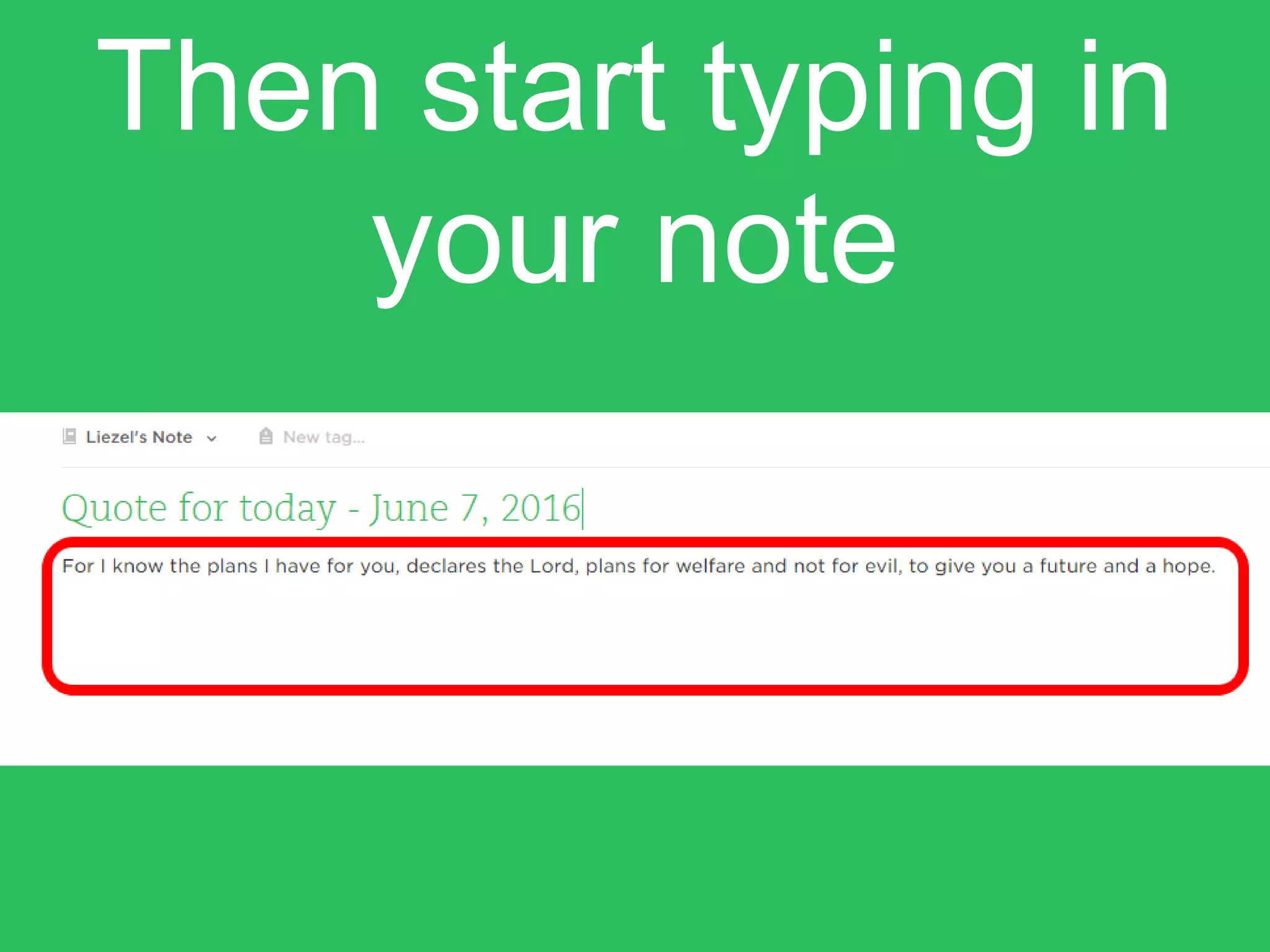
Then start typing in
your note
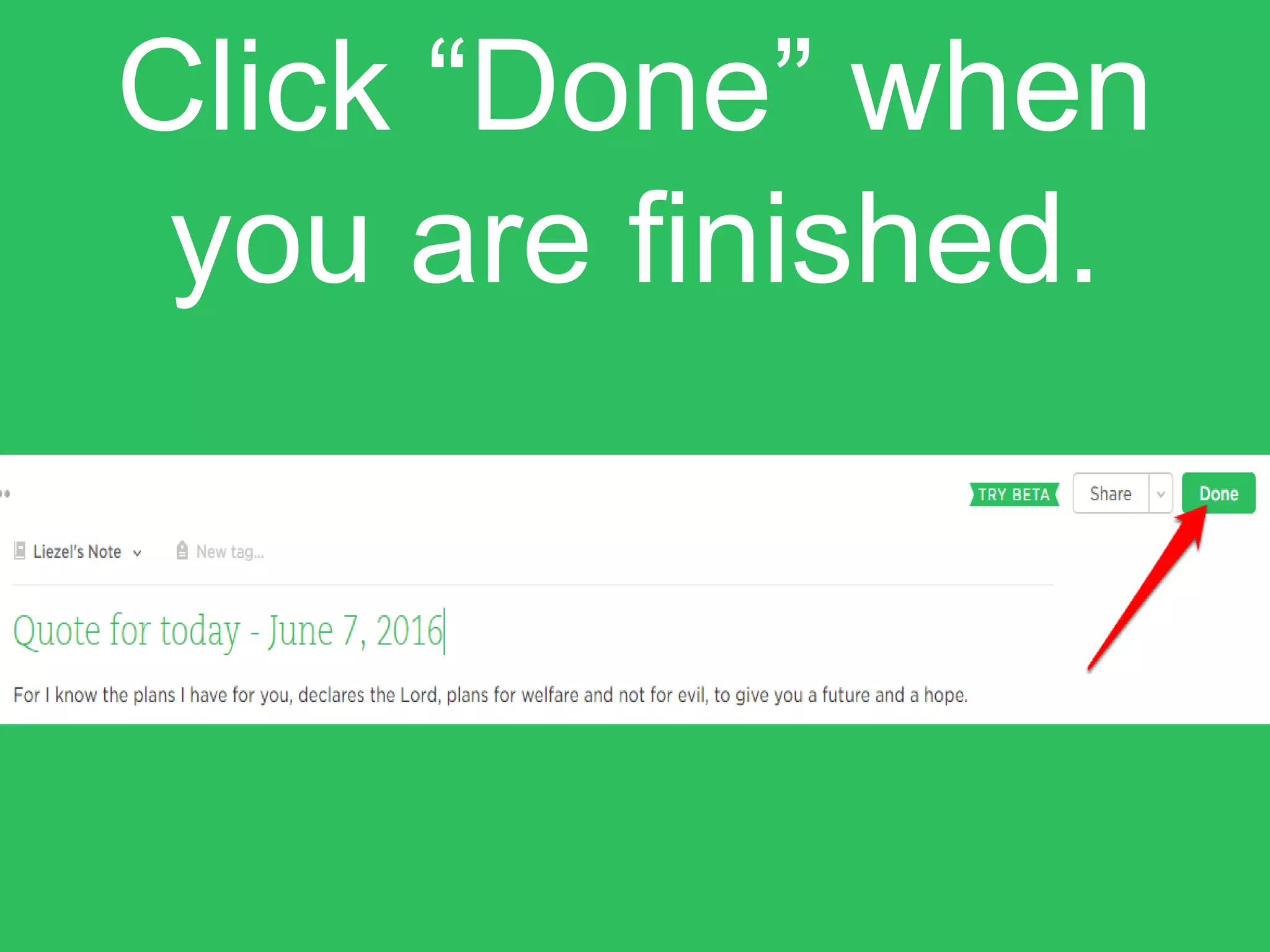
Click “Done” when
you are finished.
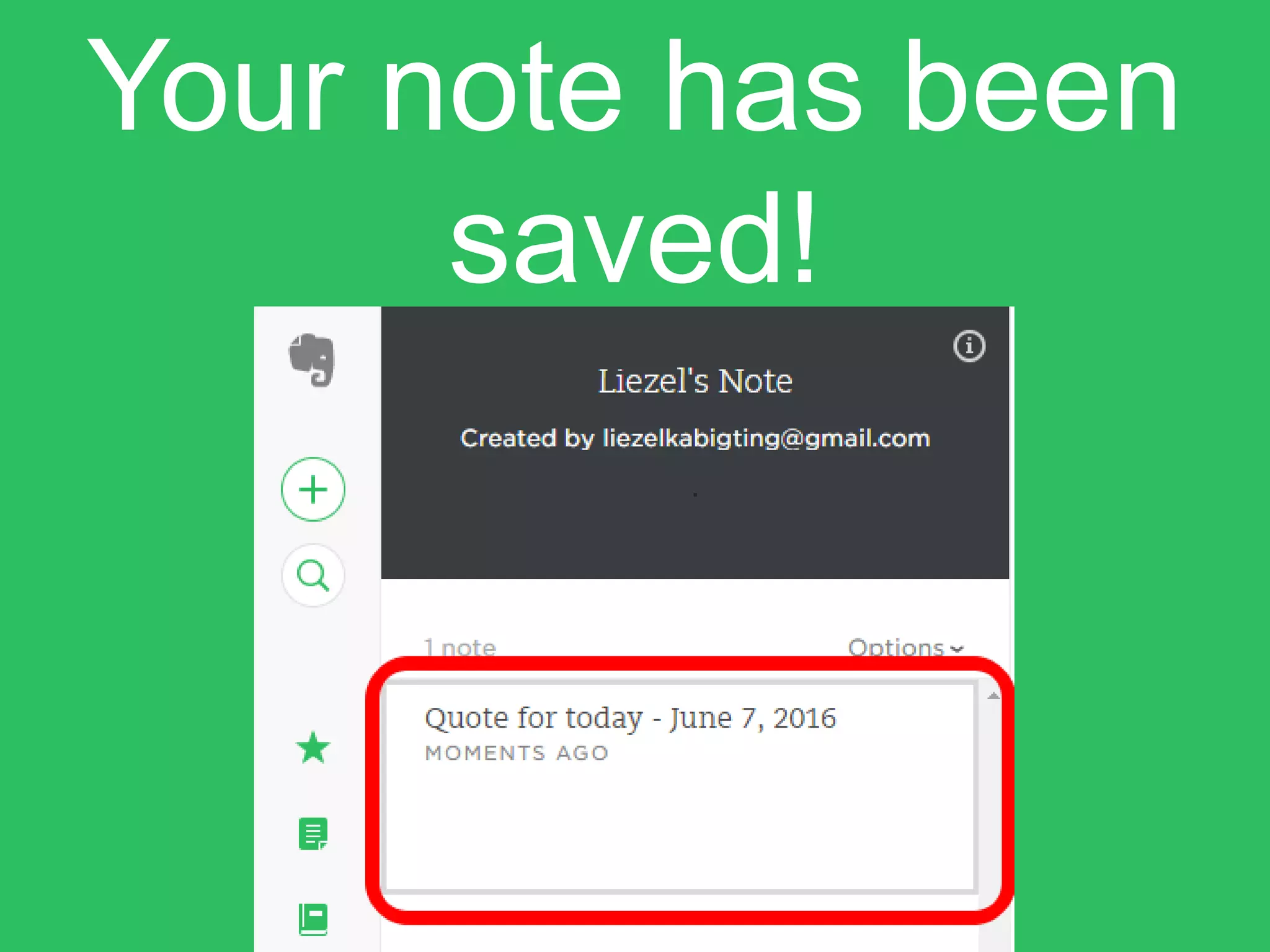
Your note has been
saved!
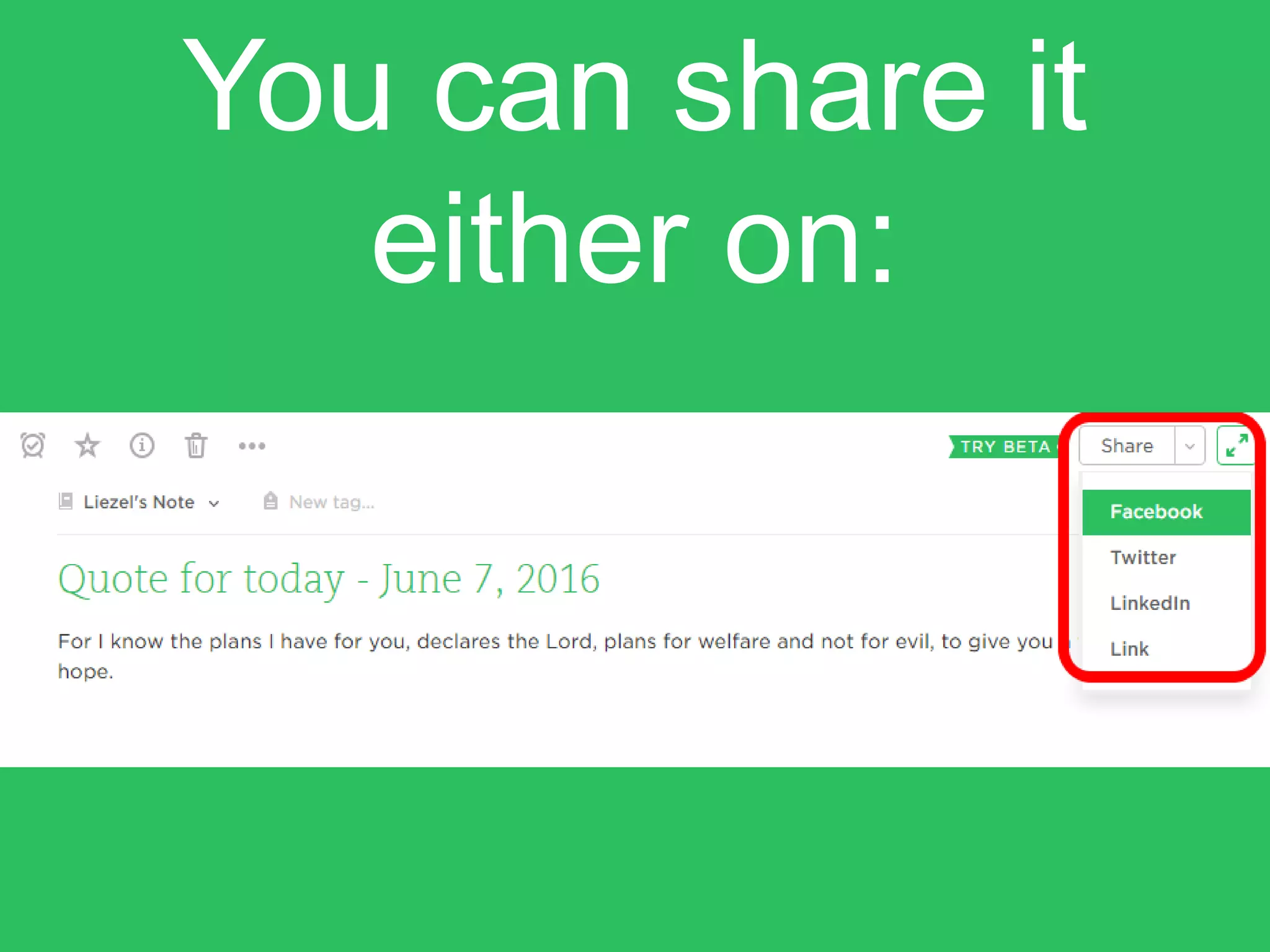
You can share it
either on:
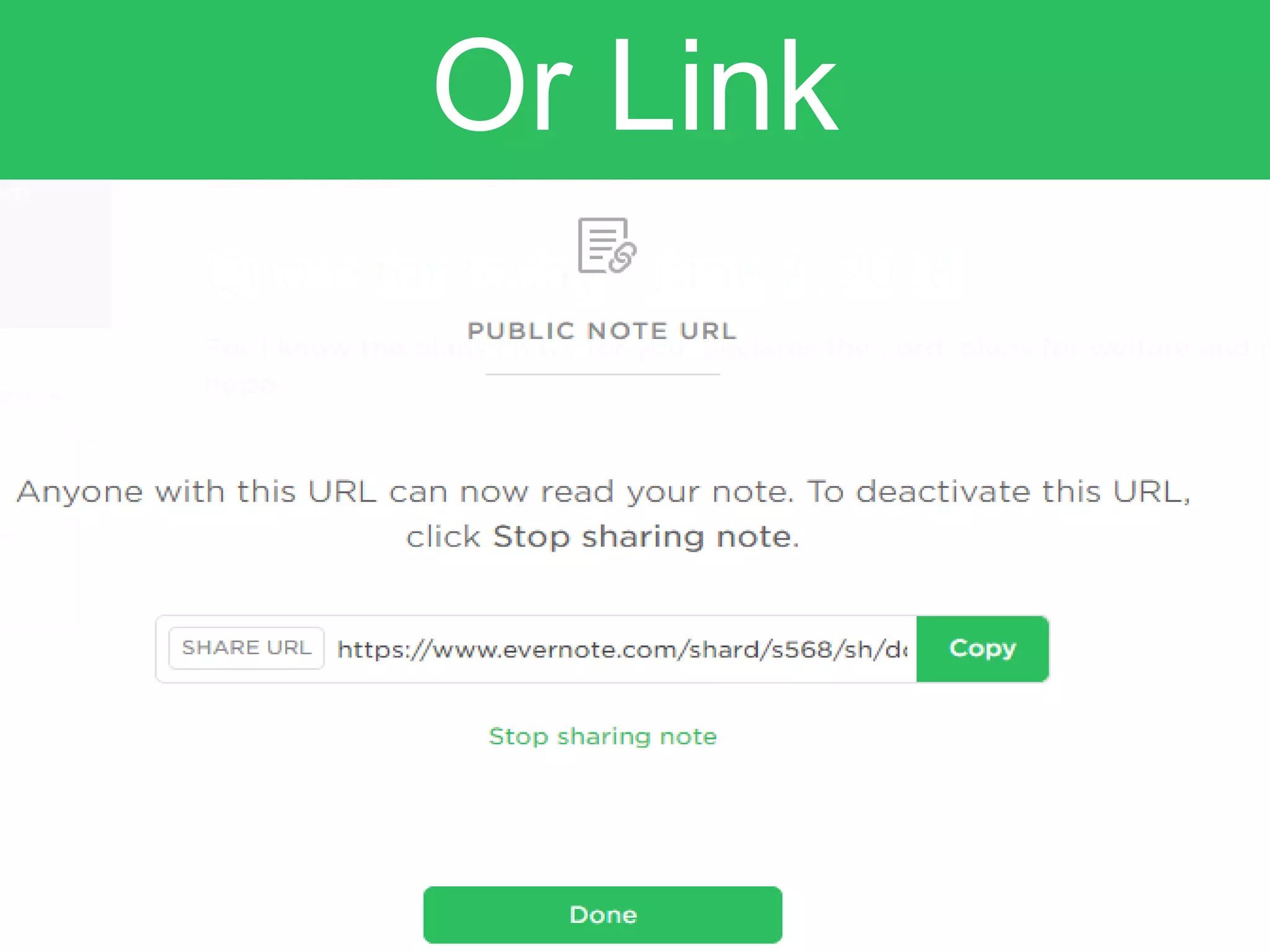
Or Link
Let’s share it on
facebook.
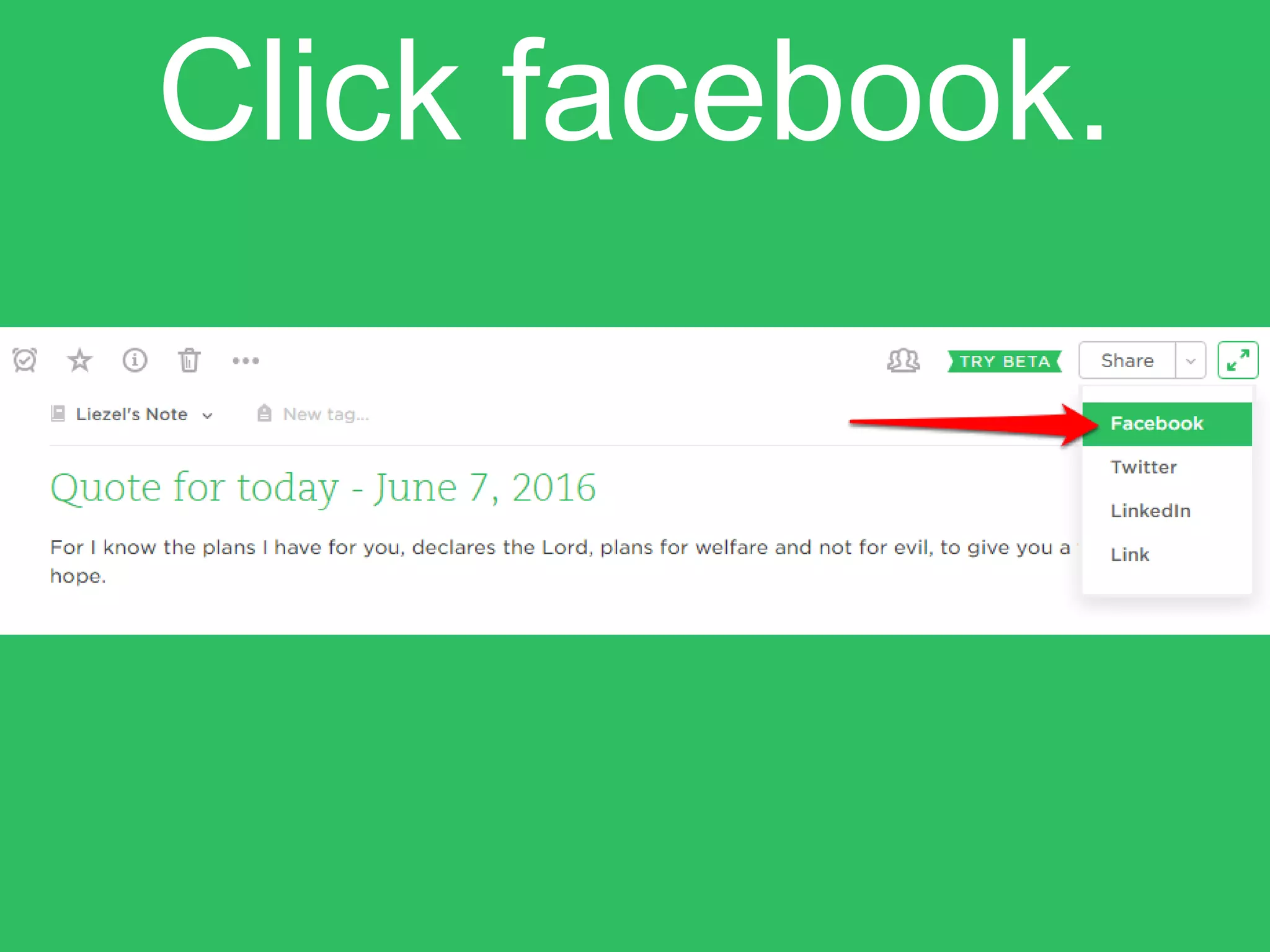
Click facebook.
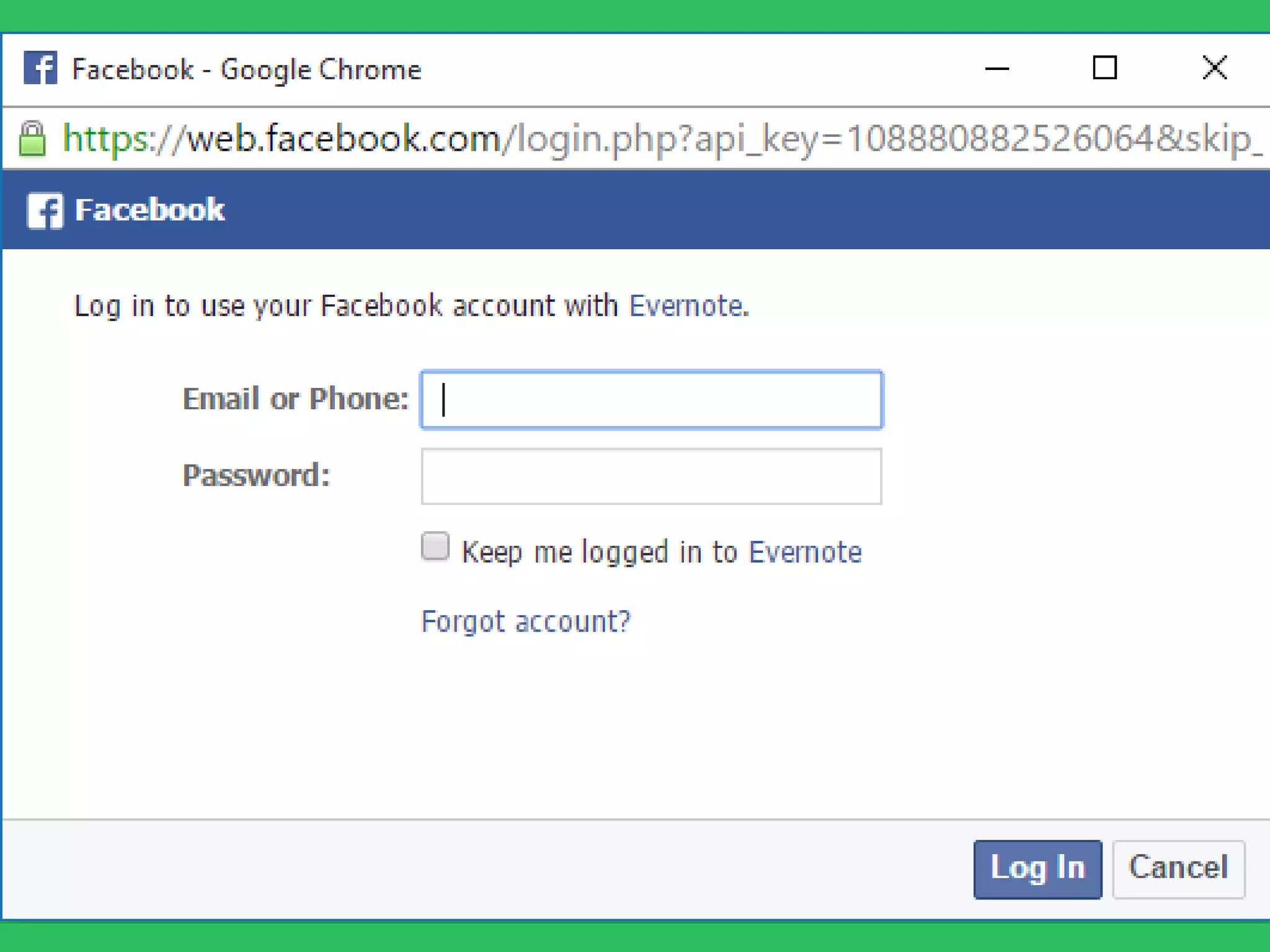
A new login window
will appear.
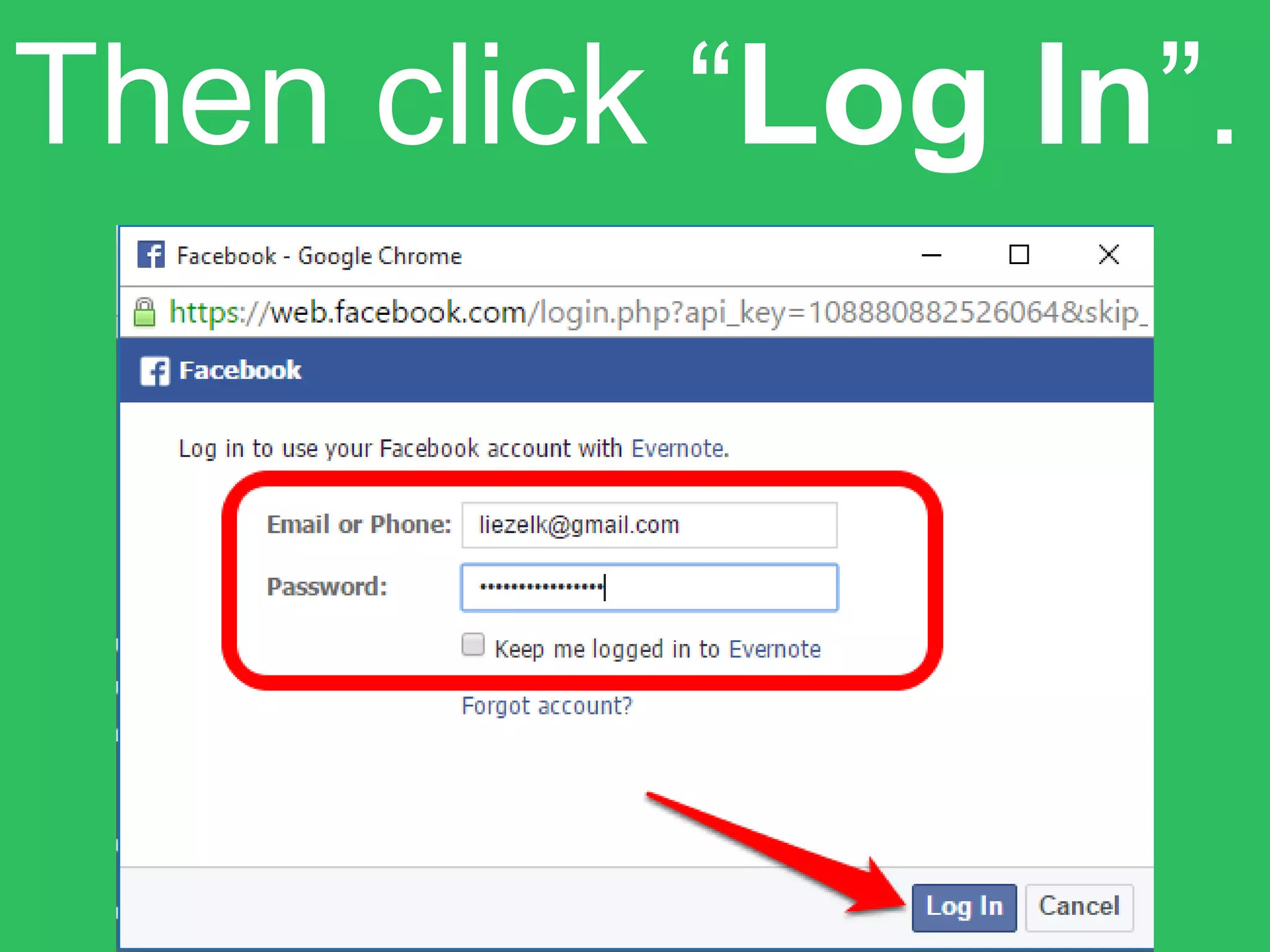
Enter your login
credentials.
Then click “Log In”.
Your evernote note
is now ready to
share.
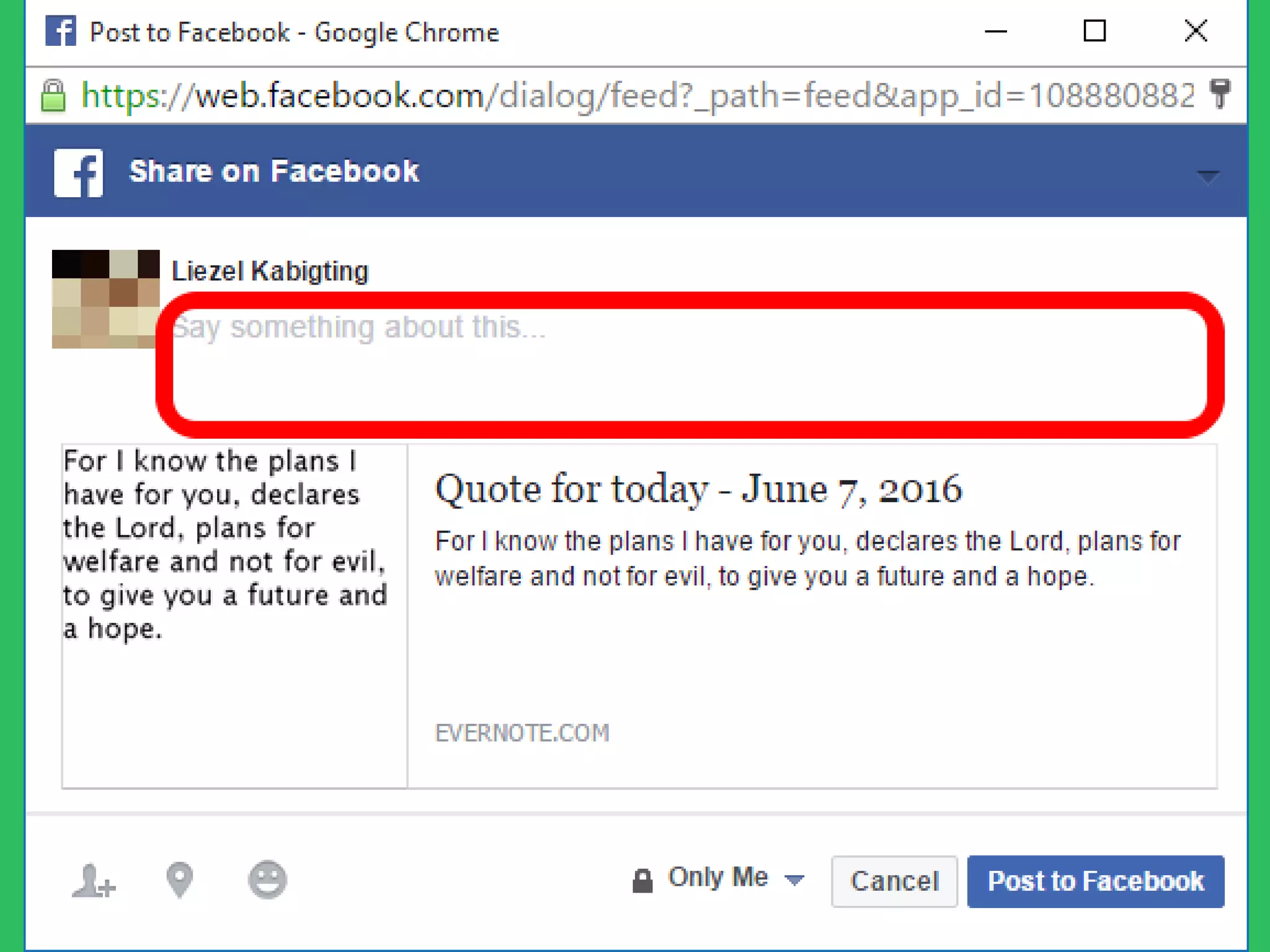
You can add a caption
before posting it.
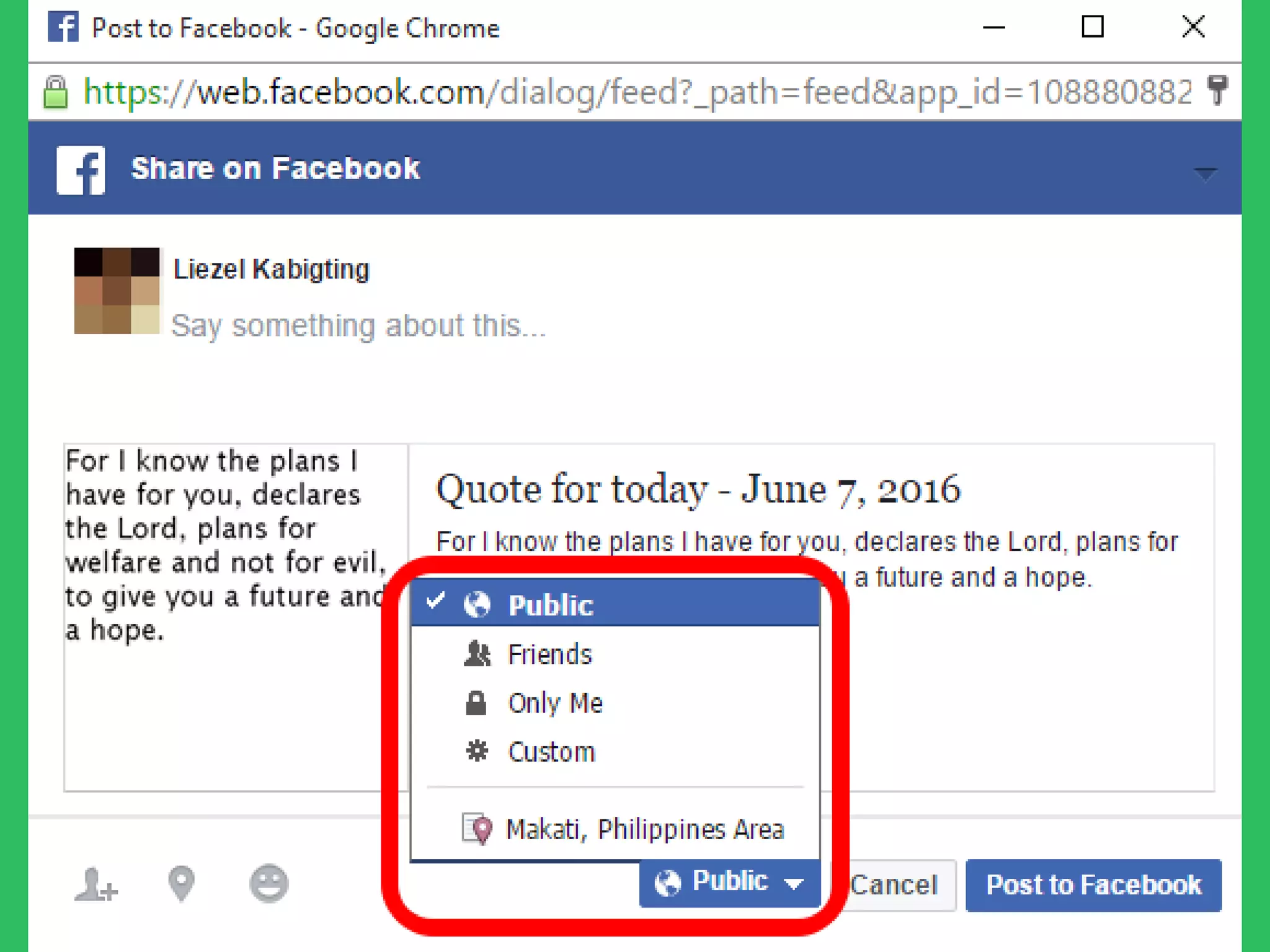
Select who can view
your post.
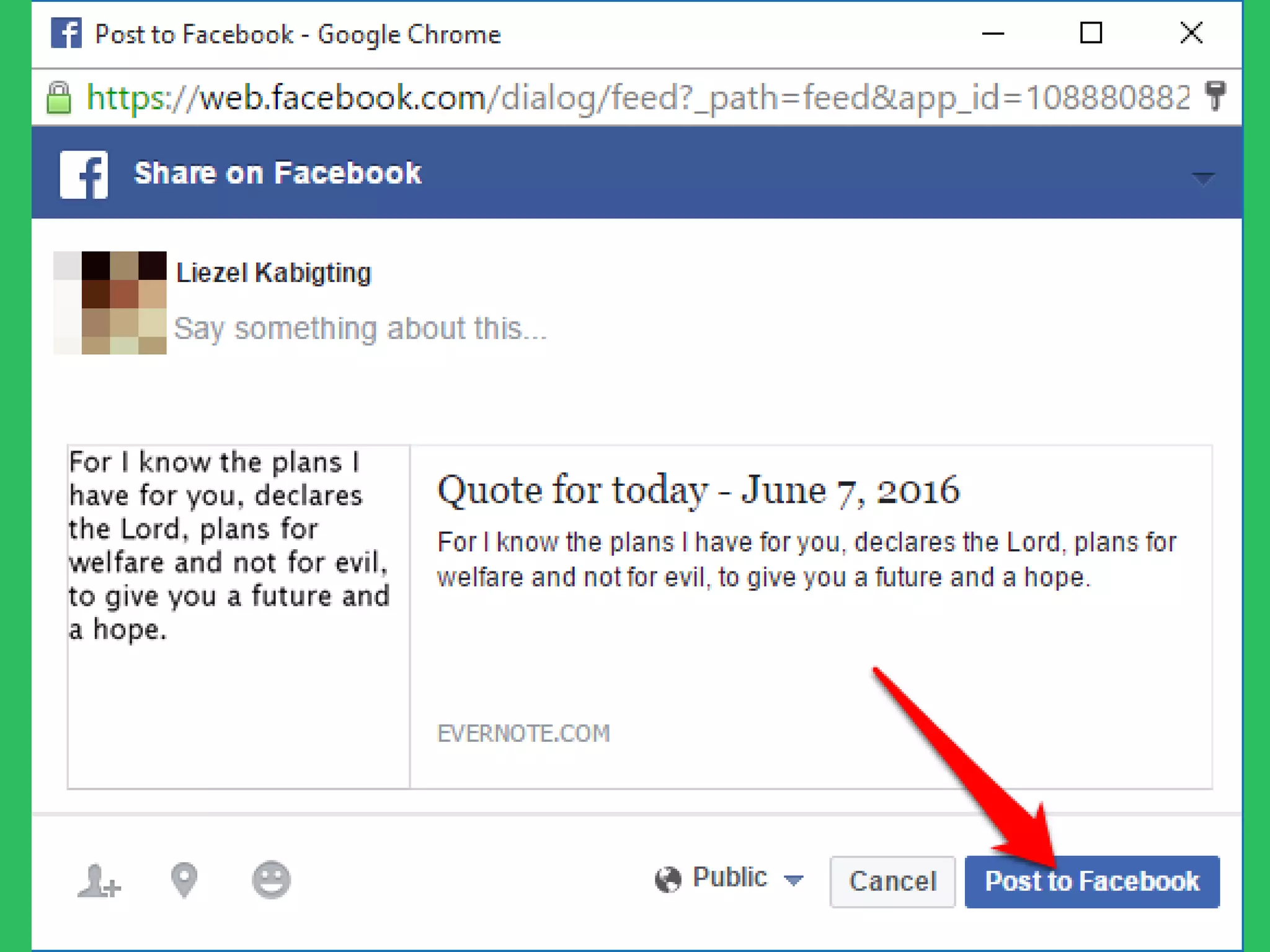
Click
“Post to Facebook”
Your note is now
posted on Facebook!
Navigate and enjoy
organizing your
notes!
Example of:
Making “to-do-list”
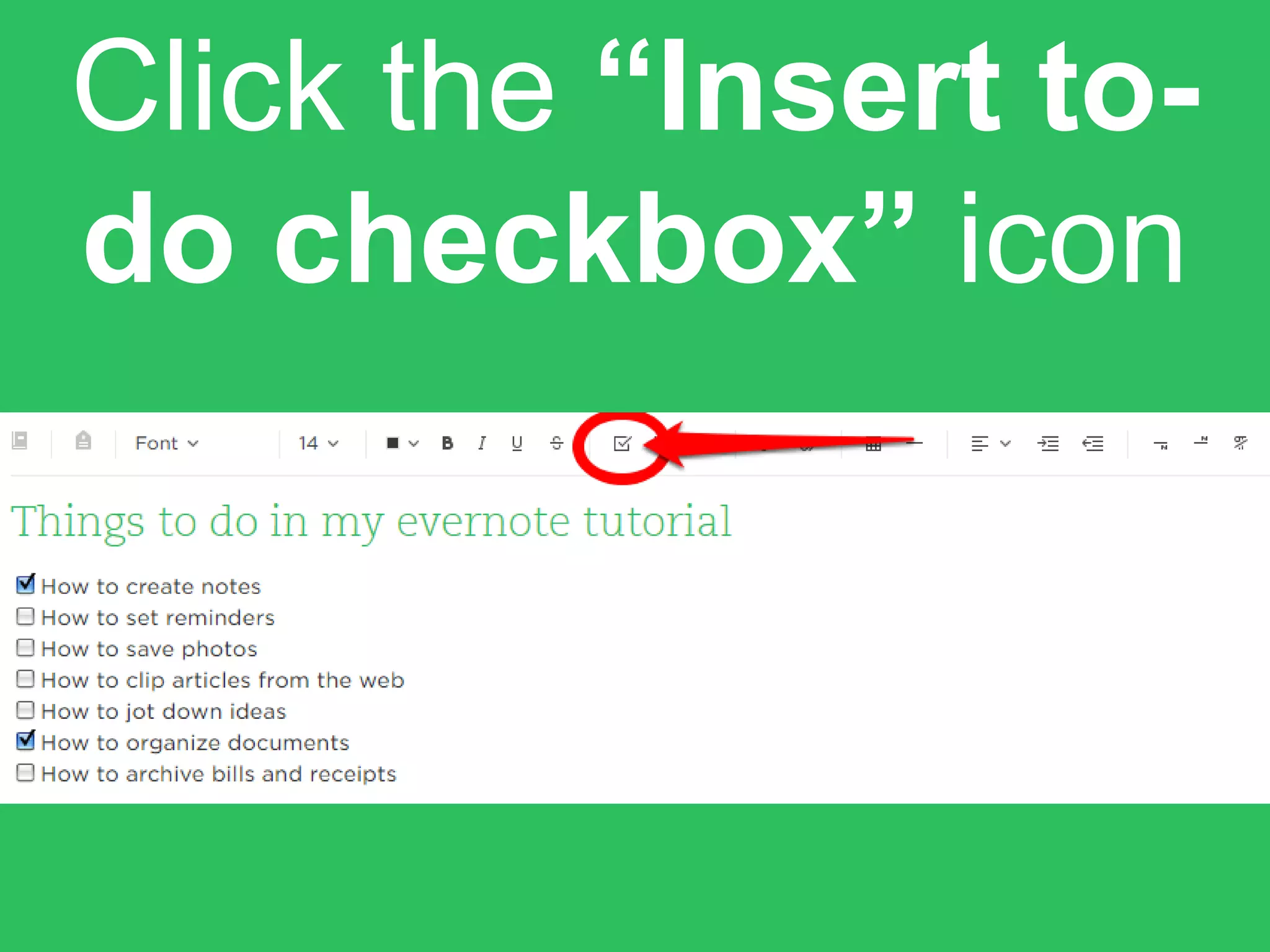
Click the “Insert to-
do checkbox” icon
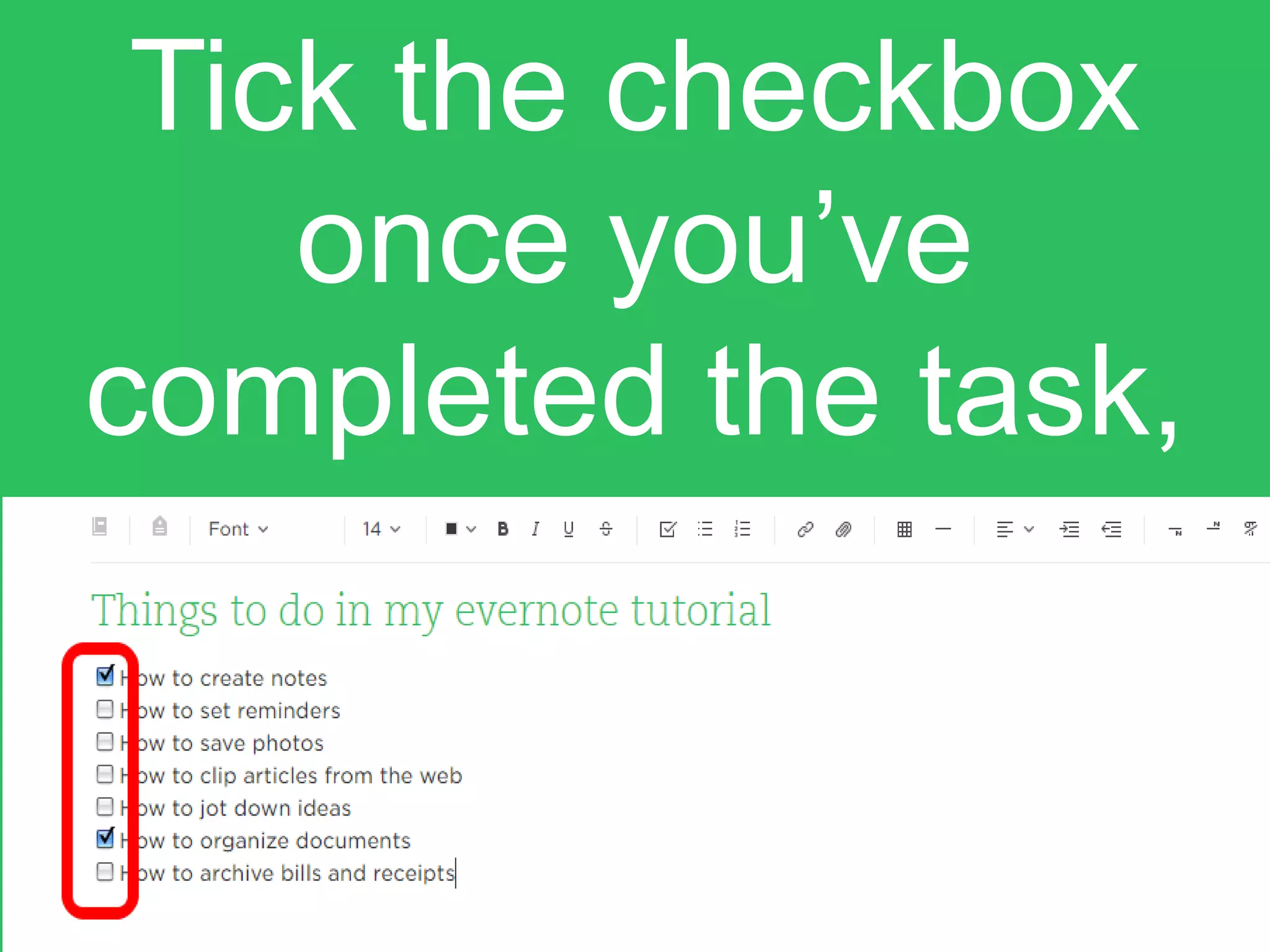
Tick the checkbox
once you’ve
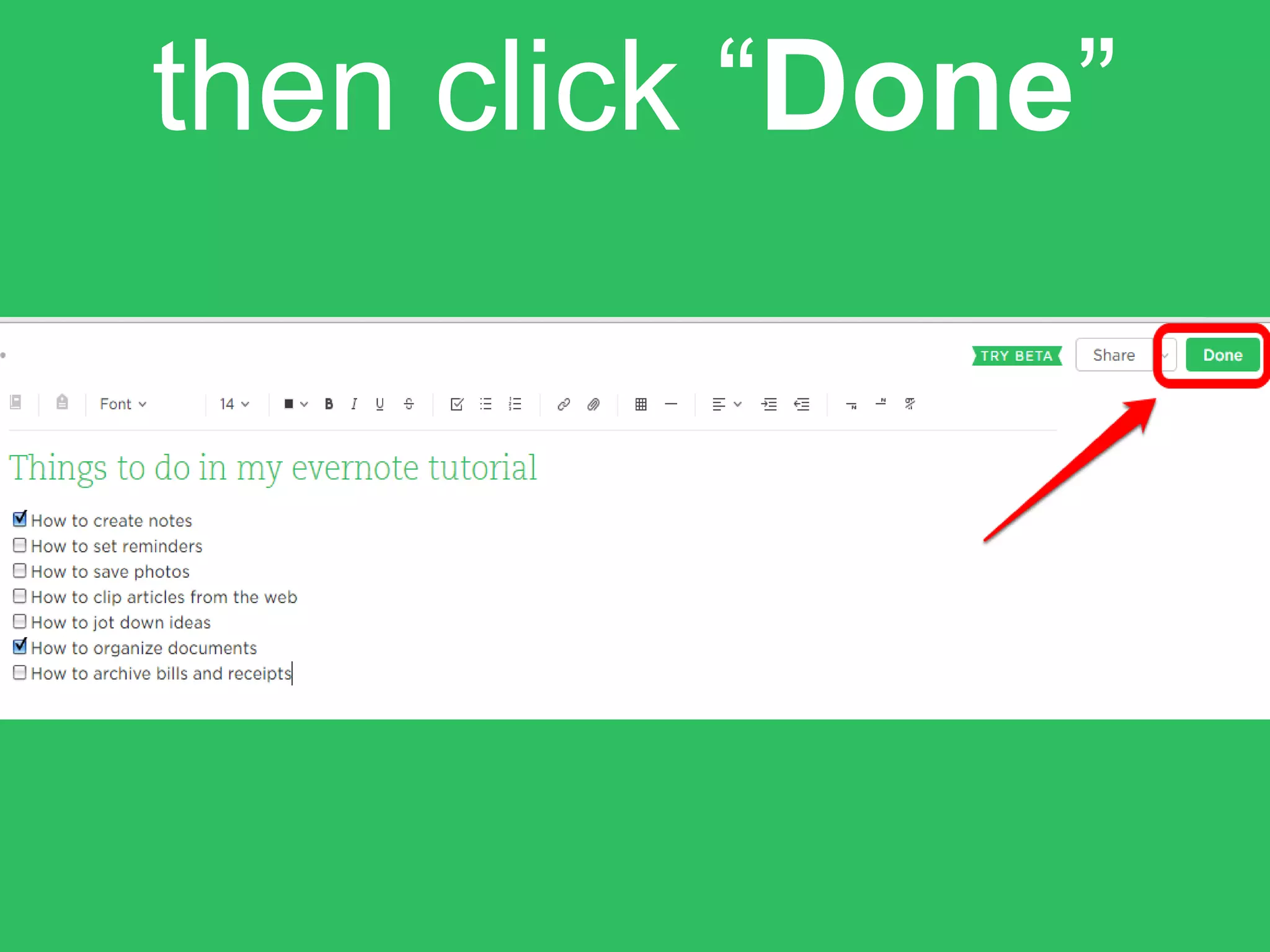
completed the task,
then click “Done”
Example of:
Attaching a file or
picture
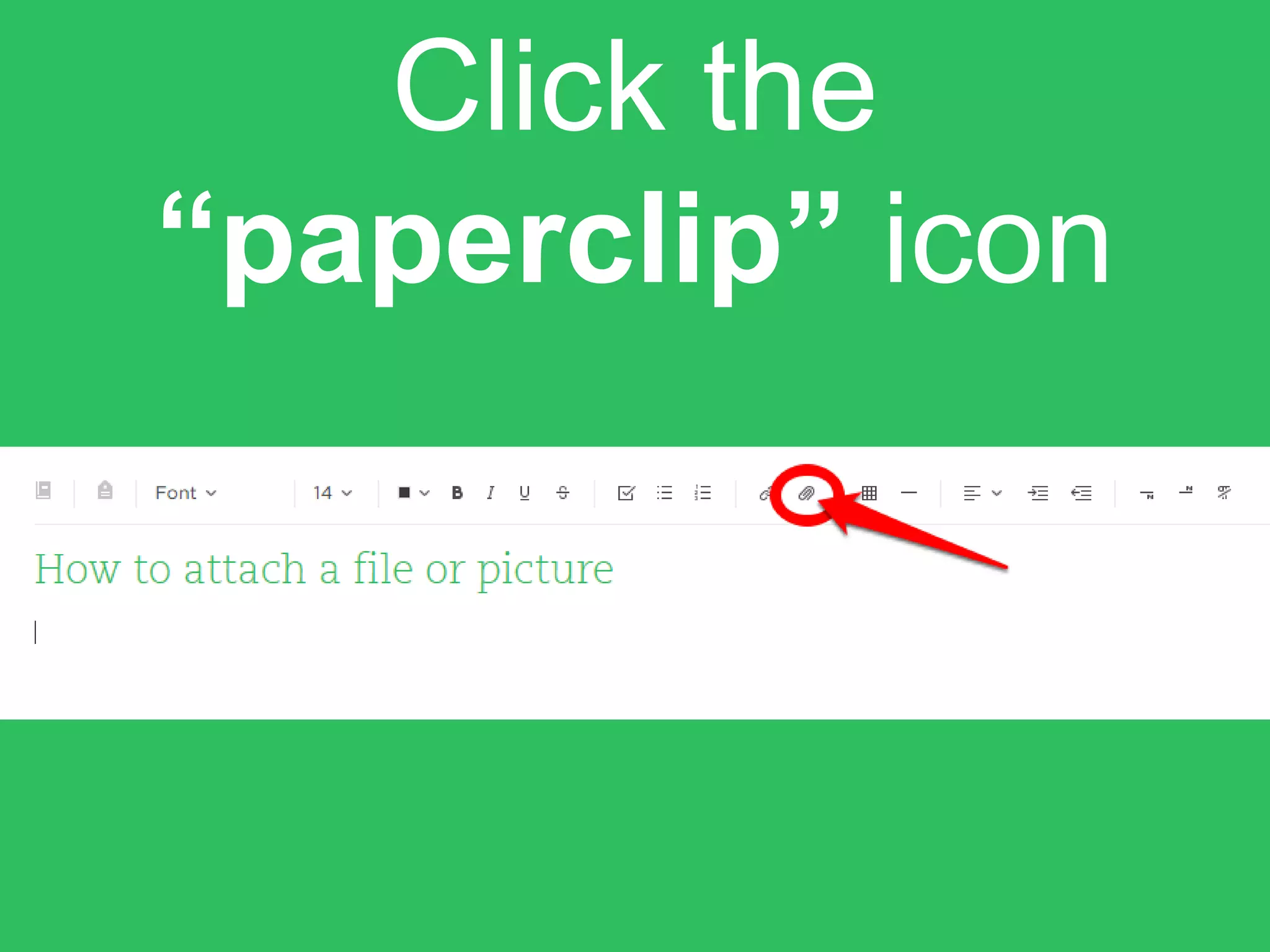
Click the
“paperclip” icon
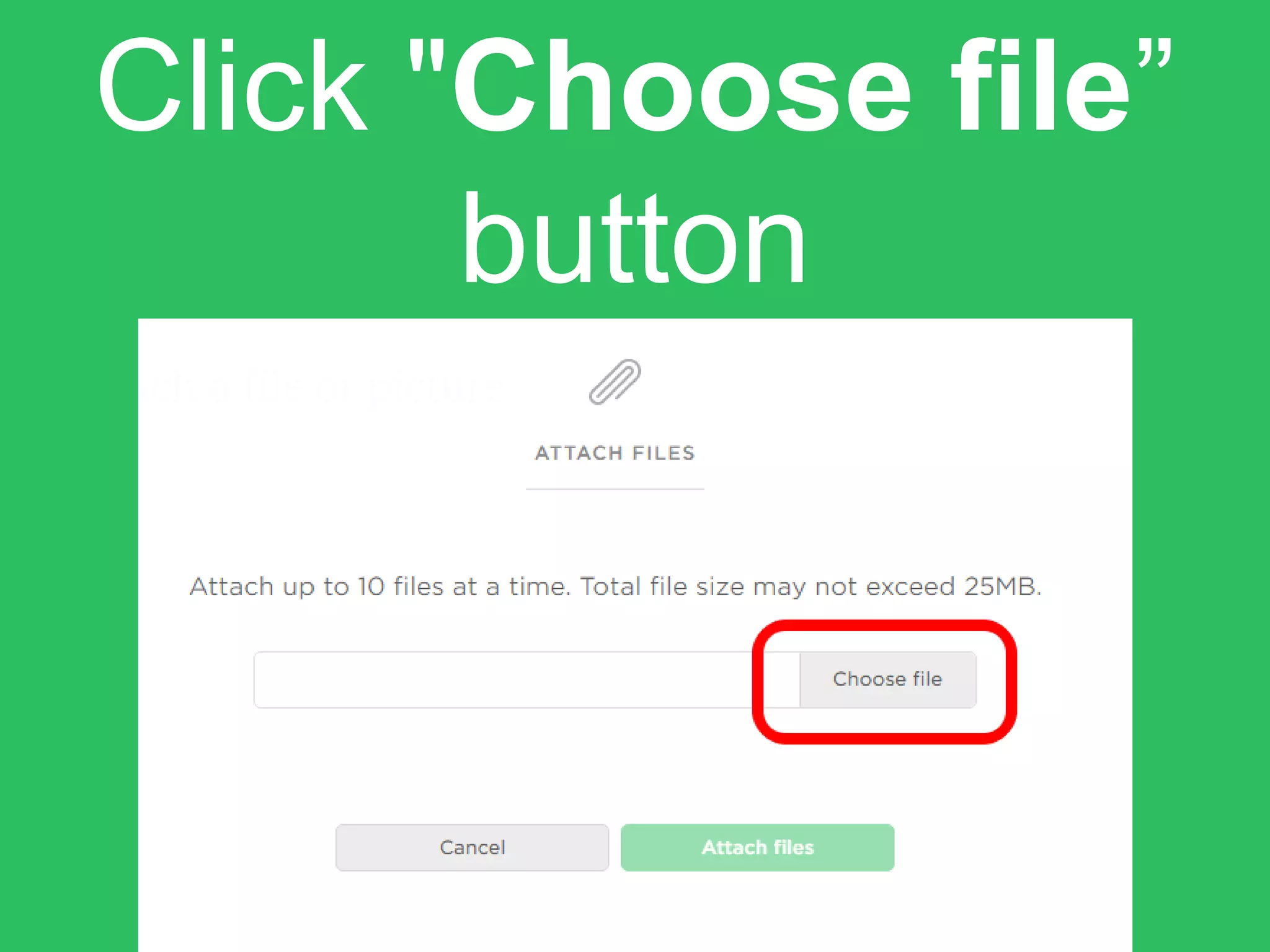
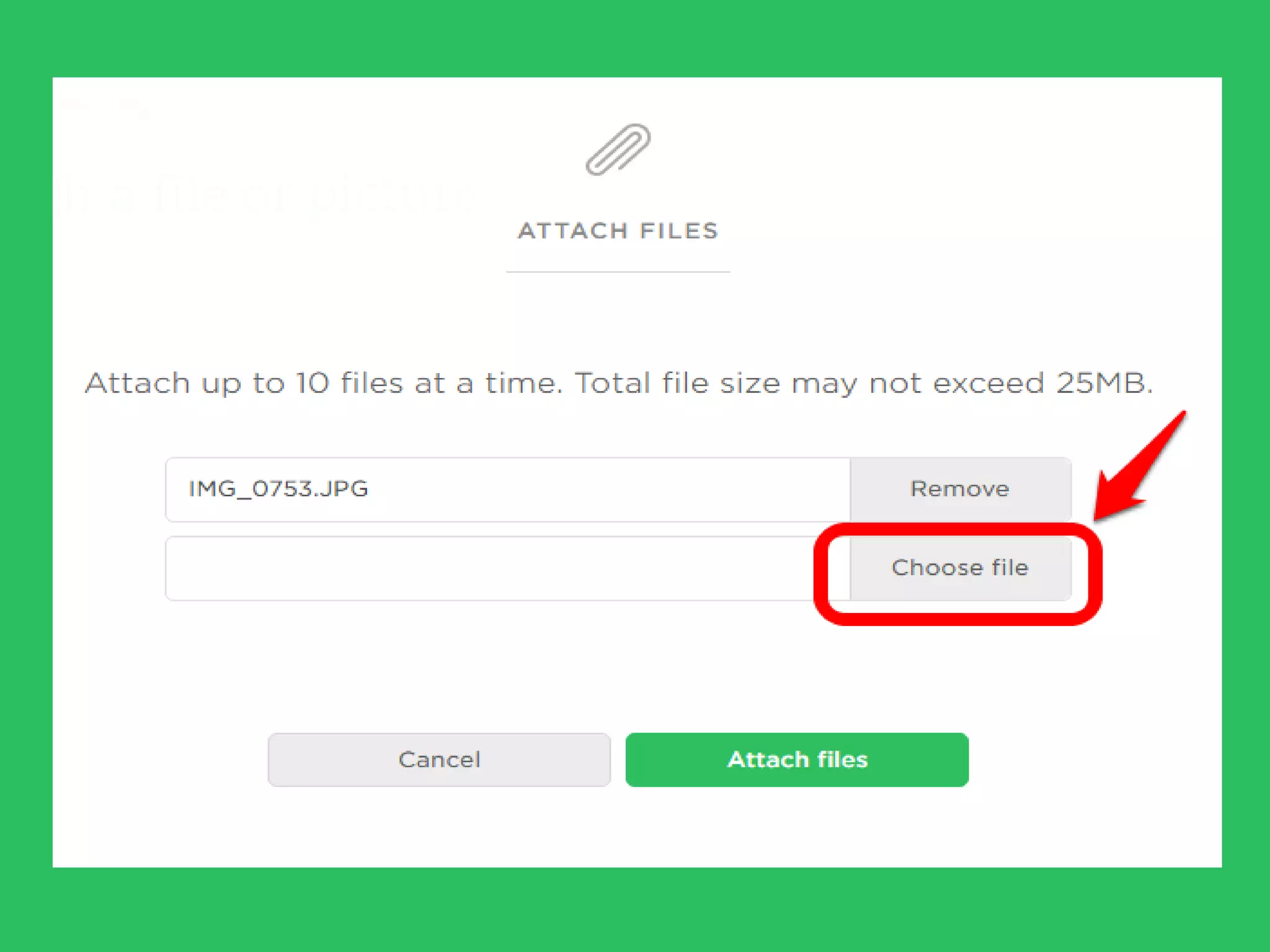
Click "Choose file”
button
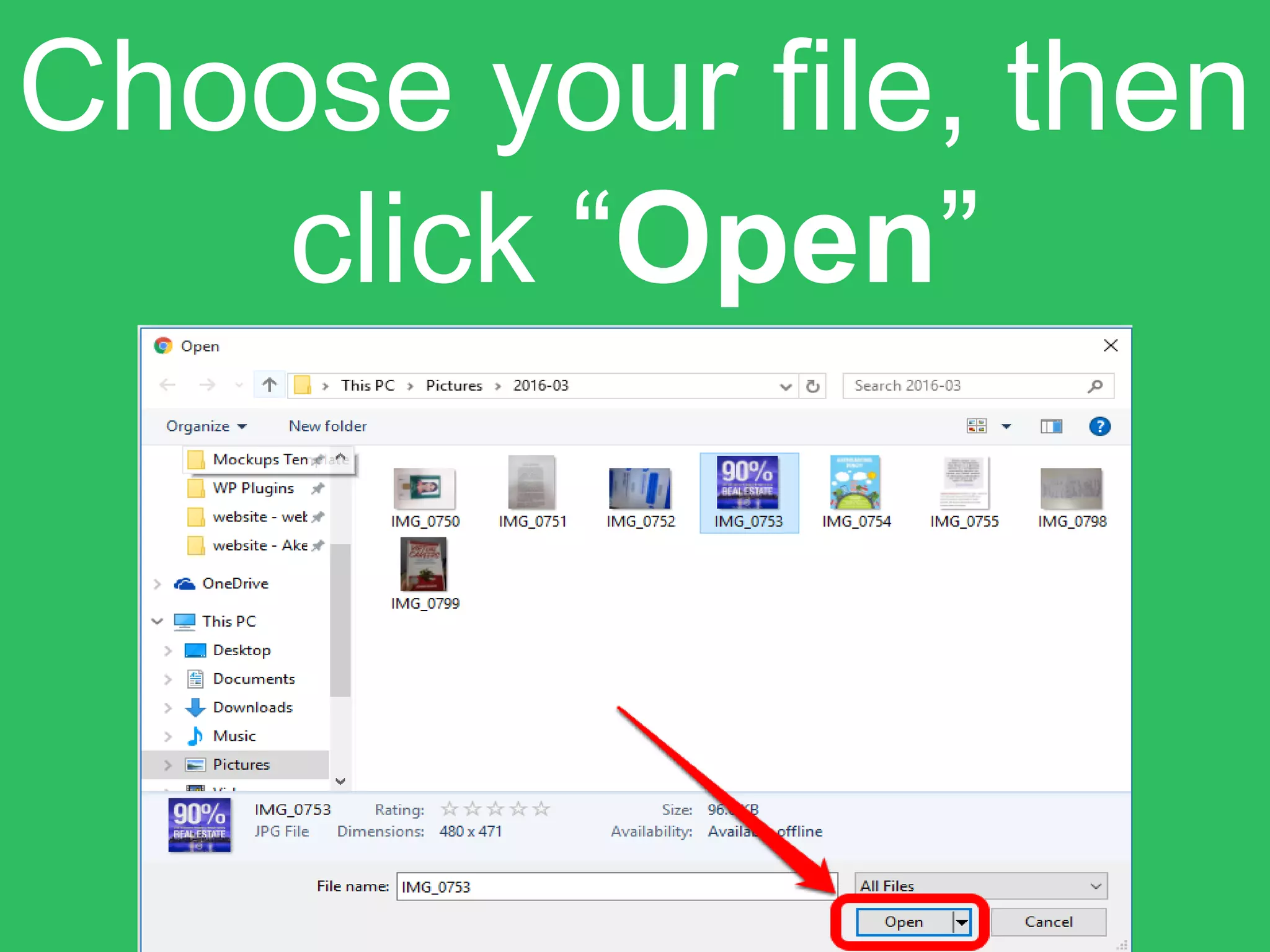
Choose your file, then
click “Open”
You may add another
file by clicking
“Choose file” button
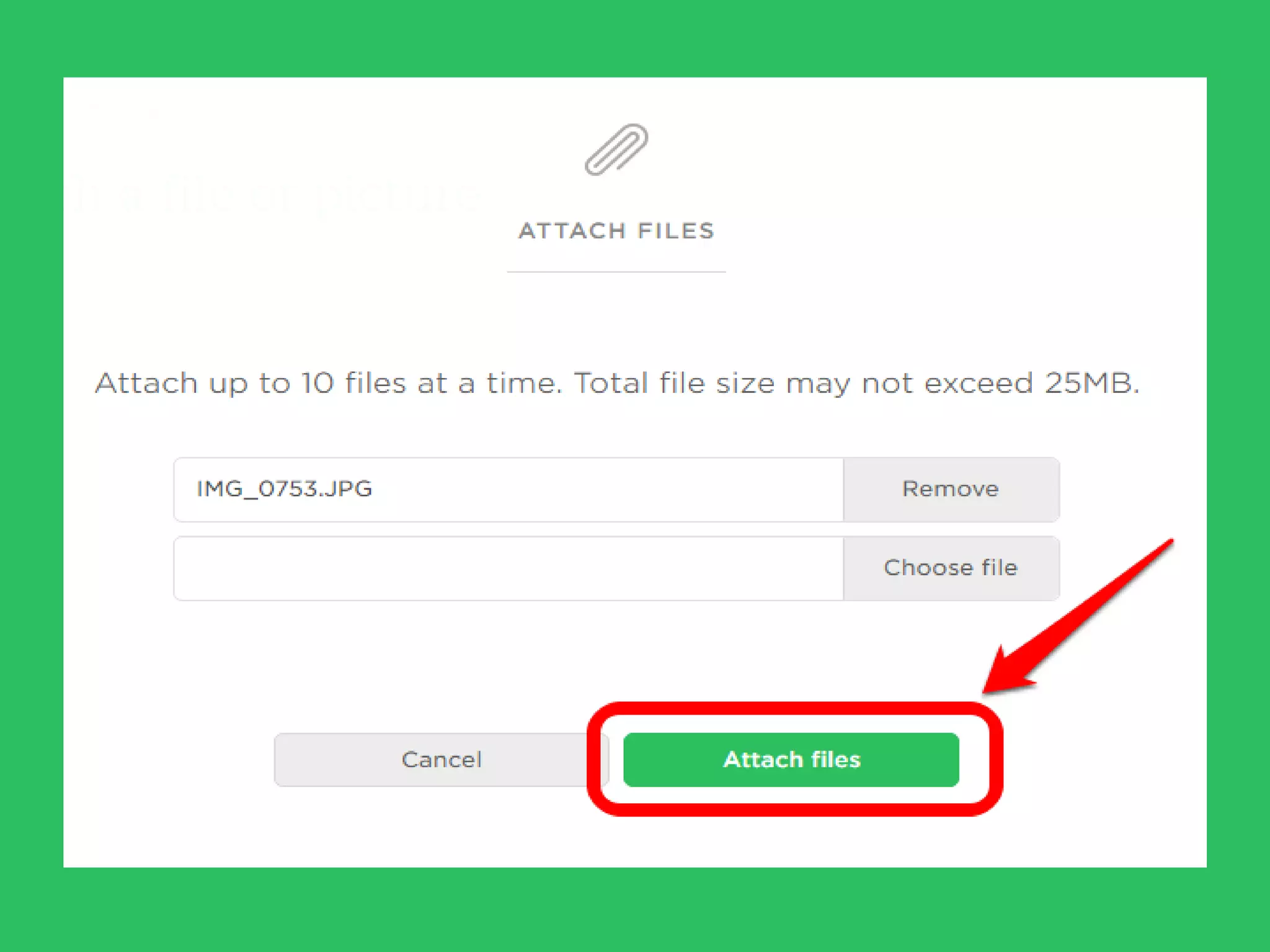
Or immediately
attach file by clicking
“Attach files” button
You have successfully
attached a picture!
Example of:
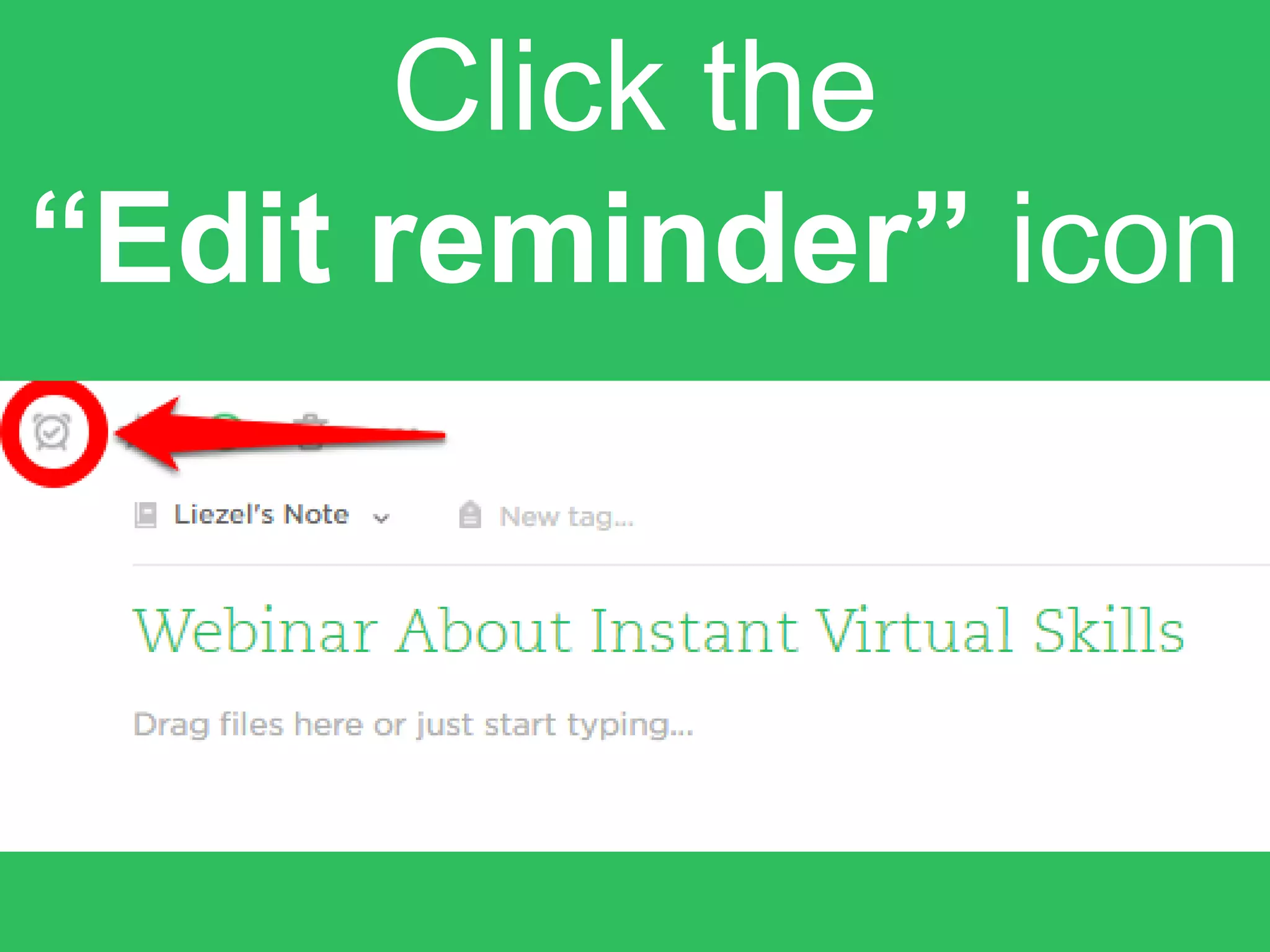
Setting a reminder
Click the
“Edit reminder” icon
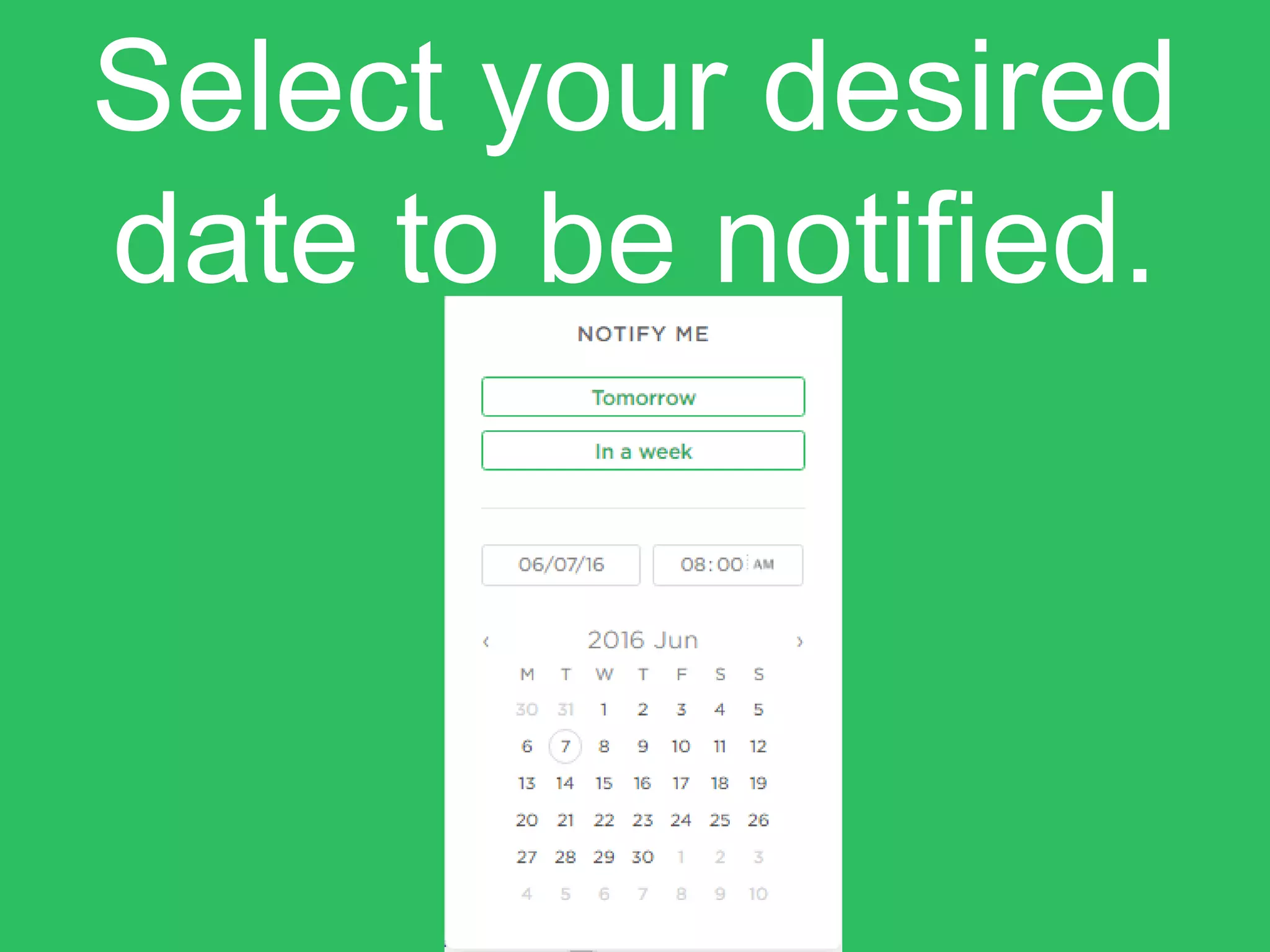
Select your desired
date to be notified.
Install Web Clipper
to clip and save
articles from the web.
Go back to your Clip
articles from the web
note.
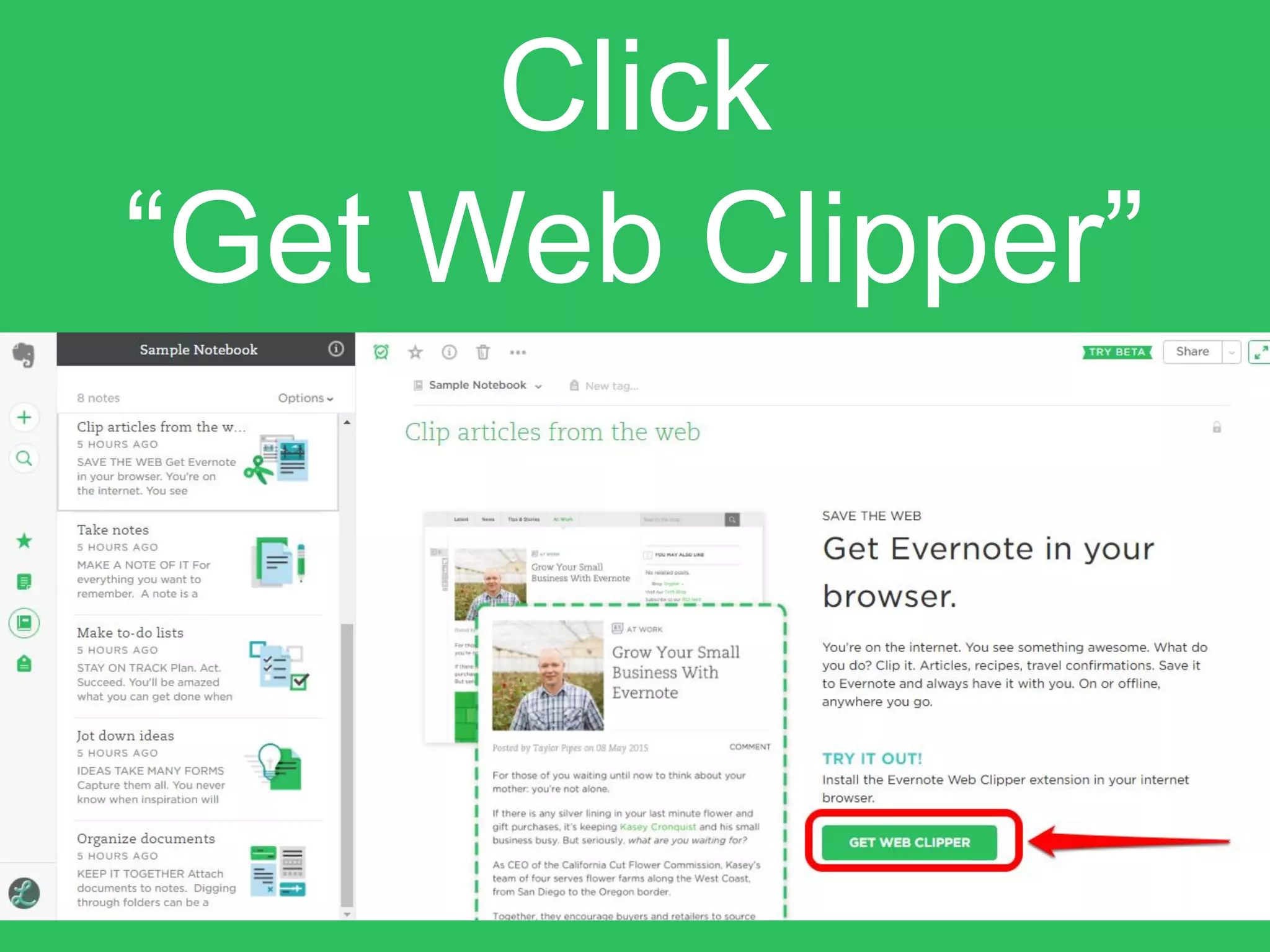
Click
“Get Web Clipper”
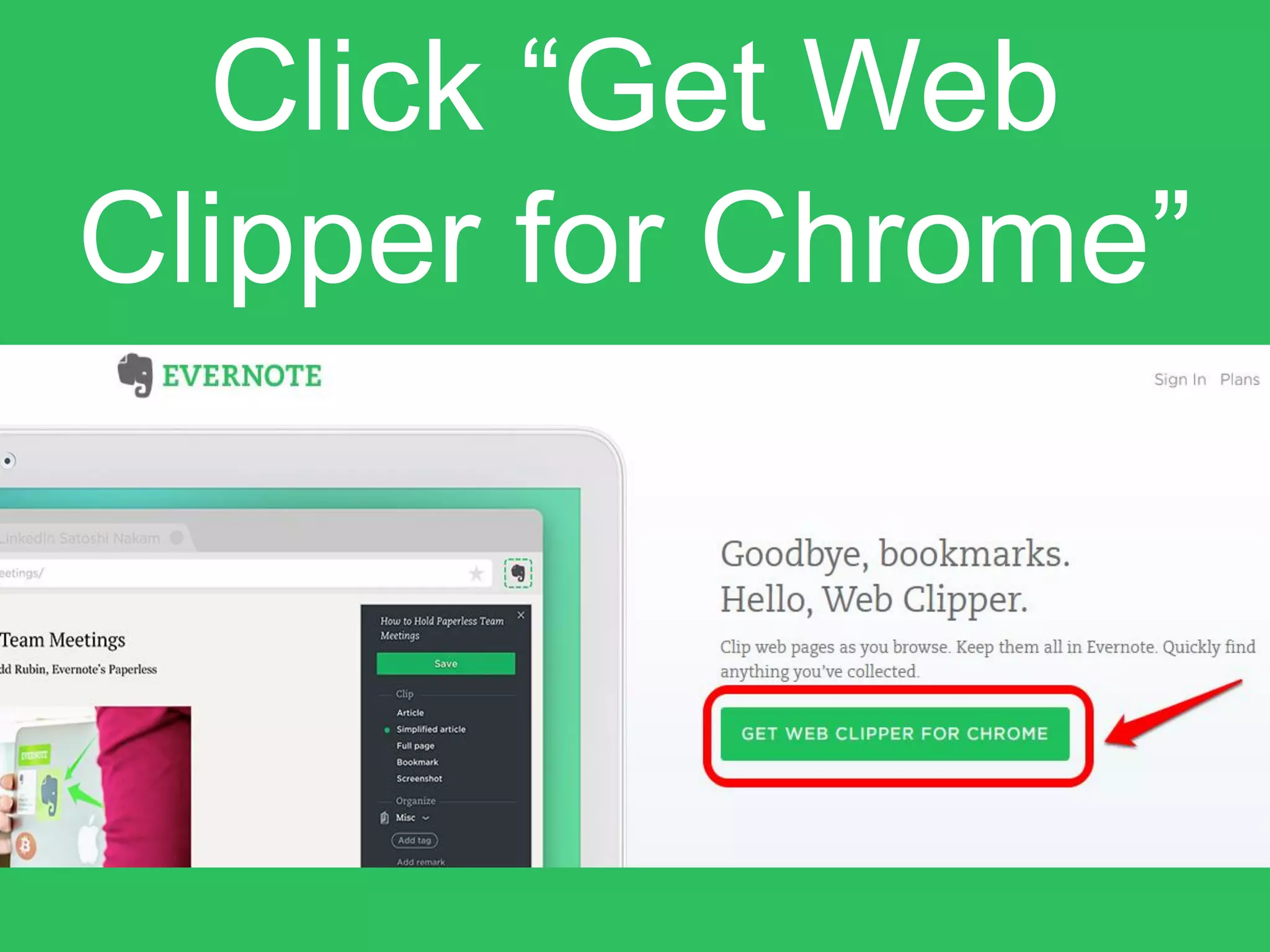
Click “Get Web
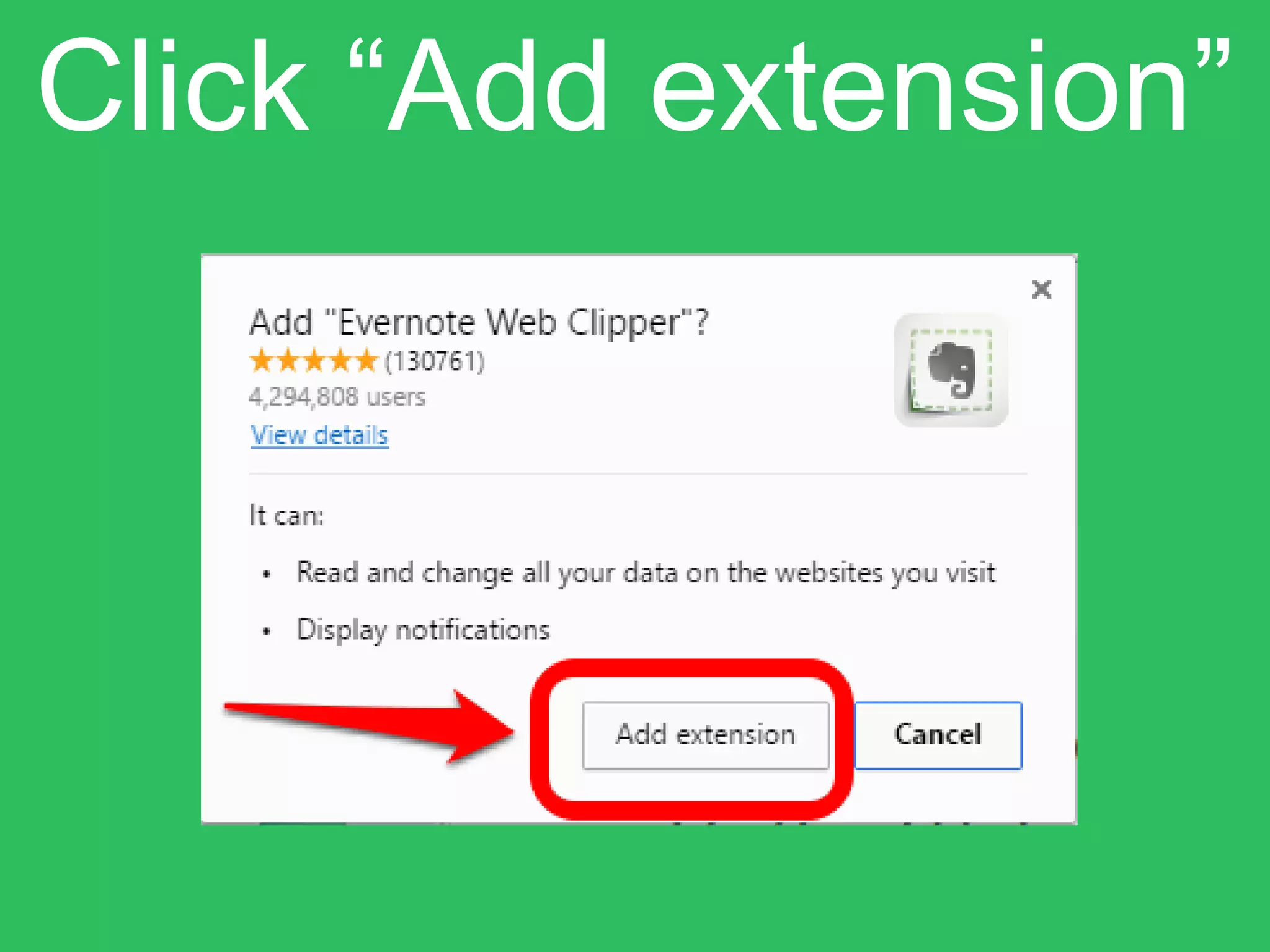
Clipper for Chrome”
Click “Add extension”
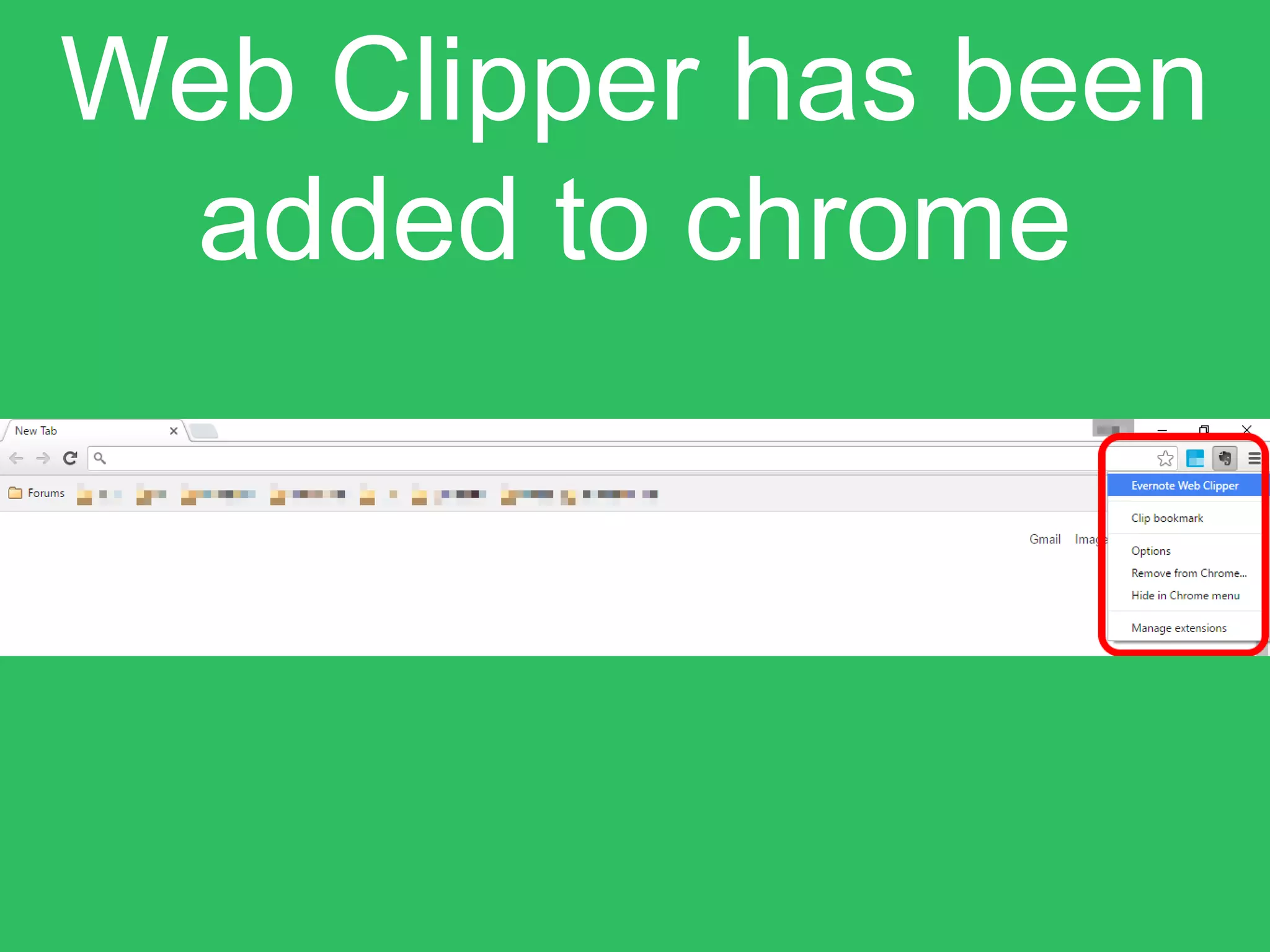
Web Clipper has been
added to chrome
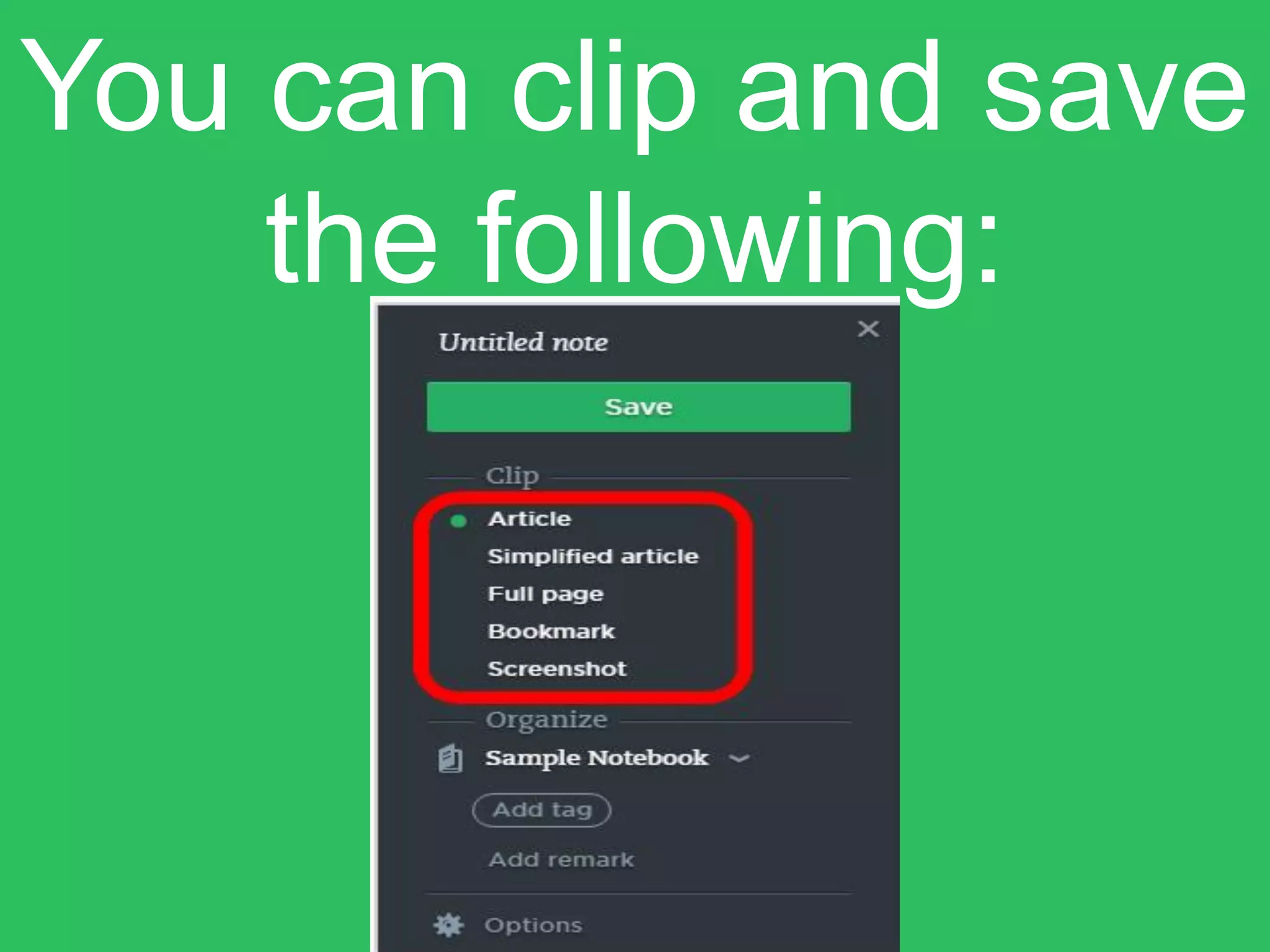
You can clip and save
the following:
Install Evernote in
your phone or
tablet
Download the mobile
app
For Apple Devices
For Android Devices
Let’s sync it on
Iphone device
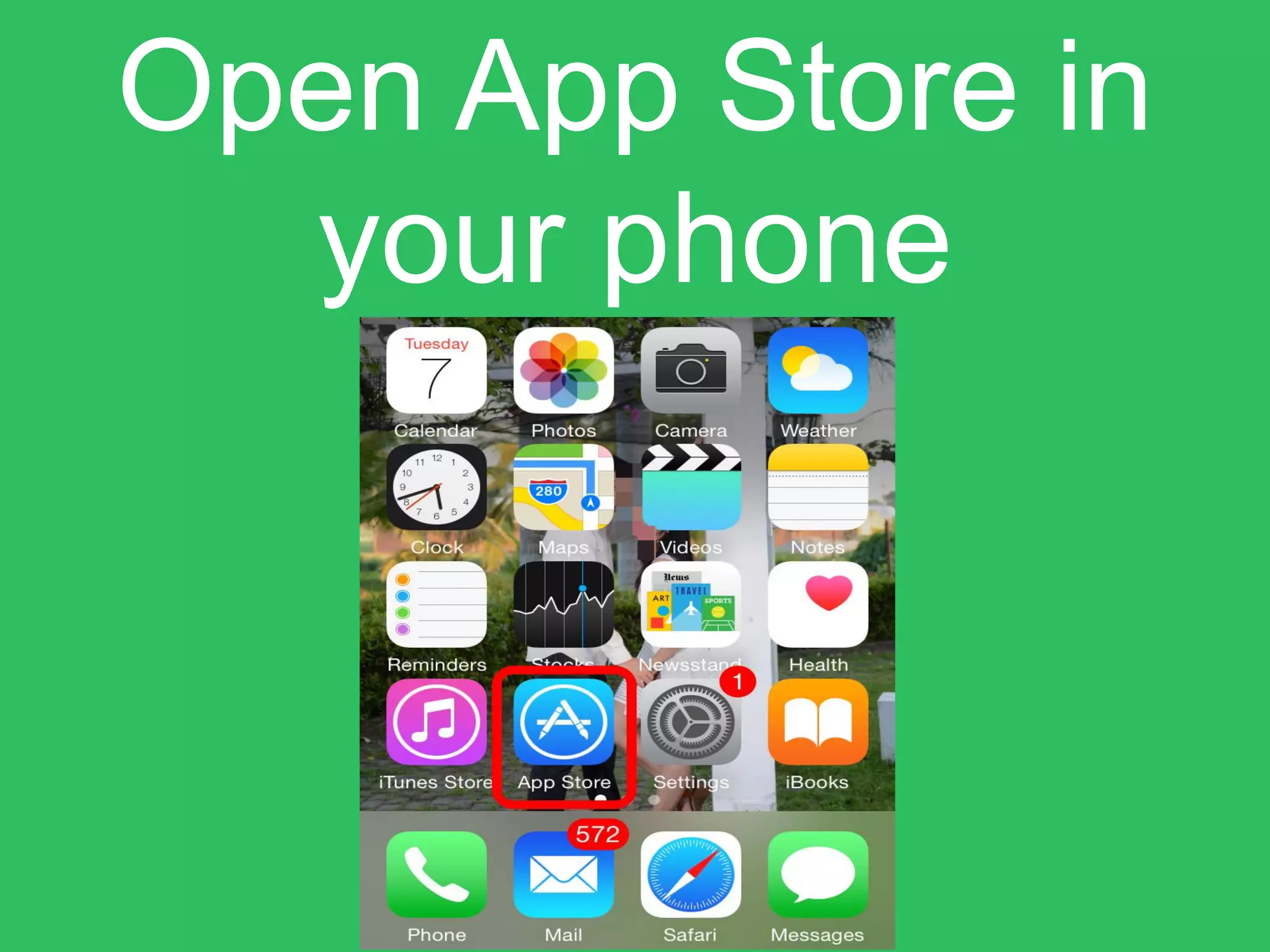
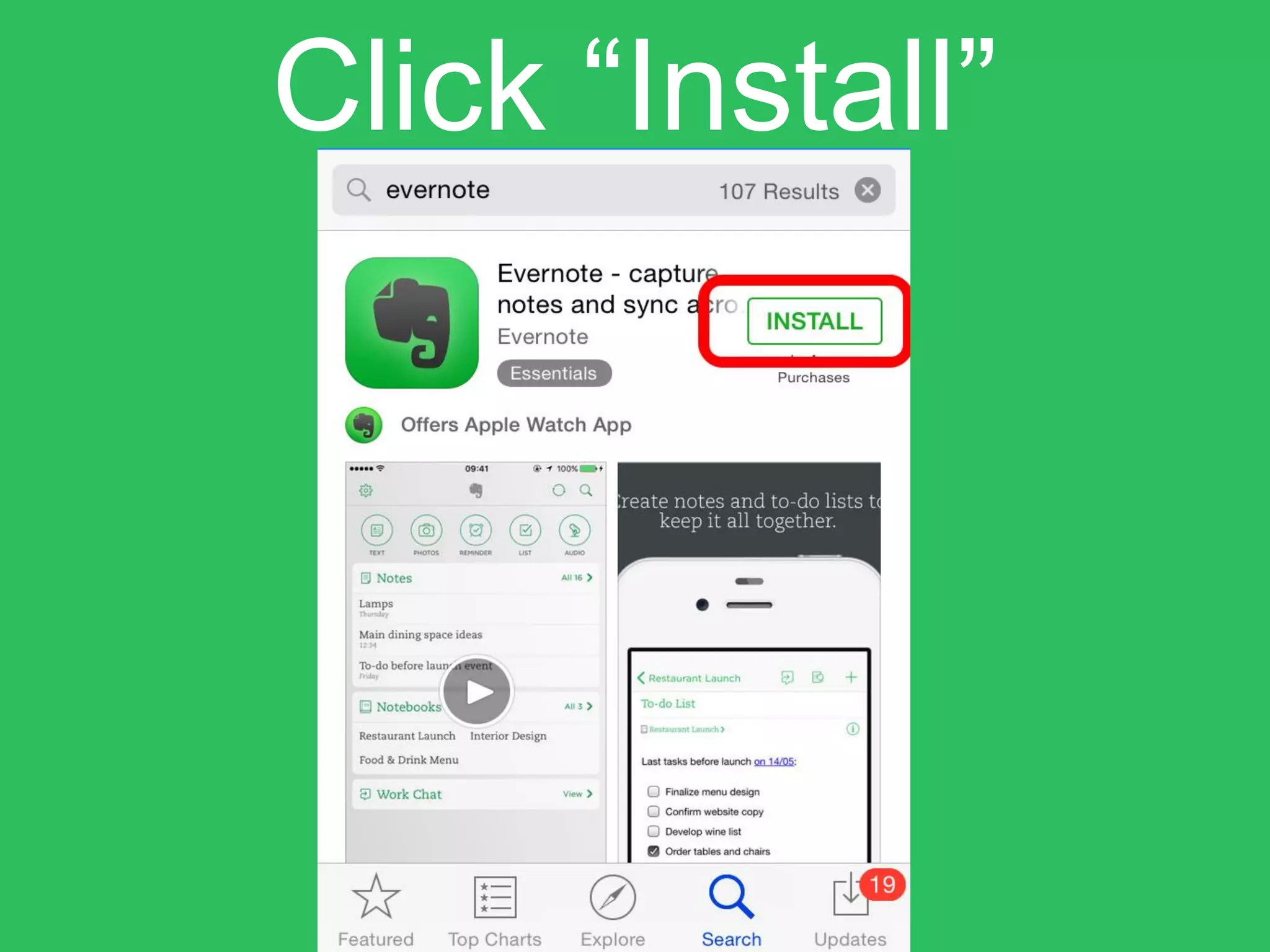
Open App Store in
your phone
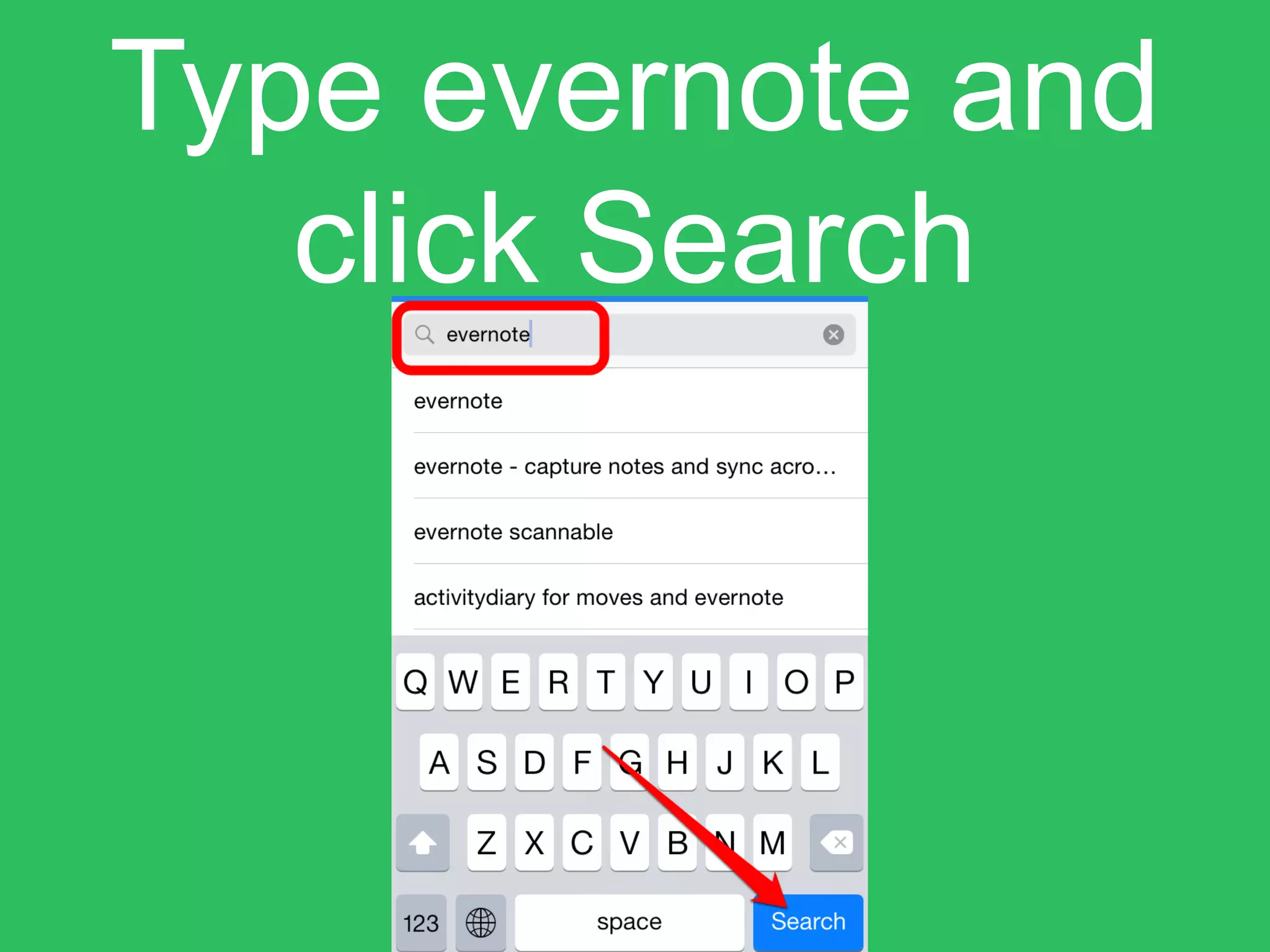
Type evernote and
click Search
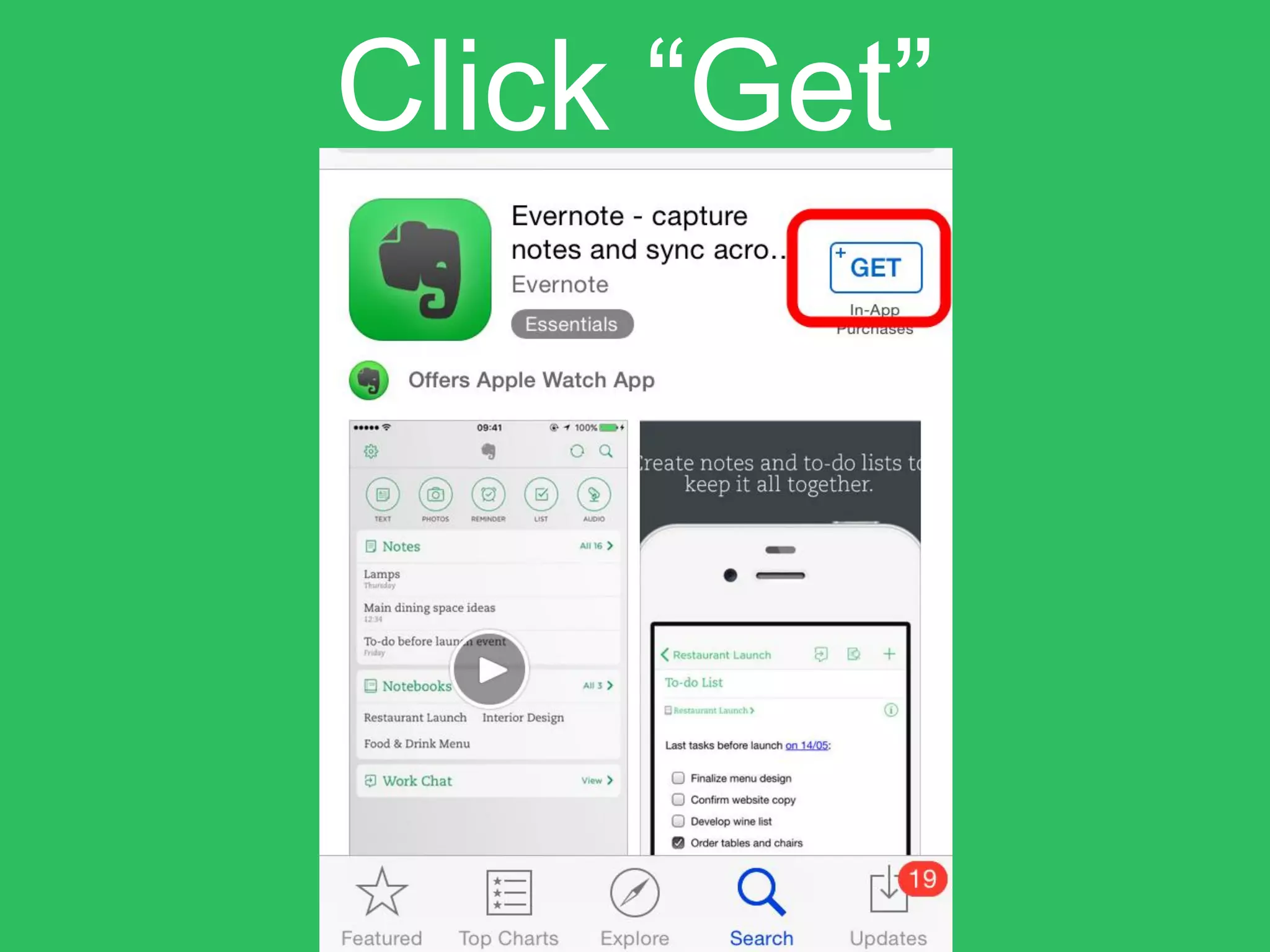
Click “Get”
Click “Install”
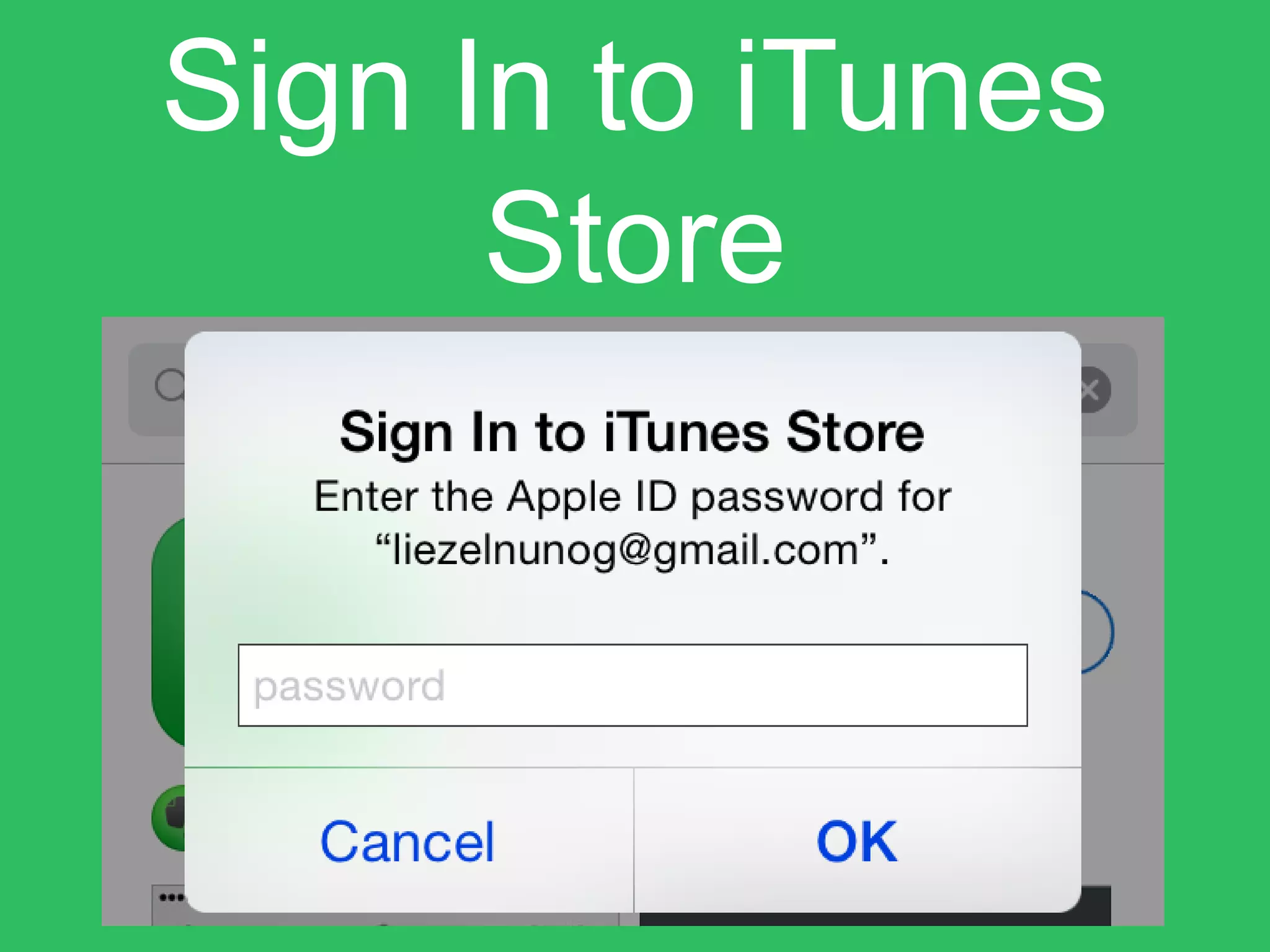
Sign In to iTunes
Store
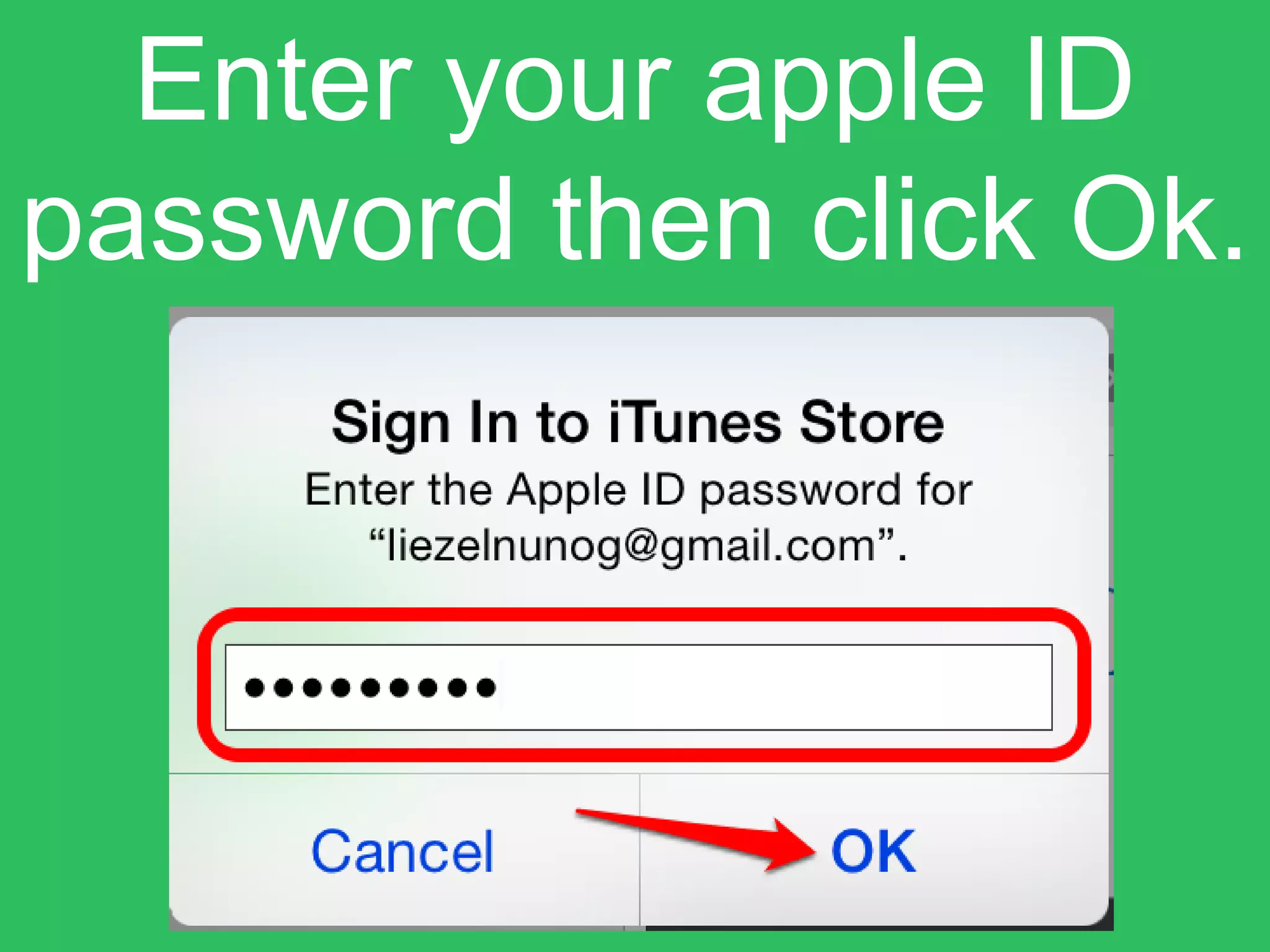
Enter your apple ID
password then click Ok.
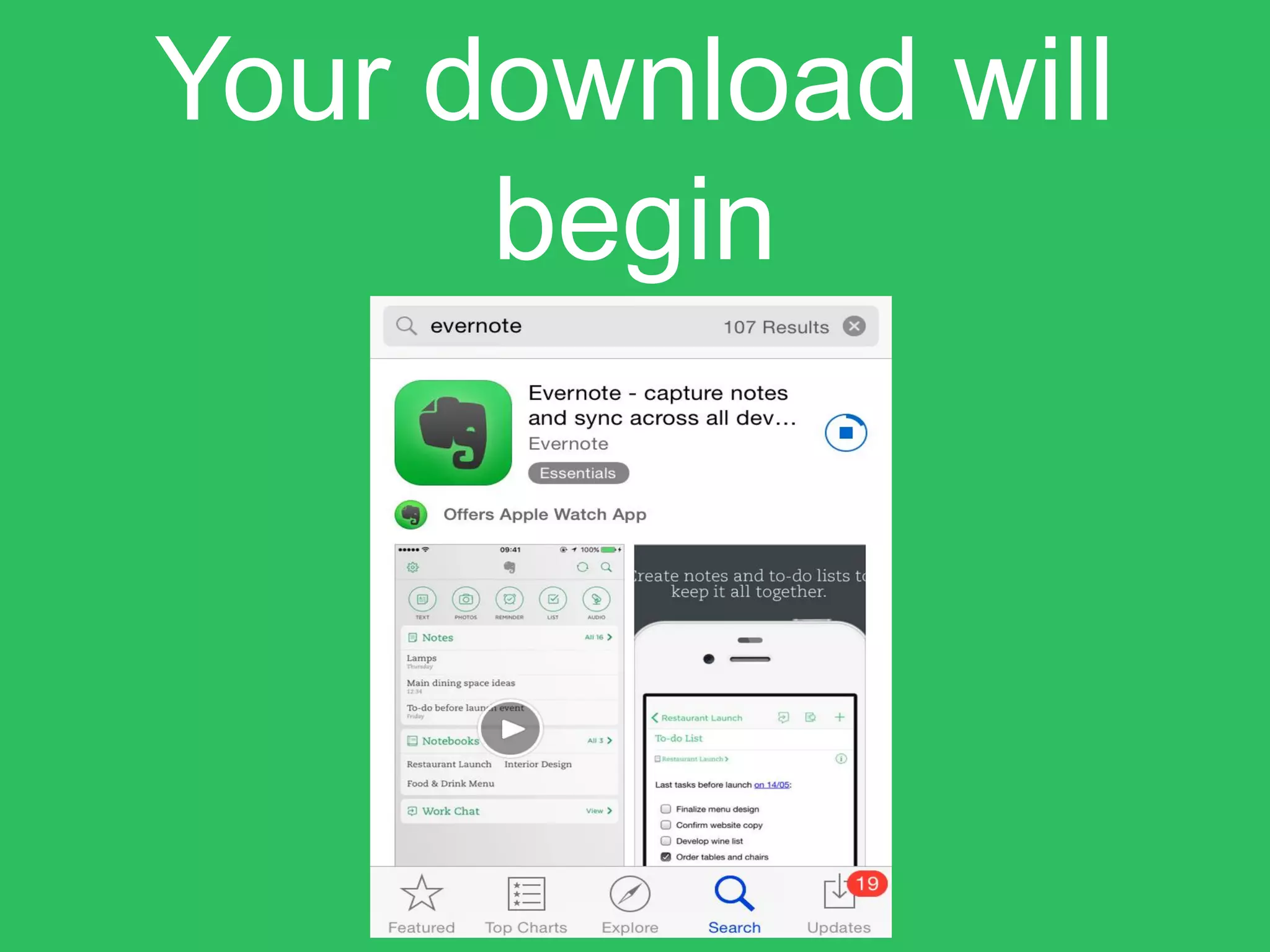
Your download will
begin
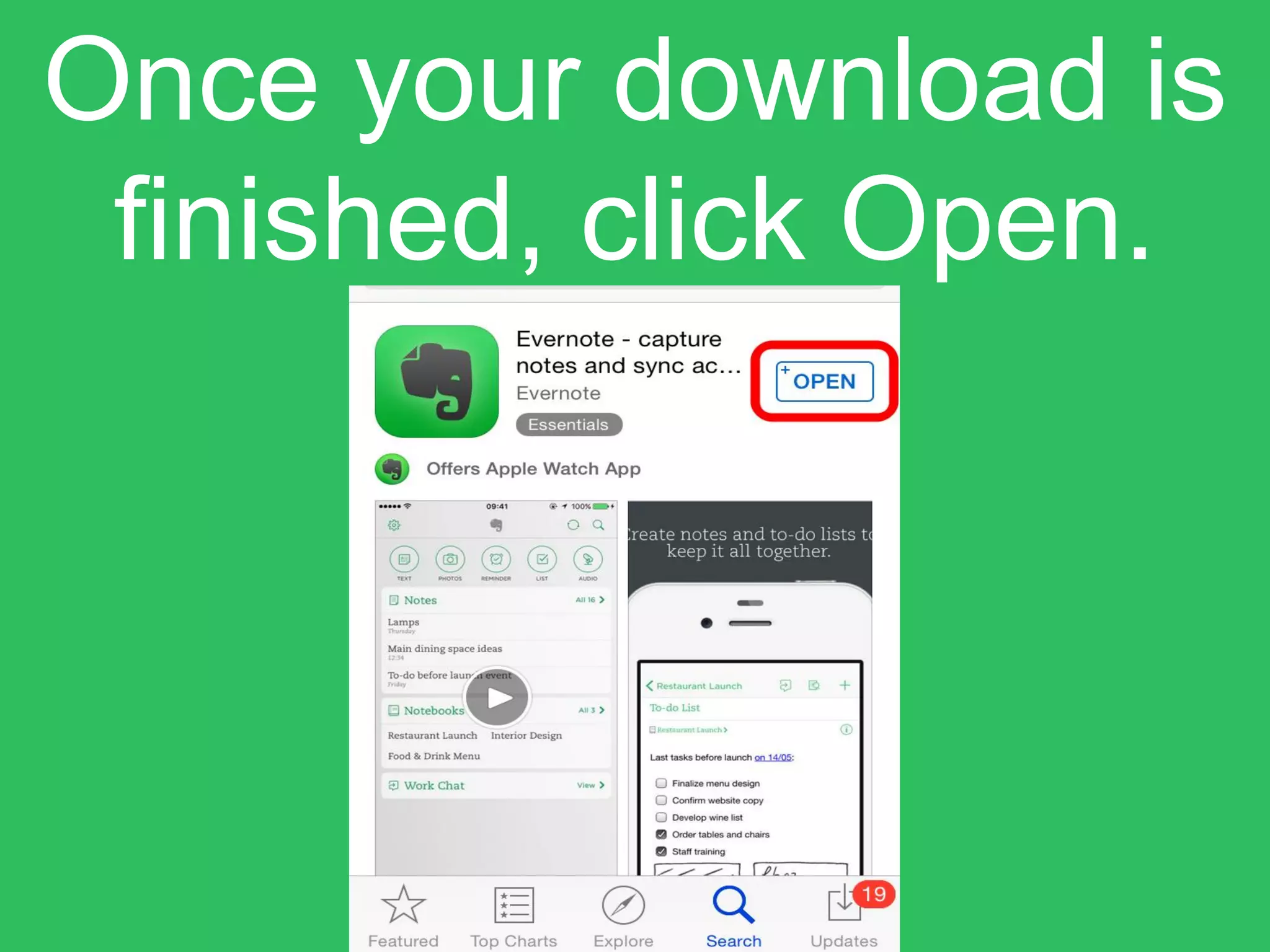
Once your download is
finished, click Open.
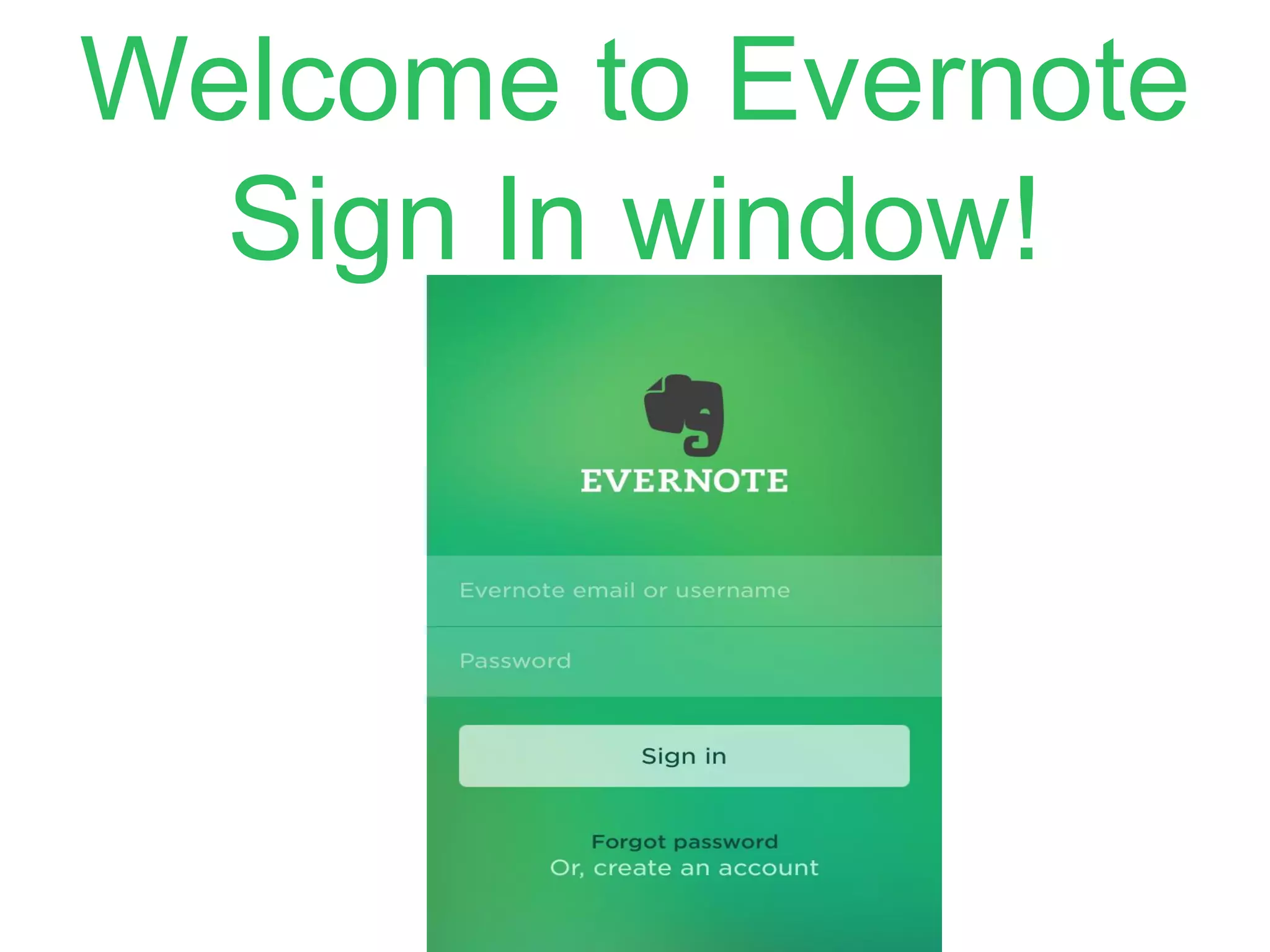
Welcome to Evernote
Sign In window!
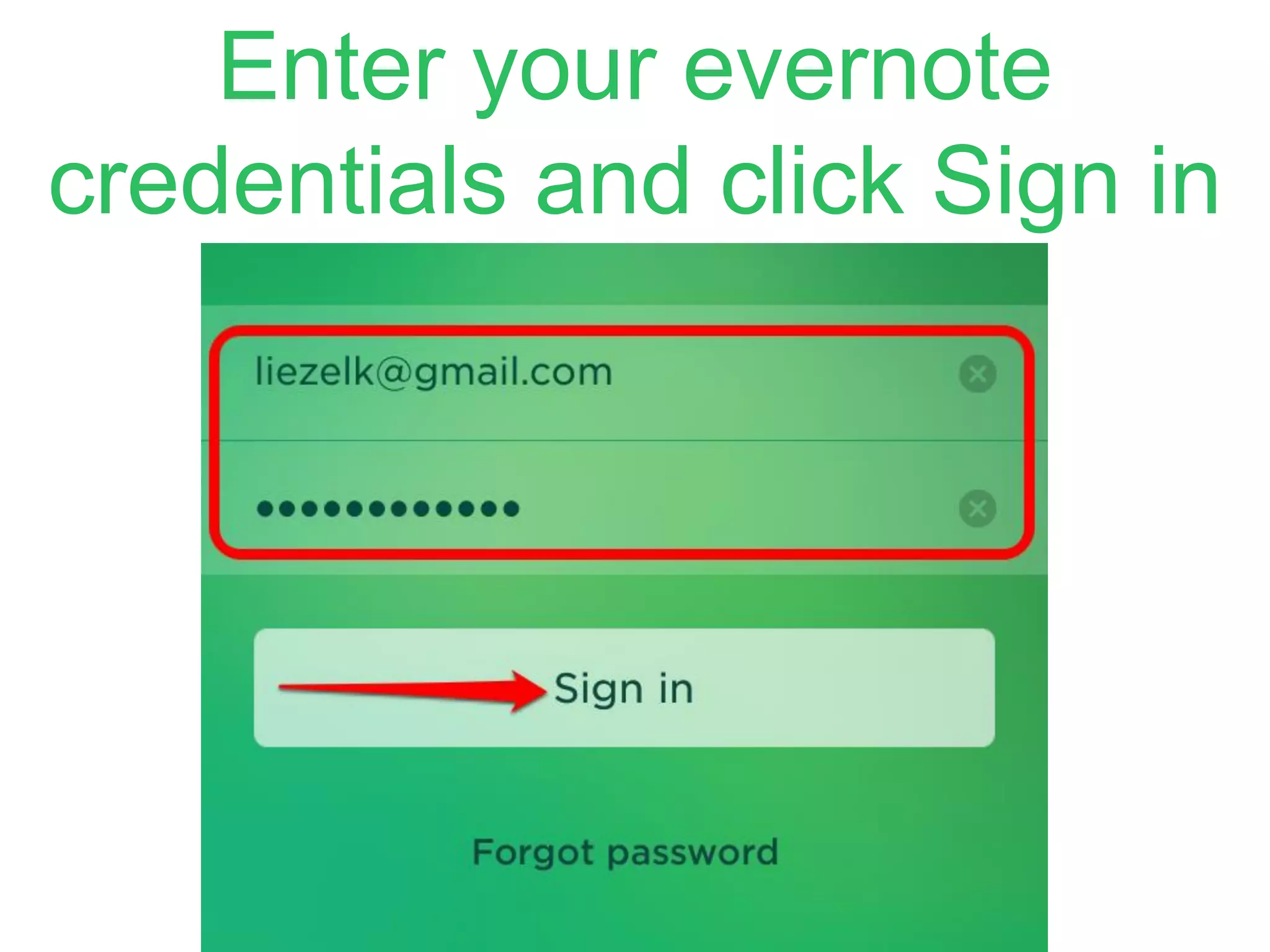
Enter your evernote
credentials and click Sign in
Well done! You have
just synched evernote
in your iphone device!
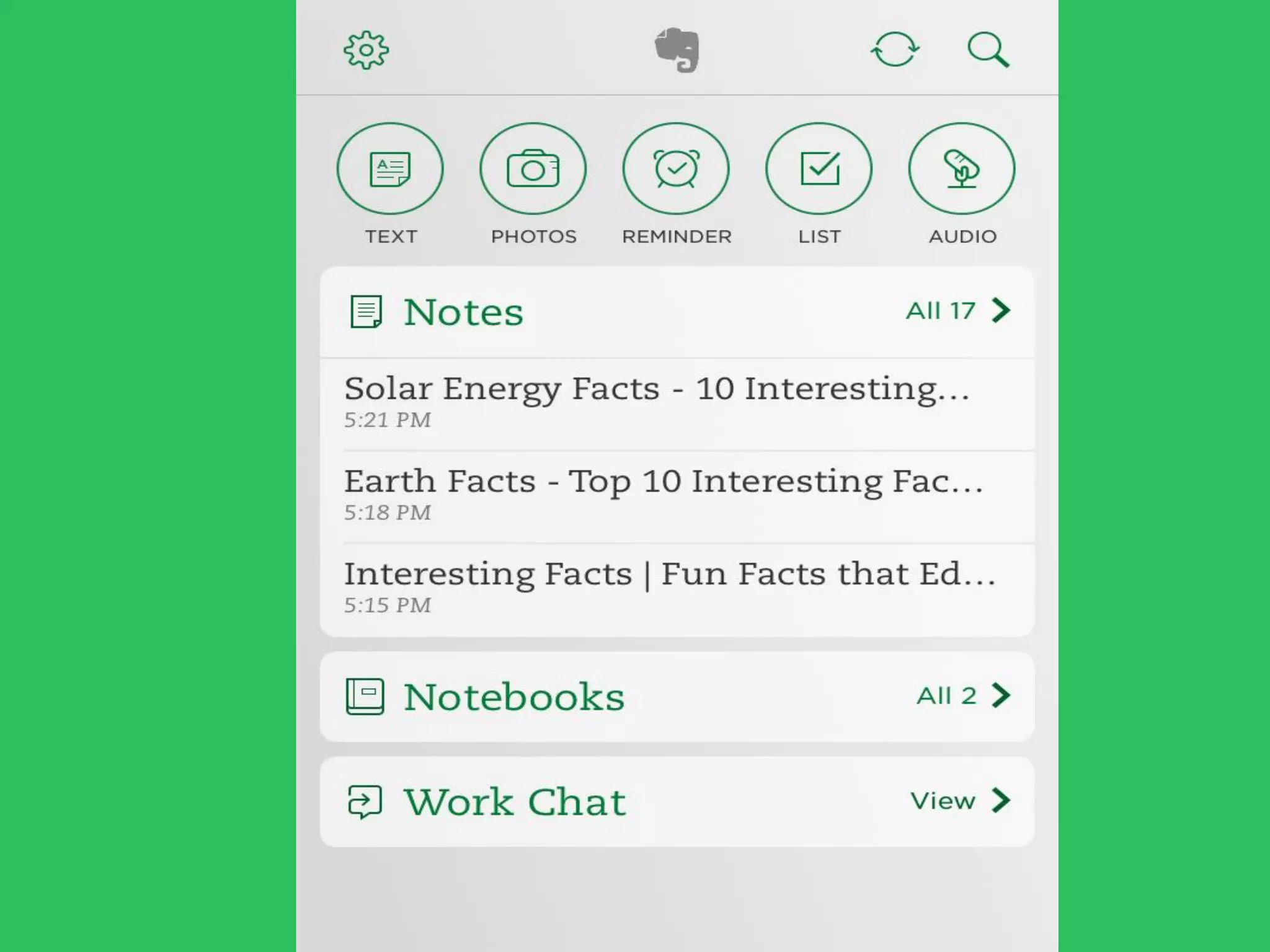
With evernote mobile,
you can..
1. Easily take notes
with your mobile
camera anywhere
you go.
2. Put reminders
information at your
fingertips when you
need it.
3. Scan documents
and be paperless
4. Jot down ideas
using voice recorder.
Install Evernote in
your computer
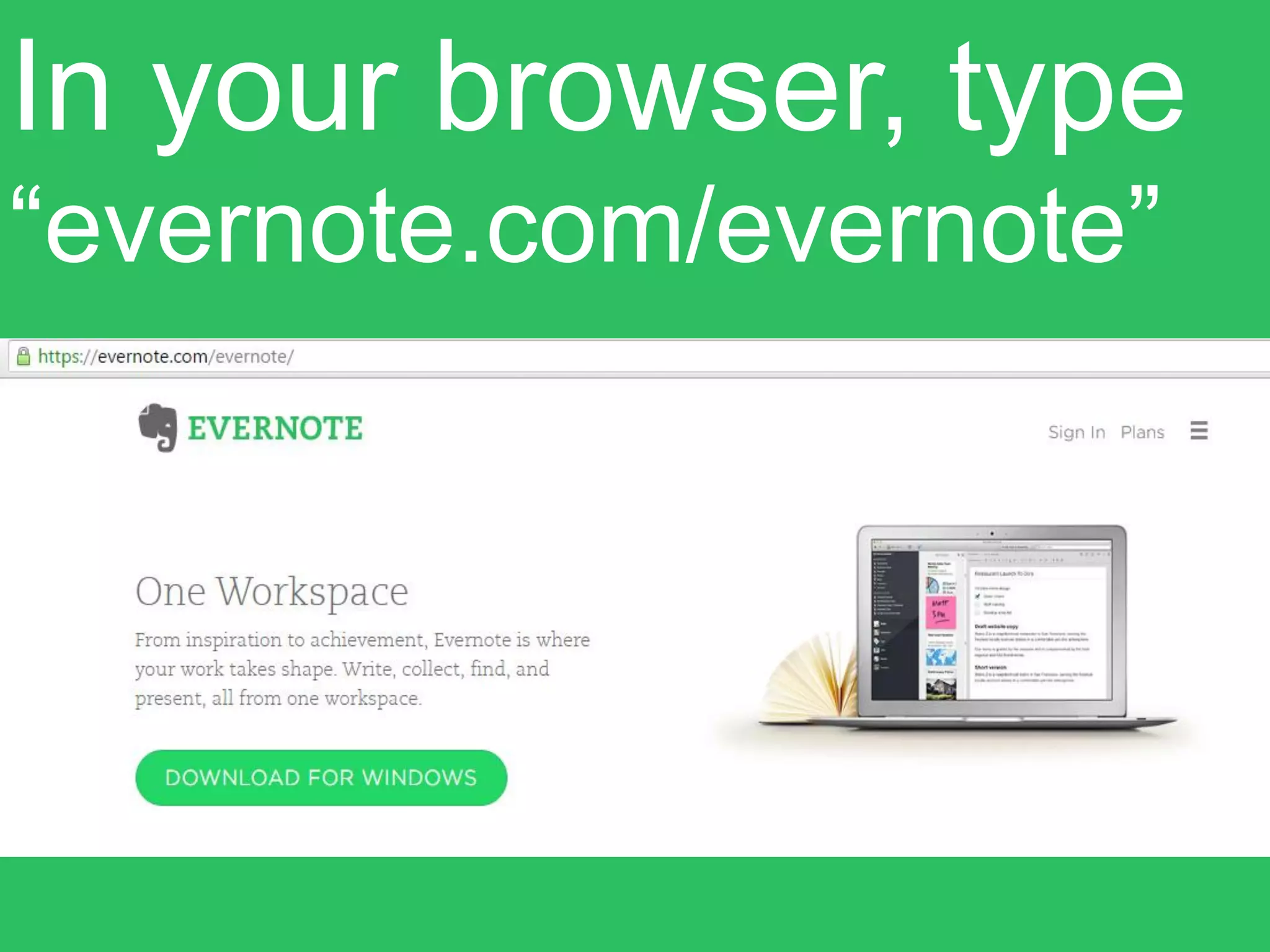
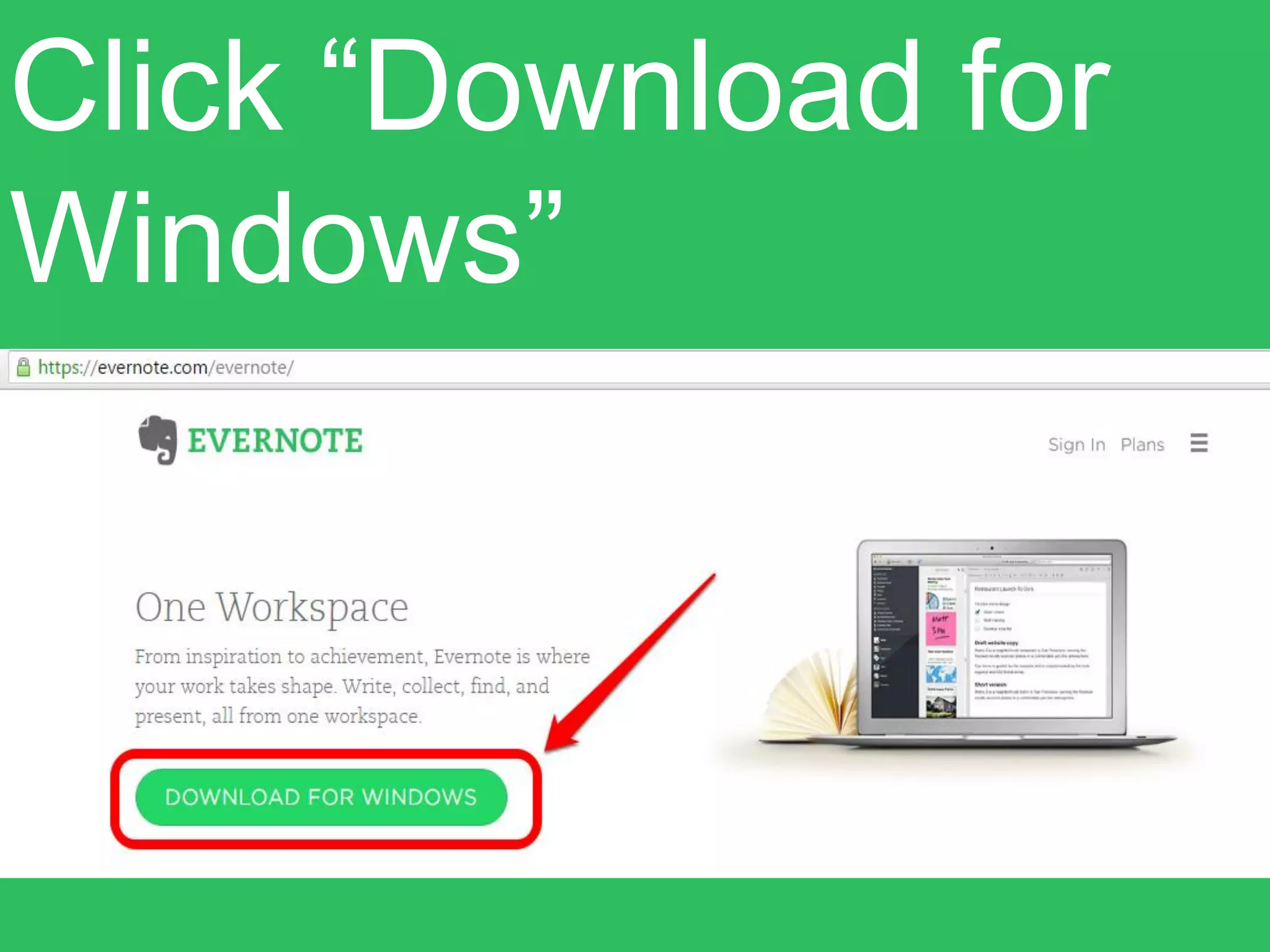
In your browser, type
“evernote.com/evernote”
Click “Download for
Windows”
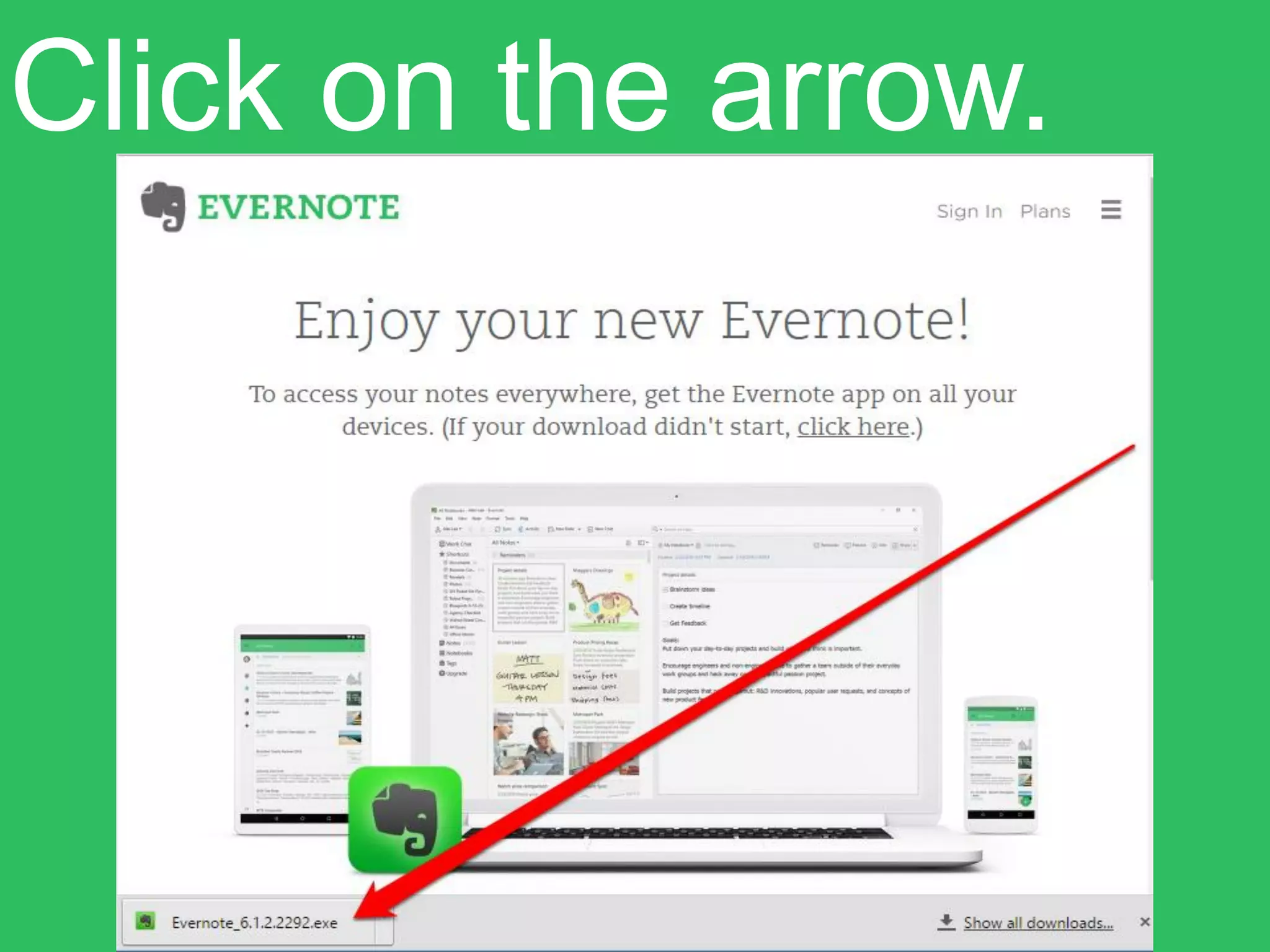
Click on the arrow.
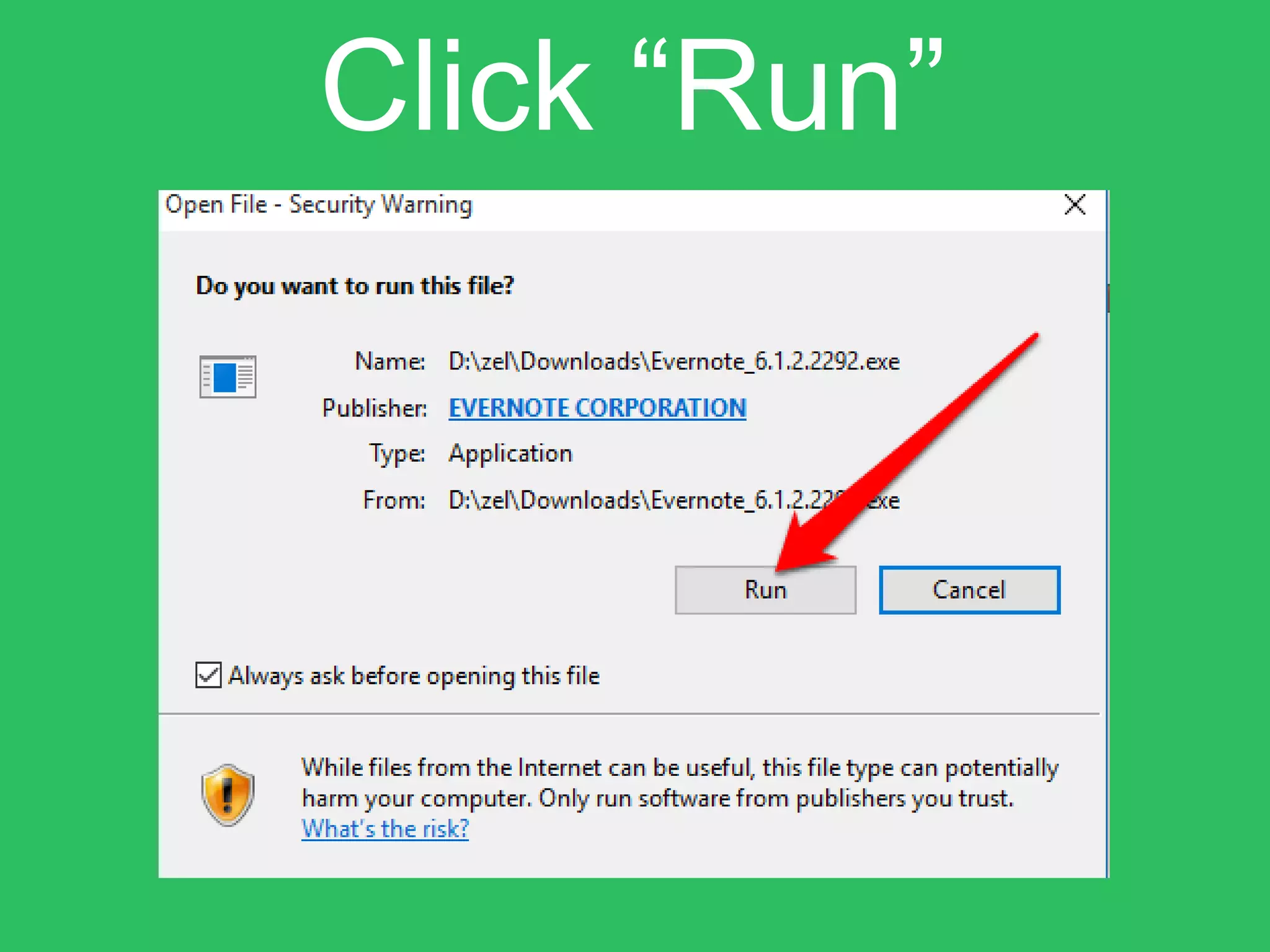
Click “Run”
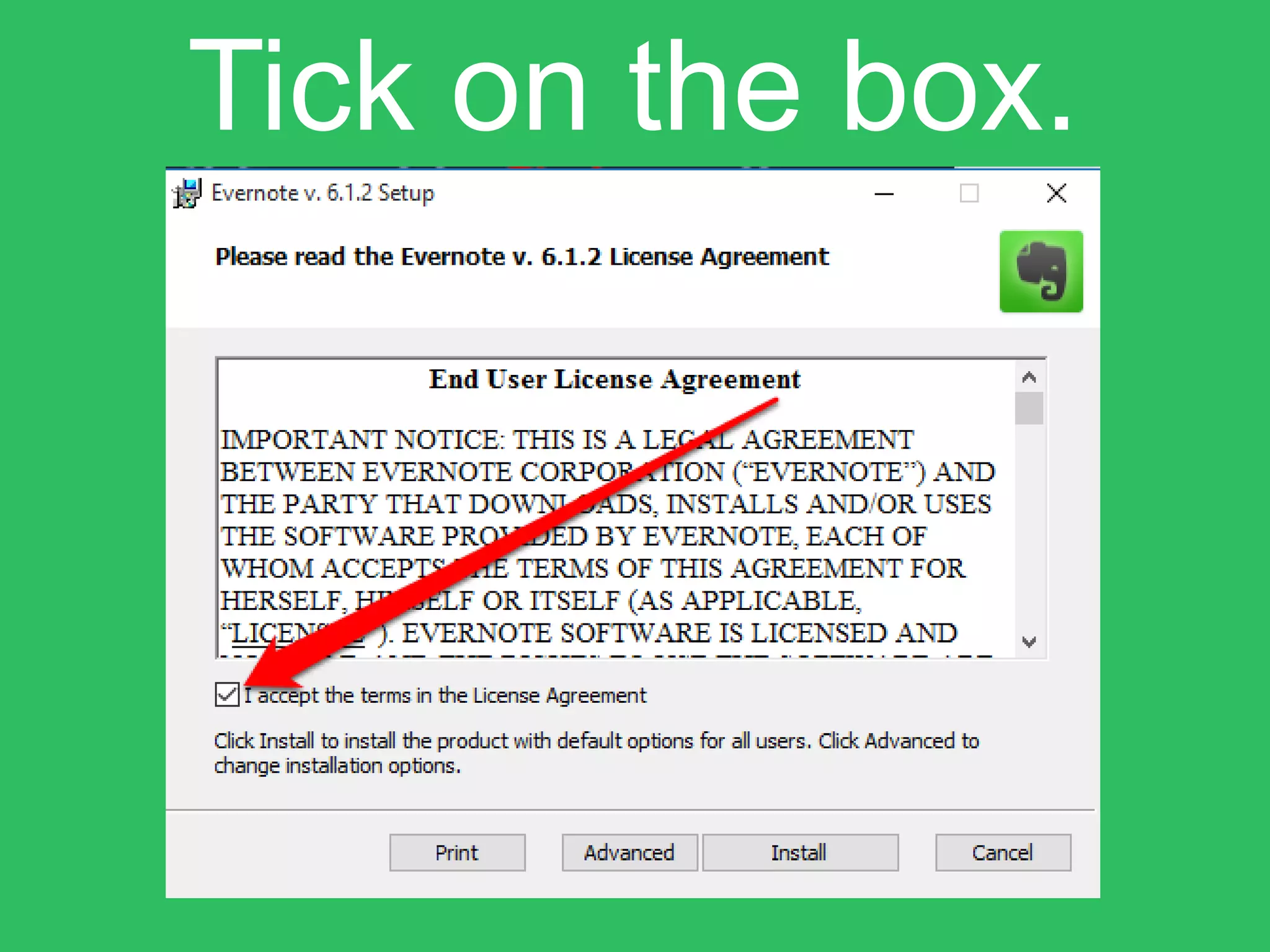
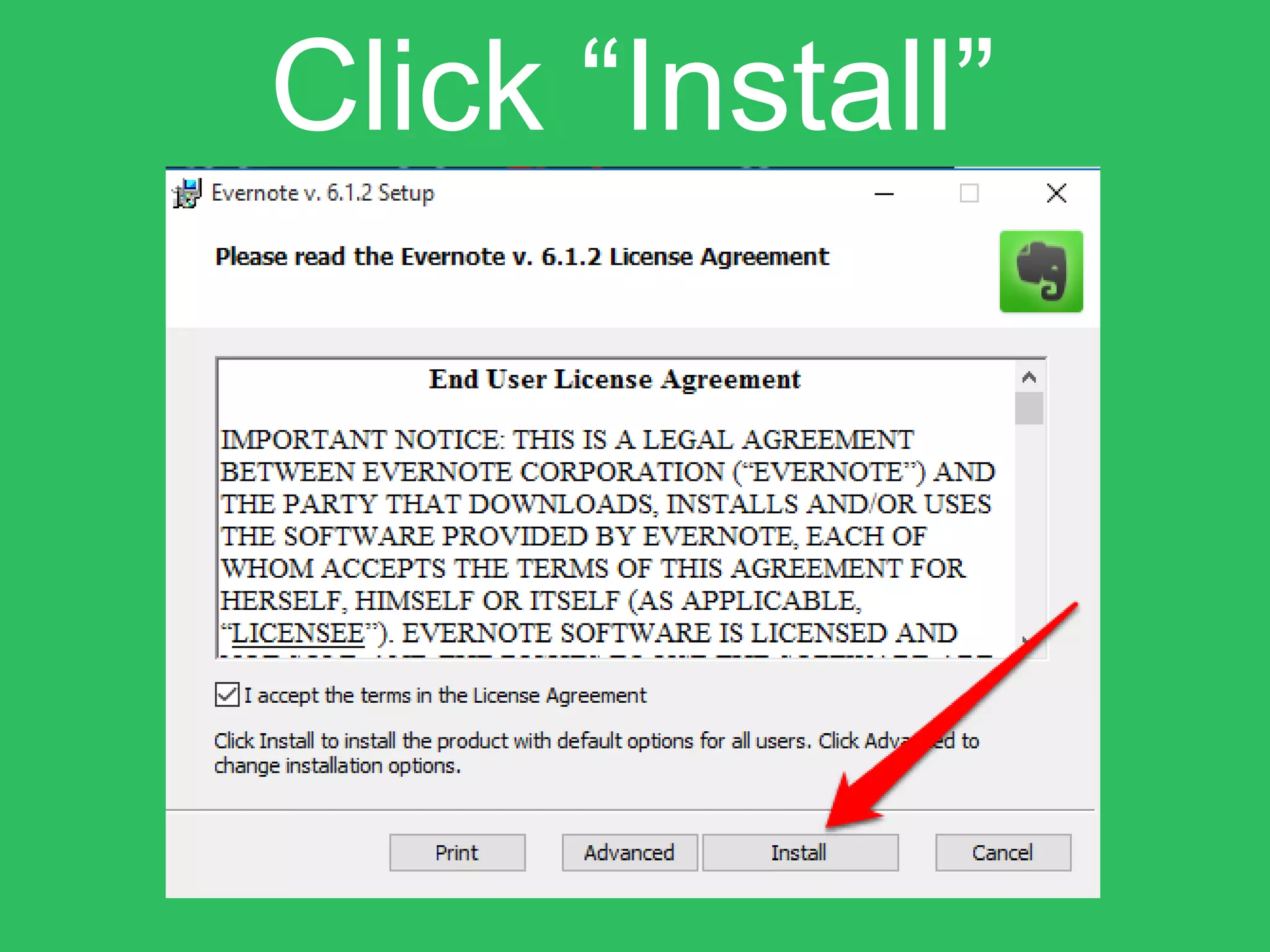
Tick on the box.
Click “Install”
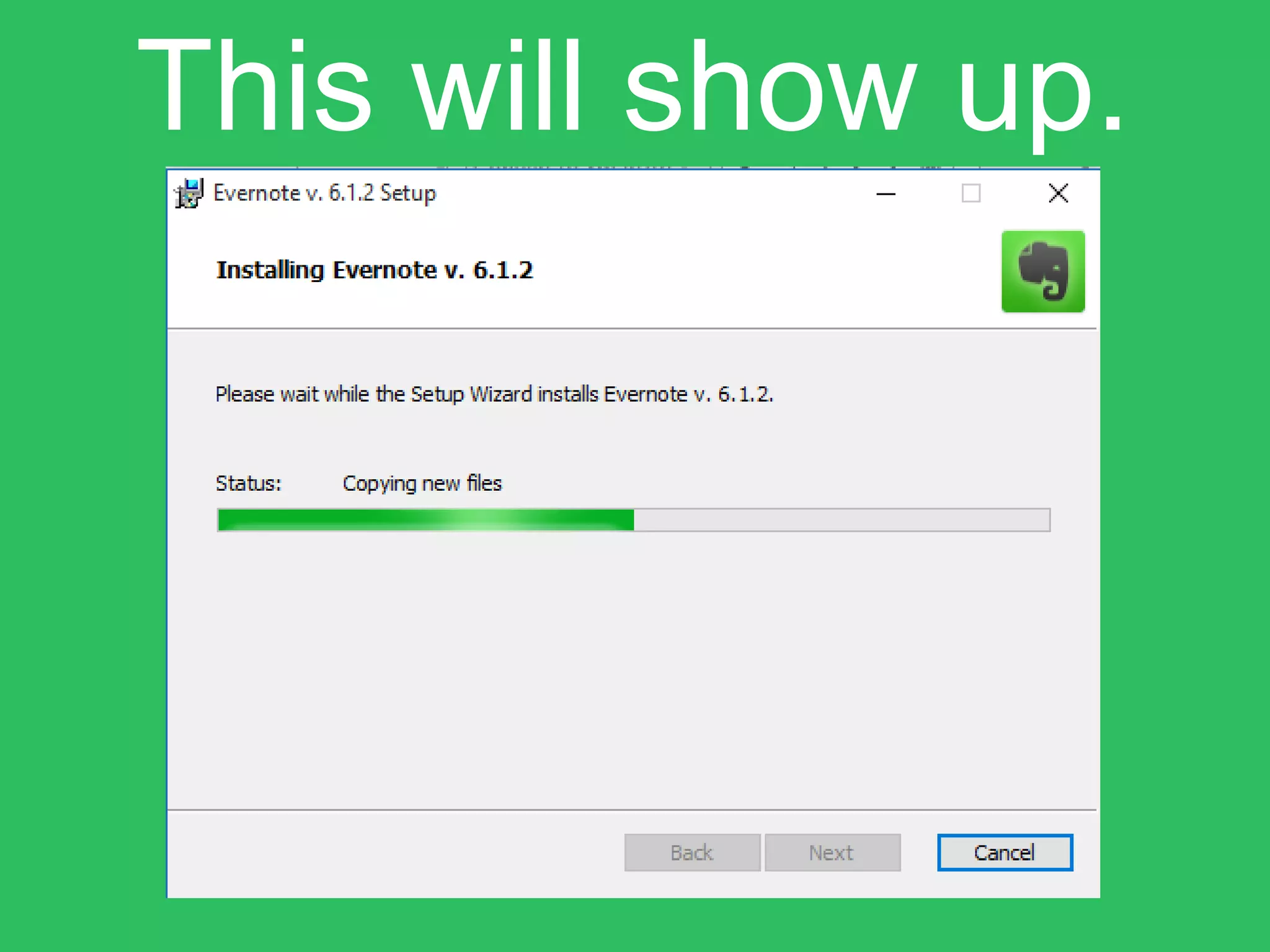
This will show up.
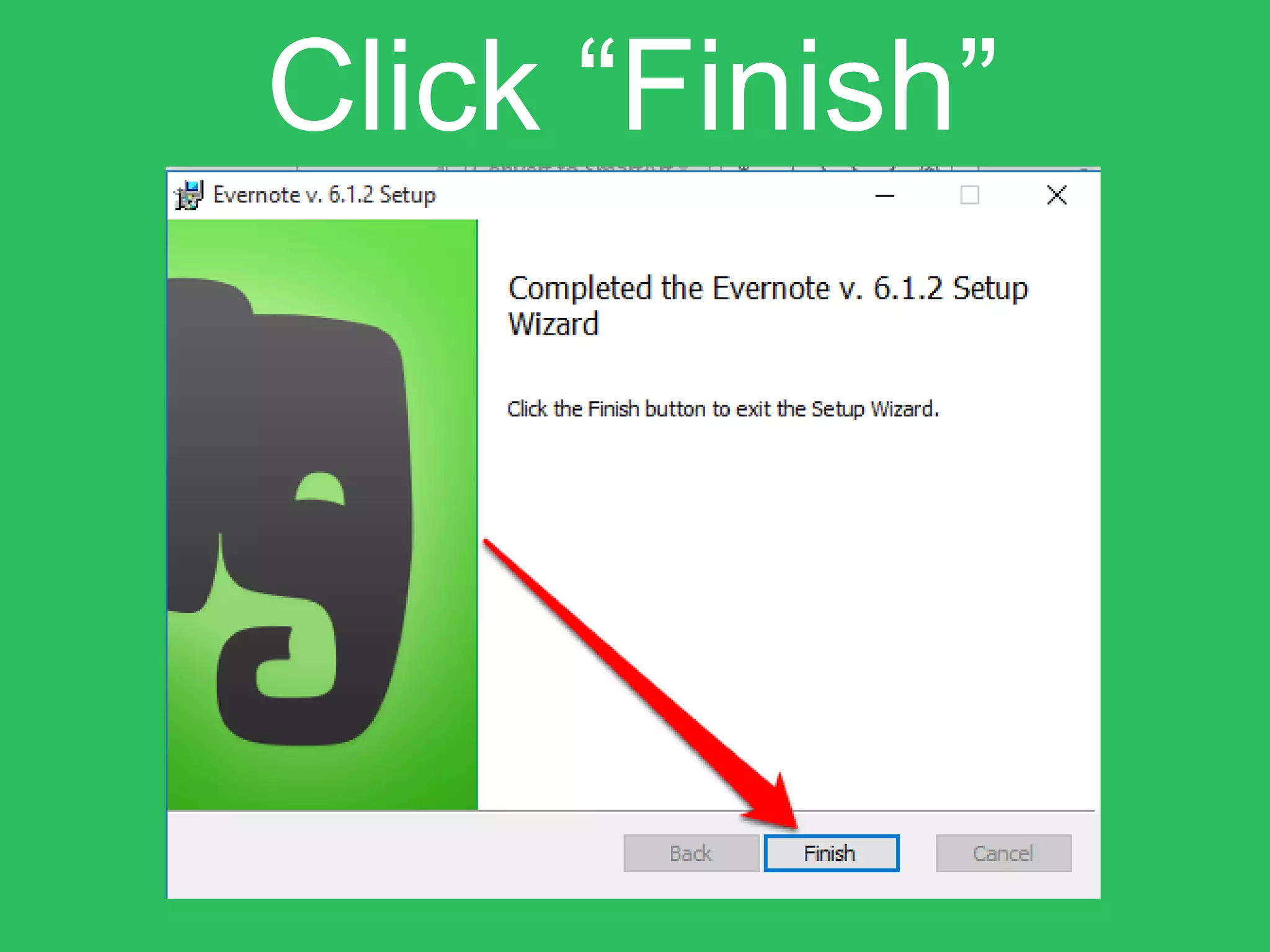
Click “Finish”
You have successfully
installed Evernote in
your computer!
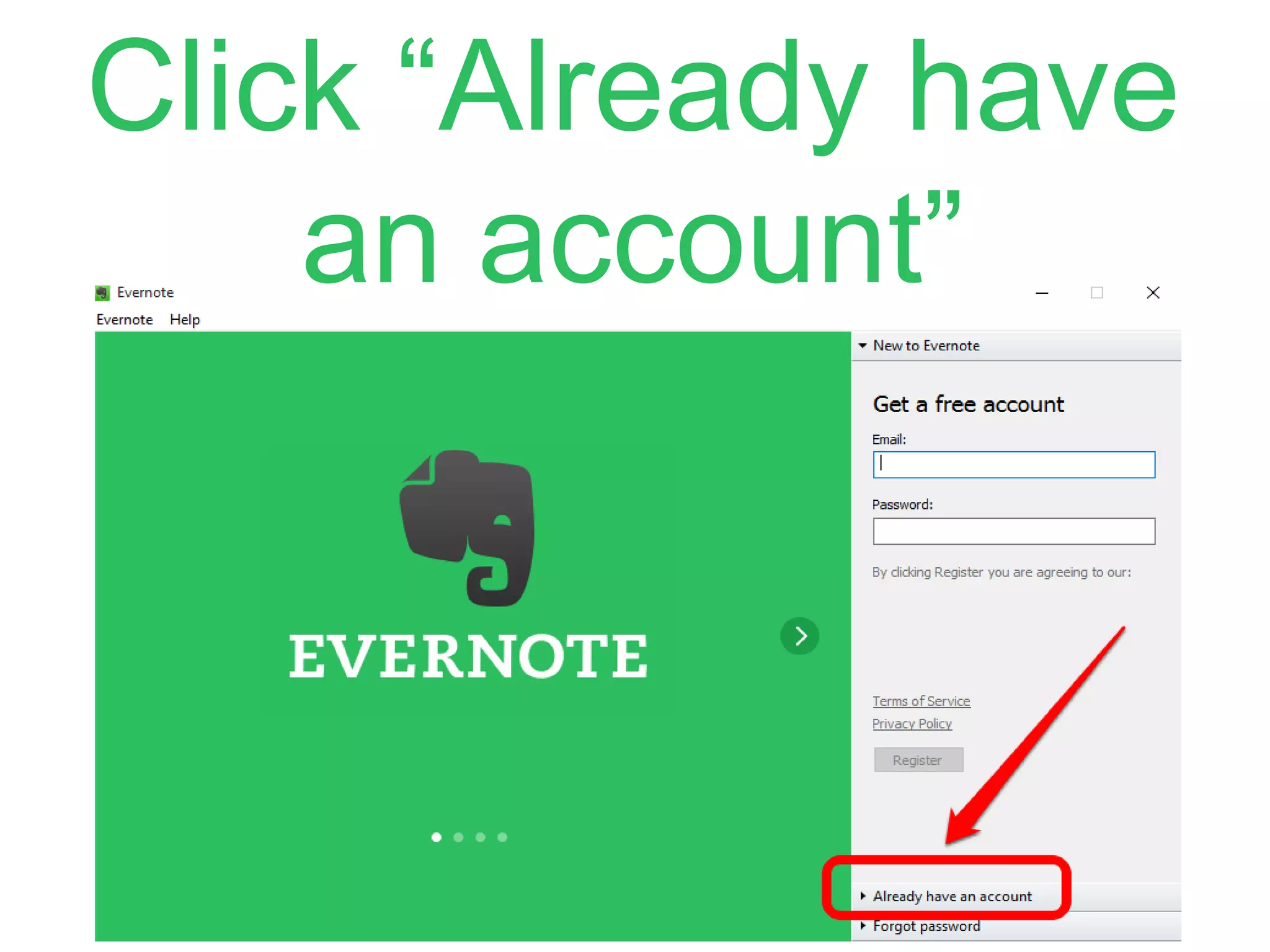
Click “Already have
an account”
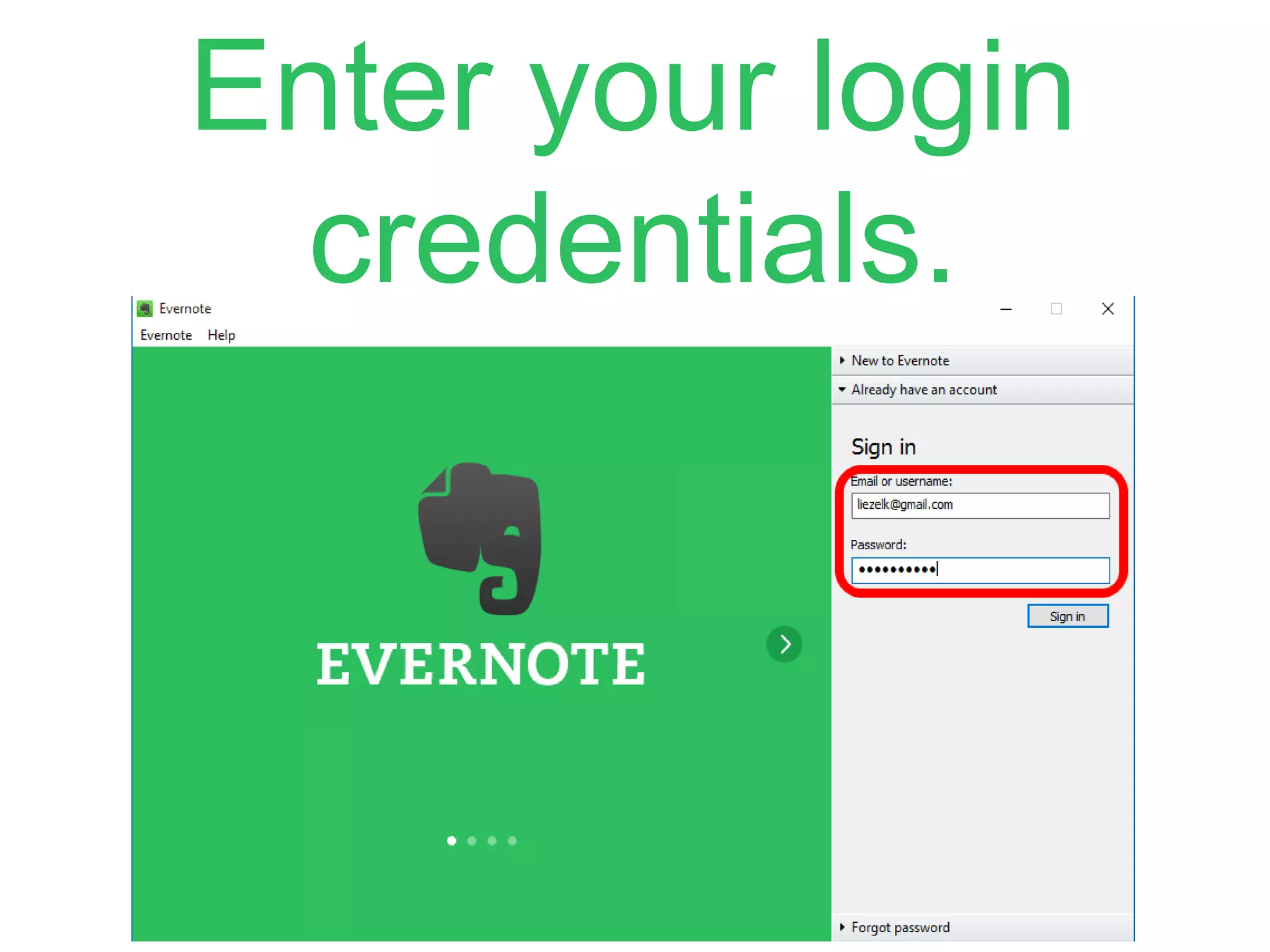
Enter your login
credentials.
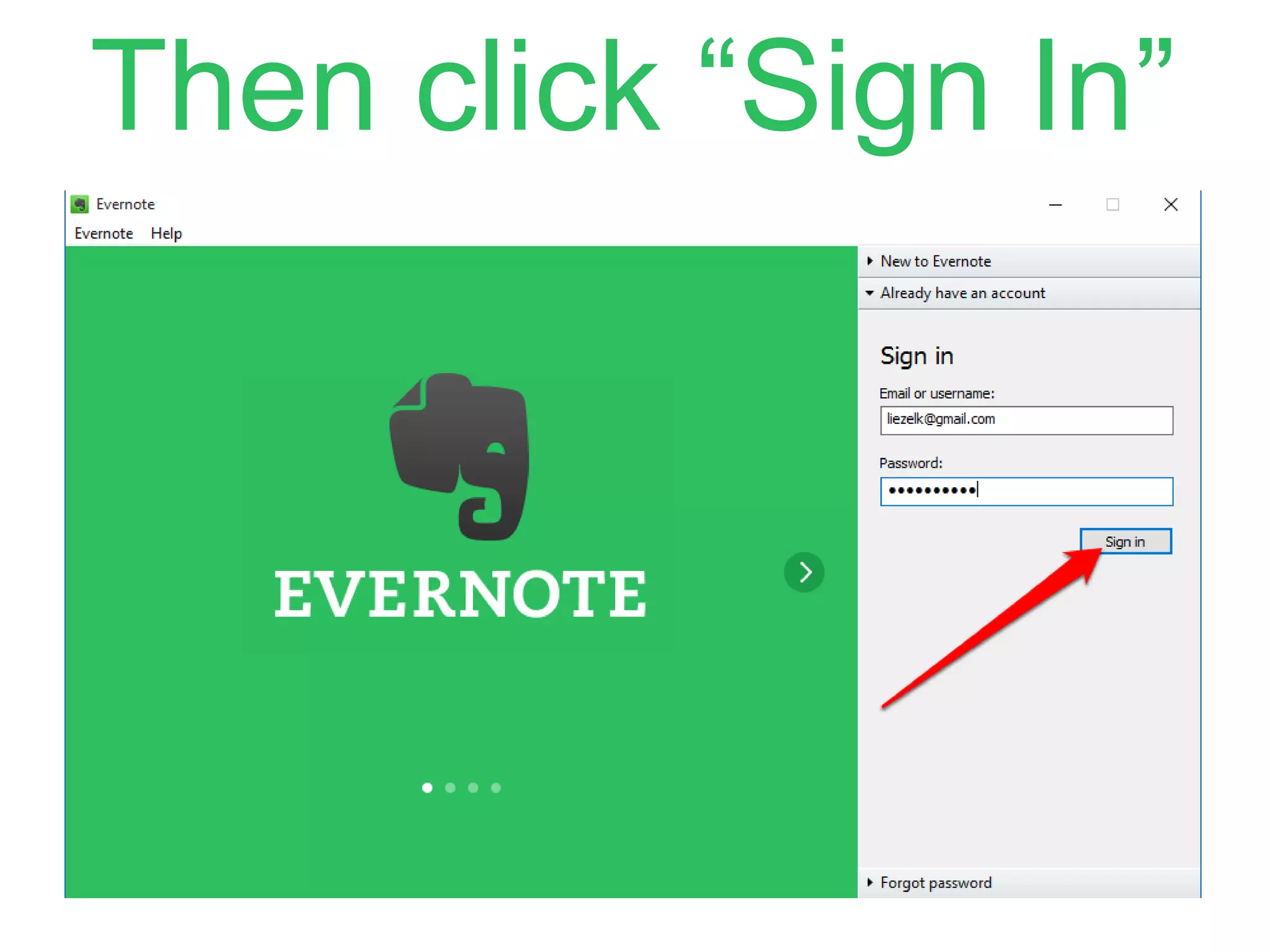
Then click “Sign In”
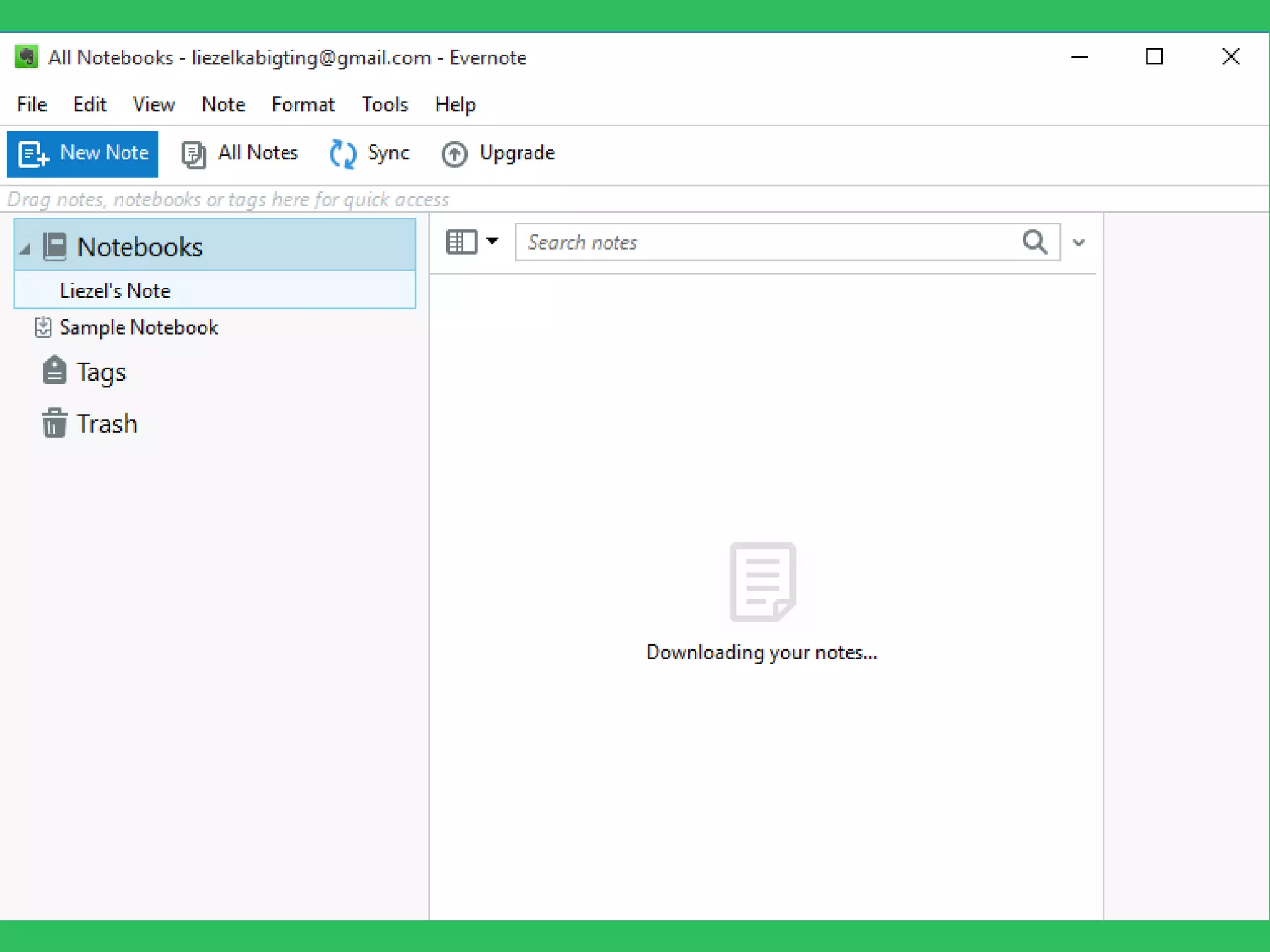
You can now start to
use Evernote in your
computer!
Try it!

How to Use Evernote - Liezel Kabigting - Simpliezel.m4v