INFORMATION COMMUNICATIONS TECHNOLOGY Term 2 ~ Week 6.2 Specific Objective ~ 2.2.1
Objectives Send and access e-mail, messages with attachments.
Required Previous Knowledge How to create an e-mail account. How to compose and send messages without attachments.
REVIEW HOW TO CREATE AN E-MAIL ACCOUNT
Creating A Yahoo E-Mail Go to http://mail.yahoo.com/ Click "Sign Up For Yahoo!". “ Tell Us About Yourself . . . ”  “ Select an ID and Password” “ In case you forget you ID or Password . . ” “ Just a couple more details . . ” Click “Create My Account” Print the “Congratulations” Web Page. Click Continue.
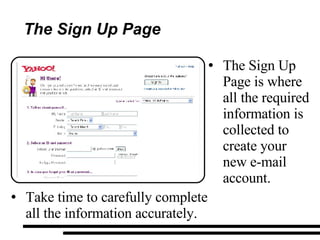
The Sign Up Page The Sign Up Page is where all the required information is collected to create your new e-mail account. Take time to carefully complete all the information accurately.
Step 9 ~ Click Continue. [email_address]
REVIEW COMPOSING E-MAIL MESSAGES
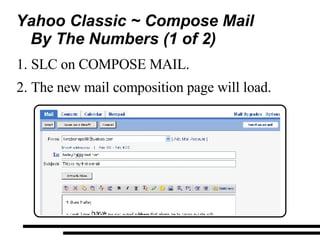
Yahoo Classic ~ Compose Mail By The Numbers (1 of 2)  SLC on COMPOSE MAIL. The new mail composition page will load.
Yahoo Classic ~ Compose Mail By The Numbers (2 of 2)  Type the receipts addresses, separate each with a [,]. Type the subject of the  e-mail. It shall not be longer then 25 characters  Type, edit and format your message in the “Composing Space”. Click “Send” when complete.
SENDING AN E-MAIL  WITH ATTACHMENT
Definition ~ Attachment Attachment : Is an external file  included with an e-mail. Files must be attached to the e-mail prior to you sending it to the recipient. Attachments can include: Pictures Music Adobe PDFs Word Processing Documents Any soft copy
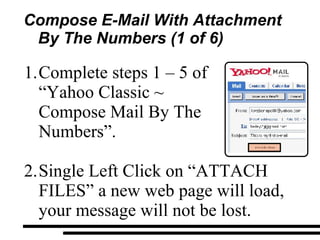
Compose E-Mail With Attachment  By The Numbers (1 of 6) Complete steps 1 – 5 of “Yahoo Classic ~ Compose Mail By The Numbers”. Single Left Click on “ATTACH FILES” a new web page will load, your message will not be lost.
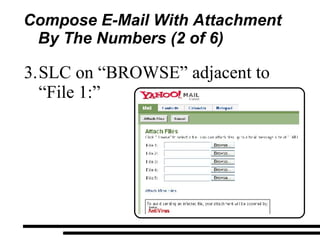
Compose E-Mail With Attachment  By The Numbers (2 of 6) SLC on “BROWSE” adjacent to “File 1:”
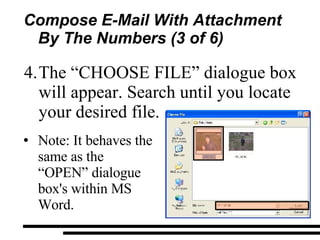
Compose E-Mail With Attachment  By The Numbers (3 of 6) The “CHOOSE FILE” dialogue box will appear. Search until you locate your desired file. Note: It behaves the same as the “OPEN” dialogue box's within MS Word.
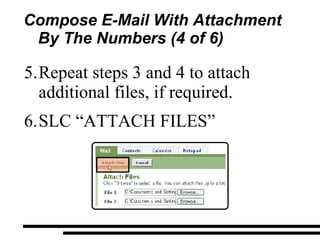
Compose E-Mail With Attachment  By The Numbers (4 of 6) Repeat steps 3 and 4 to attach additional files, if required. SLC “ATTACH FILES”
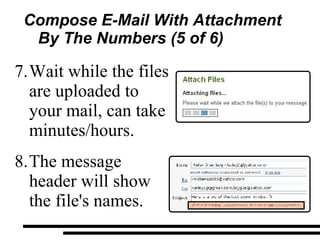
Compose E-Mail With Attachment  By The Numbers (5 of 6) Wait while the files are uploaded to your mail, can take minutes/hours. The message header will show the file's names.
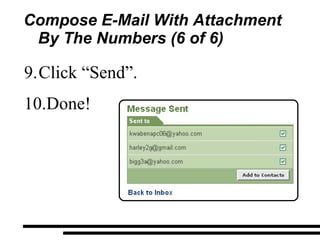
Compose E-Mail With Attachment  By The Numbers (6 of 6) Click “Send”. Done!
RECEIVING / VIEWING AN  E-MAIL WITH  AN ATTACHMENT
Definition ~ Attachment When you receive a file via e-mail it is often required to download the file to your local computer and open with the corresponding Application Software. Yahoo Mail provides the ability to view select files within your Web Browser but not all.
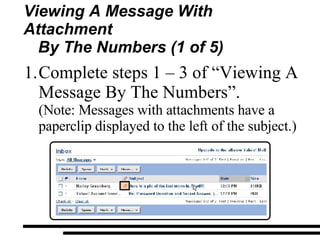
Viewing A Message With Attachment By The Numbers (1 of 5) Complete steps 1 – 3 of “Viewing A Message By The Numbers”.  (Note: Messages with attachments have a paperclip displayed to the left of the subject.)
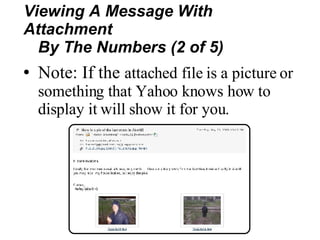
Note: If the  attached file is a picture or something that Yahoo knows how to display it will show it for you. Viewing A Message With Attachment By The Numbers (2 of 5)
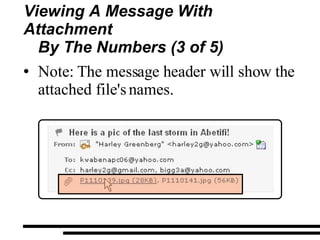
Note: The message header will show the attached file's names. Viewing A Message With Attachment By The Numbers (3 of 5)
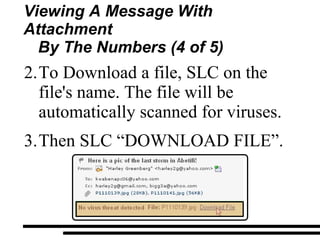
To Download a file, SLC on the file's name. The file will be automatically scanned for viruses. Then SLC “DOWNLOAD FILE”. Viewing A Message With Attachment By The Numbers (4 of 5)
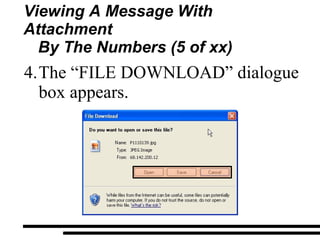
Viewing A Message With Attachment By The Numbers (5 of xx) The “FILE DOWNLOAD” dialogue box appears.
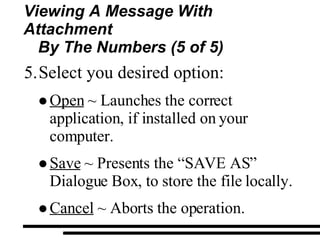
Viewing A Message With Attachment By The Numbers (5 of 5) Select you desired option: Open  ~ Launches the correct application, if installed on your computer. Save  ~ Presents the “SAVE AS” Dialogue Box, to store the file locally. Cancel  ~ Aborts the operation.
QUESTIONS

Form 1 Term 2 Week 6.2

  • 1.
    INFORMATION COMMUNICATIONS TECHNOLOGYTerm 2 ~ Week 6.2 Specific Objective ~ 2.2.1
  • 2.
    Objectives Send andaccess e-mail, messages with attachments.
  • 3.
    Required Previous KnowledgeHow to create an e-mail account. How to compose and send messages without attachments.
  • 4.
    REVIEW HOW TOCREATE AN E-MAIL ACCOUNT
  • 5.
    Creating A YahooE-Mail Go to http://mail.yahoo.com/ Click "Sign Up For Yahoo!". “ Tell Us About Yourself . . . ” “ Select an ID and Password” “ In case you forget you ID or Password . . ” “ Just a couple more details . . ” Click “Create My Account” Print the “Congratulations” Web Page. Click Continue.
  • 6.
    The Sign UpPage The Sign Up Page is where all the required information is collected to create your new e-mail account. Take time to carefully complete all the information accurately.
  • 7.
    Step 9 ~Click Continue. [email_address]
  • 8.
  • 9.
    Yahoo Classic ~Compose Mail By The Numbers (1 of 2) SLC on COMPOSE MAIL. The new mail composition page will load.
  • 10.
    Yahoo Classic ~Compose Mail By The Numbers (2 of 2) Type the receipts addresses, separate each with a [,]. Type the subject of the e-mail. It shall not be longer then 25 characters Type, edit and format your message in the “Composing Space”. Click “Send” when complete.
  • 11.
    SENDING AN E-MAIL WITH ATTACHMENT
  • 12.
    Definition ~ AttachmentAttachment : Is an external file included with an e-mail. Files must be attached to the e-mail prior to you sending it to the recipient. Attachments can include: Pictures Music Adobe PDFs Word Processing Documents Any soft copy
  • 13.
    Compose E-Mail WithAttachment By The Numbers (1 of 6) Complete steps 1 – 5 of “Yahoo Classic ~ Compose Mail By The Numbers”. Single Left Click on “ATTACH FILES” a new web page will load, your message will not be lost.
  • 14.
    Compose E-Mail WithAttachment By The Numbers (2 of 6) SLC on “BROWSE” adjacent to “File 1:”
  • 15.
    Compose E-Mail WithAttachment By The Numbers (3 of 6) The “CHOOSE FILE” dialogue box will appear. Search until you locate your desired file. Note: It behaves the same as the “OPEN” dialogue box's within MS Word.
  • 16.
    Compose E-Mail WithAttachment By The Numbers (4 of 6) Repeat steps 3 and 4 to attach additional files, if required. SLC “ATTACH FILES”
  • 17.
    Compose E-Mail WithAttachment By The Numbers (5 of 6) Wait while the files are uploaded to your mail, can take minutes/hours. The message header will show the file's names.
  • 18.
    Compose E-Mail WithAttachment By The Numbers (6 of 6) Click “Send”. Done!
  • 19.
    RECEIVING / VIEWINGAN E-MAIL WITH AN ATTACHMENT
  • 20.
    Definition ~ AttachmentWhen you receive a file via e-mail it is often required to download the file to your local computer and open with the corresponding Application Software. Yahoo Mail provides the ability to view select files within your Web Browser but not all.
  • 21.
    Viewing A MessageWith Attachment By The Numbers (1 of 5) Complete steps 1 – 3 of “Viewing A Message By The Numbers”. (Note: Messages with attachments have a paperclip displayed to the left of the subject.)
  • 22.
    Note: If the attached file is a picture or something that Yahoo knows how to display it will show it for you. Viewing A Message With Attachment By The Numbers (2 of 5)
  • 23.
    Note: The messageheader will show the attached file's names. Viewing A Message With Attachment By The Numbers (3 of 5)
  • 24.
    To Download afile, SLC on the file's name. The file will be automatically scanned for viruses. Then SLC “DOWNLOAD FILE”. Viewing A Message With Attachment By The Numbers (4 of 5)
  • 25.
    Viewing A MessageWith Attachment By The Numbers (5 of xx) The “FILE DOWNLOAD” dialogue box appears.
  • 26.
    Viewing A MessageWith Attachment By The Numbers (5 of 5) Select you desired option: Open ~ Launches the correct application, if installed on your computer. Save ~ Presents the “SAVE AS” Dialogue Box, to store the file locally. Cancel ~ Aborts the operation.
  • 27.