Chapter Objectives Navigate the Internet using URLs and hyperlinks Use search engines to locate information Download Web pages and images
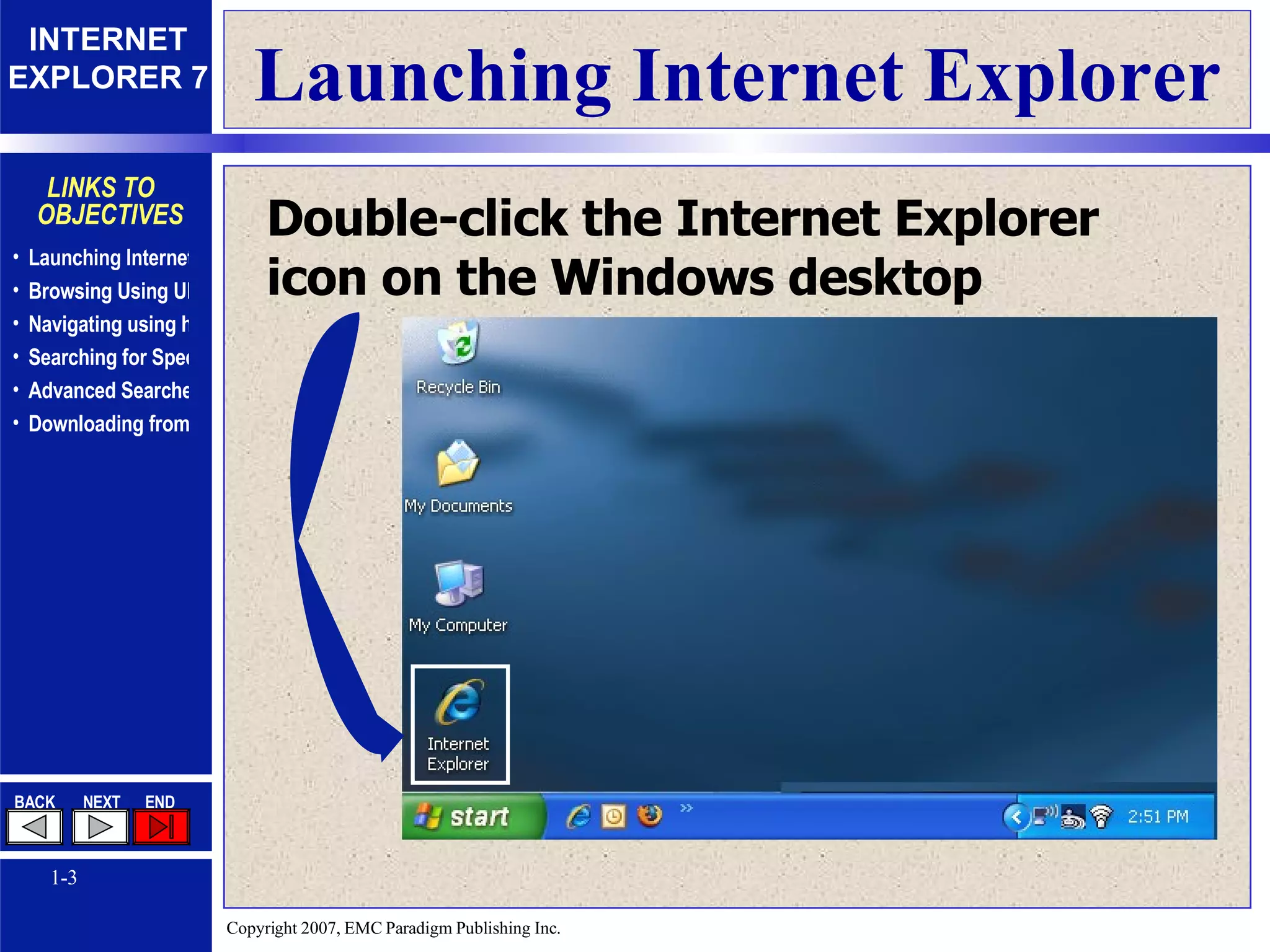
Launching Internet Explorer Double-click the Internet Explorer icon on the Windows desktop
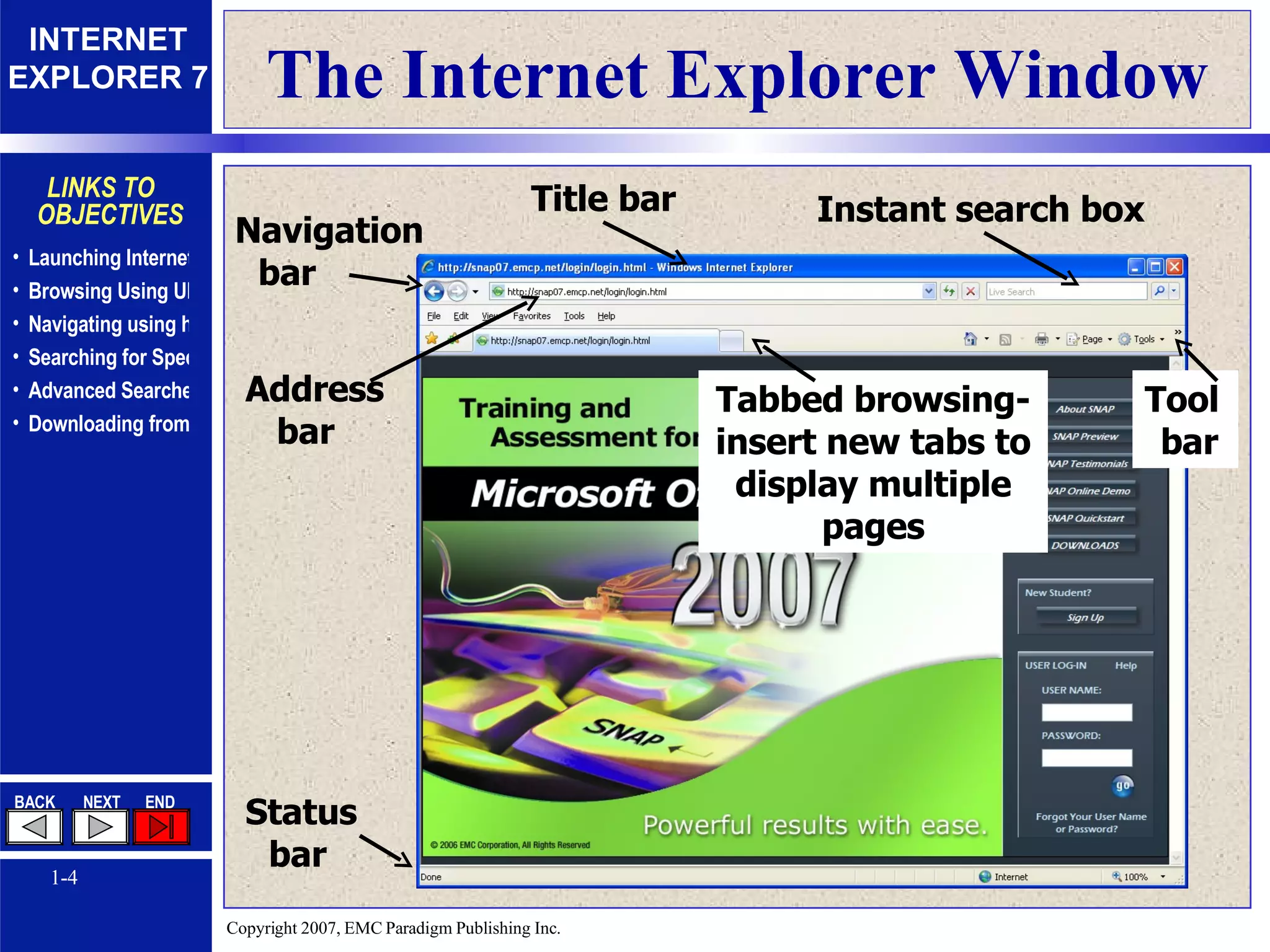
The Internet Explorer Window Navigation bar Status bar Title bar Address bar Instant search box Tool bar Tabbed browsing- insert new tabs to display multiple pages
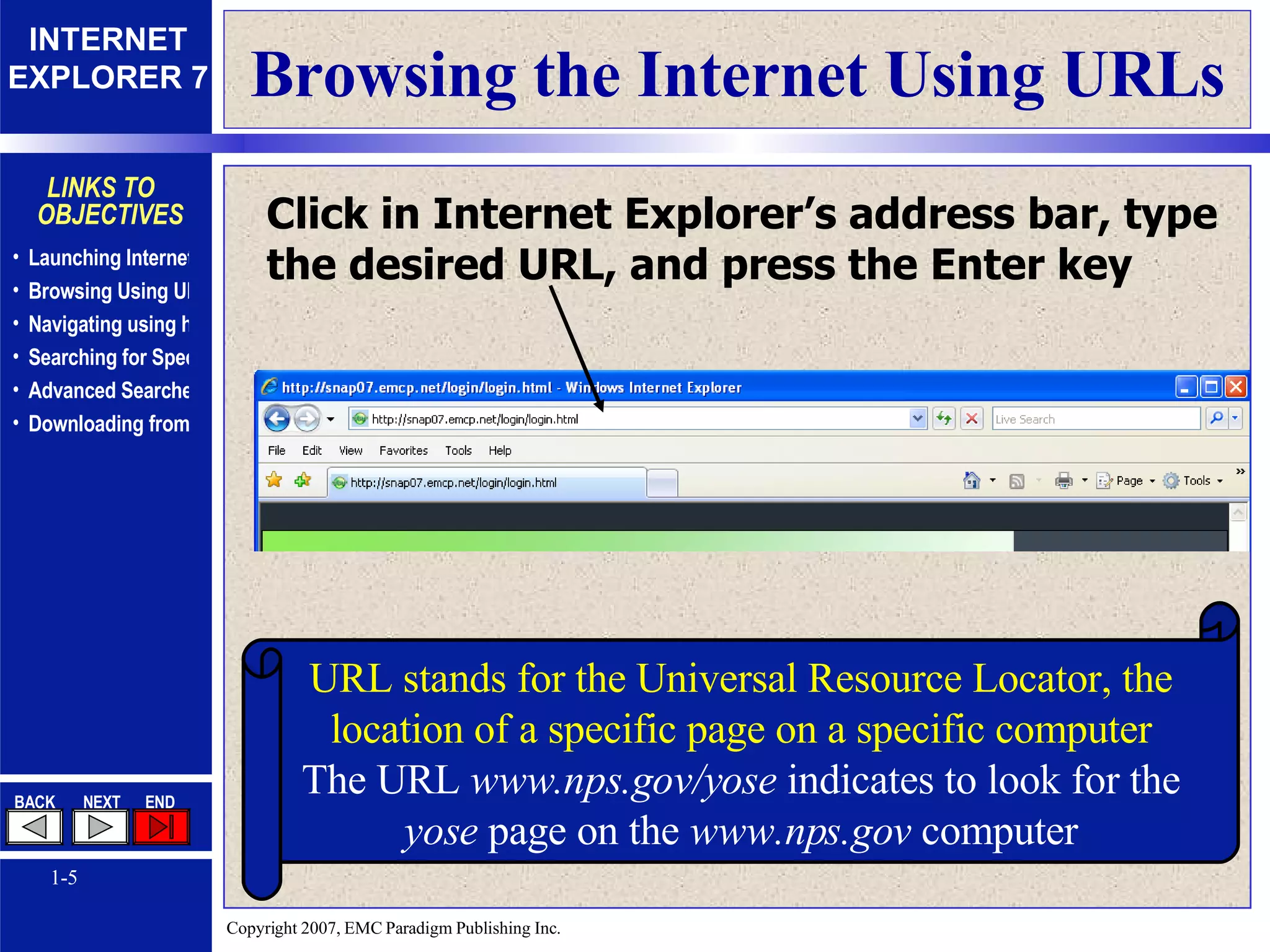
Browsing the Internet Using URLs Click in Internet Explorer’s address bar, type the desired URL, and press the Enter key URL stands for the Universal Resource Locator, the location of a specific page on a specific computer The URL  www.nps.gov/yose  indicates to look for the  yose  page on the  www.nps.gov  computer
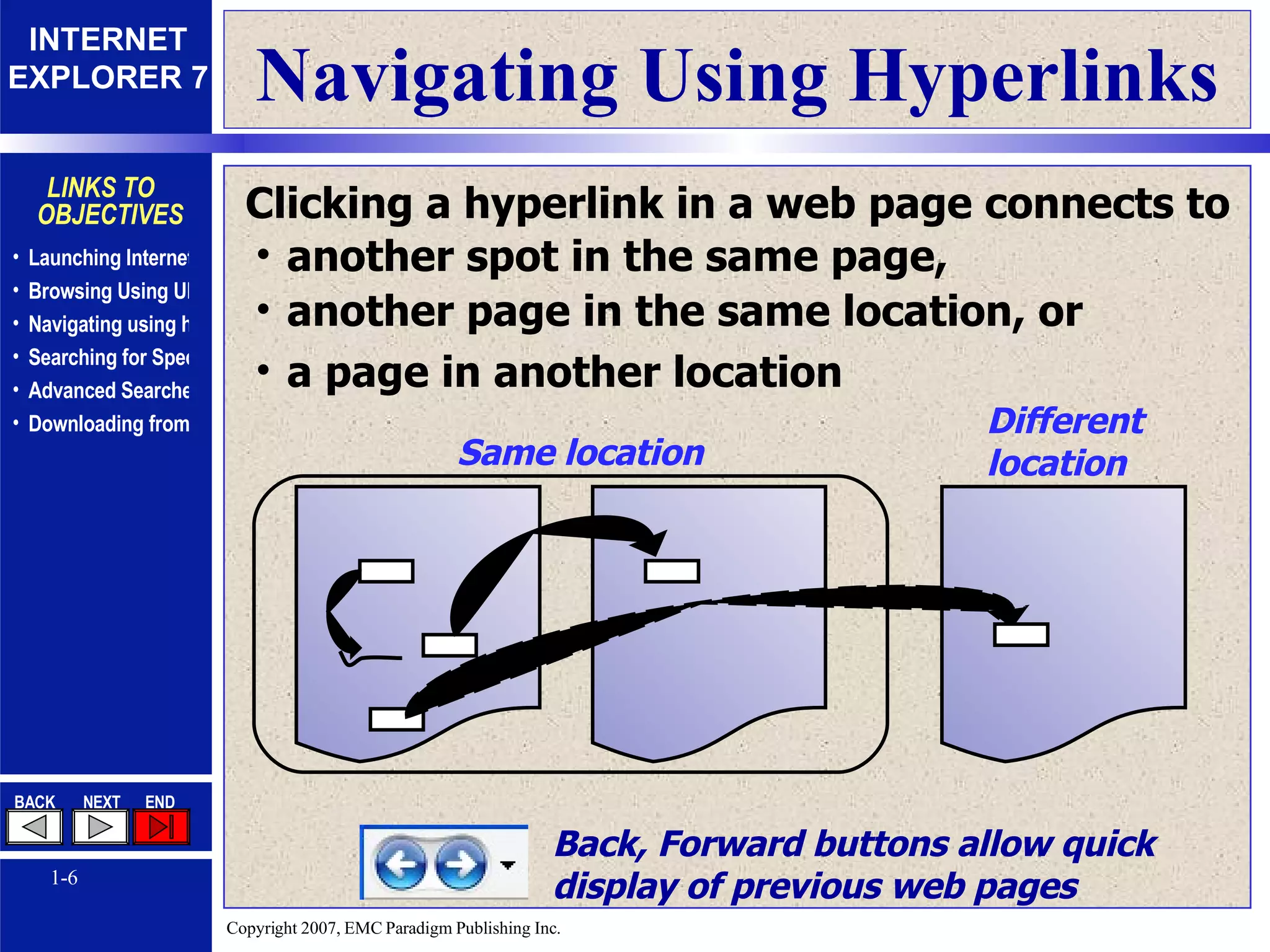
Navigating Using Hyperlinks another page in the same location, or Same location Different location Clicking a hyperlink in a web page connects to another spot in the same page, a page in another location Back, Forward buttons allow quick display of previous web pages
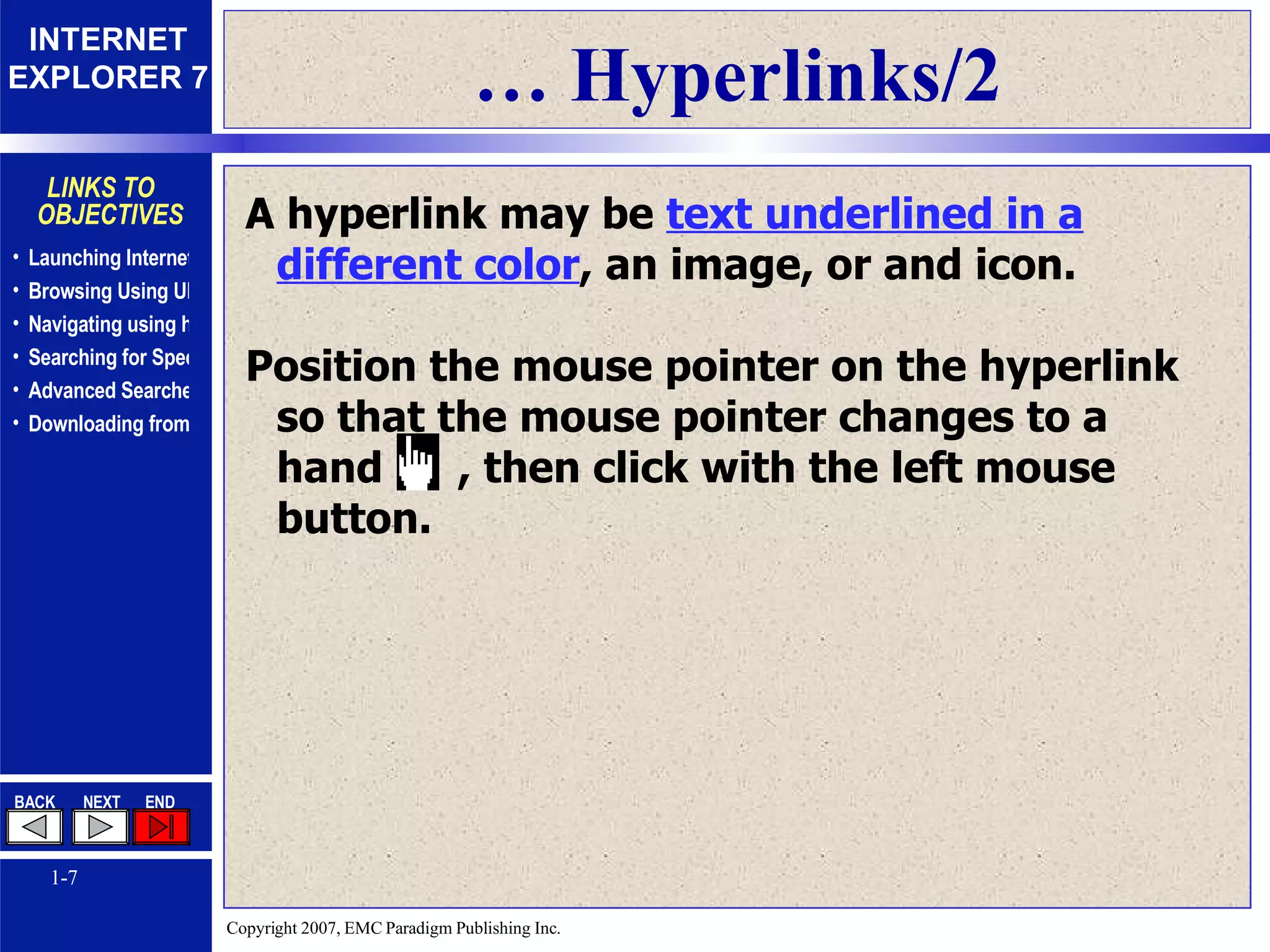
…  Hyperlinks/2 A hyperlink may be  text underlined in a different color , an image, or and icon. Position the mouse pointer on the hyperlink so that the mouse pointer changes to a hand  , then click with the left mouse button.
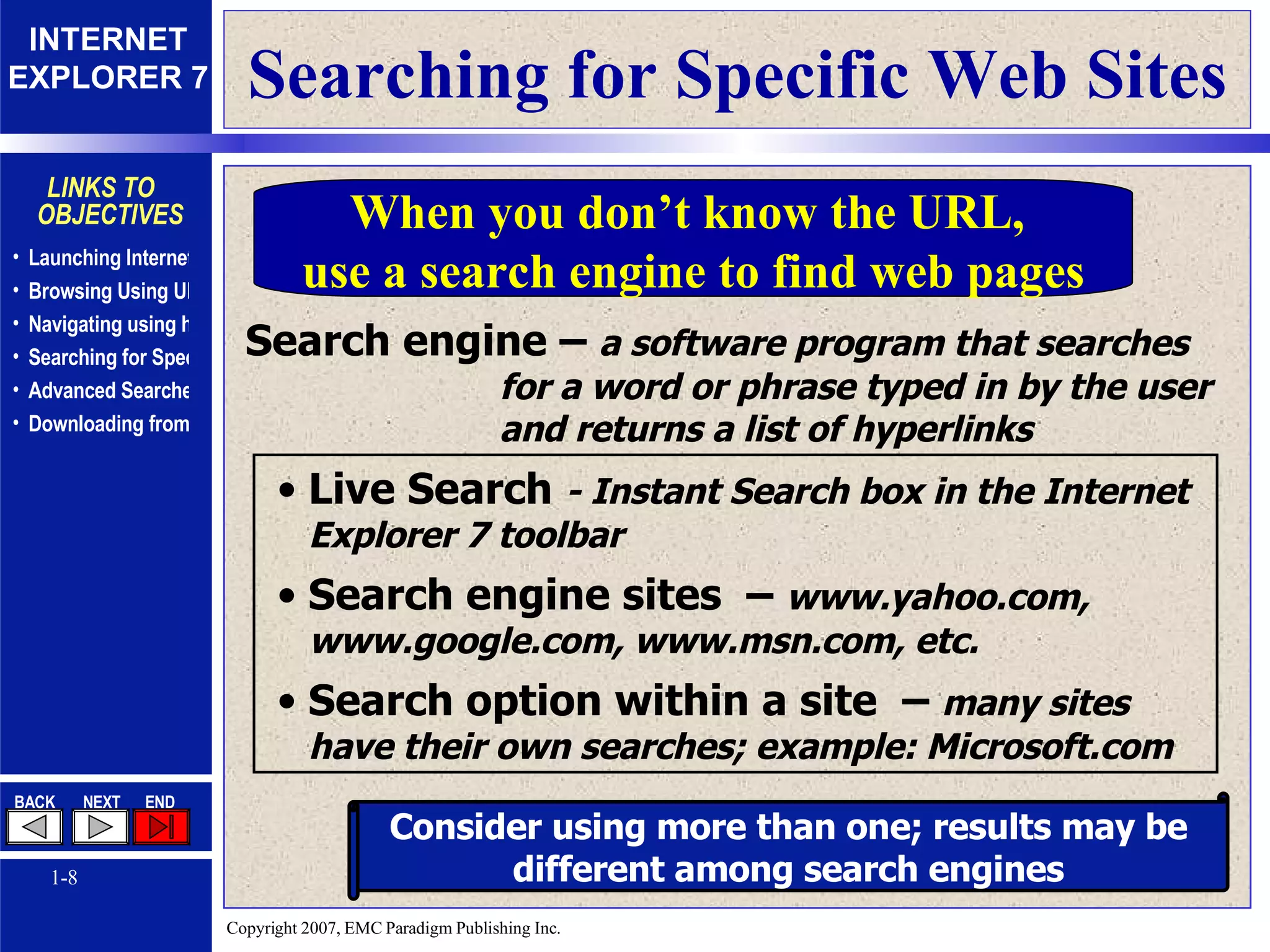
Searching for Specific Web Sites Search engine –  a software program that searches for a word or phrase typed in by the user and returns a list of hyperlinks Live Search  - Instant Search box in the Internet Explorer 7 toolbar Search engine sites  –  www.yahoo.com, www.google.com, www.msn.com, etc. Search option within a site  –  many sites have their own searches; example: Microsoft.com Consider using more than one; results may be different among search engines When you don’t know the URL,  use a search engine to find web pages
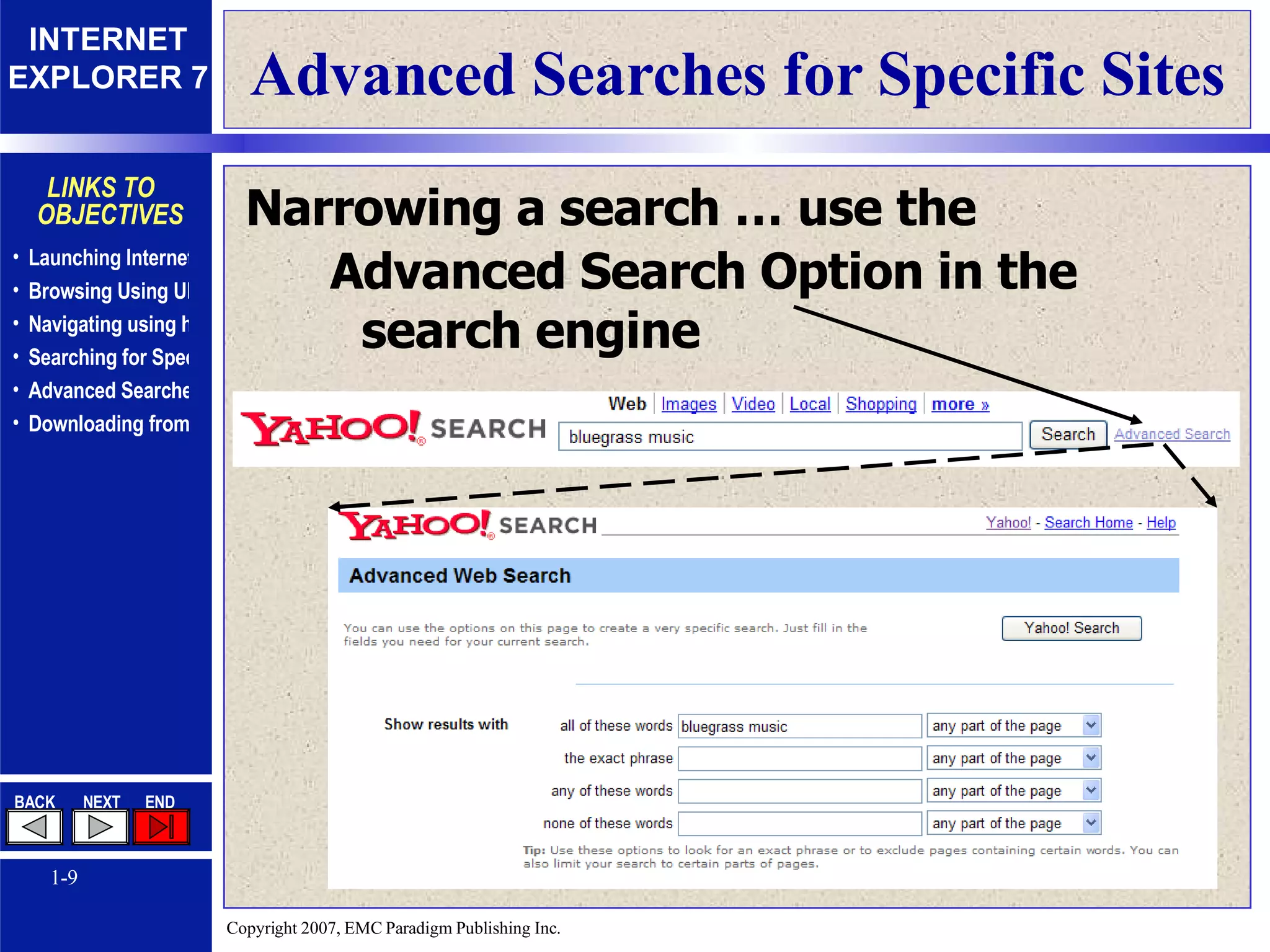
Advanced Searches for Specific Sites Narrowing a search … use the Advanced Search Option in the search engine
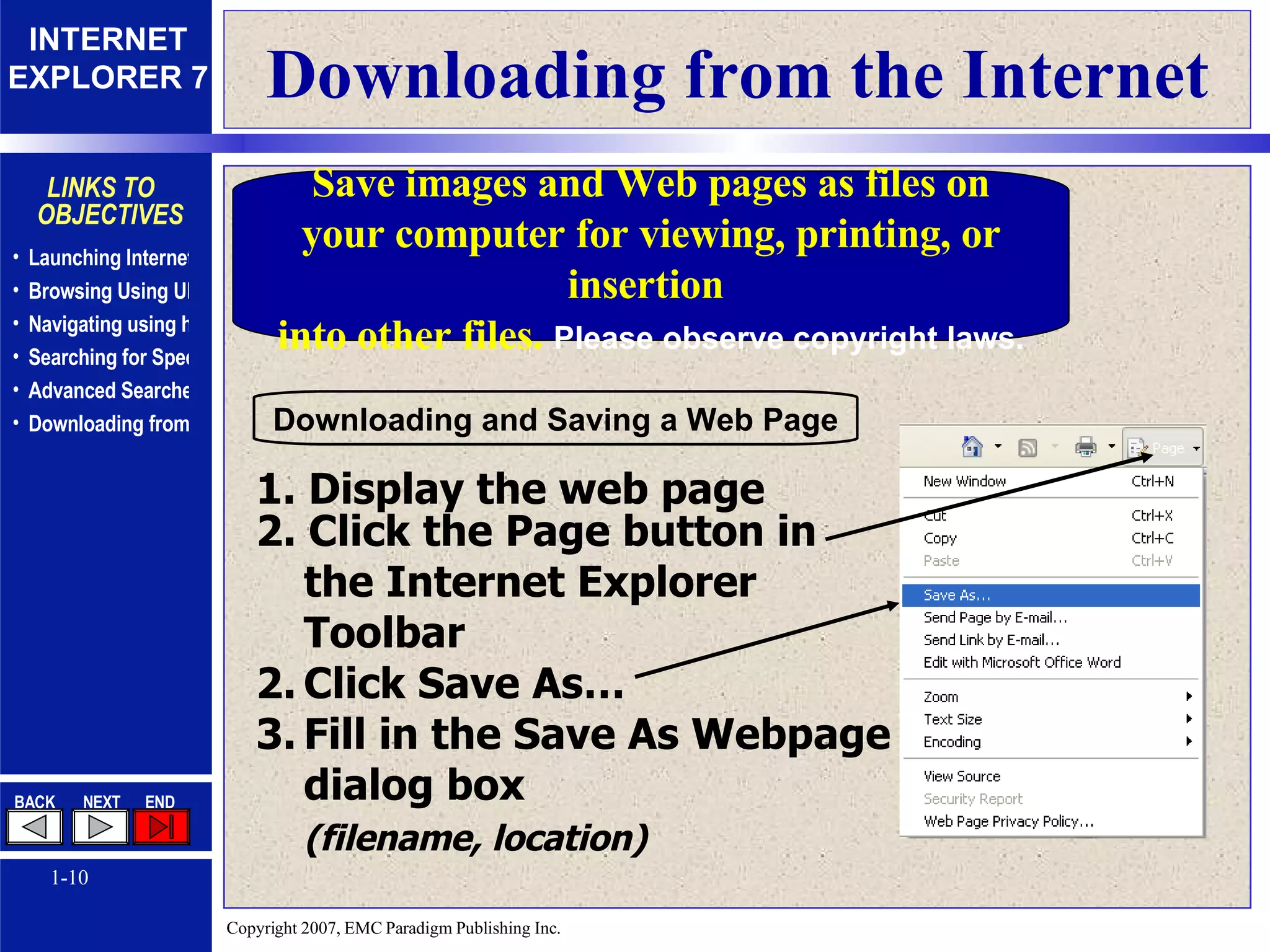
Downloading from the Internet Save images and Web pages as files on your computer for viewing, printing, or insertion  into other files.  Please observe copyright laws. 1. Display the web page 2. Click the Page button in the Internet Explorer  Toolbar Click Save As… Fill in the Save As Webpage dialog box  (filename, location)   Downloading and Saving a Web Page
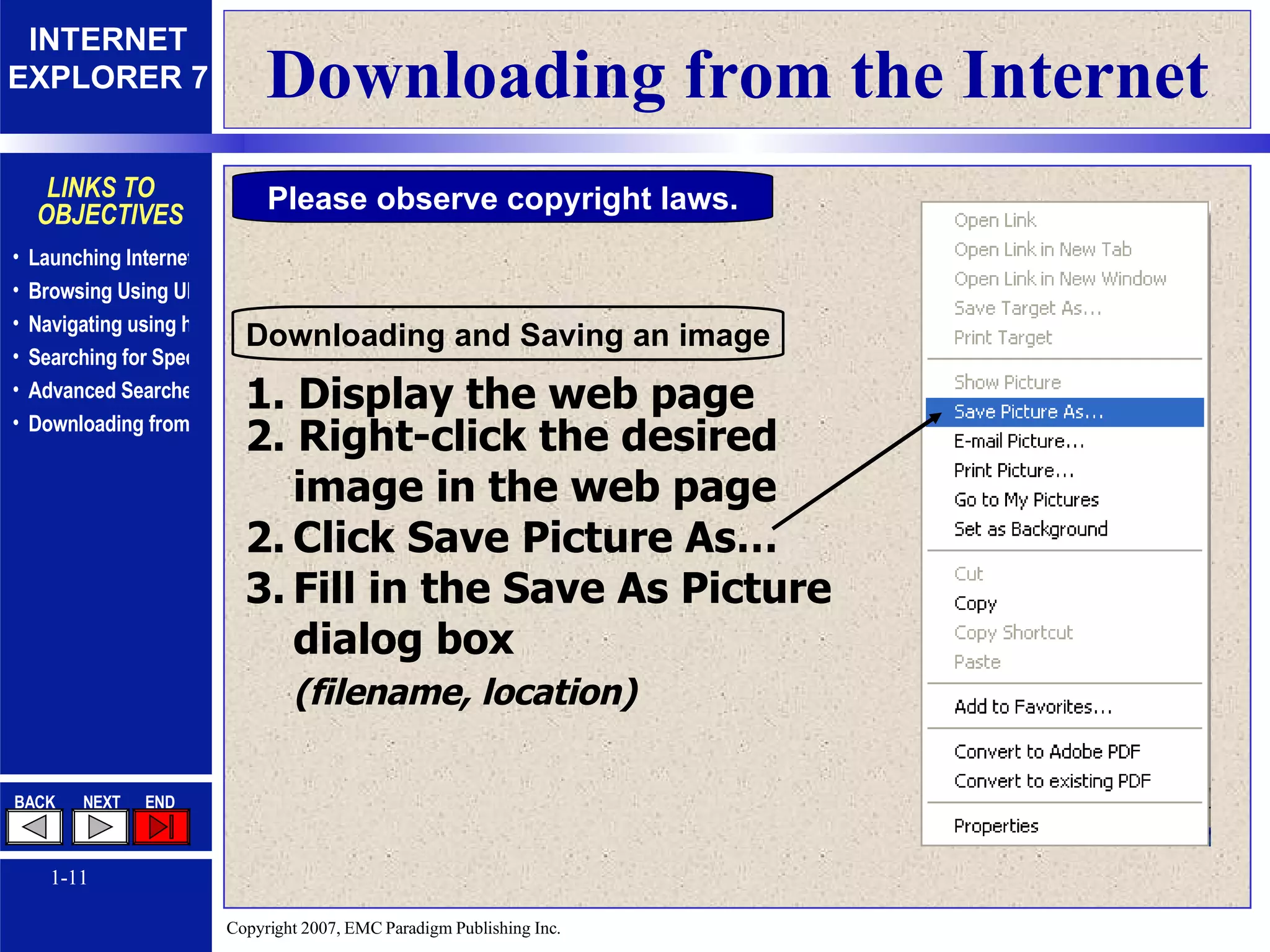
Downloading from the Internet Please observe copyright laws. 1. Display the web page 2. Right-click the desired  image in the web page Click Save Picture As… Fill in the Save As Picture dialog box  (filename, location)   Downloading and Saving an image

Browsing the Internet Using Internet Explorer 7

  • 1.
  • 2.
    Chapter Objectives Navigatethe Internet using URLs and hyperlinks Use search engines to locate information Download Web pages and images
  • 3.
    Launching Internet ExplorerDouble-click the Internet Explorer icon on the Windows desktop
  • 4.
    The Internet ExplorerWindow Navigation bar Status bar Title bar Address bar Instant search box Tool bar Tabbed browsing- insert new tabs to display multiple pages
  • 5.
    Browsing the InternetUsing URLs Click in Internet Explorer’s address bar, type the desired URL, and press the Enter key URL stands for the Universal Resource Locator, the location of a specific page on a specific computer The URL www.nps.gov/yose indicates to look for the yose page on the www.nps.gov computer
  • 6.
    Navigating Using Hyperlinksanother page in the same location, or Same location Different location Clicking a hyperlink in a web page connects to another spot in the same page, a page in another location Back, Forward buttons allow quick display of previous web pages
  • 7.
    … Hyperlinks/2A hyperlink may be text underlined in a different color , an image, or and icon. Position the mouse pointer on the hyperlink so that the mouse pointer changes to a hand , then click with the left mouse button.
  • 8.
    Searching for SpecificWeb Sites Search engine – a software program that searches for a word or phrase typed in by the user and returns a list of hyperlinks Live Search - Instant Search box in the Internet Explorer 7 toolbar Search engine sites – www.yahoo.com, www.google.com, www.msn.com, etc. Search option within a site – many sites have their own searches; example: Microsoft.com Consider using more than one; results may be different among search engines When you don’t know the URL, use a search engine to find web pages
  • 9.
    Advanced Searches forSpecific Sites Narrowing a search … use the Advanced Search Option in the search engine
  • 10.
    Downloading from theInternet Save images and Web pages as files on your computer for viewing, printing, or insertion into other files. Please observe copyright laws. 1. Display the web page 2. Click the Page button in the Internet Explorer Toolbar Click Save As… Fill in the Save As Webpage dialog box (filename, location) Downloading and Saving a Web Page
  • 11.
    Downloading from theInternet Please observe copyright laws. 1. Display the web page 2. Right-click the desired image in the web page Click Save Picture As… Fill in the Save As Picture dialog box (filename, location) Downloading and Saving an image