eBooks & netLibrary: the future is NOW                    
netLibrary is a comprehensive collection of electronic books (eBooks). eBooks are electronic versions of printed books. They have the same information, are enriched with photos and illustrations, and can be viewed online from any computer connected to the Internet.
Benefits   Access to eBooks 24/7 from anywhere in the world.  Full-text searches by word or phrase of an individual eBook or the entire collection of eBooks simultaneously.  Quick Search feature allows users to search eBooks by title, author, subject, full text, and keyword.  An eBook can be read or checked out online.  Electronic checkout and return via Internet eliminate library trips and late fees.
To create a netLibrary account:  1 .  Enter www.netlibrary.com in the address bar of your web browser to access the netLibrary website.  netLibrary runs on any computer with Internet access. A web browser of version 3.x or higher is necessary. Microsoft ® Internet Explorer 4.x or higher or Netscape ® Communicator 4.x or higher is recommended.   2.  Click on the  Create Account  button on the netLibrary navigation toolbar.  Create Account Create Account
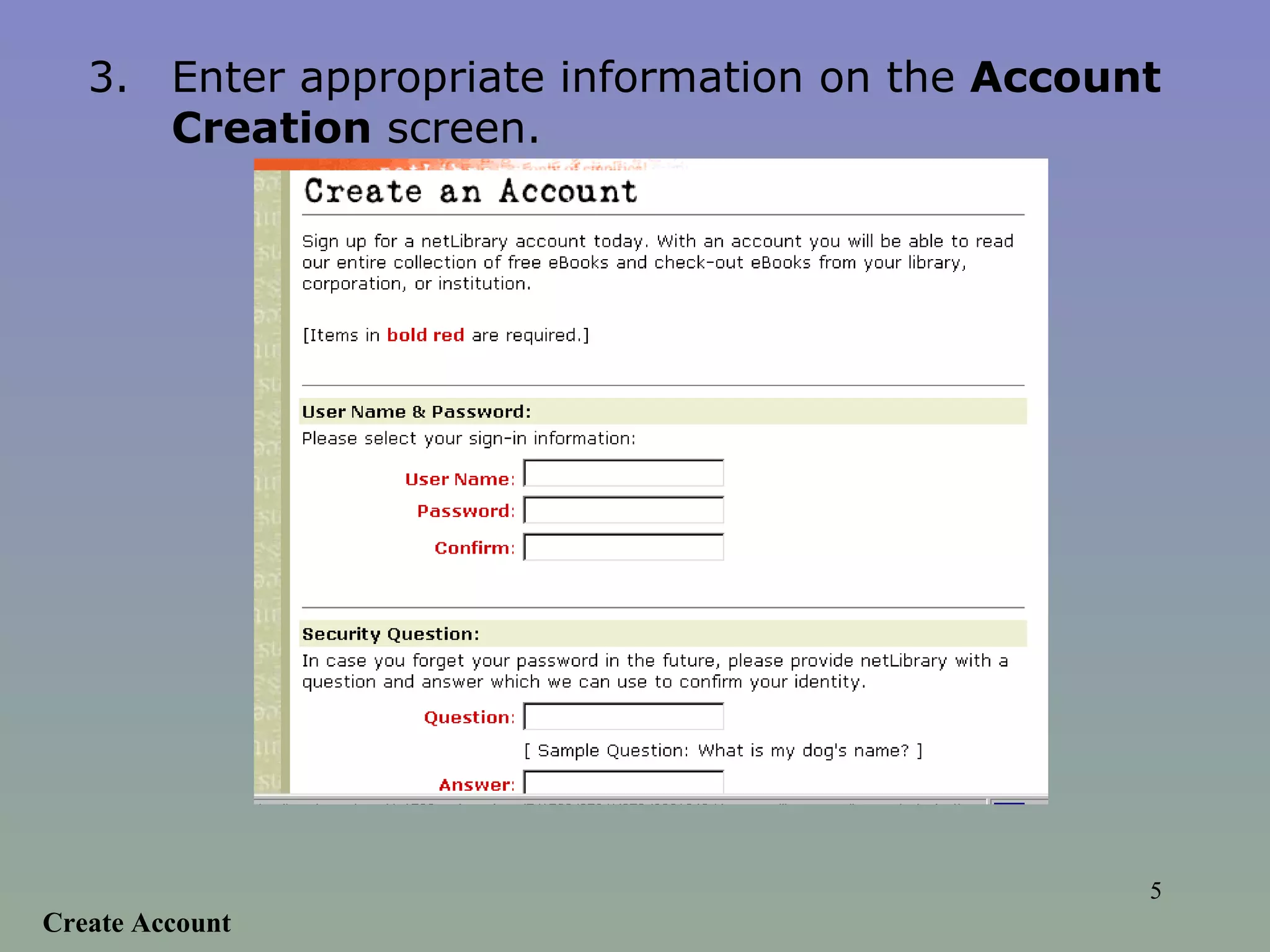
Create Account 3. Enter appropriate information on the  Account Creation  screen.
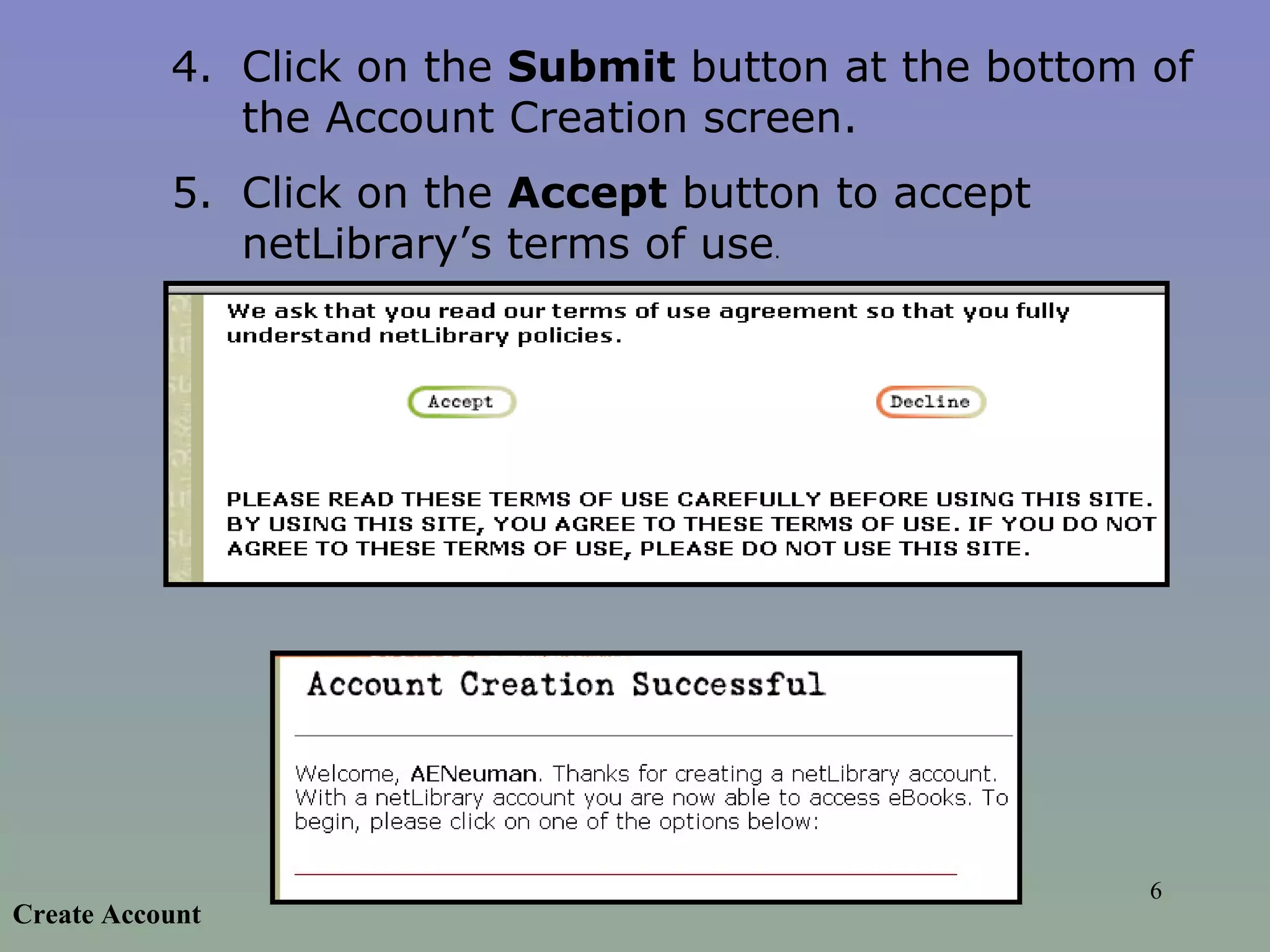
4. Click on the  Submit  button at the bottom of the Account Creation screen.  5. Click on the  Accept  button to accept netLibrary’s terms of use .  Create Account
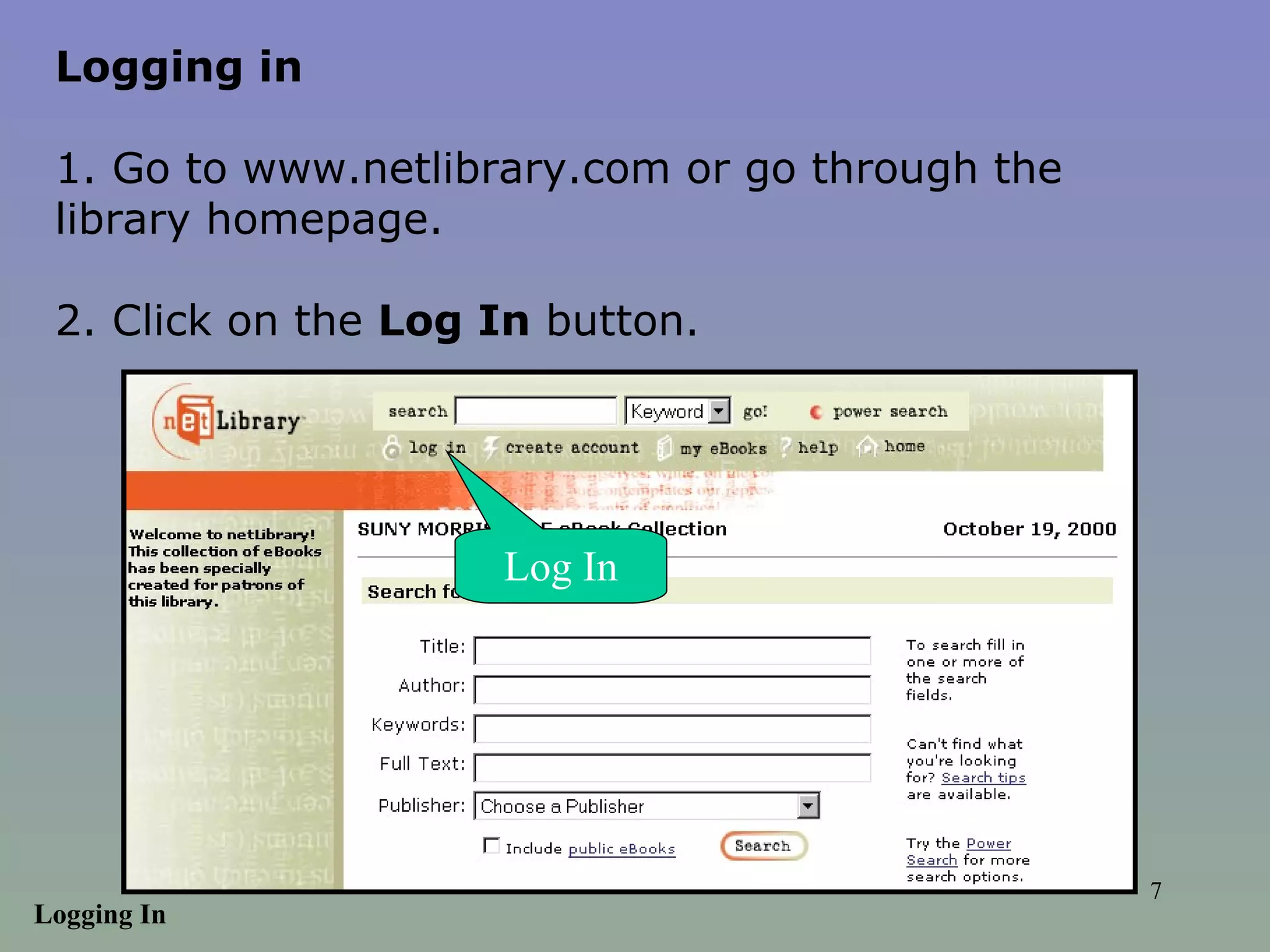
Logging in 1. Go to www.netlibrary.com or go through the library homepage.  2. Click on the  Log In  button.  Log In Logging In
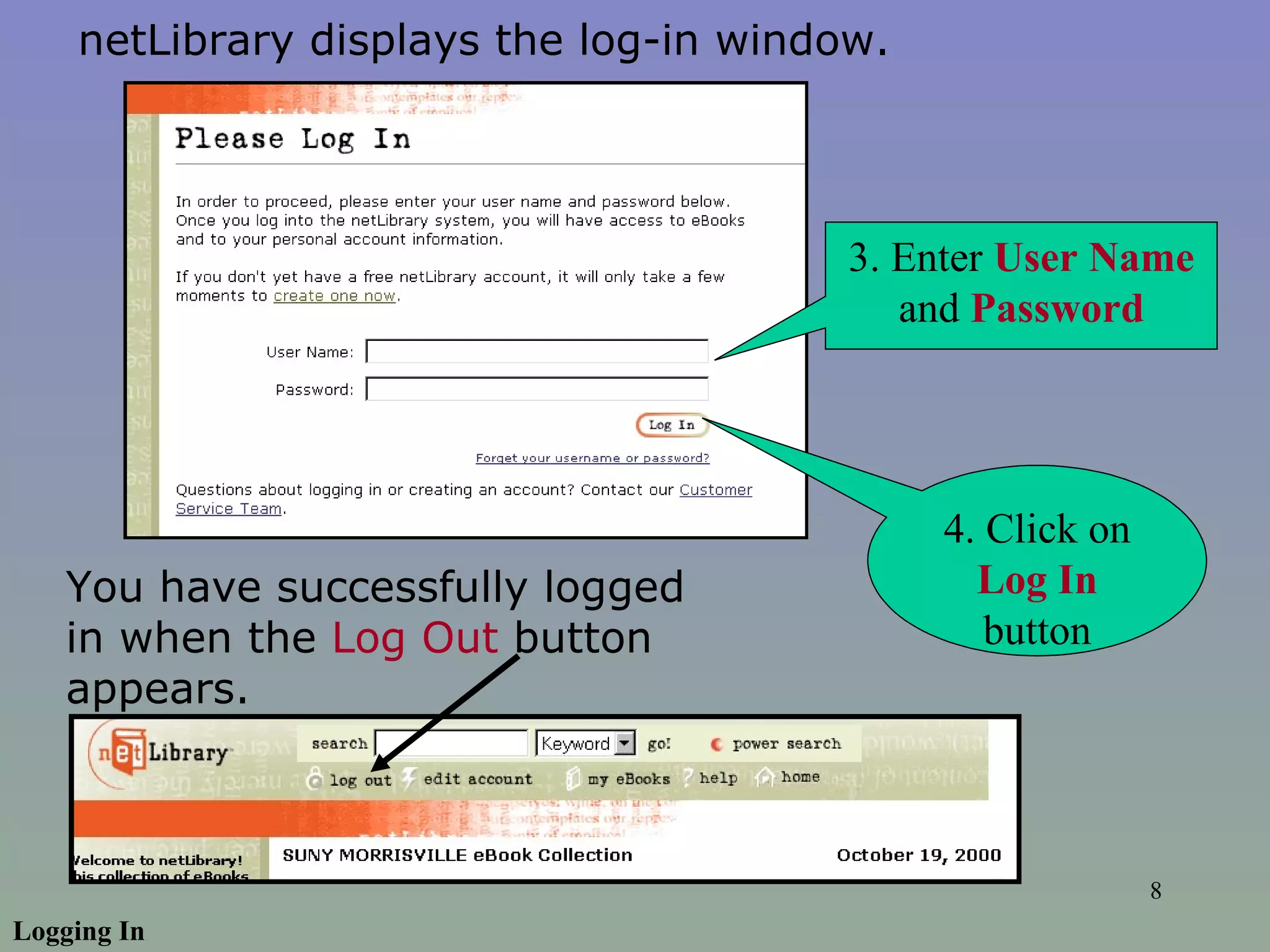
3. Enter  User Name  and  Password 4. Click on  Log In  button Logging In netLibrary displays the log-in window.  You have successfully logged in when the  Log Out  button appears.
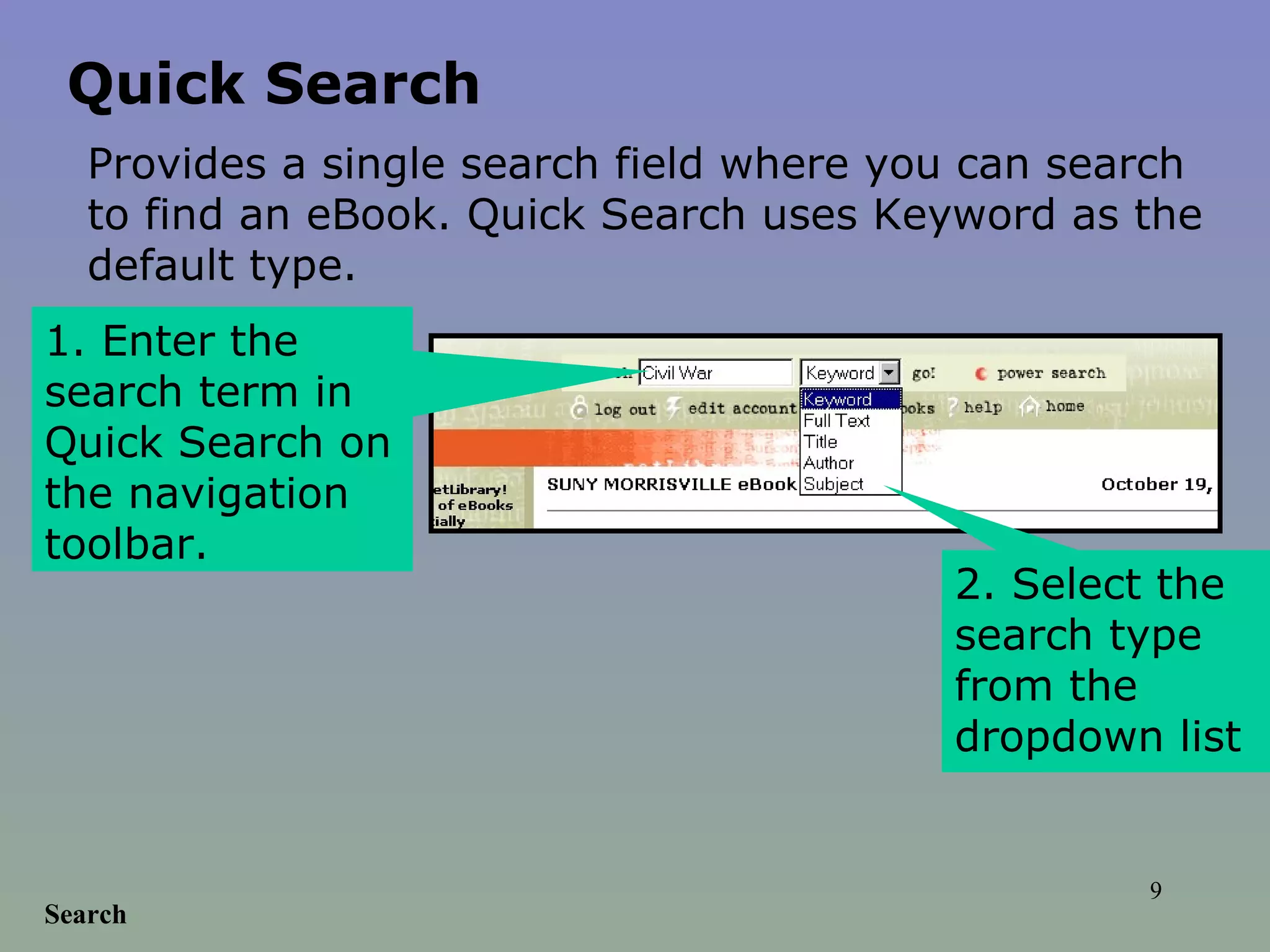
Search 1. Enter the search term in Quick Search on the navigation toolbar.  2. Select the search type from the dropdown list  Quick Search Provides a single search field where you can search to find an eBook. Quick Search uses Keyword as the default type.
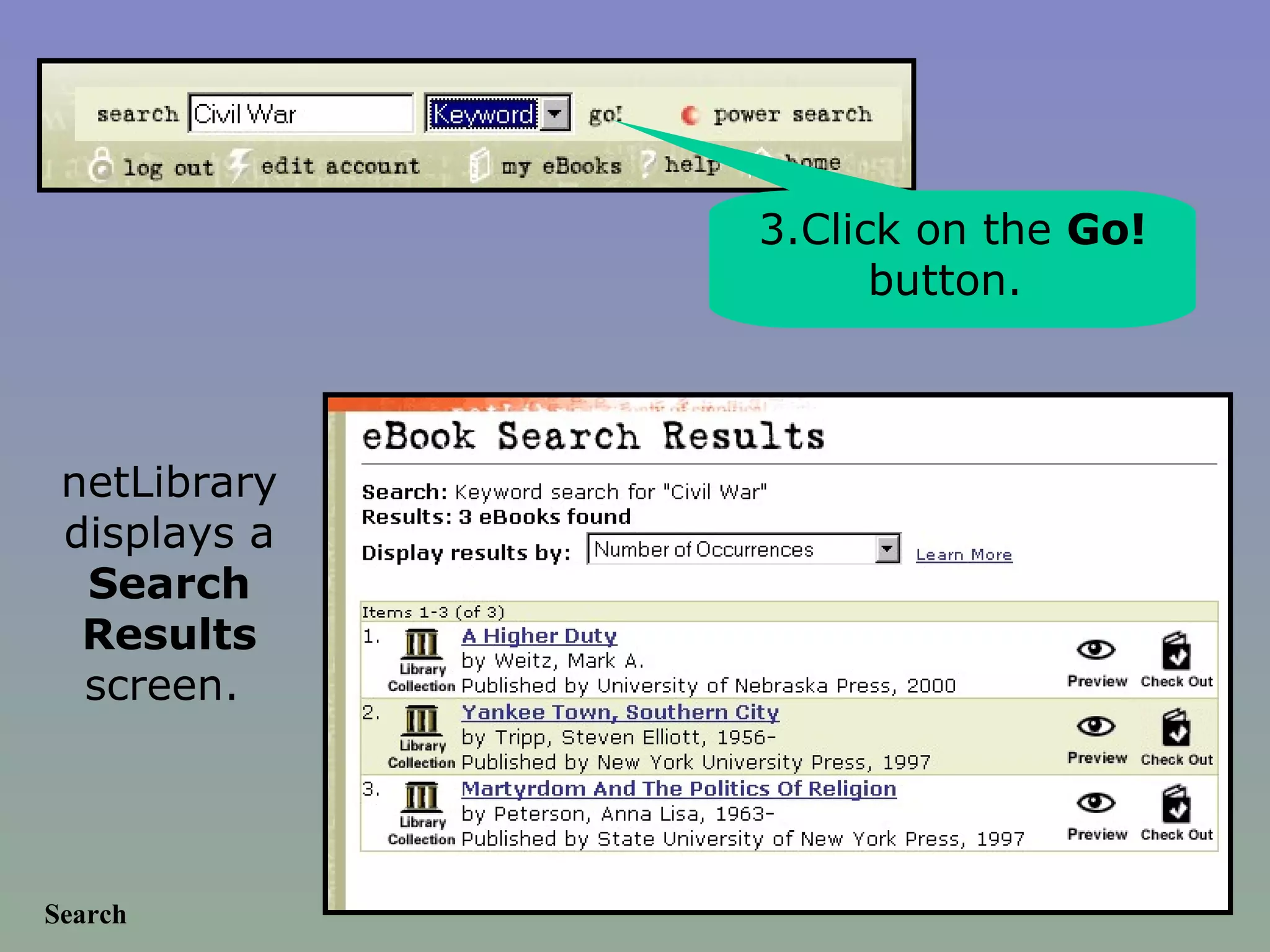
Search 3.Click on the  Go!  button.  netLibrary displays a  Search Results  screen.
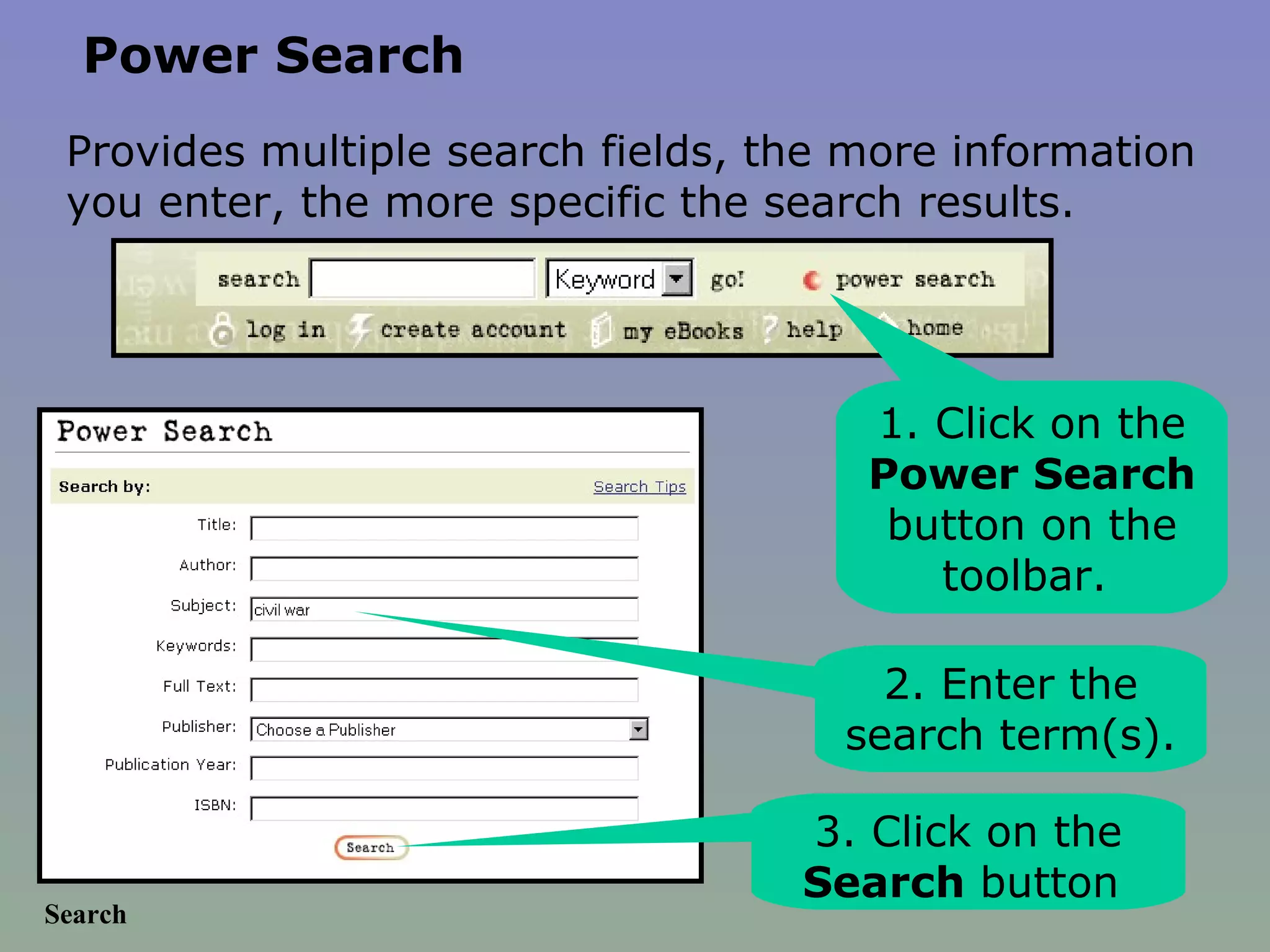
Search 1. Click on the  Power Search  button on the toolbar.  2. Enter the search term(s).  3. Click on the  Search  button  Power Search Provides multiple search fields, the more information you enter, the more specific the search results.
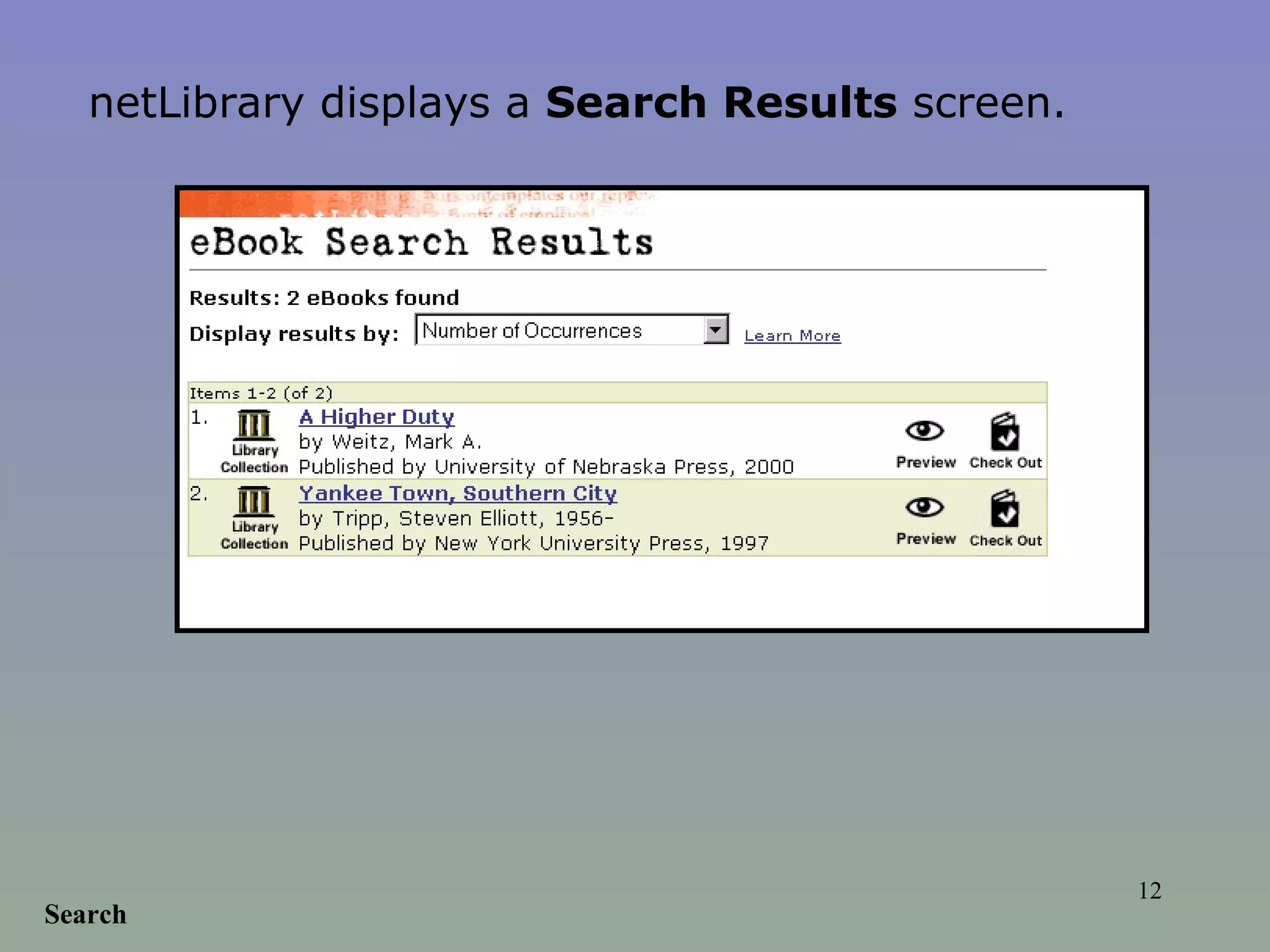
Search netLibrary displays a  Search Results  screen.
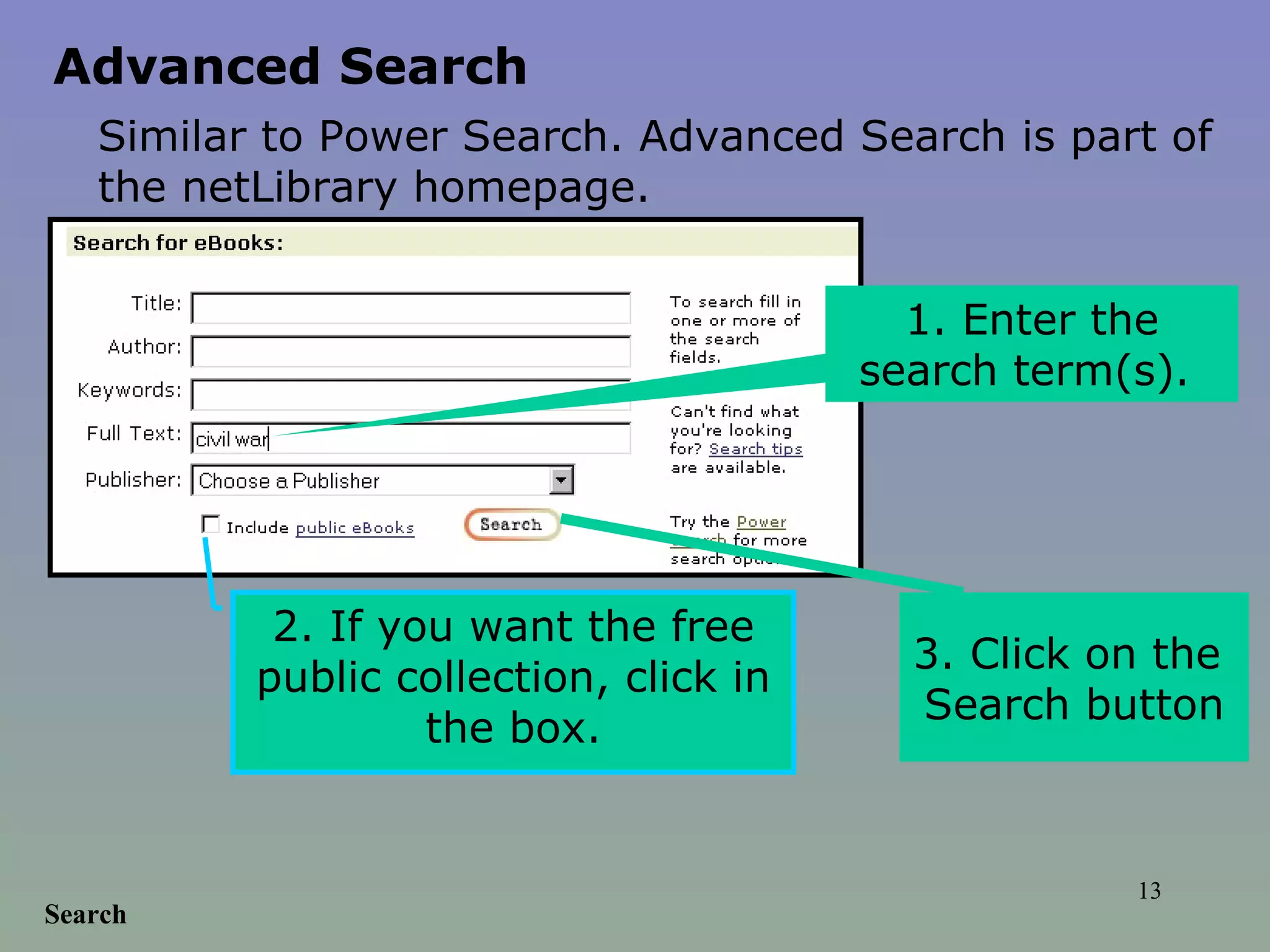
Search 1. Enter the search term(s).  2. If you want the free public collection, click in the box. 3. Click on the  Search button Advanced Search Similar to Power Search. Advanced Search is part of the netLibrary homepage.
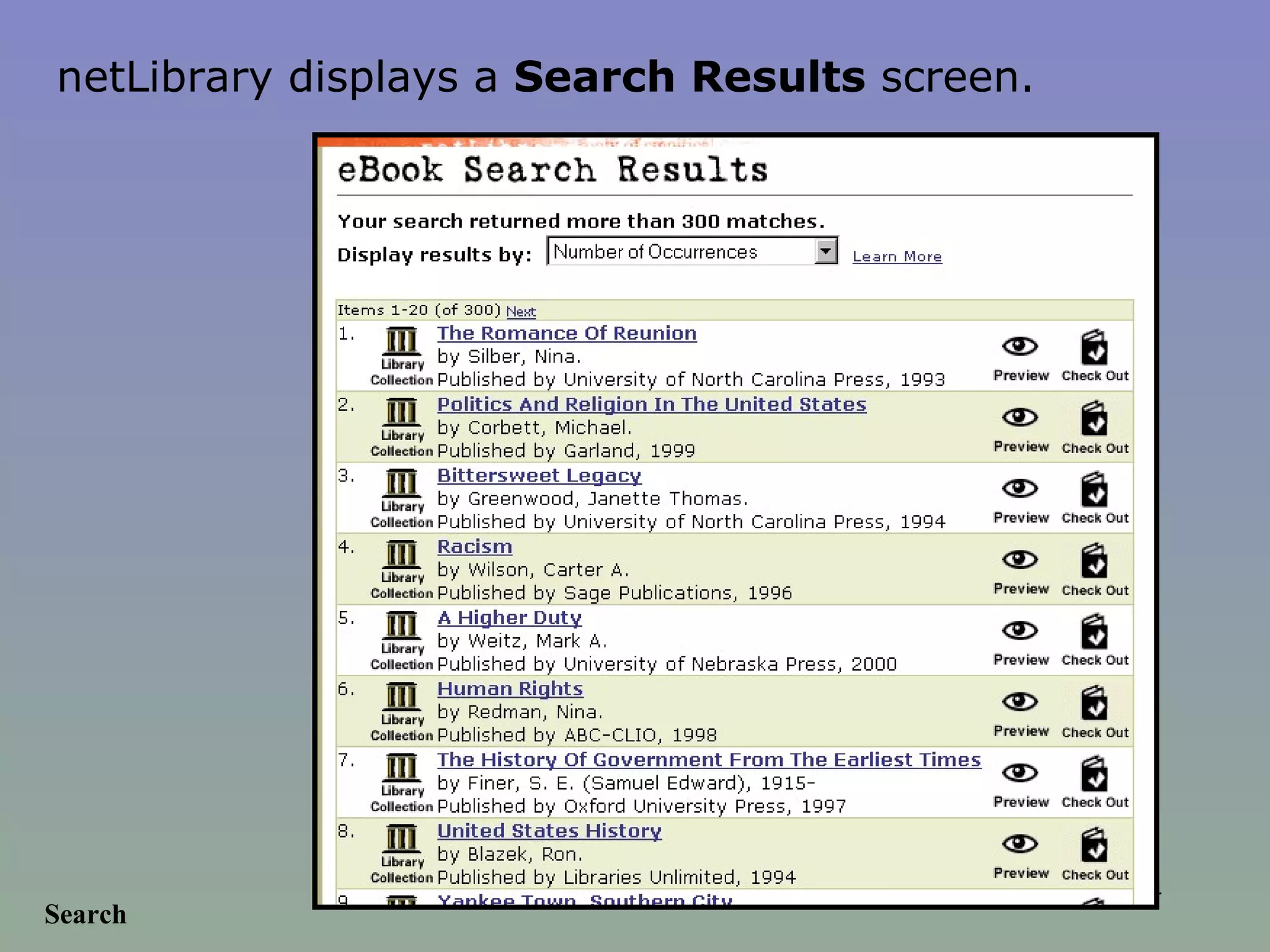
Search netLibrary displays a  Search Results  screen.
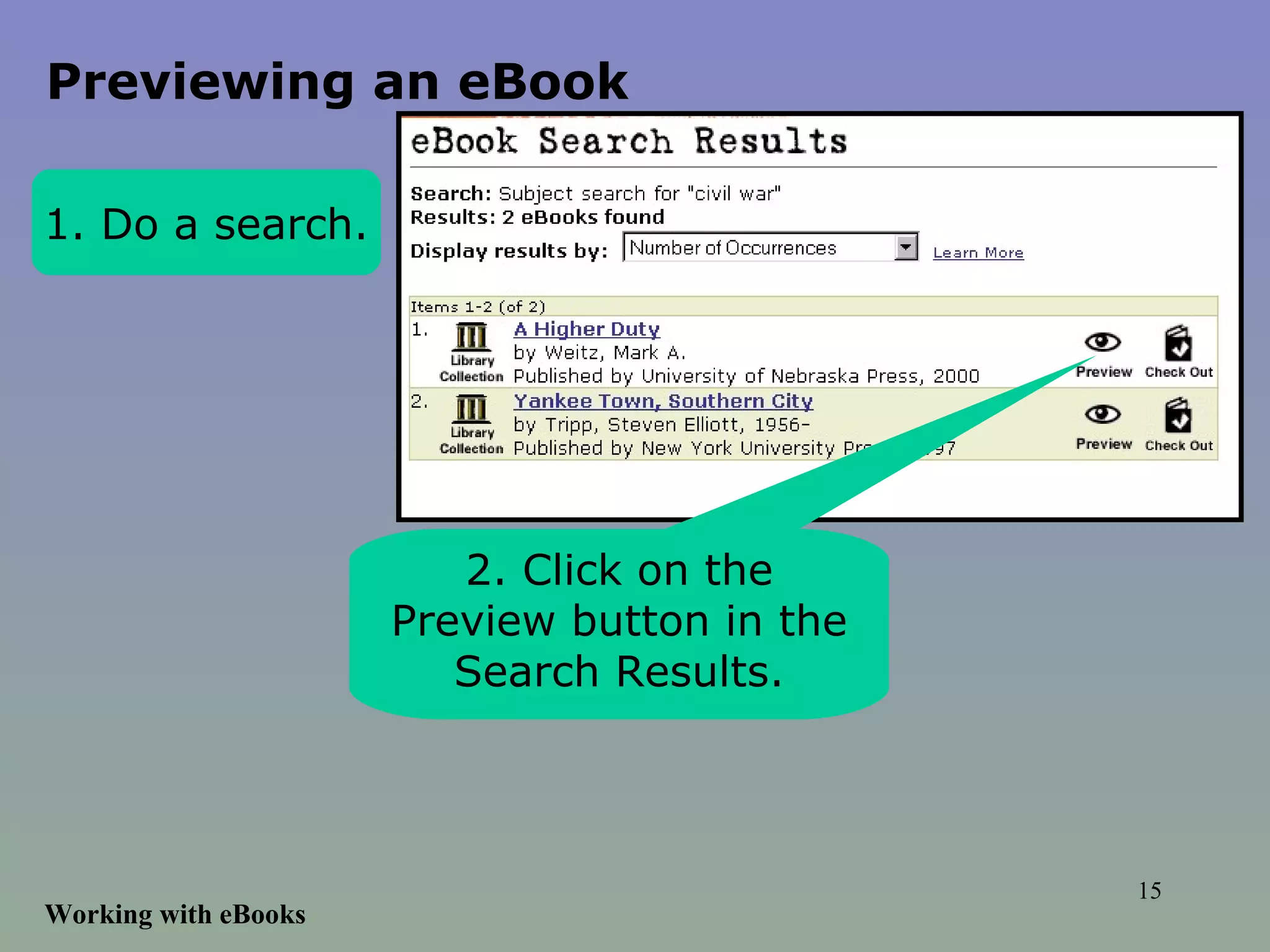
Working with eBooks 1. Do a search. 2. Click on the Preview button in the Search Results. Previewing an eBook
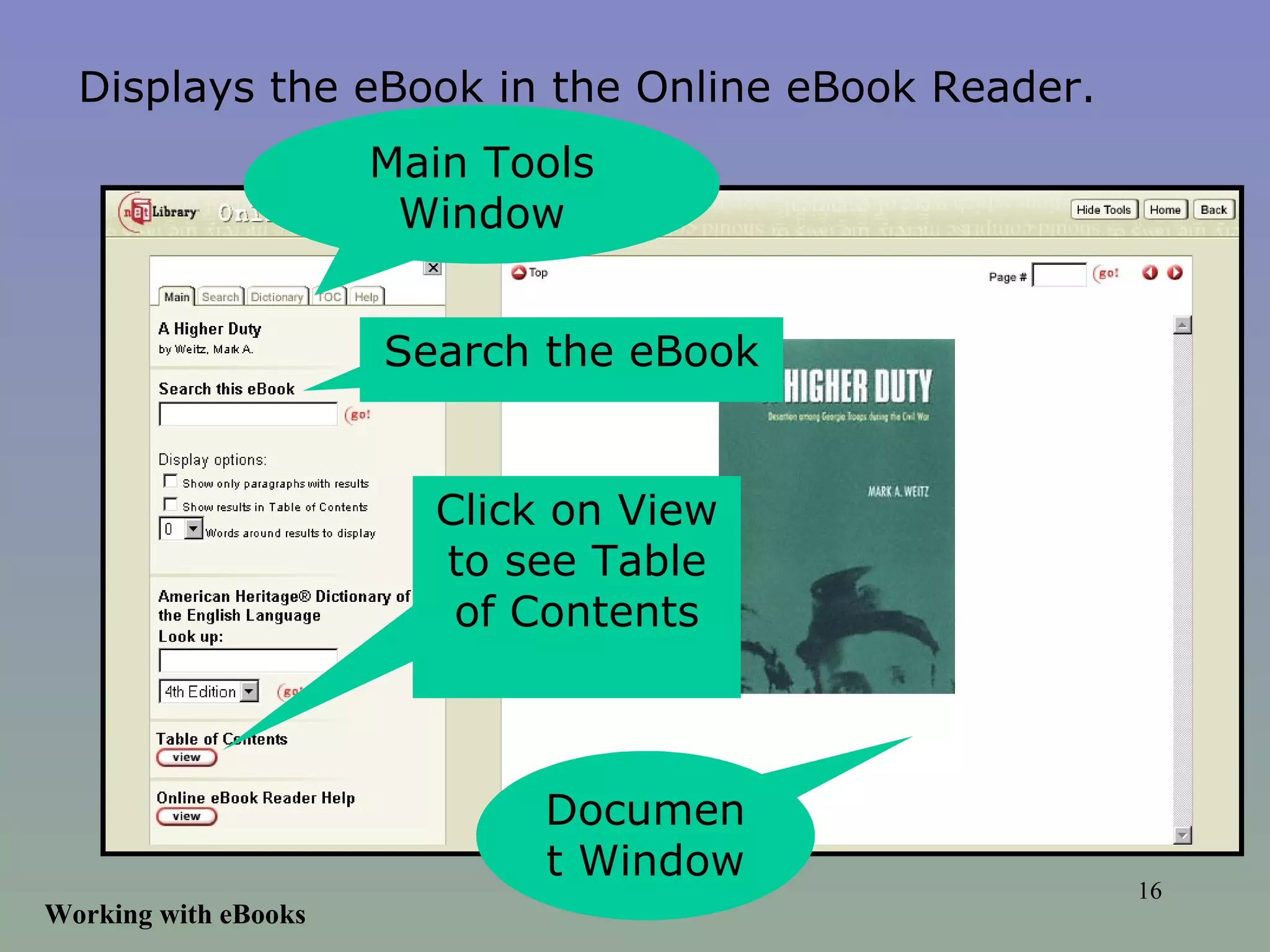
Working with eBooks Main Tools Window Document Window Click on View to see Table of Contents Search the eBook Displays the eBook in the Online eBook Reader.
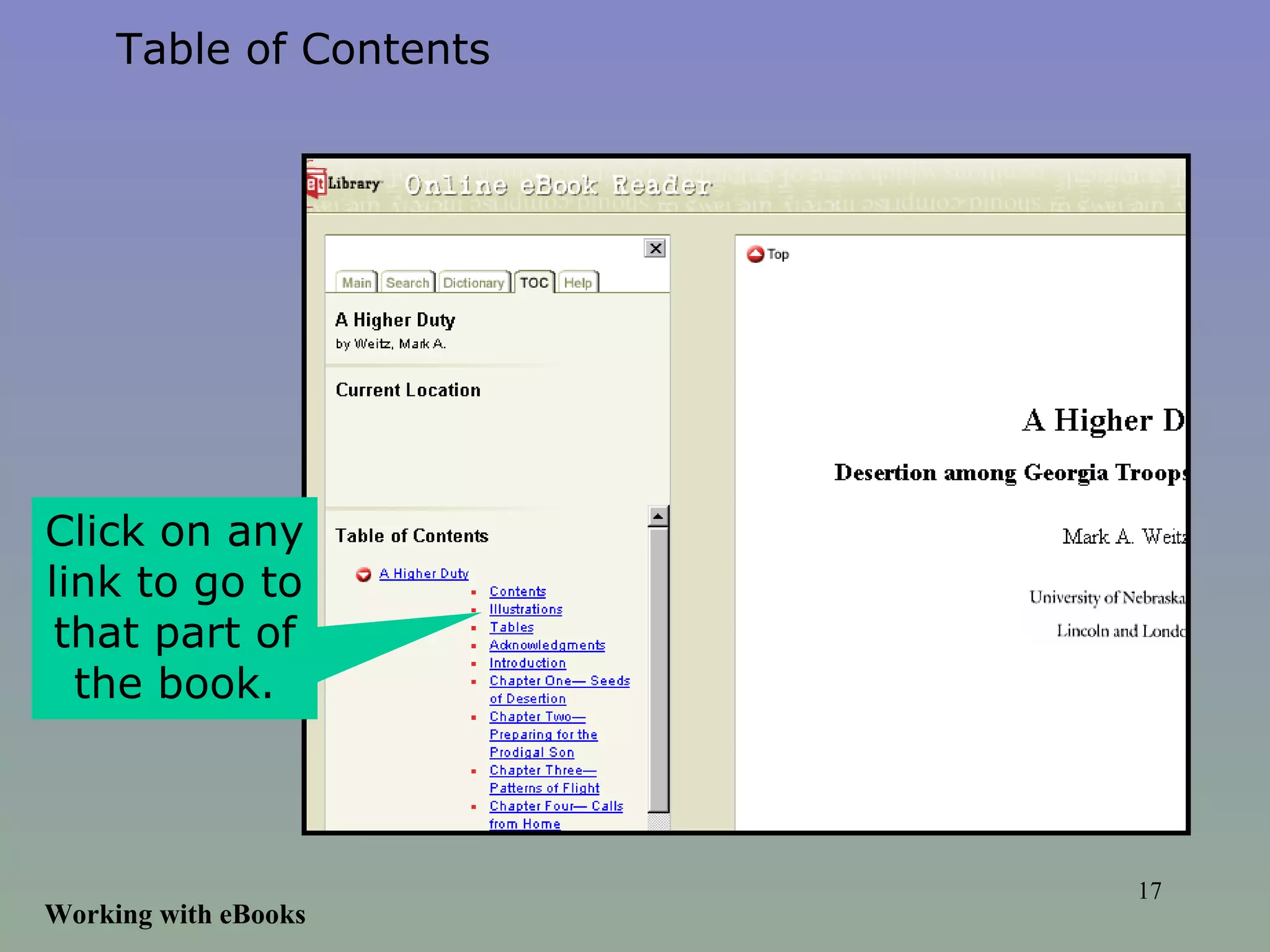
Working with eBooks Table of Contents Click on any link to go to that part of the book.
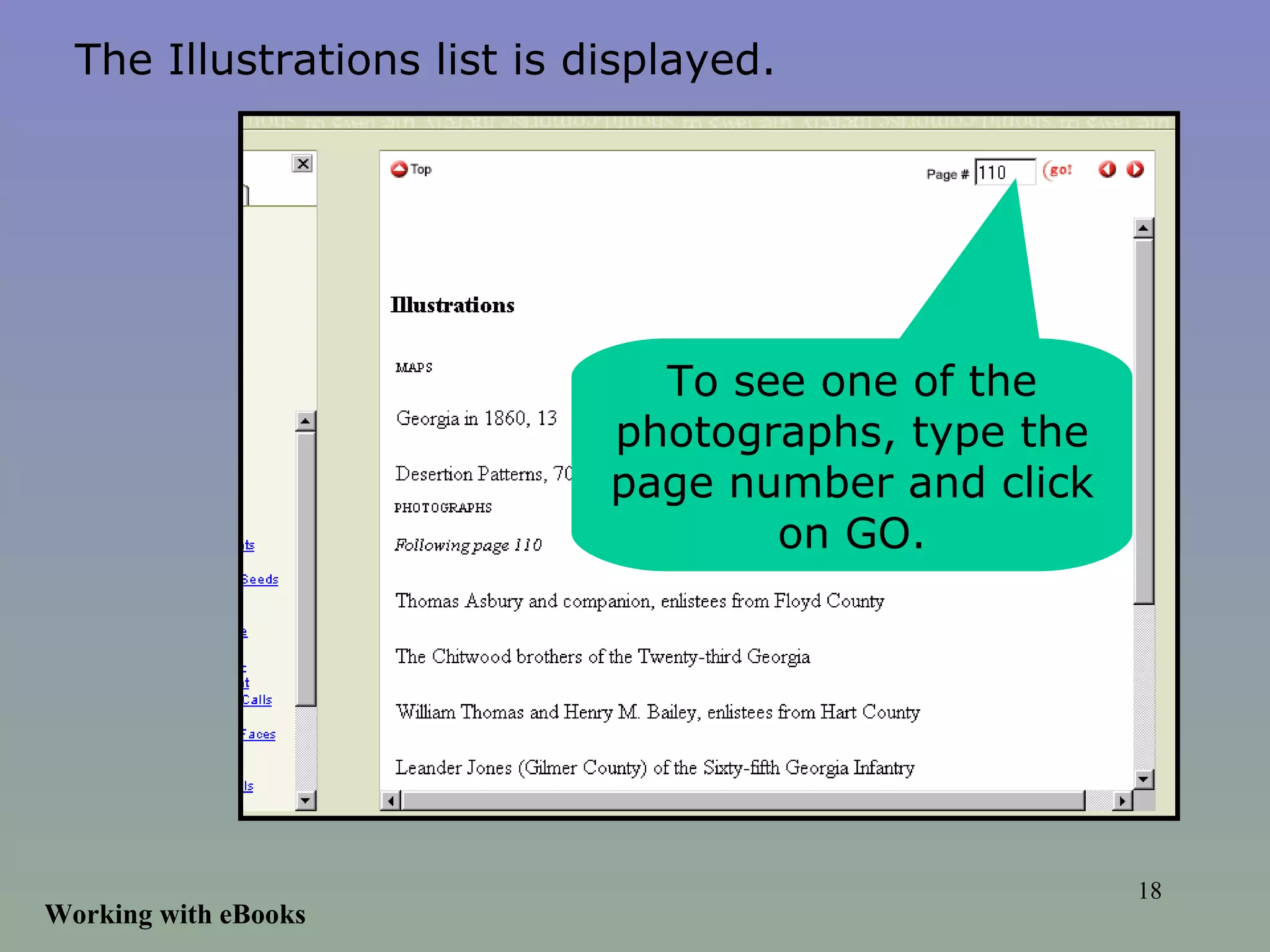
Working with eBooks The Illustrations list is displayed. To see one of the photographs, type the page number and click on GO.
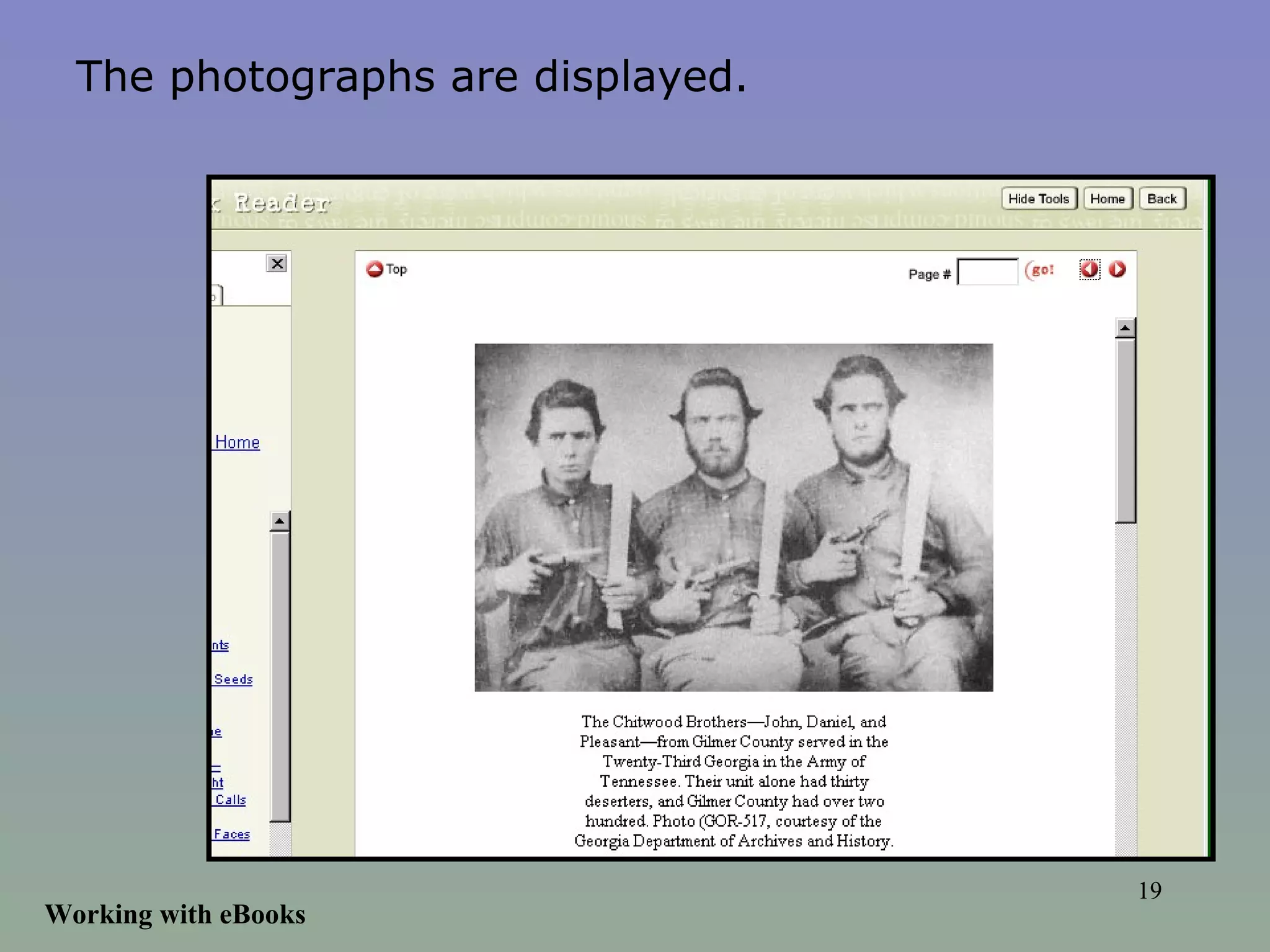
Working with eBooks The photographs are displayed.
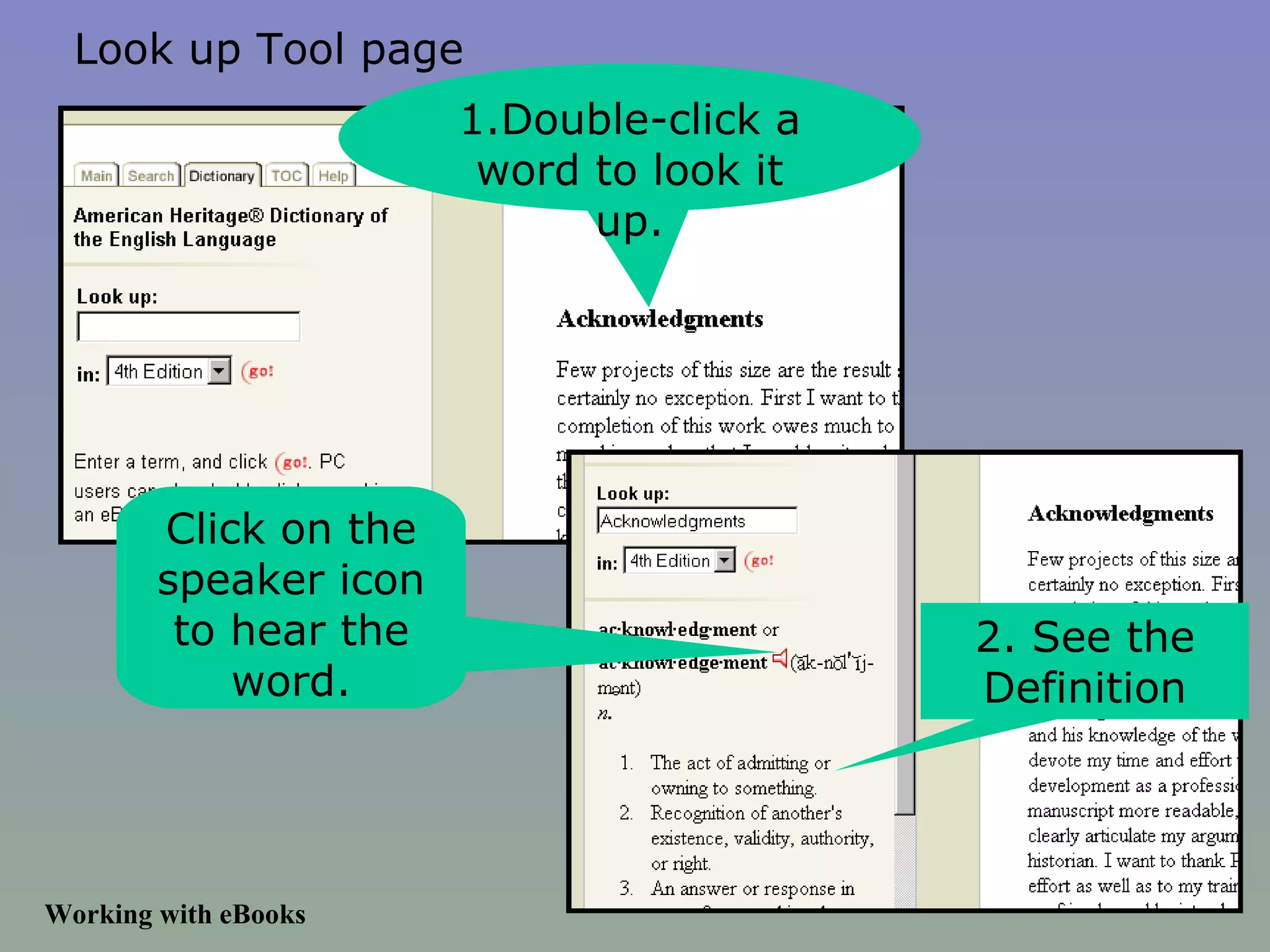
Working with eBooks Look up Tool page 1.Double-click a word to look it up. 2. See the Definition Click on the speaker icon to hear the word.
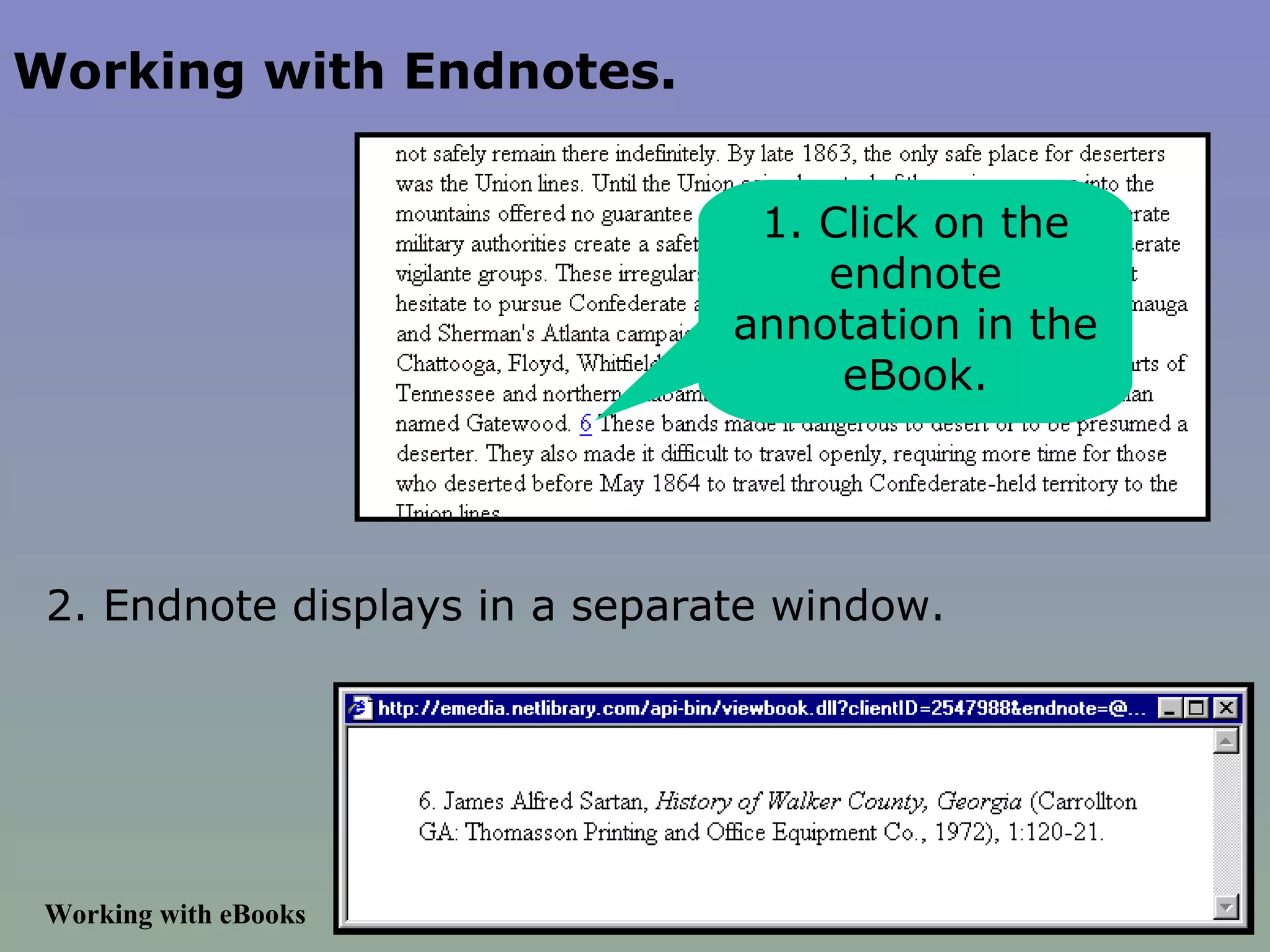
Working with Endnotes. Working with eBooks 1. Click on the endnote annotation in the eBook. 2. Endnote displays in a separate window. 2. Endnote displays in a separate window.
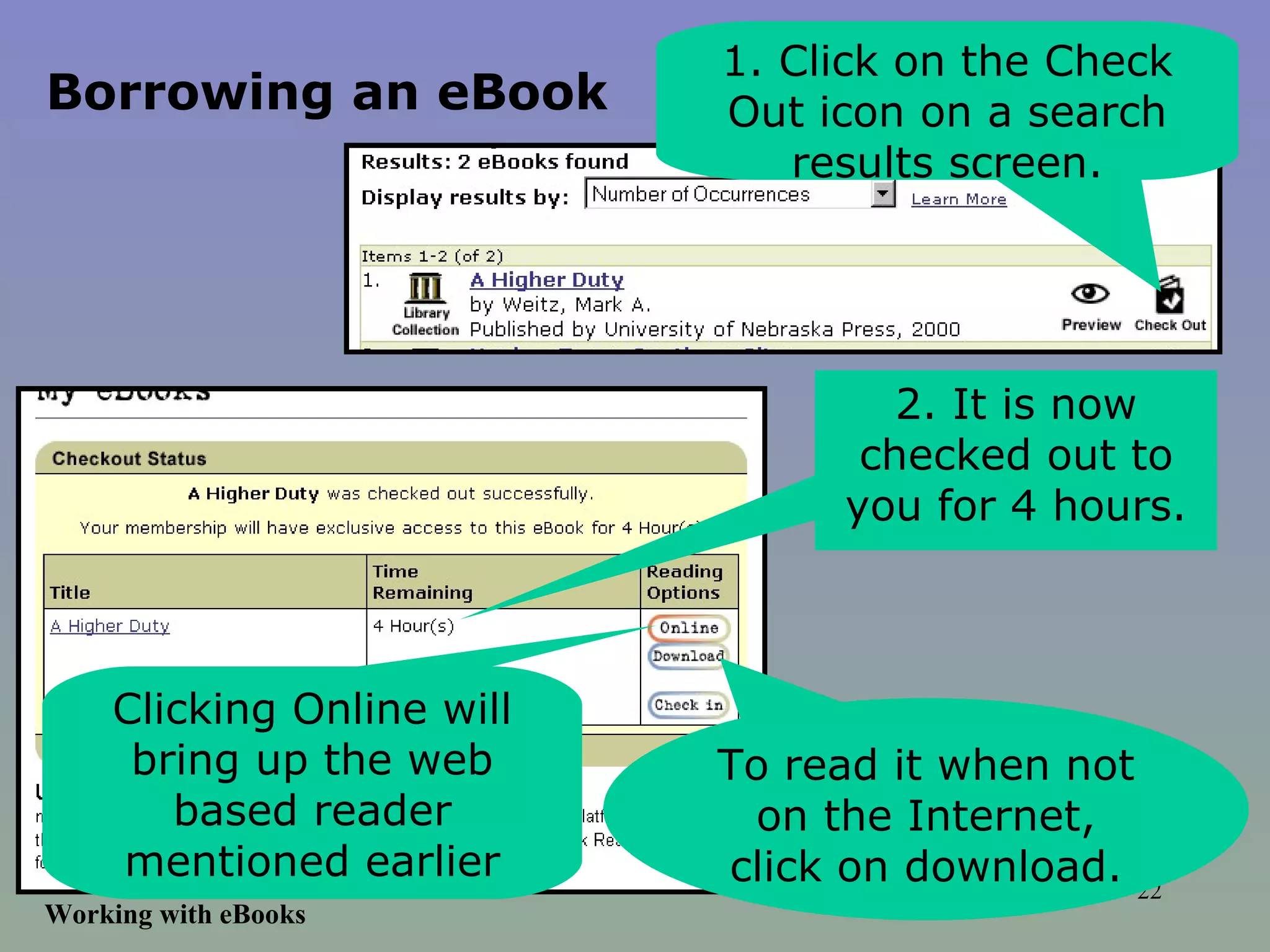
Working with eBooks 1. Click on the Check Out icon on a search results screen. 2. It is now checked out to you for 4 hours. To read it when not on the Internet, click on download. Clicking Online will bring up the web based reader mentioned earlier Borrowing an eBook
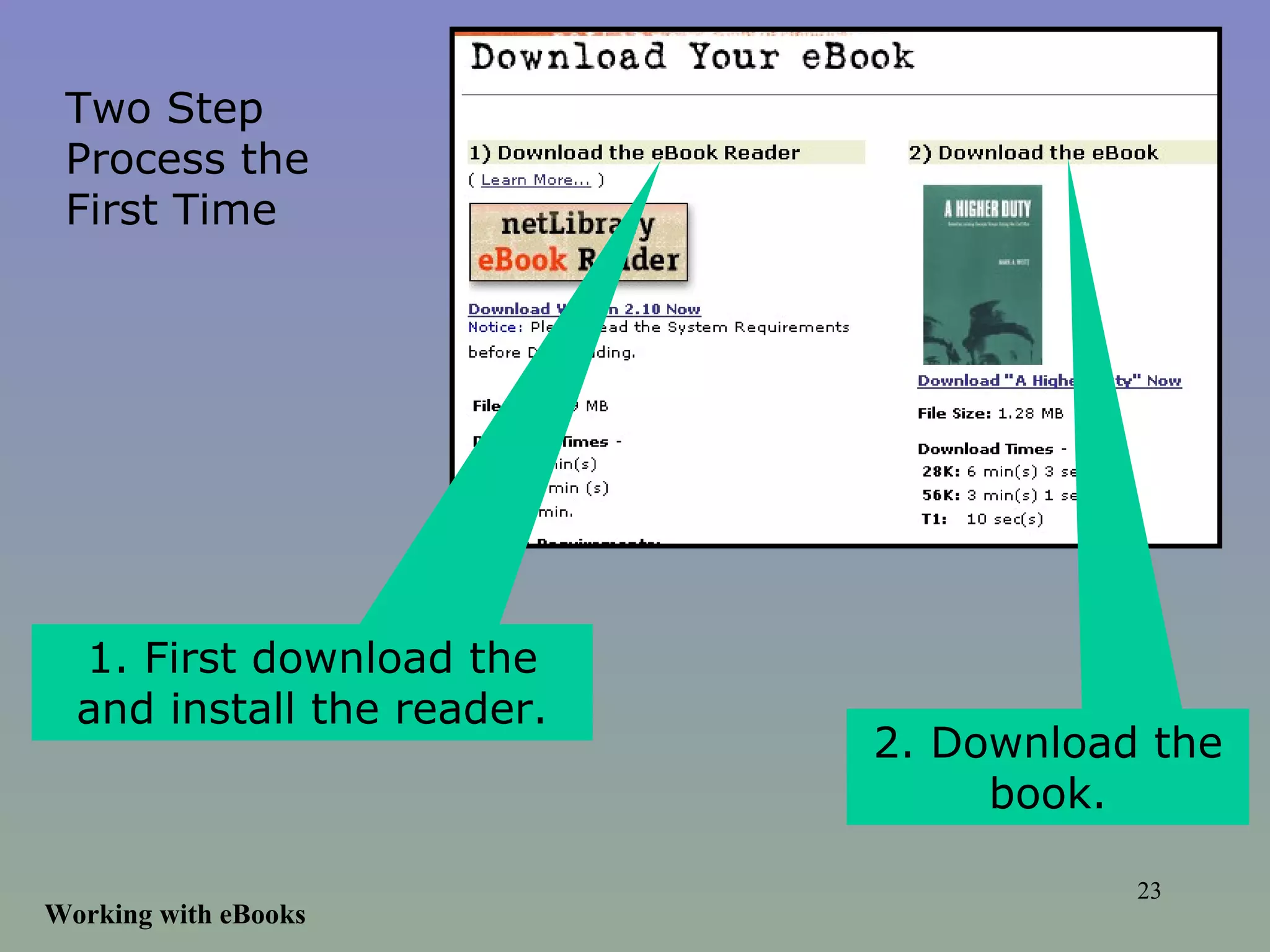
Working with eBooks Two Step Process the First Time 1. First download the and install the reader. 2. Download the book.
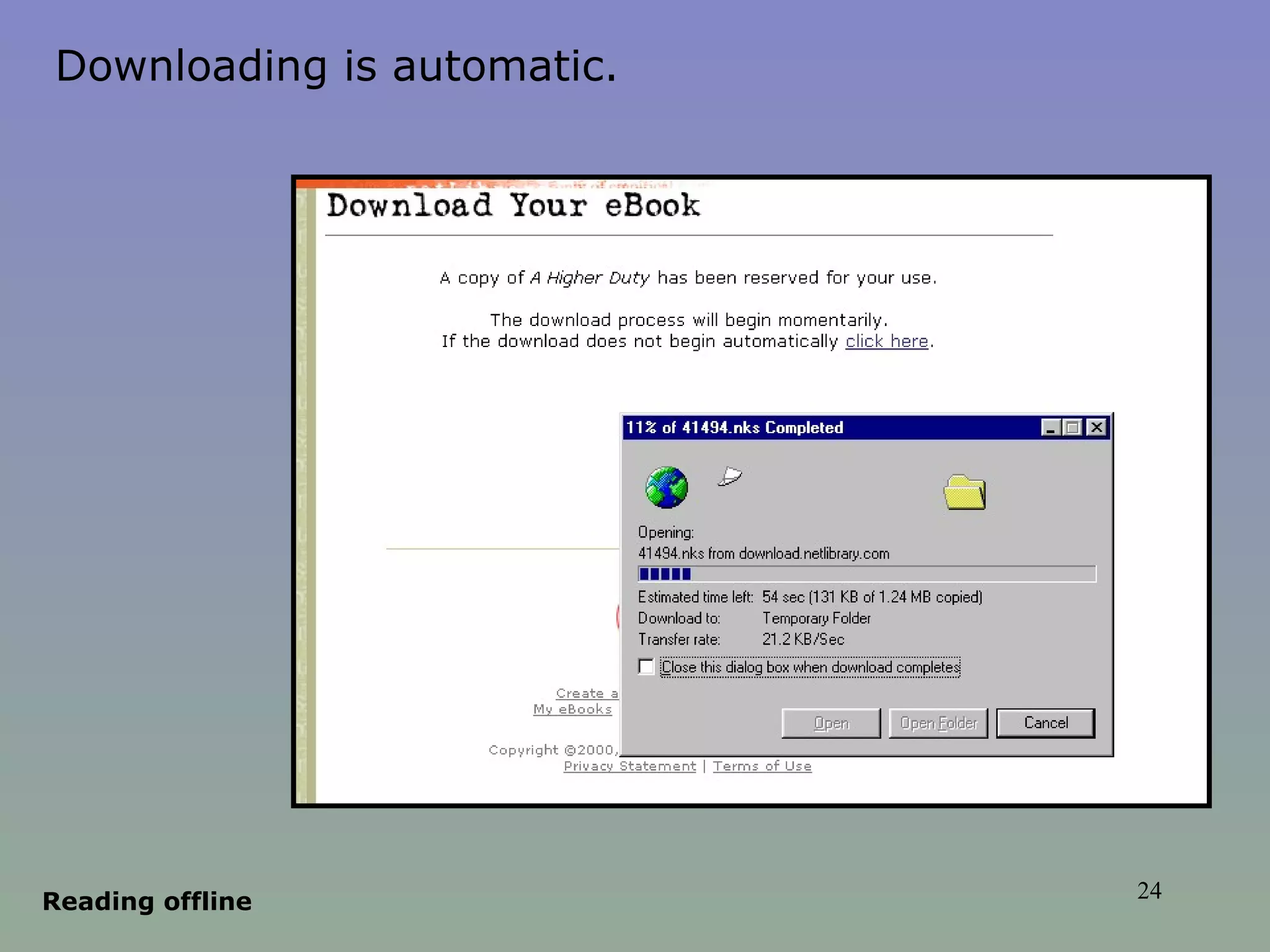
Reading offline Downloading is automatic.
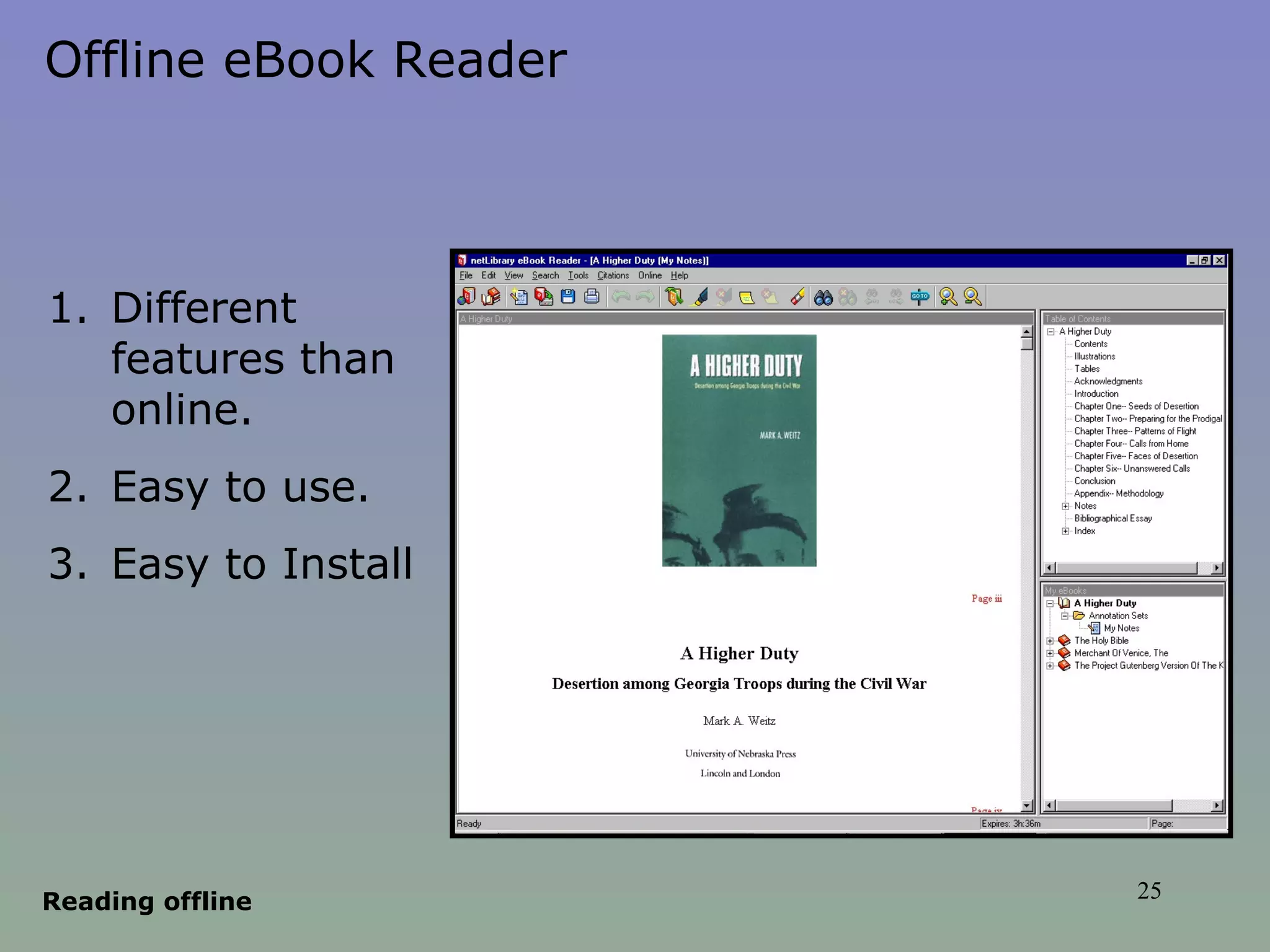
Reading offline Offline eBook Reader Different features than online. Easy to use. Easy to Install
Enjoy!

Netlibrary

  • 1.
    eBooks & netLibrary:the future is NOW                    
  • 2.
    netLibrary is acomprehensive collection of electronic books (eBooks). eBooks are electronic versions of printed books. They have the same information, are enriched with photos and illustrations, and can be viewed online from any computer connected to the Internet.
  • 3.
    Benefits Access to eBooks 24/7 from anywhere in the world. Full-text searches by word or phrase of an individual eBook or the entire collection of eBooks simultaneously. Quick Search feature allows users to search eBooks by title, author, subject, full text, and keyword. An eBook can be read or checked out online. Electronic checkout and return via Internet eliminate library trips and late fees.
  • 4.
    To create anetLibrary account: 1 . Enter www.netlibrary.com in the address bar of your web browser to access the netLibrary website. netLibrary runs on any computer with Internet access. A web browser of version 3.x or higher is necessary. Microsoft ® Internet Explorer 4.x or higher or Netscape ® Communicator 4.x or higher is recommended. 2. Click on the Create Account button on the netLibrary navigation toolbar. Create Account Create Account
  • 5.
    Create Account 3.Enter appropriate information on the Account Creation screen.
  • 6.
    4. Click onthe Submit button at the bottom of the Account Creation screen. 5. Click on the Accept button to accept netLibrary’s terms of use . Create Account
  • 7.
    Logging in 1.Go to www.netlibrary.com or go through the library homepage. 2. Click on the Log In button. Log In Logging In
  • 8.
    3. Enter User Name and Password 4. Click on Log In button Logging In netLibrary displays the log-in window. You have successfully logged in when the Log Out button appears.
  • 9.
    Search 1. Enterthe search term in Quick Search on the navigation toolbar. 2. Select the search type from the dropdown list Quick Search Provides a single search field where you can search to find an eBook. Quick Search uses Keyword as the default type.
  • 10.
    Search 3.Click onthe Go! button. netLibrary displays a Search Results screen.
  • 11.
    Search 1. Clickon the Power Search button on the toolbar. 2. Enter the search term(s). 3. Click on the Search button Power Search Provides multiple search fields, the more information you enter, the more specific the search results.
  • 12.
    Search netLibrary displaysa Search Results screen.
  • 13.
    Search 1. Enterthe search term(s). 2. If you want the free public collection, click in the box. 3. Click on the Search button Advanced Search Similar to Power Search. Advanced Search is part of the netLibrary homepage.
  • 14.
    Search netLibrary displaysa Search Results screen.
  • 15.
    Working with eBooks1. Do a search. 2. Click on the Preview button in the Search Results. Previewing an eBook
  • 16.
    Working with eBooksMain Tools Window Document Window Click on View to see Table of Contents Search the eBook Displays the eBook in the Online eBook Reader.
  • 17.
    Working with eBooksTable of Contents Click on any link to go to that part of the book.
  • 18.
    Working with eBooksThe Illustrations list is displayed. To see one of the photographs, type the page number and click on GO.
  • 19.
    Working with eBooksThe photographs are displayed.
  • 20.
    Working with eBooksLook up Tool page 1.Double-click a word to look it up. 2. See the Definition Click on the speaker icon to hear the word.
  • 21.
    Working with Endnotes.Working with eBooks 1. Click on the endnote annotation in the eBook. 2. Endnote displays in a separate window. 2. Endnote displays in a separate window.
  • 22.
    Working with eBooks1. Click on the Check Out icon on a search results screen. 2. It is now checked out to you for 4 hours. To read it when not on the Internet, click on download. Clicking Online will bring up the web based reader mentioned earlier Borrowing an eBook
  • 23.
    Working with eBooksTwo Step Process the First Time 1. First download the and install the reader. 2. Download the book.
  • 24.
  • 25.
    Reading offline OfflineeBook Reader Different features than online. Easy to use. Easy to Install
  • 26.