Introduction to SPSS
          Dr Azmi Mohd Tamil
          Universiti Kebangsaan Malaysia
Why SPSS?


There are many statistical programs. Among
   them
•   SPSS
•   SAS
•   EpiInfo
Introduction
                     Programs
•   SPSS
      - Easy to use, point and click
           •   Similar to Microsoft Excel

      - Fairly powerful
Introduction
                     Programs
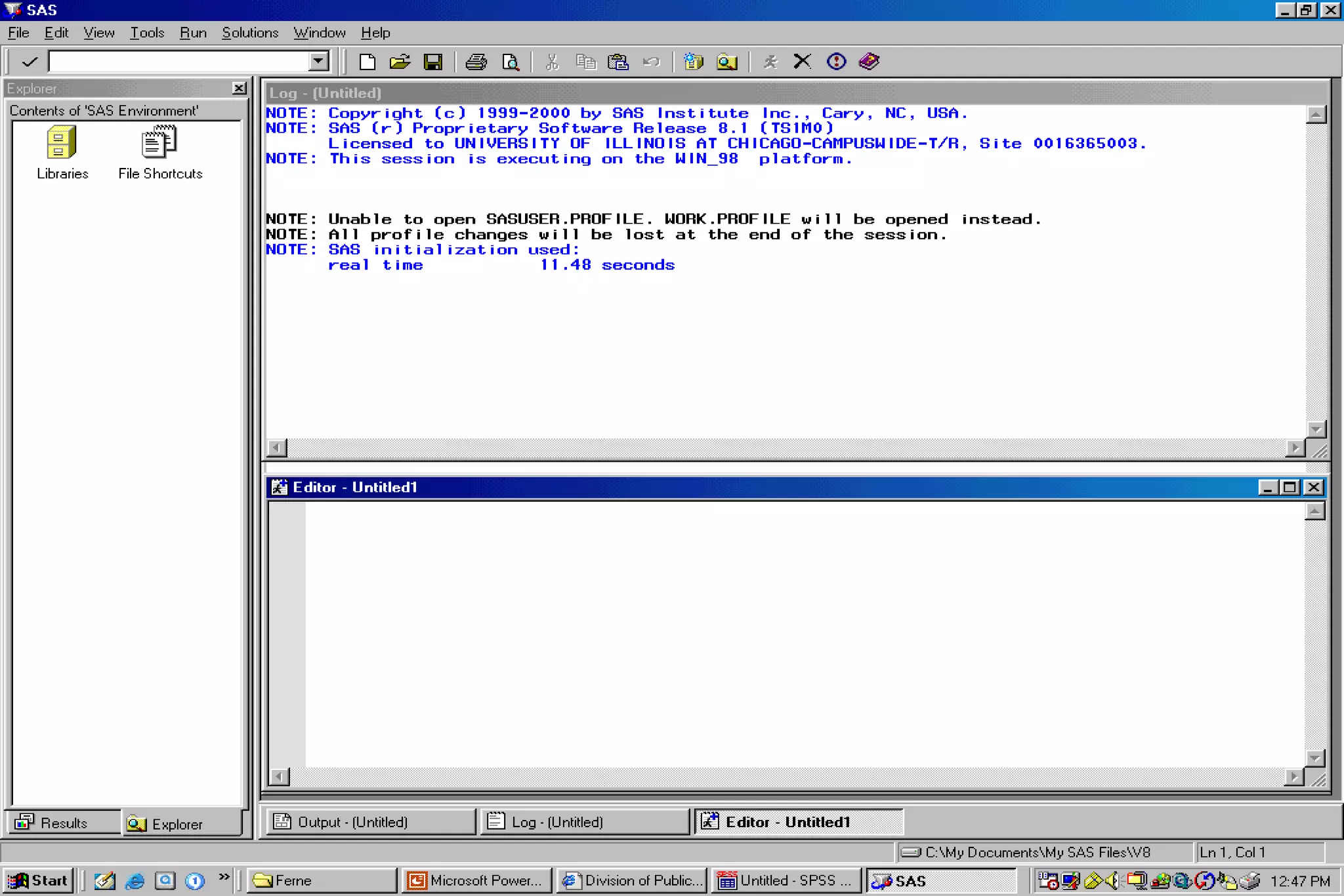
•   Statistical Analysis Software (SAS)
        - Very powerful
        - Not so easy to use
Introduction
                      Programs
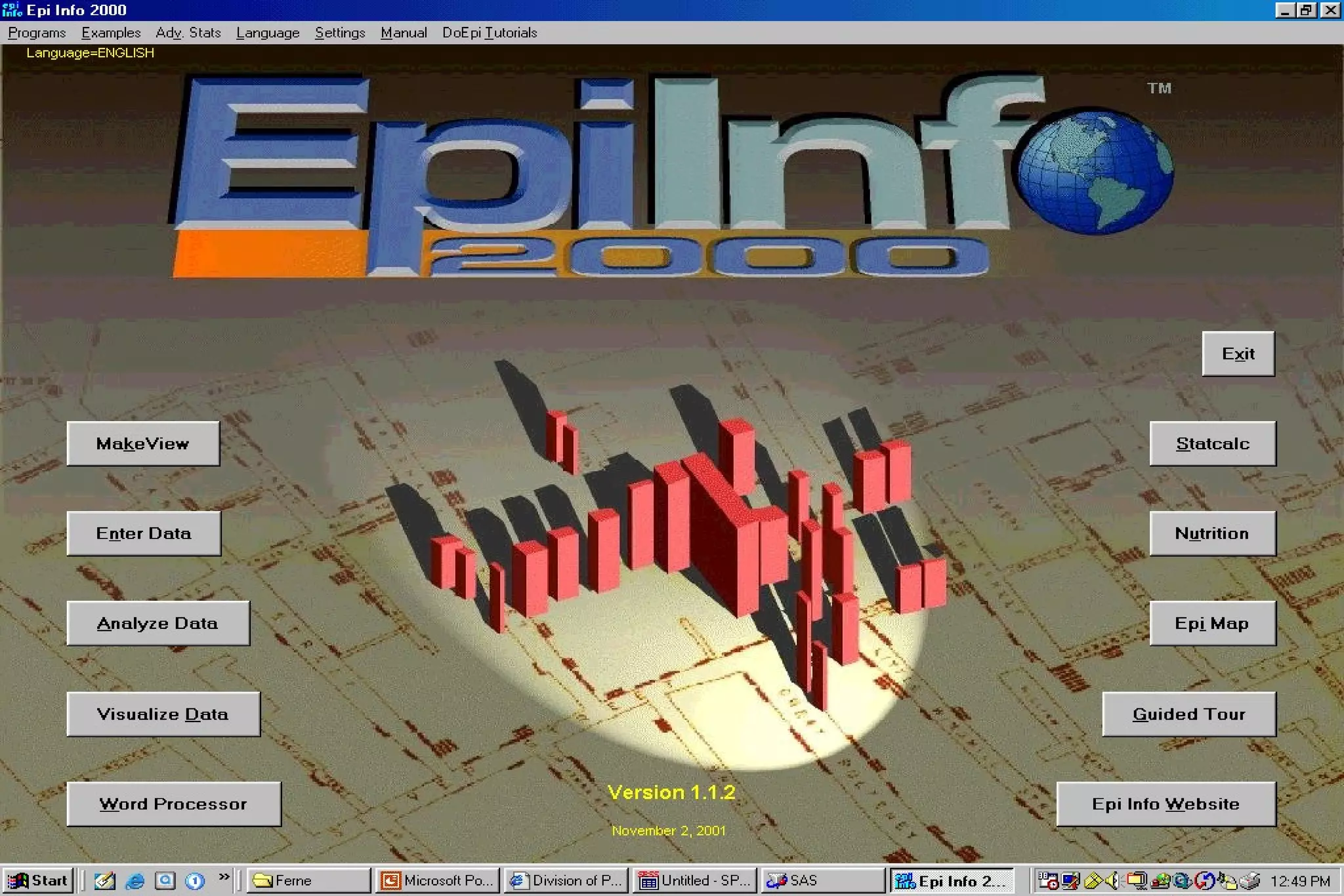
•   Epi Info
        - Centers for Disease Control and Prevention
          (CDC)
        - Free software
        - http://www.cdc.gov/epiinfo/
Introduction
                      Programs
•   Other Programs
       - Sudaan
       - STATA
       - DBStats
Introduction
                       Programs
•   You should know how to use these programs:
        - SPSS
             •   Epi Info for special situations such as sample size
                 calculations

•   Easiest to use
•   Tell you everything you need to know 99% of the
    time
        - Biostatisticians exist for the remaining 1%
Too tough for you?


•   Use Microsoft Excel instead.
•   Instructions available from
    http://161.142.92.104/excel/
SPSS
  What does it stands for?
SPSS?

•   In 1968, Norman H. Nie, C. Hadlai (Tex) Hull and Dale H. Bent,
    developed a software system called “Statistical Package for the Social
    Sciences” (SPSS) at Stanford University. Statistical data were stored
    on punch cards, later on large computer plates for analysis on the
    mainframe running SPSS.
•   In 1983, the first SPSS PC version was developed. In this incarnation,
    SPSS stands for “Superior Performance Software System”.
•   The most current designation is “Statistical Product and Service
    Solution” and aims thereby at the integration between statistics and
    service.
Before using SPSS


•   What are data types and their relevance in
    using SPSS?
•   The association between data types and
    types of statistical test.
Data Collection


• Information is collected on certain
  characteristics, attributes and the qualities of
  interest from the samples
• These data may be quantitative or qualitative
  in nature.
Types of Variables

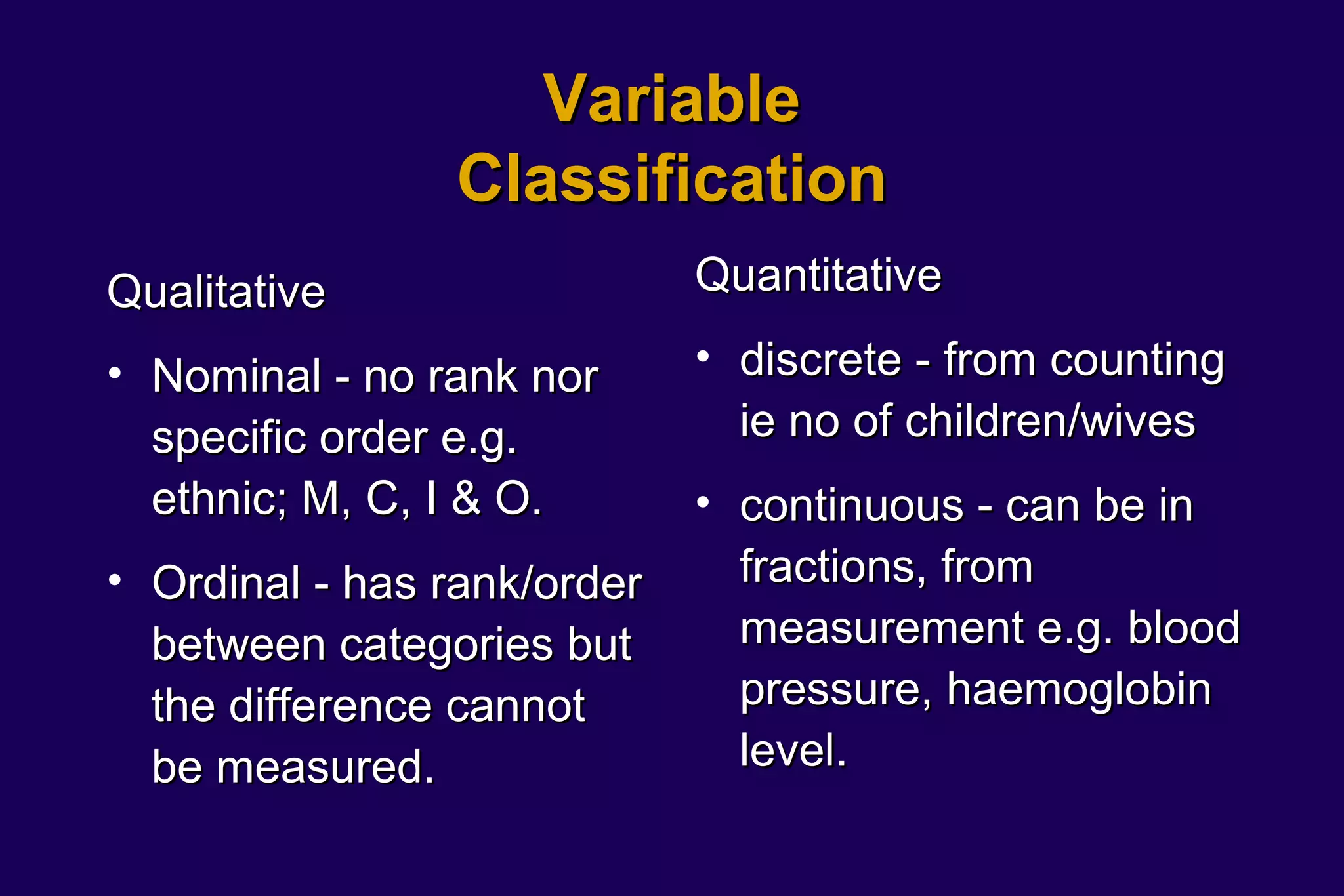
• Qualitative - categorised based on
  characteristics which differentiate it e.g.
  ethnic - Malay, Chinese, Indian etc.
  Qualitative variables can be classed into
  nominal & ordinal.
• Quantitative - numerical values collected by
  observation, by measurement or by counting.
  Can either be discrete or continuous.
Variable
                Classification
Qualitative                  Quantitative

• Nominal - no rank nor      • discrete - from counting
  specific order e.g.          ie no of children/wives
  ethnic; M, C, I & O.       • continuous - can be in
• Ordinal - has rank/order     fractions, from
  between categories but       measurement e.g. blood
  the difference cannot        pressure, haemoglobin
  be measured.                 level.
Types of Data
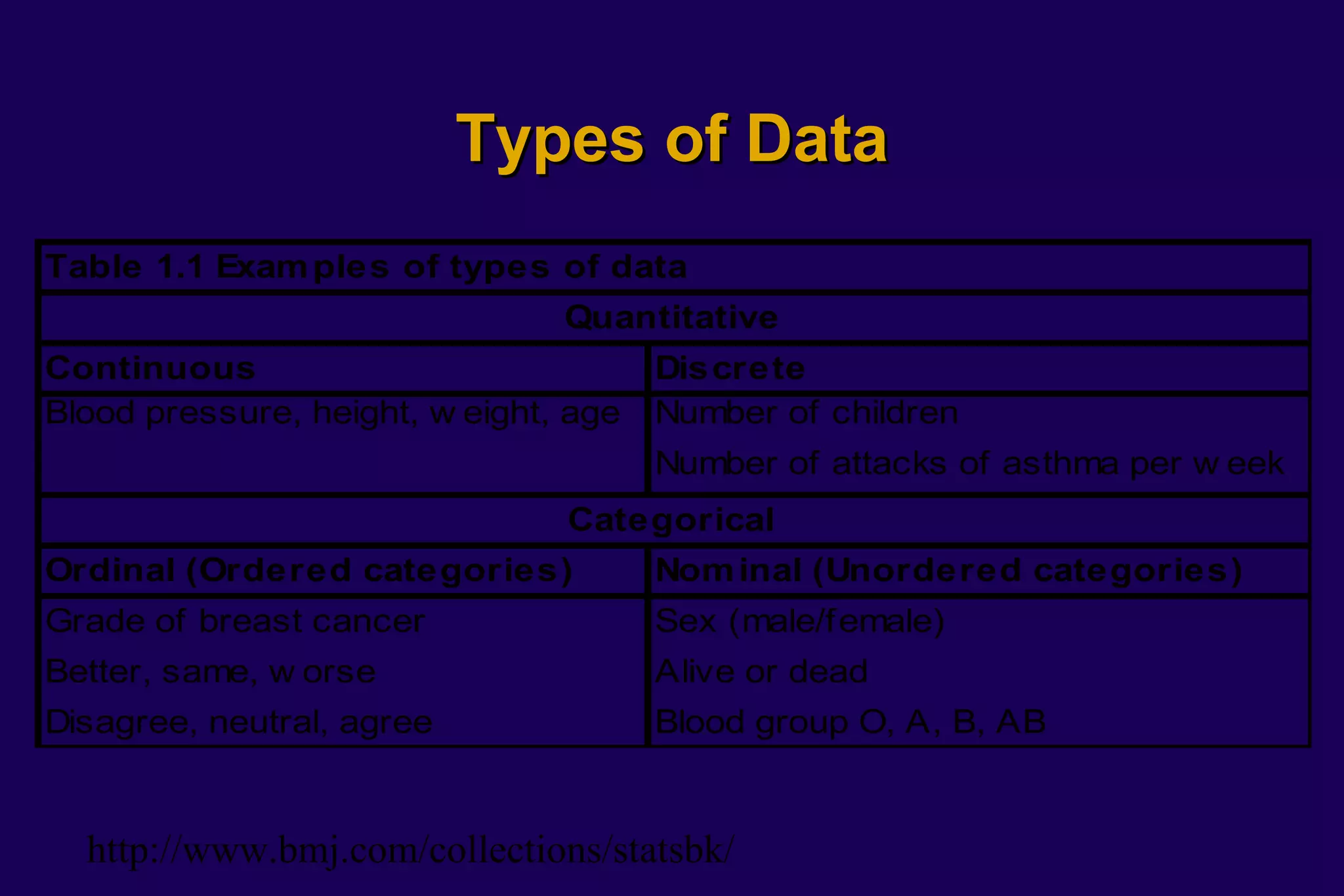
Table 1.1 Exam ples of types of data
                                Quantitative
Continuous                             Discrete
Blood pressure, height, w eight, age   Number of children
                                       Number of attacks of asthma per w eek
                                Categorical
Ordinal (Ordered categories)           Nom inal (Unordered categories)
Grade of breast cancer                 Sex (male/female)
Better, same, w orse                   Alive or dead
Disagree, neutral, agree               Blood group O, A, B, AB


  http://www.bmj.com/collections/statsbk/
Variables Types in SPSS

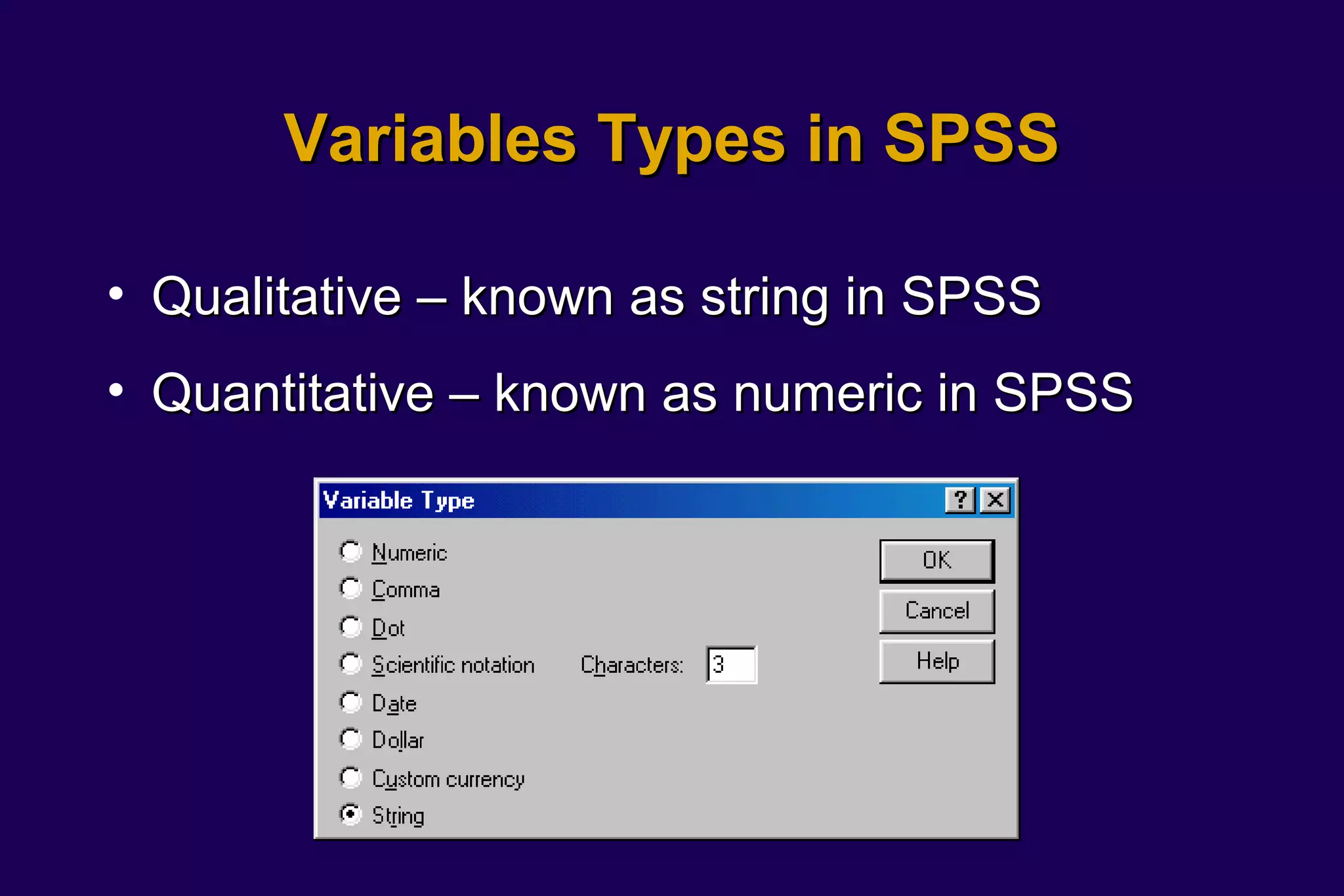
• Qualitative – known as string in SPSS
• Quantitative – known as numeric in SPSS
SO WHAT!


So what’s the big deal about data types?
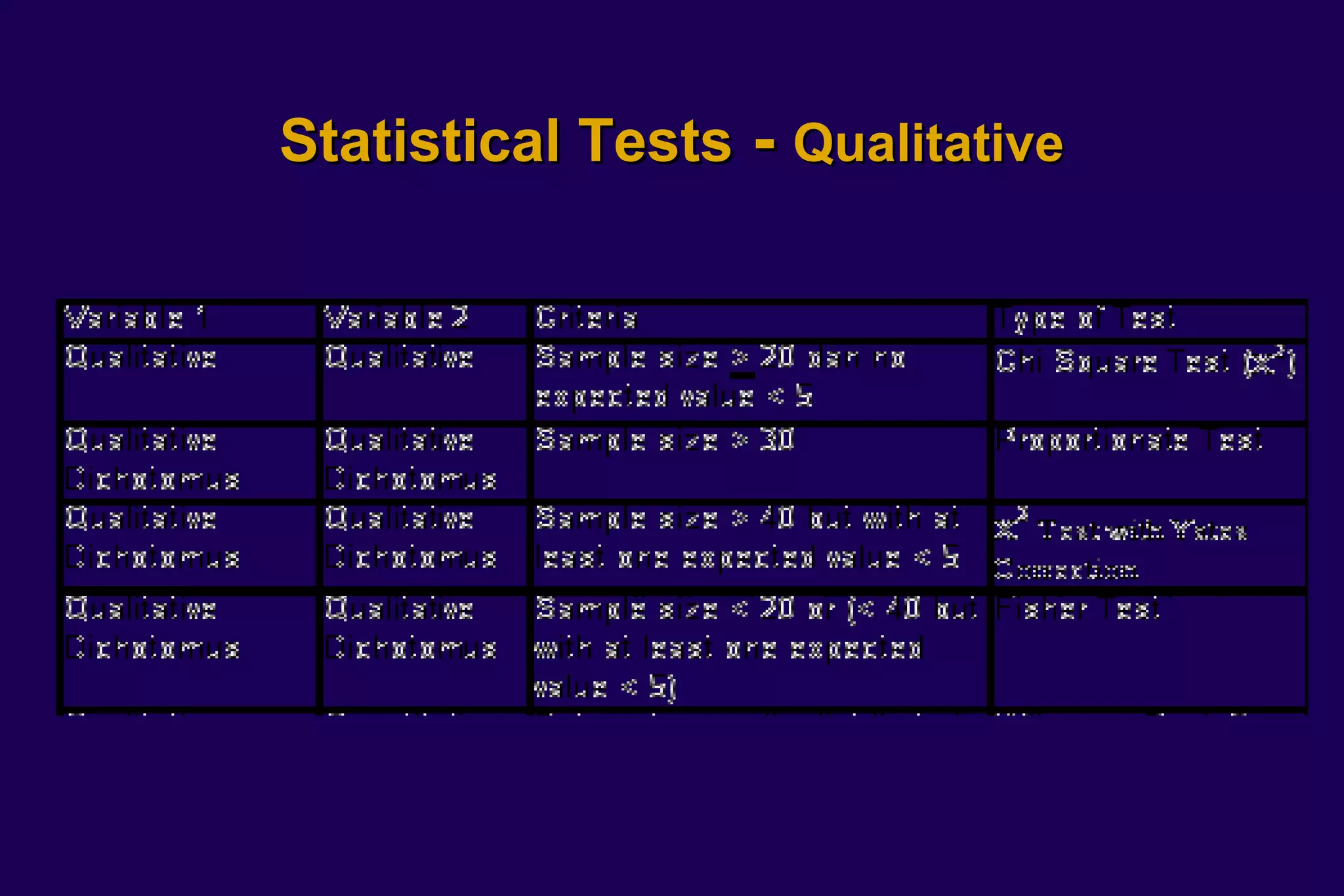
Statistical Tests - Qualitative
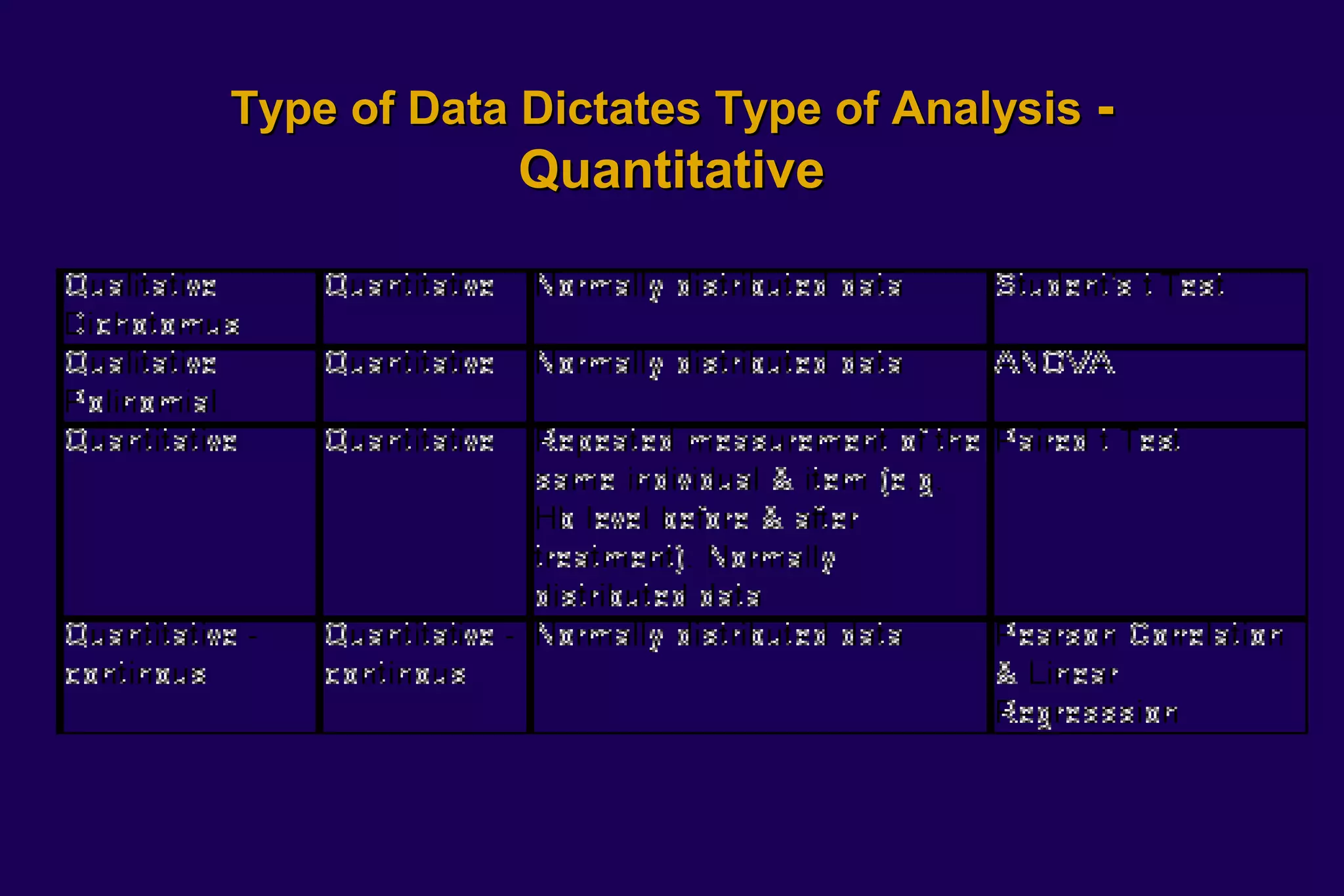
Type of Data Dictates Type of Analysis -
             Quantitative
Learning to use SPSS
          Creating Variables
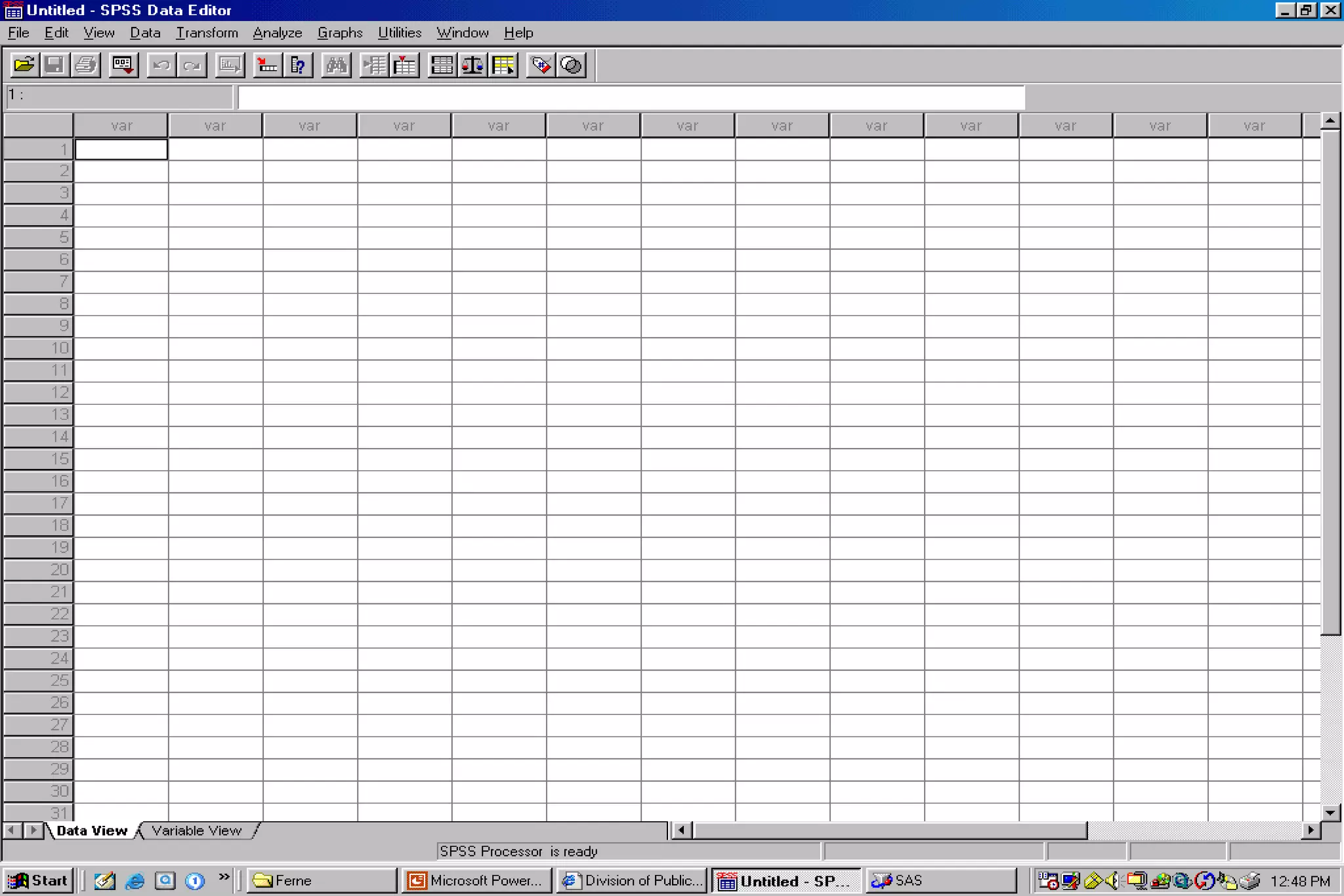
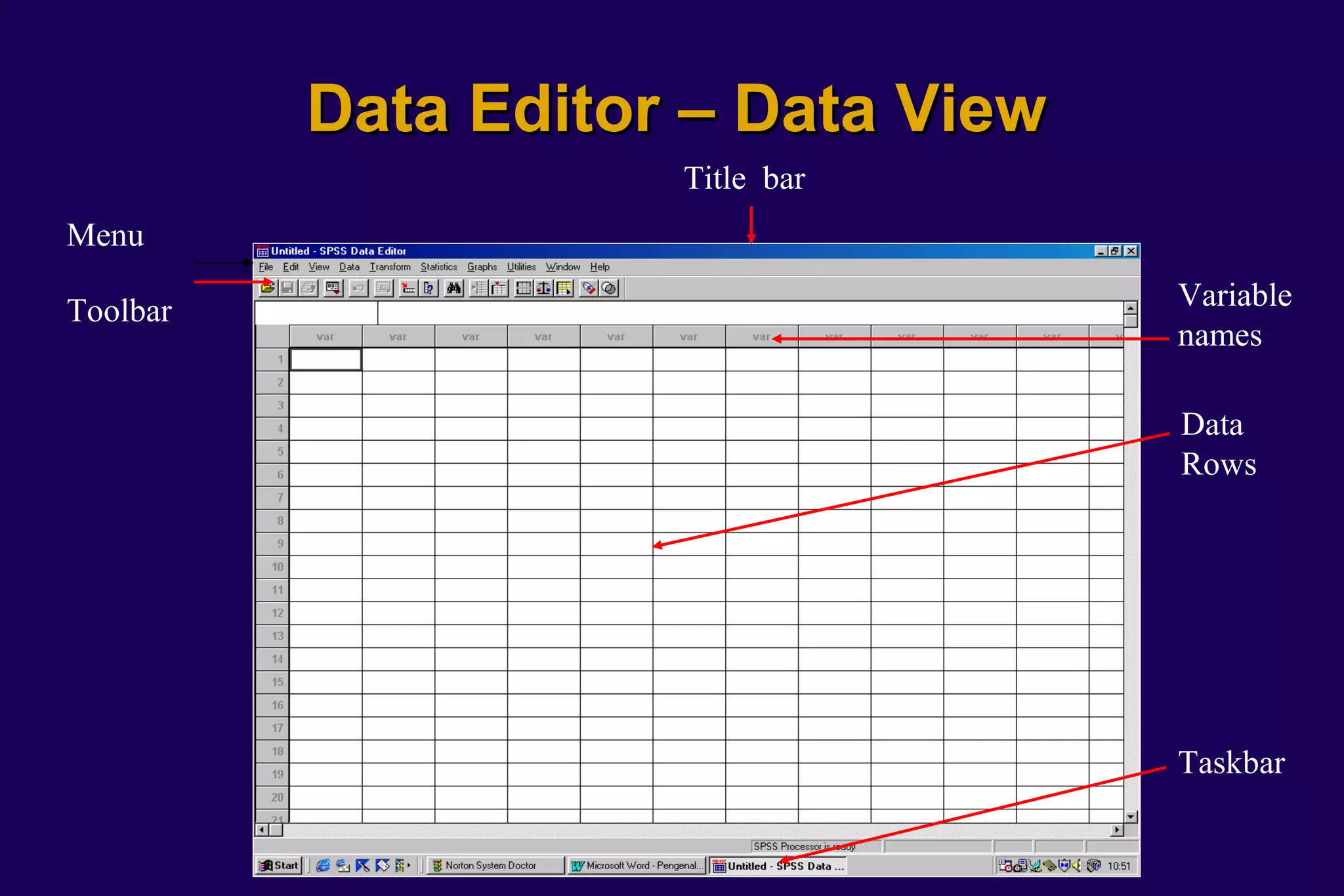
Data Editor – Data View
                     Title bar
Menu

Toolbar                             Variable
                                    names
                                    Data
                                    Rows


                                    Taskbar
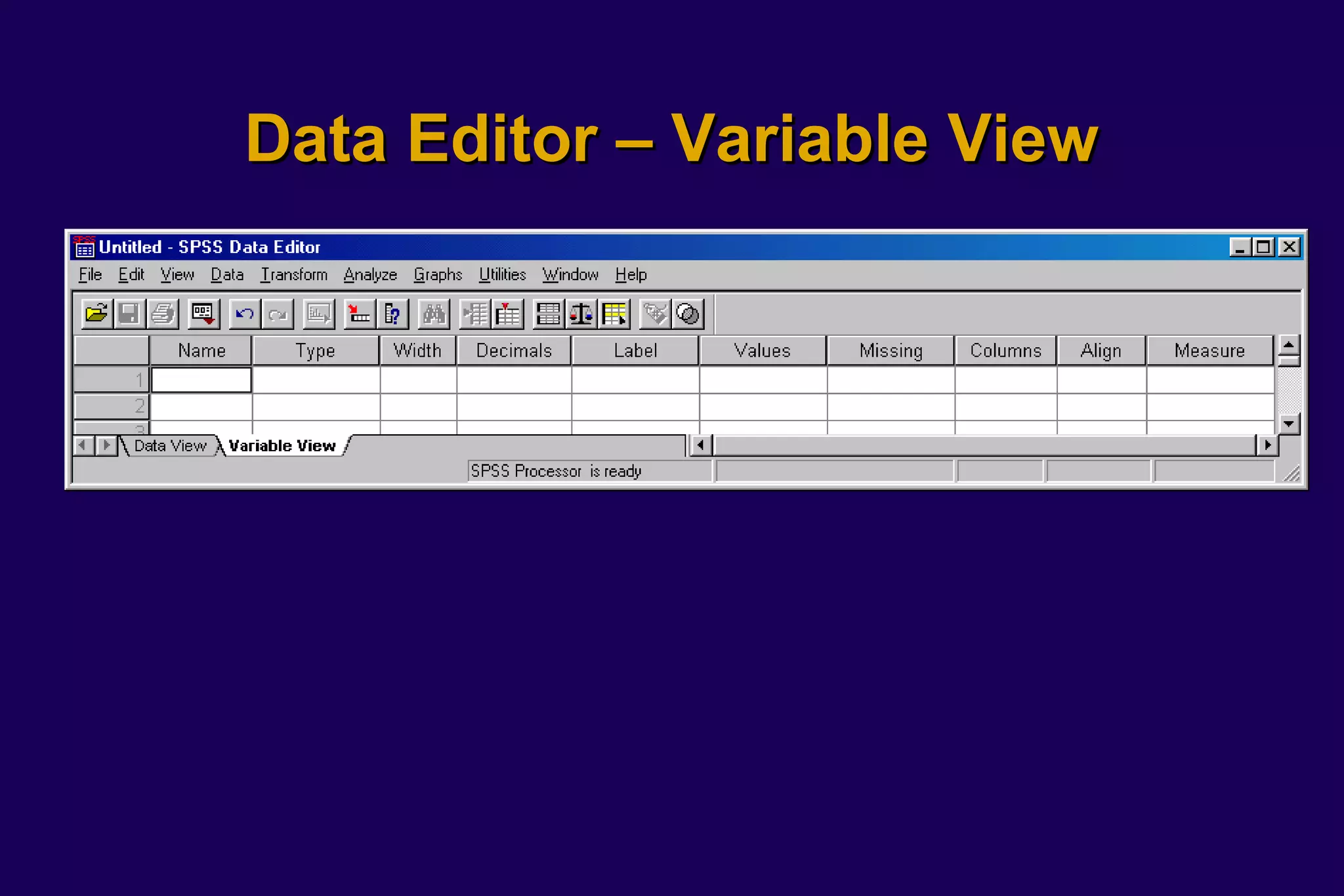
Data Editor – Variable View
Variable Name
•   Unique
•   Not more than 8 characters
•   Consists of letters and numbers only
•   Begins with a letter instead of a number.
•   Try to give a label that means something
•   Cannot include words used as commands by SPSS
    (eg. all, ne, eq, to, le, lt, by, or, gt, and, not, ge, with)
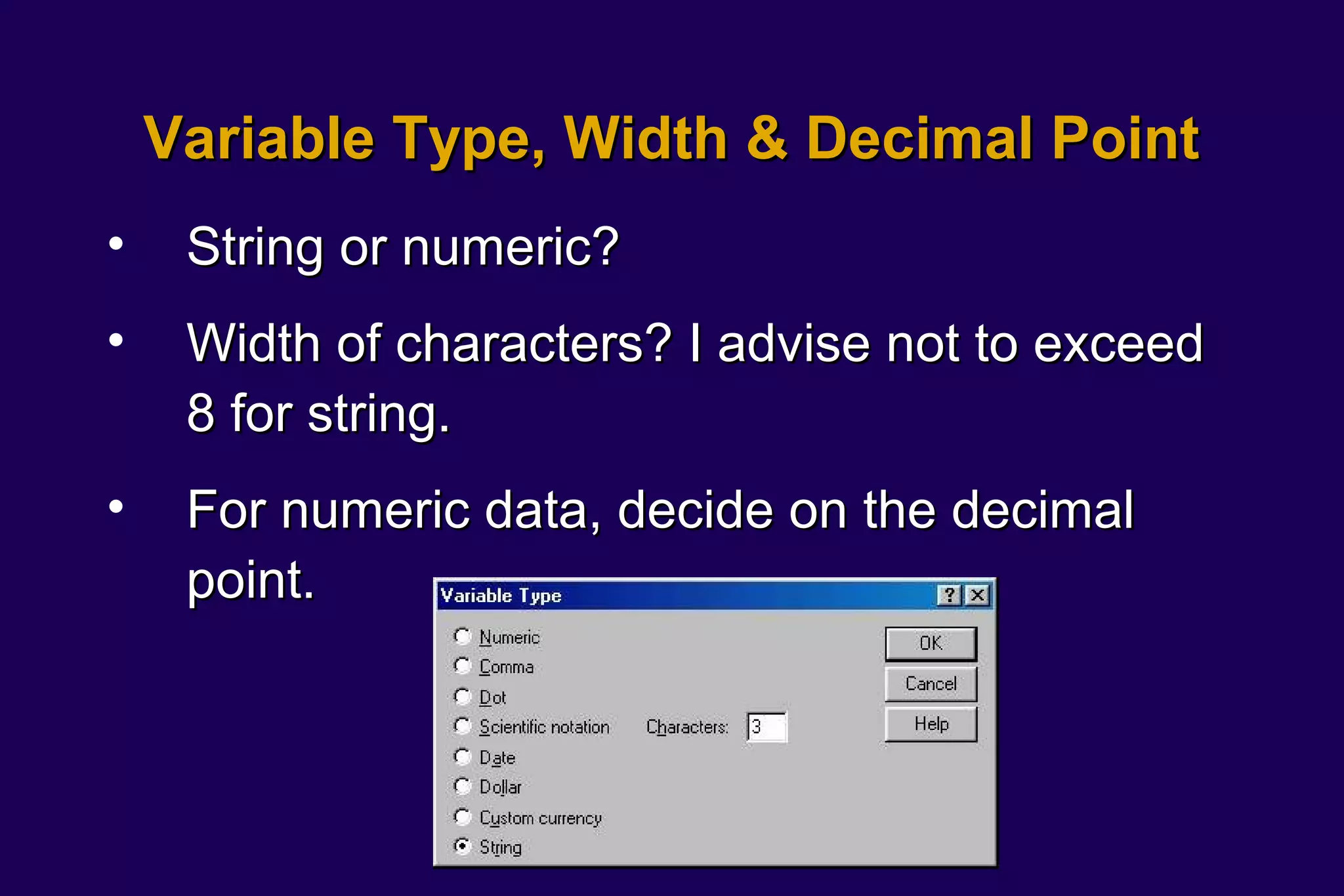
Variable Type, Width & Decimal Point
•    String or numeric?
•    Width of characters? I advise not to exceed
     8 for string.
•    For numeric data, decide on the decimal
     point.
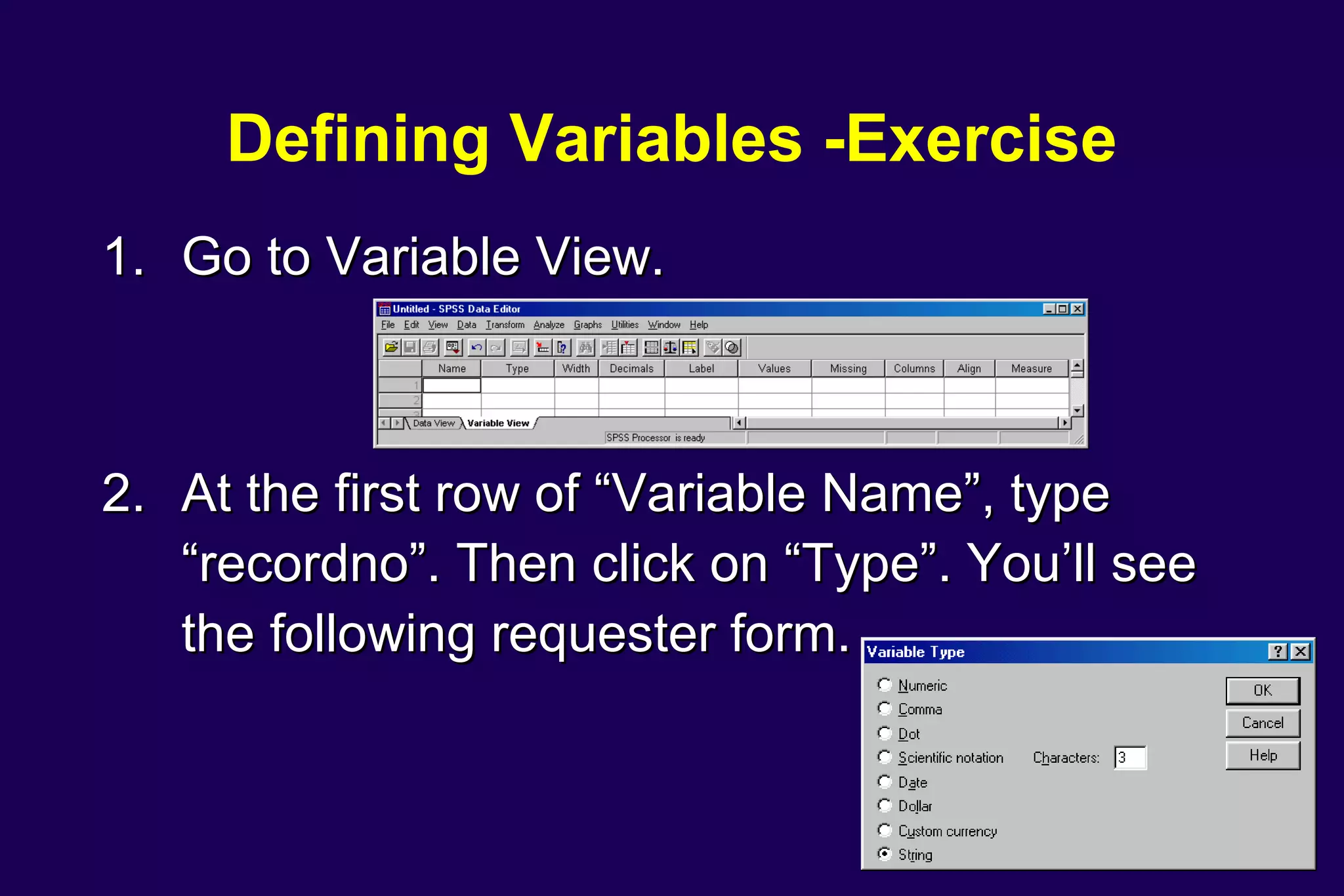
Defining Variables -Exercise
1. Go to Variable View.


2. At the first row of “Variable Name”, type
   “recordno”. Then click on “Type”. You’ll see
   the following requester form.
Defining Variables -Exercise
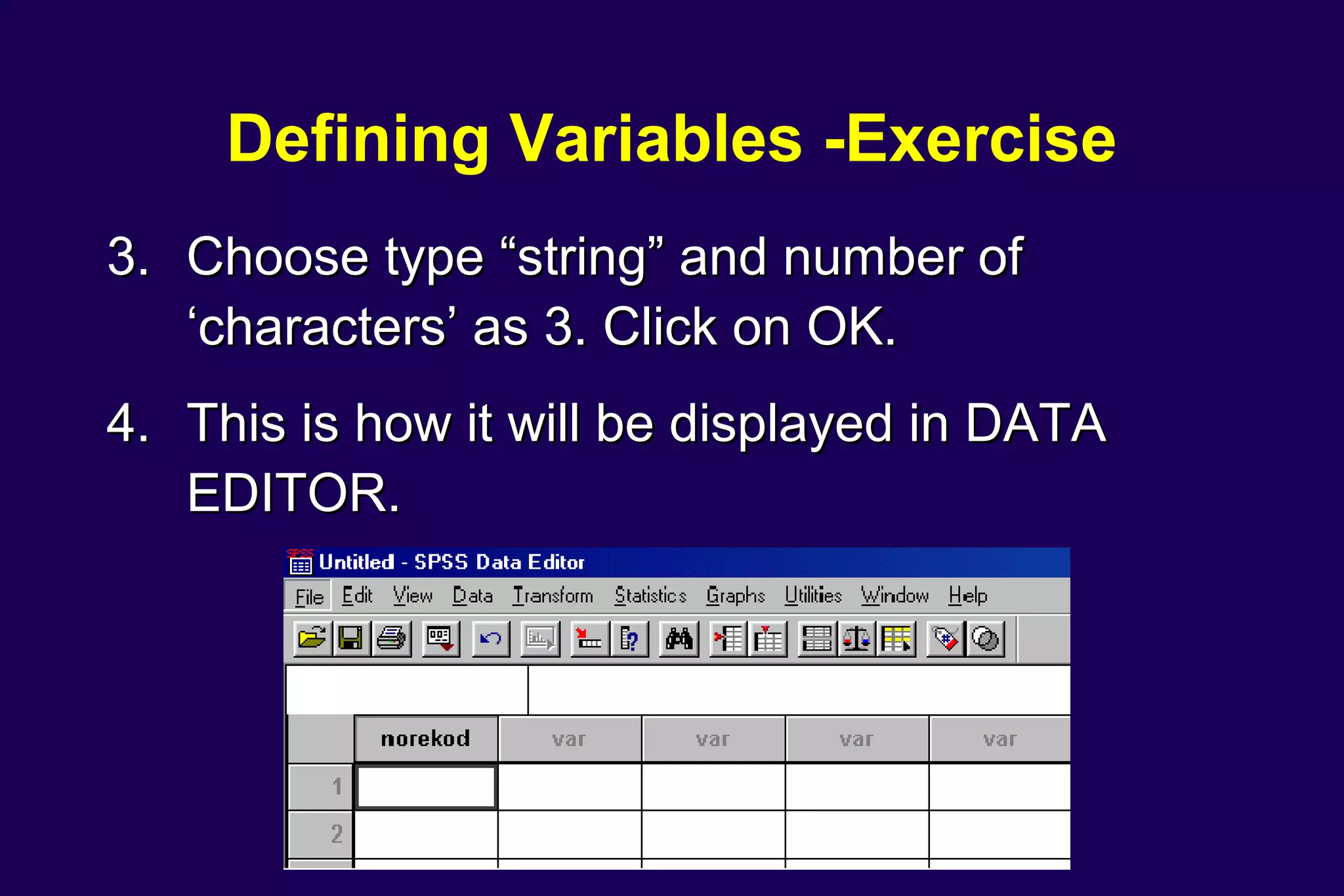
3. Choose type “string” and number of
   ‘characters’ as 3. Click on OK.
4. This is how it will be displayed in DATA
   EDITOR.
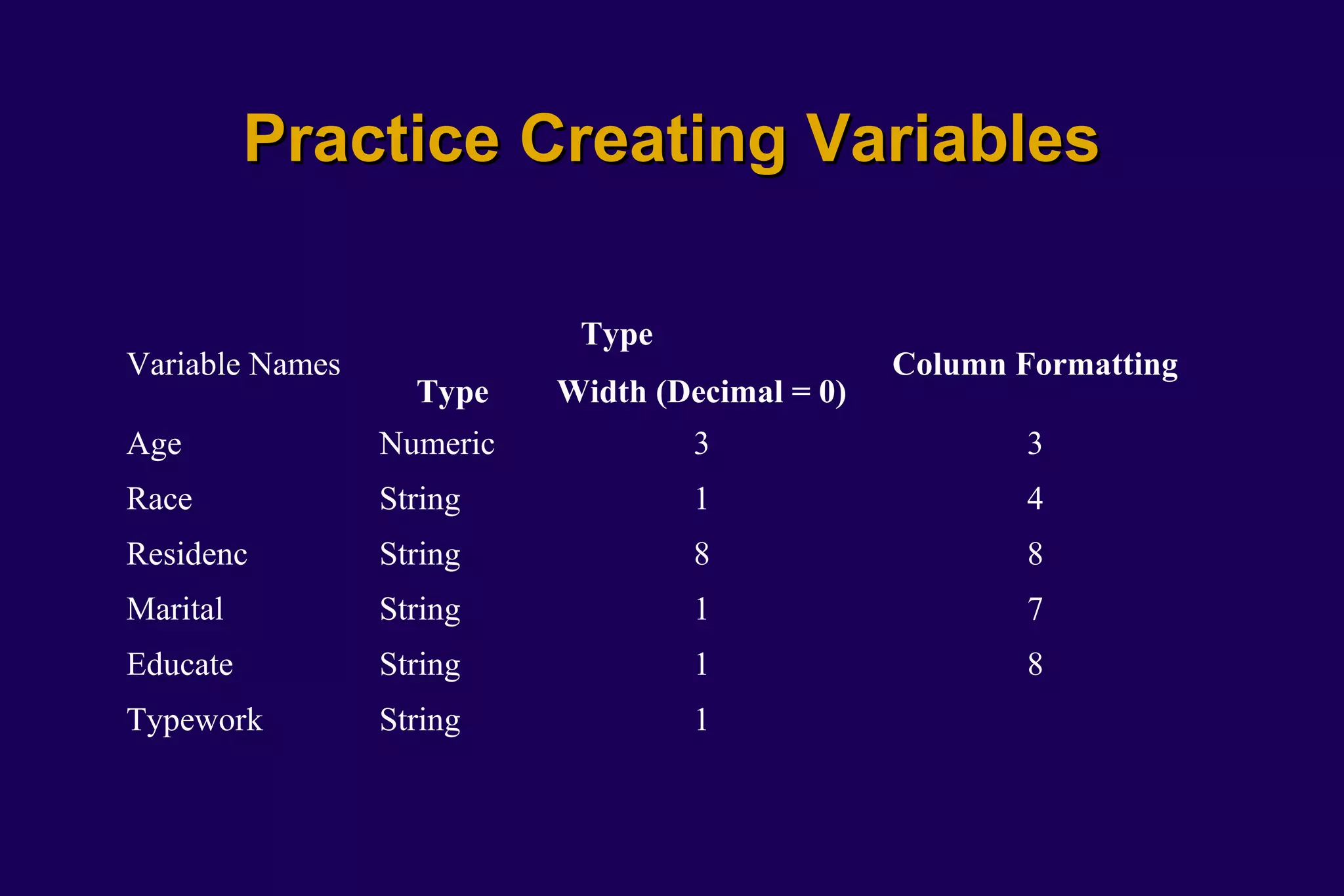
Practice Creating Variables

                            Type
Variable Names                                   Column Formatting
                   Type    Width (Decimal = 0)
Age              Numeric           3                     3
Race             String            1                     4
Residenc         String            8                     8
Marital          String            1                     7
Educate          String            1                     8
Typework         String            1
Learning to use SPSS
          Defining Labels
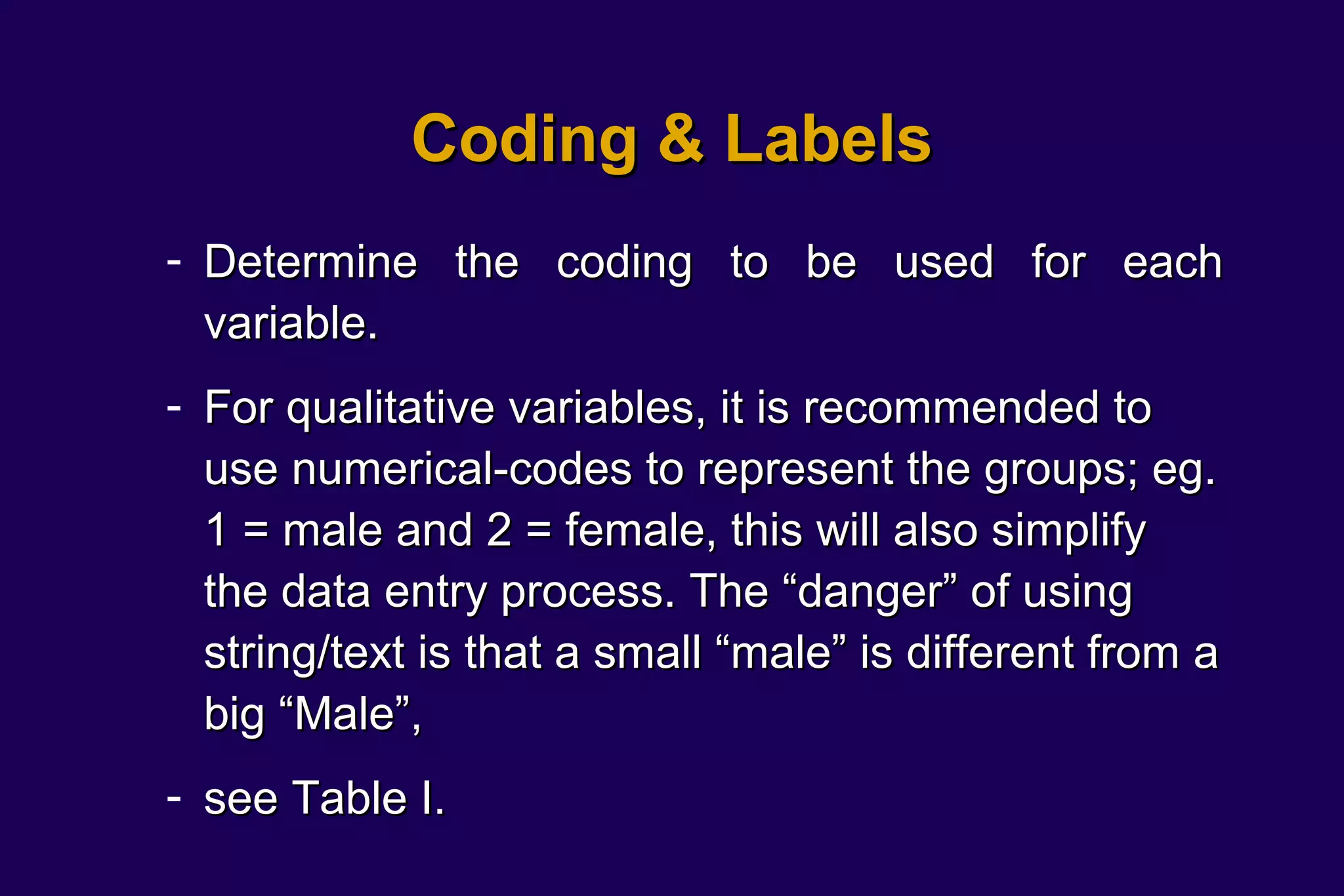
Coding & Labels
- Determine the coding to be used for each
  variable.
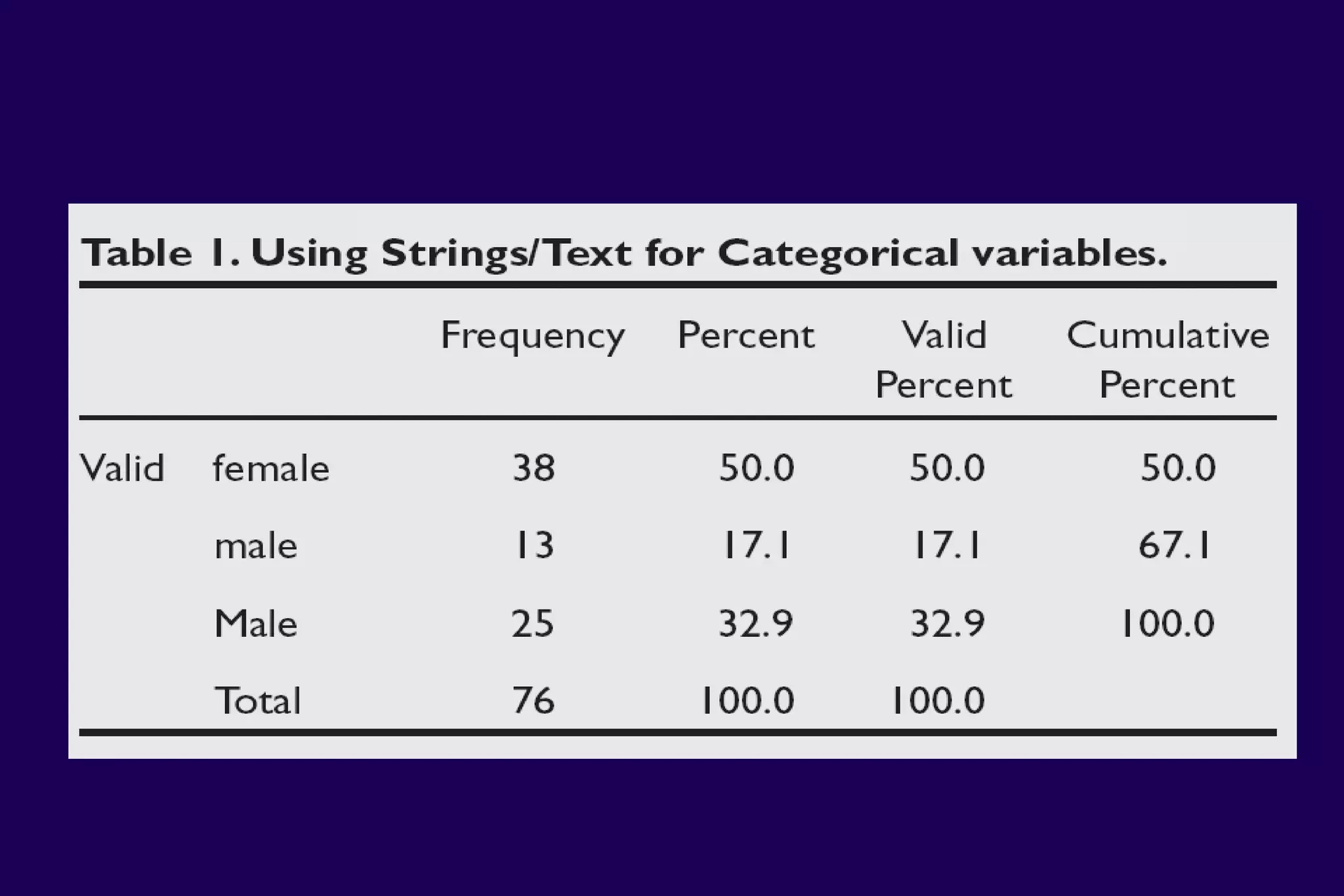
- For qualitative variables, it is recommended to
  use numerical-codes to represent the groups; eg.
  1 = male and 2 = female, this will also simplify
  the data entry process. The “danger” of using
  string/text is that a small “male” is different from a
  big “Male”,
- see Table I.
Coding for Dichotomous Variable

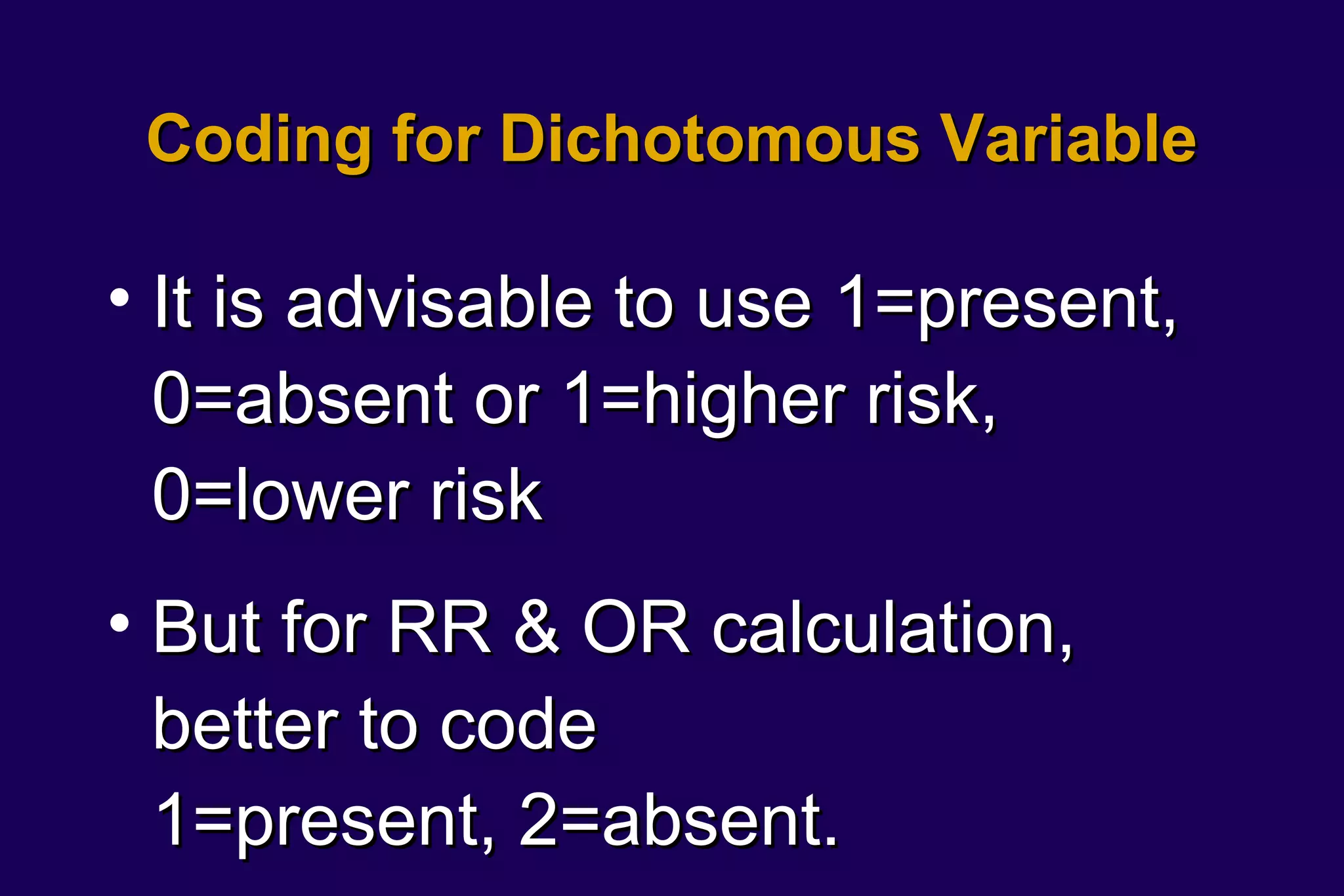
• It is advisable to use 1=present,
  0=absent or 1=higher risk,
  0=lower risk
• But for RR & OR calculation,
  better to code
  1=present, 2=absent.
Coding for Missing Value
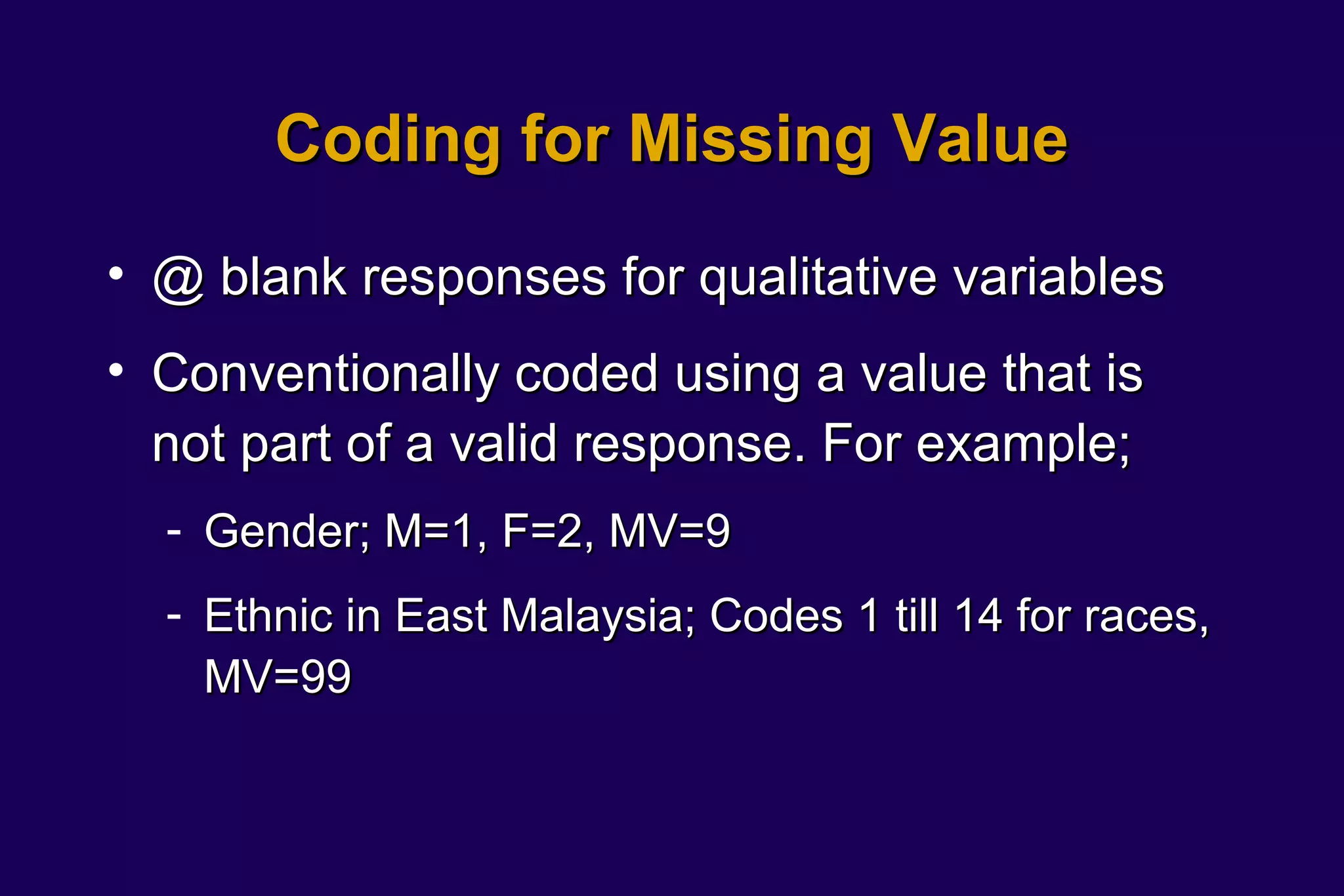
• @ blank responses for qualitative variables
• Conventionally coded using a value that is
  not part of a valid response. For example;
  - Gender; M=1, F=2, MV=9
  - Ethnic in East Malaysia; Codes 1 till 14 for races,
    MV=99
Advantage of Coding
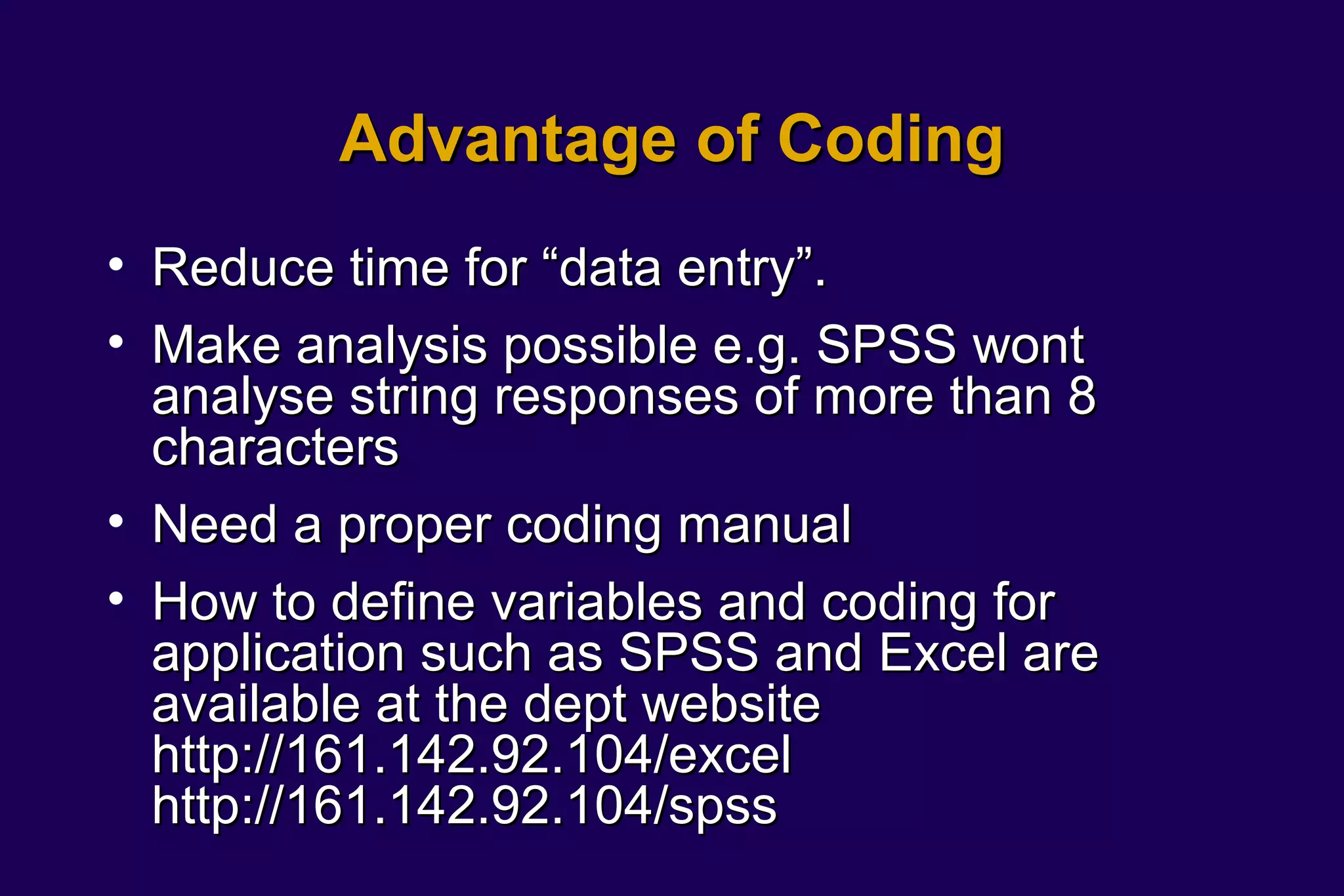
• Reduce time for “data entry”.
• Make analysis possible e.g. SPSS wont
  analyse string responses of more than 8
  characters
• Need a proper coding manual
• How to define variables and coding for
  application such as SPSS and Excel are
  available at the dept website
  http://161.142.92.104/excel
  http://161.142.92.104/spss
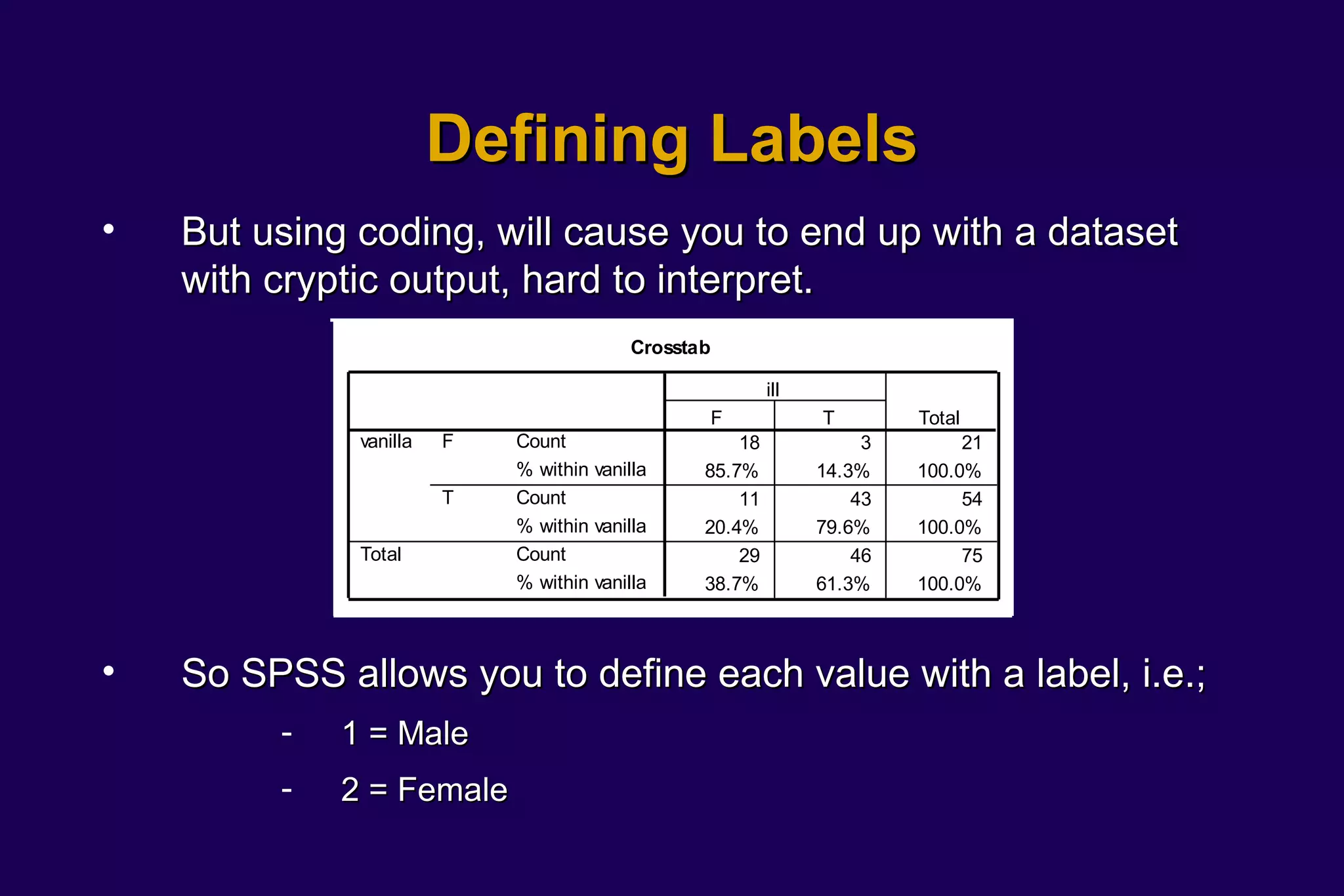
Defining Labels
•   But using coding, will cause you to end up with a dataset
    with cryptic output, hard to interpret.
                                          Crosstab

                                                          ill
                                                     F          T        Total
              vanilla   F   Count                    18              3        21
                            % within vanilla     85.7%          14.3%    100.0%
                        T   Count                    11             43        54
                            % within vanilla     20.4%          79.6%    100.0%
              Total         Count                    29             46        75
                            % within vanilla     38.7%          61.3%    100.0%


•   So SPSS allows you to define each value with a label, i.e.;
         -   1 = Male
         -   2 = Female
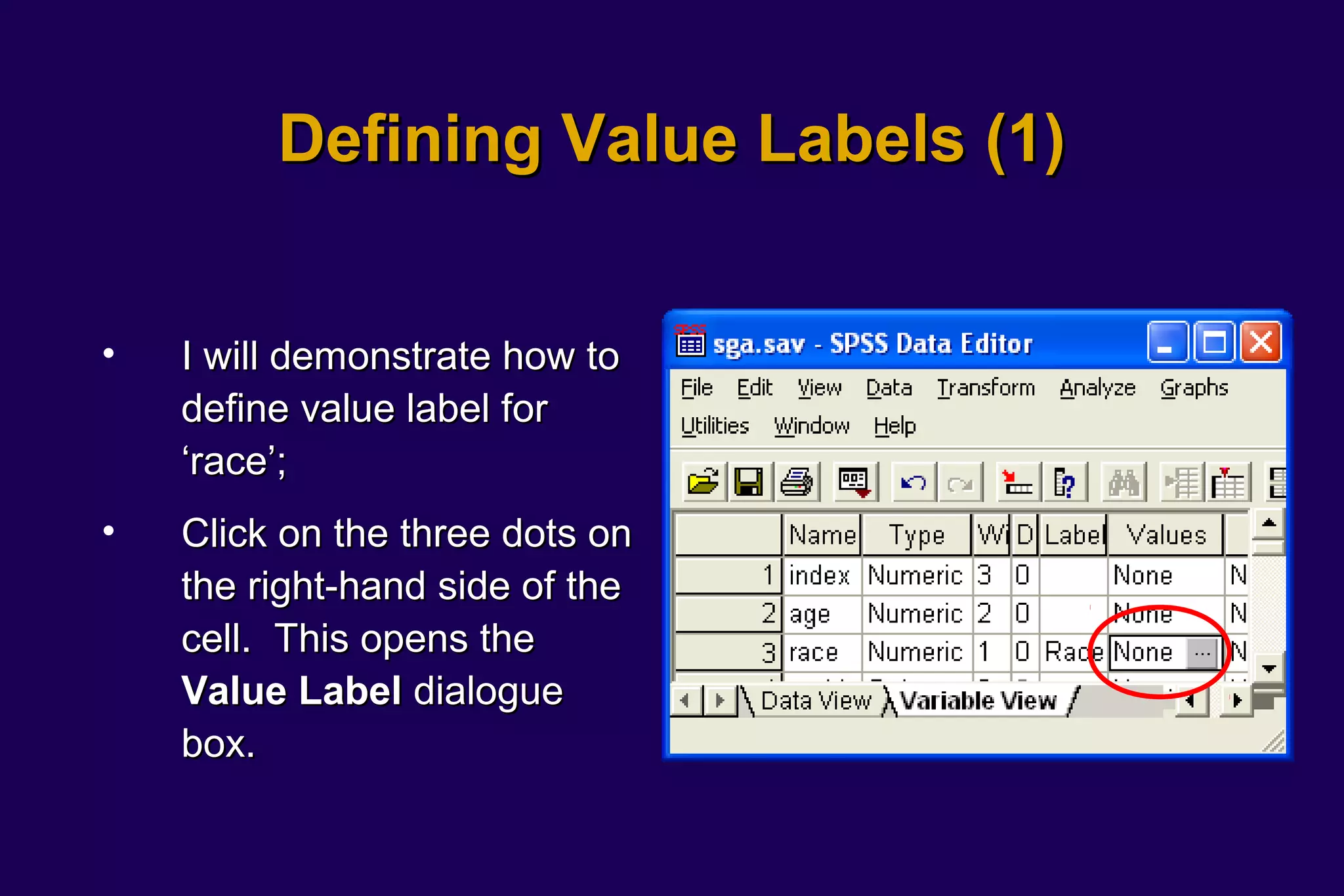
Defining Value Labels (1)


•   I will demonstrate how to
    define value label for
    ‘race’;
•   Click on the three dots on
    the right-hand side of the
    cell. This opens the
    Value Label dialogue
    box.
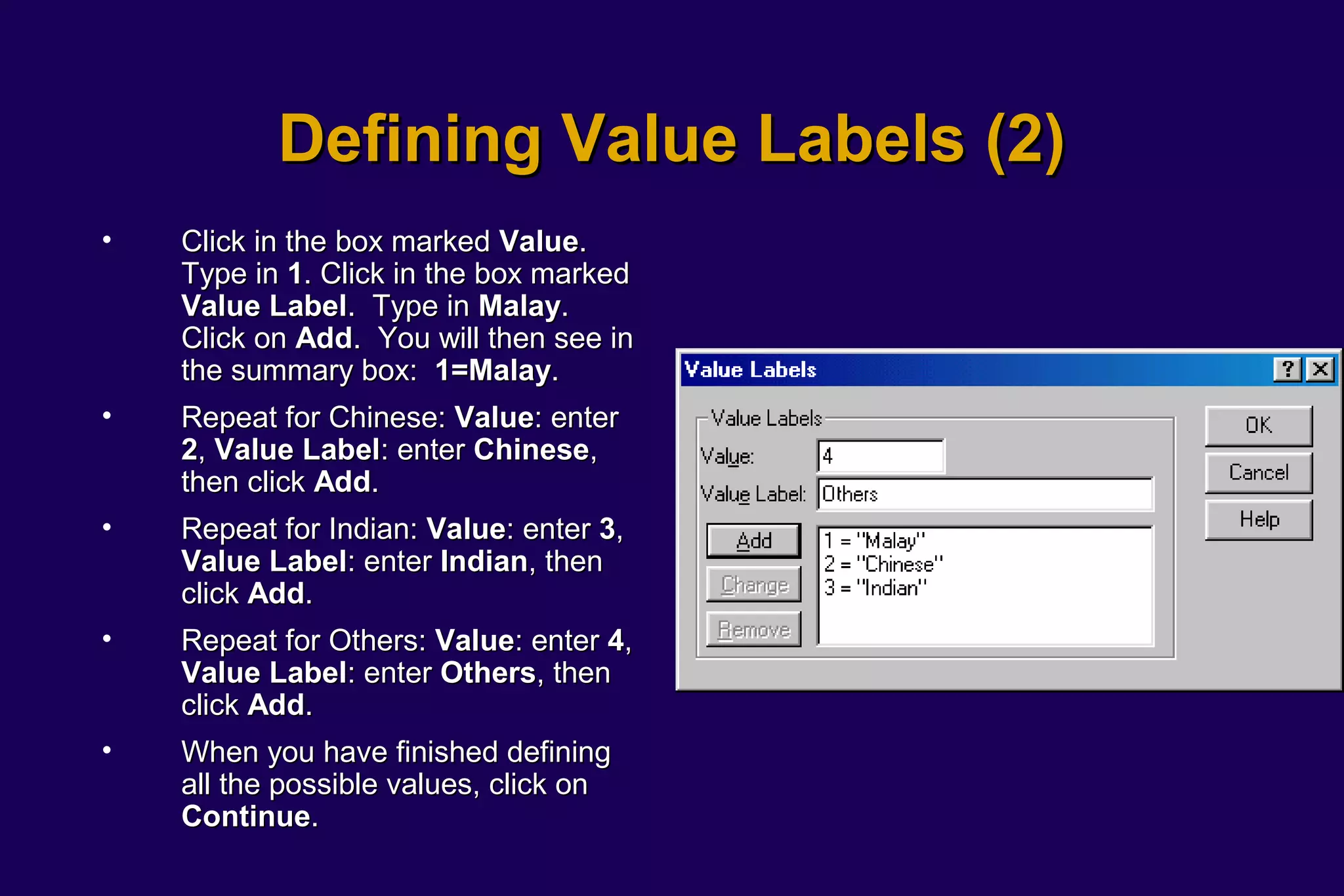
Defining Value Labels (2)
•   Click in the box marked Value.
    Type in 1. Click in the box marked
    Value Label. Type in Malay.
    Click on Add. You will then see in
    the summary box: 1=Malay.
•   Repeat for Chinese: Value: enter
    2, Value Label: enter Chinese,
    then click Add.
•   Repeat for Indian: Value: enter 3,
    Value Label: enter Indian, then
    click Add.
•   Repeat for Others: Value: enter 4,
    Value Label: enter Others, then
    click Add.
•   When you have finished defining
    all the possible values, click on
    Continue.
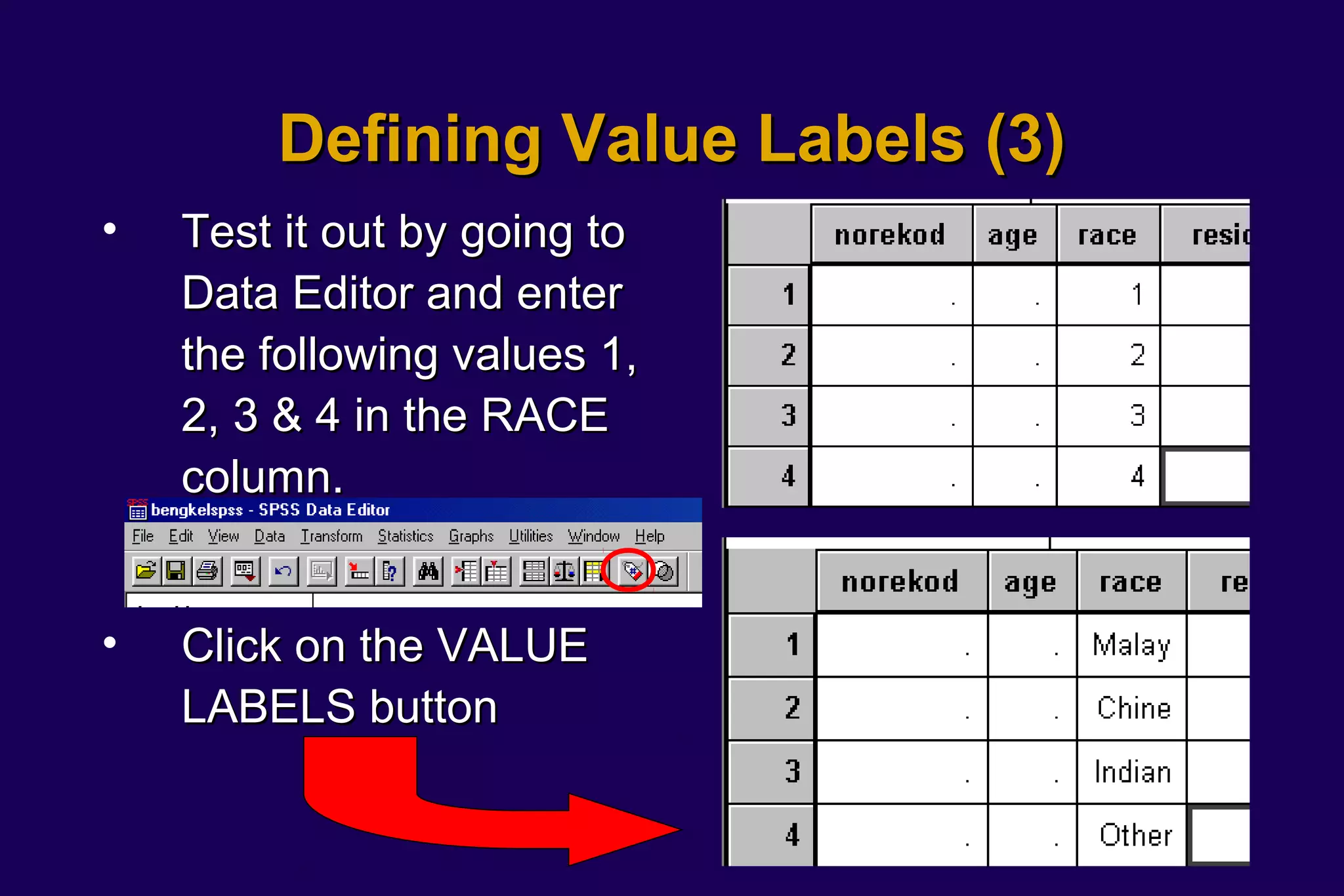
Defining Value Labels (3)
•   Test it out by going to
    Data Editor and enter
    the following values 1,
    2, 3 & 4 in the RACE
    column.


•   Click on the VALUE
    LABELS button
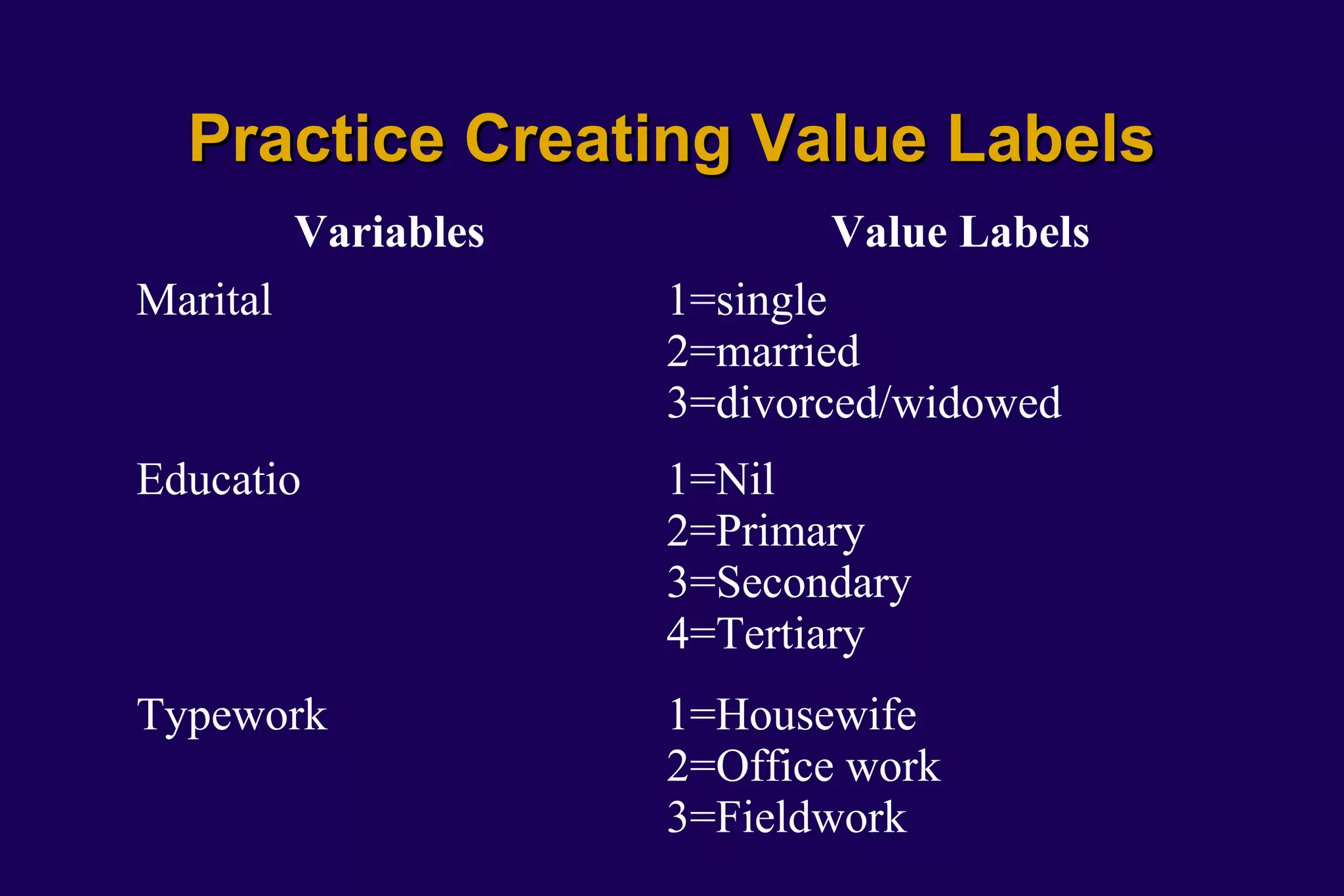
Practice Creating Value Labels
          Variables          Value Labels
Marital               1=single
                      2=married
                      3=divorced/widowed
Educatio              1=Nil
                      2=Primary
                      3=Secondary
                      4=Tertiary
Typework              1=Housewife
                      2=Office work
                      3=Fieldwork
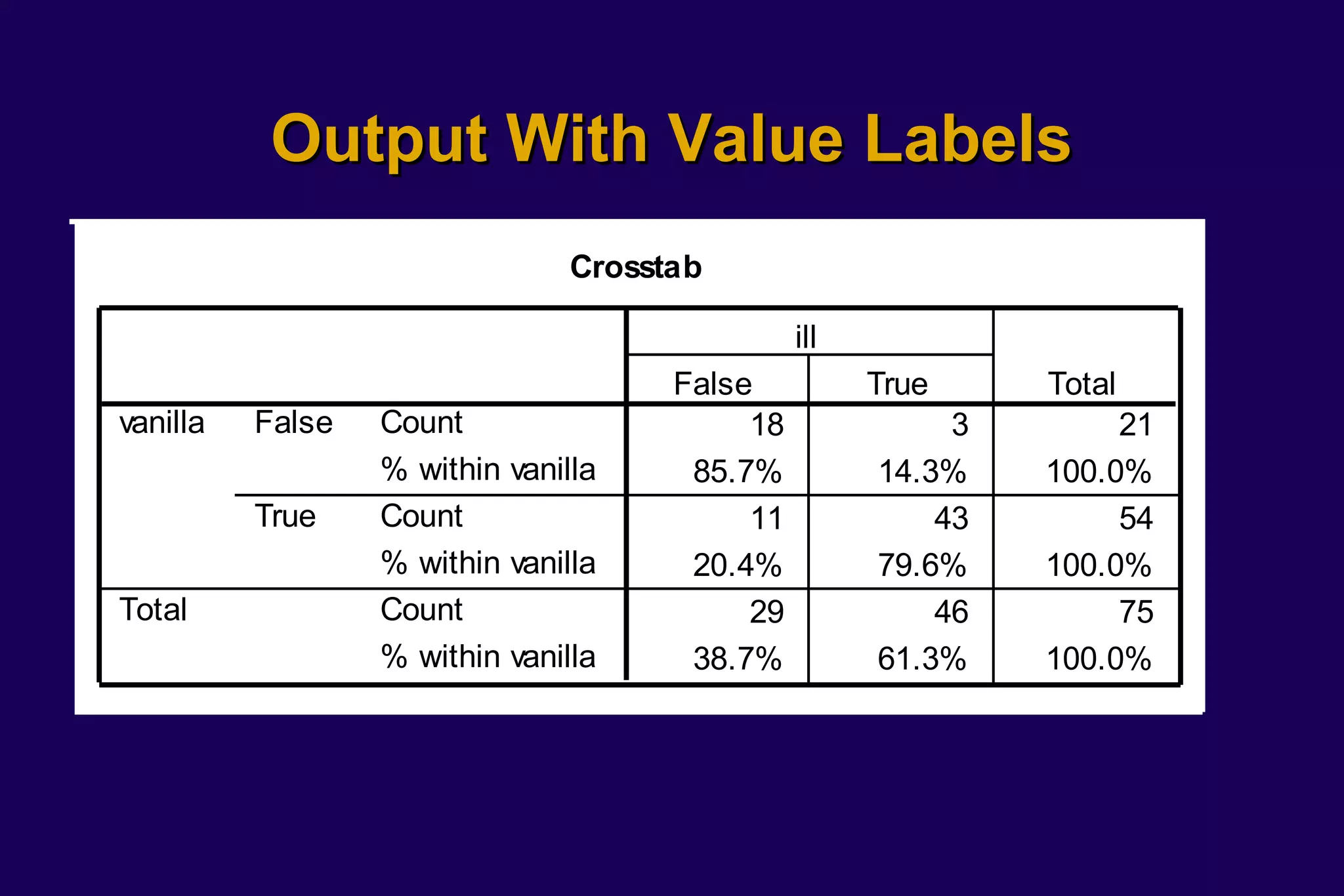
Output With Value Labels
                                Crosstab

                                                ill
                                      False           True     Total
vanilla   False   Count                    18              3        21
                  % within vanilla     85.7%          14.3%    100.0%
          True    Count                    11             43        54
                  % within vanilla     20.4%          79.6%    100.0%
Total             Count                    29             46        75
                  % within vanilla     38.7%          61.3%    100.0%
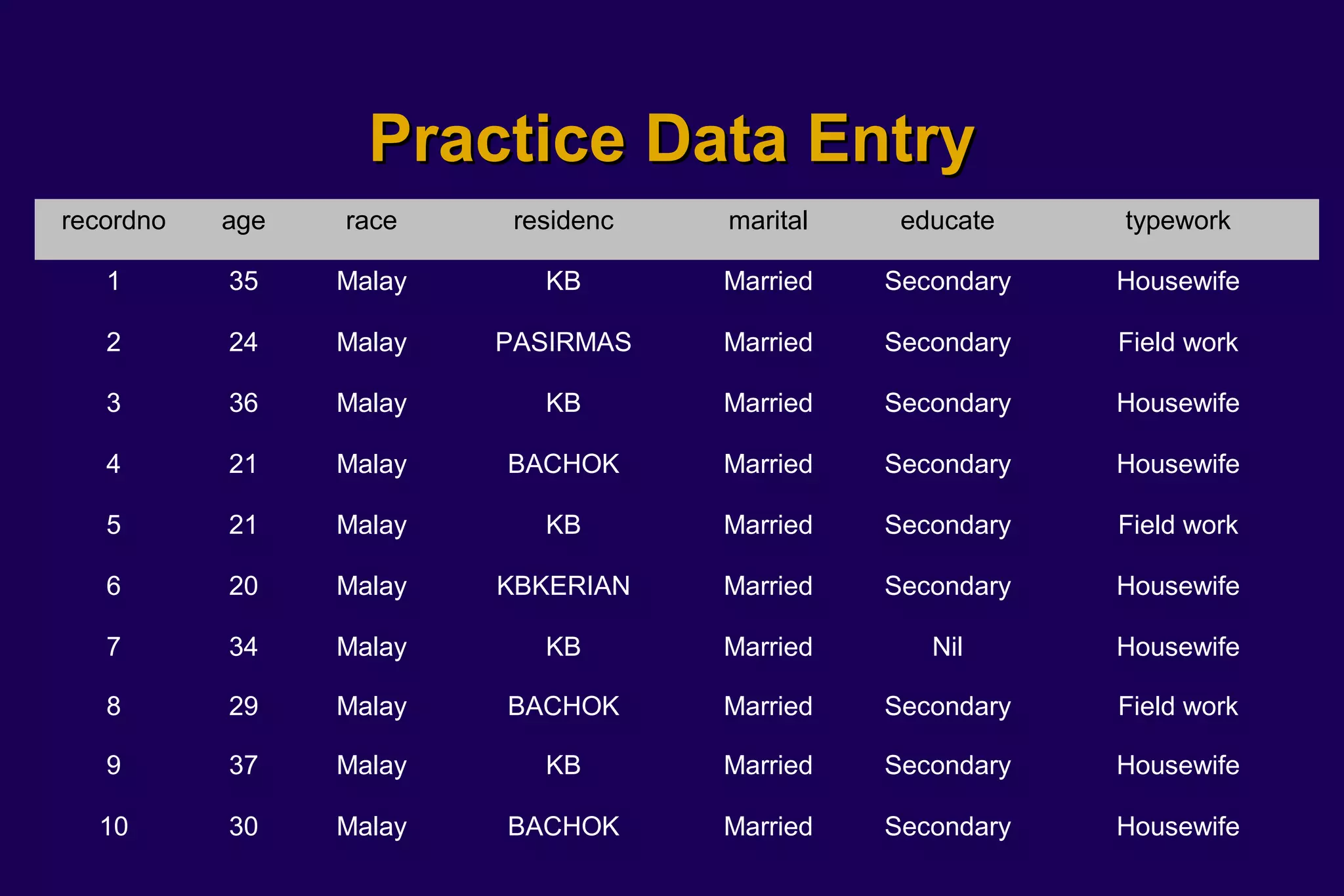
Practice Data Entry
recordno   age   race     residenc   marital    educate    typework

   1       35    Malay      KB       Married   Secondary   Housewife

   2       24    Malay   PASIRMAS    Married   Secondary   Field work

   3       36    Malay      KB       Married   Secondary   Housewife

   4       21    Malay   BACHOK      Married   Secondary   Housewife

   5       21    Malay      KB       Married   Secondary   Field work

   6       20    Malay   KBKERIAN    Married   Secondary   Housewife

   7       34    Malay      KB       Married      Nil      Housewife

   8       29    Malay   BACHOK      Married   Secondary   Field work

   9       37    Malay      KB       Married   Secondary   Housewife

  10       30    Malay   BACHOK      Married   Secondary   Housewife

Introduction to spss: define variables

  • 1.
    Introduction to SPSS Dr Azmi Mohd Tamil Universiti Kebangsaan Malaysia
  • 2.
    Why SPSS? There aremany statistical programs. Among them • SPSS • SAS • EpiInfo
  • 3.
    Introduction Programs • SPSS - Easy to use, point and click • Similar to Microsoft Excel - Fairly powerful
  • 5.
    Introduction Programs • Statistical Analysis Software (SAS) - Very powerful - Not so easy to use
  • 7.
    Introduction Programs • Epi Info - Centers for Disease Control and Prevention (CDC) - Free software - http://www.cdc.gov/epiinfo/
  • 9.
    Introduction Programs • Other Programs - Sudaan - STATA - DBStats
  • 10.
    Introduction Programs • You should know how to use these programs: - SPSS • Epi Info for special situations such as sample size calculations • Easiest to use • Tell you everything you need to know 99% of the time - Biostatisticians exist for the remaining 1%
  • 11.
    Too tough foryou? • Use Microsoft Excel instead. • Instructions available from http://161.142.92.104/excel/
  • 12.
    SPSS Whatdoes it stands for?
  • 13.
    SPSS? • In 1968, Norman H. Nie, C. Hadlai (Tex) Hull and Dale H. Bent, developed a software system called “Statistical Package for the Social Sciences” (SPSS) at Stanford University. Statistical data were stored on punch cards, later on large computer plates for analysis on the mainframe running SPSS. • In 1983, the first SPSS PC version was developed. In this incarnation, SPSS stands for “Superior Performance Software System”. • The most current designation is “Statistical Product and Service Solution” and aims thereby at the integration between statistics and service.
  • 14.
    Before using SPSS • What are data types and their relevance in using SPSS? • The association between data types and types of statistical test.
  • 15.
    Data Collection • Informationis collected on certain characteristics, attributes and the qualities of interest from the samples • These data may be quantitative or qualitative in nature.
  • 16.
    Types of Variables •Qualitative - categorised based on characteristics which differentiate it e.g. ethnic - Malay, Chinese, Indian etc. Qualitative variables can be classed into nominal & ordinal. • Quantitative - numerical values collected by observation, by measurement or by counting. Can either be discrete or continuous.
  • 17.
    Variable Classification Qualitative Quantitative • Nominal - no rank nor • discrete - from counting specific order e.g. ie no of children/wives ethnic; M, C, I & O. • continuous - can be in • Ordinal - has rank/order fractions, from between categories but measurement e.g. blood the difference cannot pressure, haemoglobin be measured. level.
  • 18.
    Types of Data Table1.1 Exam ples of types of data Quantitative Continuous Discrete Blood pressure, height, w eight, age Number of children Number of attacks of asthma per w eek Categorical Ordinal (Ordered categories) Nom inal (Unordered categories) Grade of breast cancer Sex (male/female) Better, same, w orse Alive or dead Disagree, neutral, agree Blood group O, A, B, AB http://www.bmj.com/collections/statsbk/
  • 19.
    Variables Types inSPSS • Qualitative – known as string in SPSS • Quantitative – known as numeric in SPSS
  • 20.
    SO WHAT! So what’sthe big deal about data types?
  • 21.
  • 22.
    Type of DataDictates Type of Analysis - Quantitative
  • 23.
    Learning to useSPSS Creating Variables
  • 24.
    Data Editor –Data View Title bar Menu Toolbar Variable names Data Rows Taskbar
  • 25.
    Data Editor –Variable View
  • 26.
    Variable Name • Unique • Not more than 8 characters • Consists of letters and numbers only • Begins with a letter instead of a number. • Try to give a label that means something • Cannot include words used as commands by SPSS (eg. all, ne, eq, to, le, lt, by, or, gt, and, not, ge, with)
  • 27.
    Variable Type, Width& Decimal Point • String or numeric? • Width of characters? I advise not to exceed 8 for string. • For numeric data, decide on the decimal point.
  • 28.
    Defining Variables -Exercise 1.Go to Variable View. 2. At the first row of “Variable Name”, type “recordno”. Then click on “Type”. You’ll see the following requester form.
  • 29.
    Defining Variables -Exercise 3.Choose type “string” and number of ‘characters’ as 3. Click on OK. 4. This is how it will be displayed in DATA EDITOR.
  • 30.
    Practice Creating Variables Type Variable Names Column Formatting Type Width (Decimal = 0) Age Numeric 3 3 Race String 1 4 Residenc String 8 8 Marital String 1 7 Educate String 1 8 Typework String 1
  • 31.
    Learning to useSPSS Defining Labels
  • 32.
    Coding & Labels -Determine the coding to be used for each variable. - For qualitative variables, it is recommended to use numerical-codes to represent the groups; eg. 1 = male and 2 = female, this will also simplify the data entry process. The “danger” of using string/text is that a small “male” is different from a big “Male”, - see Table I.
  • 34.
    Coding for DichotomousVariable • It is advisable to use 1=present, 0=absent or 1=higher risk, 0=lower risk • But for RR & OR calculation, better to code 1=present, 2=absent.
  • 35.
    Coding for MissingValue • @ blank responses for qualitative variables • Conventionally coded using a value that is not part of a valid response. For example; - Gender; M=1, F=2, MV=9 - Ethnic in East Malaysia; Codes 1 till 14 for races, MV=99
  • 36.
    Advantage of Coding •Reduce time for “data entry”. • Make analysis possible e.g. SPSS wont analyse string responses of more than 8 characters • Need a proper coding manual • How to define variables and coding for application such as SPSS and Excel are available at the dept website http://161.142.92.104/excel http://161.142.92.104/spss
  • 37.
    Defining Labels • But using coding, will cause you to end up with a dataset with cryptic output, hard to interpret. Crosstab ill F T Total vanilla F Count 18 3 21 % within vanilla 85.7% 14.3% 100.0% T Count 11 43 54 % within vanilla 20.4% 79.6% 100.0% Total Count 29 46 75 % within vanilla 38.7% 61.3% 100.0% • So SPSS allows you to define each value with a label, i.e.; - 1 = Male - 2 = Female
  • 38.
    Defining Value Labels(1) • I will demonstrate how to define value label for ‘race’; • Click on the three dots on the right-hand side of the cell. This opens the Value Label dialogue box.
  • 39.
    Defining Value Labels(2) • Click in the box marked Value. Type in 1. Click in the box marked Value Label. Type in Malay. Click on Add. You will then see in the summary box: 1=Malay. • Repeat for Chinese: Value: enter 2, Value Label: enter Chinese, then click Add. • Repeat for Indian: Value: enter 3, Value Label: enter Indian, then click Add. • Repeat for Others: Value: enter 4, Value Label: enter Others, then click Add. • When you have finished defining all the possible values, click on Continue.
  • 40.
    Defining Value Labels(3) • Test it out by going to Data Editor and enter the following values 1, 2, 3 & 4 in the RACE column. • Click on the VALUE LABELS button
  • 41.
    Practice Creating ValueLabels Variables Value Labels Marital 1=single 2=married 3=divorced/widowed Educatio 1=Nil 2=Primary 3=Secondary 4=Tertiary Typework 1=Housewife 2=Office work 3=Fieldwork
  • 42.
    Output With ValueLabels Crosstab ill False True Total vanilla False Count 18 3 21 % within vanilla 85.7% 14.3% 100.0% True Count 11 43 54 % within vanilla 20.4% 79.6% 100.0% Total Count 29 46 75 % within vanilla 38.7% 61.3% 100.0%
  • 43.
    Practice Data Entry recordno age race residenc marital educate typework 1 35 Malay KB Married Secondary Housewife 2 24 Malay PASIRMAS Married Secondary Field work 3 36 Malay KB Married Secondary Housewife 4 21 Malay BACHOK Married Secondary Housewife 5 21 Malay KB Married Secondary Field work 6 20 Malay KBKERIAN Married Secondary Housewife 7 34 Malay KB Married Nil Housewife 8 29 Malay BACHOK Married Secondary Field work 9 37 Malay KB Married Secondary Housewife 10 30 Malay BACHOK Married Secondary Housewife