©drtamil@gmail.com 2020
Hack#37 - How to
Simultaneously Live
Stream to 4 Sites
Using A Single
Hardware Encoder.
Azmi Mohd Tamil
drtamil@gmail.com
©drtamil@gmail.com 2020
You can live stream by using a;
• Web browser -
https://www.slideshare.net/drtamil/hack33-how-
to-fblive
• Mobile device – install Facebook app on your
phone, click “Live” and immediately share online
what is around you.
• Software encoder -
https://www.slideshare.net/drtamil/hack35-how-
to-fb-live-using-a-video-encoder
• Hardware encoder – this guide.
©drtamil@gmail.com 2020
How do Hardware Encoders Work?
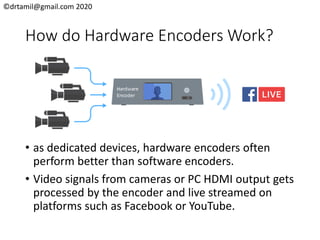
• as dedicated devices, hardware encoders often
perform better than software encoders.
• Video signals from cameras or PC HDMI output gets
processed by the encoder and live streamed on
platforms such as Facebook or YouTube.
©drtamil@gmail.com 2020
Which hardware encoders to buy?
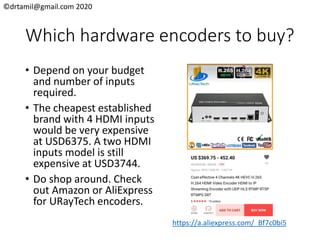
• Depend on your budget
and number of inputs
required.
• The cheapest established
brand with 4 HDMI inputs
would be very expensive
at USD6375. A two HDMI
inputs model is still
expensive at USD3744.
• Do shop around. Check
out Amazon or AliExpress
for URayTech encoders.
https://a.aliexpress.com/_Bf7c0bi5
©drtamil@gmail.com 2020
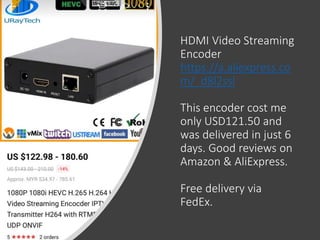
HDMI Video Streaming
Encoder
https://a.aliexpress.co
m/_d8l2ssl
This encoder cost me
only USD121.50 and
was delivered in just 6
days. Good reviews on
Amazon & AliExpress.
Free delivery via
FedEx.
©drtamil@gmail.com 2020
How to
configure
URayTech HDMI Video Streaming
Encoder
©drtamil@gmail.com 2020
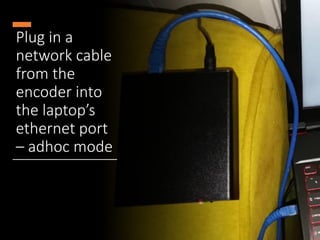
Plug in a
network cable
from the
encoder into
the laptop’s
ethernet port
– adhoc mode
©drtamil@gmail.com 2020
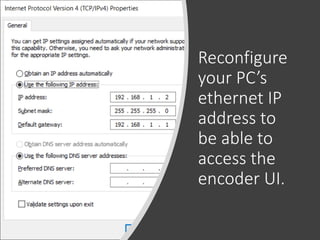
Reconfigure
your PC’s
ethernet IP
address to
be able to
access the
encoder UI.
©drtamil@gmail.com 2020
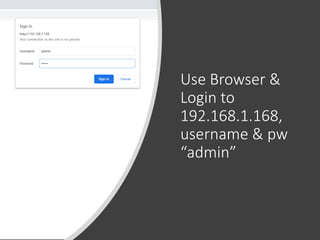
Use Browser &
Login to
192.168.1.168,
username & pw
“admin”
©drtamil@gmail.com 2020
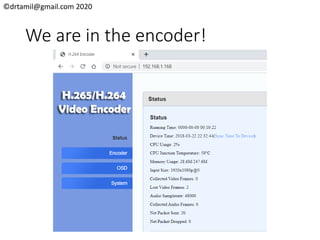
We are in the encoder!
©drtamil@gmail.com 2020
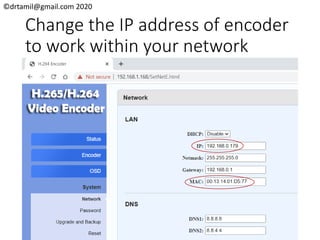
Change the IP address of encoder
to work within your network
©drtamil@gmail.com 2020
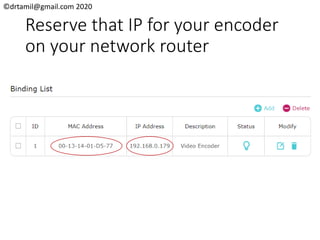
Reserve that IP for your encoder
on your network router
©drtamil@gmail.com 2020
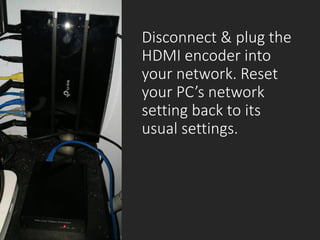
Disconnect & plug the
HDMI encoder into
your network. Reset
your PC’s network
setting back to its
usual settings.
©drtamil@gmail.com 2020
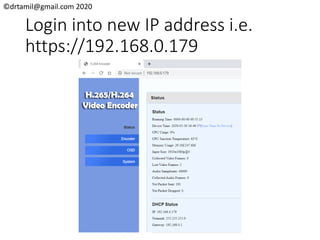
Login into new IP address i.e.
https://192.168.0.179
©drtamil@gmail.com 2020
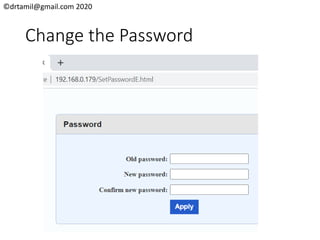
Change the Password
©drtamil@gmail.com 2020
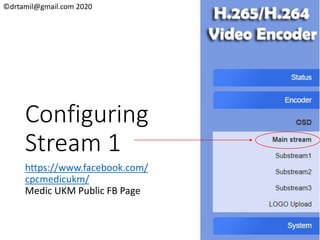
Configuring
Stream 1
https://www.facebook.com/
cpcmedicukm/
Medic UKM Public FB Page
©drtamil@gmail.com 2020
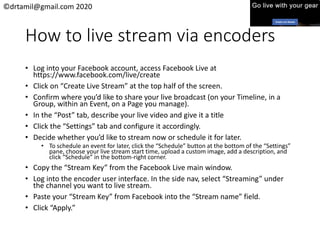
How to live stream via encoders
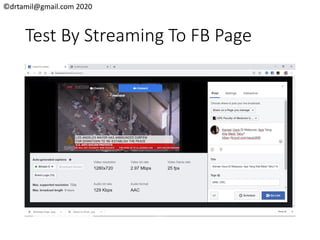
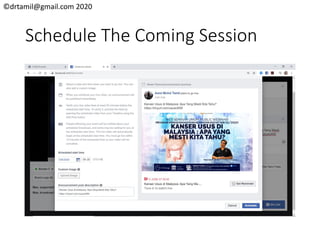
• Log into your Facebook account, access Facebook Live at
https://www.facebook.com/live/create
• Click on “Create Live Stream” at the top half of the screen.
• Confirm where you’d like to share your live broadcast (on your Timeline, in a
Group, within an Event, on a Page you manage).
• In the “Post” tab, describe your live video and give it a title
• Click the “Settings” tab and configure it accordingly.
• Decide whether you’d like to stream now or schedule it for later.
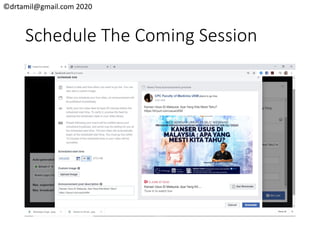
• To schedule an event for later, click the “Schedule” button at the bottom of the “Settings”
pane, choose your live stream start time, upload a custom image, add a description, and
click “Schedule” in the bottom-right corner.
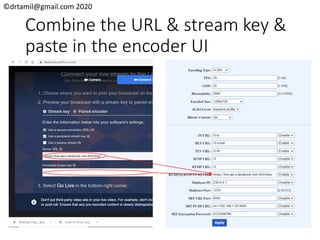
• Copy the “Stream Key” from the Facebook Live main window.
• Log into the encoder user interface. In the side nav, select “Streaming” under
the channel you want to live stream.
• Paste your “Stream Key” from Facebook into the “Stream name” field.
• Click “Apply.”
©drtamil@gmail.com 2020
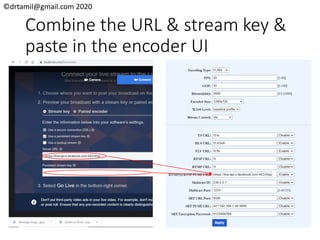
Combine the URL & stream key &
paste in the encoder UI
©drtamil@gmail.com 2020
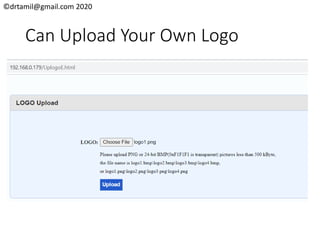
Can Upload Your Own Logo
©drtamil@gmail.com 2020
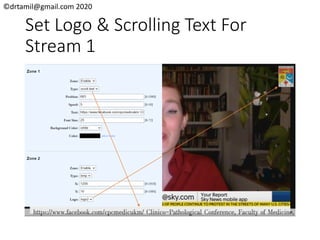
Set Logo & Scrolling Text For
Stream 1
©drtamil@gmail.com 2020
Test By Streaming To FB Page
©drtamil@gmail.com 2020
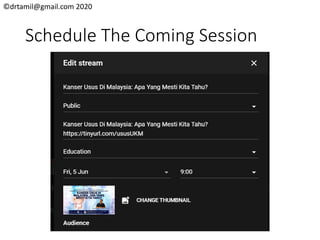
Schedule The Coming Session
©drtamil@gmail.com 2020
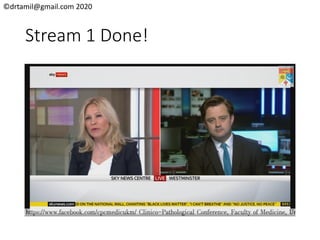
Stream 1 Done!
©drtamil@gmail.com 2020
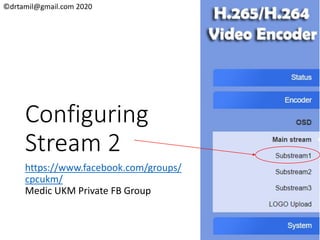
Configuring
Stream 2
https://www.facebook.com/groups/
cpcukm/
Medic UKM Private FB Group
©drtamil@gmail.com 2020
How to live stream via encoders
• Log into your Facebook account, access Facebook Live at
https://www.facebook.com/live/create
• Click on “Create Live Stream” at the top half of the screen.
• Confirm where you’d like to share your live broadcast (on your Timeline, in a
Group, within an Event, on a Page you manage).
• In the “Post” tab, describe your live video and give it a title
• Click the “Settings” tab and configure it accordingly.
• Decide whether you’d like to stream now or schedule it for later.
• To schedule an event for later, click the “Schedule” button at the bottom of the “Settings”
pane, choose your live stream start time, upload a custom image, add a description, and
click “Schedule” in the bottom-right corner.
• Copy the “Stream Key” from the Facebook Live main window.
• Log into the encoder user interface. In the side nav, select “Streaming” under
the channel you want to live stream.
• Paste your “Stream Key” from Facebook into the “Stream name” field.
• Click “Apply.”
©drtamil@gmail.com 2020
Combine the URL & stream key &
paste in the encoder UI
©drtamil@gmail.com 2020
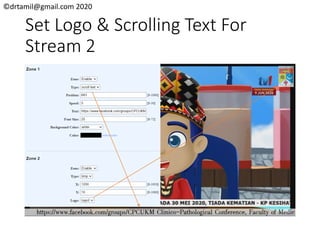
Set Logo & Scrolling Text For
Stream 2
©drtamil@gmail.com 2020
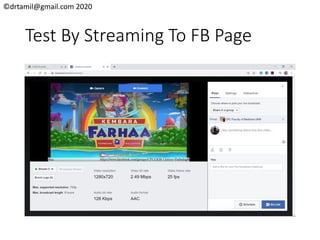
Test By Streaming To FB Page
©drtamil@gmail.com 2020
Schedule The Coming Session
©drtamil@gmail.com 2020
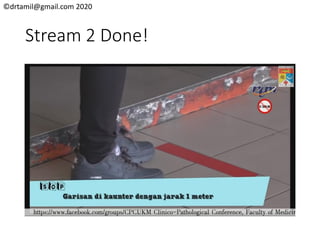
Stream 2 Done!
©drtamil@gmail.com 2020
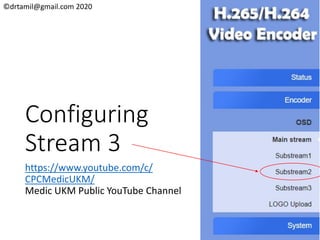
Configuring
Stream 3
https://www.youtube.com/c/
CPCMedicUKM/
Medic UKM Public YouTube Channel
©drtamil@gmail.com 2020
How to live stream via encoders
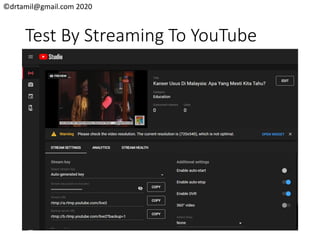
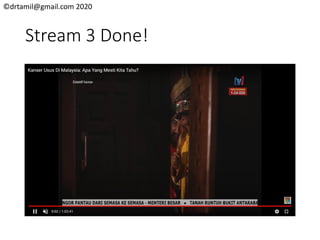
• Log into your YouTube account, access YouTube Live at
https://studio.youtube.com/channel/<account>/livestreaming/str
eam
• In the “Post” tab, describe your live video and give it a title
• Click the “Settings” tab and configure it accordingly.
• Decide whether you’d like to stream now or schedule it for later.
• To schedule an event for later, click the “Schedule” button at the
bottom of the “Settings” pane, choose your live stream start time,
upload a custom image, add a description, and click “Schedule” in the
bottom-right corner.
• Copy the “Stream Key” from the YouTube Live main window.
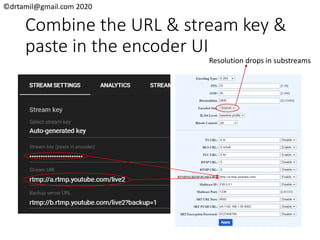
• Paste your “Stream Key” from YouTube into the “Stream name”
field on your encoder UI.
• Click “Apply.”
©drtamil@gmail.com 2020
Combine the URL & stream key &
paste in the encoder UI
Resolution drops in substreams
©drtamil@gmail.com 2020
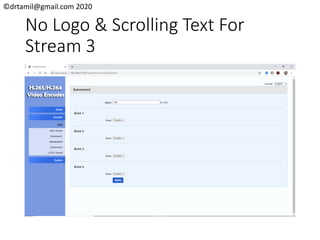
No Logo & Scrolling Text For
Stream 3
©drtamil@gmail.com 2020
Test By Streaming To YouTube
©drtamil@gmail.com 2020
Schedule The Coming Session
©drtamil@gmail.com 2020
Stream 3 Done!
©drtamil@gmail.com 2020
Stream 4
• Sorry, I only have 3 streaming sites.
• I kept talking about registering on Twitch. Maybe I
should do so, just to have another platform to
stream to.
• So I can’t demo streaming to the fourth site, but it
is possible, albeit at a lower resolution.
©drtamil@gmail.com 2020
Conclusion
• You don’t have to spend USD6375 to set up a
system to stream your lectures online for your
institution. Instead you can pull it off with a budget
of RM1604 for the faculty by buying it online.
• Of course the Finance Department won’t allow you
to do that because public universities can’t buy
stuff online, instead you must go through the local
vendors.
• But at least I have proven that technology wise, it is
feasible. I don’t want to comment on the other
issues.

Hack#37 - How to simultaneously live stream to 4 sites using a single hardware encoder