Joined UKM in 1996 to replace Dr Hashami
Bohari, in Health Promotion.
• Did various video projects for Prof Dr KG Rampal.
• Did the video for Inaugural Lecture for Prof Dr Osman Ali.
• Did various videos for UKM with the late Husin Hasan such as “30
years of UKM Medical Faculty” using Scala MM.
• Became the faculty e-learning facilitator from 2010 till now.
• Facilitated the transition of CPC to become an online thing in 2020.
• Now the Facilitator for Unit Penyiaran & Digital. Now I am back
supporting events such as Inaugural Lectures & hybrid events.
• The last 2 items are done through OBS Studio.
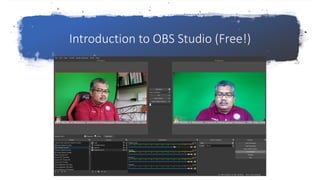
Introduction to OBS Studio (Free!)
OBS Studio for What?
1. Recording video of online lectures for editing later.
2. For creating a virtual camera of the OBS video output, so can put
that into Zoom or Teams or Meet.
3. For “chroma keying” (green screen), to integrate separate media
sources into one OBS video output.
4. For streaming any teaching session to YouTube or/and Facebook.
5. As a control board for any hybrid event or a large online conference.
In this part, I
will
demonstrate
how OBS
Studio is
useful to us;
Download OBS Studio from
https://obsproject.com/
Download pdf file from
https://tinyurl.com/streamZoom
Watch the video at
https://tinyurl.com/streamZoom2
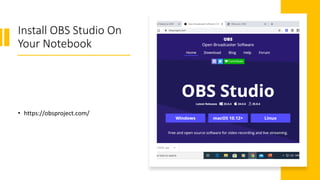
Install OBS Studio On
Your Notebook
• https://obsproject.com/
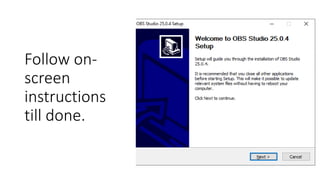
Follow on-
screen
instructions
till done.
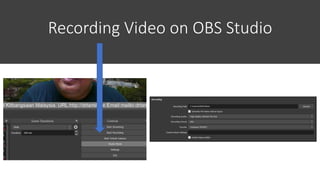
Recording Video on OBS Studio
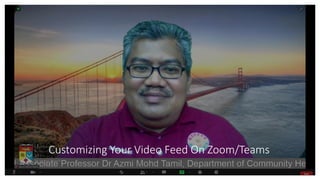
Customizing Your Video Feed On Zoom/Teams
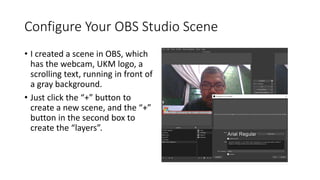
Configure Your OBS Studio Scene
• I created a scene in OBS, which
has the webcam, UKM logo, a
scrolling text, running in front of
a gray background.
• Just click the “+” button to
create a new scene, and the “+”
button in the second box to
create the “layers”.
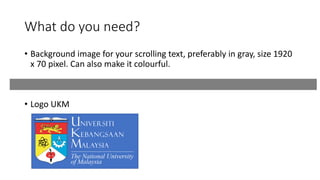
What do you need?
• Background image for your scrolling text, preferably in gray, size 1920
x 70 pixel. Can also make it colourful.
• Logo UKM
Playback video on how to create a “scene”
•https://youtu.be/-EURm25wfLM
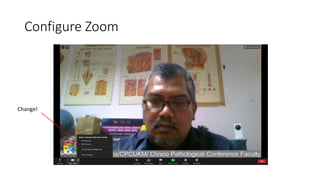
Configure Zoom
Change!
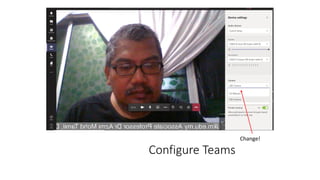
Configure Teams
Change!
Green Screen on OBS Studio
Bonus Segment
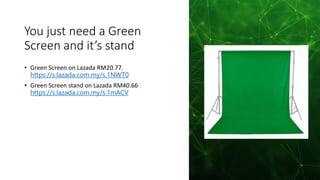
You just need a Green
Screen and it’s stand
• Green Screen on Lazada RM20.77.
https://s.lazada.com.my/s.1NWT0
• Green Screen stand on Lazada RM40.66
https://s.lazada.com.my/s.1mACV
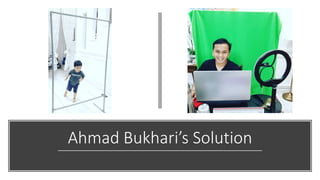
Ahmad Bukhari’s Solution
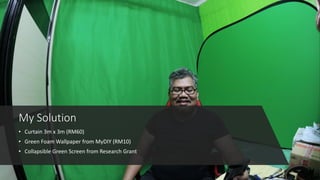
My Solution
• Curtain 3m x 3m (RM60)
• Green Foam Wallpaper from MyDIY (RM10)
• Collapsible Green Screen from Research Grant
Playback Green Screen Demo
•https://youtu.be/fv6zs0NSThw
How to
Stream!
Streaming to Facebook
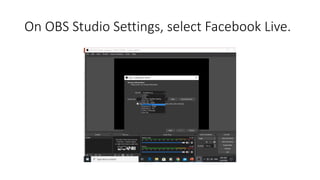
On OBS Studio Settings, select Facebook Live.
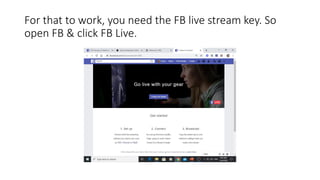
For that to work, you need the FB live stream key. So
open FB & click FB Live.
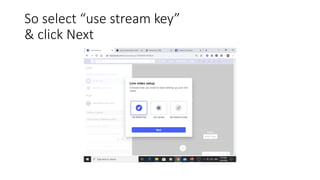
So select “use stream key”
& click Next
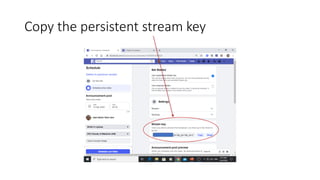
Copy the persistent stream key
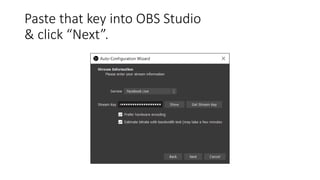
Paste that key into OBS Studio
& click “Next”.
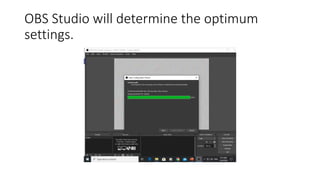
OBS Studio will determine the optimum
settings.
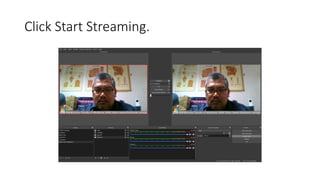
Click Start Streaming.
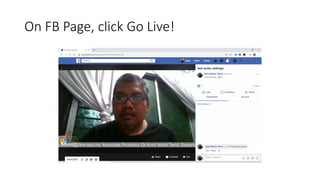
On FB Page, click Go Live!
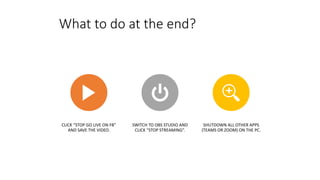
What to do at the end?
CLICK “STOP GO LIVE ON FB”
AND SAVE THE VIDEO.
SWITCH TO OBS STUDIO AND
CLICK “STOP STREAMING”.
SHUTDOWN ALL OTHER APPS
(TEAMS OR ZOOM) ON THE PC.
Conclusion
You don’t have to spend RM7600 to stream your
webinar/lectures online. Instead you can pull it off with a
budget of EUR5 by doing what I did.
Of course the Finance Department won’t allow you to do
that because public universities can’t buy stuff online,
instead you must go through the local vendors.
But at least I have proven that technology wise, it is
feasible. I don’t want to comment on the other issues.

Video for Teaching & Learning: OBS

  • 5.
    Joined UKM in1996 to replace Dr Hashami Bohari, in Health Promotion. • Did various video projects for Prof Dr KG Rampal. • Did the video for Inaugural Lecture for Prof Dr Osman Ali. • Did various videos for UKM with the late Husin Hasan such as “30 years of UKM Medical Faculty” using Scala MM. • Became the faculty e-learning facilitator from 2010 till now. • Facilitated the transition of CPC to become an online thing in 2020. • Now the Facilitator for Unit Penyiaran & Digital. Now I am back supporting events such as Inaugural Lectures & hybrid events. • The last 2 items are done through OBS Studio.
  • 6.
    Introduction to OBSStudio (Free!)
  • 7.
    OBS Studio forWhat? 1. Recording video of online lectures for editing later. 2. For creating a virtual camera of the OBS video output, so can put that into Zoom or Teams or Meet. 3. For “chroma keying” (green screen), to integrate separate media sources into one OBS video output. 4. For streaming any teaching session to YouTube or/and Facebook. 5. As a control board for any hybrid event or a large online conference.
  • 8.
    In this part,I will demonstrate how OBS Studio is useful to us; Download OBS Studio from https://obsproject.com/ Download pdf file from https://tinyurl.com/streamZoom Watch the video at https://tinyurl.com/streamZoom2
  • 9.
    Install OBS StudioOn Your Notebook • https://obsproject.com/
  • 10.
  • 11.
  • 12.
    Customizing Your VideoFeed On Zoom/Teams
  • 13.
    Configure Your OBSStudio Scene • I created a scene in OBS, which has the webcam, UKM logo, a scrolling text, running in front of a gray background. • Just click the “+” button to create a new scene, and the “+” button in the second box to create the “layers”.
  • 14.
    What do youneed? • Background image for your scrolling text, preferably in gray, size 1920 x 70 pixel. Can also make it colourful. • Logo UKM
  • 15.
    Playback video onhow to create a “scene” •https://youtu.be/-EURm25wfLM
  • 16.
  • 17.
  • 18.
    Green Screen onOBS Studio Bonus Segment
  • 19.
    You just needa Green Screen and it’s stand • Green Screen on Lazada RM20.77. https://s.lazada.com.my/s.1NWT0 • Green Screen stand on Lazada RM40.66 https://s.lazada.com.my/s.1mACV
  • 20.
  • 21.
    My Solution • Curtain3m x 3m (RM60) • Green Foam Wallpaper from MyDIY (RM10) • Collapsible Green Screen from Research Grant
  • 22.
    Playback Green ScreenDemo •https://youtu.be/fv6zs0NSThw
  • 23.
  • 24.
    On OBS StudioSettings, select Facebook Live.
  • 25.
    For that towork, you need the FB live stream key. So open FB & click FB Live.
  • 26.
    So select “usestream key” & click Next
  • 27.
  • 28.
    Paste that keyinto OBS Studio & click “Next”.
  • 29.
    OBS Studio willdetermine the optimum settings.
  • 30.
  • 31.
    On FB Page,click Go Live!
  • 32.
    What to doat the end? CLICK “STOP GO LIVE ON FB” AND SAVE THE VIDEO. SWITCH TO OBS STUDIO AND CLICK “STOP STREAMING”. SHUTDOWN ALL OTHER APPS (TEAMS OR ZOOM) ON THE PC.
  • 33.
    Conclusion You don’t haveto spend RM7600 to stream your webinar/lectures online. Instead you can pull it off with a budget of EUR5 by doing what I did. Of course the Finance Department won’t allow you to do that because public universities can’t buy stuff online, instead you must go through the local vendors. But at least I have proven that technology wise, it is feasible. I don’t want to comment on the other issues.