Broadcast
Quality Online
Teaching At Zero
Budget
Azmi Mohd Tamil
Universiti Kebangsaan Malaysia
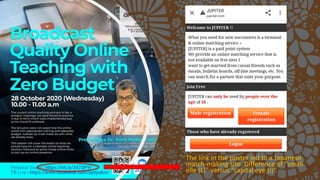
The link in the poster led to a Japanese
match-making site. Difference of “small
elle (L)” versus “capital eye (i)”.
Broadcast Quality
• Defined as a video stream, this level of quality states
that the video stream is suitable for being included in
normal TV broadcasting.
• But we are not broadcasting our lectures on TV.
Instead, we are streaming on online platform such as
Microsoft Teams, Zoom Meeting, Google Meet, Cisco
WebEx and Lifesize.
• The term “broadcast quality” in this talk refers to
crystal clear audio with no humming or feedback/echo,
excellent video quality with no lagging even when
streaming video on the platform, and ability to use add-
on graphics and animation on the fly while teaching.
Broadcast
Quality Online
Teaching
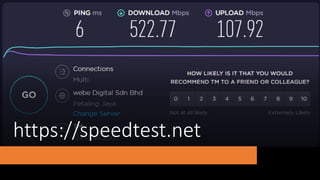
https://speedtest.net
https://tinyurl.com/sharelineUKM
https://speedtest.net
Stable
Internet
Connection
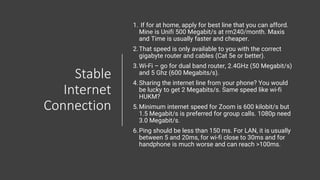
1. If for at home, apply for best line that you can afford.
Mine is Unifi 500 Megabit/s at rm240/month. Maxis
and Time is usually faster and cheaper.
2.That speed is only available to you with the correct
gigabyte router and cables (Cat 5e or better).
3.Wi-Fi – go for dual band router, 2.4GHz (50 Megabit/s)
and 5 Ghz (600 Megabits/s).
4.Sharing the internet line from your phone? You would
be lucky to get 2 Megabits/s. Same speed like wi-fi
HUKM?
5.Minimum internet speed for Zoom is 600 kilobit/s but
1.5 Megabit/s is preferred for group calls. 1080p need
3.0 Megabit/s.
6.Ping should be less than 150 ms. For LAN, it is usually
between 5 and 20ms, for wi-fi close to 30ms and for
handphone is much worse and can reach >100ms.
No budget
solution?
https://tinyurl.com/sharelineUKM
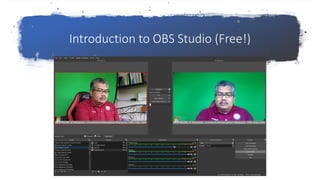
Introduction to OBS Studio (Free!)
In this part, I will demonstrate how OBS Studio is useful
to us;
Download OBS Studio from https://obsproject.com/
Download pdf file from https://tinyurl.com/streamZoom
Watch the video at https://tinyurl.com/streamZoom2
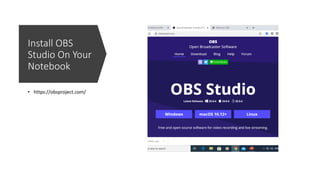
Install OBS
Studio On Your
Notebook
• https://obsproject.com/
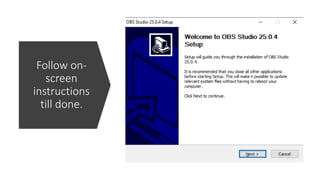
Follow on-
screen
instructions
till done.
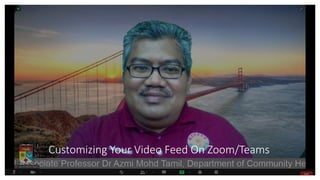
Customizing Your Video Feed On Zoom/Teams
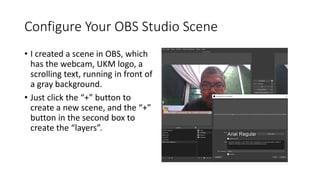
Configure Your OBS Studio Scene
• I created a scene in OBS, which
has the webcam, UKM logo, a
scrolling text, running in front of
a gray background.
• Just click the “+” button to
create a new scene, and the “+”
button in the second box to
create the “layers”.
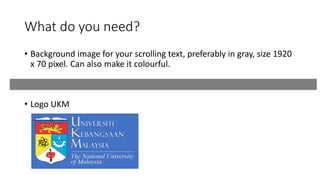
What do you need?
• Background image for your scrolling text, preferably in gray, size 1920
x 70 pixel. Can also make it colourful.
• Logo UKM
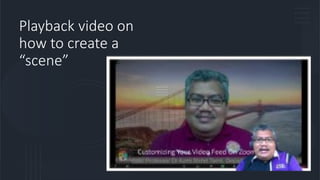
Playback video on
how to create a
“scene”
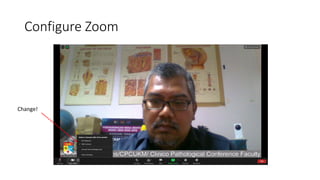
Configure Zoom
Change!
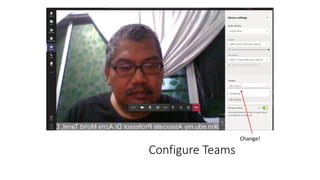
Configure Teams
Change!
Green Screen on OBS Studio
Bonus Segment
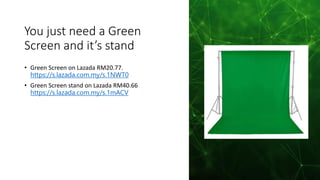
You just need a Green
Screen and it’s stand
• Green Screen on Lazada RM20.77.
https://s.lazada.com.my/s.1NWT0
• Green Screen stand on Lazada RM40.66
https://s.lazada.com.my/s.1mACV
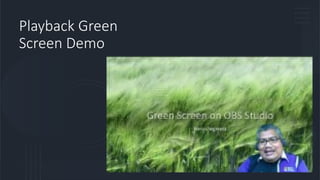
Playback Green
Screen Demo
How to
Stream!
Streaming to Facebook
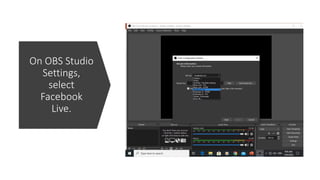
On OBS Studio
Settings,
select
Facebook
Live.
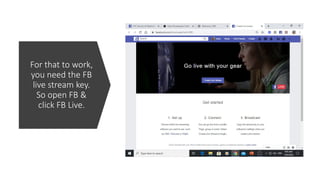
For that to work,
you need the FB
live stream key.
So open FB &
click FB Live.
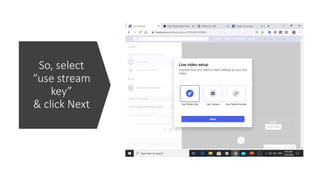
So, select
“use stream
key”
& click Next
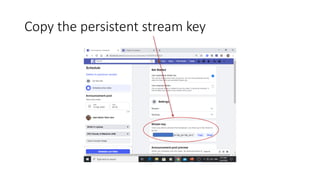
Copy the persistent stream key
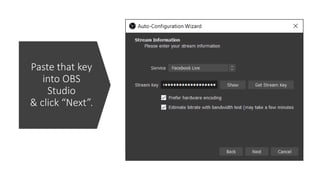
Paste that key
into OBS
Studio
& click “Next”.
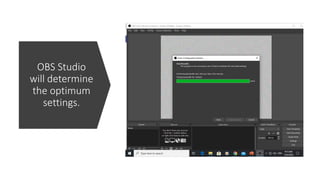
OBS Studio
will determine
the optimum
settings.
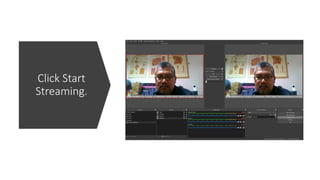
Click Start
Streaming.
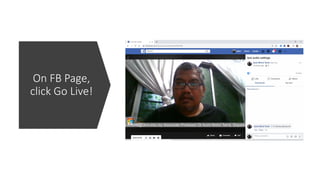
On FB Page,
click Go Live!
What to do at
the end?
Click “stop Go Live on FB” and
save the video.
Switch to OBS Studio and click
“Stop Streaming”.
Shutdown all other apps (Teams
or Zoom) on the PC.
Conclusion
You don’t have to spend RM7600 to stream your
webinar/lectures online. Instead, you can pull it
off with a budget of EUR5 by doing what I did.
Of course, the Finance Department won’t allow
you to do that because public universities can’t
buy stuff online, instead you must go through the
local vendors.
But at least I have proven that technology wise, it
is feasible. I don’t want to comment on the other
issues.

Broadcast quality online teaching at zero budget