 Open up Microsoft PowerPoint
 Create a new presentation
 Change the theme
 Add slides to the presentation
 Add text and images to the slides
 Setup a transition between them
 Create a slide show for the presentation
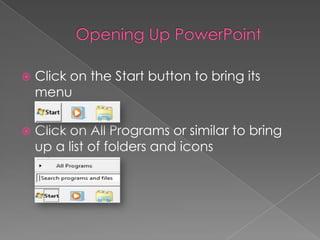
 Click on the Start button to bring its
menu
 Click on All Programs or similar to bring
up a list of folders and icons
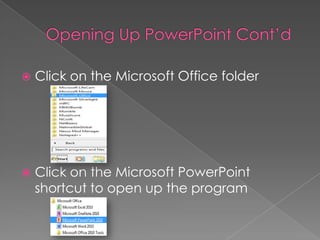
 Click on the Microsoft Office folder
 Click on the Microsoft PowerPoint
shortcut to open up the program
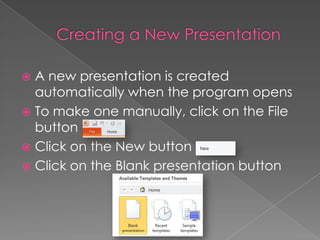
 A new presentation is created
automatically when the program opens
 To make one manually, click on the File
button
 Click on the New button
 Click on the Blank presentation button
 Click on the Design tab
 Look for the Themes section
 Find the theme that you want and click
on it
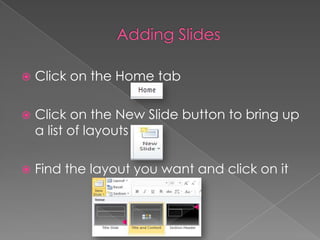
 Click on the Home tab
 Click on the New Slide button to bring up
a list of layouts
 Find the layout you want and click on it
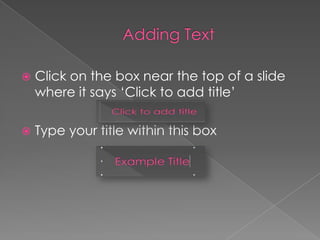
 Click on the box near the top of a slide
where it says ‘Click to add title’
 Type your title within this box
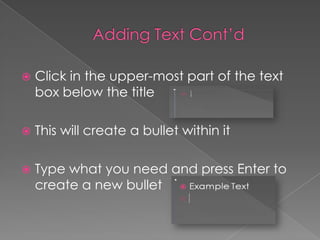
 Click in the upper-most part of the text
box below the title
 This will create a bullet within it
 Type what you need and press Enter to
create a new bullet
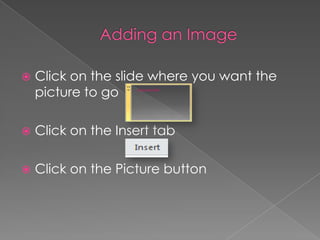
 Click on the slide where you want the
picture to go
 Click on the Insert tab
 Click on the Picture button
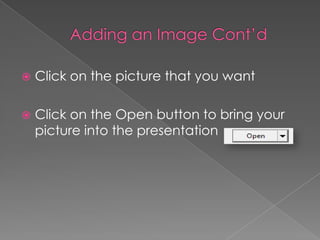
 Click on the picture that you want
 Click on the Open button to bring your
picture into the presentation
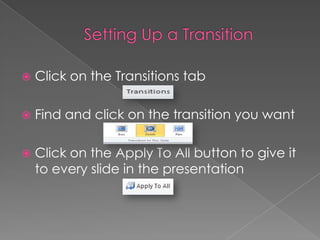
 Click on the Transitions tab
 Find and click on the transition you want
 Click on the Apply To All button to give it
to every slide in the presentation
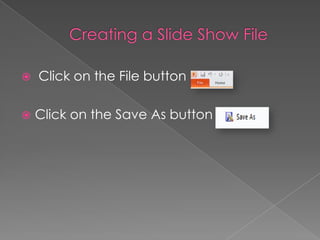
 Click on the File button
 Click on the Save As button
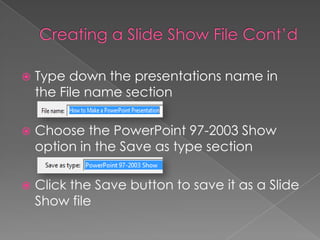
 Type down the presentations name in
the File name section
 Choose the PowerPoint 97-2003 Show
option in the Save as type section
 Click the Save button to save it as a Slide
Show file
 This next slide show will note the RTC
evacuation procedures to demonstrate
what a finished slide show looks like
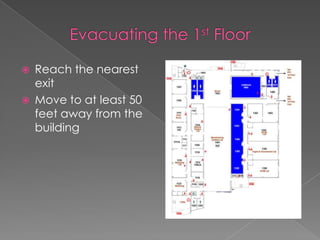
 Reach the nearest
exit
 Move to at least 50
feet away from the
building
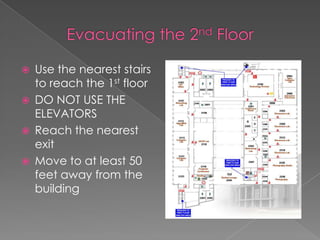
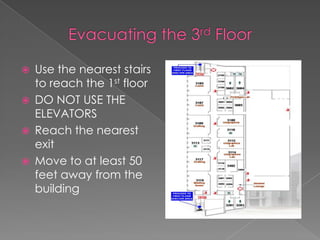
 Use the nearest stairs
to reach the 1st floor
 DO NOT USE THE
ELEVATORS
 Reach the nearest
exit
 Move to at least 50
feet away from the
building
 Use the nearest stairs
to reach the 1st floor
 DO NOT USE THE
ELEVATORS
 Reach the nearest
exit
 Move to at least 50
feet away from the
building

How to Make a PowerPoint Presentation

  • 2.
     Open upMicrosoft PowerPoint  Create a new presentation  Change the theme  Add slides to the presentation  Add text and images to the slides  Setup a transition between them  Create a slide show for the presentation
  • 3.
     Click onthe Start button to bring its menu  Click on All Programs or similar to bring up a list of folders and icons
  • 4.
     Click onthe Microsoft Office folder  Click on the Microsoft PowerPoint shortcut to open up the program
  • 5.
     A newpresentation is created automatically when the program opens  To make one manually, click on the File button  Click on the New button  Click on the Blank presentation button
  • 6.
     Click onthe Design tab  Look for the Themes section  Find the theme that you want and click on it
  • 7.
     Click onthe Home tab  Click on the New Slide button to bring up a list of layouts  Find the layout you want and click on it
  • 8.
     Click onthe box near the top of a slide where it says ‘Click to add title’  Type your title within this box
  • 9.
     Click inthe upper-most part of the text box below the title  This will create a bullet within it  Type what you need and press Enter to create a new bullet
  • 10.
     Click onthe slide where you want the picture to go  Click on the Insert tab  Click on the Picture button
  • 11.
     Click onthe picture that you want  Click on the Open button to bring your picture into the presentation
  • 12.
     Click onthe Transitions tab  Find and click on the transition you want  Click on the Apply To All button to give it to every slide in the presentation
  • 13.
     Click onthe File button  Click on the Save As button
  • 14.
     Type downthe presentations name in the File name section  Choose the PowerPoint 97-2003 Show option in the Save as type section  Click the Save button to save it as a Slide Show file
  • 15.
     This nextslide show will note the RTC evacuation procedures to demonstrate what a finished slide show looks like
  • 16.
     Reach thenearest exit  Move to at least 50 feet away from the building
  • 17.
     Use thenearest stairs to reach the 1st floor  DO NOT USE THE ELEVATORS  Reach the nearest exit  Move to at least 50 feet away from the building
  • 18.
     Use thenearest stairs to reach the 1st floor  DO NOT USE THE ELEVATORS  Reach the nearest exit  Move to at least 50 feet away from the building