INTRODUCTION TO
MICROSOFT POWERPOINT
Created by: Joshua Ferris
LEARNING OBJECTIVES:
After following this training you will be able to:
 Create new Power Point presentation.
 Change the theme of a presentation.
 Add text to your presentation.
 Add new slides to your presentation.
 Add images to a presentation.
 Animate the transition between slides.
 Create a slide show for presentation.
STEP ONE: CREATING A NEW POWERPOINT
PRESENTATION
• Click on the Windows Start Icon
• Select All Programs
• Select Microsoft Office
• Select Microsoft PowerPoint
Windows Start Icon
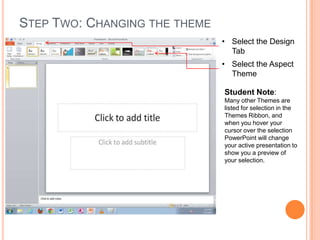
STEP TWO: CHANGING THE THEME
• Select the Design
Tab
• Select the Aspect
Theme
Student Note:
Many other Themes are
listed for selection in the
Themes Ribbon, and
when you hover your
cursor over the selection
PowerPoint will change
your active presentation to
show you a preview of
your selection.
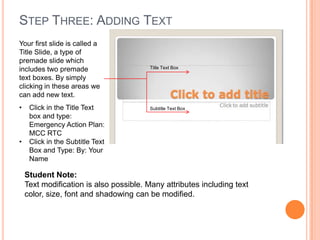
STEP THREE: ADDING TEXT
Your first slide is called a
Title Slide, a type of
premade slide which
includes two premade
text boxes. By simply
clicking in these areas we
can add new text.
Title Text Box
Subtitle Text Box• Click in the Title Text
box and type:
Emergency Action Plan:
MCC RTC
• Click in the Subtitle Text
Box and Type: By: Your
Name
Student Note:
Text modification is also possible. Many attributes including text
color, size, font and shadowing can be modified.
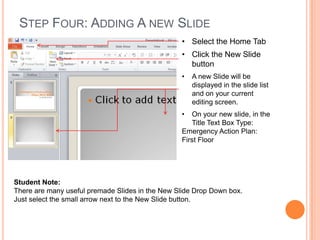
STEP FOUR: ADDING A NEW SLIDE
• Select the Home Tab
• Click the New Slide
button
• A new Slide will be
displayed in the slide list
and on your current
editing screen.
• On your new slide, in the
Title Text Box Type:
Emergency Action Plan:
First Floor
Student Note:
There are many useful premade Slides in the New Slide Drop Down box.
Just select the small arrow next to the New Slide button.
STEP FIVE: INSERTING IMAGES
• Select the ‘Insert Picture
from File’ Icon
• A dialog window for
file selection will
appear. Select the
included file
RTCFirstFloor.jpg to
insert it into your
presentation.
• Follow the same
process to create two
new slides for floors two
and three.
• Type the titles for floors
two and three.
• Insert file
RTCSecondFloor.jpg
and RTCThirdFloor.jpg
onto the new slides.
STEP SIX: ADDING TRANSITIONS
• Select the
Transitions
Tab.
• Select the
Reveal
Transition.
• Select the
‘Apply To
All’ button.
Student Note:
There are also many different transition types. These transitions can
dramatically change the way your slideshow behaves.
STEP SEVEN: CREATING A SLIDE SHOW
PRESENTATION (.PPS FILE)
• Select the File tab.
• Select ‘Save as’
When the ‘Save As’ dialog box
appears, change your Save
as type to PowerPoint
Show(*.ppsx)

PowerPoint User Introduction

  • 1.
  • 2.
    LEARNING OBJECTIVES: After followingthis training you will be able to:  Create new Power Point presentation.  Change the theme of a presentation.  Add text to your presentation.  Add new slides to your presentation.  Add images to a presentation.  Animate the transition between slides.  Create a slide show for presentation.
  • 3.
    STEP ONE: CREATINGA NEW POWERPOINT PRESENTATION • Click on the Windows Start Icon • Select All Programs • Select Microsoft Office • Select Microsoft PowerPoint Windows Start Icon
  • 4.
    STEP TWO: CHANGINGTHE THEME • Select the Design Tab • Select the Aspect Theme Student Note: Many other Themes are listed for selection in the Themes Ribbon, and when you hover your cursor over the selection PowerPoint will change your active presentation to show you a preview of your selection.
  • 5.
    STEP THREE: ADDINGTEXT Your first slide is called a Title Slide, a type of premade slide which includes two premade text boxes. By simply clicking in these areas we can add new text. Title Text Box Subtitle Text Box• Click in the Title Text box and type: Emergency Action Plan: MCC RTC • Click in the Subtitle Text Box and Type: By: Your Name Student Note: Text modification is also possible. Many attributes including text color, size, font and shadowing can be modified.
  • 6.
    STEP FOUR: ADDINGA NEW SLIDE • Select the Home Tab • Click the New Slide button • A new Slide will be displayed in the slide list and on your current editing screen. • On your new slide, in the Title Text Box Type: Emergency Action Plan: First Floor Student Note: There are many useful premade Slides in the New Slide Drop Down box. Just select the small arrow next to the New Slide button.
  • 7.
    STEP FIVE: INSERTINGIMAGES • Select the ‘Insert Picture from File’ Icon • A dialog window for file selection will appear. Select the included file RTCFirstFloor.jpg to insert it into your presentation. • Follow the same process to create two new slides for floors two and three. • Type the titles for floors two and three. • Insert file RTCSecondFloor.jpg and RTCThirdFloor.jpg onto the new slides.
  • 8.
    STEP SIX: ADDINGTRANSITIONS • Select the Transitions Tab. • Select the Reveal Transition. • Select the ‘Apply To All’ button. Student Note: There are also many different transition types. These transitions can dramatically change the way your slideshow behaves.
  • 9.
    STEP SEVEN: CREATINGA SLIDE SHOW PRESENTATION (.PPS FILE) • Select the File tab. • Select ‘Save as’ When the ‘Save As’ dialog box appears, change your Save as type to PowerPoint Show(*.ppsx)