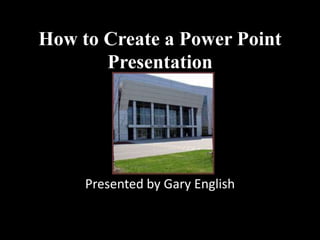
How to Create a Power Point
       Presentation


     Presented by Gary English
Before You Begin
• Plan what information you need to share.

• Gather necessary information and images.
• For this exercise I will be creating a Power
  Point on the “Evacuation Procedures for the
  RTC Building”
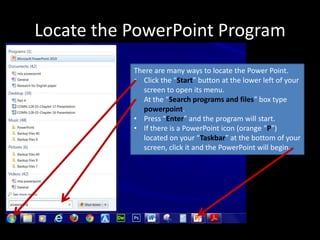
Locate the PowerPoint Program
           There are many ways to locate the Power Point.
           • Click the “Start” button at the lower left of your
             screen to open its menu.
           • At the “Search programs and files” box type
             powerpoint.
           • Press “Enter” and the program will start.
           • If there is a PowerPoint icon (orange “P”)
             located on your “Taskbar” at the bottom of your
             screen, click it and the PowerPoint will begin.
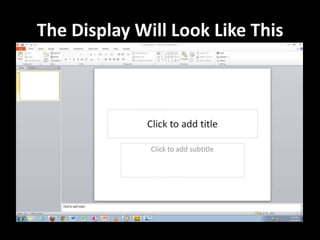
The Display Will Look Like This
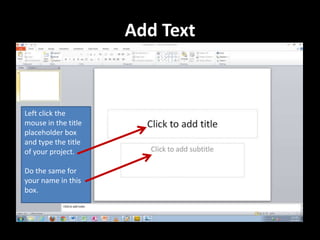
Add Text


Left click the
mouse in the title
placeholder box
and type the title
of your project.

Do the same for
your name in this
box.
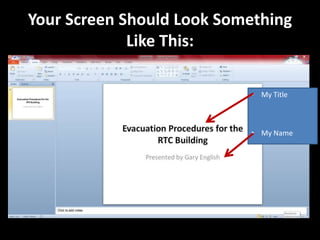
Your Screen Should Look Something
             Like This:

                           • My Title


                           • My Name
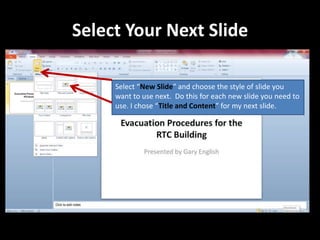
Select Your Next Slide

     Select “New Slide” and choose the style of slide you
     want to use next. Do this for each new slide you need to
     use. I chose “Title and Content” for my next slide.
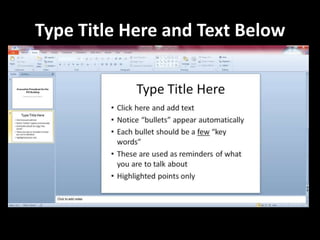
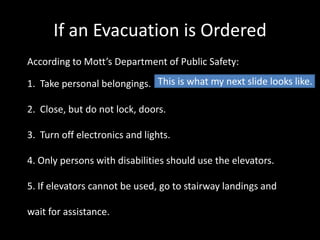
Type Title Here and Text Below
If an Evacuation is Ordered
According to Mott’s Department of Public Safety:

1. Take personal belongings. This is what my next slide looks like.

2. Close, but do not lock, doors.

3. Turn off electronics and lights.

4. Only persons with disabilities should use the elevators.

5. If elevators cannot be used, go to stairway landings and

wait for assistance.
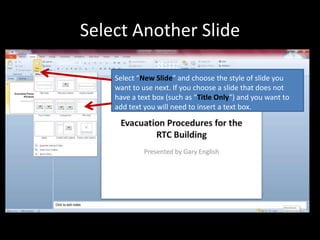
Select Another Slide

    Select “New Slide” and choose the style of slide you
    want to use next. If you choose a slide that does not
    have a text box (such as “Title Only”) and you want to
    add text you will need to insert a text box.
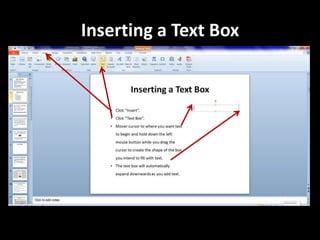
Inserting a Text Box
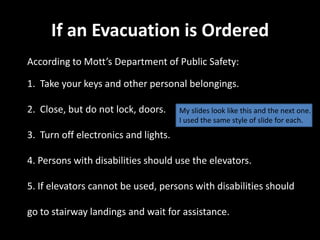
If an Evacuation is Ordered
According to Mott’s Department of Public Safety:

1. Take your keys and other personal belongings.

2. Close, but do not lock, doors.     My slides look like this and the next one.
                                      I used the same style of slide for each.
3. Turn off electronics and lights.

4. Persons with disabilities should use the elevators.

5. If elevators cannot be used, persons with disabilities should

go to stairway landings and wait for assistance.
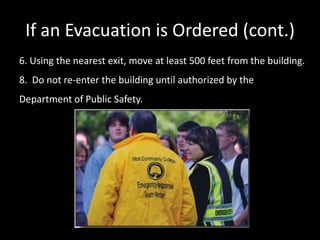
If an Evacuation is Ordered (cont.)
6. Avoid using the elevators. Make them available to those with
disabilities.
7. Using the nearest exit, move at least 500 feet from the building.
8. Do not re-enter the building until authorized by the
Department of Public Safety.

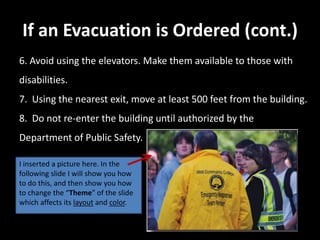
I inserted a picture here. In the
following slide I will show you how
to do this, and then show you how
to change the “Theme” of the slide
which affects its layout and color.
Inserting a Picture
• There are three ways to obtain a picture:

• Clip Art

• Copy and Paste

• Use Computer’s Snipping Tool
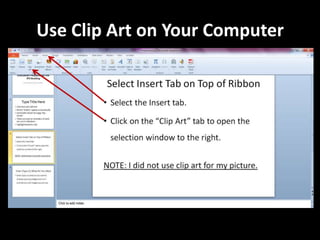
Use Clip Art on Your Computer
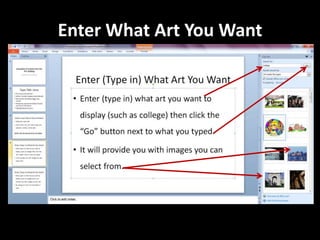
Enter What Art You Want
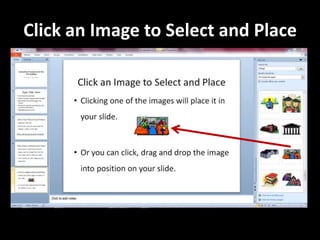
Click an Image to Select and Place
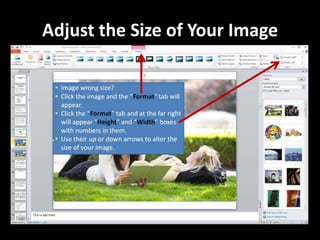
Adjust the Size of Your Image
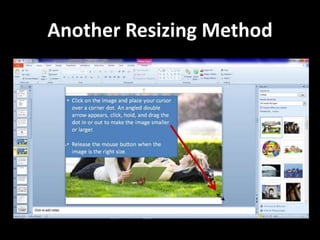
Another Resizing Method
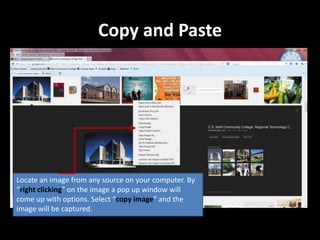
Copy and Paste


Locate an image from any source on your computer. By
“right clicking” on the image a pop up window will
come up with options. Select “copy image” and the
image will be captured.
Use Computer’s “Snipping Tool”
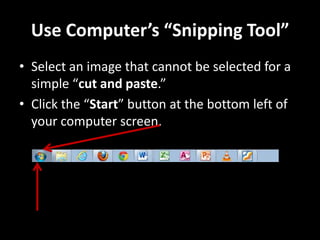
• Select an image that cannot be selected for a
  simple “cut and paste.”
• Click the “Start” button at the bottom left of
  your computer screen.
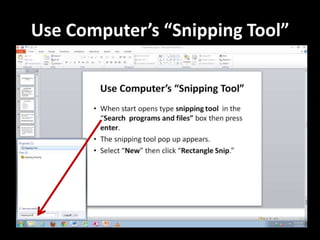
Use Computer’s “Snipping Tool”
Select New to Open Menu
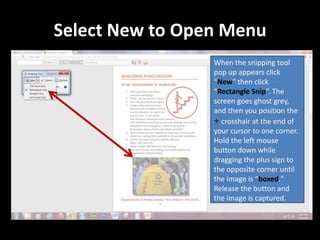
                 When the snipping tool
                 pop up appears click
                 “New” then click
                 “Rectangle Snip”. The
                 screen goes ghost grey,
                 and then you position the
                 + crosshair at the end of
                 your cursor to one corner.
                 Hold the left mouse
                 button down while
                 dragging the plus sign to
                 the opposite corner until
                 the image is “boxed."
                 Release the button and
                 the image is captured.
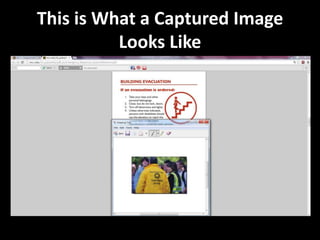
This is What a Captured Image
          Looks Like
If an Evacuation is Ordered (cont.)
6. Avoid using the elevators. Make them available to those with
disabilities.
7. Using the nearest exit, move at least 500 feet from the building.
8. Do not re-enter the building until authorized by the
Department of Public Safety.
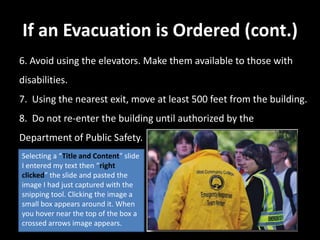
Selecting a “Title and Content” slide
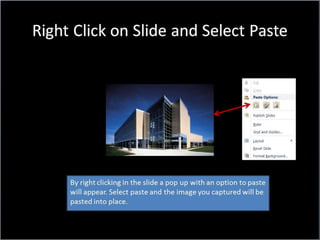
I entered my text then “right
clicked” the slide and pasted the
image I had just captured with the
snipping tool. Clicking the image a
small box appears around it. When
you hover near the top of the box a
crossed arrows image appears.
If an Evacuation is Ordered (cont.)
6. Avoid using the elevators. Make them available to those with
disabilities.
7. Using the nearest exit, move at least 500 feet from the building.
8. Do not re-enter the building until authorized by the
Department of Public Safety.
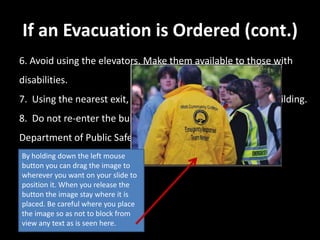
By holding down the left mouse
button you can drag the image to
wherever you want on your slide to
position it. When you release the
button the image stay where it is
placed. Be careful where you place
the image so as not to block from
view any text as is seen here.
Continue to Add Text and Images Till
          You Are Finished
• Continue to add bullet points as needed.

• You can add images wherever you think they would
  enhance your presentation.

• The next thing you may want to do is change the
  “Theme” of the slides.

• This affects the layout of each slide’s design and the
  color of the text and background.
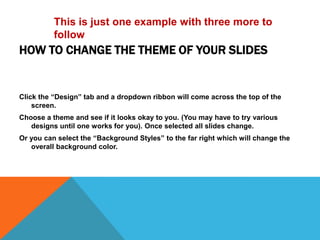
How to Change the Theme of Your
            Slides
This is just one example with three more to
          follow
HOW TO CHANGE THE THEME OF YOUR SLIDES


Click the “Design” tab and a dropdown ribbon will come across the top of the
    screen.
Choose a theme and see if it looks okay to you. (You may have to try various
   designs until one works for you). Once selected all slides change.
Or you can select the “Background Styles” to the far right which will change the
   overall background color.
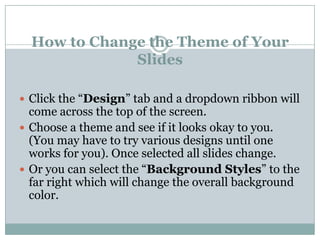
How to Change the Theme of Your
              Slides

 Click the “Design” tab and a dropdown ribbon will
  come across the top of the screen.
 Choose a theme and see if it looks okay to you.
  (You may have to try various designs until one
  works for you). Once selected all slides change.
 Or you can select the “Background Styles” to the
  far right which will change the overall background
  color.
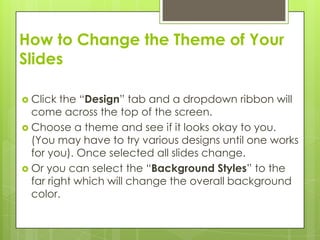
How to Change the Theme of Your
Slides

 Click  the “Design” tab and a dropdown ribbon will
  come across the top of the screen.
 Choose a theme and see if it looks okay to you.
  (You may have to try various designs until one works
  for you). Once selected all slides change.
 Or you can select the “Background Styles” to the
  far right which will change the overall background
  color.
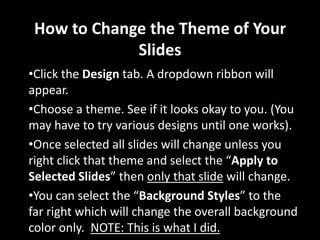
How to Change the Theme of Your
             Slides
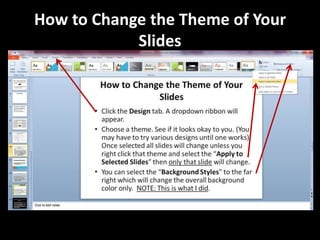
•Click the Design tab. A dropdown ribbon will
appear.
•Choose a theme. See if it looks okay to you. (You
may have to try various designs until one works).
•Once selected all slides will change unless you
right click that theme and select the “Apply to
Selected Slides” then only that slide will change.
•You can select the “Background Styles” to the
far right which will change the overall background
color only. NOTE: This is what I did.
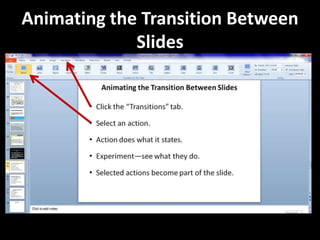
Animating the Transition Between
             Slides
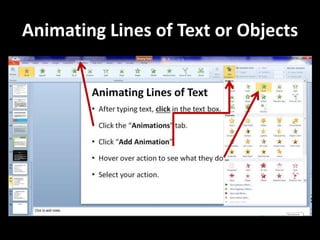
Animating Lines of Text or Objects
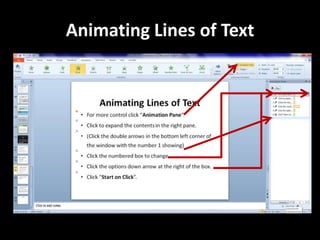
Animating Lines of Text
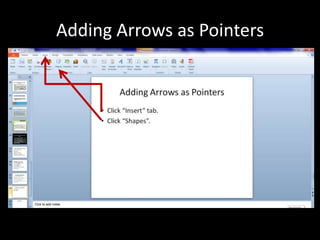
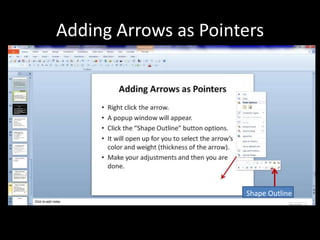
Adding Arrows as Pointers


                      Shape Outline
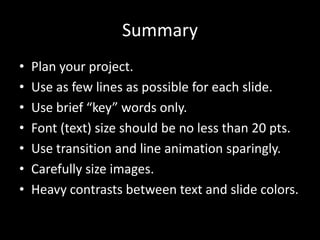
Summary
•   Plan your project.
•   Use as few lines as possible for each slide.
•   Use brief “key” words only.
•   Font (text) size should be no less than 20 pts.
•   Use transition and line animation sparingly.
•   Carefully size images.
•   Heavy contrasts between text and slide colors.
Evacuation Procedures for the
        RTC Building

      Presented by Gary English
If an Evacuation is Ordered
According to Mott’s Department of Public Safety:

1. Take personal belongings.

2. Close, but do not lock, doors.

3. Turn off electronics and lights.

4. Only persons with disabilities should use the elevators.

5. If elevators cannot be used, go to stairway landings and

wait for assistance.
If an Evacuation is Ordered (cont.)
6. Using the nearest exit, move at least 500 feet from the building.
8. Do not re-enter the building until authorized by the
Department of Public Safety.
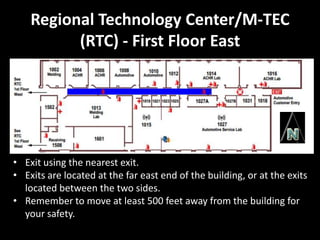
Regional Technology Center/M-TEC
          (RTC) - First Floor East


• Exit using the nearest exit.
• Exits are located at the far east end of the building, or at the exits
  located between the two sides.
• Remember to move at least 500 feet away from the building for
  your safety.
Regional Technology Center/M-TEC
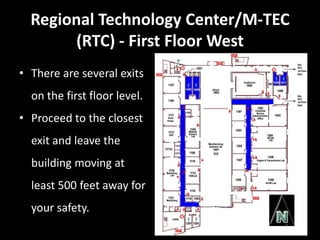
        (RTC) - First Floor West
• There are several exits
  on the first floor level.
• Proceed to the closest
  exit and leave the
  building moving at
  least 500 feet away for
  your safety.
Regional Technology Center/M-TEC
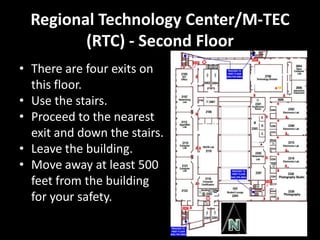
         (RTC) - Second Floor
• There are four exits on
  this floor.
• Use the stairs.
• Proceed to the nearest
  exit and down the stairs.
• Leave the building.
• Move away at least 500
  feet from the building
  for your safety.
Regional Technology Center/M-TEC
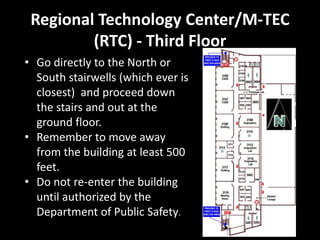
         (RTC) - Third Floor
• Go directly to the North or
  South stairwells (which ever is
  closest) and proceed down
  the stairs and out at the
  ground floor.
• Remember to move away
  from the building at least 500
  feet.
• Do not re-enter the building
  until authorized by the
  Department of Public Safety.
Conclusion
• Any Questions?

• Any Comments or Suggestions for
 Improvement?

• Thank You for Your Attendance.

How to make a PowerPoint by GEnglish

  • 1.
    How to Createa Power Point Presentation Presented by Gary English
  • 2.
    Before You Begin •Plan what information you need to share. • Gather necessary information and images. • For this exercise I will be creating a Power Point on the “Evacuation Procedures for the RTC Building”
  • 3.
    Locate the PowerPointProgram There are many ways to locate the Power Point. • Click the “Start” button at the lower left of your screen to open its menu. • At the “Search programs and files” box type powerpoint. • Press “Enter” and the program will start. • If there is a PowerPoint icon (orange “P”) located on your “Taskbar” at the bottom of your screen, click it and the PowerPoint will begin.
  • 4.
    The Display WillLook Like This
  • 5.
    Add Text Left clickthe mouse in the title placeholder box and type the title of your project. Do the same for your name in this box.
  • 6.
    Your Screen ShouldLook Something Like This: • My Title • My Name
  • 7.
    Select Your NextSlide Select “New Slide” and choose the style of slide you want to use next. Do this for each new slide you need to use. I chose “Title and Content” for my next slide.
  • 8.
    Type Title Hereand Text Below
  • 9.
    If an Evacuationis Ordered According to Mott’s Department of Public Safety: 1. Take personal belongings. This is what my next slide looks like. 2. Close, but do not lock, doors. 3. Turn off electronics and lights. 4. Only persons with disabilities should use the elevators. 5. If elevators cannot be used, go to stairway landings and wait for assistance.
  • 10.
    Select Another Slide Select “New Slide” and choose the style of slide you want to use next. If you choose a slide that does not have a text box (such as “Title Only”) and you want to add text you will need to insert a text box.
  • 11.
  • 12.
    If an Evacuationis Ordered According to Mott’s Department of Public Safety: 1. Take your keys and other personal belongings. 2. Close, but do not lock, doors. My slides look like this and the next one. I used the same style of slide for each. 3. Turn off electronics and lights. 4. Persons with disabilities should use the elevators. 5. If elevators cannot be used, persons with disabilities should go to stairway landings and wait for assistance.
  • 13.
    If an Evacuationis Ordered (cont.) 6. Avoid using the elevators. Make them available to those with disabilities. 7. Using the nearest exit, move at least 500 feet from the building. 8. Do not re-enter the building until authorized by the Department of Public Safety. I inserted a picture here. In the following slide I will show you how to do this, and then show you how to change the “Theme” of the slide which affects its layout and color.
  • 14.
    Inserting a Picture •There are three ways to obtain a picture: • Clip Art • Copy and Paste • Use Computer’s Snipping Tool
  • 15.
    Use Clip Arton Your Computer
  • 16.
  • 17.
    Click an Imageto Select and Place
  • 18.
    Adjust the Sizeof Your Image
  • 19.
  • 20.
    Copy and Paste Locatean image from any source on your computer. By “right clicking” on the image a pop up window will come up with options. Select “copy image” and the image will be captured.
  • 22.
    Use Computer’s “SnippingTool” • Select an image that cannot be selected for a simple “cut and paste.” • Click the “Start” button at the bottom left of your computer screen.
  • 23.
  • 24.
    Select New toOpen Menu When the snipping tool pop up appears click “New” then click “Rectangle Snip”. The screen goes ghost grey, and then you position the + crosshair at the end of your cursor to one corner. Hold the left mouse button down while dragging the plus sign to the opposite corner until the image is “boxed." Release the button and the image is captured.
  • 25.
    This is Whata Captured Image Looks Like
  • 26.
    If an Evacuationis Ordered (cont.) 6. Avoid using the elevators. Make them available to those with disabilities. 7. Using the nearest exit, move at least 500 feet from the building. 8. Do not re-enter the building until authorized by the Department of Public Safety. Selecting a “Title and Content” slide I entered my text then “right clicked” the slide and pasted the image I had just captured with the snipping tool. Clicking the image a small box appears around it. When you hover near the top of the box a crossed arrows image appears.
  • 27.
    If an Evacuationis Ordered (cont.) 6. Avoid using the elevators. Make them available to those with disabilities. 7. Using the nearest exit, move at least 500 feet from the building. 8. Do not re-enter the building until authorized by the Department of Public Safety. By holding down the left mouse button you can drag the image to wherever you want on your slide to position it. When you release the button the image stay where it is placed. Be careful where you place the image so as not to block from view any text as is seen here.
  • 28.
    Continue to AddText and Images Till You Are Finished • Continue to add bullet points as needed. • You can add images wherever you think they would enhance your presentation. • The next thing you may want to do is change the “Theme” of the slides. • This affects the layout of each slide’s design and the color of the text and background.
  • 29.
    How to Changethe Theme of Your Slides
  • 30.
    This is justone example with three more to follow HOW TO CHANGE THE THEME OF YOUR SLIDES Click the “Design” tab and a dropdown ribbon will come across the top of the screen. Choose a theme and see if it looks okay to you. (You may have to try various designs until one works for you). Once selected all slides change. Or you can select the “Background Styles” to the far right which will change the overall background color.
  • 31.
    How to Changethe Theme of Your Slides  Click the “Design” tab and a dropdown ribbon will come across the top of the screen.  Choose a theme and see if it looks okay to you. (You may have to try various designs until one works for you). Once selected all slides change.  Or you can select the “Background Styles” to the far right which will change the overall background color.
  • 32.
    How to Changethe Theme of Your Slides  Click the “Design” tab and a dropdown ribbon will come across the top of the screen.  Choose a theme and see if it looks okay to you. (You may have to try various designs until one works for you). Once selected all slides change.  Or you can select the “Background Styles” to the far right which will change the overall background color.
  • 33.
    How to Changethe Theme of Your Slides •Click the Design tab. A dropdown ribbon will appear. •Choose a theme. See if it looks okay to you. (You may have to try various designs until one works). •Once selected all slides will change unless you right click that theme and select the “Apply to Selected Slides” then only that slide will change. •You can select the “Background Styles” to the far right which will change the overall background color only. NOTE: This is what I did.
  • 34.
  • 35.
    Animating Lines ofText or Objects
  • 36.
  • 37.
  • 38.
    Adding Arrows asPointers Shape Outline
  • 39.
    Summary • Plan your project. • Use as few lines as possible for each slide. • Use brief “key” words only. • Font (text) size should be no less than 20 pts. • Use transition and line animation sparingly. • Carefully size images. • Heavy contrasts between text and slide colors.
  • 40.
    Evacuation Procedures forthe RTC Building Presented by Gary English
  • 41.
    If an Evacuationis Ordered According to Mott’s Department of Public Safety: 1. Take personal belongings. 2. Close, but do not lock, doors. 3. Turn off electronics and lights. 4. Only persons with disabilities should use the elevators. 5. If elevators cannot be used, go to stairway landings and wait for assistance.
  • 42.
    If an Evacuationis Ordered (cont.) 6. Using the nearest exit, move at least 500 feet from the building. 8. Do not re-enter the building until authorized by the Department of Public Safety.
  • 43.
    Regional Technology Center/M-TEC (RTC) - First Floor East • Exit using the nearest exit. • Exits are located at the far east end of the building, or at the exits located between the two sides. • Remember to move at least 500 feet away from the building for your safety.
  • 44.
    Regional Technology Center/M-TEC (RTC) - First Floor West • There are several exits on the first floor level. • Proceed to the closest exit and leave the building moving at least 500 feet away for your safety.
  • 45.
    Regional Technology Center/M-TEC (RTC) - Second Floor • There are four exits on this floor. • Use the stairs. • Proceed to the nearest exit and down the stairs. • Leave the building. • Move away at least 500 feet from the building for your safety.
  • 46.
    Regional Technology Center/M-TEC (RTC) - Third Floor • Go directly to the North or South stairwells (which ever is closest) and proceed down the stairs and out at the ground floor. • Remember to move away from the building at least 500 feet. • Do not re-enter the building until authorized by the Department of Public Safety.
  • 47.
    Conclusion • Any Questions? •Any Comments or Suggestions for Improvement? • Thank You for Your Attendance.