TRAINING MODULE ONE: 
HOW TO MAKE A POWERPOINT 
PRESENTATION 
By: Tim Sweeney 
For MapIt, Inc.
OBJECTIVES FOR TRAINING 
INCLUDE: 
• Creating a new Power Point presentation 
• Changing the theme of a presentation 
• Adding text to slides 
• Adding slides to a presentation 
• Adding images to a presentation 
• Animating the transition between slides 
• Creating a slide show for presentation (.pps)
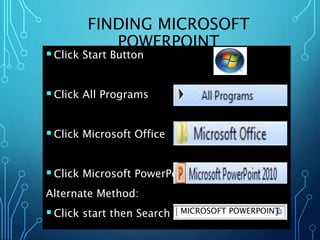
FINDING MICROSOFT 
POWERPOINT 
 Click Start Button 
 Click All Programs 
 Click Microsoft Office 
 Click Microsoft PowerPoint 
Alternate Method: 
 Click start then Search MICROSOFT POWERPOINT
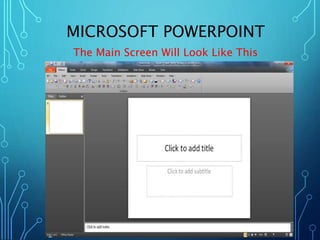
MICROSOFT POWERPOINT 
The Main Screen Will Look Like This
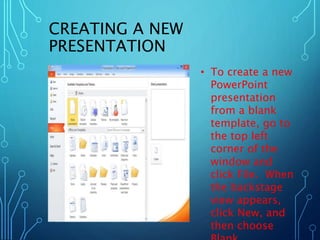
CREATING A NEW 
PRESENTATION 
• To create a new 
PowerPoint 
presentation 
from a blank 
template, go to 
the top left 
corner of the 
window and 
click File. When 
the backstage 
view appears, 
click New, and 
then choose 
Blank
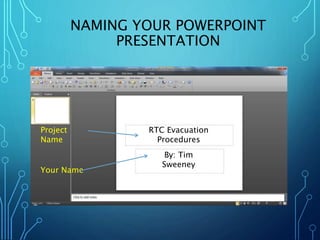
NAMING YOUR POWERPOINT 
PRESENTATION 
Project 
Name 
Your Name 
RTC Evacuation 
Procedures 
By: Tim 
Sweeney
NAMING YOUR POWERPOINT 
PRESENTATION 
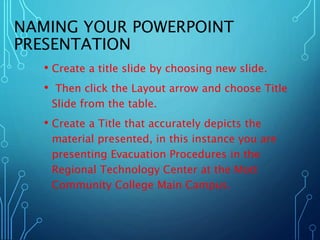
• Create a title slide by choosing new slide. 
• Then click the Layout arrow and choose Title 
Slide from the table. 
• Create a Title that accurately depicts the 
material presented, in this instance you are 
presenting Evacuation Procedures in the 
Regional Technology Center at the Mott 
Community College Main Campus.
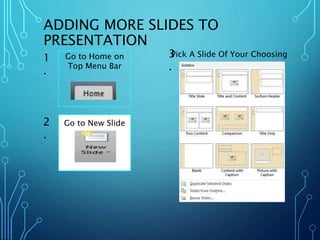
ADDING MORE SLIDES TO 
PRESENTATION 
Go to Home on 
Top Menu Bar 
Go to New Slide 
1 
. 
2 
. 
3Pick A Slide Of Your Choosing 
.
ADDING MORE SLIDES TO 
PRESENTATION 
• By clicking New Slide in the Home tab of the 
Ribbon toolbar, a table of different styles of 
slides drops down. 
• Each varies in layout, with some having 
options allowing for easier integration of 
tables, clip art, pictures, and other additional 
graphical aids.
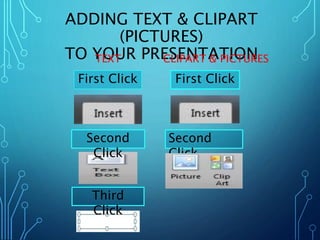
ADDING TEXT & CLIPART 
(PICTURES) 
TO YOUR PRESENTATION 
TEXT CLIPART & PICTURES 
First Click 
Second 
Click 
Third 
Click 
First Click 
Second 
Click
ADDING TEXT & CLIPART 
(PICTURES) 
TO YOUR PRESENTATION 
TEXT 
• Text may be added 
to slides in various 
ways. After opening 
a slide, there is an 
option to “Click to 
add text”. 
• In addition, text 
boxes may be added 
anywhere on the 
slide using the Insert 
tab, and clicking Text 
Box. 
CLIPART & PICTURES 
• Adding images is much like 
adding text. You can either 
choose one of the icons to add 
an image, or choose the Insert 
tab (right of Home) to access 
the images. 
• Once selected, images can be 
re-sized by clicking and 
dragging the boxes that 
surround the image. The green 
circle rotates the image 
clockwise. 
• Images can be quickly cut, 
copied, and pasted by right
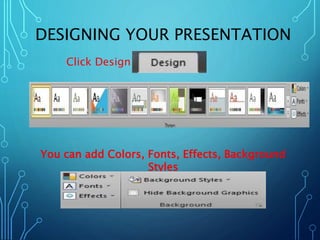
DESIGNING YOUR PRESENTATION 
Click Design 
You can add Colors, Fonts, Effects, Background 
Styles
DESIGNING YOUR 
PRESENTATION 
• An assortment of themes are available in the 
design tab of the ribbon toolbar. Themes offer 
various templates for color schemes and 
layouts that will work to compliment your 
presentation when used correctly. 
Make sure text is easy to read, and that slides 
are concise and include objective points.
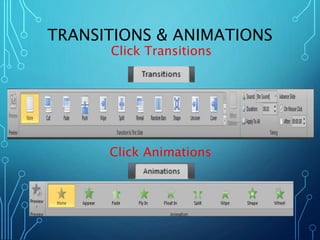
TRANSITIONS & ANIMATIONS 
Click Transitions 
Click Animations
TRANSITIONS & ANIMATIONS 
• The Animations tab, has options for 
customizing the way each slide 
transitions to the next. Advanced 
options are available for further 
customization, including timing, effects, 
and sounds. 
• Transitions can be added to add effects 
to entire slides. 
• Click the slide or image you wish to 
animate, and choose the animation style 
you desire.
CREATE A SLIDE SHOW 
FOR YOUR PRESENTATION 
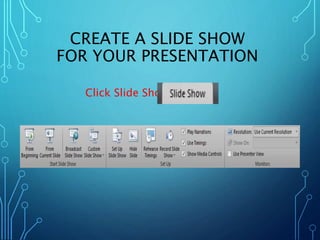
Click Slide Show
CREATE A SLIDE SHOW 
FOR YOUR PRESENTATION 
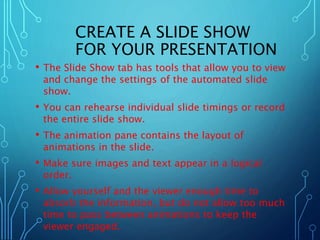
• The Slide Show tab has tools that allow you to view 
and change the settings of the automated slide 
show. 
• You can rehearse individual slide timings or record 
the entire slide show. 
• The animation pane contains the layout of 
animations in the slide. 
• Make sure images and text appear in a logical 
order. 
• Allow yourself and the viewer enough time to 
absorb the information, but do not allow too much 
time to pass between animations to keep the 
viewer engaged.
EVACUATION 
PROCEDURES FOR 
RTC BUILDING
FIRST FLOOR RTC EAST 
EVACUATION 
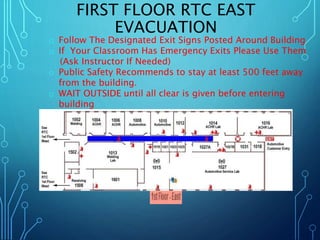
o Follow The Designated Exit Signs Posted Around Building 
o If Your Classroom Has Emergency Exits Please Use Them 
(Ask Instructor If Needed) 
o Public Safety Recommends to stay at least 500 feet away 
from the building. 
o WAIT OUTSIDE until all clear is given before entering 
building
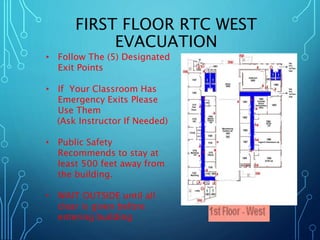
FIRST FLOOR RTC WEST 
EVACUATION 
• Follow The (5) Designated 
Exit Points 
• If Your Classroom Has 
Emergency Exits Please 
Use Them 
(Ask Instructor If Needed) 
• Public Safety 
Recommends to stay at 
least 500 feet away from 
the building. 
• WAIT OUTSIDE until all 
clear is given before 
entering building
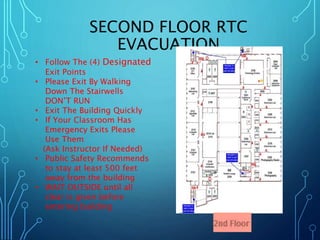
SECOND FLOOR RTC 
EVACUATION 
• Follow The (4) Designated 
Exit Points 
• Please Exit By Walking 
Down The Stairwells 
DON’T RUN 
• Exit The Building Quickly 
• If Your Classroom Has 
Emergency Exits Please 
Use Them 
(Ask Instructor If Needed) 
• Public Safety Recommends 
to stay at least 500 feet 
away from the building 
• WAIT OUTSIDE until all 
clear is given before 
entering building
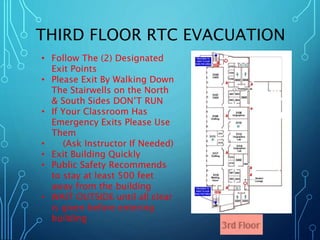
THIRD FLOOR RTC EVACUATION 
• Follow The (2) Designated 
Exit Points 
• Please Exit By Walking Down 
The Stairwells on the North 
& South Sides DON’T RUN 
• If Your Classroom Has 
Emergency Exits Please Use 
Them 
• (Ask Instructor If Needed) 
• Exit Building Quickly 
• Public Safety Recommends 
to stay at least 500 feet 
away from the building 
• WAIT OUTSIDE until all clear 
is given before entering 
building
CLOSING THE 
PRESENTATION 
• THANK YOU FOR YOUR TIME 
• ANY SUGGESTIONS OR COMMENTS ? 
• ANY QUESTIONS ?

TSweeney training end users presentation

  • 1.
    TRAINING MODULE ONE: HOW TO MAKE A POWERPOINT PRESENTATION By: Tim Sweeney For MapIt, Inc.
  • 2.
    OBJECTIVES FOR TRAINING INCLUDE: • Creating a new Power Point presentation • Changing the theme of a presentation • Adding text to slides • Adding slides to a presentation • Adding images to a presentation • Animating the transition between slides • Creating a slide show for presentation (.pps)
  • 3.
    FINDING MICROSOFT POWERPOINT  Click Start Button  Click All Programs  Click Microsoft Office  Click Microsoft PowerPoint Alternate Method:  Click start then Search MICROSOFT POWERPOINT
  • 4.
    MICROSOFT POWERPOINT TheMain Screen Will Look Like This
  • 5.
    CREATING A NEW PRESENTATION • To create a new PowerPoint presentation from a blank template, go to the top left corner of the window and click File. When the backstage view appears, click New, and then choose Blank
  • 6.
    NAMING YOUR POWERPOINT PRESENTATION Project Name Your Name RTC Evacuation Procedures By: Tim Sweeney
  • 7.
    NAMING YOUR POWERPOINT PRESENTATION • Create a title slide by choosing new slide. • Then click the Layout arrow and choose Title Slide from the table. • Create a Title that accurately depicts the material presented, in this instance you are presenting Evacuation Procedures in the Regional Technology Center at the Mott Community College Main Campus.
  • 8.
    ADDING MORE SLIDESTO PRESENTATION Go to Home on Top Menu Bar Go to New Slide 1 . 2 . 3Pick A Slide Of Your Choosing .
  • 9.
    ADDING MORE SLIDESTO PRESENTATION • By clicking New Slide in the Home tab of the Ribbon toolbar, a table of different styles of slides drops down. • Each varies in layout, with some having options allowing for easier integration of tables, clip art, pictures, and other additional graphical aids.
  • 10.
    ADDING TEXT &CLIPART (PICTURES) TO YOUR PRESENTATION TEXT CLIPART & PICTURES First Click Second Click Third Click First Click Second Click
  • 11.
    ADDING TEXT &CLIPART (PICTURES) TO YOUR PRESENTATION TEXT • Text may be added to slides in various ways. After opening a slide, there is an option to “Click to add text”. • In addition, text boxes may be added anywhere on the slide using the Insert tab, and clicking Text Box. CLIPART & PICTURES • Adding images is much like adding text. You can either choose one of the icons to add an image, or choose the Insert tab (right of Home) to access the images. • Once selected, images can be re-sized by clicking and dragging the boxes that surround the image. The green circle rotates the image clockwise. • Images can be quickly cut, copied, and pasted by right
  • 12.
    DESIGNING YOUR PRESENTATION Click Design You can add Colors, Fonts, Effects, Background Styles
  • 13.
    DESIGNING YOUR PRESENTATION • An assortment of themes are available in the design tab of the ribbon toolbar. Themes offer various templates for color schemes and layouts that will work to compliment your presentation when used correctly. Make sure text is easy to read, and that slides are concise and include objective points.
  • 14.
    TRANSITIONS & ANIMATIONS Click Transitions Click Animations
  • 15.
    TRANSITIONS & ANIMATIONS • The Animations tab, has options for customizing the way each slide transitions to the next. Advanced options are available for further customization, including timing, effects, and sounds. • Transitions can be added to add effects to entire slides. • Click the slide or image you wish to animate, and choose the animation style you desire.
  • 16.
    CREATE A SLIDESHOW FOR YOUR PRESENTATION Click Slide Show
  • 17.
    CREATE A SLIDESHOW FOR YOUR PRESENTATION • The Slide Show tab has tools that allow you to view and change the settings of the automated slide show. • You can rehearse individual slide timings or record the entire slide show. • The animation pane contains the layout of animations in the slide. • Make sure images and text appear in a logical order. • Allow yourself and the viewer enough time to absorb the information, but do not allow too much time to pass between animations to keep the viewer engaged.
  • 18.
  • 19.
    FIRST FLOOR RTCEAST EVACUATION o Follow The Designated Exit Signs Posted Around Building o If Your Classroom Has Emergency Exits Please Use Them (Ask Instructor If Needed) o Public Safety Recommends to stay at least 500 feet away from the building. o WAIT OUTSIDE until all clear is given before entering building
  • 20.
    FIRST FLOOR RTCWEST EVACUATION • Follow The (5) Designated Exit Points • If Your Classroom Has Emergency Exits Please Use Them (Ask Instructor If Needed) • Public Safety Recommends to stay at least 500 feet away from the building. • WAIT OUTSIDE until all clear is given before entering building
  • 21.
    SECOND FLOOR RTC EVACUATION • Follow The (4) Designated Exit Points • Please Exit By Walking Down The Stairwells DON’T RUN • Exit The Building Quickly • If Your Classroom Has Emergency Exits Please Use Them (Ask Instructor If Needed) • Public Safety Recommends to stay at least 500 feet away from the building • WAIT OUTSIDE until all clear is given before entering building
  • 22.
    THIRD FLOOR RTCEVACUATION • Follow The (2) Designated Exit Points • Please Exit By Walking Down The Stairwells on the North & South Sides DON’T RUN • If Your Classroom Has Emergency Exits Please Use Them • (Ask Instructor If Needed) • Exit Building Quickly • Public Safety Recommends to stay at least 500 feet away from the building • WAIT OUTSIDE until all clear is given before entering building
  • 23.
    CLOSING THE PRESENTATION • THANK YOU FOR YOUR TIME • ANY SUGGESTIONS OR COMMENTS ? • ANY QUESTIONS ?

Editor's Notes

  • #4 Click the Start Button on the lower left hand of the screen. Click the All Programs Tab Scroll Until You See The Program Microsoft Office When You Find Microsoft Office Open Program Microsoft Powerpoint
  • #9 When on Microsoft Office you should see a top ribbon with all these tabs: File Menus, Home, Insert, Design, Transitions, Animations, Slide Show, Review, View , Format