

PowerPoint Presentation
Mr. S P Sajjan
Dept. Computer Science
Karnatak University, Dharwad
Why PowerPoint?
 To hold interest
 To focus attention
 To guide discussions/overviews
 To create a poster for a conference
Tip for Oral Presentations
Have only the minimum required text on
each slide.
Be consistent and careful in your use of
animations and transitions.
Be consistent in your choice of bullets,
font,colors,Tables and Figures.
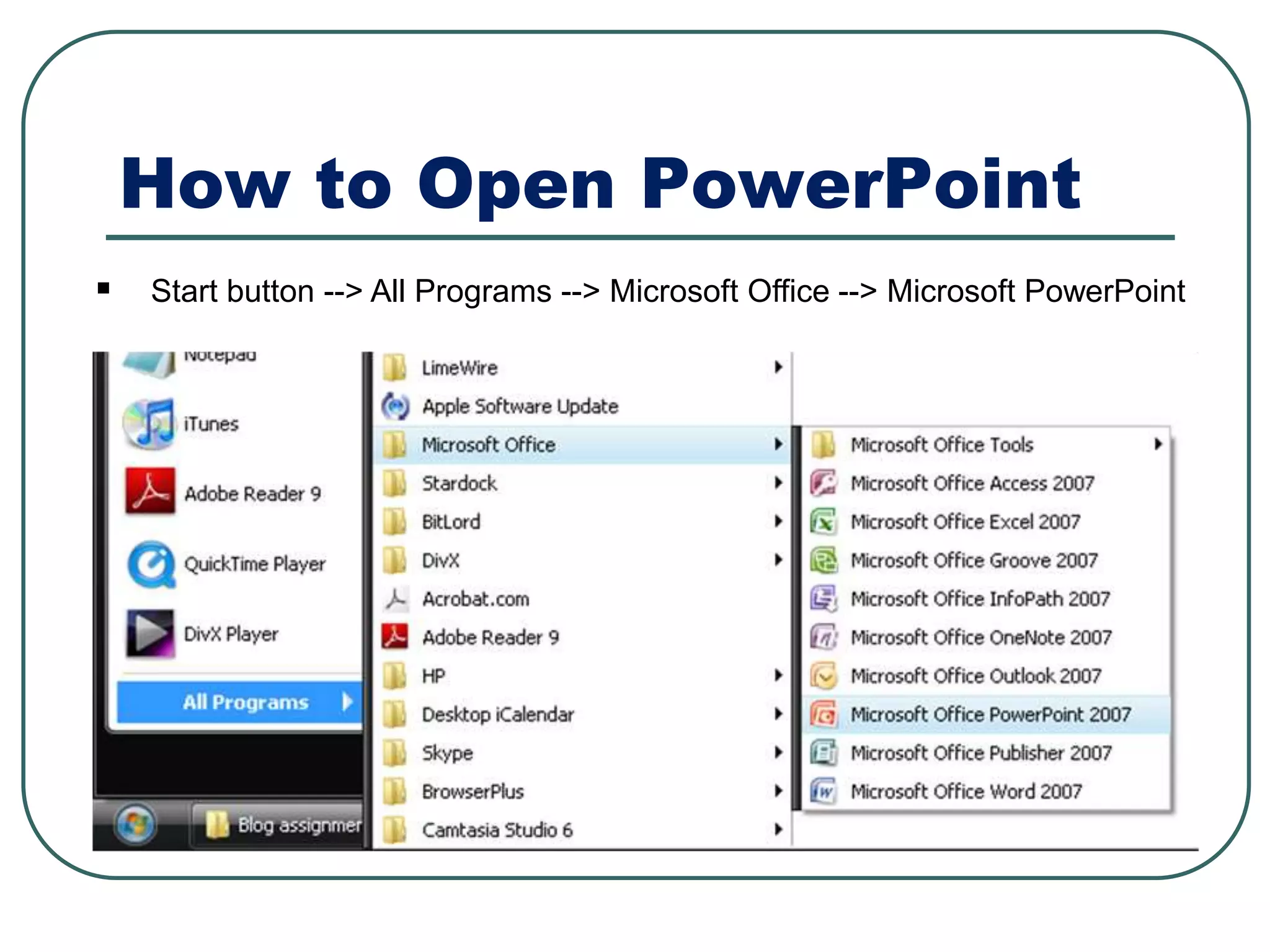
How to Open PowerPoint
 Start button --> All Programs --> Microsoft Office --> Microsoft PowerPoint
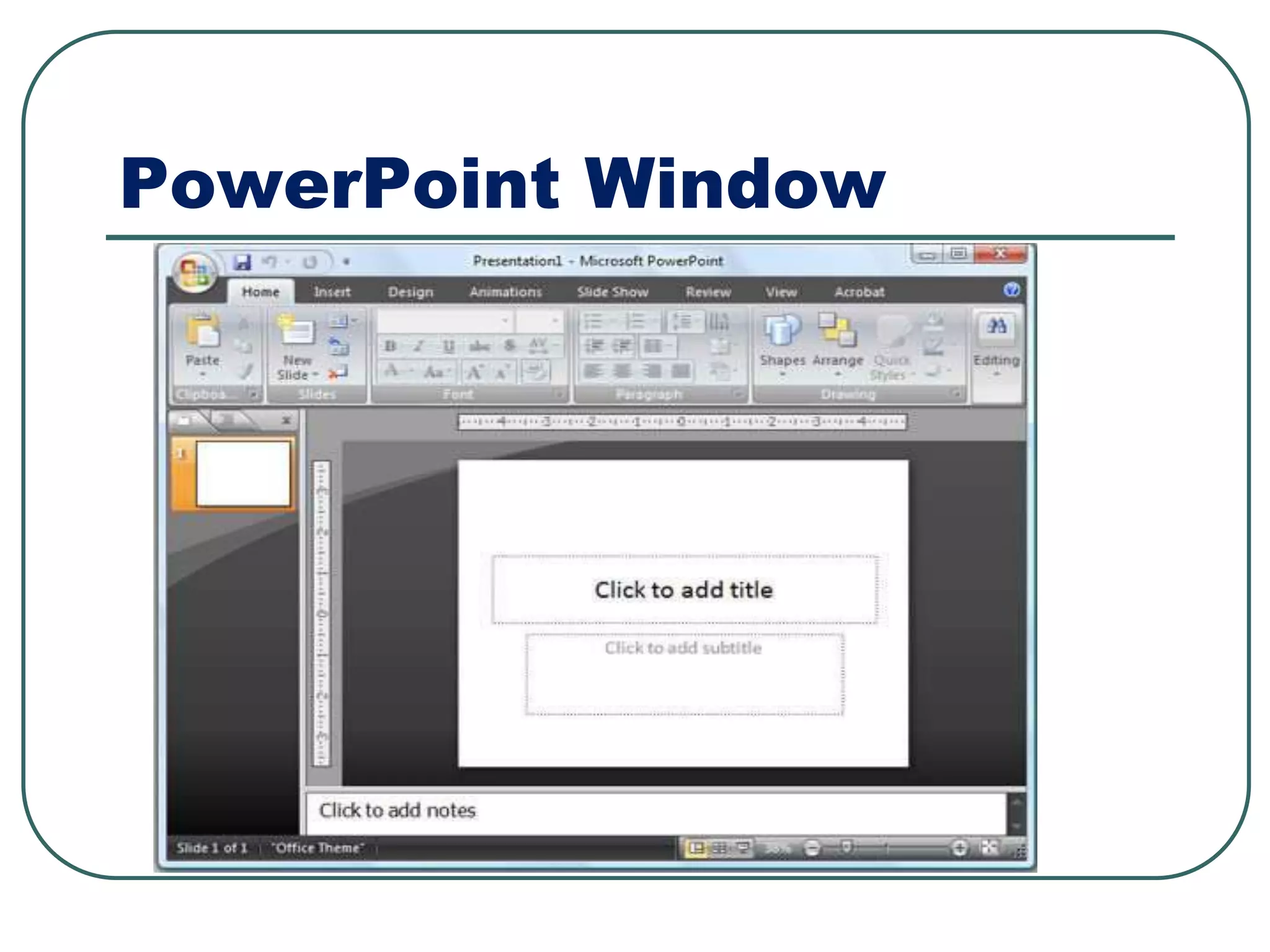
PowerPoint Window
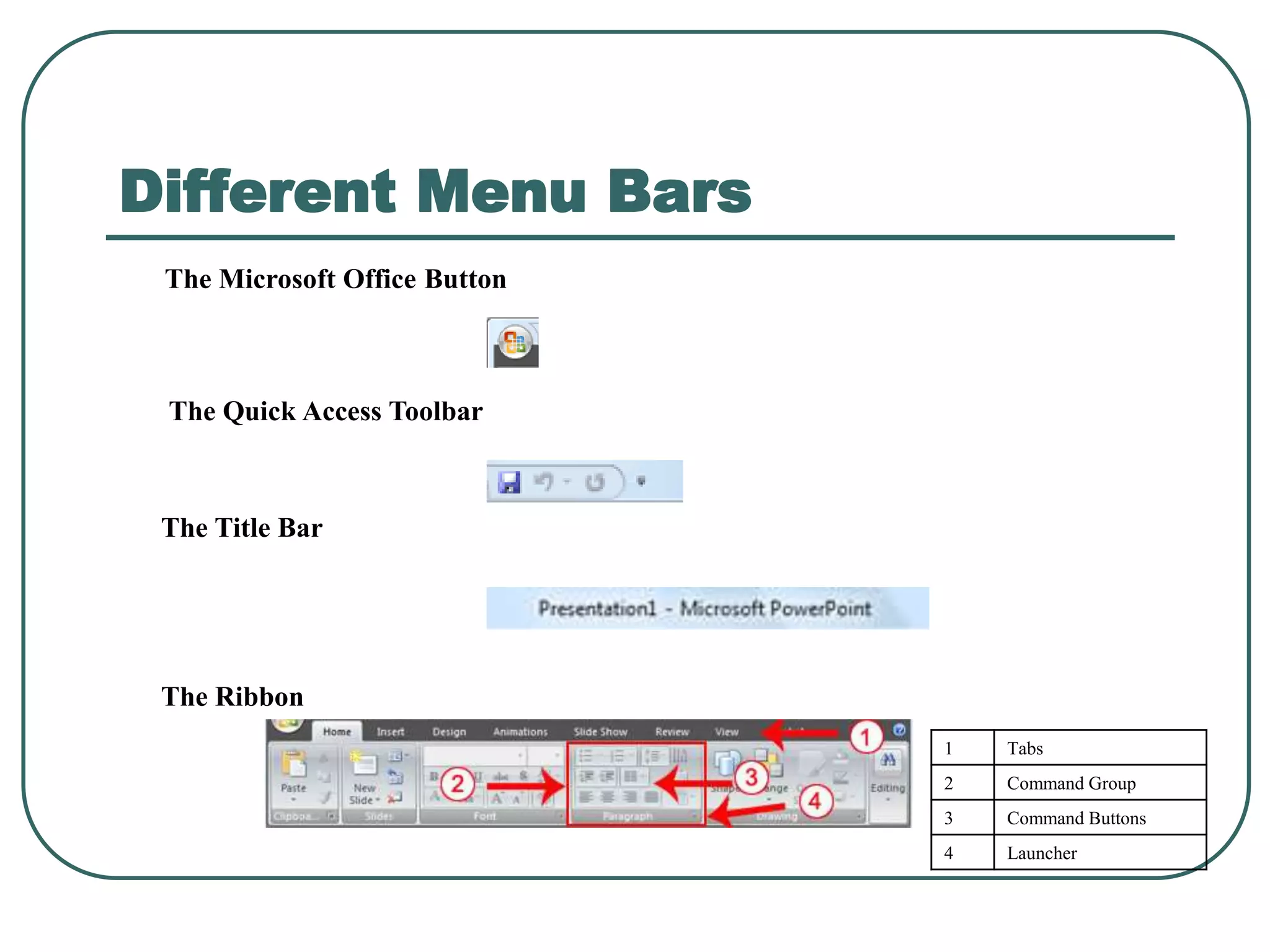
Different Menu Bars
The Microsoft Office Button
The Quick Access Toolbar
The Title Bar
1 Tabs
2 Command Group
3 Command Buttons
4 Launcher
The Ribbon
Different Menu Bars
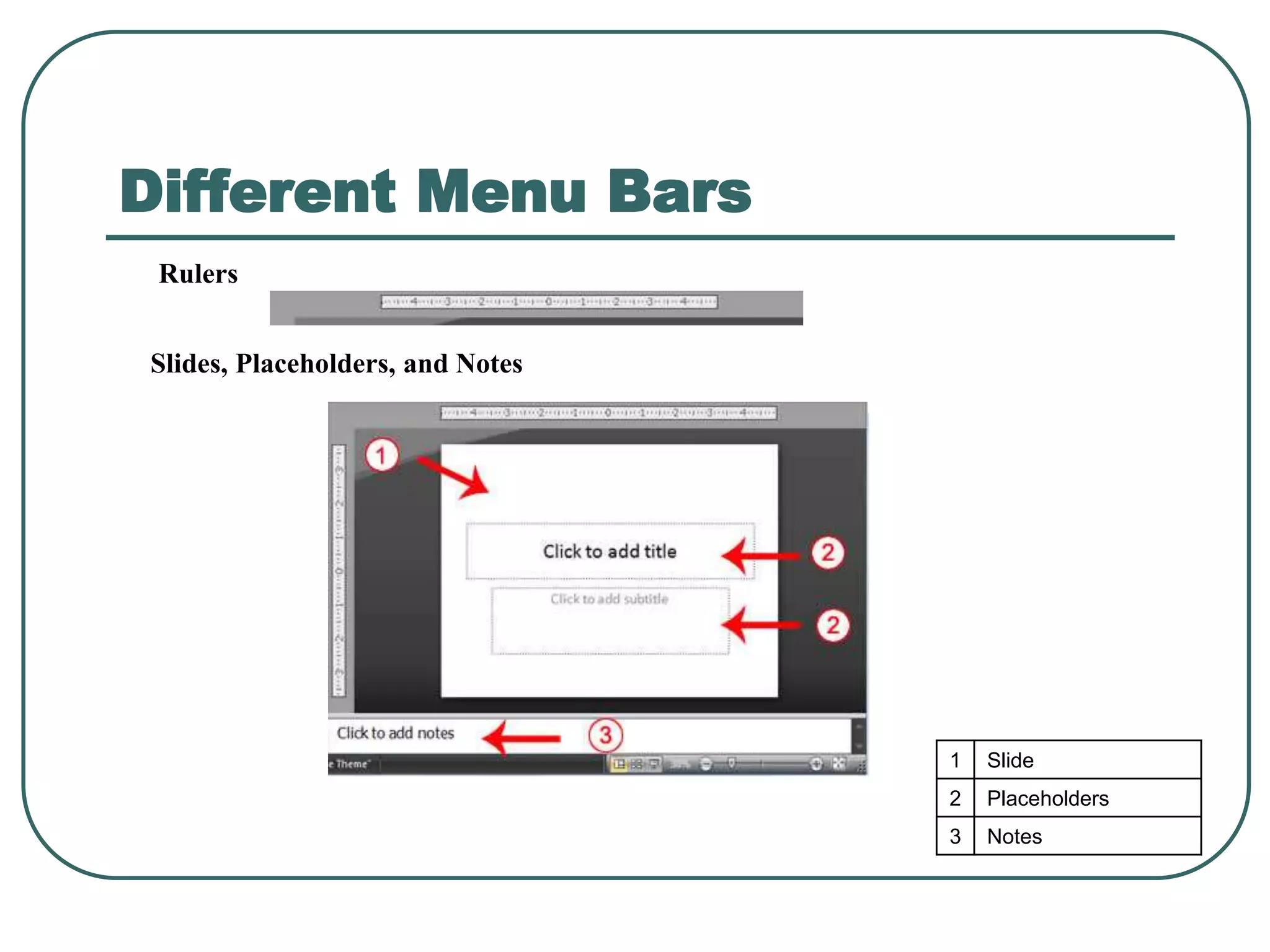
Rulers
1 Slide
2 Placeholders
3 Notes
Slides, Placeholders, and Notes
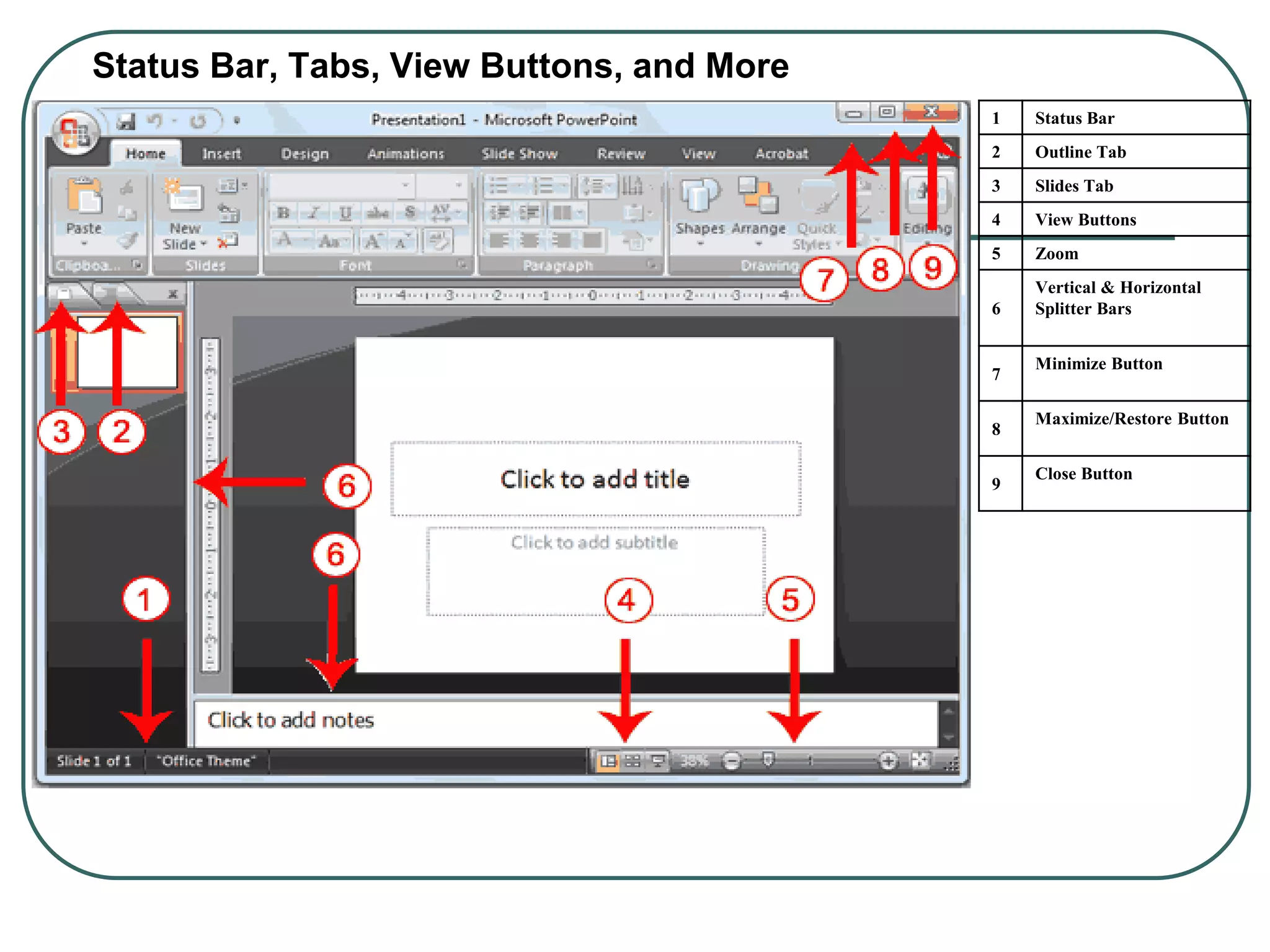
Status Bar, Tabs, View Buttons, and More
1 Status Bar
2 Outline Tab
3 Slides Tab
4 View Buttons
5 Zoom
6
Vertical & Horizontal
Splitter Bars
7
Minimize Button
8
Maximize/Restore Button
9
Close Button
Creating Your First PowerPoint Presentation
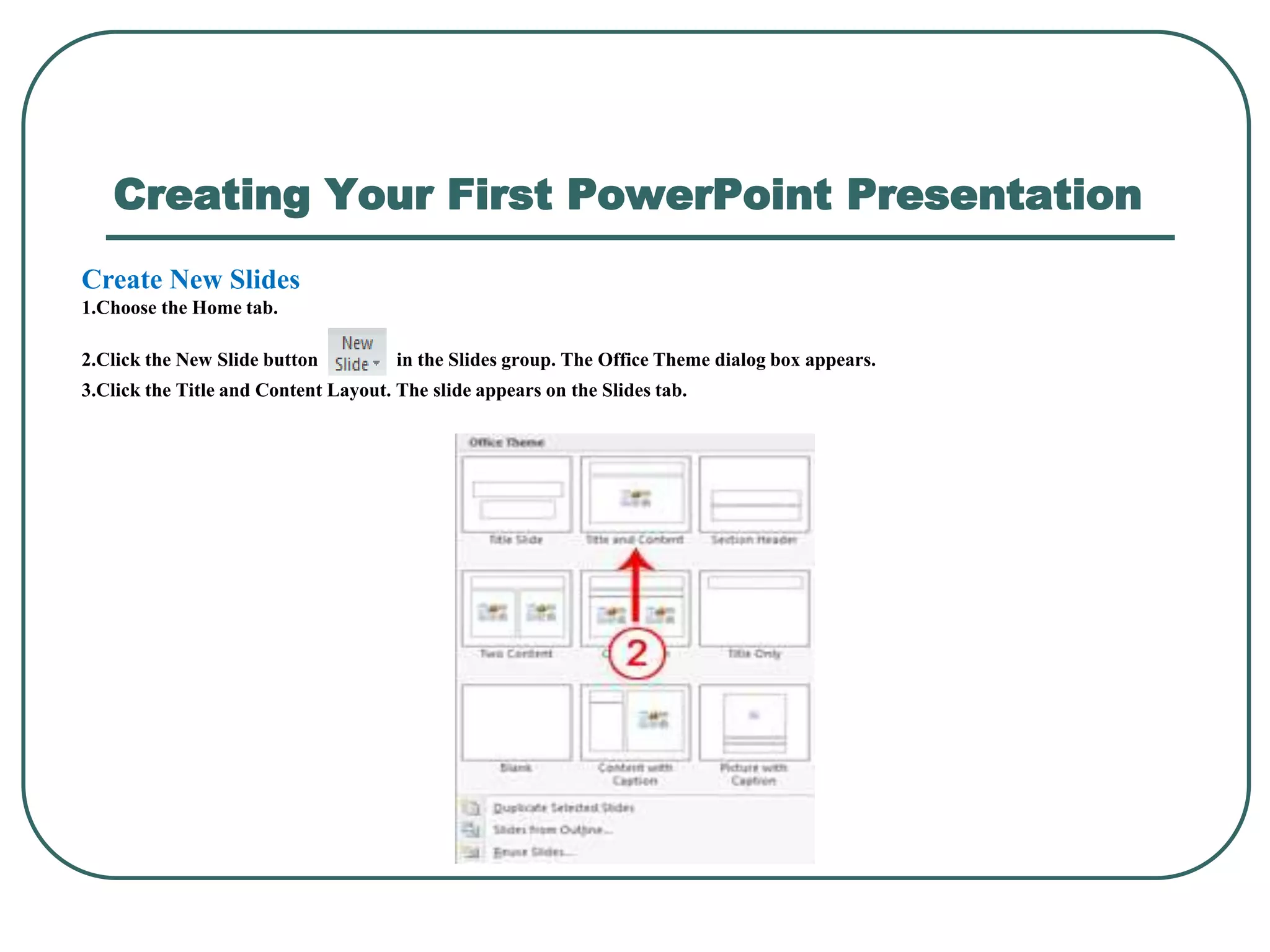
Create New Slides
1.Choose the Home tab.
2.Click the New Slide button in the Slides group. The Office Theme dialog box appears.
3.Click the Title and Content Layout. The slide appears on the Slides tab.
KARNATAK UNIVERSITY, DHARWAD
Dept. of Computer Science
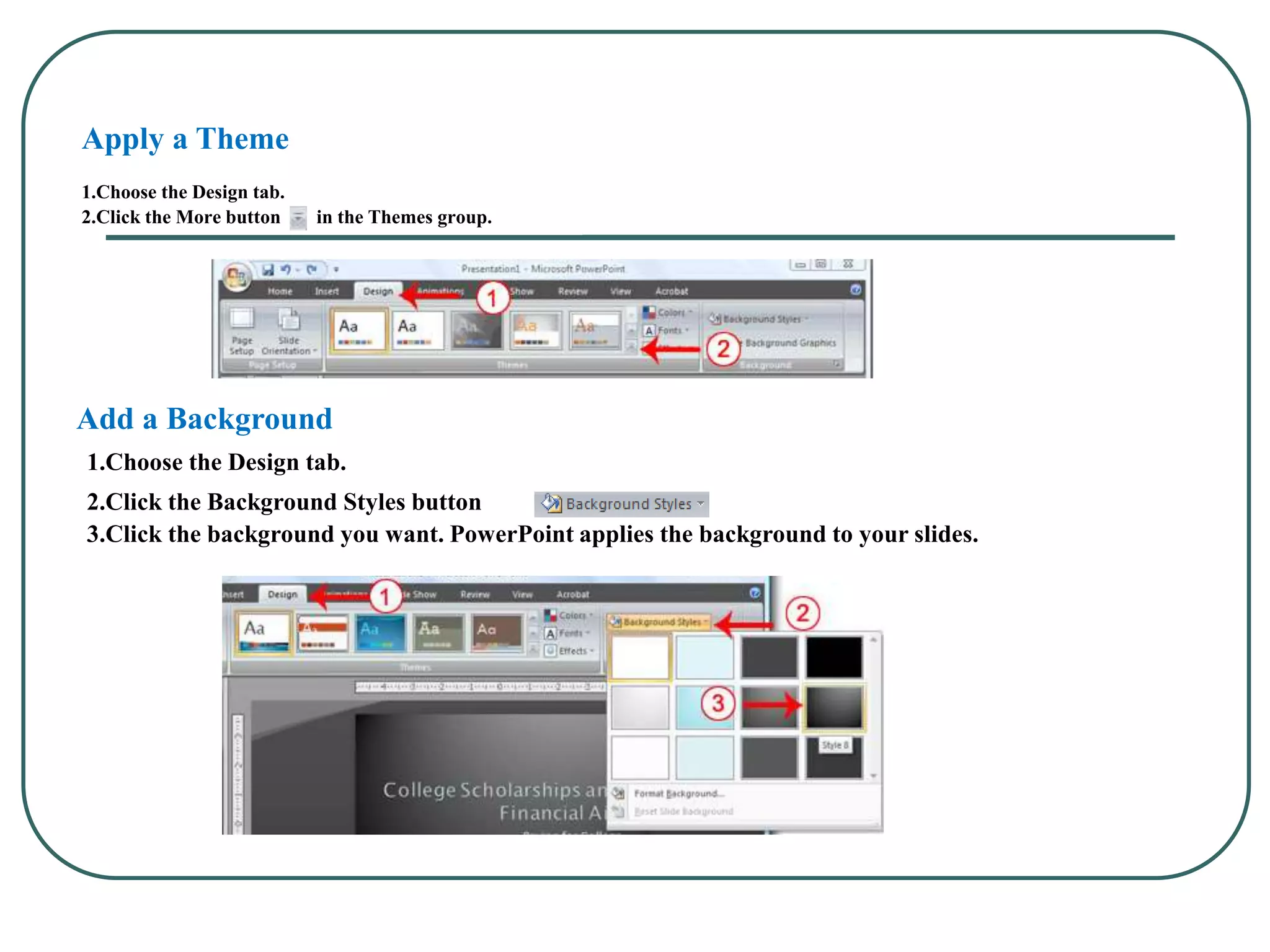
Apply a Theme
1.Choose the Design tab.
2.Click the More button in the Themes group.
Add a Background
1.Choose the Design tab.
2.Click the Background Styles button .
3.Click the background you want. PowerPoint applies the background to your slides.
Animations, Transitions, Spell Check, Outline Tab, Slides Tab,
Sorter View, and Printing
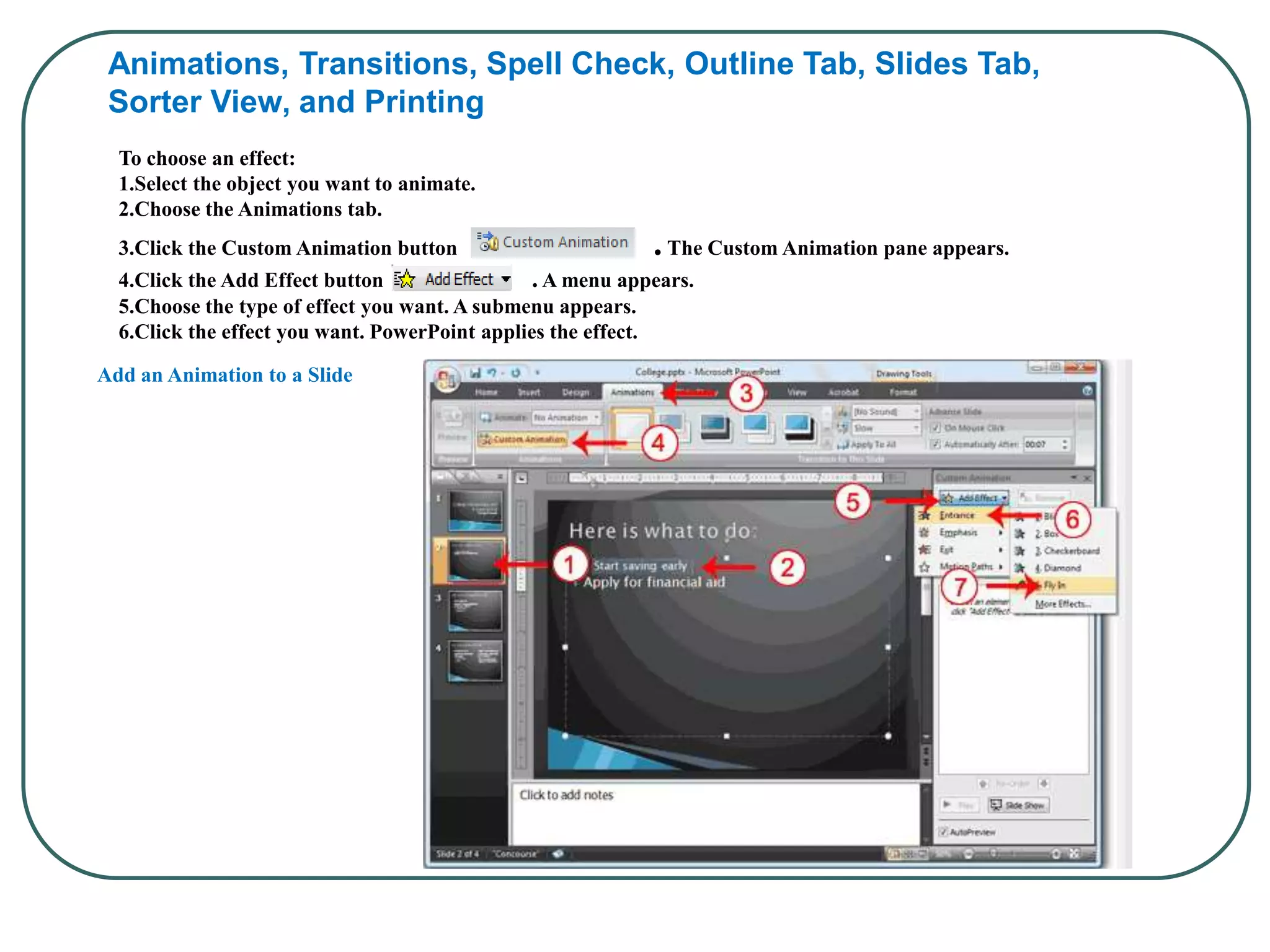
To choose an effect:
1.Select the object you want to animate.
2.Choose the Animations tab.
3.Click the Custom Animation button .The Custom Animation pane appears.
4.Click the Add Effect button . A menu appears.
5.Choose the type of effect you want. A submenu appears.
6.Click the effect you want. PowerPoint applies the effect.
Add an Animation to a Slide
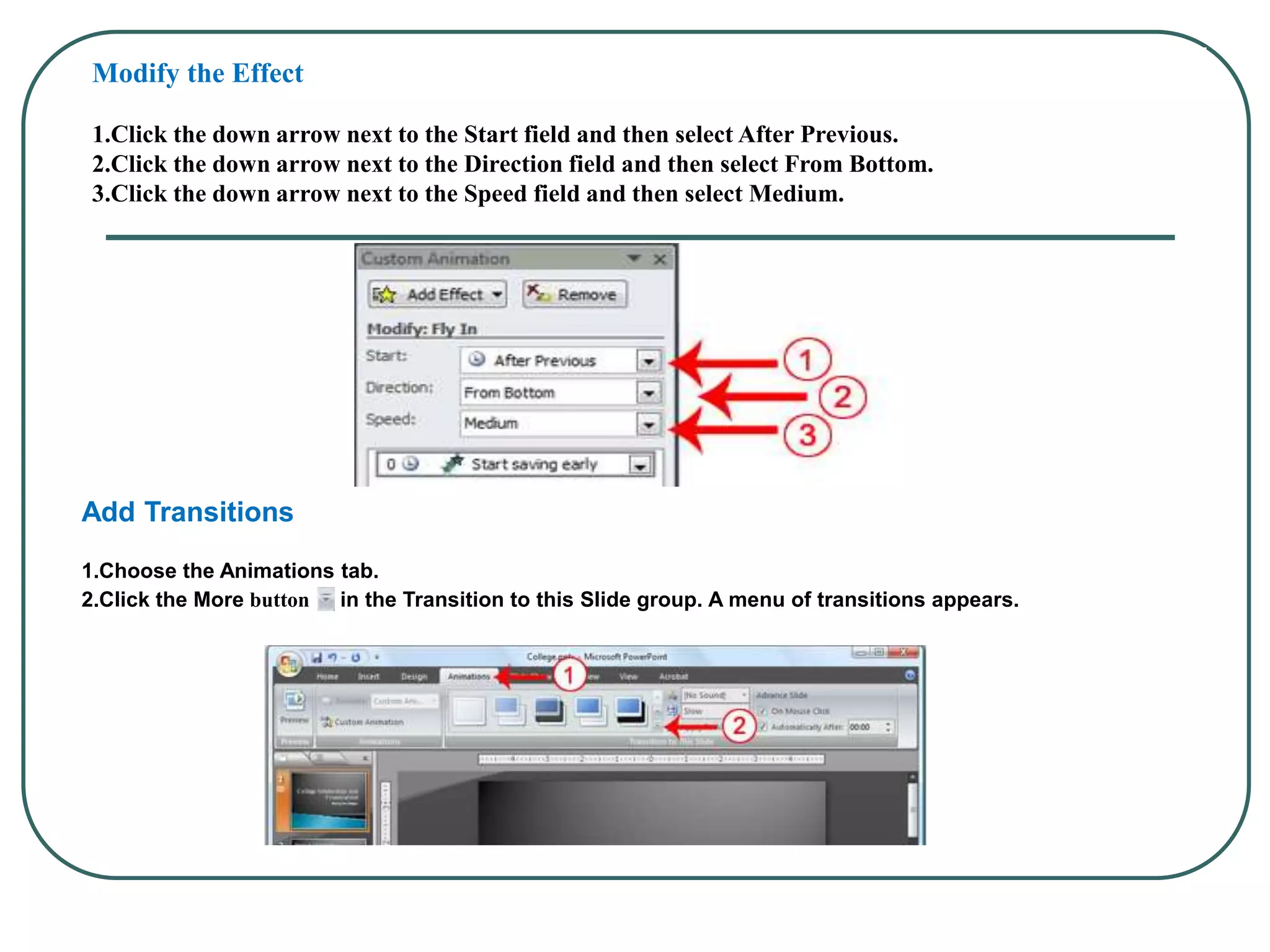
Modify the Effect
1.Click the down arrow next to the Start field and then select After Previous.
2.Click the down arrow next to the Direction field and then select From Bottom.
3.Click the down arrow next to the Speed field and then select Medium.
Add Transitions
1.Choose the Animations tab.
2.Click the More button in the Transition to this Slide group. A menu of transitions appears.
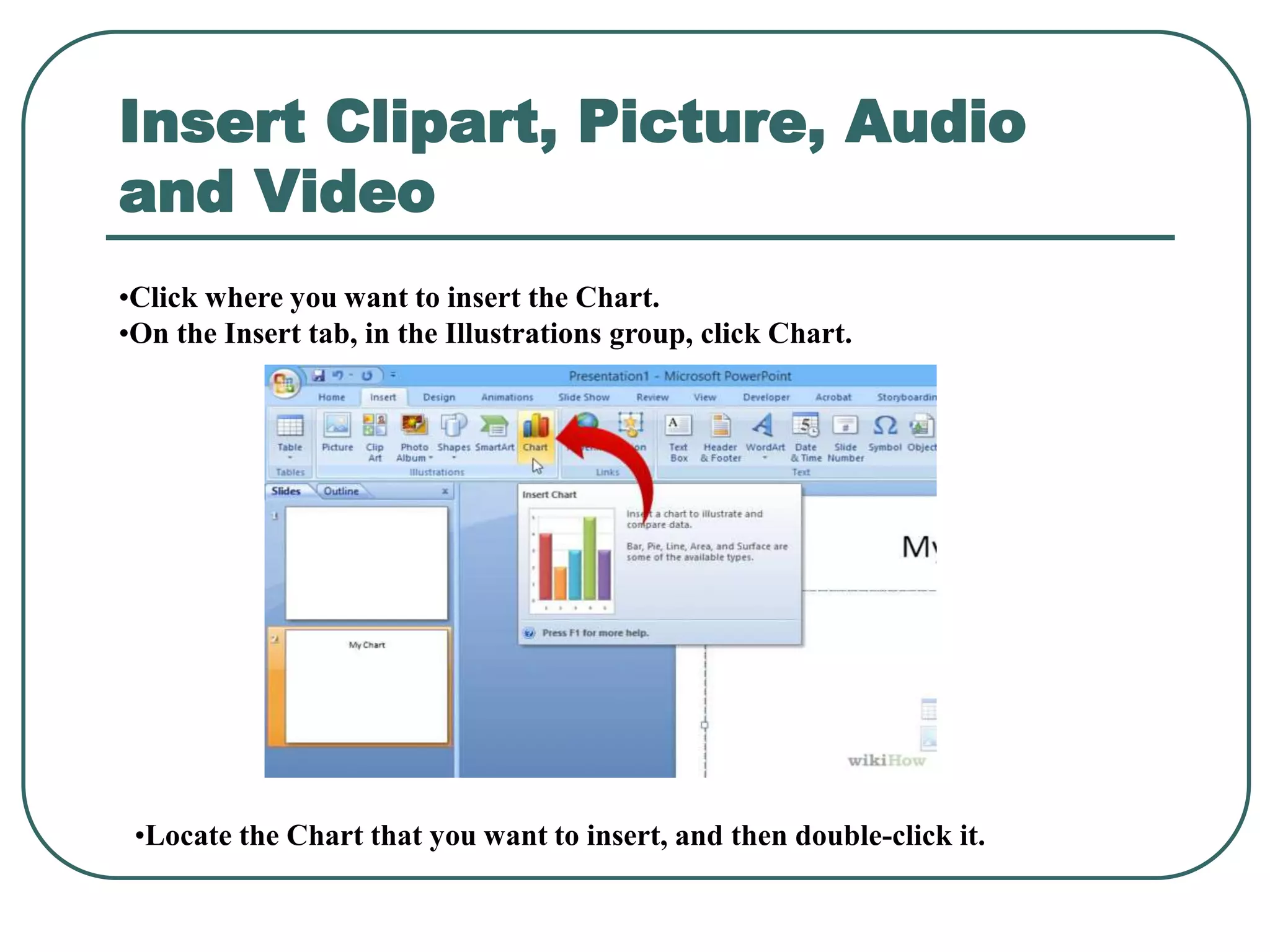
Insert Clipart, Picture, Audio
and Video
•Click where you want to insert the Chart.
•On the Insert tab, in the Illustrations group, click Chart.
•Locate the Chart that you want to insert, and then double-click it.
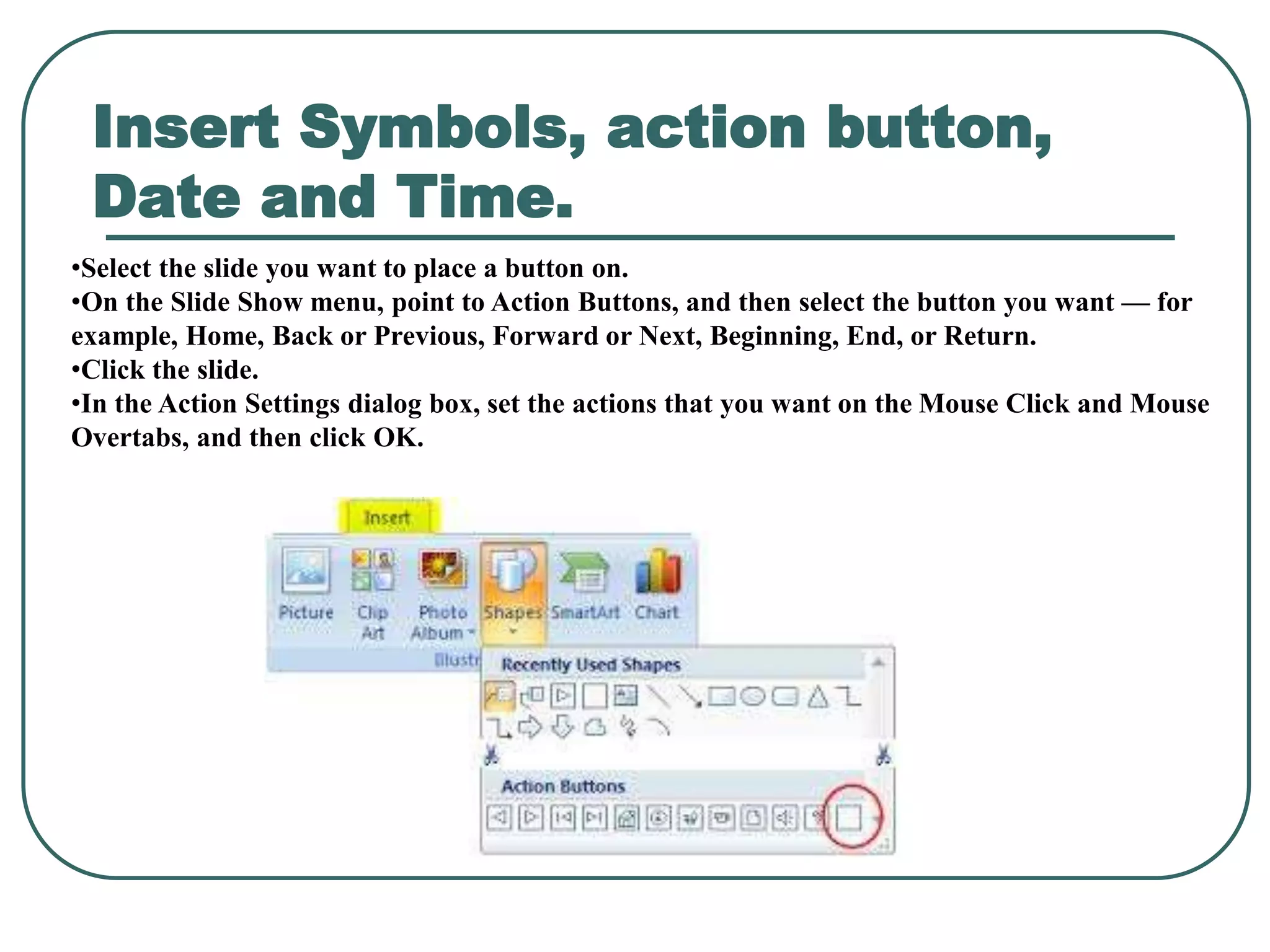
Insert Symbols, action button,
Date and Time.
•Select the slide you want to place a button on.
•On the Slide Show menu, point to Action Buttons, and then select the button you want — for
example, Home, Back or Previous, Forward or Next, Beginning, End, or Return.
•Click the slide.
•In the Action Settings dialog box, set the actions that you want on the Mouse Click and Mouse
Overtabs, and then click OK.
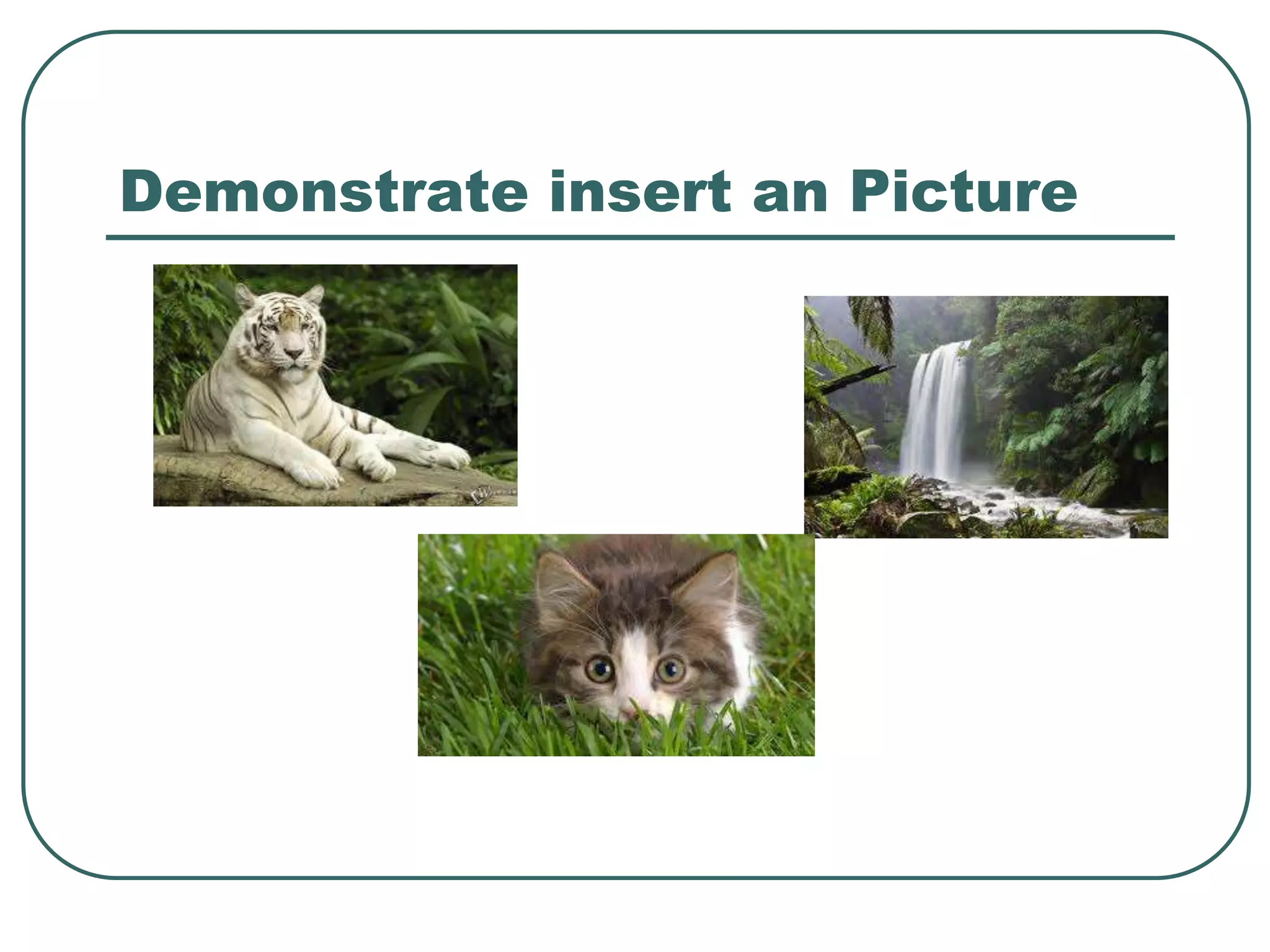
Demonstrate insert an Picture
Demonstrate insert an Video
Demonstrate insert an Audio
Now Prepare your own presentation
Thanking you
1. Create the presentation for Introduction to computer
Using Template
2. Explain features of any product using transition effects
in the animation
3. Create a presentation to display information about the
ICT course using animation effects
4. Create a presentation to introduce your institute using
action buttons and organization chart.
5. Create a presentation using different charts types and
clipart.
Assignments

Power Point Presentation

  • 1.
    PowerPoint Presentation Mr. SP Sajjan Dept. Computer Science Karnatak University, Dharwad
  • 2.
    Why PowerPoint?  Tohold interest  To focus attention  To guide discussions/overviews  To create a poster for a conference
  • 3.
    Tip for OralPresentations Have only the minimum required text on each slide. Be consistent and careful in your use of animations and transitions. Be consistent in your choice of bullets, font,colors,Tables and Figures.
  • 4.
    How to OpenPowerPoint  Start button --> All Programs --> Microsoft Office --> Microsoft PowerPoint
  • 5.
  • 6.
    Different Menu Bars TheMicrosoft Office Button The Quick Access Toolbar The Title Bar 1 Tabs 2 Command Group 3 Command Buttons 4 Launcher The Ribbon
  • 7.
    Different Menu Bars Rulers 1Slide 2 Placeholders 3 Notes Slides, Placeholders, and Notes
  • 8.
    Status Bar, Tabs,View Buttons, and More 1 Status Bar 2 Outline Tab 3 Slides Tab 4 View Buttons 5 Zoom 6 Vertical & Horizontal Splitter Bars 7 Minimize Button 8 Maximize/Restore Button 9 Close Button
  • 9.
    Creating Your FirstPowerPoint Presentation Create New Slides 1.Choose the Home tab. 2.Click the New Slide button in the Slides group. The Office Theme dialog box appears. 3.Click the Title and Content Layout. The slide appears on the Slides tab.
  • 10.
  • 11.
    Apply a Theme 1.Choosethe Design tab. 2.Click the More button in the Themes group. Add a Background 1.Choose the Design tab. 2.Click the Background Styles button . 3.Click the background you want. PowerPoint applies the background to your slides.
  • 12.
    Animations, Transitions, SpellCheck, Outline Tab, Slides Tab, Sorter View, and Printing To choose an effect: 1.Select the object you want to animate. 2.Choose the Animations tab. 3.Click the Custom Animation button .The Custom Animation pane appears. 4.Click the Add Effect button . A menu appears. 5.Choose the type of effect you want. A submenu appears. 6.Click the effect you want. PowerPoint applies the effect. Add an Animation to a Slide
  • 13.
    Modify the Effect 1.Clickthe down arrow next to the Start field and then select After Previous. 2.Click the down arrow next to the Direction field and then select From Bottom. 3.Click the down arrow next to the Speed field and then select Medium. Add Transitions 1.Choose the Animations tab. 2.Click the More button in the Transition to this Slide group. A menu of transitions appears.
  • 14.
    Insert Clipart, Picture,Audio and Video •Click where you want to insert the Chart. •On the Insert tab, in the Illustrations group, click Chart. •Locate the Chart that you want to insert, and then double-click it.
  • 15.
    Insert Symbols, actionbutton, Date and Time. •Select the slide you want to place a button on. •On the Slide Show menu, point to Action Buttons, and then select the button you want — for example, Home, Back or Previous, Forward or Next, Beginning, End, or Return. •Click the slide. •In the Action Settings dialog box, set the actions that you want on the Mouse Click and Mouse Overtabs, and then click OK.
  • 16.
  • 17.
  • 18.
  • 19.
    Now Prepare yourown presentation
  • 20.
  • 21.
    1. Create thepresentation for Introduction to computer Using Template 2. Explain features of any product using transition effects in the animation 3. Create a presentation to display information about the ICT course using animation effects 4. Create a presentation to introduce your institute using action buttons and organization chart. 5. Create a presentation using different charts types and clipart. Assignments