Introduction to PowerPoint Arlington Public Library Shirlington Branch David Bishop, Instructor
Introduction
What is PowerPoint? A program which creates presentations. Part of the Microsoft Office suite.
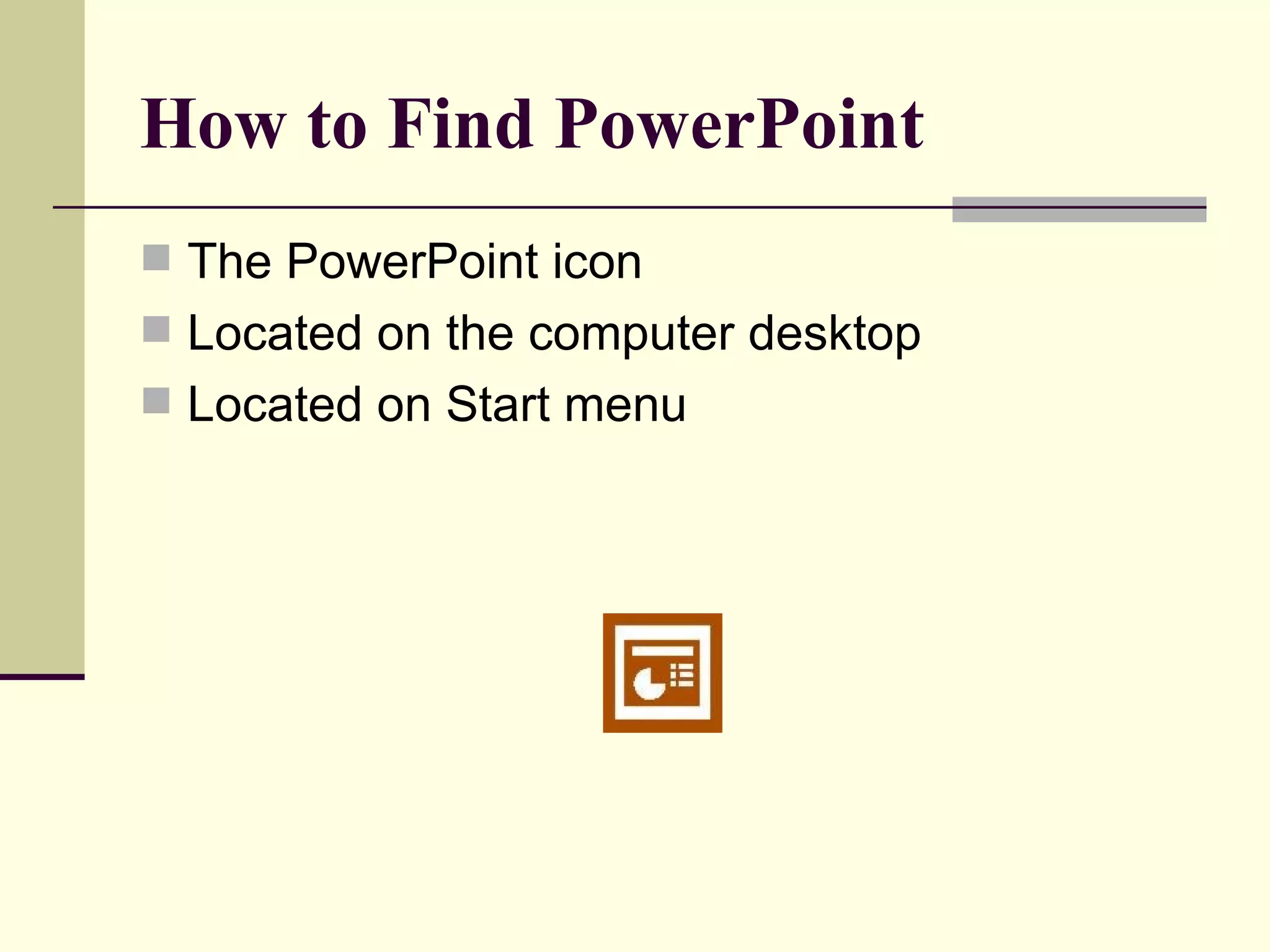
How to Find PowerPoint   The PowerPoint icon Located on the computer desktop Located on Start menu
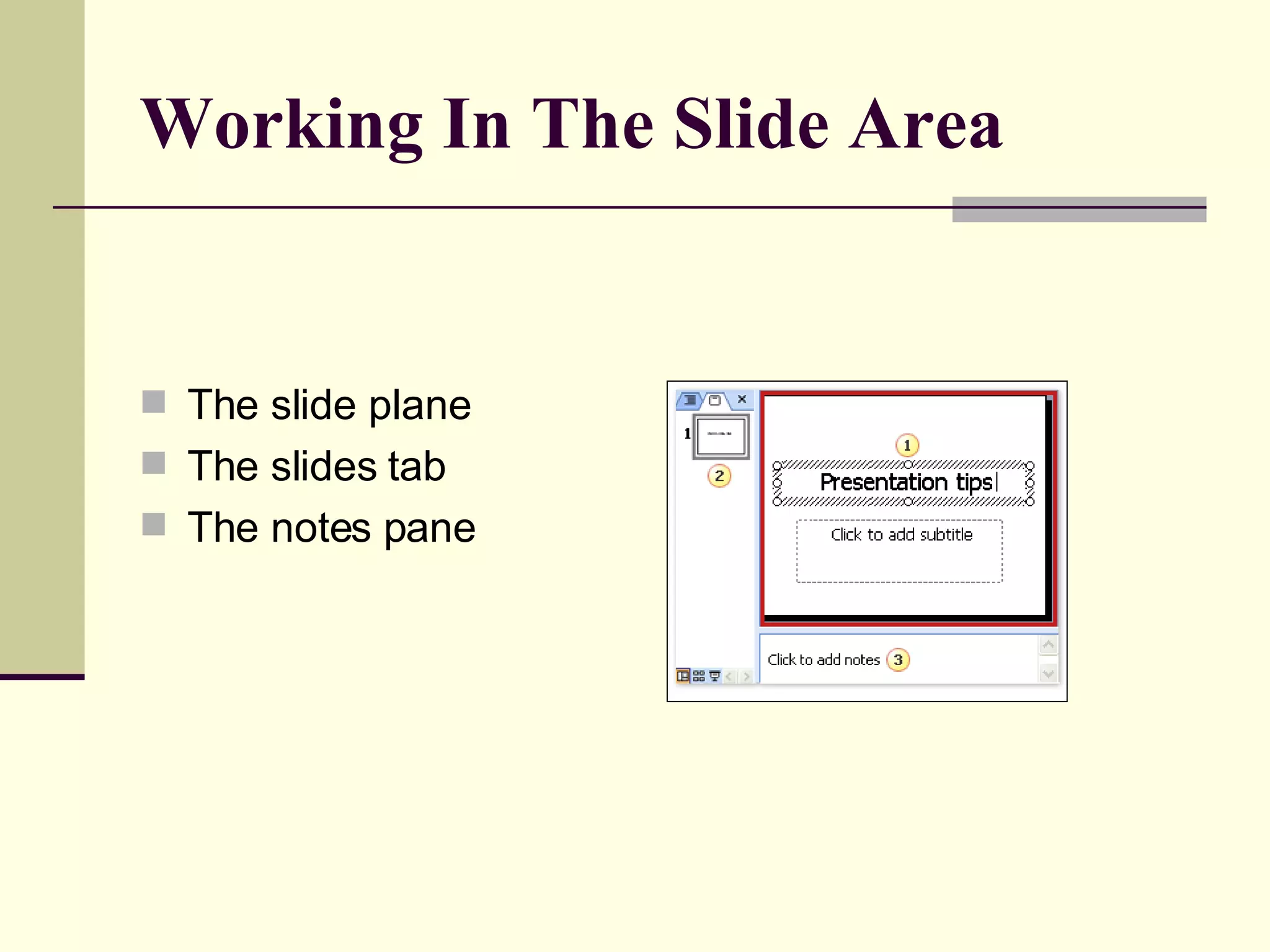
Working In The Slide Area The slide plane  The slides tab The notes pane
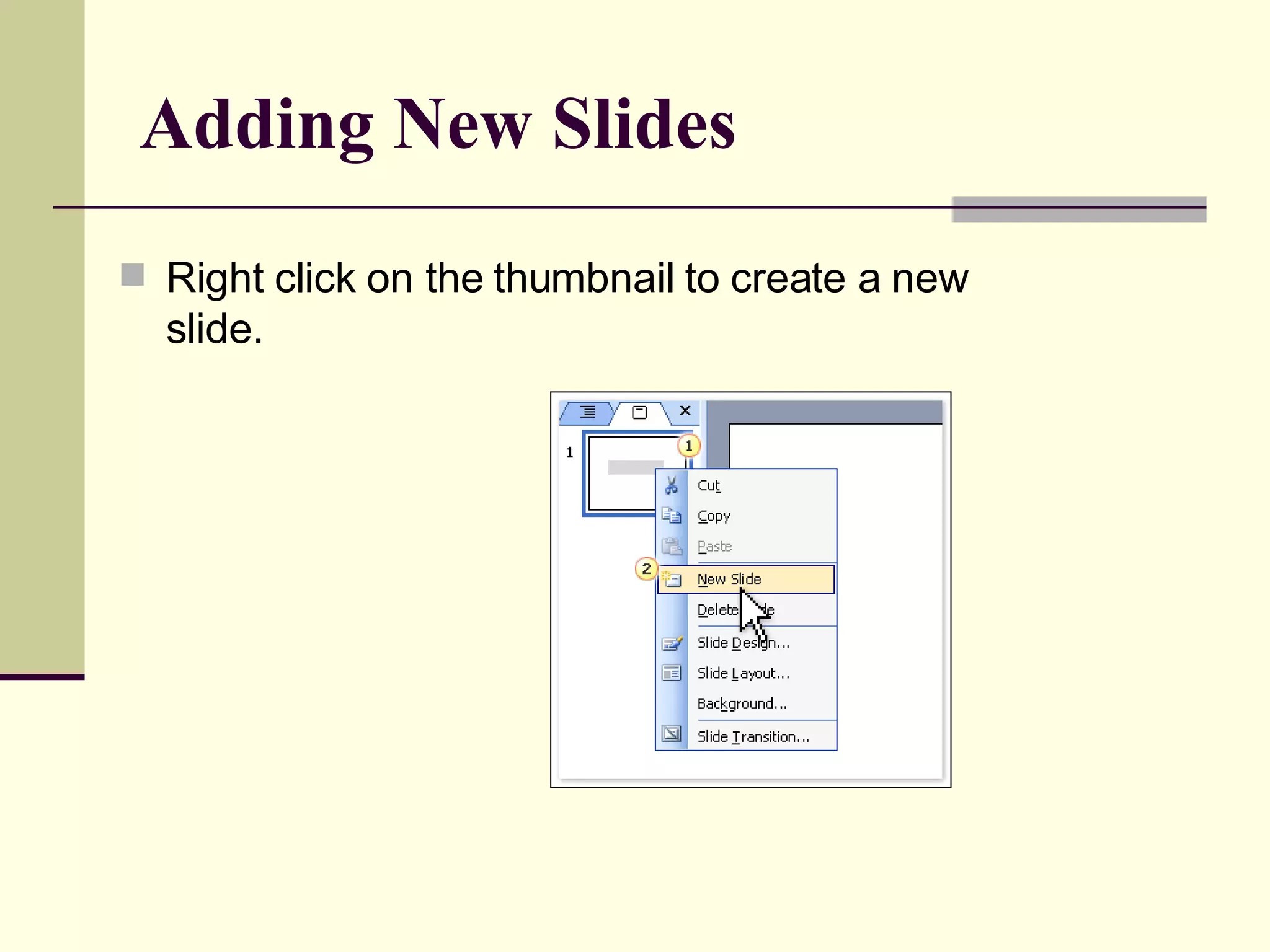
Adding New Slides Right click on the thumbnail to create a new slide.
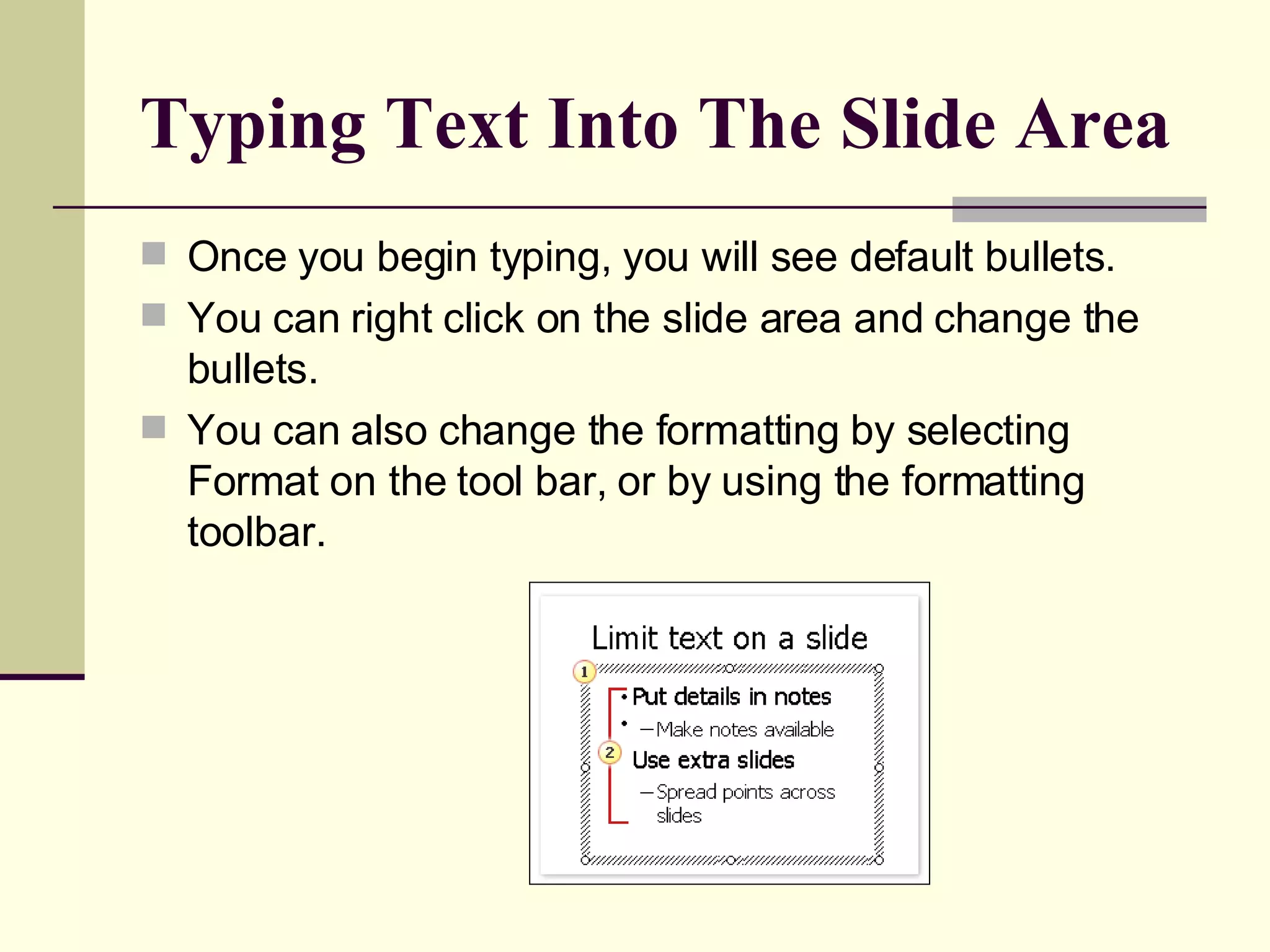
Typing Text Into The Slide Area Once you begin typing, you will see default bullets. You can right click on the slide area and change the bullets. You can also change the formatting by selecting Format on the tool bar, or by using the formatting toolbar.
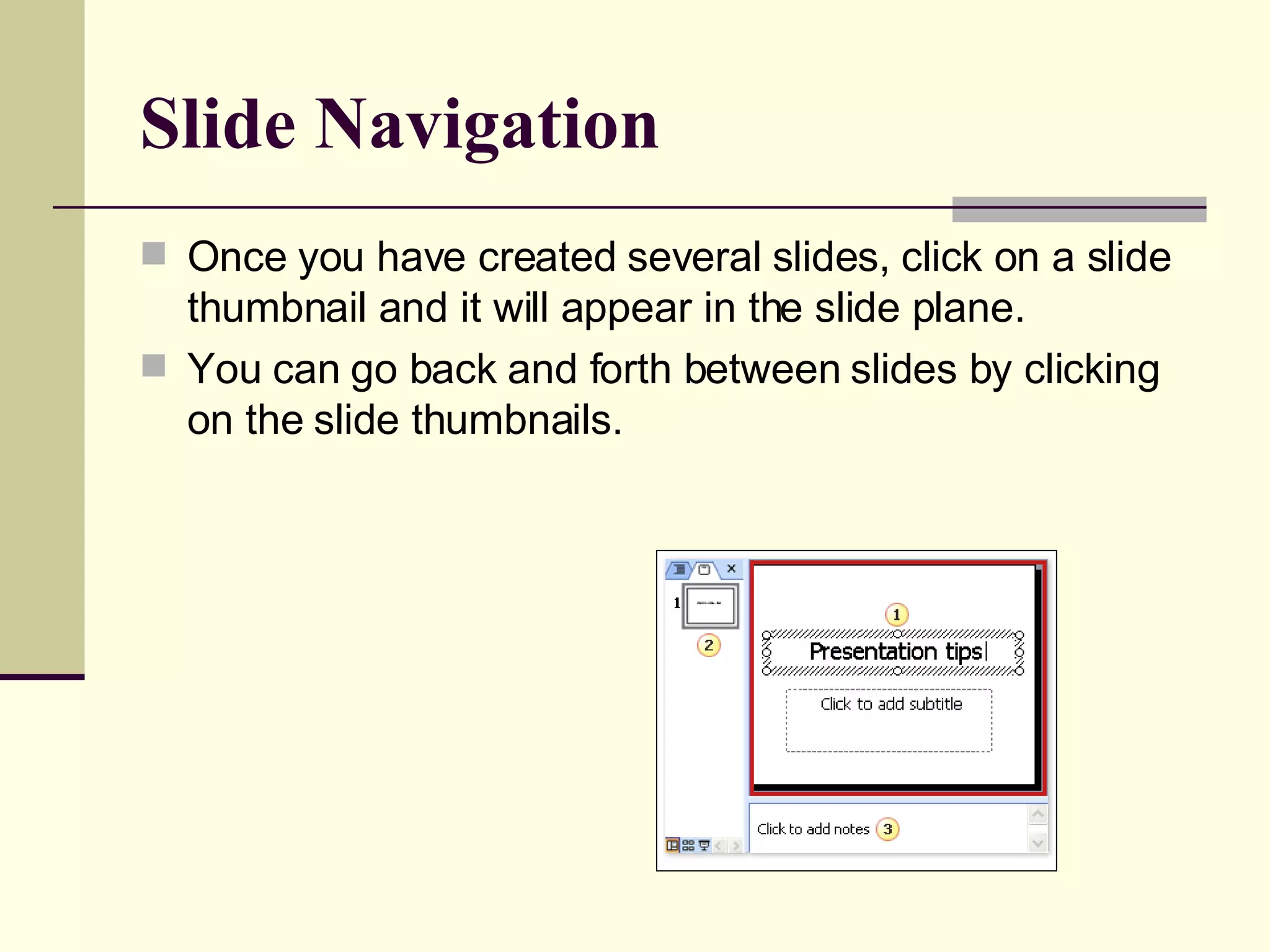
Slide Navigation   Once you have created several slides, click on a slide thumbnail and it will appear in the slide plane.  You can go back and forth between slides by clicking on the slide thumbnails.
Create Notes For The Presentation You can create notes in the notes pane to supplement you presentation. The notes pane is located on the bottom the slide area.
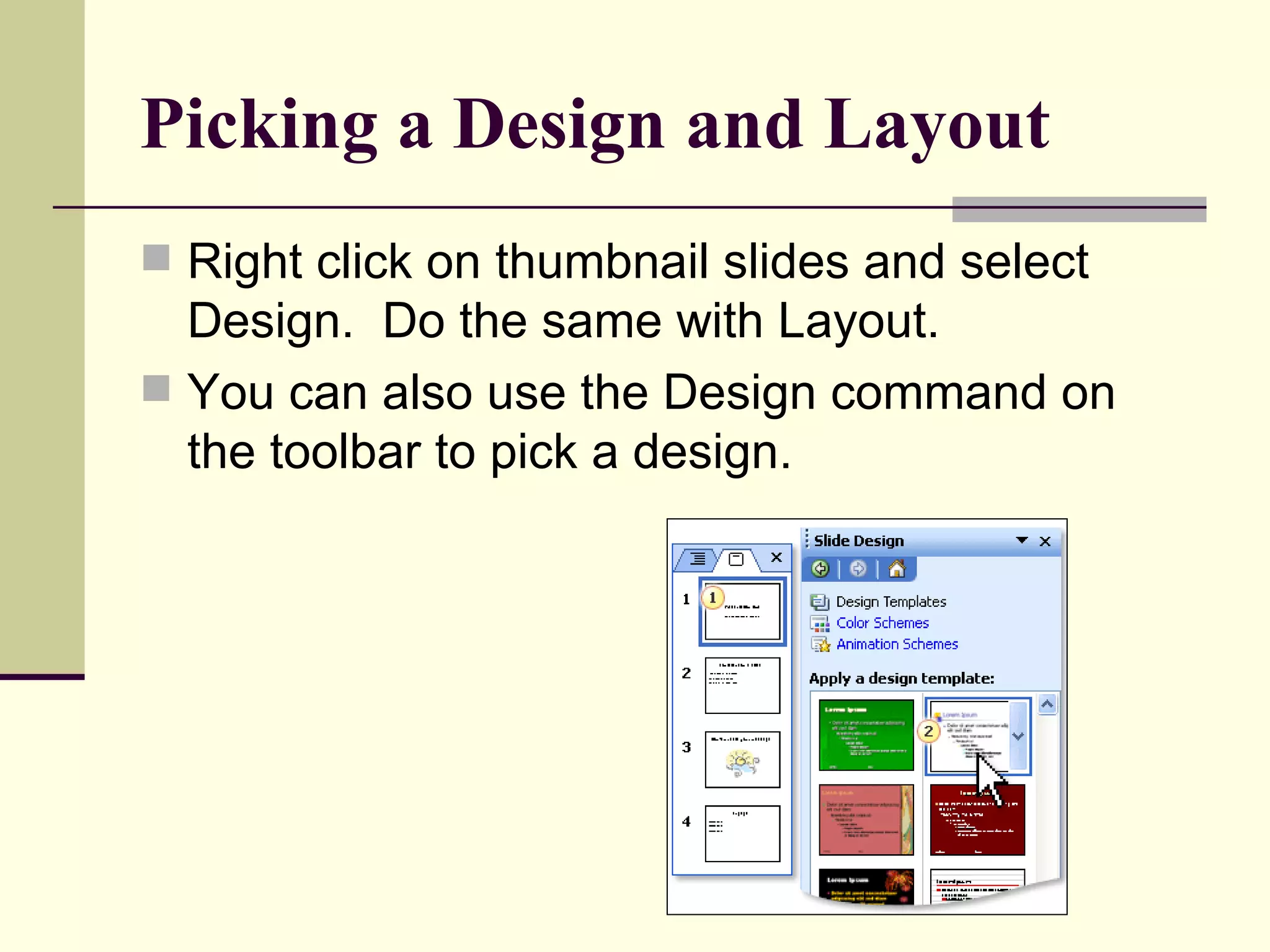
Picking a Design and Layout   Right click on thumbnail slides and select Design.  Do the same with Layout. You can also use the Design command on the toolbar to pick a design.
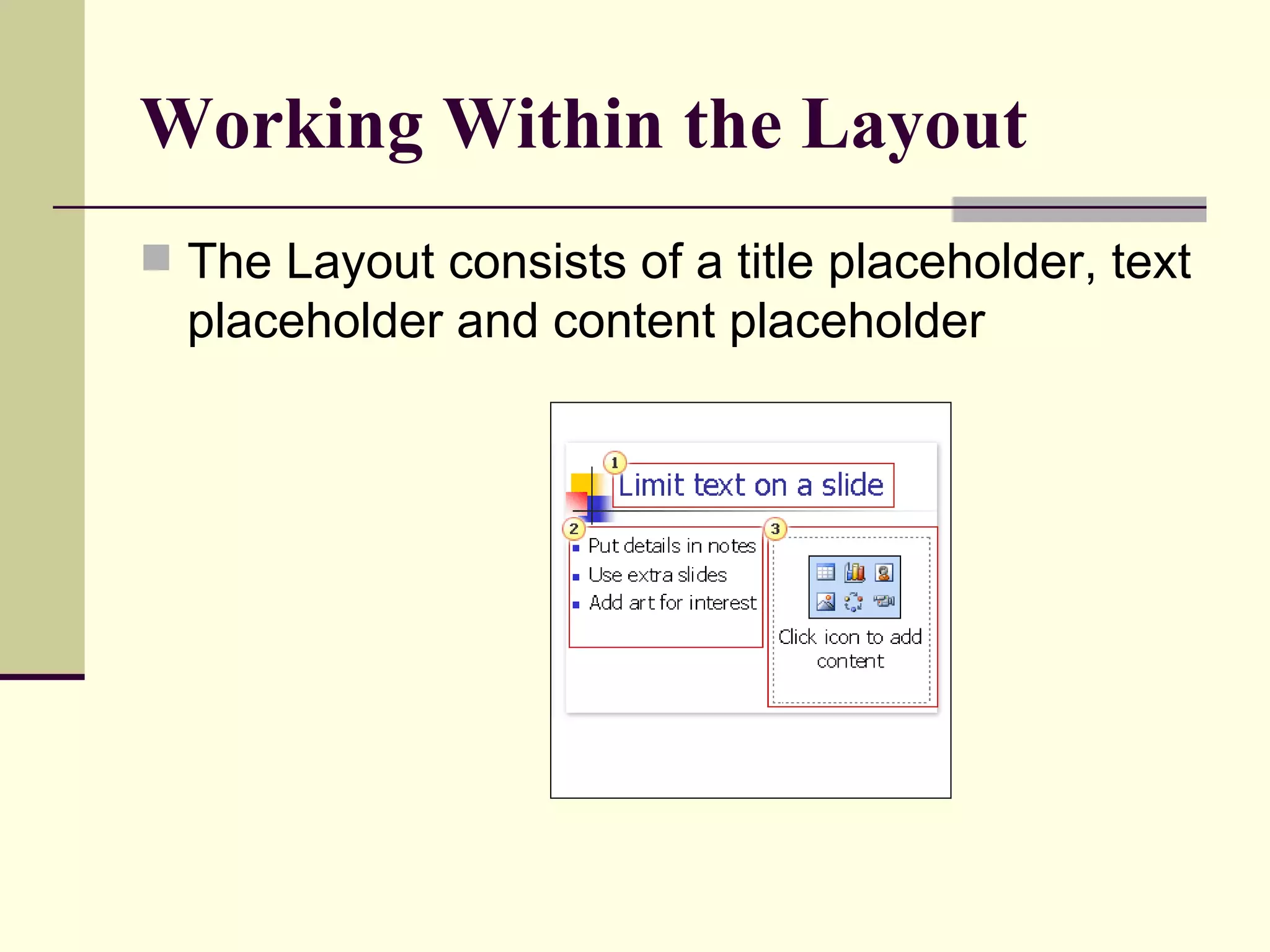
Working Within the Layout The Layout consists of a title placeholder, text placeholder and content placeholder
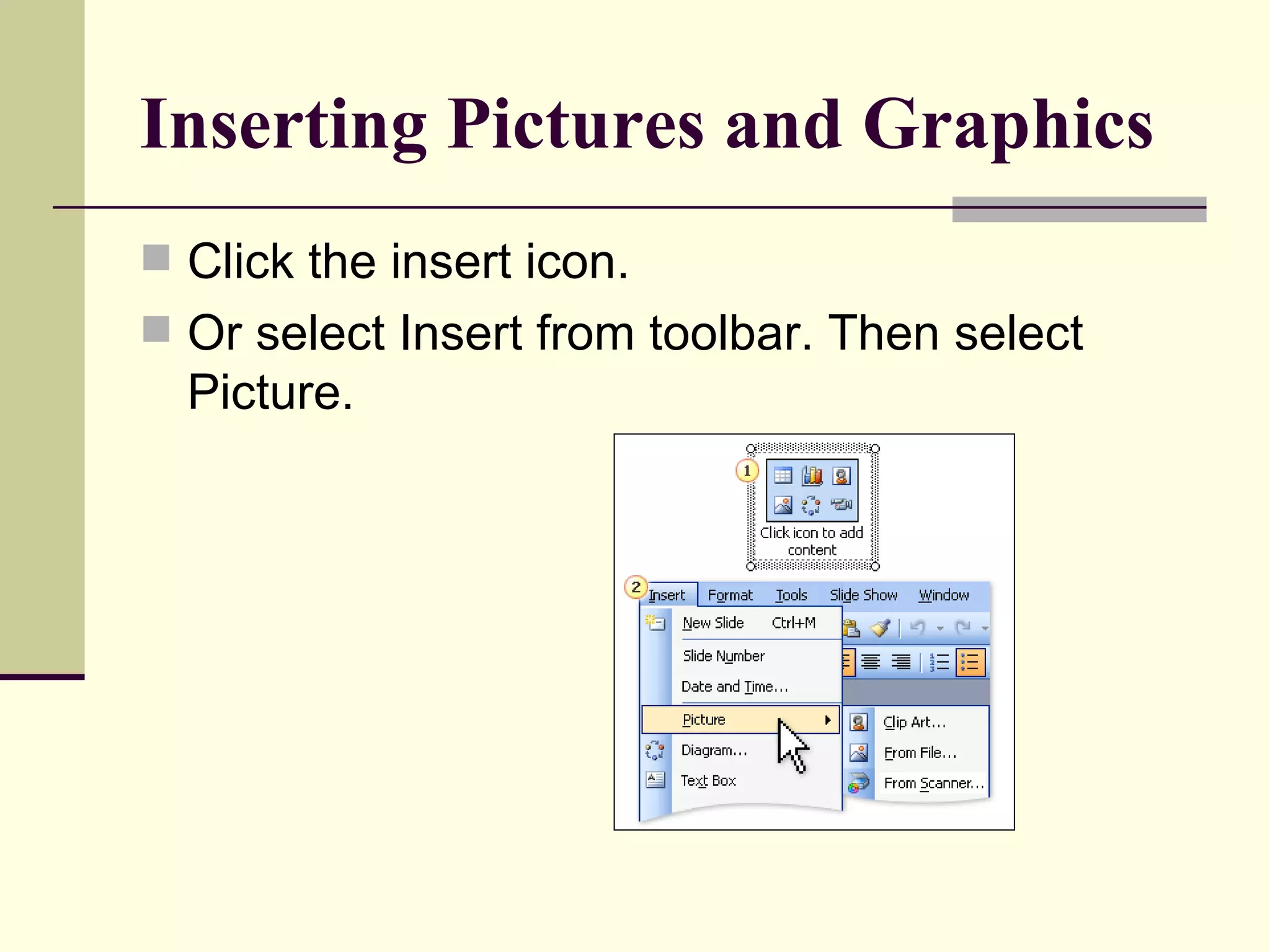
Inserting Pictures and Graphics Click the insert icon. Or select Insert from toolbar. Then select Picture.
Slide Transition You can change the way the slides “transition.” You can speed it up or slow it down. You can create interesting effects as well. Select Slide Show on the toolbar or right click on a thumbnail slide.
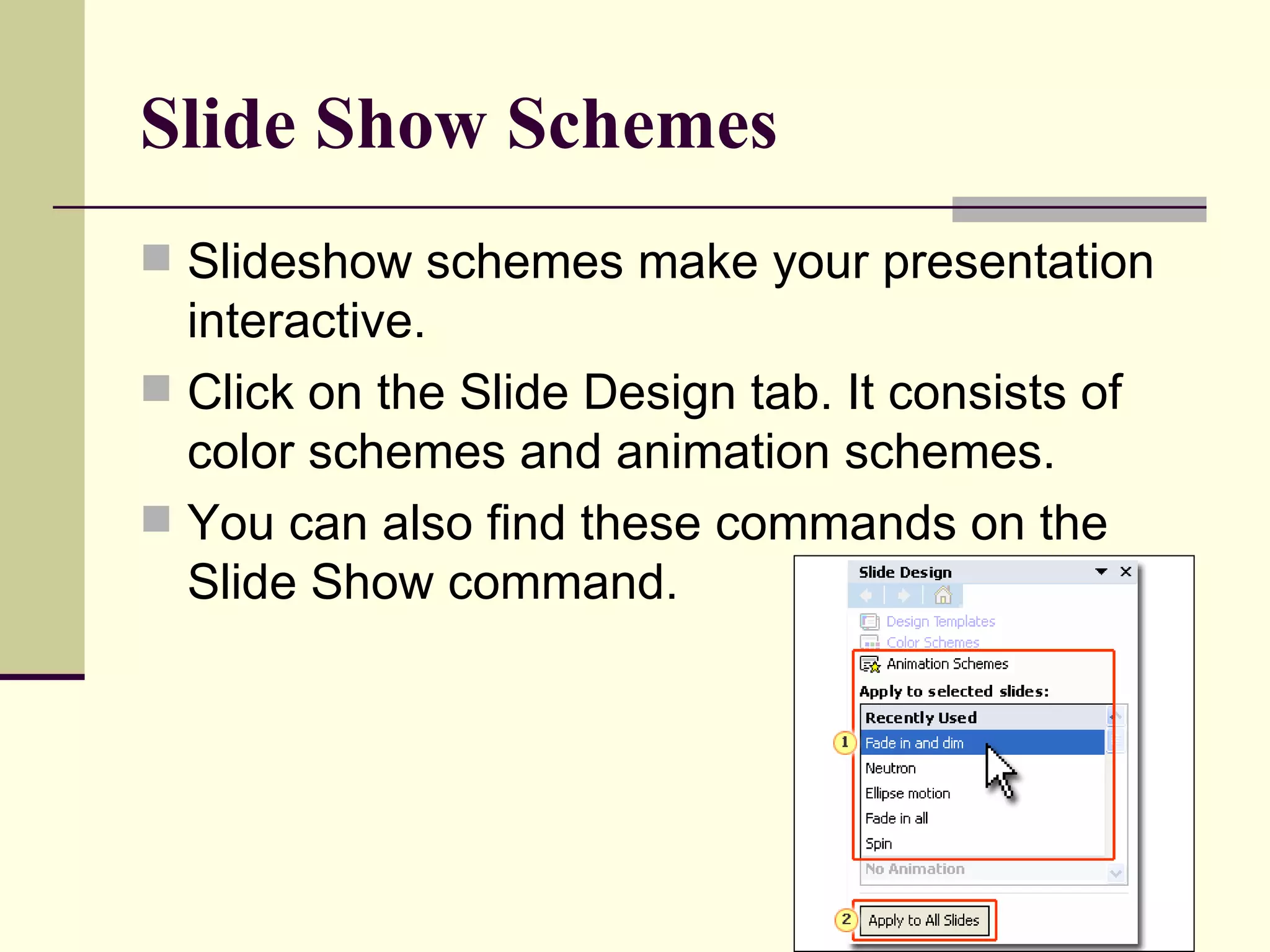
Slide Show Schemes Slideshow schemes make your presentation interactive. Click on the Slide Design tab. It consists of color schemes and animation schemes. You can also find these commands on the Slide Show command.
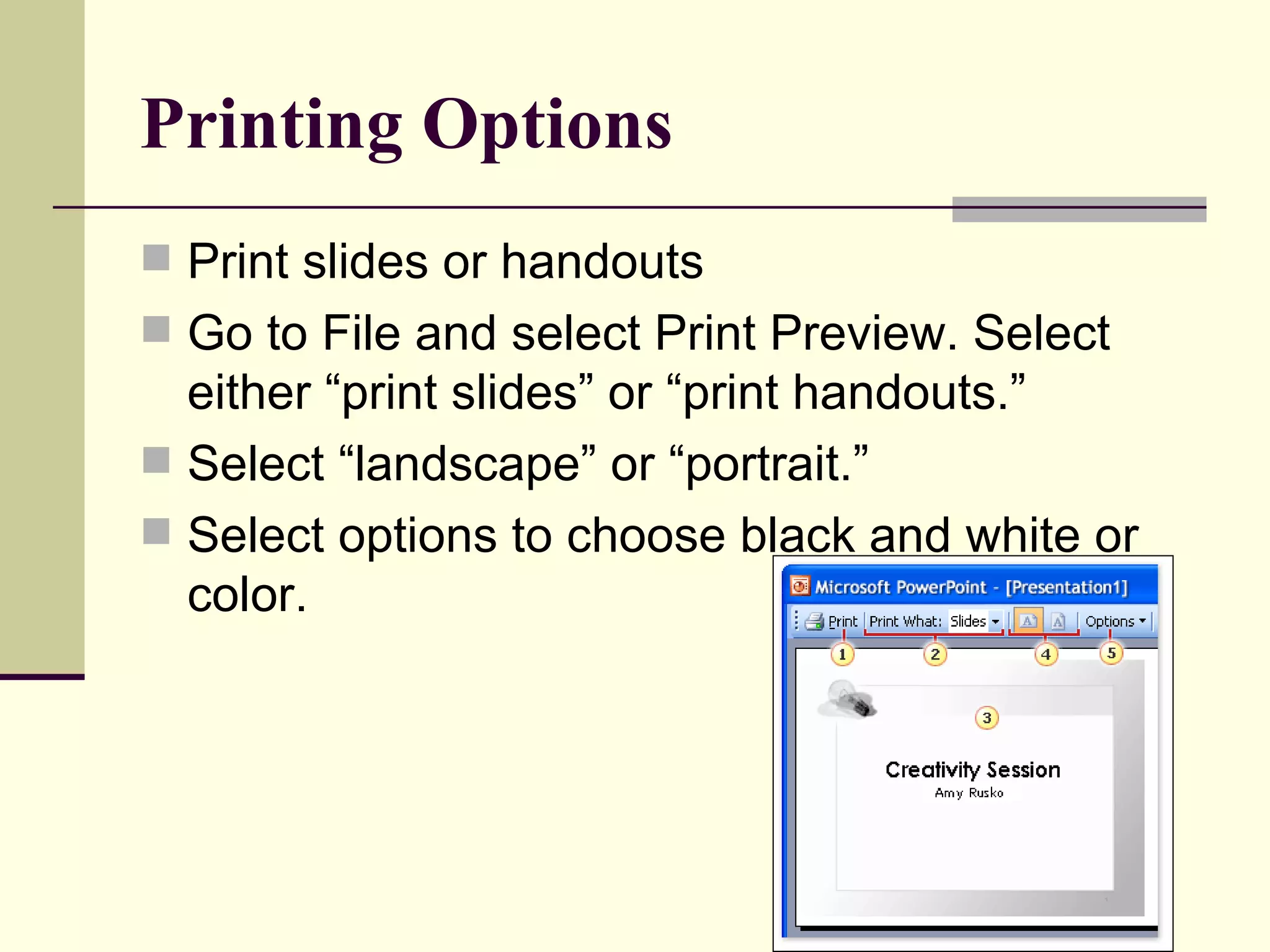
Printing Options Print slides or handouts Go to File and select Print Preview. Select either “print slides” or “print handouts.” Select “landscape” or “portrait.” Select options to choose black and white or color.
Quick Review of PowerPoint Toolbars (time permitting) Command toolbar Formatting toolbar
Create Your Own PP Presentation

Introduction To Power Point New

  • 1.
    Introduction to PowerPointArlington Public Library Shirlington Branch David Bishop, Instructor
  • 2.
  • 3.
    What is PowerPoint?A program which creates presentations. Part of the Microsoft Office suite.
  • 4.
    How to FindPowerPoint The PowerPoint icon Located on the computer desktop Located on Start menu
  • 5.
    Working In TheSlide Area The slide plane The slides tab The notes pane
  • 6.
    Adding New SlidesRight click on the thumbnail to create a new slide.
  • 7.
    Typing Text IntoThe Slide Area Once you begin typing, you will see default bullets. You can right click on the slide area and change the bullets. You can also change the formatting by selecting Format on the tool bar, or by using the formatting toolbar.
  • 8.
    Slide Navigation Once you have created several slides, click on a slide thumbnail and it will appear in the slide plane. You can go back and forth between slides by clicking on the slide thumbnails.
  • 9.
    Create Notes ForThe Presentation You can create notes in the notes pane to supplement you presentation. The notes pane is located on the bottom the slide area.
  • 10.
    Picking a Designand Layout Right click on thumbnail slides and select Design. Do the same with Layout. You can also use the Design command on the toolbar to pick a design.
  • 11.
    Working Within theLayout The Layout consists of a title placeholder, text placeholder and content placeholder
  • 12.
    Inserting Pictures andGraphics Click the insert icon. Or select Insert from toolbar. Then select Picture.
  • 13.
    Slide Transition Youcan change the way the slides “transition.” You can speed it up or slow it down. You can create interesting effects as well. Select Slide Show on the toolbar or right click on a thumbnail slide.
  • 14.
    Slide Show SchemesSlideshow schemes make your presentation interactive. Click on the Slide Design tab. It consists of color schemes and animation schemes. You can also find these commands on the Slide Show command.
  • 15.
    Printing Options Printslides or handouts Go to File and select Print Preview. Select either “print slides” or “print handouts.” Select “landscape” or “portrait.” Select options to choose black and white or color.
  • 16.
    Quick Review ofPowerPoint Toolbars (time permitting) Command toolbar Formatting toolbar
  • 17.
    Create Your OwnPP Presentation