Glog On!

Loading...

Flash Player 9 (or above) is needed to view presentations.
We have detected that you do not have it on your computer. To install it, go here.

13 comments

Comments 1 - 10 of 13 comments previous next Post a comment

  • + guest8b32c0b Patrik Prepsl 1 week ago
    http://edu.glogster.com
    Now fully educational product for 21st century! Must check.
  • + paviter Paviter Singh 1 month ago
    Truly magnificent. You inspire us to do more :)
  • + kathymc kathymc 2 months ago
    Your video is wonderful. I’d love to use it as a part of a media training with our teachers.
  • + jmcgee Jan McGee 4 months ago
    Gail,
    I’m glad to share. You are welcome to add a link!
  • + gailhd gailhd 4 months ago
    Thanks, Jan, for such a complete resource! I also would like to add a link to your slideshow as part of wiki I use for my workshops: http://toolkit4blogwalker.wikispaces.com.
  • + c_rod Courtney Rodgers 5 months ago
    Hi Jan! This is a great presentation on Glogster. I was wondering if you have it licensed under one of the Creative Commons licenses? I’d like to use it for a training in 2 weeks with teachers on using Glogster if possible. Is that okay? Do you allow it to be used with changes made to it? Thanks again for the great resource!
  • + jmcgee Jan McGee 5 months ago
    I started using the Glogster edu last spring. I love it! I really need to go back and add that to my PPT.
  • + lindseyb Lindsey Barlow 5 months ago
    Hi, glogster recently announced an edu site for teachers http://edu.glogster.com/ you can set up a class account there.
  • + jmcgee Jan McGee 5 months ago
    Terry,
    I’m glad to share. You’re welcome to place to link to the slideshow.
  • + terrycasey Tery Casey 5 months ago
    Great presentation. I am going to put a link from my web page to it if you don’t mind (mysite is about getting teachers to use web 2.0 apps. in their classes).
    Regards Wookie

Comments 1 - 10 of 13 comments previous next

Login or Signup to post a comment
Edit your comment Cancel

20 Favorites & 1 Group

Glog On! - Presentation Transcript

  1. Glog All! Jan McGee, Technology Coordinator West Monroe High School 201 Riggs Street West Monroe, LA 71291 Library Coordinator Ouachita Parish School System [email_address] Glog One! Glog On! Glog On!
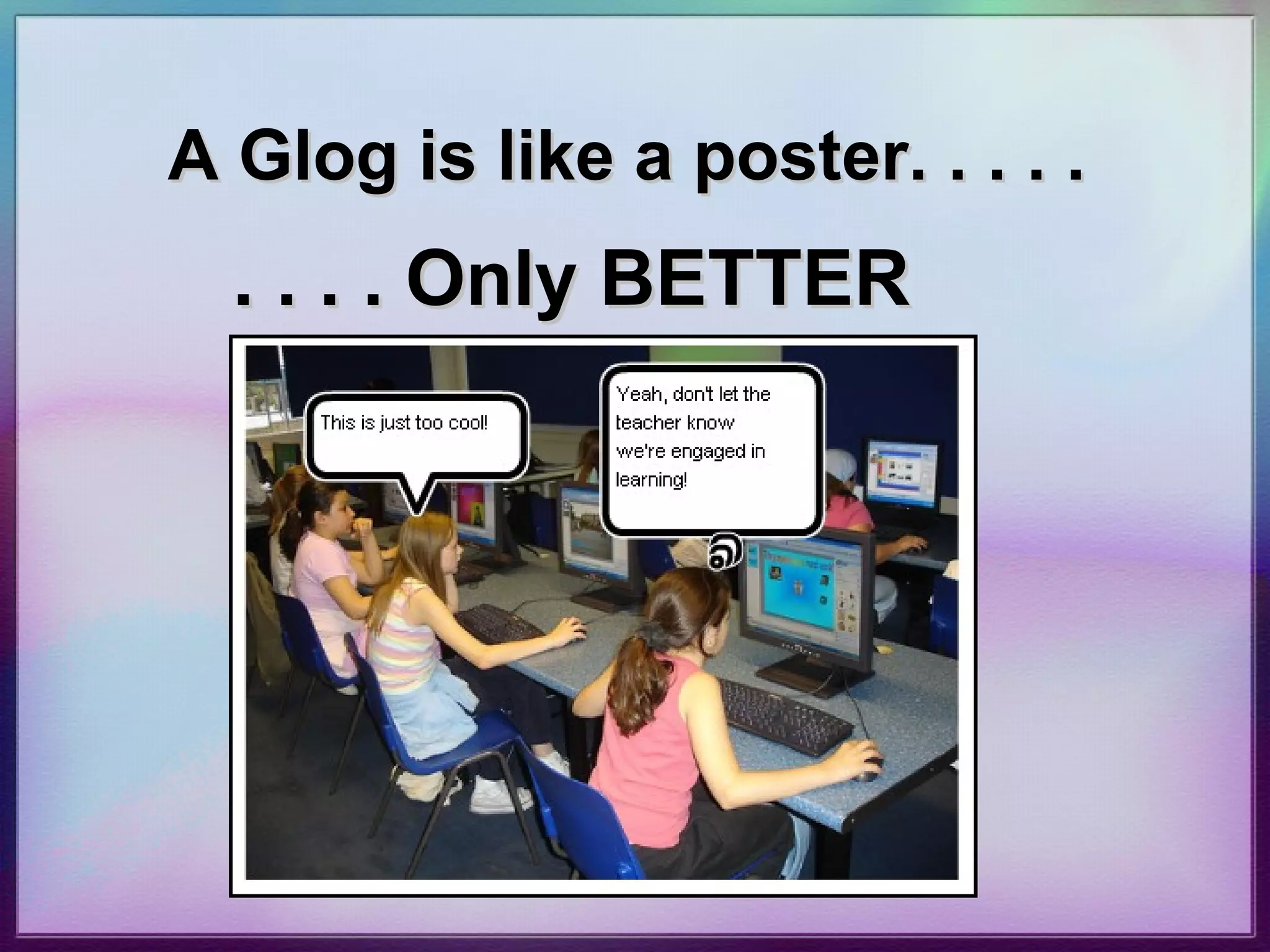
  2. A Glog is like a poster . . . only better
    • Glogs allow students to create an online poster using
        • photographs
        • images
        • graphics
        • video files
        • sound files
        • hyperlinks
  3. 9 Reasons to Use a Glog 1. It allows students to create an online poster 2. It is free 3. It is web-based 4. It uses no ink 5. It allows students to add images, video—such as YouTube--music, text, and hyperlinks (What cardboard poster does that?)  
  4. Reasons, continued
    • 6. It easily incorporates student research and
    • educational content
    • 7. It addresses multiple learning styles
    • 8. It can be accessed from any location with an Internet connection
    • 9. Did I mention that it is economical because it uses NO ink?
  5. Example: History/Biography Project
    • Glog contains
      • Researched information
      • Images
      • Video from YouTube
      • Podcast of speech
      • Hyperlinks to JFK websites
  6. Example: Book/Author Project
    • Images
    • Video
    • Text
    • Hyperlinks
  7. Example: Teacher Glog for Website Links
    • Note to teachers and parents
    • Screen shots of websites
    • Hyperlinks to websites
  8. Glogging Across the Curriculum
    • Altamira Caves
    • Chinese Literature
    • Hockey in Canada
    • Life or Meth
    • Math Sites
    • Science Fair Hints
  9. Getting Started
    • 1. Go to: http:// www.glogster.com
    • 2. Click Register
    • 3. Fill out online registration form.
    Type code from box above
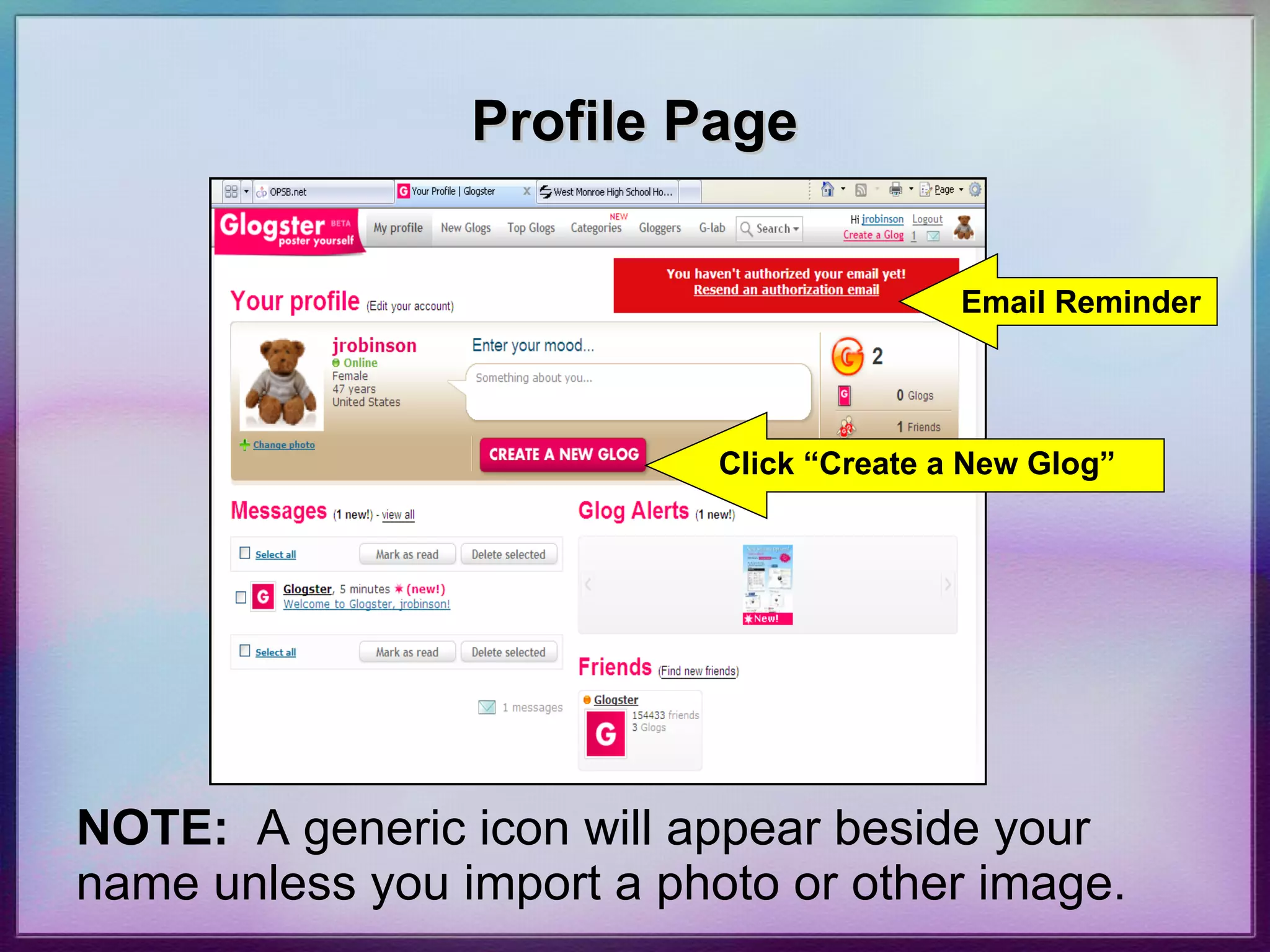
  10. Profile Page Email Reminder Click “Create a New Glog” NOTE: A generic icon will appear beside your name unless you import a photo or other image.
  11. Create Glog
    • A blank glog screen will appear.
  12. To Remove Page Elements
    • Remove page elements by selecting it, then clicking the red trash can that appears.
  13. Magnet Toolbar
    • Use the magnet toolbar to add page elements
    • Toolbar will slide up and down the page
    • Begin with the “Wall” tool to select a background
    • Once other page elements have been added, the wall cannot be changed
  14. Naming Your Glog
    • At the top of the glog screen, there will be a rectangular box labeled “ Glog name ” next to it. When you first open your glog, it is only identified with a glog number. Click in the box and give your glog a unique name.
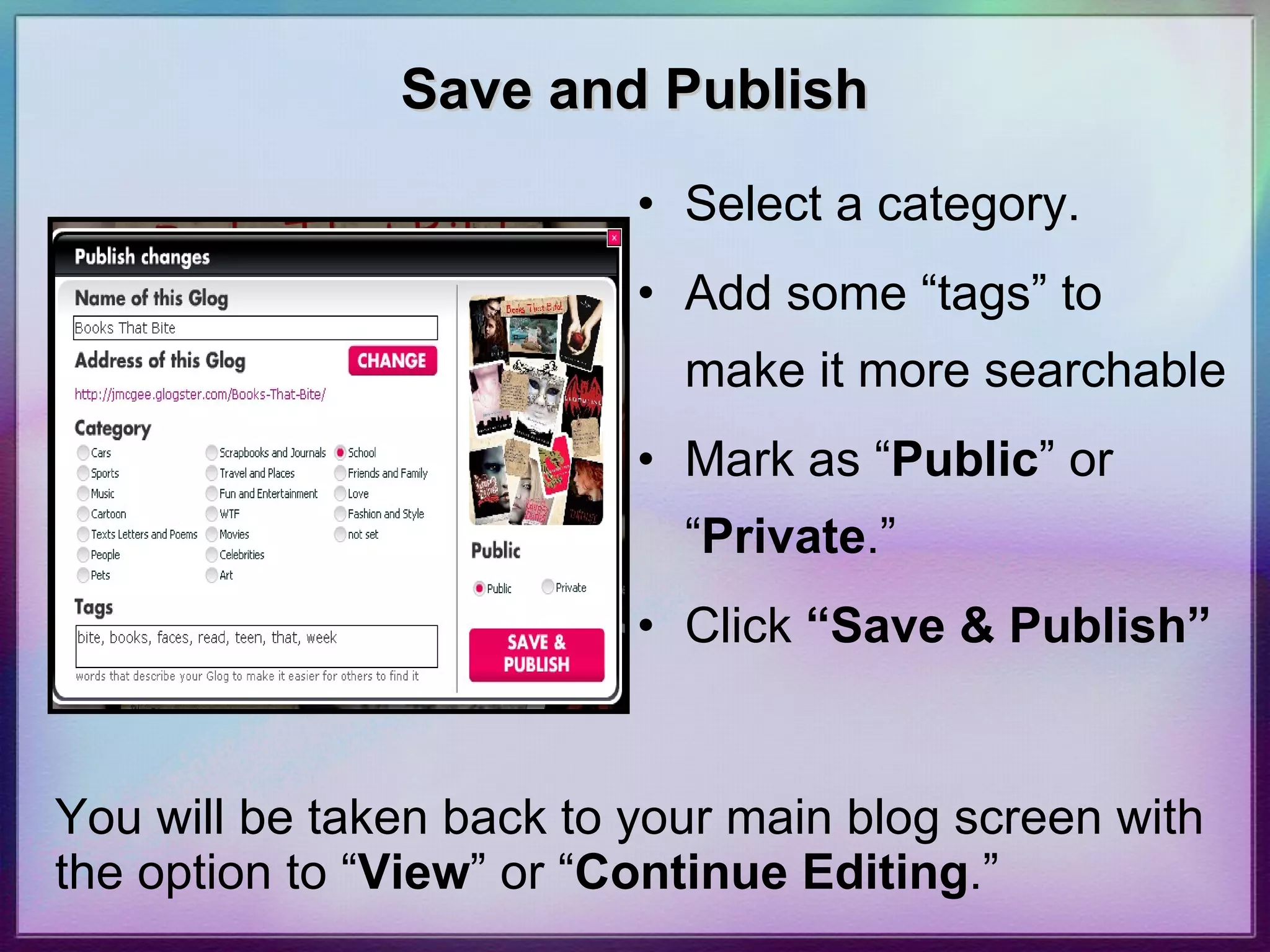
  15. Save and Publish
    • Select a category.
    • Add some “tags” to make it more searchable
    • Mark as “ Public ” or “ Private .”
    • Click “Save & Publish”
    You will be taken back to your main blog screen with the option to “ View ” or “ Continue Editing .”
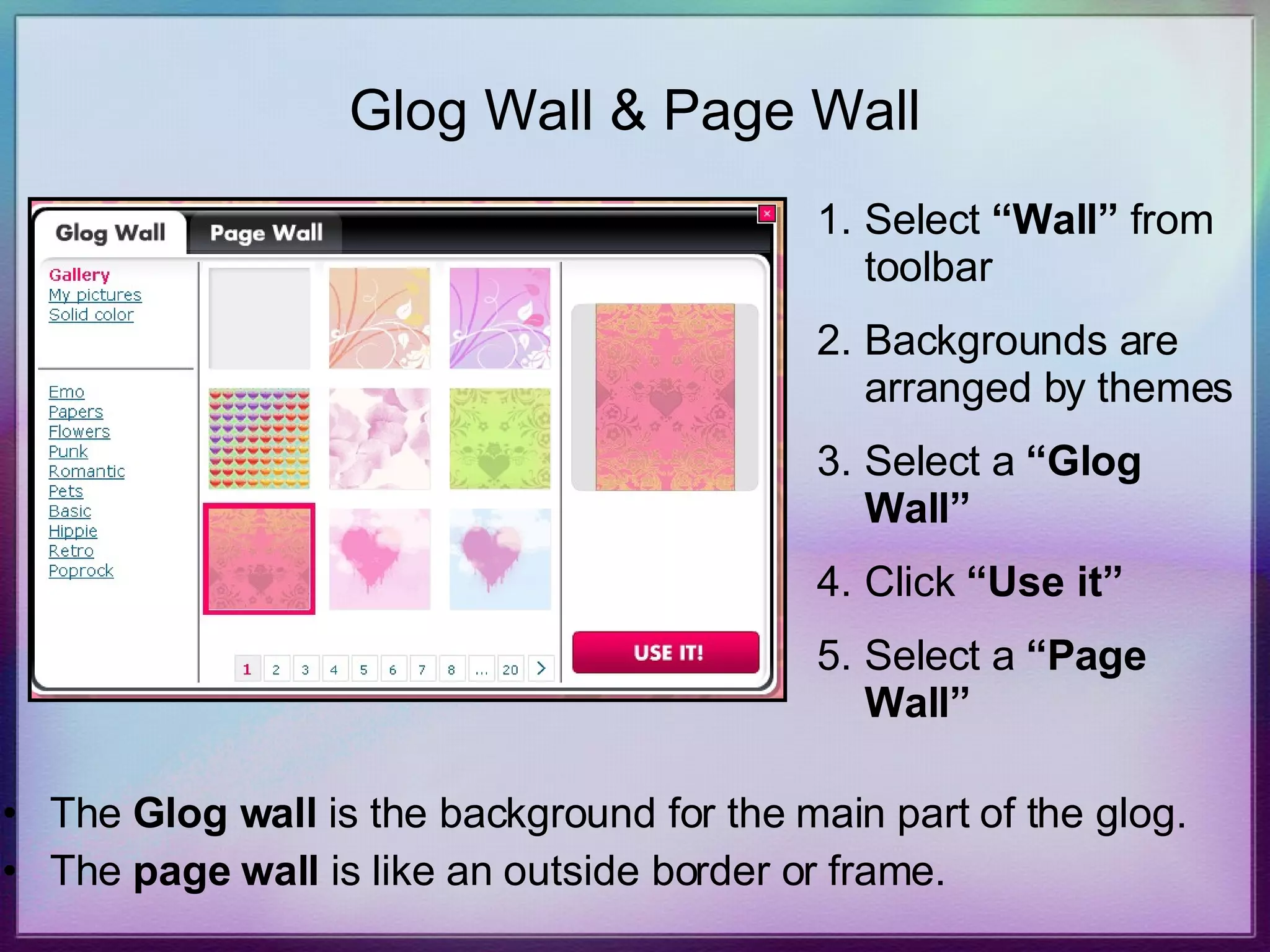
  16. Glog Wall & Page Wall
    • The Glog wall is the background for the main part of the glog.
    • The page wall is like an outside border or frame.
    • Select “Wall” from toolbar
    • Backgrounds are arranged by themes
    • Select a “Glog Wall”
    • Click “Use it”
    • Select a “Page Wall”
  17. Text
    • To add text, select “ TEXT ” from the toolbar
    • Choose a textbox (default), a title box, bubbles or stickers for your text
    • A wide variety of text box styles are available from each category
    • TIP: Text boxes are square. Titles are rectangular, as in a banner or heading
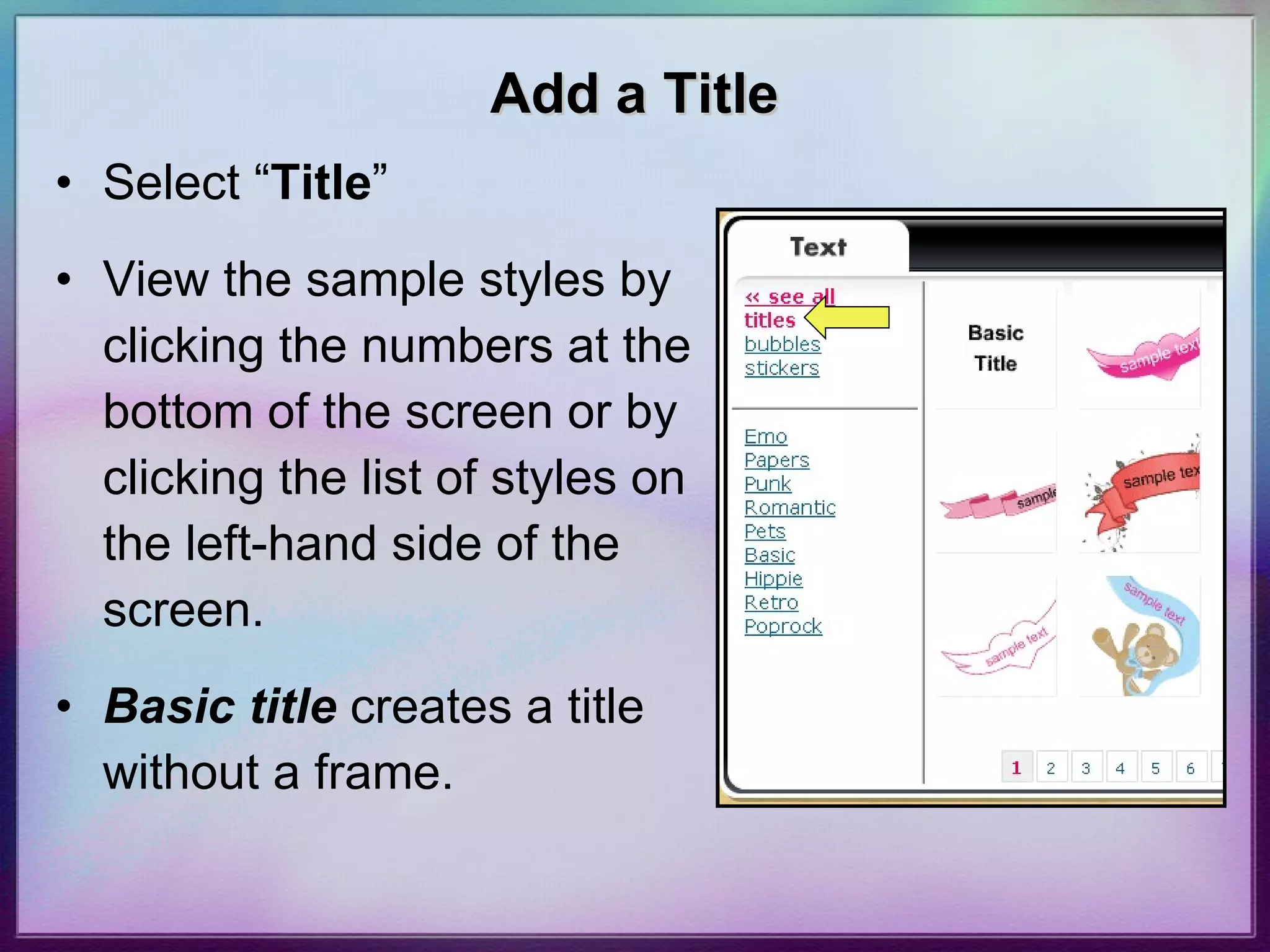
  18. Add a Title
    • Select “ Title ”
    • View the sample styles by clicking the numbers at the bottom of the screen or by clicking the list of styles on the left-hand side of the screen.
    • Basic title creates a title without a frame.
  19. Titles
    • Select the style you want and click “ USE IT .”
    • The textbox will appear at the bottom of your glog screen.
  20. Title Fonts
    • The title appears as “ poster yourself ”
    • Click the “EDIT” button to change/ add text
    • Click “ Ab1 ” to change to font style, color, size or justification
  21. Title Effects
    • Click the “fx” button to create special effects such as title shadows
    • Change the shadow, use a blur effect, adjust the distance, angle, etc.
    • Click “APPLY”
    • Click “OK”
  22. Adding a Hyperlink to a Title
    • To hyperlink your title to a website, select the link button
    • An “Add URL” window will open
    • Paste the URL of the website into the “Link” box
    • Click “APPLY”
  23. Creating Text Boxes
    • To create a regular (square) textbox, select “TEXT” on the toolbar
    • Choose “Sticker” from the text menu list.
  24. Text Box Styles
    • “ Basic Text” creates a box without a frame. The other styles appear as a “sticker” in which text may be typed.
    • Select a style
    • Click “USE IT”
  25. Text Effects
    • Font styles, size, color and alignment are accessed from the same Menu icons used with Title effects.
    • Hyperlinks may also be added to text boxes and stickers.
  26. Images
    • Locate images from the Internet, digital camera, or other sources and save to a folder on computer
    • Click “IMAGE” on menu
    • Select “UPLOAD” button
  27. Uploading Images
    • Browse to folder
    • Select the image
    • Click “Open”
    • Image will upload to image collection.
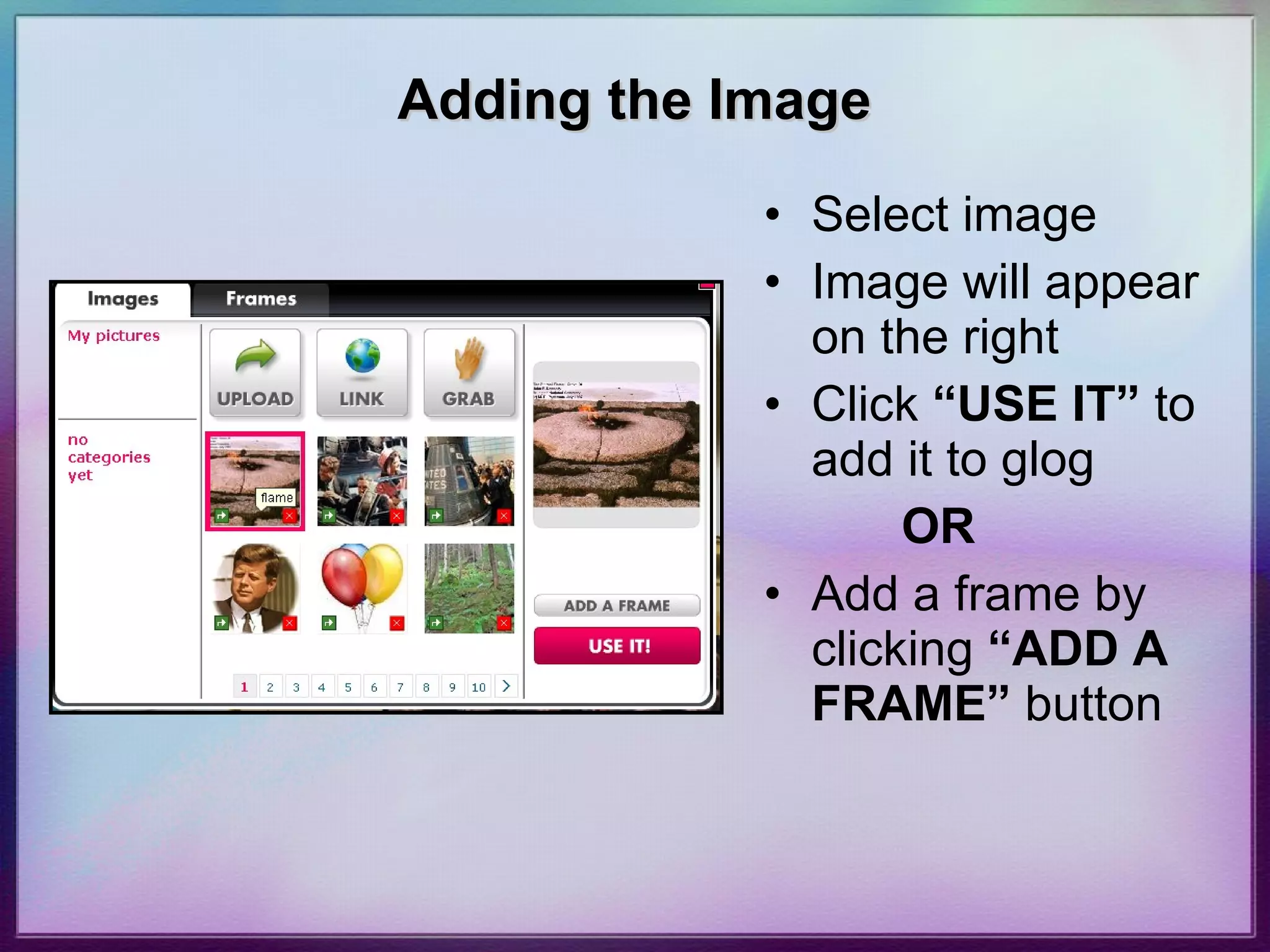
  28. Adding the Image
    • Select image
    • Image will appear on the right
    • Click “USE IT” to add it to glog
    • OR
    • Add a frame by clicking “ADD A FRAME” button
  29. Adding a Frame
    • Use menu on left to view and select a frame around image
    • Click “USE IT” to add image and frame to glog
    • Remove a frame before adding to glog by choosing “Basic” frame
  30. Image Adjustment
    • Adjust size and placement of image using handles on side
    • Use menu bar above image to bring image forward, send to back for layering or duplicate image.
    • Choose trash can to delete image.
    Bring to front Send to back Clone image
  31. Hyperlink to Image
    • Select image
    • Click “EDIT”
    • Select link button on menu
    • Paste or type URL into link box
    • Click “APPLY”
  32. Add Video File
    • Select “Video” from Magnet Toolbar
    • Click “UPLOAD” to navigate to a downloaded video on your computer (such as a video from UnitedStreaming )
    • OR
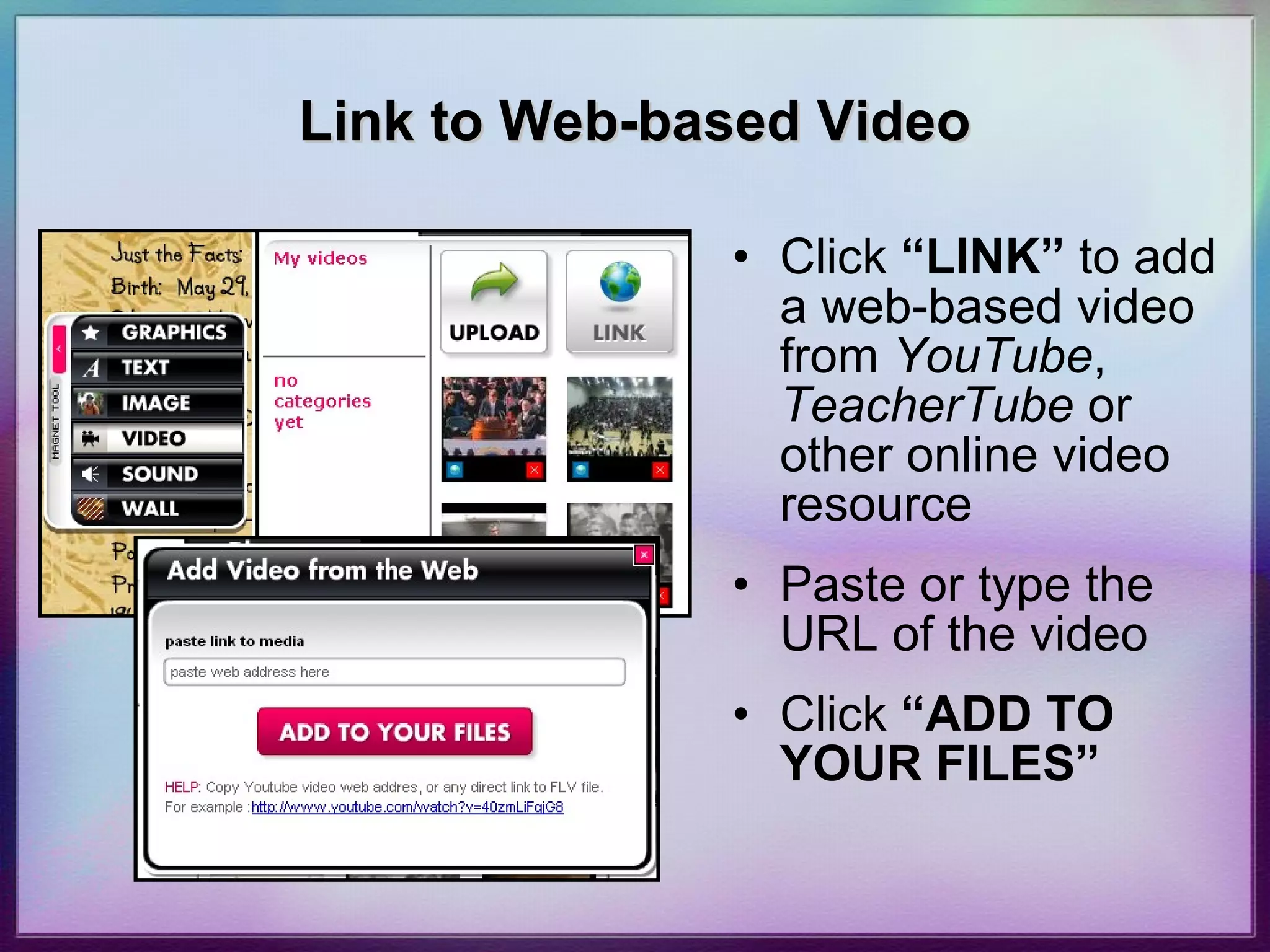
  33. Link to Web-based Video
    • Click “LINK” to add a web-based video from YouTube , TeacherTube or other online video resource
    • Paste or type the URL of the video
    • Click “ADD TO YOUR FILES”
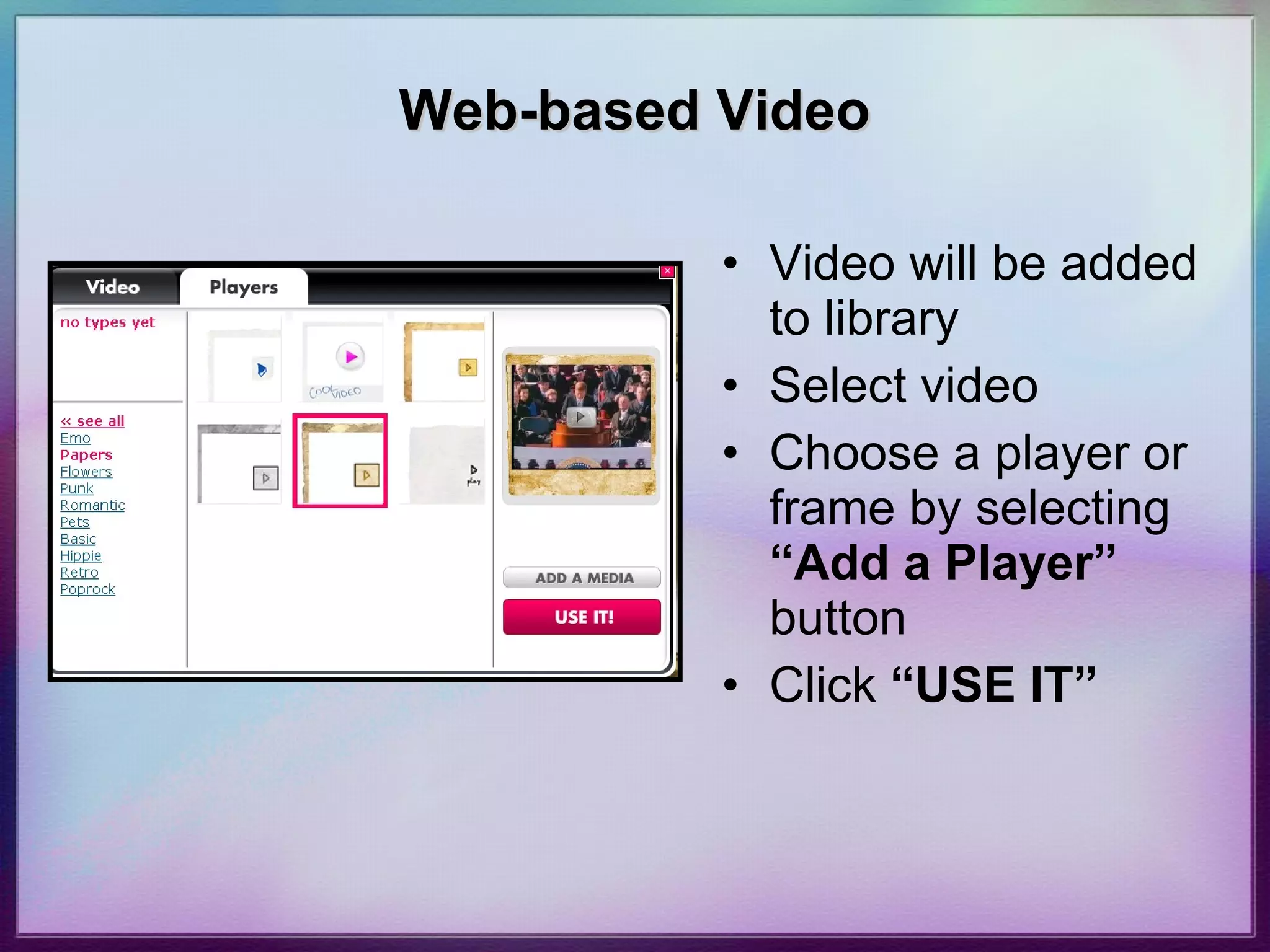
  34. Web-based Video
    • Video will be added to library
    • Select video
    • Choose a player or frame by selecting “Add a Player” button
    • Click “USE IT”
  35. Add an Audio File
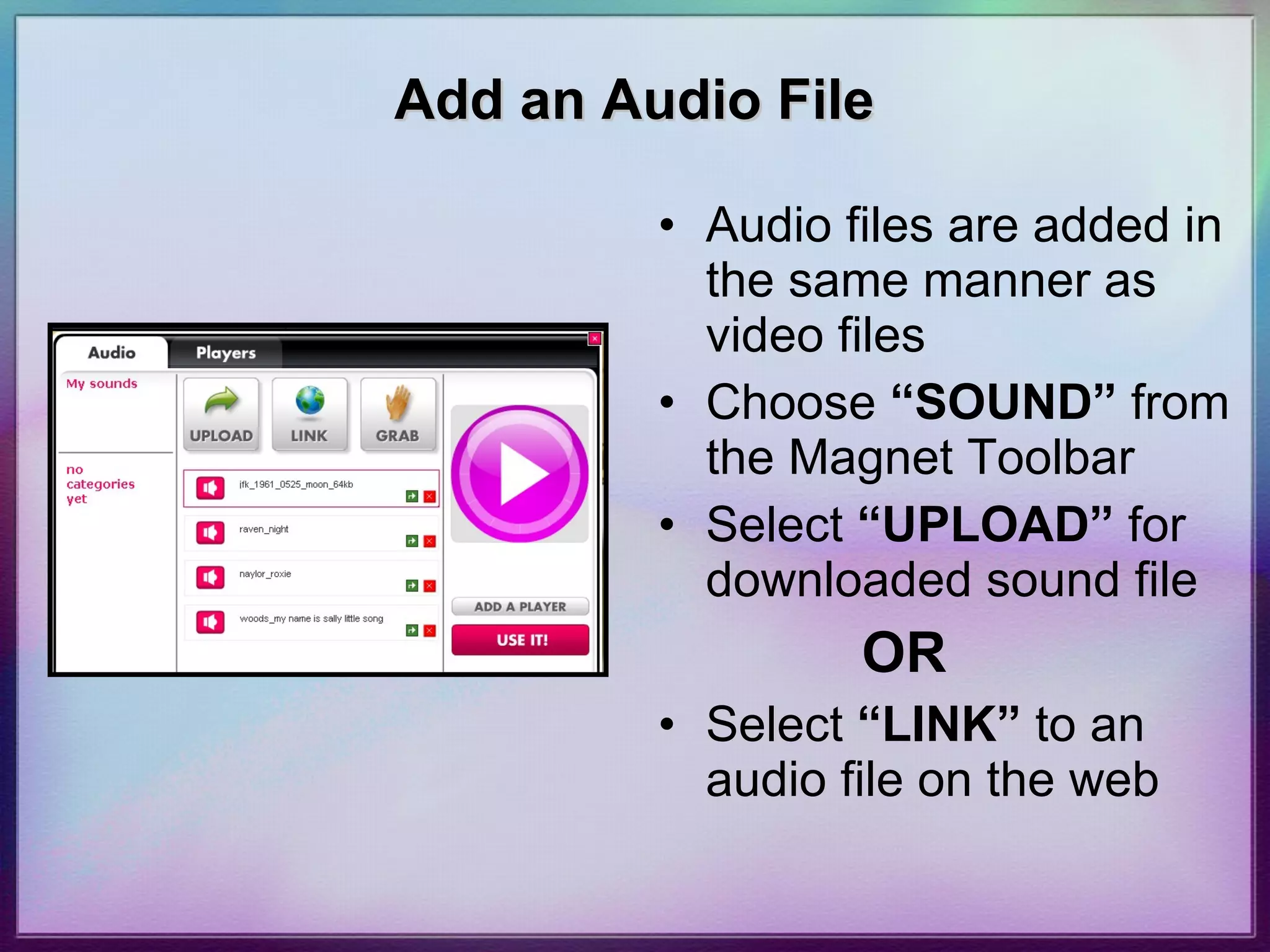
    • Audio files are added in the same manner as video files
    • Choose “SOUND” from the Magnet Toolbar
    • Select “UPLOAD” for downloaded sound file
    • OR
    • Select “LINK” to an audio file on the web
  36. Audio File and Frame
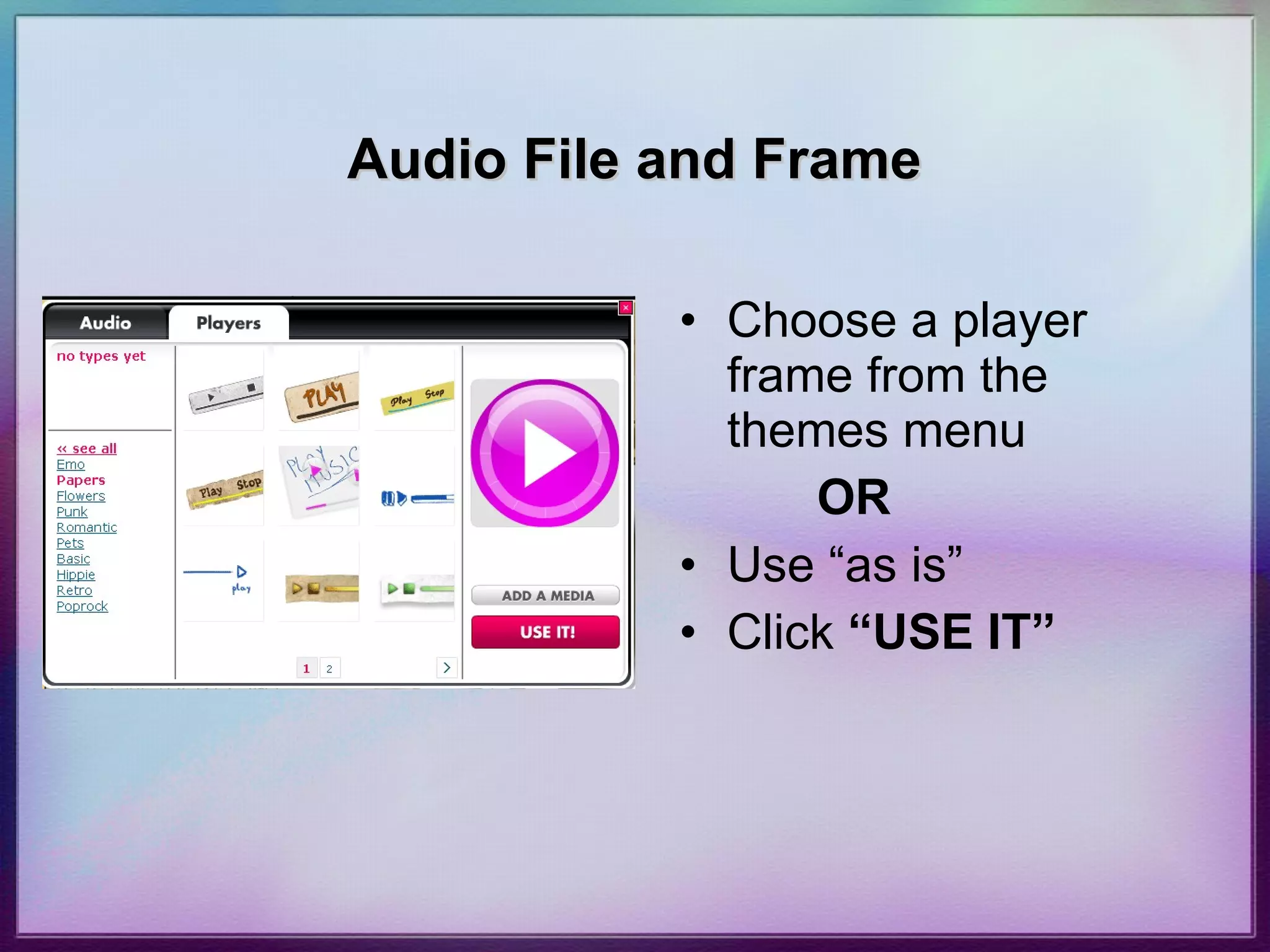
    • Choose a player frame from the themes menu
    • OR
    • Use “as is”
    • Click “USE IT”
  37. Add Graphics
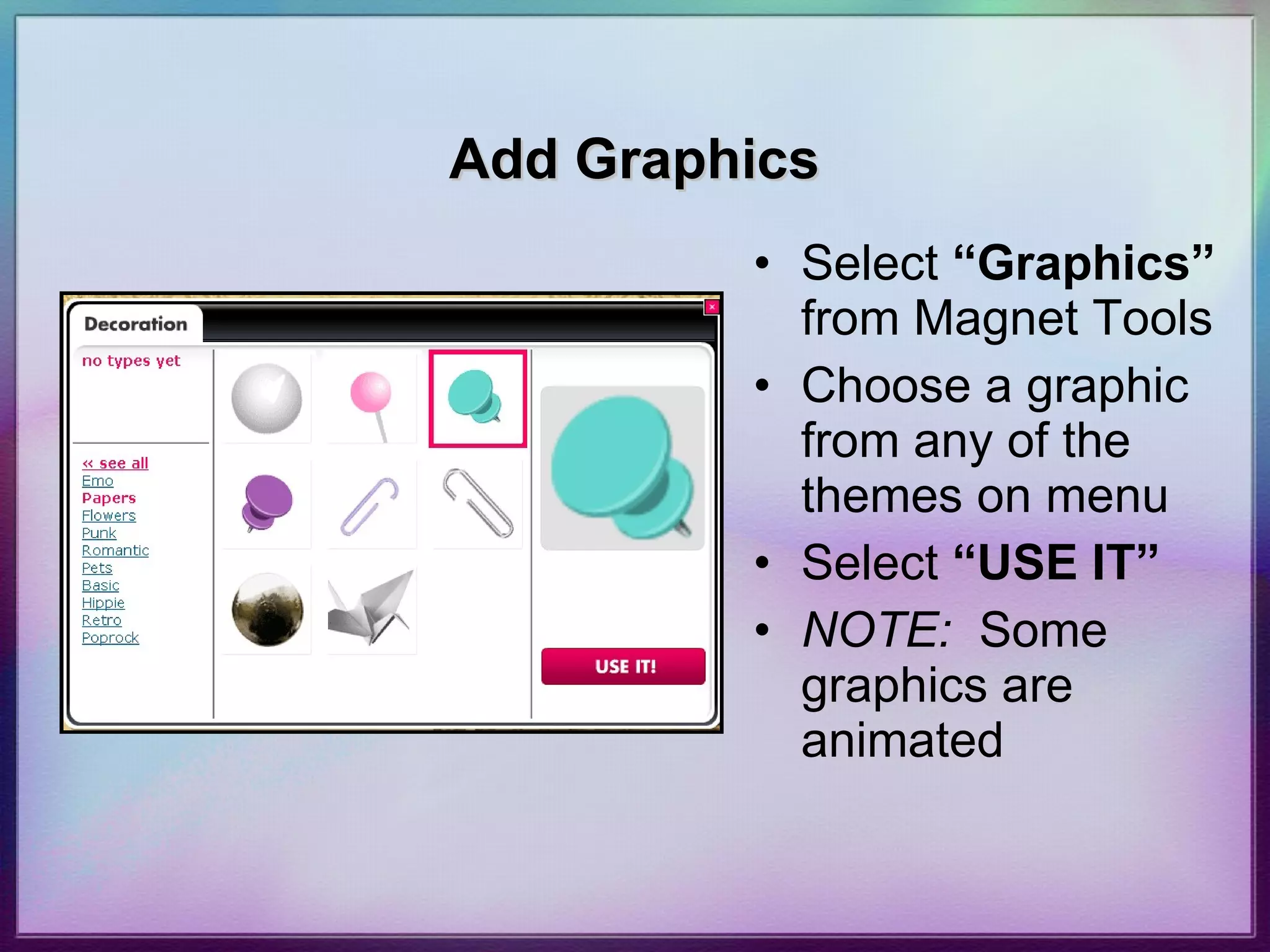
    • Select “Graphics” from Magnet Tools
    • Choose a graphic from any of the themes on menu
    • Select “USE IT”
    • NOTE: Some graphics are animated
  38. Save and Publish
    • Select “SAVE & PUBLISH” from top menu of glog
    • Edit name, category, or tags if needed
    • Optional: Change from “Private” to “Public”
    • Click “SAVE & PUBLISH”
  39. Publishing and Sharing Glog
    • Use this screen to view glog, email glog, or post to web
    • Use URL link to post a link on a website or wiki
    • Click “Email” to email link
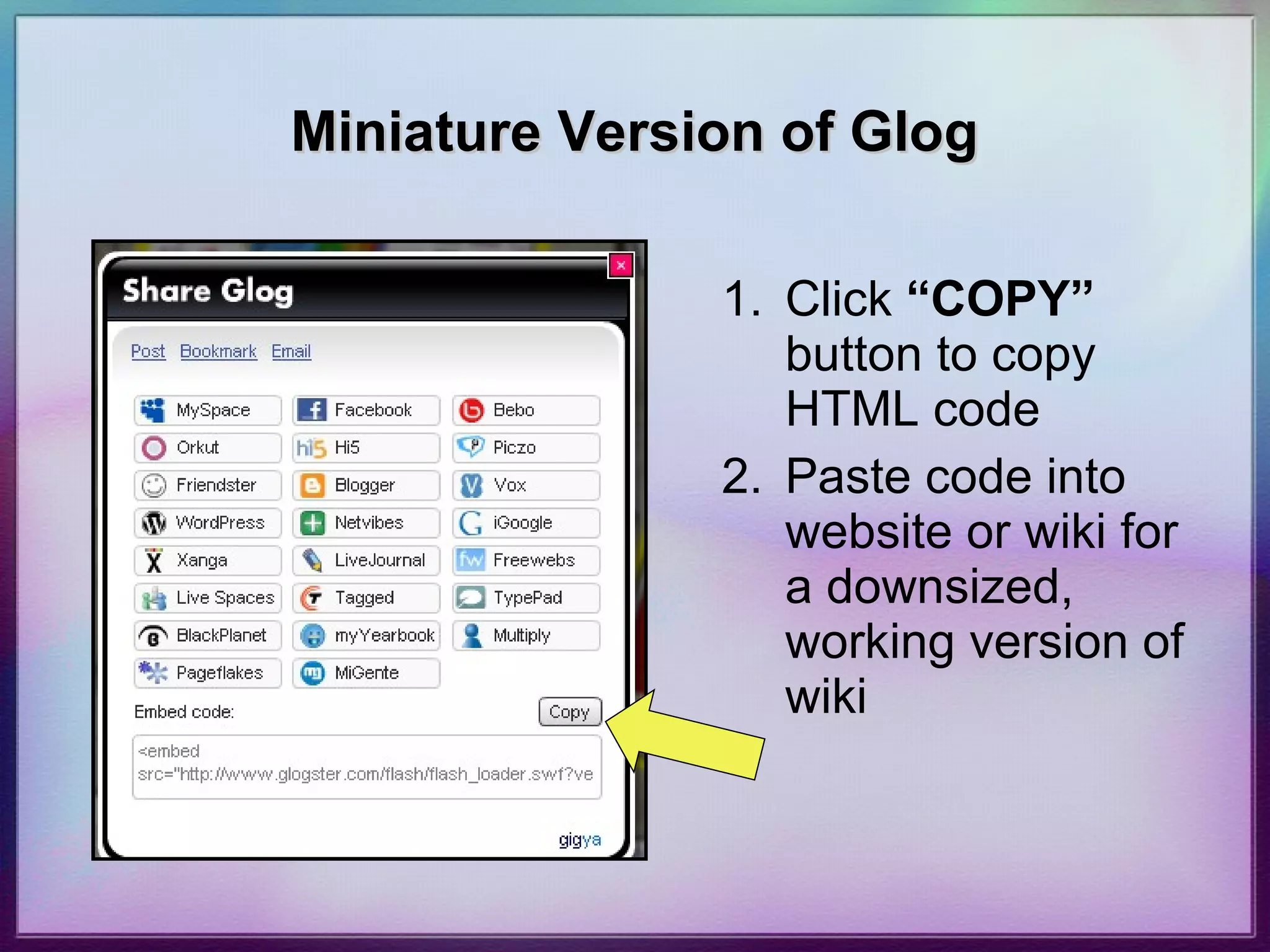
    • Click “Copy” button to copy html code to embed
    URL Link Email Copy HTML
  40. Glog Embedded into Wiki
    • Embed a glog into a wiki to use as a “homepage” http://ladigitalimmigrants.wikispaces.com/
      • Open Wiki
      • Click “Edit this Page”
  41. How to Embed to Wiki
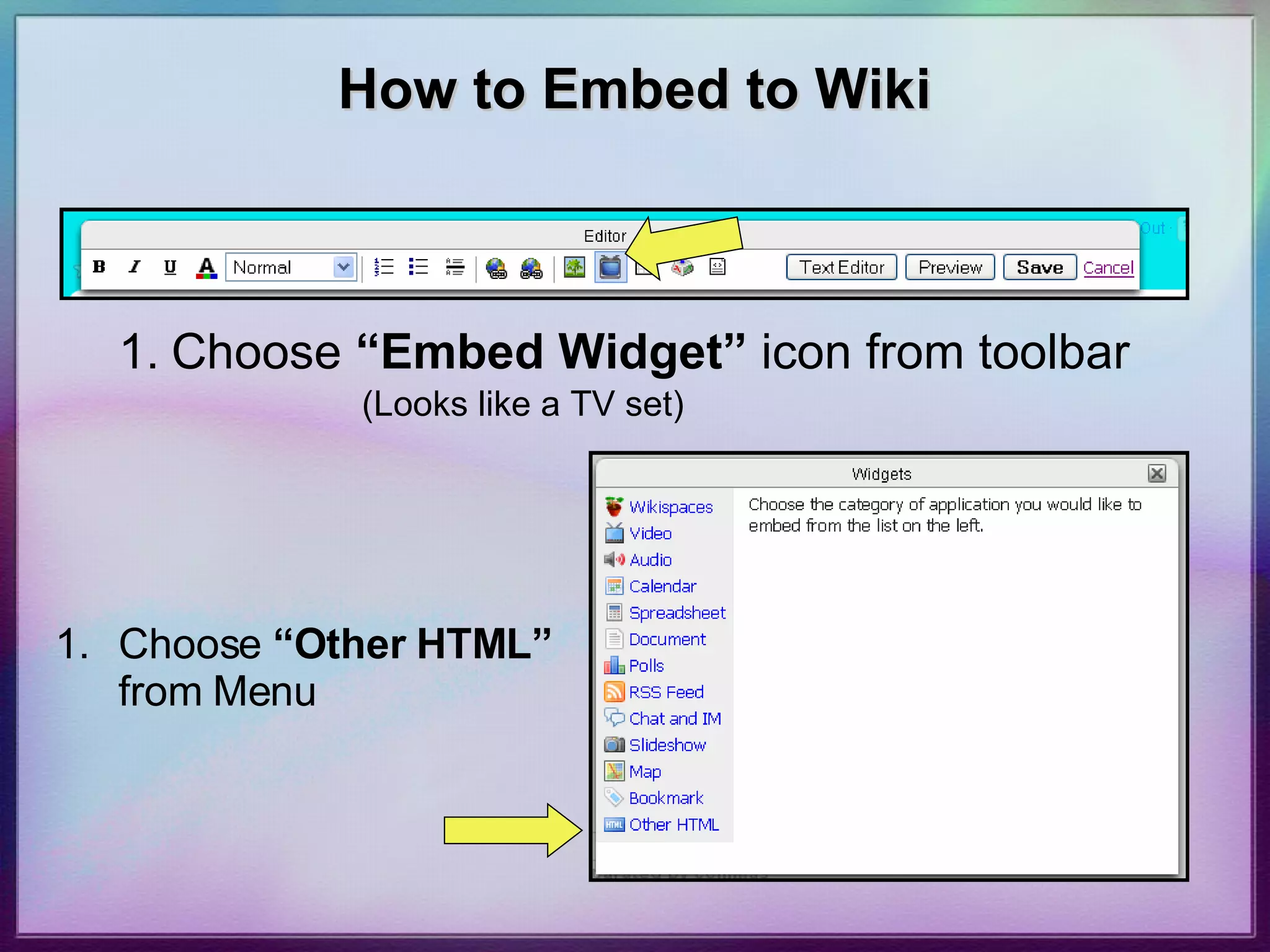
    • Choose “Embed Widget” icon from toolbar
    • (Looks like a TV set)
    • Choose “Other HTML” from Menu
  42. How to Embed to Wiki
    • Paste HTML Code into box
    • “ Save”
  43. Miniature Copy of Glog
    • Locate and click “+SHARE GLOG” at bottom right of screen
  44. Miniature Version of Glog
    • Click “COPY” button to copy HTML code
    • Paste code into website or wiki for a downsized, working version of wiki
  45. A Glog is like a poster. . . . . . . . . Only BETTER
  46. Glog ON!

+ Jan McGeeJan McGee, 2 years ago


10376 views, 20 favs, 48 embeds more

About this presentation

© All Rights Reserved

  • Favorites 20
  • Comments 13
  • Downloads 255
  • Total Views 10376
    • 9736 on SlideShare
    • 640 from embeds
Embed views
  • 192 views on http://ncvps.blackboard.com
  • 56 views on http://kraynaksciencewiki.wikispaces.com
  • 51 views on http://csbaker.pbworks.com
  • 48 views on http://metronetmili.pbworks.com
  • 44 views on http://butlertech.wikispaces.com

more

Embed views
  • 192 views on http://ncvps.blackboard.com
  • 56 views on http://kraynaksciencewiki.wikispaces.com
  • 51 views on http://csbaker.pbworks.com
  • 48 views on http://metronetmili.pbworks.com
  • 44 views on http://butlertech.wikispaces.com
  • 35 views on http://ncmstech.pbworks.com
  • 23 views on http://workingwithenglish.wikispaces.com
  • 21 views on http://lcstudentwiki.wikispaces.com
  • 20 views on http://mrbprivatewiki0910.wiki.hoover.k12.al.us
  • 14 views on http://techietuesday.wikispaces.com
  • 10 views on http://i3cs2109.blogspot.com
  • 9 views on http://jujo00obo2o234ungd3t8qjfcjrs3o6k-a-sites-opensocial.googleusercontent.com
  • 9 views on http://www.hccweb2.org
  • 9 views on http://123teach.wikispaces.com
  • 8 views on http://edgeadvancedwiki.wikispaces.com
  • 8 views on http://newcastleder.wikispaces.com
  • 6 views on http://gaetcglogster.pbworks.com
  • 5 views on http://goldteamsocialstudies.wikispaces.com
  • 5 views on http://literacy-and-technology.wikispaces.com
  • 5 views on http://pala.edublogs.org
  • 5 views on https://lumenchristiwiki.wikispaces.com
  • 5 views on http://techexpo2010.wikispaces.com
  • 5 views on http://metronetmili.pbwiki.com
  • 4 views on http://noshushinginthelibrary.wikispaces.com
  • 4 views on http://mwedwardstechnology.blogspot.com
  • 4 views on http://jconklin.weebly.com
  • 4 views on http://theunquietlibrary.libguides.com
  • 4 views on http://afsfacultyshare.wikispaces.com
  • 3 views on http://mccpseif.wikispaces.com
  • 2 views on http://englisharoundyou.wikispaces.com
  • 2 views on http://amschoolcurriculum.blogspot.com
  • 2 views on http://www.train2do.com
  • 2 views on http://ladigitalimmigrants.wikispaces.com
  • 2 views on http://moodle.schoolcraftschools.org
  • 1 views on http://strathhavencff.wikispaces.com
  • 1 views on http://lbtechknowledgey.wikispaces.com
  • 1 views on http://www.weebly.com
  • 1 views on http://1to1-on-a-shoestring.wikispaces.com
  • 1 views on http://translate.googleusercontent.com
  • 1 views on http://demoblogsrus.blogspot.com
  • 1 views on http://sbrott.wikispaces.com
  • 1 views on http://heilmile.de
  • 1 views on http://educacion-siglo21.blogspot.com
  • 1 views on http://enlasnubes.pbworks.com
  • 1 views on http://glogster.pbworks.com
  • 1 views on http://www3.eboard.com
  • 1 views on https://newcastleder.wikispaces.com
  • 1 views on http://www.theunquietlibrary.libguides.com

less

Flagged as inappropriate Flag as inappropriate
Flag as inappropriate

Select your reason for flagging this presentation as inappropriate. If needed, use the feedback form to let us know more details.

Cancel
File a copyright complaint

Categories

Groups / Events