Word Cloud by Wordle.net
Outcomes
 Create a Padlet wall (if Internet available) with text
  and media
 Describe options for using Padlet in language
  classroom
 Add Padlet to your repetoire of online tools for world
  language teaching and learning
What is Padlet?


                     http://padlet.com/
  Padlet is a user-friendly, free, and attractive tool for creating
  websites that look like bulletin boards or walls. You can post
      text, images, or videos in minutes. It’s also a tool for
collaboration because multiple people can contribute to the wall.
Padlet in the Language Classroom
 See the wall created for this presentation,
  http://padlet.com/wall/oflta_spring13
 First, a quick tutorial
 Then, example uses
 Feel free to access Padlet and create your own
  wall!
Important Stuff for Students
 See Padlet’s Terms of Service
    http://jn.padlet.com/knowledgebase/articles/153268-terms-of-


 Related to COPPA (Children’s Online Privacy and
  Protection Act) and FERPA (Family Educational Rights and
  Privacy Act)
 Especially children under 13
Word Cloud by Wordle.net
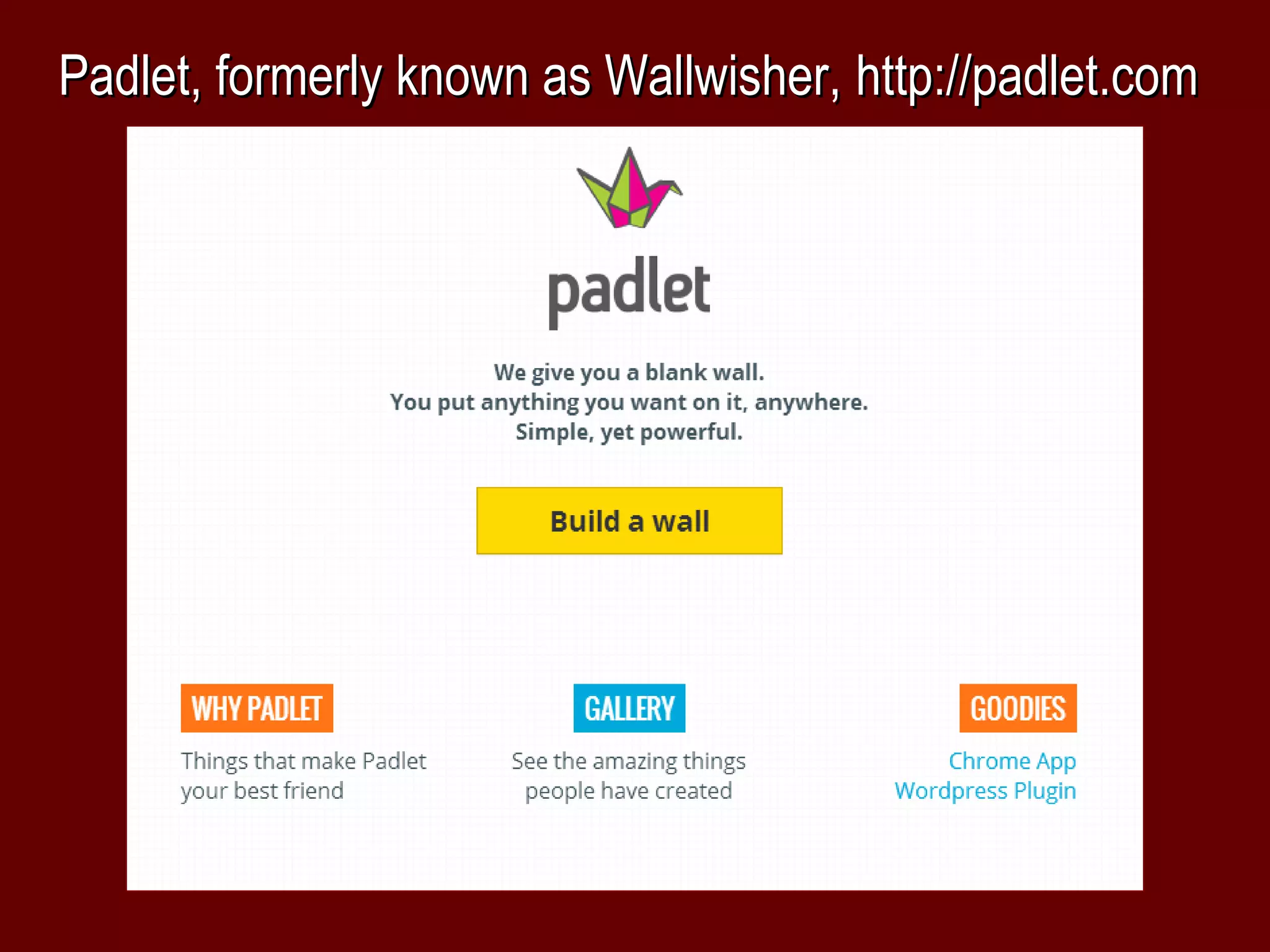
Padlet, formerly known as Wallwisher, http://padlet.com
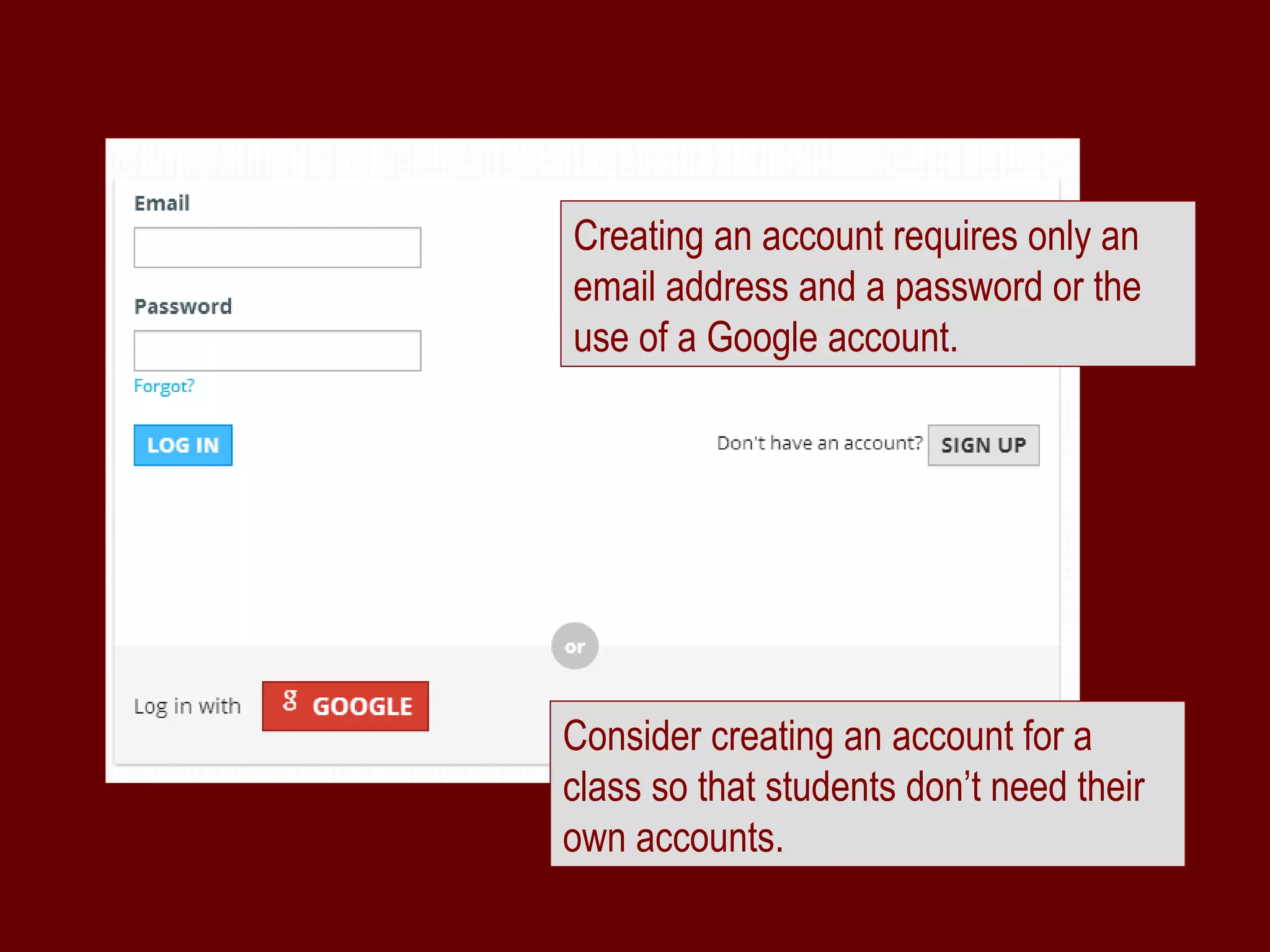
Creating an account requires only an
email address and a password or the
use of a Google account.


Consider creating an account for a
class so that students don’t need their
own accounts.
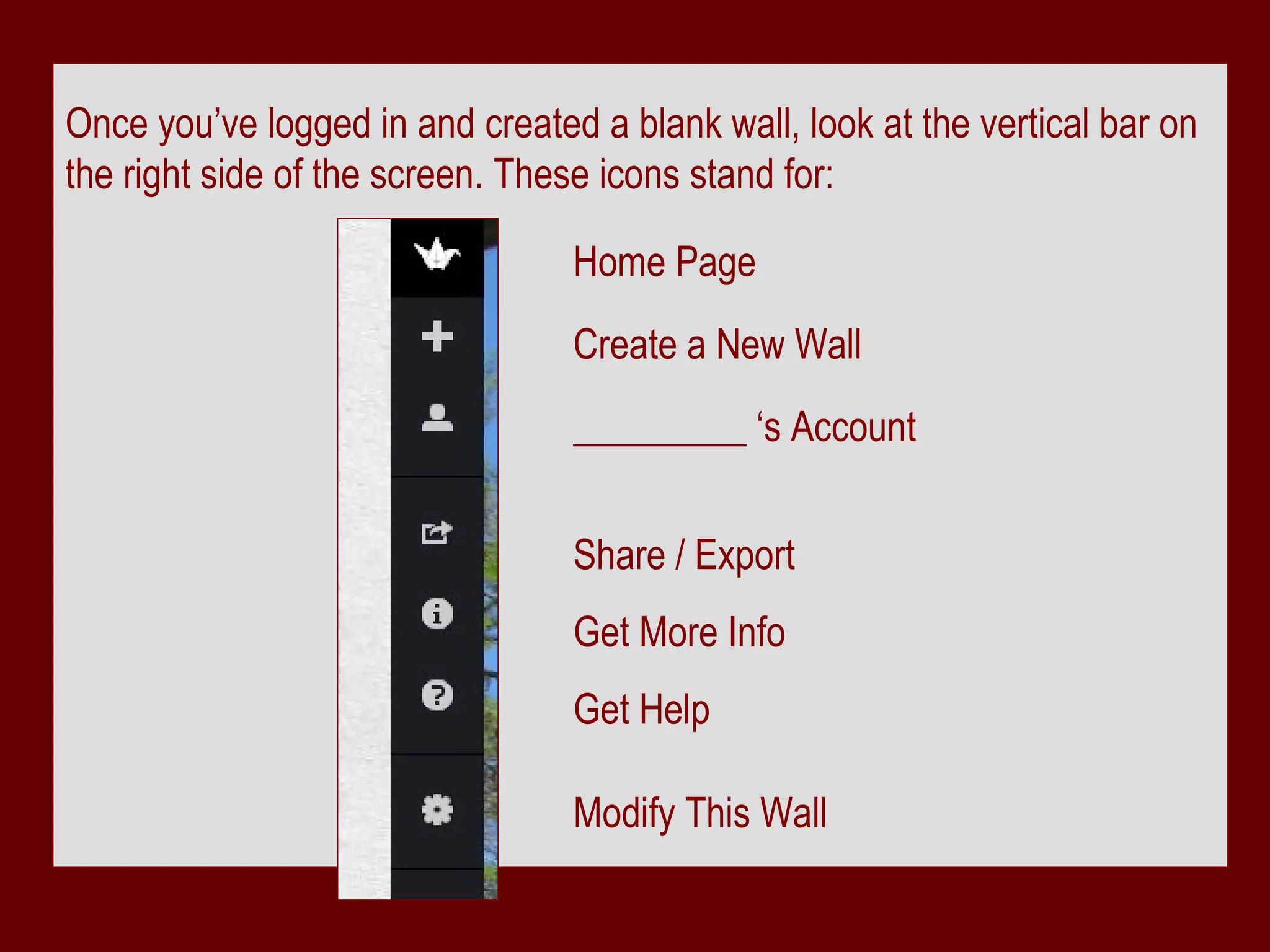
Once you’ve logged in and created a blank wall, look at the vertical bar on
the right side of the screen. These icons stand for:

                                 Home Page
                                 Create a New Wall
                                 _________ ‘s Account


                                 Share / Export
                                 Get More Info
                                 Get Help

                                 Modify This Wall
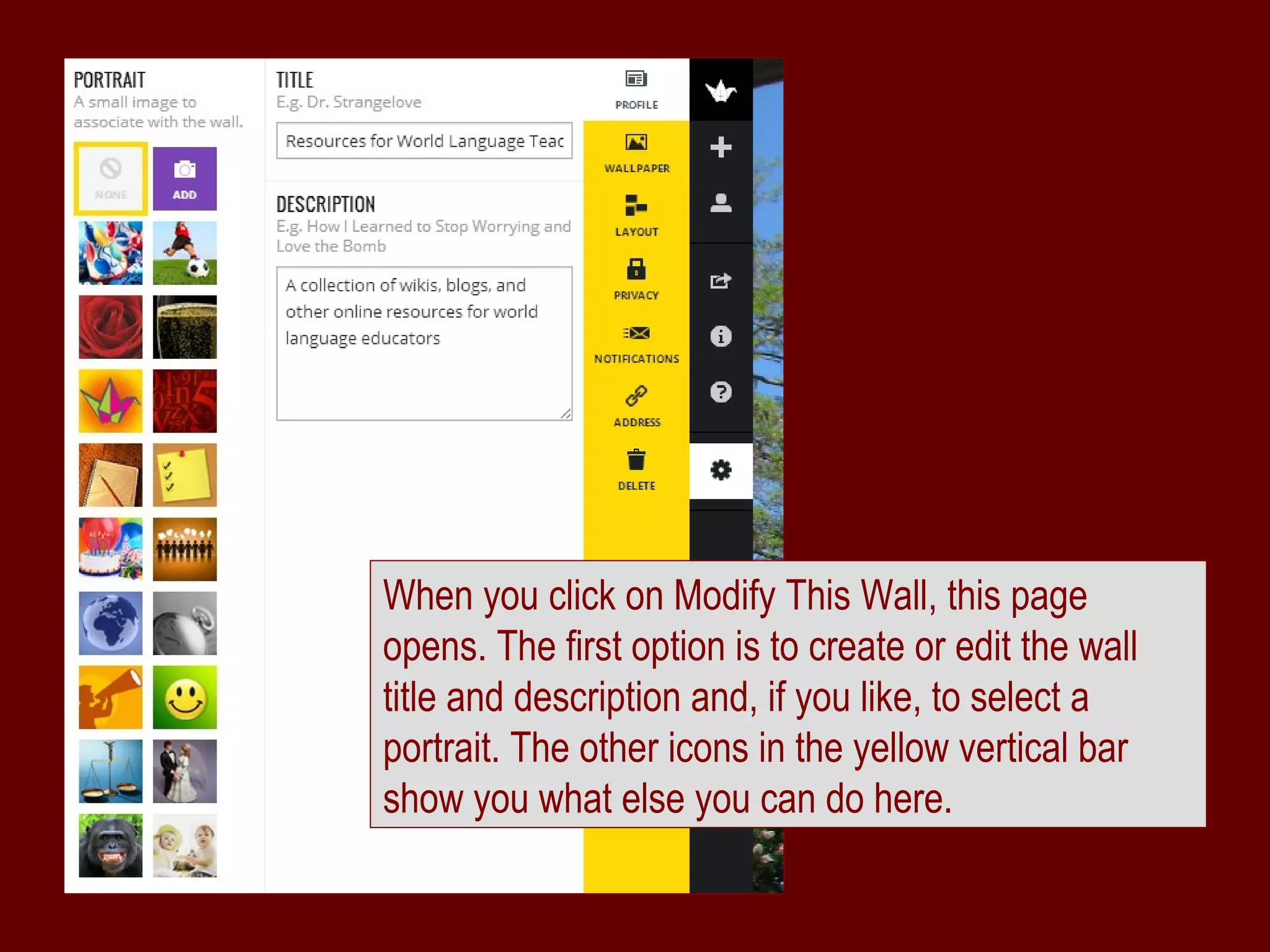
When you click on Modify This Wall, this page
opens. The first option is to create or edit the wall
title and description and, if you like, to select a
portrait. The other icons in the yellow vertical bar
show you what else you can do here.
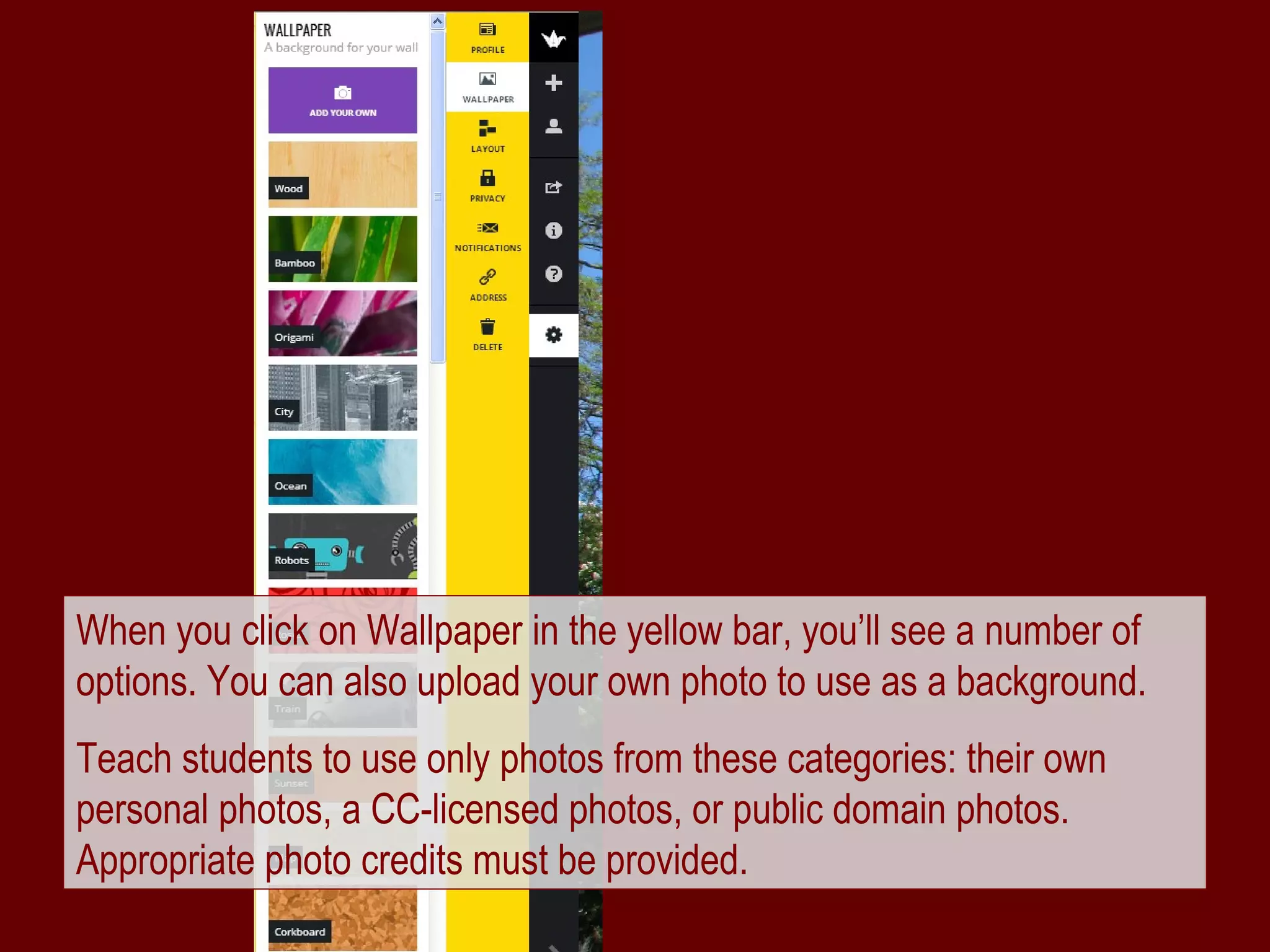
When you click on Wallpaper in the yellow bar, you’ll see a number of
options. You can also upload your own photo to use as a background.
Teach students to use only photos from these categories: their own
personal photos, a CC-licensed photos, or public domain photos.
Appropriate photo credits must be provided.
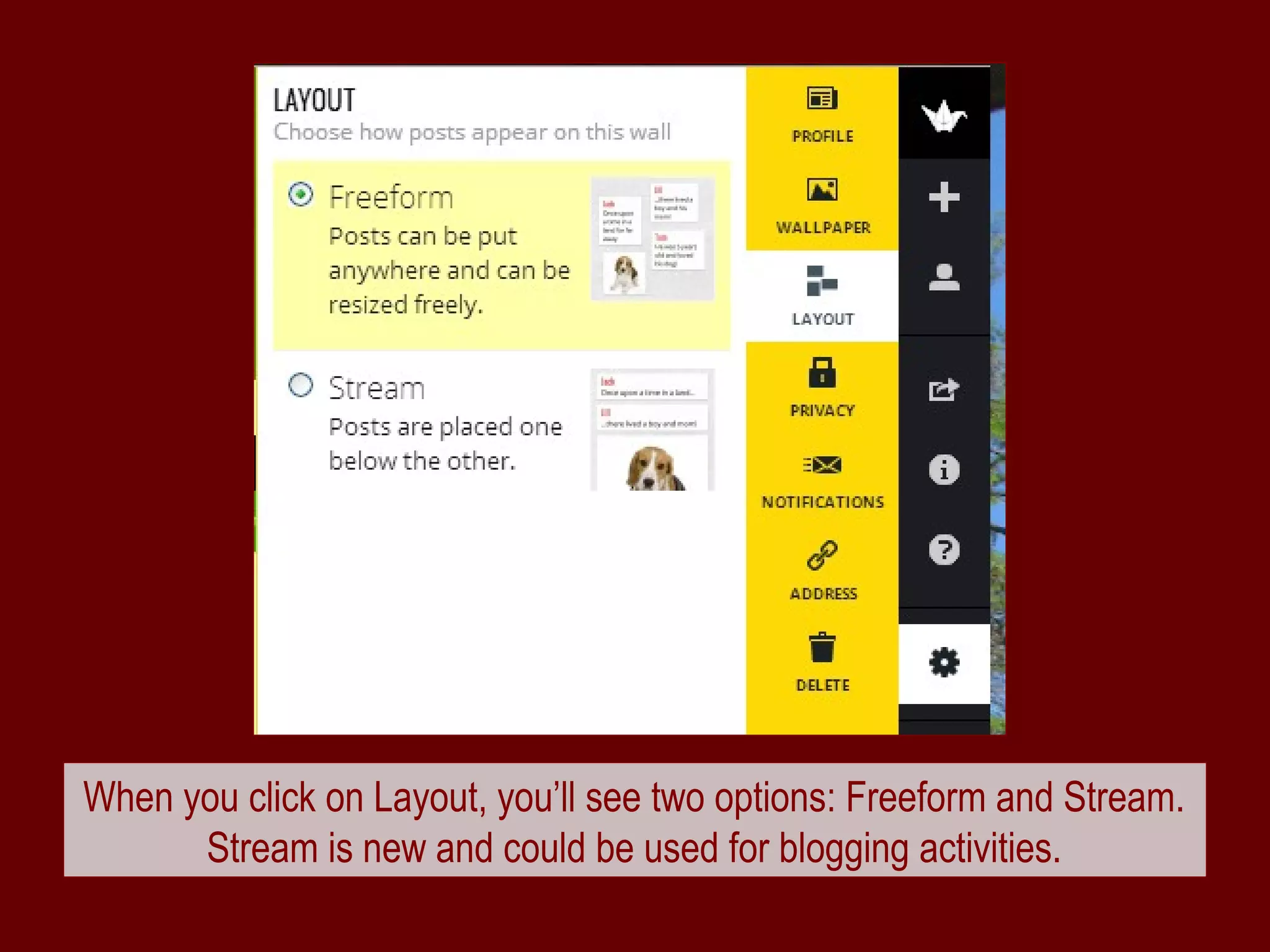
When you click on Layout, you’ll see two options: Freeform and Stream.
      Stream is new and could be used for blogging activities.
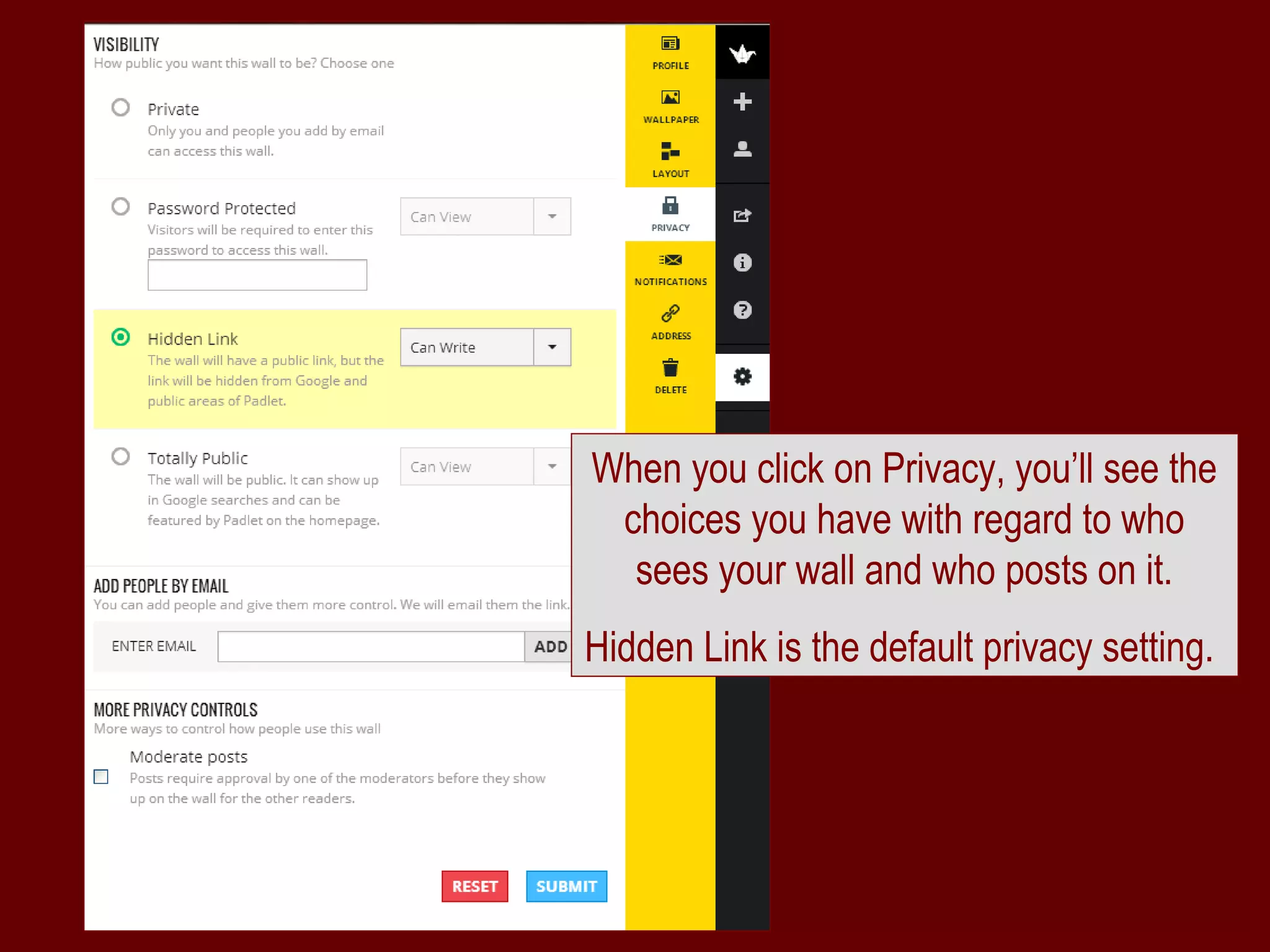
When you click on Privacy, you’ll see the
 choices you have with regard to who
  sees your wall and who posts on it.
Hidden Link is the default privacy setting.
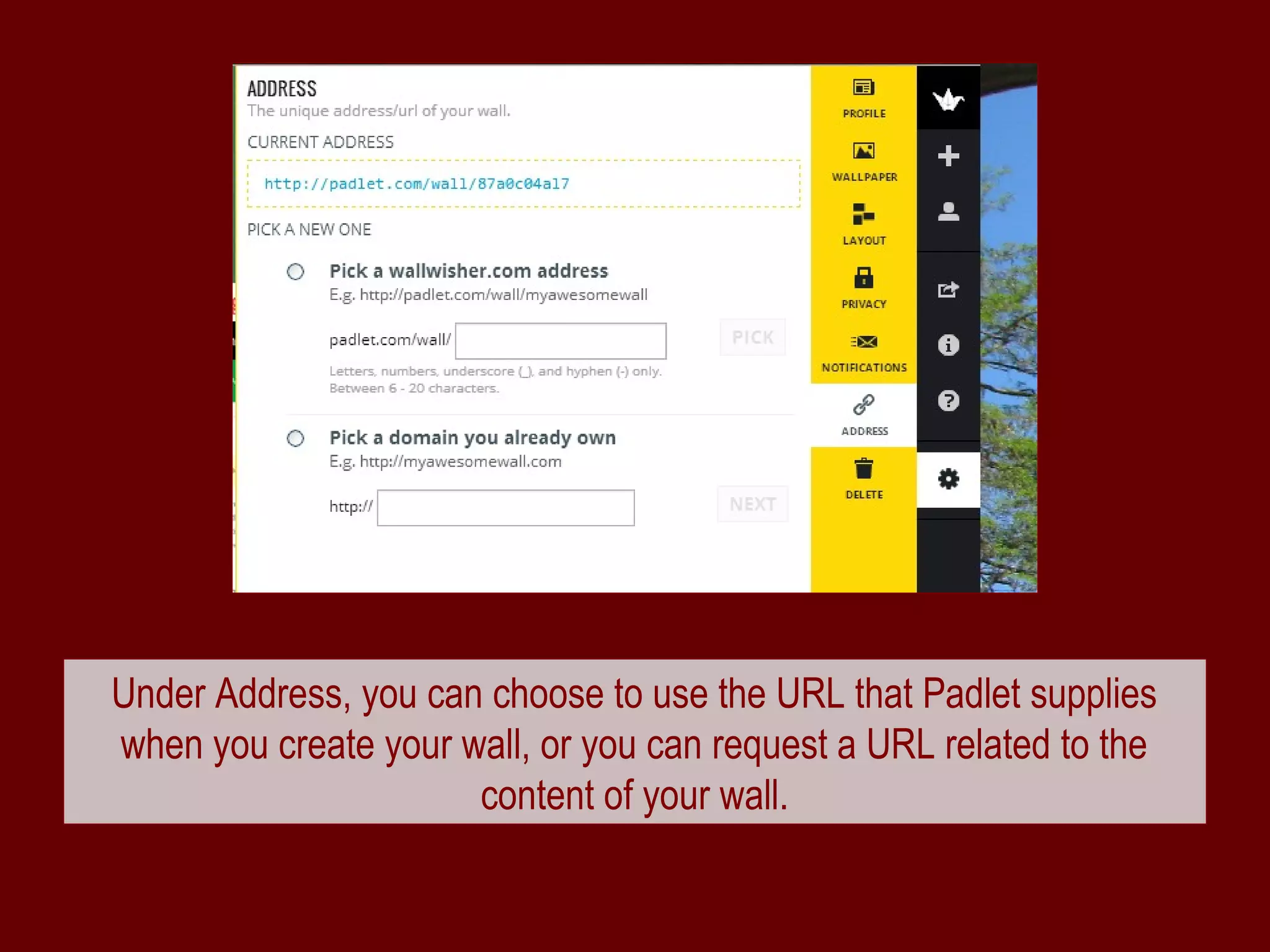
Under Address, you can choose to use the URL that Padlet supplies
when you create your wall, or you can request a URL related to the
                      content of your wall.
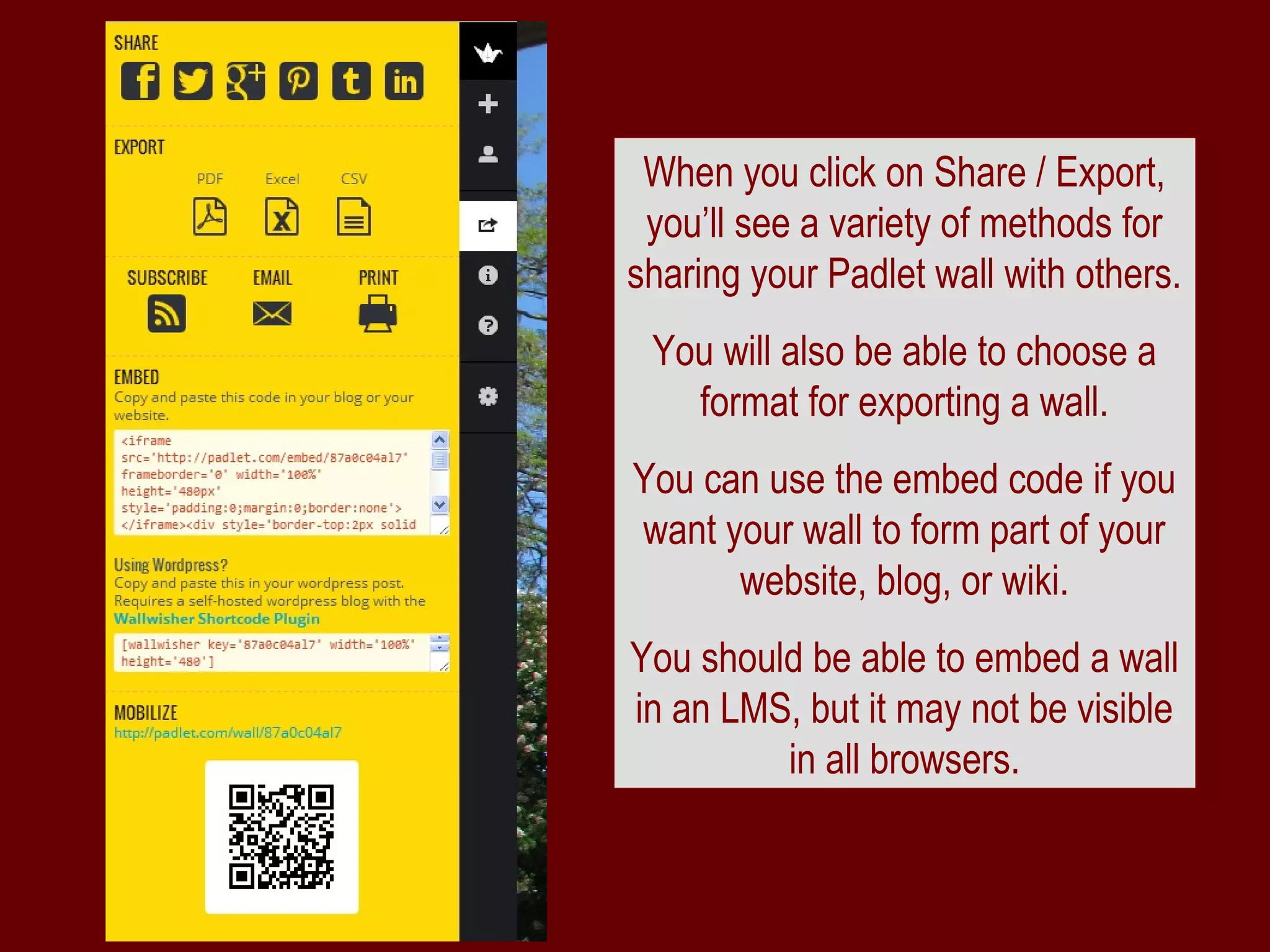
When you click on Share / Export,
 you’ll see a variety of methods for
sharing your Padlet wall with others.
 You will also be able to choose a
   format for exporting a wall.
You can use the embed code if you
want your wall to form part of your
      website, blog, or wiki.
You should be able to embed a wall
in an LMS, but it may not be visible
         in all browsers.
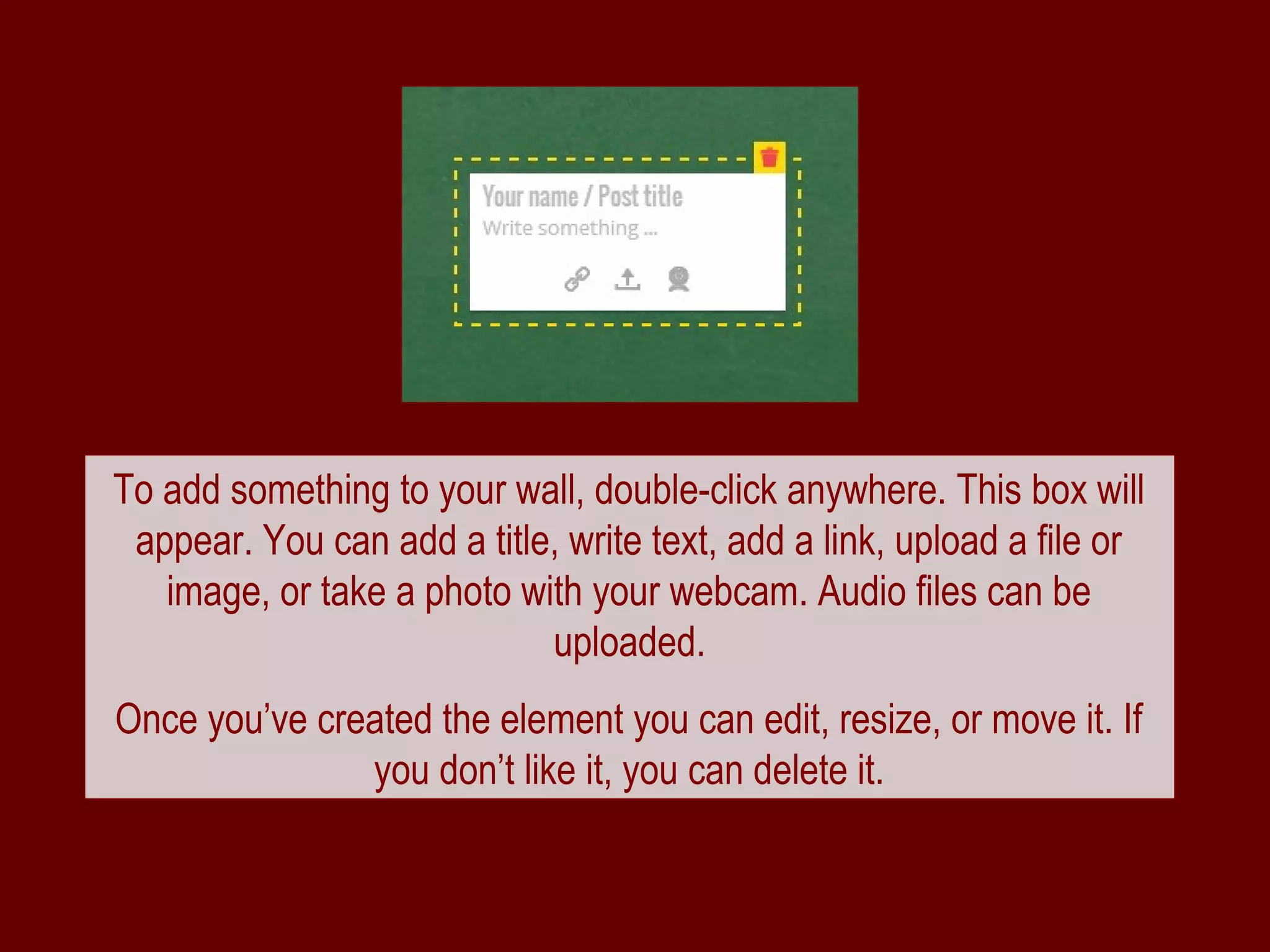
To add something to your wall, double-click anywhere. This box will
 appear. You can add a title, write text, add a link, upload a file or
   image, or take a photo with your webcam. Audio files can be
                            uploaded.
Once you’ve created the element you can edit, resize, or move it. If
               you don’t like it, you can delete it.
Word Cloud by Wordle.net
Padlet in the Language Classroom
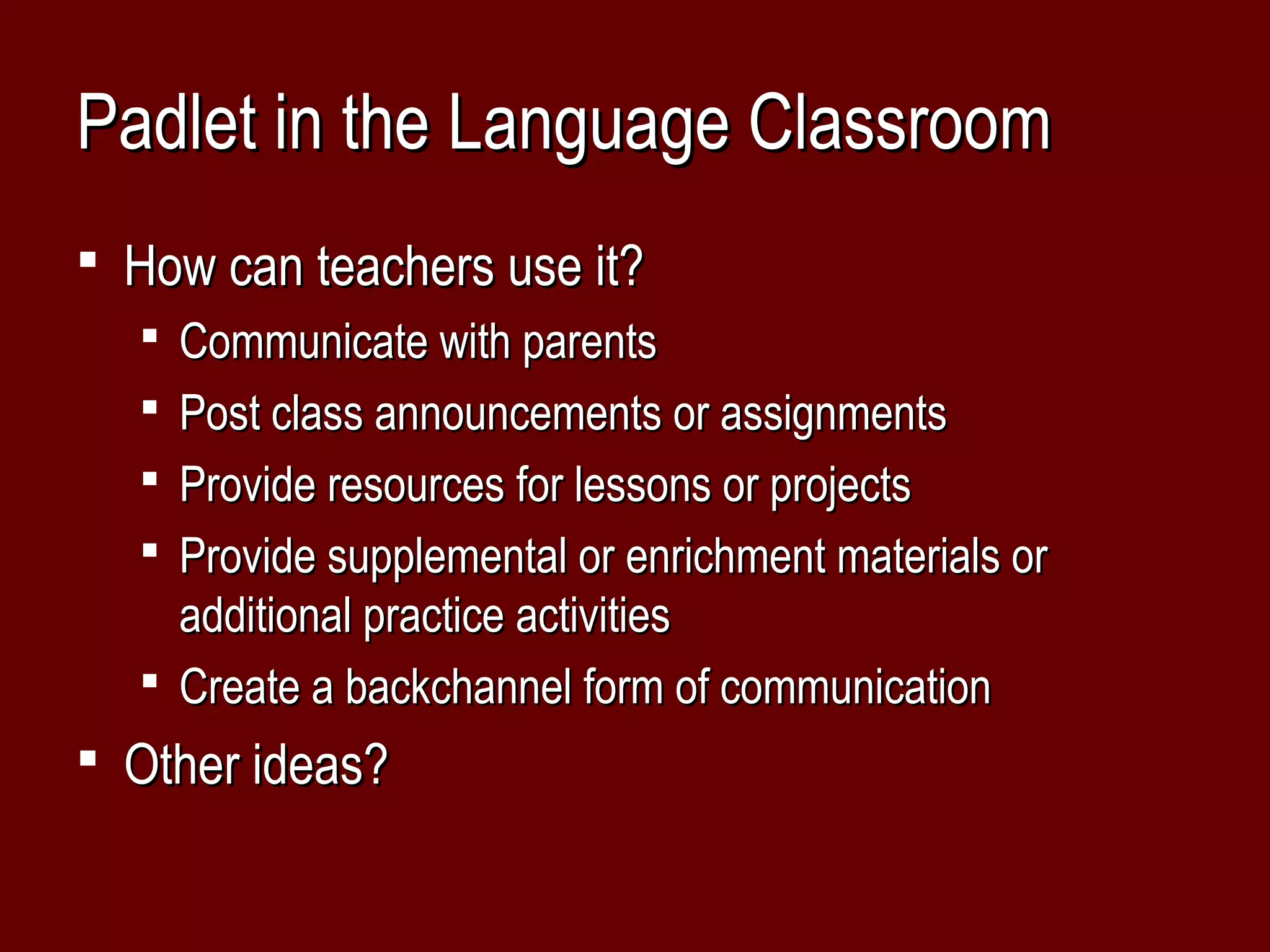
 How can teachers use it?
   Communicate with parents
   Post class announcements or assignments
   Provide resources for lessons or projects
   Provide supplemental or enrichment materials or
    additional practice activities
   Create a backchannel form of communication
 Other ideas?
Padlet in the Language Classroom
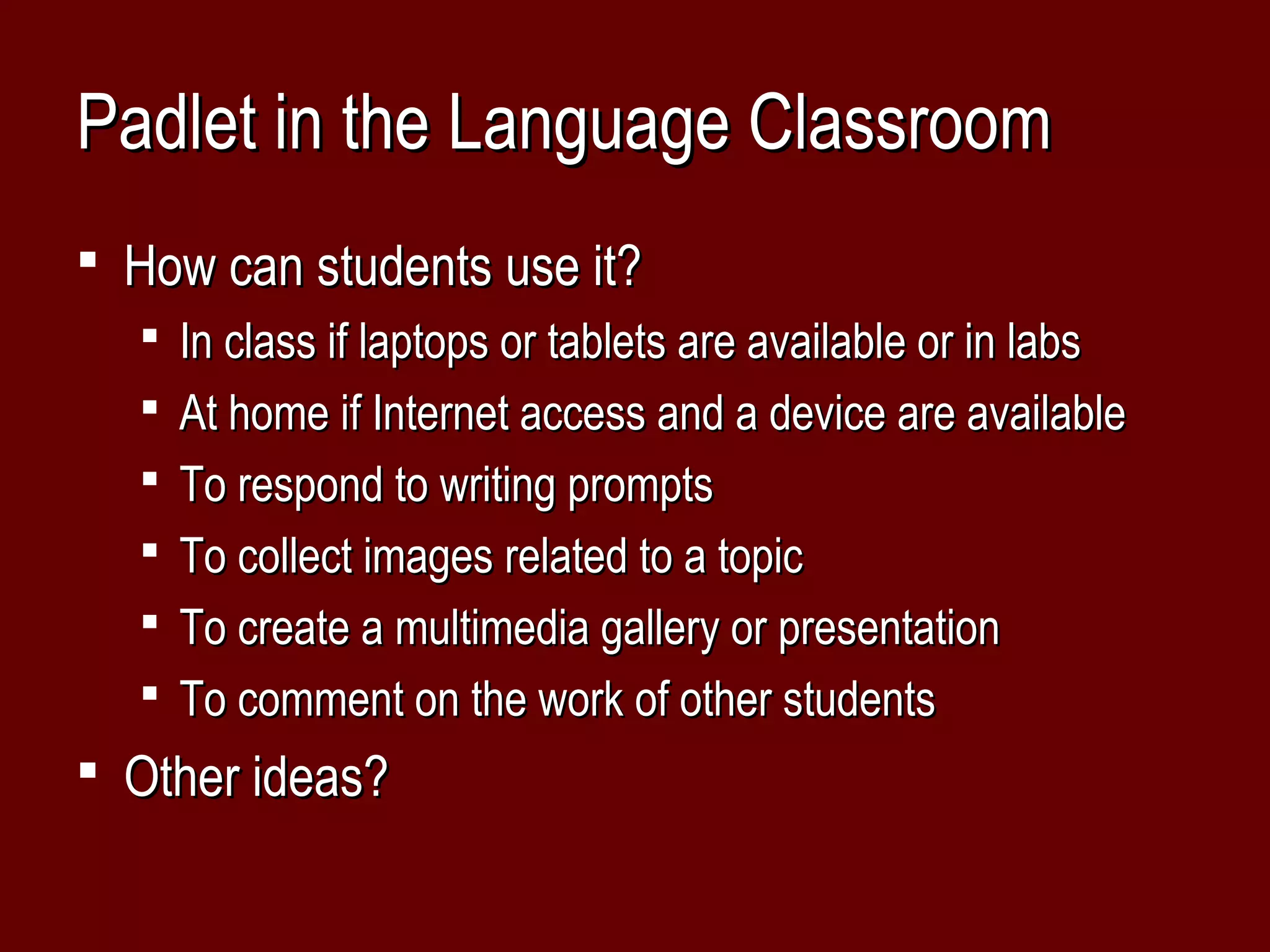
 How can students use it?
   In class if laptops or tablets are available or in labs
   At home if Internet access and a device are available
   To respond to writing prompts
   To collect images related to a topic
   To create a multimedia gallery or presentation
   To comment on the work of other students
 Other ideas?
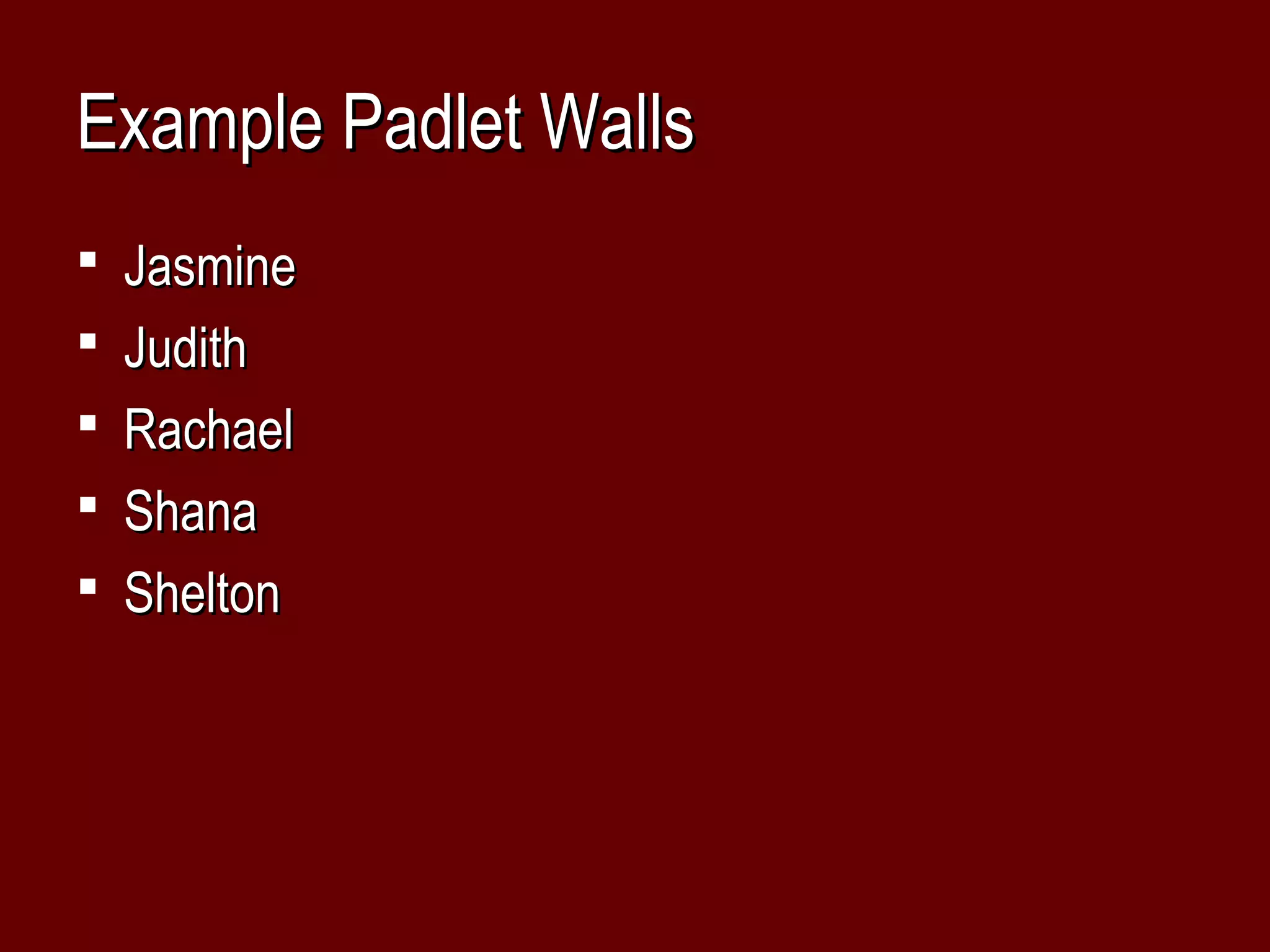
Example Padlet Walls
 Jasmine
 Judith
 Rachael
 Shana
 Shelton
Word Cloud by Wordle.net

Oflta spring 2013 for slide share

  • 1.
    Word Cloud byWordle.net
  • 2.
    Outcomes  Create aPadlet wall (if Internet available) with text and media  Describe options for using Padlet in language classroom  Add Padlet to your repetoire of online tools for world language teaching and learning
  • 3.
    What is Padlet? http://padlet.com/ Padlet is a user-friendly, free, and attractive tool for creating websites that look like bulletin boards or walls. You can post text, images, or videos in minutes. It’s also a tool for collaboration because multiple people can contribute to the wall.
  • 4.
    Padlet in theLanguage Classroom  See the wall created for this presentation, http://padlet.com/wall/oflta_spring13  First, a quick tutorial  Then, example uses  Feel free to access Padlet and create your own wall!
  • 5.
    Important Stuff forStudents  See Padlet’s Terms of Service  http://jn.padlet.com/knowledgebase/articles/153268-terms-of-  Related to COPPA (Children’s Online Privacy and Protection Act) and FERPA (Family Educational Rights and Privacy Act)  Especially children under 13
  • 6.
    Word Cloud byWordle.net
  • 7.
    Padlet, formerly knownas Wallwisher, http://padlet.com
  • 8.
    Creating an accountrequires only an email address and a password or the use of a Google account. Consider creating an account for a class so that students don’t need their own accounts.
  • 9.
    Once you’ve loggedin and created a blank wall, look at the vertical bar on the right side of the screen. These icons stand for: Home Page Create a New Wall _________ ‘s Account Share / Export Get More Info Get Help Modify This Wall
  • 10.
    When you clickon Modify This Wall, this page opens. The first option is to create or edit the wall title and description and, if you like, to select a portrait. The other icons in the yellow vertical bar show you what else you can do here.
  • 11.
    When you clickon Wallpaper in the yellow bar, you’ll see a number of options. You can also upload your own photo to use as a background. Teach students to use only photos from these categories: their own personal photos, a CC-licensed photos, or public domain photos. Appropriate photo credits must be provided.
  • 12.
    When you clickon Layout, you’ll see two options: Freeform and Stream. Stream is new and could be used for blogging activities.
  • 13.
    When you clickon Privacy, you’ll see the choices you have with regard to who sees your wall and who posts on it. Hidden Link is the default privacy setting.
  • 14.
    Under Address, youcan choose to use the URL that Padlet supplies when you create your wall, or you can request a URL related to the content of your wall.
  • 15.
    When you clickon Share / Export, you’ll see a variety of methods for sharing your Padlet wall with others. You will also be able to choose a format for exporting a wall. You can use the embed code if you want your wall to form part of your website, blog, or wiki. You should be able to embed a wall in an LMS, but it may not be visible in all browsers.
  • 16.
    To add somethingto your wall, double-click anywhere. This box will appear. You can add a title, write text, add a link, upload a file or image, or take a photo with your webcam. Audio files can be uploaded. Once you’ve created the element you can edit, resize, or move it. If you don’t like it, you can delete it.
  • 17.
    Word Cloud byWordle.net
  • 18.
    Padlet in theLanguage Classroom  How can teachers use it?  Communicate with parents  Post class announcements or assignments  Provide resources for lessons or projects  Provide supplemental or enrichment materials or additional practice activities  Create a backchannel form of communication  Other ideas?
  • 19.
    Padlet in theLanguage Classroom  How can students use it?  In class if laptops or tablets are available or in labs  At home if Internet access and a device are available  To respond to writing prompts  To collect images related to a topic  To create a multimedia gallery or presentation  To comment on the work of other students  Other ideas?
  • 20.
    Example Padlet Walls Jasmine  Judith  Rachael  Shana  Shelton
  • 21.
    Word Cloud byWordle.net