






What’s New with
OneDrive
SharePoint Fest Chicago 2021
#SPFestChi
Drew Madelung
Email : drew.madelung@protiviti.com
Twitter : @dmadelung
Website: drewmadelung.com
Director – Microsoft Solutions
OneDrive intro
What’s there now
What’s new
OneDrive tidbits!
Agenda
What’s new with
OneDrive
TechCon365 DC 2024
#TechCon365
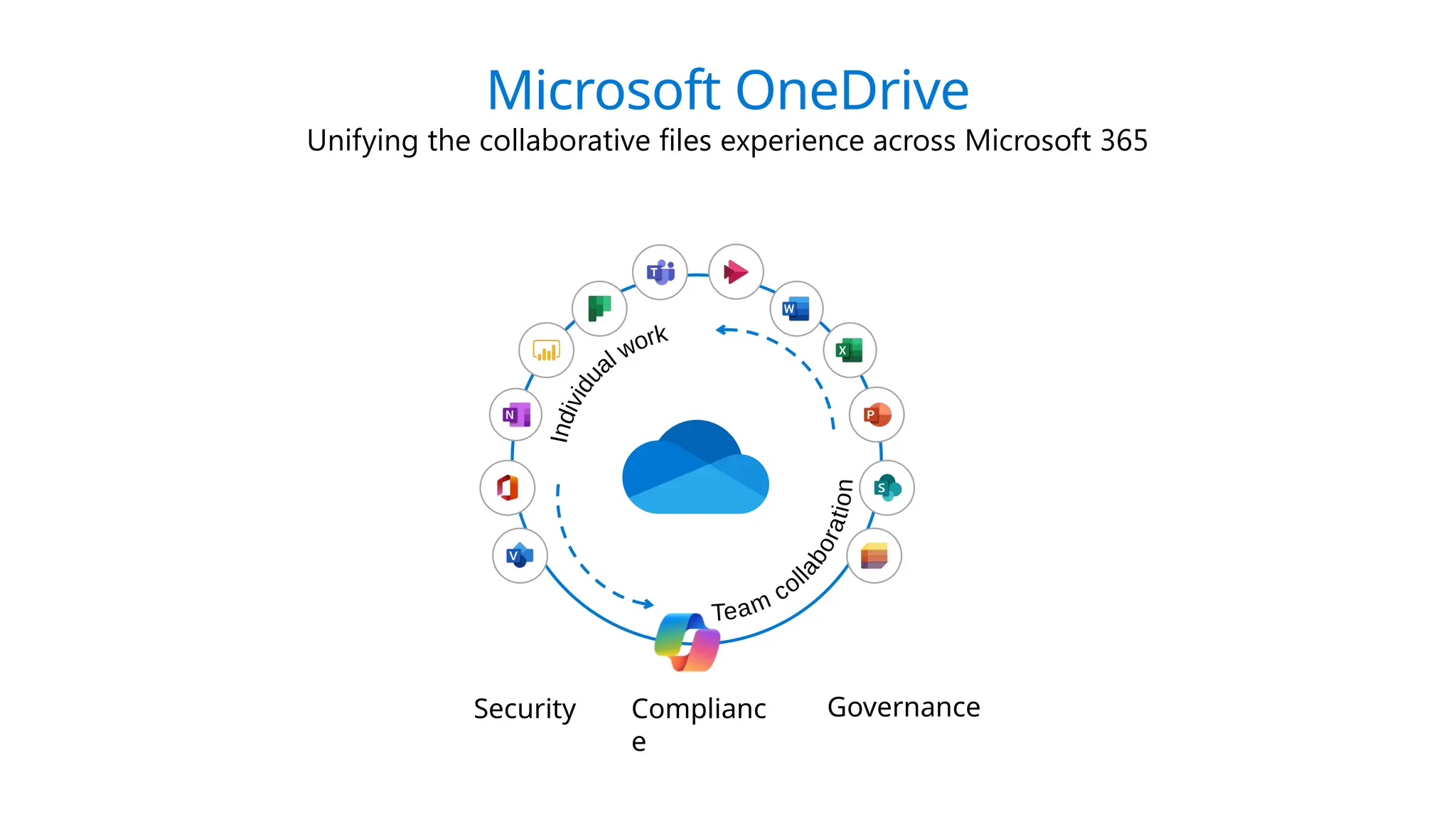
Microsoft OneDrive
Unifying the collaborative files experience across Microsoft 365
Security Complianc
e
Governance
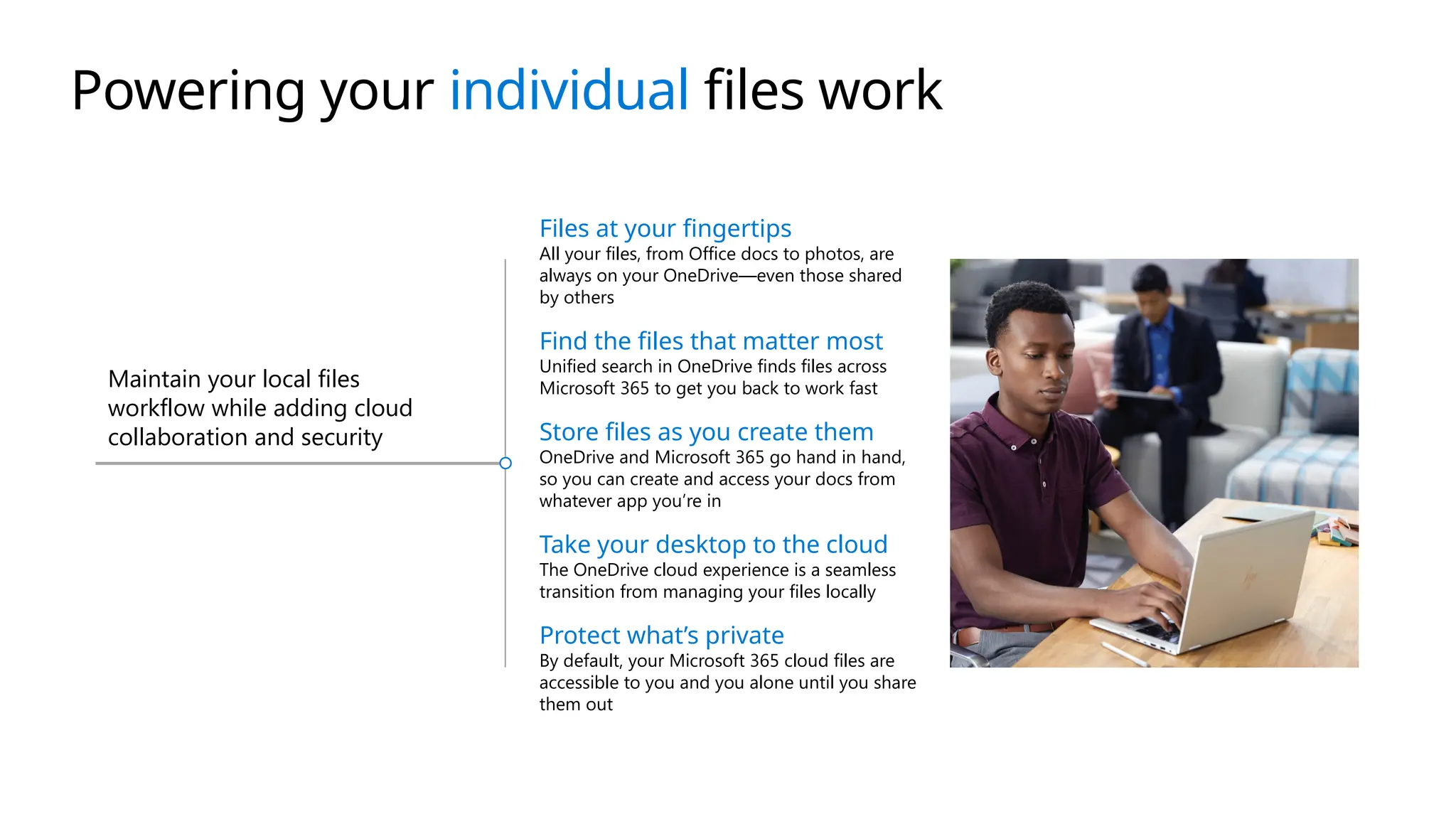
Powering your individual files work
Maintain your local files
workflow while adding cloud
collaboration and security
Files at your fingertips
All your files, from Office docs to photos, are
always on your OneDrive—even those shared
by others
Find the files that matter most
Unified search in OneDrive finds files across
Microsoft 365 to get you back to work fast
Store files as you create them
OneDrive and Microsoft 365 go hand in hand,
so you can create and access your docs from
whatever app you’re in
Take your desktop to the cloud
The OneDrive cloud experience is a seamless
transition from managing your files locally
Protect what’s private
By default, your Microsoft 365 cloud files are
accessible to you and you alone until you share
them out
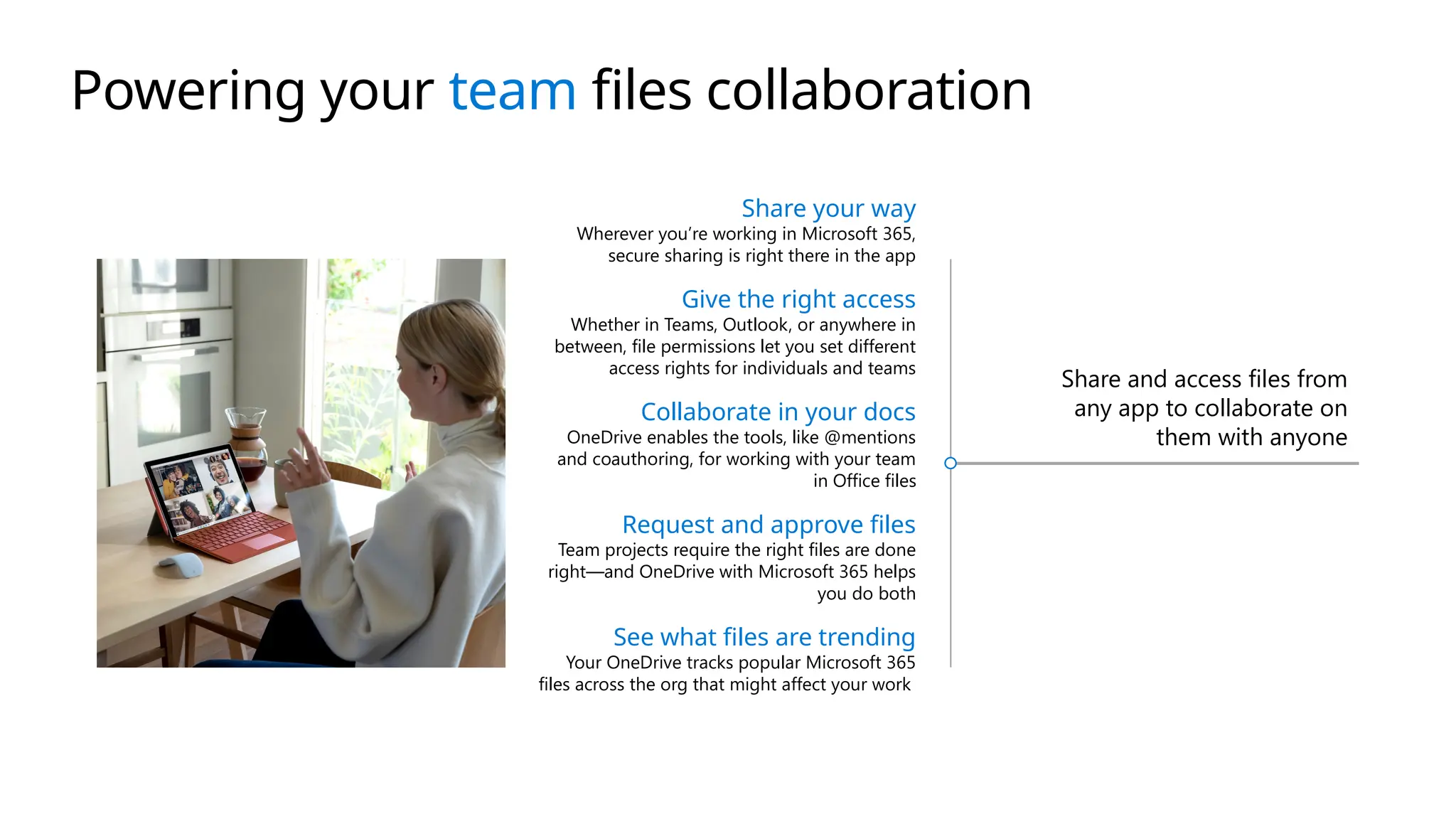
Share and access files from
any app to collaborate on
them with anyone
Share your way
Wherever you’re working in Microsoft 365,
secure sharing is right there in the app
Give the right access
Whether in Teams, Outlook, or anywhere in
between, file permissions let you set different
access rights for individuals and teams
Collaborate in your docs
OneDrive enables the tools, like @mentions
and coauthoring, for working with your team
in Office files
Request and approve files
Team projects require the right files are done
right—and OneDrive with Microsoft 365 helps
you do both
See what files are trending
Your OneDrive tracks popular Microsoft 365
files across the org that might affect your work
Powering your team files collaboration
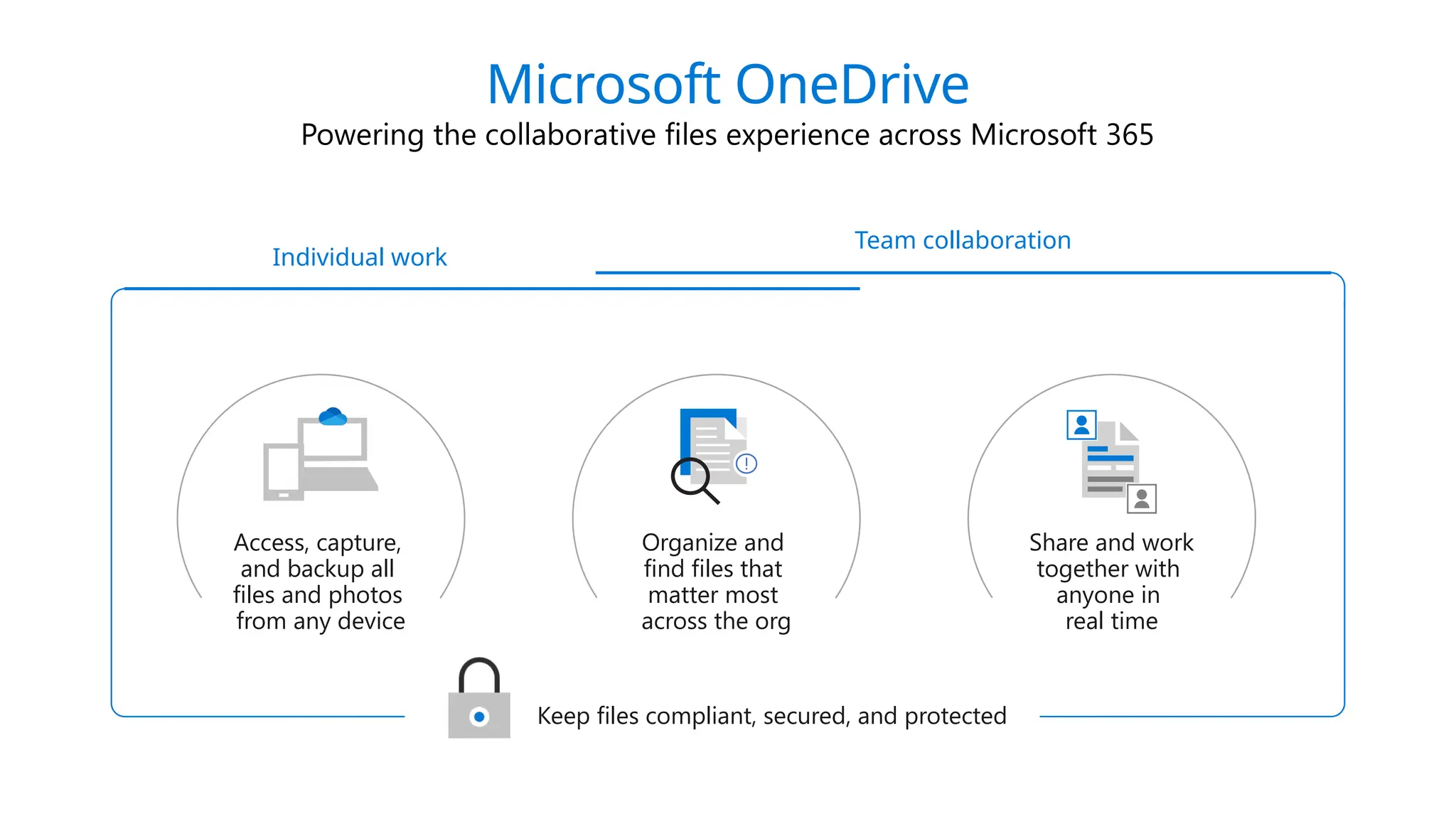
Microsoft OneDrive
Powering the collaborative files experience across Microsoft 365
Access, capture,
and backup all
files and photos
from any device
Share and work
together with
anyone in
real time
Organize and
find files that
matter most
across the org
Keep files compliant, secured, and protected
Individual work
Team collaboration
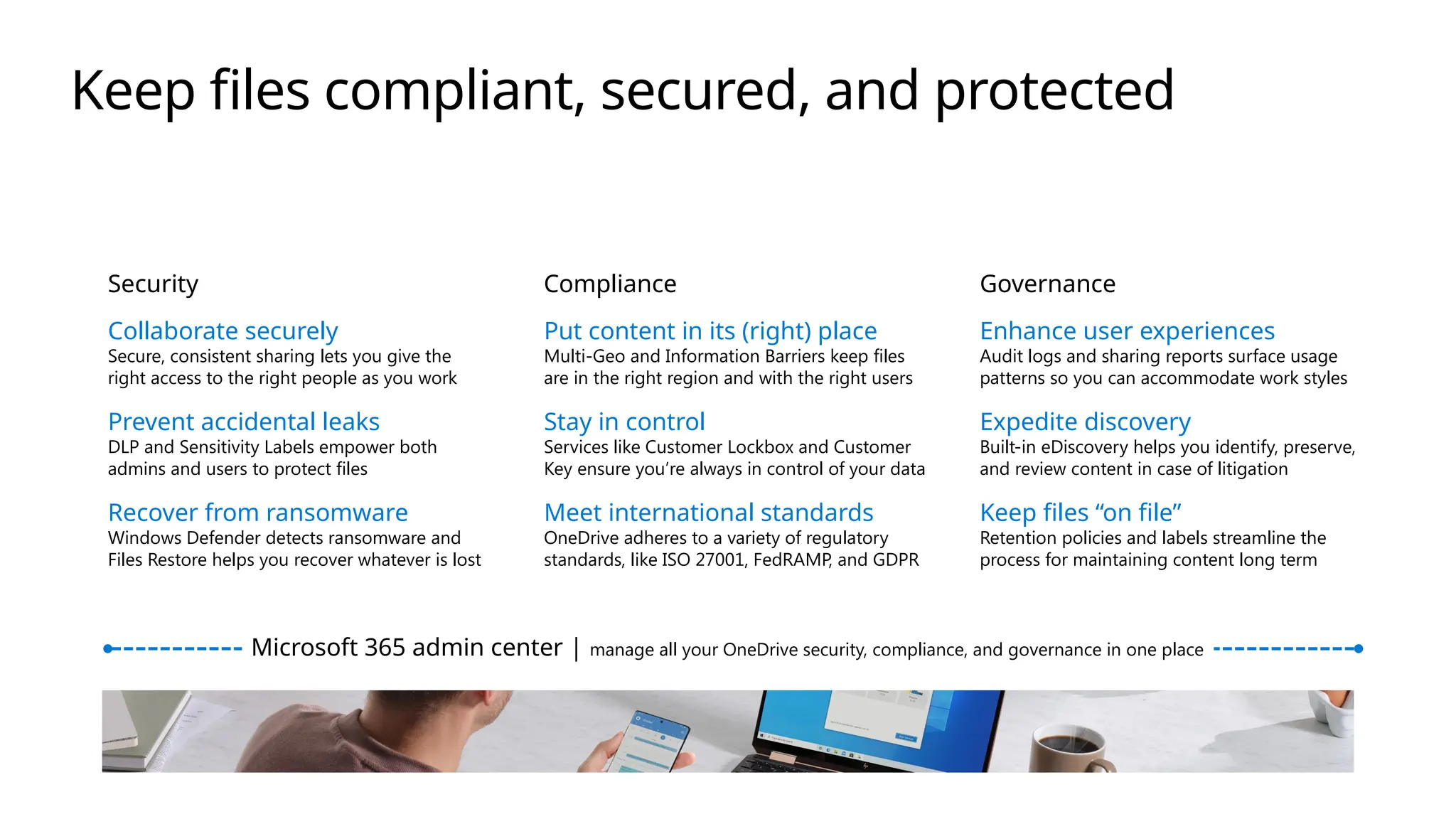
Keep files compliant, secured, and protected
Security Compliance Governance
Put content in its (right) place
Multi-Geo and Information Barriers keep files
are in the right region and with the right users
Stay in control
Services like Customer Lockbox and Customer
Key ensure you’re always in control of your data
Meet international standards
OneDrive adheres to a variety of regulatory
standards, like ISO 27001, FedRAMP, and GDPR
Enhance user experiences
Audit logs and sharing reports surface usage
patterns so you can accommodate work styles
Expedite discovery
Built-in eDiscovery helps you identify, preserve,
and review content in case of litigation
Keep files “on file”
Retention policies and labels streamline the
process for maintaining content long term
Collaborate securely
Secure, consistent sharing lets you give the
right access to the right people as you work
Prevent accidental leaks
DLP and Sensitivity Labels empower both
admins and users to protect files
Recover from ransomware
Windows Defender detects ransomware and
Files Restore helps you recover whatever is lost
Microsoft 365 admin center | manage all your OneDrive security, compliance, and governance in one place
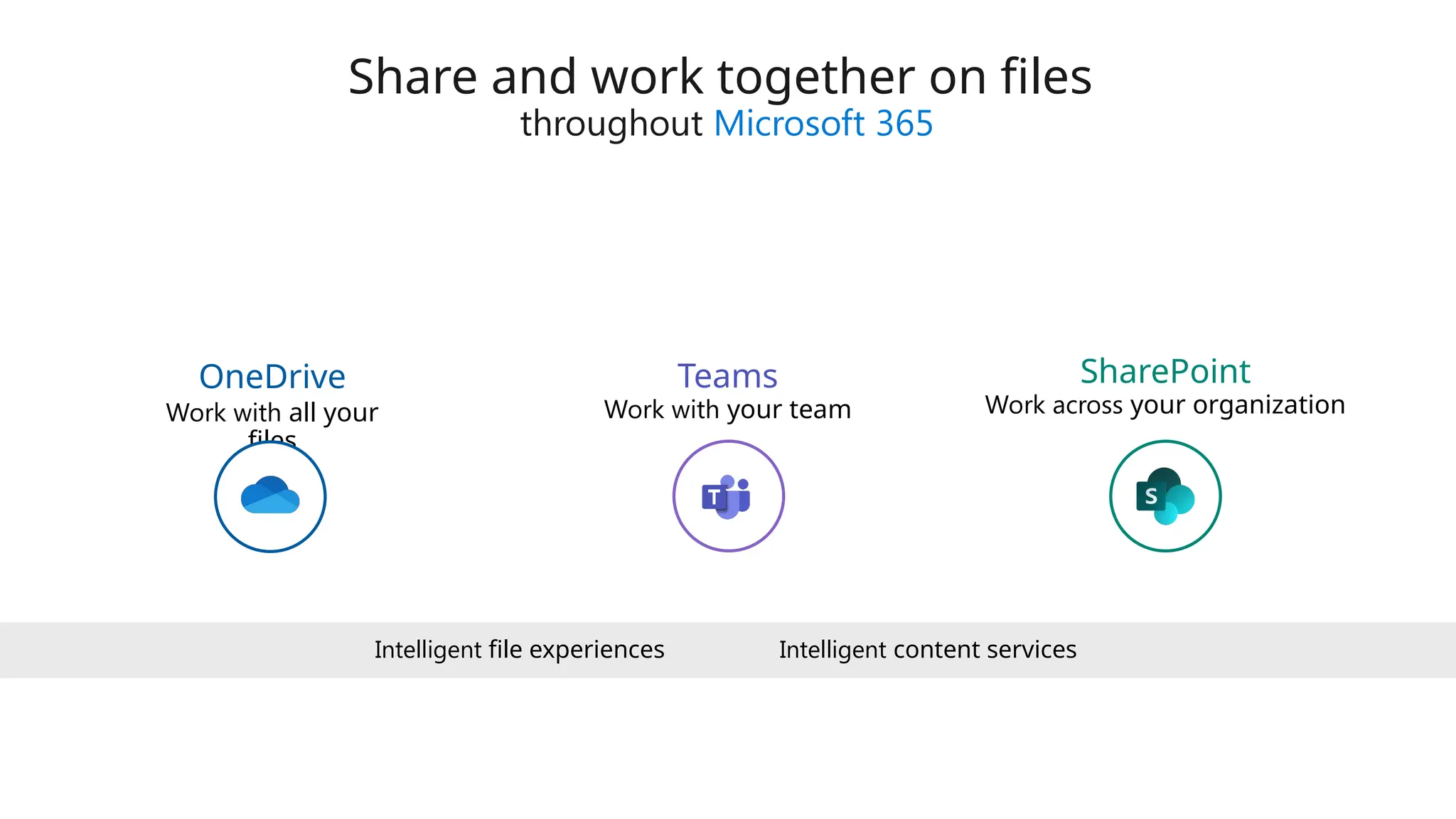
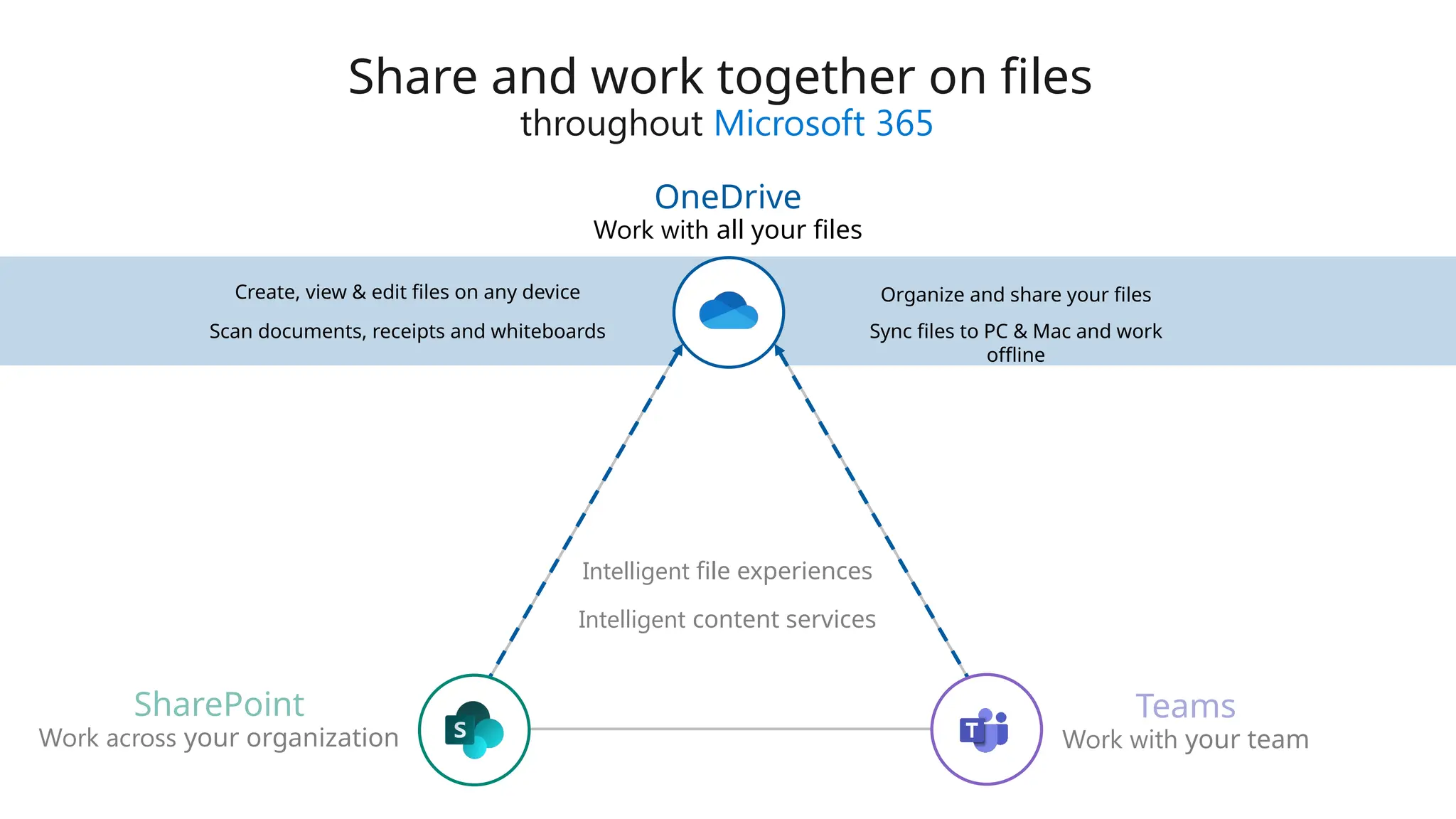
Share and work together on files
throughout Microsoft 365
Work with all your
files
OneDrive
Work with your team
Teams
Work across your organization
SharePoint
Intelligent content services
Intelligent file experiences
Scan documents, receipts and whiteboards
Create, view & edit files on any device Organize and share your files
Sync files to PC & Mac and work
offline
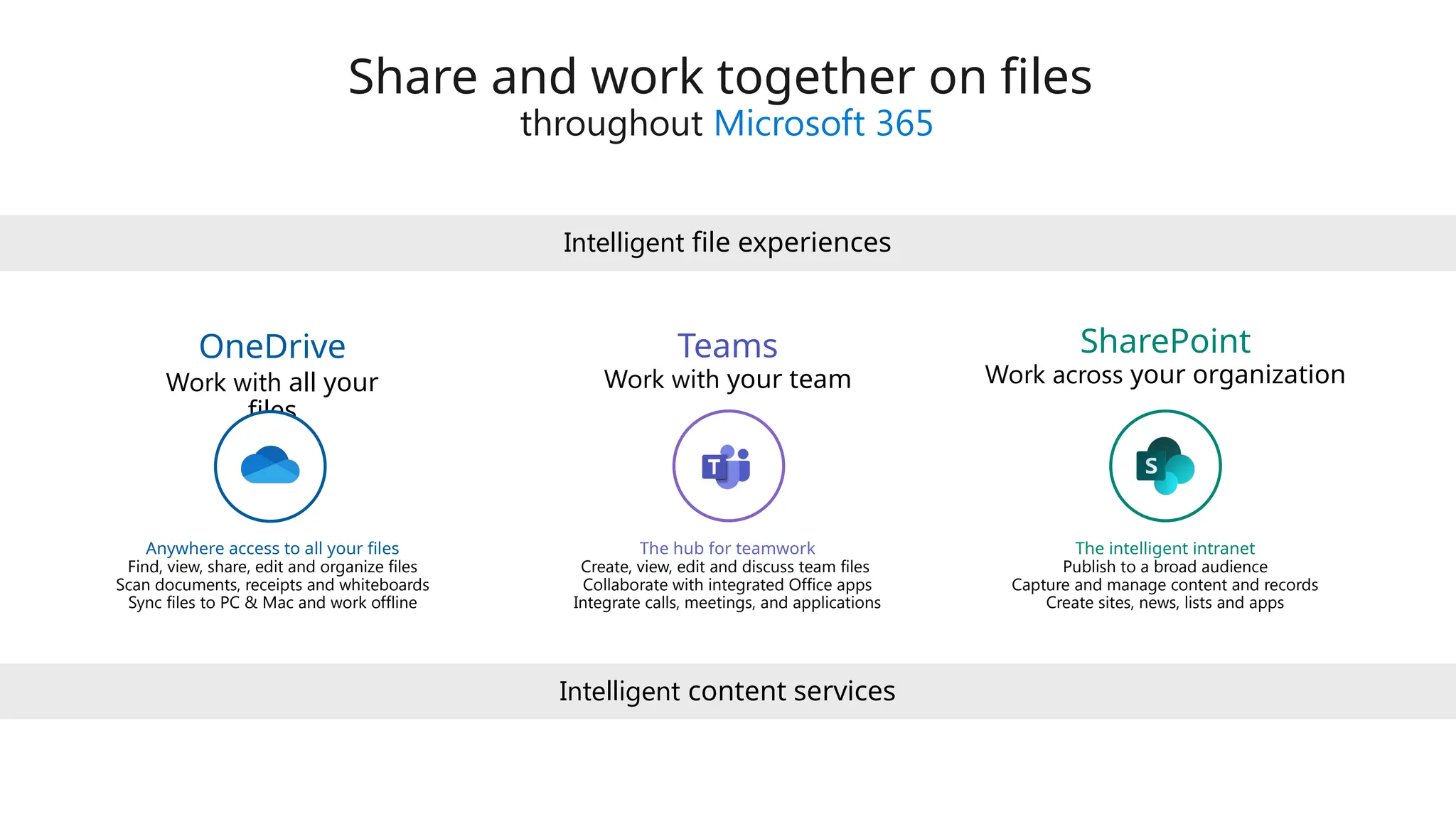
Share and work together on files
throughout Microsoft 365
Work with all your files
OneDrive
Work with your team
Teams
Work across your organization
SharePoint
Intelligent content services
Intelligent file experiences
Share and work together on files
throughout Microsoft 365
Anywhere access to all your files
Find, view, share, edit and organize files
Scan documents, receipts and whiteboards
Sync files to PC & Mac and work offline
The hub for teamwork
Create, view, edit and discuss team files
Collaborate with integrated Office apps
Integrate calls, meetings, and applications
The intelligent intranet
Publish to a broad audience
Capture and manage content and records
Create sites, news, lists and apps
Intelligent content services
Intelligent file experiences
Work with all your
files
OneDrive
Work with your team
Teams
Work across your organization
SharePoint
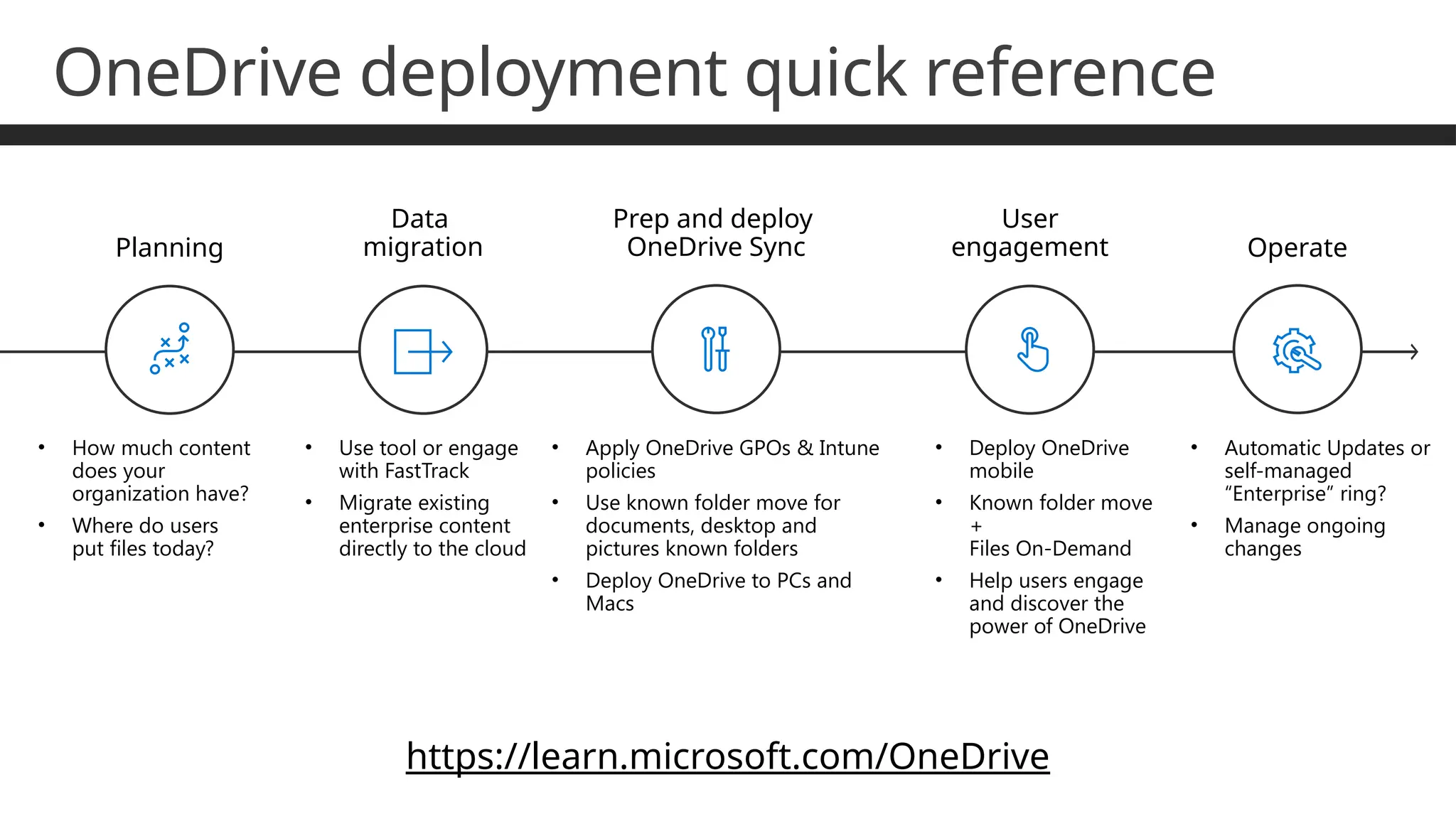
https://learn.microsoft.com/OneDrive
User
engagement
• Deploy OneDrive
mobile
• Known folder move
+
Files On-Demand
• Help users engage
and discover the
power of OneDrive
Data
migration
• Use tool or engage
with FastTrack
• Migrate existing
enterprise content
directly to the cloud
Operate
• Automatic Updates or
self-managed
“Enterprise” ring?
• Manage ongoing
changes
Prep and deploy
OneDrive Sync
• Apply OneDrive GPOs & Intune
policies
• Use known folder move for
documents, desktop and
pictures known folders
• Deploy OneDrive to PCs and
Macs
Planning
• How much content
does your
organization have?
• Where do users
put files today?
OneDrive deployment quick reference
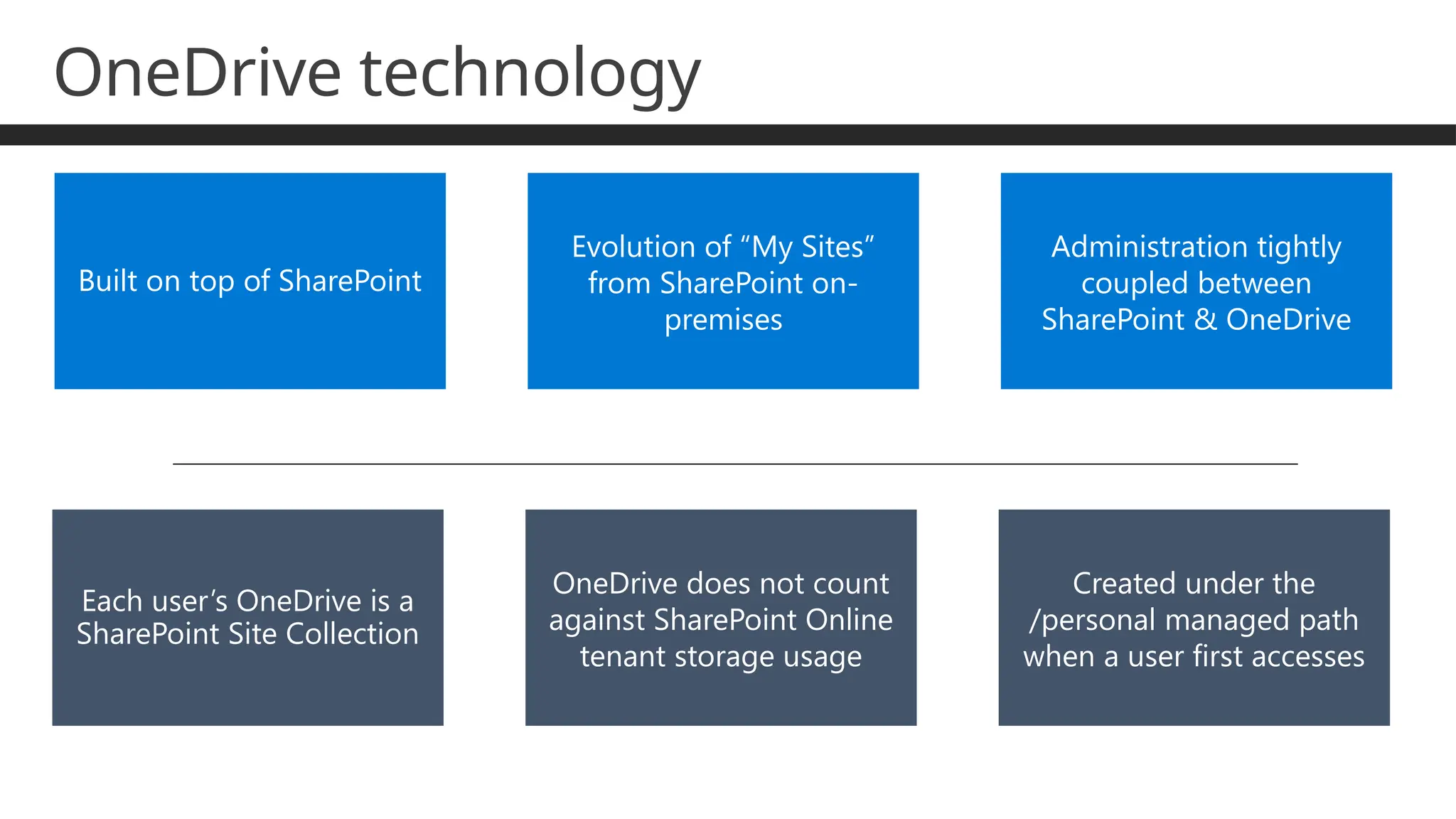
OneDrive technology
Built on top of SharePoint
Evolution of “My Sites”
from SharePoint on-
premises
Administration tightly
coupled between
SharePoint & OneDrive
Each user’s OneDrive is a
SharePoint Site Collection
OneDrive does not count
against SharePoint Online
tenant storage usage
Created under the
/personal managed path
when a user first accesses
Demo!
OneDrive!
What’s new?
OneDrive product focus areas
Copilot Magic in OneDrive
Accelerate Your Productivity Customized to Your Workstyle
Sharing
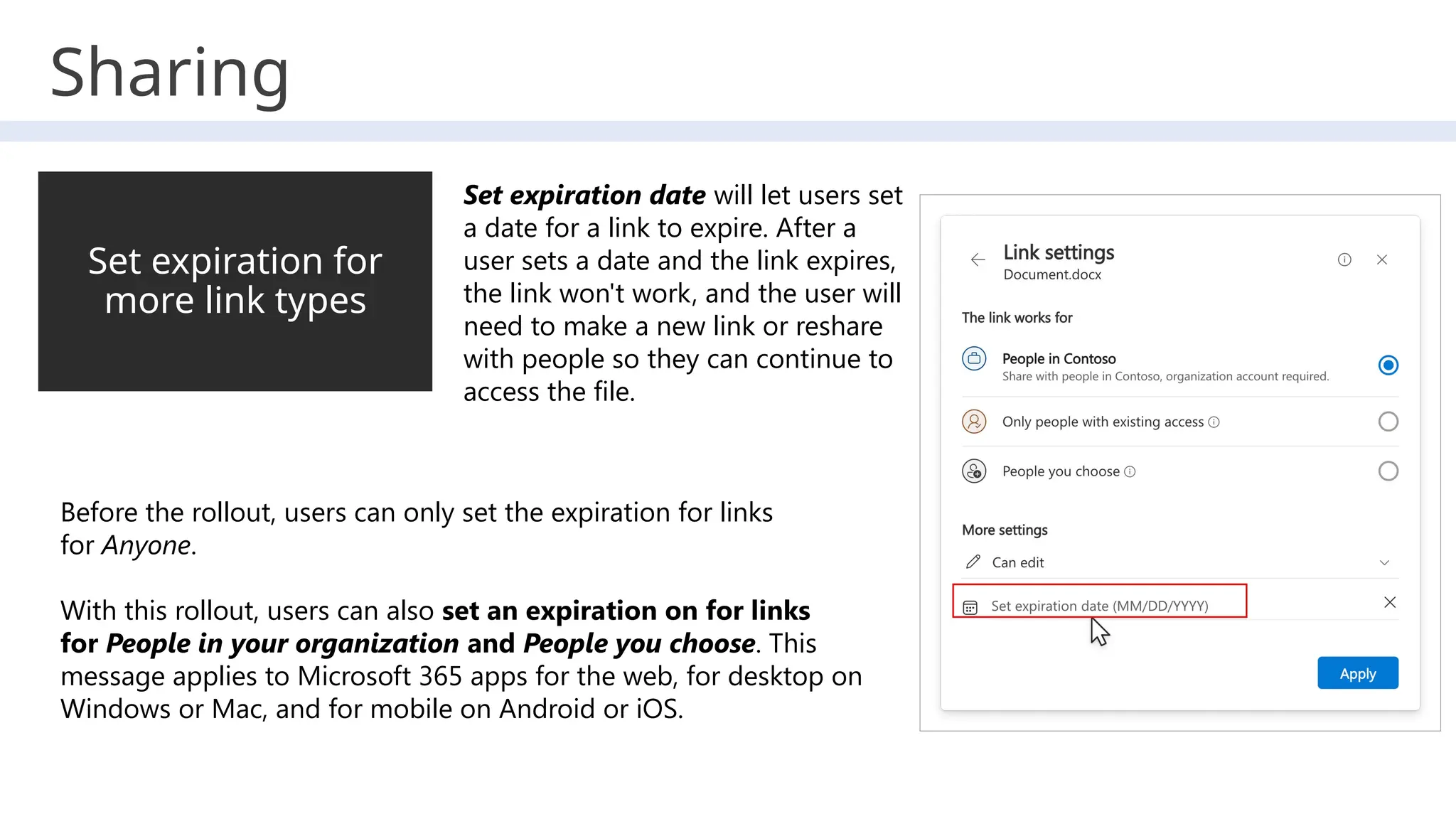
Set expiration for
more link types
Set expiration date will let users set
a date for a link to expire. After a
user sets a date and the link expires,
the link won't work, and the user will
need to make a new link or reshare
with people so they can continue to
access the file.
Before the rollout, users can only set the expiration for links
for Anyone.
With this rollout, users can also set an expiration on for links
for People in your organization and People you choose. This
message applies to Microsoft 365 apps for the web, for desktop on
Windows or Mac, and for mobile on Android or iOS.
Collaboration
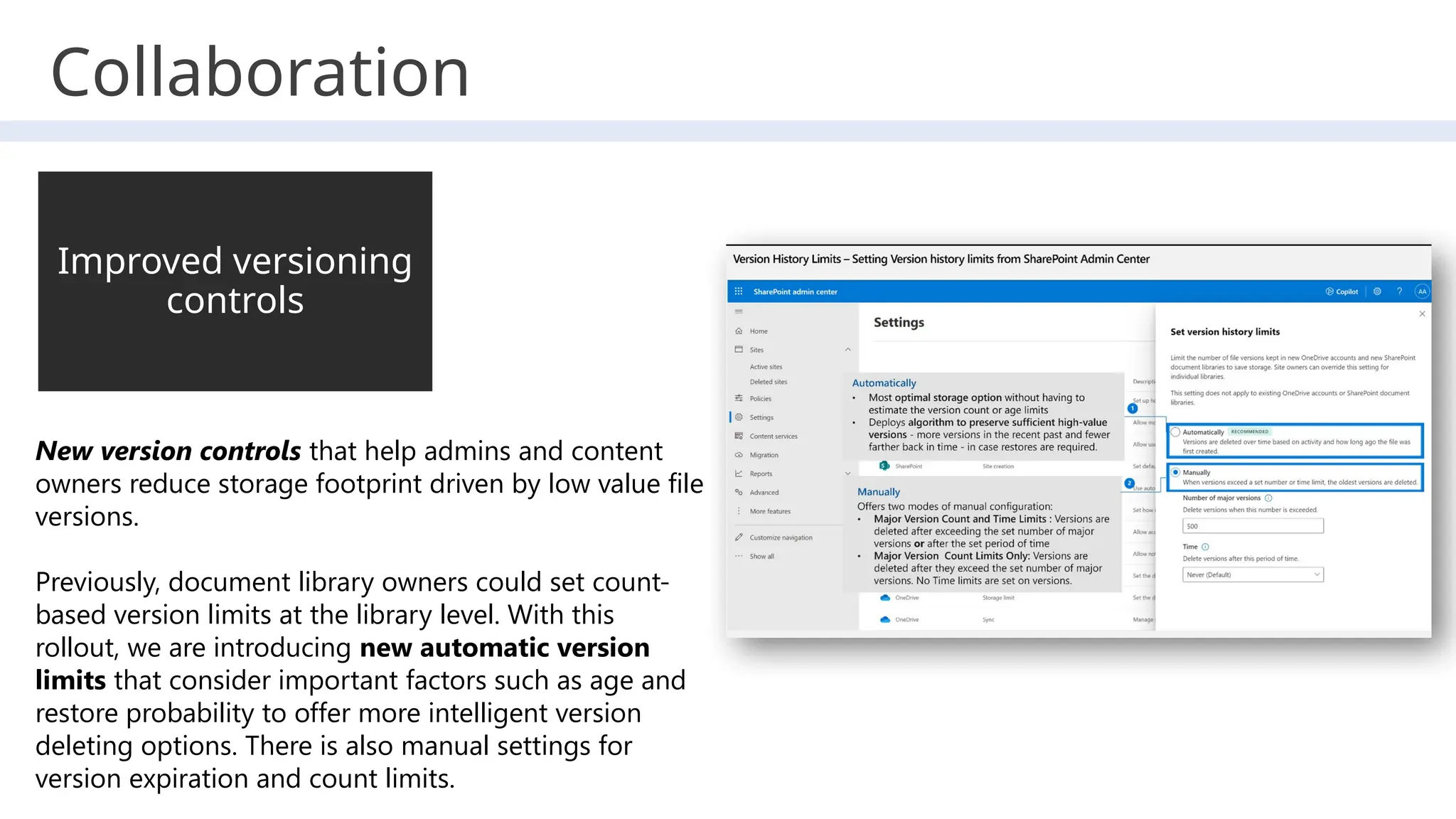
New version controls that help admins and content
owners reduce storage footprint driven by low value file
versions.
Previously, document library owners could set count-
based version limits at the library level. With this
rollout, we are introducing new automatic version
limits that consider important factors such as age and
restore probability to offer more intelligent version
deleting options. There is also manual settings for
version expiration and count limits.
Improved versioning
controls
Collaboration
Shared folder
experience
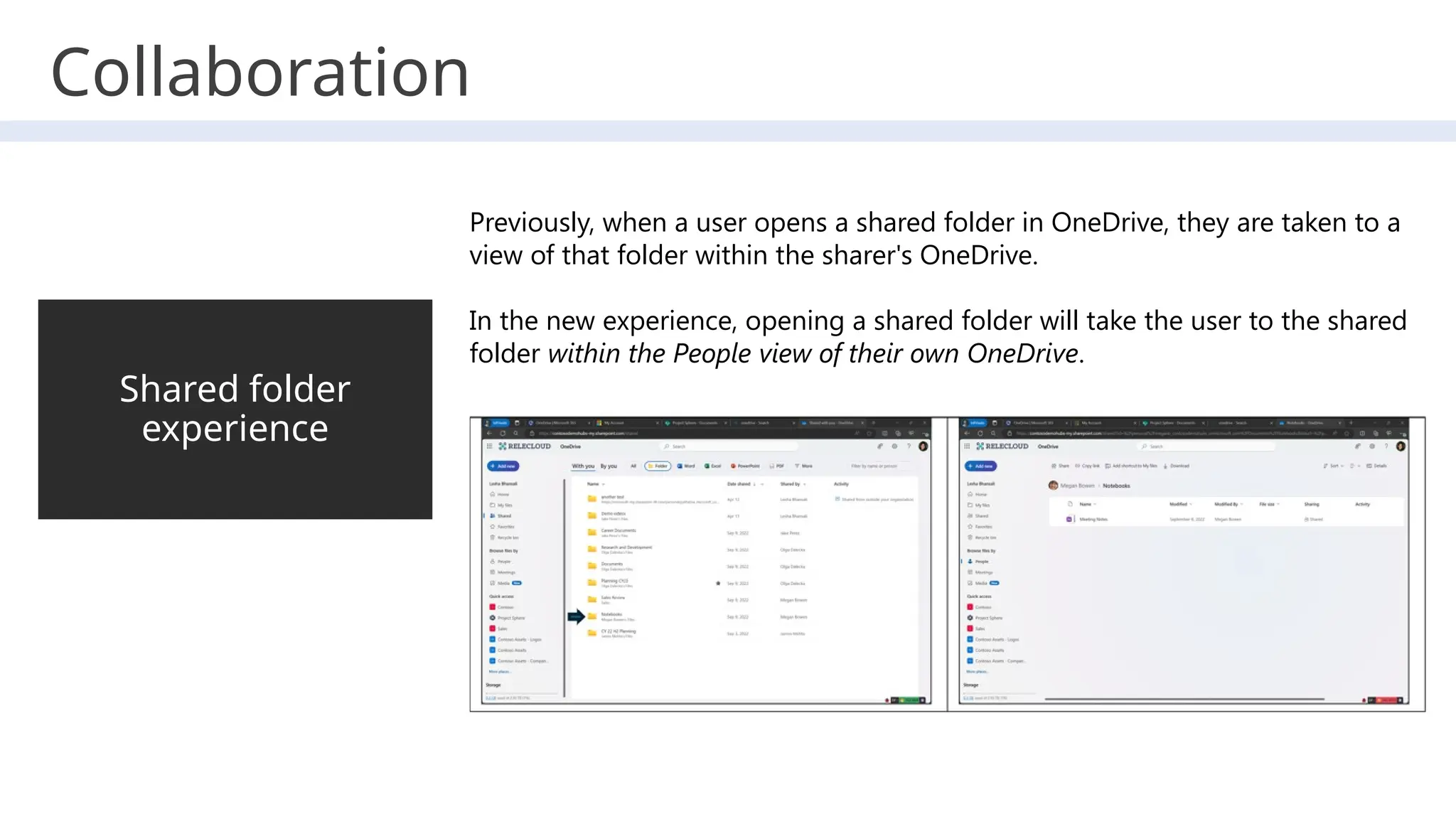
Previously, when a user opens a shared folder in OneDrive, they are taken to a
view of that folder within the sharer's OneDrive.
In the new experience, opening a shared folder will take the user to the shared
folder within the People view of their own OneDrive.
Collaboration
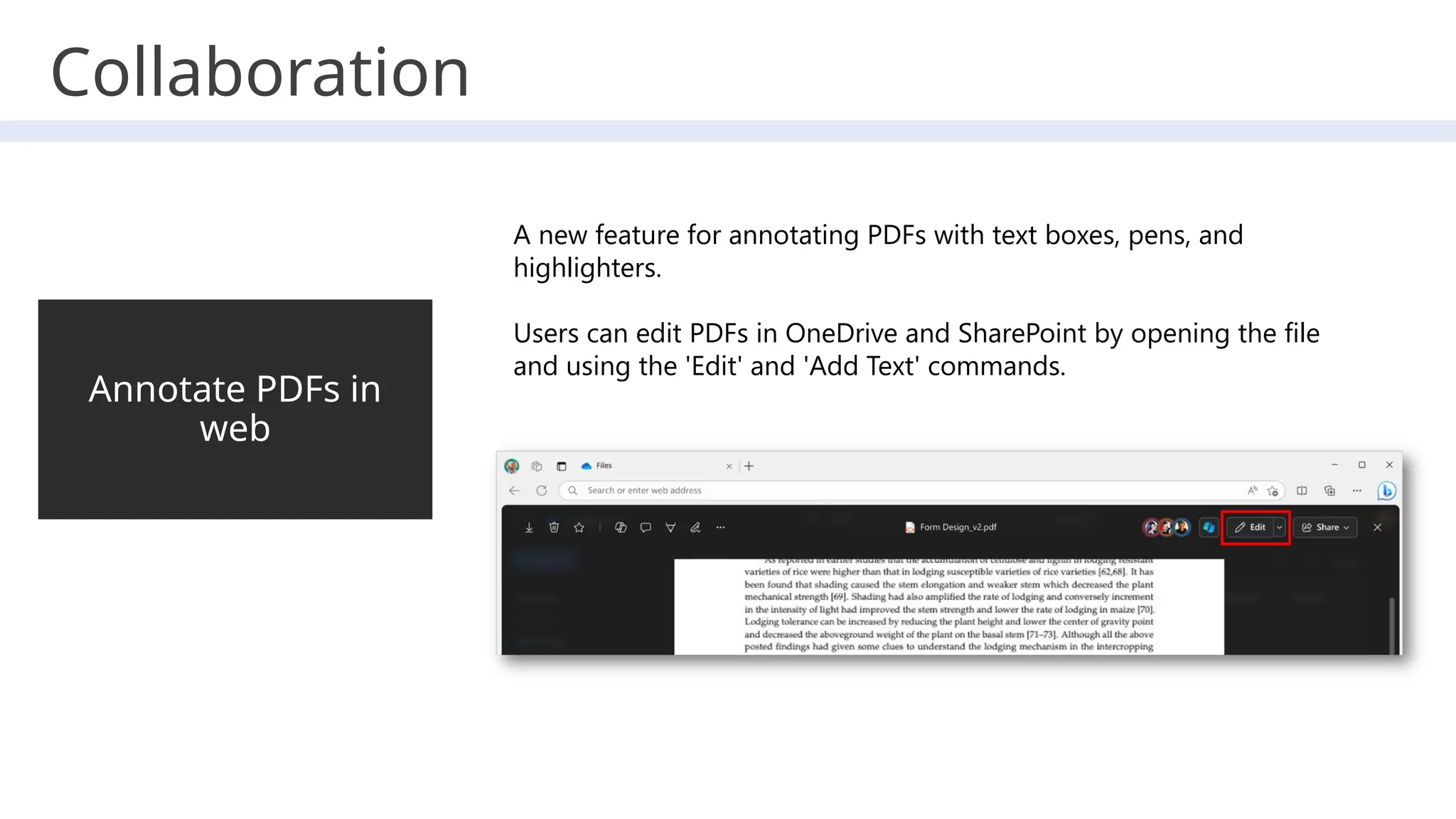
Annotate PDFs in
web
A new feature for annotating PDFs with text boxes, pens, and
highlighters.
Users can edit PDFs in OneDrive and SharePoint by opening the file
and using the 'Edit' and 'Add Text' commands.
Collaboration
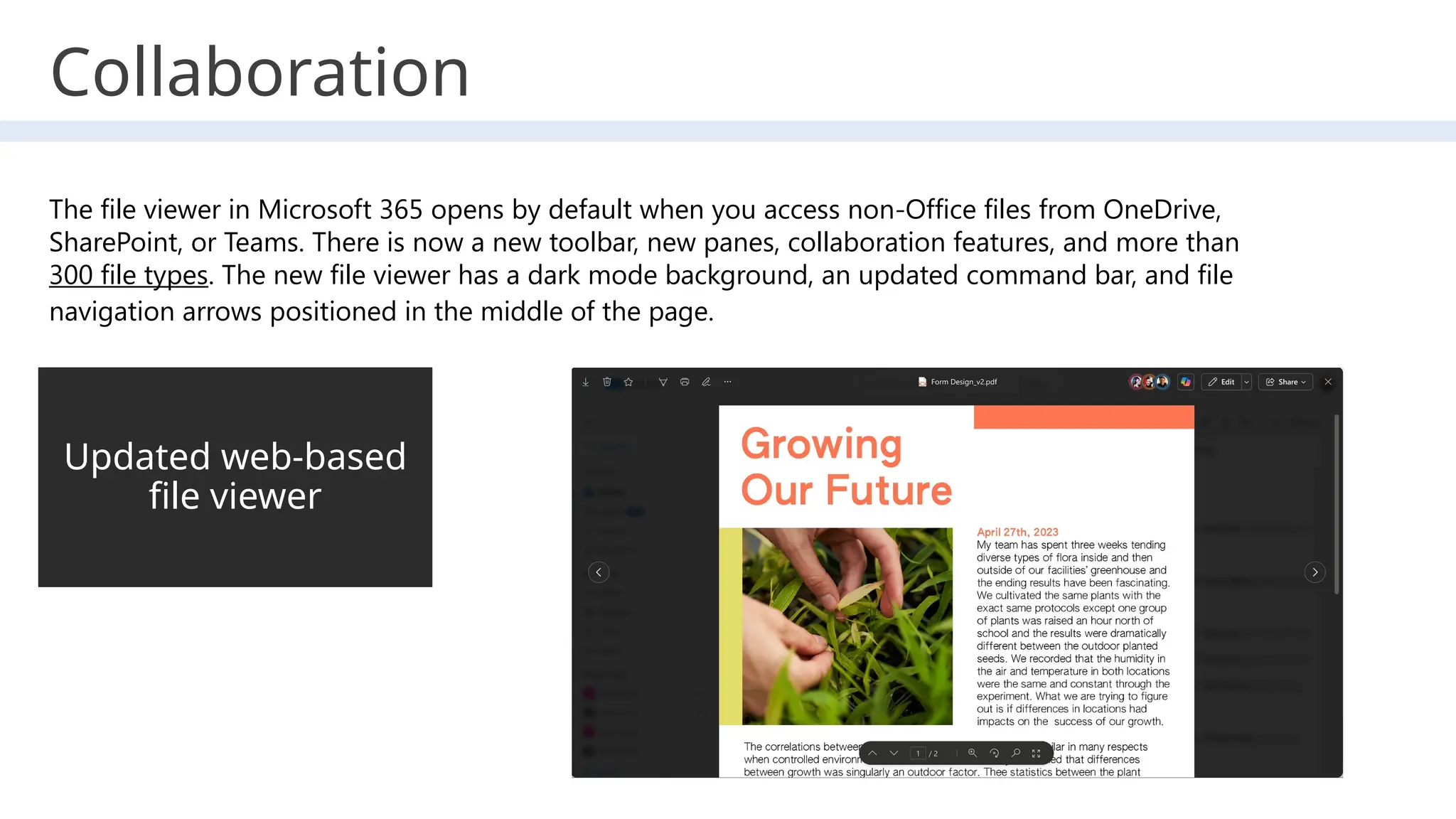
Updated web-based
file viewer
The file viewer in Microsoft 365 opens by default when you access non-Office files from OneDrive,
SharePoint, or Teams. There is now a new toolbar, new panes, collaboration features, and more than
300 file types. The new file viewer has a dark mode background, an updated command bar, and file
navigation arrows positioned in the middle of the page.
Collaboration
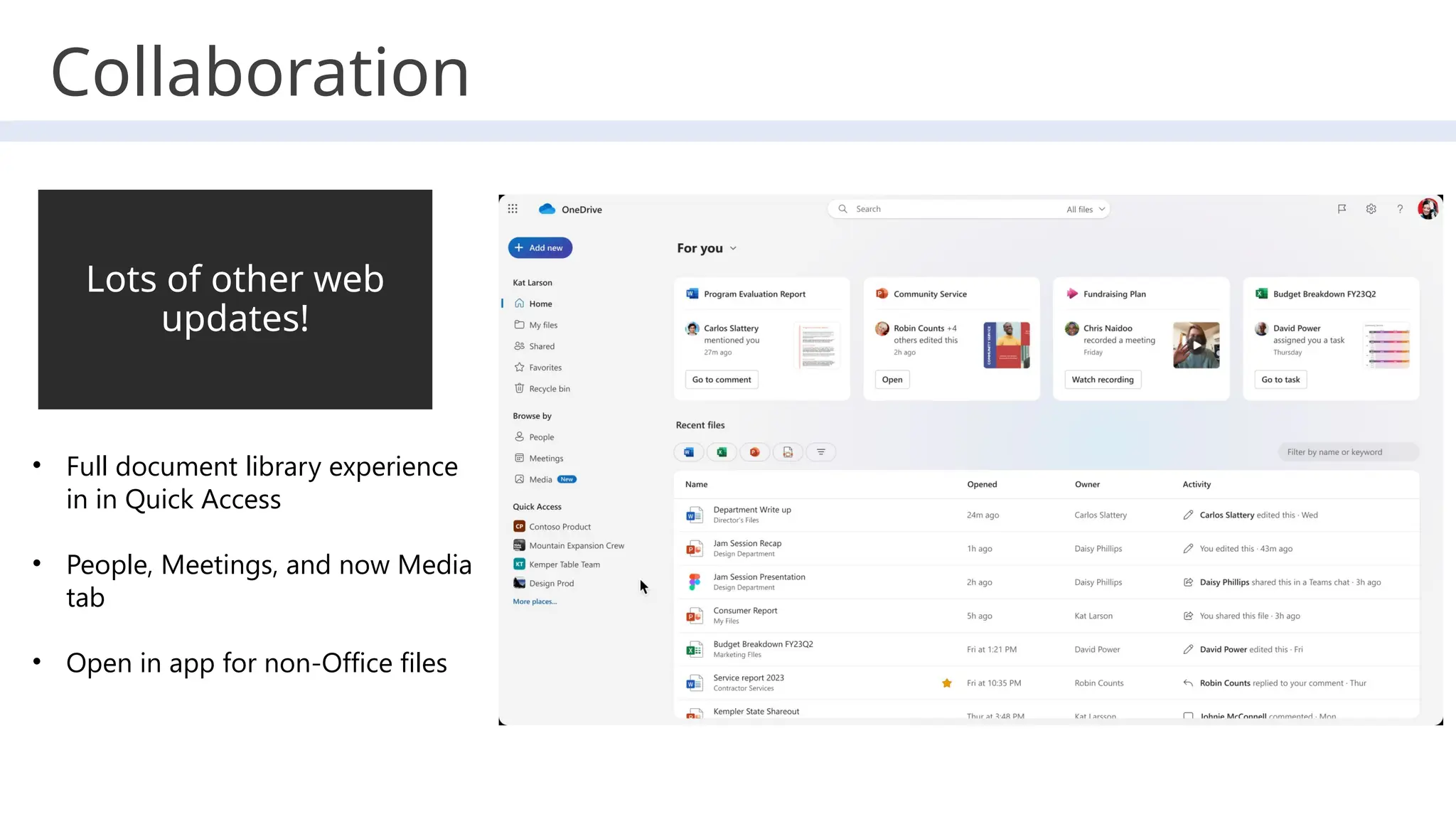
Lots of other web
updates!
• Full document library experience
in in Quick Access
• People, Meetings, and now Media
tab
• Open in app for non-Office files
Collaboration
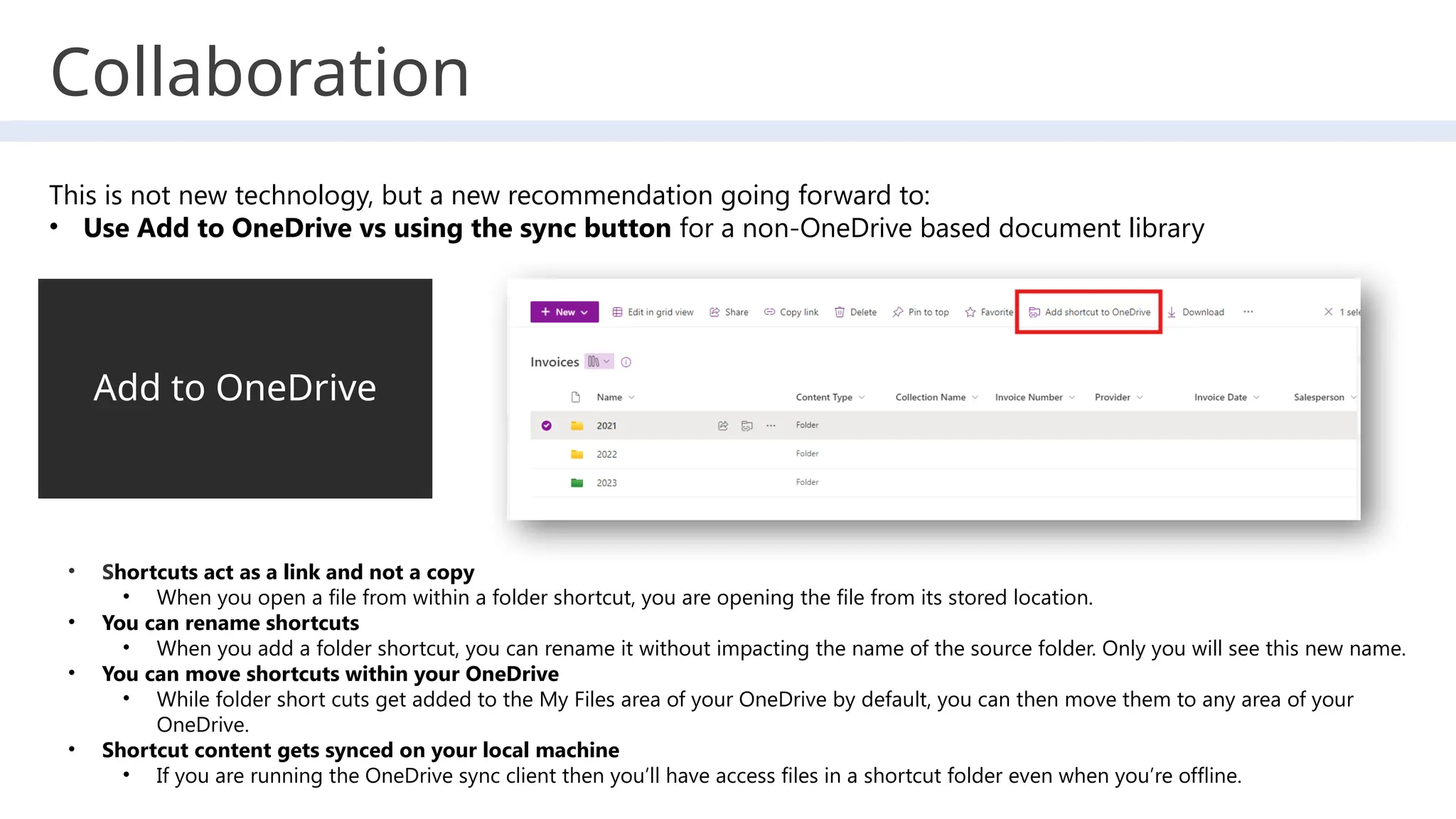
Add to OneDrive
• Shortcuts act as a link and not a copy
• When you open a file from within a folder shortcut, you are opening the file from its stored location.
• You can rename shortcuts
• When you add a folder shortcut, you can rename it without impacting the name of the source folder. Only you will see this new name.
• You can move shortcuts within your OneDrive
• While folder short cuts get added to the My Files area of your OneDrive by default, you can then move them to any area of your
OneDrive.
• Shortcut content gets synced on your local machine
• If you are running the OneDrive sync client then you’ll have access files in a shortcut folder even when you’re offline.
This is not new technology, but a new recommendation going forward to:
• Use Add to OneDrive vs using the sync button for a non-OneDrive based document library
Admin
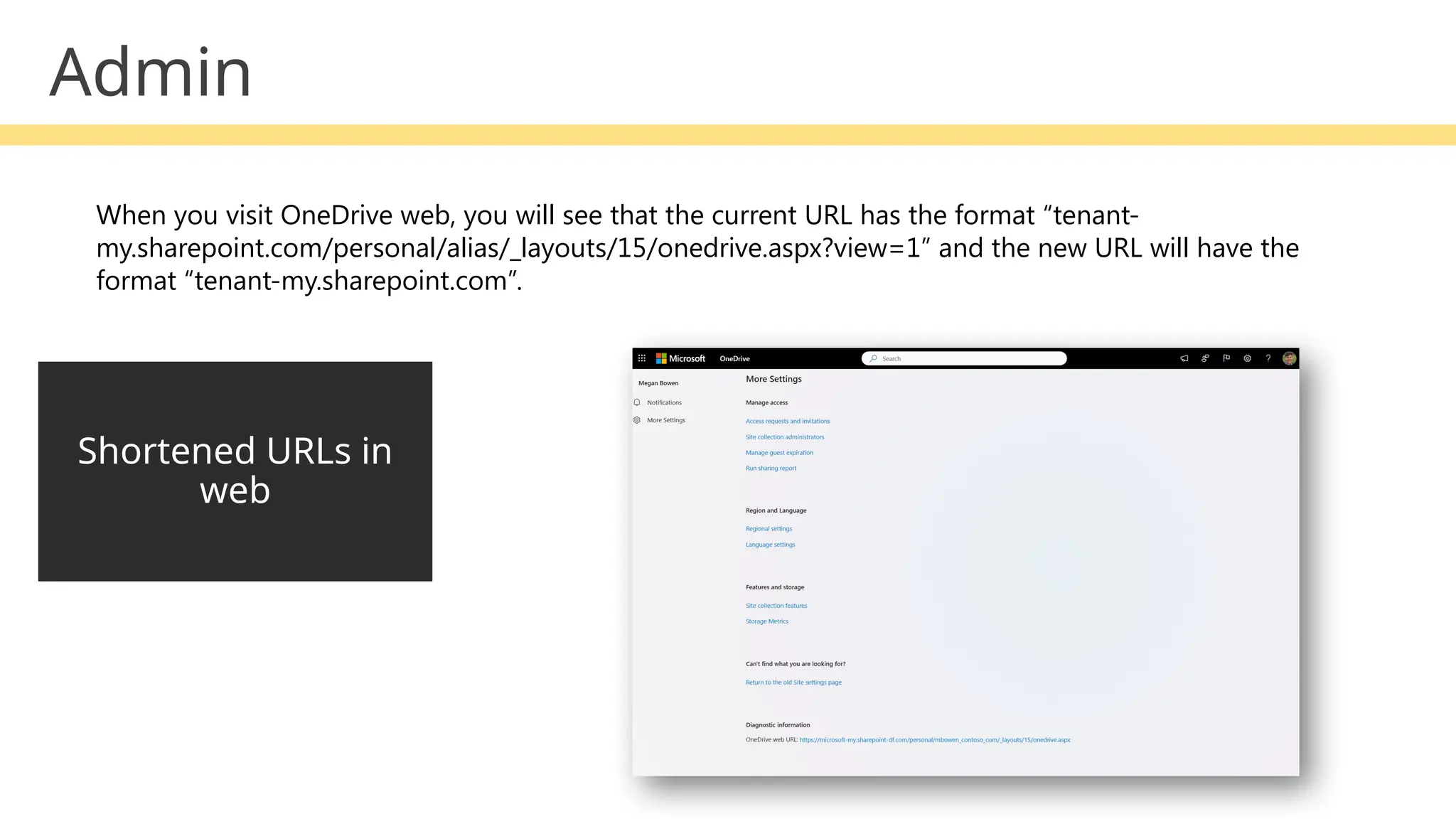
Shortened URLs in
web
When you visit OneDrive web, you will see that the current URL has the format “tenant-
my.sharepoint.com/personal/alias/_layouts/15/onedrive.aspx?view=1” and the new URL will have the
format “tenant-my.sharepoint.com”.
Teams meeting
recordings saved to
OneDrive updates
Microsoft Teams meetings recordings, will be saved by default to the
meeting organizer's Microsoft OneDrive account. Previously,
meeting recordings were saved to the OneDrive account for the person
who initiates the recording.
• By default, for scheduled meetings, all recording files go to the OneDrive account of organizer.
• For 1-1 call and group call, recording files go to the OneDrive account of the user who selected Record.
• For channel meetings, the recording always goes to the SharePoint site of the channel.
Admin
Demo!
What’s Coming
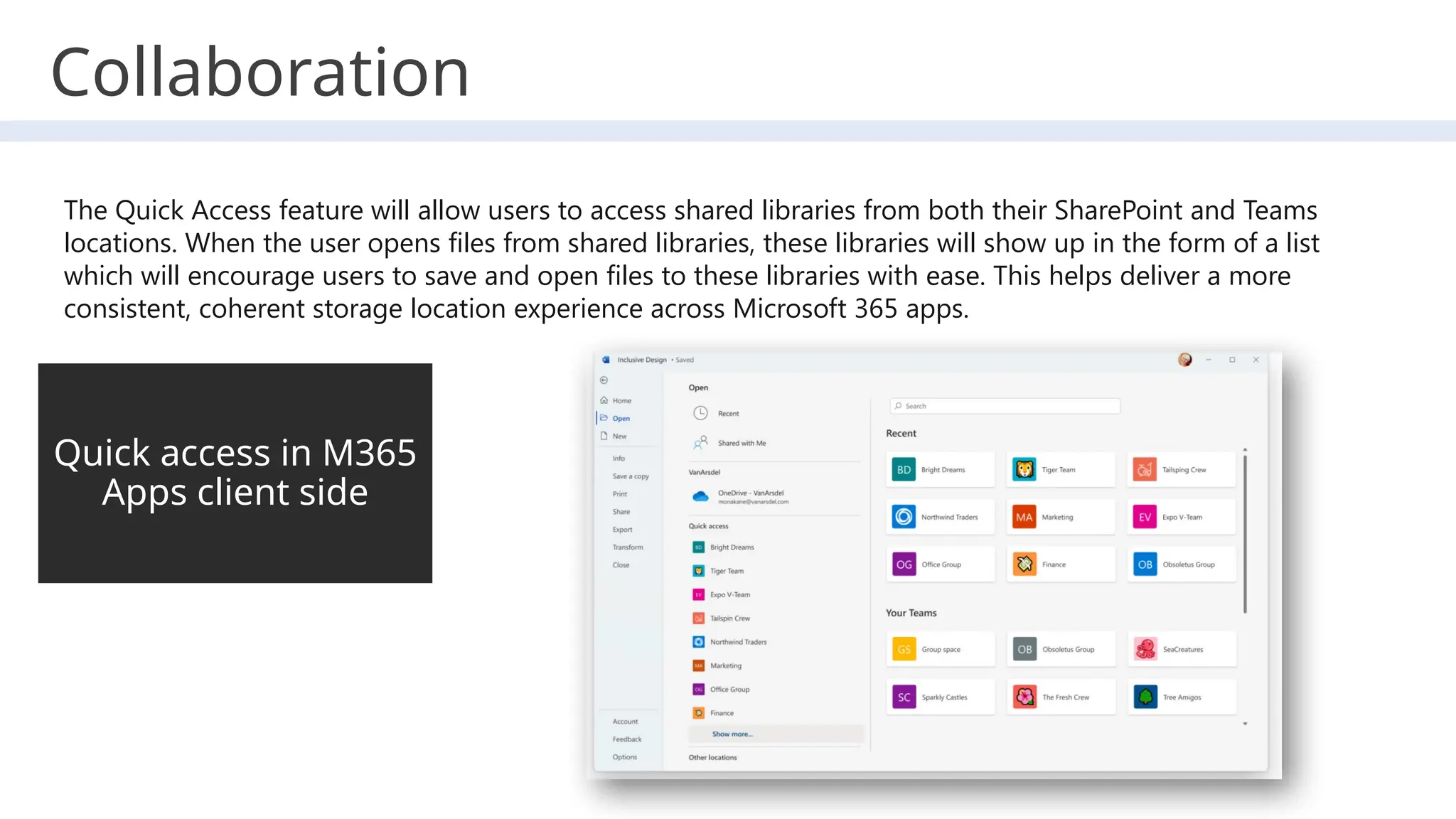
Quick access in M365
Apps client side
The Quick Access feature will allow users to access shared libraries from both their SharePoint and Teams
locations. When the user opens files from shared libraries, these libraries will show up in the form of a list
which will encourage users to save and open files to these libraries with ease. This helps deliver a more
consistent, coherent storage location experience across Microsoft 365 apps.
Collaboration
Offline mode
Will give users the ability to view,
rename, move, copy their files, and
create new folders when offline with
3x performance improvement
• Let's you work on OneDrive when offline in the browser, OneDrive PWA
(Progressive Web App) and in Microsoft Teams, improves performance and helps
alleviate throttling related to working with large files.
• OneDrive Offline mode is currently supported on Windows devices (Windows 10
or later) and macOS devices (macOS 12 Monterey or later) that have the OneDrive
sync app and on Chromium-based browsers (Microsoft Edge, Google Chrome)
• Will be on by default for user’s OneDrive on the web and both users and
administrators will have the option to disable Offline mode.
• Offline mode is a per-device setting
• The data is securely stored in a local database under the user’s profile directory
and requests are handled through a secure localhost HTTP server. Offline mode is
powered by a separate background process (Microsoft.SharePoint.exe).
• When Offline mode is on, users will see a new icon in the top navigation bar in
OneDrive on the web.
Work with OneDrive web app when offline - Microsoft Support
Collaboration
― Work offline, in the browser
― 3x performance improvement
Offline Mode
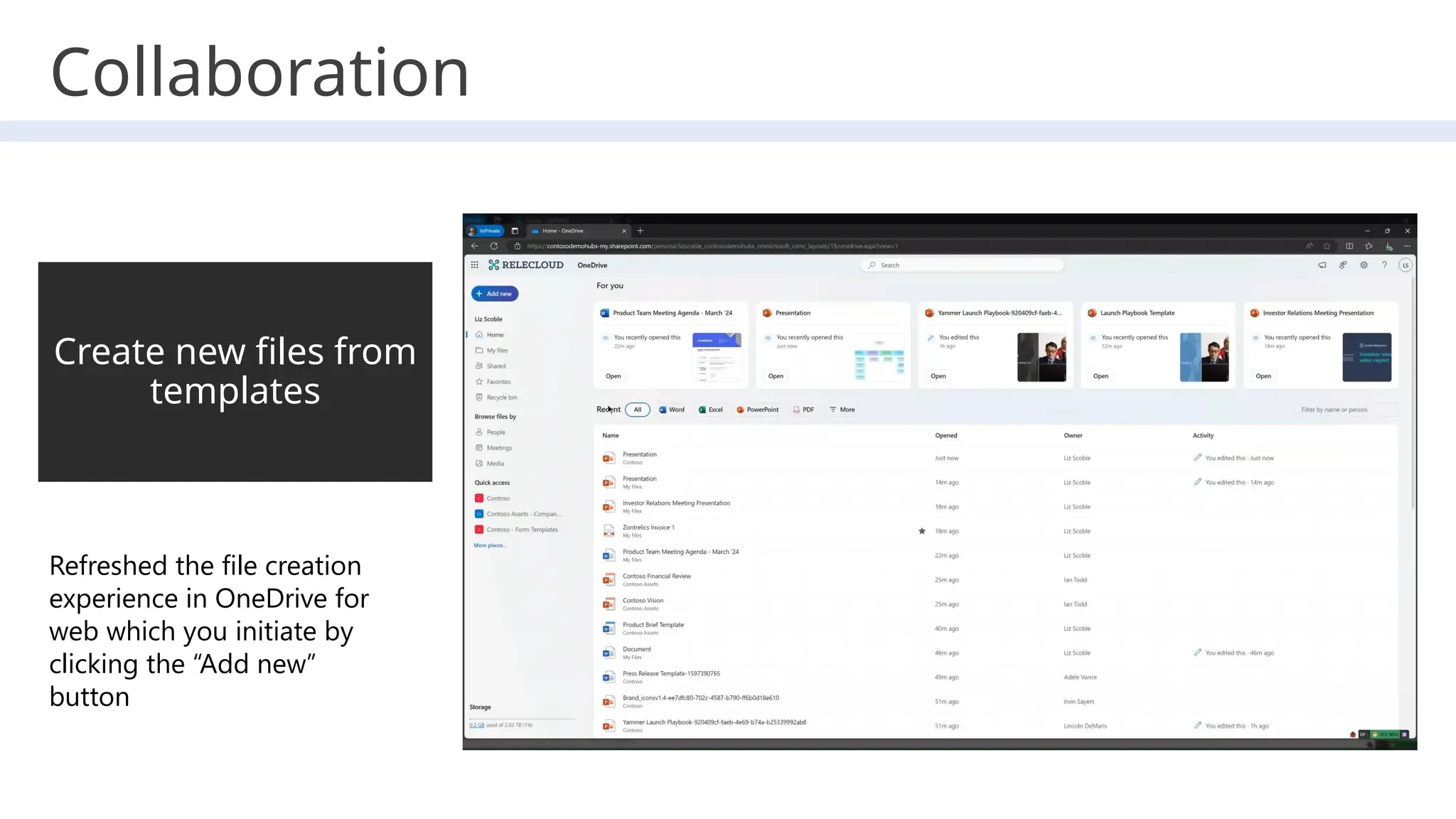
Create new files from
templates
Refreshed the file creation
experience in OneDrive for
web which you initiate by
clicking the “Add new”
button
Collaboration
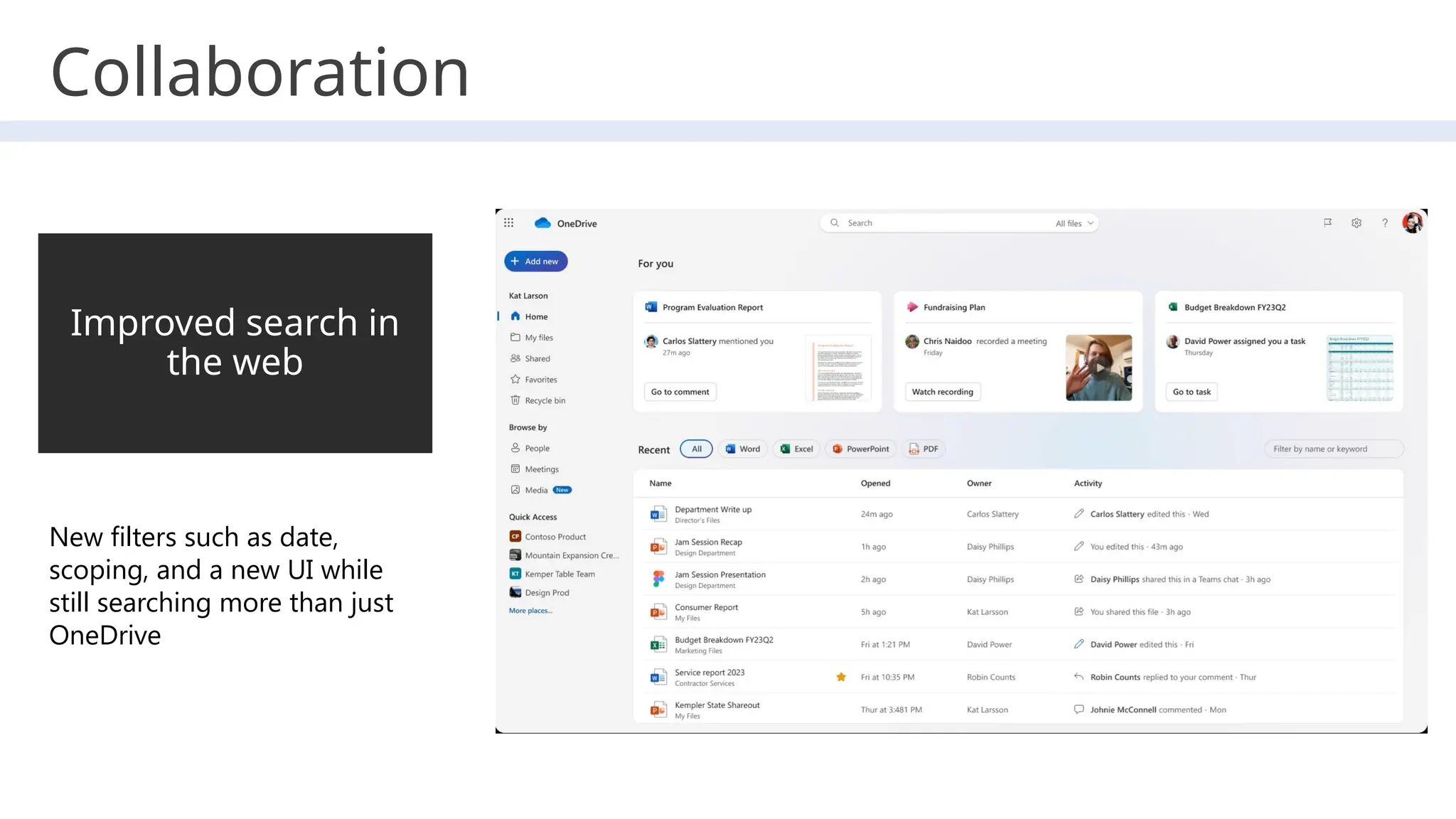
Improved search in
the web
New filters such as date,
scoping, and a new UI while
still searching more than just
OneDrive
Collaboration
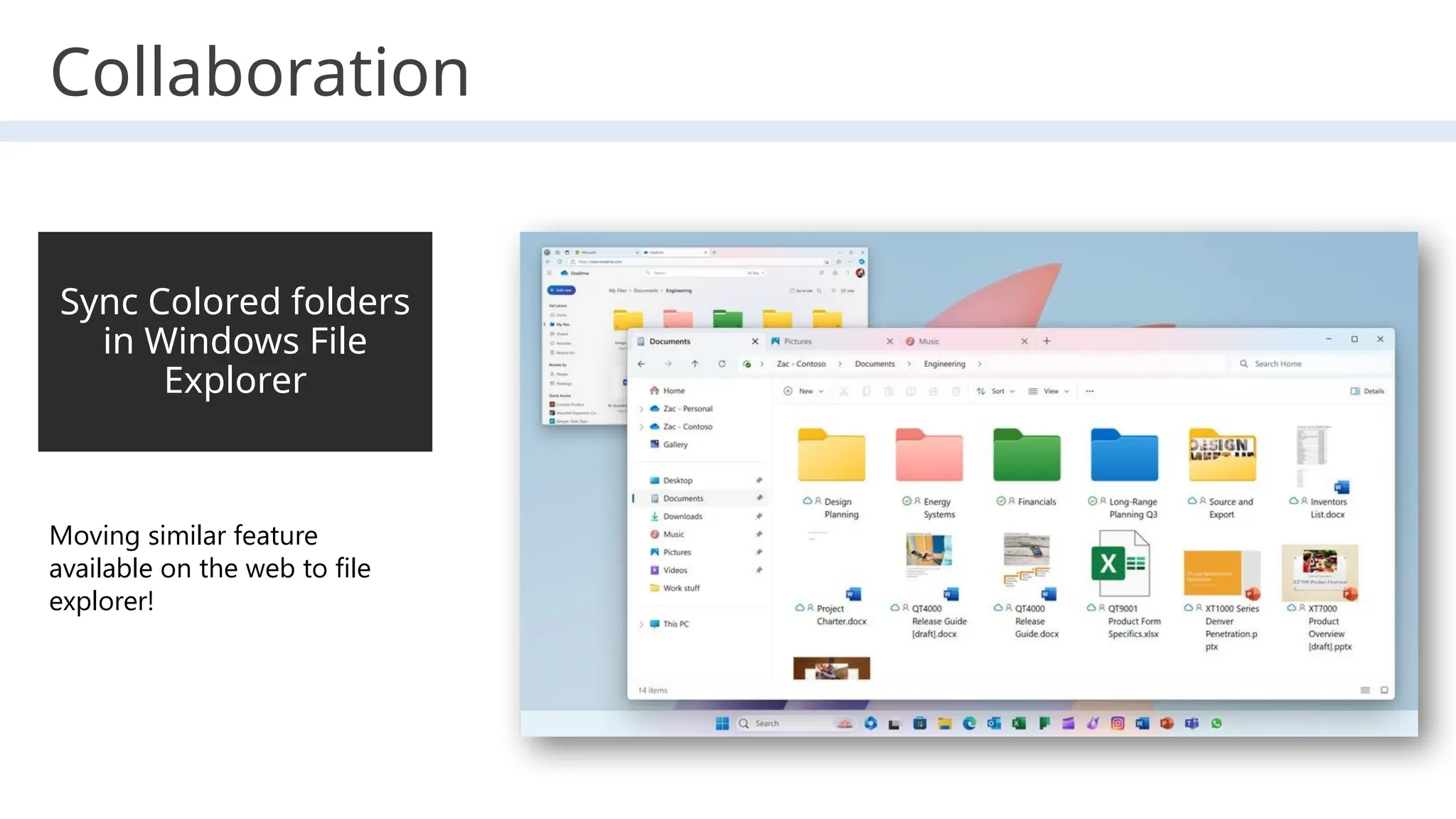
Sync Colored folders
in Windows File
Explorer
Moving similar feature
available on the web to file
explorer!
Collaboration
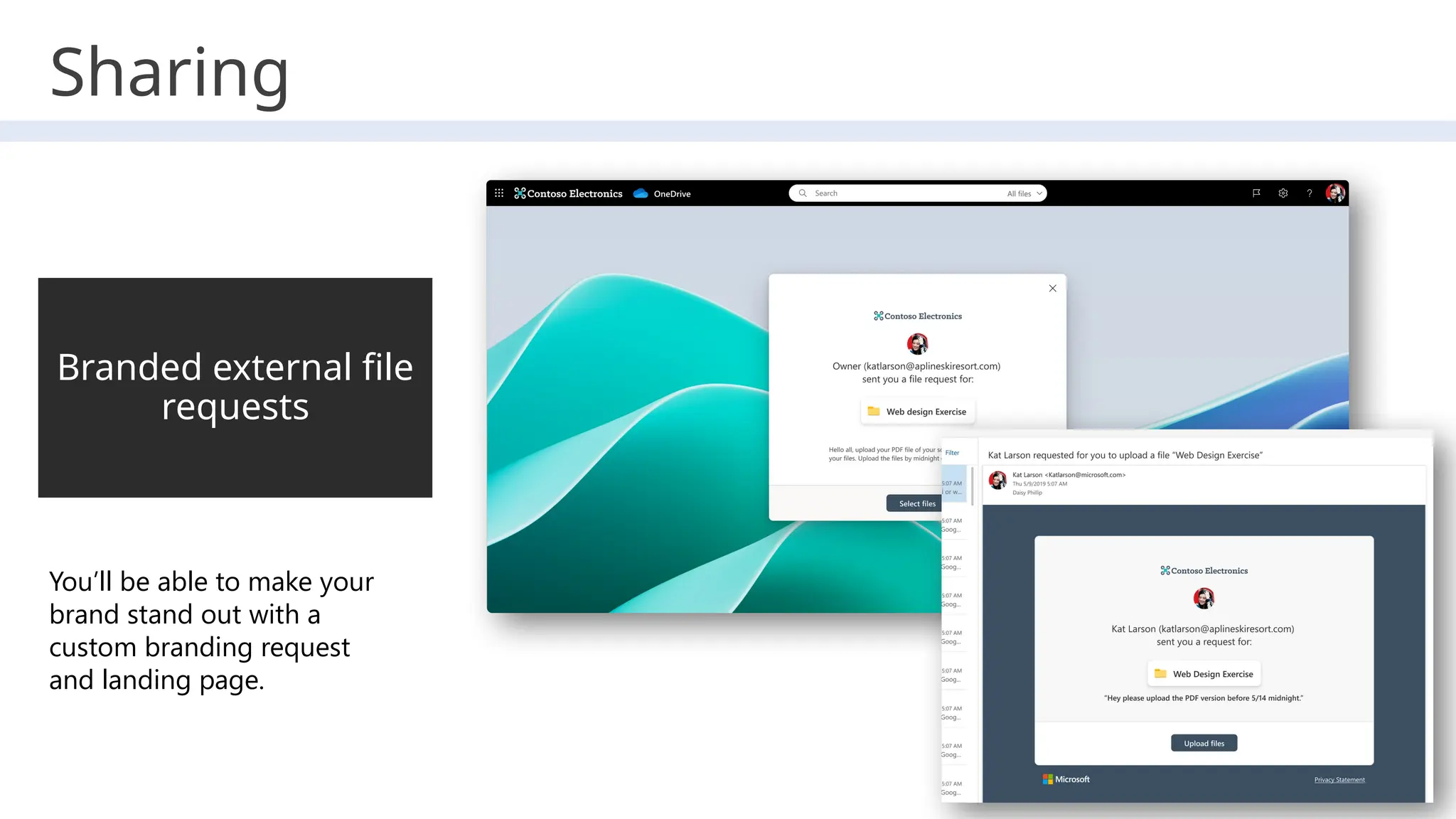
Branded external file
requests
You’ll be able to make your
brand stand out with a
custom branding request
and landing page.
Sharing
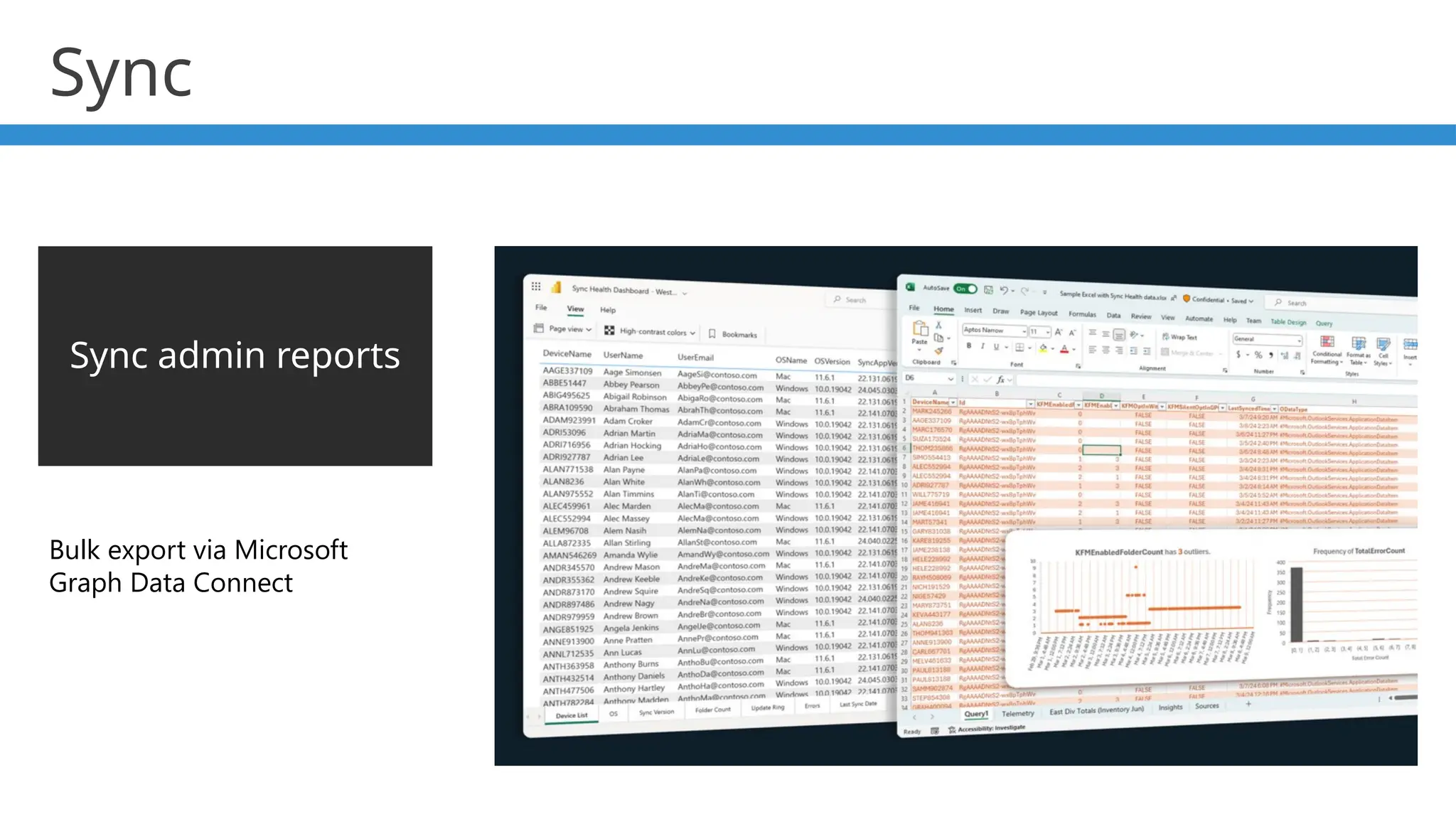
Sync admin reports
Bulk export via Microsoft
Graph Data Connect
Sync
What else?
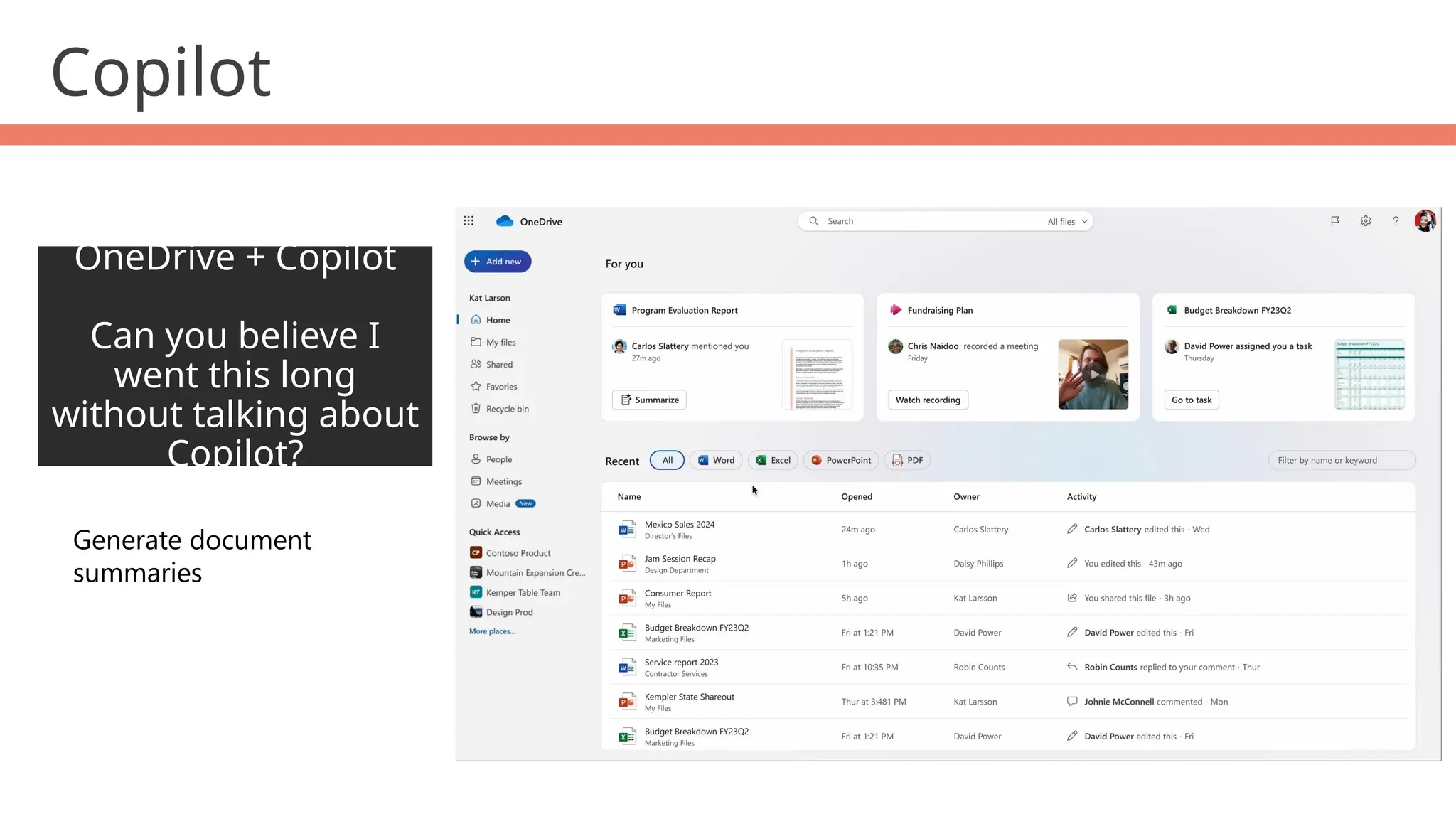
OneDrive + Copilot
Can you believe I
went this long
without talking about
Copilot?
Generate document
summaries
Copilot
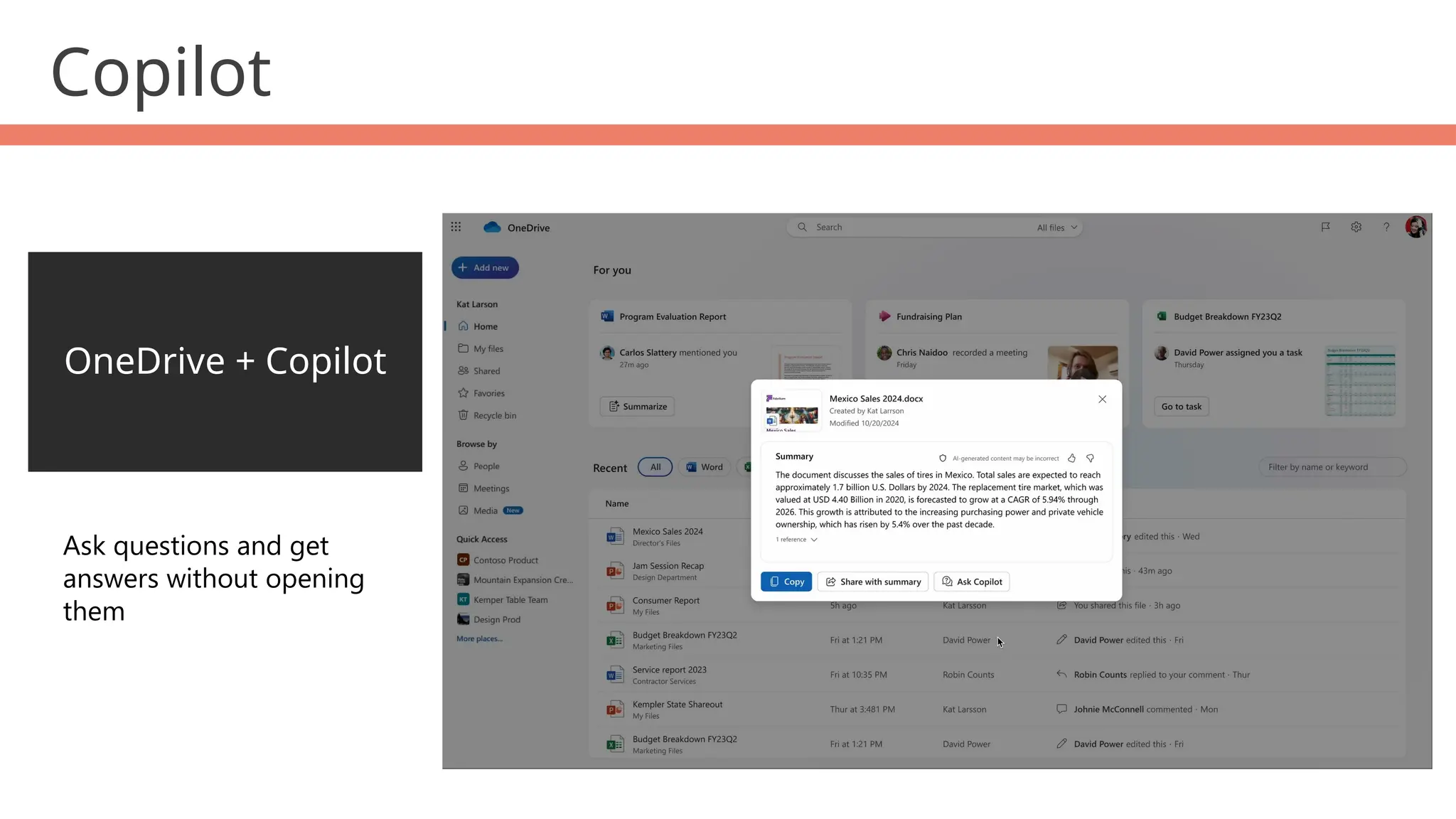
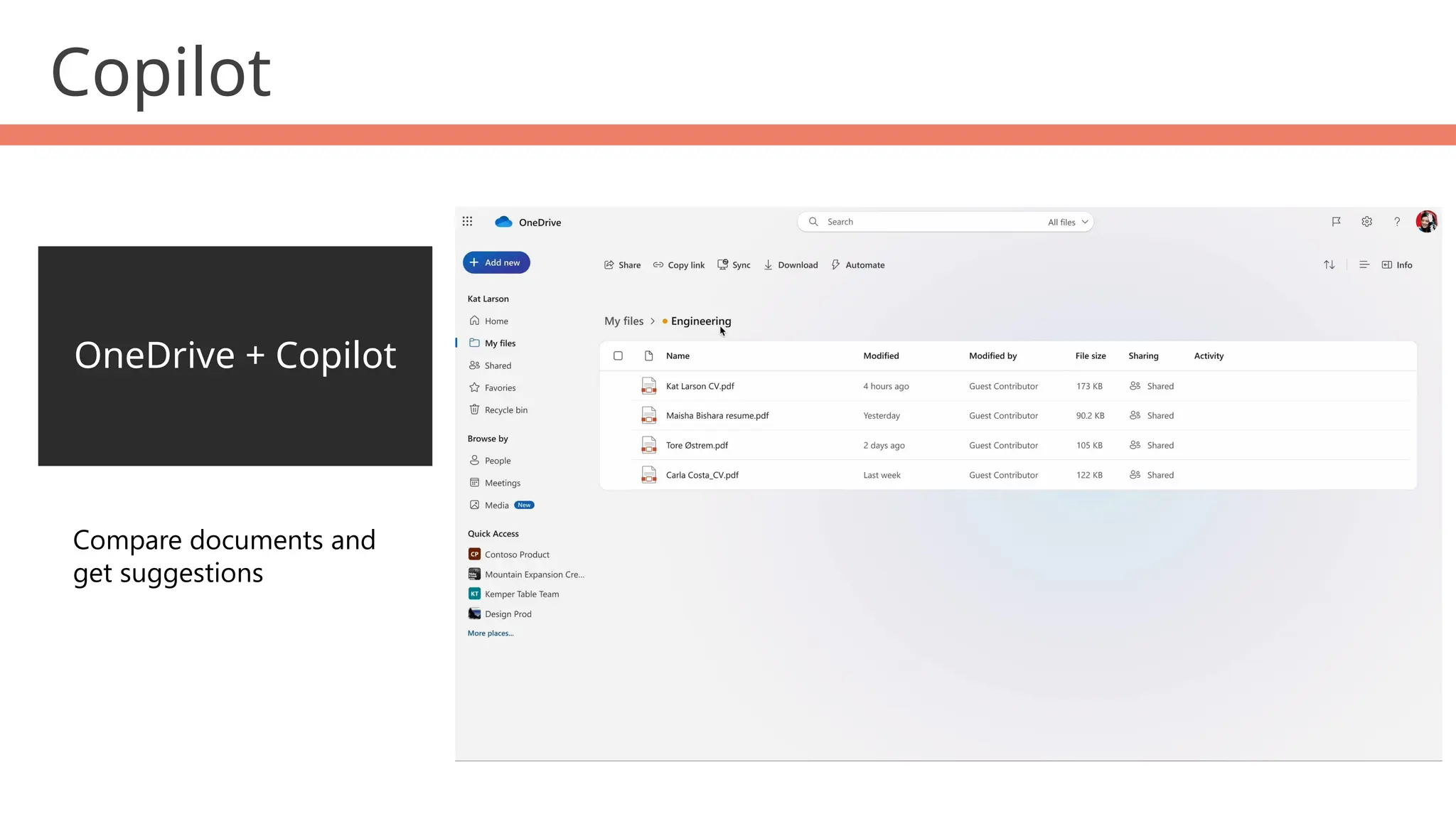
OneDrive + Copilot
Ask questions and get
answers without opening
them
Copilot
OneDrive + Copilot
Compare documents and
get suggestions
Copilot
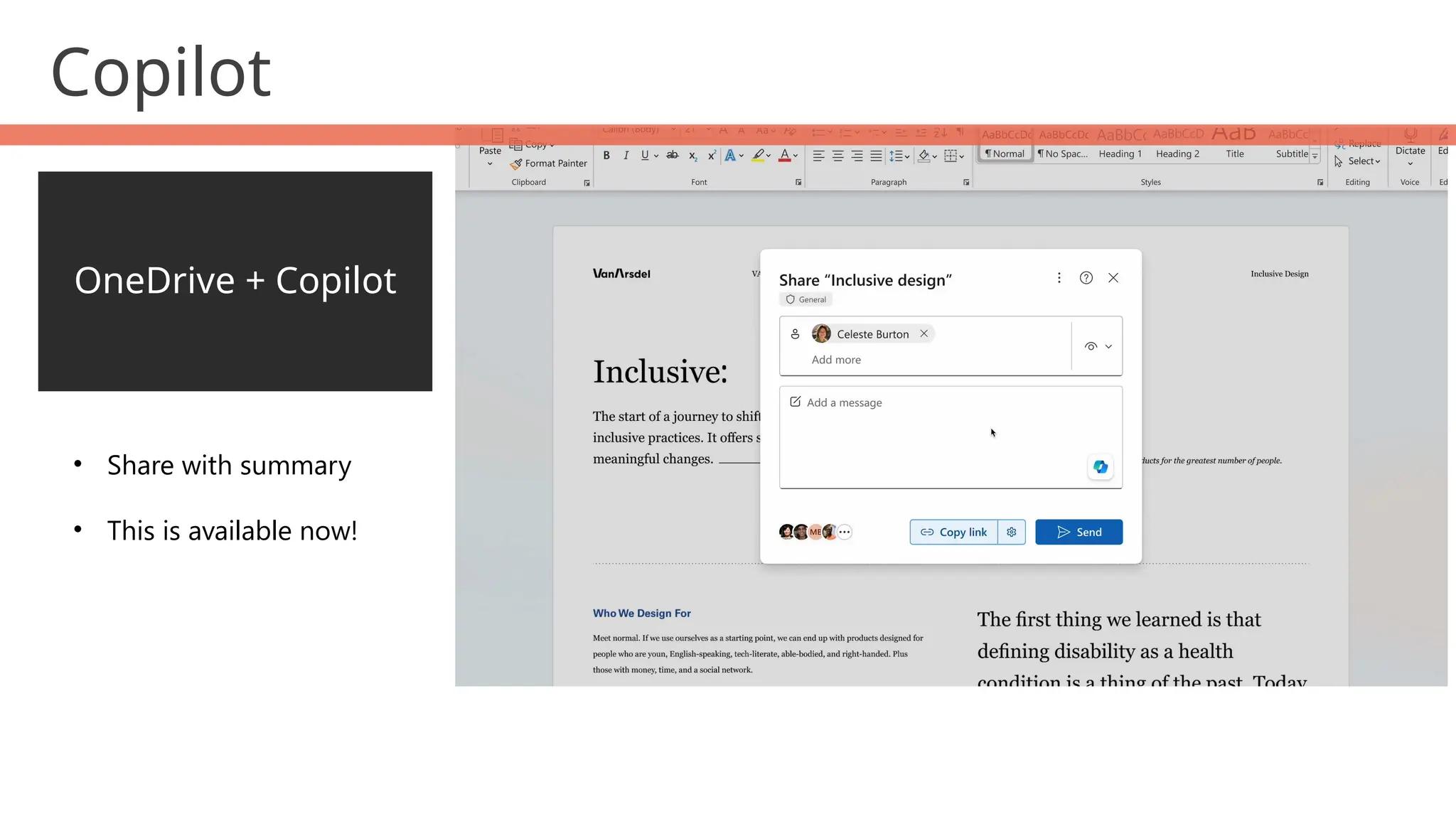
OneDrive + Copilot
• Share with summary
• This is available now!
Copilot
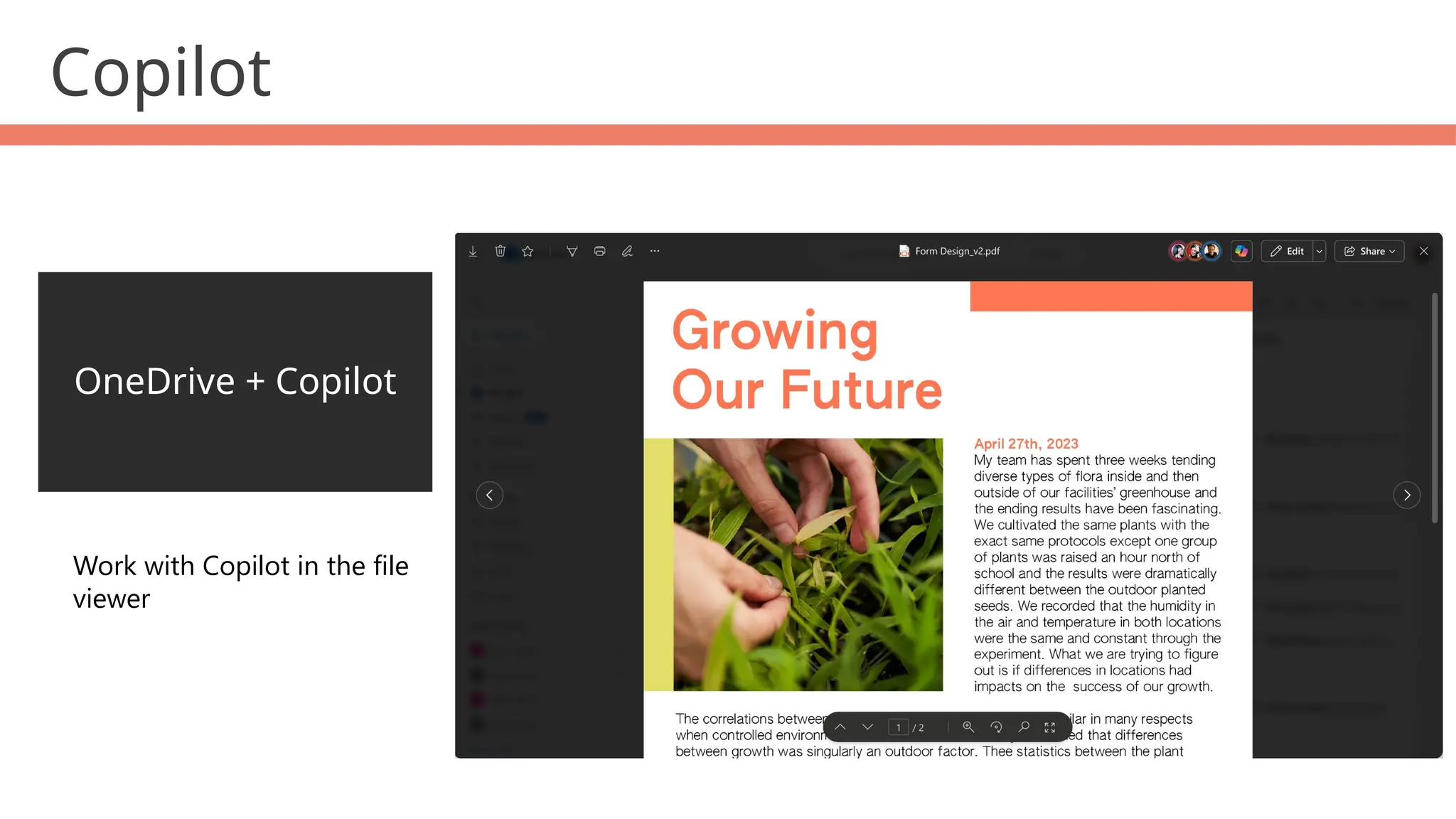
OneDrive + Copilot
Work with Copilot in the file
viewer
Copilot
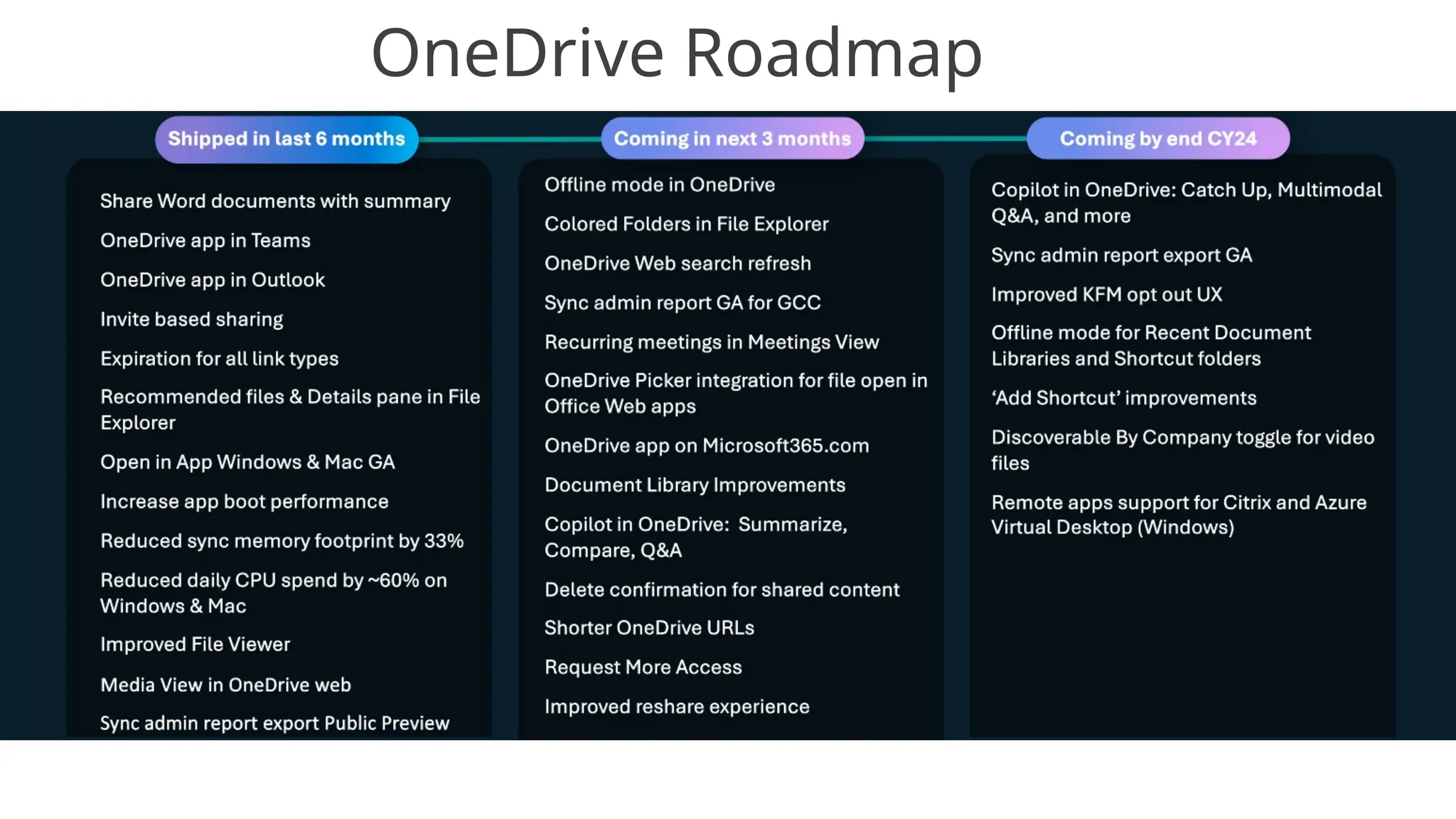
OneDrive Roadmap
OneDrive tidbits
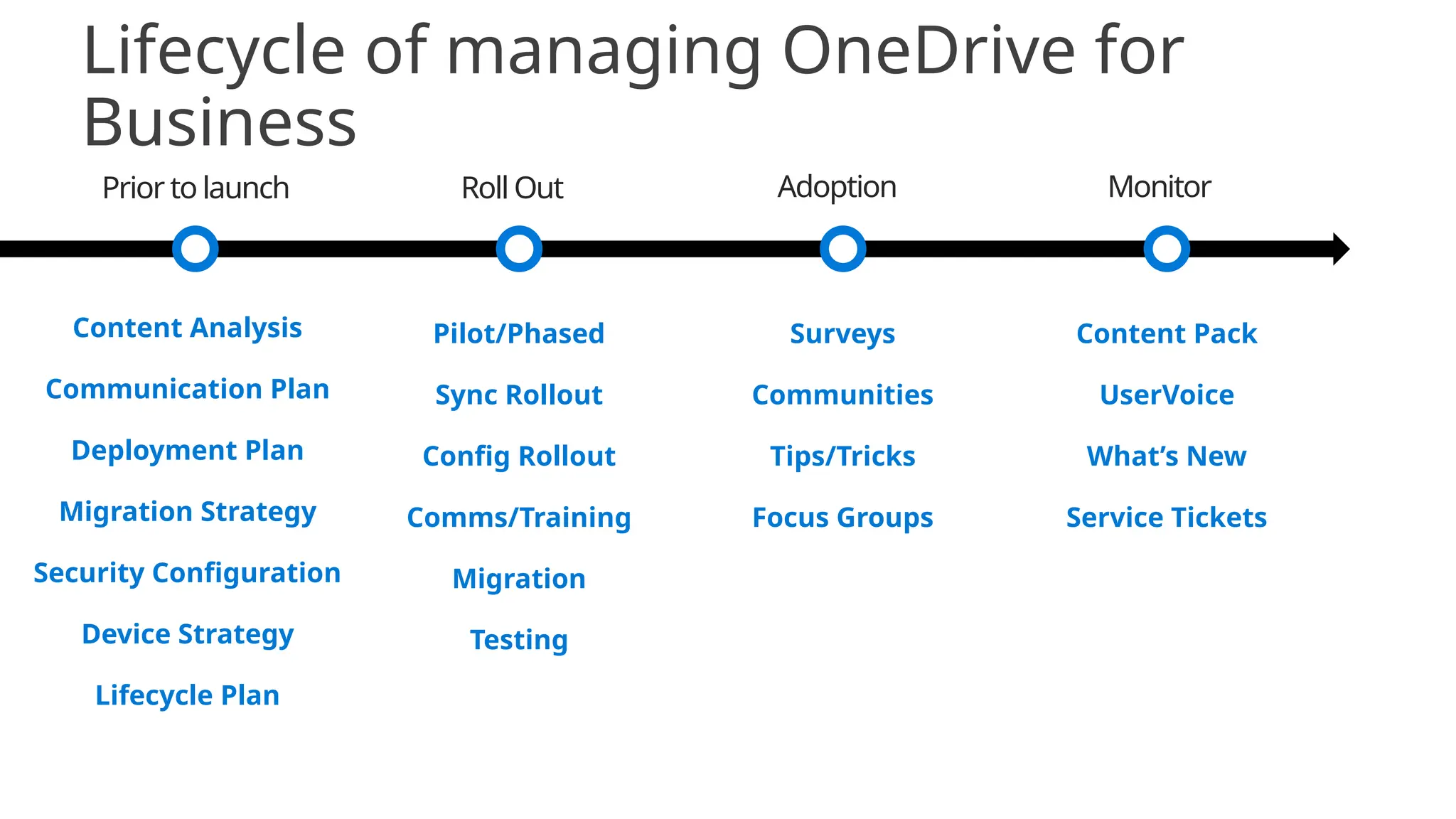
Lifecycle of managing OneDrive for
Business
Prior to launch Roll Out Adoption Monitor
Surveys
Communities
Tips/Tricks
Focus Groups
Content Analysis
Communication Plan
Deployment Plan
Migration Strategy
Security Configuration
Device Strategy
Lifecycle Plan
Pilot/Phased
Sync Rollout
Config Rollout
Comms/Training
Migration
Testing
Content Pack
UserVoice
What’s New
Service Tickets
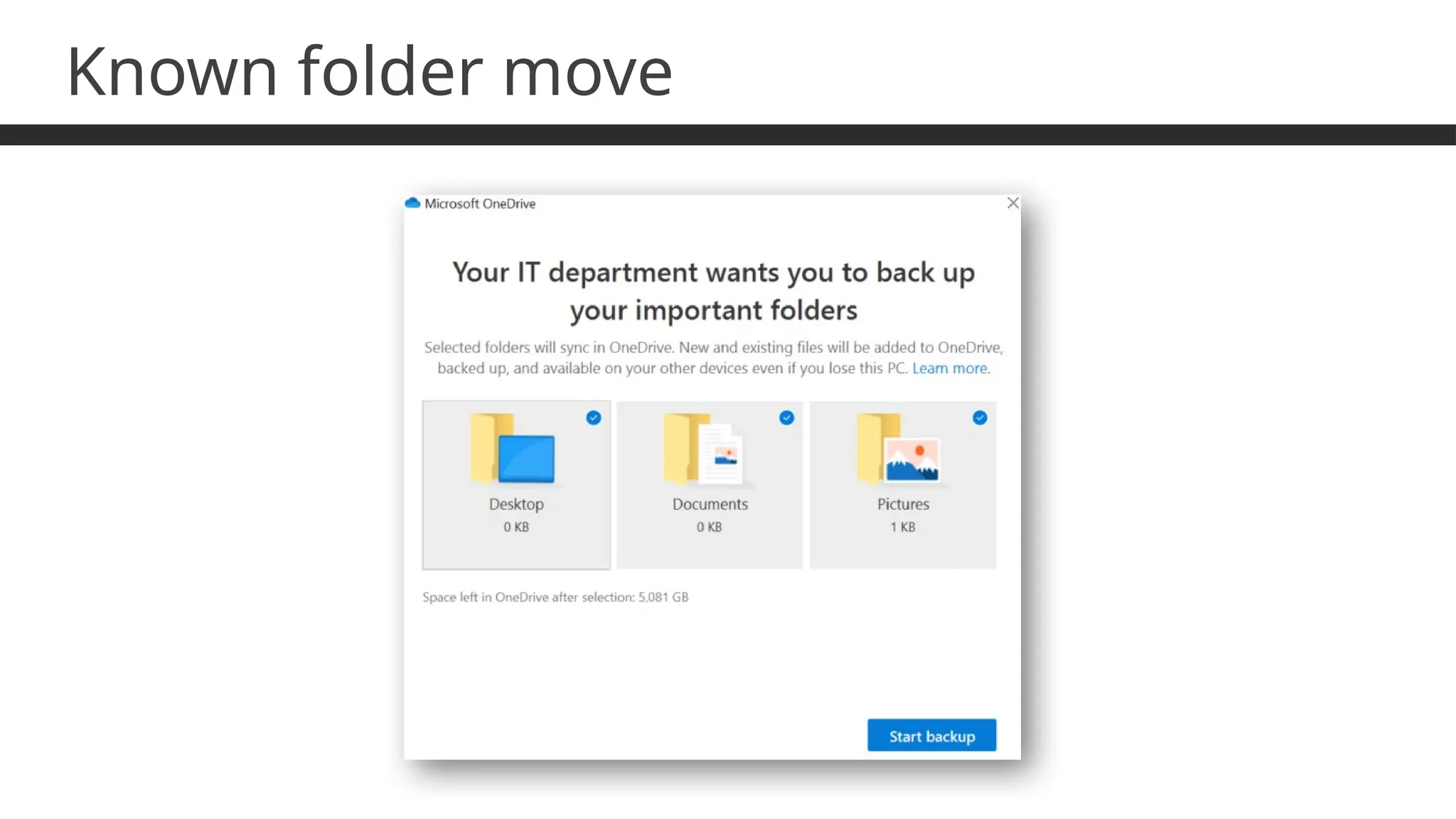
Known folder move
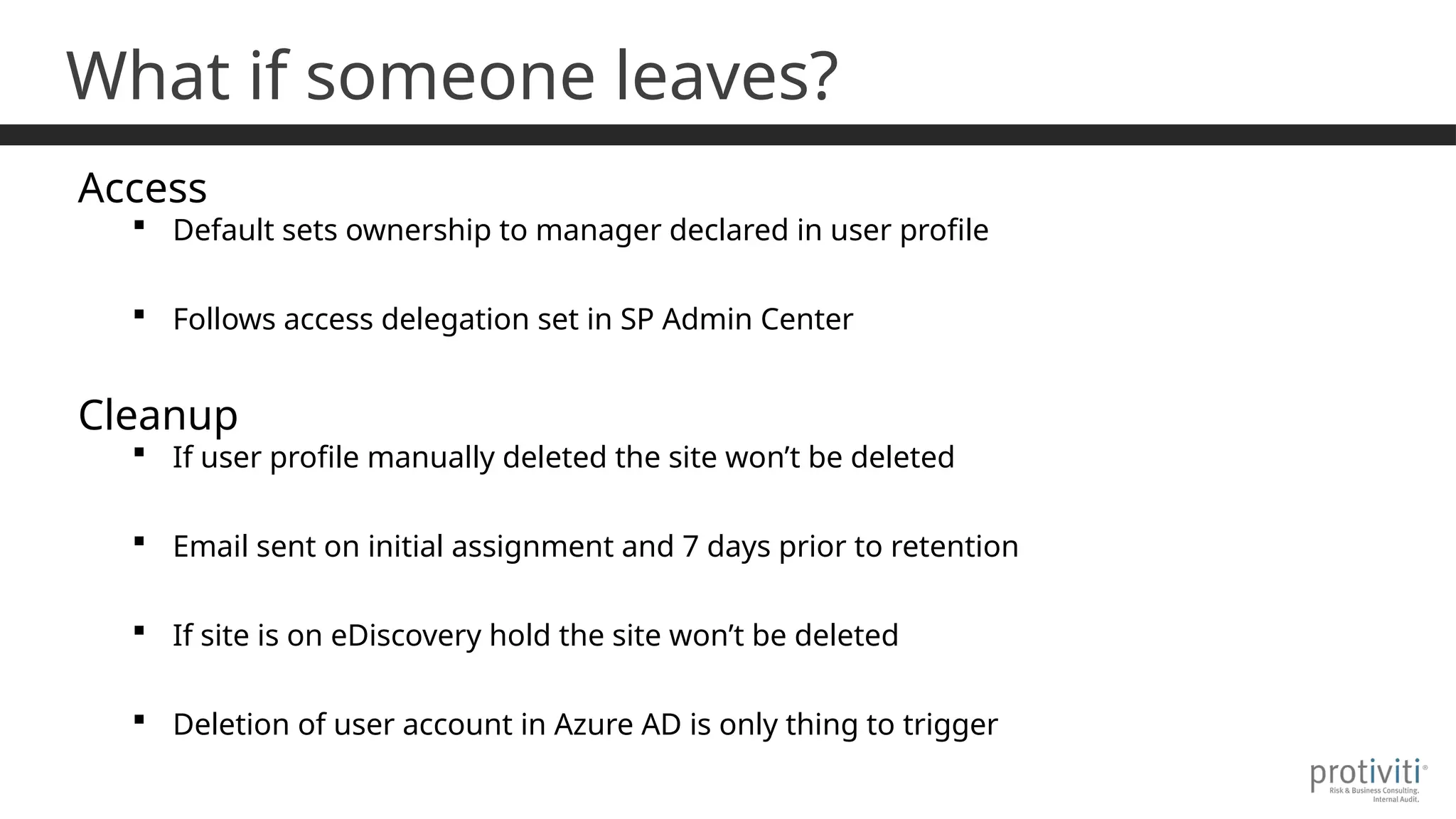
What if someone leaves?
Access
 Default sets ownership to manager declared in user profile
 Follows access delegation set in SP Admin Center
Cleanup
 If user profile manually deleted the site won’t be deleted
 Email sent on initial assignment and 7 days prior to retention
 If site is on eDiscovery hold the site won’t be deleted
 Deletion of user account in Azure AD is only thing to trigger
What if someone leaves?
Files stores in OneDrive automatically that will matter
 Meetings recordings for personal Team meetings
 Files uploaded through Forms Q&A
 Shared Teams chat files
 PowerApps using Excel file as data source
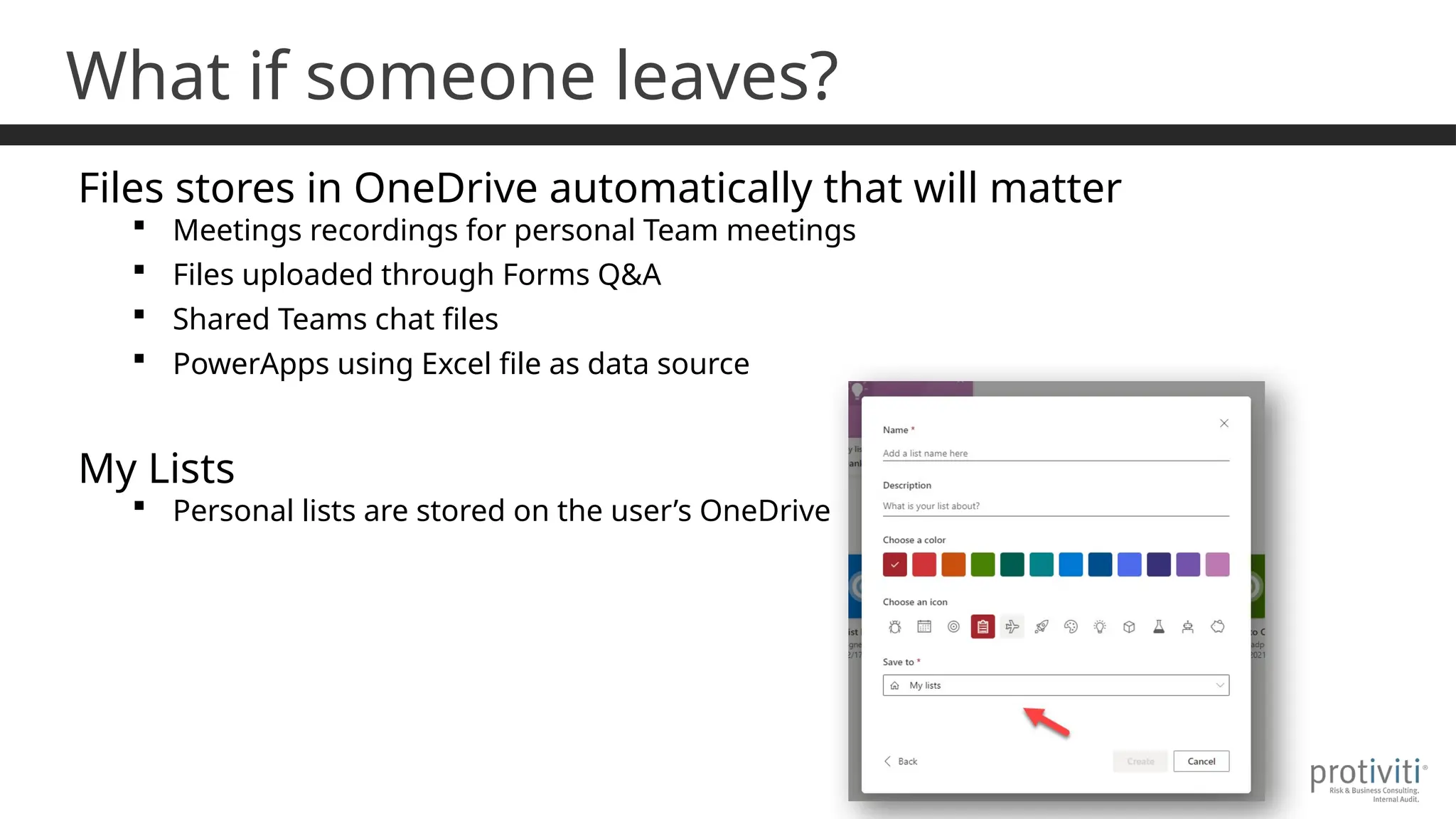
My Lists
 Personal lists are stored on the user’s OneDrive
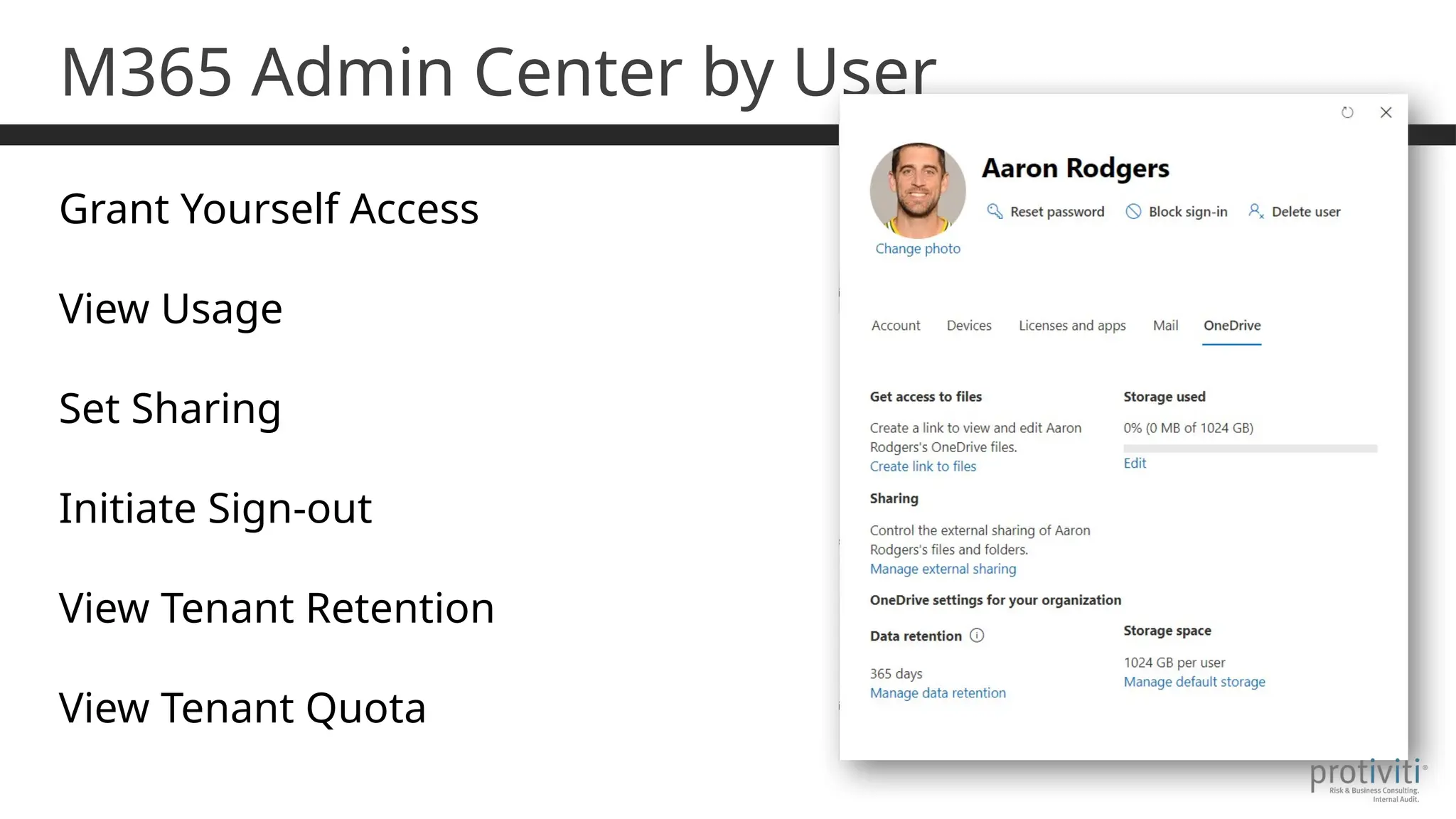
M365 Admin Center by User
Grant Yourself Access
View Usage
Set Sharing
Initiate Sign-out
View Tenant Retention
View Tenant Quota
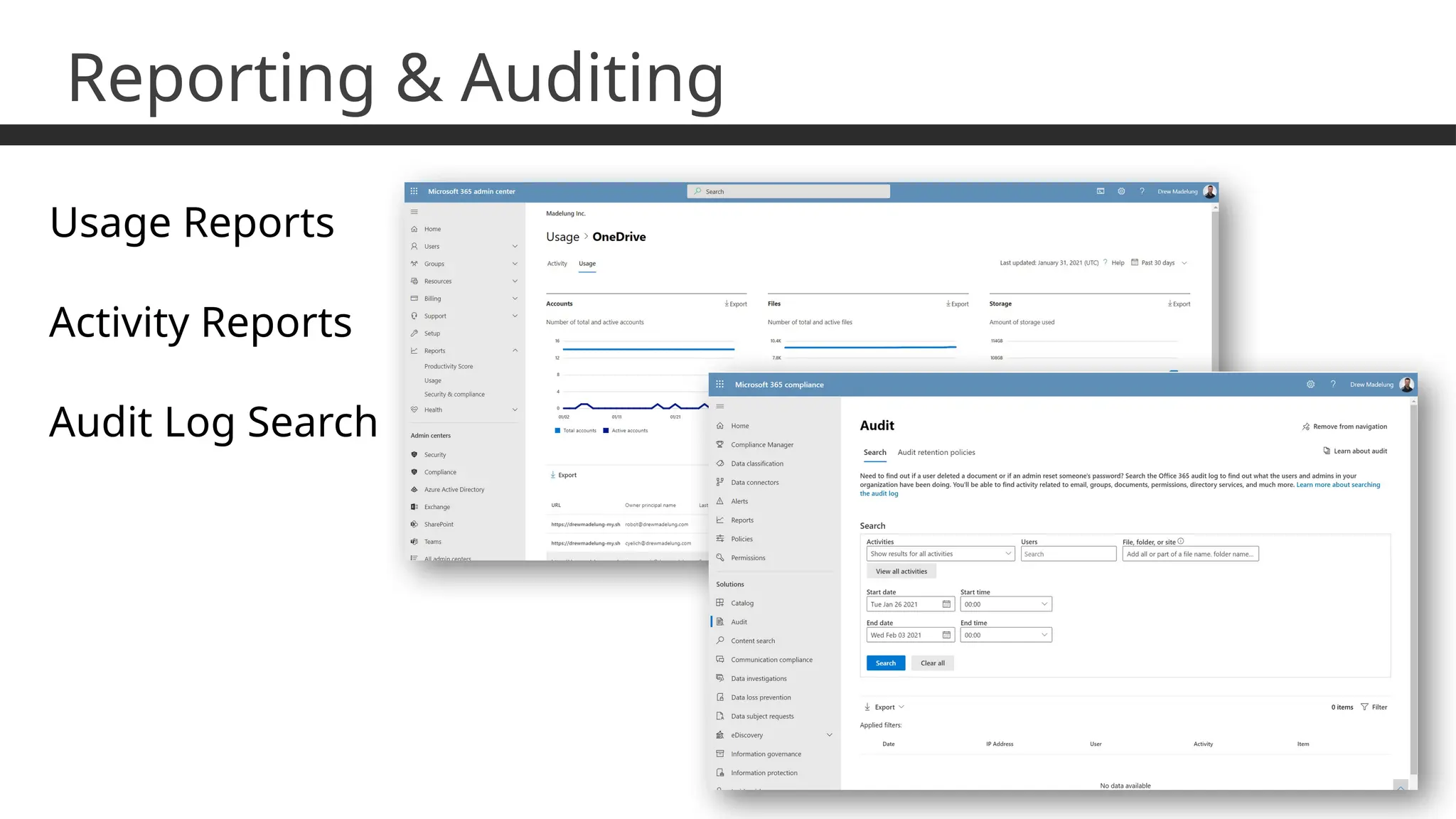
Reporting & Auditing
Usage Reports
Activity Reports
Audit Log Search
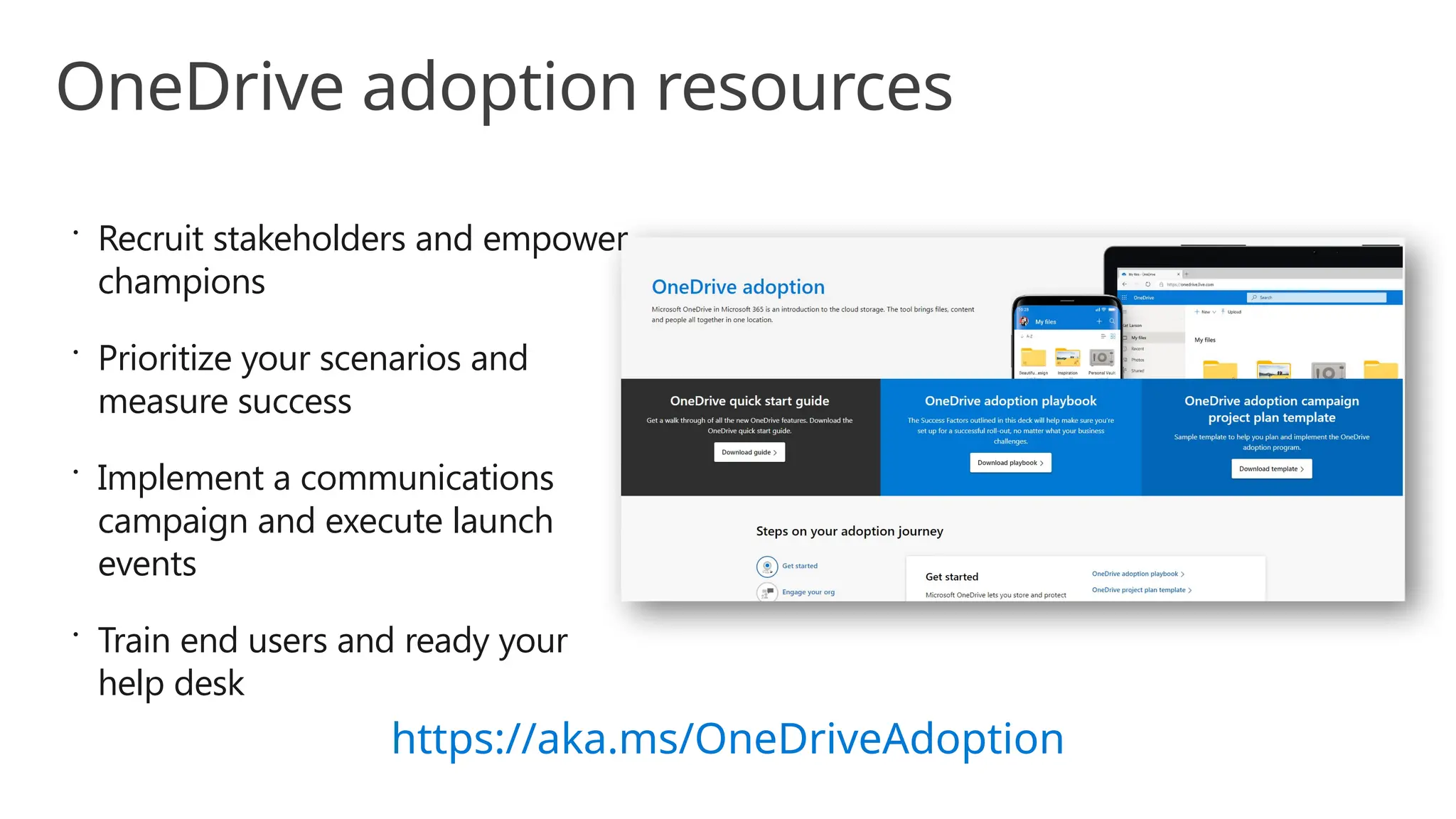
 Recruit stakeholders and empower
champions
 Prioritize your scenarios and
measure success
 Implement a communications
campaign and execute launch
events
 Train end users and ready your
help desk
https://aka.ms/OneDriveAdoption
OneDrive adoption resources
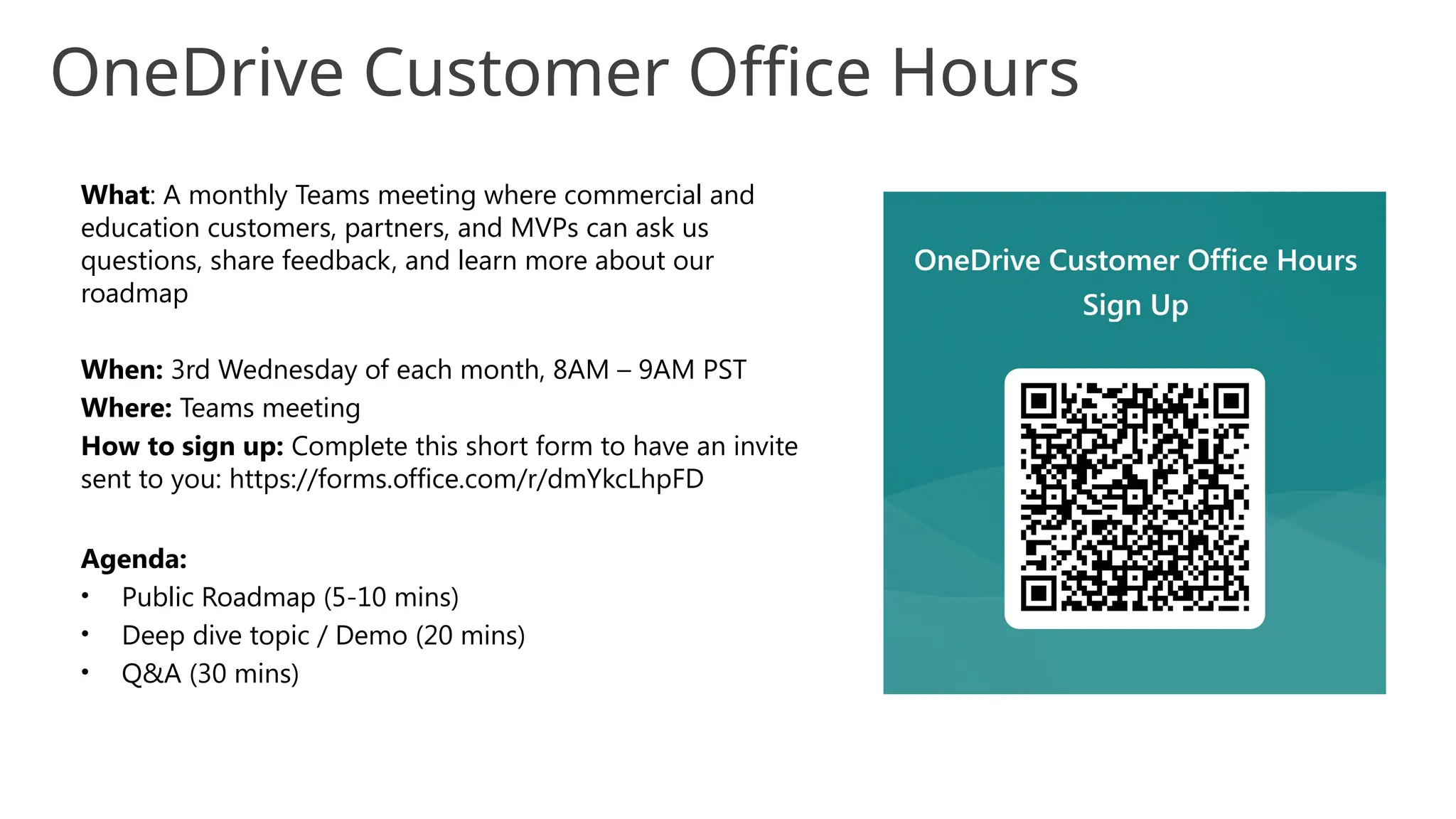
What: A monthly Teams meeting where commercial and
education customers, partners, and MVPs can ask us
questions, share feedback, and learn more about our
roadmap
When: 3rd Wednesday of each month, 8AM – 9AM PST
Where: Teams meeting
How to sign up: Complete this short form to have an invite
sent to you: https://forms.office.com/r/dmYkcLhpFD
Agenda:
• Public Roadmap (5-10 mins)
• Deep dive topic / Demo (20 mins)
• Q&A (30 mins)
OneDrive Customer Office Hours
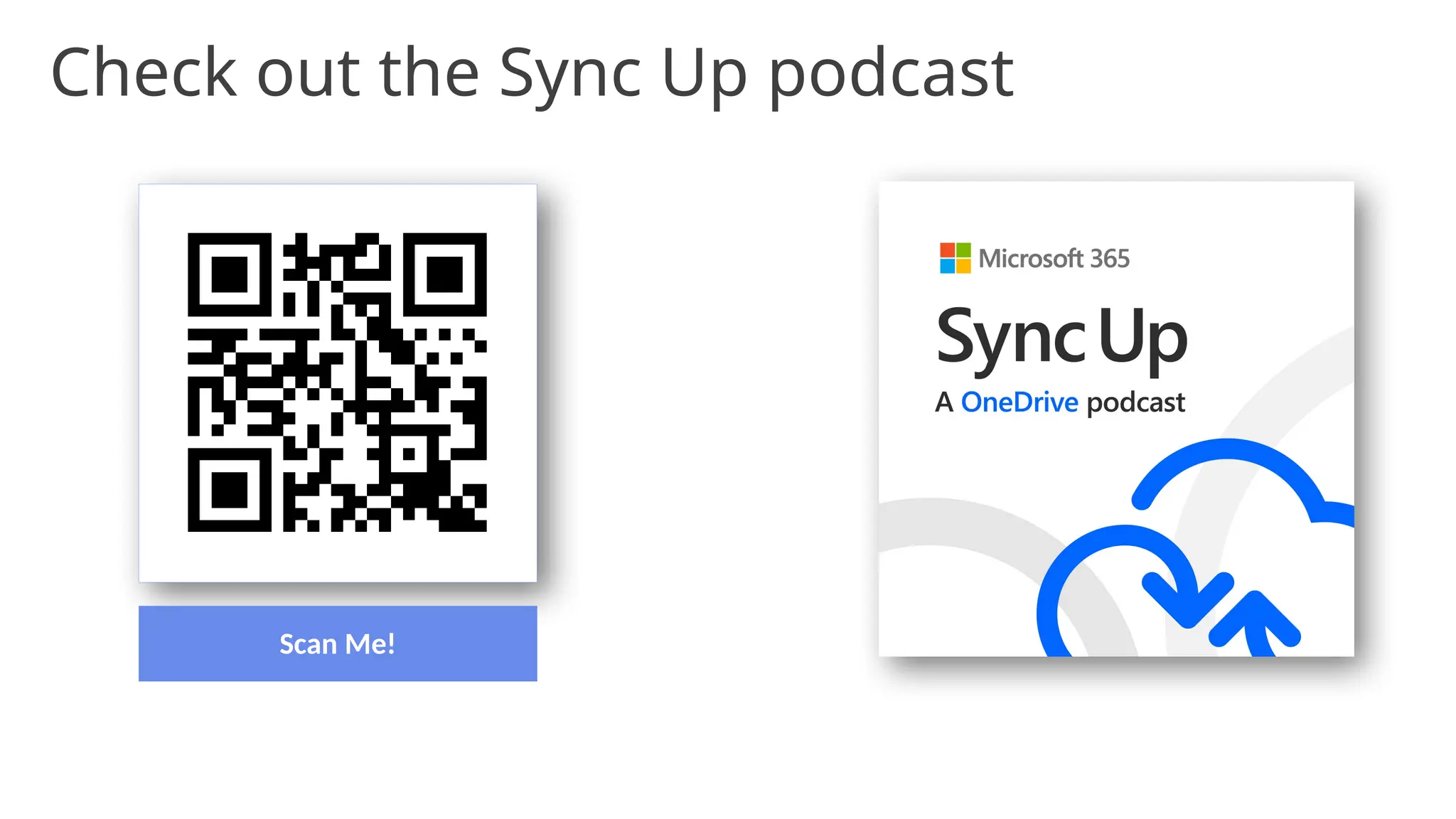
Scan Me!
Go behind the scenes on the latest OneDrive developments with the OneDrive Team!
Check out the Sync Up podcast
techcon365.com/DC
How was
the session?
Search for WHOVA
in the App Store or
Google Play
TechCon365 DC 2024
Aug 12 – 16, 2024
Fill out the Surveys in the
TechCon365DC Event App
and be eligible to win PRIZES!
Questions
?
Email: drew.madelung@protiviti.com
Twitter: @dmadelung
Website: drewmadelung.com
Slides: http://bit.ly/DrewSlides
What’s new
with
OneDrive
TechCon365 DC 2024
#TechCon365

What's New with OneDrive! - TechCon365DC 2024

  • 1.
    What’s New with OneDrive SharePointFest Chicago 2021 #SPFestChi
  • 2.
    Drew Madelung Email :drew.madelung@protiviti.com Twitter : @dmadelung Website: drewmadelung.com Director – Microsoft Solutions
  • 3.
    OneDrive intro What’s therenow What’s new OneDrive tidbits! Agenda What’s new with OneDrive TechCon365 DC 2024 #TechCon365
  • 4.
    Microsoft OneDrive Unifying thecollaborative files experience across Microsoft 365 Security Complianc e Governance
  • 5.
    Powering your individualfiles work Maintain your local files workflow while adding cloud collaboration and security Files at your fingertips All your files, from Office docs to photos, are always on your OneDrive—even those shared by others Find the files that matter most Unified search in OneDrive finds files across Microsoft 365 to get you back to work fast Store files as you create them OneDrive and Microsoft 365 go hand in hand, so you can create and access your docs from whatever app you’re in Take your desktop to the cloud The OneDrive cloud experience is a seamless transition from managing your files locally Protect what’s private By default, your Microsoft 365 cloud files are accessible to you and you alone until you share them out
  • 6.
    Share and accessfiles from any app to collaborate on them with anyone Share your way Wherever you’re working in Microsoft 365, secure sharing is right there in the app Give the right access Whether in Teams, Outlook, or anywhere in between, file permissions let you set different access rights for individuals and teams Collaborate in your docs OneDrive enables the tools, like @mentions and coauthoring, for working with your team in Office files Request and approve files Team projects require the right files are done right—and OneDrive with Microsoft 365 helps you do both See what files are trending Your OneDrive tracks popular Microsoft 365 files across the org that might affect your work Powering your team files collaboration
  • 7.
    Microsoft OneDrive Powering thecollaborative files experience across Microsoft 365 Access, capture, and backup all files and photos from any device Share and work together with anyone in real time Organize and find files that matter most across the org Keep files compliant, secured, and protected Individual work Team collaboration
  • 8.
    Keep files compliant,secured, and protected Security Compliance Governance Put content in its (right) place Multi-Geo and Information Barriers keep files are in the right region and with the right users Stay in control Services like Customer Lockbox and Customer Key ensure you’re always in control of your data Meet international standards OneDrive adheres to a variety of regulatory standards, like ISO 27001, FedRAMP, and GDPR Enhance user experiences Audit logs and sharing reports surface usage patterns so you can accommodate work styles Expedite discovery Built-in eDiscovery helps you identify, preserve, and review content in case of litigation Keep files “on file” Retention policies and labels streamline the process for maintaining content long term Collaborate securely Secure, consistent sharing lets you give the right access to the right people as you work Prevent accidental leaks DLP and Sensitivity Labels empower both admins and users to protect files Recover from ransomware Windows Defender detects ransomware and Files Restore helps you recover whatever is lost Microsoft 365 admin center | manage all your OneDrive security, compliance, and governance in one place
  • 9.
    Share and worktogether on files throughout Microsoft 365 Work with all your files OneDrive Work with your team Teams Work across your organization SharePoint Intelligent content services Intelligent file experiences
  • 10.
    Scan documents, receiptsand whiteboards Create, view & edit files on any device Organize and share your files Sync files to PC & Mac and work offline Share and work together on files throughout Microsoft 365 Work with all your files OneDrive Work with your team Teams Work across your organization SharePoint Intelligent content services Intelligent file experiences
  • 11.
    Share and worktogether on files throughout Microsoft 365 Anywhere access to all your files Find, view, share, edit and organize files Scan documents, receipts and whiteboards Sync files to PC & Mac and work offline The hub for teamwork Create, view, edit and discuss team files Collaborate with integrated Office apps Integrate calls, meetings, and applications The intelligent intranet Publish to a broad audience Capture and manage content and records Create sites, news, lists and apps Intelligent content services Intelligent file experiences Work with all your files OneDrive Work with your team Teams Work across your organization SharePoint
  • 12.
    https://learn.microsoft.com/OneDrive User engagement • Deploy OneDrive mobile •Known folder move + Files On-Demand • Help users engage and discover the power of OneDrive Data migration • Use tool or engage with FastTrack • Migrate existing enterprise content directly to the cloud Operate • Automatic Updates or self-managed “Enterprise” ring? • Manage ongoing changes Prep and deploy OneDrive Sync • Apply OneDrive GPOs & Intune policies • Use known folder move for documents, desktop and pictures known folders • Deploy OneDrive to PCs and Macs Planning • How much content does your organization have? • Where do users put files today? OneDrive deployment quick reference
  • 13.
    OneDrive technology Built ontop of SharePoint Evolution of “My Sites” from SharePoint on- premises Administration tightly coupled between SharePoint & OneDrive Each user’s OneDrive is a SharePoint Site Collection OneDrive does not count against SharePoint Online tenant storage usage Created under the /personal managed path when a user first accesses
  • 14.
  • 15.
  • 16.
    OneDrive product focusareas Copilot Magic in OneDrive Accelerate Your Productivity Customized to Your Workstyle
  • 17.
    Sharing Set expiration for morelink types Set expiration date will let users set a date for a link to expire. After a user sets a date and the link expires, the link won't work, and the user will need to make a new link or reshare with people so they can continue to access the file. Before the rollout, users can only set the expiration for links for Anyone. With this rollout, users can also set an expiration on for links for People in your organization and People you choose. This message applies to Microsoft 365 apps for the web, for desktop on Windows or Mac, and for mobile on Android or iOS.
  • 18.
    Collaboration New version controlsthat help admins and content owners reduce storage footprint driven by low value file versions. Previously, document library owners could set count- based version limits at the library level. With this rollout, we are introducing new automatic version limits that consider important factors such as age and restore probability to offer more intelligent version deleting options. There is also manual settings for version expiration and count limits. Improved versioning controls
  • 19.
    Collaboration Shared folder experience Previously, whena user opens a shared folder in OneDrive, they are taken to a view of that folder within the sharer's OneDrive. In the new experience, opening a shared folder will take the user to the shared folder within the People view of their own OneDrive.
  • 20.
    Collaboration Annotate PDFs in web Anew feature for annotating PDFs with text boxes, pens, and highlighters. Users can edit PDFs in OneDrive and SharePoint by opening the file and using the 'Edit' and 'Add Text' commands.
  • 21.
    Collaboration Updated web-based file viewer Thefile viewer in Microsoft 365 opens by default when you access non-Office files from OneDrive, SharePoint, or Teams. There is now a new toolbar, new panes, collaboration features, and more than 300 file types. The new file viewer has a dark mode background, an updated command bar, and file navigation arrows positioned in the middle of the page.
  • 22.
    Collaboration Lots of otherweb updates! • Full document library experience in in Quick Access • People, Meetings, and now Media tab • Open in app for non-Office files
  • 23.
    Collaboration Add to OneDrive •Shortcuts act as a link and not a copy • When you open a file from within a folder shortcut, you are opening the file from its stored location. • You can rename shortcuts • When you add a folder shortcut, you can rename it without impacting the name of the source folder. Only you will see this new name. • You can move shortcuts within your OneDrive • While folder short cuts get added to the My Files area of your OneDrive by default, you can then move them to any area of your OneDrive. • Shortcut content gets synced on your local machine • If you are running the OneDrive sync client then you’ll have access files in a shortcut folder even when you’re offline. This is not new technology, but a new recommendation going forward to: • Use Add to OneDrive vs using the sync button for a non-OneDrive based document library
  • 24.
    Admin Shortened URLs in web Whenyou visit OneDrive web, you will see that the current URL has the format “tenant- my.sharepoint.com/personal/alias/_layouts/15/onedrive.aspx?view=1” and the new URL will have the format “tenant-my.sharepoint.com”.
  • 25.
    Teams meeting recordings savedto OneDrive updates Microsoft Teams meetings recordings, will be saved by default to the meeting organizer's Microsoft OneDrive account. Previously, meeting recordings were saved to the OneDrive account for the person who initiates the recording. • By default, for scheduled meetings, all recording files go to the OneDrive account of organizer. • For 1-1 call and group call, recording files go to the OneDrive account of the user who selected Record. • For channel meetings, the recording always goes to the SharePoint site of the channel. Admin
  • 26.
  • 27.
  • 28.
    Quick access inM365 Apps client side The Quick Access feature will allow users to access shared libraries from both their SharePoint and Teams locations. When the user opens files from shared libraries, these libraries will show up in the form of a list which will encourage users to save and open files to these libraries with ease. This helps deliver a more consistent, coherent storage location experience across Microsoft 365 apps. Collaboration
  • 29.
    Offline mode Will giveusers the ability to view, rename, move, copy their files, and create new folders when offline with 3x performance improvement • Let's you work on OneDrive when offline in the browser, OneDrive PWA (Progressive Web App) and in Microsoft Teams, improves performance and helps alleviate throttling related to working with large files. • OneDrive Offline mode is currently supported on Windows devices (Windows 10 or later) and macOS devices (macOS 12 Monterey or later) that have the OneDrive sync app and on Chromium-based browsers (Microsoft Edge, Google Chrome) • Will be on by default for user’s OneDrive on the web and both users and administrators will have the option to disable Offline mode. • Offline mode is a per-device setting • The data is securely stored in a local database under the user’s profile directory and requests are handled through a secure localhost HTTP server. Offline mode is powered by a separate background process (Microsoft.SharePoint.exe). • When Offline mode is on, users will see a new icon in the top navigation bar in OneDrive on the web. Work with OneDrive web app when offline - Microsoft Support Collaboration
  • 30.
    ― Work offline,in the browser ― 3x performance improvement Offline Mode
  • 31.
    Create new filesfrom templates Refreshed the file creation experience in OneDrive for web which you initiate by clicking the “Add new” button Collaboration
  • 32.
    Improved search in theweb New filters such as date, scoping, and a new UI while still searching more than just OneDrive Collaboration
  • 33.
    Sync Colored folders inWindows File Explorer Moving similar feature available on the web to file explorer! Collaboration
  • 34.
    Branded external file requests You’llbe able to make your brand stand out with a custom branding request and landing page. Sharing
  • 35.
    Sync admin reports Bulkexport via Microsoft Graph Data Connect Sync
  • 36.
  • 37.
    OneDrive + Copilot Canyou believe I went this long without talking about Copilot? Generate document summaries Copilot
  • 38.
    OneDrive + Copilot Askquestions and get answers without opening them Copilot
  • 39.
    OneDrive + Copilot Comparedocuments and get suggestions Copilot
  • 40.
    OneDrive + Copilot •Share with summary • This is available now! Copilot
  • 41.
    OneDrive + Copilot Workwith Copilot in the file viewer Copilot
  • 42.
  • 43.
  • 44.
    Lifecycle of managingOneDrive for Business Prior to launch Roll Out Adoption Monitor Surveys Communities Tips/Tricks Focus Groups Content Analysis Communication Plan Deployment Plan Migration Strategy Security Configuration Device Strategy Lifecycle Plan Pilot/Phased Sync Rollout Config Rollout Comms/Training Migration Testing Content Pack UserVoice What’s New Service Tickets
  • 45.
  • 46.
    What if someoneleaves? Access  Default sets ownership to manager declared in user profile  Follows access delegation set in SP Admin Center Cleanup  If user profile manually deleted the site won’t be deleted  Email sent on initial assignment and 7 days prior to retention  If site is on eDiscovery hold the site won’t be deleted  Deletion of user account in Azure AD is only thing to trigger
  • 47.
    What if someoneleaves? Files stores in OneDrive automatically that will matter  Meetings recordings for personal Team meetings  Files uploaded through Forms Q&A  Shared Teams chat files  PowerApps using Excel file as data source My Lists  Personal lists are stored on the user’s OneDrive
  • 48.
    M365 Admin Centerby User Grant Yourself Access View Usage Set Sharing Initiate Sign-out View Tenant Retention View Tenant Quota
  • 49.
    Reporting & Auditing UsageReports Activity Reports Audit Log Search
  • 50.
     Recruit stakeholdersand empower champions  Prioritize your scenarios and measure success  Implement a communications campaign and execute launch events  Train end users and ready your help desk https://aka.ms/OneDriveAdoption OneDrive adoption resources
  • 51.
    What: A monthlyTeams meeting where commercial and education customers, partners, and MVPs can ask us questions, share feedback, and learn more about our roadmap When: 3rd Wednesday of each month, 8AM – 9AM PST Where: Teams meeting How to sign up: Complete this short form to have an invite sent to you: https://forms.office.com/r/dmYkcLhpFD Agenda: • Public Roadmap (5-10 mins) • Deep dive topic / Demo (20 mins) • Q&A (30 mins) OneDrive Customer Office Hours
  • 52.
    Scan Me! Go behindthe scenes on the latest OneDrive developments with the OneDrive Team! Check out the Sync Up podcast
  • 53.
    techcon365.com/DC How was the session? Searchfor WHOVA in the App Store or Google Play TechCon365 DC 2024 Aug 12 – 16, 2024 Fill out the Surveys in the TechCon365DC Event App and be eligible to win PRIZES!
  • 54.
    Questions ? Email: drew.madelung@protiviti.com Twitter: @dmadelung Website:drewmadelung.com Slides: http://bit.ly/DrewSlides
  • 55.