

Introduction to Microsoft 365 Bookings &
how to use bookings app in MS Teams
By,
Vignesh Ganesan
MWP Technical Specialist
Microsoft , India
&
Vijai Anand Ramalingam
Microsoft MVP
MWP Technical Architect , Cognizant UK
About Myself
My co-speaker today
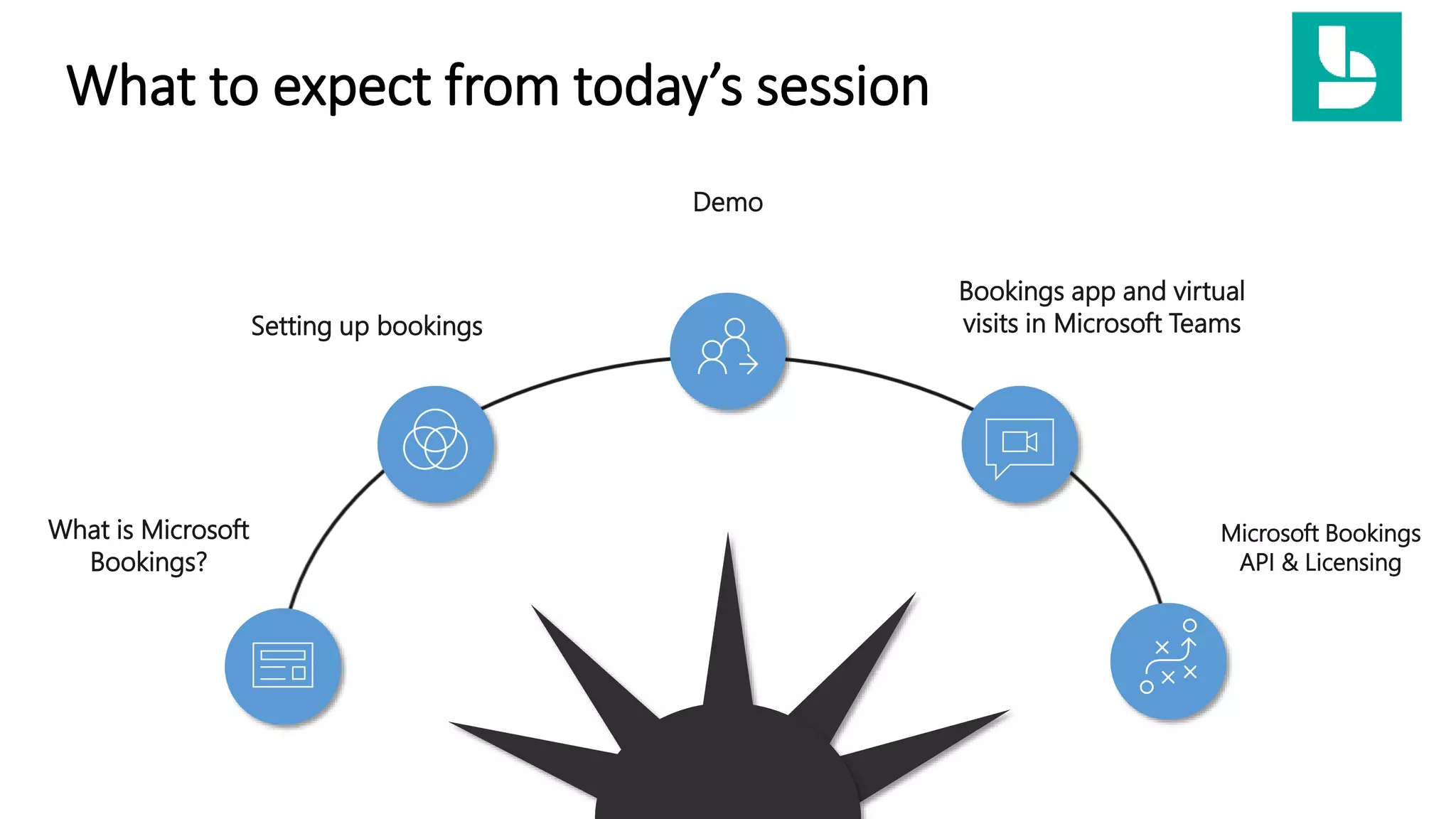
What to expect from today’s session
What is Microsoft
Bookings?
Demo
Bookings app and virtual
visits in Microsoft Teams
Microsoft Bookings
API & Licensing
Setting up bookings
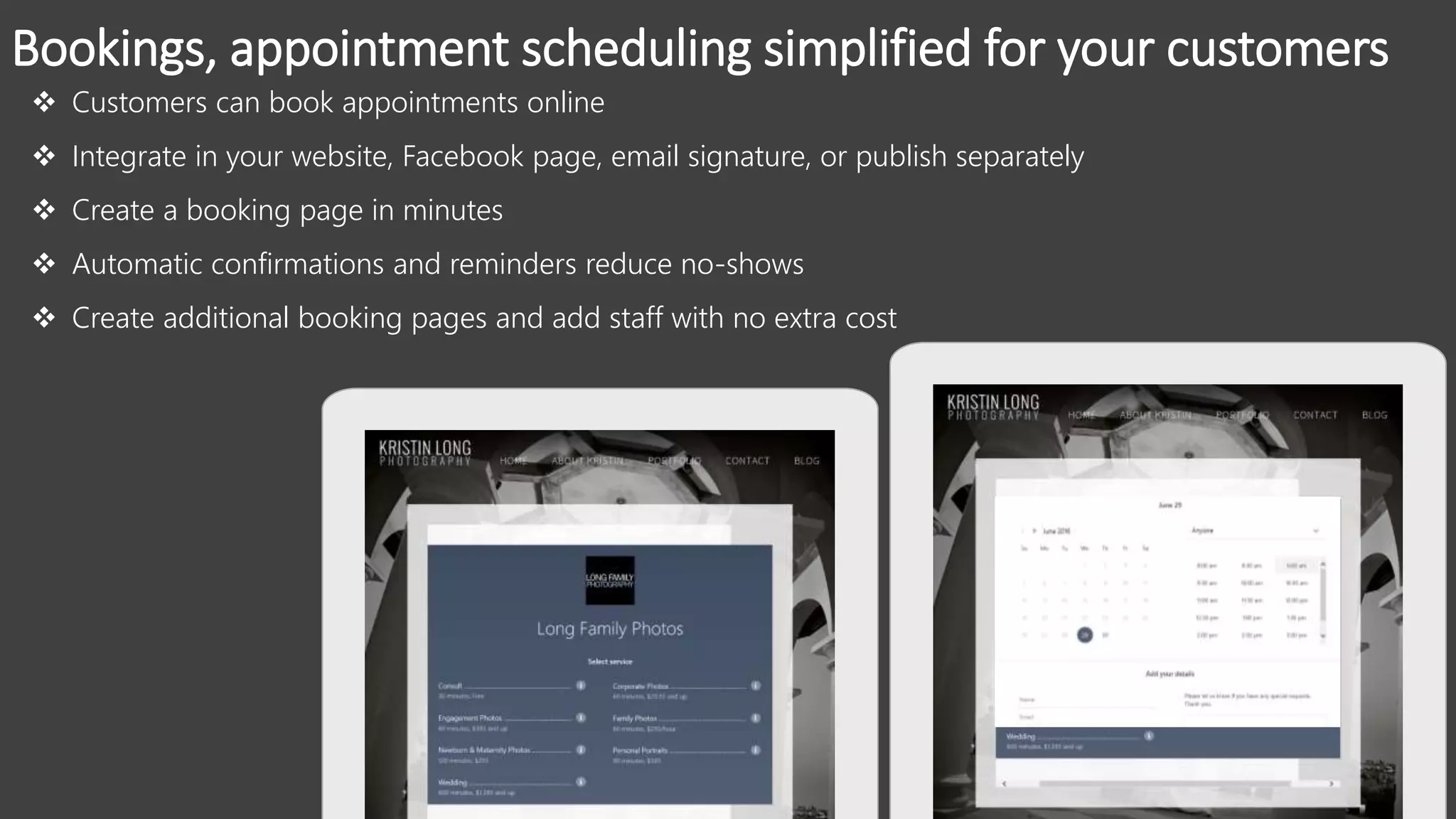
Bookings, appointment scheduling simplified for your customers
 Customers can book appointments online
 Integrate in your website, Facebook page, email signature, or publish separately
 Create a booking page in minutes
 Automatic confirmations and reminders reduce no-shows
 Create additional booking pages and add staff with no extra cost
Microsoft Bookings
What is it ?
Microsoft Bookings makes managing online appointments easy for small businesses and their customers. With a few steps, a business owner sets up an
online booking page which their customers can use to make appointments online, 24/7. Bookings helps business owners save time by reducing the
amount of scheduling and re-scheduling of appointments, for both customers and employees.
What SKUs?
Microsoft 365 Business Standard , Microsoft 365 Business Premium , Office 365 Education A3, Office 365 A5, Office 365 Enterprise E3 and Office 365
Enterprise E5
When
Late Feb 2017 – WW availability
Who?
Bookings is targeted at small businesses with less than 10 employees. Like appointment-based services, such as hair salons, yoga studios, pet groomers,
counselors, etc.
Why?
Small businesses are a big opportunity for Microsoft. Millions of small businesses depend on Office every day, and Bookings is part of our effort to deliver
new value to them by building scenarios that extend beyond core productivity.
Small Business Pain Points
• Phone tag / voicemails
• Missed appointments
• Customer No shows
• Service and staff scheduling hassles
• Staff no shows
• Being on the go
• Re-scheduling / reminders / cancellations
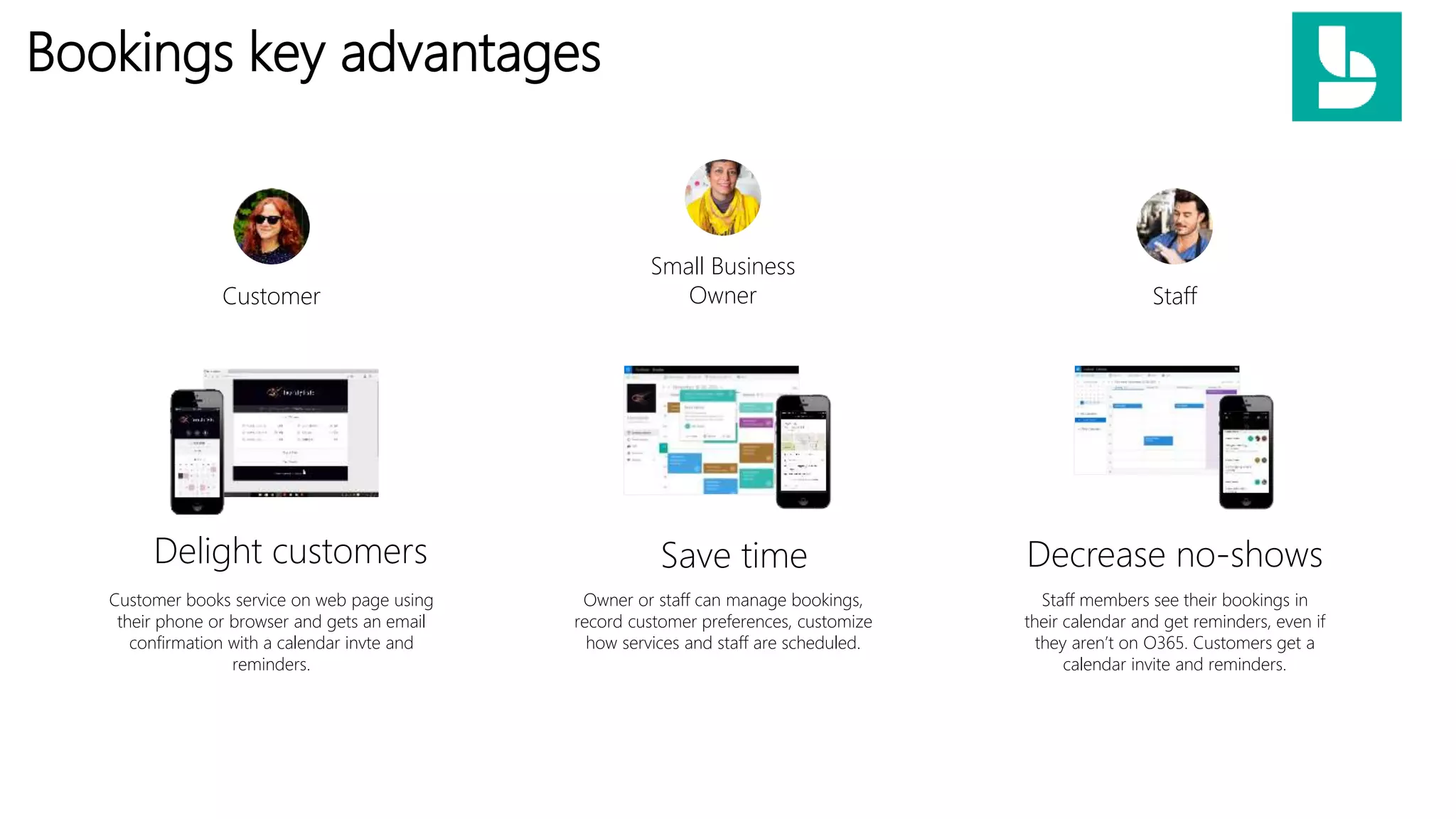
Bookings key advantages
Small Business
Owner StaffCustomer
Customer books service on web page using
their phone or browser and gets an email
confirmation with a calendar invte and
reminders.
Delight customers
Staff members see their bookings in
their calendar and get reminders, even if
they aren’t on O365. Customers get a
calendar invite and reminders.
Decrease no-shows
Owner or staff can manage bookings,
record customer preferences, customize
how services and staff are scheduled.
Save time
Bookings additional advantages
• Included in Office 365
• Very competitive price point vs current competitors
• Easy and fast set-up
• Only one Office 365 account needed – Staff can be added with any email
• Manage more than one Bookings calendar with the same Office 365 account
• One simple price, all the staff and bookings you need
• Office 365 security, privacy, and compliace features
• Tight integration with other Office Apps
Demo
Setting up Microsoft Bookings
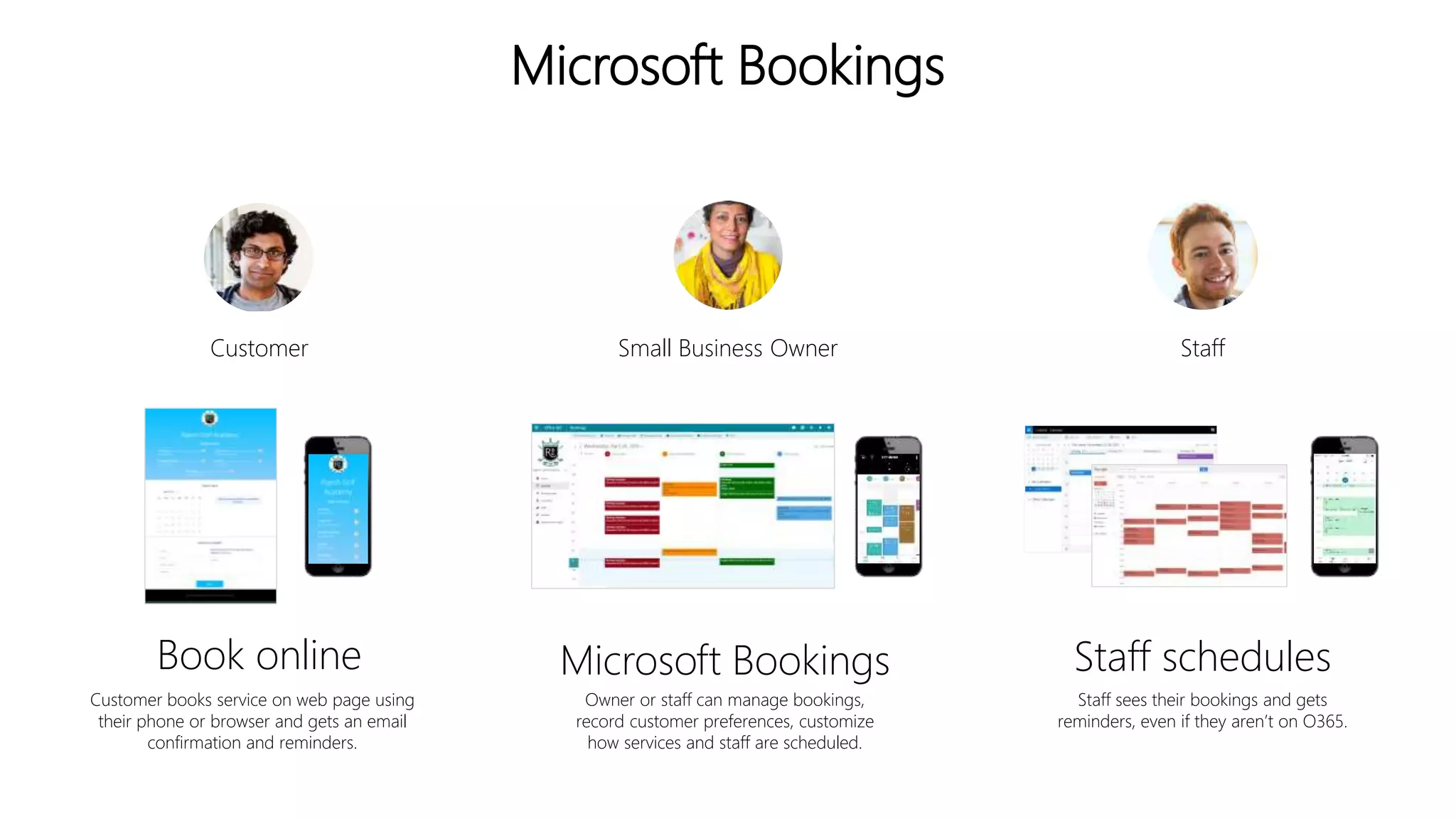
Microsoft Bookings
Customer StaffSmall Business Owner
Book online
Customer books service on web page using
their phone or browser and gets an email
confirmation and reminders.
Staff schedules
Staff sees their bookings and gets
reminders, even if they aren’t on O365.
Microsoft Bookings
Owner or staff can manage bookings,
record customer preferences, customize
how services and staff are scheduled.
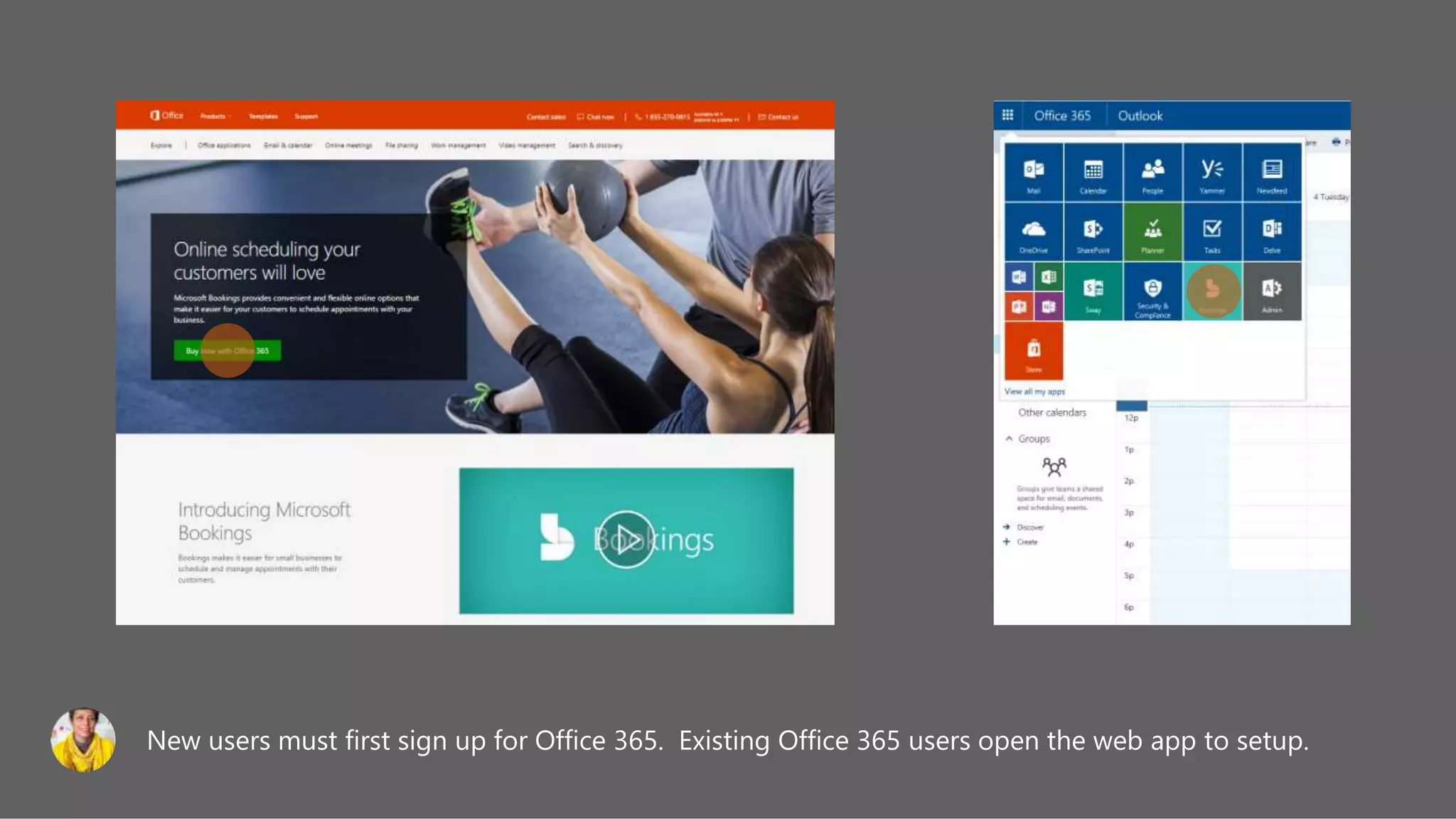
New users must first sign up for Office 365. Existing Office 365 users open the web app to setup.
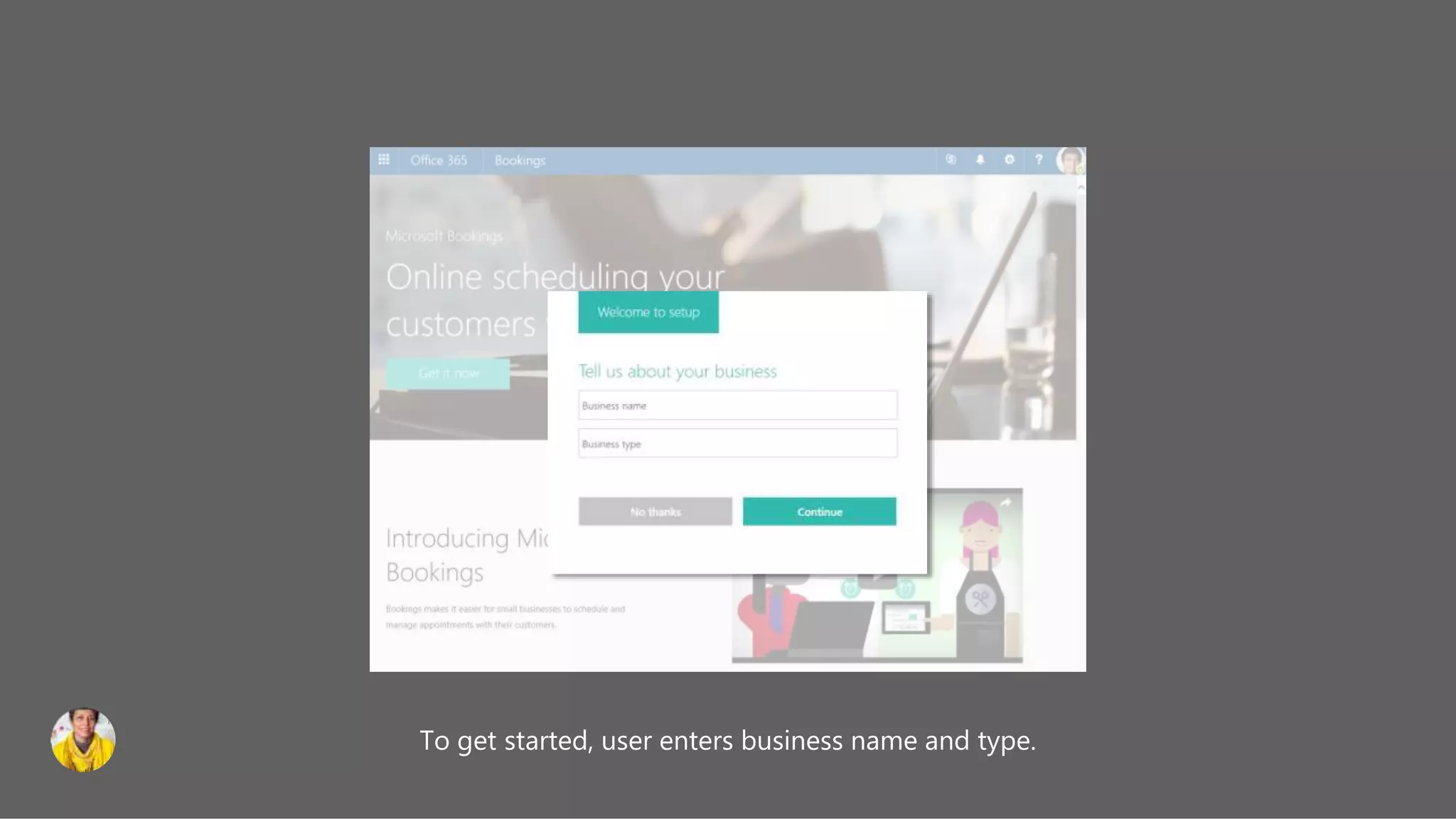
To get started, user enters business name and type.
Bookings
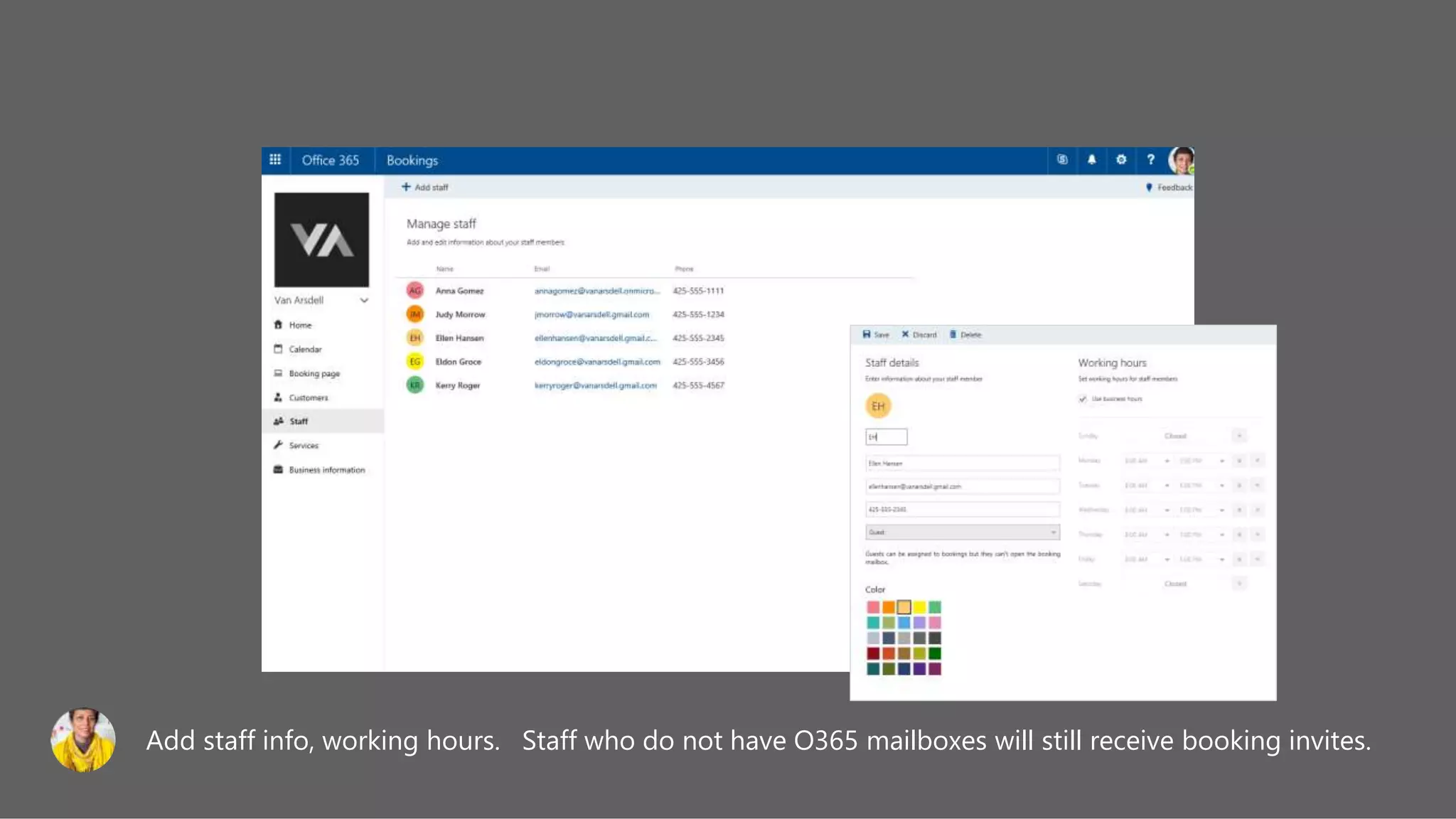
Add staff info, working hours. Staff who do not have O365 mailboxes will still receive booking invites.
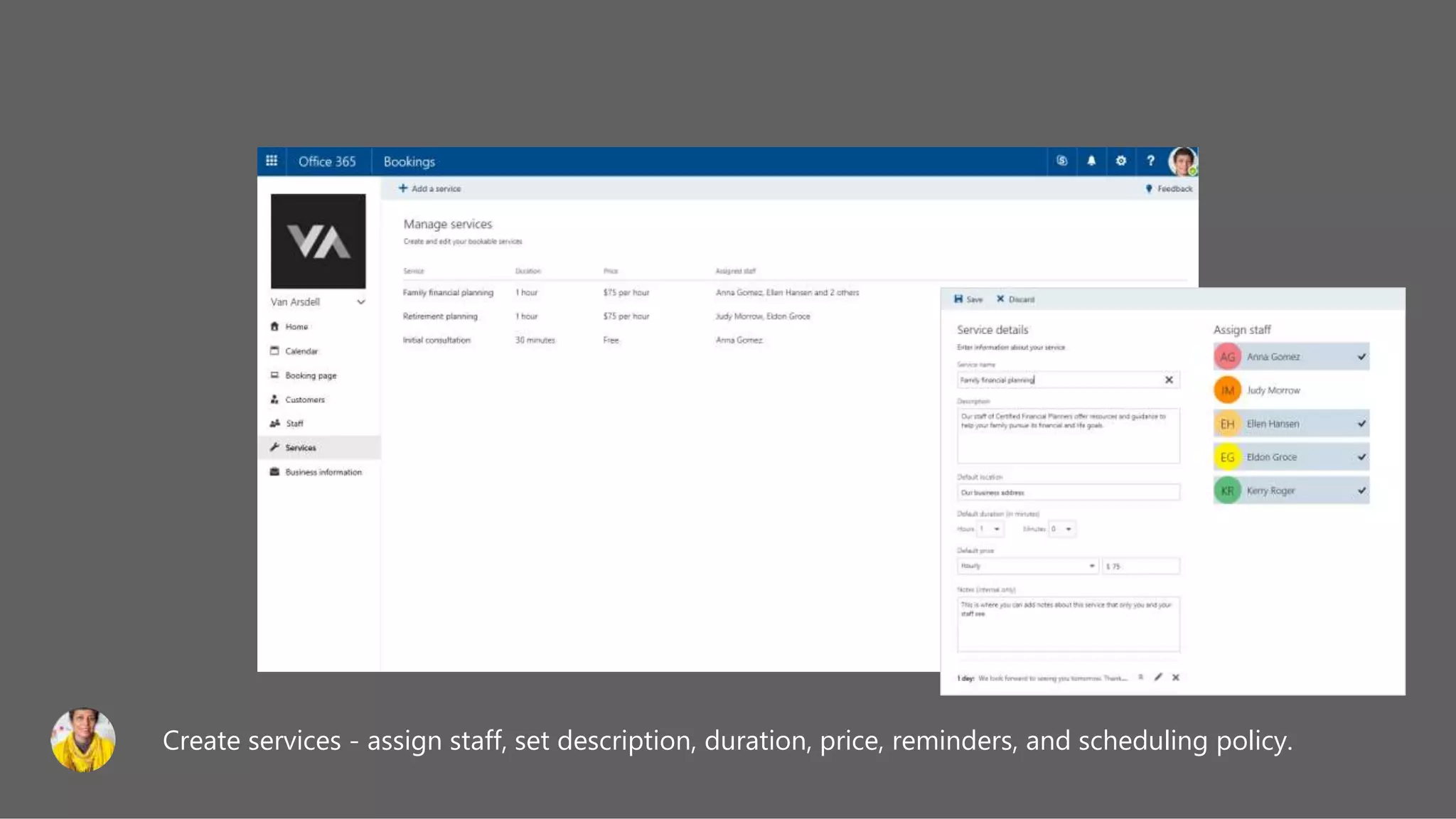
Create services - assign staff, set description, duration, price, reminders, and scheduling policy.
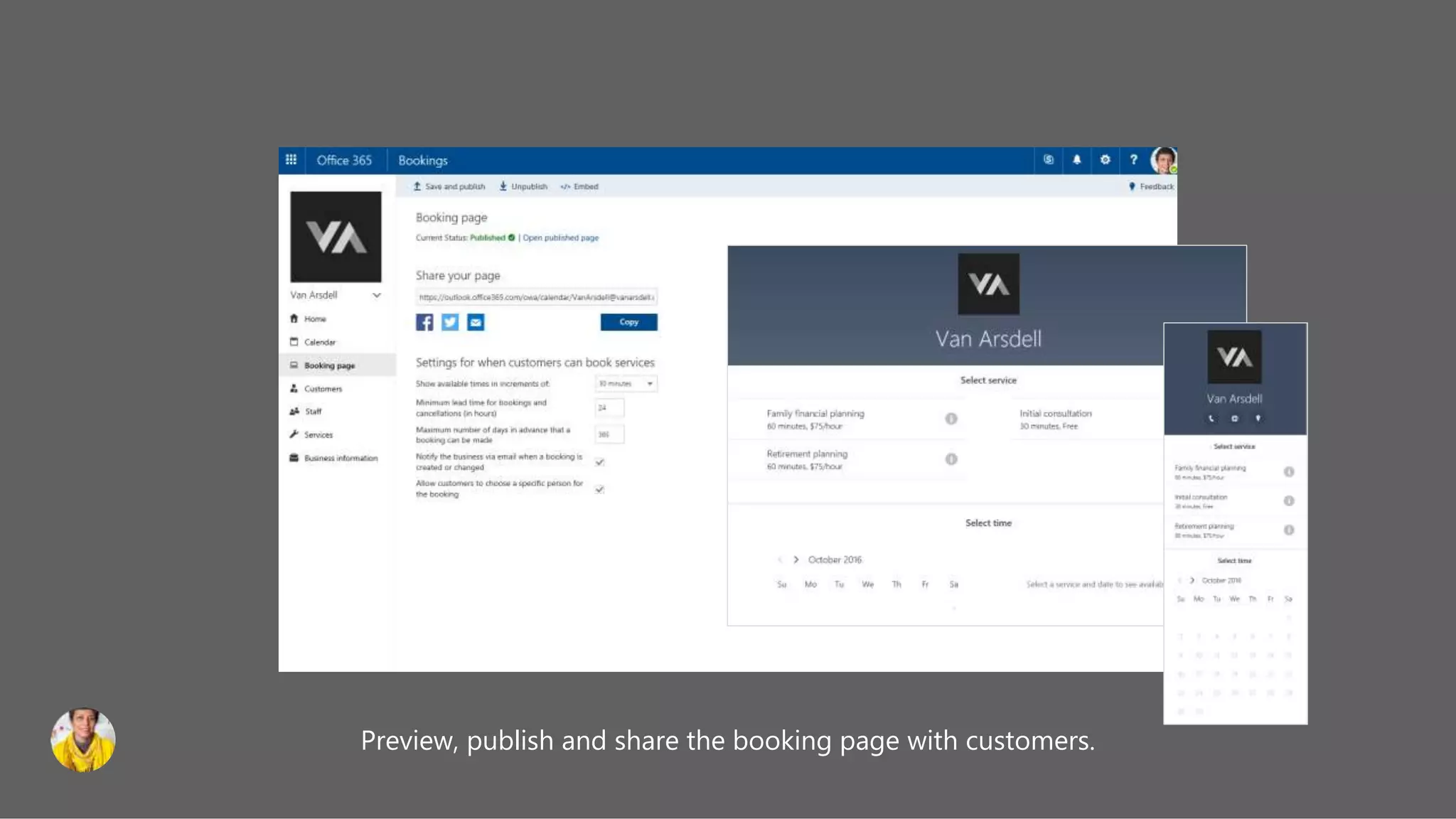
Preview, publish and share the booking page with customers.
Book Online
Consumer books using scheduling page
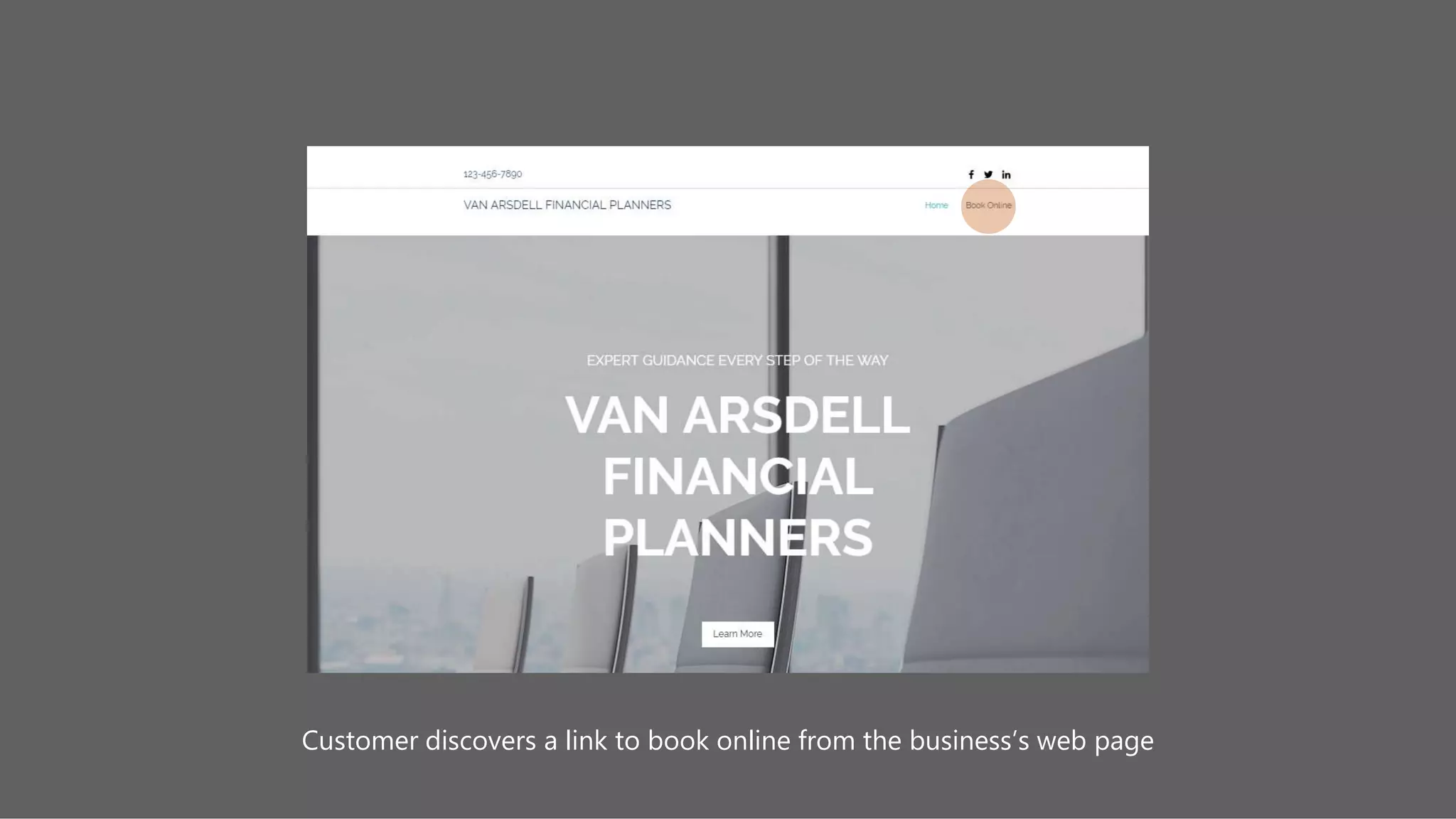
Customer discovers a link to book online from the business’s web page
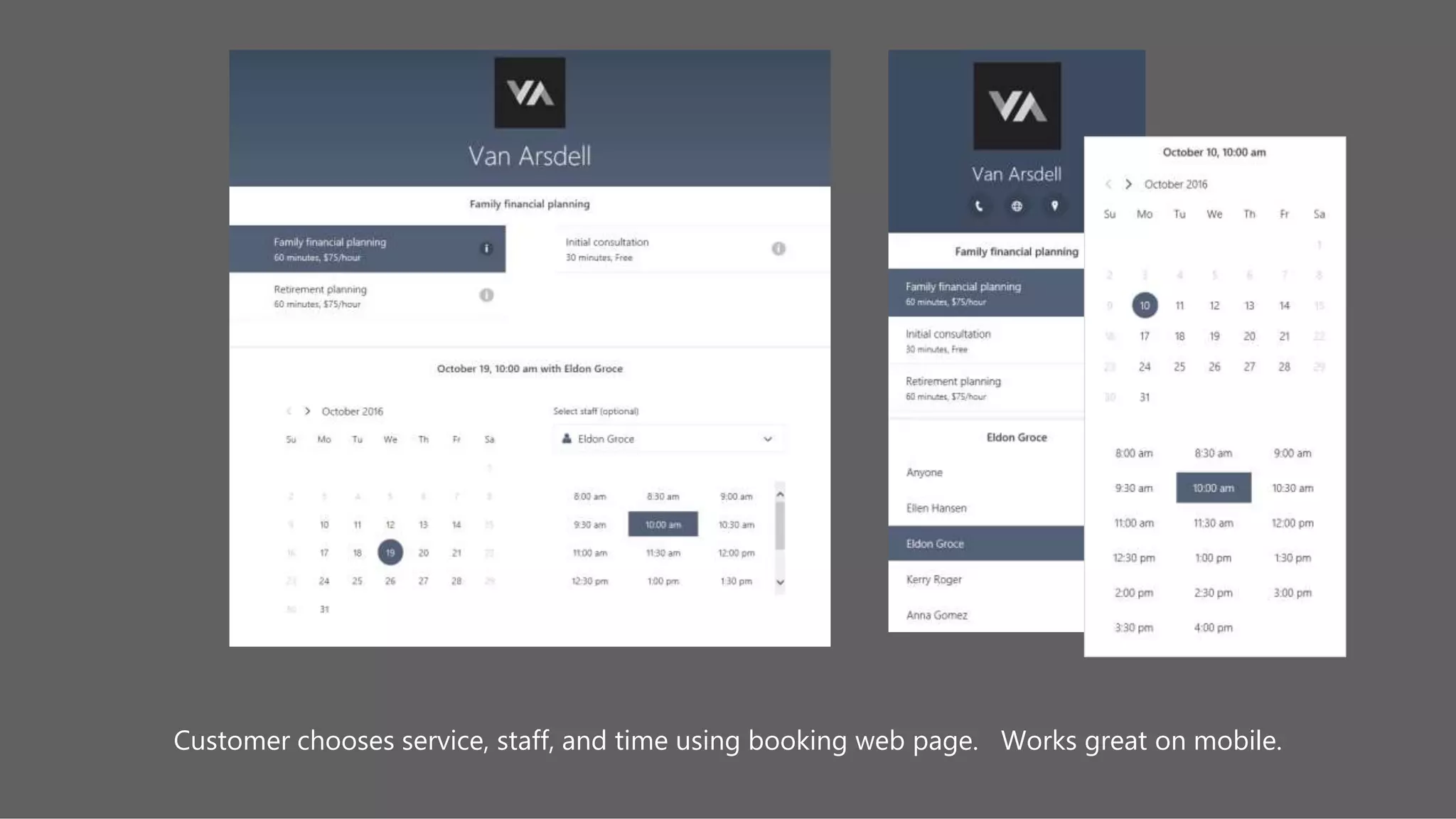
Customer chooses service, staff, and time using booking web page. Works great on mobile.
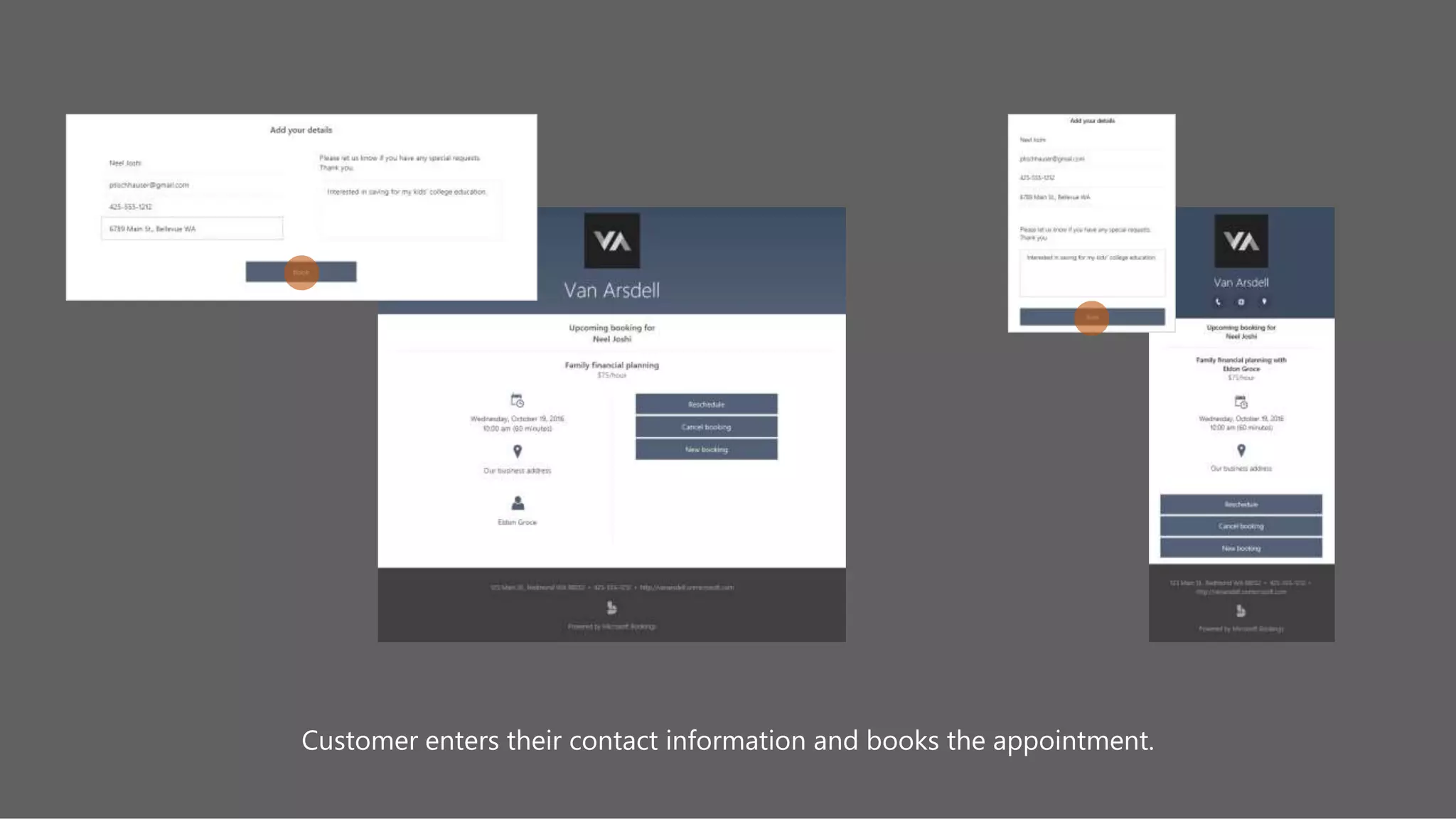
Customer enters their contact information and books the appointment.
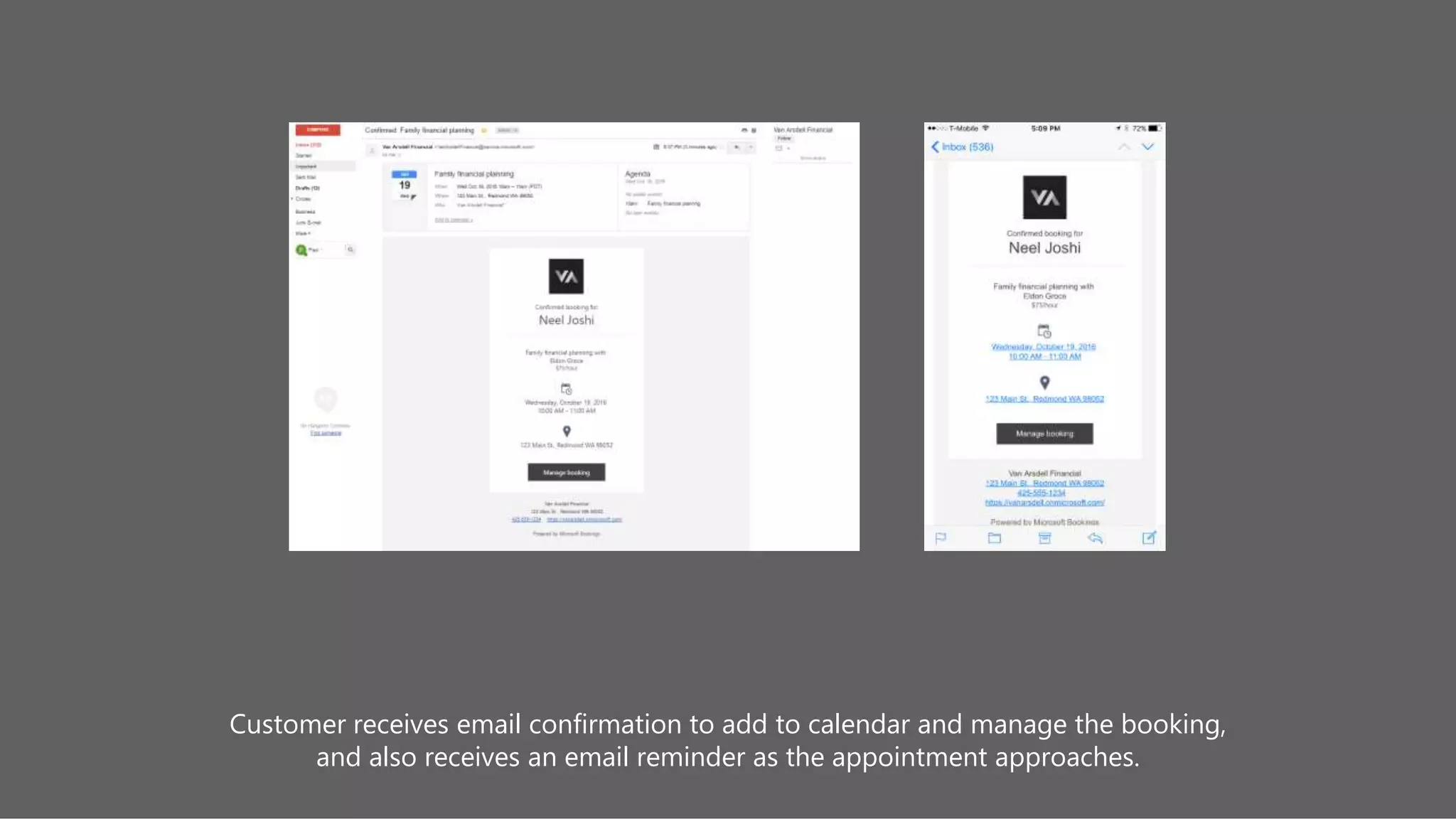
Customer receives email confirmation to add to calendar and manage the booking,
and also receives an email reminder as the appointment approaches.
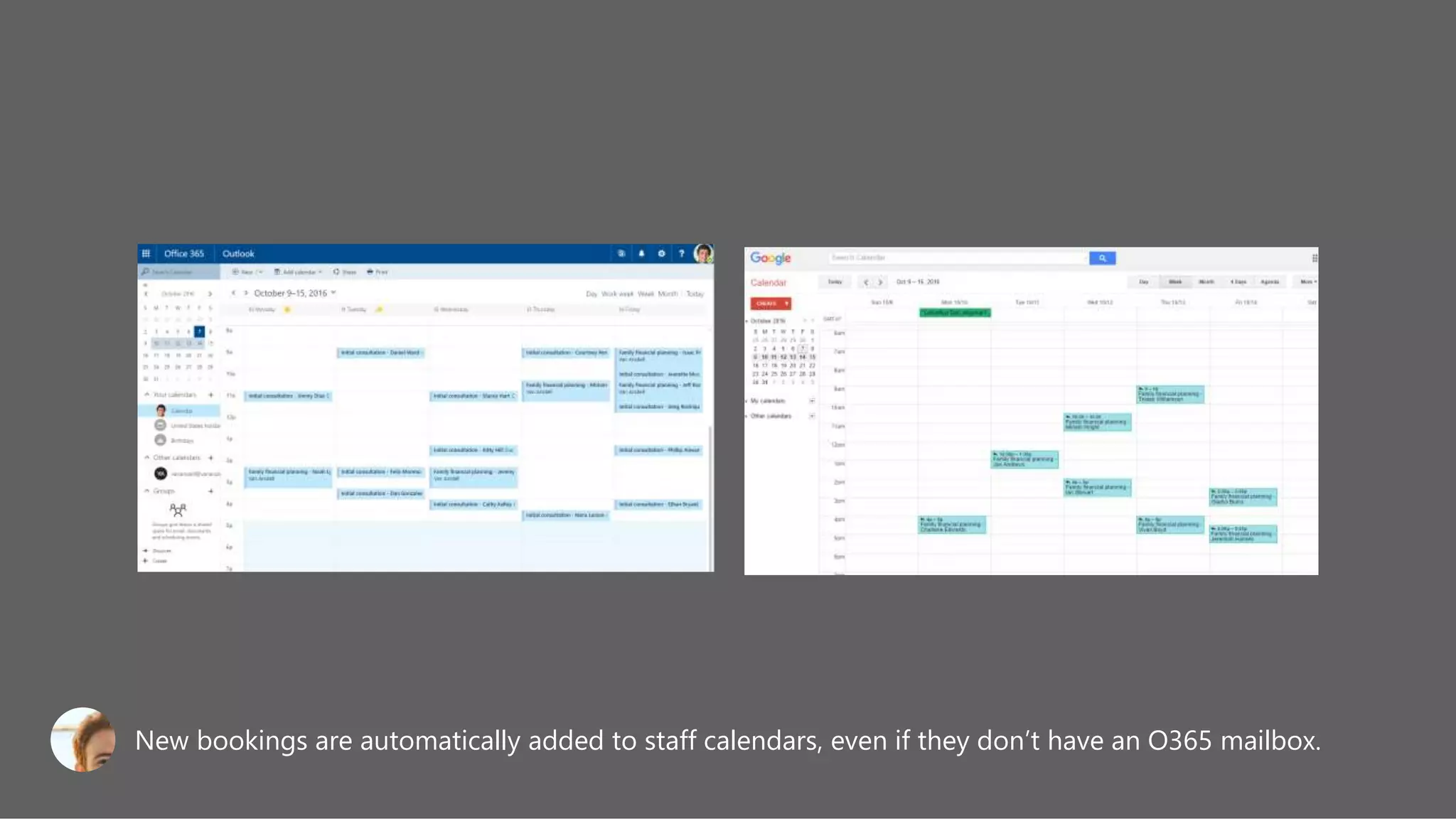
New bookings are automatically added to staff calendars, even if they don’t have an O365 mailbox.
Manage bookings
web or mobile
IOS APP
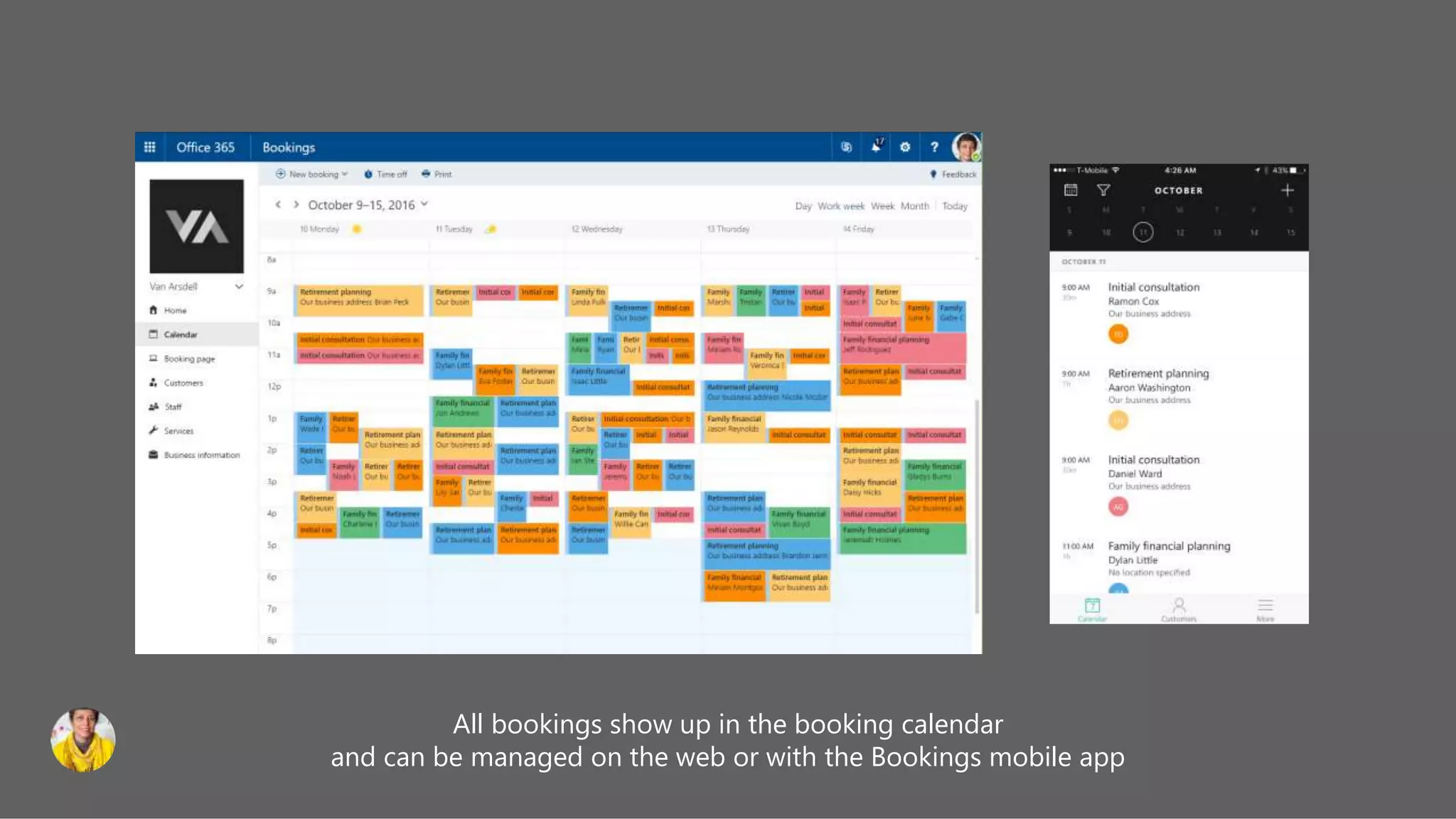
All bookings show up in the booking calendar
and can be managed on the web or with the Bookings mobile app
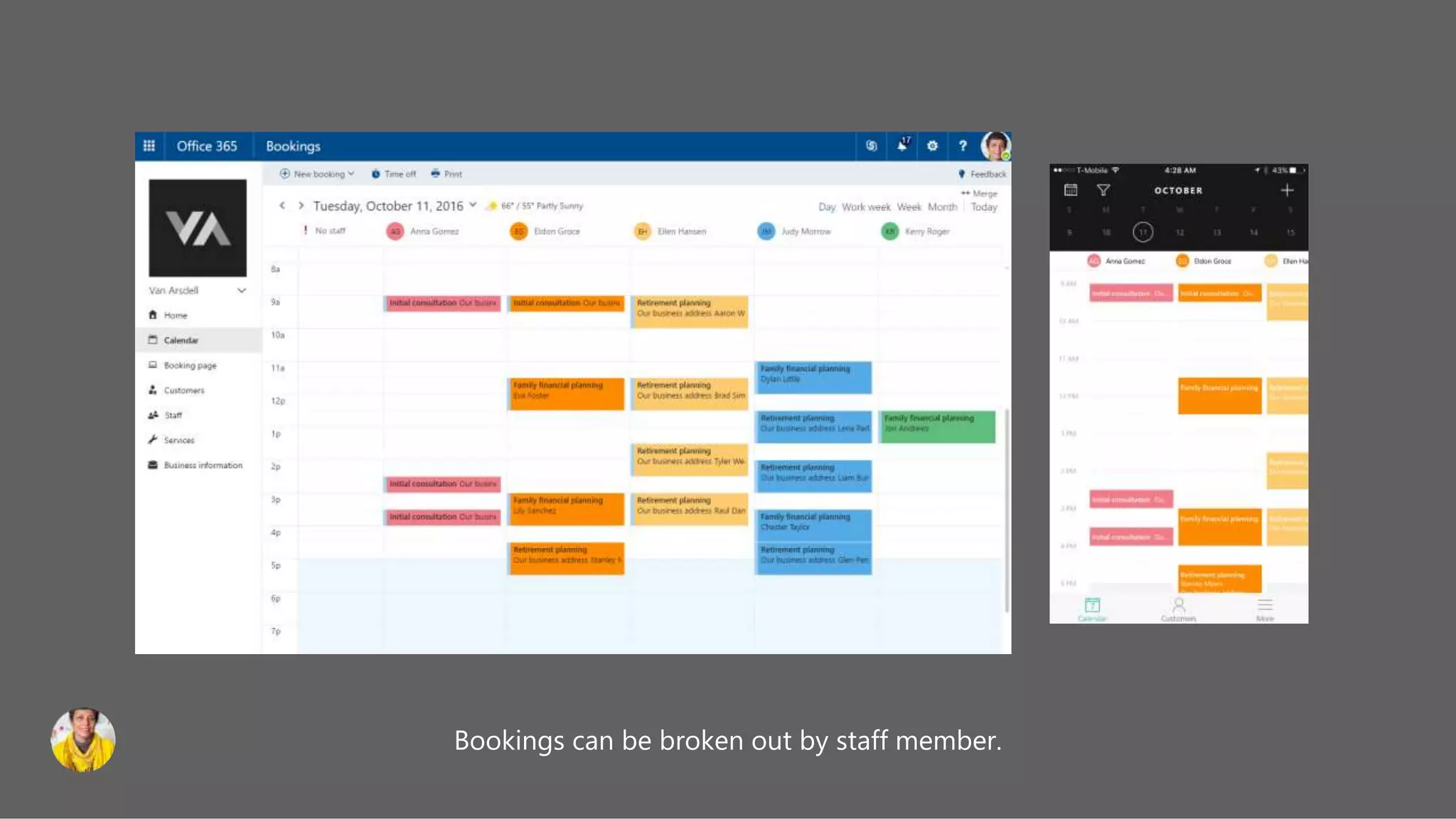
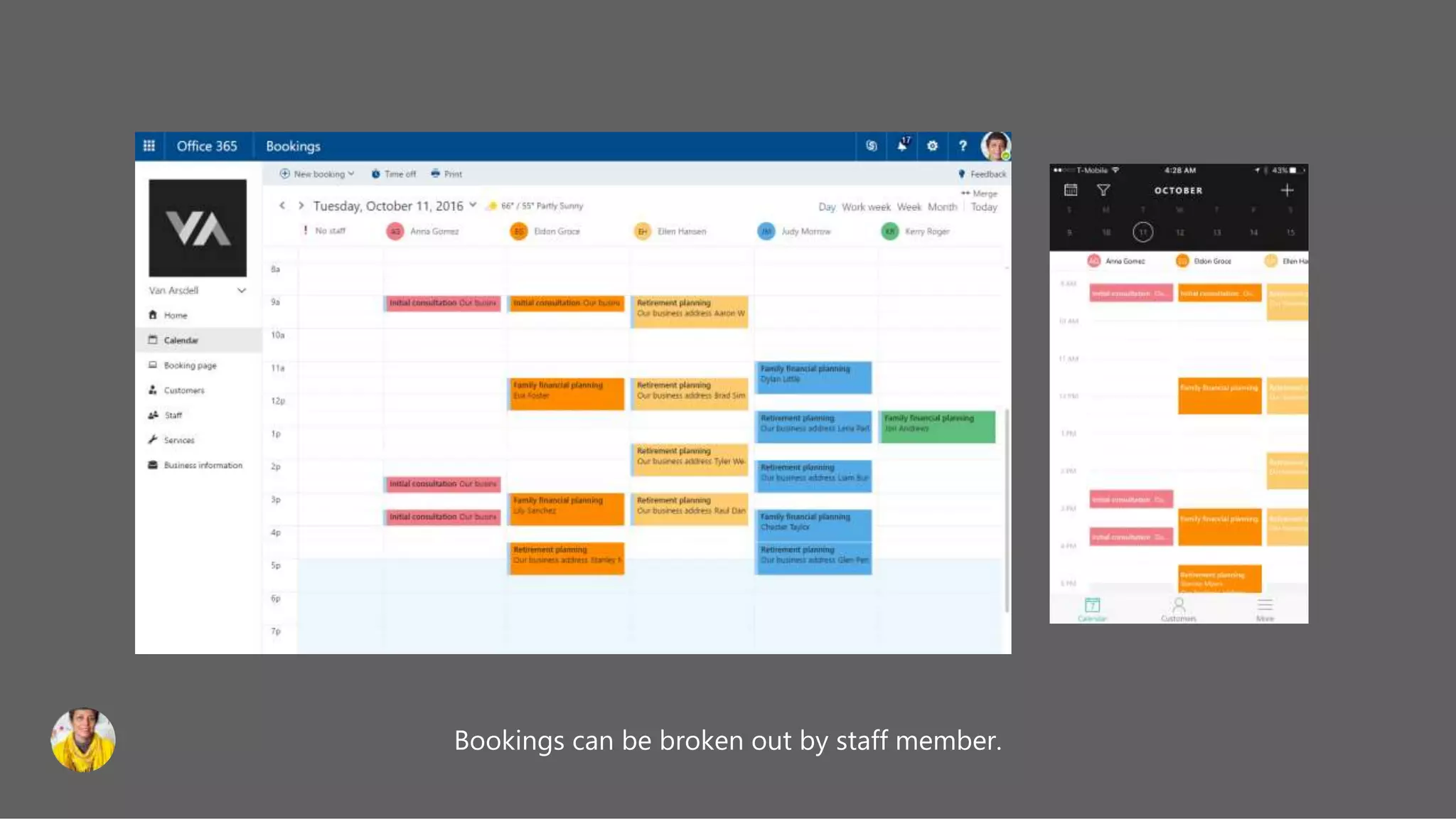
Bookings can be broken out by staff member.
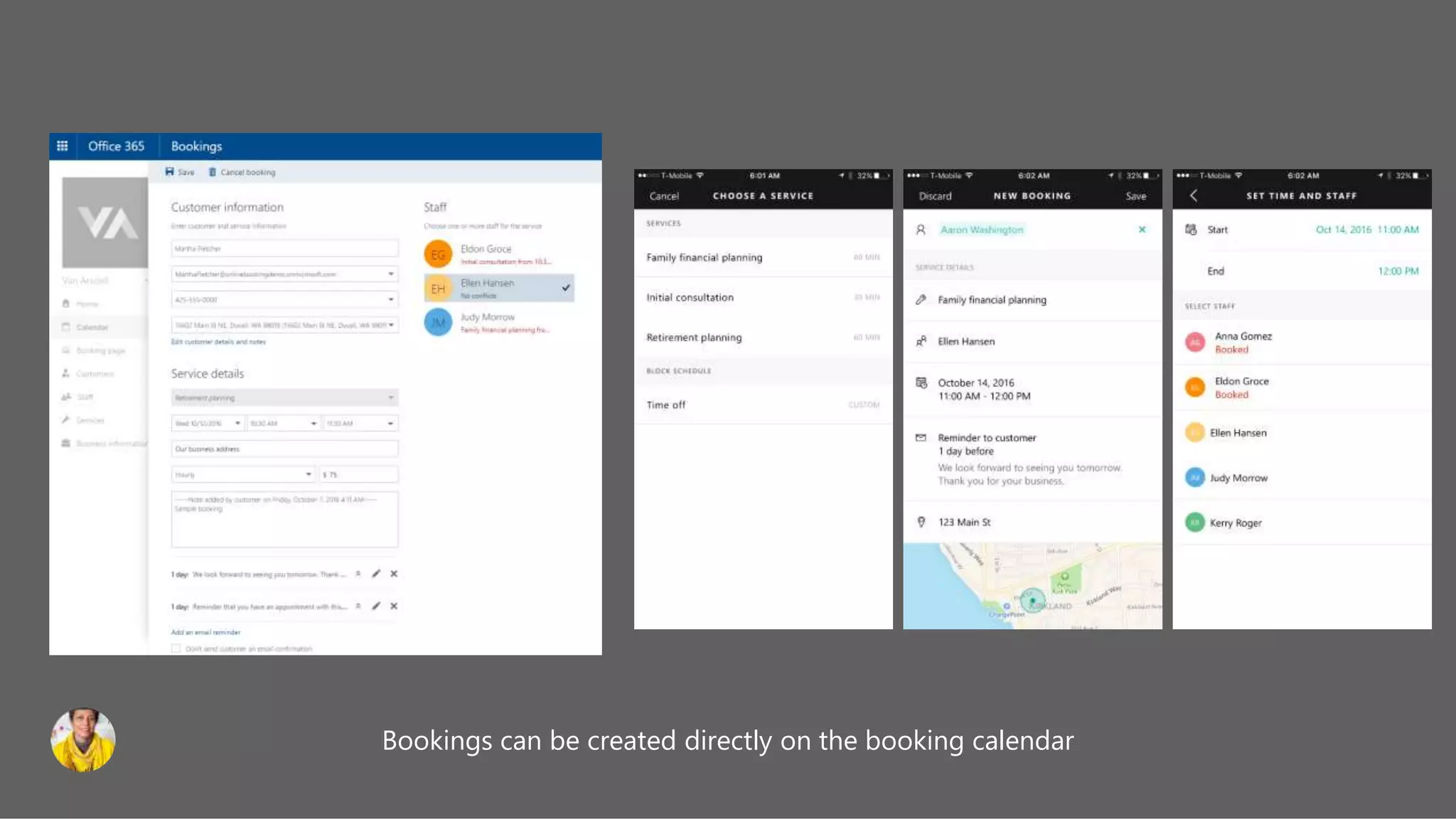
Bookings can be created directly on the booking calendar
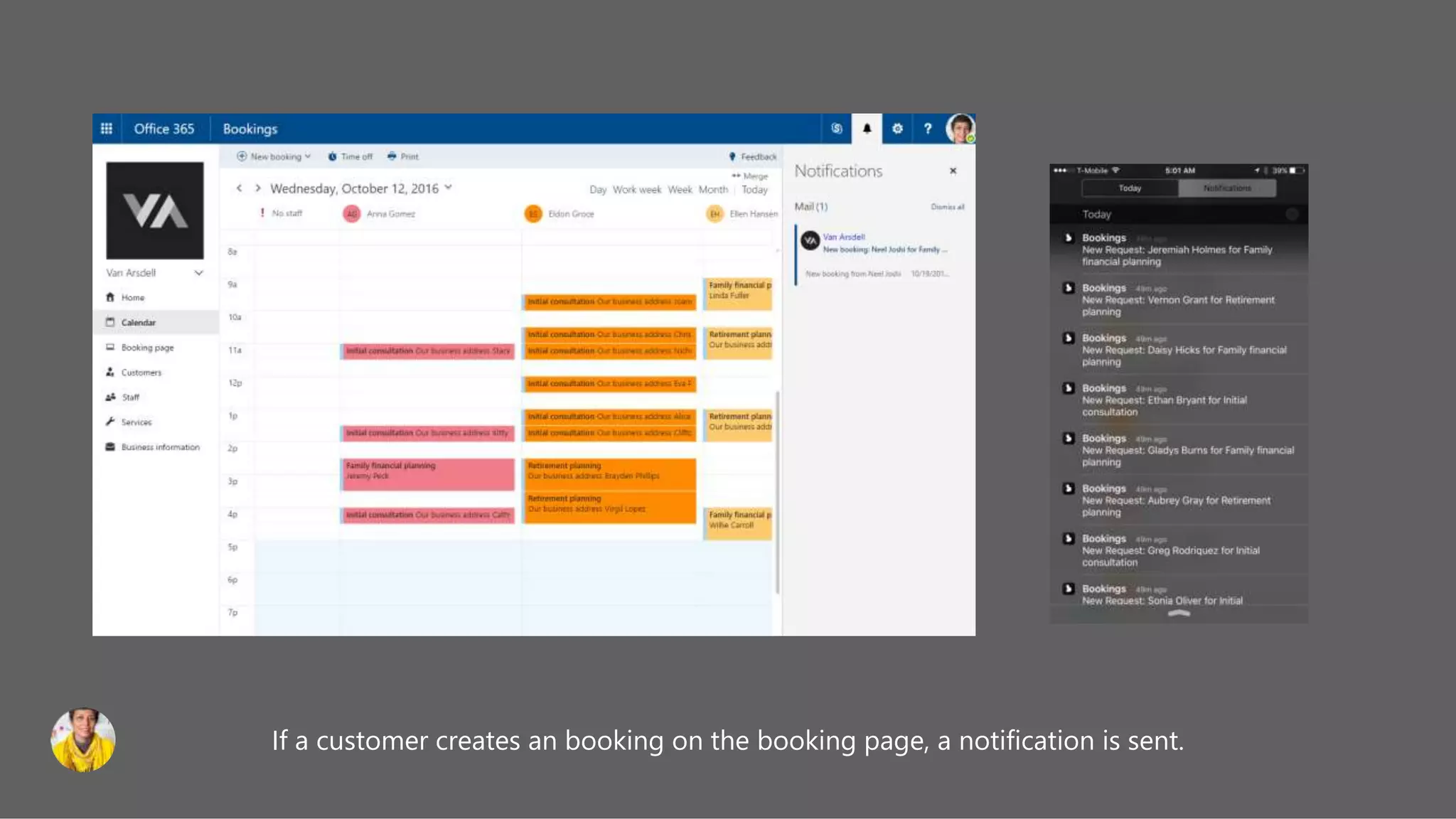
If a customer creates an booking on the booking page, a notification is sent.
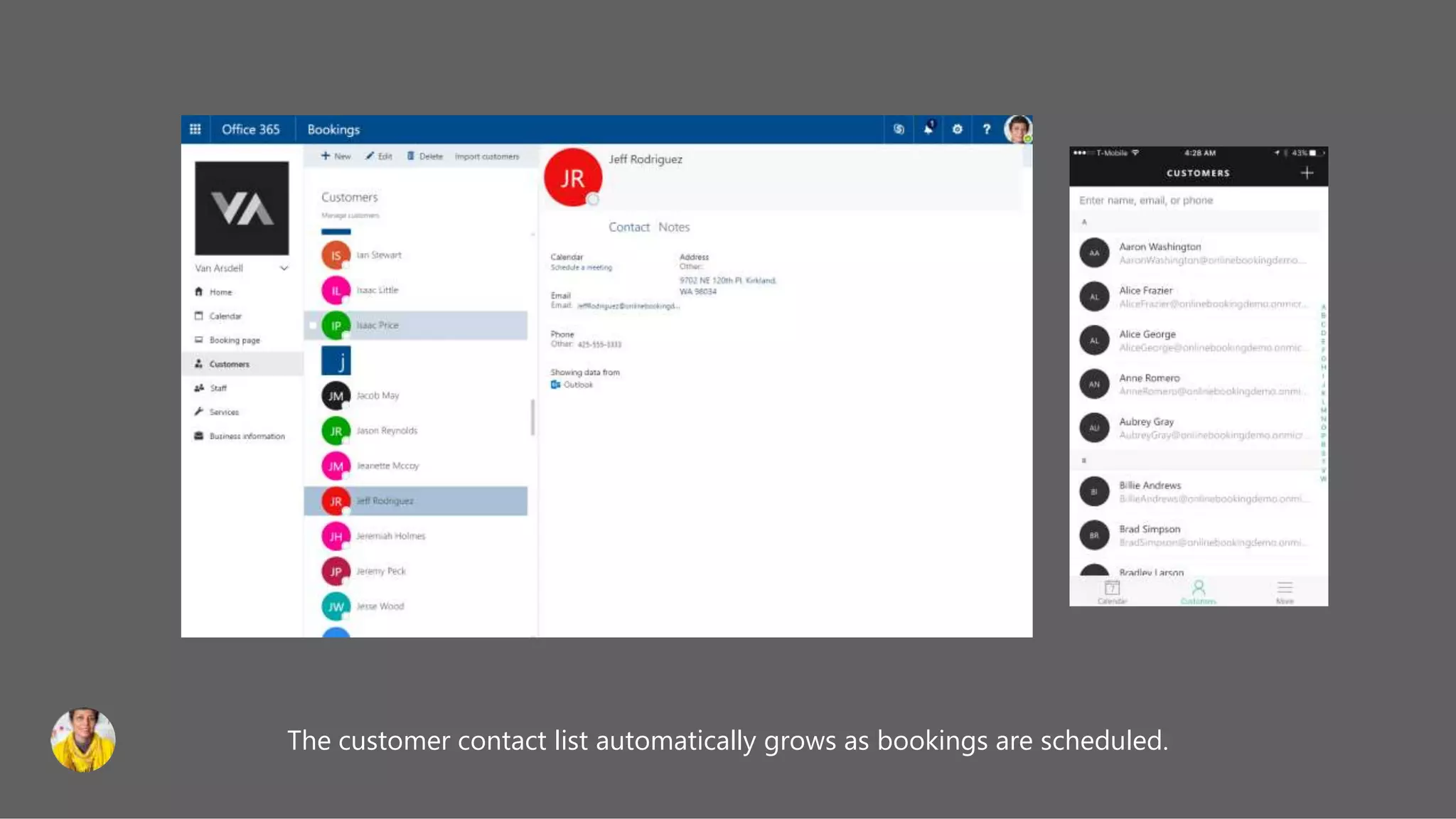
The customer contact list automatically grows as bookings are scheduled.
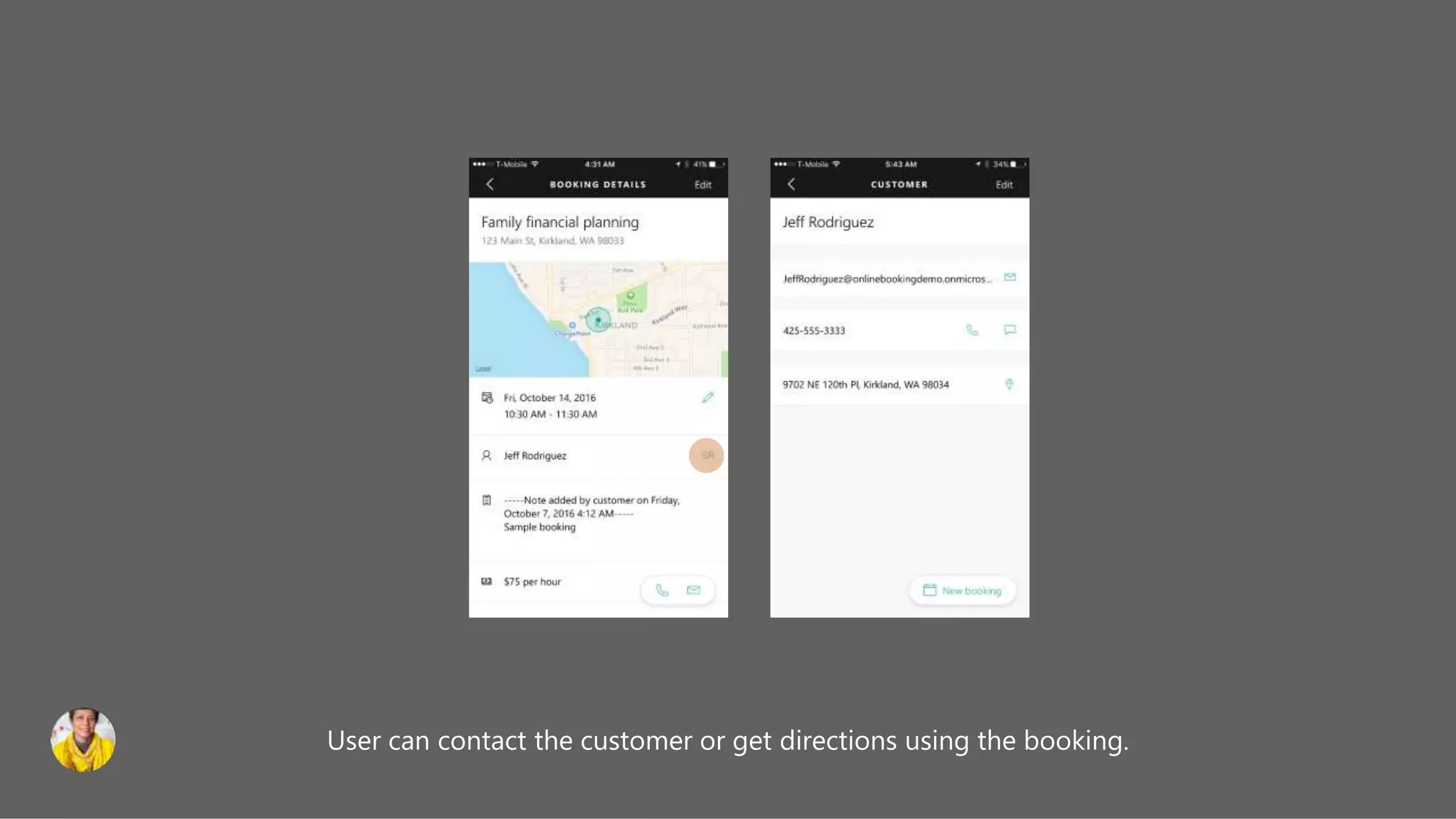
User can contact the customer or get directions using the booking.
Prerequisites and Licensing for using the Bookings app in
MS Teams
 The Exchange mailbox must be in Exchange Online. On-premises Exchange Server mailboxes are not
supported.
 Microsoft Bookings must be turned on for the organization.
 Users must have an appropriate license. Office 365 A3, A5, E3, and E5, as well as Microsoft 365 Business
Standard, A3, A5, E3, and E5 are supported.
 All users of the Bookings app and all staff participating in meetings must have a license that supports Teams
Meeting scheduling.
 Your systems must meet all Software and browser prerequisites.
Useful resources :
 https://support.microsoft.com/en-us/office/get-access-to-microsoft-bookings-5382dc07-aaa5-45c9-8767-
502333b214ce?ui=en-us&rs=en-us&ad=us
 https://www.microsoft.com/en-in/microsoft-365/business/scheduling-and-booking-app
 https://docs.microsoft.com/en-us/microsoftteams/bookings-app-admin
 https://docs.microsoft.com/en-us/graph/api/resources/booking-api-overview?view=graph-rest-beta
 https://customers.microsoft.com/en-US/story/815599-hcg-office365-teams-healthcare-india-en
 https://news.microsoft.com/en-in/features/fortis-healthcare-microsoft-teams-virtual-patient-consultations/
Thank You
Q & A

Introduction to Microsoft 365 bookings and how to use bookings app in Teams for virtual visits.

  • 1.
    Introduction to Microsoft365 Bookings & how to use bookings app in MS Teams By, Vignesh Ganesan MWP Technical Specialist Microsoft , India & Vijai Anand Ramalingam Microsoft MVP MWP Technical Architect , Cognizant UK
  • 2.
  • 3.
  • 4.
    What to expectfrom today’s session What is Microsoft Bookings? Demo Bookings app and virtual visits in Microsoft Teams Microsoft Bookings API & Licensing Setting up bookings
  • 5.
    Bookings, appointment schedulingsimplified for your customers  Customers can book appointments online  Integrate in your website, Facebook page, email signature, or publish separately  Create a booking page in minutes  Automatic confirmations and reminders reduce no-shows  Create additional booking pages and add staff with no extra cost
  • 6.
    Microsoft Bookings What isit ? Microsoft Bookings makes managing online appointments easy for small businesses and their customers. With a few steps, a business owner sets up an online booking page which their customers can use to make appointments online, 24/7. Bookings helps business owners save time by reducing the amount of scheduling and re-scheduling of appointments, for both customers and employees. What SKUs? Microsoft 365 Business Standard , Microsoft 365 Business Premium , Office 365 Education A3, Office 365 A5, Office 365 Enterprise E3 and Office 365 Enterprise E5 When Late Feb 2017 – WW availability Who? Bookings is targeted at small businesses with less than 10 employees. Like appointment-based services, such as hair salons, yoga studios, pet groomers, counselors, etc. Why? Small businesses are a big opportunity for Microsoft. Millions of small businesses depend on Office every day, and Bookings is part of our effort to deliver new value to them by building scenarios that extend beyond core productivity.
  • 7.
    Small Business PainPoints • Phone tag / voicemails • Missed appointments • Customer No shows • Service and staff scheduling hassles • Staff no shows • Being on the go • Re-scheduling / reminders / cancellations
  • 8.
    Bookings key advantages SmallBusiness Owner StaffCustomer Customer books service on web page using their phone or browser and gets an email confirmation with a calendar invte and reminders. Delight customers Staff members see their bookings in their calendar and get reminders, even if they aren’t on O365. Customers get a calendar invite and reminders. Decrease no-shows Owner or staff can manage bookings, record customer preferences, customize how services and staff are scheduled. Save time
  • 9.
    Bookings additional advantages •Included in Office 365 • Very competitive price point vs current competitors • Easy and fast set-up • Only one Office 365 account needed – Staff can be added with any email • Manage more than one Bookings calendar with the same Office 365 account • One simple price, all the staff and bookings you need • Office 365 security, privacy, and compliace features • Tight integration with other Office Apps
  • 10.
  • 11.
    Microsoft Bookings Customer StaffSmallBusiness Owner Book online Customer books service on web page using their phone or browser and gets an email confirmation and reminders. Staff schedules Staff sees their bookings and gets reminders, even if they aren’t on O365. Microsoft Bookings Owner or staff can manage bookings, record customer preferences, customize how services and staff are scheduled.
  • 12.
    New users mustfirst sign up for Office 365. Existing Office 365 users open the web app to setup.
  • 13.
    To get started,user enters business name and type.
  • 14.
    Bookings Add staff info,working hours. Staff who do not have O365 mailboxes will still receive booking invites.
  • 15.
    Create services -assign staff, set description, duration, price, reminders, and scheduling policy.
  • 16.
    Preview, publish andshare the booking page with customers.
  • 17.
    Book Online Consumer booksusing scheduling page
  • 18.
    Customer discovers alink to book online from the business’s web page
  • 19.
    Customer chooses service,staff, and time using booking web page. Works great on mobile.
  • 20.
    Customer enters theircontact information and books the appointment.
  • 21.
    Customer receives emailconfirmation to add to calendar and manage the booking, and also receives an email reminder as the appointment approaches.
  • 22.
    New bookings areautomatically added to staff calendars, even if they don’t have an O365 mailbox.
  • 23.
  • 24.
    IOS APP All bookingsshow up in the booking calendar and can be managed on the web or with the Bookings mobile app
  • 25.
    Bookings can bebroken out by staff member.
  • 26.
    Bookings can bebroken out by staff member.
  • 27.
    Bookings can becreated directly on the booking calendar
  • 28.
    If a customercreates an booking on the booking page, a notification is sent.
  • 29.
    The customer contactlist automatically grows as bookings are scheduled.
  • 30.
    User can contactthe customer or get directions using the booking.
  • 31.
    Prerequisites and Licensingfor using the Bookings app in MS Teams  The Exchange mailbox must be in Exchange Online. On-premises Exchange Server mailboxes are not supported.  Microsoft Bookings must be turned on for the organization.  Users must have an appropriate license. Office 365 A3, A5, E3, and E5, as well as Microsoft 365 Business Standard, A3, A5, E3, and E5 are supported.  All users of the Bookings app and all staff participating in meetings must have a license that supports Teams Meeting scheduling.  Your systems must meet all Software and browser prerequisites.
  • 32.
    Useful resources : https://support.microsoft.com/en-us/office/get-access-to-microsoft-bookings-5382dc07-aaa5-45c9-8767- 502333b214ce?ui=en-us&rs=en-us&ad=us  https://www.microsoft.com/en-in/microsoft-365/business/scheduling-and-booking-app  https://docs.microsoft.com/en-us/microsoftteams/bookings-app-admin  https://docs.microsoft.com/en-us/graph/api/resources/booking-api-overview?view=graph-rest-beta  https://customers.microsoft.com/en-US/story/815599-hcg-office365-teams-healthcare-india-en  https://news.microsoft.com/en-in/features/fortis-healthcare-microsoft-teams-virtual-patient-consultations/
  • 33.

Editor's Notes

  • #7 I referred to commonalities and "key differences" across our target SB segments on the previous slide. Here we show our targets, their common pain points, their unique needs, and again the competitors that best meet their needs. This is a good summary of our market environment. Key differences to highlight: for PS - our solution has to work on their existing sites, has to look professiona, AND benefit from an associated file storage soln; for BF - we need to support POS and payment processing and must make 1:many schedule and class set-up/management work well; for HS - it's got to be mobile, has to offer great reminders features, we have to offer a scheduling tool that works w/o a website, and has to support employee scheduling in concert with customer booking.
  • #8 I referred to commonalities and "key differences" across our target SB segments on the previous slide. Here we show our targets, their common pain points, their unique needs, and again the competitors that best meet their needs. This is a good summary of our market environment. Key differences to highlight: for PS - our solution has to work on their existing sites, has to look professiona, AND benefit from an associated file storage soln; for BF - we need to support POS and payment processing and must make 1:many schedule and class set-up/management work well; for HS - it's got to be mobile, has to offer great reminders features, we have to offer a scheduling tool that works w/o a website, and has to support employee scheduling in concert with customer booking.