




What’s New with
OneDrive
SharePoint Fest Chicago 2021
#SPFestChi
Drew Madelung
Email : drew.madelung@protiviti.com
Twitter : @dmadelung
Website: drewmadelung.com
Associate Director – M365 Cloud Applications
OneDrive intro
What’s there now
What’s new
OneDrive tidbits
What’s new with
OneDrive
365EduCon Chicago 2022
#365EducCon
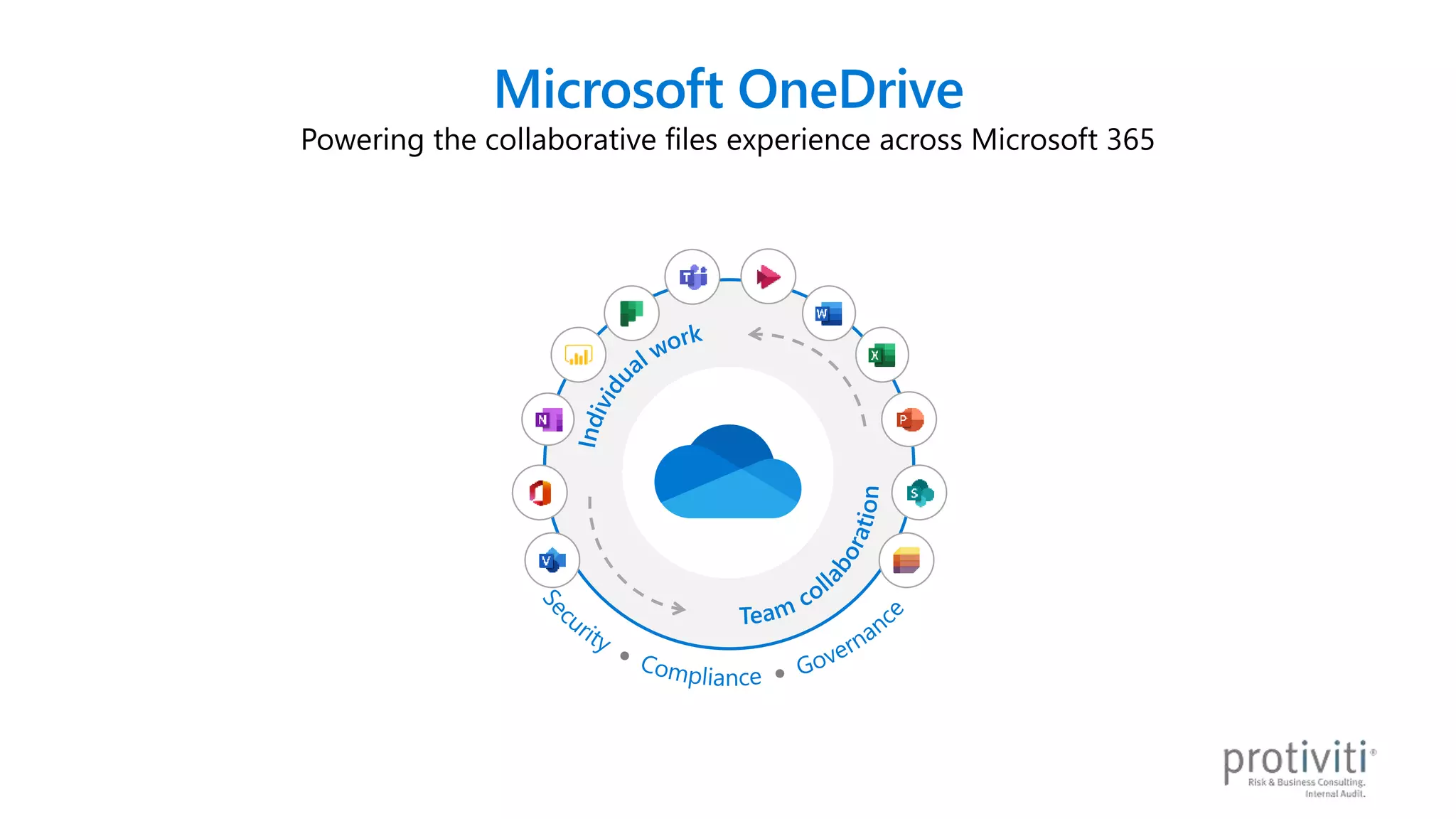
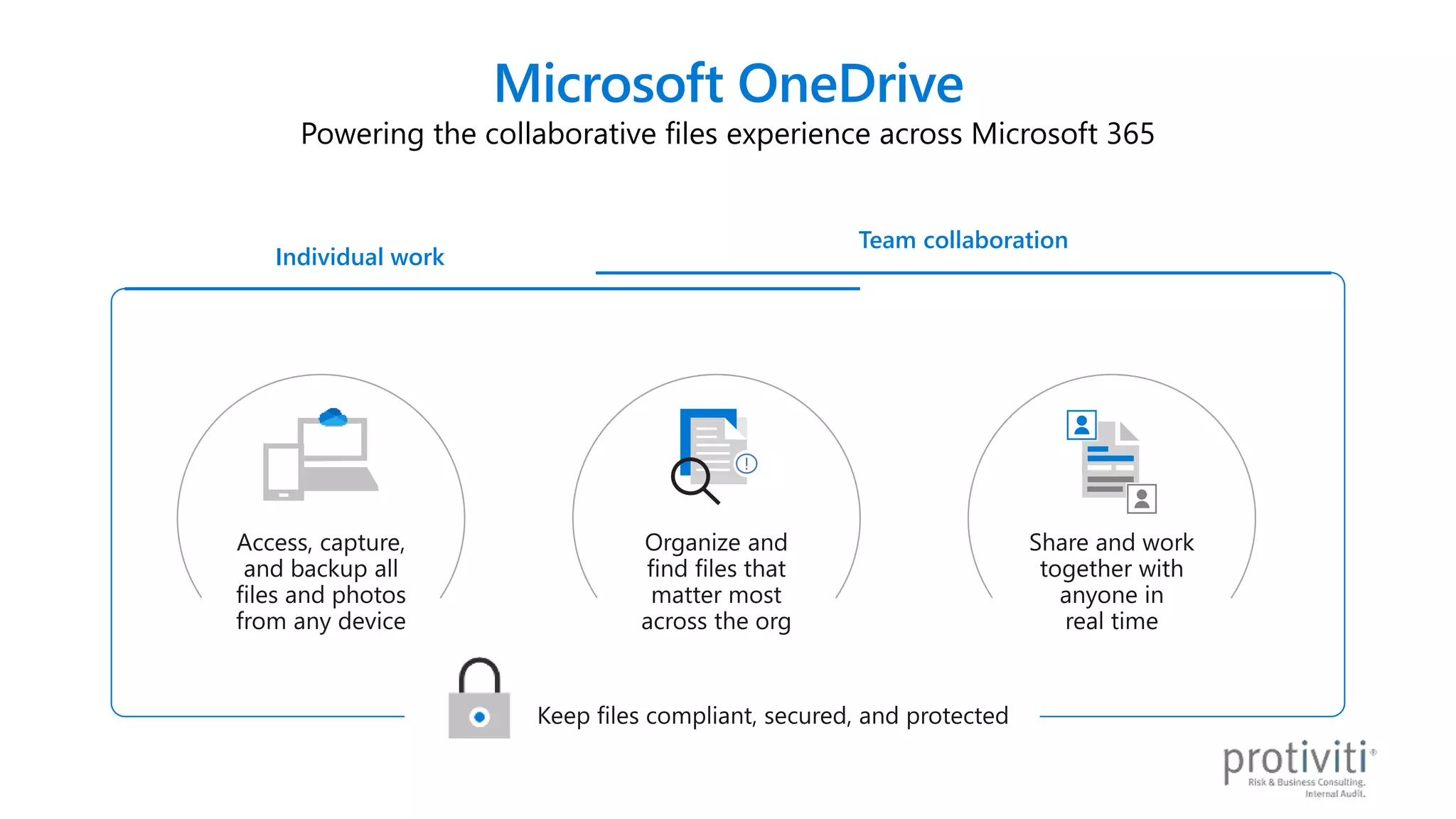
Microsoft OneDrive
Powering the collaborative files experience across Microsoft 365
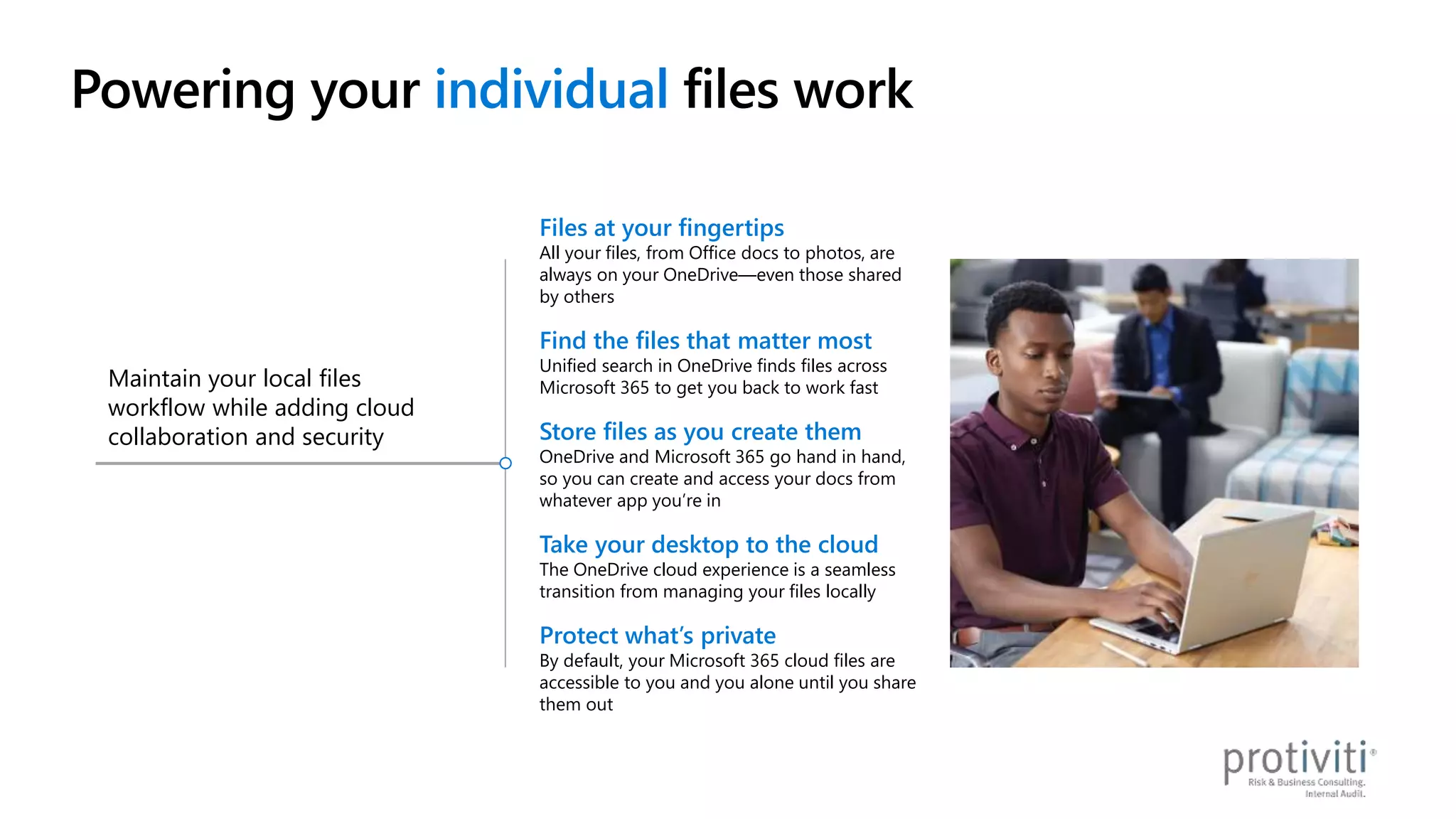
Powering your individual files work
Maintain your local files
workflow while adding cloud
collaboration and security
Files at your fingertips
All your files, from Office docs to photos, are
always on your OneDrive—even those shared
by others
Find the files that matter most
Unified search in OneDrive finds files across
Microsoft 365 to get you back to work fast
Store files as you create them
OneDrive and Microsoft 365 go hand in hand,
so you can create and access your docs from
whatever app you’re in
Take your desktop to the cloud
The OneDrive cloud experience is a seamless
transition from managing your files locally
Protect what’s private
By default, your Microsoft 365 cloud files are
accessible to you and you alone until you share
them out
Share and access files from
any app to collaborate on
them with anyone
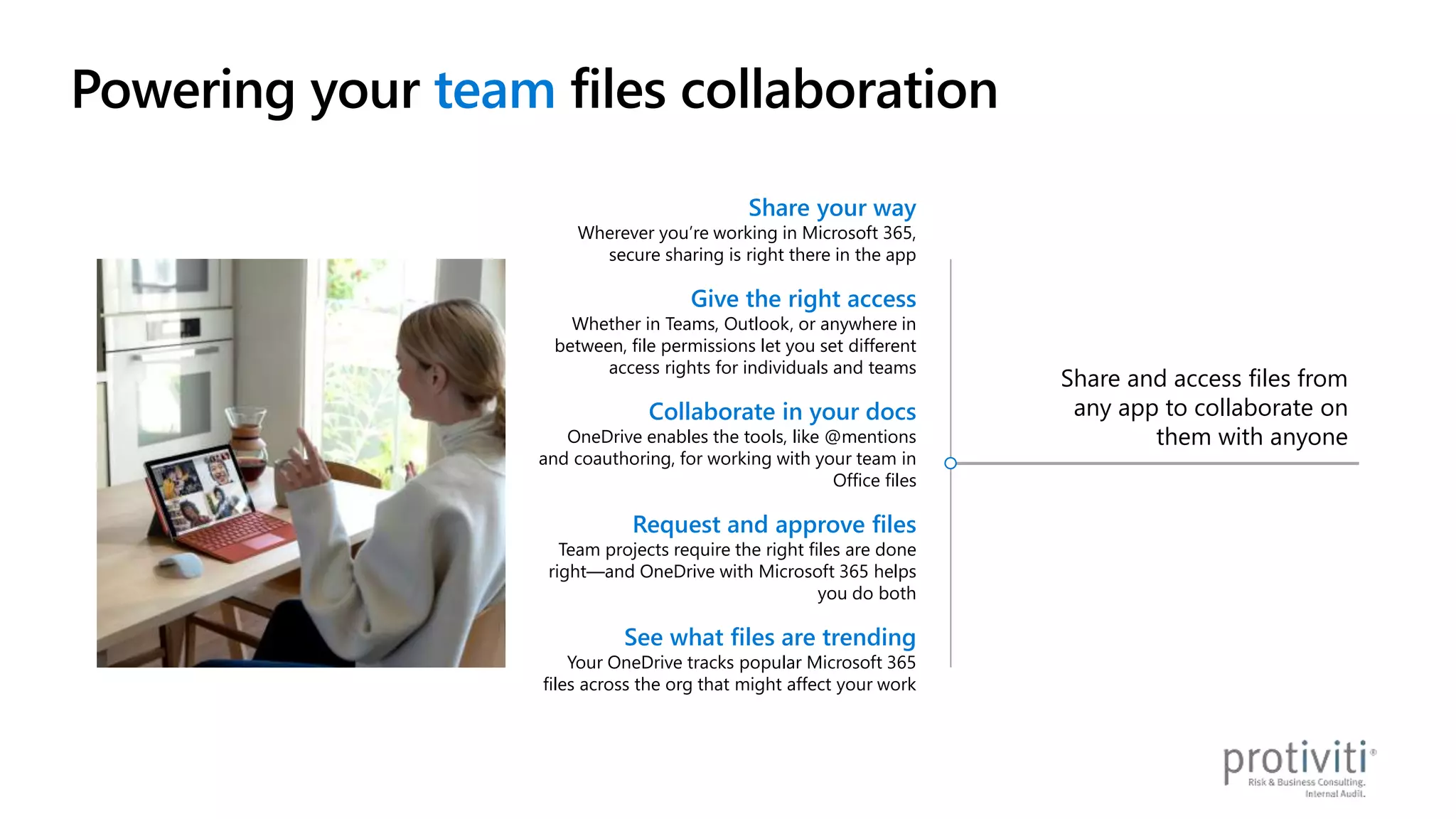
Share your way
Wherever you’re working in Microsoft 365,
secure sharing is right there in the app
Give the right access
Whether in Teams, Outlook, or anywhere in
between, file permissions let you set different
access rights for individuals and teams
Collaborate in your docs
OneDrive enables the tools, like @mentions
and coauthoring, for working with your team in
Office files
Request and approve files
Team projects require the right files are done
right—and OneDrive with Microsoft 365 helps
you do both
See what files are trending
Your OneDrive tracks popular Microsoft 365
files across the org that might affect your work
Powering your team files collaboration
Microsoft OneDrive
Powering the collaborative files experience across Microsoft 365
Individual work
Team collaboration
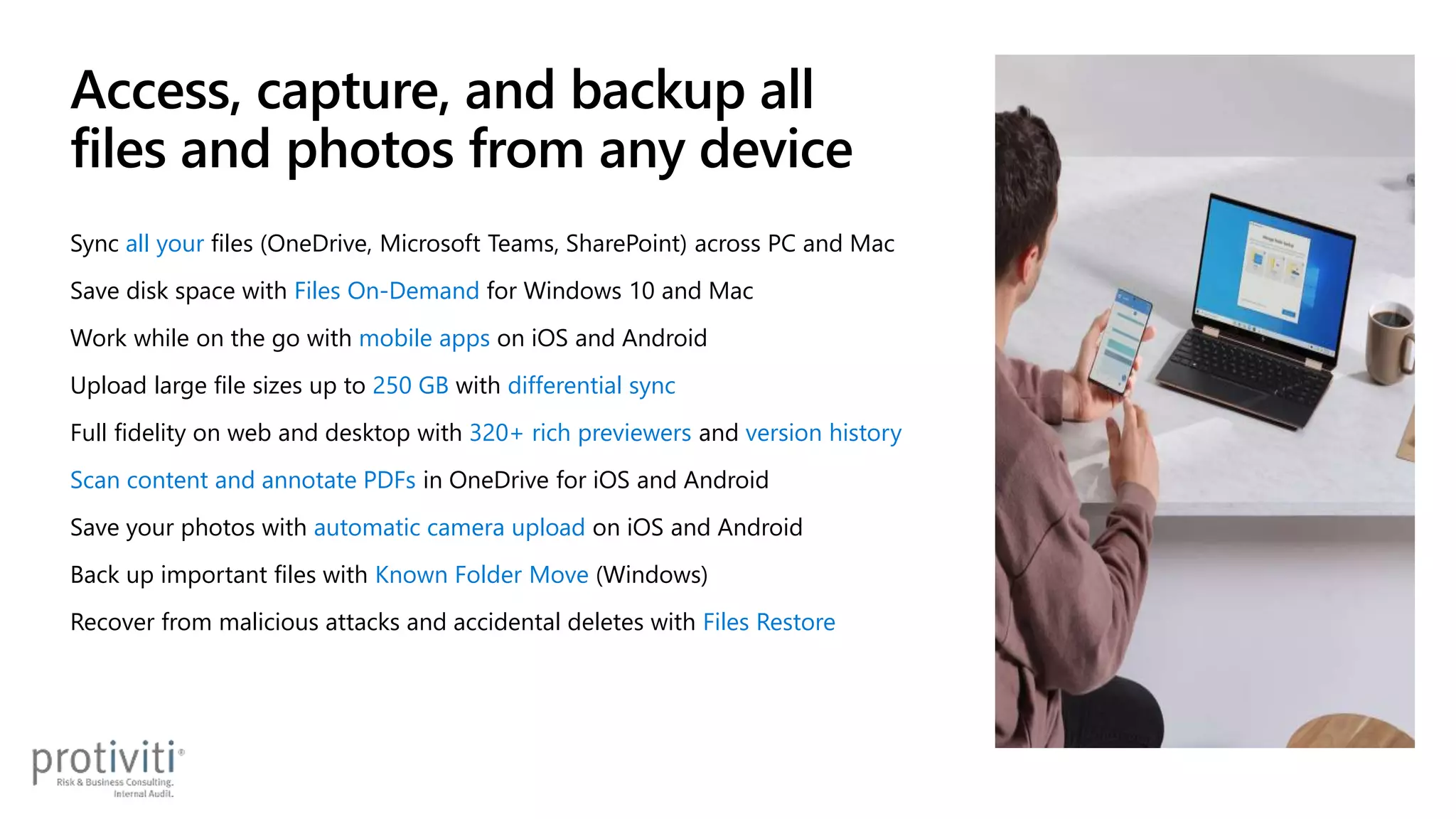
Access, capture, and backup all
files and photos from any device
Sync all your files (OneDrive, Microsoft Teams, SharePoint) across PC and Mac
Save disk space with Files On-Demand for Windows 10 and Mac
Work while on the go with mobile apps on iOS and Android
Upload large file sizes up to 250 GB with differential sync
Full fidelity on web and desktop with 320+ rich previewers and version history
Scan content and annotate PDFs in OneDrive for iOS and Android
Save your photos with automatic camera upload on iOS and Android
Back up important files with Known Folder Move (Windows)
Recover from malicious attacks and accidental deletes with Files Restore
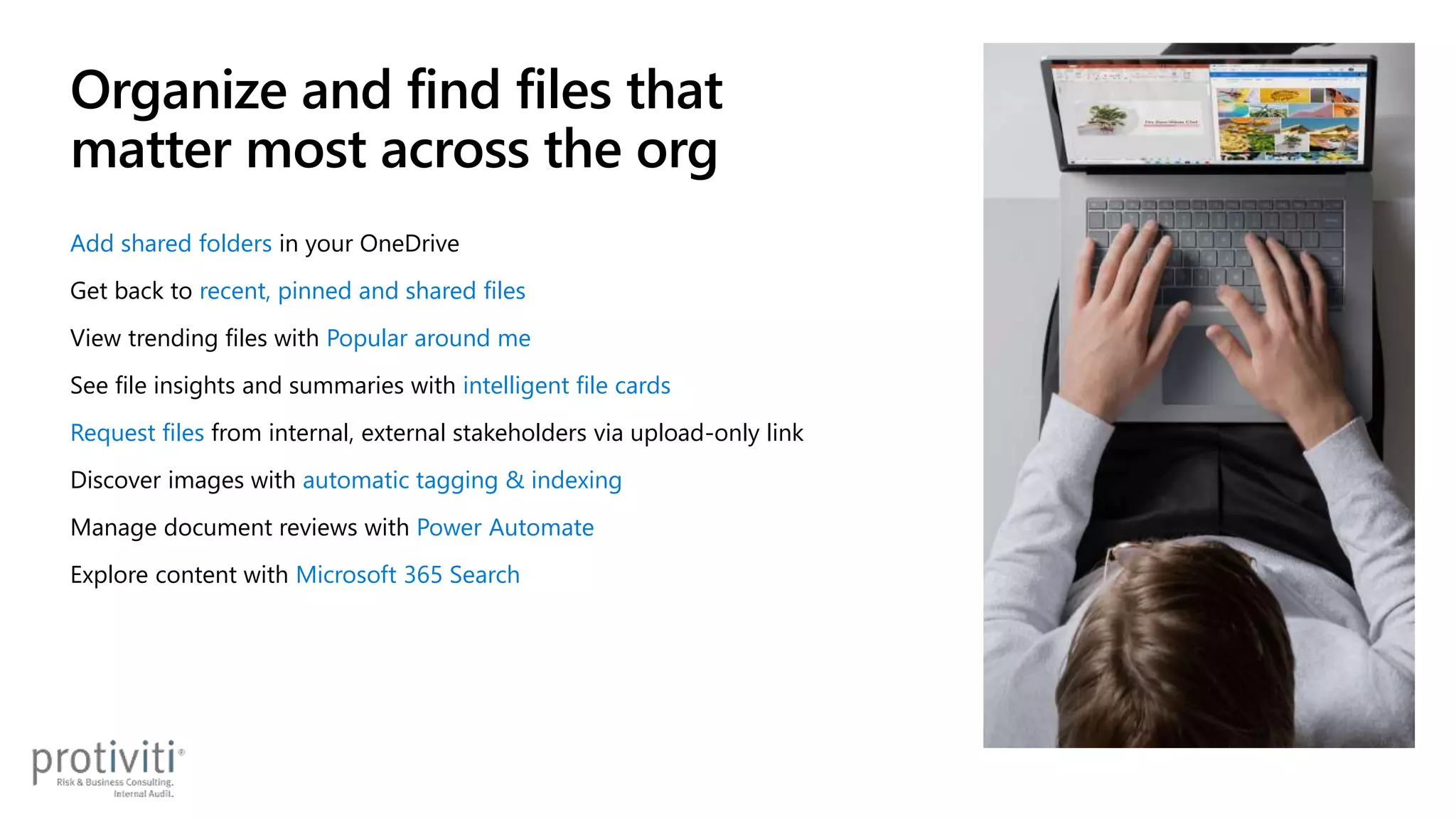
Add shared folders in your OneDrive
Get back to recent, pinned and shared files
View trending files with Popular around me
See file insights and summaries with intelligent file cards
Request files from internal, external stakeholders via upload-only link
Discover images with automatic tagging & indexing
Manage document reviews with Power Automate
Explore content with Microsoft 365 Search
Organize and find files that
matter most across the org
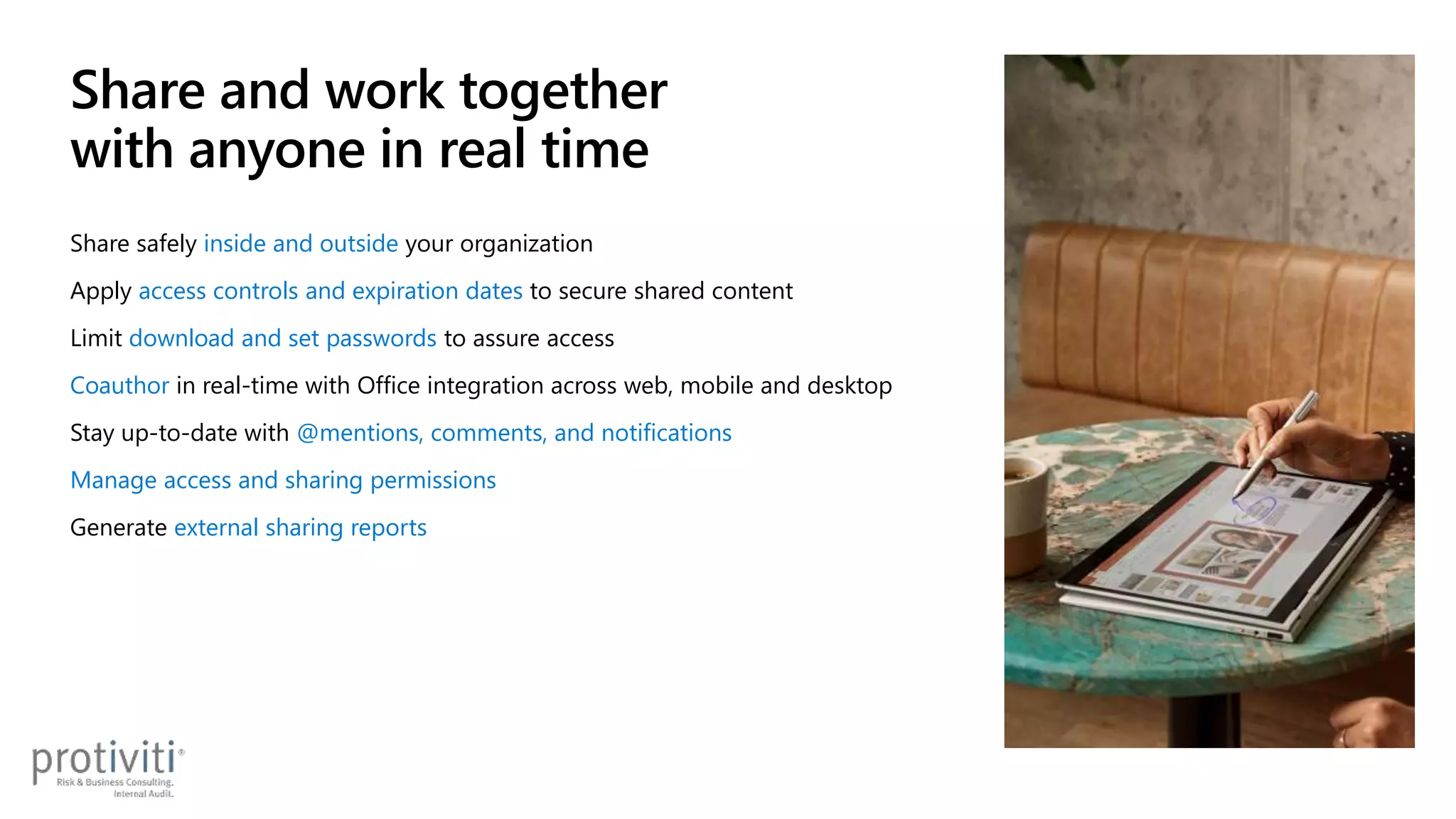
Share safely inside and outside your organization
Apply access controls and expiration dates to secure shared content
Limit download and set passwords to assure access
Coauthor in real-time with Office integration across web, mobile and desktop
Stay up-to-date with @mentions, comments, and notifications
Manage access and sharing permissions
Generate external sharing reports
Share and work together
with anyone in real time
Keep files compliant, secured, and protected
Security Compliance Governance
Put content in its (right) place
Multi-Geo and Information Barriers keep files
are in the right region and with the right users
Stay in control
Services like Customer Lockbox and Customer
Key ensure you’re always in control of your data
Meet international standards
OneDrive adheres to a variety of regulatory
standards, like ISO 27001, FedRAMP, and GDPR
Enhance user experiences
Audit logs and sharing reports surface usage
patterns so you can accommodate work styles
Expedite discovery
Built-in eDiscovery helps you identify, preserve,
and review content in case of litigation
Keep files “on file”
Retention policies and labels streamline the
process for maintaining content long term
Collaborate securely
Secure, consistent sharing lets you give the
right access to the right people as you work
Prevent accidental leaks
DLP and Sensitivity Labels empower both
admins and users to protect files
Recover from ransomware
Windows Defender detects ransomware and
Files Restore helps you recover whatever is lost
Microsoft 365 admin center | manage all your OneDrive security, compliance, and governance in one place
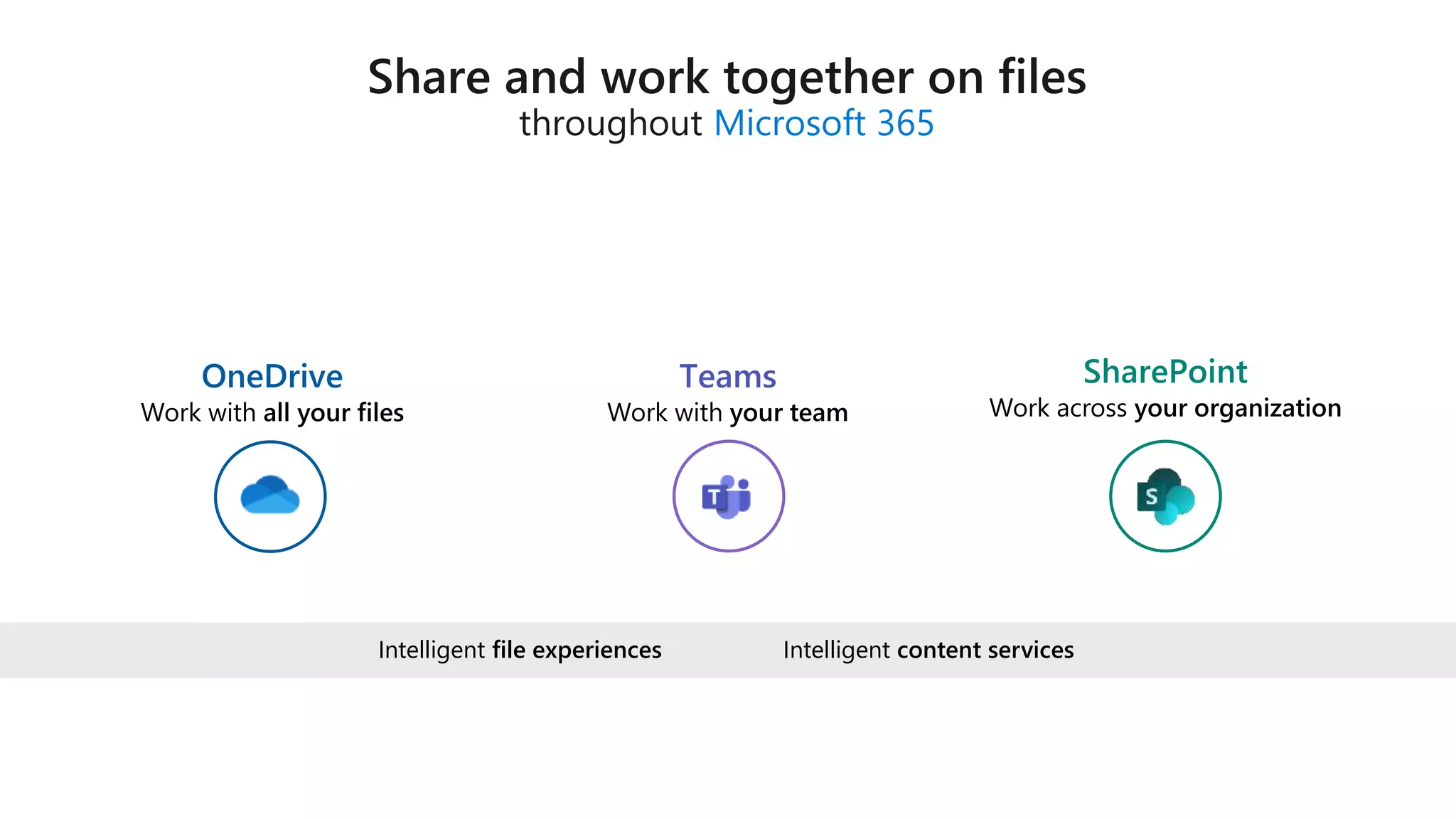
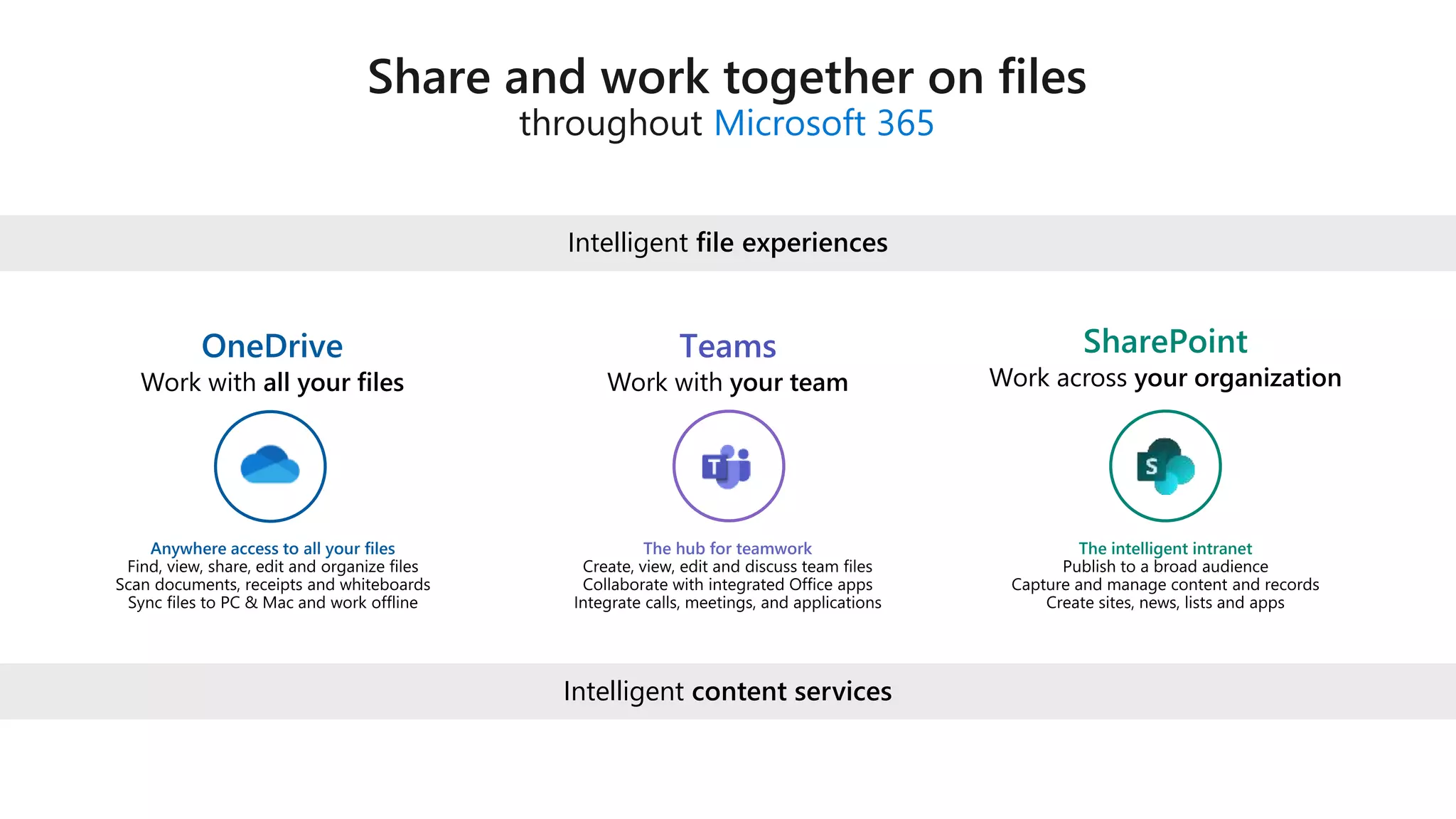
Microsoft 365
Teams
Intelligent content services
Intelligent file experiences
Microsoft 365
Teams
Intelligent content services
Intelligent file experiences
Microsoft 365
Teams
Intelligent content services
Intelligent file experiences
Microsoft 365
Teams
Intelligent content services
Intelligent file experiences
Microsoft 365
Teams
Intelligent content services
Intelligent file experiences
Microsoft 365
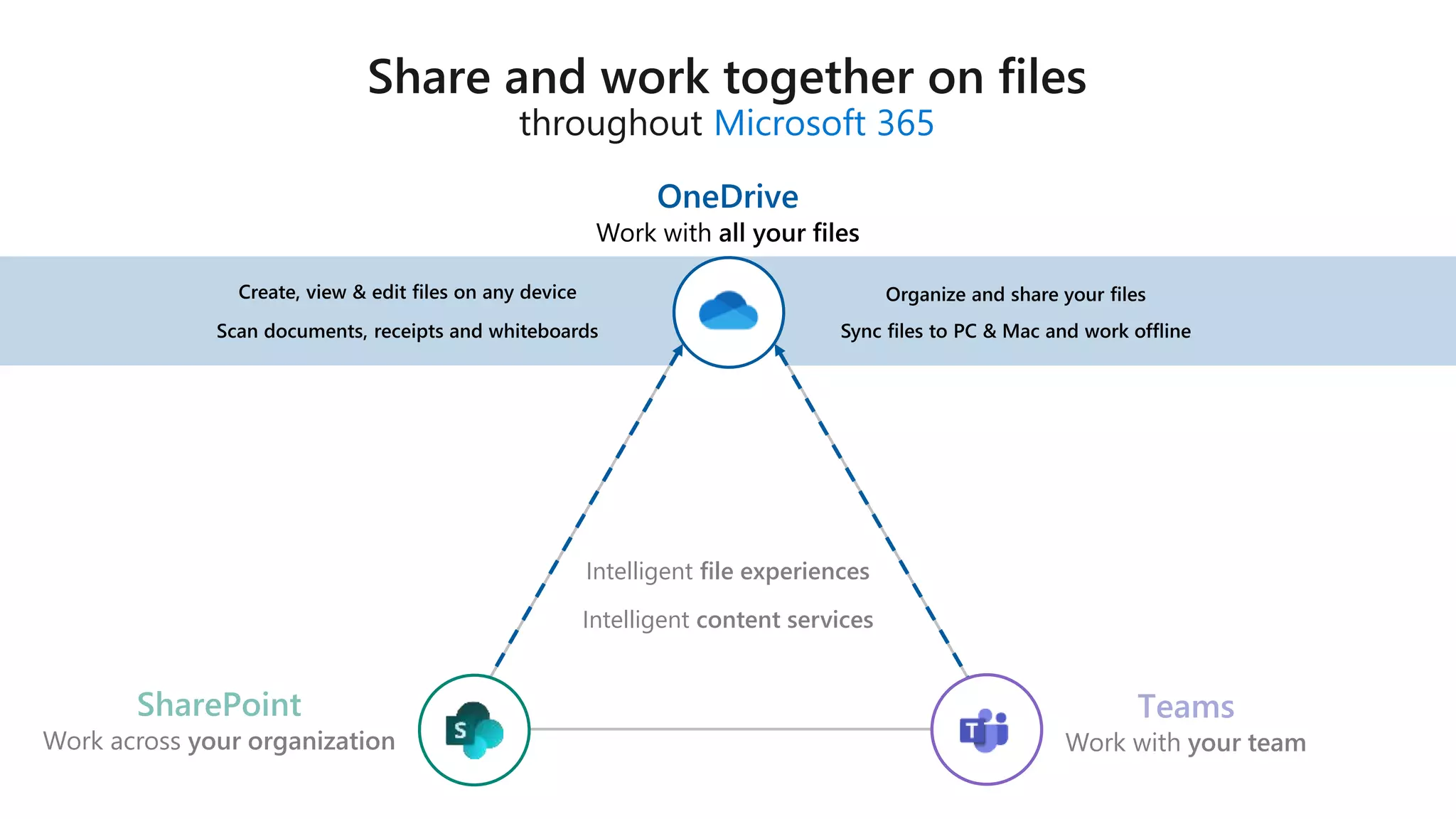
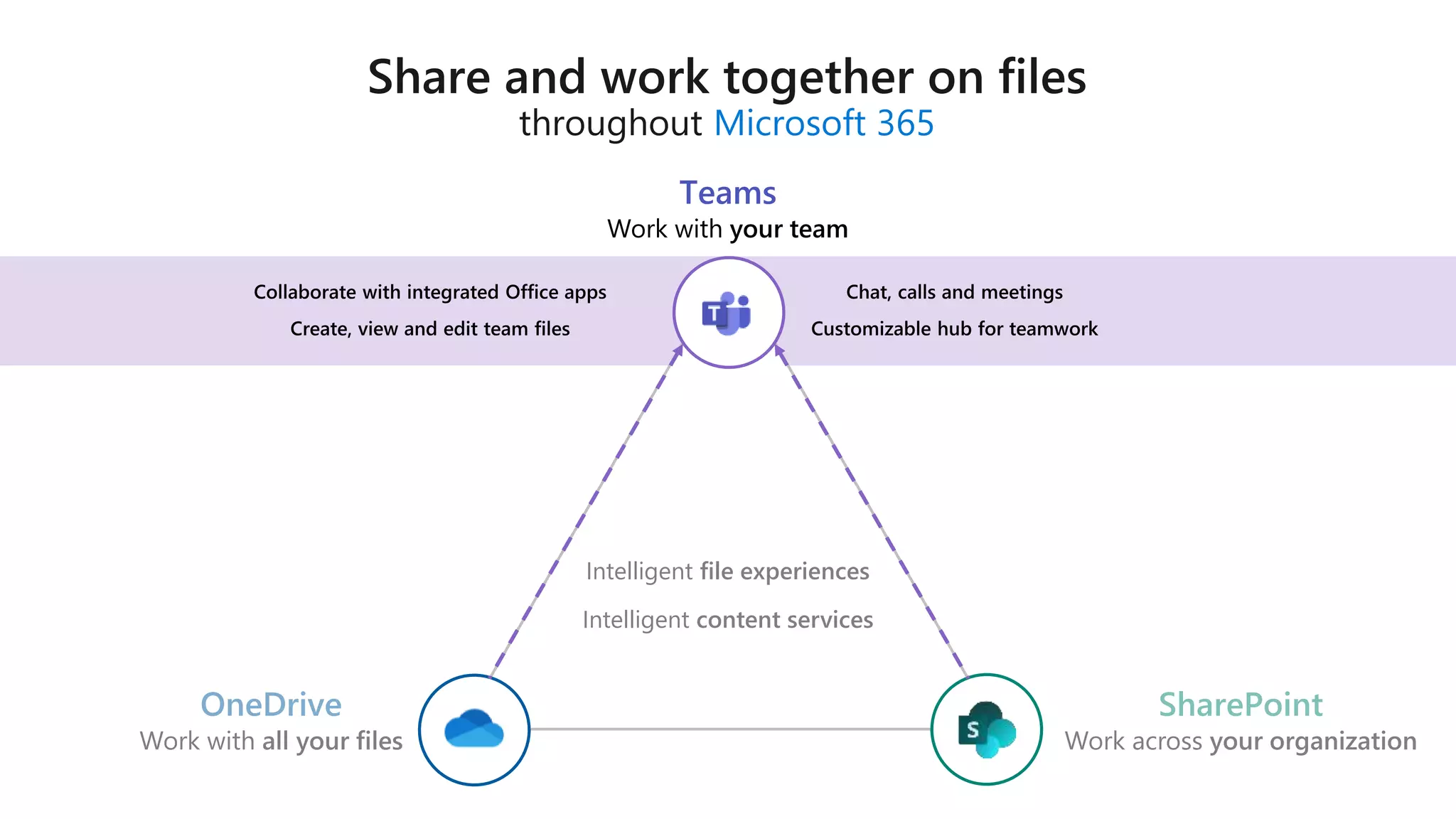
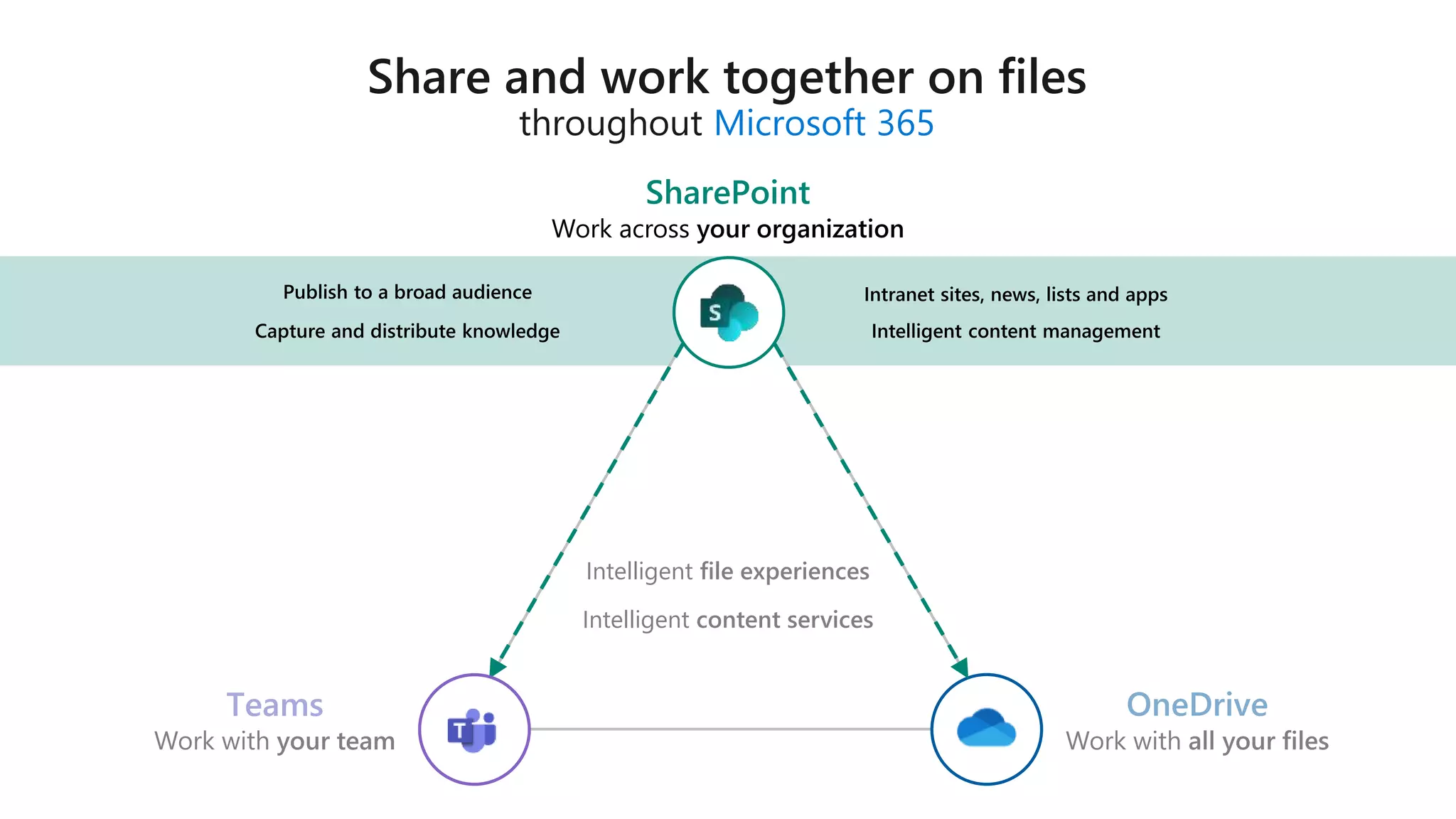
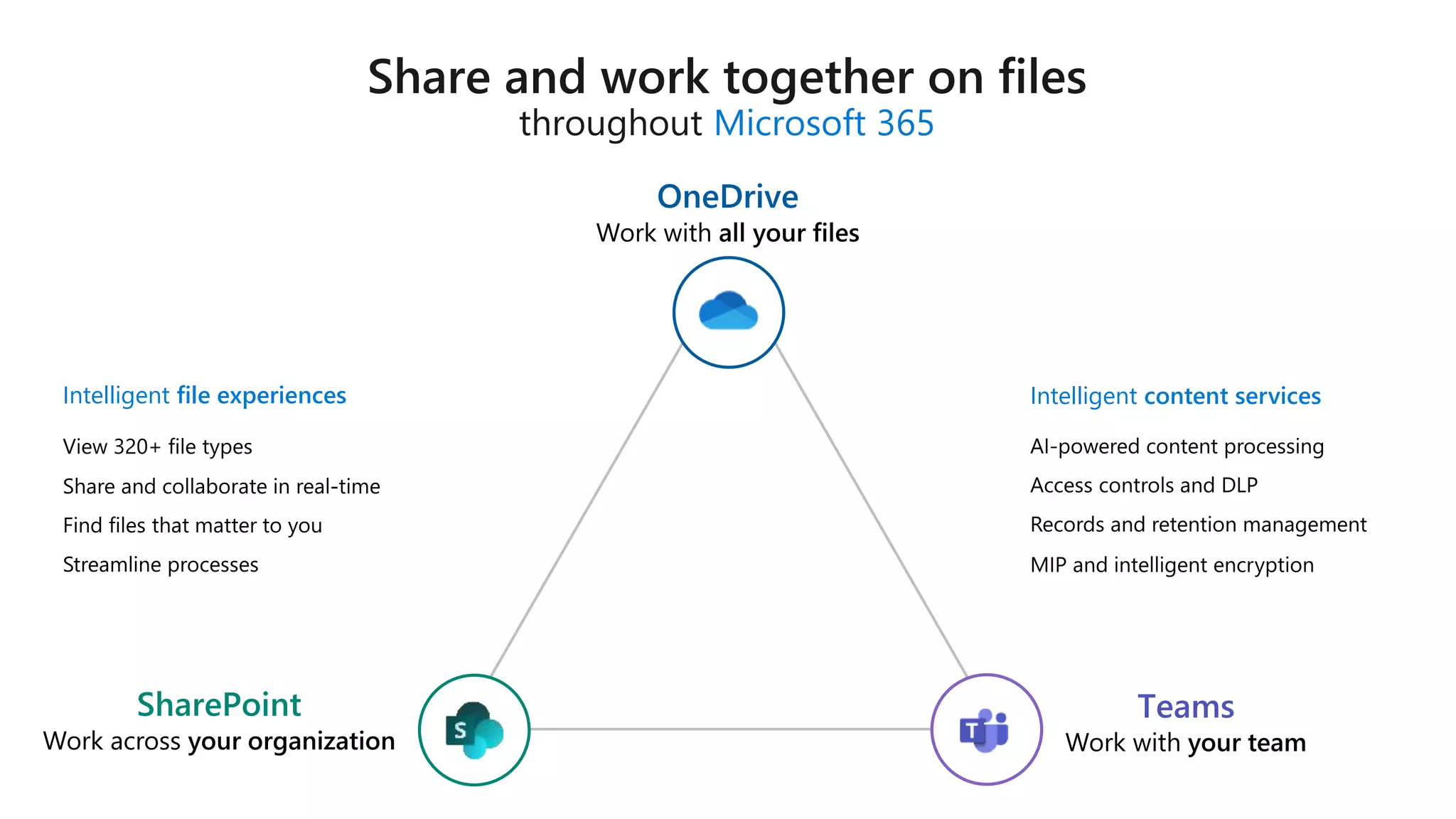
Anywhere access to all your files The hub for teamwork The intelligent intranet
Intelligent content services
Intelligent file experiences
Teams
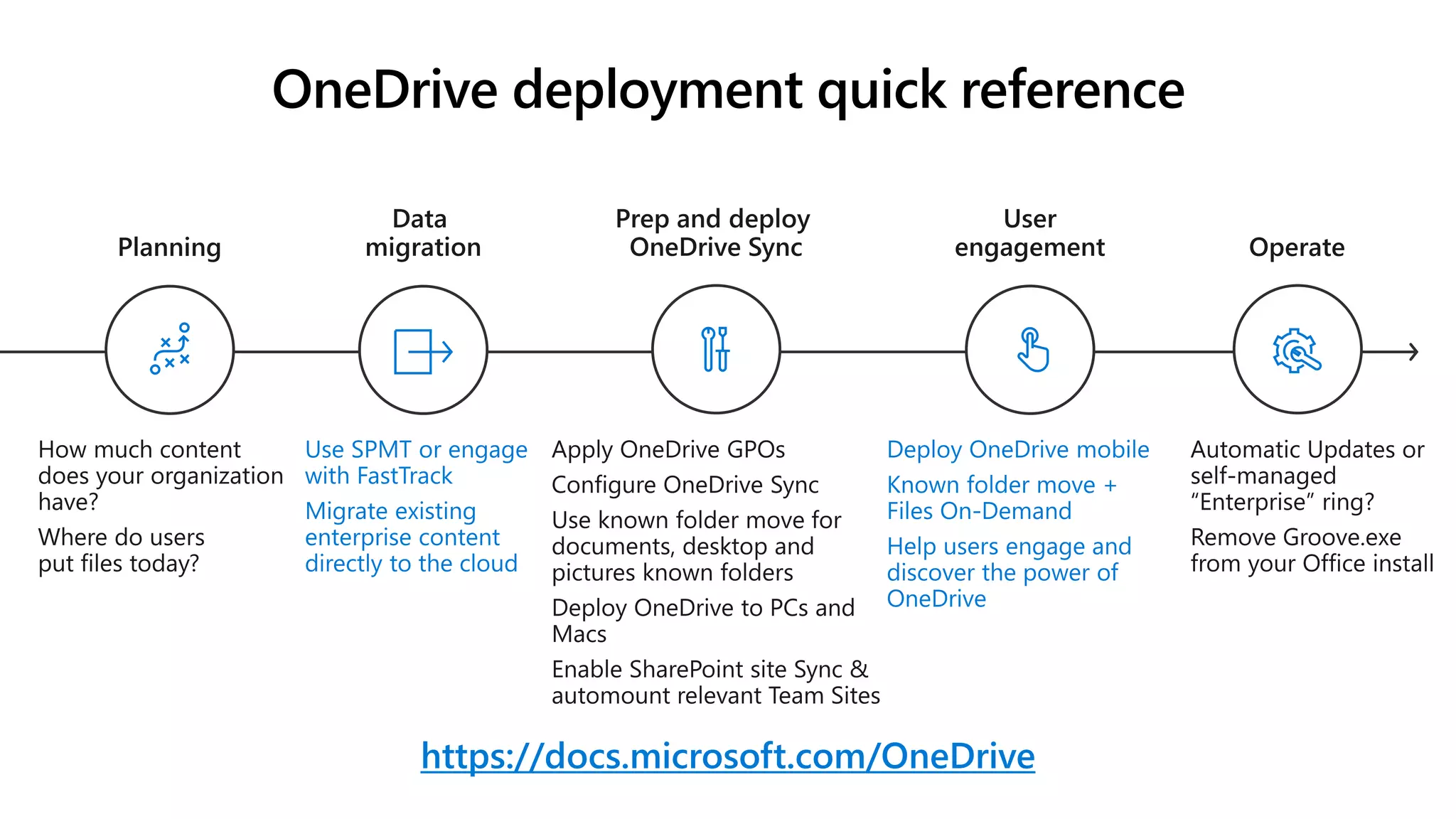
OneDrive deployment quick reference
https://docs.microsoft.com/OneDrive
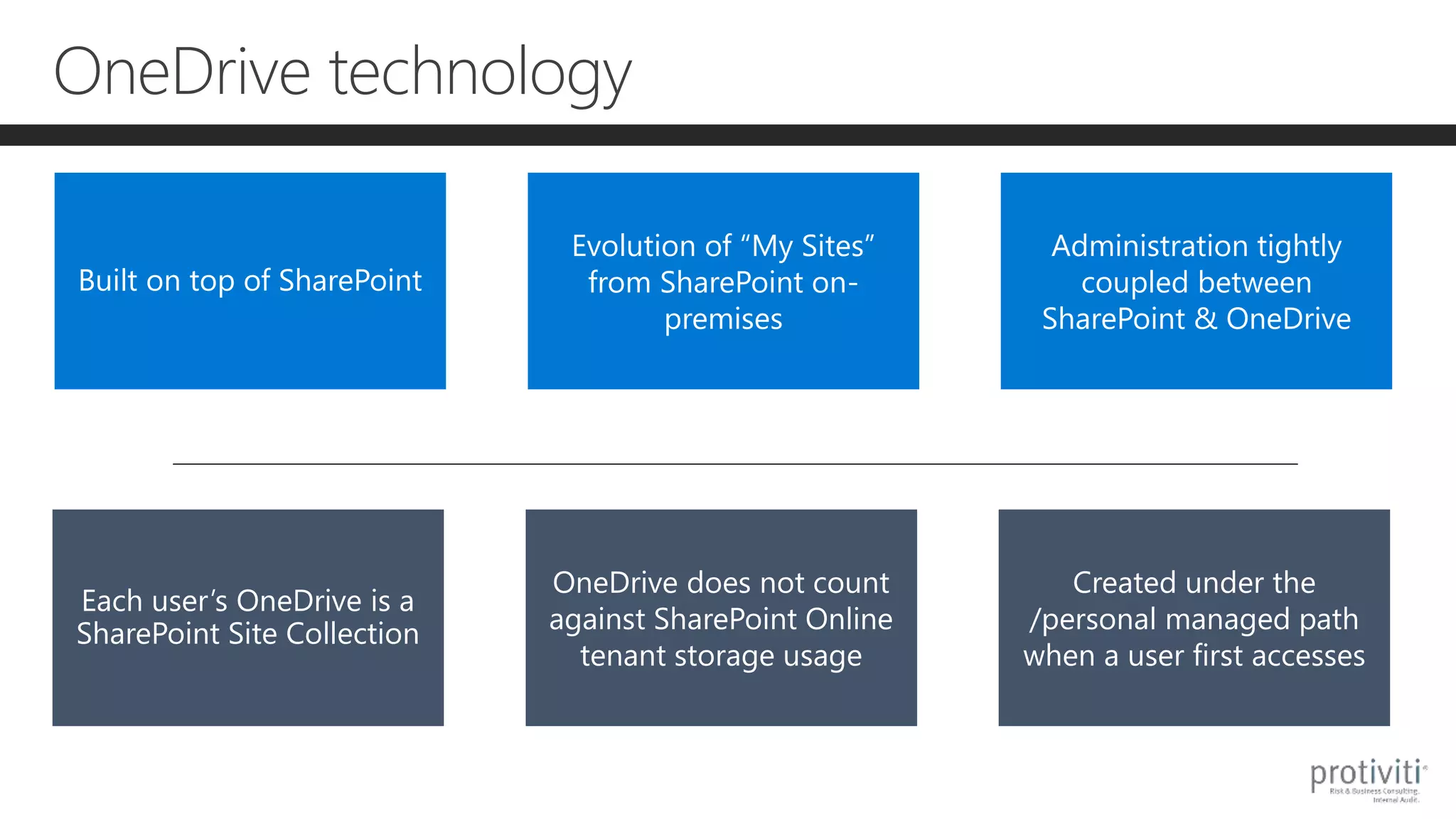
OneDrive technology
Built on top of SharePoint
Evolution of “My Sites”
from SharePoint on-
premises
Administration tightly
coupled between
SharePoint & OneDrive
Each user’s OneDrive is a
SharePoint Site Collection
OneDrive does not count
against SharePoint Online
tenant storage usage
Created under the
/personal managed path
when a user first accesses
Demo!
OneDrive!
What’s new?
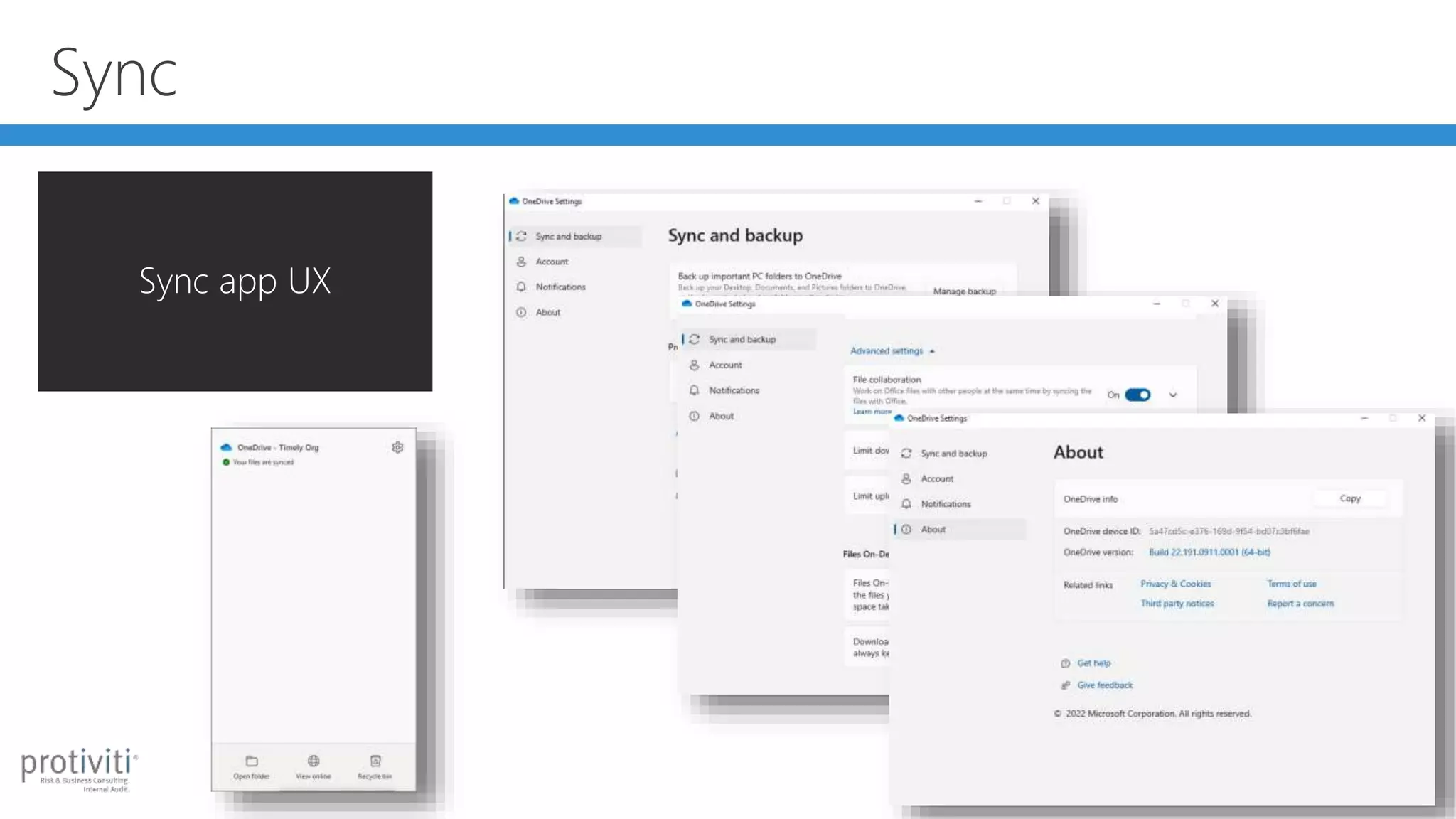
Sync
Sync app UX
Sync
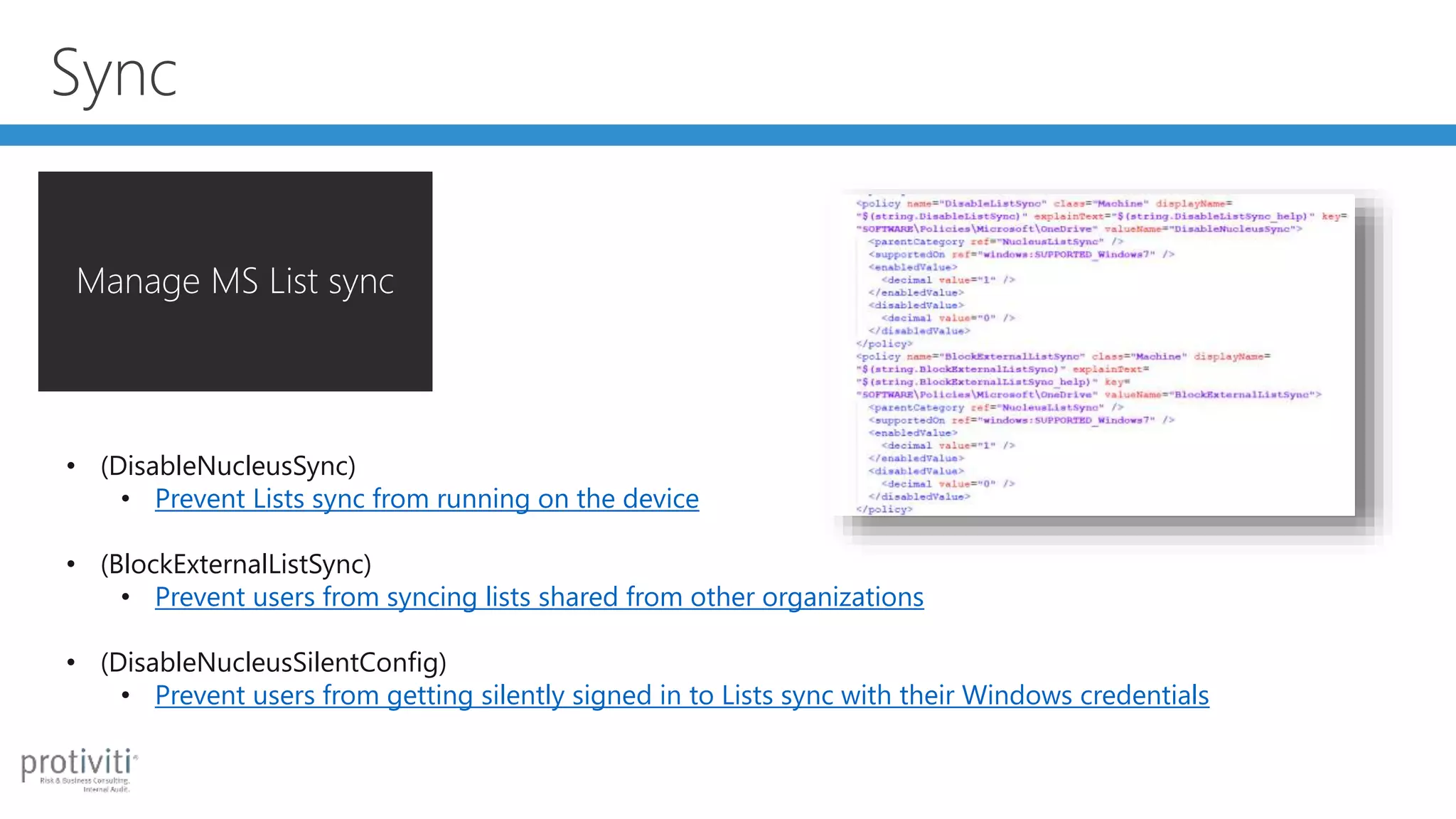
Manage MS List sync
• (DisableNucleusSync)
• Prevent Lists sync from running on the device
• (BlockExternalListSync)
• Prevent users from syncing lists shared from other organizations
• (DisableNucleusSilentConfig)
• Prevent users from getting silently signed in to Lists sync with their Windows credentials
Sync
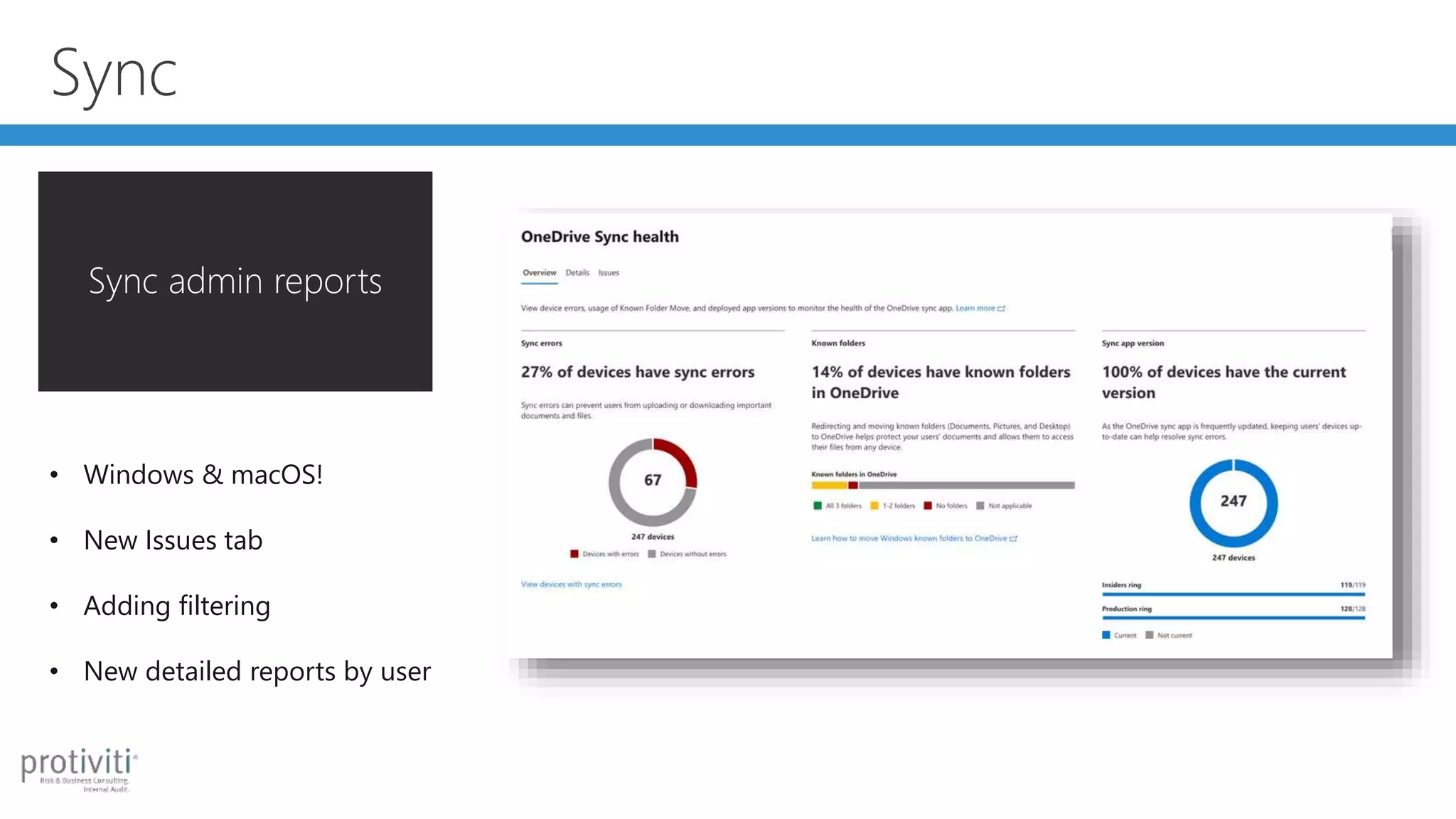
Sync admin reports
• Windows & macOS!
• New Issues tab
• Adding filtering
• New detailed reports by user
Sync
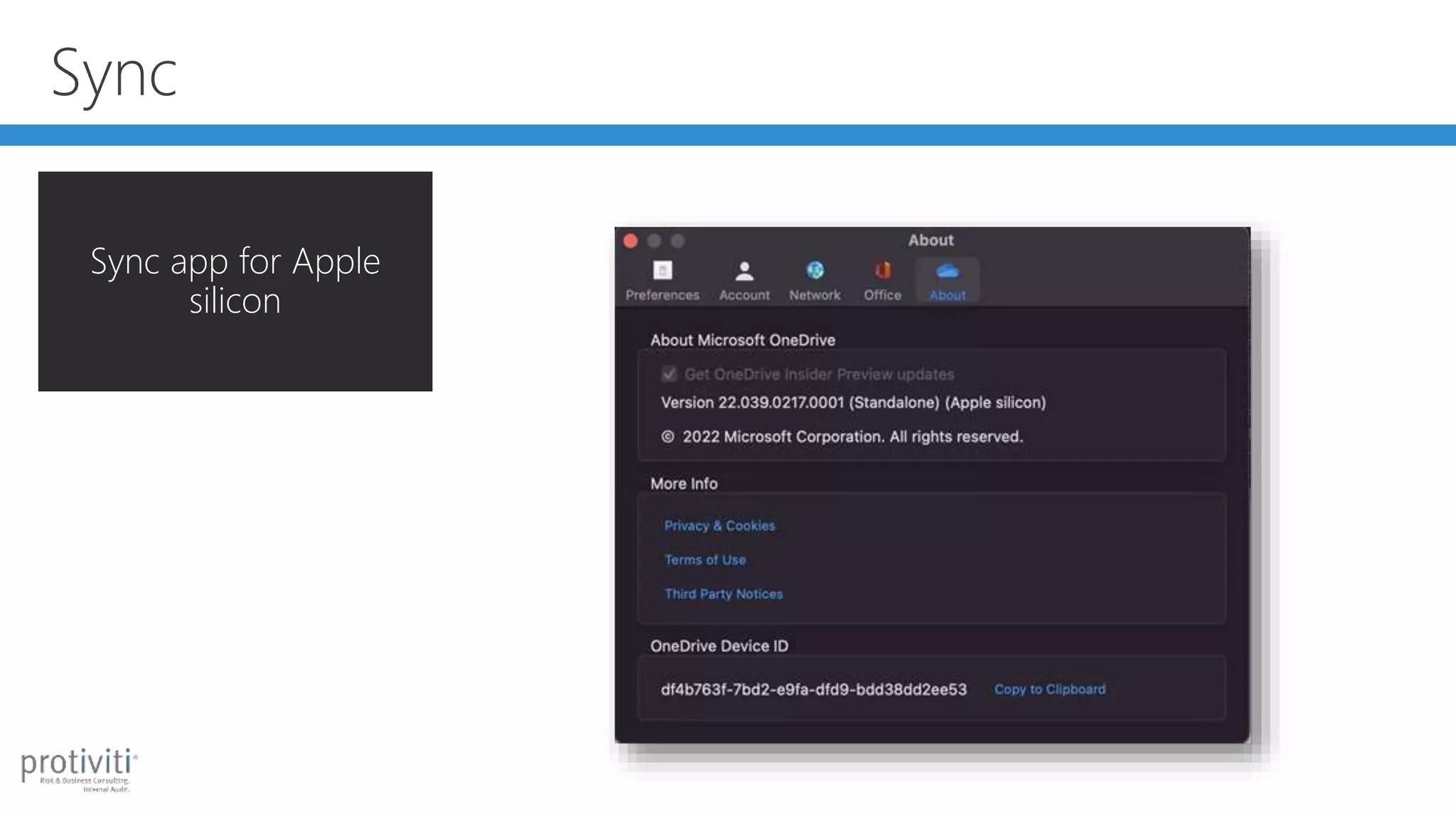
Sync app for Apple
silicon
Sync
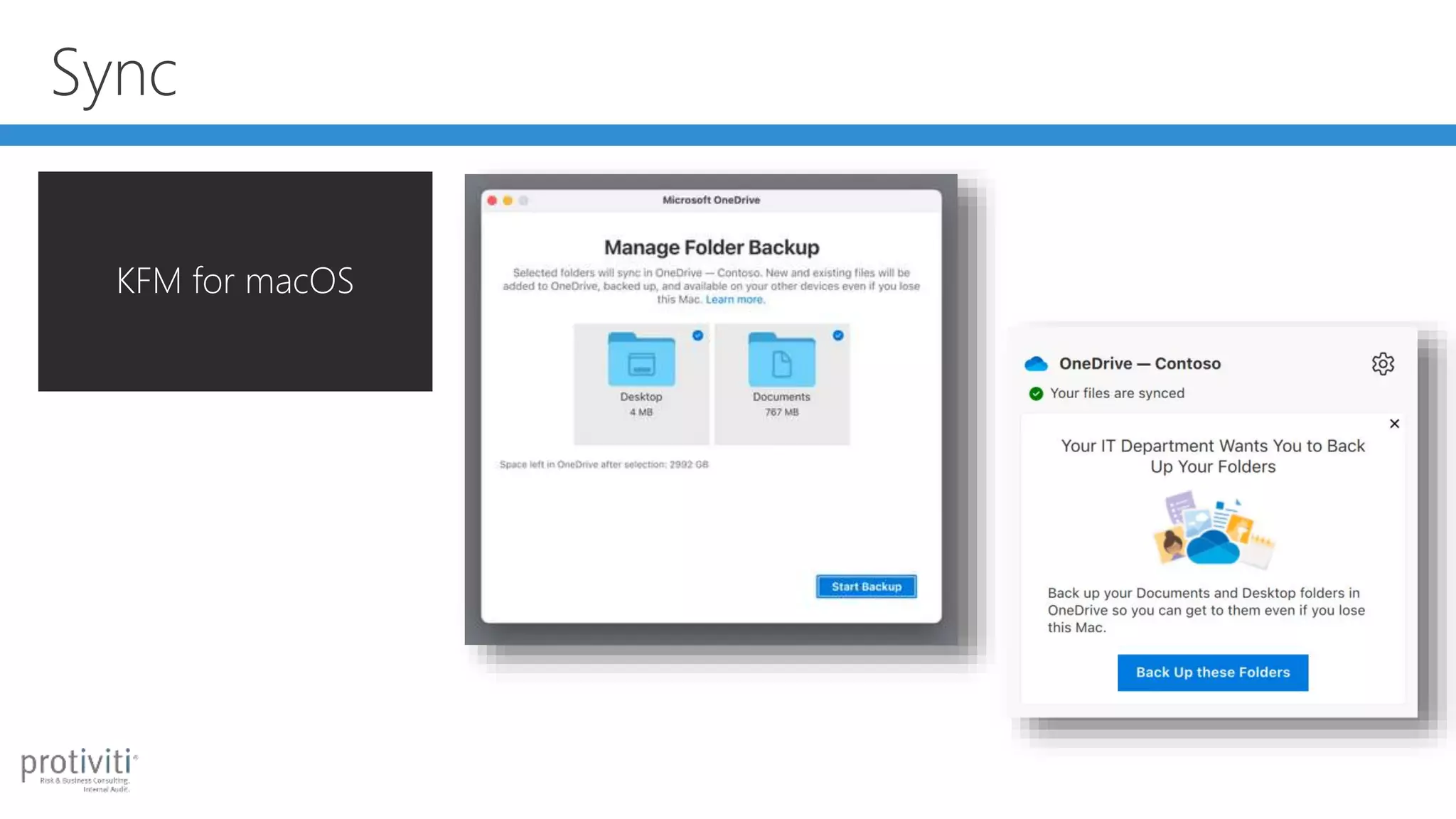
KFM for macOS
Sync
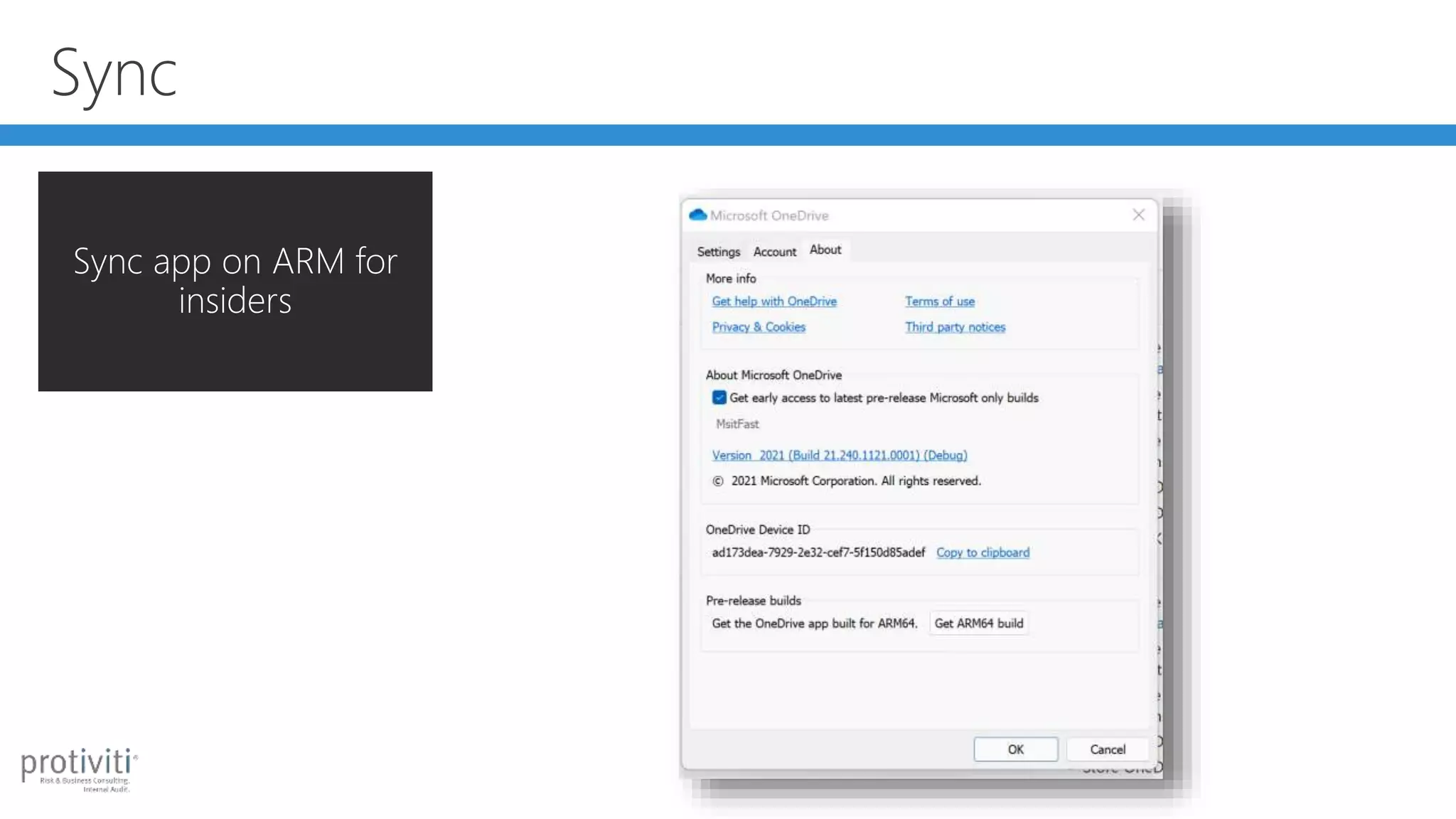
Sync app on ARM for
insiders
Administration
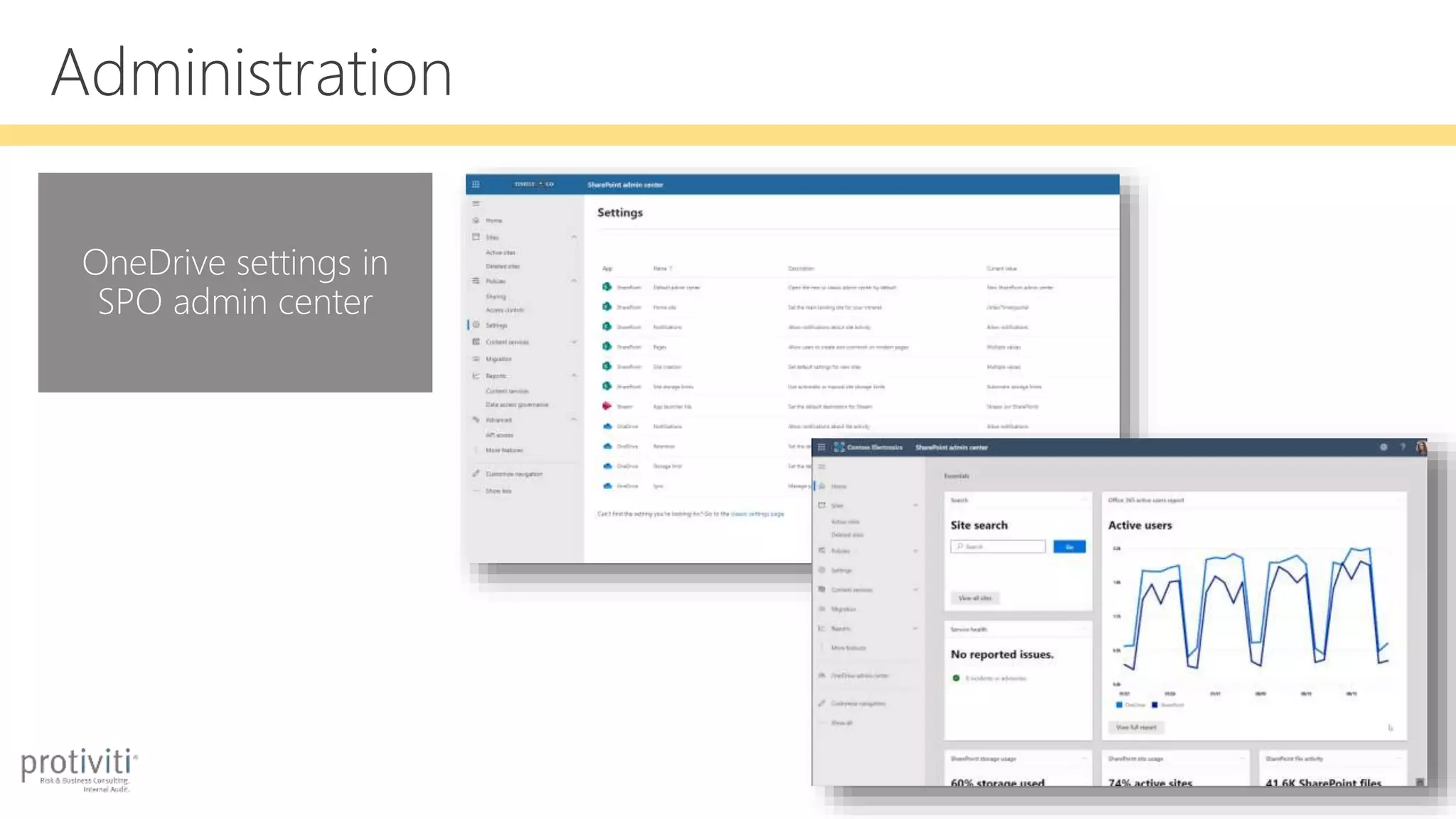
OneDrive settings in
SPO admin center
Administration
New OneDrive file
picker for developers
Demo!
Sync & Admin
OneDrive
Files view in Teams
powered by OneDrive
OneDrive
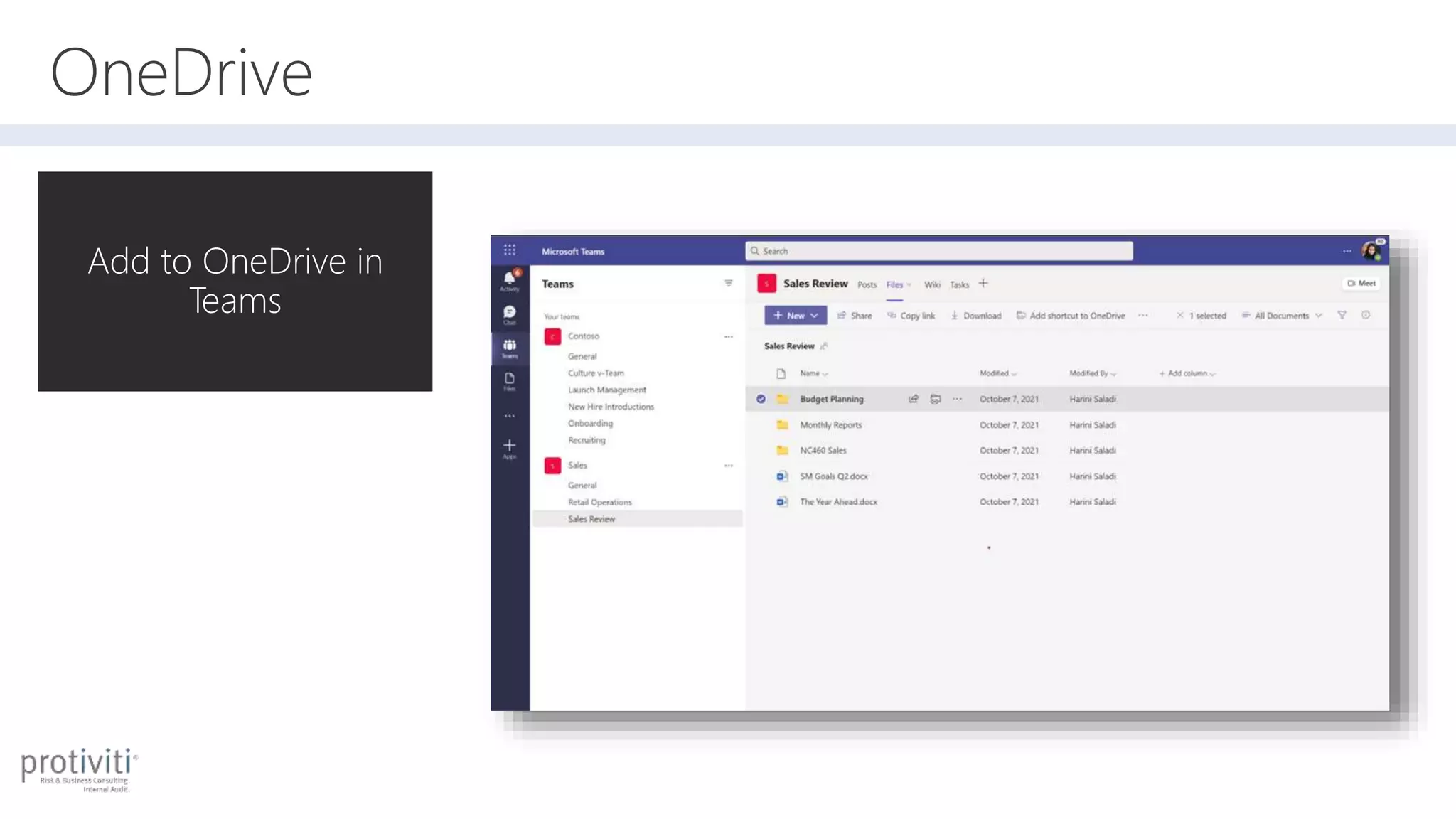
Add to OneDrive in
Teams
OneDrive
Easier access to Teams
standard and private
files
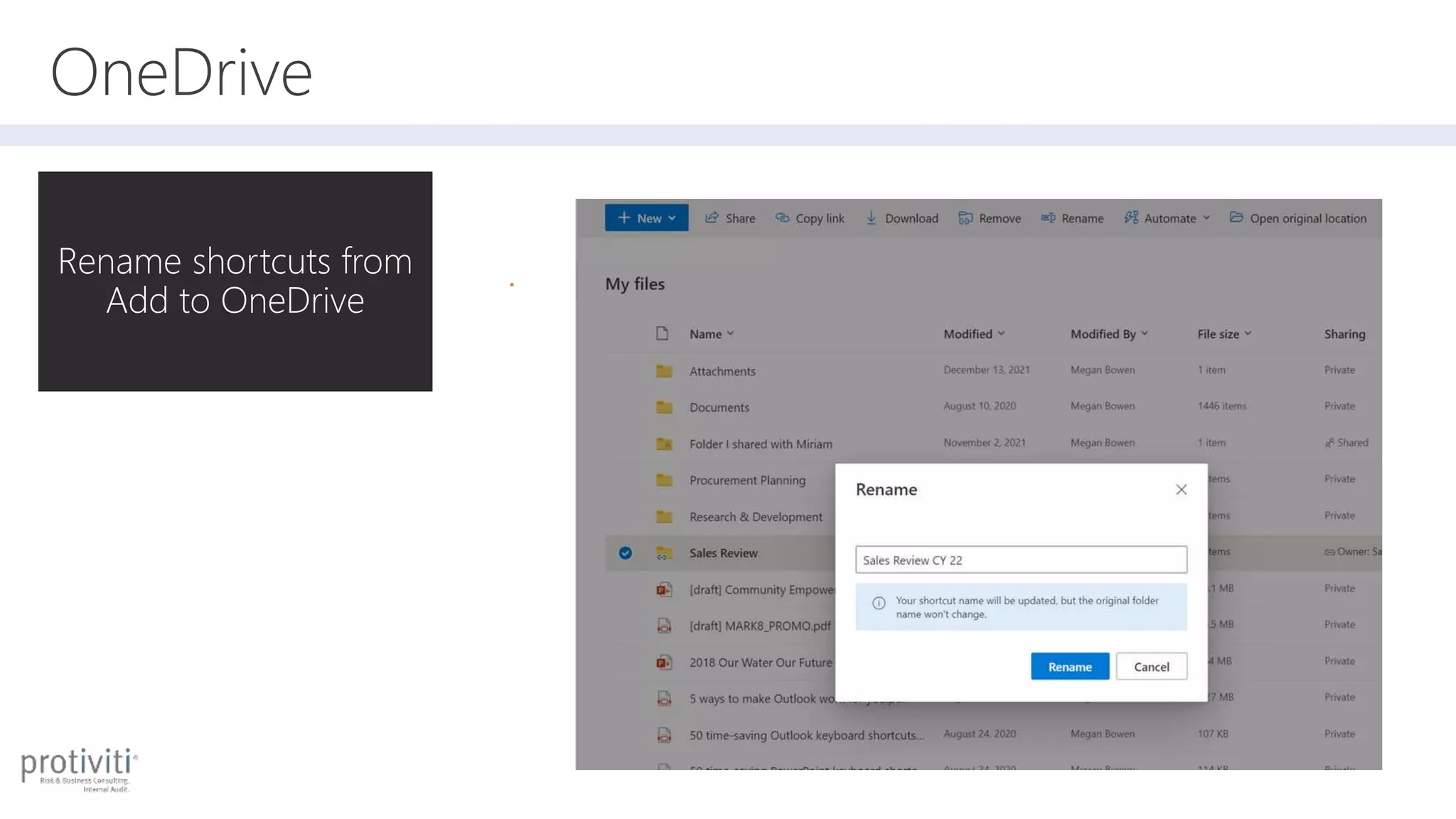
OneDrive
Rename shortcuts from
Add to OneDrive
OneDrive
Teams meeting
recordings saved to
OneDrive (& SharePoint)
• For non-Channel meetings, the recording is stored in a folder
named Recordings that's at the top level of the OneDrive for Business that
belongs to the person who started the meeting recording.
• Example: recorder's OneDrive for Business/Recordings
• If user doesn’t have a OneDrive, stored in temporary storage location for 21 days
OneDrive
Delete large folders (up
to 10,000 items)
Comment on
video/audio files
Captions for videos
uploaded
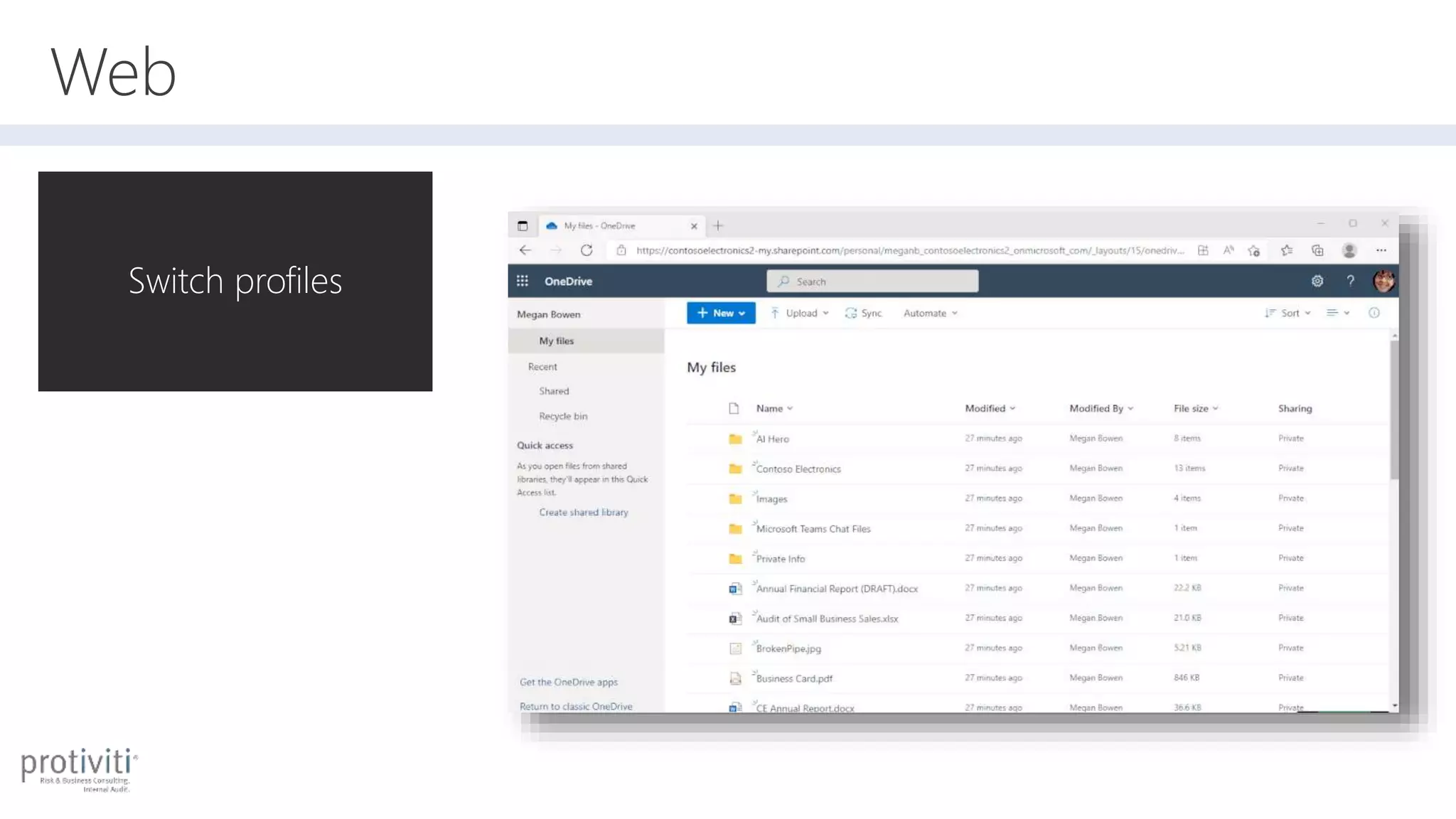
Web
Switch profiles
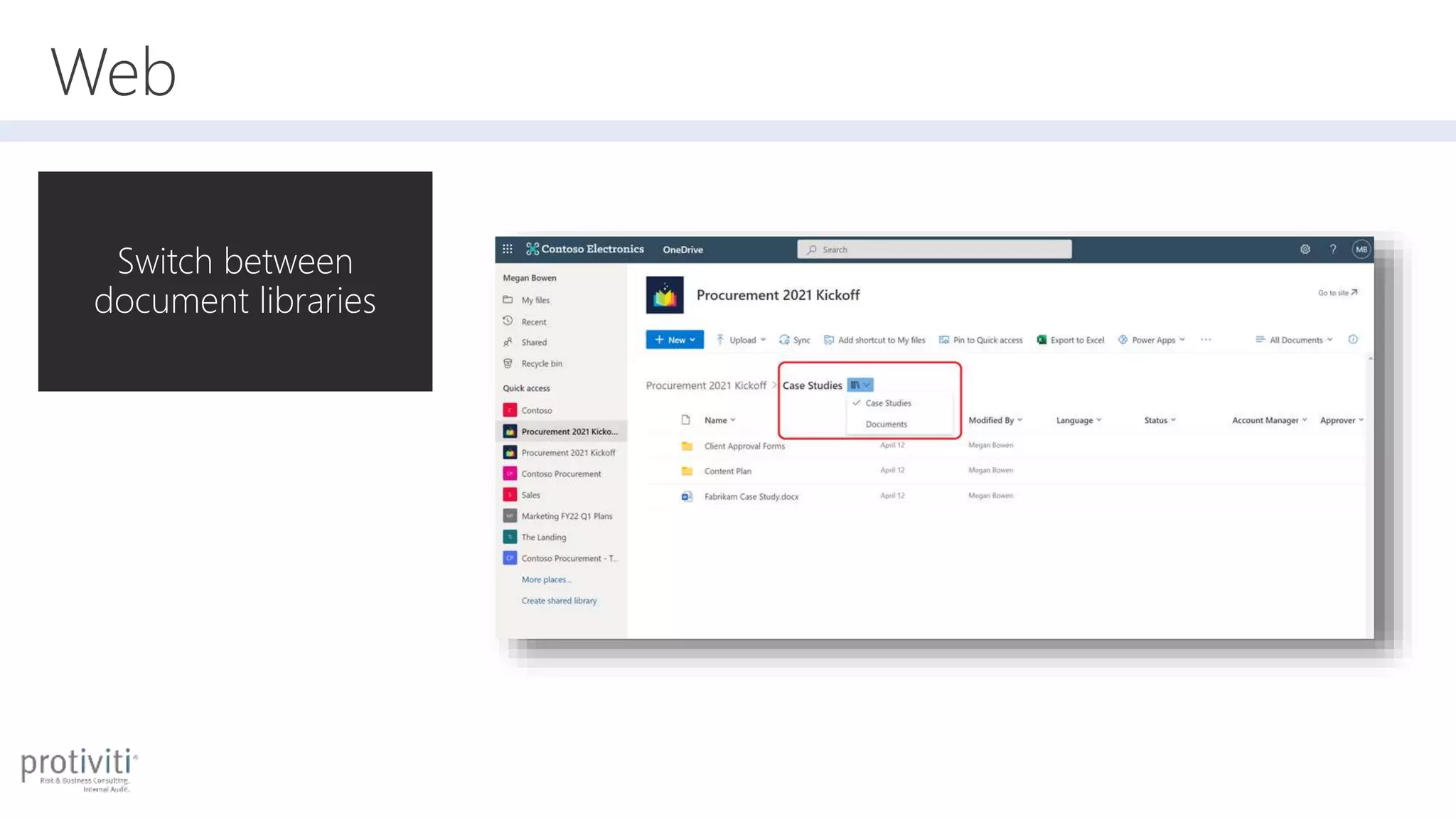
Web
Switch between
document libraries
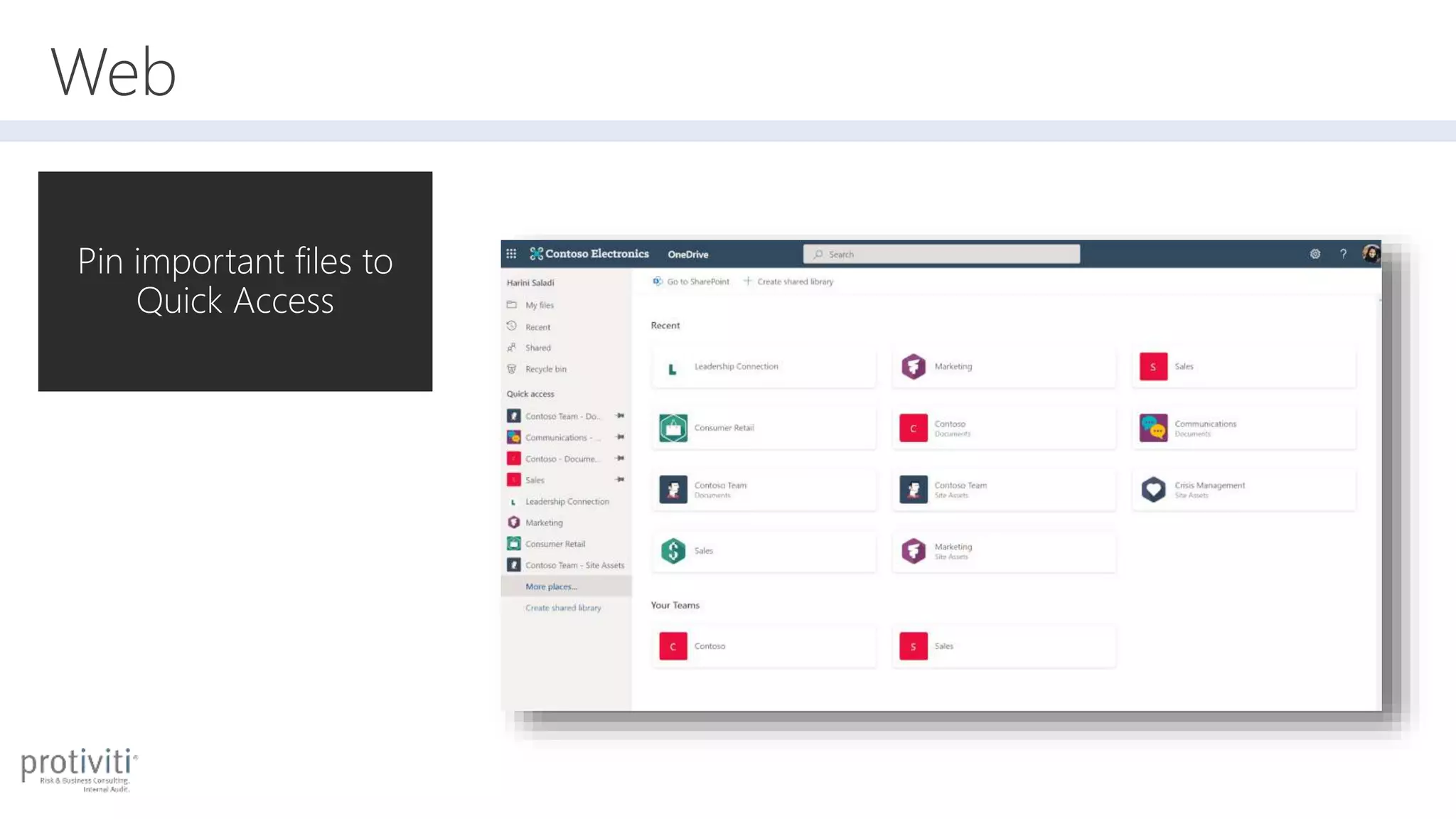
Web
Pin important files to
Quick Access
Web
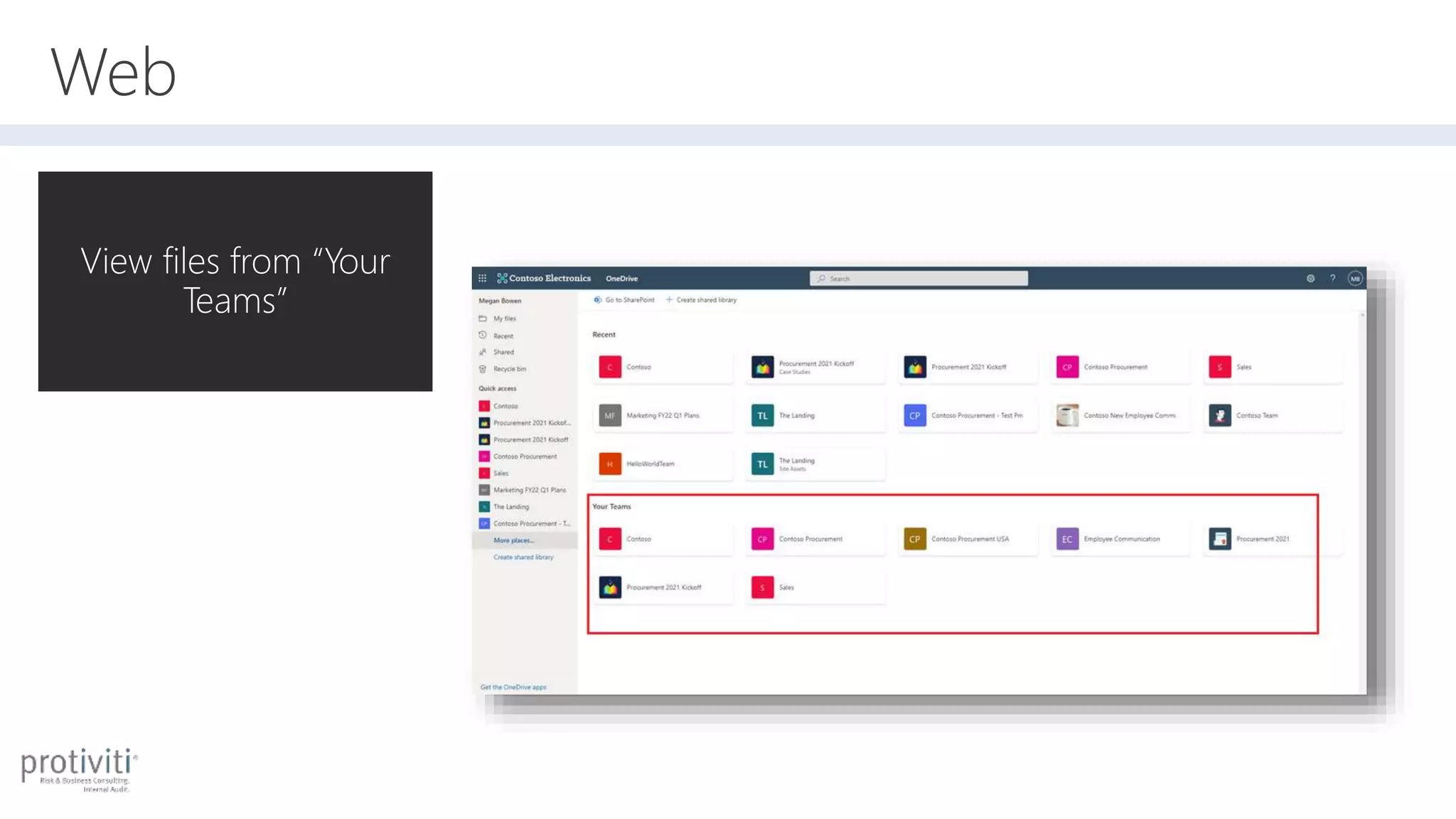
View files from “Your
Teams”
Demo!
Web, Collab, & Sharing
OneDrive tidbits
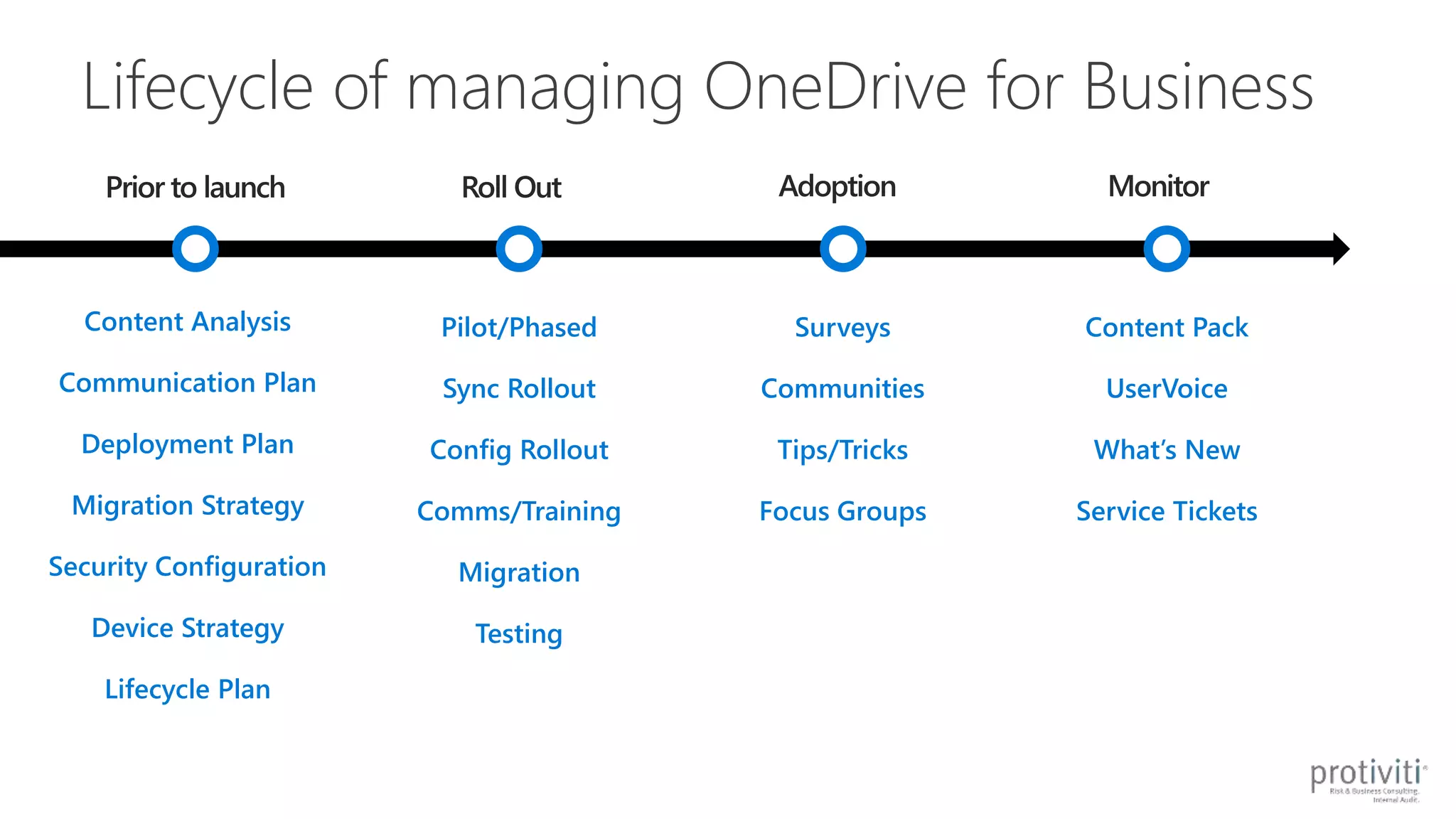
Lifecycle of managing OneDrive for Business
Surveys
Communities
Tips/Tricks
Focus Groups
Content Analysis
Communication Plan
Deployment Plan
Migration Strategy
Security Configuration
Device Strategy
Lifecycle Plan
Pilot/Phased
Sync Rollout
Config Rollout
Comms/Training
Migration
Testing
Content Pack
UserVoice
What’s New
Service Tickets
Sync ideal state
aka.ms/SyncIdealState
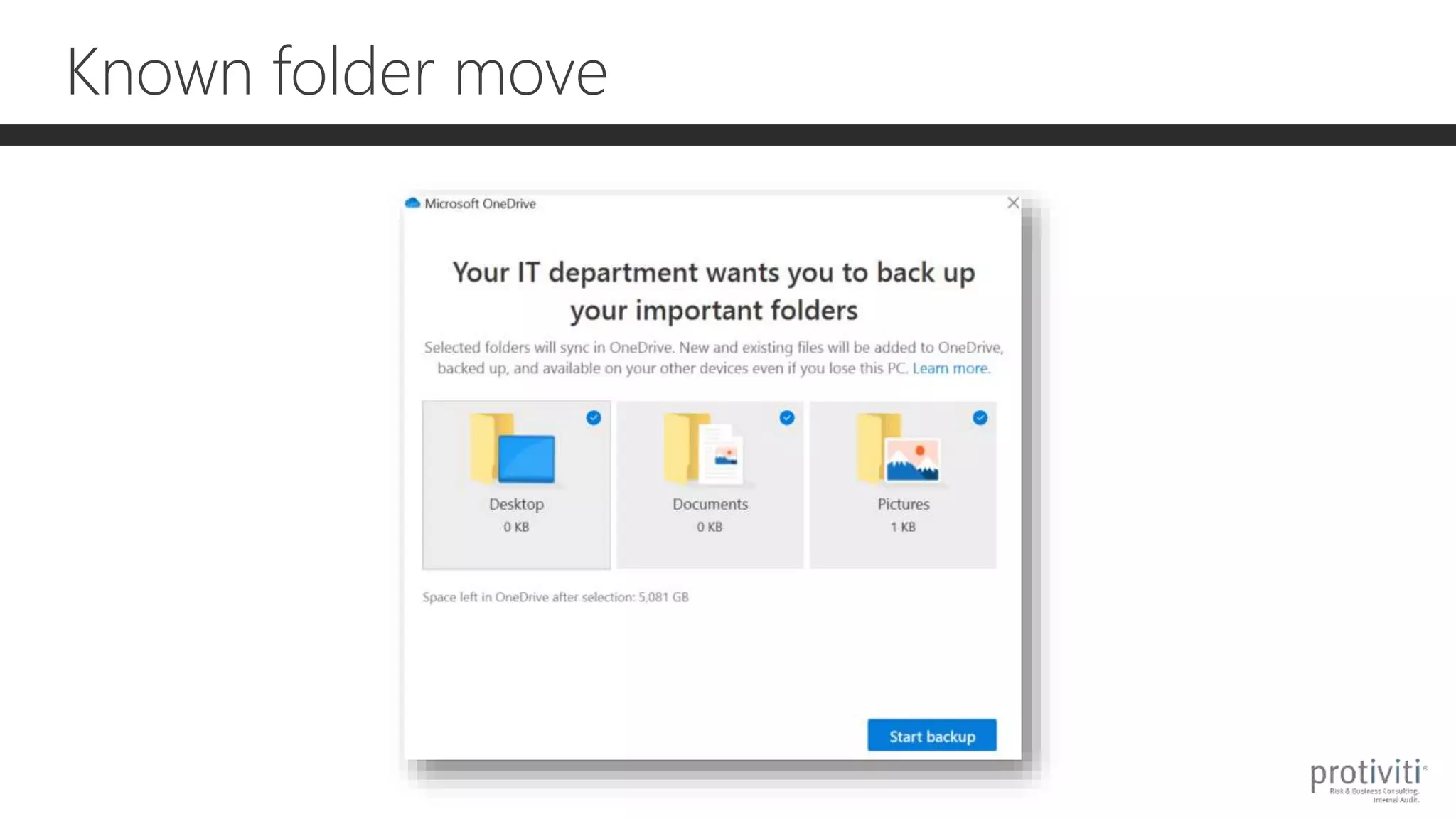
Known folder move
What if someone leaves?
Access
 Default sets ownership to manager declared in user profile
 Follows access delegation set in SP Admin Center
Cleanup
 If user profile manually deleted the site won’t be deleted
 Email sent on initial assignment and 7 days prior to retention
 If site is on eDiscovery hold the site won’t be deleted
 Deletion of user account in Azure AD is only thing to trigger
What if someone leaves?
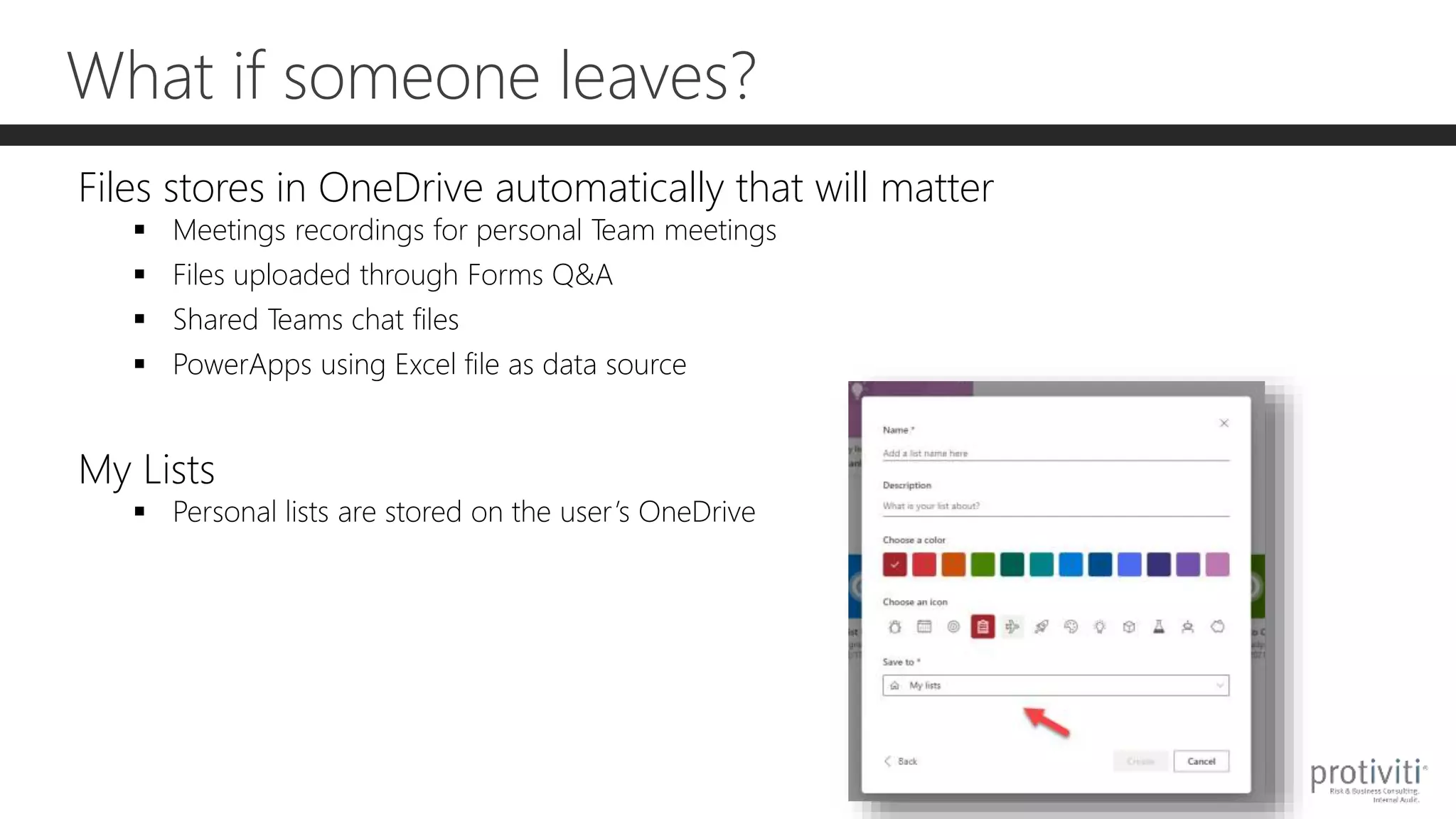
Files stores in OneDrive automatically that will matter
 Meetings recordings for personal Team meetings
 Files uploaded through Forms Q&A
 Shared Teams chat files
 PowerApps using Excel file as data source
My Lists
 Personal lists are stored on the user’s OneDrive
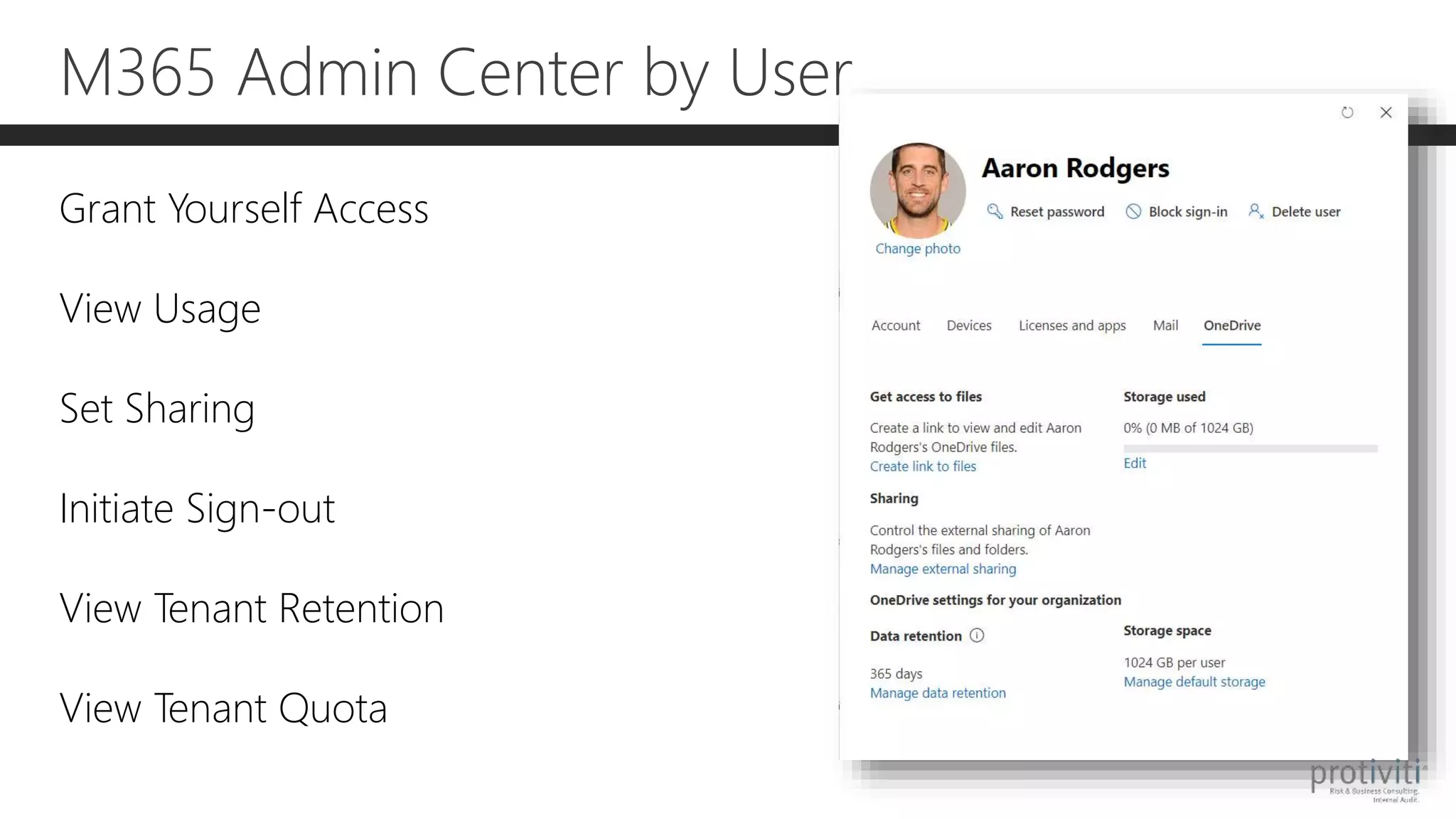
M365 Admin Center by User
Grant Yourself Access
View Usage
Set Sharing
Initiate Sign-out
View Tenant Retention
View Tenant Quota
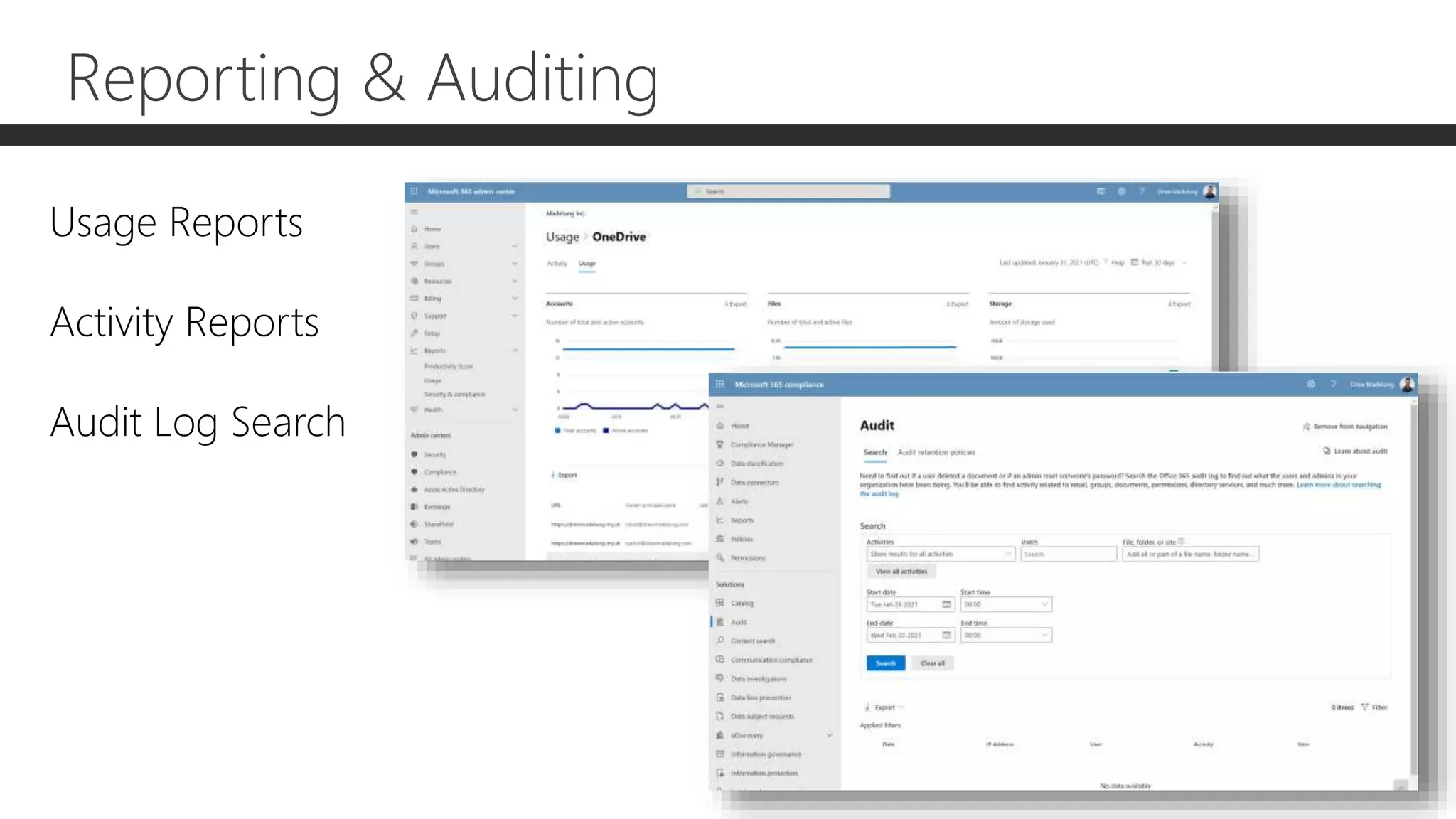
Reporting & Auditing
Usage Reports
Activity Reports
Audit Log Search
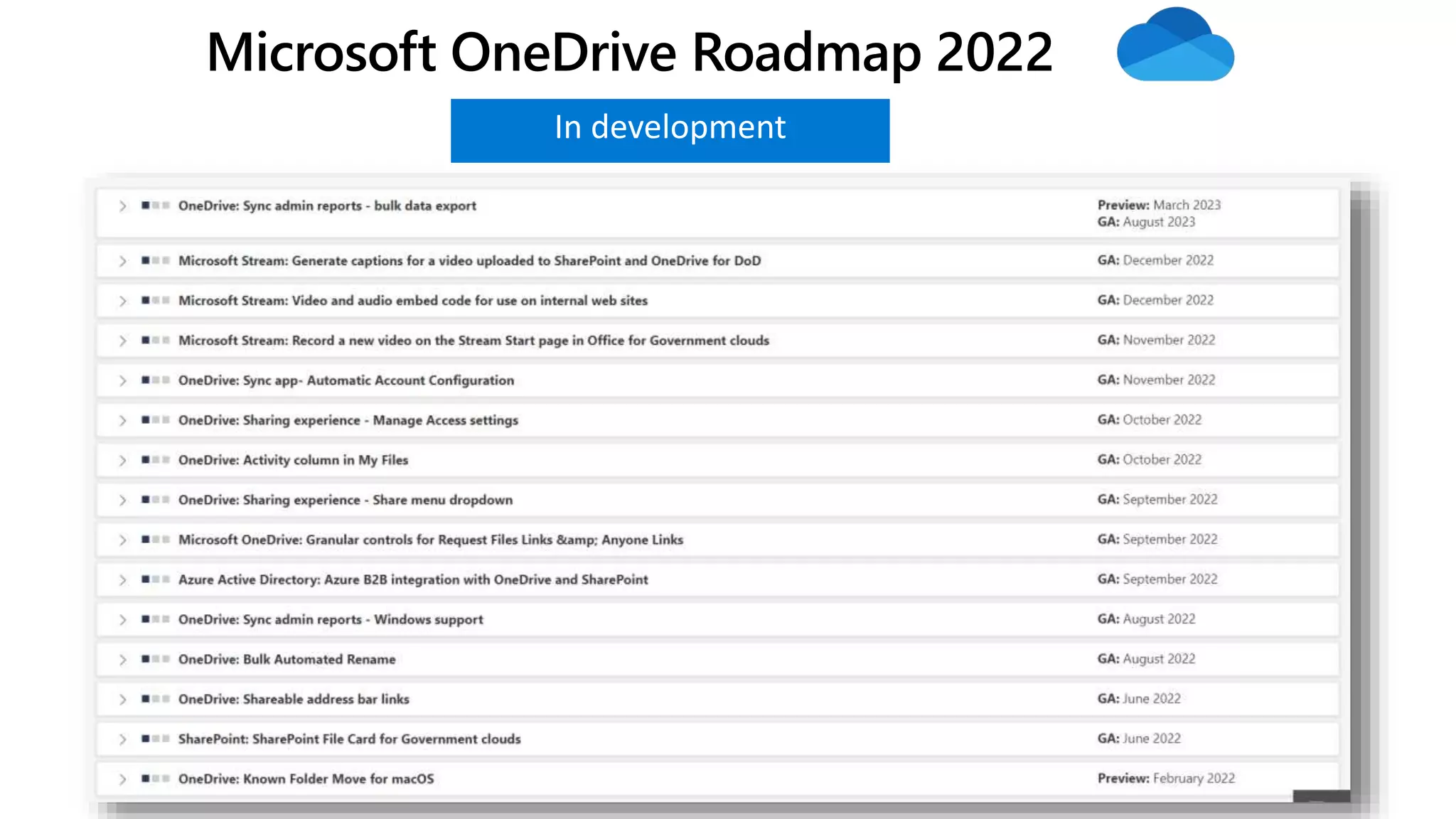
What’s Coming
In development
Microsoft OneDrive Roadmap 2022
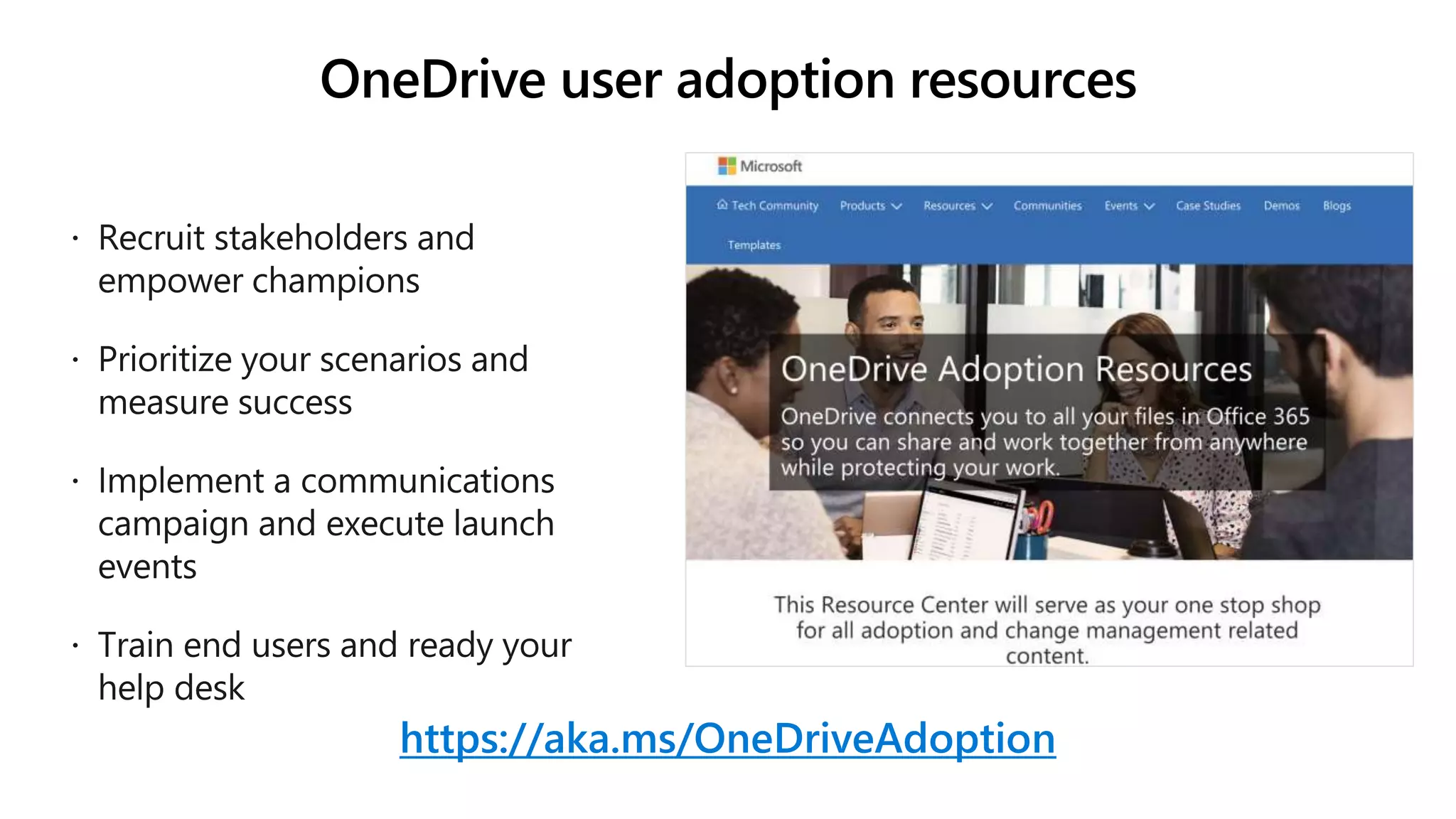
OneDrive user adoption resources
https://aka.ms/OneDriveAdoption
Questions?
Email: drew.madelung@protiviti.com
Twitter: @dmadelung
Website: drewmadelung.com
Slides: http://bit.ly/DrewSlides
What’s new with
OneDrive
365EduCon Chicago 2022
#365EduCon

What's New with OneDrive

  • 1.
    What’s New with OneDrive SharePointFest Chicago 2021 #SPFestChi
  • 2.
    Drew Madelung Email :drew.madelung@protiviti.com Twitter : @dmadelung Website: drewmadelung.com Associate Director – M365 Cloud Applications
  • 3.
    OneDrive intro What’s therenow What’s new OneDrive tidbits What’s new with OneDrive 365EduCon Chicago 2022 #365EducCon
  • 4.
    Microsoft OneDrive Powering thecollaborative files experience across Microsoft 365
  • 5.
    Powering your individualfiles work Maintain your local files workflow while adding cloud collaboration and security Files at your fingertips All your files, from Office docs to photos, are always on your OneDrive—even those shared by others Find the files that matter most Unified search in OneDrive finds files across Microsoft 365 to get you back to work fast Store files as you create them OneDrive and Microsoft 365 go hand in hand, so you can create and access your docs from whatever app you’re in Take your desktop to the cloud The OneDrive cloud experience is a seamless transition from managing your files locally Protect what’s private By default, your Microsoft 365 cloud files are accessible to you and you alone until you share them out
  • 6.
    Share and accessfiles from any app to collaborate on them with anyone Share your way Wherever you’re working in Microsoft 365, secure sharing is right there in the app Give the right access Whether in Teams, Outlook, or anywhere in between, file permissions let you set different access rights for individuals and teams Collaborate in your docs OneDrive enables the tools, like @mentions and coauthoring, for working with your team in Office files Request and approve files Team projects require the right files are done right—and OneDrive with Microsoft 365 helps you do both See what files are trending Your OneDrive tracks popular Microsoft 365 files across the org that might affect your work Powering your team files collaboration
  • 7.
    Microsoft OneDrive Powering thecollaborative files experience across Microsoft 365 Individual work Team collaboration
  • 8.
    Access, capture, andbackup all files and photos from any device Sync all your files (OneDrive, Microsoft Teams, SharePoint) across PC and Mac Save disk space with Files On-Demand for Windows 10 and Mac Work while on the go with mobile apps on iOS and Android Upload large file sizes up to 250 GB with differential sync Full fidelity on web and desktop with 320+ rich previewers and version history Scan content and annotate PDFs in OneDrive for iOS and Android Save your photos with automatic camera upload on iOS and Android Back up important files with Known Folder Move (Windows) Recover from malicious attacks and accidental deletes with Files Restore
  • 9.
    Add shared foldersin your OneDrive Get back to recent, pinned and shared files View trending files with Popular around me See file insights and summaries with intelligent file cards Request files from internal, external stakeholders via upload-only link Discover images with automatic tagging & indexing Manage document reviews with Power Automate Explore content with Microsoft 365 Search Organize and find files that matter most across the org
  • 10.
    Share safely insideand outside your organization Apply access controls and expiration dates to secure shared content Limit download and set passwords to assure access Coauthor in real-time with Office integration across web, mobile and desktop Stay up-to-date with @mentions, comments, and notifications Manage access and sharing permissions Generate external sharing reports Share and work together with anyone in real time
  • 11.
    Keep files compliant,secured, and protected Security Compliance Governance Put content in its (right) place Multi-Geo and Information Barriers keep files are in the right region and with the right users Stay in control Services like Customer Lockbox and Customer Key ensure you’re always in control of your data Meet international standards OneDrive adheres to a variety of regulatory standards, like ISO 27001, FedRAMP, and GDPR Enhance user experiences Audit logs and sharing reports surface usage patterns so you can accommodate work styles Expedite discovery Built-in eDiscovery helps you identify, preserve, and review content in case of litigation Keep files “on file” Retention policies and labels streamline the process for maintaining content long term Collaborate securely Secure, consistent sharing lets you give the right access to the right people as you work Prevent accidental leaks DLP and Sensitivity Labels empower both admins and users to protect files Recover from ransomware Windows Defender detects ransomware and Files Restore helps you recover whatever is lost Microsoft 365 admin center | manage all your OneDrive security, compliance, and governance in one place
  • 12.
    Microsoft 365 Teams Intelligent contentservices Intelligent file experiences
  • 13.
    Microsoft 365 Teams Intelligent contentservices Intelligent file experiences
  • 14.
    Microsoft 365 Teams Intelligent contentservices Intelligent file experiences
  • 15.
    Microsoft 365 Teams Intelligent contentservices Intelligent file experiences
  • 16.
    Microsoft 365 Teams Intelligent contentservices Intelligent file experiences
  • 17.
    Microsoft 365 Anywhere accessto all your files The hub for teamwork The intelligent intranet Intelligent content services Intelligent file experiences Teams
  • 18.
    OneDrive deployment quickreference https://docs.microsoft.com/OneDrive
  • 19.
    OneDrive technology Built ontop of SharePoint Evolution of “My Sites” from SharePoint on- premises Administration tightly coupled between SharePoint & OneDrive Each user’s OneDrive is a SharePoint Site Collection OneDrive does not count against SharePoint Online tenant storage usage Created under the /personal managed path when a user first accesses
  • 20.
  • 21.
  • 22.
  • 23.
    Sync Manage MS Listsync • (DisableNucleusSync) • Prevent Lists sync from running on the device • (BlockExternalListSync) • Prevent users from syncing lists shared from other organizations • (DisableNucleusSilentConfig) • Prevent users from getting silently signed in to Lists sync with their Windows credentials
  • 24.
    Sync Sync admin reports •Windows & macOS! • New Issues tab • Adding filtering • New detailed reports by user
  • 25.
    Sync Sync app forApple silicon
  • 26.
  • 27.
    Sync Sync app onARM for insiders
  • 28.
  • 29.
  • 30.
  • 31.
    OneDrive Files view inTeams powered by OneDrive
  • 32.
  • 33.
    OneDrive Easier access toTeams standard and private files
  • 34.
  • 35.
    OneDrive Teams meeting recordings savedto OneDrive (& SharePoint) • For non-Channel meetings, the recording is stored in a folder named Recordings that's at the top level of the OneDrive for Business that belongs to the person who started the meeting recording. • Example: recorder's OneDrive for Business/Recordings • If user doesn’t have a OneDrive, stored in temporary storage location for 21 days
  • 36.
    OneDrive Delete large folders(up to 10,000 items) Comment on video/audio files Captions for videos uploaded
  • 37.
  • 38.
  • 39.
    Web Pin important filesto Quick Access
  • 40.
    Web View files from“Your Teams”
  • 41.
  • 42.
  • 43.
    Lifecycle of managingOneDrive for Business Surveys Communities Tips/Tricks Focus Groups Content Analysis Communication Plan Deployment Plan Migration Strategy Security Configuration Device Strategy Lifecycle Plan Pilot/Phased Sync Rollout Config Rollout Comms/Training Migration Testing Content Pack UserVoice What’s New Service Tickets
  • 44.
  • 45.
  • 46.
    What if someoneleaves? Access  Default sets ownership to manager declared in user profile  Follows access delegation set in SP Admin Center Cleanup  If user profile manually deleted the site won’t be deleted  Email sent on initial assignment and 7 days prior to retention  If site is on eDiscovery hold the site won’t be deleted  Deletion of user account in Azure AD is only thing to trigger
  • 47.
    What if someoneleaves? Files stores in OneDrive automatically that will matter  Meetings recordings for personal Team meetings  Files uploaded through Forms Q&A  Shared Teams chat files  PowerApps using Excel file as data source My Lists  Personal lists are stored on the user’s OneDrive
  • 48.
    M365 Admin Centerby User Grant Yourself Access View Usage Set Sharing Initiate Sign-out View Tenant Retention View Tenant Quota
  • 49.
    Reporting & Auditing UsageReports Activity Reports Audit Log Search
  • 50.
  • 51.
  • 52.
    OneDrive user adoptionresources https://aka.ms/OneDriveAdoption
  • 55.
    Questions? Email: drew.madelung@protiviti.com Twitter: @dmadelung Website:drewmadelung.com Slides: http://bit.ly/DrewSlides
  • 56.
    What’s new with OneDrive 365EduConChicago 2022 #365EduCon