Internal
MICROSOFT LOOP
Create, Share and Collaborate
Presented By : RANJINI SARKAR
Internal
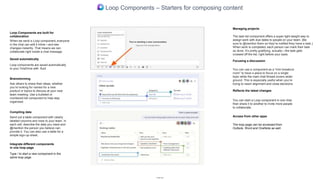
Loop Components – Starters for composing content
Loop Components are built for
collaboration
Saved automatically
Loop components are saved automatically
to your OneDrive with .fluid
Brainstorming
Ask others to share their ideas, whether
you’re looking for names for a new
product or topics to discuss at your next
team meeting. Use a bulleted or
numbered list component to help stay
organized.
Compiling data
Send out a table component with clearly
labeled columns and rows to your team. In
each cell, describe the data you need and
@mention the person you believe can
provide it. You can also use a table for a
simple sign-up sheet.
Integrate different components
in one loop page
Type / to start a new component in the
same loop page
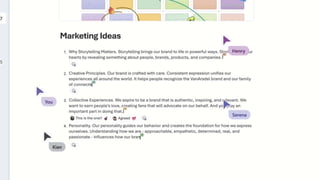
When we send a Loop component, everyone
in the chat can edit it inline—and see
changes instantly. That means we can
collaborate right inside a chat message.
Managing projects
You can use a component as a “mini breakout
room” to have a place to focus on a single
topic while the main chat thread covers wider
ground. This is especially useful when you’re
trying to reach alignment and close decisions
You can start a Loop component in one chat,
then share it to another to invite more people
to collaborate.
Access from other apps
The loop page can be accessed from
Outlook, Word and OneNote as well
The task list component offers a super light-weight way to
assign work with due dates to people on your team. (Be
sure to @mention them so they’re notified they have a task.)
When work is completed, each person can mark their task
as done. It’s pretty gratifying, actually—the task gets
crossed off the list, right before your eyes.
Focusing a discussion
Reflects the latest changes
Internal
Internal
Internal
THANK YOU

MICROSOFT_LOOP.pptx

  • 1.
    Internal MICROSOFT LOOP Create, Shareand Collaborate Presented By : RANJINI SARKAR
  • 2.
    Internal Loop Components –Starters for composing content Loop Components are built for collaboration Saved automatically Loop components are saved automatically to your OneDrive with .fluid Brainstorming Ask others to share their ideas, whether you’re looking for names for a new product or topics to discuss at your next team meeting. Use a bulleted or numbered list component to help stay organized. Compiling data Send out a table component with clearly labeled columns and rows to your team. In each cell, describe the data you need and @mention the person you believe can provide it. You can also use a table for a simple sign-up sheet. Integrate different components in one loop page Type / to start a new component in the same loop page When we send a Loop component, everyone in the chat can edit it inline—and see changes instantly. That means we can collaborate right inside a chat message. Managing projects You can use a component as a “mini breakout room” to have a place to focus on a single topic while the main chat thread covers wider ground. This is especially useful when you’re trying to reach alignment and close decisions You can start a Loop component in one chat, then share it to another to invite more people to collaborate. Access from other apps The loop page can be accessed from Outlook, Word and OneNote as well The task list component offers a super light-weight way to assign work with due dates to people on your team. (Be sure to @mention them so they’re notified they have a task.) When work is completed, each person can mark their task as done. It’s pretty gratifying, actually—the task gets crossed off the list, right before your eyes. Focusing a discussion Reflects the latest changes
  • 3.
  • 4.
  • 5.