Week 2 HTML/XHTML HTML/XHTML meta tags  Create a Web site with lists, hyperlinks, images, and tables
HTML Hyper Text Markup Language Markup language for Web page design File name extension: .html, .htm With tags surrounded by angle brackets <> Developed and maintained by World Wide Web Consortium (W3C) Further extend to xhtml transitional 1.0 HTML 4.01 is the most recent finished version (1999) HTML 5 is the upcoming version Adapted from  http://www.w3schools.com/html/html_intro.asp
HTML tags keywords surrounded by angle brackets like <html></html> come in pairs like <b> and </b> The first tag in a pair is the  start tag , the second tag is the  end tag  Or  opening tags  and  closing tags Adapted from  http://www.w3schools.com/html/html_intro.asp
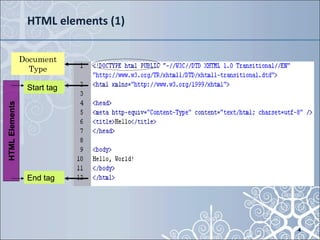
HTML elements (1) Document Type HTML Elements Start tag End tag End tag Start tag Document Type HTML Elements End tag Start tag Document Type HTML Elements End tag Start tag
XHTML EXtensible HyperText Markup Language a combination of HTML and XML (EXtensible Markup Language) consists of all the elements in HTML 4.01, combined with the strict syntax of XML almost identical to HTML 4.01  a stricter and cleaner version of HTML  is W3C recommended From http://www.w3schools.com/xhtml/xhtml_intro.asp
HTML/XHTML differences (1) XHTML elements must be  properly nested   <b><i> example </i></b> XHTML elements must always be  closed   XHTML elements must be in  lowercase   XHTML documents must have  one root element An XHTML document consists of three main parts: the DOCTYPE declaration  the <head> section  the <body> section Adapted from http://www.w3schools.com/html/xhtml_intro.asp
HTML/XHTML <meta> tag provides metadata about the HTML document not to be displayed on the page, but will be machine parsable typically used to specify page description, keywords, author of the document, last modified, and other metadata goes inside the head element can be used by browsers, search engines (keywords), or other web services  supported in all major browsers http://www.w3schools.com/tags/tag_meta.asp
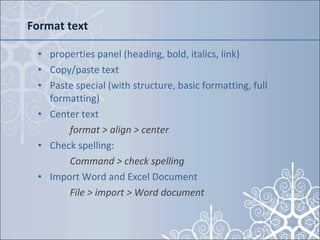
Format text properties panel (heading, bold, italics, link)  Copy/paste text Paste special (with structure, basic formatting, full formatting) Center text  format > align > center Check spelling:  Command > check spelling Import Word and Excel Document File > import > Word document
Make a List Properties Panel > list icon
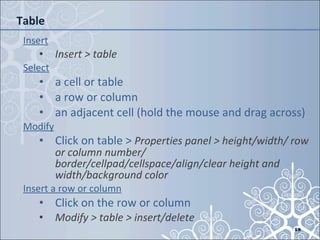
Table Insert Insert > table Select   a cell or table a row or column an adjacent cell (hold the mouse and drag across) Modify Click on table >  Properties panel > height/width/ row or column number/ border/cellpad/cellspace/align/clear height and width/background color Insert a row or column Click on the row or column Modify > table > insert/delete
Table (2) Merge/split cells Click on the cell(s) Properties panel  ][  Sort table Select table >  command > sort table Import data from Excel File > import > import Tabular data (Excel file has to be saved as Text Tab delimited) Export data to Excel Select table > File > Export > table (delimiter: comma line breaks: windows)
Add links Insert > common > hyperlink Text: text appears on the page Link: address Target: the new page properties (_blank – opens in a new window), otherwise, do not choose Access key: no Title: (optional) Properties Panel > Link window
Links, links - 2 types of links Absolute link – full url (for outside your site) Can be found anywhere with domain names Starts with http:// For example:  <a href=&quot;http://gslis720.commons.gc.cuny.edu&quot;>gslis720 class blog</a> Relative link (from current page, within your site) test.html  (on the same level)   for example: <a href=&quot;page2.html&quot;>Go to page 2</a>  ../test.html  (up one level) gslis751/test.html  (down one level)
Create Email Links Highlight the word Click  Insert Panel > Email Link enter the email address or Property Panel > link window > type in  mailto: email@yahoo.com
Images (1) A few things to consider: Image resolution (resize the image before insert into the Web page) Image formats GIF (Graphics Interchange Format) contains max 256 shades JPEG (Joint Photographic Experts Group), contains millions of colors, but blotchy PNG (Portable Network Graphics). PNG 32 offers 256 levels of transparency (not shown in IE 6) PSD – generated by Photoshop. Cannot be inserted as it is. It has to be saved as the above 3 formats before inserted in Dreamweaver
Images -  Which format? what??? If logo, choose .gif If photo, choose .jpeg If transparency, choose .png (32)
Insert an image Insert > image  Alternate Text: (enter a name for the image) Long description: (may refer to another Web site, but not necessary Note: Make sure to move the image to your designated folder first, and then insert; The image should be in your site’s root directory; if not, DW will ask you if you would like to copy it to the root directory, say “yes”.
Insert a rollover image  Insert > Image Objects > Rollover Image Modify an image Clink on the image > Properties Panel >

Week 2

  • 1.
    Week 2 HTML/XHTMLHTML/XHTML meta tags Create a Web site with lists, hyperlinks, images, and tables
  • 2.
    HTML Hyper TextMarkup Language Markup language for Web page design File name extension: .html, .htm With tags surrounded by angle brackets <> Developed and maintained by World Wide Web Consortium (W3C) Further extend to xhtml transitional 1.0 HTML 4.01 is the most recent finished version (1999) HTML 5 is the upcoming version Adapted from http://www.w3schools.com/html/html_intro.asp
  • 3.
    HTML tags keywordssurrounded by angle brackets like <html></html> come in pairs like <b> and </b> The first tag in a pair is the start tag , the second tag is the end tag Or opening tags and closing tags Adapted from http://www.w3schools.com/html/html_intro.asp
  • 4.
    HTML elements (1)Document Type HTML Elements Start tag End tag End tag Start tag Document Type HTML Elements End tag Start tag Document Type HTML Elements End tag Start tag
  • 5.
    XHTML EXtensible HyperTextMarkup Language a combination of HTML and XML (EXtensible Markup Language) consists of all the elements in HTML 4.01, combined with the strict syntax of XML almost identical to HTML 4.01 a stricter and cleaner version of HTML is W3C recommended From http://www.w3schools.com/xhtml/xhtml_intro.asp
  • 6.
    HTML/XHTML differences (1)XHTML elements must be properly nested <b><i> example </i></b> XHTML elements must always be closed XHTML elements must be in lowercase XHTML documents must have one root element An XHTML document consists of three main parts: the DOCTYPE declaration the <head> section the <body> section Adapted from http://www.w3schools.com/html/xhtml_intro.asp
  • 7.
    HTML/XHTML <meta> tagprovides metadata about the HTML document not to be displayed on the page, but will be machine parsable typically used to specify page description, keywords, author of the document, last modified, and other metadata goes inside the head element can be used by browsers, search engines (keywords), or other web services supported in all major browsers http://www.w3schools.com/tags/tag_meta.asp
  • 8.
    Format text propertiespanel (heading, bold, italics, link) Copy/paste text Paste special (with structure, basic formatting, full formatting) Center text format > align > center Check spelling: Command > check spelling Import Word and Excel Document File > import > Word document
  • 9.
    Make a ListProperties Panel > list icon
  • 10.
    Table Insert Insert> table Select a cell or table a row or column an adjacent cell (hold the mouse and drag across) Modify Click on table > Properties panel > height/width/ row or column number/ border/cellpad/cellspace/align/clear height and width/background color Insert a row or column Click on the row or column Modify > table > insert/delete
  • 11.
    Table (2) Merge/splitcells Click on the cell(s) Properties panel ][ Sort table Select table > command > sort table Import data from Excel File > import > import Tabular data (Excel file has to be saved as Text Tab delimited) Export data to Excel Select table > File > Export > table (delimiter: comma line breaks: windows)
  • 12.
    Add links Insert> common > hyperlink Text: text appears on the page Link: address Target: the new page properties (_blank – opens in a new window), otherwise, do not choose Access key: no Title: (optional) Properties Panel > Link window
  • 13.
    Links, links -2 types of links Absolute link – full url (for outside your site) Can be found anywhere with domain names Starts with http:// For example: <a href=&quot;http://gslis720.commons.gc.cuny.edu&quot;>gslis720 class blog</a> Relative link (from current page, within your site) test.html (on the same level) for example: <a href=&quot;page2.html&quot;>Go to page 2</a> ../test.html (up one level) gslis751/test.html (down one level)
  • 14.
    Create Email LinksHighlight the word Click Insert Panel > Email Link enter the email address or Property Panel > link window > type in mailto: email@yahoo.com
  • 15.
    Images (1) Afew things to consider: Image resolution (resize the image before insert into the Web page) Image formats GIF (Graphics Interchange Format) contains max 256 shades JPEG (Joint Photographic Experts Group), contains millions of colors, but blotchy PNG (Portable Network Graphics). PNG 32 offers 256 levels of transparency (not shown in IE 6) PSD – generated by Photoshop. Cannot be inserted as it is. It has to be saved as the above 3 formats before inserted in Dreamweaver
  • 16.
    Images - Which format? what??? If logo, choose .gif If photo, choose .jpeg If transparency, choose .png (32)
  • 17.
    Insert an imageInsert > image Alternate Text: (enter a name for the image) Long description: (may refer to another Web site, but not necessary Note: Make sure to move the image to your designated folder first, and then insert; The image should be in your site’s root directory; if not, DW will ask you if you would like to copy it to the root directory, say “yes”.
  • 18.
    Insert a rolloverimage Insert > Image Objects > Rollover Image Modify an image Clink on the image > Properties Panel >