CSS Layout, Positioning & HTML Forms
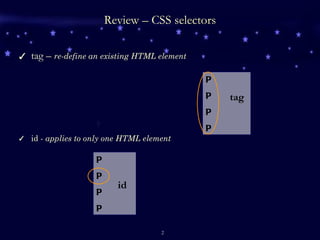
Review – CSS selectors tag –  re-define an existing HTML element  id -  applies to only one HTML element P P P P tag P P P P id
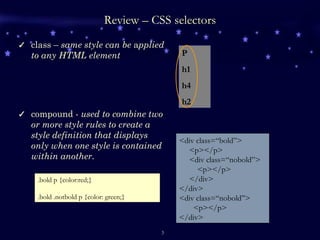
Review – CSS selectors class –  same style can be  a pplied to any HTML element compound -  used to combine two or more style rules to create a style definition that displays only when one style is contained within another.  <div class=“bold”> <p></p> <div class=“nobold”> <p></p> </div> </div> <div class=“nobold”> <p></p> </div> .bold p {color:red;} .bold .notbold p {color: green;} P h1 h4 h2
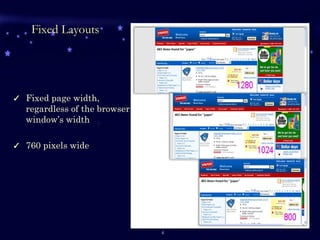
Fixed Layouts Fixed page width, regardless of the browser window’s width 760 pixels wide
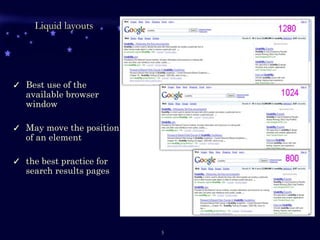
Liquid layouts Best use of the available browser window May move the position of an element the best practice for search results pages
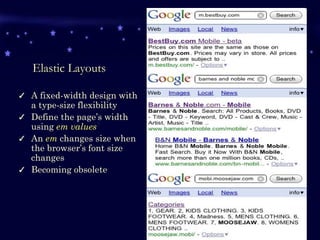
Elastic Layouts A fixed-width design with a type-size flexibility Define the page’s width using  em values An  em  changes size when the browser’s font size changes Becoming obsolete
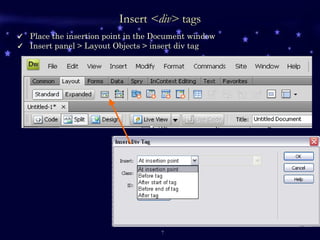
Insert  <div>  tags Place the insertion point in the Document window  Insert panel > Layout Objects > insert div tag
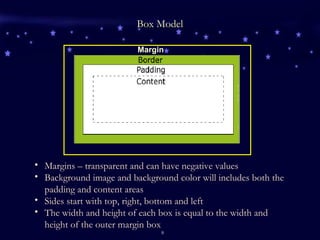
Box Model Margin Margins – transparent and  can have negative values Background image and background color will includes both the padding and content areas Sides start with top, right, bottom and left The width and height of each box is equal to the width and height of the outer margin box
Box Types basic types of boxes:   Block  boxes Generated by elements such as   p ,  div , or  table Inline  boxes Generated by  b ,  I , or  span  tags or actual content like text and images
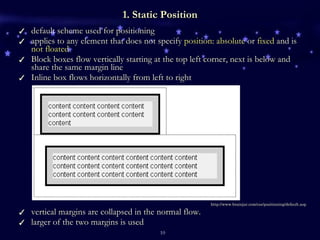
1. Static Position default scheme used for positioning  applies to any element that does not specify  position: absolute  or  fixed  and is  not floated Block boxes flow vertically starting at the top left corner, next is below and share the same margin line Inline box flows horizontally from left to right http://www.brainjar.com/css/positioning/default.asp vertical margins are collapsed in the normal flow.  larger of the two margins is used
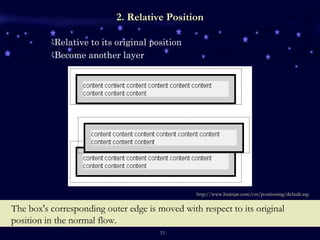
2. Relative Position The box's corresponding outer edge is moved with respect to its original position in the normal flow. http://www.brainjar.com/css/positioning/default.asp Relative to its original position Become another layer
3 . Absolute Position An absolutely positioned element is measured by its nearest element outside, which has a position of  absolute ,  relative  or  fixed . If there is no such ancestor element, the initial containing block (the browser window) is used.  AP  div  can be defined anywhere in HTML code, it will show up according to the position defined in the finished design.
4. Fixed Position It is a special case of absolute positioning; For fixed elements, the containing block is always taken to be the viewpoint of the browser window; A fixed element does not move when a web page is scrolled as all other elements do.
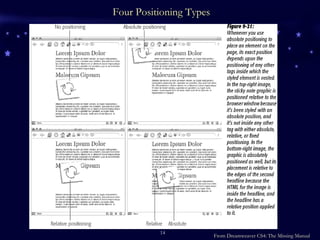
Four Positioning Types From Dreamweaver CS4: The Missing Manual
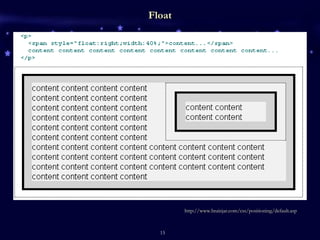
Float http://www.brainjar.com/css/positioning/default.asp
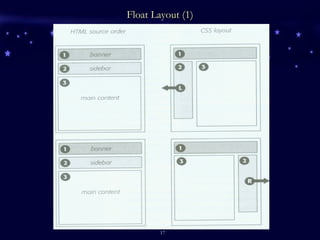
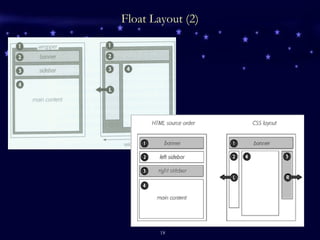
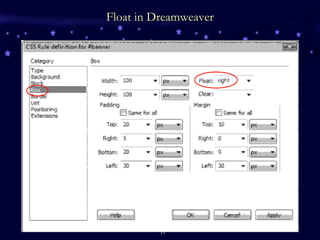
How to float left or right? For an image, click on the  image For a block of text, click on the  <div>….</div> Property Panel> Align: right/left or CSS Rule Definition window opens up > Category: box > float: right/left > apply > OK
Float Layout (1)
Float Layout (2)
Float in Dreamweaver
HTML Forms
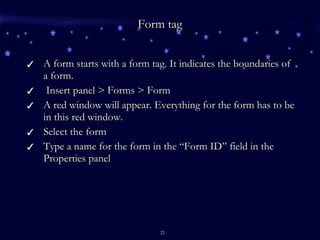
Form tag A form starts with a form tag. It indicates the boundaries of a form. Insert panel > Forms > Form  A red window will appear. Everything for the form has to be in this red window. Select the form Type a name for the form in the “Form ID” field in the Properties panel
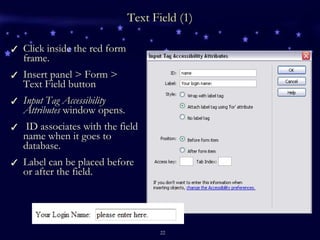
Text Field (1) Click inside the red form frame. Insert panel > Form > Text Field button Input Tag Accessibility Attributes  window opens. ID associates with the field name when it goes to database. Label can be placed before or after the field.
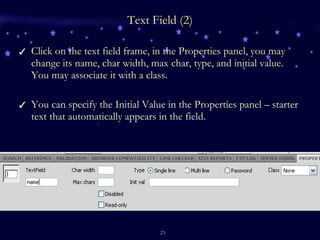
Text Field (2) Click on the text field frame, in the Properties panel, you may change its name, char width, max char, type, and initial value. You may associate it with a class. You can specify the Initial Value in the Properties panel – starter text that automatically appears in the field.
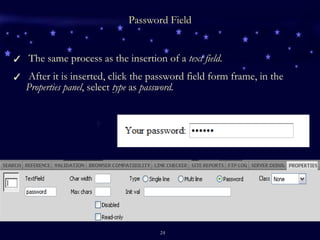
Password Field The same process as the insertion of a  text field . After it is inserted, click the password field form frame, in the  Properties panel , select  type  as  password.
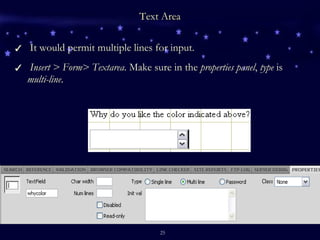
Text Area It would permit multiple lines for input. Insert > Form> Textarea . Make sure in the  properties panel ,  type  is  multi-line .
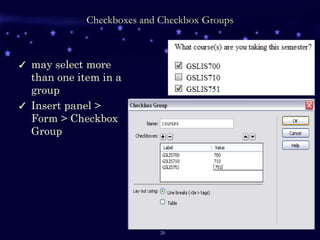
Checkboxes and Checkbox Groups may select more than one item in a group Insert panel > Form > Checkbox Group
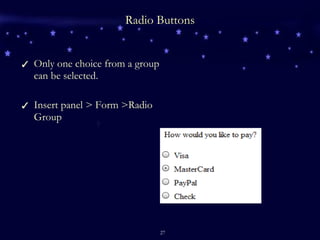
Radio Buttons Only one choice from a group can be selected. Insert panel > Form >Radio Group
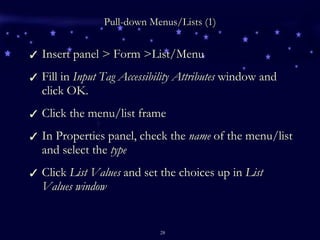
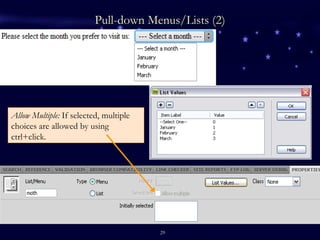
Pull-down Menus/Lists (1) Insert panel > Form >List/Menu Fill in  Input Tag Accessibility Attributes  window and click OK. Click the menu/list frame In Properties panel, check the  name  of the menu/list and select the  type Click  List Values  and set the choices up in  List Values window
Pull-down Menus/Lists (2) Allow Multiple:  If selected, multiple choices are allowed by using ctrl+click.
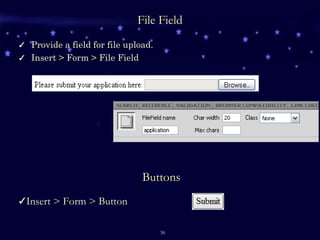
File Field Provide a field for file upload. Insert > Form > File Field Insert > Form > Button Buttons
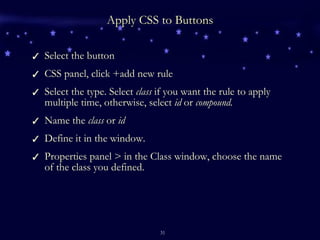
Apply CSS to Buttons Select the button CSS panel, click +add new rule Select the type. Select  class  if you want the rule to apply multiple time, otherwise, select  id  or  compound. Name the  class  or  id Define it in the window. Properties panel > in the Class window, choose the name of the class you defined.
How to install the .php script? Go to  http://formtoemail.com Choose the free version Download the .zip file Open the .zip file with WinRAR (evaluation copy) Double click the unzipped file and it will be open in a viewer. Open Dreamweaver > file > new > blank page > php Copy and paste the code in the viewer to the new php code view. Find Line 102 and enter your email address. Save this file with extension .php in the same directory as your .html file which contains the form you created. Upload this .php into the same directory as your form .html file

Week5 ap forms

  • 1.
  • 2.
    Review – CSSselectors tag – re-define an existing HTML element id - applies to only one HTML element P P P P tag P P P P id
  • 3.
    Review – CSSselectors class – same style can be a pplied to any HTML element compound - used to combine two or more style rules to create a style definition that displays only when one style is contained within another. <div class=“bold”> <p></p> <div class=“nobold”> <p></p> </div> </div> <div class=“nobold”> <p></p> </div> .bold p {color:red;} .bold .notbold p {color: green;} P h1 h4 h2
  • 4.
    Fixed Layouts Fixedpage width, regardless of the browser window’s width 760 pixels wide
  • 5.
    Liquid layouts Bestuse of the available browser window May move the position of an element the best practice for search results pages
  • 6.
    Elastic Layouts Afixed-width design with a type-size flexibility Define the page’s width using em values An em changes size when the browser’s font size changes Becoming obsolete
  • 7.
    Insert <div> tags Place the insertion point in the Document window Insert panel > Layout Objects > insert div tag
  • 8.
    Box Model MarginMargins – transparent and can have negative values Background image and background color will includes both the padding and content areas Sides start with top, right, bottom and left The width and height of each box is equal to the width and height of the outer margin box
  • 9.
    Box Types basictypes of boxes: Block boxes Generated by elements such as p , div , or table Inline boxes Generated by b , I , or span tags or actual content like text and images
  • 10.
    1. Static Positiondefault scheme used for positioning applies to any element that does not specify position: absolute or fixed and is not floated Block boxes flow vertically starting at the top left corner, next is below and share the same margin line Inline box flows horizontally from left to right http://www.brainjar.com/css/positioning/default.asp vertical margins are collapsed in the normal flow. larger of the two margins is used
  • 11.
    2. Relative PositionThe box's corresponding outer edge is moved with respect to its original position in the normal flow. http://www.brainjar.com/css/positioning/default.asp Relative to its original position Become another layer
  • 12.
    3 . AbsolutePosition An absolutely positioned element is measured by its nearest element outside, which has a position of absolute , relative or fixed . If there is no such ancestor element, the initial containing block (the browser window) is used. AP div can be defined anywhere in HTML code, it will show up according to the position defined in the finished design.
  • 13.
    4. Fixed PositionIt is a special case of absolute positioning; For fixed elements, the containing block is always taken to be the viewpoint of the browser window; A fixed element does not move when a web page is scrolled as all other elements do.
  • 14.
    Four Positioning TypesFrom Dreamweaver CS4: The Missing Manual
  • 15.
  • 16.
    How to floatleft or right? For an image, click on the image For a block of text, click on the <div>….</div> Property Panel> Align: right/left or CSS Rule Definition window opens up > Category: box > float: right/left > apply > OK
  • 17.
  • 18.
  • 19.
  • 20.
  • 21.
    Form tag Aform starts with a form tag. It indicates the boundaries of a form. Insert panel > Forms > Form A red window will appear. Everything for the form has to be in this red window. Select the form Type a name for the form in the “Form ID” field in the Properties panel
  • 22.
    Text Field (1)Click inside the red form frame. Insert panel > Form > Text Field button Input Tag Accessibility Attributes window opens. ID associates with the field name when it goes to database. Label can be placed before or after the field.
  • 23.
    Text Field (2)Click on the text field frame, in the Properties panel, you may change its name, char width, max char, type, and initial value. You may associate it with a class. You can specify the Initial Value in the Properties panel – starter text that automatically appears in the field.
  • 24.
    Password Field Thesame process as the insertion of a text field . After it is inserted, click the password field form frame, in the Properties panel , select type as password.
  • 25.
    Text Area Itwould permit multiple lines for input. Insert > Form> Textarea . Make sure in the properties panel , type is multi-line .
  • 26.
    Checkboxes and CheckboxGroups may select more than one item in a group Insert panel > Form > Checkbox Group
  • 27.
    Radio Buttons Onlyone choice from a group can be selected. Insert panel > Form >Radio Group
  • 28.
    Pull-down Menus/Lists (1)Insert panel > Form >List/Menu Fill in Input Tag Accessibility Attributes window and click OK. Click the menu/list frame In Properties panel, check the name of the menu/list and select the type Click List Values and set the choices up in List Values window
  • 29.
    Pull-down Menus/Lists (2)Allow Multiple: If selected, multiple choices are allowed by using ctrl+click.
  • 30.
    File Field Providea field for file upload. Insert > Form > File Field Insert > Form > Button Buttons
  • 31.
    Apply CSS toButtons Select the button CSS panel, click +add new rule Select the type. Select class if you want the rule to apply multiple time, otherwise, select id or compound. Name the class or id Define it in the window. Properties panel > in the Class window, choose the name of the class you defined.
  • 32.
    How to installthe .php script? Go to http://formtoemail.com Choose the free version Download the .zip file Open the .zip file with WinRAR (evaluation copy) Double click the unzipped file and it will be open in a viewer. Open Dreamweaver > file > new > blank page > php Copy and paste the code in the viewer to the new php code view. Find Line 102 and enter your email address. Save this file with extension .php in the same directory as your .html file which contains the form you created. Upload this .php into the same directory as your form .html file