
Using  Macromedia Dreamweaver MX/8 Webpage Editing and Design Software Jeff Wood Computer Applications Training Specialist Colorado State University Extension
Basic Concepts
What is Dreamweaver? WYSIWYG (What You See Is What You Get) Web page editor Writes code for web pages You select images, text, colors  Dreamweaver writes underlying code Code is called HTML Dreamweaver is a good way to learn HTML (split view between WYSIWYG and HTML)
What is HTML? Hyper Text Markup Language Common language understood by all browsers Translated differently by different browsers View, Page source (Firefox) or Source (Internet Explorer) to see HTML coding Dreamweaver has code view as well
HTML tags A tag is an attribute applied to text or an image Generally in pairs, opening <B>  and closing  </B> Attribute is applied between tags  Some tags can take on more modifications <FONT FACE=”Courier” COLOR=”red” SIZE=”+2”></FONT> Font will be courier, red, 2 sizes larger than normal O’Reilly reference (Window, Reference) will tell you about any tag you highlight DW will highlight bad tags in yellow
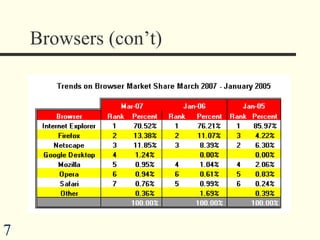
Browsers DW allows quick preview of 2 browsers with F12 and Ctrl+F12 Preview work in 2 or more browsers: IE (Internet Explorer) 7.x  a MUST IE is  71% of market* Mozilla Firefox 2.x a MUST Built by Netscape Navigator  13% of market* Other browsers Netscape Navigator (4.7 in particular)  Google Desktop Opera, Safari, Keep earlier versions of IE, Firefox  Rename the folder before upgrade *Janco Assc., March 07
Browsers (con’t)
What is a web site? Collection of files and folders on a server computer Files are written in HTML Server computer is the one people visit when they go to your site Two sites involved in building site: Local site - on your computer Remote site - on a server Your computer talks to Remote server using FTP (File Transfer Protocol) Local site a mirror image of remote site
Opening Dreamweaver  Multiple windows and panels upon start-up Not as scary as it looks Close what you don’t need Arrange it how you like it Dreamweaver will remember last placement
Three main elements: Document window What the page looks like (and/or underlying code) Insert panel above Used to insert objects and properties Property inspector below PI inspects and changes properties of selected objects  The PI is your best friend!
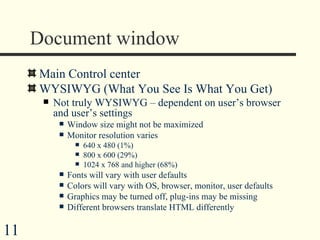
Document window Main Control center WYSIWYG (What You See Is What You Get) Not truly WYSIWYG – dependent on user’s browser and user’s settings Window size might not be maximized Monitor resolution varies 640 x 480 (1%) 800 x 600 (29%) 1024 x 768 and higher (68%) Fonts will vary with user defaults Colors will vary with OS, browser, monitor, user defaults Graphics may be turned off, plug-ins may be missing Different browsers translate HTML differently
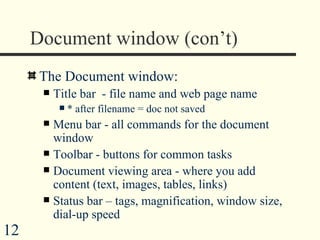
Document window (con’t)  The Document window: Title bar  - file name and web page name * after filename = doc not saved Menu bar - all commands for the document window Toolbar - buttons for common tasks Document viewing area - where you add content (text, images, tables, links) Status bar – tags, magnification, window size, dial-up speed
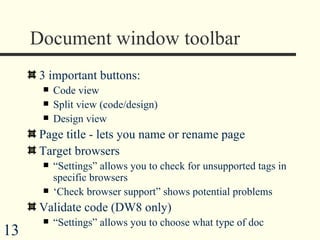
Document window toolbar 3 important buttons: Code view Split view (code/design) Design view Page title - lets you name or rename page Target browsers “ Settings” allows you to check for unsupported tags in specific browsers ‘ Check browser support” shows potential problems Validate code (DW8 only) “ Settings” allows you to choose what type of doc
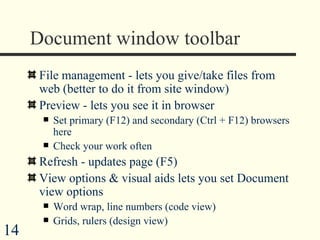
Document window toolbar File management - lets you give/take files from web (better to do it from site window) Preview - lets you see it in browser  Set primary (F12) and secondary (Ctrl + F12) browsers here Check your work often Refresh - updates page (F5)  View options & visual aids lets you set Document view options Word wrap, line numbers (code view) Grids, rulers (design view)
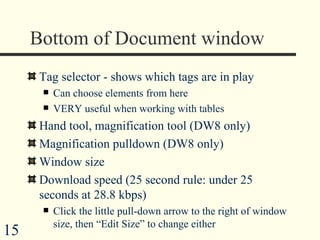
Bottom of Document window Tag selector - shows which tags are in play Can choose elements from here VERY useful when working with tables Hand tool, magnification tool (DW8 only) Magnification pulldown (DW8 only) Window size  Download speed (25 second rule: under 25 seconds at 28.8 kbps) Click the little pull-down arrow to the right of window size, then “Edit Size” to change either
Objects panel Turn on/off in window menu Use pulldown to change categories - common is most useful Common - most-used commands Forms - for creating forms Text - inserts special characters and applies headings and lists Layout – Standard tables vs. layout tables Html – horizontal rules, headings, frames, etc.
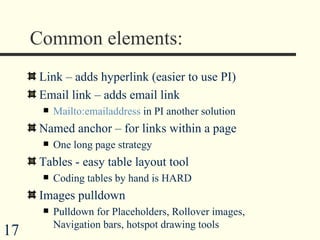
Common elements: Link – adds hyperlink (easier to use PI) Email link – adds email link Mailto:emailaddress  in PI another solution Named anchor – for links within a page One long page strategy Tables - easy table layout tool Coding tables by hand is HARD Images pulldown Pulldown for Placeholders, Rollover images, Navigation bars, hotspot drawing tools
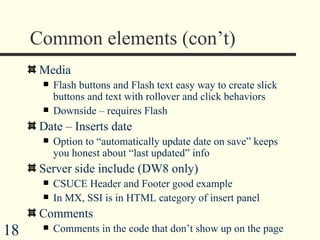
Common elements (con’t) Media Flash buttons and Flash text easy way to create slick buttons and text with rollover and click behaviors Downside – requires Flash Date – Inserts date  Option to “automatically update date on save” keeps you honest about “last updated” info Server side include (DW8 only) CSUCE Header and Footer good example In MX, SSI is in HTML category of insert panel Comments Comments in the code that don’t show up on the page
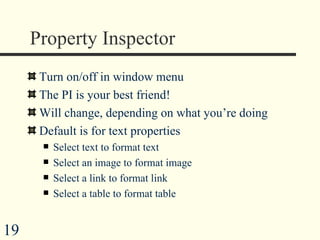
Property Inspector Turn on/off in window menu  The PI is your best friend! Will change, depending on what you’re doing Default is for text properties Select text to format text Select an image to format image Select a link to format link Select a table to format table
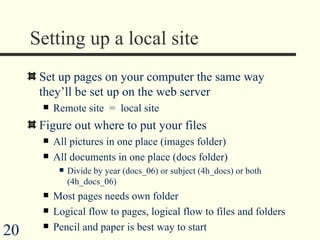
Setting up a local site Set up pages on your computer the same way they’ll be set up on the web server Remote site  =  local site Figure out where to put your files All pictures in one place (images folder) All documents in one place (docs folder) Divide by year (docs_06) or subject (4h_docs) or both (4h_docs_06) Most pages needs own folder  Logical flow to pages, logical flow to files and folders Pencil and paper is best way to start
Sample site structure Hometown Security Awareness Community Mobilization Skill Development Remember the 3 click rule:  all info within three clicks of home page Documents and links Documents and links Documents and links Eval Eval form
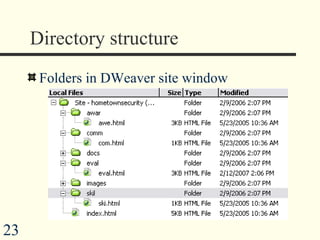
Sample directory structure Hometown Security – root folder – contains index.(s)html (home page) and ALL OTHER FOLDERS Awareness – contains awa.html Community – contains com.html Skill  – contains ski.html Docs – contains all documents Eval – contains eva.html Images – contains all .jpgs & .gifs
Directory structure  Folders in DWeaver site window
Setting local information Site menu, New Site, Advanced tab, Local info Site name (for your use only) Define root folder Root folder is the starting place EVERYTHING on your site must be inside this folder Your home page is a file in this folder (NOT in a folder inside this folder) Browse to it using folder icon (or create one)
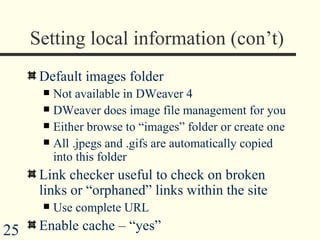
Setting local information (con’t) Default images folder Not available in DWeaver 4 DWeaver does image file management for you Either browse to “images” folder or create one All .jpegs and .gifs are automatically copied into this folder Link checker useful to check on broken links or “orphaned” links within the site Use complete URL Enable cache – “yes”
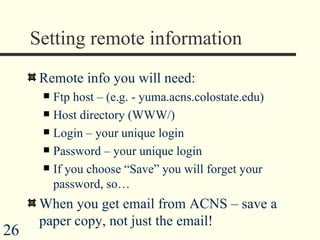
Setting remote information Remote info you will need: Ftp host – (e.g. - yuma.acns.colostate.edu) Host directory (WWW/) Login – your unique login Password – your unique login If you choose “Save” you will forget your password, so… When you get email from ACNS – save a paper copy, not just the email!
The home page Prefix: index or default Extension: htm, html Many exceptions .shtm or .shtml means interaction w/server needed .xhtml is stricter, cleaner version of html .asp, .cfm for dynamic pages File, New, Basic, then…  Save As… Index.htm
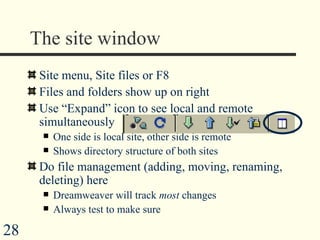
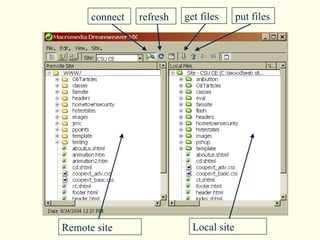
The site window Site menu, Site files or F8  Files and folders show up on right Use “Expand” icon to see local and remote simultaneously One side is local site, other side is remote Shows directory structure of both sites Do file management (adding, moving, renaming, deleting) here Dreamweaver will track  most  changes Always test to make sure
connect refresh get files put files Remote site Local site
Creating content
User defaults Unlike print media, user sets own defaults Fonts and font sizes you specify may not be used Times New Roman, 12 point is default Resolution may differ 640 x 480 (1%) 800 x 600 (29%) 1024 x 768 and higher (68%) Graphics, media may be turned off Colors vary with monitor, operating system, browser Design with these limitations in mind 800 x 600 56 kbps Common fonts (Verdana, Times New Roman) Web safe colors
Title, description, keywords Add title using doc window toolbar Add description and keywords using “Head” in Html category of Insert panel Be concise, accurate, inclusive Keep it under 50 words Use commas to separate keywords To add content after the fact, often easier to do it in the code
Text Just start typing, or cut and paste Enter = paragraph break (2 lines) Enter + shift = line break (1 line) Property inspector default is text  Drop downs to change format, fonts, sizes, colors Buttons for attributes, alignment, bulleting, indents Writing style for the web: short words, short sentences, short paragraphs
Setting Page Properties  Modify> Page properties Appearance: Set base font, size, color Background color or image For readability, light background, dark text  Background images - be careful not to overwhelm text You can use a table with solid color for text on top of mage Repeat tells DWeaver how to tile background (DW8 only) X is vertical, Y is horizontal Set margins in pixels
Setting Page Properties (con’t) Links Visited, rollover, active colors Left blank, they will take on default colors You can sample colors of graphics on page to choose colors Underline behaviors  Underline best way to imply link to end user  Headings Set size and color of different headings  Use the Headings pulldown in PI to apply
Images Images are punctuation, not content Insert, Image, or Insert Image on the objects panel Select image by browsing to it Give all images an alt tag for text-to-speech browsers or browsers with image loading turned off  DWeaver  automatically prompts you to do it Property inspector will change to allow image manipulation
Manipulating images Best done in outside image editor Photoshop is industry standard Powerful tool, fun to work with Expensive ($170 at CSU Software Cellar) Steep learning curve I have LOTS of tutorials online and via CD Adobe Elements  Basic, cheaper version of Photoshop ($79) You have some image software with your computer (MS PhotoEditor, Kodak Imaging for Windows) Digital cameras come with basic imaging software
Image size  If you have no image editing software: Adjust size using Width/Height boxes in PI or Click-and-drag sizing boxes Hold “shift” during drag to avoid stretching image Numbers in Width and Height boxes will bold to indicate a changed value  Use “Reset size” button if you don’t like what you did
Image alignment Align pulldown menu Baseline is default (aligns bottom of image with baseline of text or nearest object) Baseline = imaginary line under text or object Top, Bottom - aligns with top/bottom of nearest object Left, right - aligns with margin (and wraps text!) Middle - aligns with middle of text baseline Text top - aligns with tallest character in nearest text Absolute bottom – aligns bottom of image with lowest point in text ( j, g) Absolute middle - aligns middle of image with middle of text
Image size and alignment (con’t) Vspace, Hspace - # of pixels between object and surroundings  Alt tags - text in lieu of image - important to add  Text-only browsers, image-off options, web phones Screen tip text Border size - set number in pixels Default color is black (must change color in HTML with hex code) If it’s a link, border color is link color
Image types JPEG -  supports lots of colors, longer to download, best for complex imagery good for photos GIF -  256 colors (any 256, not predetermined) Easier to download, best for large areas of flat color Good for cartoon-ish images  PNG -  new, captures complex pictures without large file sizes, not supported by all browsers
Page loading tips for images Keep image files small Smallest physical size Lowest usable quality Use alt tags Not necessary for small details (borders, bullets, etc)  Use low source image as transitional image for large file-size images Type file name in “low src” text box (or use browse, or drag) Reuse images (only need one logo for all pages)
Links
Hyperlinks Links are paths to: Your own pages Pages on other websites Different parts of same page Email addresses Documents for download Can be text or images Linked text is usually underlined Linked images, or hotspots within images
Pathnames Relative pathnames  are for in-site links Two types Document-relative pathnames Address of page or doc within your site Path from current page Site-root-relative path names  Address of page or doc within your site Path from root directory Document-relative is safest bet
Pathnames (con’t) Two more types of paths: Absolute pathnames For pages not within your own site Full address of another website (http://www.ext.colostate.edu/)  Named anchors Links to different spot on same page Can create website of one long page - links to different spots on same page from top
Creating Text Links Highlight text  Pull up Property Inspector In link box, browse, type or paste new link Copy-and-paste from browser will insure you don’t misspell it Link box will also pull down recently used links Click somewhere outside of link box
Creating image links Buttons, arrows, logos, or pictures Select the image  Pull up Property Inspector In link box, browse, type or paste new link Link box will also pull down recently used links
Hotspots within an image For creating a link in section of image Select image Select drawing tool (rectangle, oval, irregular) in PI to draw hotspot Type in link Best for multiple links from one image Good way to design navbar Create hotspots within maps, group photos
Linking to an E-mail address Highlight text  Use email icon, or Document, Insert, Email link  Dialog box will appear Text - what site will say (highlighted text) Email - Actual email address If highlighed text is actual email address, just click OK  Default email program of user computer will be used Alternate mailbox for these responses only may be helpful mailto:email@address  in link box another option
Adding CC’s and Subject lines  Needs to be done in the code Add within quotes, no space Find “ mailto:Nancy.Banman@ColoState.edu ” For CC: Add  ?cc=jeffrey.wood@colostate.edu For subject: Add  &Subject=website Result: mailto:Nancy.Banman@ColoState.edu?cc=jeffrey.wood@colostate.edu&Subject=website
Linking to spots within same page The “One long page” strategy Table of contents or alphabet at top Links to rest of document FAQ’s are commonly done this way Alphabetical lists Top or bottom of document links also helpful Two parts: Place where you want to go (Named anchor) Link to get there
Linking to spots within same page  (con’t) Put cursor in the place on page you want to go Click Anchor icon, or Insert,  Named Anchor Name it one word, no spaces, easy to remember  Anchor icon will appear Highlight or select the linked text or image In the link box, type #, then the name of the anchor No space between # and anchor name (#top)
Linking to sections of a different page For page within website Link to Page name#anchor name (webguide.htm#bandwidth) Will jump to the page “webguide.htm” and the named anchor called “bandwidth” Page in different site Link to Web Address#anchor name ( http://www.computer.com/webguide.htm#bandwidth ) Will jump to the page “www.webguide.htm” and the named anchor called “bandwidth”
Linking to documents Adobe (.pdf) is good universal format  In wide use, Government standard Adobe Reader free and easy to download Doesn’t suggest an endorsement of a specific product (e.g. -  Word or Wordperfect) Always provide link to page to download Adobe Reader (www.adobe.com) Always provide size and type of file in text so they know what they’re downloading -  Web Account Request Form  (113 kb .pdf file)
Linking to documents (con’t) Select linking text or image Have document in folder Like images, all documents should be stored together in common folder (“docs”, “06_docs”, “4h_06_docs”) In link box, browse to document
Opening links in new windows Why? Useful for framed pages  For an external link, you might want your page to stay up Links to a document that has no return link Set the link In Property Inspector, set target to blank Top is default, which replaces the content of current page
Links you need: Email contact (preferably every page) CSU http://welcome.colostate.edu CSU CE http://www.ext.colostate.edu Disclaimer http://welcome.colostate.edu/index.asp?url=info_csu-disclaimer EOE statement http://welcome.colostate.edu/index.asp?url=info_csu-equalop Non-discrimination statement http://www.ext.colostate.edu/non-discr.html
Rollovers, Flash Objects, Navigation Bars
Image rollovers What is a rollover? Two images stacked on each other When an action (rollover, click) is performed, image changes Good for buttons – 2 different states Different color, same text and size, for each state Photoshop makes this very easy Free buttons available on web
Rollovers (con’t) Go to objects panel, choose rollover Images should be same size Second image will conform to first image size Browse to original image Browse to rollover image Add alt text Choose link Leave “preload” option checked - downloads when page downloads
Flash objects Warning:  Flash is a plug-in, not all browsers come with it Plug-in = third party add-on software Macromedia Flash is plug-in for Flash media, integrates easily with Dreamweaver  Pre-loaded on vast majority (98%) of browsers Slick and easy buttons and text Objects have pre-programmed rollover behaviors and click behaviors Saves bandwidth because files are very small
Inserting Flash text Use Media pulldown in Objects panel, select Flash Text, or Insert, Media, Flash Text Dialog box appears Choose font, font size Font doesn’t have to be loaded onto user computer (it’s a graphic, not text) B, I options (affects all text) Text alignment buttons (Left, center, right) Choose text color, rollover color, background color (may need to match page color)
Flash text (con’t) Type text into text box (check “show font” box for preview)  Browse or type address of link Leave object in current folder Exeption to the “images” folder rule Name it something memorable (NOT text1.swf)  OK, click Play in PI to watch rollover effects Be sure and click Stop when done Or, F12 to Preview
Flash Accessibility Attributes (DW8 only) For screen reader browsers Alt tag Access key That key + Ctrl will trigger the link Tab Index To relay what order the object will be selected when using the Tab button Needed only if there are several objects on page to navigate
Changes after the fact Can move or resize graphic 2-click to get dialogue box back Property inspector allows more: Background color changes Dimensions Alignment Vspace, Hspace changes
Creating Flash buttons Use Media pulldown in Objects panel, select Flash Text, or Insert, Media, Flash Text Dialog box appears  Browse through, lots to choose from Sample box previews behaviors (rollover, l-click) “ Get more styles” connects to website with more stuff
Flash buttons (con’t) Type in text in text box Choose font Font size often non-negotiable Background color - eyedropper is good option for page color match Link - browse to file or type in address Click Play button to see rollover effects Click Stop before continuing
Changes after the fact Can move or resize graphic 2-click to get text box back Property inspector allows more: Background color changes Dimensions Alignment Vspace, Hspace changes
Navigation bars What is a navigation bar? Set of buttons stacked horizontally or vertically inside a table You need the images for buttons first Many sites to choose from Search engine - “html buttons” Good for standard buttons (forward, back, home, email) Photoshop is fast and easy button-maker
Inserting a navigation bar On objects panel, click Insert Nav bar button Up to four images to assign: Up image: initial image Over image: when mouse moves over it (lit up) Down image: when button is clicked (pushed in) Over while down: when mouse is over after clicking (lit up, pushed in)
Nav bars (con’t) Type in element name (home, links, etc.) When clicked, go to… Type in URL (get spelling right!), or If in-site, browse to it and select Show “Down image” Initially checkbox For when user is already there, so you want the button down at outset Select button before checking box Asterisk will appear
Nav bars (con’t) Create horizontally or vertically using pulldown To insert more buttons on nav bar Click the “+” button  Follow same steps Change order by selecting image, using up and down arrows
Inserting MS Office documents (Word, Excel, PowerPoint) Strip them of transitions, animations, unnecessary graphics, sounds Start in native program, File, Publish to Web Choose “Files of Type” as Web Page (*.html) Publish file and folders directly into website (create “docs” folder to put it in) Another option: allow them to download it by linking to actual file (instead of web version) We did this already with .pdf Same technique with any document
Inserting MS Office documents (Word, Excel, PowerPoint) (con’t) Creates a file and a folder Point links to file; folder will take care of itself  Commands>Clean Up Word HTML Word is very bad at writing code Cleans up redundant and MS-centric code Clean Up HTML another option Simple graphics and text can be added after the fact
Creating tables Good way to structure a web page Without tables, content is generally left, center, or right aligned (not a lot of design options  Think of tables as building boxes to put content into
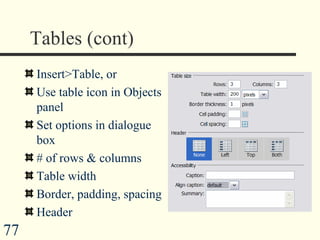
Tables (cont) Insert>Table, or Use table icon in Objects panel Set options in dialogue box # of rows & columns Table width Border, padding, spacing Header

Macromedia Dreamweaver 8 2

  • 1.
    Using MacromediaDreamweaver MX/8 Webpage Editing and Design Software Jeff Wood Computer Applications Training Specialist Colorado State University Extension
  • 2.
  • 3.
    What is Dreamweaver?WYSIWYG (What You See Is What You Get) Web page editor Writes code for web pages You select images, text, colors Dreamweaver writes underlying code Code is called HTML Dreamweaver is a good way to learn HTML (split view between WYSIWYG and HTML)
  • 4.
    What is HTML?Hyper Text Markup Language Common language understood by all browsers Translated differently by different browsers View, Page source (Firefox) or Source (Internet Explorer) to see HTML coding Dreamweaver has code view as well
  • 5.
    HTML tags Atag is an attribute applied to text or an image Generally in pairs, opening <B> and closing </B> Attribute is applied between tags Some tags can take on more modifications <FONT FACE=”Courier” COLOR=”red” SIZE=”+2”></FONT> Font will be courier, red, 2 sizes larger than normal O’Reilly reference (Window, Reference) will tell you about any tag you highlight DW will highlight bad tags in yellow
  • 6.
    Browsers DW allowsquick preview of 2 browsers with F12 and Ctrl+F12 Preview work in 2 or more browsers: IE (Internet Explorer) 7.x a MUST IE is 71% of market* Mozilla Firefox 2.x a MUST Built by Netscape Navigator 13% of market* Other browsers Netscape Navigator (4.7 in particular) Google Desktop Opera, Safari, Keep earlier versions of IE, Firefox Rename the folder before upgrade *Janco Assc., March 07
  • 7.
  • 8.
    What is aweb site? Collection of files and folders on a server computer Files are written in HTML Server computer is the one people visit when they go to your site Two sites involved in building site: Local site - on your computer Remote site - on a server Your computer talks to Remote server using FTP (File Transfer Protocol) Local site a mirror image of remote site
  • 9.
    Opening Dreamweaver Multiple windows and panels upon start-up Not as scary as it looks Close what you don’t need Arrange it how you like it Dreamweaver will remember last placement
  • 10.
    Three main elements:Document window What the page looks like (and/or underlying code) Insert panel above Used to insert objects and properties Property inspector below PI inspects and changes properties of selected objects The PI is your best friend!
  • 11.
    Document window MainControl center WYSIWYG (What You See Is What You Get) Not truly WYSIWYG – dependent on user’s browser and user’s settings Window size might not be maximized Monitor resolution varies 640 x 480 (1%) 800 x 600 (29%) 1024 x 768 and higher (68%) Fonts will vary with user defaults Colors will vary with OS, browser, monitor, user defaults Graphics may be turned off, plug-ins may be missing Different browsers translate HTML differently
  • 12.
    Document window (con’t) The Document window: Title bar - file name and web page name * after filename = doc not saved Menu bar - all commands for the document window Toolbar - buttons for common tasks Document viewing area - where you add content (text, images, tables, links) Status bar – tags, magnification, window size, dial-up speed
  • 13.
    Document window toolbar3 important buttons: Code view Split view (code/design) Design view Page title - lets you name or rename page Target browsers “ Settings” allows you to check for unsupported tags in specific browsers ‘ Check browser support” shows potential problems Validate code (DW8 only) “ Settings” allows you to choose what type of doc
  • 14.
    Document window toolbarFile management - lets you give/take files from web (better to do it from site window) Preview - lets you see it in browser Set primary (F12) and secondary (Ctrl + F12) browsers here Check your work often Refresh - updates page (F5) View options & visual aids lets you set Document view options Word wrap, line numbers (code view) Grids, rulers (design view)
  • 15.
    Bottom of Documentwindow Tag selector - shows which tags are in play Can choose elements from here VERY useful when working with tables Hand tool, magnification tool (DW8 only) Magnification pulldown (DW8 only) Window size Download speed (25 second rule: under 25 seconds at 28.8 kbps) Click the little pull-down arrow to the right of window size, then “Edit Size” to change either
  • 16.
    Objects panel Turnon/off in window menu Use pulldown to change categories - common is most useful Common - most-used commands Forms - for creating forms Text - inserts special characters and applies headings and lists Layout – Standard tables vs. layout tables Html – horizontal rules, headings, frames, etc.
  • 17.
    Common elements: Link– adds hyperlink (easier to use PI) Email link – adds email link Mailto:emailaddress in PI another solution Named anchor – for links within a page One long page strategy Tables - easy table layout tool Coding tables by hand is HARD Images pulldown Pulldown for Placeholders, Rollover images, Navigation bars, hotspot drawing tools
  • 18.
    Common elements (con’t)Media Flash buttons and Flash text easy way to create slick buttons and text with rollover and click behaviors Downside – requires Flash Date – Inserts date Option to “automatically update date on save” keeps you honest about “last updated” info Server side include (DW8 only) CSUCE Header and Footer good example In MX, SSI is in HTML category of insert panel Comments Comments in the code that don’t show up on the page
  • 19.
    Property Inspector Turnon/off in window menu The PI is your best friend! Will change, depending on what you’re doing Default is for text properties Select text to format text Select an image to format image Select a link to format link Select a table to format table
  • 20.
    Setting up alocal site Set up pages on your computer the same way they’ll be set up on the web server Remote site = local site Figure out where to put your files All pictures in one place (images folder) All documents in one place (docs folder) Divide by year (docs_06) or subject (4h_docs) or both (4h_docs_06) Most pages needs own folder Logical flow to pages, logical flow to files and folders Pencil and paper is best way to start
  • 21.
    Sample site structureHometown Security Awareness Community Mobilization Skill Development Remember the 3 click rule: all info within three clicks of home page Documents and links Documents and links Documents and links Eval Eval form
  • 22.
    Sample directory structureHometown Security – root folder – contains index.(s)html (home page) and ALL OTHER FOLDERS Awareness – contains awa.html Community – contains com.html Skill – contains ski.html Docs – contains all documents Eval – contains eva.html Images – contains all .jpgs & .gifs
  • 23.
    Directory structure Folders in DWeaver site window
  • 24.
    Setting local informationSite menu, New Site, Advanced tab, Local info Site name (for your use only) Define root folder Root folder is the starting place EVERYTHING on your site must be inside this folder Your home page is a file in this folder (NOT in a folder inside this folder) Browse to it using folder icon (or create one)
  • 25.
    Setting local information(con’t) Default images folder Not available in DWeaver 4 DWeaver does image file management for you Either browse to “images” folder or create one All .jpegs and .gifs are automatically copied into this folder Link checker useful to check on broken links or “orphaned” links within the site Use complete URL Enable cache – “yes”
  • 26.
    Setting remote informationRemote info you will need: Ftp host – (e.g. - yuma.acns.colostate.edu) Host directory (WWW/) Login – your unique login Password – your unique login If you choose “Save” you will forget your password, so… When you get email from ACNS – save a paper copy, not just the email!
  • 27.
    The home pagePrefix: index or default Extension: htm, html Many exceptions .shtm or .shtml means interaction w/server needed .xhtml is stricter, cleaner version of html .asp, .cfm for dynamic pages File, New, Basic, then… Save As… Index.htm
  • 28.
    The site windowSite menu, Site files or F8 Files and folders show up on right Use “Expand” icon to see local and remote simultaneously One side is local site, other side is remote Shows directory structure of both sites Do file management (adding, moving, renaming, deleting) here Dreamweaver will track most changes Always test to make sure
  • 29.
    connect refresh getfiles put files Remote site Local site
  • 30.
  • 31.
    User defaults Unlikeprint media, user sets own defaults Fonts and font sizes you specify may not be used Times New Roman, 12 point is default Resolution may differ 640 x 480 (1%) 800 x 600 (29%) 1024 x 768 and higher (68%) Graphics, media may be turned off Colors vary with monitor, operating system, browser Design with these limitations in mind 800 x 600 56 kbps Common fonts (Verdana, Times New Roman) Web safe colors
  • 32.
    Title, description, keywordsAdd title using doc window toolbar Add description and keywords using “Head” in Html category of Insert panel Be concise, accurate, inclusive Keep it under 50 words Use commas to separate keywords To add content after the fact, often easier to do it in the code
  • 33.
    Text Just starttyping, or cut and paste Enter = paragraph break (2 lines) Enter + shift = line break (1 line) Property inspector default is text Drop downs to change format, fonts, sizes, colors Buttons for attributes, alignment, bulleting, indents Writing style for the web: short words, short sentences, short paragraphs
  • 34.
    Setting Page Properties Modify> Page properties Appearance: Set base font, size, color Background color or image For readability, light background, dark text Background images - be careful not to overwhelm text You can use a table with solid color for text on top of mage Repeat tells DWeaver how to tile background (DW8 only) X is vertical, Y is horizontal Set margins in pixels
  • 35.
    Setting Page Properties(con’t) Links Visited, rollover, active colors Left blank, they will take on default colors You can sample colors of graphics on page to choose colors Underline behaviors Underline best way to imply link to end user Headings Set size and color of different headings Use the Headings pulldown in PI to apply
  • 36.
    Images Images arepunctuation, not content Insert, Image, or Insert Image on the objects panel Select image by browsing to it Give all images an alt tag for text-to-speech browsers or browsers with image loading turned off DWeaver automatically prompts you to do it Property inspector will change to allow image manipulation
  • 37.
    Manipulating images Bestdone in outside image editor Photoshop is industry standard Powerful tool, fun to work with Expensive ($170 at CSU Software Cellar) Steep learning curve I have LOTS of tutorials online and via CD Adobe Elements Basic, cheaper version of Photoshop ($79) You have some image software with your computer (MS PhotoEditor, Kodak Imaging for Windows) Digital cameras come with basic imaging software
  • 38.
    Image size If you have no image editing software: Adjust size using Width/Height boxes in PI or Click-and-drag sizing boxes Hold “shift” during drag to avoid stretching image Numbers in Width and Height boxes will bold to indicate a changed value Use “Reset size” button if you don’t like what you did
  • 39.
    Image alignment Alignpulldown menu Baseline is default (aligns bottom of image with baseline of text or nearest object) Baseline = imaginary line under text or object Top, Bottom - aligns with top/bottom of nearest object Left, right - aligns with margin (and wraps text!) Middle - aligns with middle of text baseline Text top - aligns with tallest character in nearest text Absolute bottom – aligns bottom of image with lowest point in text ( j, g) Absolute middle - aligns middle of image with middle of text
  • 40.
    Image size andalignment (con’t) Vspace, Hspace - # of pixels between object and surroundings Alt tags - text in lieu of image - important to add Text-only browsers, image-off options, web phones Screen tip text Border size - set number in pixels Default color is black (must change color in HTML with hex code) If it’s a link, border color is link color
  • 41.
    Image types JPEG- supports lots of colors, longer to download, best for complex imagery good for photos GIF - 256 colors (any 256, not predetermined) Easier to download, best for large areas of flat color Good for cartoon-ish images PNG - new, captures complex pictures without large file sizes, not supported by all browsers
  • 42.
    Page loading tipsfor images Keep image files small Smallest physical size Lowest usable quality Use alt tags Not necessary for small details (borders, bullets, etc) Use low source image as transitional image for large file-size images Type file name in “low src” text box (or use browse, or drag) Reuse images (only need one logo for all pages)
  • 43.
  • 44.
    Hyperlinks Links arepaths to: Your own pages Pages on other websites Different parts of same page Email addresses Documents for download Can be text or images Linked text is usually underlined Linked images, or hotspots within images
  • 45.
    Pathnames Relative pathnames are for in-site links Two types Document-relative pathnames Address of page or doc within your site Path from current page Site-root-relative path names Address of page or doc within your site Path from root directory Document-relative is safest bet
  • 46.
    Pathnames (con’t) Twomore types of paths: Absolute pathnames For pages not within your own site Full address of another website (http://www.ext.colostate.edu/) Named anchors Links to different spot on same page Can create website of one long page - links to different spots on same page from top
  • 47.
    Creating Text LinksHighlight text Pull up Property Inspector In link box, browse, type or paste new link Copy-and-paste from browser will insure you don’t misspell it Link box will also pull down recently used links Click somewhere outside of link box
  • 48.
    Creating image linksButtons, arrows, logos, or pictures Select the image Pull up Property Inspector In link box, browse, type or paste new link Link box will also pull down recently used links
  • 49.
    Hotspots within animage For creating a link in section of image Select image Select drawing tool (rectangle, oval, irregular) in PI to draw hotspot Type in link Best for multiple links from one image Good way to design navbar Create hotspots within maps, group photos
  • 50.
    Linking to anE-mail address Highlight text Use email icon, or Document, Insert, Email link Dialog box will appear Text - what site will say (highlighted text) Email - Actual email address If highlighed text is actual email address, just click OK Default email program of user computer will be used Alternate mailbox for these responses only may be helpful mailto:email@address in link box another option
  • 51.
    Adding CC’s andSubject lines Needs to be done in the code Add within quotes, no space Find “ mailto:Nancy.Banman@ColoState.edu ” For CC: Add ?cc=jeffrey.wood@colostate.edu For subject: Add &Subject=website Result: mailto:Nancy.Banman@ColoState.edu?cc=jeffrey.wood@colostate.edu&Subject=website
  • 52.
    Linking to spotswithin same page The “One long page” strategy Table of contents or alphabet at top Links to rest of document FAQ’s are commonly done this way Alphabetical lists Top or bottom of document links also helpful Two parts: Place where you want to go (Named anchor) Link to get there
  • 53.
    Linking to spotswithin same page (con’t) Put cursor in the place on page you want to go Click Anchor icon, or Insert, Named Anchor Name it one word, no spaces, easy to remember Anchor icon will appear Highlight or select the linked text or image In the link box, type #, then the name of the anchor No space between # and anchor name (#top)
  • 54.
    Linking to sectionsof a different page For page within website Link to Page name#anchor name (webguide.htm#bandwidth) Will jump to the page “webguide.htm” and the named anchor called “bandwidth” Page in different site Link to Web Address#anchor name ( http://www.computer.com/webguide.htm#bandwidth ) Will jump to the page “www.webguide.htm” and the named anchor called “bandwidth”
  • 55.
    Linking to documentsAdobe (.pdf) is good universal format In wide use, Government standard Adobe Reader free and easy to download Doesn’t suggest an endorsement of a specific product (e.g. - Word or Wordperfect) Always provide link to page to download Adobe Reader (www.adobe.com) Always provide size and type of file in text so they know what they’re downloading - Web Account Request Form (113 kb .pdf file)
  • 56.
    Linking to documents(con’t) Select linking text or image Have document in folder Like images, all documents should be stored together in common folder (“docs”, “06_docs”, “4h_06_docs”) In link box, browse to document
  • 57.
    Opening links innew windows Why? Useful for framed pages For an external link, you might want your page to stay up Links to a document that has no return link Set the link In Property Inspector, set target to blank Top is default, which replaces the content of current page
  • 58.
    Links you need:Email contact (preferably every page) CSU http://welcome.colostate.edu CSU CE http://www.ext.colostate.edu Disclaimer http://welcome.colostate.edu/index.asp?url=info_csu-disclaimer EOE statement http://welcome.colostate.edu/index.asp?url=info_csu-equalop Non-discrimination statement http://www.ext.colostate.edu/non-discr.html
  • 59.
  • 60.
    Image rollovers Whatis a rollover? Two images stacked on each other When an action (rollover, click) is performed, image changes Good for buttons – 2 different states Different color, same text and size, for each state Photoshop makes this very easy Free buttons available on web
  • 61.
    Rollovers (con’t) Goto objects panel, choose rollover Images should be same size Second image will conform to first image size Browse to original image Browse to rollover image Add alt text Choose link Leave “preload” option checked - downloads when page downloads
  • 62.
    Flash objects Warning: Flash is a plug-in, not all browsers come with it Plug-in = third party add-on software Macromedia Flash is plug-in for Flash media, integrates easily with Dreamweaver Pre-loaded on vast majority (98%) of browsers Slick and easy buttons and text Objects have pre-programmed rollover behaviors and click behaviors Saves bandwidth because files are very small
  • 63.
    Inserting Flash textUse Media pulldown in Objects panel, select Flash Text, or Insert, Media, Flash Text Dialog box appears Choose font, font size Font doesn’t have to be loaded onto user computer (it’s a graphic, not text) B, I options (affects all text) Text alignment buttons (Left, center, right) Choose text color, rollover color, background color (may need to match page color)
  • 64.
    Flash text (con’t)Type text into text box (check “show font” box for preview) Browse or type address of link Leave object in current folder Exeption to the “images” folder rule Name it something memorable (NOT text1.swf) OK, click Play in PI to watch rollover effects Be sure and click Stop when done Or, F12 to Preview
  • 65.
    Flash Accessibility Attributes(DW8 only) For screen reader browsers Alt tag Access key That key + Ctrl will trigger the link Tab Index To relay what order the object will be selected when using the Tab button Needed only if there are several objects on page to navigate
  • 66.
    Changes after thefact Can move or resize graphic 2-click to get dialogue box back Property inspector allows more: Background color changes Dimensions Alignment Vspace, Hspace changes
  • 67.
    Creating Flash buttonsUse Media pulldown in Objects panel, select Flash Text, or Insert, Media, Flash Text Dialog box appears Browse through, lots to choose from Sample box previews behaviors (rollover, l-click) “ Get more styles” connects to website with more stuff
  • 68.
    Flash buttons (con’t)Type in text in text box Choose font Font size often non-negotiable Background color - eyedropper is good option for page color match Link - browse to file or type in address Click Play button to see rollover effects Click Stop before continuing
  • 69.
    Changes after thefact Can move or resize graphic 2-click to get text box back Property inspector allows more: Background color changes Dimensions Alignment Vspace, Hspace changes
  • 70.
    Navigation bars Whatis a navigation bar? Set of buttons stacked horizontally or vertically inside a table You need the images for buttons first Many sites to choose from Search engine - “html buttons” Good for standard buttons (forward, back, home, email) Photoshop is fast and easy button-maker
  • 71.
    Inserting a navigationbar On objects panel, click Insert Nav bar button Up to four images to assign: Up image: initial image Over image: when mouse moves over it (lit up) Down image: when button is clicked (pushed in) Over while down: when mouse is over after clicking (lit up, pushed in)
  • 72.
    Nav bars (con’t)Type in element name (home, links, etc.) When clicked, go to… Type in URL (get spelling right!), or If in-site, browse to it and select Show “Down image” Initially checkbox For when user is already there, so you want the button down at outset Select button before checking box Asterisk will appear
  • 73.
    Nav bars (con’t)Create horizontally or vertically using pulldown To insert more buttons on nav bar Click the “+” button Follow same steps Change order by selecting image, using up and down arrows
  • 74.
    Inserting MS Officedocuments (Word, Excel, PowerPoint) Strip them of transitions, animations, unnecessary graphics, sounds Start in native program, File, Publish to Web Choose “Files of Type” as Web Page (*.html) Publish file and folders directly into website (create “docs” folder to put it in) Another option: allow them to download it by linking to actual file (instead of web version) We did this already with .pdf Same technique with any document
  • 75.
    Inserting MS Officedocuments (Word, Excel, PowerPoint) (con’t) Creates a file and a folder Point links to file; folder will take care of itself Commands>Clean Up Word HTML Word is very bad at writing code Cleans up redundant and MS-centric code Clean Up HTML another option Simple graphics and text can be added after the fact
  • 76.
    Creating tables Goodway to structure a web page Without tables, content is generally left, center, or right aligned (not a lot of design options Think of tables as building boxes to put content into
  • 77.
    Tables (cont) Insert>Table,or Use table icon in Objects panel Set options in dialogue box # of rows & columns Table width Border, padding, spacing Header

Editor's Notes

  • #2 CSU Cooperative Extension 06/07/09 Macromedia Dreamweaver 4 Look at HS website Look at famsite site (kidpix?) Look at template site