FROM                                TO
PRO!
   Updating your district website
Agenda
   Adding content: 2 options
   Working with text
   Adding images
   Embedding video
Two ways to add content
1.    Upload the file and add a link
      Pros: Quick and easy; Document retains
       formatting; Reader can download and edit
      Cons: Not very search friendly; More work for the
       reader; Edits require re-uploading, could affect
       links
2.    Copy and paste the text into a page
      Pros: Search friendly; Reader can quickly scan
       for important information; More “sustainable”
      Cons: Longer set up; Formatting a pain
Bad formatting is… Bad
   May be visually unappealing or out of
    character with the website template.
   Hidden, unclosed code can cause
    malfunctions throughout the entire website.
   Formatting on top of bad formatting only
    makes it uglier. Clearing the pasted format is
    important.
Working with text
   You have been sent a Word doc, or an email
    message with the instruction to “put it on the
    website”
   What happens when you cut and paste?

                   Example Flyer
                   Example Result
Working with text


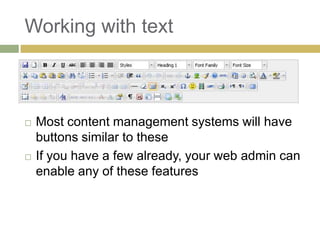
   Most content management systems will have
    buttons similar to these
   If you have a few already, your web admin can
    enable any of these features
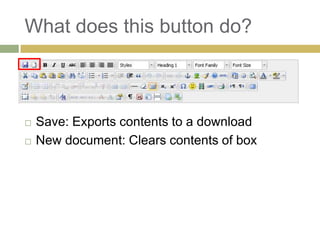
What does this button do?


   Save: Exports contents to a download
   New document: Clears contents of box
What does this button do?


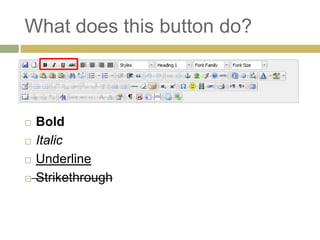
   Bold
   Italic
   Underline
   Strikethrough
What does this button do?


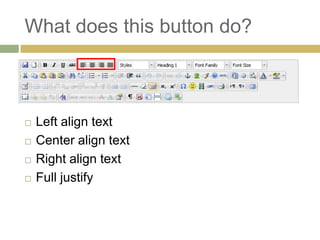
   Left align text
   Center align text
   Right align text
   Full justify
What does this button do?


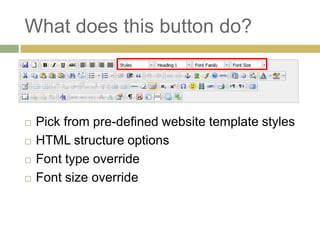
   Pick from pre-defined website template styles
   HTML structure options
   Font type override
   Font size override
What does this button do?


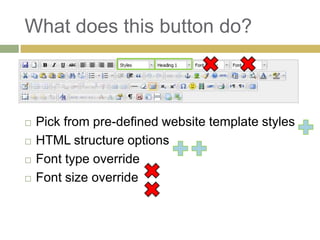
   Pick from pre-defined website template styles
   HTML structure options
   Font type override
   Font size override
What does this button do?


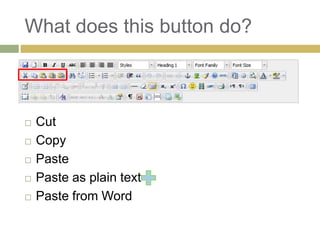
   Cut
   Copy
   Paste
   Paste as plain text
   Paste from Word
What does this button do?


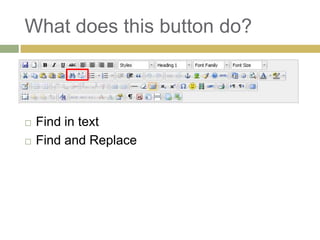
   Find in text
   Find and Replace
What does this button do?


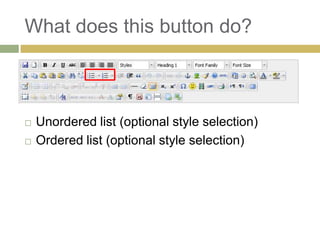
   Unordered list (optional style selection)
   Ordered list (optional style selection)
What does this button do?


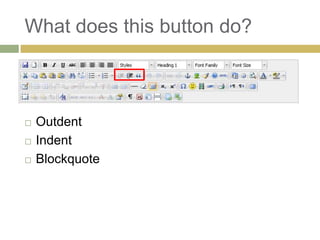
   Outdent
   Indent
   Blockquote
What does this button do?


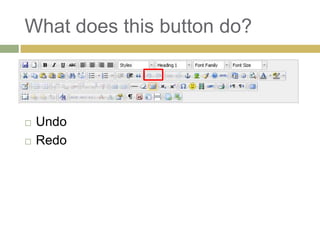
   Undo
   Redo
What does this button do?


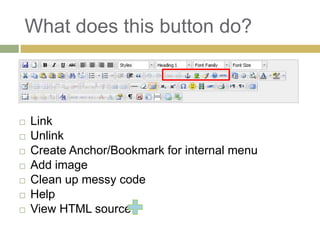
   Link
   Unlink
   Create Anchor/Bookmark for internal menu
   Add image
   Clean up messy code
   Help
   View HTML source
What does this button do?


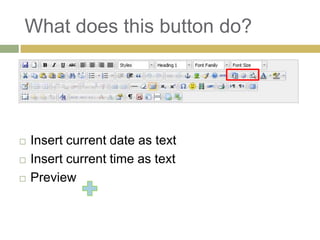
   Insert current date as text
   Insert current time as text
   Preview
What does this button do?


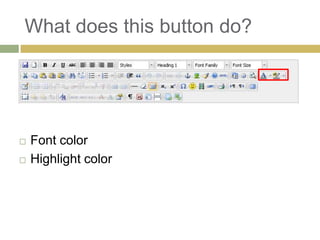
   Font color
   Highlight color
What does this button do?


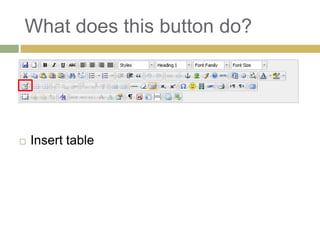
   Insert table
What does this button do?


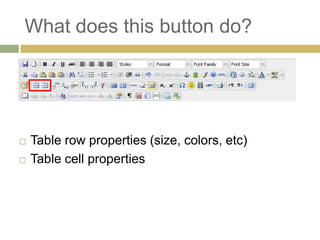
   Table row properties (size, colors, etc)
   Table cell properties
What does this button do?


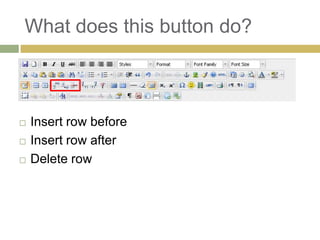
   Insert row before
   Insert row after
   Delete row
What does this button do?


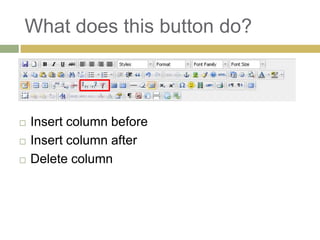
   Insert column before
   Insert column after
   Delete column
What does this button do?


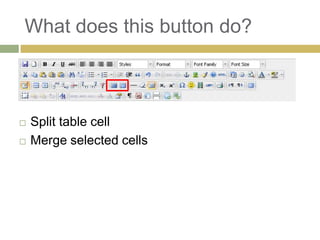
   Split table cell
   Merge selected cells
What does this button do?


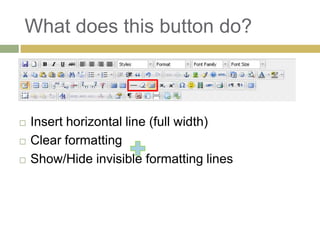
   Insert horizontal line (full width)
   Clear formatting
   Show/Hide invisible formatting lines
What does this button do?


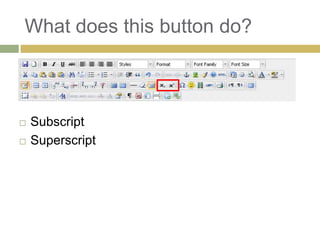
   Subscript
   Superscript
What does this button do?


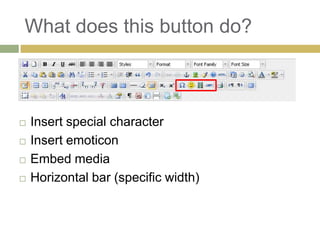
   Insert special character
   Insert emoticon
   Embed media
   Horizontal bar (specific width)
What does this button do?


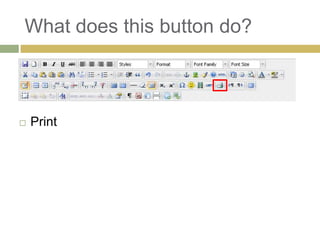
   Print
What does this button do?


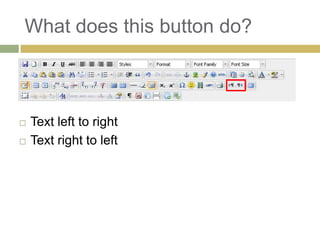
   Text left to right
   Text right to left
What does this button do?


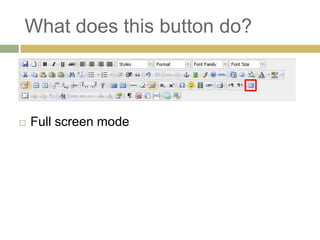
   Full screen mode
What does this button do?


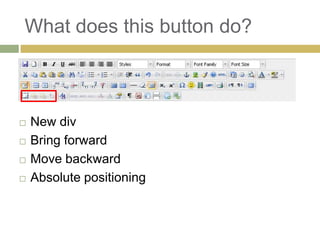
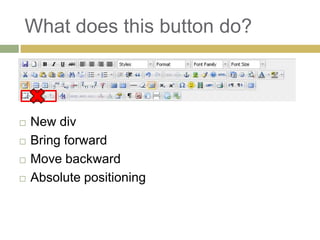
   New div
   Bring forward
   Move backward
   Absolute positioning
What does this button do?


   New div
   Bring forward
   Move backward
   Absolute positioning
What does this button do?


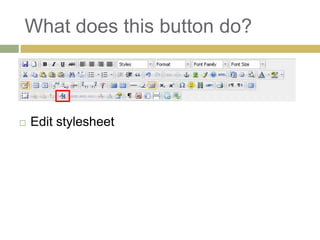
   Edit stylesheet
What does this button do?


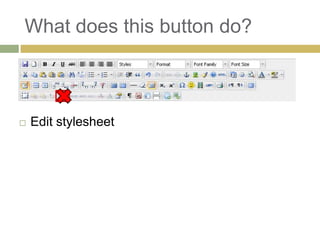
   Edit stylesheet
What does this button do?


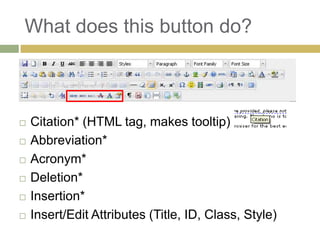
   Citation* (HTML tag, makes tooltip)
   Abbreviation*
   Acronym*
   Deletion*
   Insertion*
   Insert/Edit Attributes (Title, ID, Class, Style)
What does this button do?


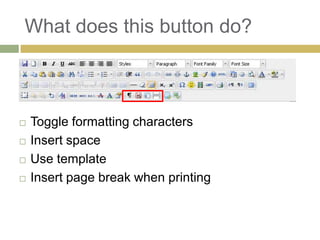
   Toggle formatting characters
   Insert space
   Use template
   Insert page break when printing
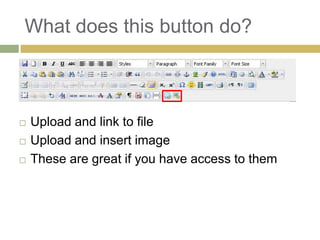
What does this button do?


   Upload and link to file
   Upload and insert image
   These are great if you have access to them
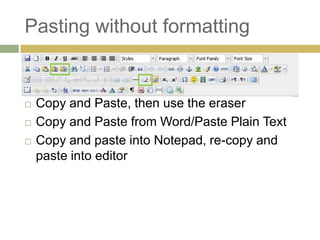
Pasting without formatting


   Copy and Paste, then use the eraser
   Copy and Paste from Word/Paste Plain Text
   Copy and paste into Notepad, re-copy and
    paste into editor
Pasting without formatting


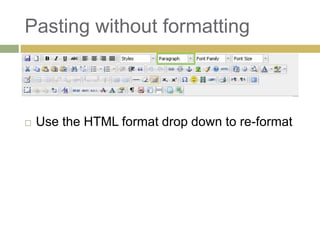
   Use the HTML format drop down to re-format
Working with images
   Your have a word doc with images… but how
    do you get them on the web?
   Download Jing! A free program that let’s you
    select part of your screen and save it as a
    picture file
Store the image online
   If your CMS doesn’t include built in tools for
    uploading, you will need to put the image
    somewhere online where you can get a direct
    URL. Get the URL by right-clicking on an
    image and choose “Copy image URL”
   Press the “insert image” button and paste the
    image URL
   Start a Flickr account if you need to upload
    images.
Linking to files
   If you need to upload a document and your
    web site CMS doesn’t support uploads
    conisder using Dropbox.
   A new account gets 2GB of storage for free.
   Put the documents in the Public folder and get
    the URL to paste into your link
Embedding video
   Finding a place to save and store video is a
    challenge
   YouTube is the easiest answer. Videos can be
    uploaded with some privacy settings.
   Use the “embed” script provided by YouTube.
Basic HTML tags
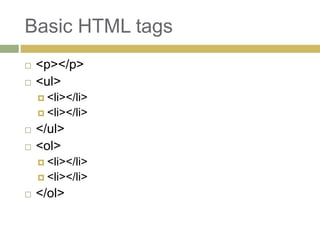
   <p></p>
   <ul>
     <li></li>
     <li></li>

   </ul>
   <ol>
     <li></li>
     <li></li>

   </ol>
Basic HTML tags
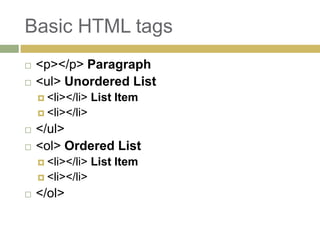
   <p></p> Paragraph
   <ul> Unordered List
     <li></li>   List Item
     <li></li>

   </ul>
   <ol> Ordered List
     <li></li>   List Item
     <li></li>

   </ol>
Basic HTML tags
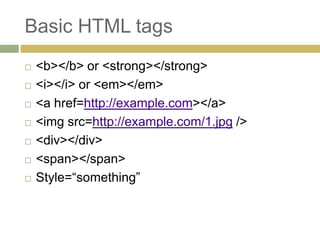
   <b></b> or <strong></strong>
   <i></i> or <em></em>
   <a href=http://example.com></a>
   <img src=http://example.com/1.jpg />
   <div></div>
   <span></span>
   Style=“something”
Basic HTML tags
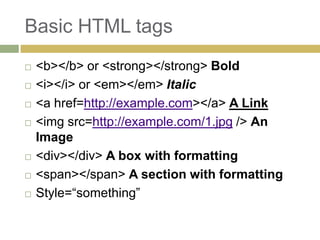
   <b></b> or <strong></strong> Bold
   <i></i> or <em></em> Italic
   <a href=http://example.com></a> A Link
   <img src=http://example.com/1.jpg /> An
    Image
   <div></div> A box with formatting
   <span></span> A section with formatting
   Style=“something”
Putting it all together
   From Word to Web…
Follow-up
   Questions?
    Jeremy Harder
    jharder@gomasa.org
   Test Editor:
    http://www.tinymce.com/tryit/full.php

From doh to pro!

  • 1.
    FROM TO PRO! Updating your district website
  • 2.
    Agenda  Adding content: 2 options  Working with text  Adding images  Embedding video
  • 3.
    Two ways toadd content 1. Upload the file and add a link  Pros: Quick and easy; Document retains formatting; Reader can download and edit  Cons: Not very search friendly; More work for the reader; Edits require re-uploading, could affect links 2. Copy and paste the text into a page  Pros: Search friendly; Reader can quickly scan for important information; More “sustainable”  Cons: Longer set up; Formatting a pain
  • 4.
    Bad formatting is…Bad  May be visually unappealing or out of character with the website template.  Hidden, unclosed code can cause malfunctions throughout the entire website.  Formatting on top of bad formatting only makes it uglier. Clearing the pasted format is important.
  • 5.
    Working with text  You have been sent a Word doc, or an email message with the instruction to “put it on the website”  What happens when you cut and paste? Example Flyer Example Result
  • 6.
    Working with text  Most content management systems will have buttons similar to these  If you have a few already, your web admin can enable any of these features
  • 7.
    What does thisbutton do?  Save: Exports contents to a download  New document: Clears contents of box
  • 8.
    What does thisbutton do?  Bold  Italic  Underline  Strikethrough
  • 9.
    What does thisbutton do?  Left align text  Center align text  Right align text  Full justify
  • 10.
    What does thisbutton do?  Pick from pre-defined website template styles  HTML structure options  Font type override  Font size override
  • 11.
    What does thisbutton do?  Pick from pre-defined website template styles  HTML structure options  Font type override  Font size override
  • 12.
    What does thisbutton do?  Cut  Copy  Paste  Paste as plain text  Paste from Word
  • 13.
    What does thisbutton do?  Find in text  Find and Replace
  • 14.
    What does thisbutton do?  Unordered list (optional style selection)  Ordered list (optional style selection)
  • 15.
    What does thisbutton do?  Outdent  Indent  Blockquote
  • 16.
    What does thisbutton do?  Undo  Redo
  • 17.
    What does thisbutton do?  Link  Unlink  Create Anchor/Bookmark for internal menu  Add image  Clean up messy code  Help  View HTML source
  • 18.
    What does thisbutton do?  Insert current date as text  Insert current time as text  Preview
  • 19.
    What does thisbutton do?  Font color  Highlight color
  • 20.
    What does thisbutton do?  Insert table
  • 21.
    What does thisbutton do?  Table row properties (size, colors, etc)  Table cell properties
  • 22.
    What does thisbutton do?  Insert row before  Insert row after  Delete row
  • 23.
    What does thisbutton do?  Insert column before  Insert column after  Delete column
  • 24.
    What does thisbutton do?  Split table cell  Merge selected cells
  • 25.
    What does thisbutton do?  Insert horizontal line (full width)  Clear formatting  Show/Hide invisible formatting lines
  • 26.
    What does thisbutton do?  Subscript  Superscript
  • 27.
    What does thisbutton do?  Insert special character  Insert emoticon  Embed media  Horizontal bar (specific width)
  • 28.
    What does thisbutton do?  Print
  • 29.
    What does thisbutton do?  Text left to right  Text right to left
  • 30.
    What does thisbutton do?  Full screen mode
  • 31.
    What does thisbutton do?  New div  Bring forward  Move backward  Absolute positioning
  • 32.
    What does thisbutton do?  New div  Bring forward  Move backward  Absolute positioning
  • 33.
    What does thisbutton do?  Edit stylesheet
  • 34.
    What does thisbutton do?  Edit stylesheet
  • 35.
    What does thisbutton do?  Citation* (HTML tag, makes tooltip)  Abbreviation*  Acronym*  Deletion*  Insertion*  Insert/Edit Attributes (Title, ID, Class, Style)
  • 36.
    What does thisbutton do?  Toggle formatting characters  Insert space  Use template  Insert page break when printing
  • 37.
    What does thisbutton do?  Upload and link to file  Upload and insert image  These are great if you have access to them
  • 38.
    Pasting without formatting  Copy and Paste, then use the eraser  Copy and Paste from Word/Paste Plain Text  Copy and paste into Notepad, re-copy and paste into editor
  • 39.
    Pasting without formatting  Use the HTML format drop down to re-format
  • 40.
    Working with images  Your have a word doc with images… but how do you get them on the web?  Download Jing! A free program that let’s you select part of your screen and save it as a picture file
  • 41.
    Store the imageonline  If your CMS doesn’t include built in tools for uploading, you will need to put the image somewhere online where you can get a direct URL. Get the URL by right-clicking on an image and choose “Copy image URL”  Press the “insert image” button and paste the image URL  Start a Flickr account if you need to upload images.
  • 42.
    Linking to files  If you need to upload a document and your web site CMS doesn’t support uploads conisder using Dropbox.  A new account gets 2GB of storage for free.  Put the documents in the Public folder and get the URL to paste into your link
  • 43.
    Embedding video  Finding a place to save and store video is a challenge  YouTube is the easiest answer. Videos can be uploaded with some privacy settings.  Use the “embed” script provided by YouTube.
  • 44.
    Basic HTML tags  <p></p>  <ul>  <li></li>  <li></li>  </ul>  <ol>  <li></li>  <li></li>  </ol>
  • 45.
    Basic HTML tags  <p></p> Paragraph  <ul> Unordered List  <li></li> List Item  <li></li>  </ul>  <ol> Ordered List  <li></li> List Item  <li></li>  </ol>
  • 46.
    Basic HTML tags  <b></b> or <strong></strong>  <i></i> or <em></em>  <a href=http://example.com></a>  <img src=http://example.com/1.jpg />  <div></div>  <span></span>  Style=“something”
  • 47.
    Basic HTML tags  <b></b> or <strong></strong> Bold  <i></i> or <em></em> Italic  <a href=http://example.com></a> A Link  <img src=http://example.com/1.jpg /> An Image  <div></div> A box with formatting  <span></span> A section with formatting  Style=“something”
  • 48.
    Putting it alltogether  From Word to Web…
  • 49.
    Follow-up  Questions? Jeremy Harder jharder@gomasa.org  Test Editor: http://www.tinymce.com/tryit/full.php