

HTML Basic
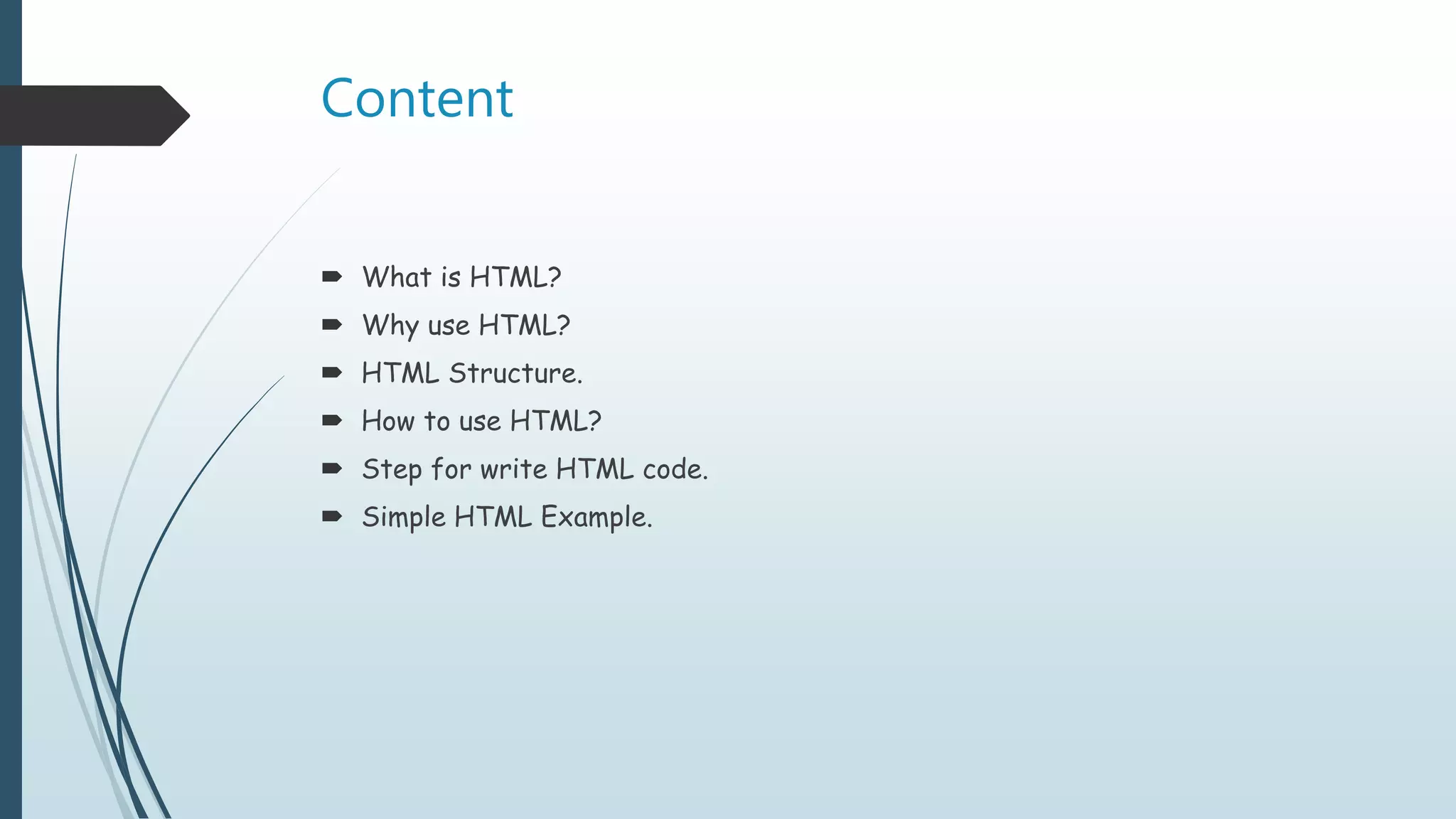
Content
 What is HTML?
 Why use HTML?
 HTML Structure.
 How to use HTML?
 Step for write HTML code.
 Simple HTML Example.
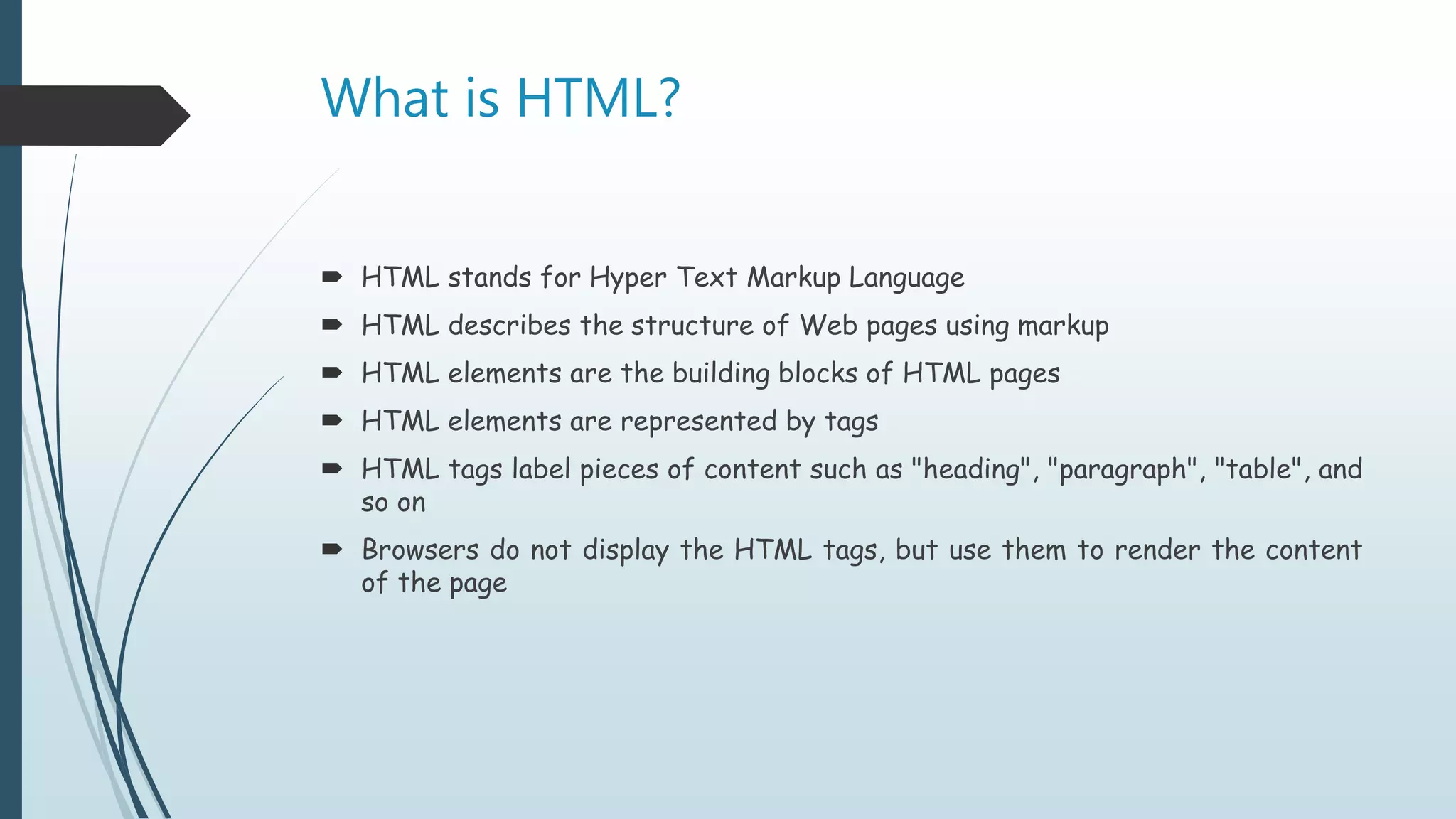
What is HTML?
 HTML stands for Hyper Text Markup Language
 HTML describes the structure of Web pages using markup
 HTML elements are the building blocks of HTML pages
 HTML elements are represented by tags
 HTML tags label pieces of content such as "heading", "paragraph", "table", and
so on
 Browsers do not display the HTML tags, but use them to render the content
of the page
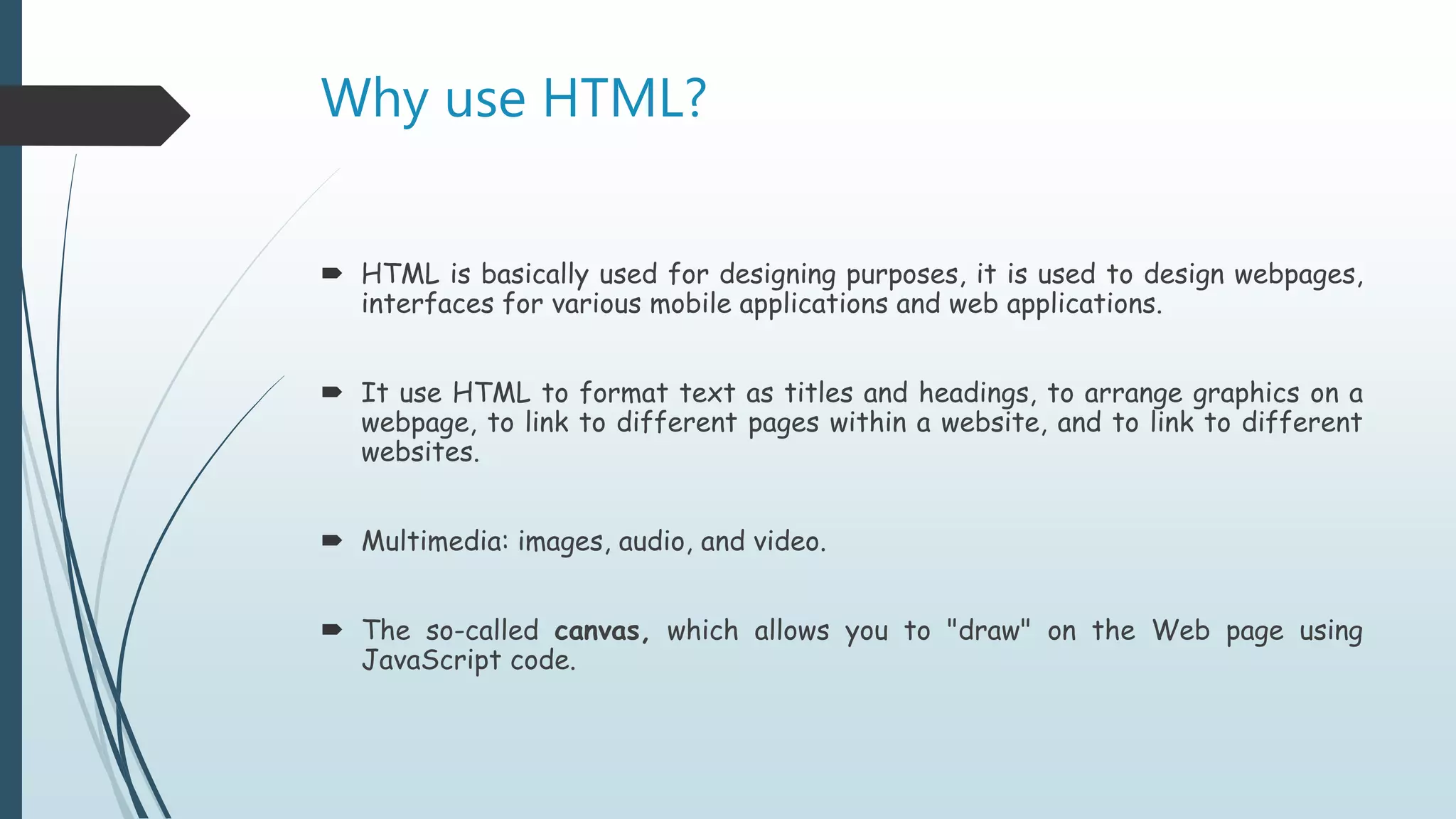
Why use HTML?
 HTML is basically used for designing purposes, it is used to design webpages,
interfaces for various mobile applications and web applications.
 It use HTML to format text as titles and headings, to arrange graphics on a
webpage, to link to different pages within a website, and to link to different
websites.
 Multimedia: images, audio, and video.
 The so-called canvas, which allows you to "draw" on the Web page using
JavaScript code.
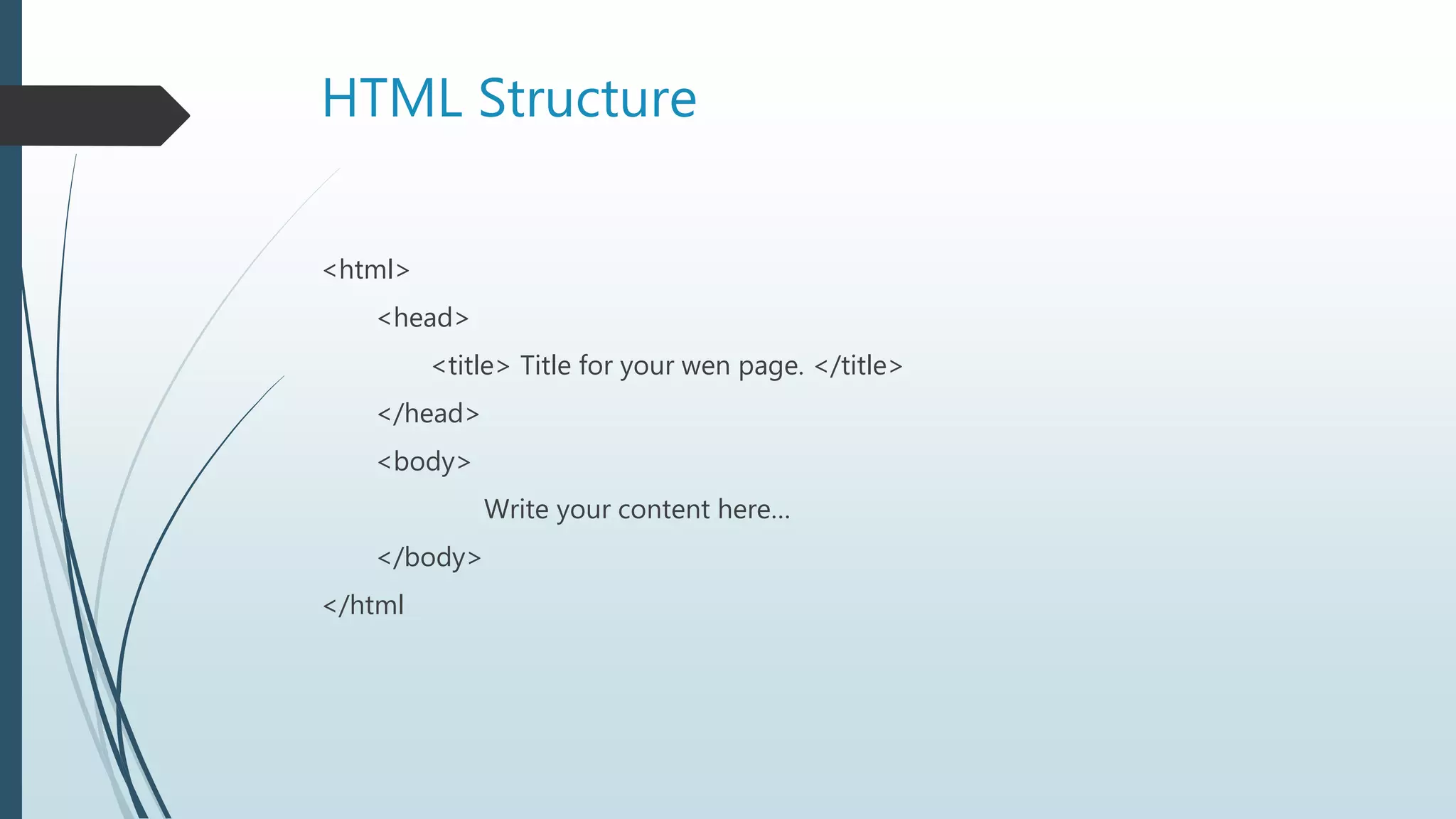
HTML Structure
<html>
<head>
<title> Title for your wen page. </title>
</head>
<body>
Write your content here…
</body>
</html
How to use HTML?
 Creating an HTML document is easy.
 To begin coding HTML you need only two things:
1. a simple-text editor and
2. a web browser.
 Notepad is the most basic of simple-text editors and you will probably code a
fair amount of HTML with it.
Step for write HTML code
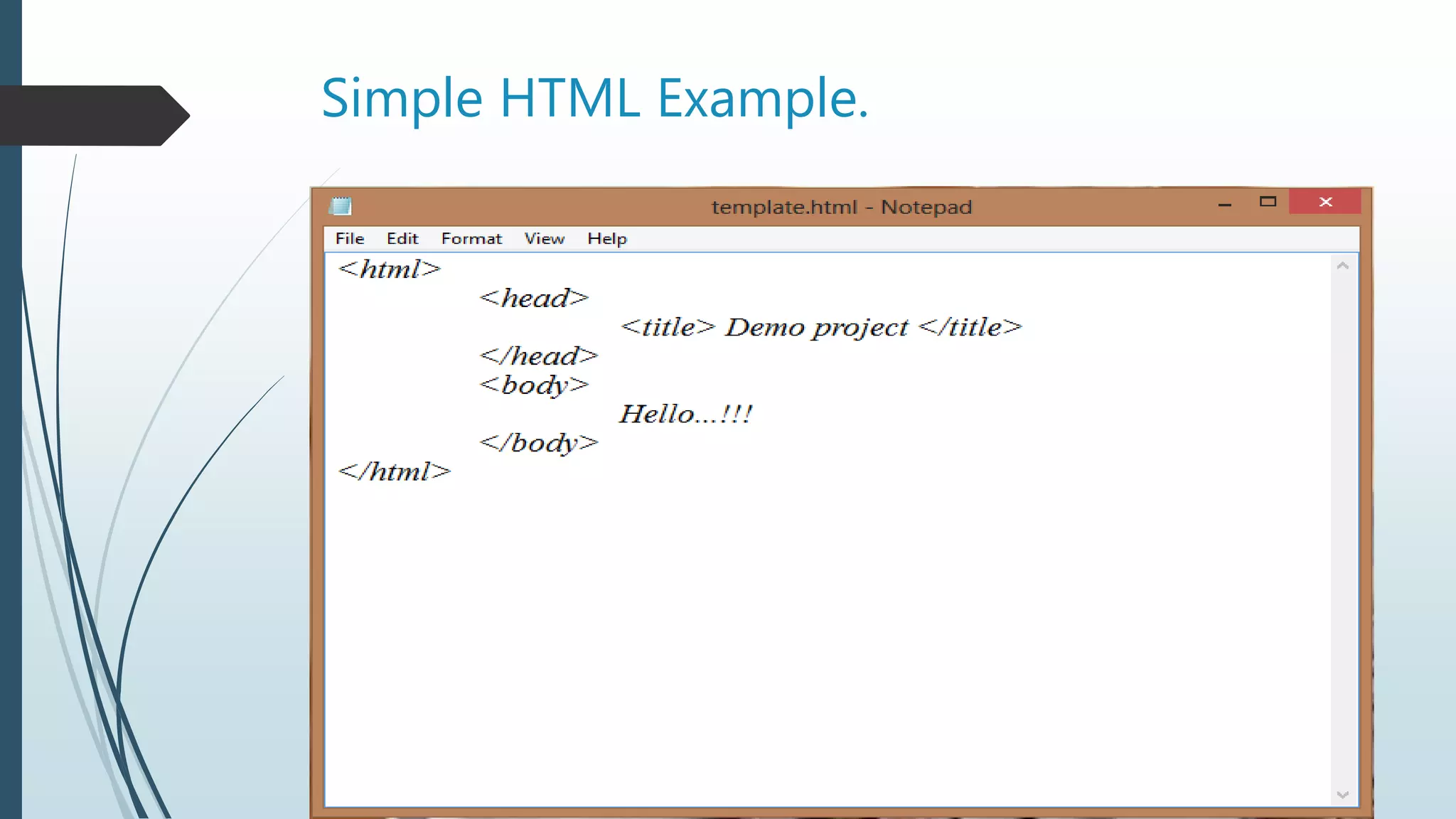
Here are the simple steps to create a basic HTML document:
1. Open Notepad or another text editor.
2. At the top of the page type <html>.
3. On the next line, now add the opening header tag: <head>.
4. On the next line, and type <title> </title>.
5. Go to the next line, insert the closing header tag: </head>.
6. on the next line, type<body>. And next line write some message.
7. Now drop down another line and type the closing tag right below its mate: </body>.
8. Finally, go to the next line and type </html>.
9. In the File menu, choose Save As.
10. In the Save as Type option box, choose All Files.
11. Name the file template.htm or template.html and click save.
12. Open template.html in browser for output.
Simple HTML Example.
Thank you.

Html basic

  • 1.
  • 2.
    Content  What isHTML?  Why use HTML?  HTML Structure.  How to use HTML?  Step for write HTML code.  Simple HTML Example.
  • 3.
    What is HTML? HTML stands for Hyper Text Markup Language  HTML describes the structure of Web pages using markup  HTML elements are the building blocks of HTML pages  HTML elements are represented by tags  HTML tags label pieces of content such as "heading", "paragraph", "table", and so on  Browsers do not display the HTML tags, but use them to render the content of the page
  • 4.
    Why use HTML? HTML is basically used for designing purposes, it is used to design webpages, interfaces for various mobile applications and web applications.  It use HTML to format text as titles and headings, to arrange graphics on a webpage, to link to different pages within a website, and to link to different websites.  Multimedia: images, audio, and video.  The so-called canvas, which allows you to "draw" on the Web page using JavaScript code.
  • 5.
    HTML Structure <html> <head> <title> Titlefor your wen page. </title> </head> <body> Write your content here… </body> </html
  • 6.
    How to useHTML?  Creating an HTML document is easy.  To begin coding HTML you need only two things: 1. a simple-text editor and 2. a web browser.  Notepad is the most basic of simple-text editors and you will probably code a fair amount of HTML with it.
  • 7.
    Step for writeHTML code Here are the simple steps to create a basic HTML document: 1. Open Notepad or another text editor. 2. At the top of the page type <html>. 3. On the next line, now add the opening header tag: <head>. 4. On the next line, and type <title> </title>. 5. Go to the next line, insert the closing header tag: </head>. 6. on the next line, type<body>. And next line write some message. 7. Now drop down another line and type the closing tag right below its mate: </body>. 8. Finally, go to the next line and type </html>. 9. In the File menu, choose Save As. 10. In the Save as Type option box, choose All Files. 11. Name the file template.htm or template.html and click save. 12. Open template.html in browser for output.
  • 8.
  • 9.