Weebly Basics
Nell Eckersley
http://bit.ly/AETechToolbox
Sample Websites
• http://mrnystudent.weebly.com/
• http://techtoolboxpd.weebly.com/
• http://www.emergingtechforadulted.com/
• https://usadultliteracy.wordpress.com/
http://bit.ly/AETechToolbox
2
Pre-Thinking
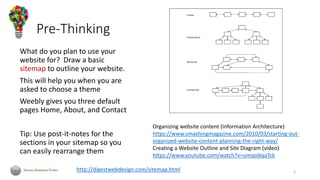
What do you plan to use your
website for? Draw a basic
sitemap to outline your website.
This will help you when you are
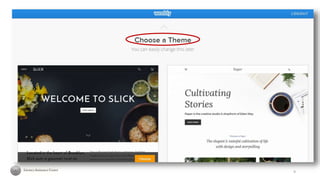
asked to choose a theme
Weebly gives you three default
pages Home, About, and Contact
Tip: Use post-it-notes for the
sections in your sitemap so you
can easily rearrange them
3http://digestwebdesign.com/sitemap.html
Organizing website content (Information Architecture)
https://www.smashingmagazine.com/2010/03/starting-out-
organized-website-content-planning-the-right-way/
Creating a Website Outline and Site Diagram (video)
https://www.youtube.com/watch?v=umqojkqaTck
Pre-Thinking
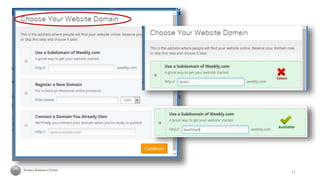
Have a URL name idea--your free URL will look something like this
http://nelightful.weebly.com/.
Have a few options incase your first option is already taken.
Tip: The URL does NOT have to contain the name of your site, but
should be easy to remember and type. Shorter is better.
http://bit.ly/AETechToolbox
4
Pre-Thinking
To create your Weebly account you will need to use an email address.
Use an email address you can access easily now so you can verify your
account straight away
Use a password you can remember
Tip: Here’s one way to make a pretty secure password: Take a word or
phrase and remove the vowels from it. For example, "eat the
cheeseburger" becomes "tthchsbrgr". You might want to add a number
or special character and capitalize the first or last letter.
http://www.wikihow.com/Create-a-Password-You-Can-Remember
5
Let’s get started:
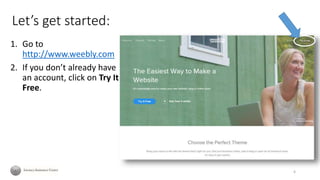
1. Go to
http://www.weebly.com
2. If you don’t already have
an account, click on Try It
Free.
6
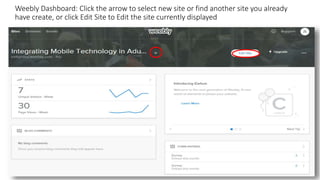
Weebly Dashboard: Click the arrow to select new site or find another site you already
have create, or click Edit Site to Edit the site currently displayed
7
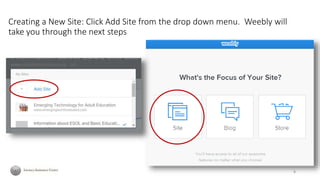
Creating a New Site: Click Add Site from the drop down menu. Weebly will
take you through the next steps
8
9
Finding/Creating Images
Coppyright Free, Royalty Free and Creative Commons
• https://www.flickr.com/creativecommons/
• https://pixabay.com/
• http://www.imagesource.com/royalty-free
• http://www.gettyimages.com/creative-images/royaltyfree
• Photo Editor https://pixlr.com/
• Graphic Design Software https://www.canva.com/
Tip: Create a website folder and save all the website images there so you can
find them again
10
11
12
13
14
15
16
17
18
19
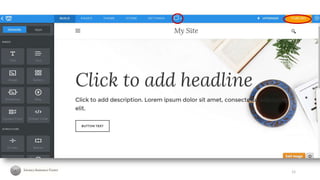
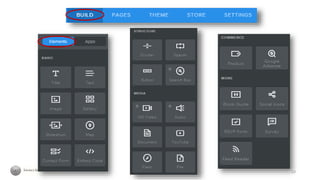
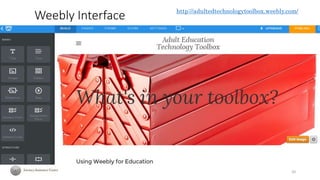
Weebly Interface
20
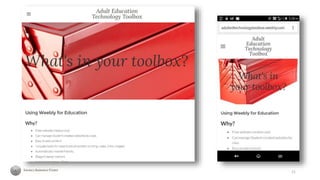
http://adultedtechnologytoolbox.weebly.com/
21
Weebly Tutorials
• How to do everything http://hc.weebly.com/hc/en-
us/categories/200044378-How-to-Do-Everything
http://bit.ly/weeblyeverything
• Video Tutorials https://www.youtube.com/user/weebly
http://bit.ly/weeblyyoutube
22
Weebly Resources
• EdTech Tip: Webbing with Weebly
http://www.gpb.org/blogs/education-matters/2015/09/30/edtech-
tips-webbing-weebly
• Using Weebly for Digital Student Portfolios
http://edtechchic.blogspot.com/2016/03/using-weebly-for-digital-
student.html
• How to Embed Quizlet Flashcards in to a Weebly website
https://msdrasby.com/2016/03/05/how-to-embed-quizlet-flashcards-
into-weebly/
• Web Design with Weebly for Education
http://www.learningedtech.com/web-design-with-weebly.html
23
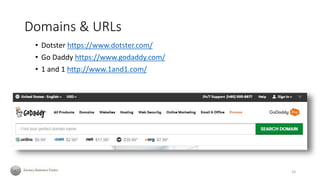
Domains & URLs
• Dotster https://www.dotster.com/
• Go Daddy https://www.godaddy.com/
• 1 and 1 http://www.1and1.com/
24
A Note about Web Design
• Why Aesthetics Matter to Learning
https://www.td.org/Publications/Blogs/Learning-
Technologies-Blog/2015/04/Why-Aesthetics-
Matter-to-Learning
• 1990’s Web Design
http://blog.ambitious.me/2012/04/how-
websites-looked-like-in-the-1990s/
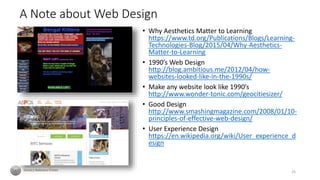
• Make any website look like 1990’s
http://www.wonder-tonic.com/geocitiesizer/
• Good Design
http://www.smashingmagazine.com/2008/01/10-
principles-of-effective-web-design/
• User Experience Design
https://en.wikipedia.org/wiki/User_experience_d
esign
25
Nell Eckersley
▪ Literacy Assistance Center
▪ Evaluation http://bit.ly/1km64BF
▪ NellE@lacnyc.org
▪ @LACNYCNell
Evaluation http://bit.ly/1km64BF
26
My Contact Info

Weebly Basics

  • 1.
  • 2.
    Sample Websites • http://mrnystudent.weebly.com/ •http://techtoolboxpd.weebly.com/ • http://www.emergingtechforadulted.com/ • https://usadultliteracy.wordpress.com/ http://bit.ly/AETechToolbox 2
  • 3.
    Pre-Thinking What do youplan to use your website for? Draw a basic sitemap to outline your website. This will help you when you are asked to choose a theme Weebly gives you three default pages Home, About, and Contact Tip: Use post-it-notes for the sections in your sitemap so you can easily rearrange them 3http://digestwebdesign.com/sitemap.html Organizing website content (Information Architecture) https://www.smashingmagazine.com/2010/03/starting-out- organized-website-content-planning-the-right-way/ Creating a Website Outline and Site Diagram (video) https://www.youtube.com/watch?v=umqojkqaTck
  • 4.
    Pre-Thinking Have a URLname idea--your free URL will look something like this http://nelightful.weebly.com/. Have a few options incase your first option is already taken. Tip: The URL does NOT have to contain the name of your site, but should be easy to remember and type. Shorter is better. http://bit.ly/AETechToolbox 4
  • 5.
    Pre-Thinking To create yourWeebly account you will need to use an email address. Use an email address you can access easily now so you can verify your account straight away Use a password you can remember Tip: Here’s one way to make a pretty secure password: Take a word or phrase and remove the vowels from it. For example, "eat the cheeseburger" becomes "tthchsbrgr". You might want to add a number or special character and capitalize the first or last letter. http://www.wikihow.com/Create-a-Password-You-Can-Remember 5
  • 6.
    Let’s get started: 1.Go to http://www.weebly.com 2. If you don’t already have an account, click on Try It Free. 6
  • 7.
    Weebly Dashboard: Clickthe arrow to select new site or find another site you already have create, or click Edit Site to Edit the site currently displayed 7
  • 8.
    Creating a NewSite: Click Add Site from the drop down menu. Weebly will take you through the next steps 8
  • 9.
  • 10.
    Finding/Creating Images Coppyright Free,Royalty Free and Creative Commons • https://www.flickr.com/creativecommons/ • https://pixabay.com/ • http://www.imagesource.com/royalty-free • http://www.gettyimages.com/creative-images/royaltyfree • Photo Editor https://pixlr.com/ • Graphic Design Software https://www.canva.com/ Tip: Create a website folder and save all the website images there so you can find them again 10
  • 11.
  • 12.
  • 13.
  • 14.
  • 15.
  • 16.
  • 17.
  • 18.
  • 19.
  • 20.
  • 21.
  • 22.
    Weebly Tutorials • Howto do everything http://hc.weebly.com/hc/en- us/categories/200044378-How-to-Do-Everything http://bit.ly/weeblyeverything • Video Tutorials https://www.youtube.com/user/weebly http://bit.ly/weeblyyoutube 22
  • 23.
    Weebly Resources • EdTechTip: Webbing with Weebly http://www.gpb.org/blogs/education-matters/2015/09/30/edtech- tips-webbing-weebly • Using Weebly for Digital Student Portfolios http://edtechchic.blogspot.com/2016/03/using-weebly-for-digital- student.html • How to Embed Quizlet Flashcards in to a Weebly website https://msdrasby.com/2016/03/05/how-to-embed-quizlet-flashcards- into-weebly/ • Web Design with Weebly for Education http://www.learningedtech.com/web-design-with-weebly.html 23
  • 24.
    Domains & URLs •Dotster https://www.dotster.com/ • Go Daddy https://www.godaddy.com/ • 1 and 1 http://www.1and1.com/ 24
  • 25.
    A Note aboutWeb Design • Why Aesthetics Matter to Learning https://www.td.org/Publications/Blogs/Learning- Technologies-Blog/2015/04/Why-Aesthetics- Matter-to-Learning • 1990’s Web Design http://blog.ambitious.me/2012/04/how- websites-looked-like-in-the-1990s/ • Make any website look like 1990’s http://www.wonder-tonic.com/geocitiesizer/ • Good Design http://www.smashingmagazine.com/2008/01/10- principles-of-effective-web-design/ • User Experience Design https://en.wikipedia.org/wiki/User_experience_d esign 25
  • 26.
    Nell Eckersley ▪ LiteracyAssistance Center ▪ Evaluation http://bit.ly/1km64BF ▪ NellE@lacnyc.org ▪ @LACNYCNell Evaluation http://bit.ly/1km64BF 26 My Contact Info