Weebly Education in the
Classroom: Create your own
         Website
       by Crystal Barletta
    E-mail: cbarletta3@yahoo.com
Use Weebly Educator
• Weebly Educator is a free website builder
  for educators and has multiple uses:
   –   Post assignments
   –   Post class information
   –   Import files
   –   Import videos
   –   Import pictures
   –   Create links to other websites
   –   Collect assignments using the Digital Dropbox
   –   Create digital student portfolios
   –   Create classes and add students
Create a Free Website in Minutes!

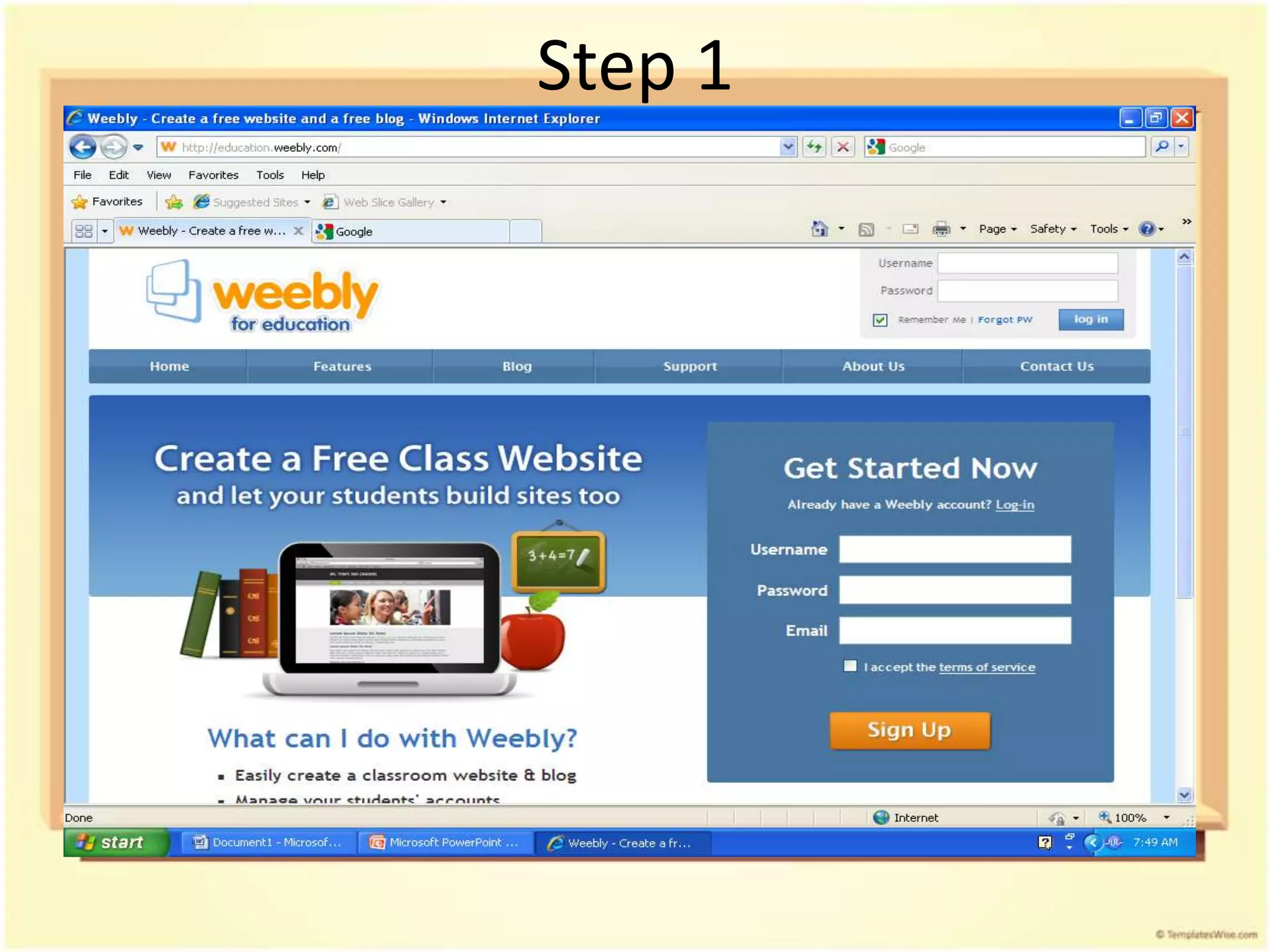
• Step 1: Go to http://education.weebly.com/
and sign up. You will be asked to create a
  username, password, and provide an e-mail
  address
Step 1
Step 2

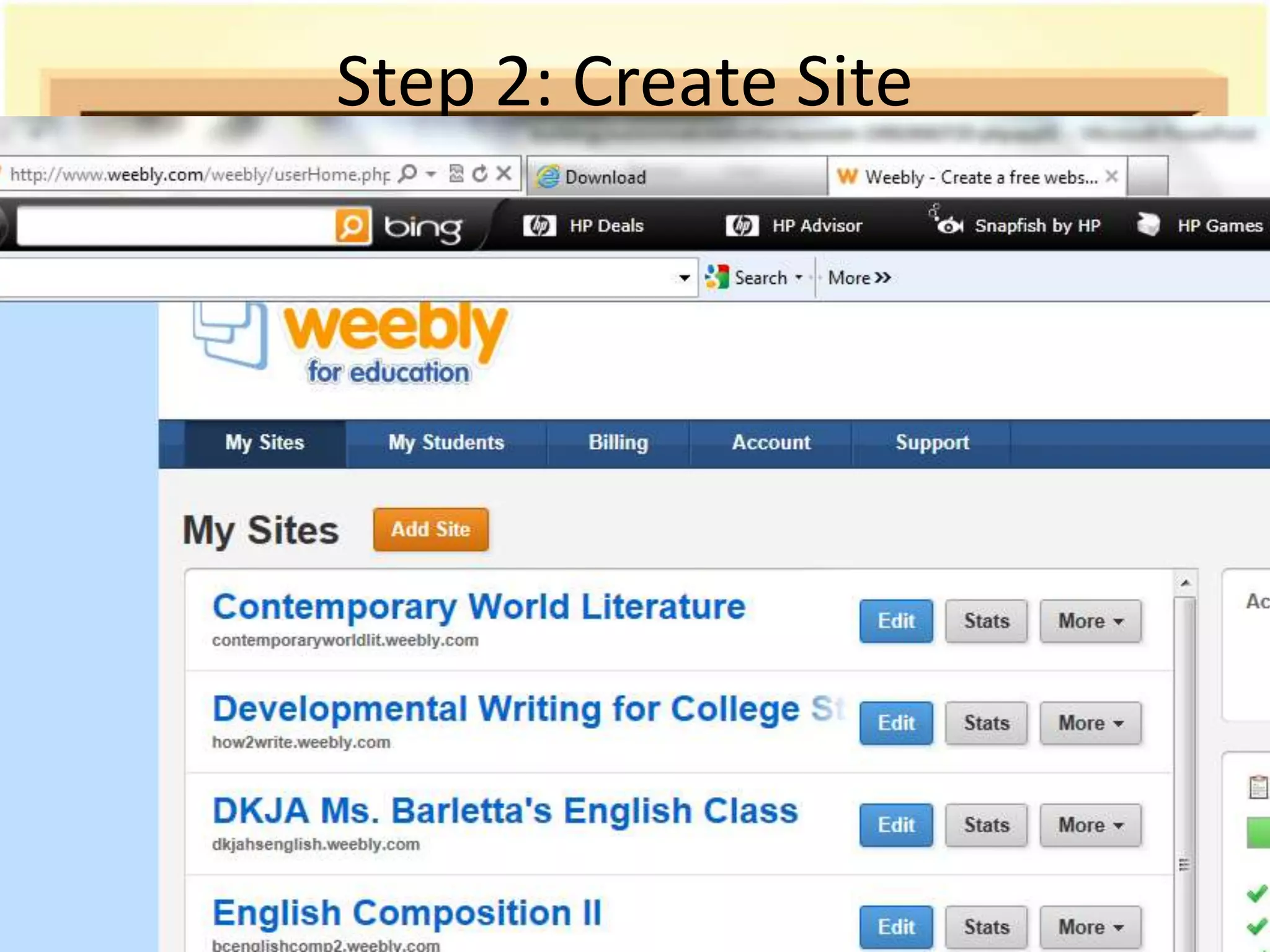
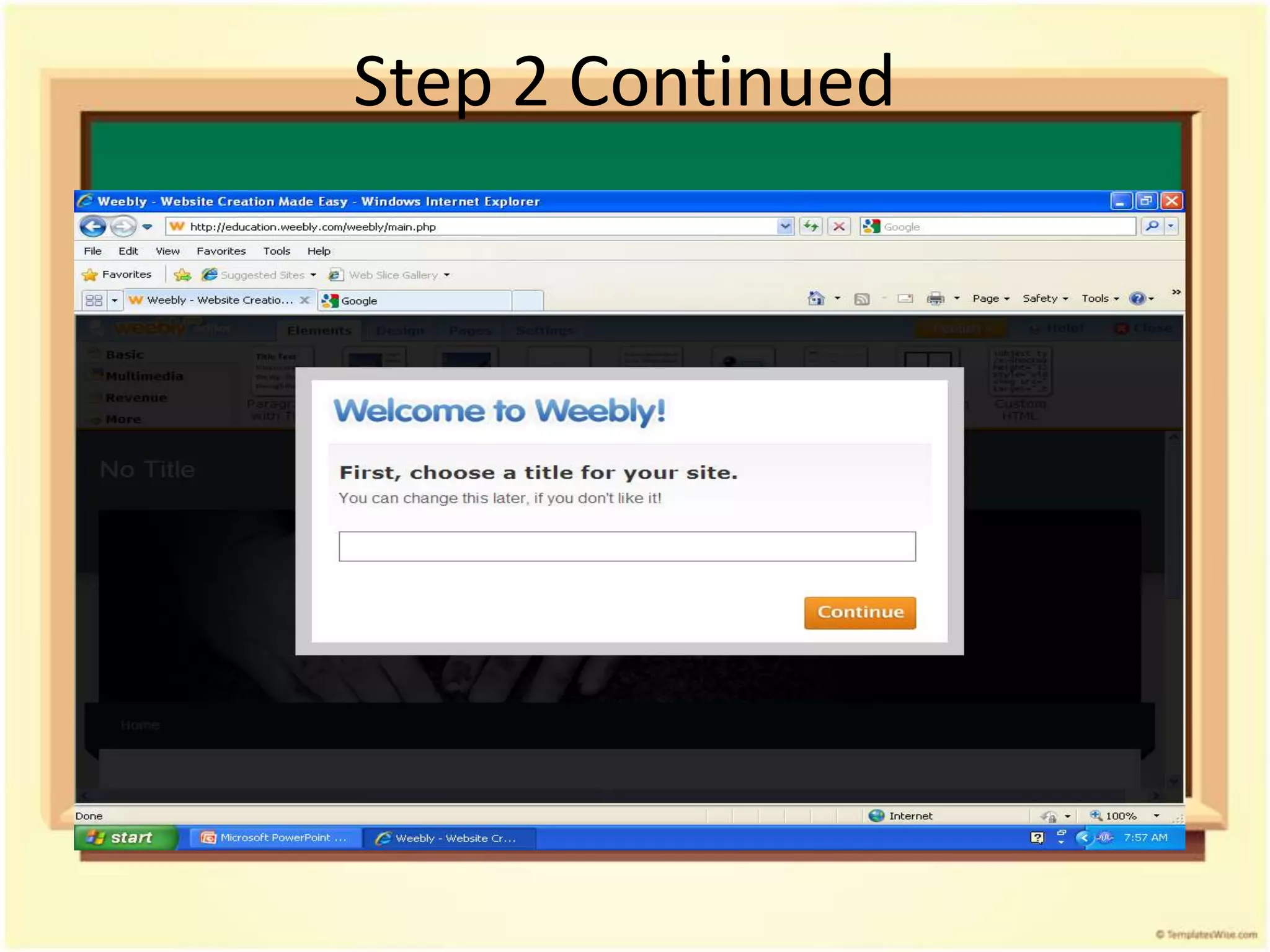
• Step 2: Create a website-click on create a
  site, name it, and assign a url (Example:
  www.yourwebsite.weebly.com/)
Step 2: Create Site
Step 2 Continued
Let the Creation Begin!

• Step 3: Start creating- choose a design (you
  can change this later and alter the pictures)

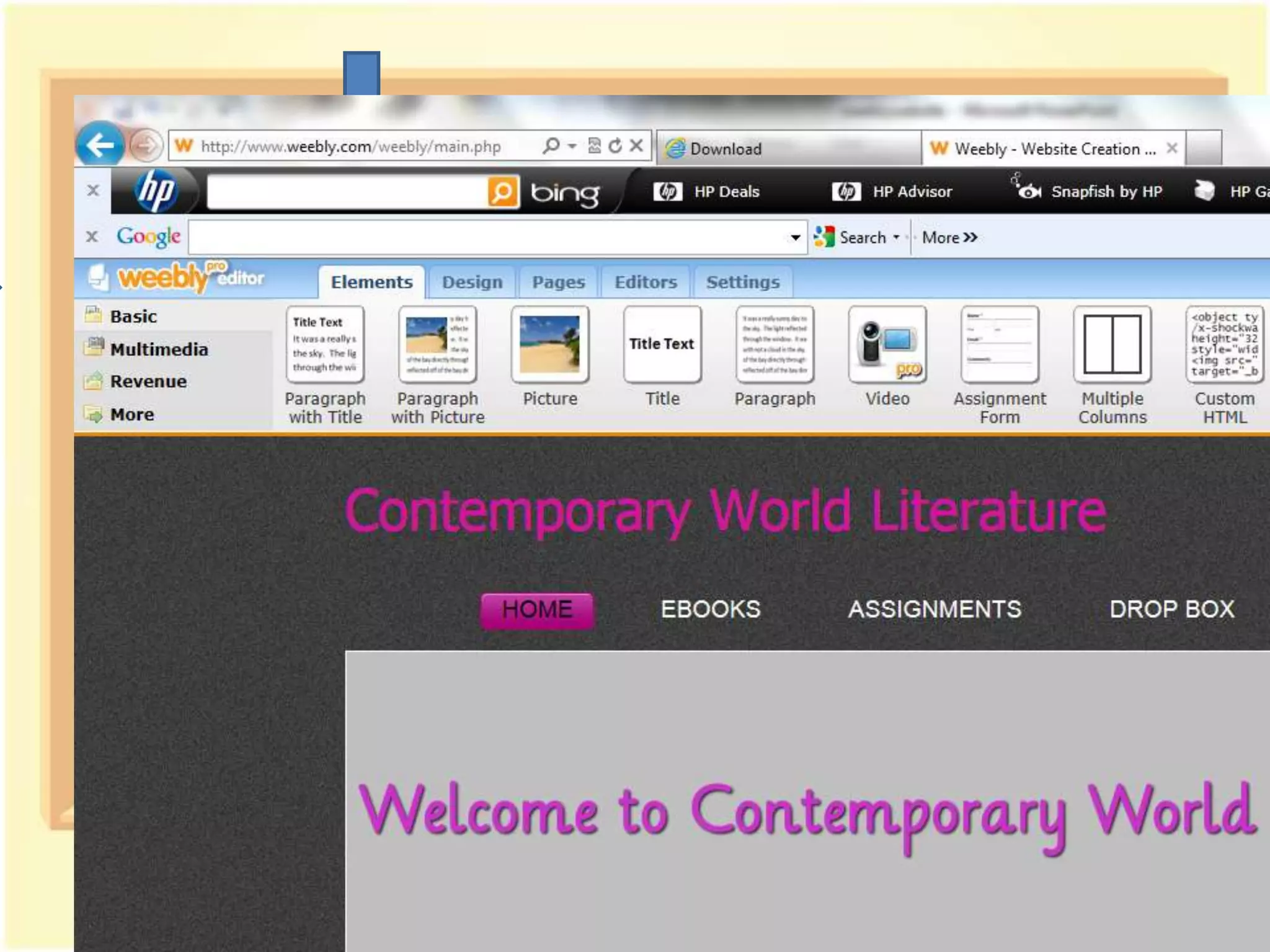
• Step 4: Create your page: click and drag on the
  elements of your choice to add
  titles, paragraphs, pictures, video, files, etc.
Step 3: Select a Design
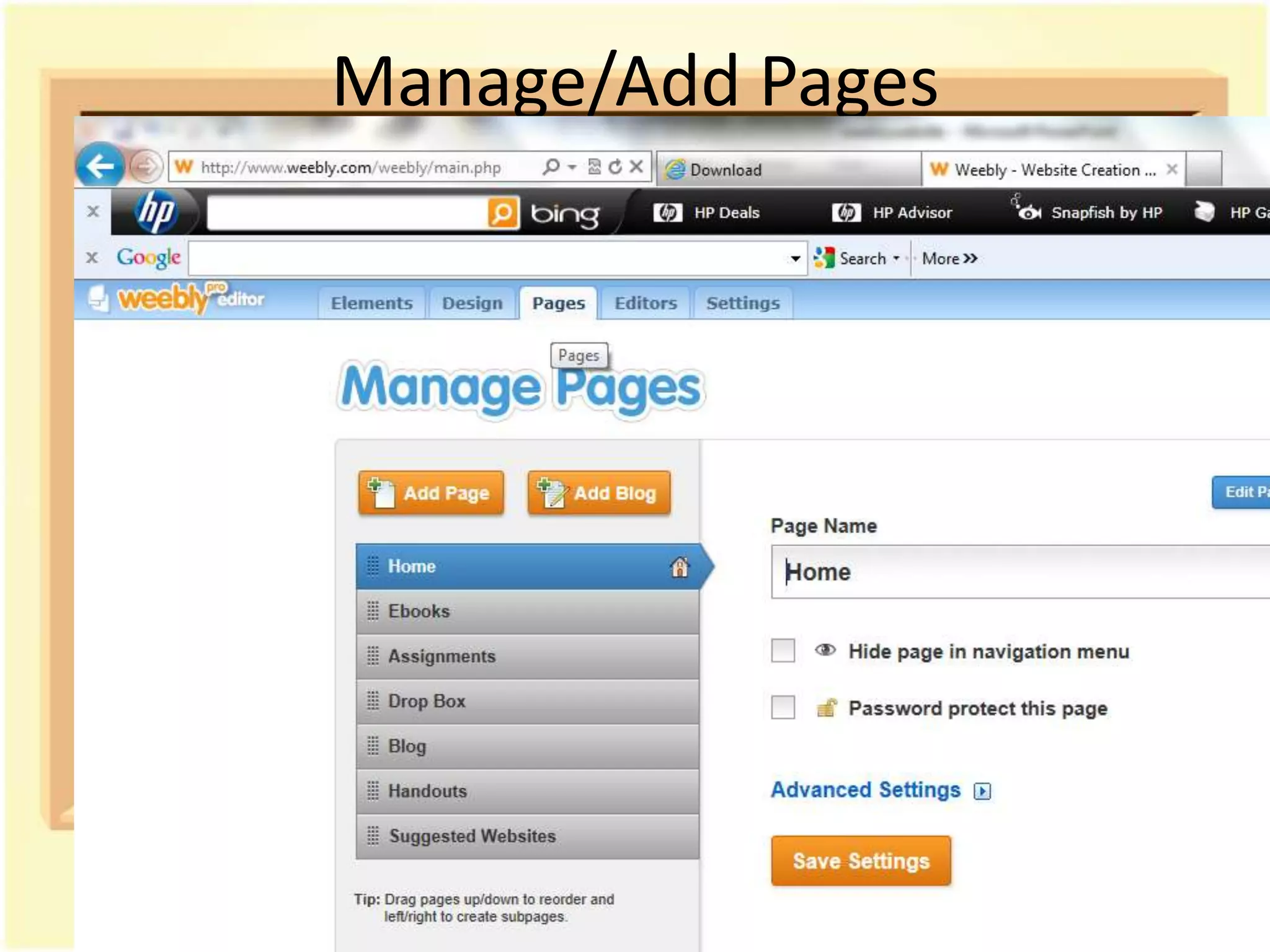
• Step 5: Add pages and even a blog by clicking
  on pages and naming them (Example: English
  9, English 9 Honors, English 12
  Honors, Suggested Sites, Blog)
Manage/Add Pages
Publish Your Site

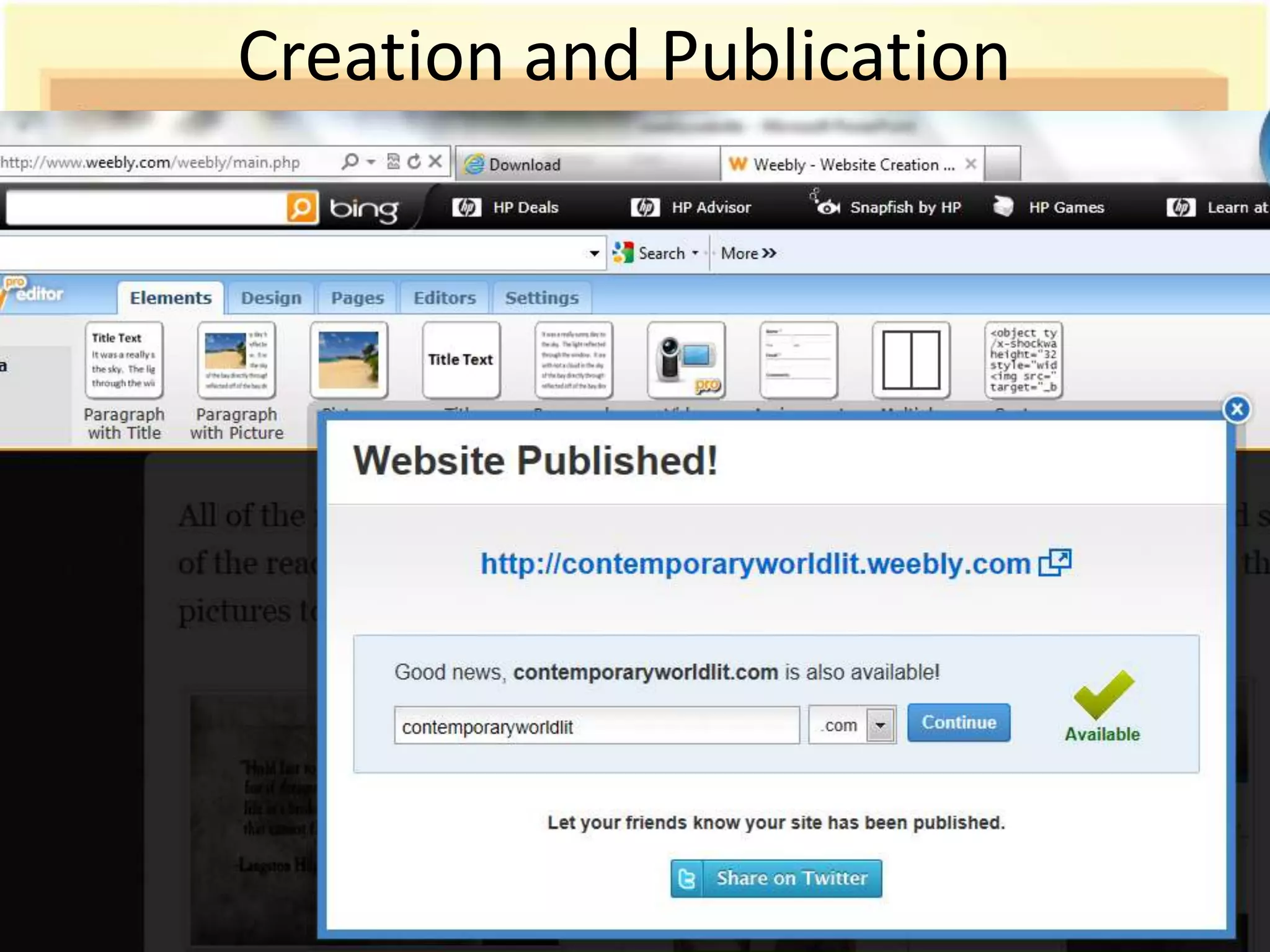
• Step 6: Publish your website-click on the
  orange publish button and save the link, this is
  the site students will see
• You can make changes at any time and re-
  publish your site and instantly see the changes
  applied to the site
Creation and Publication
       Complete!
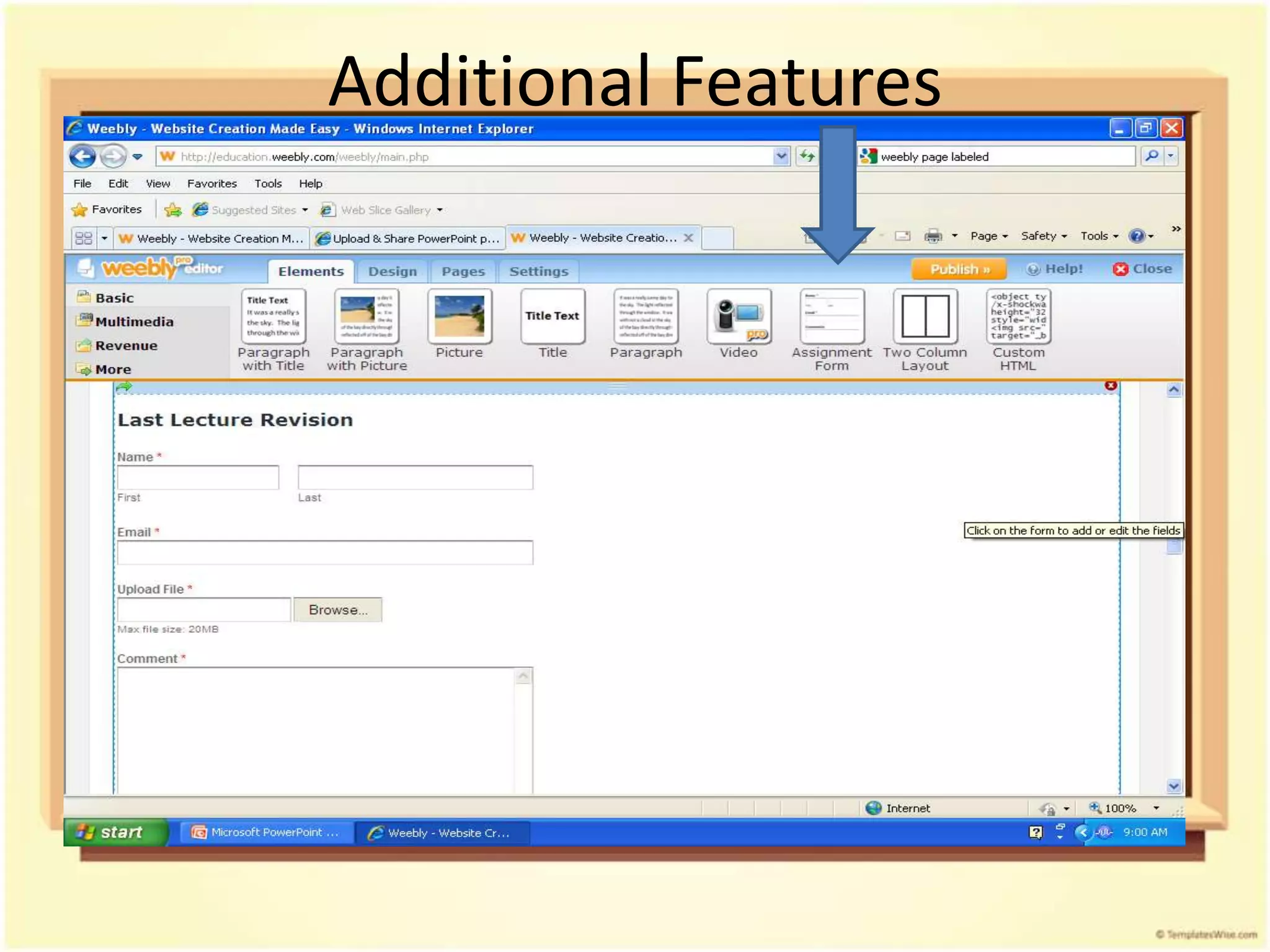
Additional Features
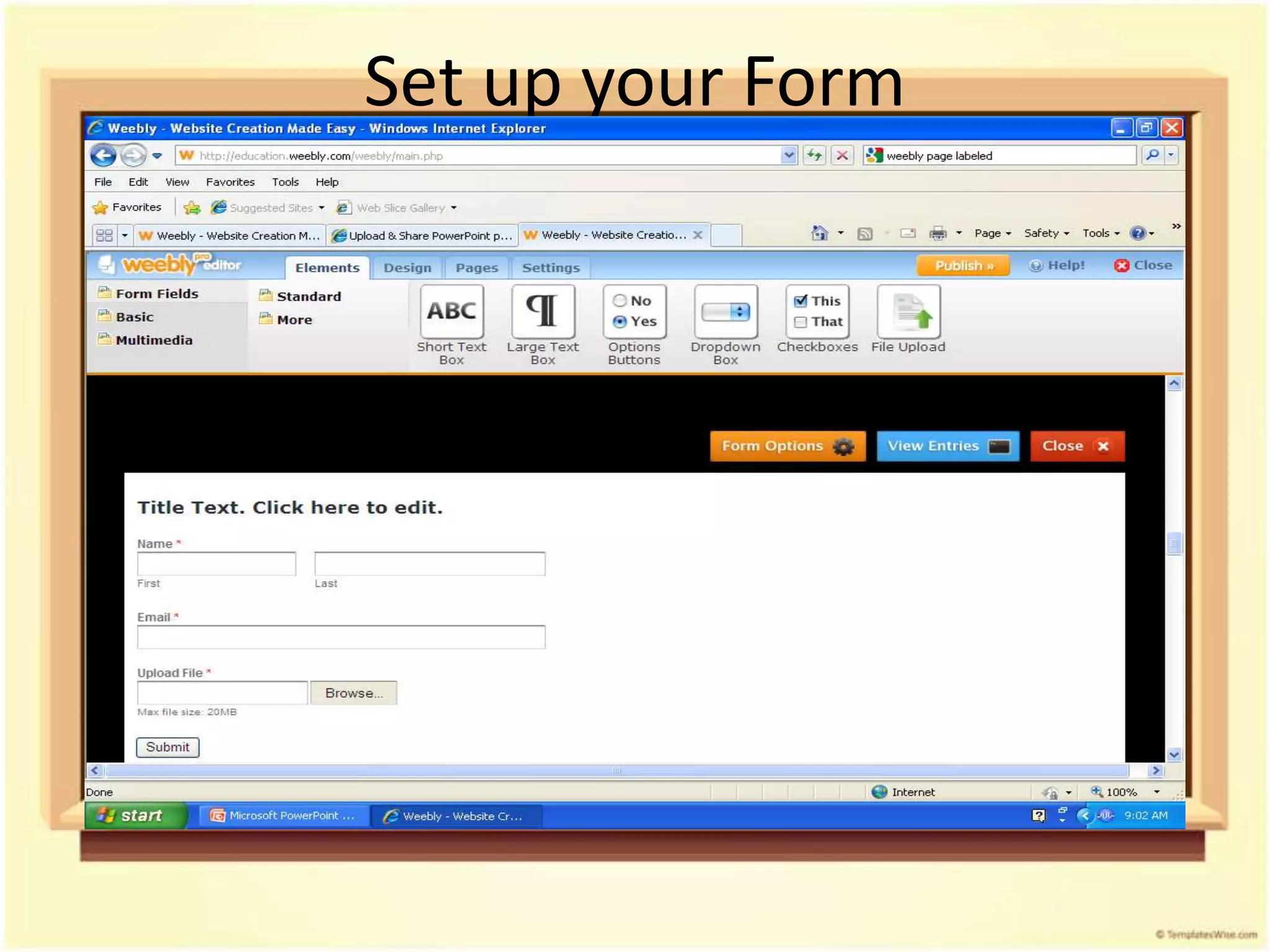
Set up your Form
View Received Form

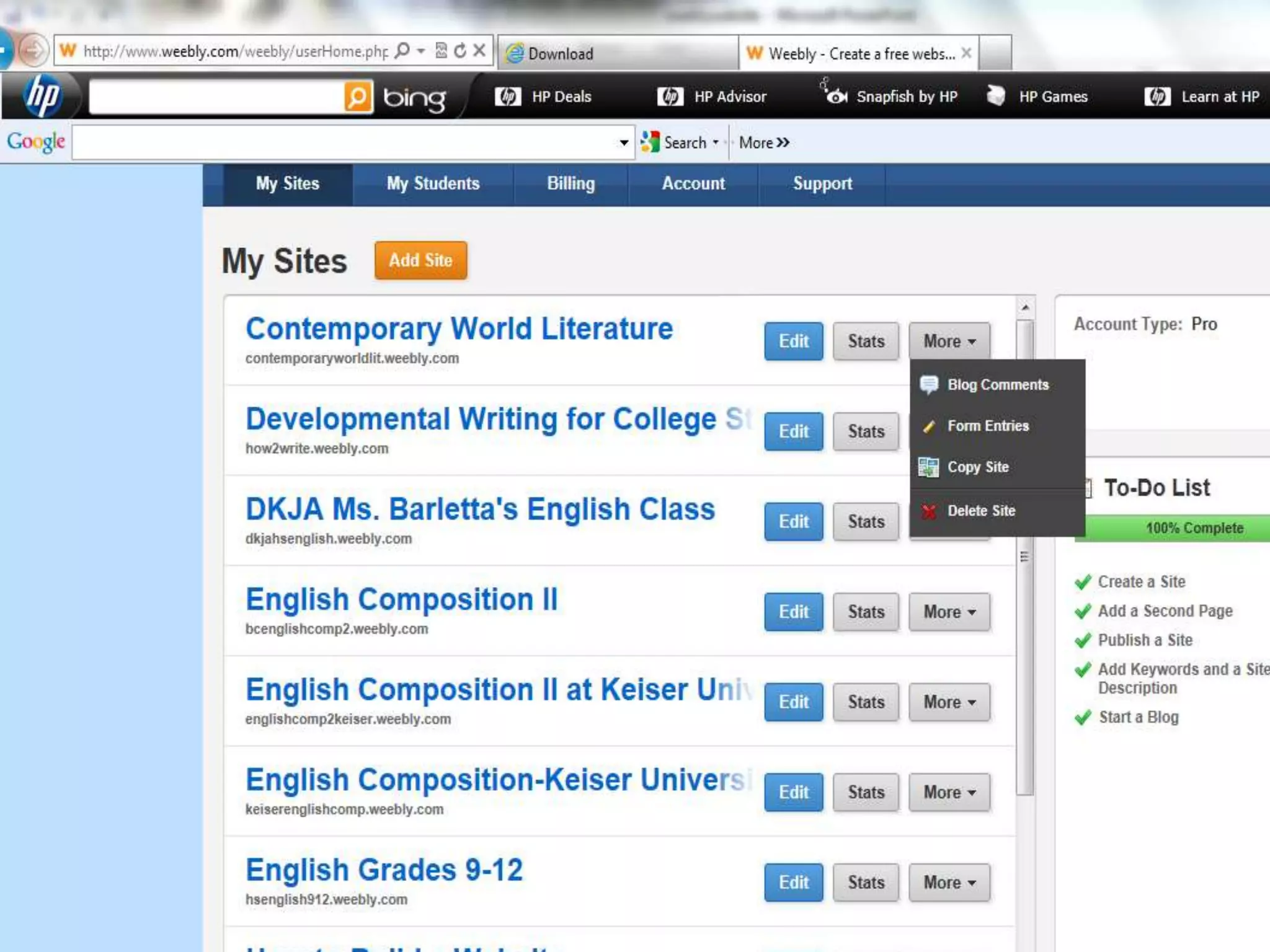
• To view student forms close your page so that
  you are viewing “My Sites”
• There are three buttons to the right of your
  site: Edit Site, Statistics, and More
• Click on “More”        Edit Site Statistics More
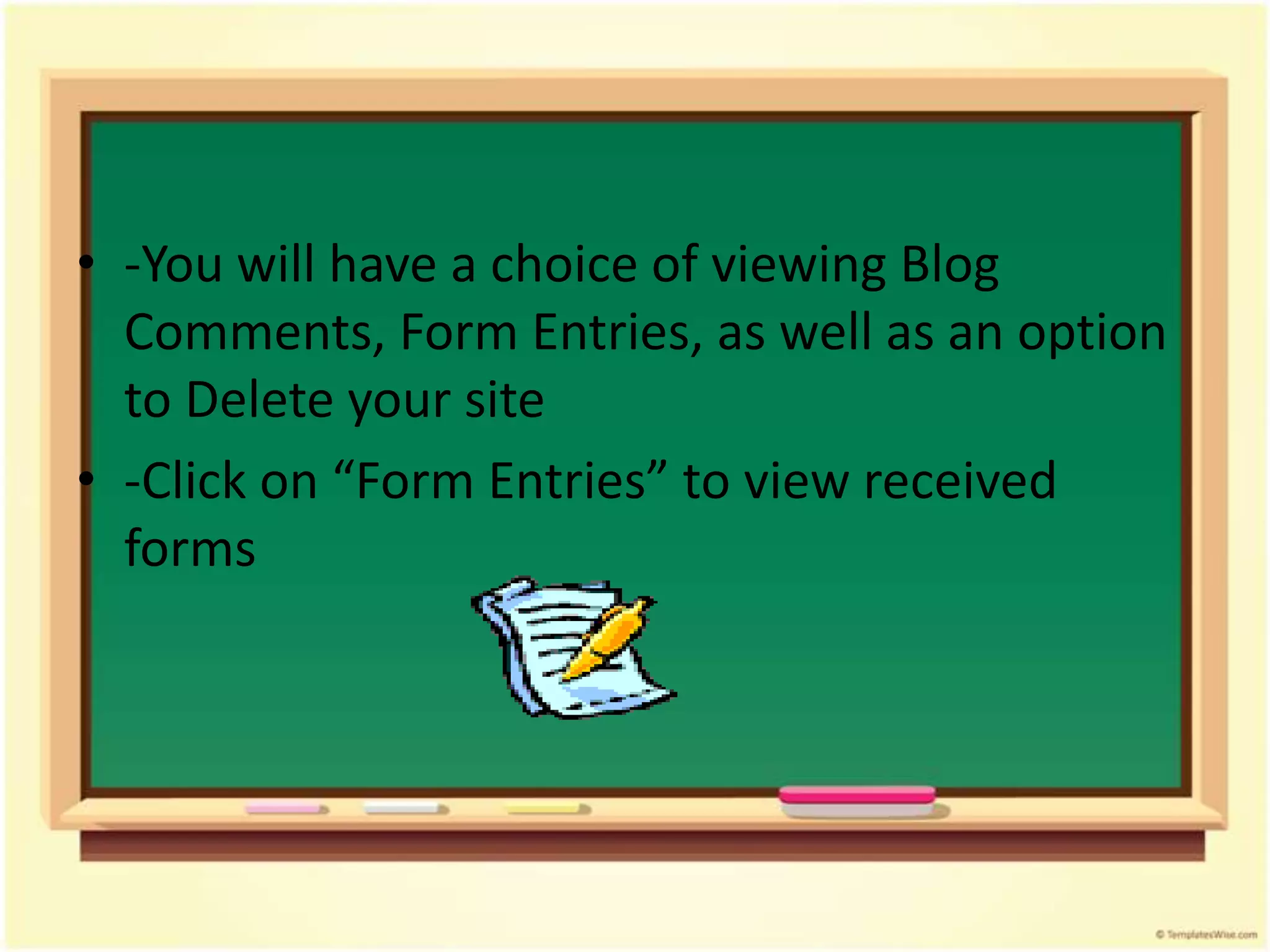
• -You will have a choice of viewing Blog
  Comments, Form Entries, as well as an option
  to Delete your site
• -Click on “Form Entries” to view received
  forms
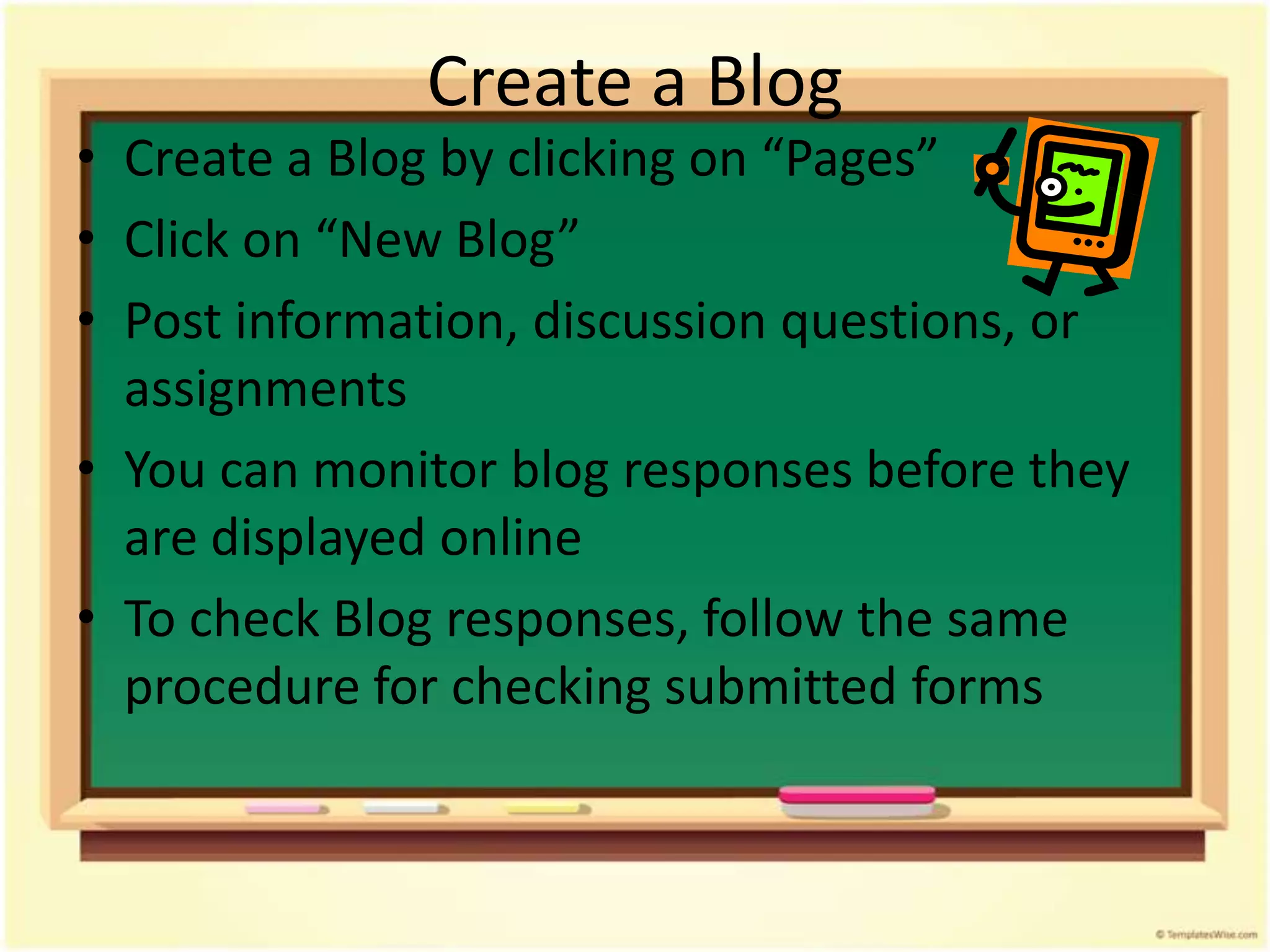
Create a Blog
• Create a Blog by clicking on “Pages”
• Click on “New Blog”
• Post information, discussion questions, or
  assignments
• You can monitor blog responses before they
  are displayed online
• To check Blog responses, follow the same
  procedure for checking submitted forms
Weebly Support & Info
 •   Weebly Demo
 •   Weebly Demo 2
 •   Weebly Help
 •   About Weebly
 •   Weebly Article
 •   Weebly Education Sites and Blog
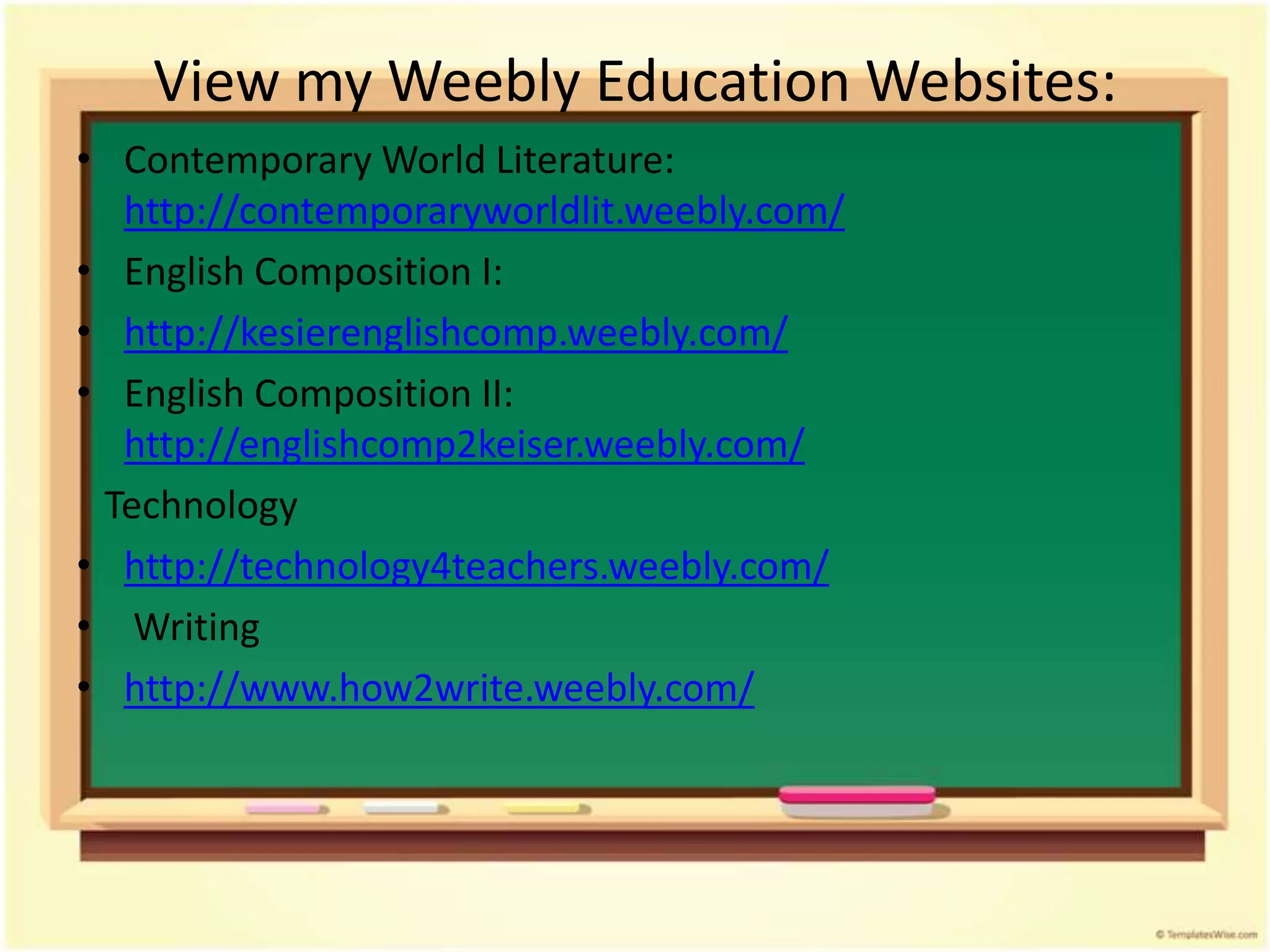
View my Weebly Education Websites:
• Contemporary World Literature:
  http://contemporaryworldlit.weebly.com/
• English Composition I:
• http://kesierenglishcomp.weebly.com/
• English Composition II:
  http://englishcomp2keiser.weebly.com/
 Technology
• http://technology4teachers.weebly.com/
• Writing
• http://www.how2write.weebly.com/

Weebly Education Website Building

  • 1.
    Weebly Education inthe Classroom: Create your own Website by Crystal Barletta E-mail: cbarletta3@yahoo.com
  • 2.
    Use Weebly Educator •Weebly Educator is a free website builder for educators and has multiple uses: – Post assignments – Post class information – Import files – Import videos – Import pictures – Create links to other websites – Collect assignments using the Digital Dropbox – Create digital student portfolios – Create classes and add students
  • 3.
    Create a FreeWebsite in Minutes! • Step 1: Go to http://education.weebly.com/ and sign up. You will be asked to create a username, password, and provide an e-mail address
  • 4.
  • 5.
    Step 2 • Step2: Create a website-click on create a site, name it, and assign a url (Example: www.yourwebsite.weebly.com/)
  • 6.
  • 7.
  • 8.
    Let the CreationBegin! • Step 3: Start creating- choose a design (you can change this later and alter the pictures) • Step 4: Create your page: click and drag on the elements of your choice to add titles, paragraphs, pictures, video, files, etc.
  • 9.
  • 11.
    • Step 5:Add pages and even a blog by clicking on pages and naming them (Example: English 9, English 9 Honors, English 12 Honors, Suggested Sites, Blog)
  • 12.
  • 13.
    Publish Your Site •Step 6: Publish your website-click on the orange publish button and save the link, this is the site students will see • You can make changes at any time and re- publish your site and instantly see the changes applied to the site
  • 14.
  • 15.
  • 16.
  • 17.
    View Received Form •To view student forms close your page so that you are viewing “My Sites” • There are three buttons to the right of your site: Edit Site, Statistics, and More • Click on “More” Edit Site Statistics More
  • 19.
    • -You willhave a choice of viewing Blog Comments, Form Entries, as well as an option to Delete your site • -Click on “Form Entries” to view received forms
  • 20.
    Create a Blog •Create a Blog by clicking on “Pages” • Click on “New Blog” • Post information, discussion questions, or assignments • You can monitor blog responses before they are displayed online • To check Blog responses, follow the same procedure for checking submitted forms
  • 21.
    Weebly Support &Info • Weebly Demo • Weebly Demo 2 • Weebly Help • About Weebly • Weebly Article • Weebly Education Sites and Blog
  • 22.
    View my WeeblyEducation Websites: • Contemporary World Literature: http://contemporaryworldlit.weebly.com/ • English Composition I: • http://kesierenglishcomp.weebly.com/ • English Composition II: http://englishcomp2keiser.weebly.com/ Technology • http://technology4teachers.weebly.com/ • Writing • http://www.how2write.weebly.com/