WELCOME TO  “BUILDING A WEBSITE” AimHigher, 1 st  April 2009 [email_address]
PLEASE… Look after the computers. Listen carefully to any instructions. When working in pairs (with the person next to you), make sure you both get time to discuss your subject. Raise your hand if you wish to ask a question/say something.
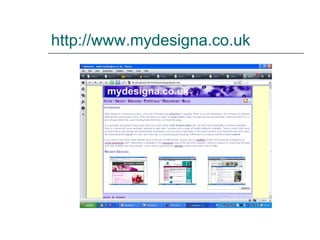
http://www.mydesigna.co.uk
Today we’ll learn how to… produce a better website by designing it on paper before we use the computer. build a website on a subject that interests you Learn some new software Structure a site Write some content Add some links Add some images
How many of you? Have used the  internet  a lot? Have built a  webpage  or  website  before?
WORKING IN PAIRS: 5 minutes What do you really  love  and would like to tell the world about? Football? Elephants? Make-Up? A TV show? Decide which overseas penfriend you are  writing for : Who are they: boy/girl, same age? Which country?
WORKING IN PAIRS: 10 minutes Go to:  http://www.google.co.uk   Search  for sites on the subject that you love: you need to look for ideas for  site sections  and  words  to write (images later): what do you think your penfriend would find  interesting ?
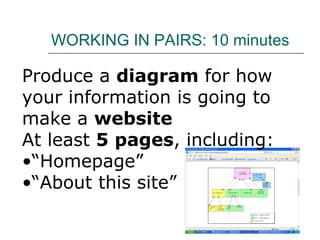
WORKING IN PAIRS: 10 minutes Produce a  diagram  for how your information is going to  make a  website At least  5 pages , including: “ Homepage” “ About this site”
NOW: TO BUILD A SITE INDIVIDUALLY, WATCH ME … And follow  step-by-step  through the instructions…
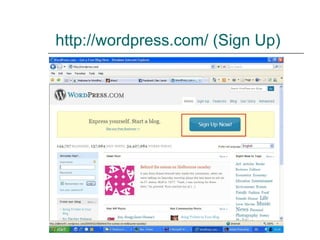
http:// wordpress.com /  (Sign Up)
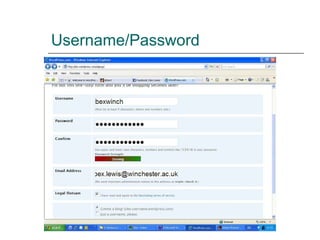
Username/Password
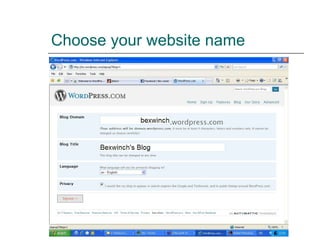
Choose your website name
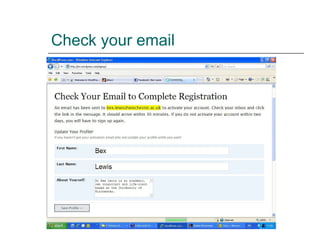
Check your email
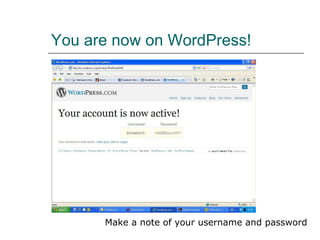
You are now on WordPress! Make a note of your username and password
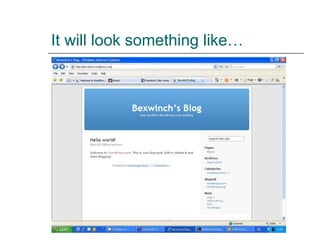
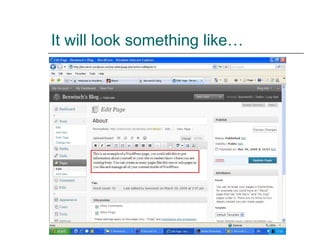
It will look something like…
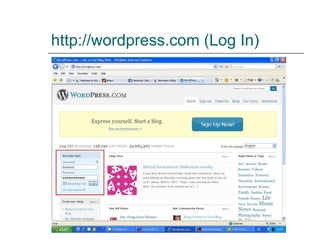
http://wordpress.com  (Log In)
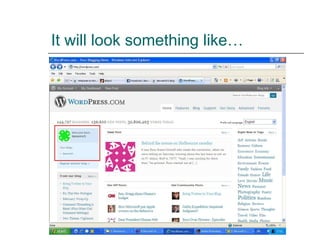
It will look something like…
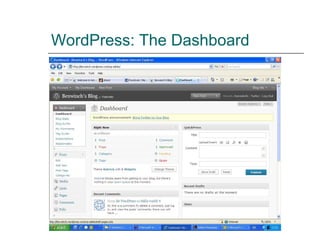
WordPress: The Dashboard
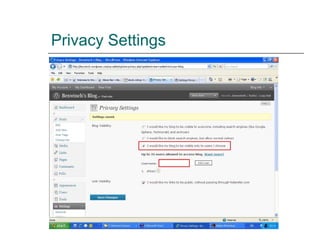
Privacy Settings
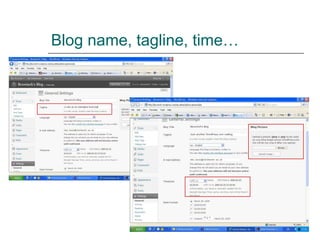
Blog name, tagline, time…
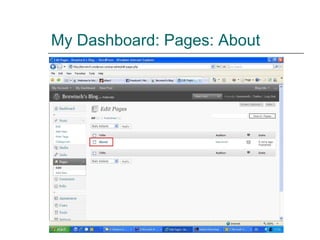
My Dashboard: Pages: About
It will look something like…
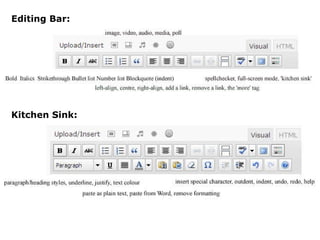
Kitchen Sink: Editing Bar:
WORKING TOGETHER: Add Content to the “About” page. Add some “content” (words) Who is this site for? Who wrote it? Add an  email  link Divide your text with  headings Add a  link to another webpage
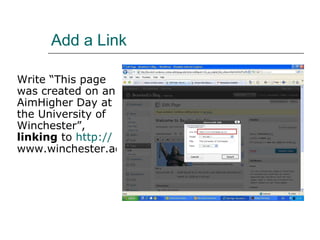
Add a Link Write “This page was created on an AimHigher Day at the University of Winchester”,  linking  to  http:// www.winchester.ac.uk
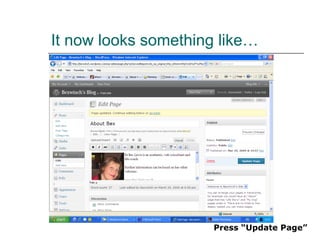
It now looks something like… Press “Update Page”
Adding some pictures IMPORTANT:  If you take pictures from Google, they belong to someone else! DON’T  use them on your website http://www.mydesigna.ww2poster.co.uk/resources/visual/images.htm   gives lots of links where you can get  legal images .
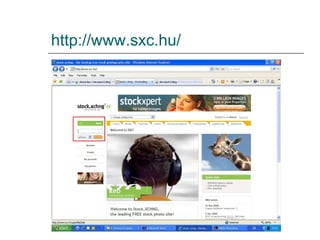
http:// www.sxc.hu /
LOG-IN WITH: Username [email_address]   Password winchester
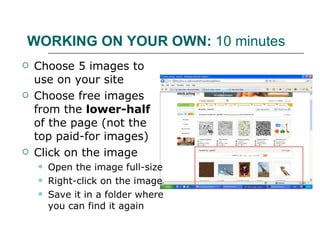
WORKING ON YOUR OWN:  10 minutes Choose 5 images to use on your site Choose free images from the  lower-half  of the page (not the top paid-for images) Click on the image Open the image full-size Right-click on the image Save it in a folder where you can find it again
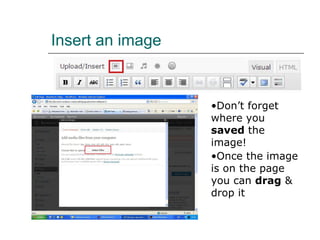
Insert an image Once the image is on the page you can  drag  & drop it Don’t forget where you  saved  the image!
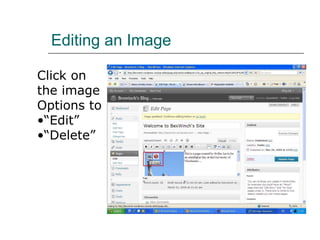
Editing an Image Click on  the image Options to “ Edit” “ Delete”
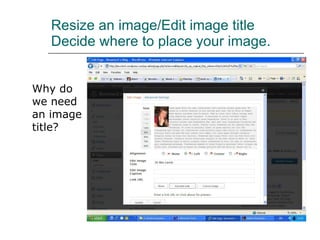
Resize an image/Edit image title Decide where to place your image. Why do we need an image title?
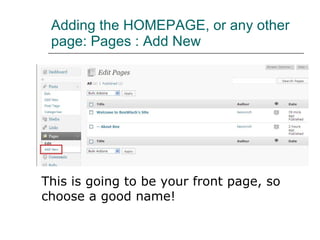
Adding the HOMEPAGE, or any other page: Pages : Add New This is going to be your front page, so choose a good name!
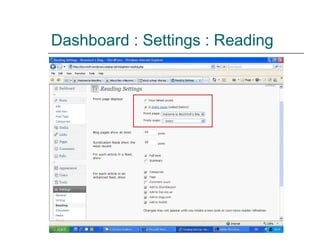
Dashboard : Settings : Reading
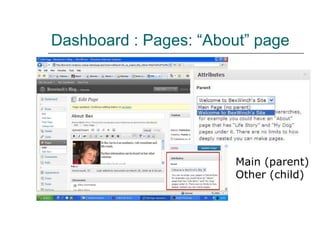
Dashboard : Pages: “About” page Main (parent) Other (child)
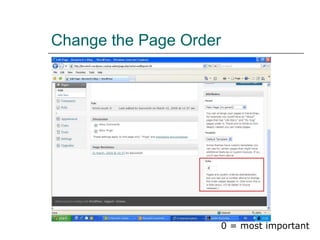
Change the Page Order 0 = most important
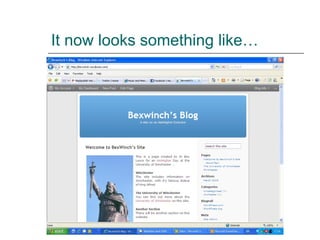
It now looks something like…
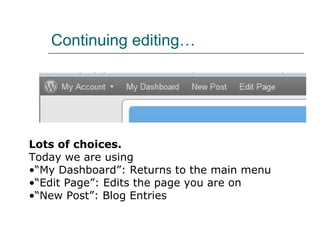
Continuing editing… Lots of choices.   Today we are using  “ My Dashboard”: Returns to the main menu “ Edit Page”: Edits the page you are on “ New Post”: Blog Entries
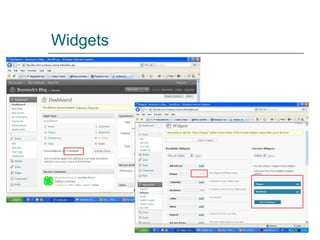
Widgets
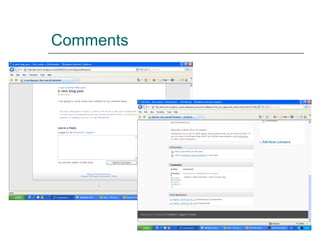
Blogs A reverse diary (most recent entry first) “ Many blogs provide commentary or news on a particular subject; others function as more personal  online diaries . A typical blog combines text, images, and links to other blogs, Web pages, and other media  related to its topic . The ability for readers to leave  comments  in an interactive format is an important part of many blogs.”  http://en.wikipedia.org/wiki/Blog
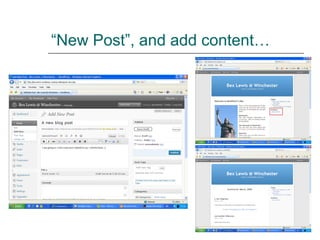
“ New Post”, and add content…
Comments
BUILD YOUR SITES You have until  15 minutes before the session ends  to build your site.  Your site  must  include  5 pages , including  words  and  images . Think carefully about the  words  and the  headings  you are going to use. If you finish that… you can add a  video .
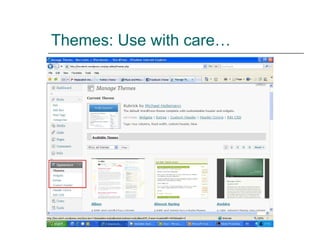
Themes: Use with care…
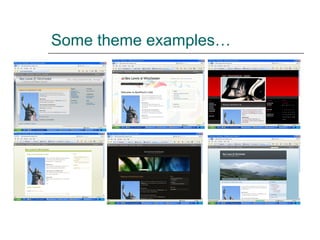
Some theme examples…
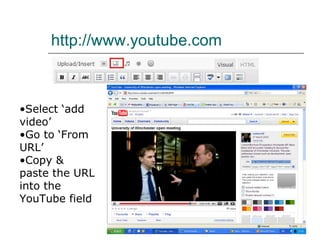
http://www.youtube.com   Select ‘add video’ Go to ‘From URL’ Copy & paste the URL into the YouTube field
SWAP ACTIVITY: 10 minutes SEE OTHER SITES: Go around the room and look at 2 or 3 other websites. Maximum of 2 people at any one computer.
LOG-OFF & CLEAR UP: 5 minutes THANK YOU! I HOPE YOU ENJOYED IT.

Aim Higher, 1 April 2009 (2)

  • 1.
    WELCOME TO “BUILDING A WEBSITE” AimHigher, 1 st April 2009 [email_address]
  • 2.
    PLEASE… Look afterthe computers. Listen carefully to any instructions. When working in pairs (with the person next to you), make sure you both get time to discuss your subject. Raise your hand if you wish to ask a question/say something.
  • 3.
  • 4.
    Today we’ll learnhow to… produce a better website by designing it on paper before we use the computer. build a website on a subject that interests you Learn some new software Structure a site Write some content Add some links Add some images
  • 5.
    How many ofyou? Have used the internet a lot? Have built a webpage or website before?
  • 6.
    WORKING IN PAIRS:5 minutes What do you really love and would like to tell the world about? Football? Elephants? Make-Up? A TV show? Decide which overseas penfriend you are writing for : Who are they: boy/girl, same age? Which country?
  • 7.
    WORKING IN PAIRS:10 minutes Go to: http://www.google.co.uk Search for sites on the subject that you love: you need to look for ideas for site sections and words to write (images later): what do you think your penfriend would find interesting ?
  • 8.
    WORKING IN PAIRS:10 minutes Produce a diagram for how your information is going to make a website At least 5 pages , including: “ Homepage” “ About this site”
  • 9.
    NOW: TO BUILDA SITE INDIVIDUALLY, WATCH ME … And follow step-by-step through the instructions…
  • 10.
  • 11.
  • 12.
  • 13.
  • 14.
    You are nowon WordPress! Make a note of your username and password
  • 15.
    It will looksomething like…
  • 16.
  • 17.
    It will looksomething like…
  • 18.
  • 19.
  • 20.
  • 21.
  • 22.
    It will looksomething like…
  • 23.
  • 24.
    WORKING TOGETHER: AddContent to the “About” page. Add some “content” (words) Who is this site for? Who wrote it? Add an email link Divide your text with headings Add a link to another webpage
  • 25.
    Add a LinkWrite “This page was created on an AimHigher Day at the University of Winchester”, linking to http:// www.winchester.ac.uk
  • 26.
    It now lookssomething like… Press “Update Page”
  • 27.
    Adding some picturesIMPORTANT: If you take pictures from Google, they belong to someone else! DON’T use them on your website http://www.mydesigna.ww2poster.co.uk/resources/visual/images.htm gives lots of links where you can get legal images .
  • 28.
  • 29.
    LOG-IN WITH: Username[email_address] Password winchester
  • 30.
    WORKING ON YOUROWN: 10 minutes Choose 5 images to use on your site Choose free images from the lower-half of the page (not the top paid-for images) Click on the image Open the image full-size Right-click on the image Save it in a folder where you can find it again
  • 31.
    Insert an imageOnce the image is on the page you can drag & drop it Don’t forget where you saved the image!
  • 32.
    Editing an ImageClick on the image Options to “ Edit” “ Delete”
  • 33.
    Resize an image/Editimage title Decide where to place your image. Why do we need an image title?
  • 34.
    Adding the HOMEPAGE,or any other page: Pages : Add New This is going to be your front page, so choose a good name!
  • 35.
  • 36.
    Dashboard : Pages:“About” page Main (parent) Other (child)
  • 37.
    Change the PageOrder 0 = most important
  • 38.
    It now lookssomething like…
  • 39.
    Continuing editing… Lotsof choices. Today we are using “ My Dashboard”: Returns to the main menu “ Edit Page”: Edits the page you are on “ New Post”: Blog Entries
  • 40.
  • 41.
    Blogs A reversediary (most recent entry first) “ Many blogs provide commentary or news on a particular subject; others function as more personal online diaries . A typical blog combines text, images, and links to other blogs, Web pages, and other media related to its topic . The ability for readers to leave comments in an interactive format is an important part of many blogs.” http://en.wikipedia.org/wiki/Blog
  • 42.
    “ New Post”,and add content…
  • 43.
  • 44.
    BUILD YOUR SITESYou have until 15 minutes before the session ends to build your site. Your site must include 5 pages , including words and images . Think carefully about the words and the headings you are going to use. If you finish that… you can add a video .
  • 45.
  • 46.
  • 47.
    http://www.youtube.com Select ‘add video’ Go to ‘From URL’ Copy & paste the URL into the YouTube field
  • 48.
    SWAP ACTIVITY: 10minutes SEE OTHER SITES: Go around the room and look at 2 or 3 other websites. Maximum of 2 people at any one computer.
  • 49.
    LOG-OFF & CLEARUP: 5 minutes THANK YOU! I HOPE YOU ENJOYED IT.