By Valerie Burton
@MsBisOnline
 students have an opportunity to take
  ownership of their learning
 content can be selected by the student
  (with teacher guidance)
 they allow for self-reflection by the
  student
 feedback can be given by the teacher
  and/or parent
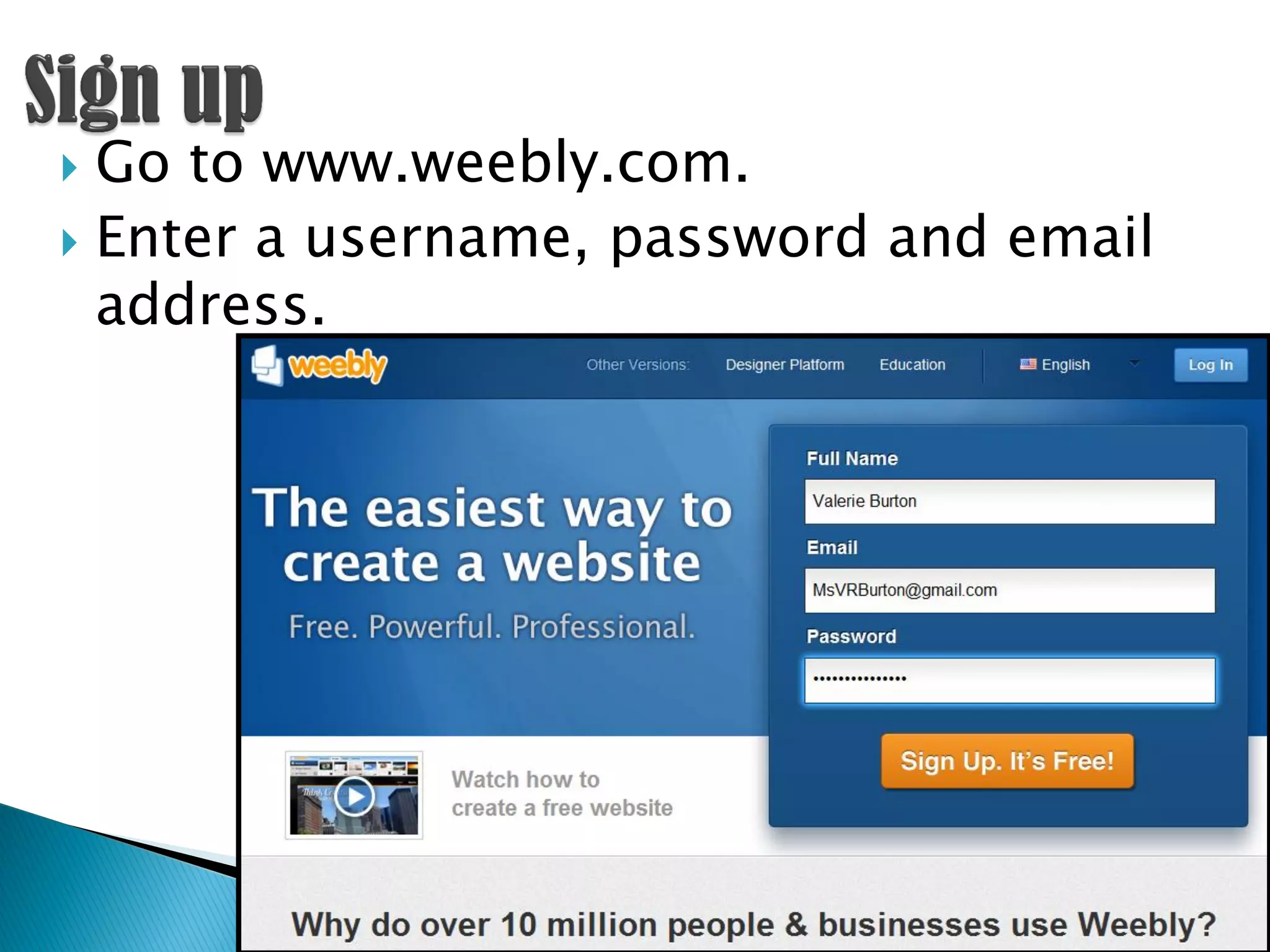
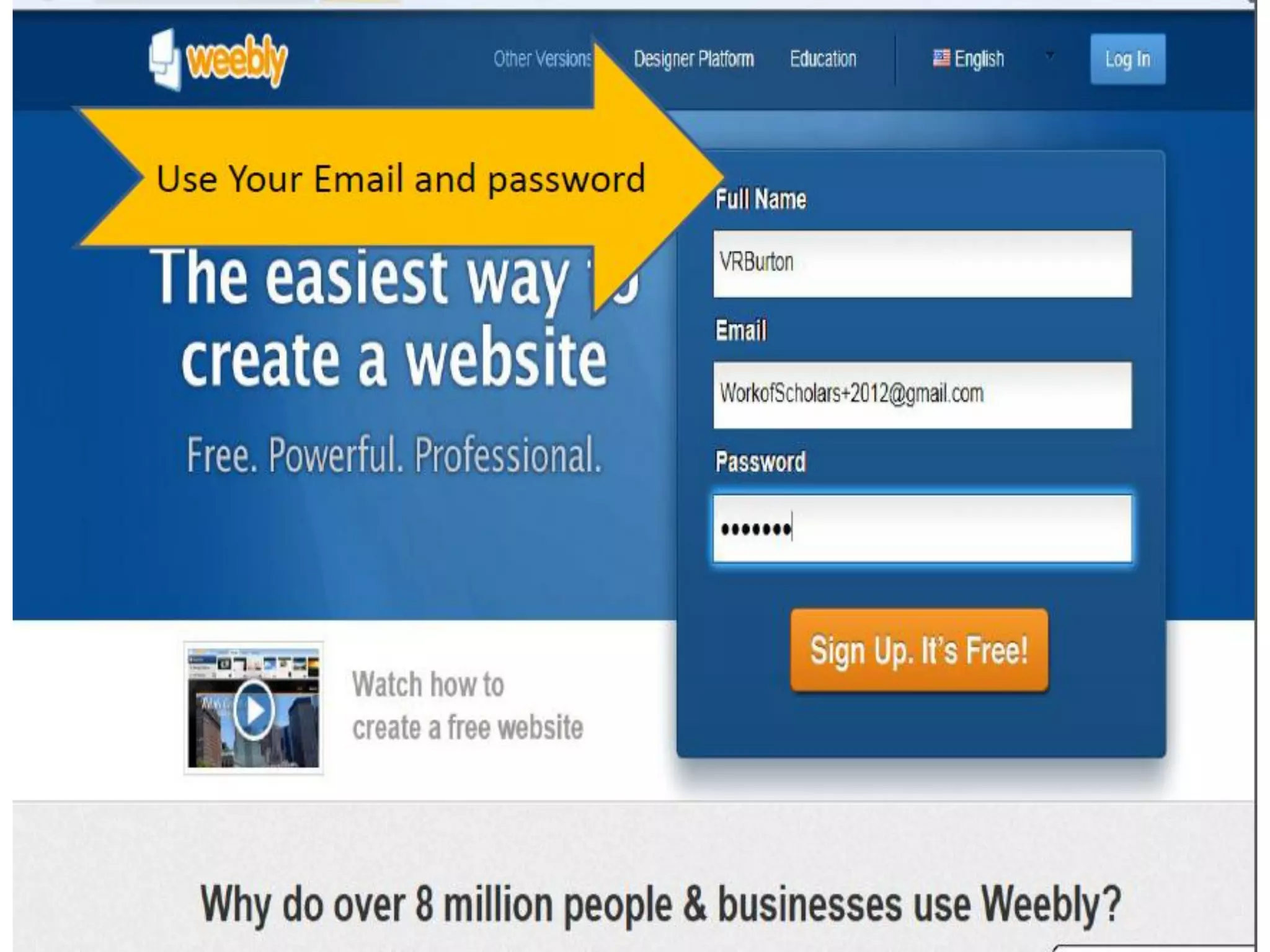
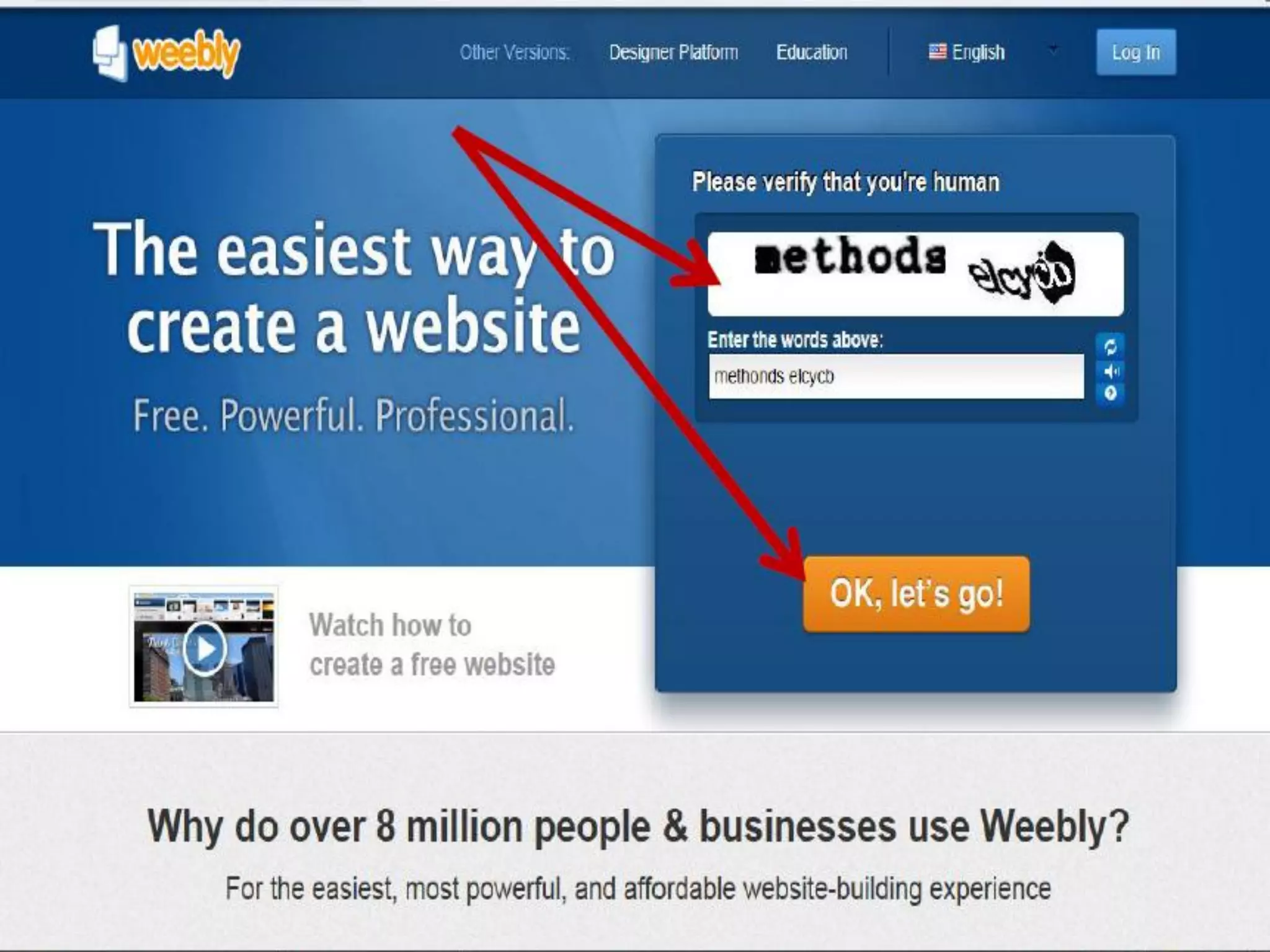
 Go to www.weebly.com.
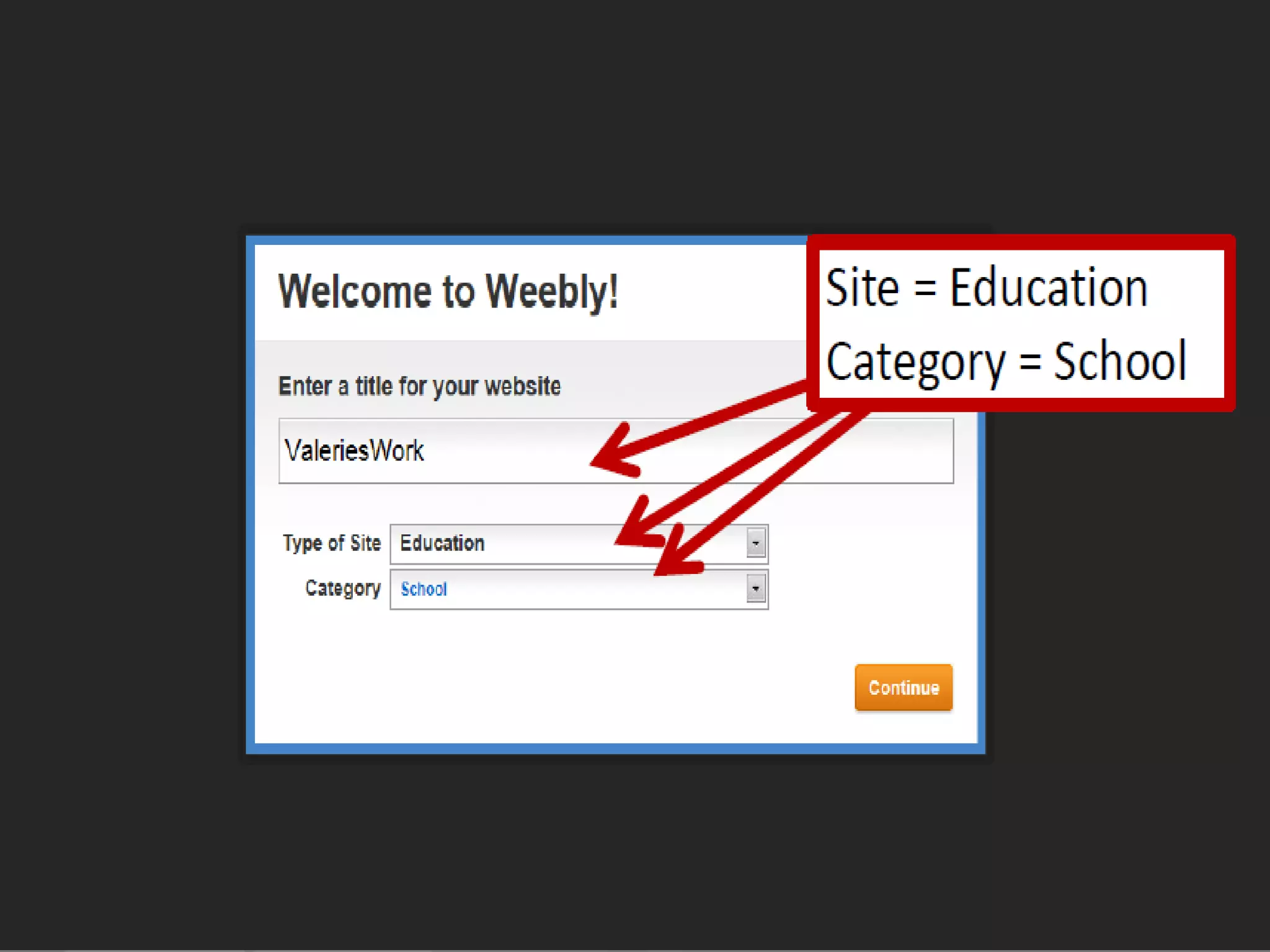
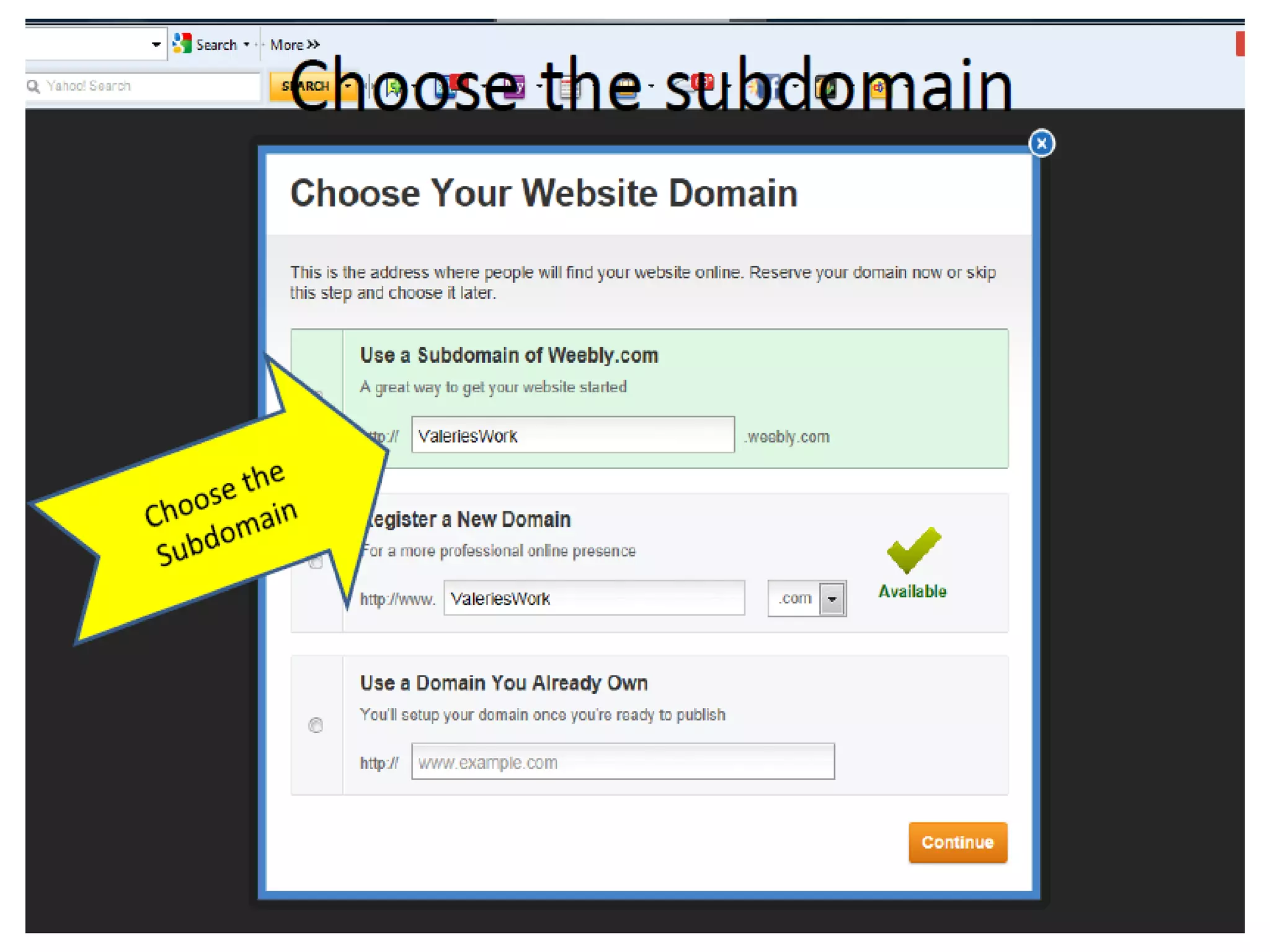
 Enter a username, password and email
  address.
 Now you need to personalize it for
 your needs
 ◦ Cute and whimsical
 ◦ Project oriented
 ◦ Professional and mature
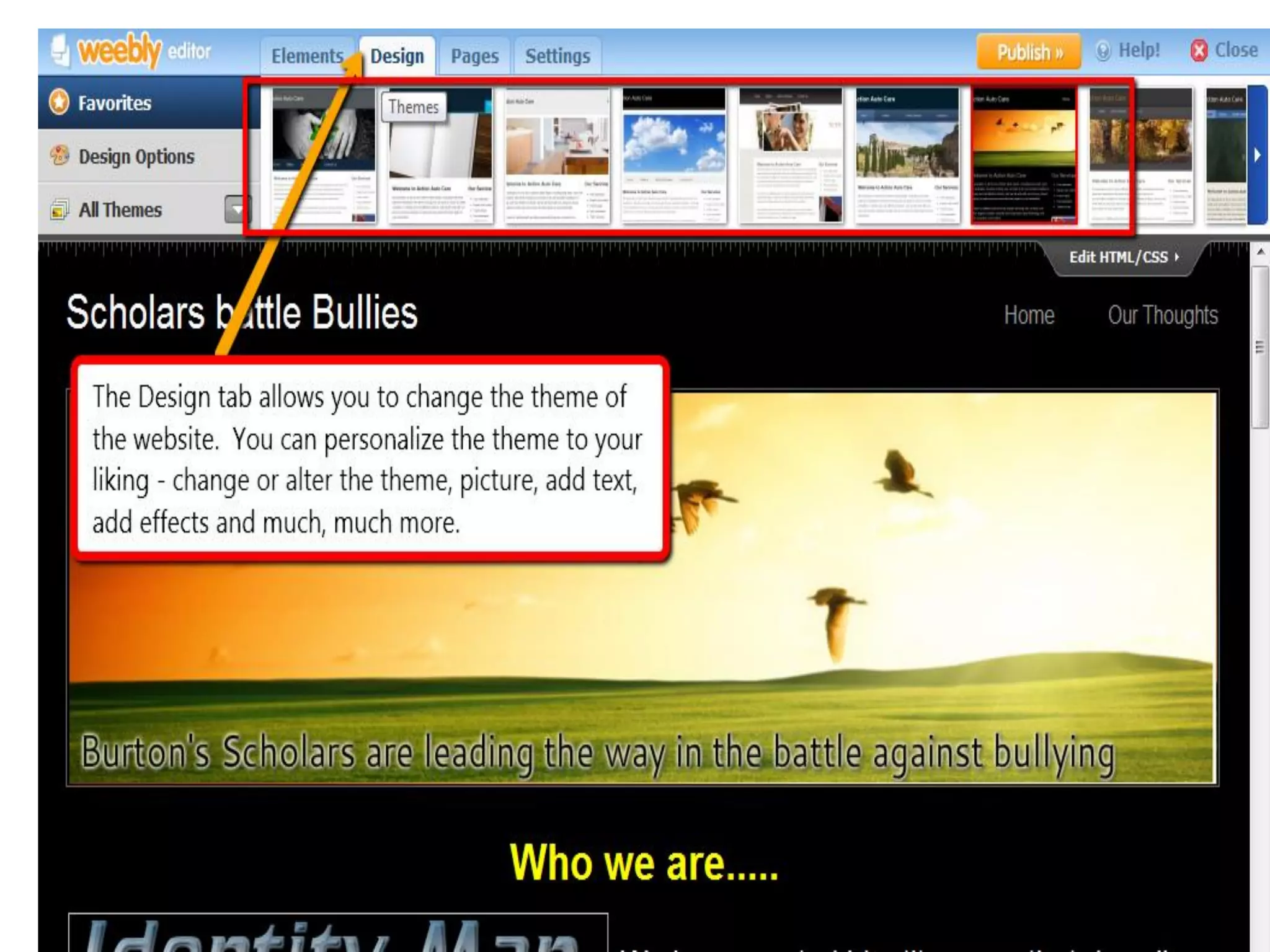
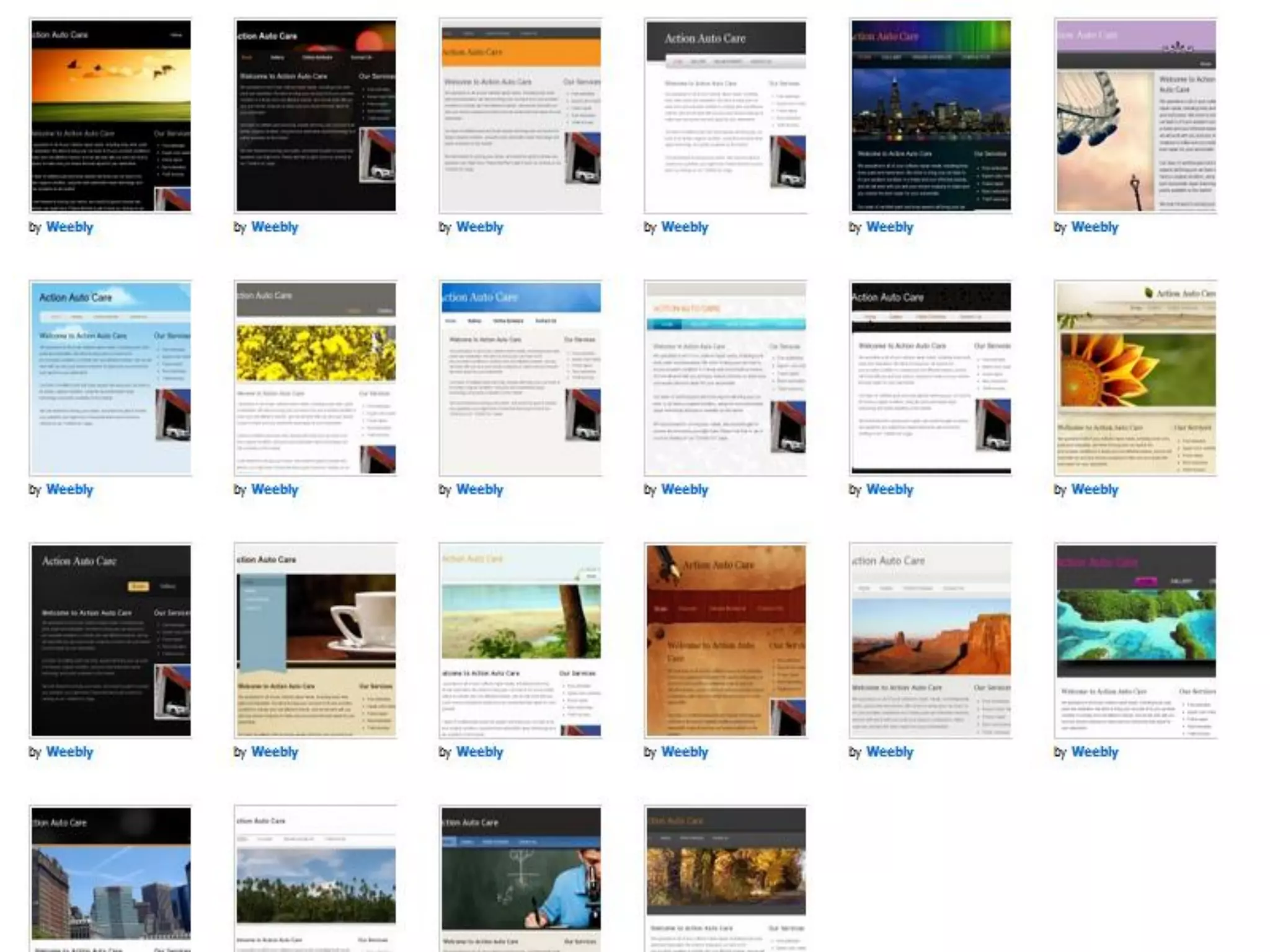
 Click on the “Designs” tab.
 Weebly has many different designs to
  choose from. Just hover your mouse
  over one of the designs, and Weebly
  will show you what it would look like.
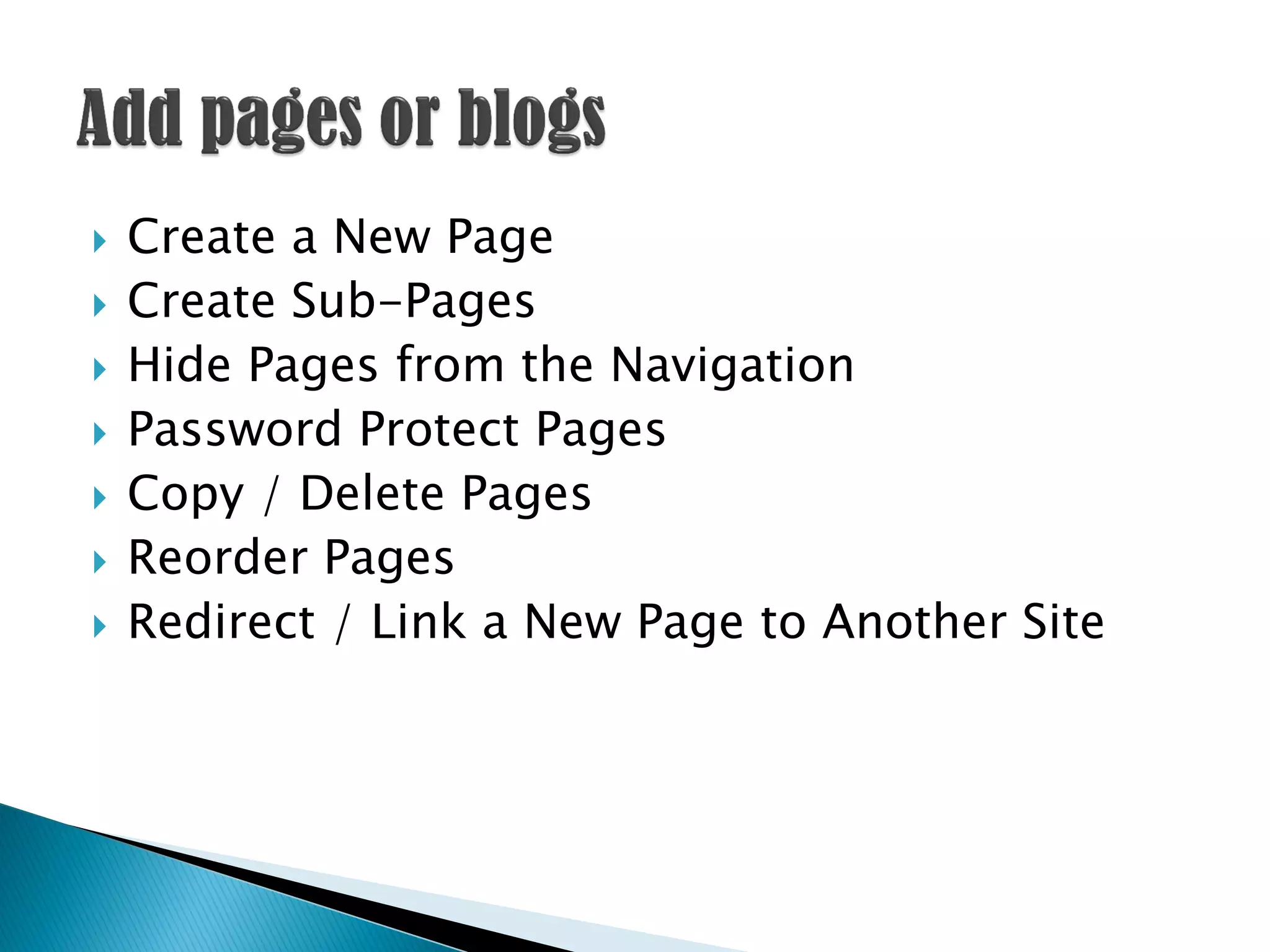
   Create a New Page
   Create Sub-Pages
   Hide Pages from the Navigation
   Password Protect Pages
   Copy / Delete Pages
   Reorder Pages
   Redirect / Link a New Page to Another Site
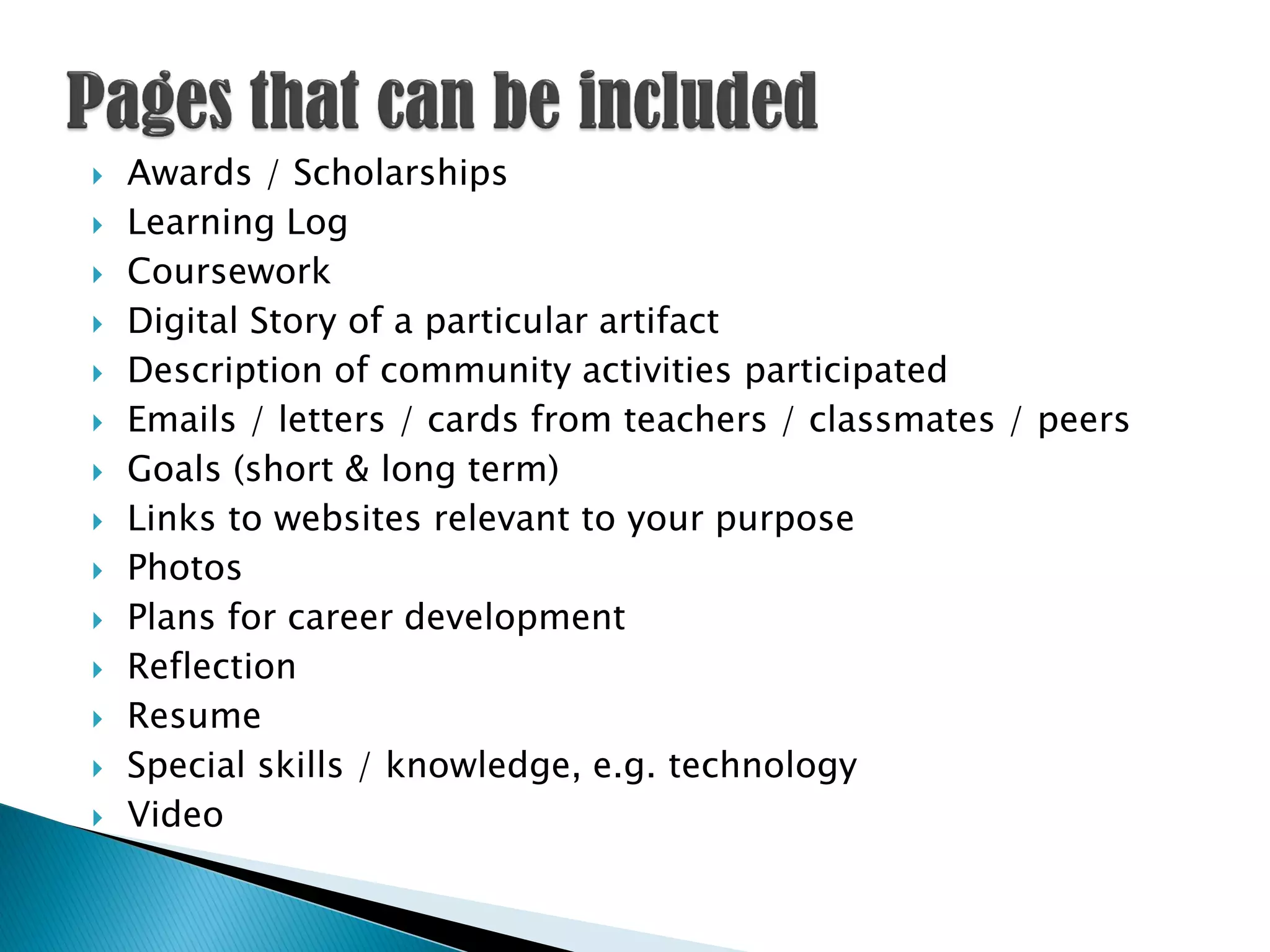
   Awards / Scholarships
   Learning Log
   Coursework
   Digital Story of a particular artifact
   Description of community activities participated
   Emails / letters / cards from teachers / classmates / peers
   Goals (short & long term)
   Links to websites relevant to your purpose
   Photos
   Plans for career development
   Reflection
   Resume
   Special skills / knowledge, e.g. technology
   Video
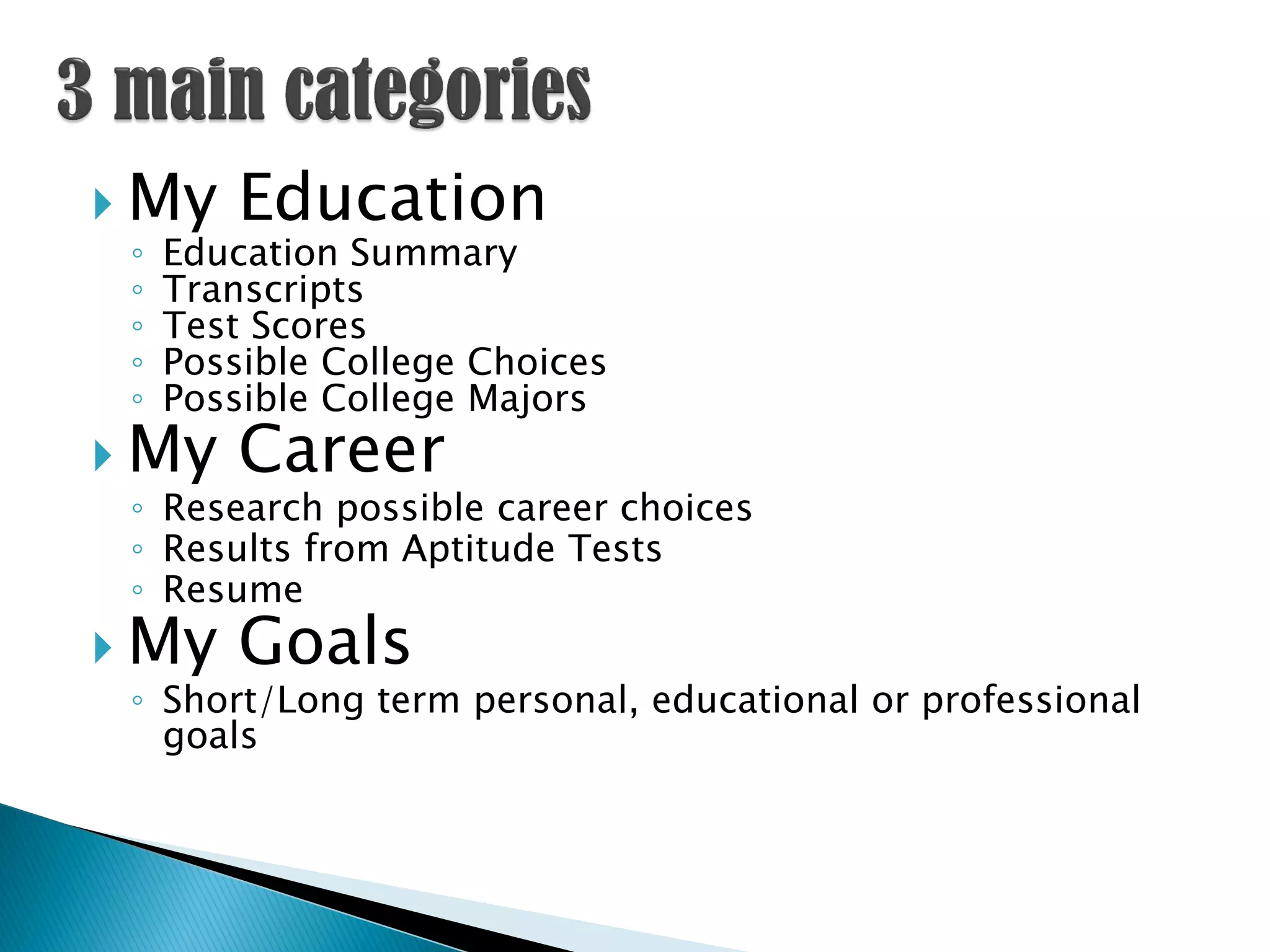
 My     Education
 ◦   Education Summary
 ◦   Transcripts
 ◦   Test Scores
 ◦   Possible College Choices
 ◦   Possible College Majors
 My     Career
 ◦ Research possible career choices
 ◦ Results from Aptitude Tests
 ◦ Resume
 My     Goals
 ◦ Short/Long term personal, educational or professional
   goals
   If there is an essay or paper to showcase you
    have two options: you can type the essay directly
    on the webpage or you can embed it ….
   Create a brief description of the assignment. If
    you wrote a research paper you can drag a “File”
    element and upload your assignment. The “File”
    element is located in the Multimedia section of
    the Elements tab.
   Below the assignment, drag in a paragraph
    element in which to put reflective writing about
    this assignment.
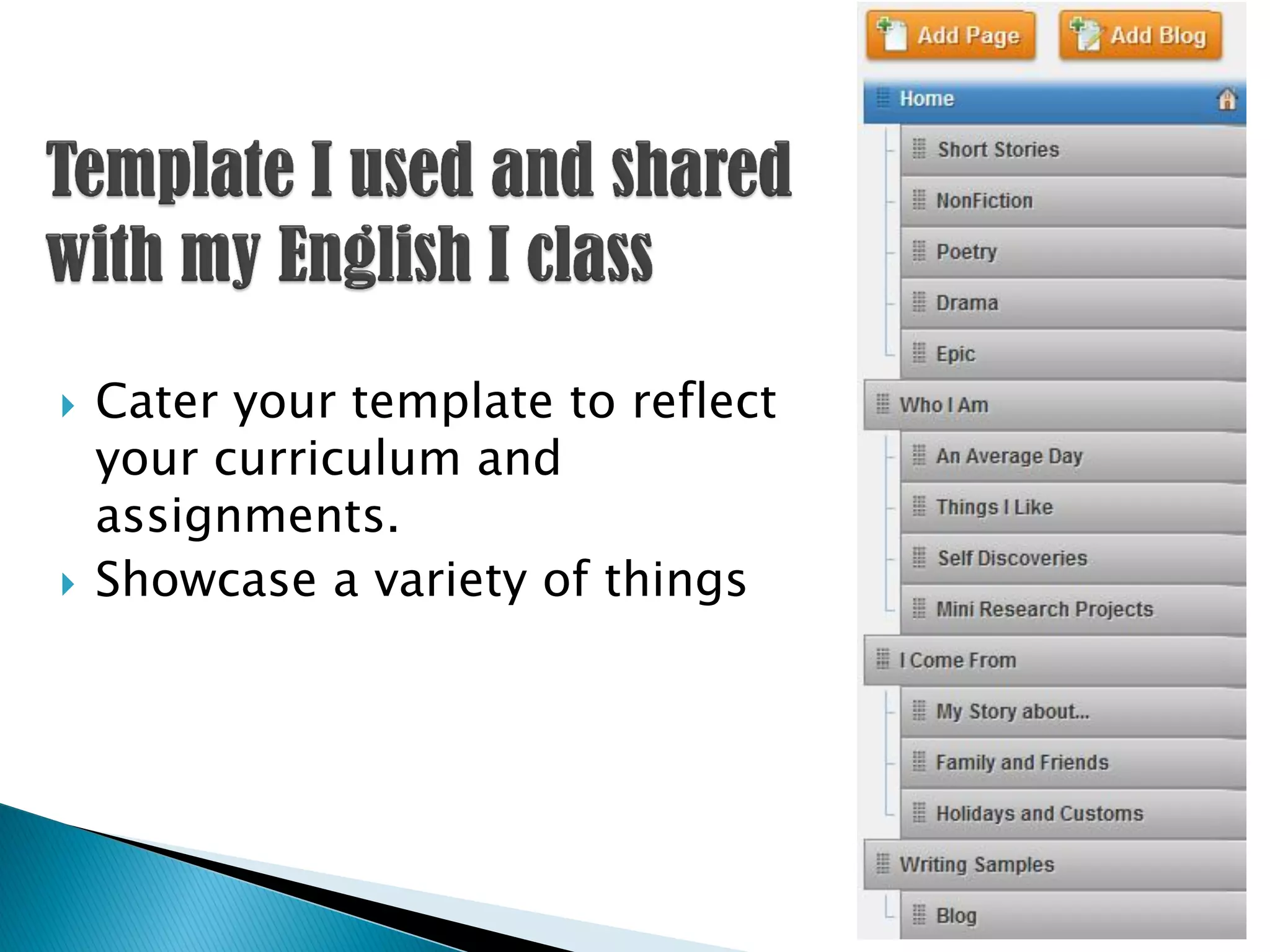
   Cater your template to reflect
    your curriculum and
    assignments.
   Showcase a variety of things
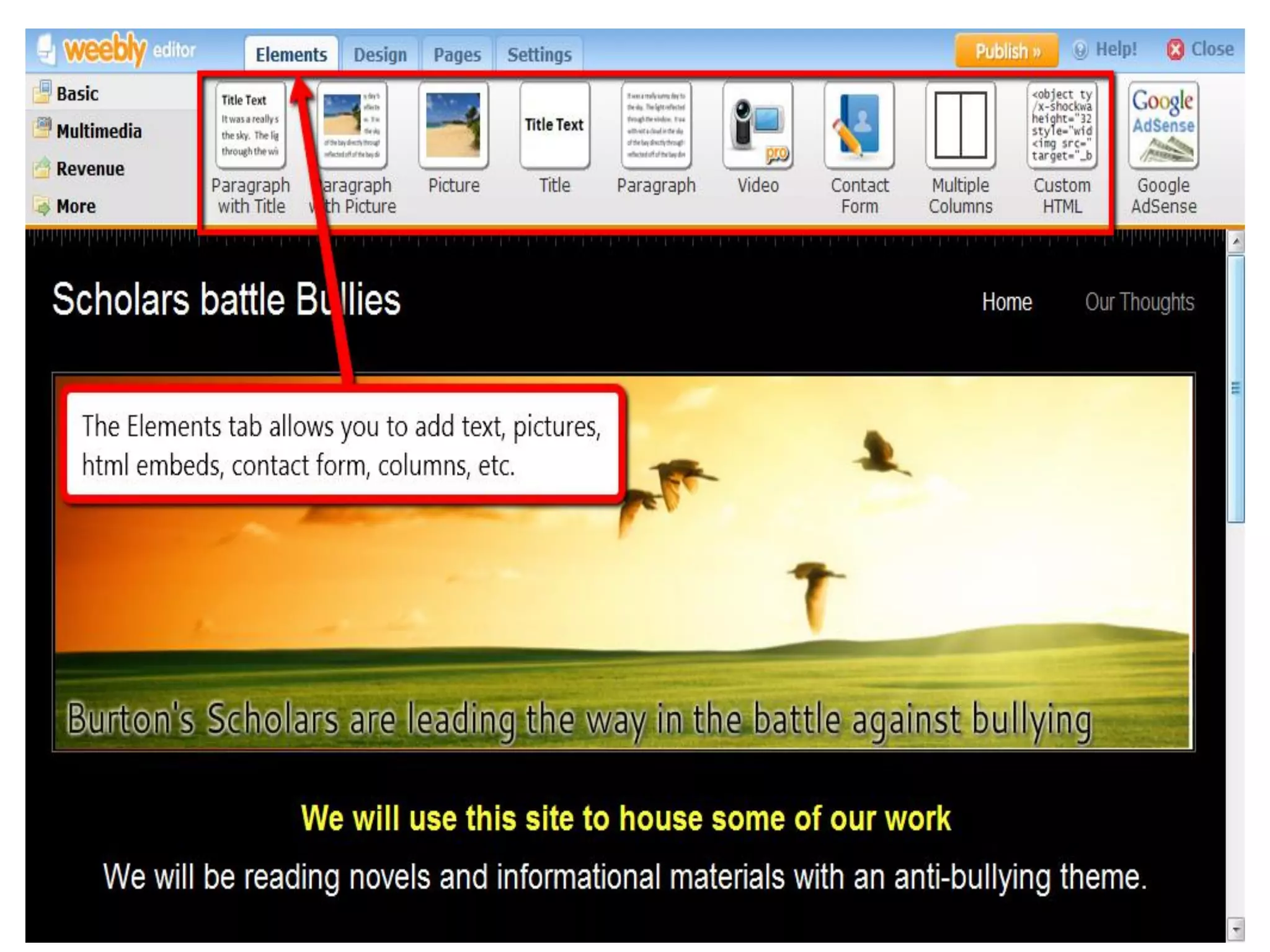
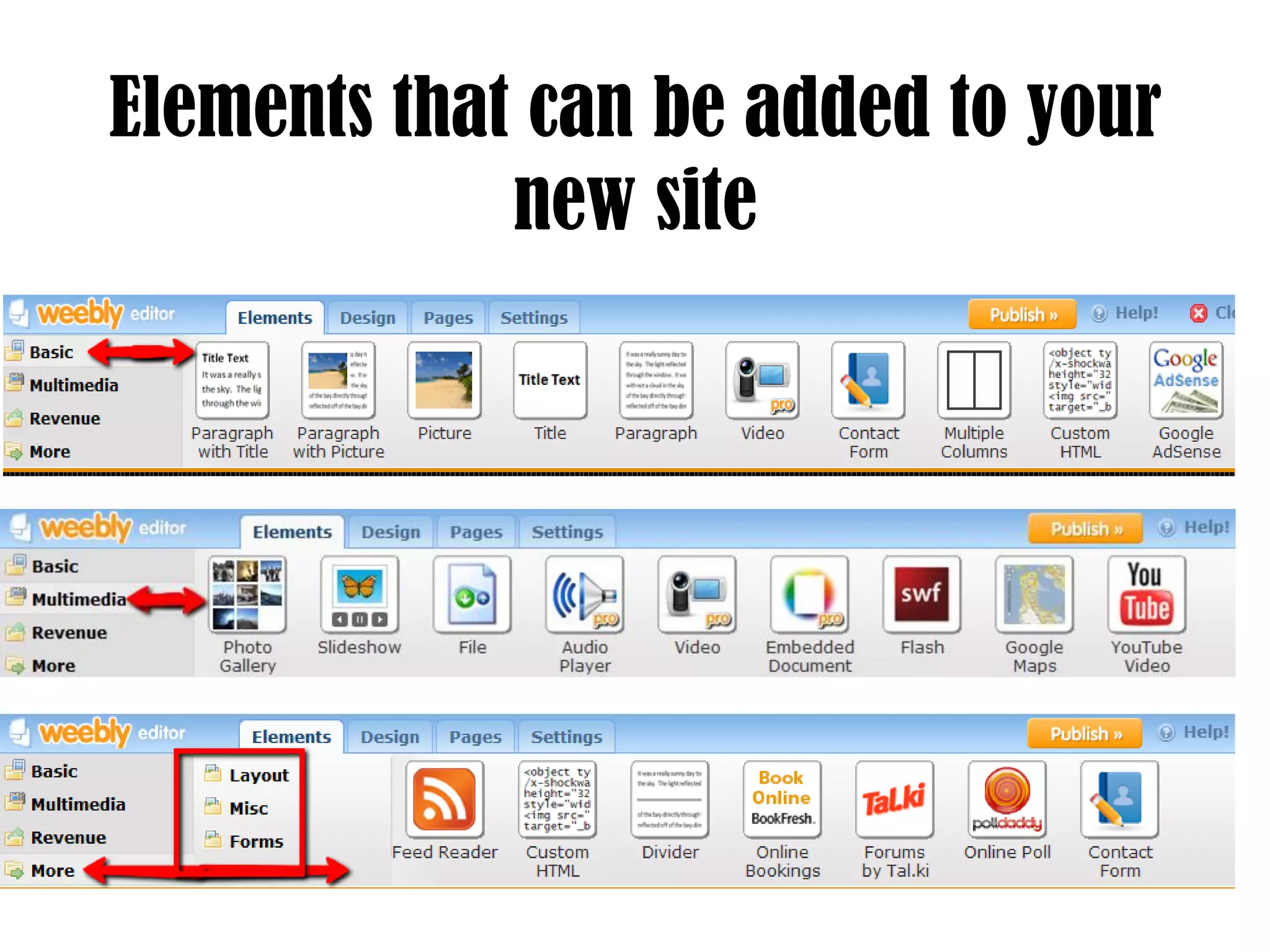
   Make sure you have the “Elements” tab selected.
   The basic elements that you’ll frequently use are
    listed first.
   Other elements are grouped under these
    categories.
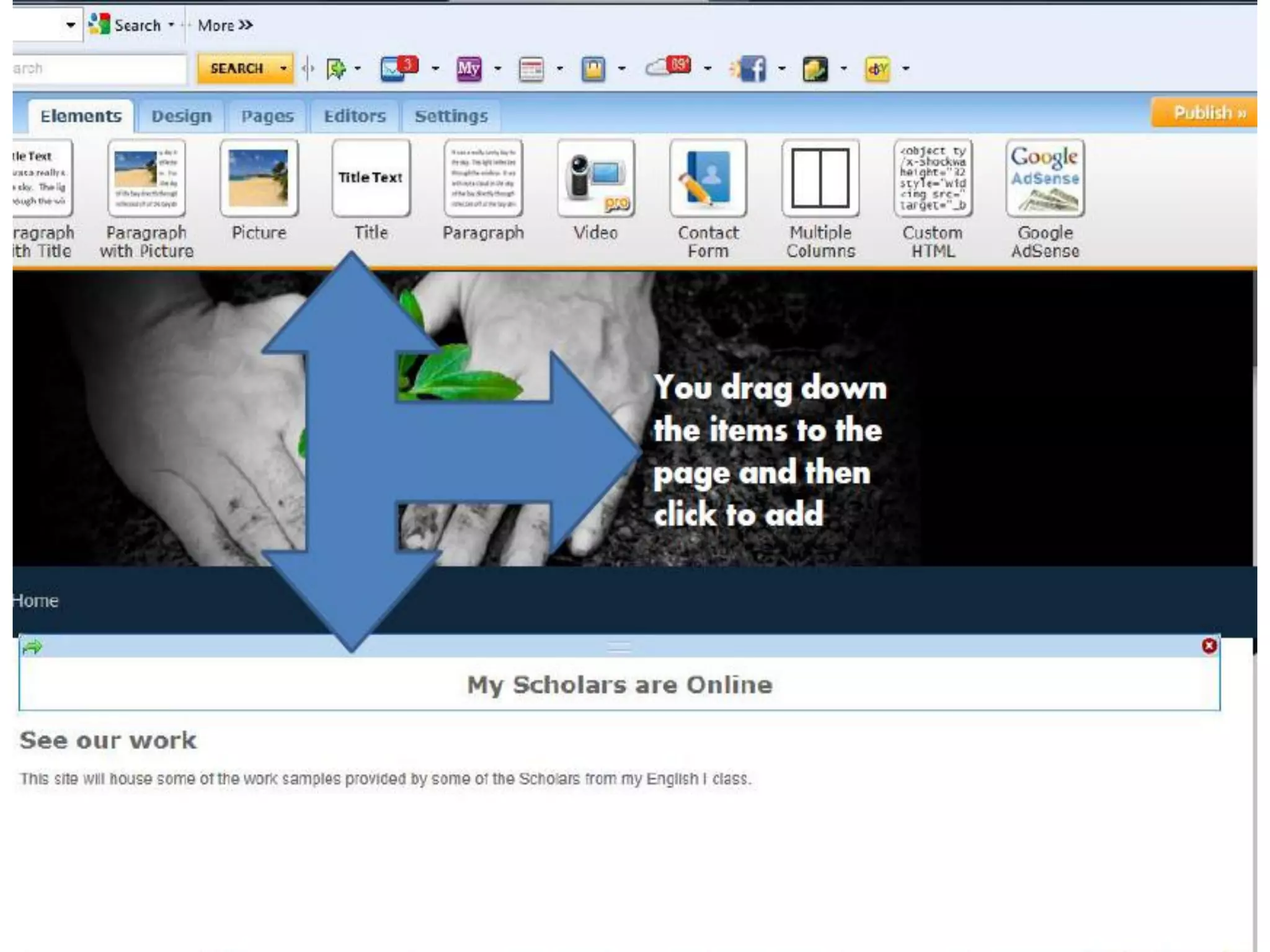
   Grab a paragraph with title element, drag it down
    to the content area, and then let go. You now
    have a text window within which to write.
   There is a ribbon of standard word processing
    tools whenever you click in the text window.
Elements that can be added to your
             new site
   Add / Edit Text
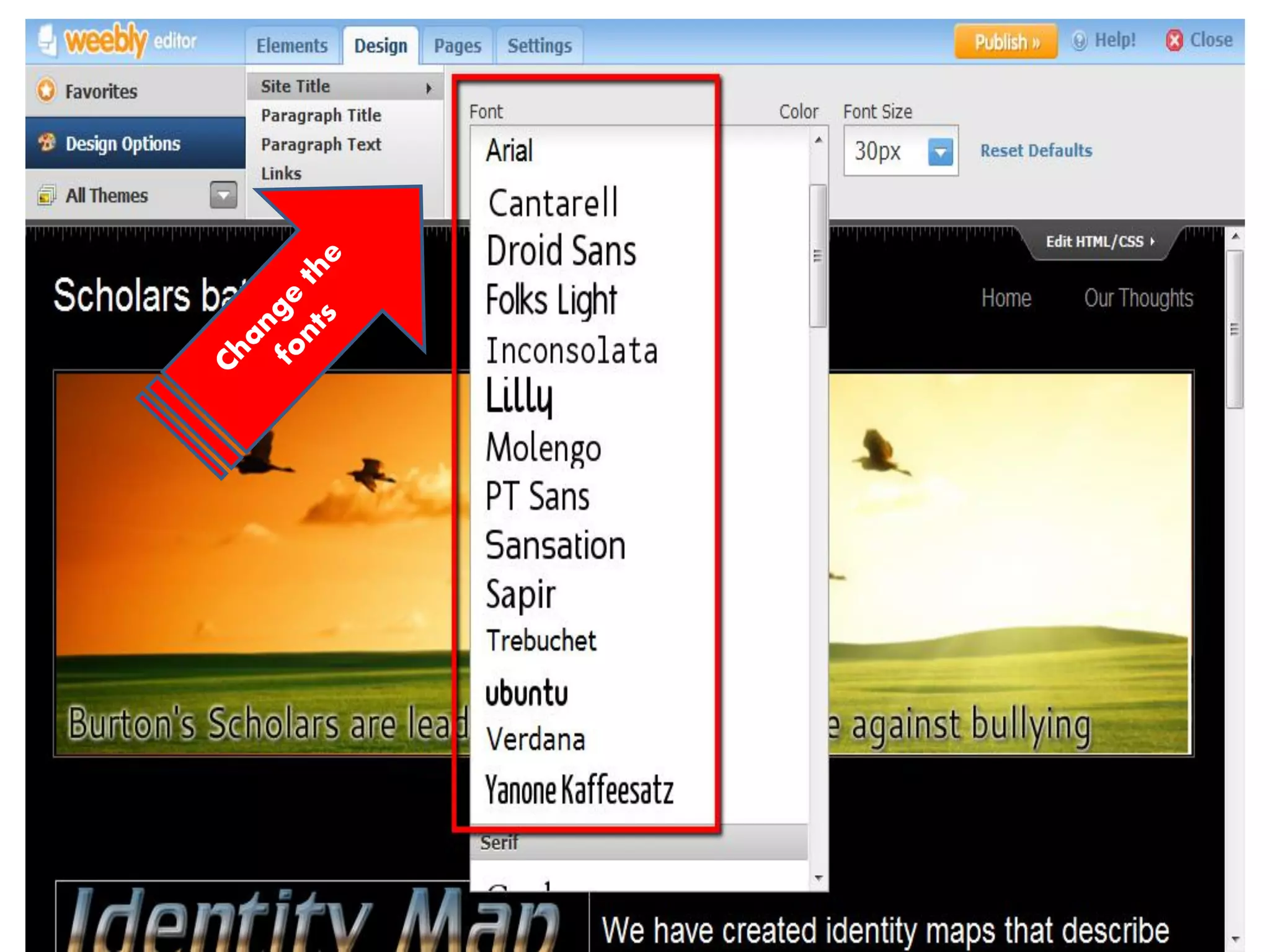
   Change Text Fonts
   Create Links
   Add PDFs and Other Docs to a Site
   Alter a Page Layout w/ the Multiple Column
    Element
   Upload an Image
   Create a Slideshow
   Upload a Gallery of Images
   Create a Contact Form
   Collect Form Submissions
   Edit the Contact Form Address
   Add an Email Newsletter / Auto-Responder
    Form
   Start a New Blog
   Add an RSS Feed
   Create a Forum
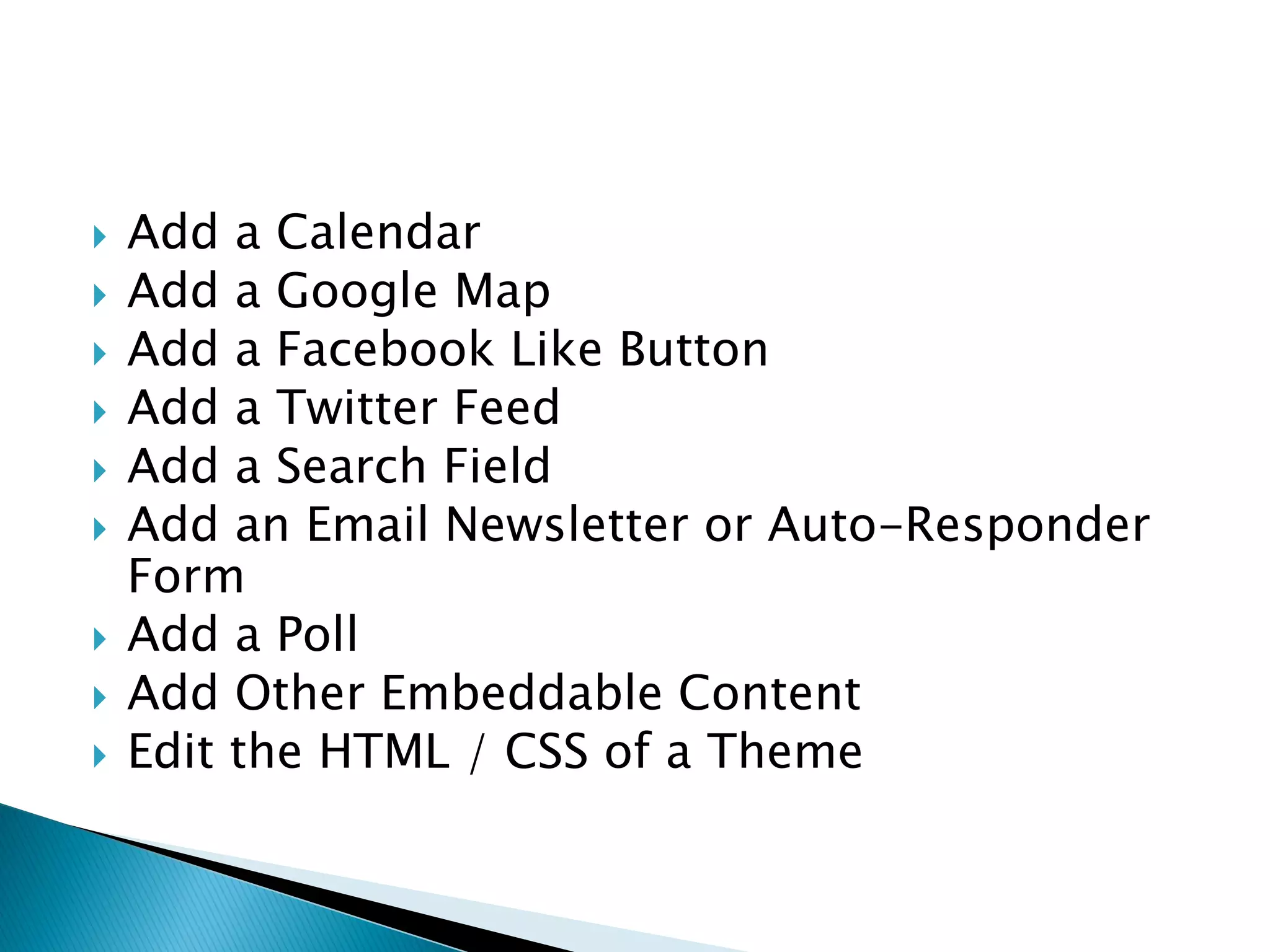
   Add a Calendar
   Add a Google Map
   Add a Facebook Like Button
   Add a Twitter Feed
   Add a Search Field
   Add an Email Newsletter or Auto-Responder
    Form
   Add a Poll
   Add Other Embeddable Content
   Edit the HTML / CSS of a Theme
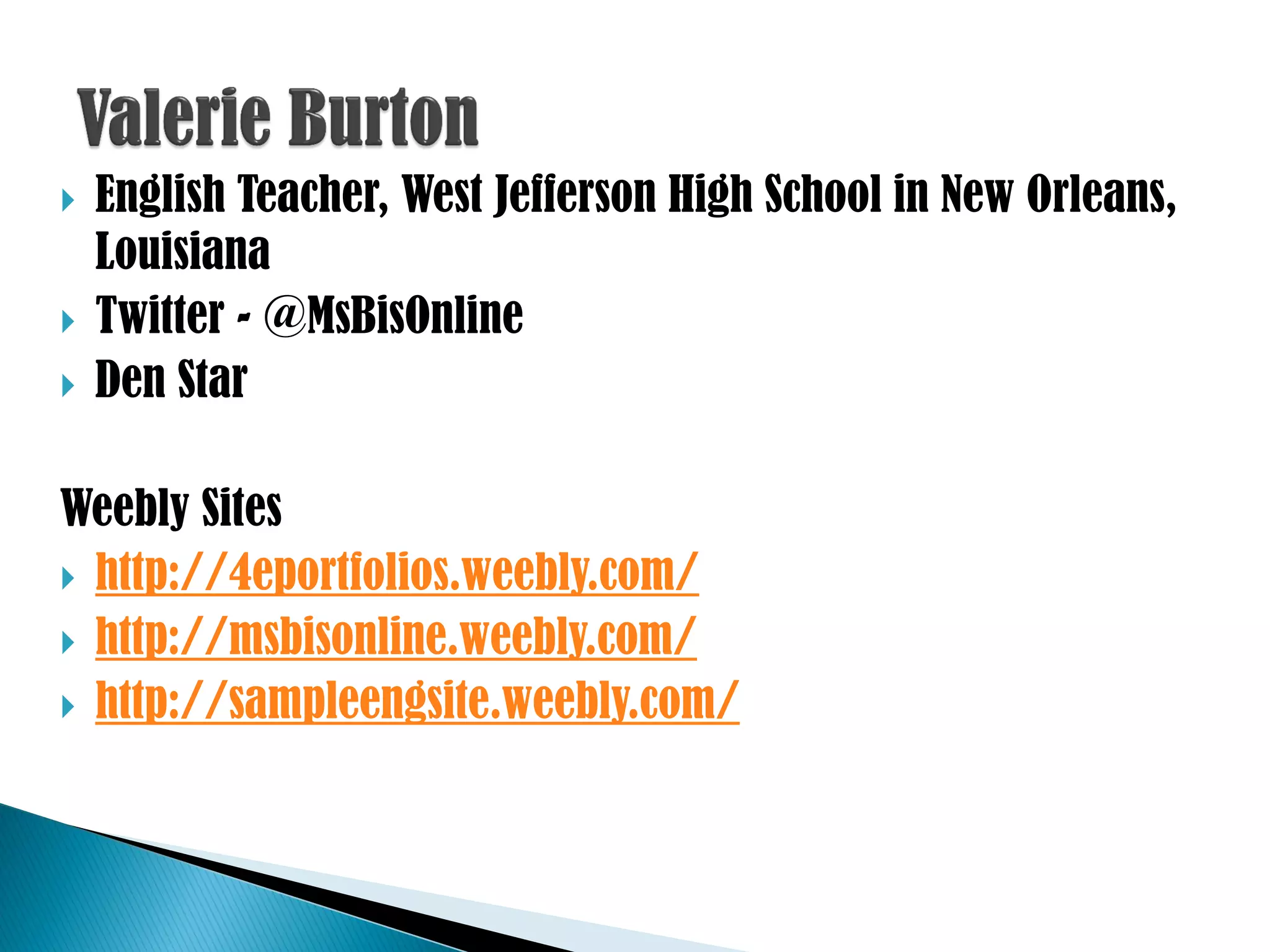
   English Teacher, West Jefferson High School in New Orleans,
    Louisiana
   Twitter - @MsBisOnline
   Den Star

Weebly Sites
 http://4eportfolios.weebly.com/
 http://msbisonline.weebly.com/
 http://sampleengsite.weebly.com/

Creating e portfolios using Weebly 4 classroom 20

  • 1.
  • 2.
     students havean opportunity to take ownership of their learning  content can be selected by the student (with teacher guidance)  they allow for self-reflection by the student  feedback can be given by the teacher and/or parent
  • 3.
     Go towww.weebly.com.  Enter a username, password and email address.
  • 8.
     Now youneed to personalize it for your needs ◦ Cute and whimsical ◦ Project oriented ◦ Professional and mature
  • 9.
     Click onthe “Designs” tab.  Weebly has many different designs to choose from. Just hover your mouse over one of the designs, and Weebly will show you what it would look like.
  • 13.
    Create a New Page  Create Sub-Pages  Hide Pages from the Navigation  Password Protect Pages  Copy / Delete Pages  Reorder Pages  Redirect / Link a New Page to Another Site
  • 15.
    Awards / Scholarships  Learning Log  Coursework  Digital Story of a particular artifact  Description of community activities participated  Emails / letters / cards from teachers / classmates / peers  Goals (short & long term)  Links to websites relevant to your purpose  Photos  Plans for career development  Reflection  Resume  Special skills / knowledge, e.g. technology  Video
  • 16.
     My Education ◦ Education Summary ◦ Transcripts ◦ Test Scores ◦ Possible College Choices ◦ Possible College Majors  My Career ◦ Research possible career choices ◦ Results from Aptitude Tests ◦ Resume  My Goals ◦ Short/Long term personal, educational or professional goals
  • 17.
    If there is an essay or paper to showcase you have two options: you can type the essay directly on the webpage or you can embed it ….  Create a brief description of the assignment. If you wrote a research paper you can drag a “File” element and upload your assignment. The “File” element is located in the Multimedia section of the Elements tab.  Below the assignment, drag in a paragraph element in which to put reflective writing about this assignment.
  • 19.
    Cater your template to reflect your curriculum and assignments.  Showcase a variety of things
  • 20.
    Make sure you have the “Elements” tab selected.  The basic elements that you’ll frequently use are listed first.  Other elements are grouped under these categories.  Grab a paragraph with title element, drag it down to the content area, and then let go. You now have a text window within which to write.  There is a ribbon of standard word processing tools whenever you click in the text window.
  • 22.
    Elements that canbe added to your new site
  • 24.
    Add / Edit Text  Change Text Fonts  Create Links  Add PDFs and Other Docs to a Site  Alter a Page Layout w/ the Multiple Column Element  Upload an Image  Create a Slideshow  Upload a Gallery of Images
  • 25.
    Create a Contact Form  Collect Form Submissions  Edit the Contact Form Address  Add an Email Newsletter / Auto-Responder Form  Start a New Blog  Add an RSS Feed  Create a Forum
  • 26.
    Add a Calendar  Add a Google Map  Add a Facebook Like Button  Add a Twitter Feed  Add a Search Field  Add an Email Newsletter or Auto-Responder Form  Add a Poll  Add Other Embeddable Content  Edit the HTML / CSS of a Theme
  • 29.
    English Teacher, West Jefferson High School in New Orleans, Louisiana  Twitter - @MsBisOnline  Den Star Weebly Sites  http://4eportfolios.weebly.com/  http://msbisonline.weebly.com/  http://sampleengsite.weebly.com/