Introduction to Weebly.com
Web site Design and Development
Tim Jordan
What is Weebly?
• Weebly is a powerful web site creator that
provides high quality drag and drop
components that allow the user to create a
dynamic web site.
What is Weebly
• Some of the features available from Weebly.com
include:
– Two versions of web site creator (free and
professional)
– Free design templates that are easily customizable
using CSS and HTML
– Easy collaborative web pages using their Blog builder
– Links to social media web pages
(Facebook, Twitter, Etc.)
– High quality video (Pro version)
Creating a Weebly Account
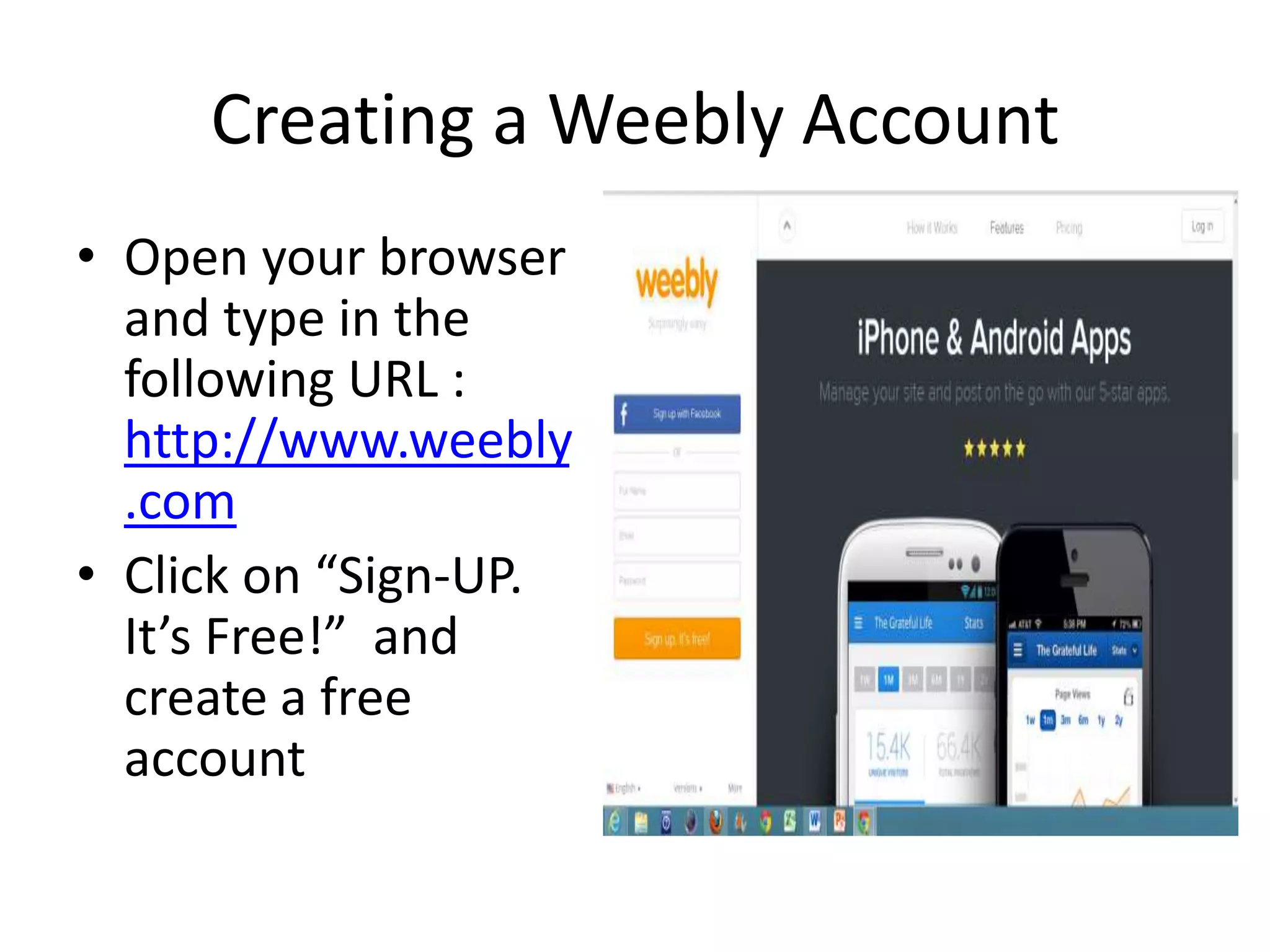
• Open your browser
and type in the
following URL :
http://www.weebly
.com
• Click on “Sign-UP.
It’s Free!” and
create a free
account
Creating an account
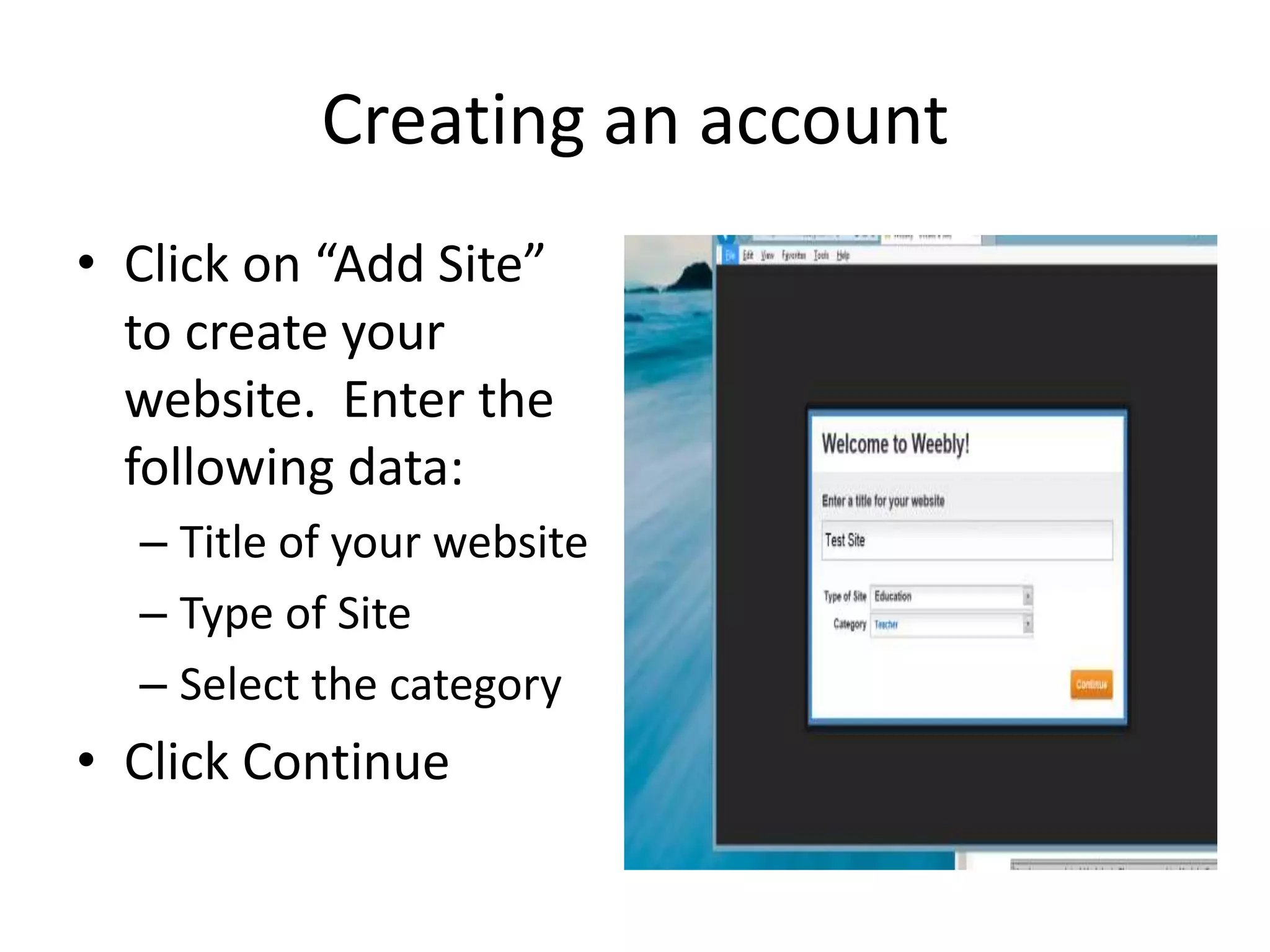
• Click on “Add Site”
to create your
website. Enter the
following data:
– Title of your website
– Type of Site
– Select the category
• Click Continue
Website Domain
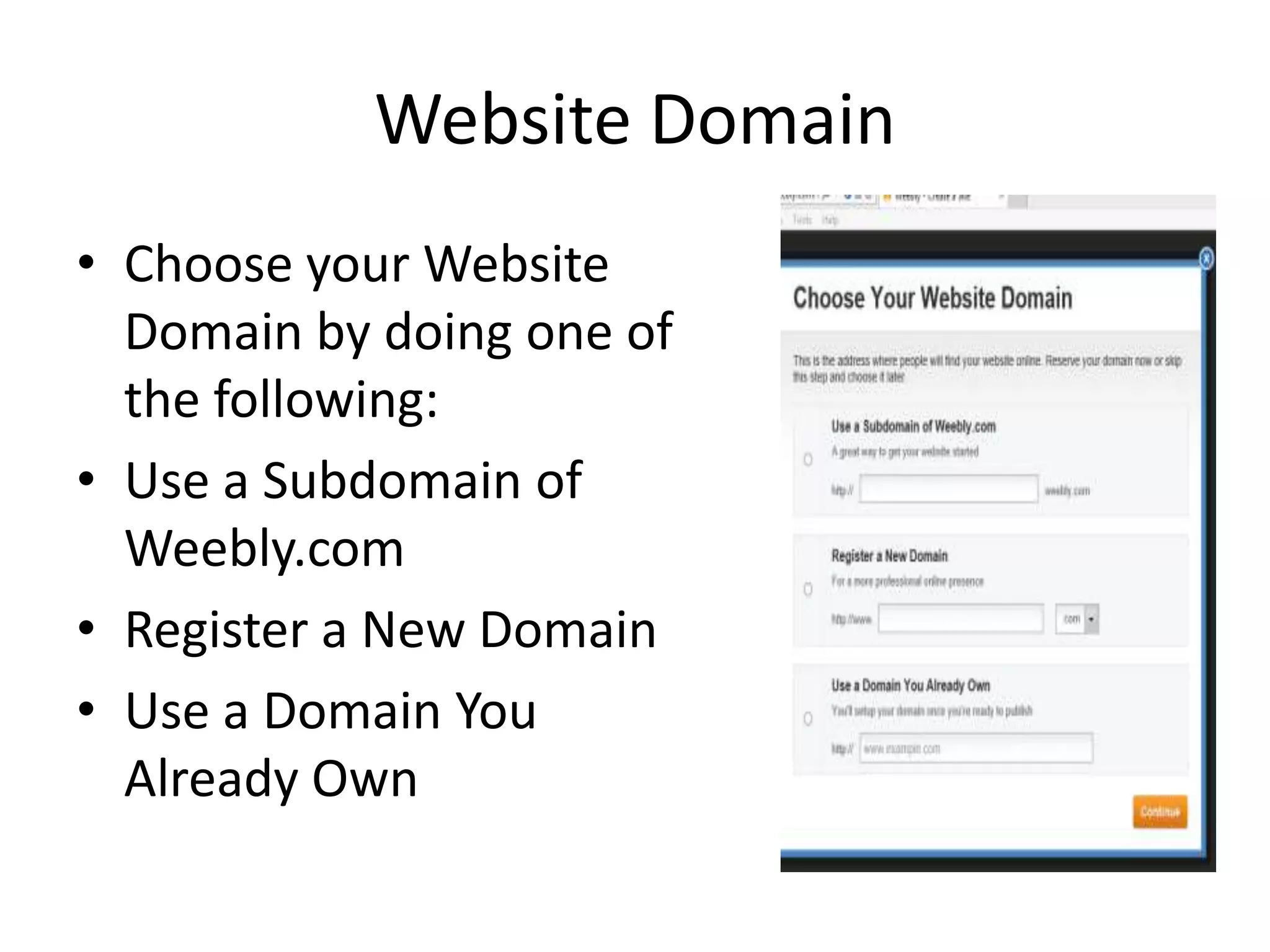
• Choose your Website
Domain by doing one of
the following:
• Use a Subdomain of
Weebly.com
• Register a New Domain
• Use a Domain You
Already Own
Website Domain
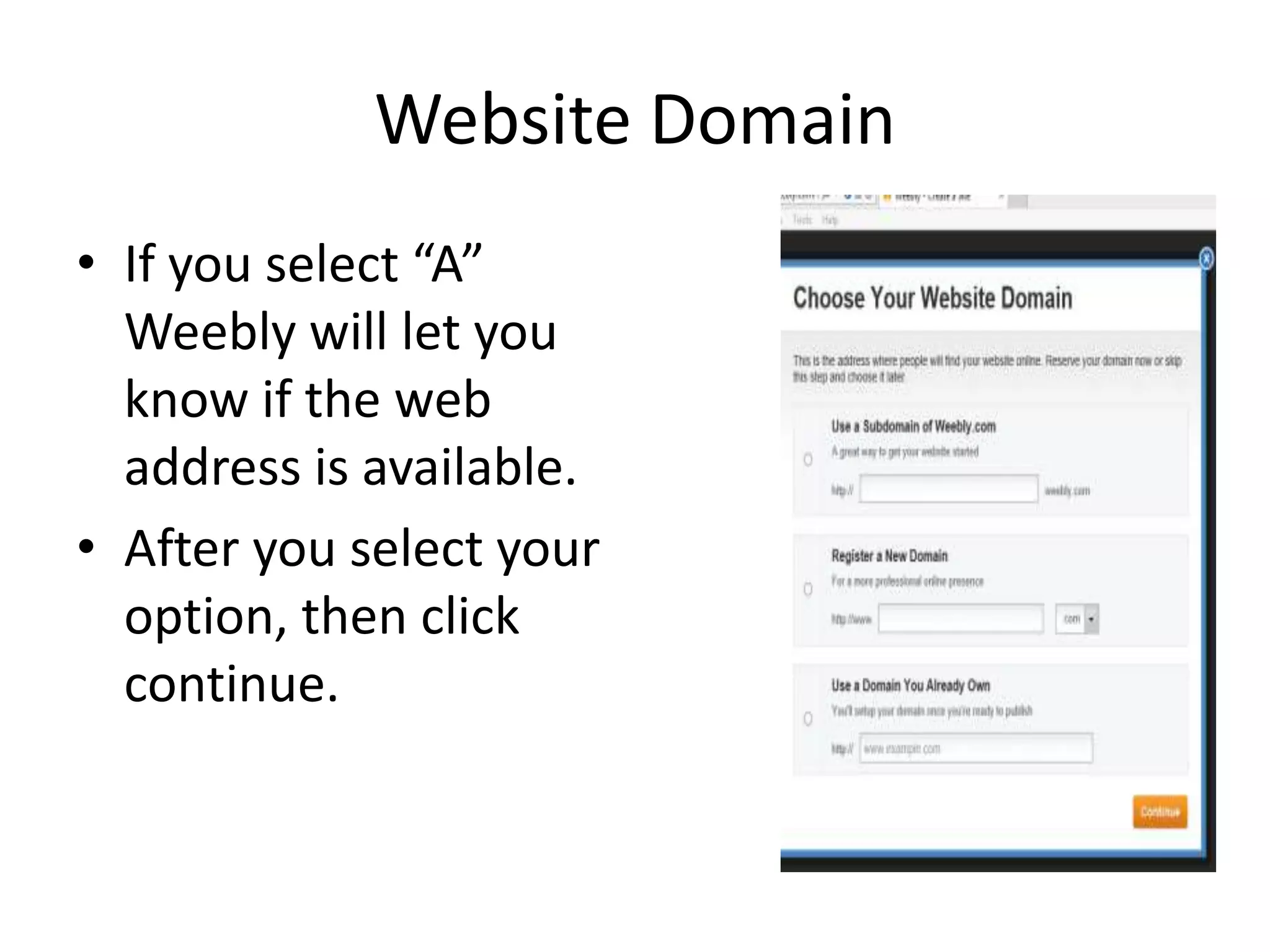
• If you select “A”
Weebly will let you
know if the web
address is available.
• After you select your
option, then click
continue.
Creating a weebly site
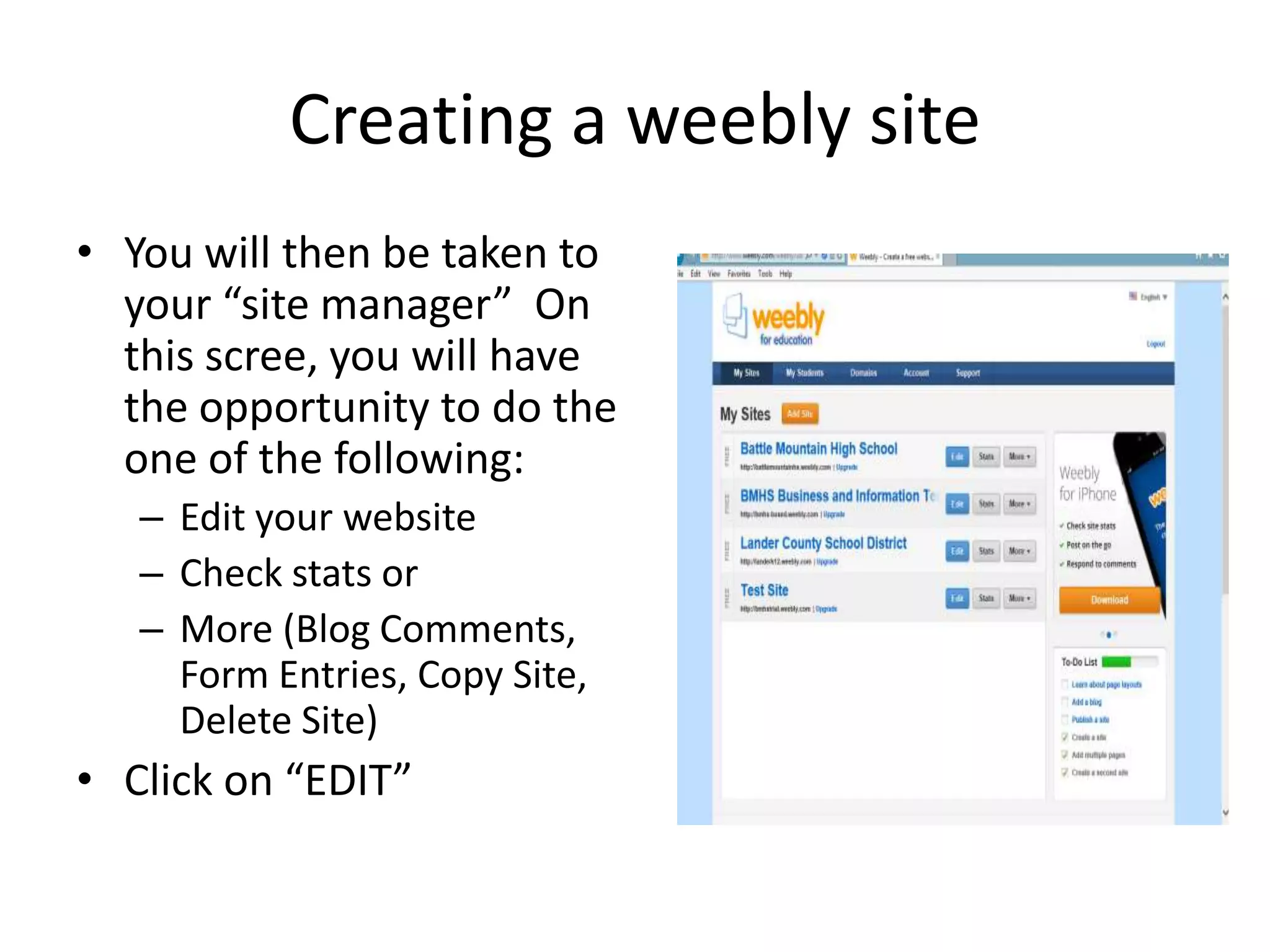
• You will then be taken to
your “site manager” On
this scree, you will have
the opportunity to do the
one of the following:
– Edit your website
– Check stats or
– More (Blog Comments,
Form Entries, Copy Site,
Delete Site)
• Click on “EDIT”
Creating a Weebly Site
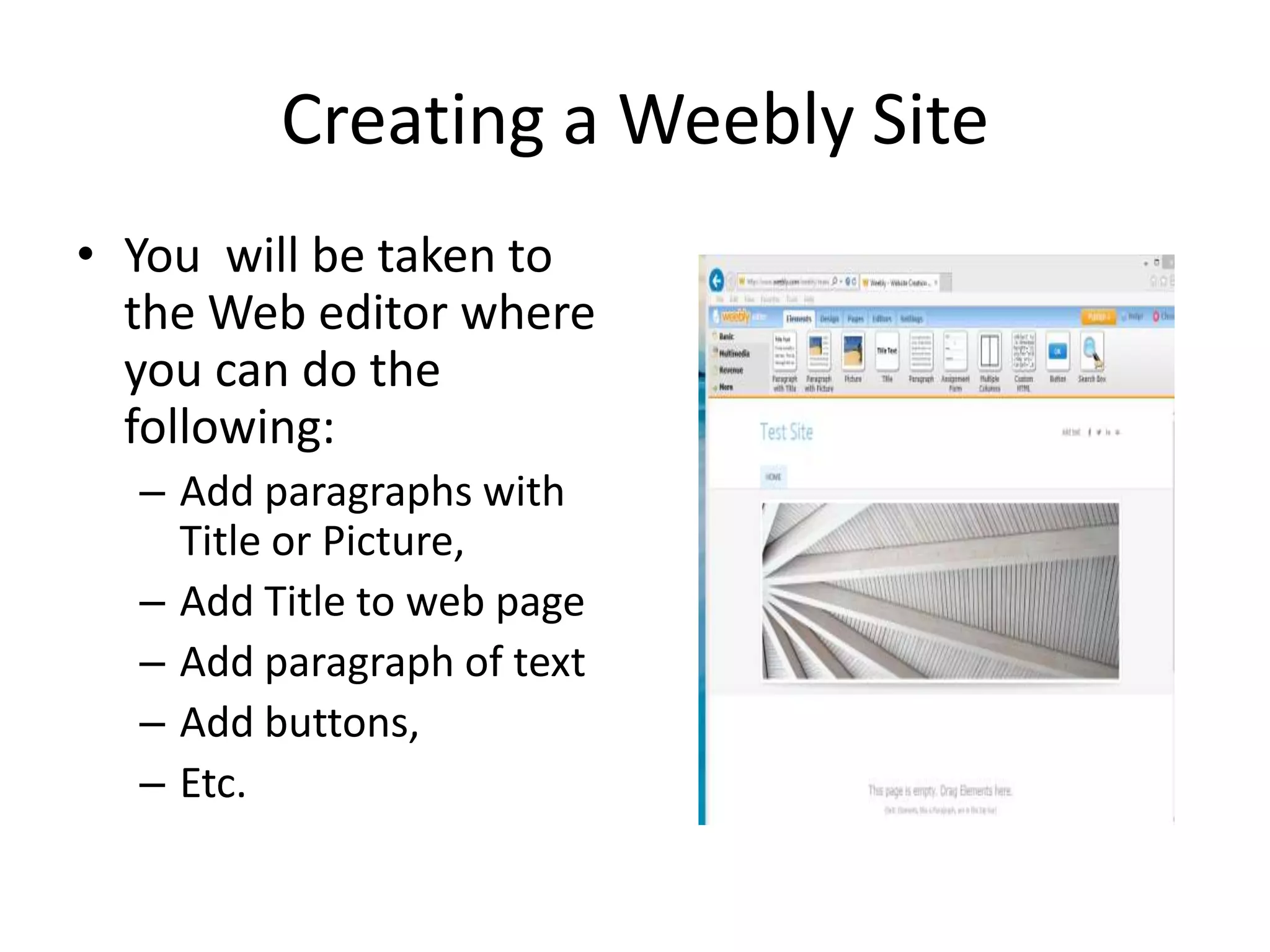
• You will be taken to
the Web editor where
you can do the
following:
– Add paragraphs with
Title or Picture,
– Add Title to web page
– Add paragraph of text
– Add buttons,
– Etc.
Creating a Weebly Site
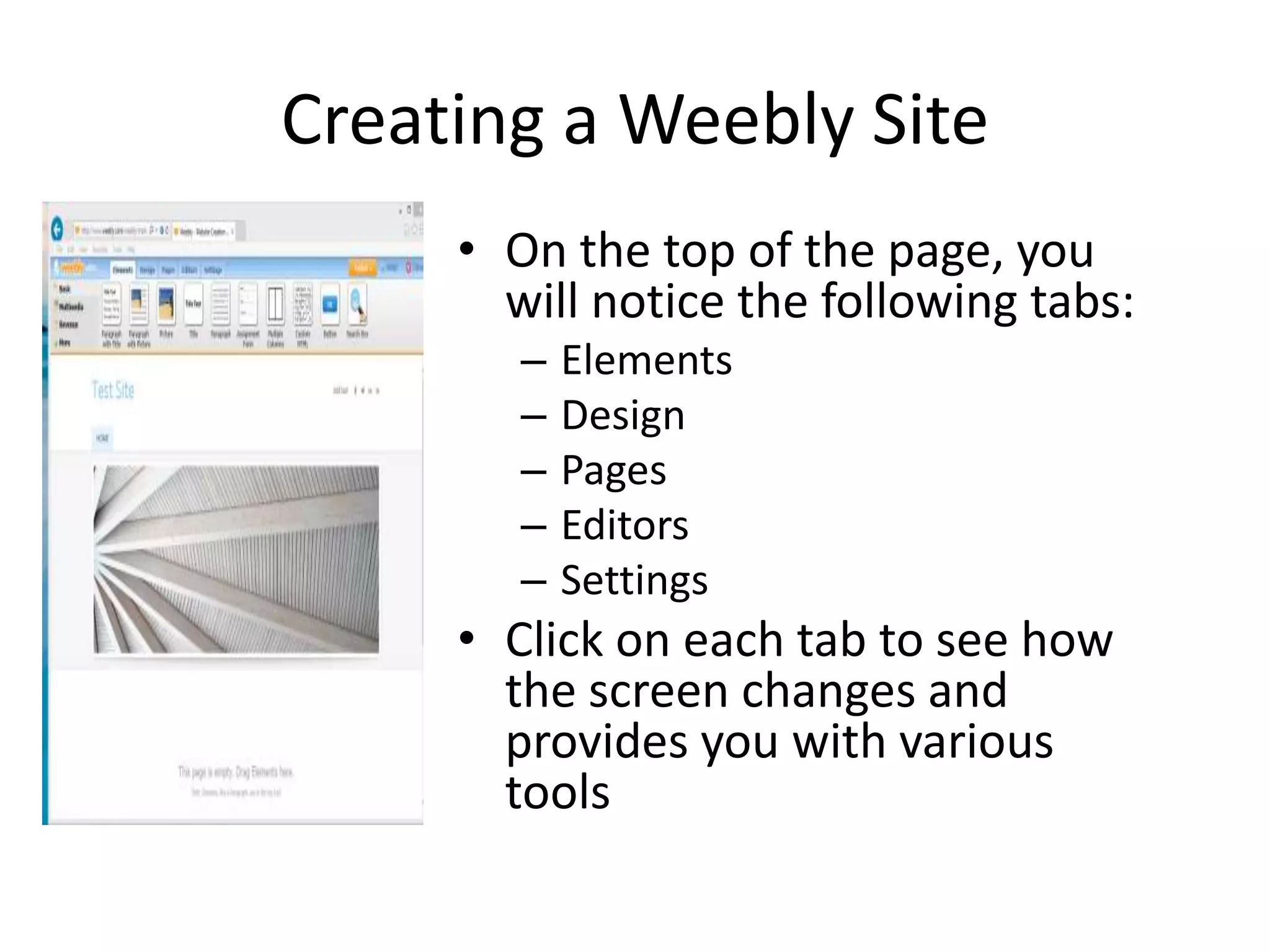
• On the top of the page, you
will notice the following tabs:
– Elements
– Design
– Pages
– Editors
– Settings
• Click on each tab to see how
the screen changes and
provides you with various
tools
Creating a Weebly Site
• Click on the design tab.
Creating a Weebly Site
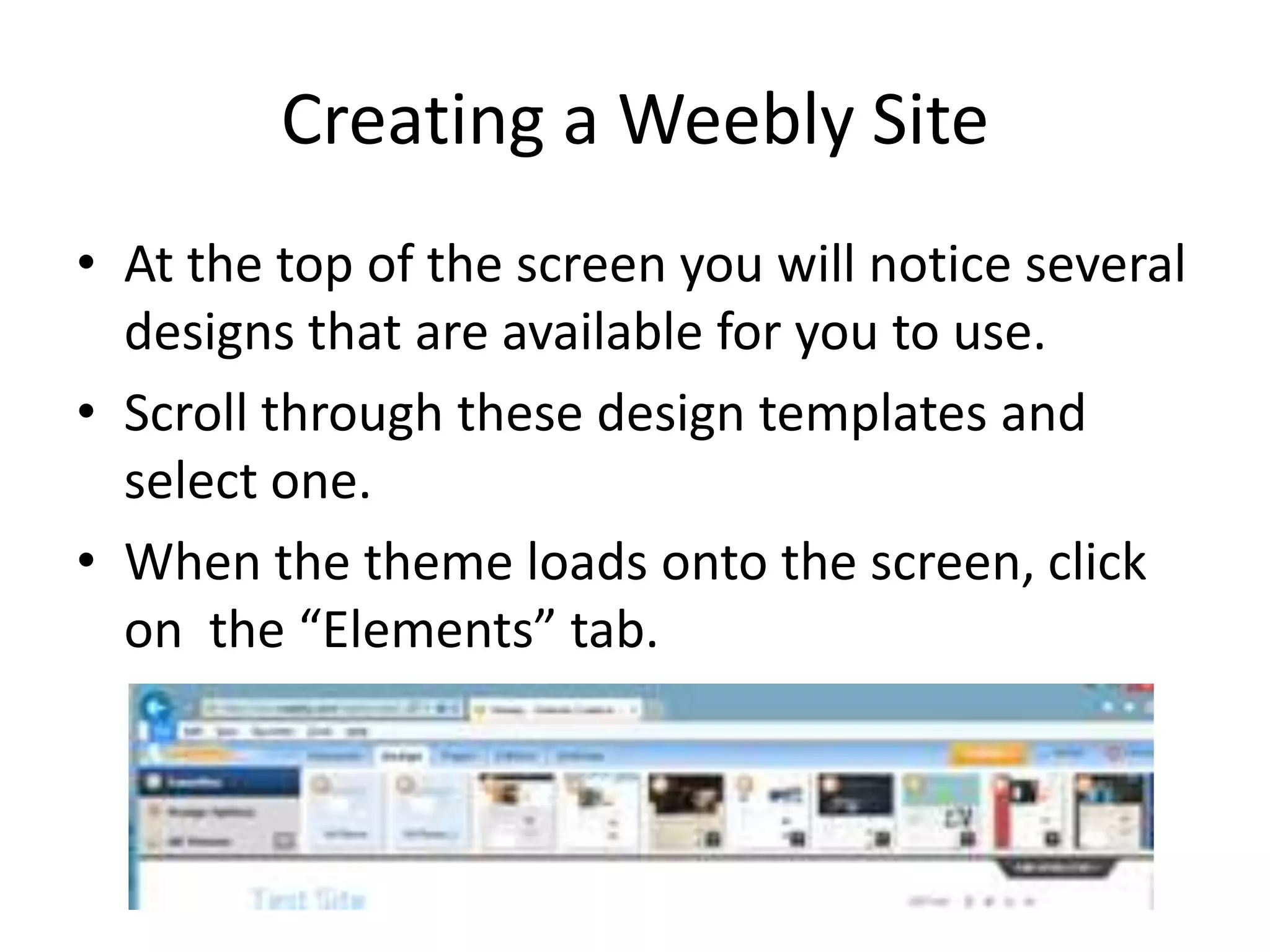
• At the top of the screen you will notice several
designs that are available for you to use.
• Scroll through these design templates and
select one.
• When the theme loads onto the screen, click
on the “Elements” tab.
Create a Weebly Site
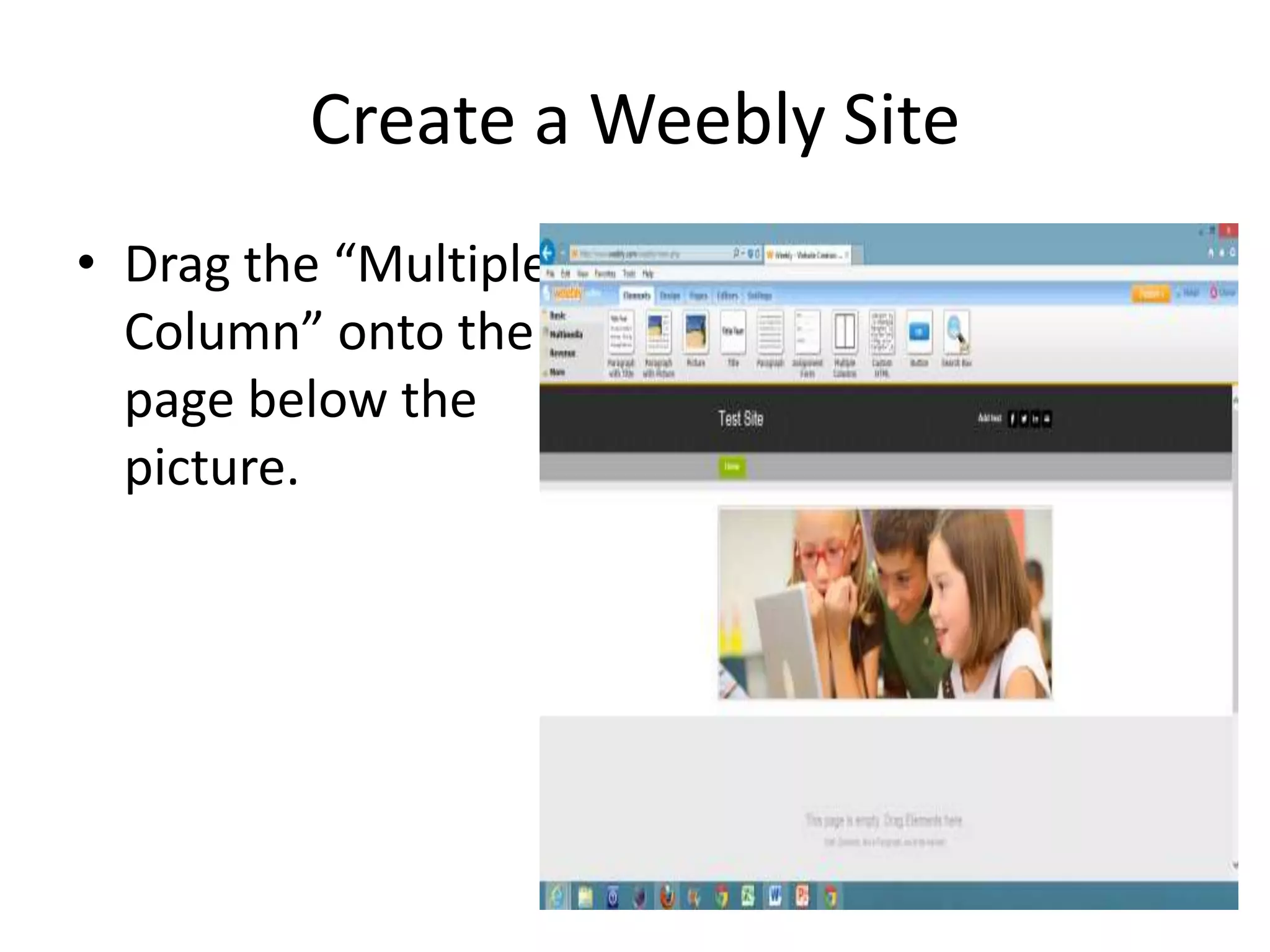
• Drag the “Multiple
Column” onto the
page below the
picture.
Create a Weebly Site
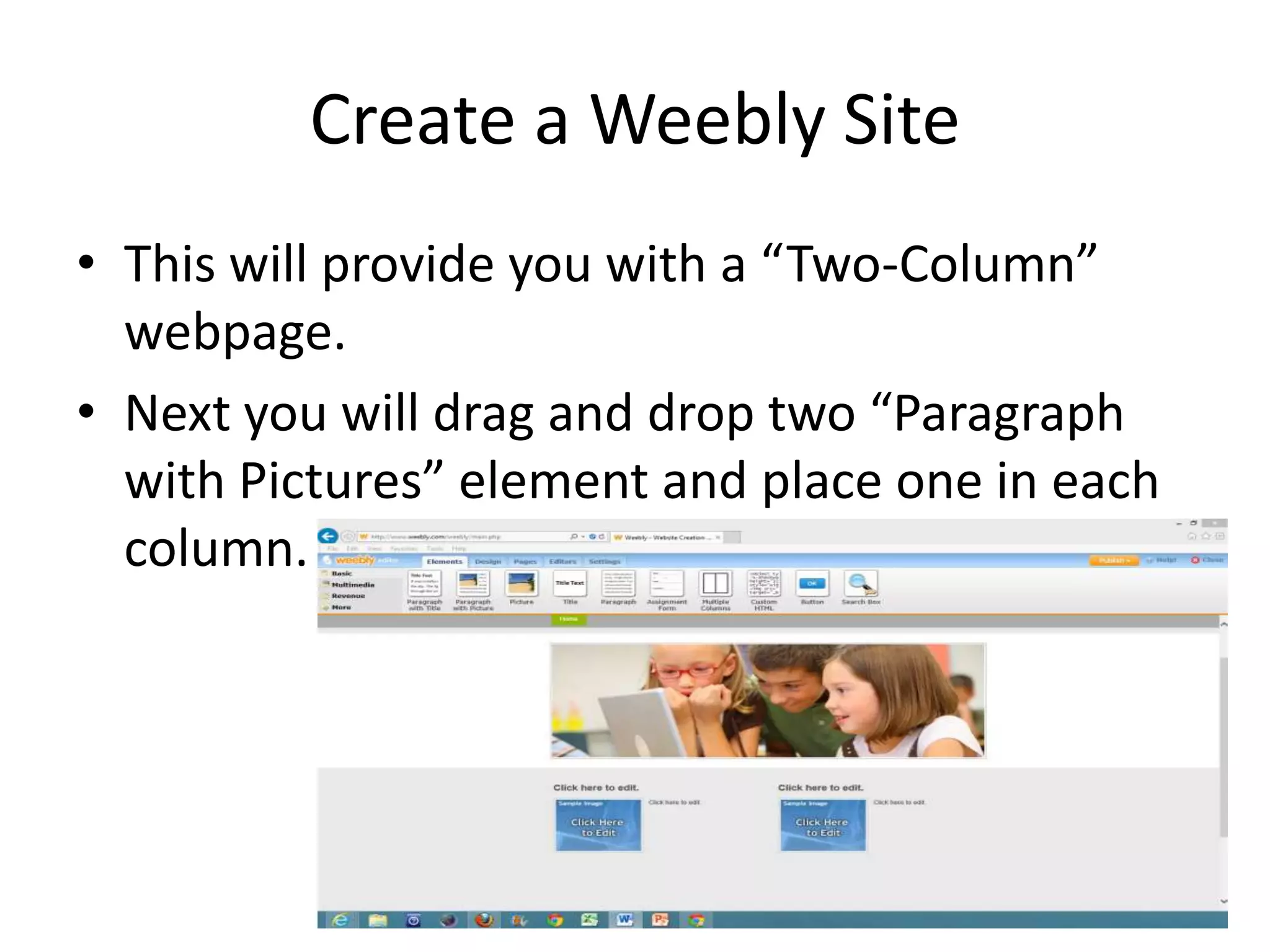
• This will provide you with a “Two-Column”
webpage.
• Next you will drag and drop two “Paragraph
with Pictures” element and place one in each
column.
Create a Weebly Site
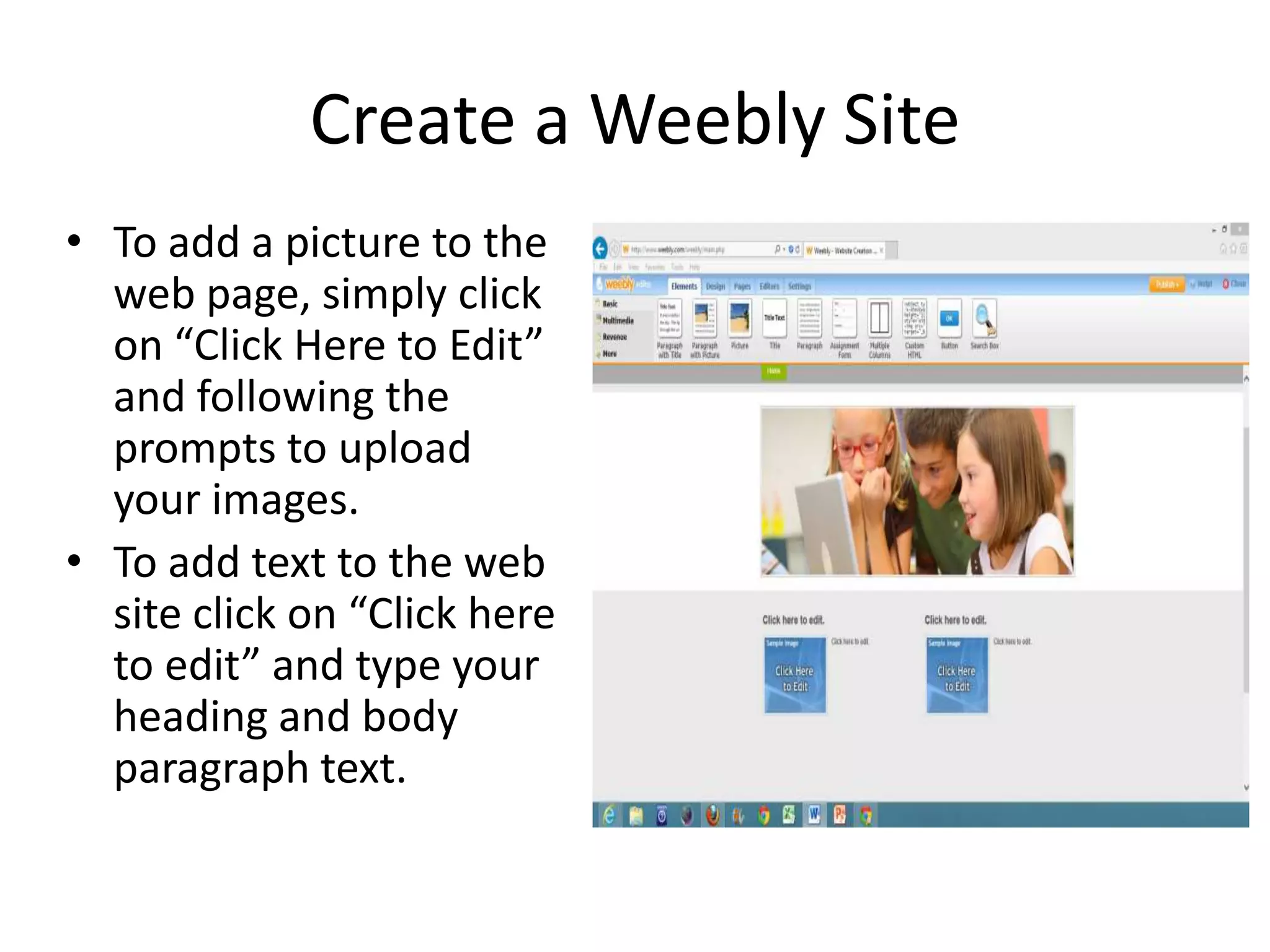
• To add a picture to the
web page, simply click
on “Click Here to Edit”
and following the
prompts to upload
your images.
• To add text to the web
site click on “Click here
to edit” and type your
heading and body
paragraph text.

Introduction to weebly

  • 1.
    Introduction to Weebly.com Website Design and Development Tim Jordan
  • 2.
    What is Weebly? •Weebly is a powerful web site creator that provides high quality drag and drop components that allow the user to create a dynamic web site.
  • 3.
    What is Weebly •Some of the features available from Weebly.com include: – Two versions of web site creator (free and professional) – Free design templates that are easily customizable using CSS and HTML – Easy collaborative web pages using their Blog builder – Links to social media web pages (Facebook, Twitter, Etc.) – High quality video (Pro version)
  • 4.
    Creating a WeeblyAccount • Open your browser and type in the following URL : http://www.weebly .com • Click on “Sign-UP. It’s Free!” and create a free account
  • 5.
    Creating an account •Click on “Add Site” to create your website. Enter the following data: – Title of your website – Type of Site – Select the category • Click Continue
  • 6.
    Website Domain • Chooseyour Website Domain by doing one of the following: • Use a Subdomain of Weebly.com • Register a New Domain • Use a Domain You Already Own
  • 7.
    Website Domain • Ifyou select “A” Weebly will let you know if the web address is available. • After you select your option, then click continue.
  • 8.
    Creating a weeblysite • You will then be taken to your “site manager” On this scree, you will have the opportunity to do the one of the following: – Edit your website – Check stats or – More (Blog Comments, Form Entries, Copy Site, Delete Site) • Click on “EDIT”
  • 9.
    Creating a WeeblySite • You will be taken to the Web editor where you can do the following: – Add paragraphs with Title or Picture, – Add Title to web page – Add paragraph of text – Add buttons, – Etc.
  • 10.
    Creating a WeeblySite • On the top of the page, you will notice the following tabs: – Elements – Design – Pages – Editors – Settings • Click on each tab to see how the screen changes and provides you with various tools
  • 11.
    Creating a WeeblySite • Click on the design tab.
  • 12.
    Creating a WeeblySite • At the top of the screen you will notice several designs that are available for you to use. • Scroll through these design templates and select one. • When the theme loads onto the screen, click on the “Elements” tab.
  • 13.
    Create a WeeblySite • Drag the “Multiple Column” onto the page below the picture.
  • 14.
    Create a WeeblySite • This will provide you with a “Two-Column” webpage. • Next you will drag and drop two “Paragraph with Pictures” element and place one in each column.
  • 15.
    Create a WeeblySite • To add a picture to the web page, simply click on “Click Here to Edit” and following the prompts to upload your images. • To add text to the web site click on “Click here to edit” and type your heading and body paragraph text.