









Technology Integration & Digital
Literacy for ESOL Learners
Nell Eckersley
This PowerPoint
 http://bit.ly/integratetechESOL
2
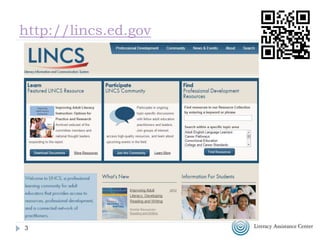
http://lincs.ed.gov
33 http://bit.ly/integratetechESOL
Introductions
 What do you know about Integrating
technology and digital literacy?
 What is one thing would you like to take
away from this session?
4
http://bit.ly/integratetechESOL
Objectives
 Be able to list reasons to include technology in your
teaching
 Explores guidelines for planning to integrate
technology into instruction
 Identify five social media tools
 Create a Technology Integration Action Plan for a
unit or lesson that participants select for use with
their ESOL students
5
Agenda
 Why use technology?
 Digital Literacy and Social Media
 Integrating Technology
 Tools
 QR Codes
 Twitter
 Facebook
 Pinterest
 Games and Apps
 Other Resources
 Planning
6
http://bit.ly/integratetechESOL
What do you know about Social Media?
 What are some examples of Social Media?
 Who is using it?
 How many people have Facebook accounts?
 How many searches are there on Google everyday?
 How long do you think it took radio or TV to reach 50
million users?
 How about the internet?
 What is the current population of the US? China?
India?
7
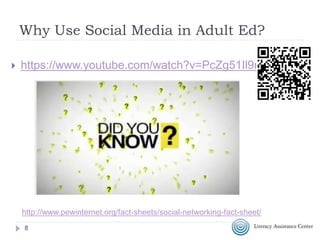
Why Use Social Media in Adult Ed?
 https://www.youtube.com/watch?v=PcZg51Il9no
88
http://www.pewinternet.org/fact-sheets/social-networking-fact-sheet/
What is Digital Literacy?
 The New York Department of Education defines
digital literacy as ”having the knowledge and ability
to use a range of technology tools for varied
purposes.”
 Digitally literate people are those who “can use
technology strategically to find and evaluate
information, connect and collaborate with others,
produce and share original content, and use the
Internet and technology tools to achieve many
academic, professional, and personal goals.”
9
http://www.edweek.org/tm/articles/2014/10/29/ctq_crowley_digitalliteracy.html
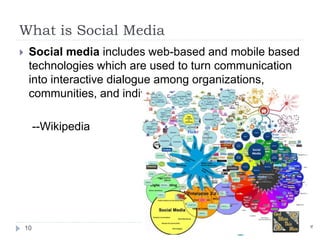
What is Social Media
 Social media includes web-based and mobile based
technologies which are used to turn communication
into interactive dialogue among organizations,
communities, and individuals.
--Wikipedia
10
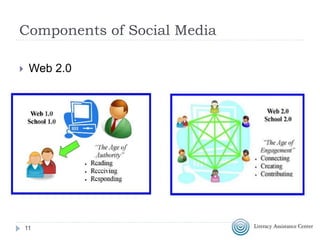
Components of Social Media
11
 Web 2.0
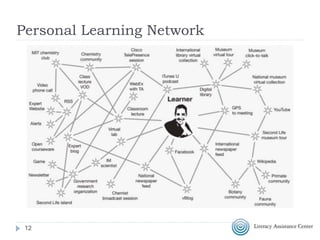
Personal Learning Network
12
13
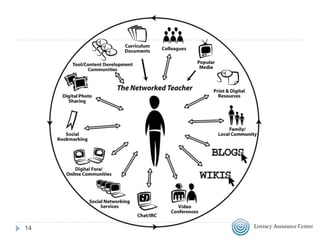
14
Topics in Social Media
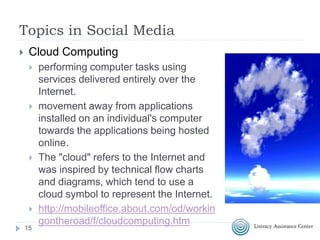
 Cloud Computing
 performing computer tasks using
services delivered entirely over the
Internet.
 movement away from applications
installed on an individual's computer
towards the applications being hosted
online.
 The "cloud" refers to the Internet and
was inspired by technical flow charts
and diagrams, which tend to use a
cloud symbol to represent the Internet.
 http://mobileoffice.about.com/od/workin
gontheroad/f/cloudcomputing.htm
15
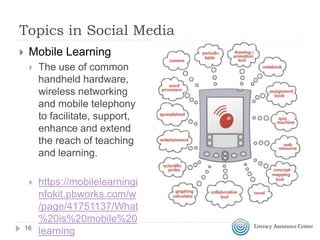
Topics in Social Media
 Mobile Learning
 The use of common
handheld hardware,
wireless networking
and mobile telephony
to facilitate, support,
enhance and extend
the reach of teaching
and learning.
 https://mobilelearningi
nfokit.pbworks.com/w
/page/41751137/What
%20is%20mobile%20
learning16
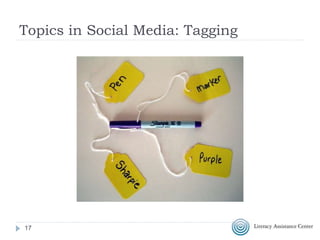
Topics in Social Media: Tagging
17
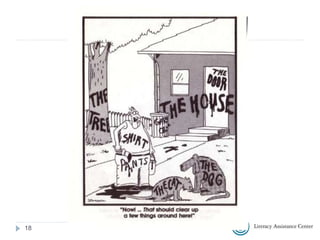
18
Being Safe and Savvy
 Digital Citizenship http://www.digitalcitizenship.net/
 BrainPop on Digital Citizenship
https://www.brainpop.com/spotlight/digitalcitizenship/
 Scary Spokeo http://www.spokeo.com/
 Staying Safe online
https://www.staysafeonline.org/stay-safe-online/
 Tips for strong passwords
http://www.connectsafely.org/tips-to-create-and-
manage-strong-passwords/
19
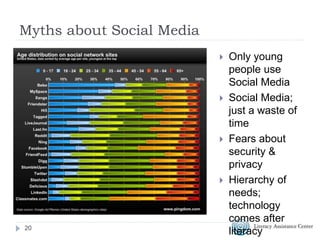
Myths about Social Media
 Only young
people use
Social Media
 Social Media;
just a waste of
time
 Fears about
security &
privacy
 Hierarchy of
needs;
technology
comes after
literacy20
How do you approach integrating
technology?
21
Integrating Technology
How do you include technology in your practice?
 Find a tool and figure out how to use it with
your students/staff
 Think about what you already do with your
students/staff and then how technology could
deepen or expand on the lesson (POST)
 Think of a challenging task and how
technology might help
 Helpful Reading: What Comes First: the
Curriculum or the Technology?
http://www.edudemic.com/what-comes-first-
the-curriculum-or-technology/
2222
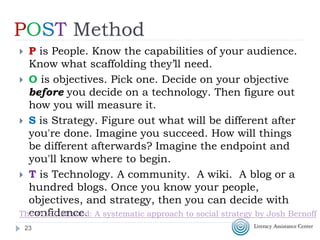
POST Method
 P is People. Know the capabilities of your audience.
Know what scaffolding they’ll need.
 O is objectives. Pick one. Decide on your objective
before you decide on a technology. Then figure out
how you will measure it.
 S is Strategy. Figure out what will be different after
you're done. Imagine you succeed. How will things
be different afterwards? Imagine the endpoint and
you'll know where to begin.
 T is Technology. A community. A wiki. A blog or a
hundred blogs. Once you know your people,
objectives, and strategy, then you can decide with
confidence.
23
The POST Method: A systematic approach to social strategy by Josh Bernoff
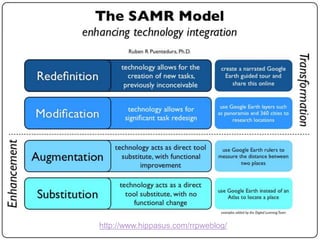
24 http://www.hippasus.com/rrpweblog/
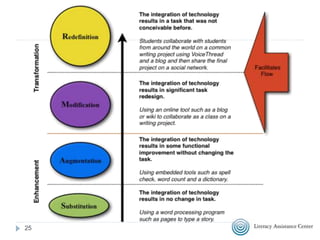
25
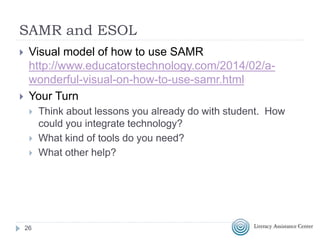
SAMR and ESOL
 Visual model of how to use SAMR
http://www.educatorstechnology.com/2014/02/a-
wonderful-visual-on-how-to-use-samr.html
 Your Turn
 Think about lessons you already do with student. How
could you integrate technology?
 What kind of tools do you need?
 What other help?
26
What tools can you use to
integrate technology?
27
28
Internet Access
 EveryoneOn: Internet service as low as $10
a month, low-cost computers, and free digital
literacy courses
 http://www.ed.gov/edblogs/ovae/2014/04/09/
octae-is-working-to-get-everyone-on/
 http://www.everyoneon.org/adulted
29
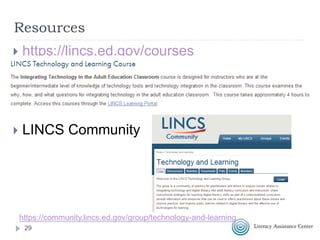
Resources
 https://lincs.ed.gov/courses
 LINCS Community
https://community.lincs.ed.gov/group/technology-and-learning
30
Resources
Computer Literacy Skills
 Northstar Basic Computer Skills Assessment
http://www.digitalliteracyassessment.org/index.php
 Basic Computer Skills Curriculum
http://spclc.org/curricula-resources/computer-curriculum
 Computer Literacy Instructional Resources
http://mnliteracy.org/educators/adult/technology/computer-skills
 Keyboard skills:
http://www.sense-lang.org/typing/
 Mouse Skills
http://www.seniornet.org/howto/mouseexercises/mousepractice.htm
l
Resources
Internet Skills
 Internet 101
http://www.internet101.org/
Microsoft Software Skills
 Microsoft PowerPoint 2010 for Beginners
http://www.gcflearnfree.org/powerpoint2010
 Microsoft Publisher 2010 for Beginners
http://www.gcflearnfree.org/publisher2010
 Microsoft Word 2010 for Beginners
http://www.gcflearnfree.org/word2010
31
Your Turn
 Go to Northstar Basic Computer Skills
Assessment
http://www.digitalliteracyassessment.org/index.php
 Take module 1 and then if there’s time, choose
another module
32
Basic Computer Skills
33
Email
 All students should have a “professional” email
address. Gmail is recommended
Email lesson ideas
 Students email each other periodically
 Practice sending different kinds of emails: a copy to
a friend, to multiple friends, with an attachment
 Teach Netiquette and some of the language of
email/text: LOL, IMHO, etc
 Teach some of the basics like cleaning your mailbox,
setting up email filters and folders
 Set up a class email newsletter and send out
important information on a regular basis. Students
can add to it.34http://busyteacher.org/9194-esl-classroom-facebook-social-networks.html
Websites and Blogs
 Many instructors maintain a class website. Put
students in charge of this project. They can then set
up their own profiles on the site
 Set up a class blog. Have students blog about
a book you are reading or other assignments.
To keep the discussion going, the teacher can
periodically comment on the blog and require
students to also comment at certain intervals. The
topic can change according to what is happening in
class and what students are studying
 Cookbook on a blog or website
35
http://busyteacher.org/9194-esl-classroom-facebook-social-networks.html
Weebly Website Example
36
 http://www.lacnyc.org
 http://www.lacnyc.org/tech
 Password: crocodile39
Google Search
Teach some basic research skills
 http://www.google.com/insidesearch/tipstricks/basics.
html
 http://news.distractify.com/geek/google-tips/
37
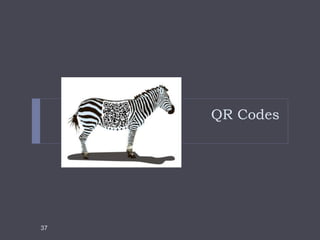
QR Codes
38
What are QR Codes?
 Q R stands for
 Invented in Japan by Toyota in 1994 to track
vehicles during the manufacturing process
 QR code is detected as a 2-dimensional digital
image by a semiconductor image sensor and is
then digitally analyzed by a programmed
processor. Translation: You can scan it with
your smart phone or tablet.
39
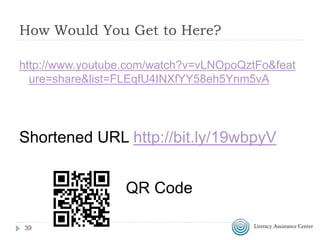
How Would You Get to Here?
http://www.youtube.com/watch?v=vLNOpoQztFo&feat
ure=share&list=FLEqfU4INXfYY58eh5Ynm5vA
40
Shortened URL http://bit.ly/19wbpyV
QR Code
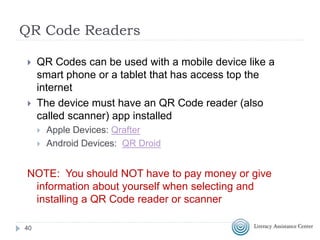
QR Code Readers
 QR Codes can be used with a mobile device like a
smart phone or a tablet that has access top the
internet
 The device must have an QR Code reader (also
called scanner) app installed
 Apple Devices: Qrafter
 Android Devices: QR Droid
NOTE: You should NOT have to pay money or give
information about yourself when selecting and
installing a QR Code reader or scanner
41
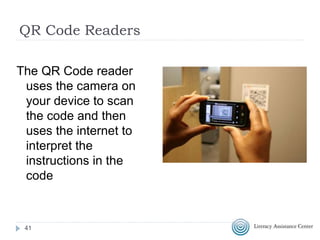
QR Code Readers
The QR Code reader
uses the camera on
your device to scan
the code and then
uses the internet to
interpret the
instructions in the
code
42
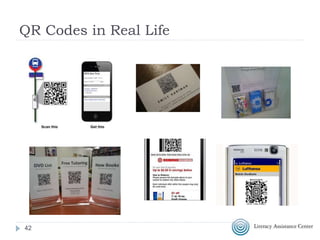
QR Codes in Real Life
43
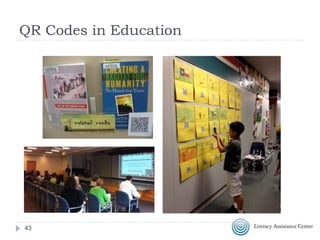
QR Codes in Education
44
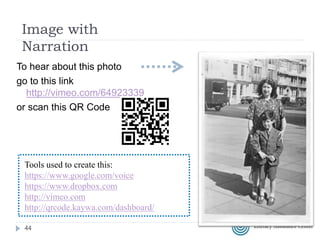
Image with
Narration
To hear about this photo
go to this link
http://vimeo.com/64923339
or scan this QR Code
45
Tools used to create this:
https://www.google.com/voice
https://www.dropbox.com
http://vimeo.com
http://qrcode.kaywa.com/dashboard/
Steps to Using in Education
1. First consider what the learning goal is
2. Make sure you have devices that can read a QR
Code
3. Make sure the content is mobile friendly
4. Create the QR Codes you need
46
QR Codes in Education
 QR Codes in Adult Education (video)
 Make your own QR Code Scavenger Hunt!
 Scavenger Hunt
 5 Real Ways To Use QR Codes In Education
 Black & White and Scanned All Over (video)
 QR Codes Connect Students to Books
 Shambles QR Code Resource
 Desktop QR Code Reader
 QR Codes in Education Livebinder
 50 QR code resources for the classroom
47
Make Your Own QR Code
48
 Bitly (for URL’s) https://bitly.com/
 Google (for URL’s) http://goo.gl/
 Kaywa (for URL’s and contact info)
http://qrcode.kaywa.com/
 ScanLife (for URL’s and contact info)
http://www.scanlife.com/en/
 ZXING (for URL’s, wifi, contact info and more)
http://zxing.appspot.com/generator/
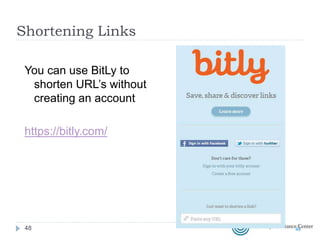
Shortening Links
49
You can use BitLy to
shorten URL’s without
creating an account
https://bitly.com/
49
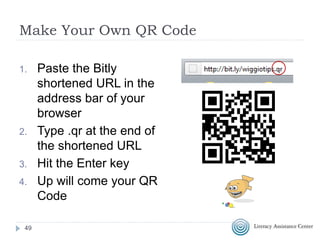
Make Your Own QR Code
1. Paste the Bitly
shortened URL in the
address bar of your
browser
2. Type .qr at the end of
the shortened URL
3. Hit the Enter key
4. Up will come your QR
Code
50
Uh oh, Bitly
doesn’t make
QR codes
anymore….
now what?
51
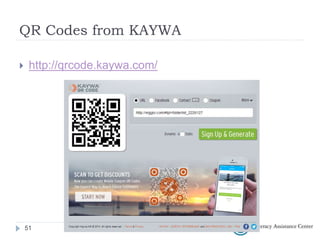
QR Codes from KAYWA
52
 http://qrcode.kaywa.com/
Twitter
53
What is Twitter?
 Microblogging;140 characters
maximum
 http://twitter.com/
 Hashtag #AdultEd
 Unlike most social media, just
because I “follow” you, you don’t have
to “follow” me
5454
Why Use Twitter
 Meta-Cognition
 Accessible from many places
 “Snackable” education
 Follow people you can learn from
5555
56
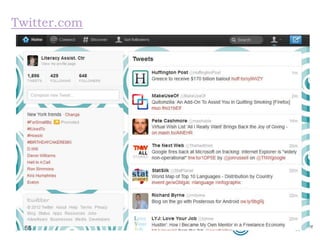
Twitter.com
56
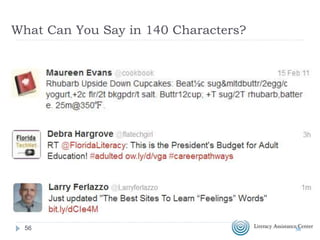
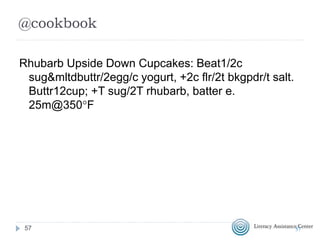
What Can You Say in 140 Characters?
5757
@cookbook
Rhubarb Upside Down Cupcakes: Beat1/2c
sug&mltdbuttr/2egg/c yogurt, +2c flr/2t bkgpdr/t salt.
Buttr12cup; +T sug/2T rhubarb, batter e.
25m@350F
5858
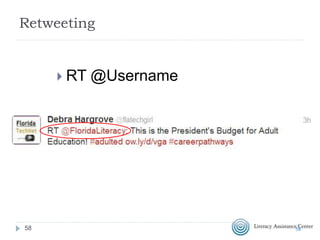
Retweeting
 RT @Username
5959
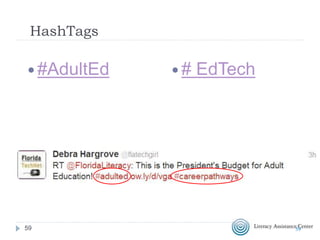
HashTags
 #AdultEd  # EdTech
6060
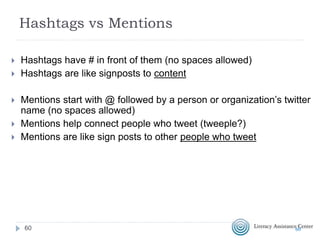
Hashtags vs Mentions
 Hashtags have # in front of them (no spaces allowed)
 Hashtags are like signposts to content
 Mentions start with @ followed by a person or organization’s twitter
name (no spaces allowed)
 Mentions help connect people who tweet (tweeple?)
 Mentions are like sign posts to other people who tweet
6161
Hashtags are Ephemeral
 Hashtags lose their value if they are not used often.
 If using a hashtag for a short term event it’s a good idea to
archive the content so it can be found later
 Two tools
 http://www.tweetarchivist.com
 http://paper.li/LACNYCnell/1320940472
6262
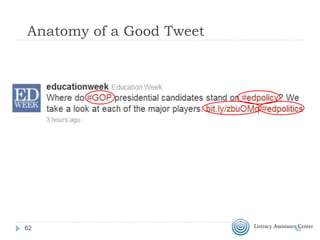
Anatomy of a Good Tweet
6363
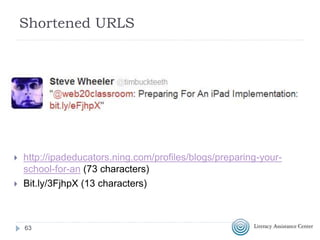
Shortened URLS
 http://ipadeducators.ning.com/profiles/blogs/preparing-your-
school-for-an (73 characters)
 Bit.ly/3FjhpX (13 characters)
64
Search Twitter
 Search on http://Twitter.com for people, keywords or
hashtags
 Search on http://Search.Twitter.com for keywords or
hashtags even if you don’t have a Twitter account
 Track hashtags and tweet from http://tweetchat.com/
6565
Finding People to Follow
 In Twitter.com search hashtags
and words like #COABE13
#AdultEd
 See who experts follow
 Look for Twitter links on websites
you like
6666
Sending and Receiving Tweets
 Twitter.com
 Texts via your cell phone
 Applications on computers & smart
phones
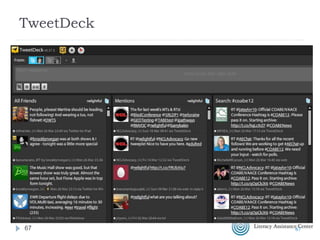
 Tweetdeck
 HootSuite
 PaperLi
 TweetChat
6767
TweetDeck
6868
Before You Join Twitter
 Come up with possible Twitter names
 Have options incase your first choice is taken
 Shorter is better
 Develop a list of five people/places to follow
 Have a picture to upload as your avatar
6969
Once You Join
 Follow at least five people
 @theLACNYC, @LACNYCNell, @NCLAdvocacy for
example
 Search for people using #AdultEd
 Search for your favorite hobby, writer, singer, actor, comic,
political figure, tv show, magazine, organization
 Retweet one tweet and create one of your own
tweets. Remember to use hashtags
7070
What to Do in the Next Few Weeks
 Spend 15 minutes on Twitter every morning (or some
other time)
 reading Tweets
 retweeting
 following new people
 Try TweetDeck or receiving tweets as sms text
messages on your cellphone
7171
Examples
Comedy
 https://twitter.com/PlioceneBloke
 https://twitter.com/DothTheDoth
 https://twitter.com/FakeMTA
Useful Tips
 https://twitter.com/nycgov
 https://twitter.com/MTAInsider
 https://twitter.com/NY1noticias
7272
Facebook
73
What is Facebook?
 Originally a form of online
yearbook
 Now a social media platform for
sharing all kinds of information
7474
Why Use Facebook?
 Public or Private platform
 Share information about your
program, about your students,
about yourself
 http://www.facebook.com/educatio
n
 Teach people how to use it for
Good
7575
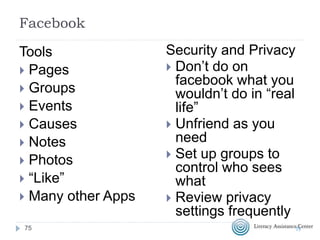
Facebook
Tools
 Pages
 Groups
 Events
 Causes
 Notes
 Photos
 “Like”
 Many other Apps
Security and Privacy
 Don’t do on
facebook what you
wouldn’t do in “real
life”
 Unfriend as you
need
 Set up groups to
control who sees
what
 Review privacy
settings frequently
7676
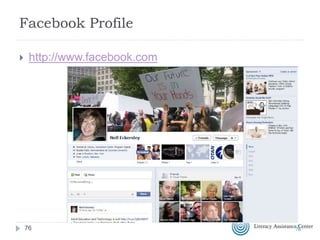
Facebook Profile
 http://www.facebook.com
7777
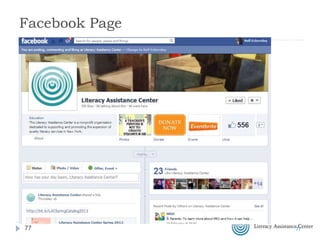
Facebook Page
7878
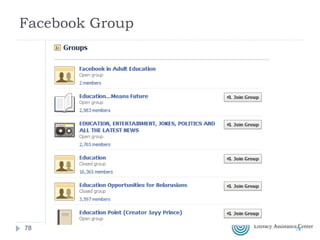
Facebook Group
7979
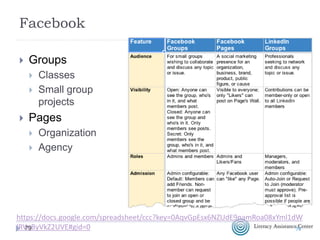
Facebook
 Groups
 Classes
 Small group
projects
 Pages
 Organization
 Agency
80
https://docs.google.com/spreadsheet/ccc?key=0AqvGpEsx6NZUdE9namRoa08xYml1dW
lRVnByVkZ2UVE#gid=080
Groups and Pages
 http://basicblogtips.com/facebook-groups-
or-pages.html
 http://forumone.com/blogs/post/table-
facebook-pages-vs-facebook-groups-vs-
linkedin-groups
 http://www.facebook.com/blog/blog.php?po
st=324706977130
8181
Pinterest
82
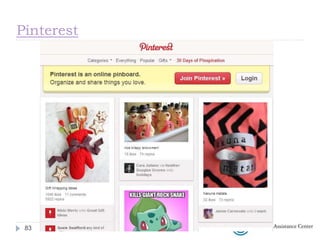
What is Pinterest?
 Online version of an “inspiration”
board
 Visual bookmarking tool
 Collaboration tool
8383
Pinterest
8484
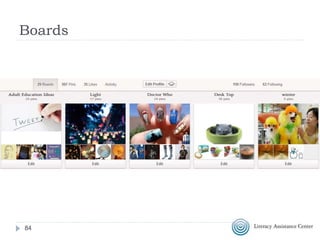
Boards
8585
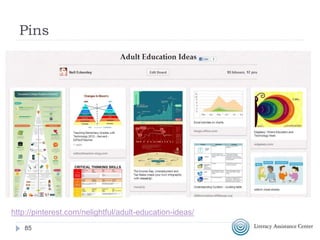
Pins
86
http://pinterest.com/nelightful/adult-education-ideas/
86
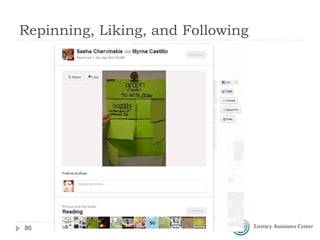
Repinning, Liking, and Following
8787
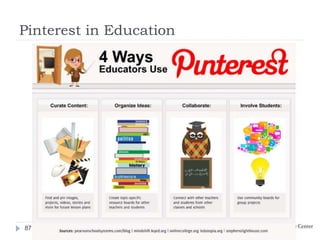
Pinterest in Education
8888
Pinterest in Education
 Is Pinterest a Teacher’s New Best Friend in the
Classroom?
 25 Great Educators To Follow On Pinterest
 TechChef4U Pinterest
 In The Pinterest Of Education
8989
Games and Apps
90
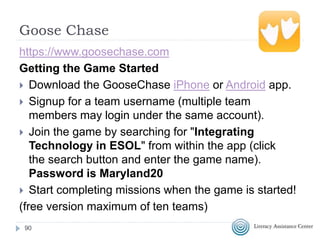
Goose Chase
https://www.goosechase.com
Getting the Game Started
 Download the GooseChase iPhone or Android app.
 Signup for a team username (multiple team
members may login under the same account).
 Join the game by searching for "Integrating
Technology in ESOL" from within the app (click
the search button and enter the game name).
Password is Maryland20
 Start completing missions when the game is started!
(free version maximum of ten teams)
91
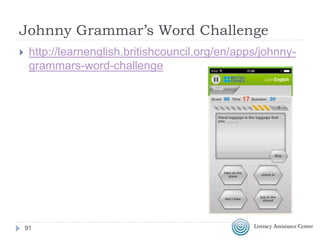
Johnny Grammar’s Word Challenge
 http://learnenglish.britishcouncil.org/en/apps/johnny-
grammars-word-challenge
92
More Resources
93
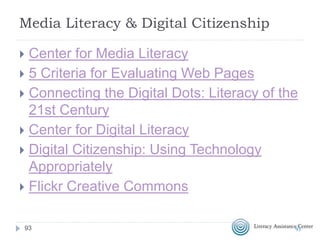
Media Literacy & Digital Citizenship
 Center for Media Literacy
 5 Criteria for Evaluating Web Pages
 Connecting the Digital Dots: Literacy of the
21st Century
 Center for Digital Literacy
 Digital Citizenship: Using Technology
Appropriately
 Flickr Creative Commons
9494
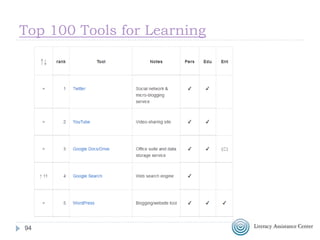
Top 100 Tools for Learning
95
96
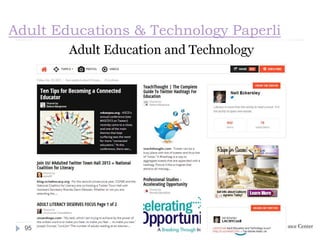
Adult Educations & Technology Paperli
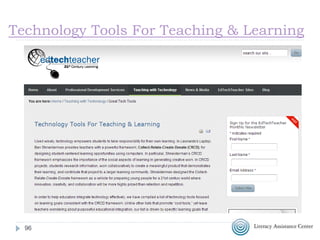
Technology Tools For Teaching & Learning
97
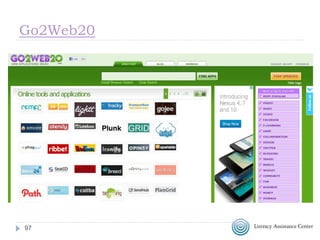
Go2Web20
98
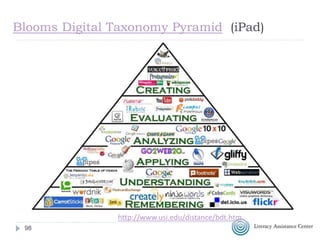
Blooms Digital Taxonomy Pyramid (iPad)
http://www.usi.edu/distance/bdt.htm
99
 How To Build Powerful Tech-Infused Lesson Plans
http://www.edudemic.com/how-to-lesson-plans/
 Free ESOL Resources from New York Public Library
http://www.nypl.org/help/community-
outreach/immigrant-services/learn-esol-online-
resources
100
Technology Integration Action Plan
101101
102
Questions?
103103
Nell Eckersley
 Email: nelle@lacnyc.org
 Twitter: http://twitter.com/LACNYCnell
 Facebook:
http://www.facebook.com/nell.eckersleylac
 Blog: http://nelightful.wordpress.com/
 Delicious: http://www.delicious.com/nelleckersley
104
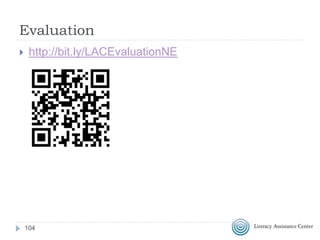
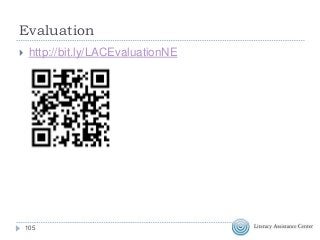
Evaluation
105
 http://bit.ly/LACEvaluationNE

Integrating technologies and digital literacy in ESOL

  • 1.
    Technology Integration &Digital Literacy for ESOL Learners Nell Eckersley
  • 2.
  • 3.
  • 4.
    Introductions  What doyou know about Integrating technology and digital literacy?  What is one thing would you like to take away from this session? 4 http://bit.ly/integratetechESOL
  • 5.
    Objectives  Be ableto list reasons to include technology in your teaching  Explores guidelines for planning to integrate technology into instruction  Identify five social media tools  Create a Technology Integration Action Plan for a unit or lesson that participants select for use with their ESOL students 5
  • 6.
    Agenda  Why usetechnology?  Digital Literacy and Social Media  Integrating Technology  Tools  QR Codes  Twitter  Facebook  Pinterest  Games and Apps  Other Resources  Planning 6 http://bit.ly/integratetechESOL
  • 7.
    What do youknow about Social Media?  What are some examples of Social Media?  Who is using it?  How many people have Facebook accounts?  How many searches are there on Google everyday?  How long do you think it took radio or TV to reach 50 million users?  How about the internet?  What is the current population of the US? China? India? 7
  • 8.
    Why Use SocialMedia in Adult Ed?  https://www.youtube.com/watch?v=PcZg51Il9no 88 http://www.pewinternet.org/fact-sheets/social-networking-fact-sheet/
  • 9.
    What is DigitalLiteracy?  The New York Department of Education defines digital literacy as ”having the knowledge and ability to use a range of technology tools for varied purposes.”  Digitally literate people are those who “can use technology strategically to find and evaluate information, connect and collaborate with others, produce and share original content, and use the Internet and technology tools to achieve many academic, professional, and personal goals.” 9 http://www.edweek.org/tm/articles/2014/10/29/ctq_crowley_digitalliteracy.html
  • 10.
    What is SocialMedia  Social media includes web-based and mobile based technologies which are used to turn communication into interactive dialogue among organizations, communities, and individuals. --Wikipedia 10
  • 11.
    Components of SocialMedia 11  Web 2.0
  • 12.
  • 13.
  • 14.
  • 15.
    Topics in SocialMedia  Cloud Computing  performing computer tasks using services delivered entirely over the Internet.  movement away from applications installed on an individual's computer towards the applications being hosted online.  The "cloud" refers to the Internet and was inspired by technical flow charts and diagrams, which tend to use a cloud symbol to represent the Internet.  http://mobileoffice.about.com/od/workin gontheroad/f/cloudcomputing.htm 15
  • 16.
    Topics in SocialMedia  Mobile Learning  The use of common handheld hardware, wireless networking and mobile telephony to facilitate, support, enhance and extend the reach of teaching and learning.  https://mobilelearningi nfokit.pbworks.com/w /page/41751137/What %20is%20mobile%20 learning16
  • 17.
    Topics in SocialMedia: Tagging 17
  • 18.
  • 19.
    Being Safe andSavvy  Digital Citizenship http://www.digitalcitizenship.net/  BrainPop on Digital Citizenship https://www.brainpop.com/spotlight/digitalcitizenship/  Scary Spokeo http://www.spokeo.com/  Staying Safe online https://www.staysafeonline.org/stay-safe-online/  Tips for strong passwords http://www.connectsafely.org/tips-to-create-and- manage-strong-passwords/ 19
  • 20.
    Myths about SocialMedia  Only young people use Social Media  Social Media; just a waste of time  Fears about security & privacy  Hierarchy of needs; technology comes after literacy20
  • 21.
    How do youapproach integrating technology? 21
  • 22.
    Integrating Technology How doyou include technology in your practice?  Find a tool and figure out how to use it with your students/staff  Think about what you already do with your students/staff and then how technology could deepen or expand on the lesson (POST)  Think of a challenging task and how technology might help  Helpful Reading: What Comes First: the Curriculum or the Technology? http://www.edudemic.com/what-comes-first- the-curriculum-or-technology/ 2222
  • 23.
    POST Method  Pis People. Know the capabilities of your audience. Know what scaffolding they’ll need.  O is objectives. Pick one. Decide on your objective before you decide on a technology. Then figure out how you will measure it.  S is Strategy. Figure out what will be different after you're done. Imagine you succeed. How will things be different afterwards? Imagine the endpoint and you'll know where to begin.  T is Technology. A community. A wiki. A blog or a hundred blogs. Once you know your people, objectives, and strategy, then you can decide with confidence. 23 The POST Method: A systematic approach to social strategy by Josh Bernoff
  • 24.
  • 25.
  • 26.
    SAMR and ESOL Visual model of how to use SAMR http://www.educatorstechnology.com/2014/02/a- wonderful-visual-on-how-to-use-samr.html  Your Turn  Think about lessons you already do with student. How could you integrate technology?  What kind of tools do you need?  What other help? 26
  • 27.
    What tools canyou use to integrate technology? 27
  • 28.
    28 Internet Access  EveryoneOn:Internet service as low as $10 a month, low-cost computers, and free digital literacy courses  http://www.ed.gov/edblogs/ovae/2014/04/09/ octae-is-working-to-get-everyone-on/  http://www.everyoneon.org/adulted
  • 29.
    29 Resources  https://lincs.ed.gov/courses  LINCSCommunity https://community.lincs.ed.gov/group/technology-and-learning
  • 30.
    30 Resources Computer Literacy Skills Northstar Basic Computer Skills Assessment http://www.digitalliteracyassessment.org/index.php  Basic Computer Skills Curriculum http://spclc.org/curricula-resources/computer-curriculum  Computer Literacy Instructional Resources http://mnliteracy.org/educators/adult/technology/computer-skills  Keyboard skills: http://www.sense-lang.org/typing/  Mouse Skills http://www.seniornet.org/howto/mouseexercises/mousepractice.htm l
  • 31.
    Resources Internet Skills  Internet101 http://www.internet101.org/ Microsoft Software Skills  Microsoft PowerPoint 2010 for Beginners http://www.gcflearnfree.org/powerpoint2010  Microsoft Publisher 2010 for Beginners http://www.gcflearnfree.org/publisher2010  Microsoft Word 2010 for Beginners http://www.gcflearnfree.org/word2010 31
  • 32.
    Your Turn  Goto Northstar Basic Computer Skills Assessment http://www.digitalliteracyassessment.org/index.php  Take module 1 and then if there’s time, choose another module 32
  • 33.
  • 34.
    Email  All studentsshould have a “professional” email address. Gmail is recommended Email lesson ideas  Students email each other periodically  Practice sending different kinds of emails: a copy to a friend, to multiple friends, with an attachment  Teach Netiquette and some of the language of email/text: LOL, IMHO, etc  Teach some of the basics like cleaning your mailbox, setting up email filters and folders  Set up a class email newsletter and send out important information on a regular basis. Students can add to it.34http://busyteacher.org/9194-esl-classroom-facebook-social-networks.html
  • 35.
    Websites and Blogs Many instructors maintain a class website. Put students in charge of this project. They can then set up their own profiles on the site  Set up a class blog. Have students blog about a book you are reading or other assignments. To keep the discussion going, the teacher can periodically comment on the blog and require students to also comment at certain intervals. The topic can change according to what is happening in class and what students are studying  Cookbook on a blog or website 35 http://busyteacher.org/9194-esl-classroom-facebook-social-networks.html
  • 36.
    Weebly Website Example 36 http://www.lacnyc.org  http://www.lacnyc.org/tech  Password: crocodile39
  • 37.
    Google Search Teach somebasic research skills  http://www.google.com/insidesearch/tipstricks/basics. html  http://news.distractify.com/geek/google-tips/ 37
  • 38.
  • 39.
    What are QRCodes?  Q R stands for  Invented in Japan by Toyota in 1994 to track vehicles during the manufacturing process  QR code is detected as a 2-dimensional digital image by a semiconductor image sensor and is then digitally analyzed by a programmed processor. Translation: You can scan it with your smart phone or tablet. 39
  • 40.
    How Would YouGet to Here? http://www.youtube.com/watch?v=vLNOpoQztFo&feat ure=share&list=FLEqfU4INXfYY58eh5Ynm5vA 40 Shortened URL http://bit.ly/19wbpyV QR Code
  • 41.
    QR Code Readers QR Codes can be used with a mobile device like a smart phone or a tablet that has access top the internet  The device must have an QR Code reader (also called scanner) app installed  Apple Devices: Qrafter  Android Devices: QR Droid NOTE: You should NOT have to pay money or give information about yourself when selecting and installing a QR Code reader or scanner 41
  • 42.
    QR Code Readers TheQR Code reader uses the camera on your device to scan the code and then uses the internet to interpret the instructions in the code 42
  • 43.
    QR Codes inReal Life 43
  • 44.
    QR Codes inEducation 44
  • 45.
    Image with Narration To hearabout this photo go to this link http://vimeo.com/64923339 or scan this QR Code 45 Tools used to create this: https://www.google.com/voice https://www.dropbox.com http://vimeo.com http://qrcode.kaywa.com/dashboard/
  • 46.
    Steps to Usingin Education 1. First consider what the learning goal is 2. Make sure you have devices that can read a QR Code 3. Make sure the content is mobile friendly 4. Create the QR Codes you need 46
  • 47.
    QR Codes inEducation  QR Codes in Adult Education (video)  Make your own QR Code Scavenger Hunt!  Scavenger Hunt  5 Real Ways To Use QR Codes In Education  Black & White and Scanned All Over (video)  QR Codes Connect Students to Books  Shambles QR Code Resource  Desktop QR Code Reader  QR Codes in Education Livebinder  50 QR code resources for the classroom 47
  • 48.
    Make Your OwnQR Code 48  Bitly (for URL’s) https://bitly.com/  Google (for URL’s) http://goo.gl/  Kaywa (for URL’s and contact info) http://qrcode.kaywa.com/  ScanLife (for URL’s and contact info) http://www.scanlife.com/en/  ZXING (for URL’s, wifi, contact info and more) http://zxing.appspot.com/generator/
  • 49.
    Shortening Links 49 You canuse BitLy to shorten URL’s without creating an account https://bitly.com/ 49
  • 50.
    Make Your OwnQR Code 1. Paste the Bitly shortened URL in the address bar of your browser 2. Type .qr at the end of the shortened URL 3. Hit the Enter key 4. Up will come your QR Code 50
  • 51.
    Uh oh, Bitly doesn’tmake QR codes anymore…. now what? 51
  • 52.
    QR Codes fromKAYWA 52  http://qrcode.kaywa.com/
  • 53.
  • 54.
    What is Twitter? Microblogging;140 characters maximum  http://twitter.com/  Hashtag #AdultEd  Unlike most social media, just because I “follow” you, you don’t have to “follow” me 5454
  • 55.
    Why Use Twitter Meta-Cognition  Accessible from many places  “Snackable” education  Follow people you can learn from 5555
  • 56.
  • 57.
    What Can YouSay in 140 Characters? 5757
  • 58.
    @cookbook Rhubarb Upside DownCupcakes: Beat1/2c sug&mltdbuttr/2egg/c yogurt, +2c flr/2t bkgpdr/t salt. Buttr12cup; +T sug/2T rhubarb, batter e. 25m@350F 5858
  • 59.
  • 60.
  • 61.
    Hashtags vs Mentions Hashtags have # in front of them (no spaces allowed)  Hashtags are like signposts to content  Mentions start with @ followed by a person or organization’s twitter name (no spaces allowed)  Mentions help connect people who tweet (tweeple?)  Mentions are like sign posts to other people who tweet 6161
  • 62.
    Hashtags are Ephemeral Hashtags lose their value if they are not used often.  If using a hashtag for a short term event it’s a good idea to archive the content so it can be found later  Two tools  http://www.tweetarchivist.com  http://paper.li/LACNYCnell/1320940472 6262
  • 63.
    Anatomy of aGood Tweet 6363
  • 64.
  • 65.
    Search Twitter  Searchon http://Twitter.com for people, keywords or hashtags  Search on http://Search.Twitter.com for keywords or hashtags even if you don’t have a Twitter account  Track hashtags and tweet from http://tweetchat.com/ 6565
  • 66.
    Finding People toFollow  In Twitter.com search hashtags and words like #COABE13 #AdultEd  See who experts follow  Look for Twitter links on websites you like 6666
  • 67.
    Sending and ReceivingTweets  Twitter.com  Texts via your cell phone  Applications on computers & smart phones  Tweetdeck  HootSuite  PaperLi  TweetChat 6767
  • 68.
  • 69.
    Before You JoinTwitter  Come up with possible Twitter names  Have options incase your first choice is taken  Shorter is better  Develop a list of five people/places to follow  Have a picture to upload as your avatar 6969
  • 70.
    Once You Join Follow at least five people  @theLACNYC, @LACNYCNell, @NCLAdvocacy for example  Search for people using #AdultEd  Search for your favorite hobby, writer, singer, actor, comic, political figure, tv show, magazine, organization  Retweet one tweet and create one of your own tweets. Remember to use hashtags 7070
  • 71.
    What to Doin the Next Few Weeks  Spend 15 minutes on Twitter every morning (or some other time)  reading Tweets  retweeting  following new people  Try TweetDeck or receiving tweets as sms text messages on your cellphone 7171
  • 72.
    Examples Comedy  https://twitter.com/PlioceneBloke  https://twitter.com/DothTheDoth https://twitter.com/FakeMTA Useful Tips  https://twitter.com/nycgov  https://twitter.com/MTAInsider  https://twitter.com/NY1noticias 7272
  • 73.
  • 74.
    What is Facebook? Originally a form of online yearbook  Now a social media platform for sharing all kinds of information 7474
  • 75.
    Why Use Facebook? Public or Private platform  Share information about your program, about your students, about yourself  http://www.facebook.com/educatio n  Teach people how to use it for Good 7575
  • 76.
    Facebook Tools  Pages  Groups Events  Causes  Notes  Photos  “Like”  Many other Apps Security and Privacy  Don’t do on facebook what you wouldn’t do in “real life”  Unfriend as you need  Set up groups to control who sees what  Review privacy settings frequently 7676
  • 77.
  • 78.
  • 79.
  • 80.
    Facebook  Groups  Classes Small group projects  Pages  Organization  Agency 80 https://docs.google.com/spreadsheet/ccc?key=0AqvGpEsx6NZUdE9namRoa08xYml1dW lRVnByVkZ2UVE#gid=080
  • 81.
    Groups and Pages http://basicblogtips.com/facebook-groups- or-pages.html  http://forumone.com/blogs/post/table- facebook-pages-vs-facebook-groups-vs- linkedin-groups  http://www.facebook.com/blog/blog.php?po st=324706977130 8181
  • 82.
  • 83.
    What is Pinterest? Online version of an “inspiration” board  Visual bookmarking tool  Collaboration tool 8383
  • 84.
  • 85.
  • 86.
  • 87.
    Repinning, Liking, andFollowing 8787
  • 88.
  • 89.
    Pinterest in Education Is Pinterest a Teacher’s New Best Friend in the Classroom?  25 Great Educators To Follow On Pinterest  TechChef4U Pinterest  In The Pinterest Of Education 8989
  • 90.
  • 91.
    Goose Chase https://www.goosechase.com Getting theGame Started  Download the GooseChase iPhone or Android app.  Signup for a team username (multiple team members may login under the same account).  Join the game by searching for "Integrating Technology in ESOL" from within the app (click the search button and enter the game name). Password is Maryland20  Start completing missions when the game is started! (free version maximum of ten teams) 91
  • 92.
    Johnny Grammar’s WordChallenge  http://learnenglish.britishcouncil.org/en/apps/johnny- grammars-word-challenge 92
  • 93.
  • 94.
    Media Literacy &Digital Citizenship  Center for Media Literacy  5 Criteria for Evaluating Web Pages  Connecting the Digital Dots: Literacy of the 21st Century  Center for Digital Literacy  Digital Citizenship: Using Technology Appropriately  Flickr Creative Commons 9494
  • 95.
    Top 100 Toolsfor Learning 95
  • 96.
    96 Adult Educations &Technology Paperli
  • 97.
    Technology Tools ForTeaching & Learning 97
  • 98.
  • 99.
    Blooms Digital TaxonomyPyramid (iPad) http://www.usi.edu/distance/bdt.htm 99
  • 100.
     How ToBuild Powerful Tech-Infused Lesson Plans http://www.edudemic.com/how-to-lesson-plans/  Free ESOL Resources from New York Public Library http://www.nypl.org/help/community- outreach/immigrant-services/learn-esol-online- resources 100
  • 101.
  • 102.
  • 103.
  • 104.
    Nell Eckersley  Email:nelle@lacnyc.org  Twitter: http://twitter.com/LACNYCnell  Facebook: http://www.facebook.com/nell.eckersleylac  Blog: http://nelightful.wordpress.com/  Delicious: http://www.delicious.com/nelleckersley 104
  • 105.