Digital Imaging
Unit 5: Using Painting Tools
Module 1: Learning about Brush Types and Properties
Painting Tools
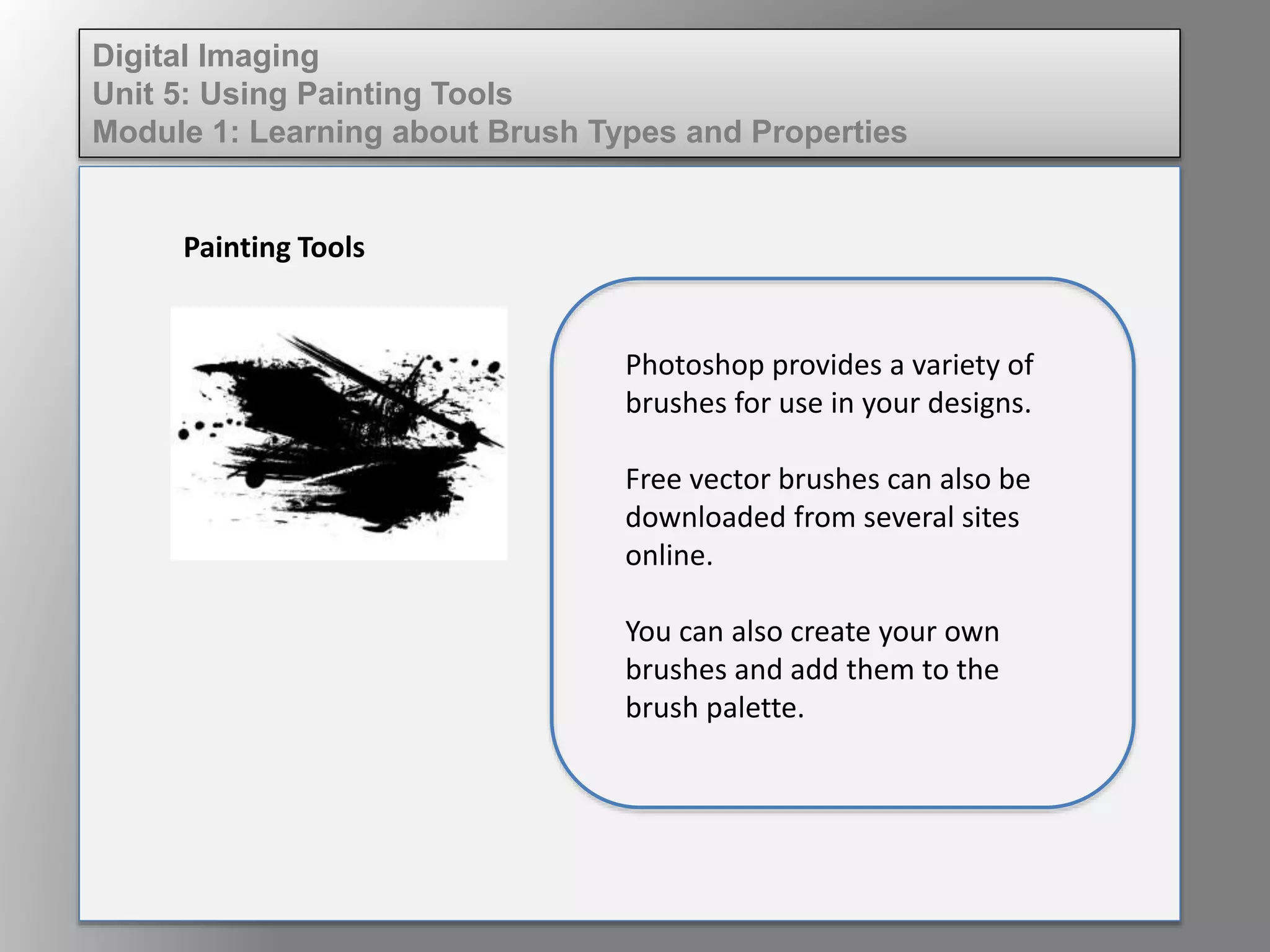
Photoshop provides a variety of
brushes for use in your designs.
Free vector brushes can also be
downloaded from several sites
online.
You can also create your own
brushes and add them to the
brush palette.
Digital Imaging
Unit 5: Using Painting Tools
Module 1: Learning about Brush Types and Properties
Painting Tools
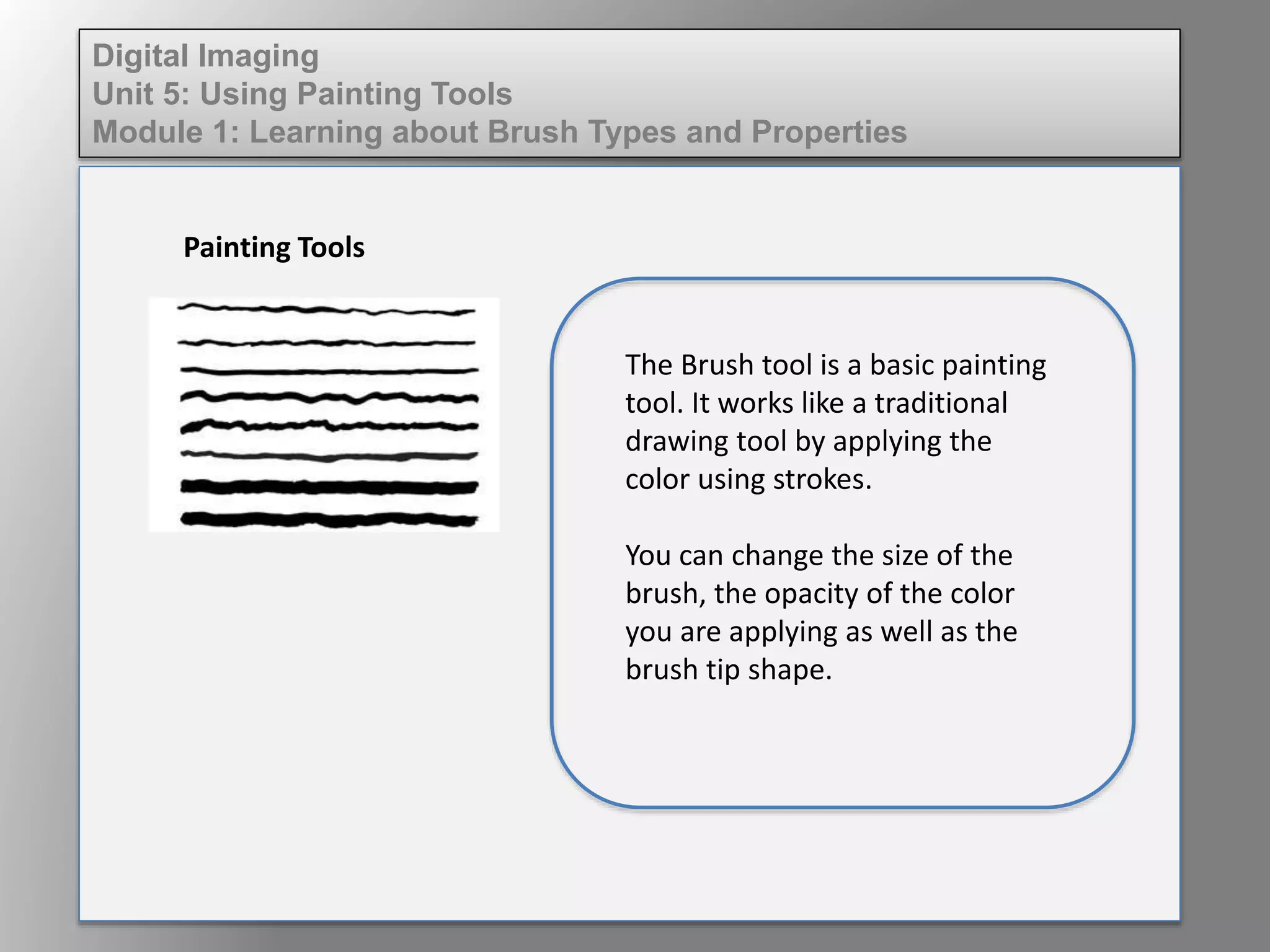
The Brush tool is a basic painting
tool. It works like a traditional
drawing tool by applying the
color using strokes.
You can change the size of the
brush, the opacity of the color
you are applying as well as the
brush tip shape.
Digital Imaging
Unit 5: Using Painting Tools
Module 1: Learning about Brush Types and Properties
Blending Brush Modes
A Blending Mode is a way to mix the colors with the items
beneath them.
The basic blending modes are:
• Normal Mode - paints the color as is with no
transformation.
• Dissolve – adds noise to the edges of the brush stroke.
• Opacity – adjusts the transparency of the stroke.
• Flow – the rate the color is applied.
Digital Imaging
Unit 5: Using Painting Tools
Module 1: Learning about Brush Types and Properties
Free vector brushes
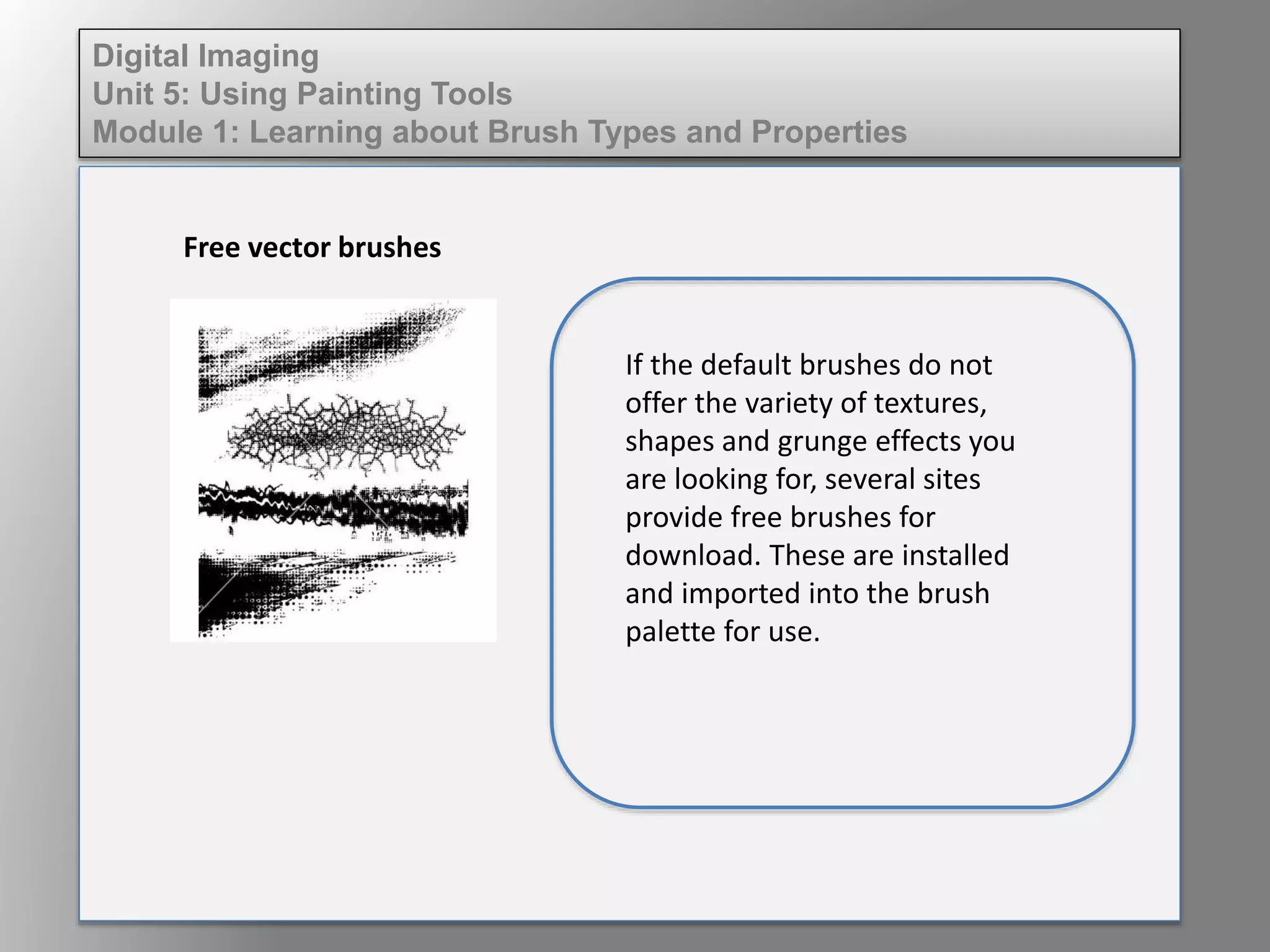
If the default brushes do not
offer the variety of textures,
shapes and grunge effects you
are looking for, several sites
provide free brushes for
download. These are installed
and imported into the brush
palette for use.
Digital Imaging
Unit 5: Using Painting Tools
Module 1: Learning about Brush Types and Properties
Creating brushes
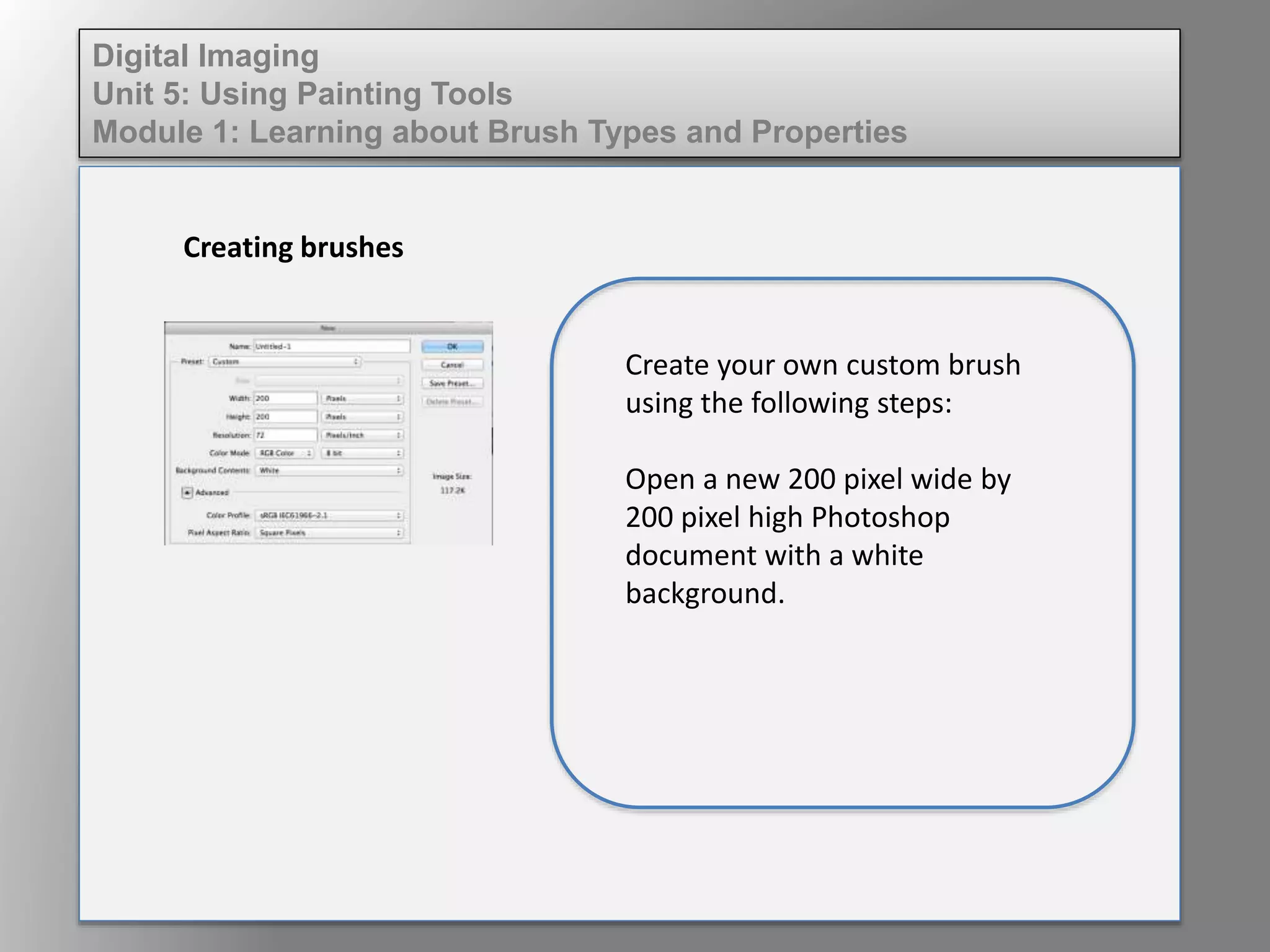
Create your own custom brush
using the following steps:
Open a new 200 pixel wide by
200 pixel high Photoshop
document with a white
background.
Digital Imaging
Unit 5: Using Painting Tools
Module 1: Learning about Brush Types and Properties
Creating brushes
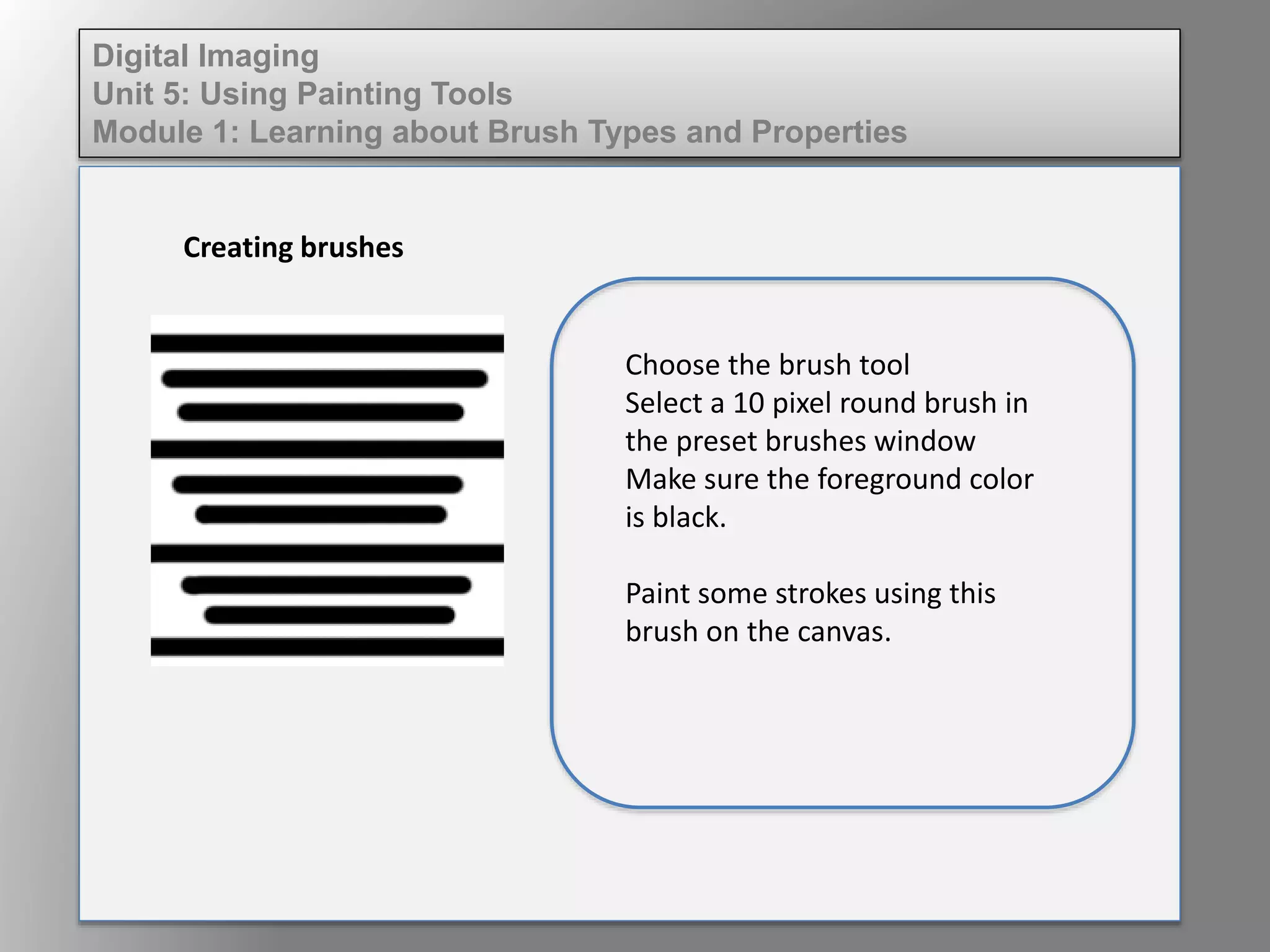
Choose the brush tool
Select a 10 pixel round brush in
the preset brushes window
Make sure the foreground color
is black.
Paint some strokes using this
brush on the canvas.
Digital Imaging
Unit 5: Using Painting Tools
Module 1: Learning about Brush Types and Properties
Creating brushes
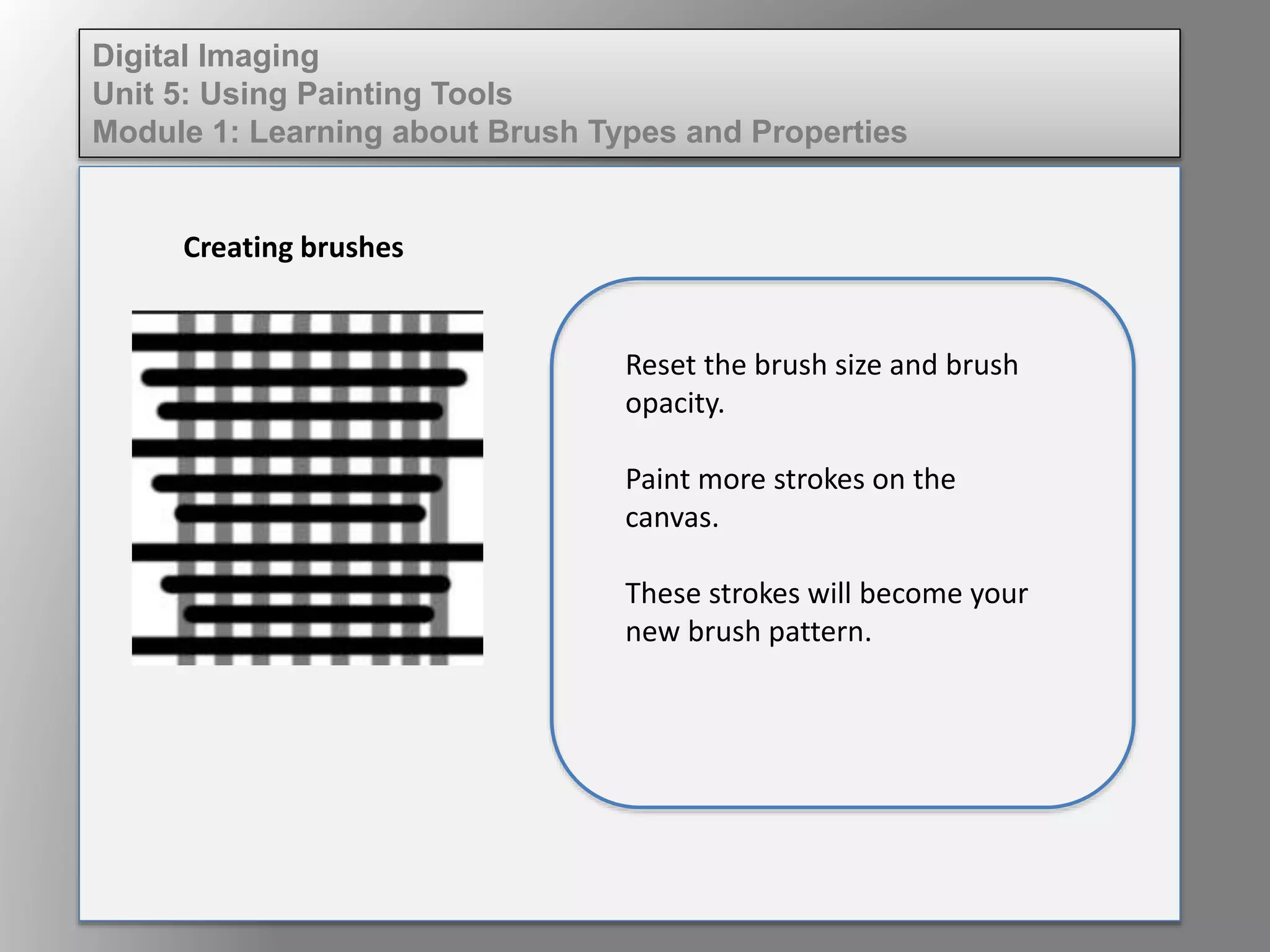
Reset the brush size and brush
opacity.
Paint more strokes on the
canvas.
These strokes will become your
new brush pattern.
Digital Imaging
Unit 5: Using Painting Tools
Module 1: Learning about Brush Types and Properties
Creating brushes
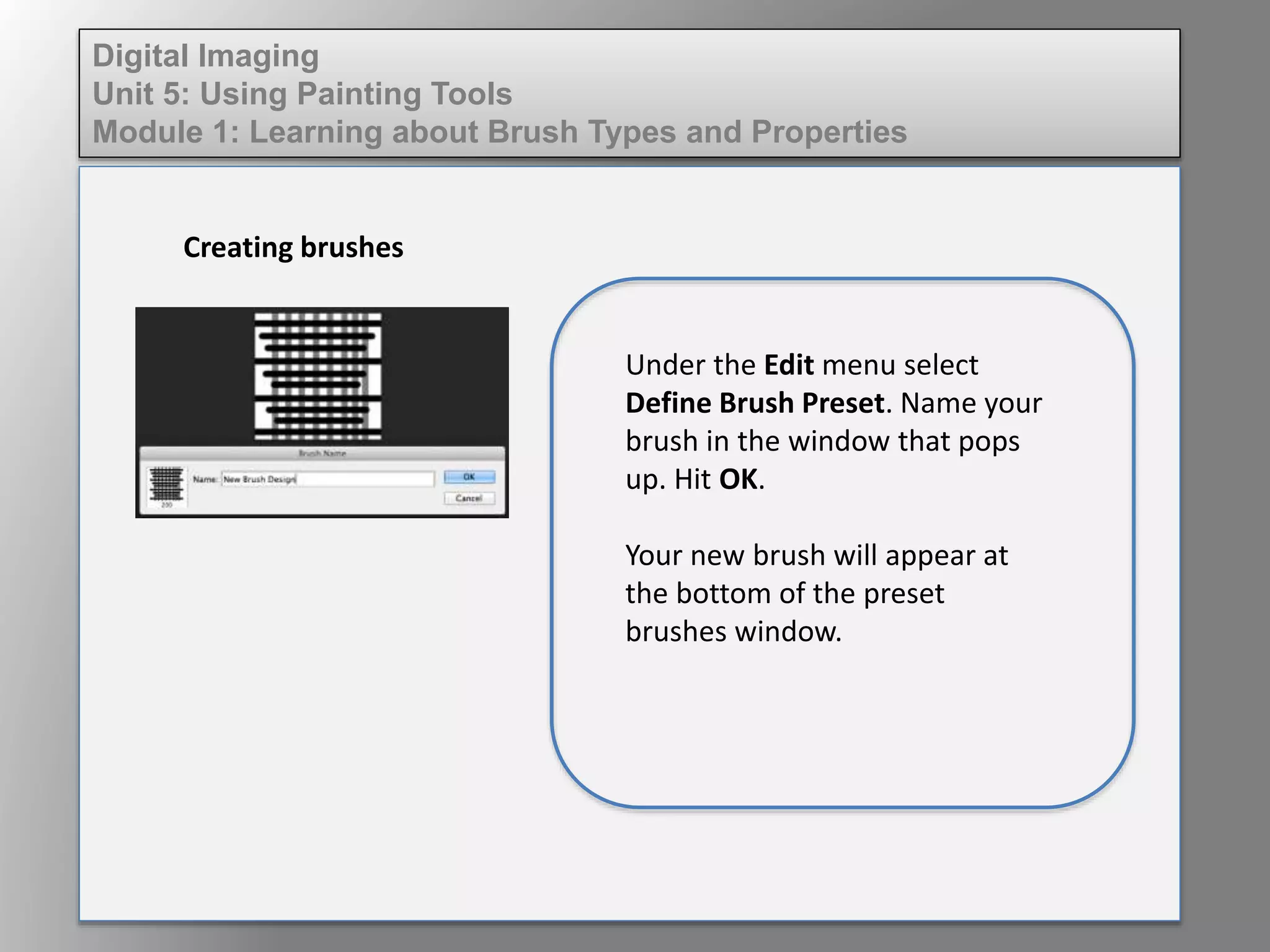
Under the Edit menu select
Define Brush Preset. Name your
brush in the window that pops
up. Hit OK.
Your new brush will appear at
the bottom of the preset
brushes window.

Wd133 unit 5 module 1 learning about brush types and properties

  • 1.
    Digital Imaging Unit 5:Using Painting Tools Module 1: Learning about Brush Types and Properties Painting Tools Photoshop provides a variety of brushes for use in your designs. Free vector brushes can also be downloaded from several sites online. You can also create your own brushes and add them to the brush palette.
  • 2.
    Digital Imaging Unit 5:Using Painting Tools Module 1: Learning about Brush Types and Properties Painting Tools The Brush tool is a basic painting tool. It works like a traditional drawing tool by applying the color using strokes. You can change the size of the brush, the opacity of the color you are applying as well as the brush tip shape.
  • 3.
    Digital Imaging Unit 5:Using Painting Tools Module 1: Learning about Brush Types and Properties Blending Brush Modes A Blending Mode is a way to mix the colors with the items beneath them. The basic blending modes are: • Normal Mode - paints the color as is with no transformation. • Dissolve – adds noise to the edges of the brush stroke. • Opacity – adjusts the transparency of the stroke. • Flow – the rate the color is applied.
  • 4.
    Digital Imaging Unit 5:Using Painting Tools Module 1: Learning about Brush Types and Properties Free vector brushes If the default brushes do not offer the variety of textures, shapes and grunge effects you are looking for, several sites provide free brushes for download. These are installed and imported into the brush palette for use.
  • 5.
    Digital Imaging Unit 5:Using Painting Tools Module 1: Learning about Brush Types and Properties Creating brushes Create your own custom brush using the following steps: Open a new 200 pixel wide by 200 pixel high Photoshop document with a white background.
  • 6.
    Digital Imaging Unit 5:Using Painting Tools Module 1: Learning about Brush Types and Properties Creating brushes Choose the brush tool Select a 10 pixel round brush in the preset brushes window Make sure the foreground color is black. Paint some strokes using this brush on the canvas.
  • 7.
    Digital Imaging Unit 5:Using Painting Tools Module 1: Learning about Brush Types and Properties Creating brushes Reset the brush size and brush opacity. Paint more strokes on the canvas. These strokes will become your new brush pattern.
  • 8.
    Digital Imaging Unit 5:Using Painting Tools Module 1: Learning about Brush Types and Properties Creating brushes Under the Edit menu select Define Brush Preset. Name your brush in the window that pops up. Hit OK. Your new brush will appear at the bottom of the preset brushes window.