How to use and add Photoshop Brushes
Requirements  Must have Photoshop software  version CS2 or Higher must have a picture of anything that you want to turn into a brush Also have a computer with internet access
Intro Learning Brushes and making your own brush will help with your projects or just to learn something new in the world of photo shop
How to make a Brush in Photoshop Open up Adobe Photoshop
 
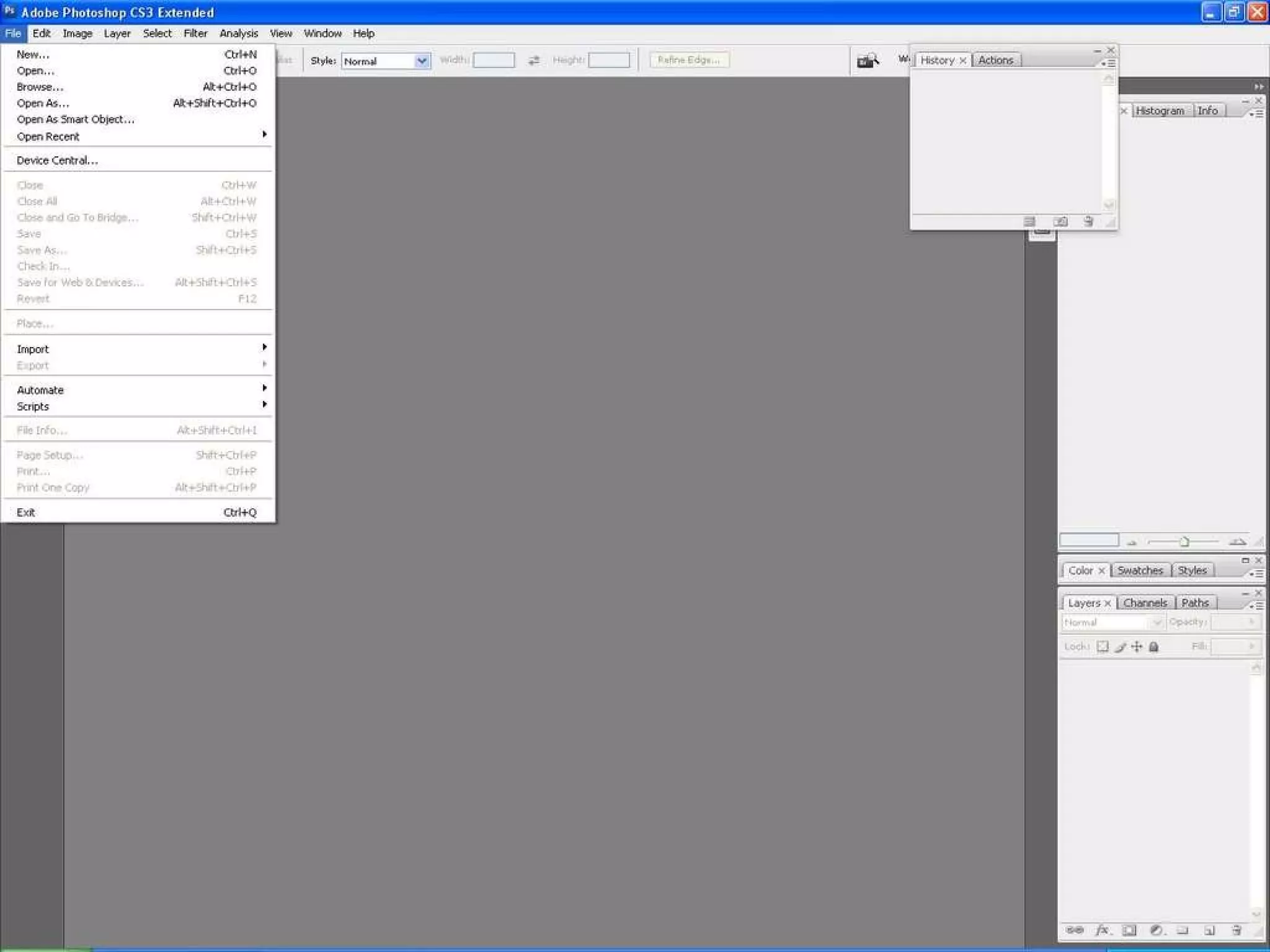
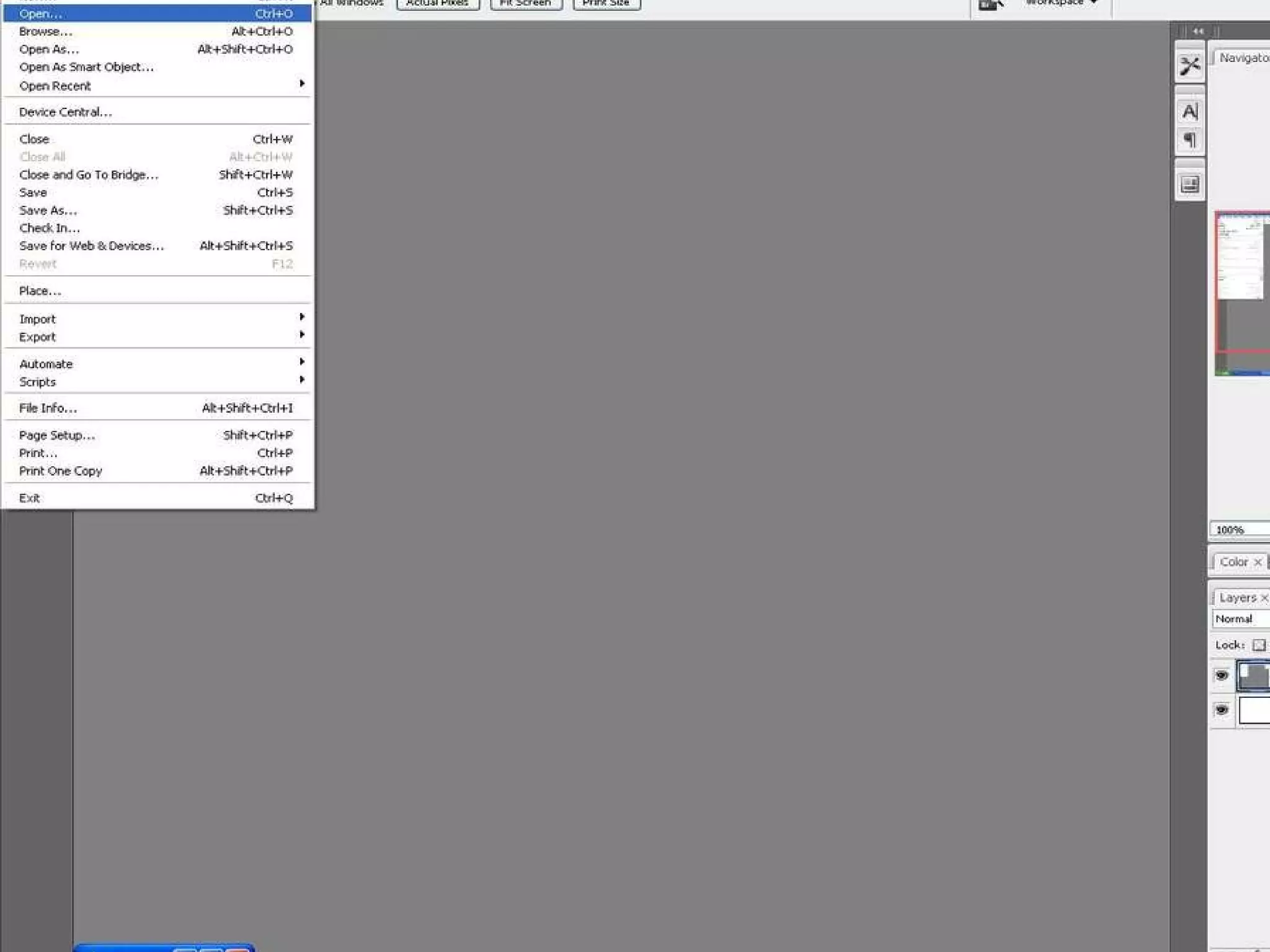
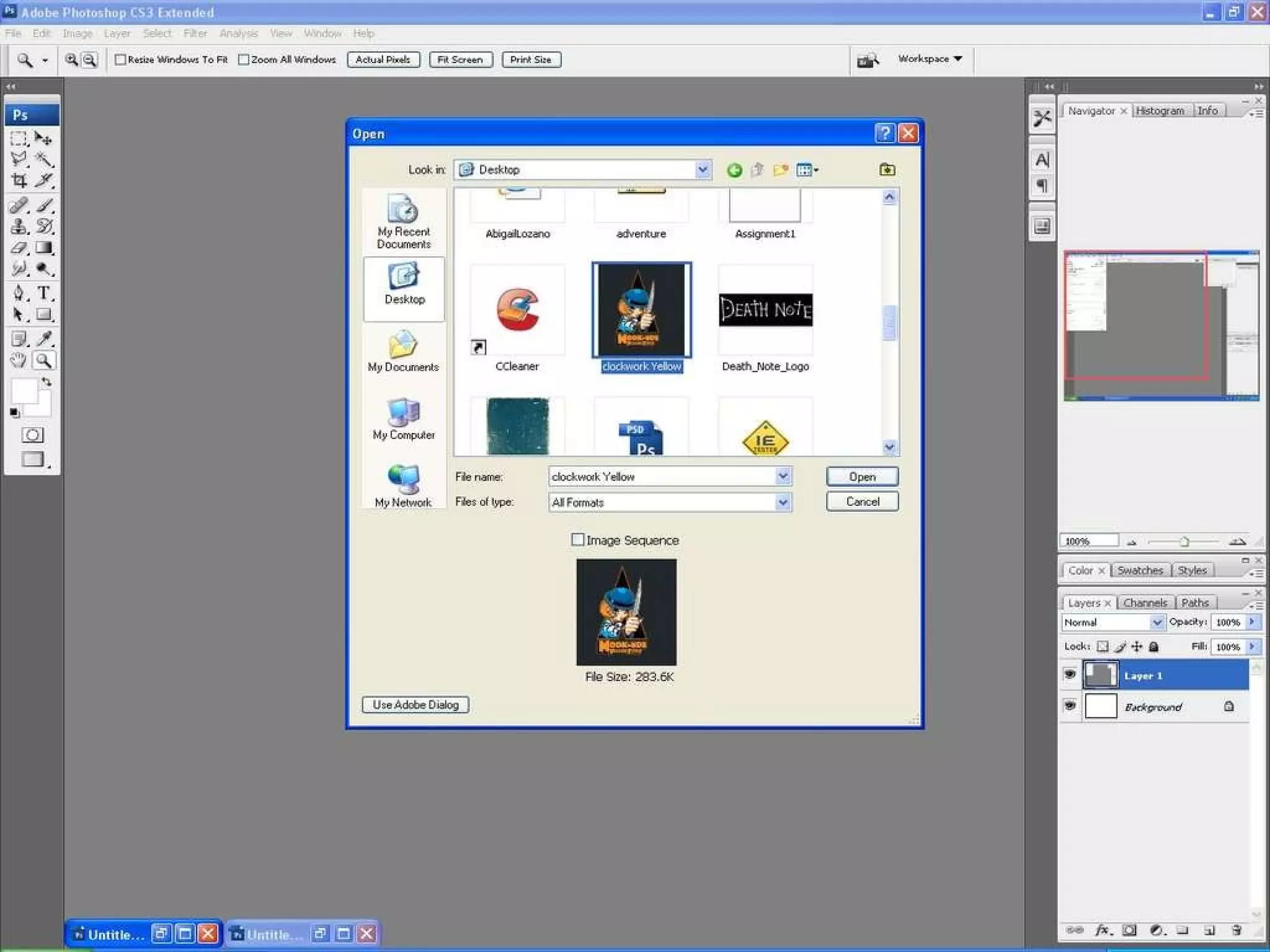
How to make brushes in Photoshop   Once you have Photoshop open  Click on File and Open
 
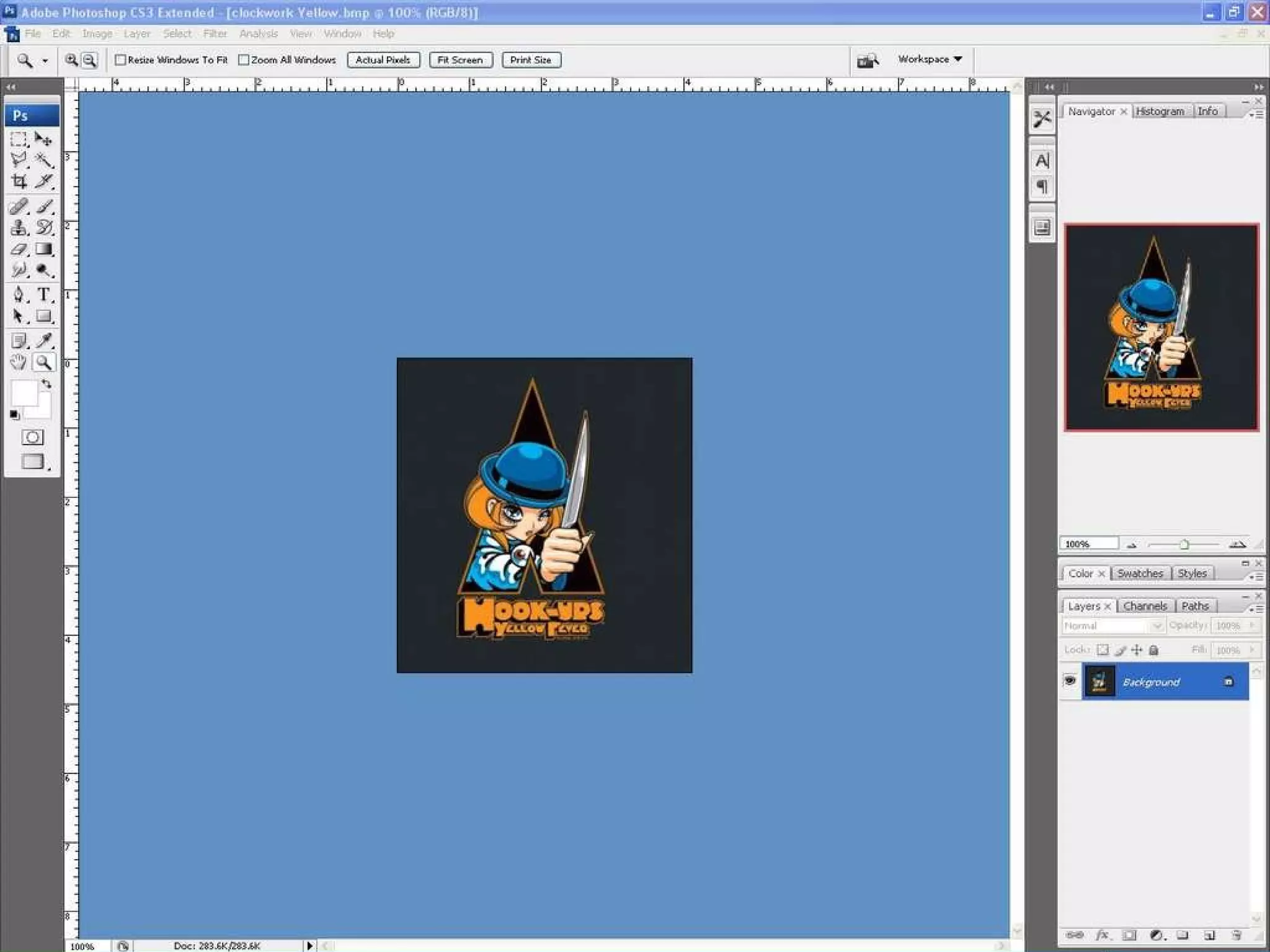
How to make brushes in Photoshop   Open your picture thru Photoshop  Have your Picture file on your desktop and click on it
 
How to make brushes in Photoshop
How to make brushes in Photoshop Once you have open your picture thru Photoshop Go on to the next step
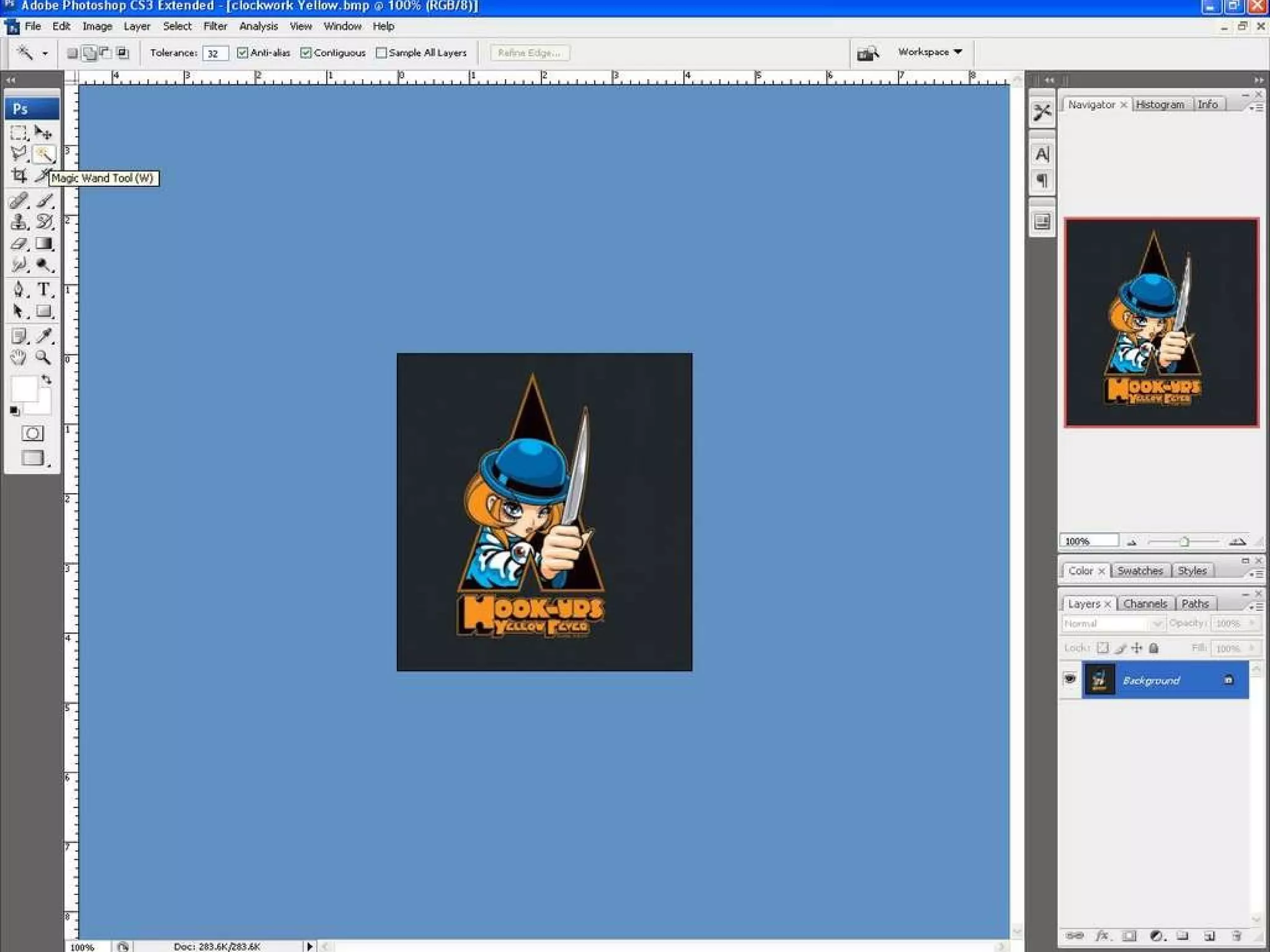
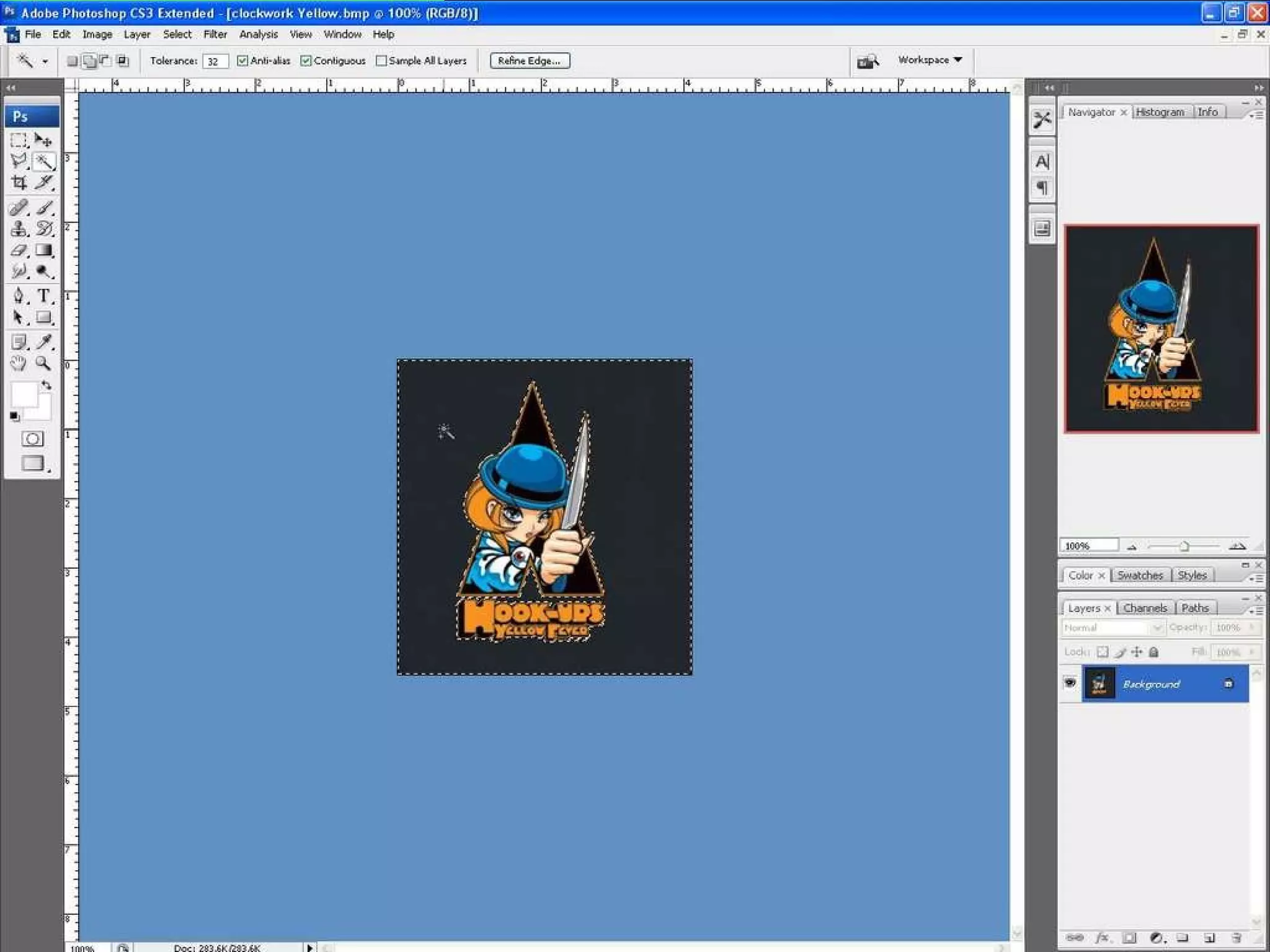
How to make brushes in Photoshop Go to the tool bar on your left hand corner  Click on the tool of the magic wand tool  Then Click on your picture using the magic wand tool
 
 
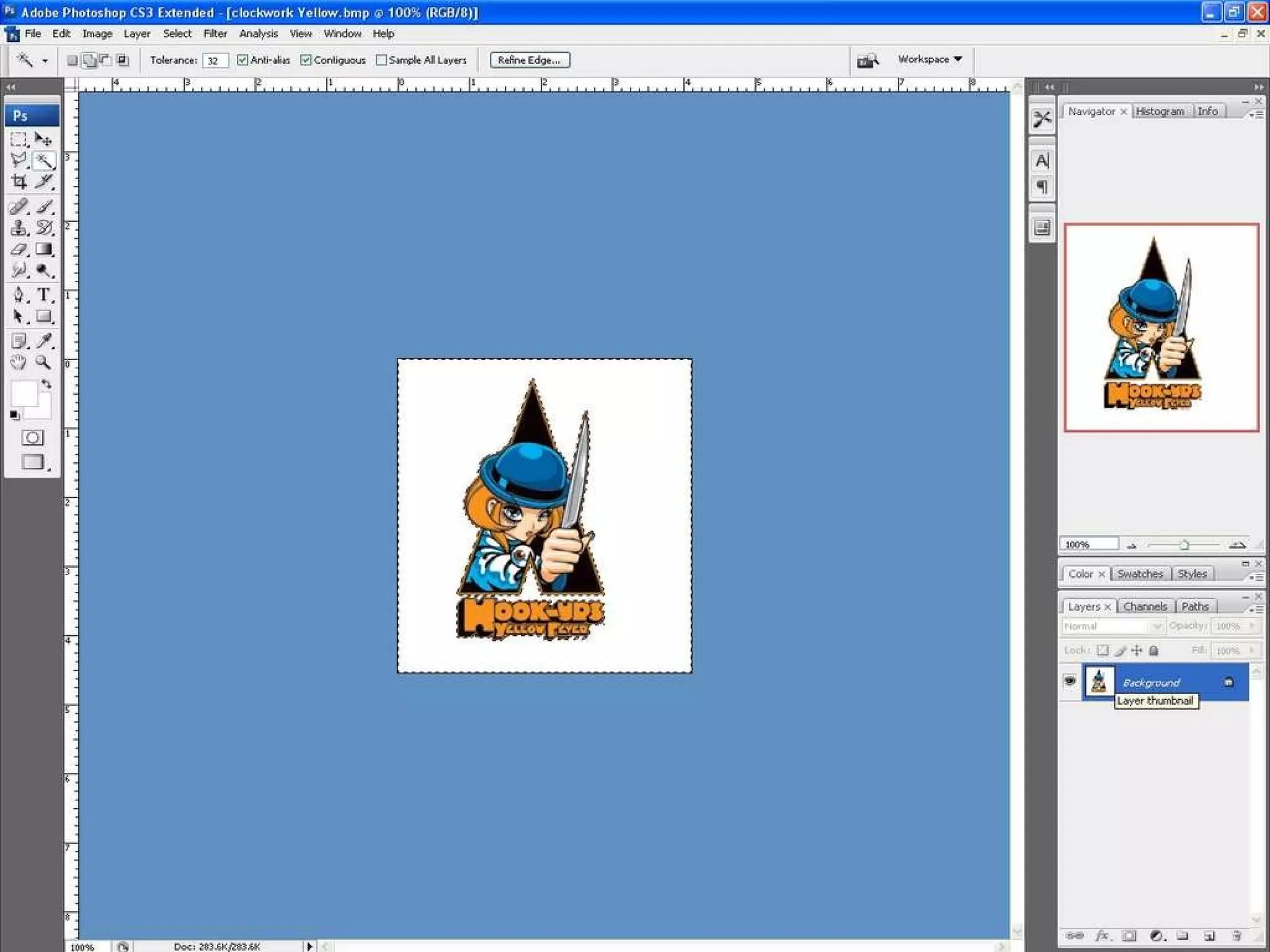
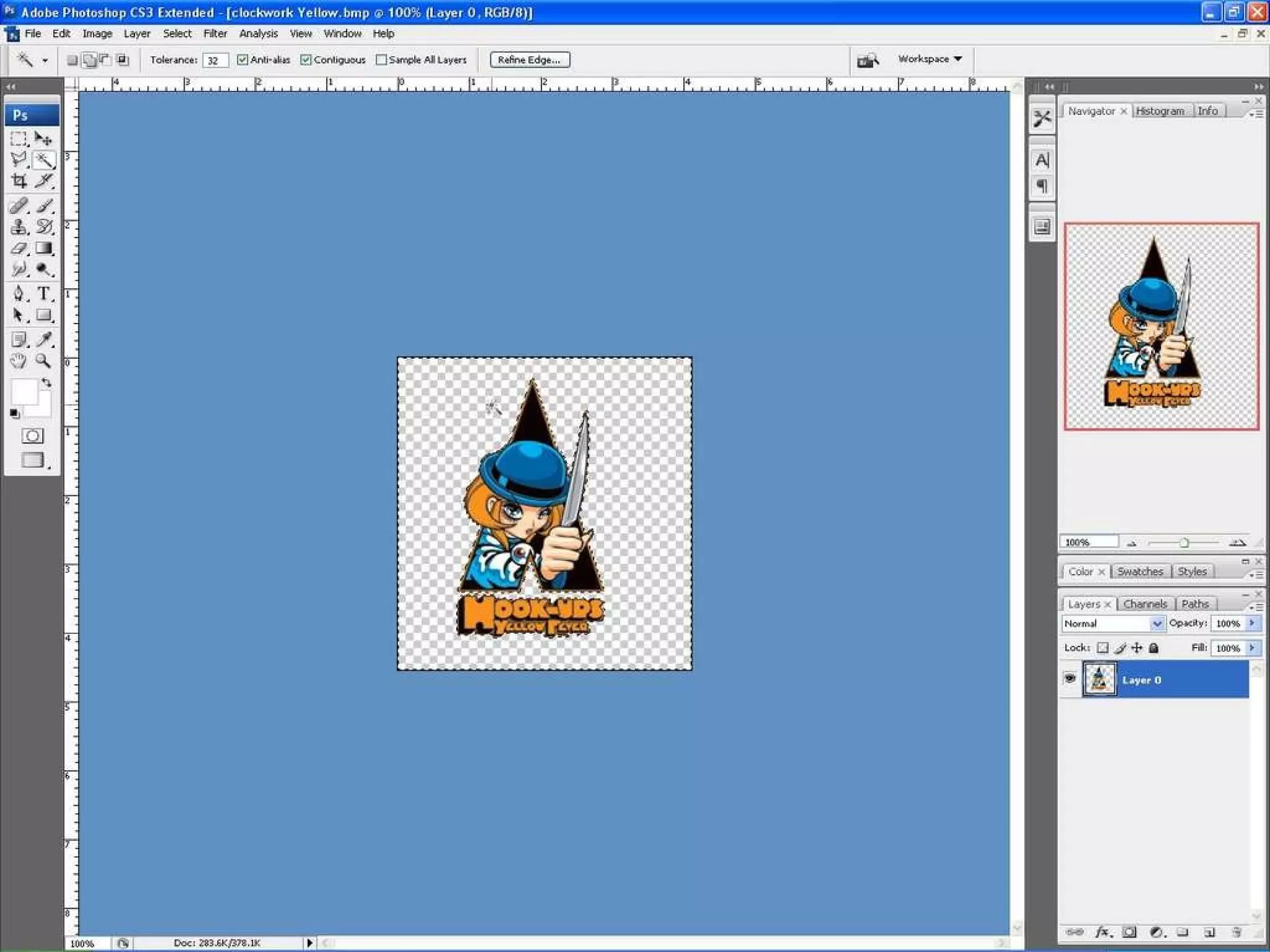
How to make brushes in Photoshop Press the backspace the button on your keyboard to clear the background of your picture  After that go the bottom area in Photoshop in the Layer Box Click on the Layer Thumbnail
 
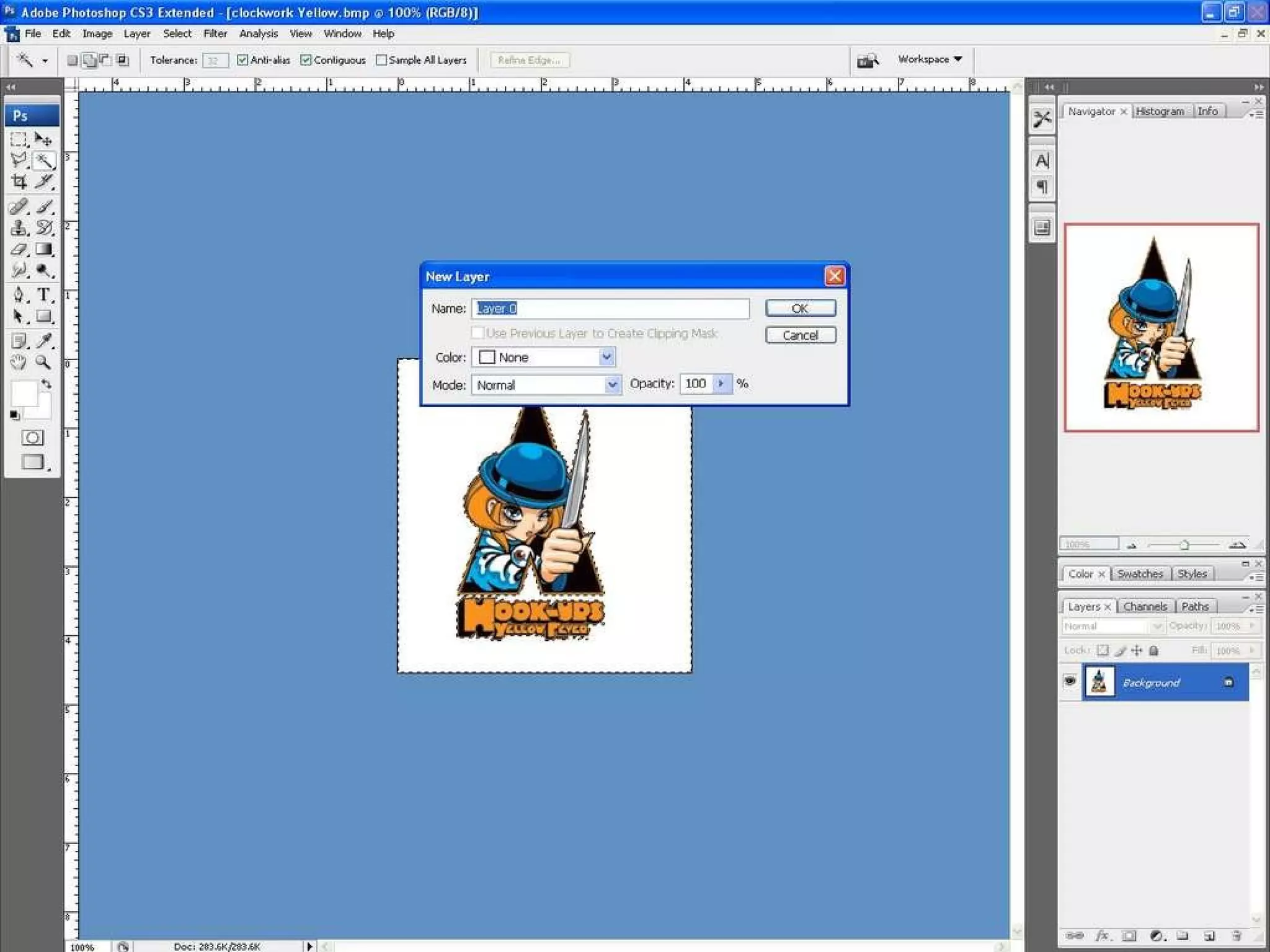
How to make brushes in Photoshop Double Click on the thumbnail layer  Then you should have a new layer open give it a name or leave it blank and click ok  Note Don’t change any of the settings
 
 
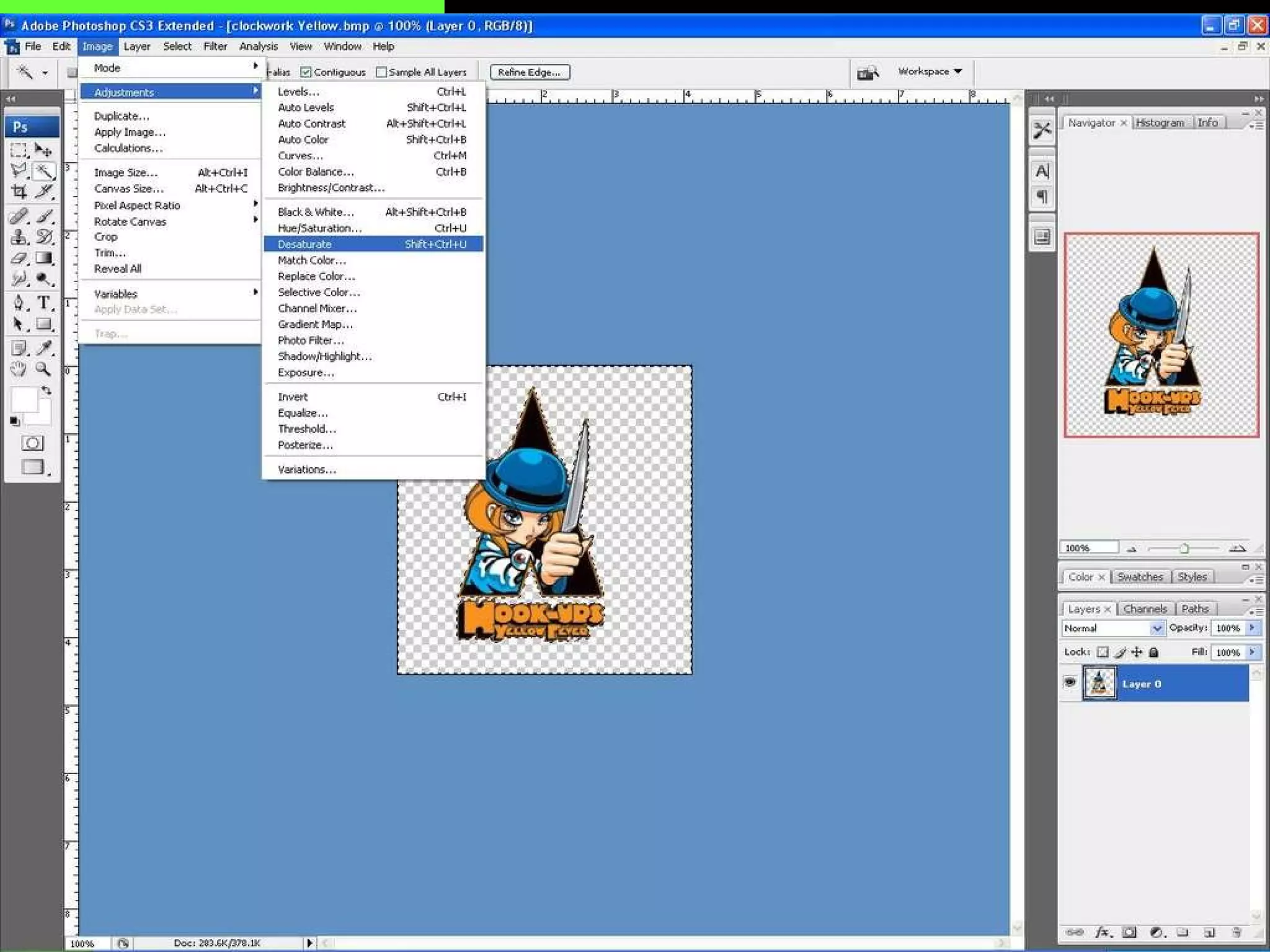
How to make brushes in Photoshop After you clear your background from your picture  Go up to the menu bar where it’s says “IMAGE” then scroll down where it  says “ADJUSTMENT” then scroll down to “Desaturate” then Click
 
 
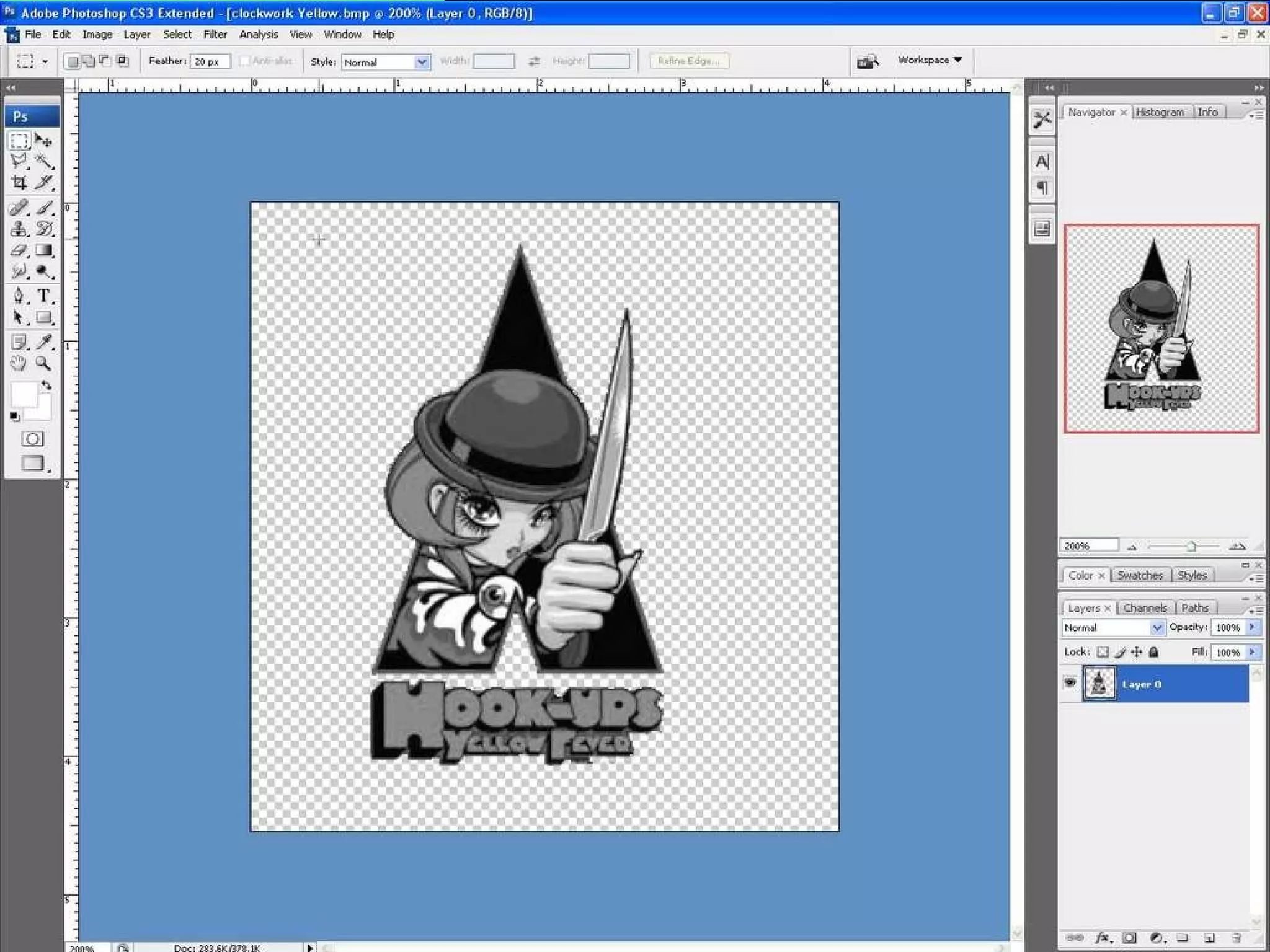
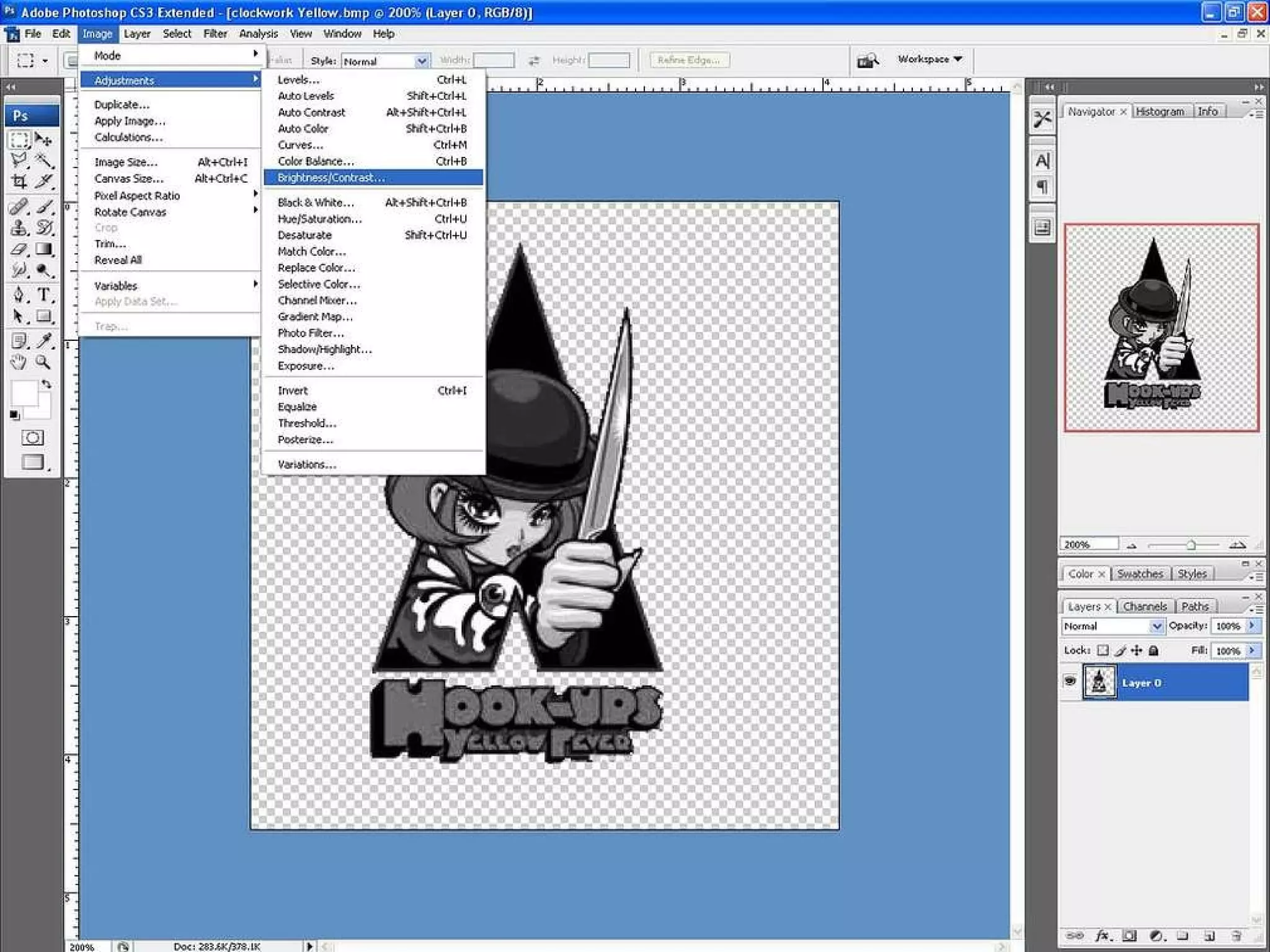
How to make brushes in Photoshop Once you have click on “Desaturate” your picture should be Grey  Then go back to the menu bar back to “IMAGE” then to “Adjustment” then to “Brightness/Contrast”   then click
 
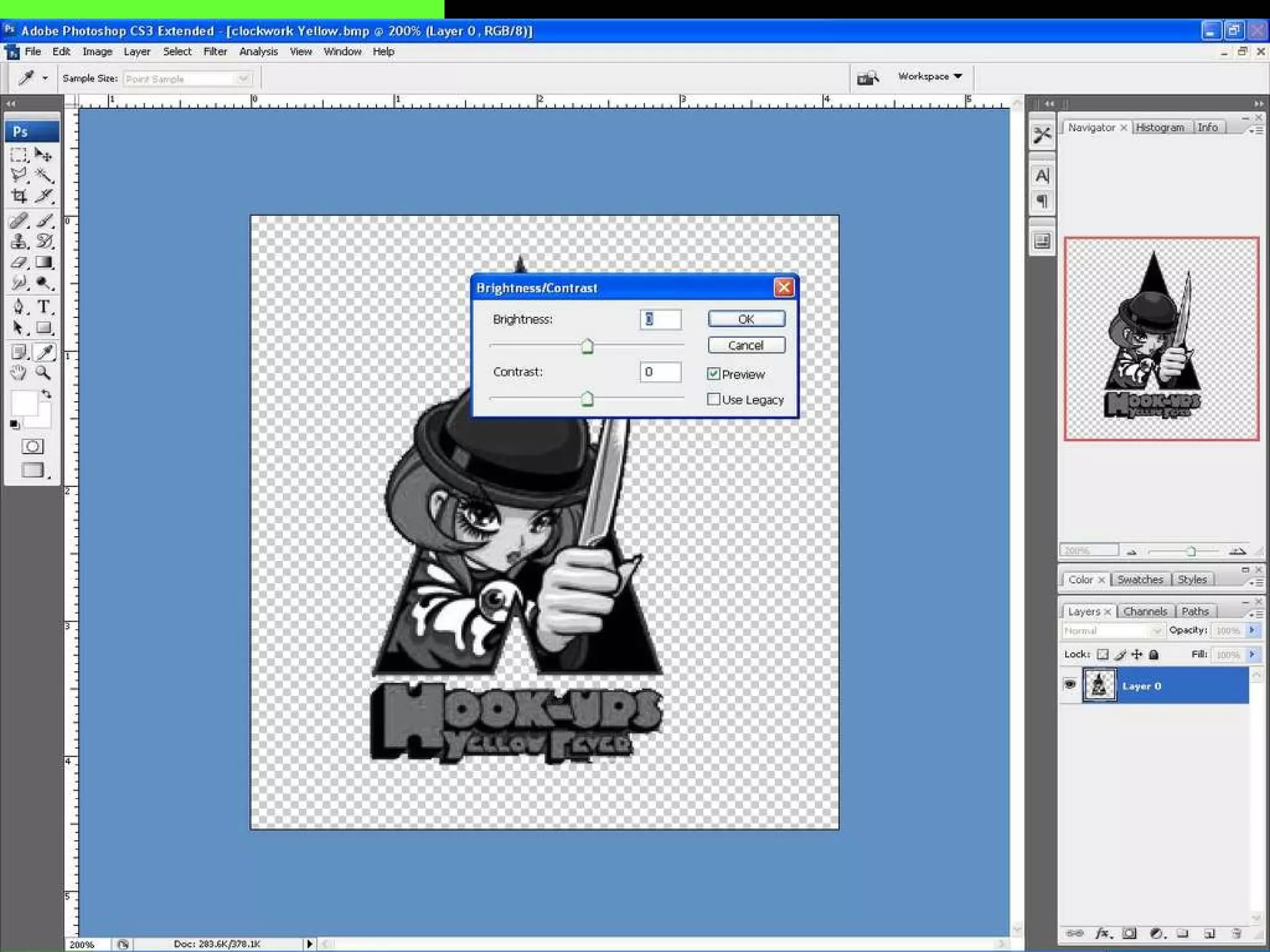
How to make brushes in Photoshop Once you have click on the “Brightness/Contrast  The Brightness/Contrast Box should pop up when you get to this you have to change the brightness/contrast of your picture where it gets to a Black and White not so dark where you can’t see it or leave it how it’s depends if its’ dark enough
 
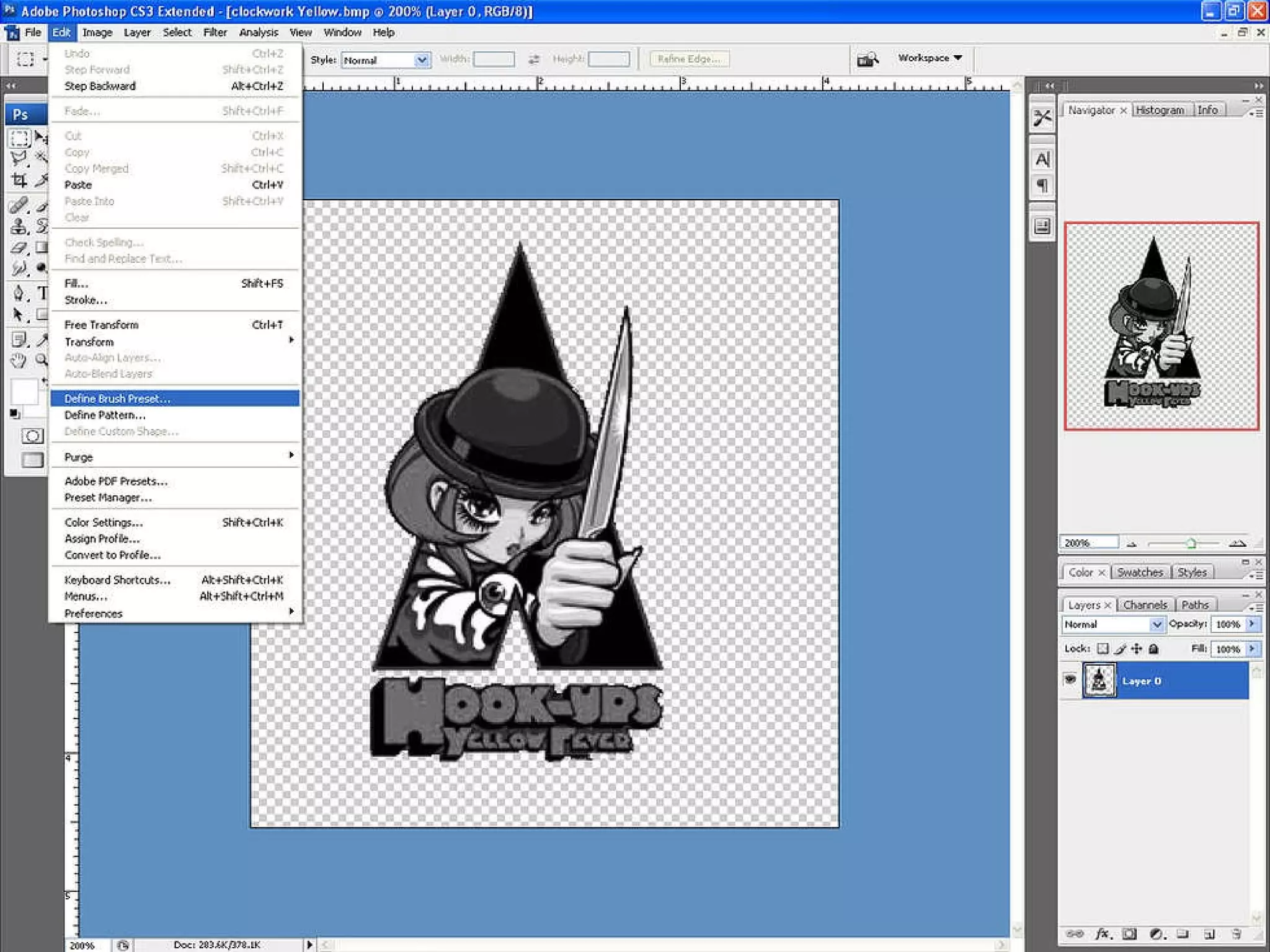
How to make brushes in Photoshop After you got your picture black/white or you left it how it’s depends on you  Go to the menu bar “EDIT” then scroll down to where it says “Define Brush Preset” then click on it
 
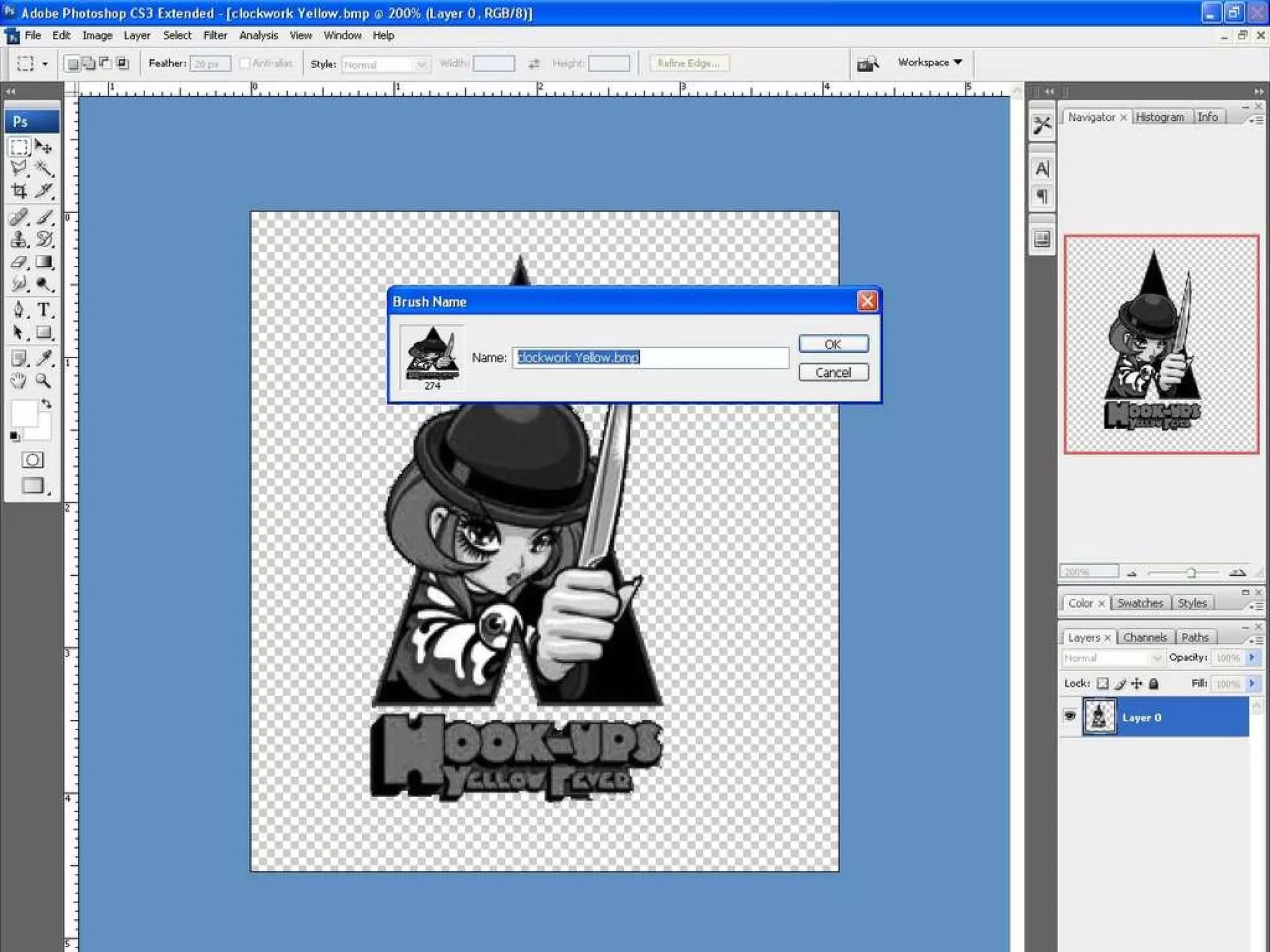
How to make brushes in Photoshop Once you have click on it a brush name box should pop up  Give you’re a brush a name then click ok
 
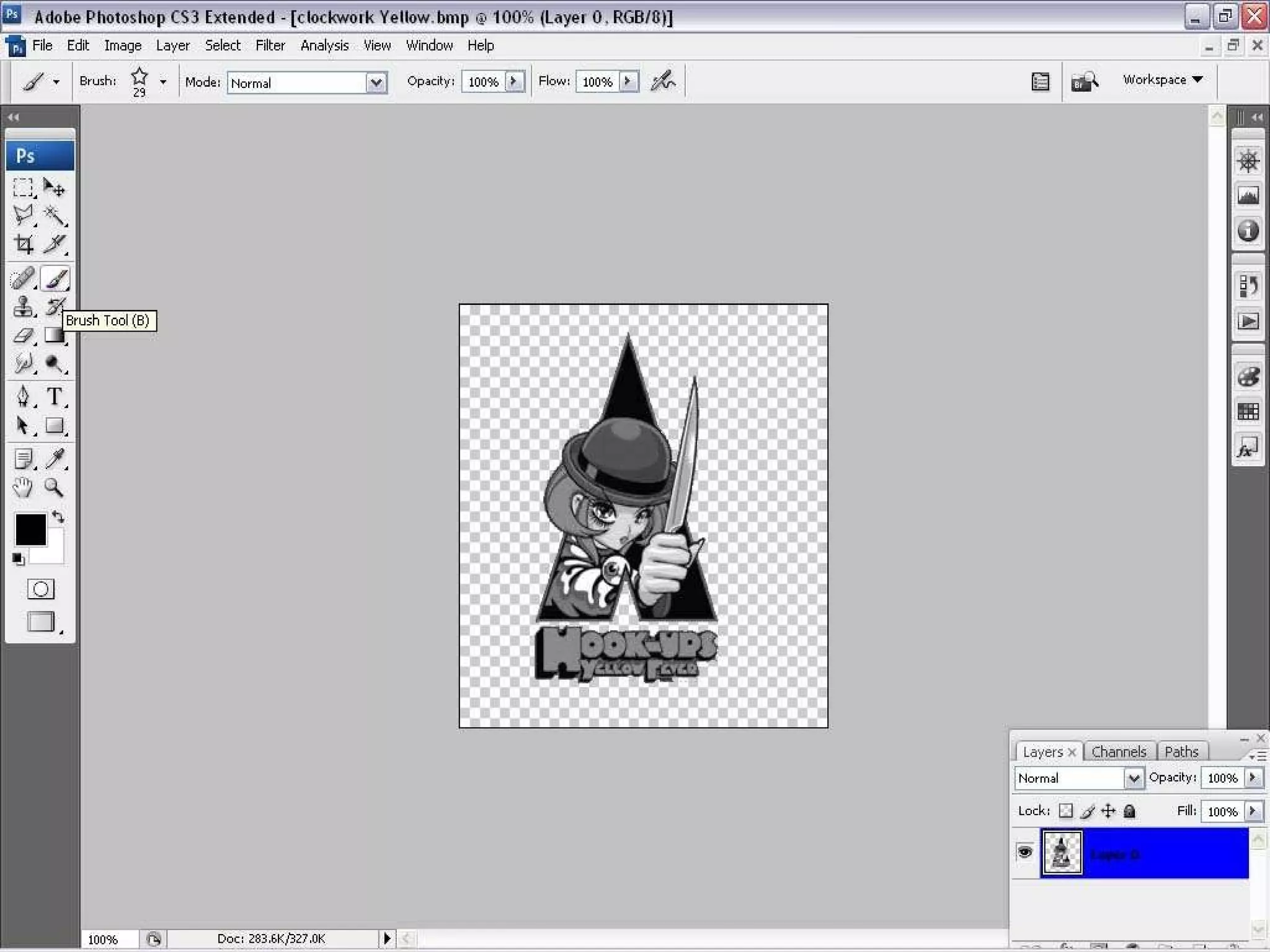
How to make brushes in Photoshop Once you have set up brush on to  Photoshop Click on the brush tool of the tool bar that is located on your left hand side then click on it once
 
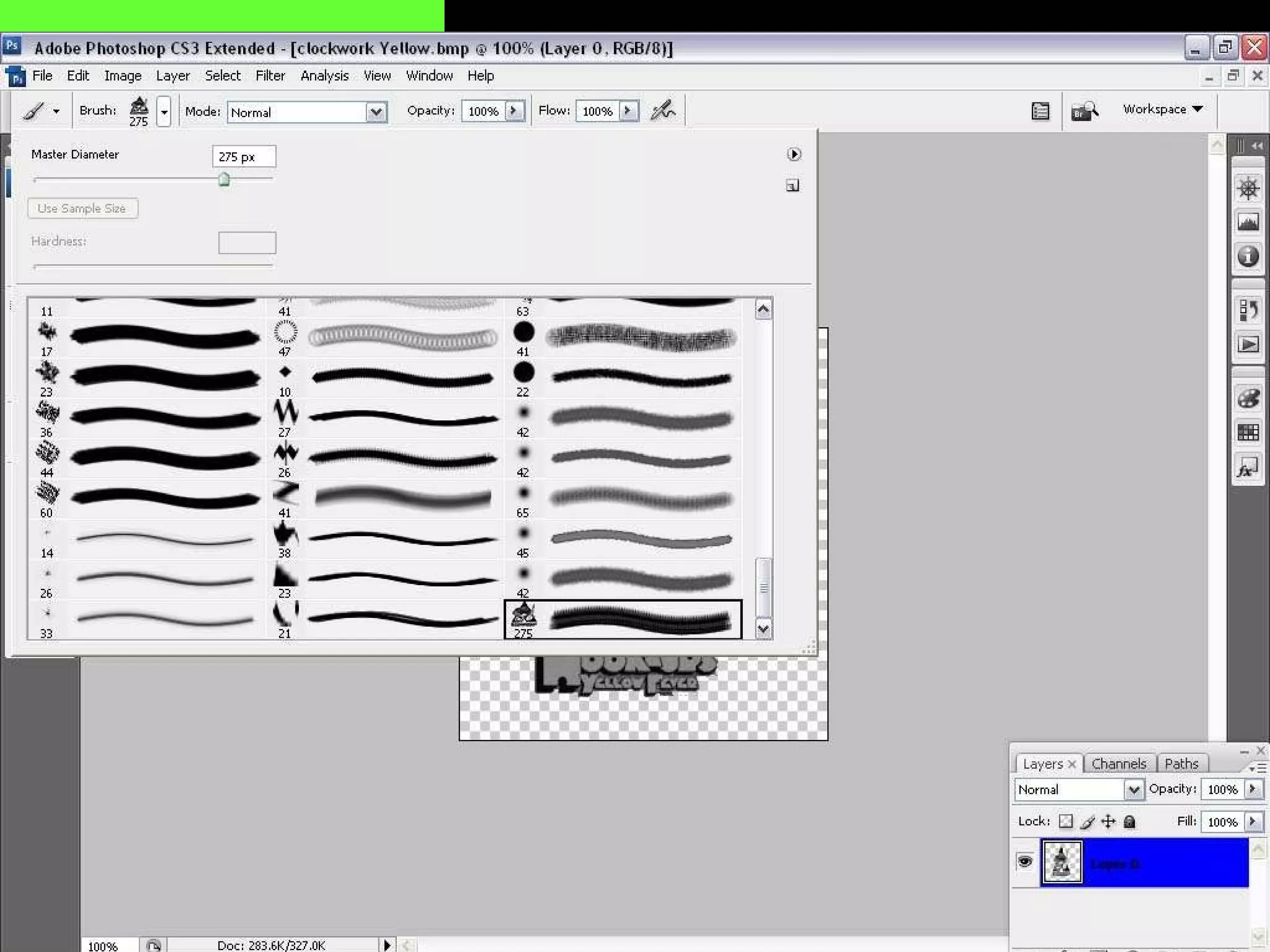
Go the brush on bottom of the menu bar then click on the “Brush Preset Picker”  Then Scroll down and look for the brush that you have made it’s small thumbnail so look for it carefully  How to make brushes in Photoshop
 
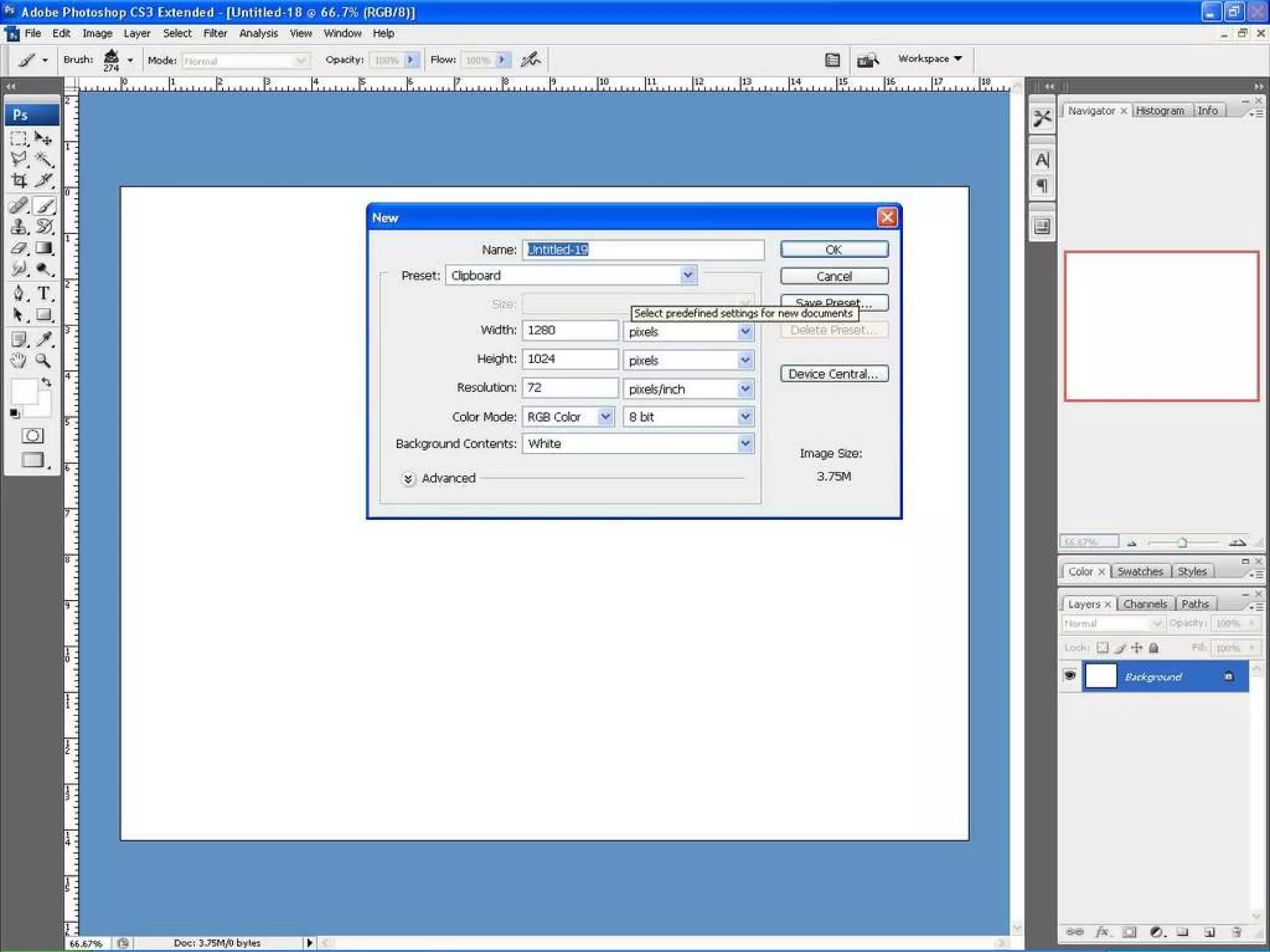
How to make brushes in Photoshop After you have the brush that you have made  Click on File then Click on New to have a blank picture  You could change the settings or  leave it as is
 
How to make brushes in Photoshop Once you have made a blank file  Please used your brush in whatever you think it’s best to it for or just play around with it
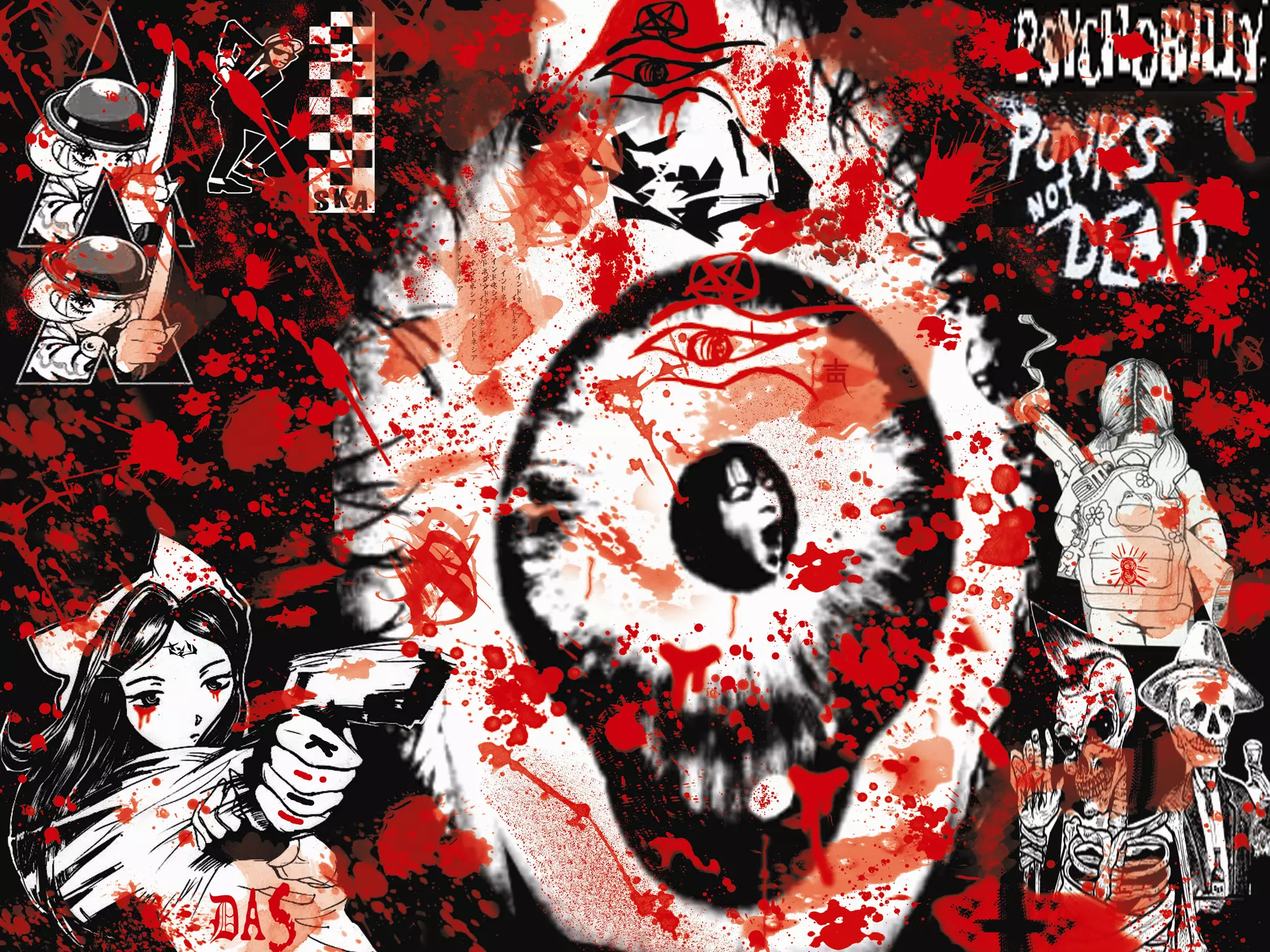
How to make brushes in Photoshop once you have learn how to make brushes your able to put the tool to your work or project that and keep a open mind what you do with your idea’s  See Examples what u could do with brushes
 

How To Use And Add Photoshop Brushes

  • 1.
    How to useand add Photoshop Brushes
  • 2.
    Requirements Musthave Photoshop software  version CS2 or Higher must have a picture of anything that you want to turn into a brush Also have a computer with internet access
  • 3.
    Intro Learning Brushesand making your own brush will help with your projects or just to learn something new in the world of photo shop
  • 4.
    How to makea Brush in Photoshop Open up Adobe Photoshop
  • 5.
  • 6.
    How to makebrushes in Photoshop Once you have Photoshop open Click on File and Open
  • 7.
  • 8.
    How to makebrushes in Photoshop Open your picture thru Photoshop Have your Picture file on your desktop and click on it
  • 9.
  • 10.
    How to makebrushes in Photoshop
  • 11.
    How to makebrushes in Photoshop Once you have open your picture thru Photoshop Go on to the next step
  • 12.
    How to makebrushes in Photoshop Go to the tool bar on your left hand corner Click on the tool of the magic wand tool Then Click on your picture using the magic wand tool
  • 13.
  • 14.
  • 15.
    How to makebrushes in Photoshop Press the backspace the button on your keyboard to clear the background of your picture After that go the bottom area in Photoshop in the Layer Box Click on the Layer Thumbnail
  • 16.
  • 17.
    How to makebrushes in Photoshop Double Click on the thumbnail layer Then you should have a new layer open give it a name or leave it blank and click ok Note Don’t change any of the settings
  • 18.
  • 19.
  • 20.
    How to makebrushes in Photoshop After you clear your background from your picture Go up to the menu bar where it’s says “IMAGE” then scroll down where it says “ADJUSTMENT” then scroll down to “Desaturate” then Click
  • 21.
  • 22.
  • 23.
    How to makebrushes in Photoshop Once you have click on “Desaturate” your picture should be Grey Then go back to the menu bar back to “IMAGE” then to “Adjustment” then to “Brightness/Contrast” then click
  • 24.
  • 25.
    How to makebrushes in Photoshop Once you have click on the “Brightness/Contrast The Brightness/Contrast Box should pop up when you get to this you have to change the brightness/contrast of your picture where it gets to a Black and White not so dark where you can’t see it or leave it how it’s depends if its’ dark enough
  • 26.
  • 27.
    How to makebrushes in Photoshop After you got your picture black/white or you left it how it’s depends on you Go to the menu bar “EDIT” then scroll down to where it says “Define Brush Preset” then click on it
  • 28.
  • 29.
    How to makebrushes in Photoshop Once you have click on it a brush name box should pop up Give you’re a brush a name then click ok
  • 30.
  • 31.
    How to makebrushes in Photoshop Once you have set up brush on to Photoshop Click on the brush tool of the tool bar that is located on your left hand side then click on it once
  • 32.
  • 33.
    Go the brushon bottom of the menu bar then click on the “Brush Preset Picker” Then Scroll down and look for the brush that you have made it’s small thumbnail so look for it carefully How to make brushes in Photoshop
  • 34.
  • 35.
    How to makebrushes in Photoshop After you have the brush that you have made Click on File then Click on New to have a blank picture You could change the settings or leave it as is
  • 36.
  • 37.
    How to makebrushes in Photoshop Once you have made a blank file Please used your brush in whatever you think it’s best to it for or just play around with it
  • 38.
    How to makebrushes in Photoshop once you have learn how to make brushes your able to put the tool to your work or project that and keep a open mind what you do with your idea’s See Examples what u could do with brushes
  • 39.