Tools in Photoshop
Move tool
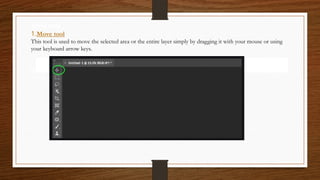
1.Move tool
This tool is used to move the selected area or the entire layer simply by dragging it with your mouse or using
your keyboard arrow keys.
used to move the selected area or the entire layer simply by dragging it with your mouse or
using your keyboard arrow keys.
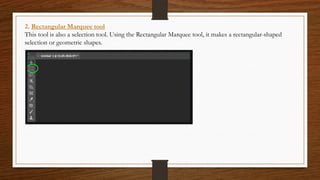
2. Rectangular Marquee tool
This tool is also a selection tool. Using the Rectangular Marquee tool, it makes a rectangular-shaped
selection or geometric shapes.
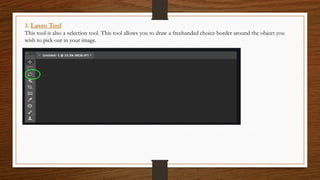
3. Lasso Tool
This tool is also a selection tool. This tool allows you to draw a freehanded choice border around the object you
wish to pick out in your image.
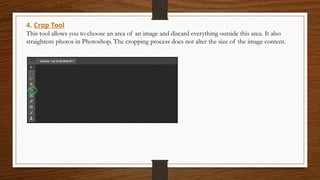
4. Crop Tool
This tool allows you to choose an area of an image and discard everything outside this area. It also
straightens photos in Photoshop. The cropping process does not alter the size of the image content.
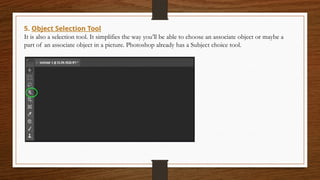
5. Object Selection Tool
It is also a selection tool. It simplifies the way you’ll be able to choose an associate object or maybe a
part of an associate object in a picture. Photoshop already has a Subject choice tool.
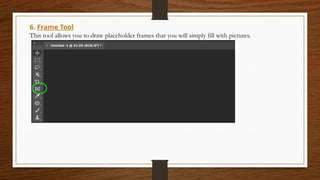
6. Frame Tool
This tool allows you to draw placeholder frames that you will simply fill with pictures.
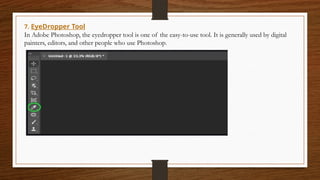
7. EyeDropper Tool
In Adobe Photoshop, the eyedropper tool is one of the easy-to-use tool. It is generally used by digital
painters, editors, and other people who use Photoshop.
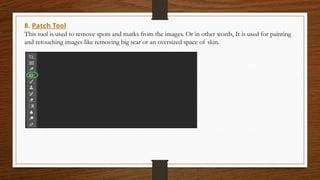
8. Patch Tool
This tool is used to remove spots and marks from the images. Or in other words, It is used for painting
and retouching images like removing big scar or an oversized space of skin.
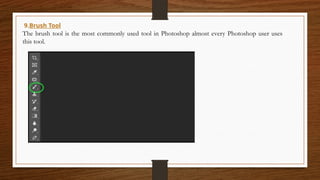
9.Brush Tool
The brush tool is the most commonly used tool in Photoshop almost every Photoshop user uses
this tool.
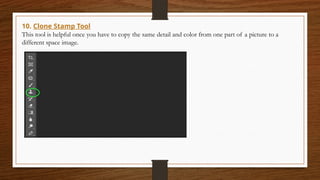
10. Clone Stamp Tool
This tool is helpful once you have to copy the same detail and color from one part of a picture to a
different space image.
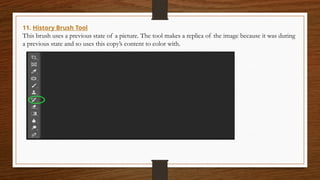
11. History Brush Tool
This brush uses a previous state of a picture. The tool makes a replica of the image because it was during
a previous state and so uses this copy’s content to color with.
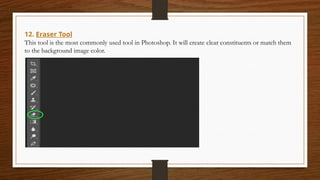
12. Eraser Tool
This tool is the most commonly used tool in Photoshop. It will create clear constituents or match them
to the background image color.
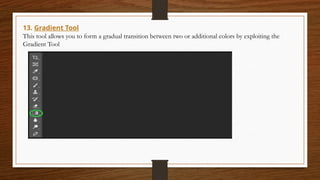
13. Gradient Tool
This tool allows you to form a gradual transition between two or additional colors by exploiting the
Gradient Tool
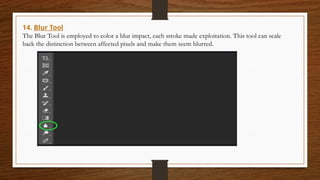
14. Blur Tool
The Blur Tool is employed to color a blur impact, each stroke made exploitation. This tool can scale
back the distinction between affected pixels and make them seem blurred.
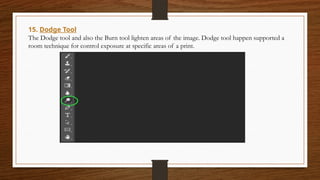
15. Dodge Tool
The Dodge tool and also the Burn tool lighten areas of the image. Dodge tool happen supported a
room technique for control exposure at specific areas of a print.
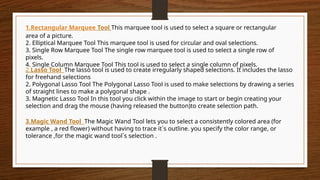
1.Rectangular Marquee Tool This marquee tool is used to select a square or rectangular
area of a picture.
2. Elliptical Marquee Tool This marquee tool is used for circular and oval selections.
3. Single Row Marquee Tool The single row marquee tool is used to select a single row of
pixels.
4. Single Column Marquee Tool This tool is used to select a single column of pixels.
3.Magic Wand Tool The Magic Wand Tool lets you to select a consistently colored area (for
example , a red flower) without having to trace it`s outline. you specify the color range, or
tolerance ,for the magic wand tool`s selection .
2.Lasso Tool The lasso tool is used to create irregularly shaped selections. It includes the lasso
for freehand selections
2. Polygonal Lasso Tool The Polygonal Lasso Tool is used to make selections by drawing a series
of straight lines to make a polygonal shape .
3. Magnetic Lasso Tool In this tool you click within the image to start or begin creating your
selection and drag the mouse (having released the button)to create selection path.
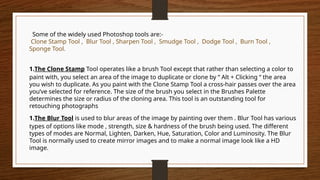
Some of the widely used Photoshop tools are:-
Clone Stamp Tool , Blur Tool , Sharpen Tool , Smudge Tool , Dodge Tool , Burn Tool ,
Sponge Tool.
1.The Clone Stamp Tool operates like a brush Tool except that rather than selecting a color to
paint with, you select an area of the image to duplicate or clone by “ Alt + Clicking “ the area
you wish to duplicate. As you paint with the Clone Stamp Tool a cross-hair passes over the area
you’ve selected for reference. The size of the brush you select in the Brushes Palette
determines the size or radius of the cloning area. This tool is an outstanding tool for
retouching photographs
1.The Blur Tool is used to blur areas of the image by painting over them . Blur Tool has various
types of options like mode , strength, size & hardness of the brush being used. The different
types of modes are Normal, Lighten, Darken, Hue, Saturation, Color and Luminosity. The Blur
Tool is normally used to create mirror images and to make a normal image look like a HD
image.
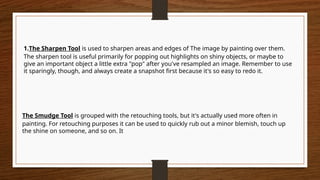
The Smudge Tool is grouped with the retouching tools, but it's actually used more often in
painting. For retouching purposes it can be used to quickly rub out a minor blemish, touch up
the shine on someone, and so on. It
1.The Sharpen Tool is used to sharpen areas and edges of The image by painting over them.
The sharpen tool is useful primarily for popping out highlights on shiny objects, or maybe to
give an important object a little extra "pop" after you've resampled an image. Remember to use
it sparingly, though, and always create a snapshot first because it's so easy to redo it.
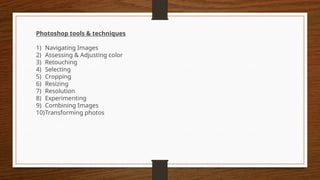
Photoshop tools & techniques
1) Navigating Images
2) Assessing & Adjusting color
3) Retouching
4) Selecting
5) Cropping
6) Resizing
7) Resolution
8) Experimenting
9) Combining Images
10)Transforming photos
Photoshop tools & techniques
1.Navigating Images
Use Built in Adobe Bridge to browse files
Use top tabs when multiple images are open
Use selection tool to click on and move image.
2.Assessing & adjusting color
Often times color in images will lack and needs to be enhanced.
Click > IMAGE > ADJUSTMENTS> HUE & SATURATION to quickly and
easily make color adjustments.
To remove color (create black & white) move saturation value to -100.
Photoshop tools & techniques
3.Retouching
Refers to fixing small areas or “blemishes”
Often done to remove acne
Can be used to remove power lines, etc.
Rubber-stamp tool works great to retouch images
4.Selecting
Use one of the many marquee tools to select a specific area of a
photo.
Cropping
Permanently cuts off unwanted areas of the photo.
Can be used to ensure correct photo size, balance, etc.
Selecting tools
Cropping tool
Photoshop tools & techniques
5.Resizing
It is important to use <SHIFT> key to preserve correct proportions
Use sizing handles to adjust size
To see sizing handles click “Show Transform Controls”
Remember to click arrow and then “Apply” transformation after
resizing.
6.Resolution
Refers to the number of pixels in an image
The higher the pixels per/inch the higher the resolution
Remember the higher the resolution the better details but also the larger the
file size
A good photo resolution is dpi
7.Experimenting
Try, Try, and Try again.
Combining images
Cut and paste allows you to combine many images into one. Remember to try effects such as
feathered edges.
Transforming Photos
By adjusting colors, sizes, and filters, you can create nice looking original works of art.

Essential Tools in Adobe Photoshop.pptx

  • 1.
  • 2.
    Move tool 1.Move tool Thistool is used to move the selected area or the entire layer simply by dragging it with your mouse or using your keyboard arrow keys. used to move the selected area or the entire layer simply by dragging it with your mouse or using your keyboard arrow keys.
  • 3.
    2. Rectangular Marqueetool This tool is also a selection tool. Using the Rectangular Marquee tool, it makes a rectangular-shaped selection or geometric shapes.
  • 4.
    3. Lasso Tool Thistool is also a selection tool. This tool allows you to draw a freehanded choice border around the object you wish to pick out in your image.
  • 5.
    4. Crop Tool Thistool allows you to choose an area of an image and discard everything outside this area. It also straightens photos in Photoshop. The cropping process does not alter the size of the image content.
  • 6.
    5. Object SelectionTool It is also a selection tool. It simplifies the way you’ll be able to choose an associate object or maybe a part of an associate object in a picture. Photoshop already has a Subject choice tool.
  • 7.
    6. Frame Tool Thistool allows you to draw placeholder frames that you will simply fill with pictures.
  • 8.
    7. EyeDropper Tool InAdobe Photoshop, the eyedropper tool is one of the easy-to-use tool. It is generally used by digital painters, editors, and other people who use Photoshop.
  • 9.
    8. Patch Tool Thistool is used to remove spots and marks from the images. Or in other words, It is used for painting and retouching images like removing big scar or an oversized space of skin.
  • 10.
    9.Brush Tool The brushtool is the most commonly used tool in Photoshop almost every Photoshop user uses this tool.
  • 11.
    10. Clone StampTool This tool is helpful once you have to copy the same detail and color from one part of a picture to a different space image.
  • 12.
    11. History BrushTool This brush uses a previous state of a picture. The tool makes a replica of the image because it was during a previous state and so uses this copy’s content to color with.
  • 13.
    12. Eraser Tool Thistool is the most commonly used tool in Photoshop. It will create clear constituents or match them to the background image color.
  • 14.
    13. Gradient Tool Thistool allows you to form a gradual transition between two or additional colors by exploiting the Gradient Tool
  • 15.
    14. Blur Tool TheBlur Tool is employed to color a blur impact, each stroke made exploitation. This tool can scale back the distinction between affected pixels and make them seem blurred.
  • 16.
    15. Dodge Tool TheDodge tool and also the Burn tool lighten areas of the image. Dodge tool happen supported a room technique for control exposure at specific areas of a print.
  • 17.
    1.Rectangular Marquee ToolThis marquee tool is used to select a square or rectangular area of a picture. 2. Elliptical Marquee Tool This marquee tool is used for circular and oval selections. 3. Single Row Marquee Tool The single row marquee tool is used to select a single row of pixels. 4. Single Column Marquee Tool This tool is used to select a single column of pixels. 3.Magic Wand Tool The Magic Wand Tool lets you to select a consistently colored area (for example , a red flower) without having to trace it`s outline. you specify the color range, or tolerance ,for the magic wand tool`s selection . 2.Lasso Tool The lasso tool is used to create irregularly shaped selections. It includes the lasso for freehand selections 2. Polygonal Lasso Tool The Polygonal Lasso Tool is used to make selections by drawing a series of straight lines to make a polygonal shape . 3. Magnetic Lasso Tool In this tool you click within the image to start or begin creating your selection and drag the mouse (having released the button)to create selection path.
  • 18.
    Some of thewidely used Photoshop tools are:- Clone Stamp Tool , Blur Tool , Sharpen Tool , Smudge Tool , Dodge Tool , Burn Tool , Sponge Tool. 1.The Clone Stamp Tool operates like a brush Tool except that rather than selecting a color to paint with, you select an area of the image to duplicate or clone by “ Alt + Clicking “ the area you wish to duplicate. As you paint with the Clone Stamp Tool a cross-hair passes over the area you’ve selected for reference. The size of the brush you select in the Brushes Palette determines the size or radius of the cloning area. This tool is an outstanding tool for retouching photographs 1.The Blur Tool is used to blur areas of the image by painting over them . Blur Tool has various types of options like mode , strength, size & hardness of the brush being used. The different types of modes are Normal, Lighten, Darken, Hue, Saturation, Color and Luminosity. The Blur Tool is normally used to create mirror images and to make a normal image look like a HD image.
  • 19.
    The Smudge Toolis grouped with the retouching tools, but it's actually used more often in painting. For retouching purposes it can be used to quickly rub out a minor blemish, touch up the shine on someone, and so on. It 1.The Sharpen Tool is used to sharpen areas and edges of The image by painting over them. The sharpen tool is useful primarily for popping out highlights on shiny objects, or maybe to give an important object a little extra "pop" after you've resampled an image. Remember to use it sparingly, though, and always create a snapshot first because it's so easy to redo it.
  • 20.
    Photoshop tools &techniques 1) Navigating Images 2) Assessing & Adjusting color 3) Retouching 4) Selecting 5) Cropping 6) Resizing 7) Resolution 8) Experimenting 9) Combining Images 10)Transforming photos
  • 21.
    Photoshop tools &techniques 1.Navigating Images Use Built in Adobe Bridge to browse files Use top tabs when multiple images are open Use selection tool to click on and move image. 2.Assessing & adjusting color Often times color in images will lack and needs to be enhanced. Click > IMAGE > ADJUSTMENTS> HUE & SATURATION to quickly and easily make color adjustments. To remove color (create black & white) move saturation value to -100.
  • 22.
    Photoshop tools &techniques 3.Retouching Refers to fixing small areas or “blemishes” Often done to remove acne Can be used to remove power lines, etc. Rubber-stamp tool works great to retouch images 4.Selecting Use one of the many marquee tools to select a specific area of a photo. Cropping Permanently cuts off unwanted areas of the photo. Can be used to ensure correct photo size, balance, etc. Selecting tools Cropping tool
  • 23.
    Photoshop tools &techniques 5.Resizing It is important to use <SHIFT> key to preserve correct proportions Use sizing handles to adjust size To see sizing handles click “Show Transform Controls” Remember to click arrow and then “Apply” transformation after resizing. 6.Resolution Refers to the number of pixels in an image The higher the pixels per/inch the higher the resolution Remember the higher the resolution the better details but also the larger the file size A good photo resolution is dpi 7.Experimenting Try, Try, and Try again. Combining images Cut and paste allows you to combine many images into one. Remember to try effects such as feathered edges. Transforming Photos By adjusting colors, sizes, and filters, you can create nice looking original works of art.