
vSphere Web Client –
Yesterday, Today and Tomorrow
Yavor Boychev, VMware, Inc
Dennis Lu, VMware, Inc
INF5093
#INF5093
• This presentation may contain product features that are currently under development.
• This overview of new technology represents no commitment from VMware to deliver these
features in any generally available product.
• Features are subject to change, and must not be included in contracts, purchase orders, or
sales agreements of any kind.
• Technical feasibility and market demand will affect final delivery.
• Pricing and packaging for any new technologies or features discussed or presented have not
been determined.
Disclaimer
CONFIDENTIAL 2
Agenda
CONFIDENTIAL 3
1 HTML5
2 Web Client Improvements in vSphere 6.0
3 Some Cool New Stuff Coming Soon
The Voice of Our Customers
• “It’s hard to find my way around”
• “It’s slooow”
• “It’s not on feature parity with the VI Client”
• “It’s Flash”
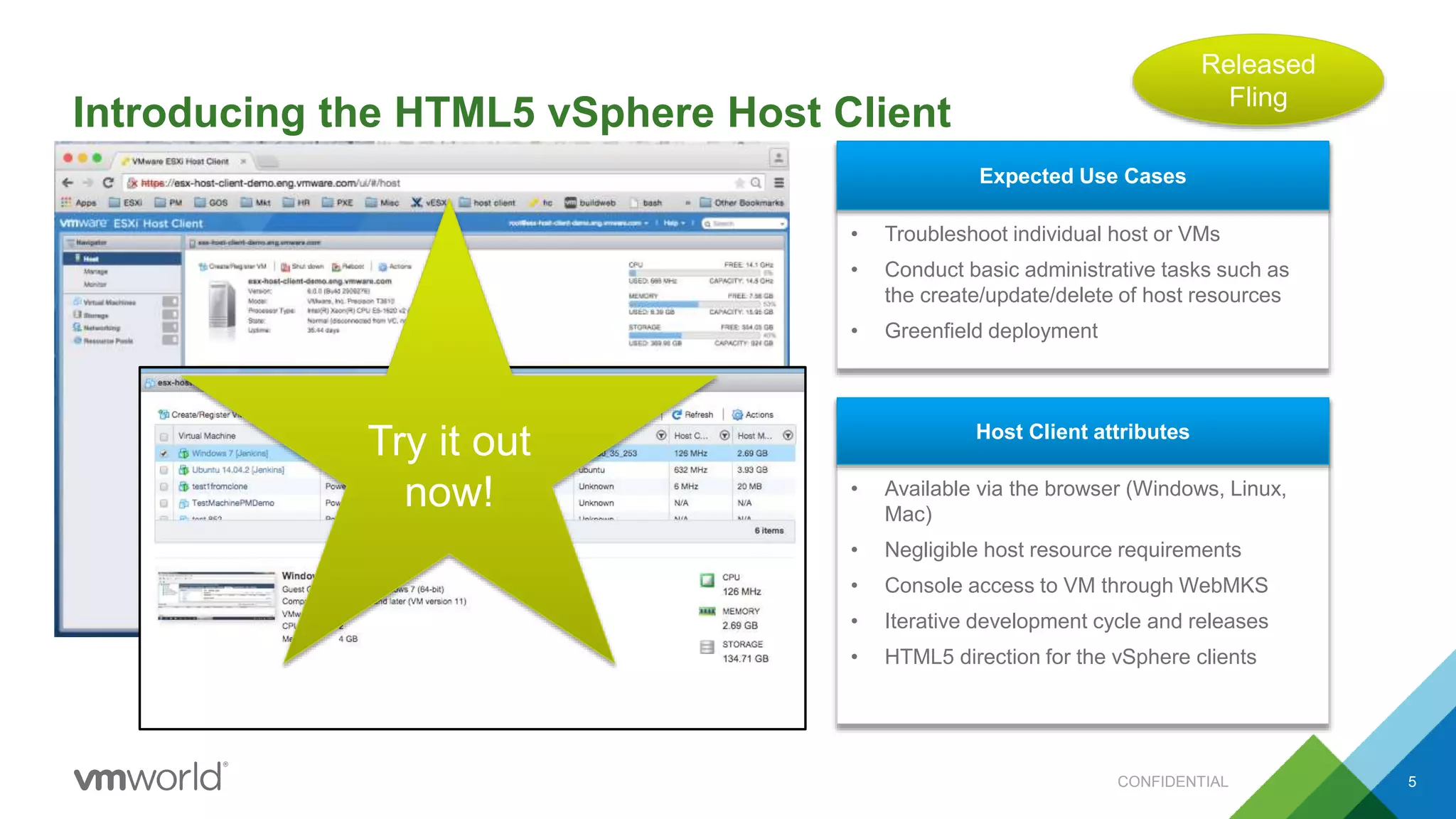
Introducing the HTML5 vSphere Host Client
5
• Troubleshoot individual host or VMs
• Conduct basic administrative tasks such as
the create/update/delete of host resources
• Greenfield deployment
Expected Use Cases
• Available via the browser (Windows, Linux,
Mac)
• Negligible host resource requirements
• Console access to VM through WebMKS
• Iterative development cycle and releases
• HTML5 direction for the vSphere clients
Host Client attributes
Try it out
now!
Released
Fling
CONFIDENTIAL
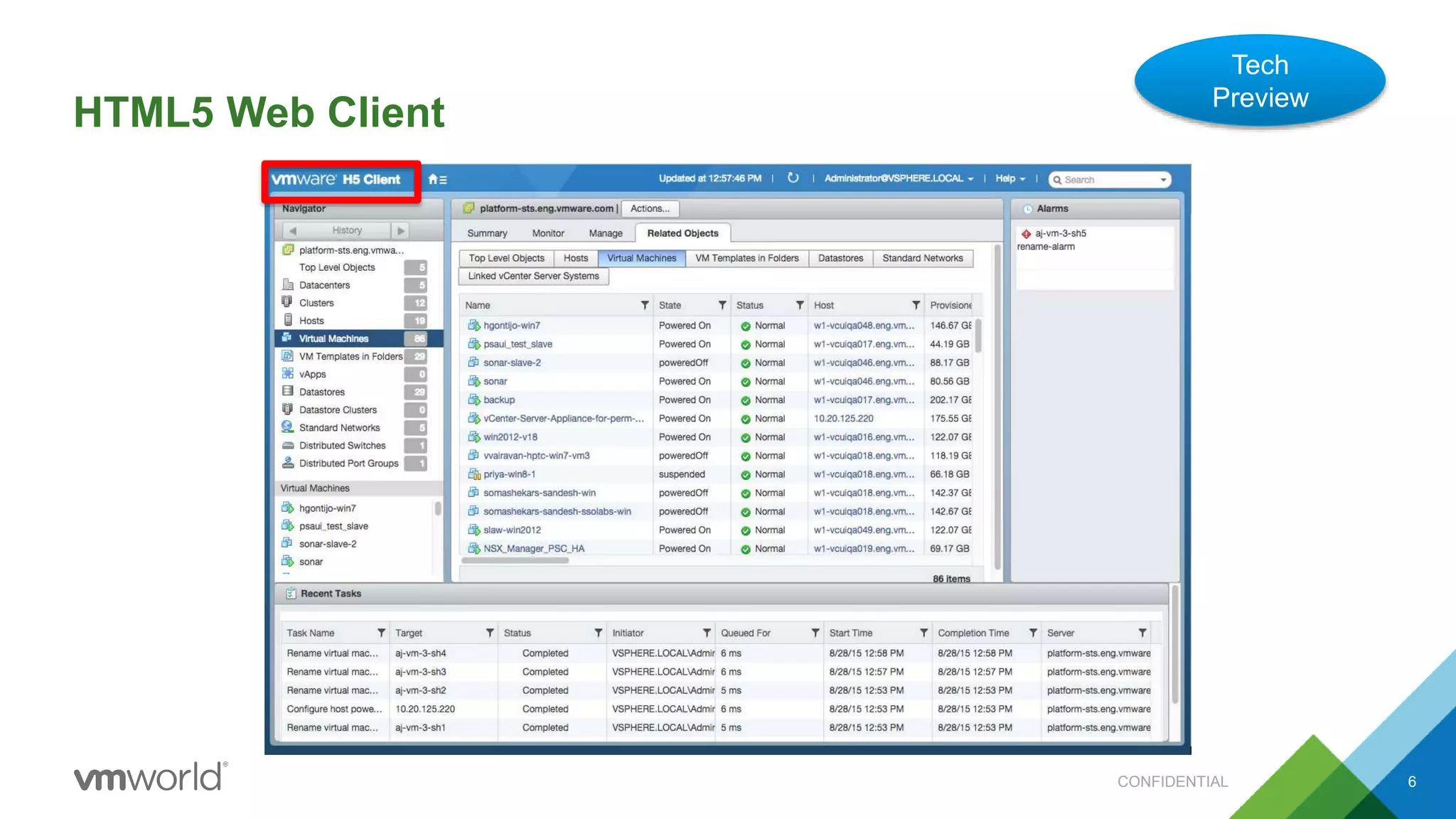
HTML5 Web Client
It’s Coming
Tech
Preview
CONFIDENTIAL 6
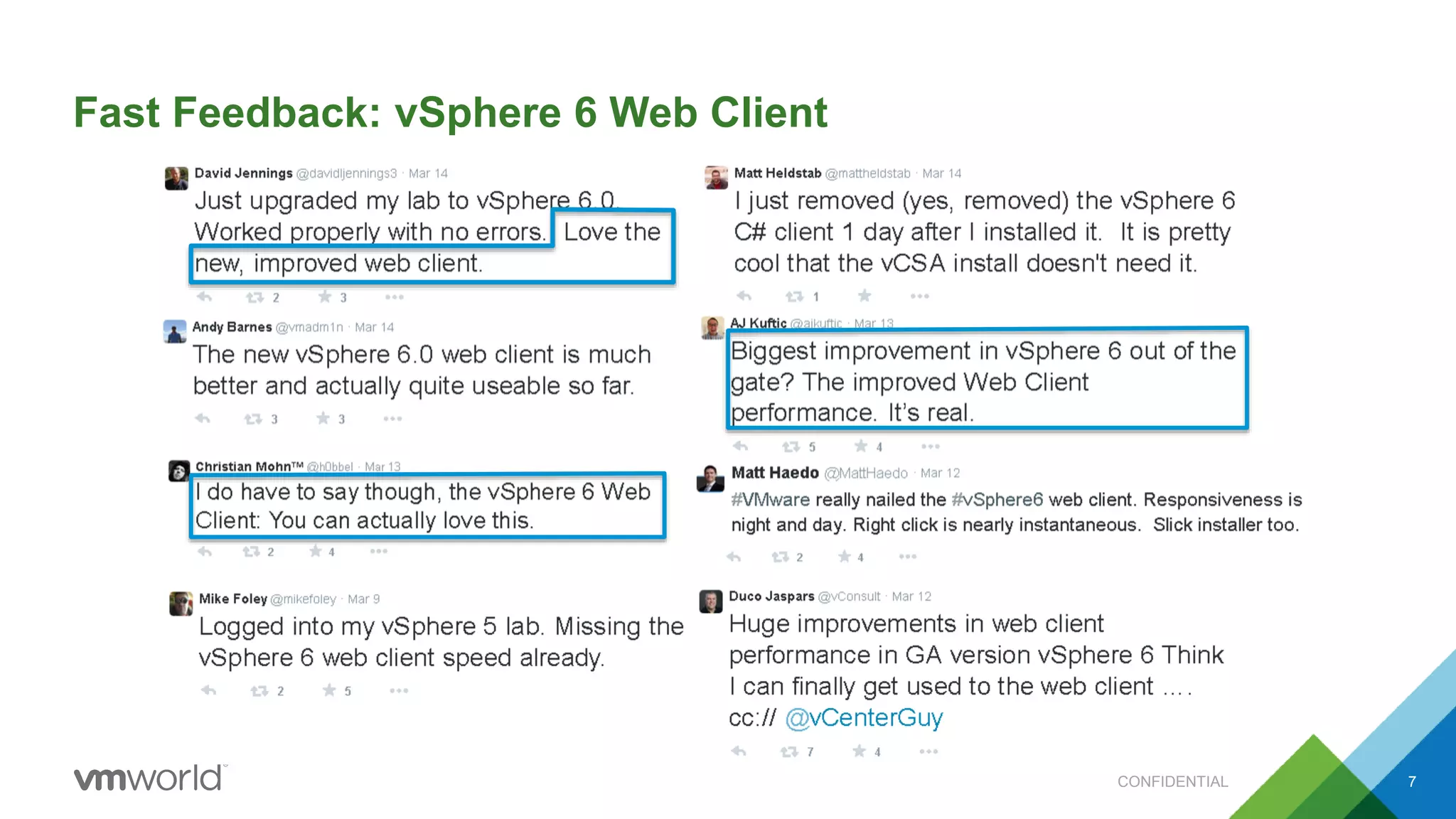
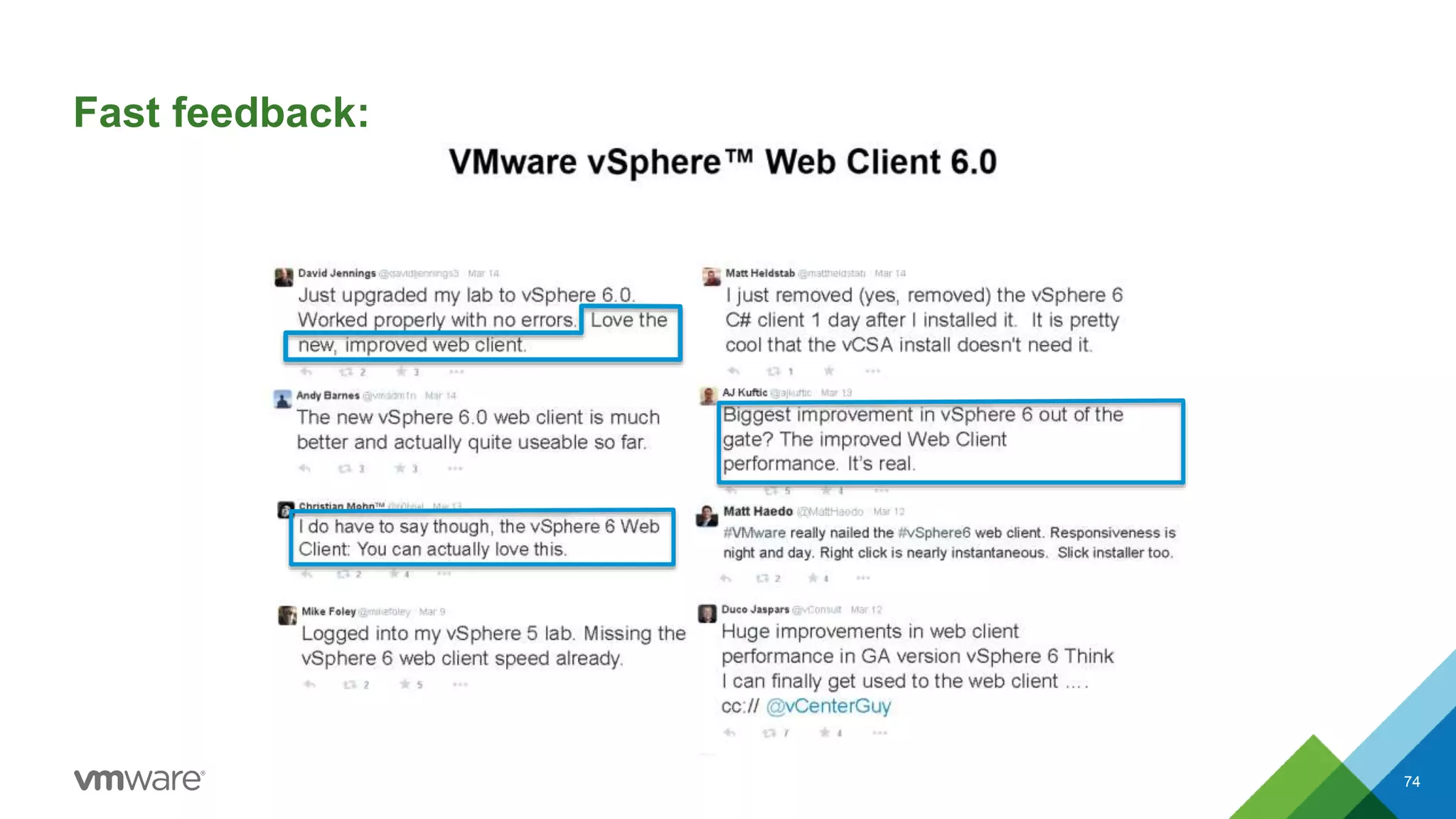
Fast Feedback: vSphere 6 Web Client
7CONFIDENTIAL
The Voice of Our Customers
• “It’s hard to find my way around”
• “It’s slooow”
• “It’s not on feature parity with the VI Client”
• “It’s Flash”
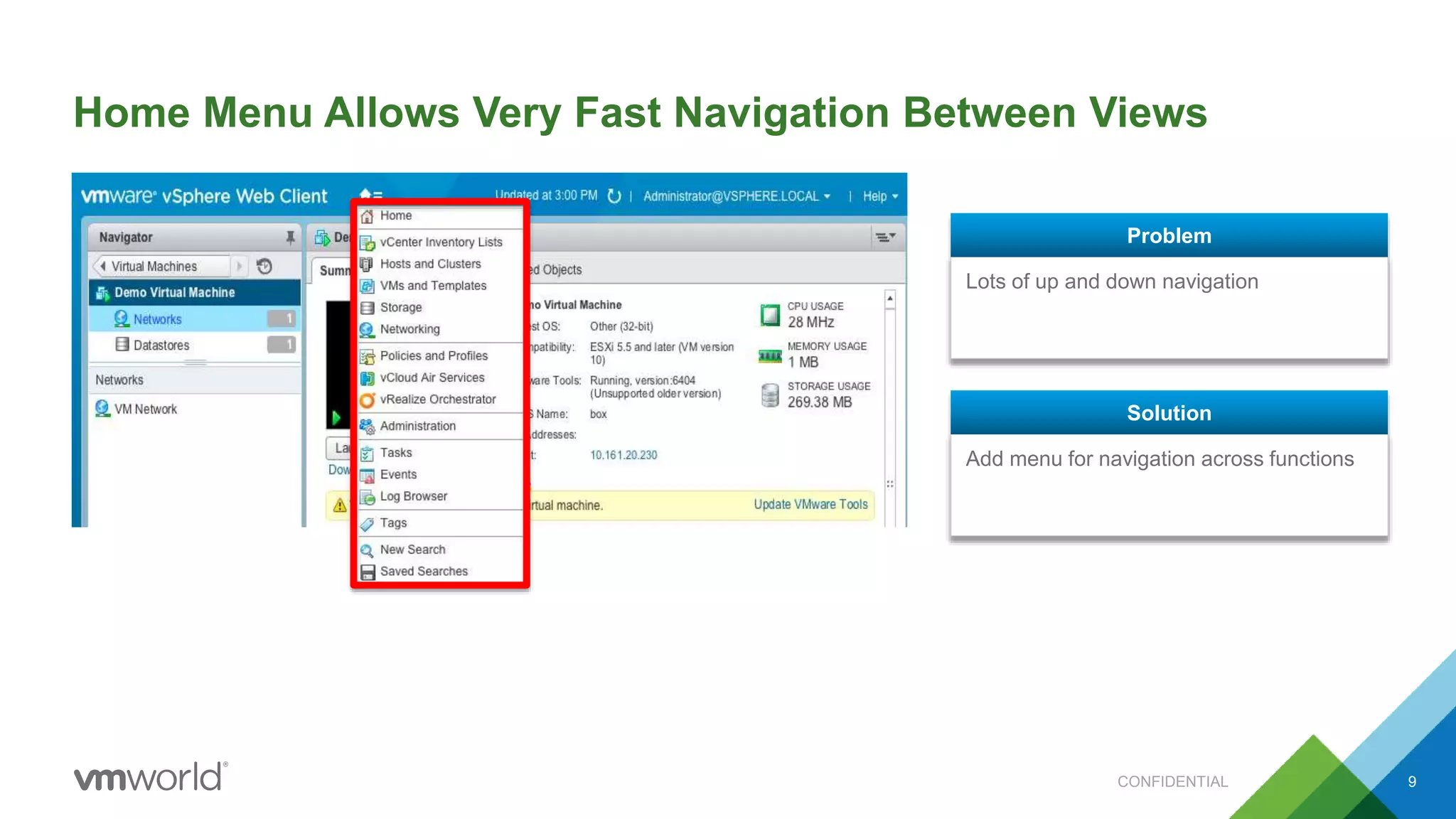
Home Menu Allows Very Fast Navigation Between Views
9
Lots of up and down navigation
Problem
Add menu for navigation across functions
Solution
CONFIDENTIAL
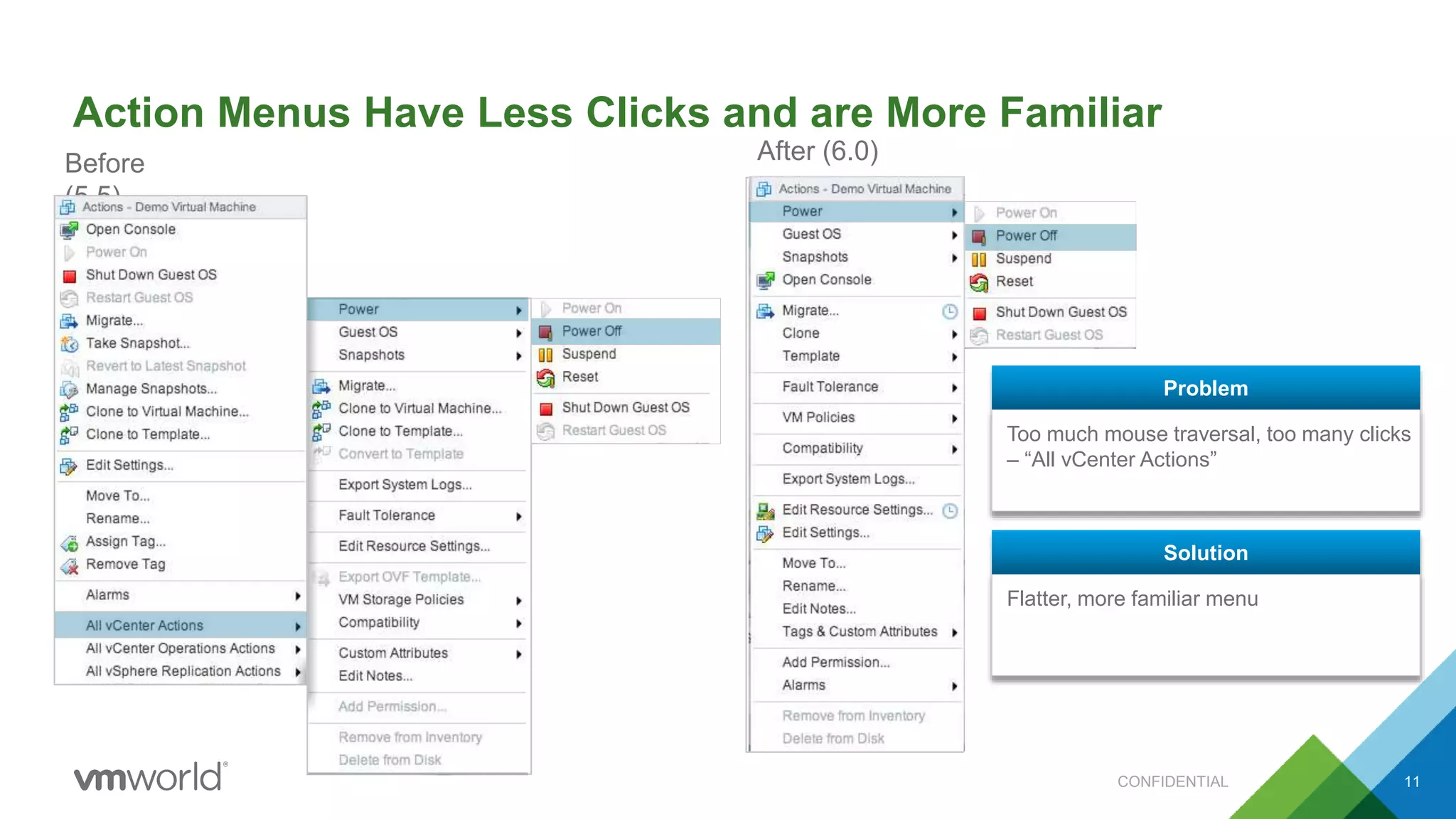
Action Menus Have Less Clicks and are More Familiar
After (6.0)Before
(5.5)
Too much mouse traversal, too many clicks
– “All vCenter Actions”
Problem
Flatter, more familiar menu
Solution
CONFIDENTIAL 11
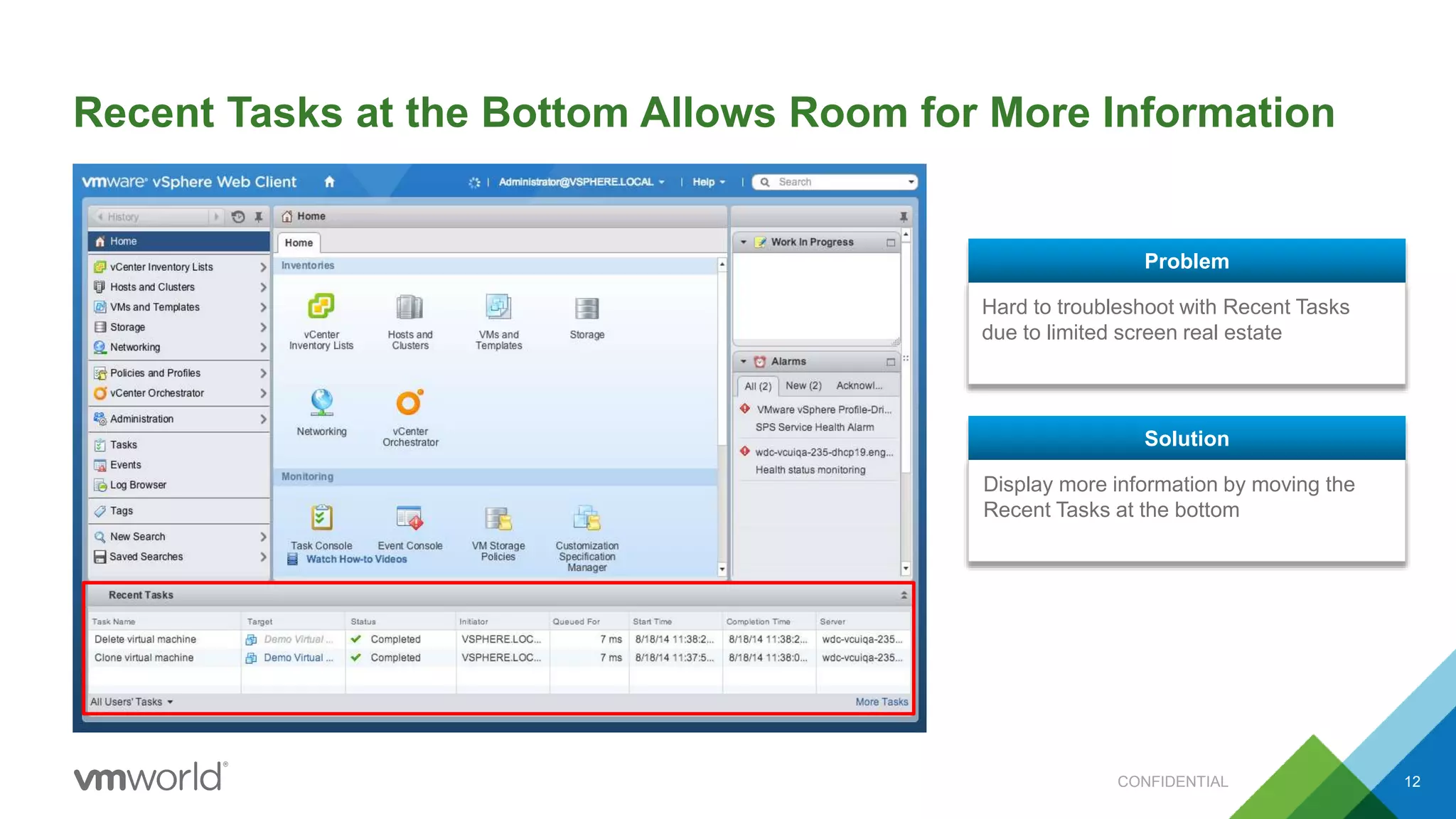
Recent Tasks at the Bottom Allows Room for More Information
CONFIDENTIAL 12
Hard to troubleshoot with Recent Tasks
due to limited screen real estate
Problem
Display more information by moving the
Recent Tasks at the bottom
Solution
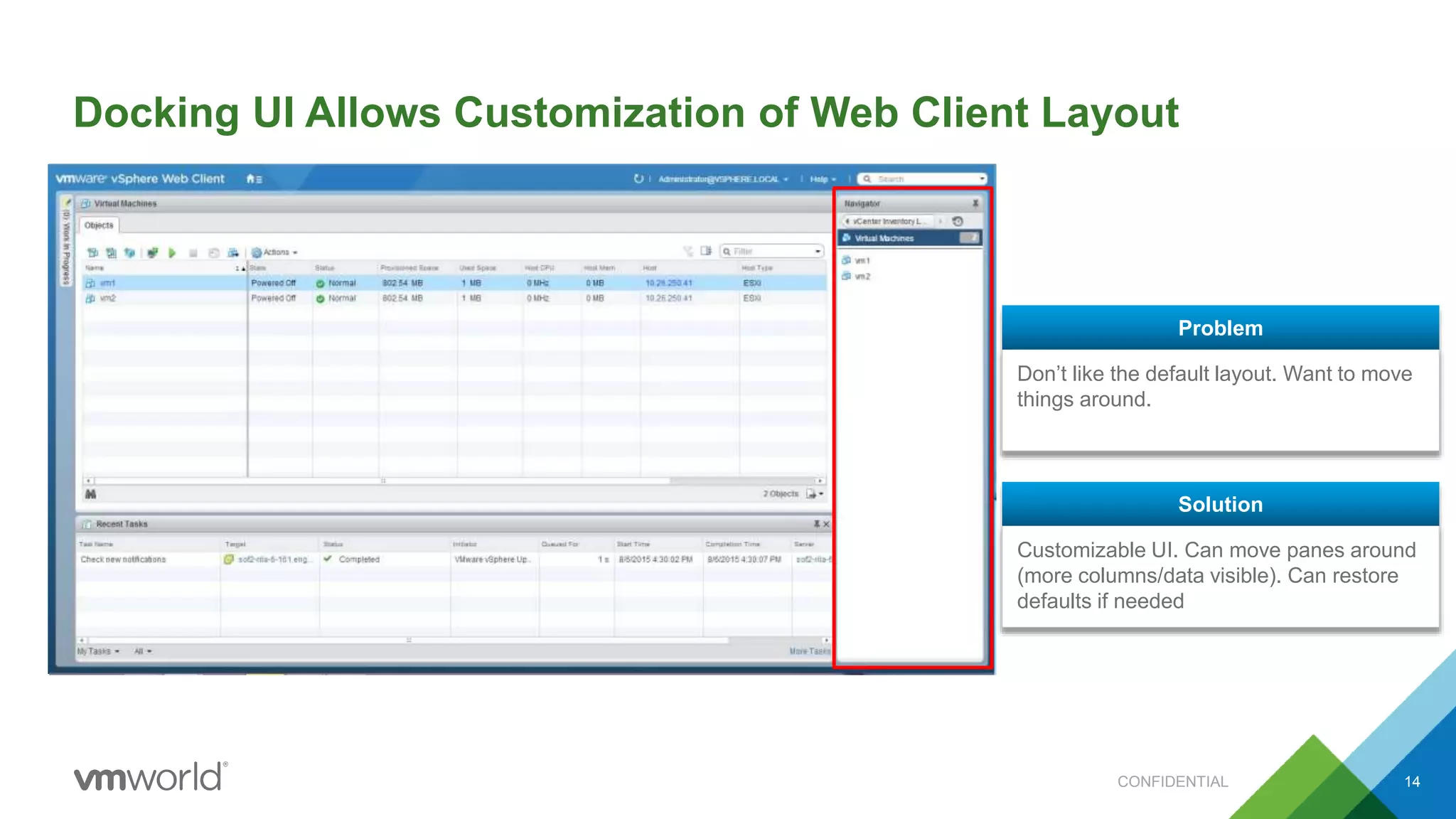
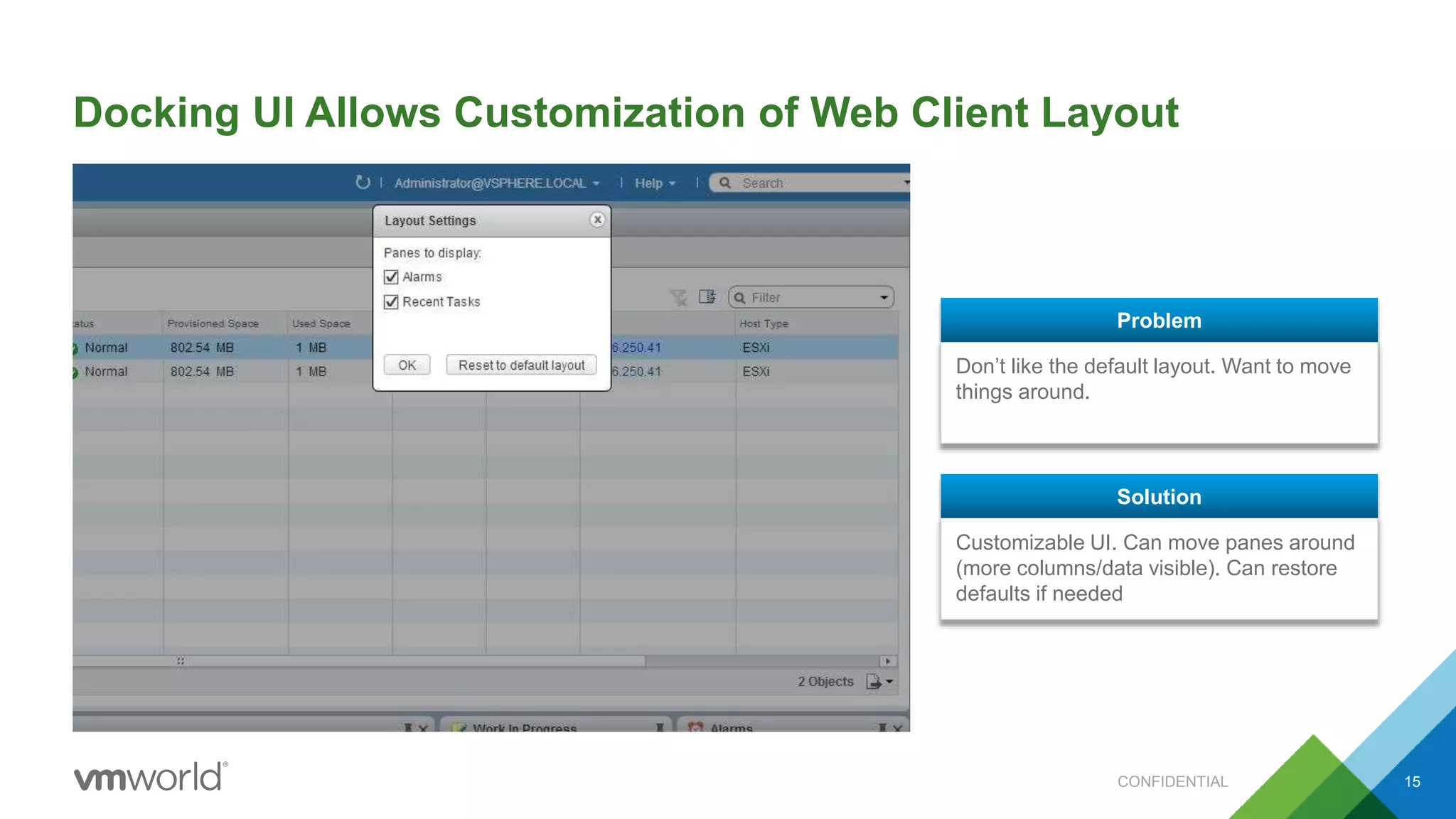
Docking UI Allows Customization of Web Client Layout
14
Don’t like the default layout. Want to move
things around.
Problem
Customizable UI. Can move panes around
(more columns/data visible). Can restore
defaults if needed
Solution
CONFIDENTIAL
Docking UI Allows Customization of Web Client Layout
Don’t like the default layout. Want to move
things around.
Problem
Customizable UI. Can move panes around
(more columns/data visible). Can restore
defaults if needed
Solution
CONFIDENTIAL 15
The Voice of Our Customers
• “It’s hard to find my way around”
• “It’s slooow”
• “It’s not on feature parity with the VI Client”
• “It’s Flash”
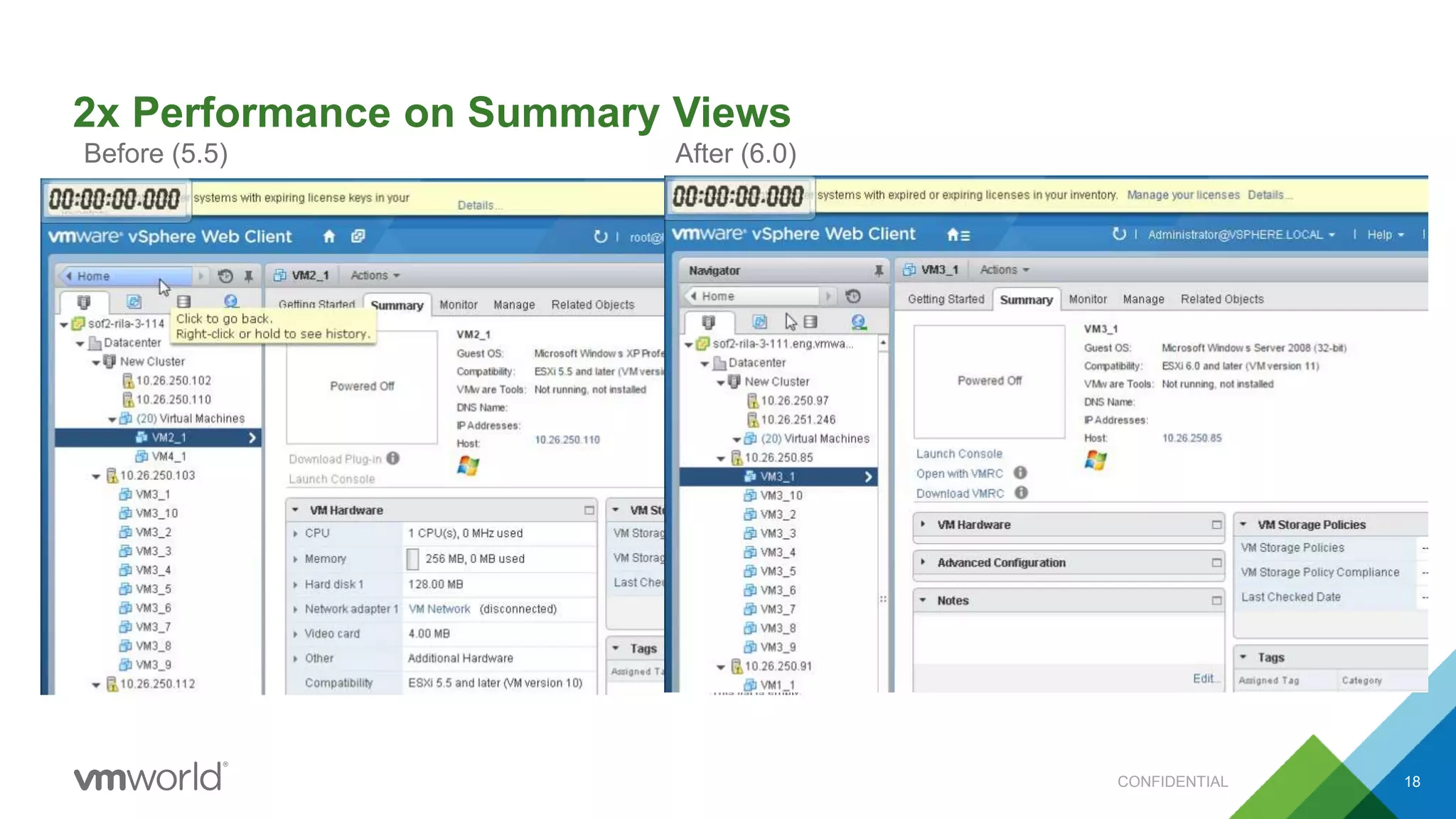
2x Performance on Summary Views
18
Before (5.5) After (6.0)
CONFIDENTIAL
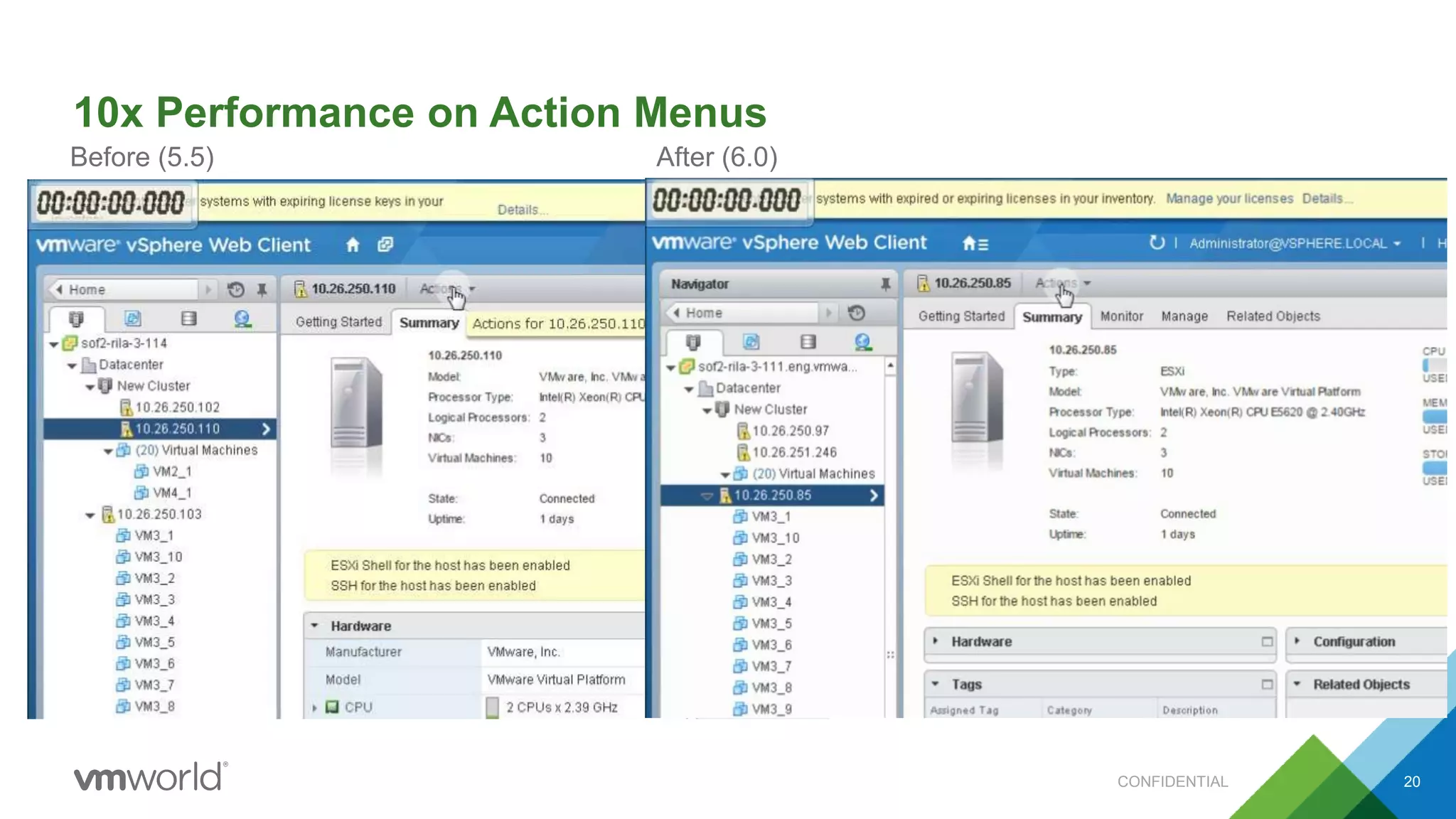
10x Performance on Action Menus
20
Before (5.5) After (6.0)
CONFIDENTIAL
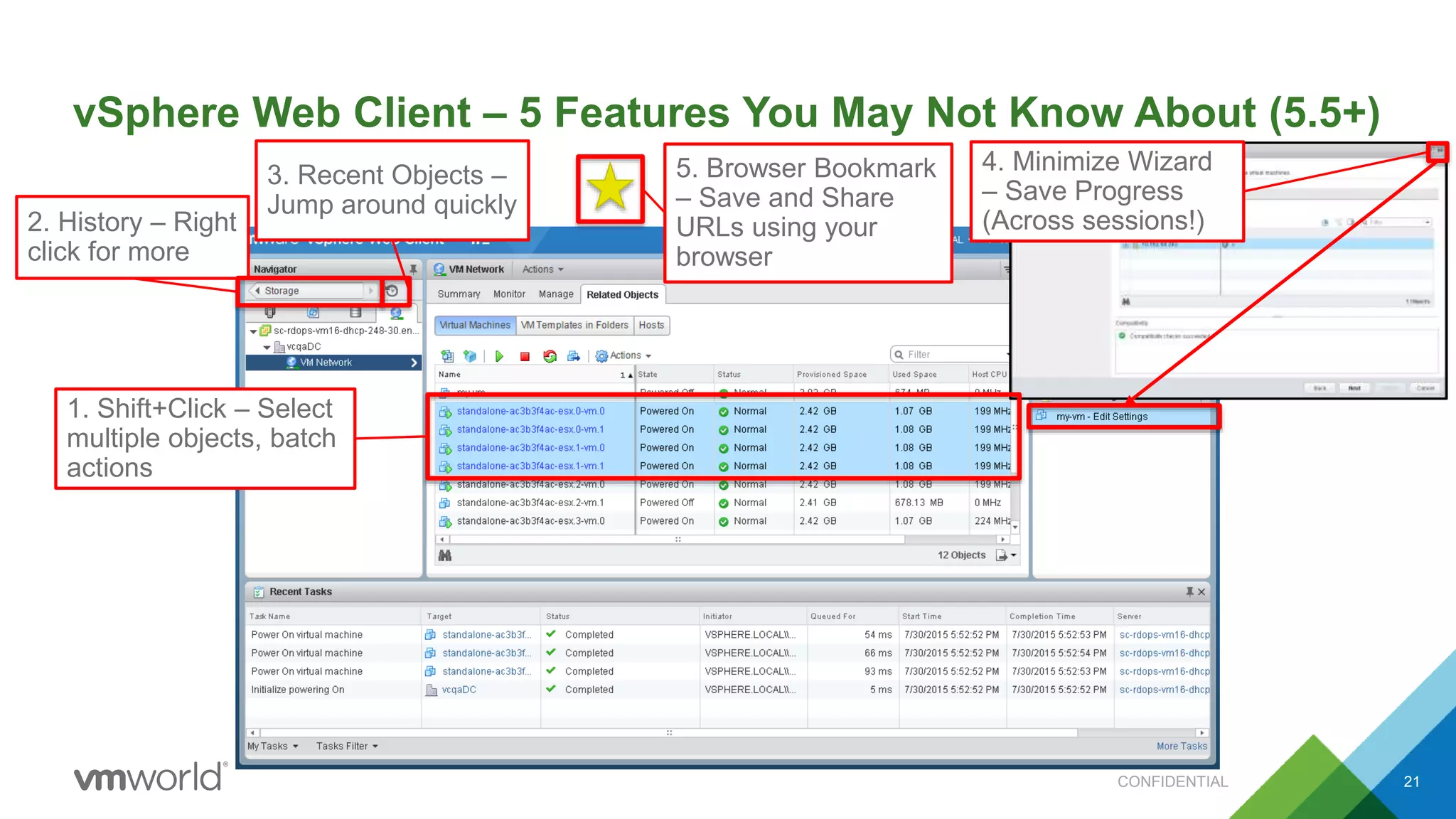
vSphere Web Client – 5 Features You May Not Know About (5.5+)
21
2. History – Right
click for more
3. Recent Objects –
Jump around quickly
1. Shift+Click – Select
multiple objects, batch
actions
4. Minimize Wizard
– Save Progress
(Across sessions!)
5. Browser Bookmark
– Save and Share
URLs using your
browser
CONFIDENTIAL
It’s now much more
user friendly, snappier
and responsive
• Hundreds of performance and usability fixes
• Coming Soon: Performance improvements
in vSphere 5.5 U3
• Coming Soon: More improvements in
vSphere 6.0U1
The Voice of Our Customers
• “It’s hard to find my way around”
• “It’s slooow”
• “It’s not on feature parity with the VI Client”
• “It’s Flash”
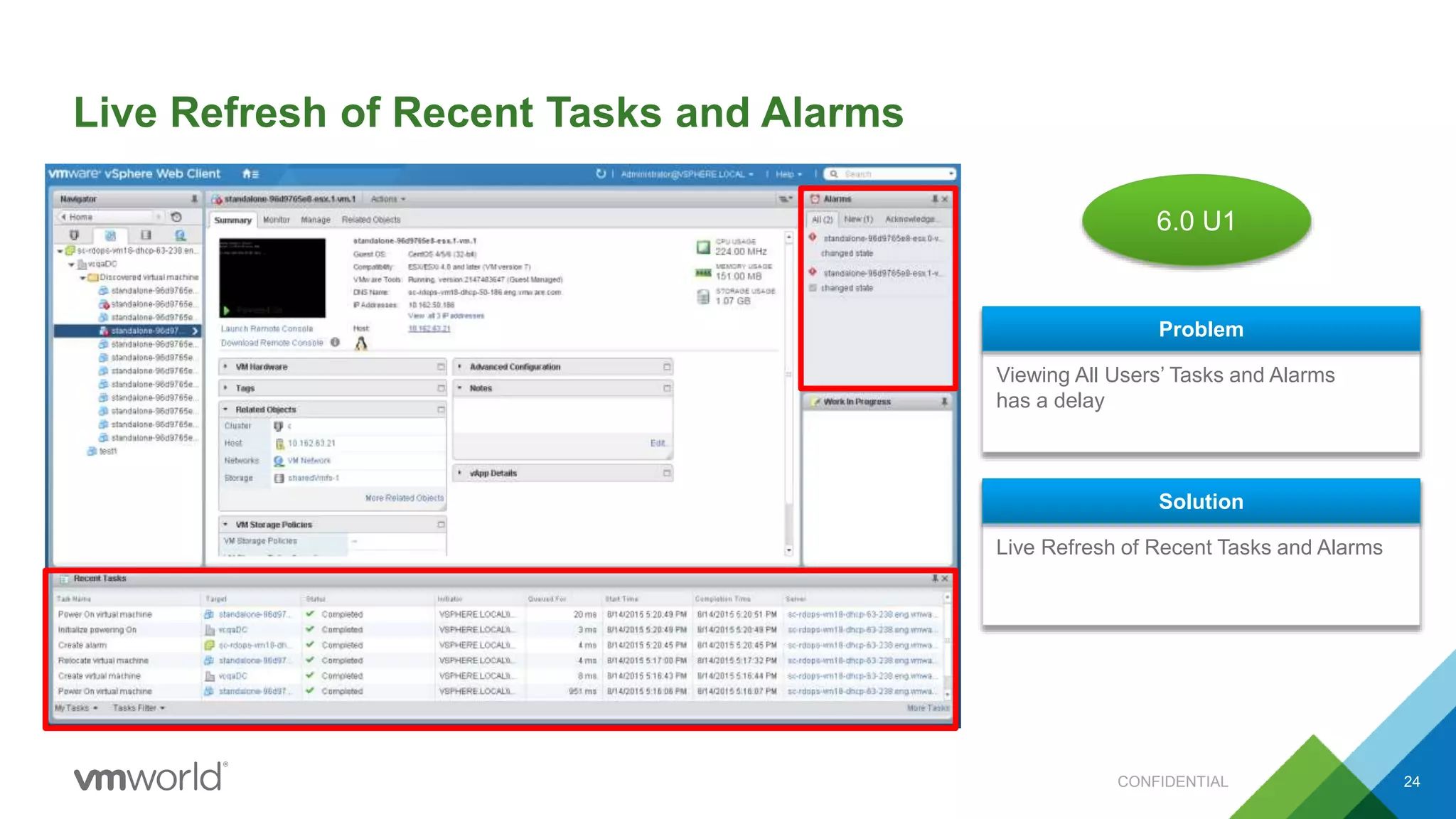
Live Refresh of Recent Tasks and Alarms
24
2016+
6.0 U1
Viewing All Users’ Tasks and Alarms
has a delay
Problem
Live Refresh of Recent Tasks and Alarms
Solution
CONFIDENTIAL
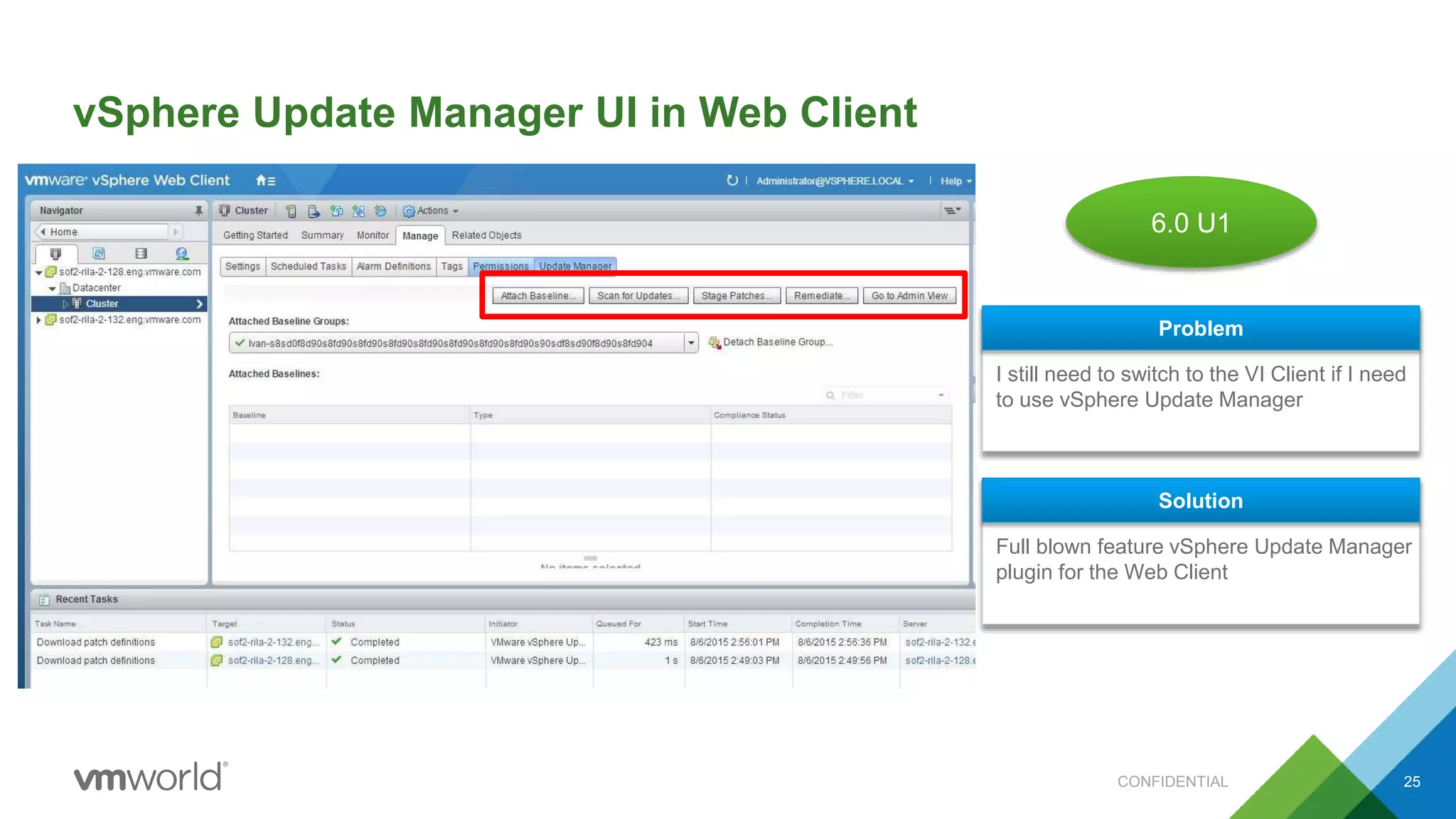
vSphere Update Manager UI in Web Client
CONFIDENTIAL 25
I still need to switch to the VI Client if I need
to use vSphere Update Manager
Problem
Full blown feature vSphere Update Manager
plugin for the Web Client
Solution
6.0 U1
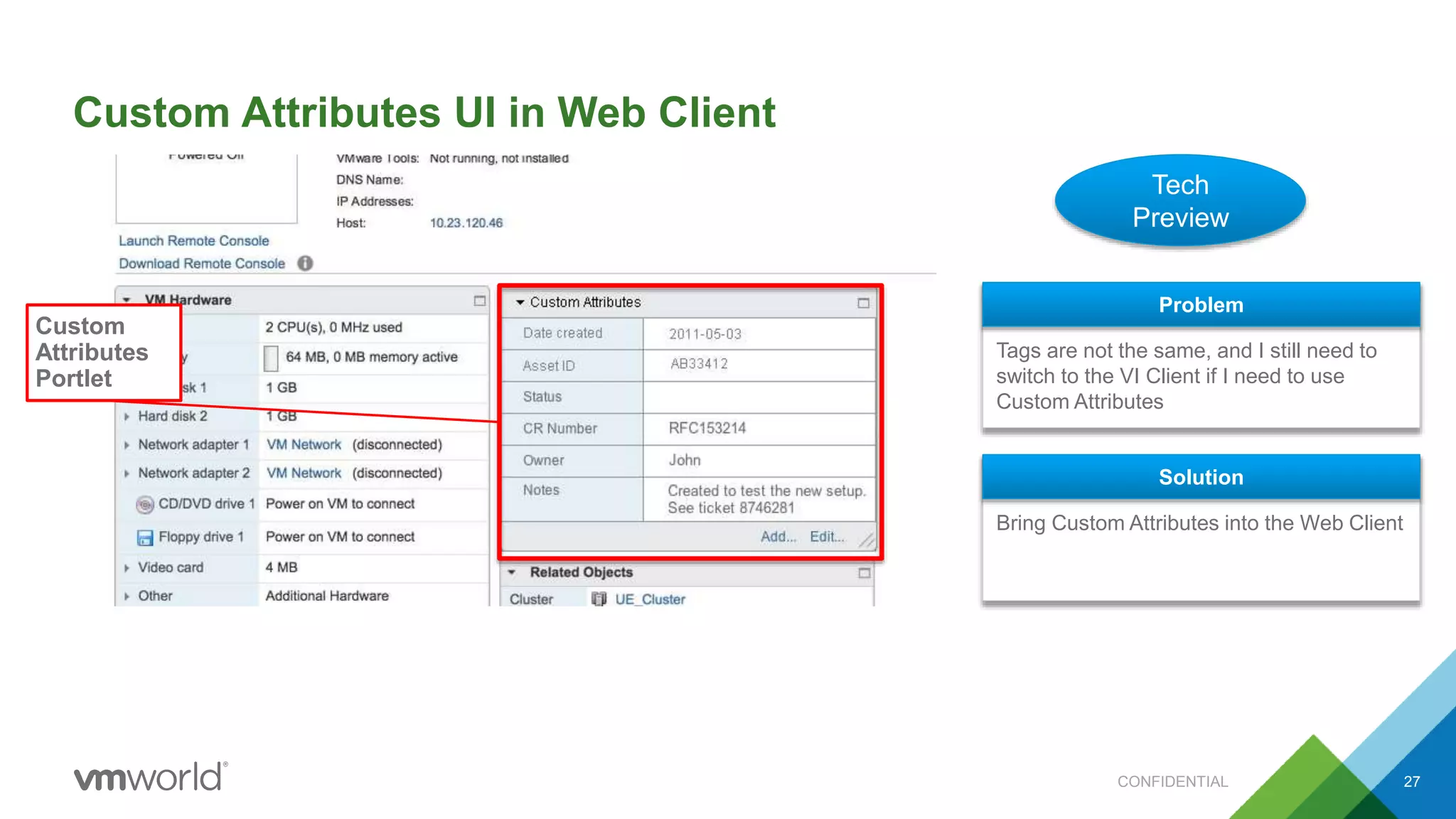
Custom Attributes UI in Web Client
27
Tech
Preview
Tags are not the same, and I still need to
switch to the VI Client if I need to use
Custom Attributes
Problem
Bring Custom Attributes into the Web Client
Solution
Custom
Attributes
Portlet
CONFIDENTIAL
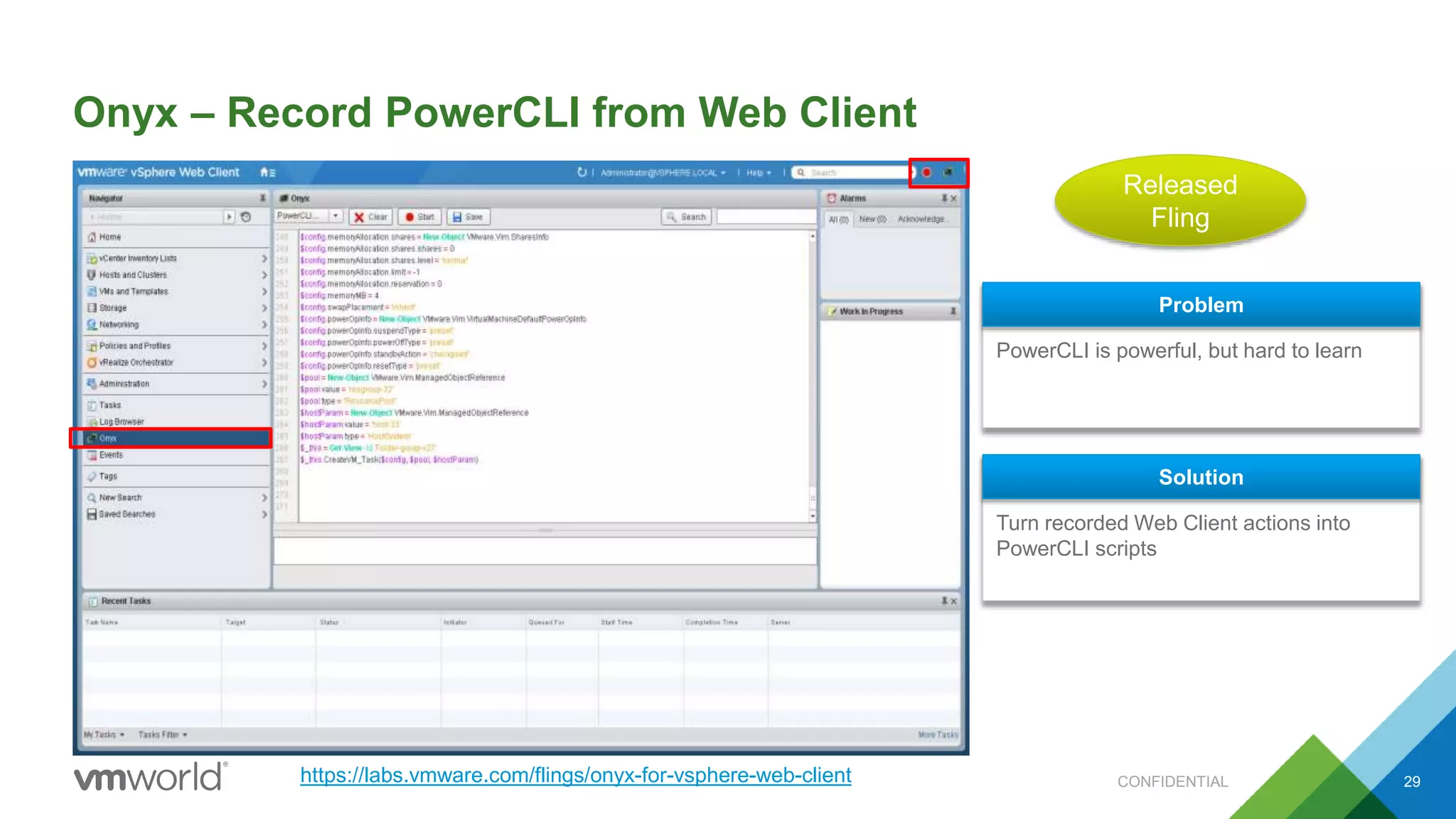
Onyx – Record PowerCLI from Web Client
29
PowerCLI is powerful, but hard to learn
Problem
Turn recorded Web Client actions into
PowerCLI scripts
Solution
Released
Fling
https://labs.vmware.com/flings/onyx-for-vsphere-web-client CONFIDENTIAL
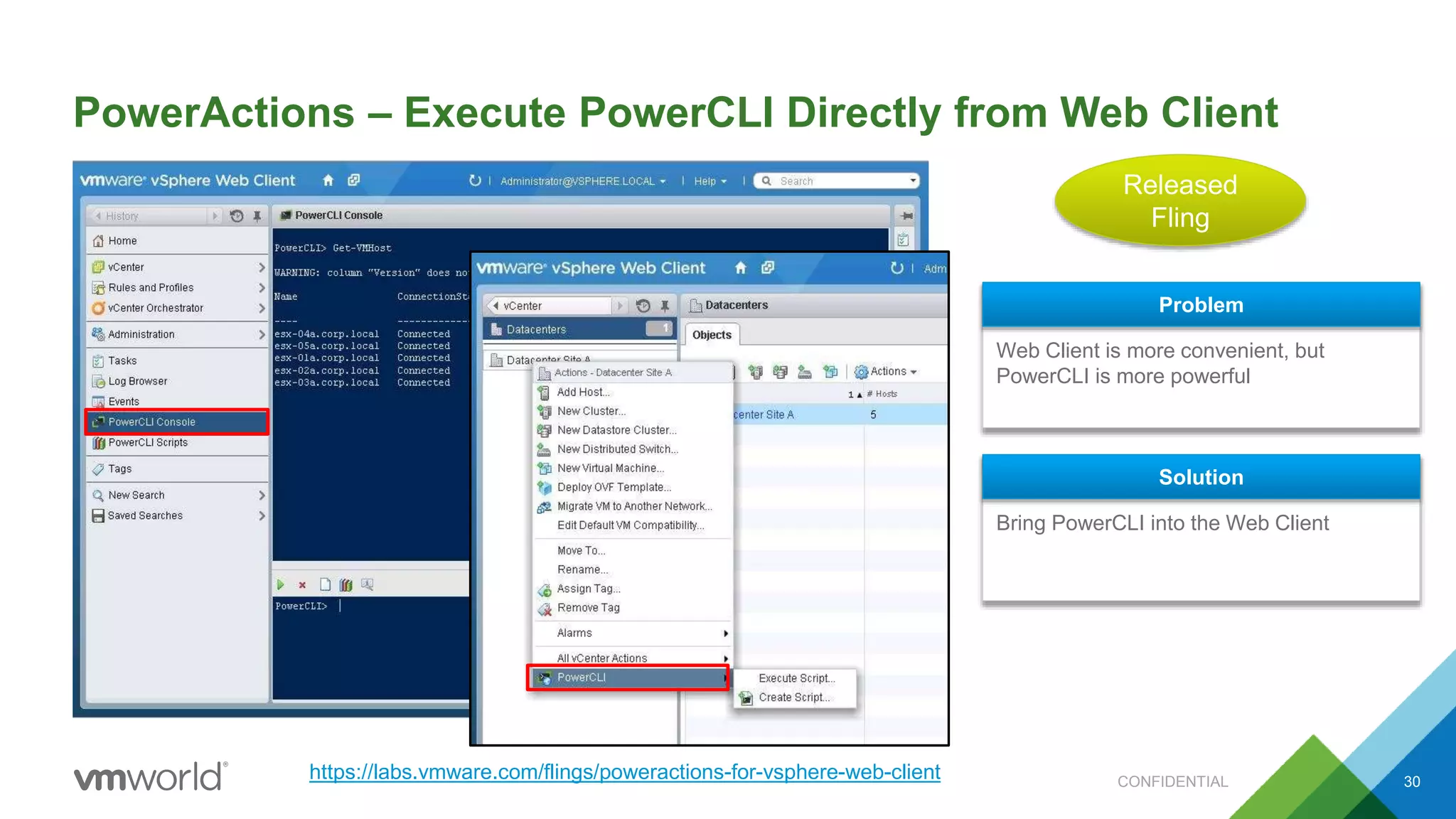
PowerActions – Execute PowerCLI Directly from Web Client
30
Web Client is more convenient, but
PowerCLI is more powerful
Problem
Bring PowerCLI into the Web Client
Solution
Released
Fling
https://labs.vmware.com/flings/poweractions-for-vsphere-web-client CONFIDENTIAL
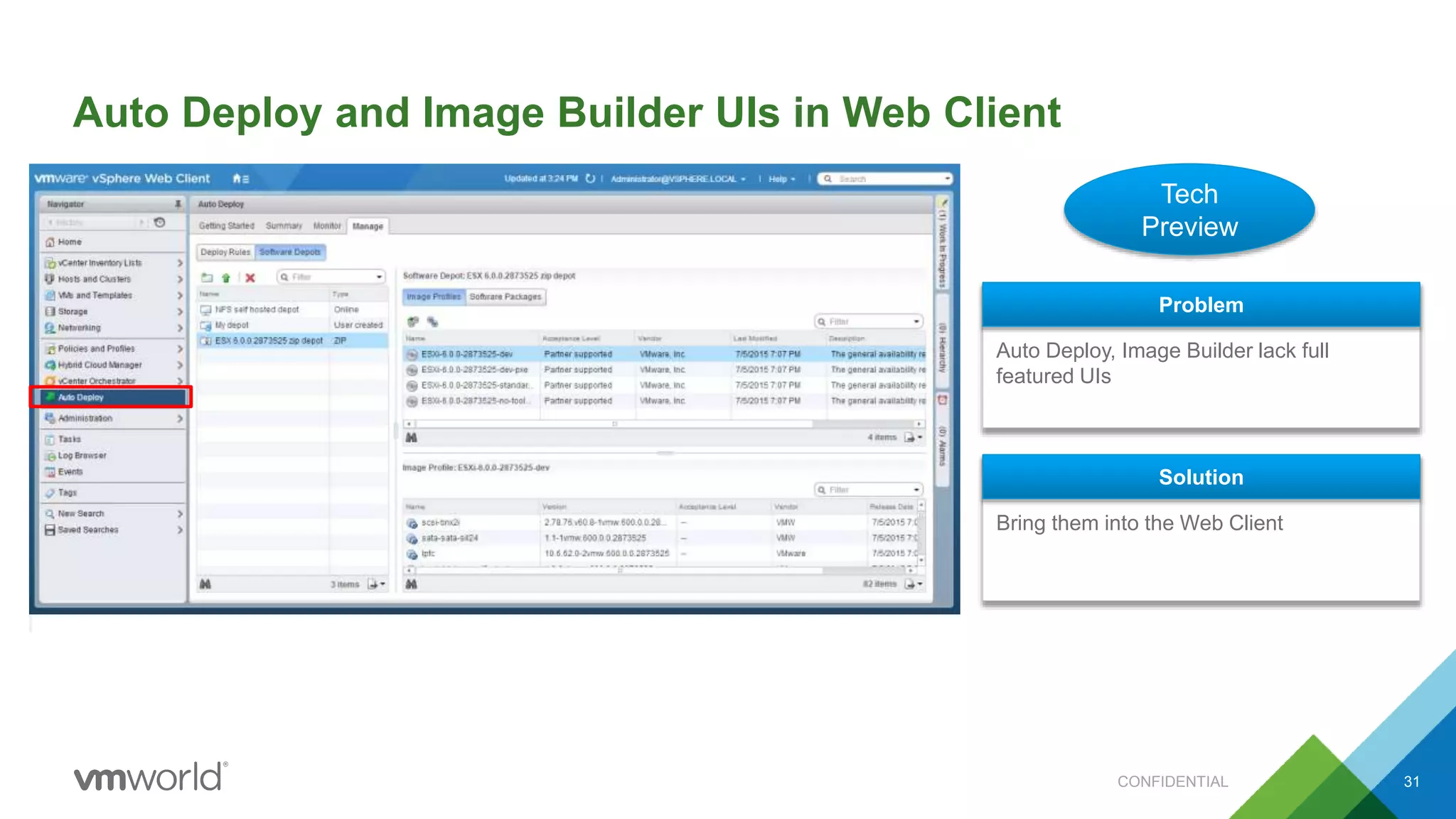
Auto Deploy and Image Builder UIs in Web Client
31
Auto Deploy, Image Builder lack full
featured UIs
Problem
Bring them into the Web Client
Solution
Tech
Preview
CONFIDENTIAL
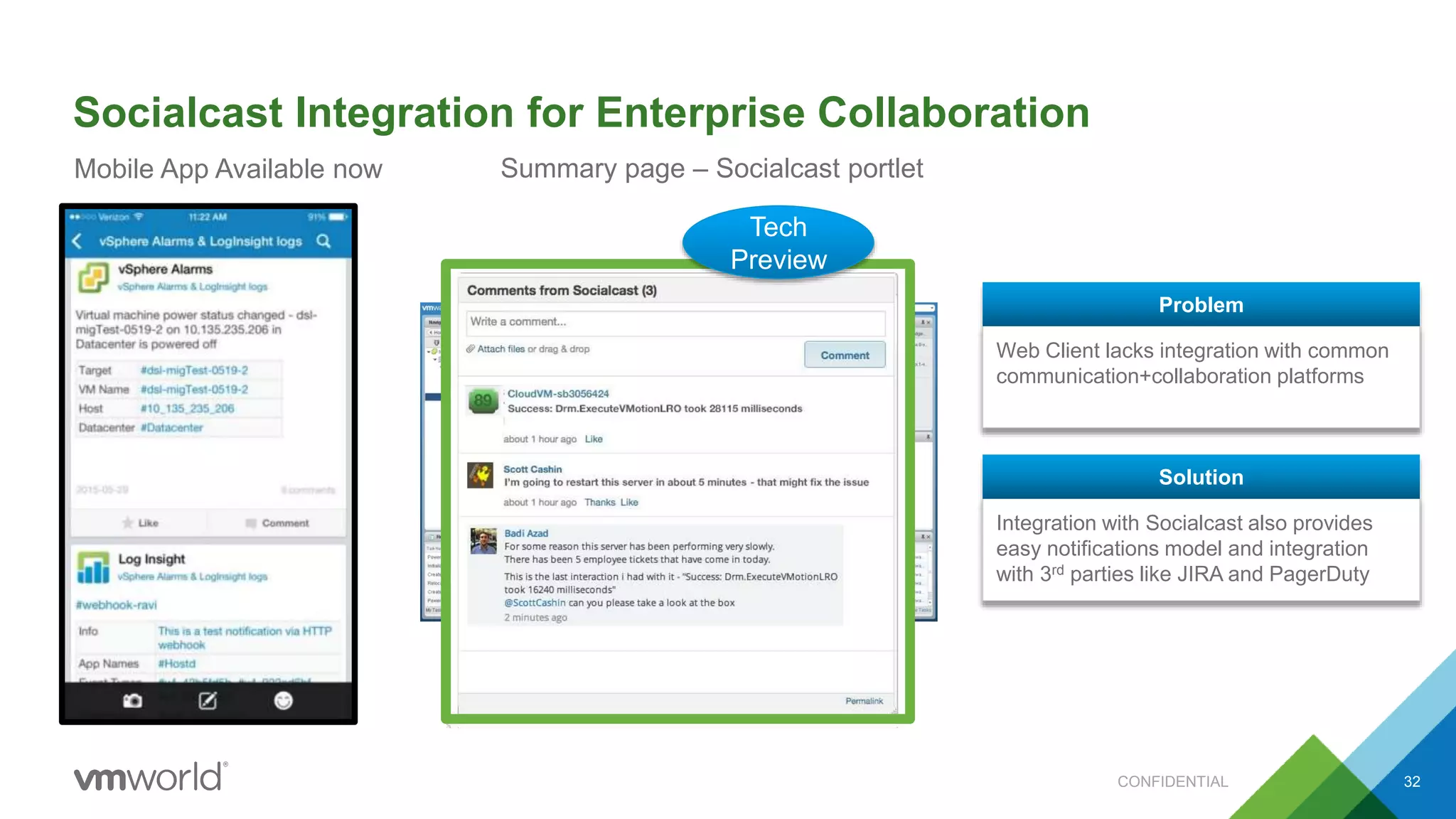
Socialcast Integration for Enterprise Collaboration
32
Web Client lacks integration with common
communication+collaboration platforms
Problem
Integration with Socialcast also provides
easy notifications model and integration
with 3rd parties like JIRA and PagerDuty
Solution
Mobile App Available now Summary page – Socialcast portlet
Tech
Preview
CONFIDENTIAL
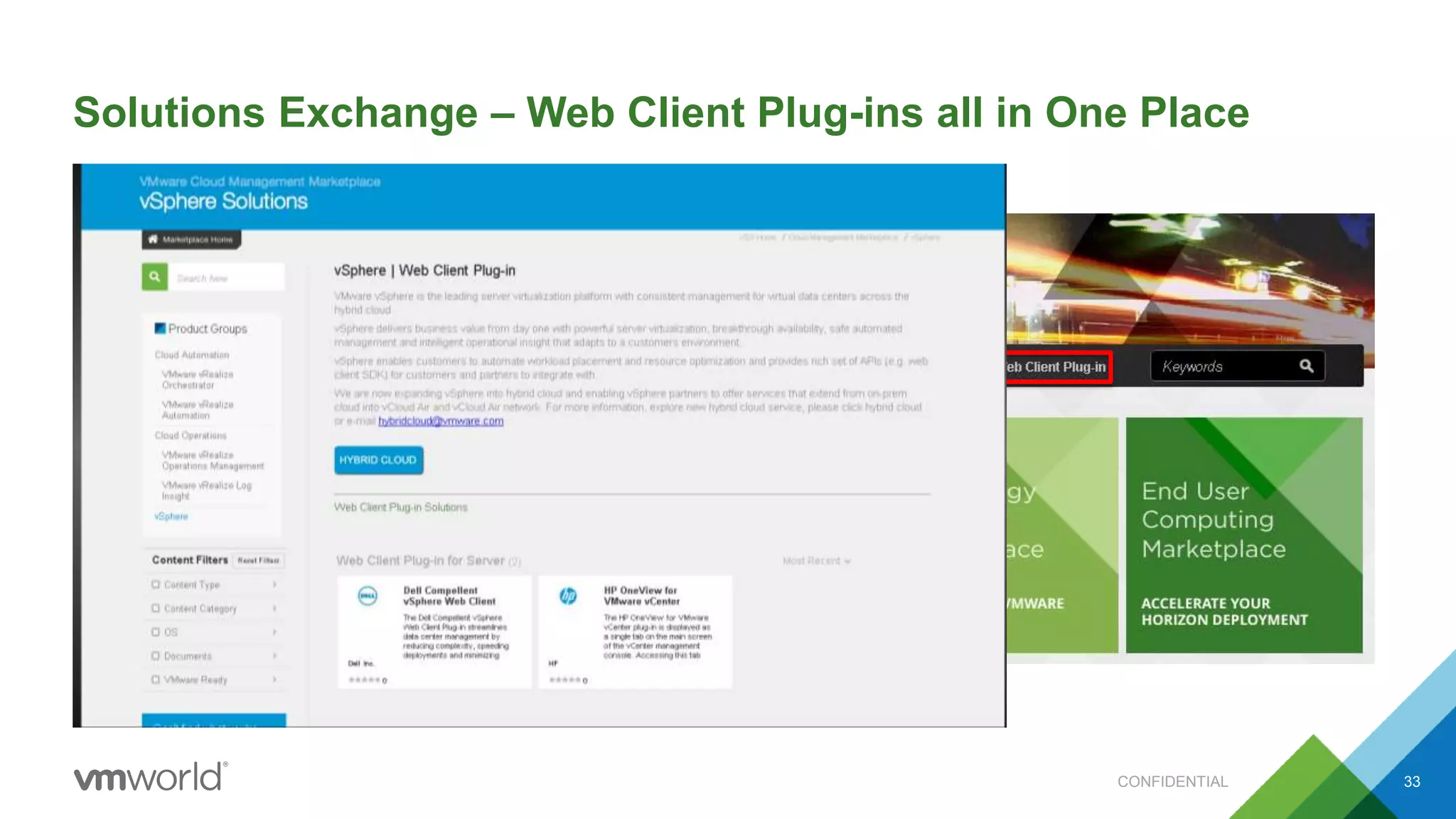
Solutions Exchange – Web Client Plug-ins all in One Place
33CONFIDENTIAL
POLLING
text webclient to 22333
or
Visit pollev.com/webclient
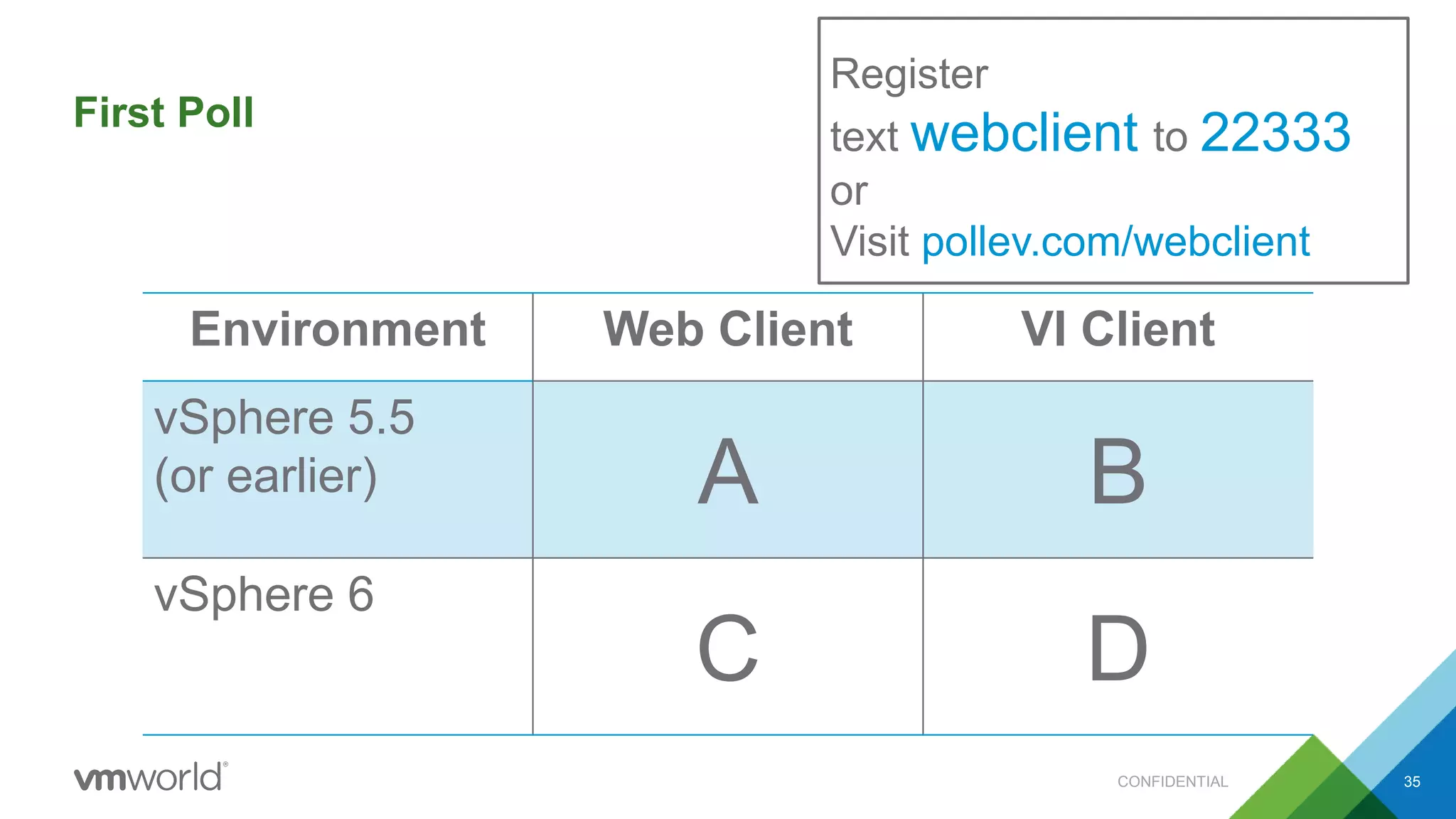
First Poll
35
Register
text webclient to 22333
or
Visit pollev.com/webclient
CONFIDENTIAL
Environment Web Client VI Client
vSphere 5.5
(or earlier) A B
vSphere 6
C D
What’s Next?
Sneak Peak – Seeking feedback
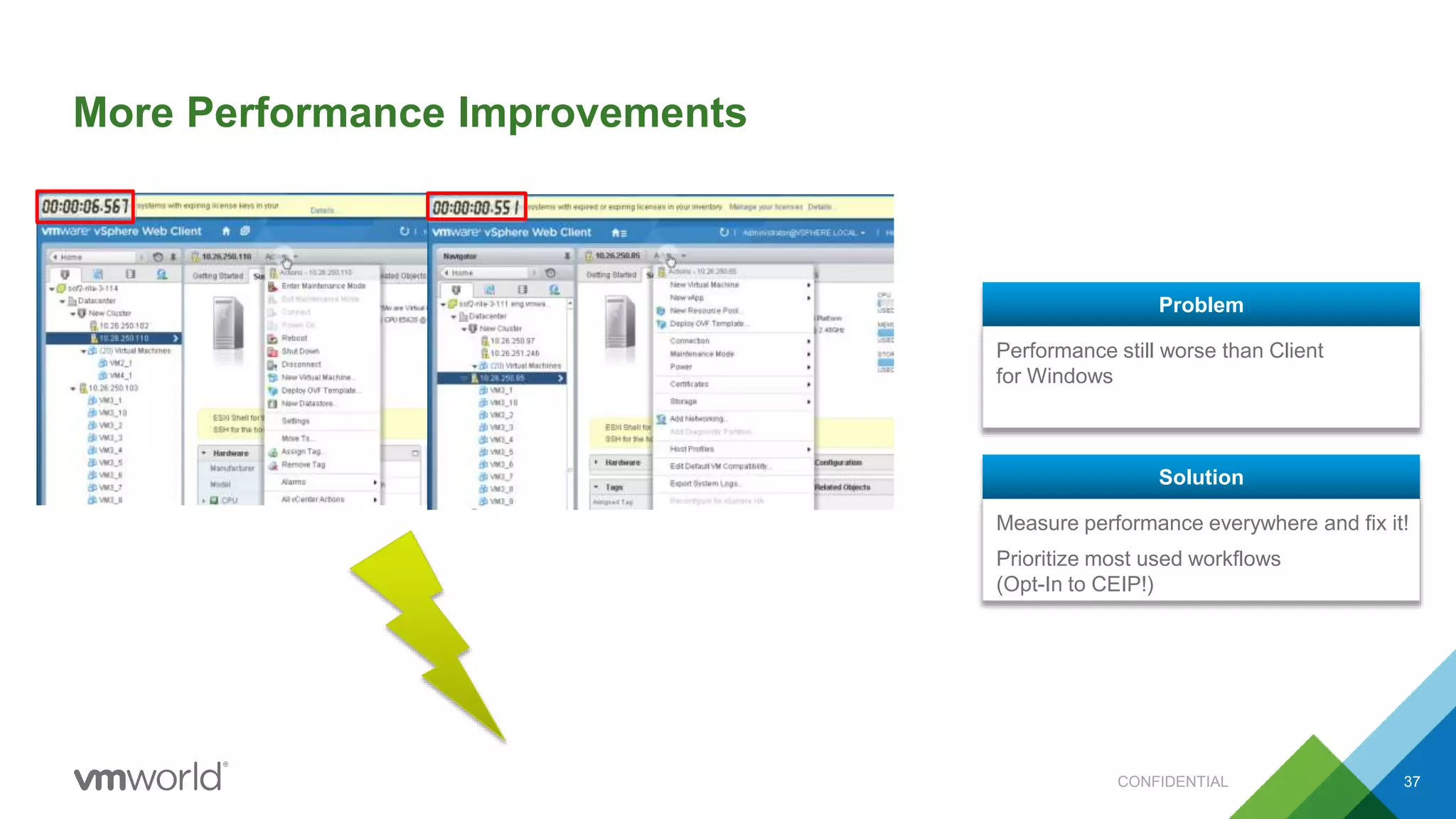
More Performance Improvements
37
Performance still worse than Client
for Windows
Problem
Measure performance everywhere and fix it!
Prioritize most used workflows
(Opt-In to CEIP!)
Solution
CONFIDENTIAL
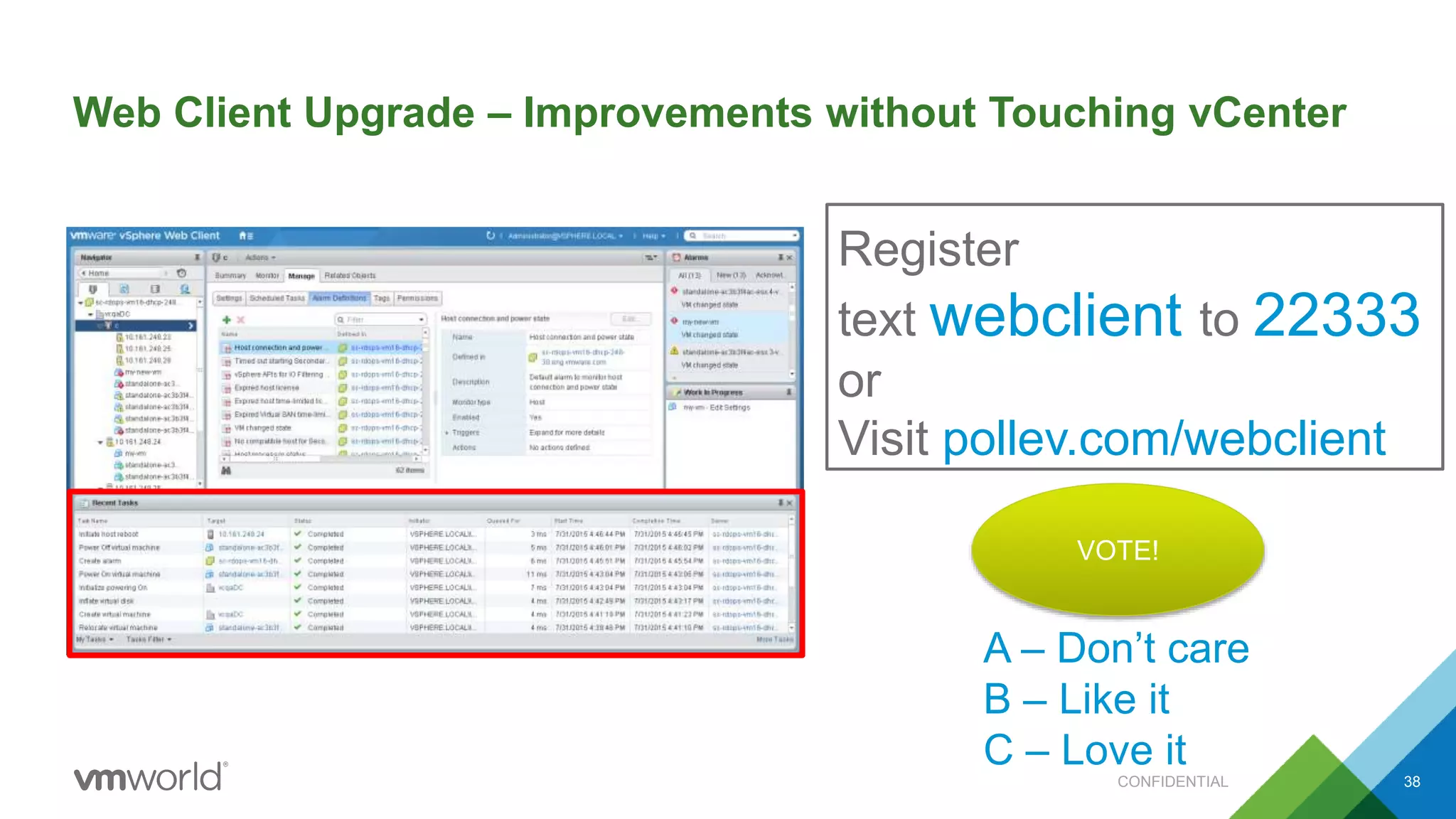
Web Client Upgrade – Improvements without Touching vCenter
38
Register
text webclient to 22333
or
Visit pollev.com/webclient
A – Don’t care
B – Like it
C – Love it
VOTE!
CONFIDENTIAL
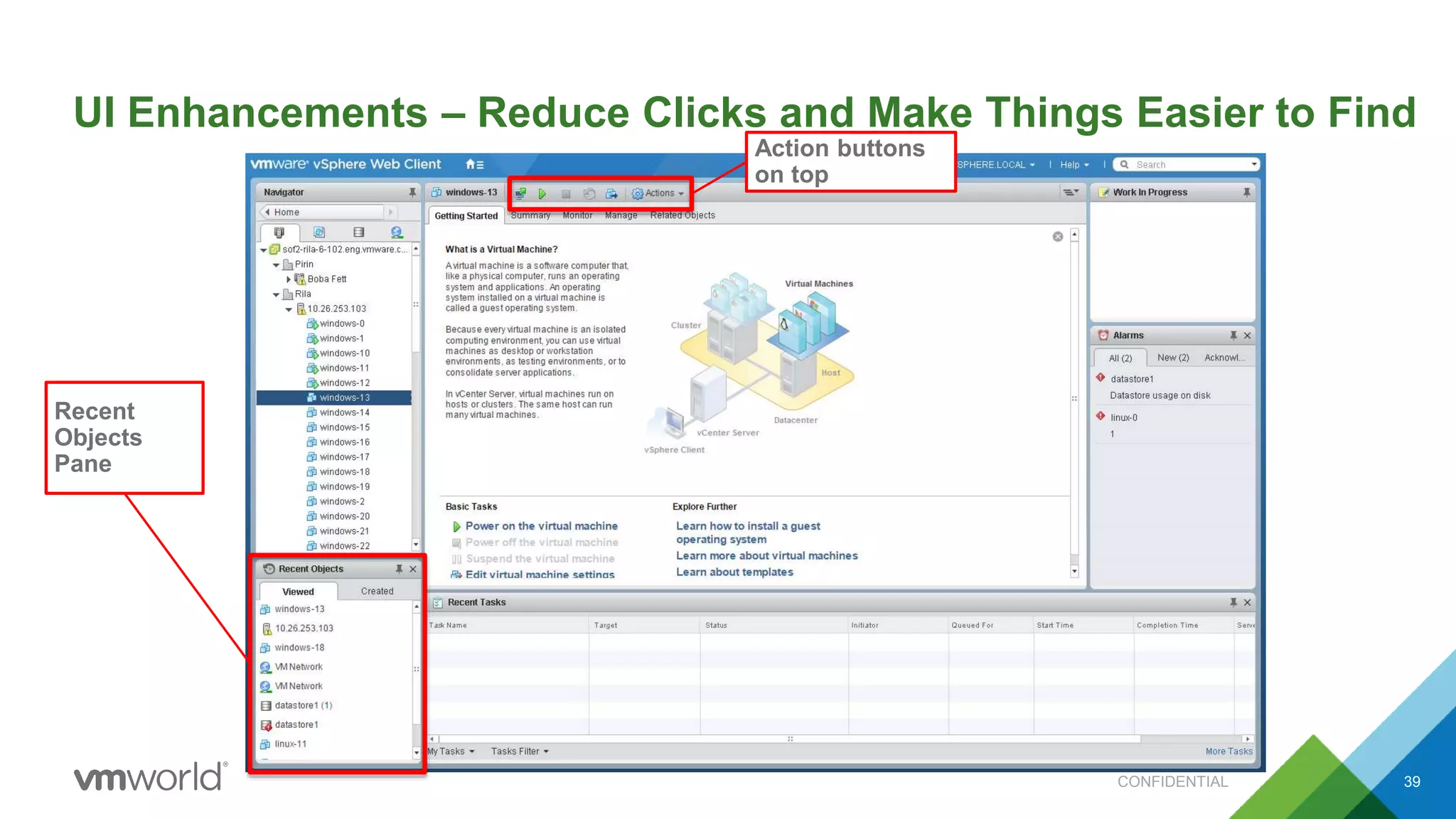
UI Enhancements – Reduce Clicks and Make Things Easier to Find
39
Recent
Objects
Pane
Action buttons
on top
CONFIDENTIAL
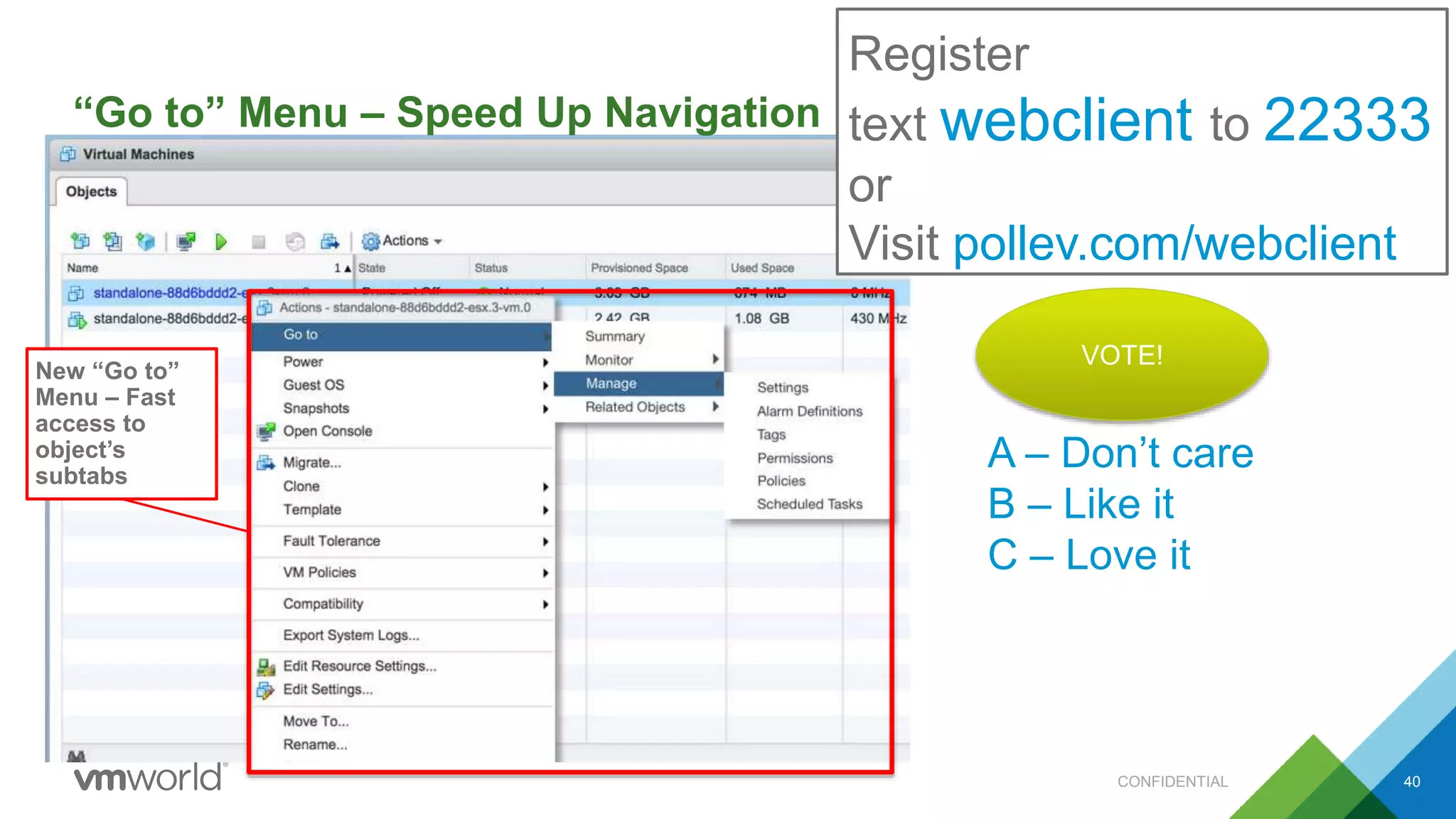
“Go to” Menu – Speed Up Navigation
40
New “Go to”
Menu – Fast
access to
object’s
subtabs
Register
text webclient to 22333
or
Visit pollev.com/webclient
A – Don’t care
B – Like it
C – Love it
VOTE!
CONFIDENTIAL
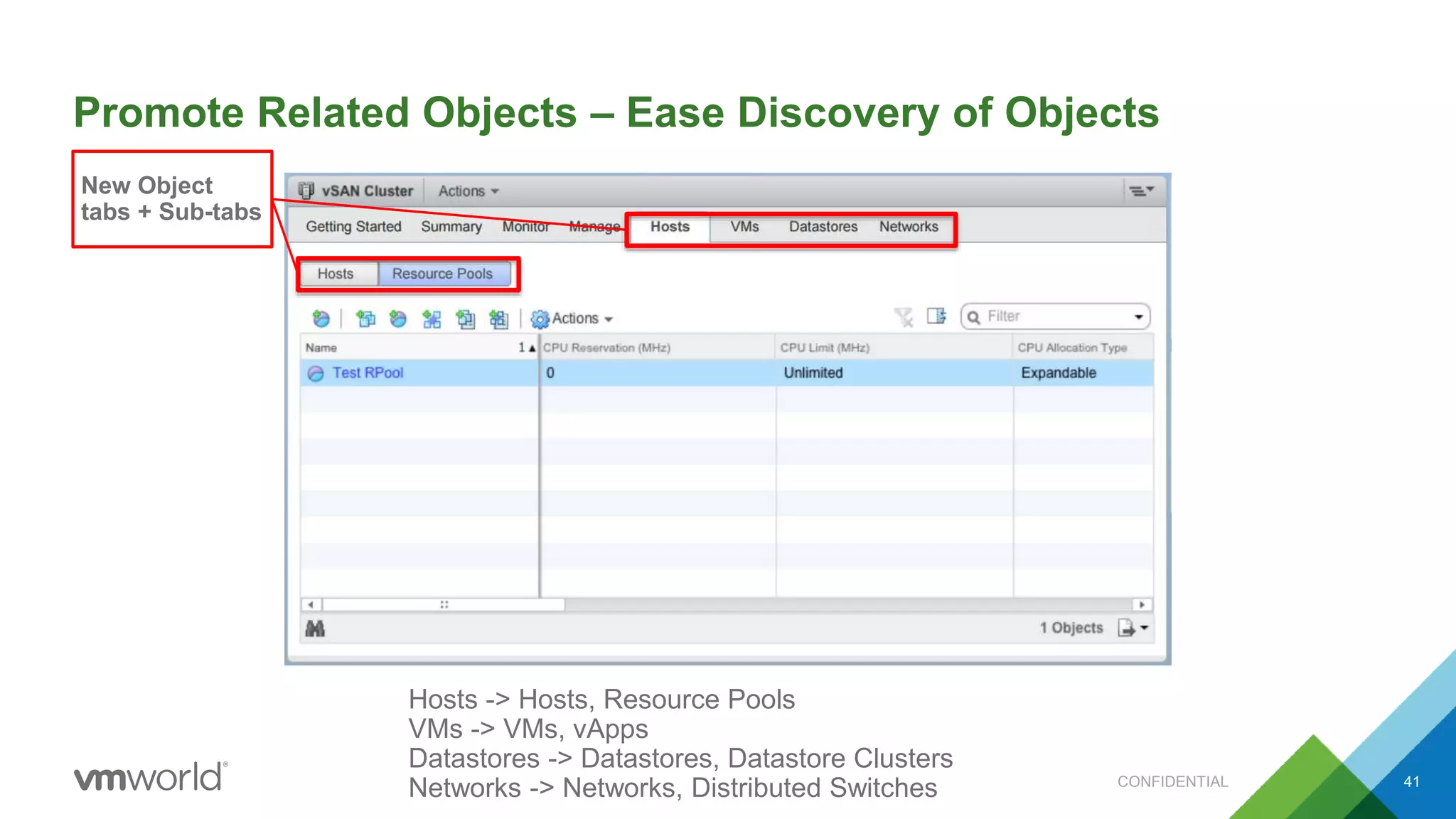
Promote Related Objects – Ease Discovery of Objects
41
New Object
tabs + Sub-tabs
Hosts -> Hosts, Resource Pools
VMs -> VMs, vApps
Datastores -> Datastores, Datastore Clusters
Networks -> Networks, Distributed Switches CONFIDENTIAL
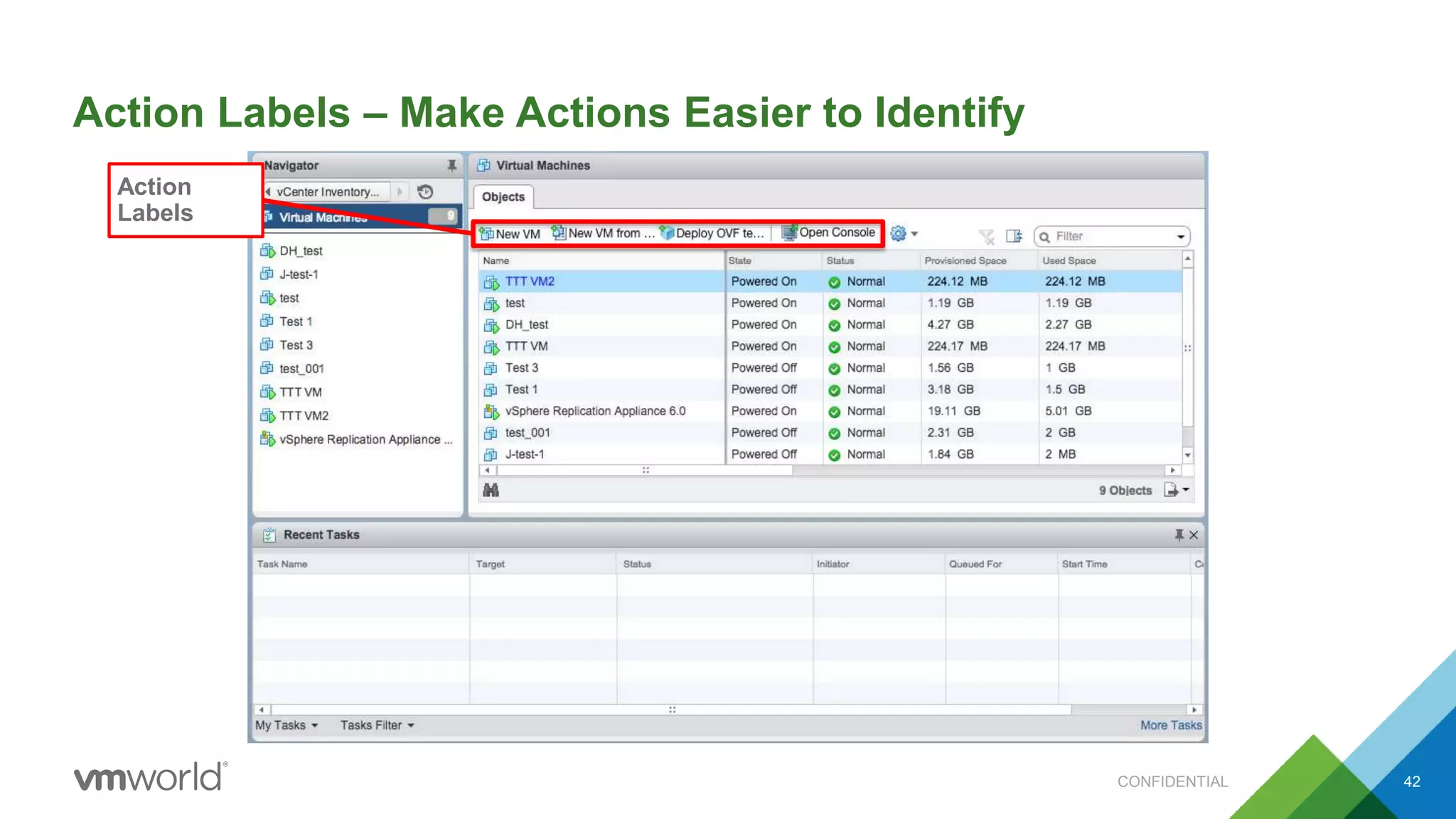
Action Labels – Make Actions Easier to Identify
42
Action
Labels
CONFIDENTIAL
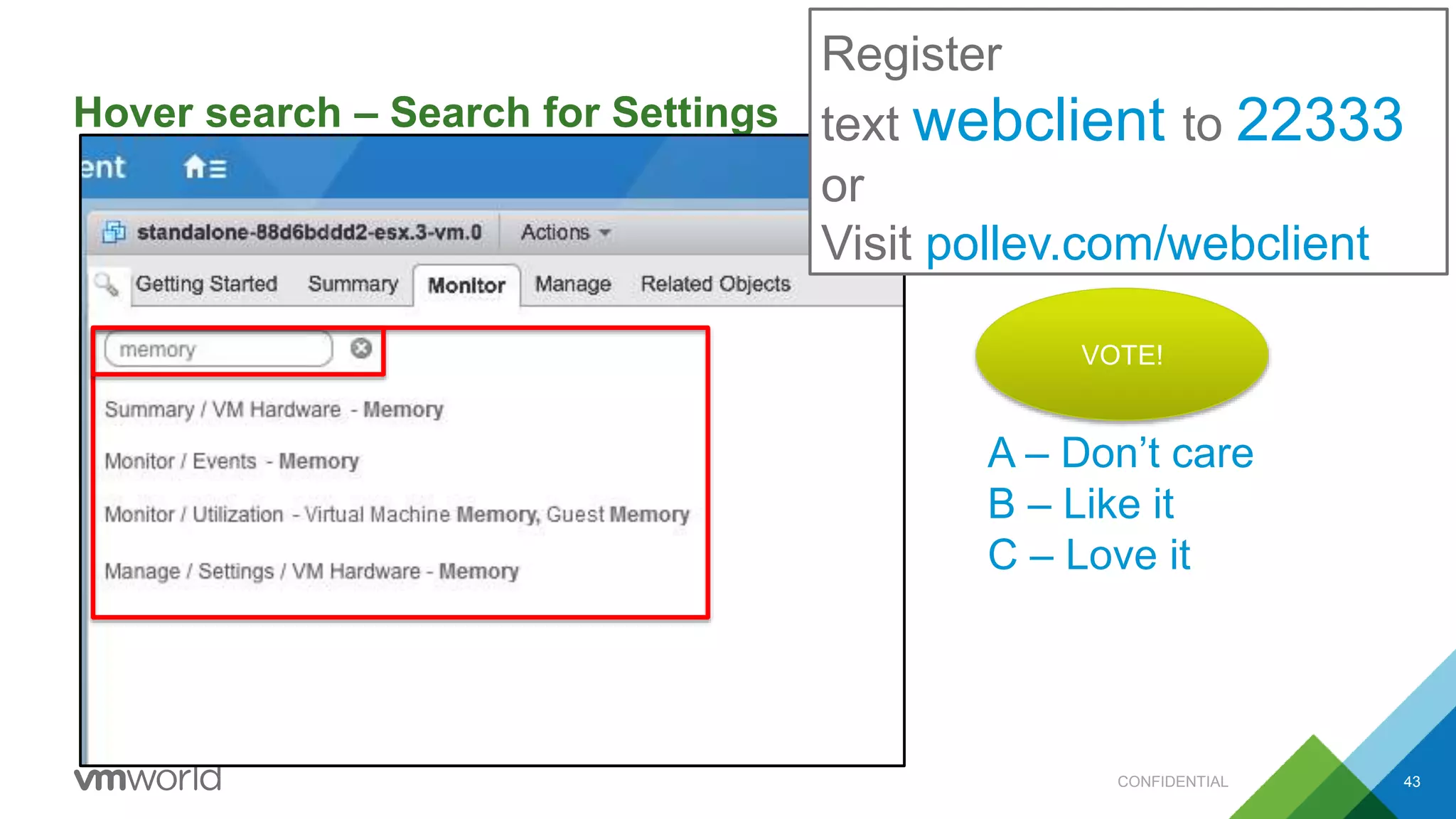
Hover search – Search for Settings
43
Search
Register
text webclient to 22333
or
Visit pollev.com/webclient
A – Don’t care
B – Like it
C – Love it
VOTE!
CONFIDENTIAL
Closing
• HTML5
• Web Client improvements in vSphere 6.0
• Some cool new stuff coming soon
CONFIDENTIAL 44
Q & A
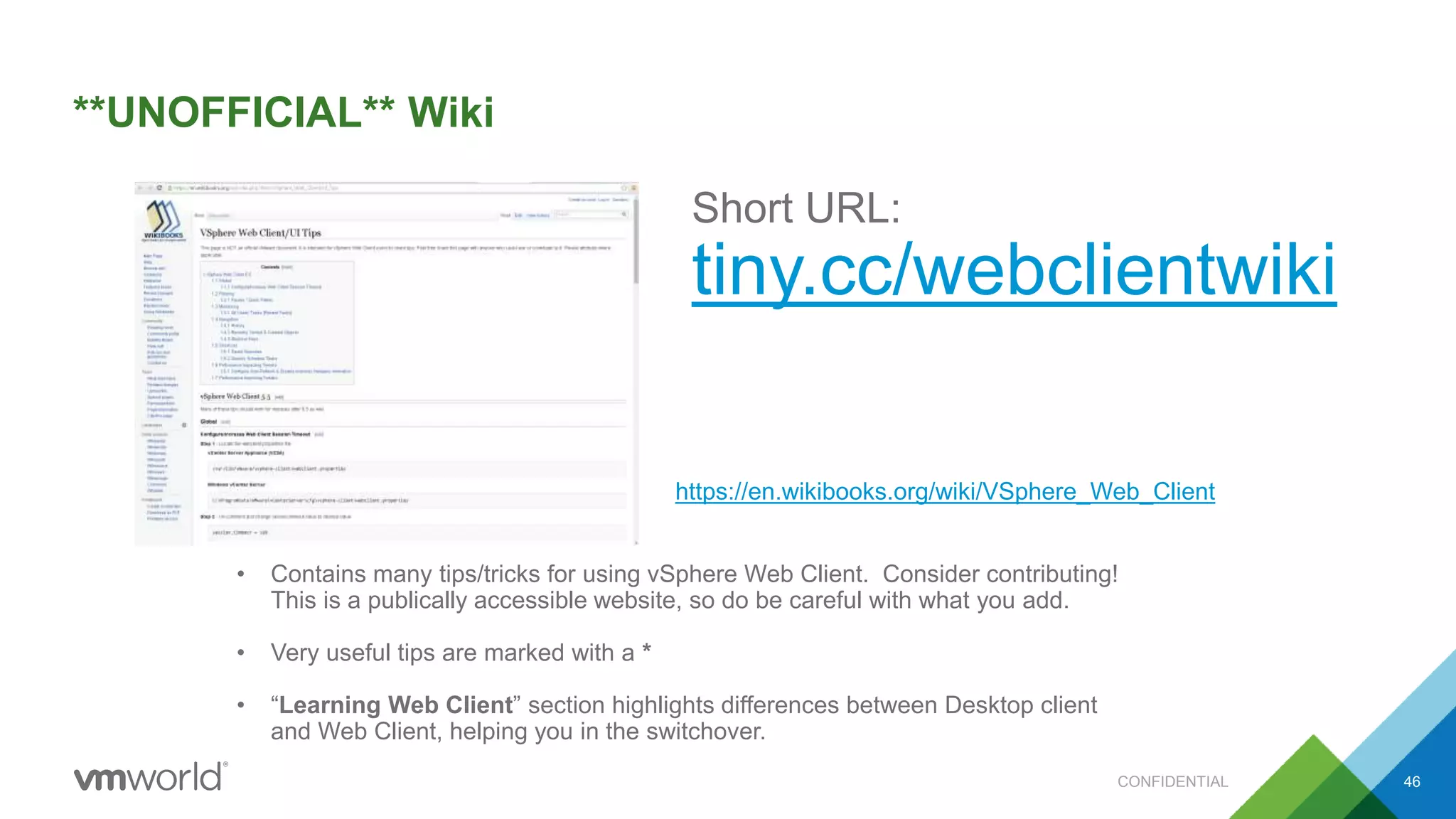
**UNOFFICIAL** Wiki
46
• Contains many tips/tricks for using vSphere Web Client. Consider contributing!
This is a publically accessible website, so do be careful with what you add.
• Very useful tips are marked with a *
• “Learning Web Client” section highlights differences between Desktop client
and Web Client, helping you in the switchover.
Short URL:
tiny.cc/webclientwiki
https://en.wikibooks.org/wiki/VSphere_Web_Client
CONFIDENTIAL
vSphere Web Client –
Yesterday, Today and Tomorrow
Yavor Boychev, VMware, Inc
Dennis Lu, VMware, Inc
INF5093
#INF5093
Reference Slides
These slides show more of the features of vSphere Web Client.
For easy reference, it is a superset of the preceding stuff
Agenda
• Wikibook
• Features available in vSphere 5.5
• Features available in vSphere 6.0
• vSphere 6 feedback
• Glossary
51
vSphere Web Client Features – 5.5
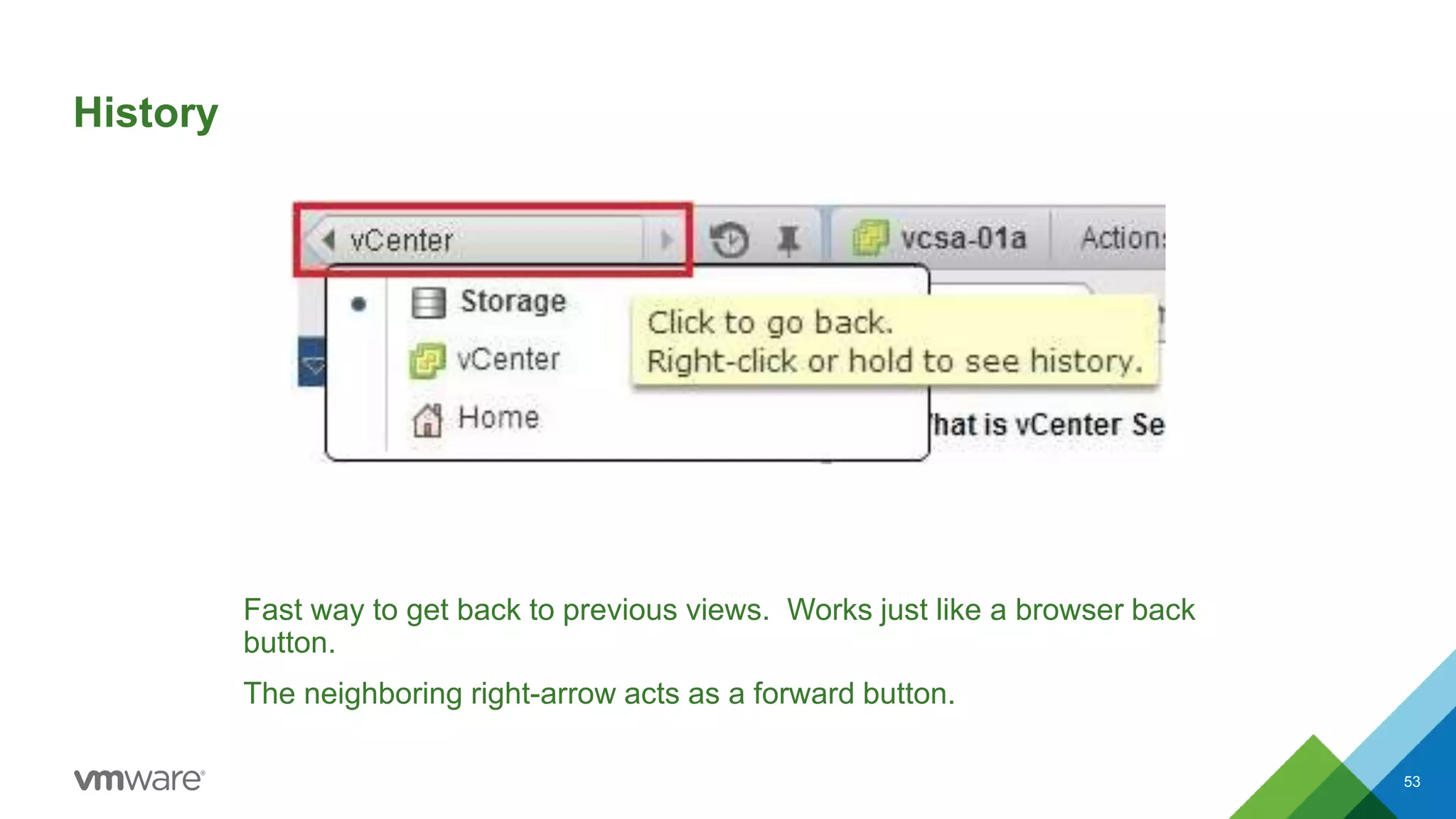
History
Fast way to get back to previous views. Works just like a browser back
button.
The neighboring right-arrow acts as a forward button.
53
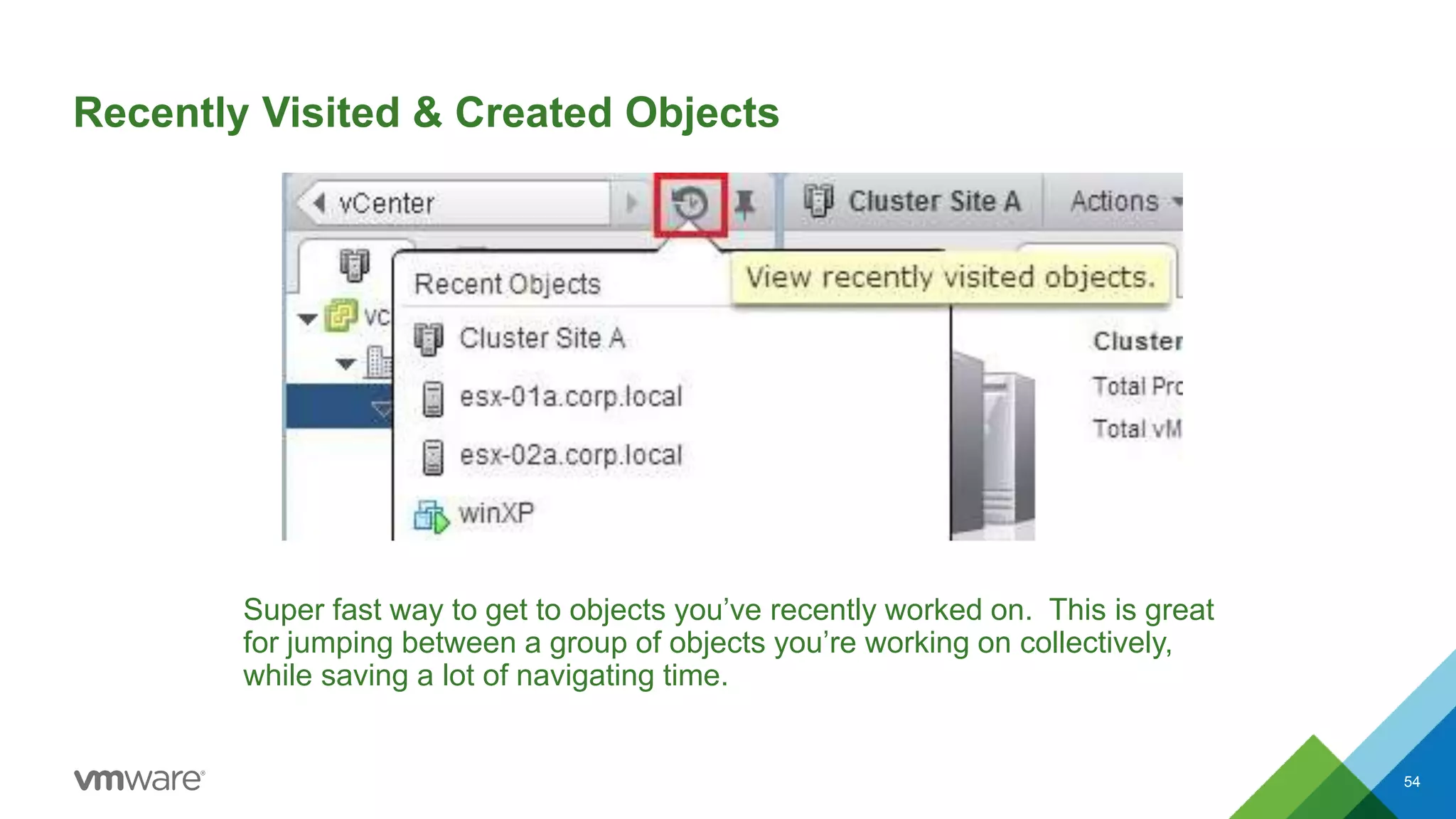
Recently Visited & Created Objects
Super fast way to get to objects you’ve recently worked on. This is great
for jumping between a group of objects you’re working on collectively,
while saving a lot of navigating time.
54
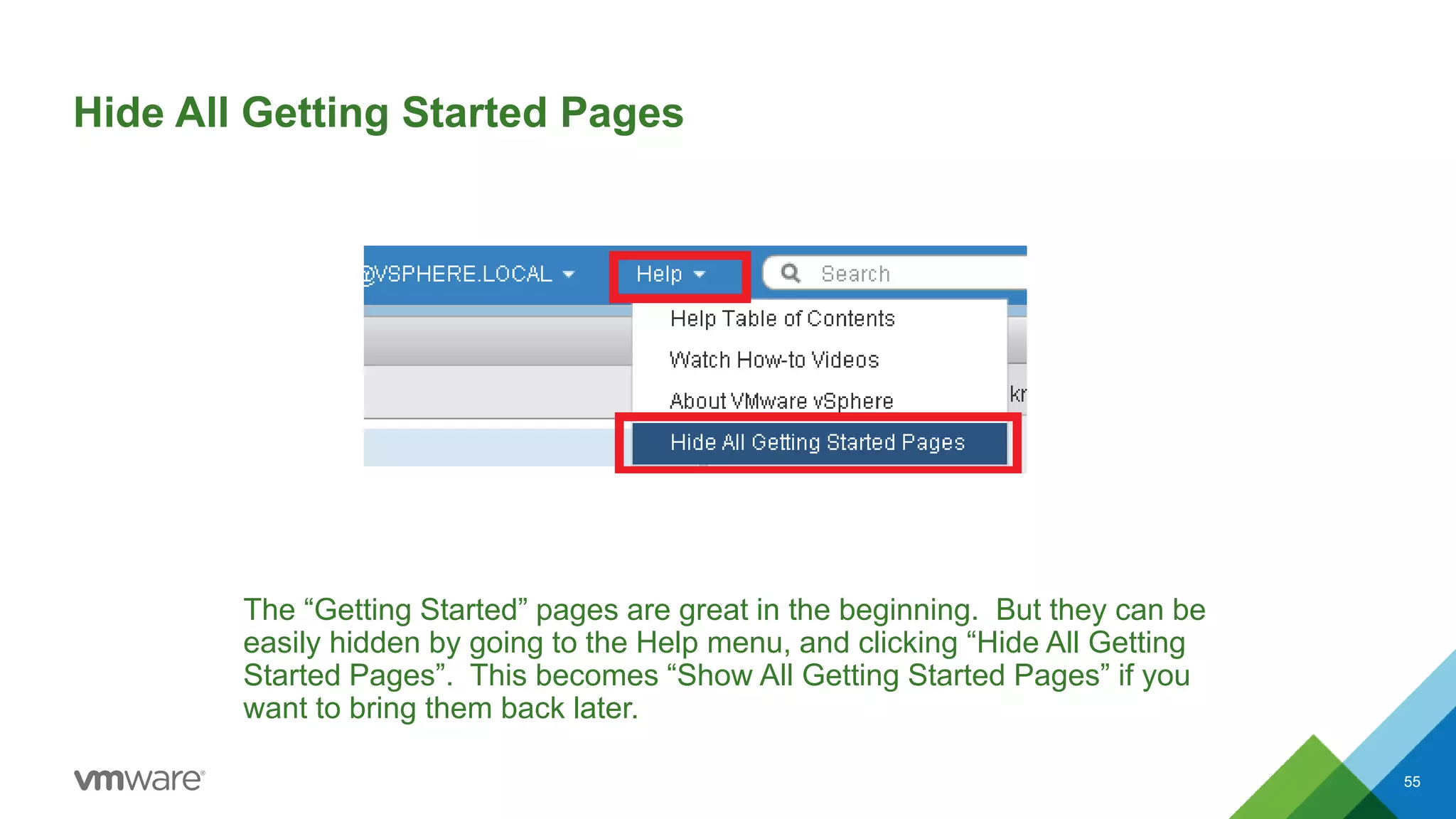
Hide All Getting Started Pages
The “Getting Started” pages are great in the beginning. But they can be
easily hidden by going to the Help menu, and clicking “Hide All Getting
Started Pages”. This becomes “Show All Getting Started Pages” if you
want to bring them back later.
55
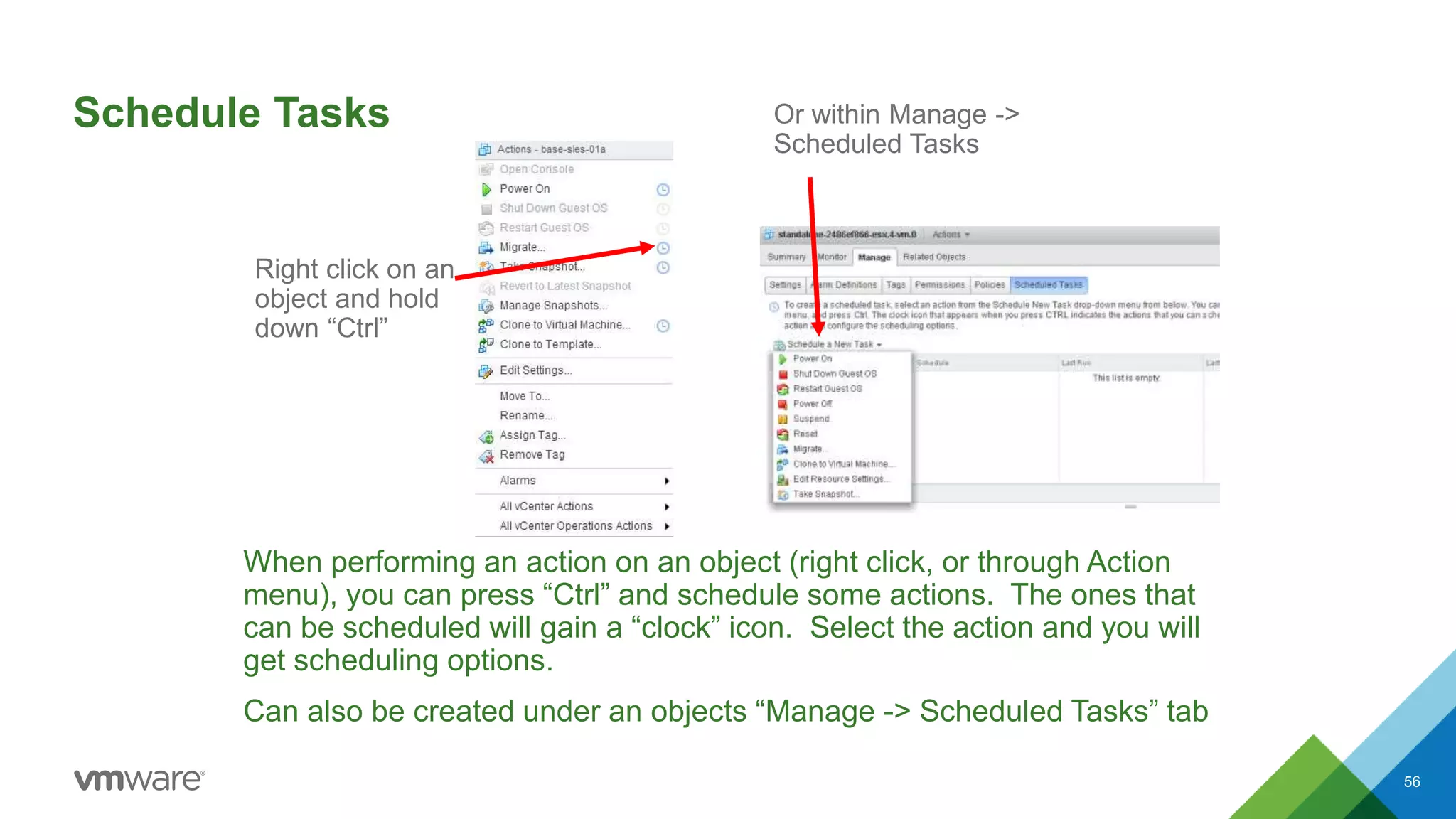
Schedule Tasks
When performing an action on an object (right click, or through Action
menu), you can press “Ctrl” and schedule some actions. The ones that
can be scheduled will gain a “clock” icon. Select the action and you will
get scheduling options.
Can also be created under an objects “Manage -> Scheduled Tasks” tab
56
Right click on an
object and hold
down “Ctrl”
Or within Manage ->
Scheduled Tasks
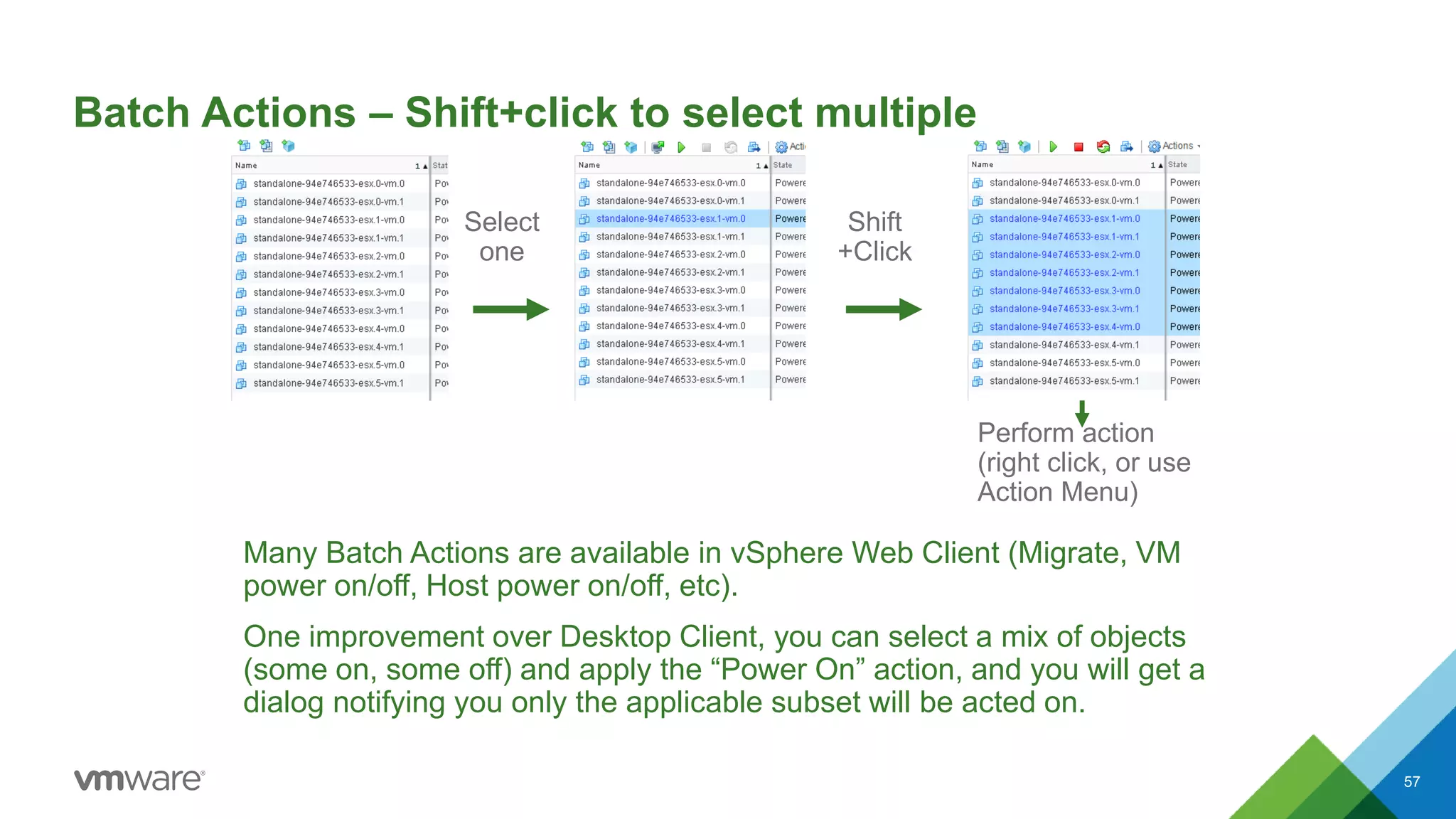
Batch Actions – Shift+click to select multiple
Many Batch Actions are available in vSphere Web Client (Migrate, VM
power on/off, Host power on/off, etc).
One improvement over Desktop Client, you can select a mix of objects
(some on, some off) and apply the “Power On” action, and you will get a
dialog notifying you only the applicable subset will be acted on.
57
Select
one
Shift
+Click
Perform action
(right click, or use
Action Menu)
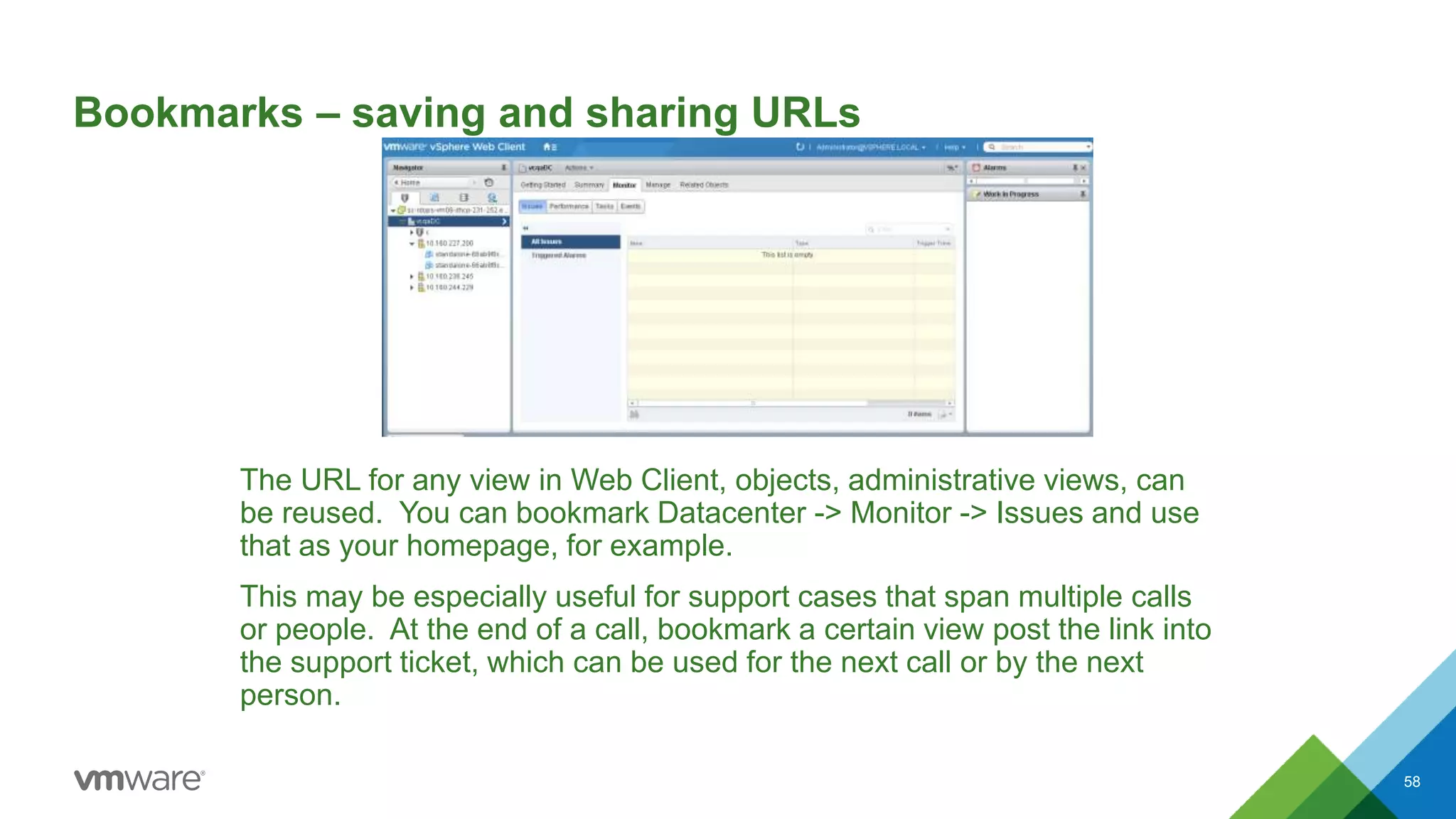
Bookmarks – saving and sharing URLs
The URL for any view in Web Client, objects, administrative views, can
be reused. You can bookmark Datacenter -> Monitor -> Issues and use
that as your homepage, for example.
This may be especially useful for support cases that span multiple calls
or people. At the end of a call, bookmark a certain view post the link into
the support ticket, which can be used for the next call or by the next
person.
58
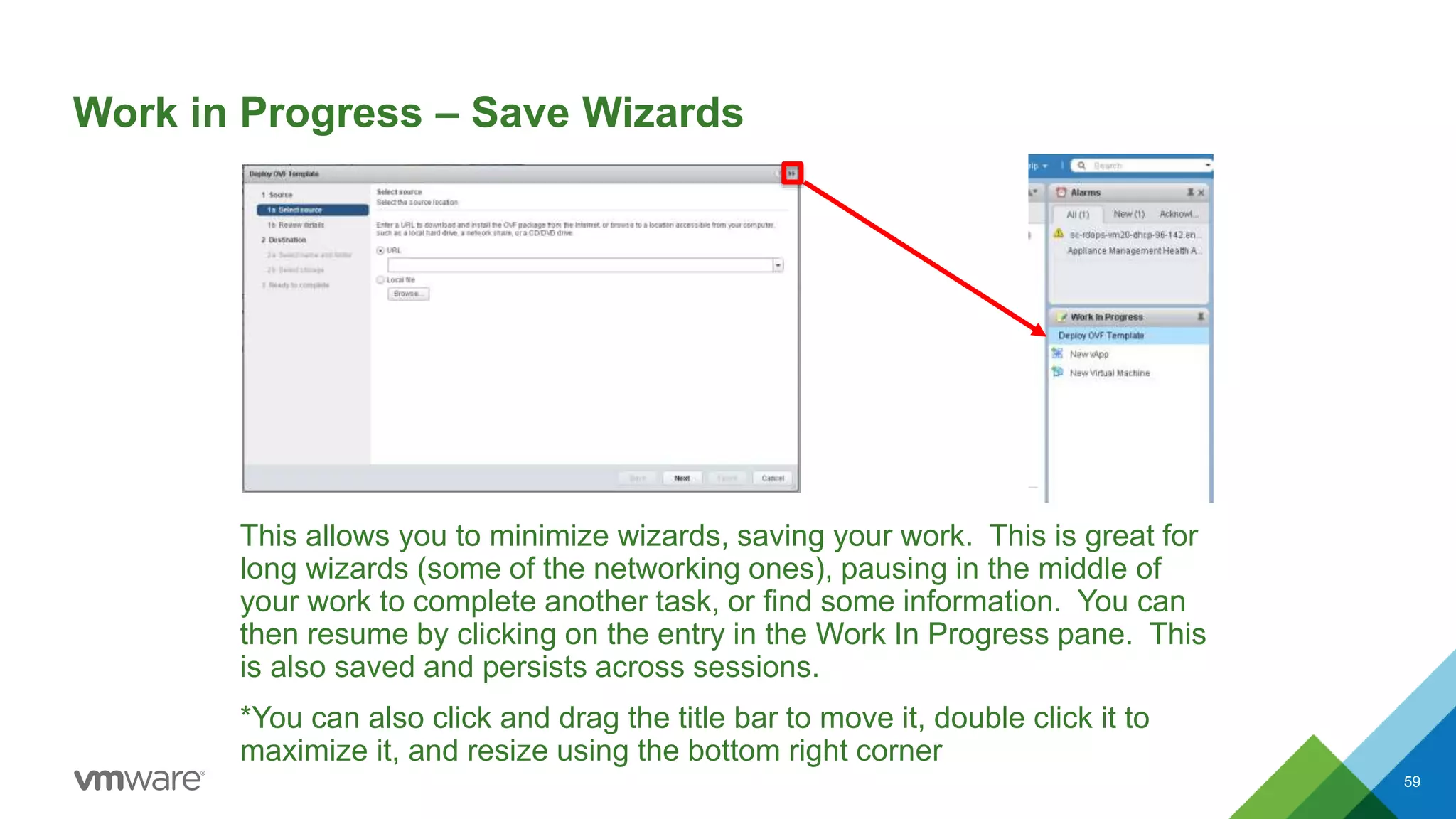
Work in Progress – Save Wizards
This allows you to minimize wizards, saving your work. This is great for
long wizards (some of the networking ones), pausing in the middle of
your work to complete another task, or find some information. You can
then resume by clicking on the entry in the Work In Progress pane. This
is also saved and persists across sessions.
*You can also click and drag the title bar to move it, double click it to
maximize it, and resize using the bottom right corner
59
Related Objects
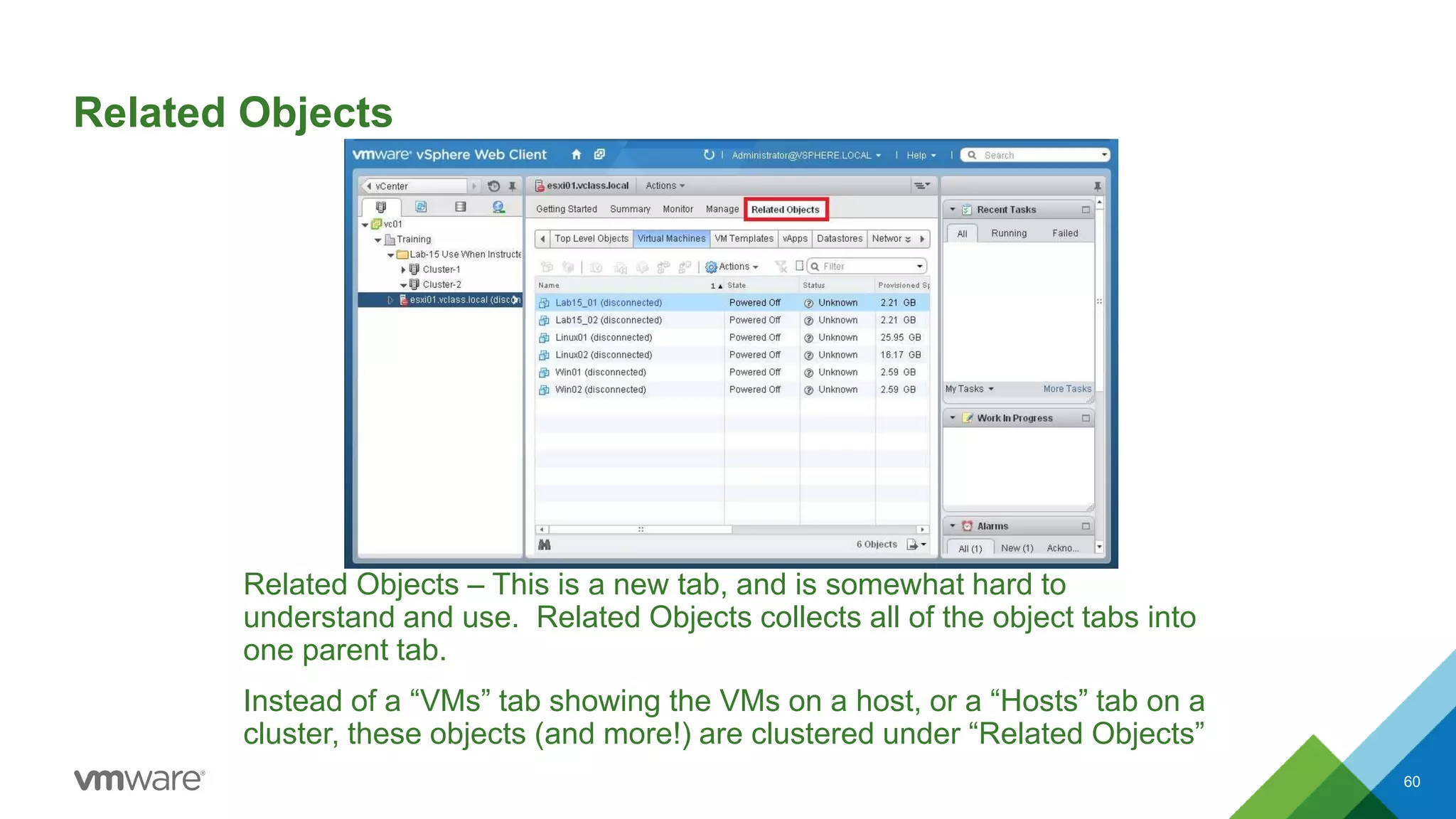
Related Objects – This is a new tab, and is somewhat hard to
understand and use. Related Objects collects all of the object tabs into
one parent tab.
Instead of a “VMs” tab showing the VMs on a host, or a “Hosts” tab on a
cluster, these objects (and more!) are clustered under “Related Objects”
60
Saved Searches
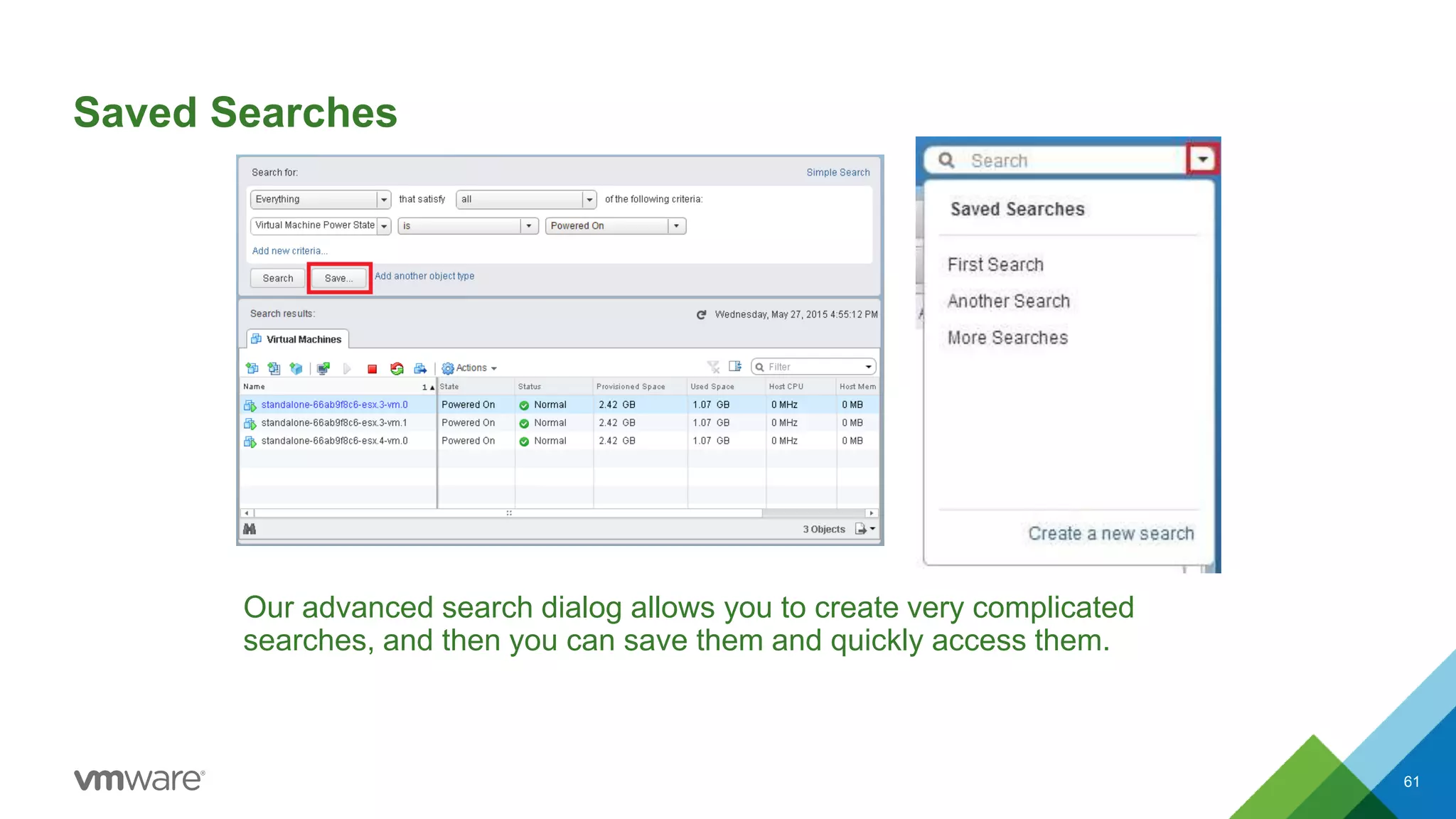
Our advanced search dialog allows you to create very complicated
searches, and then you can save them and quickly access them.
61
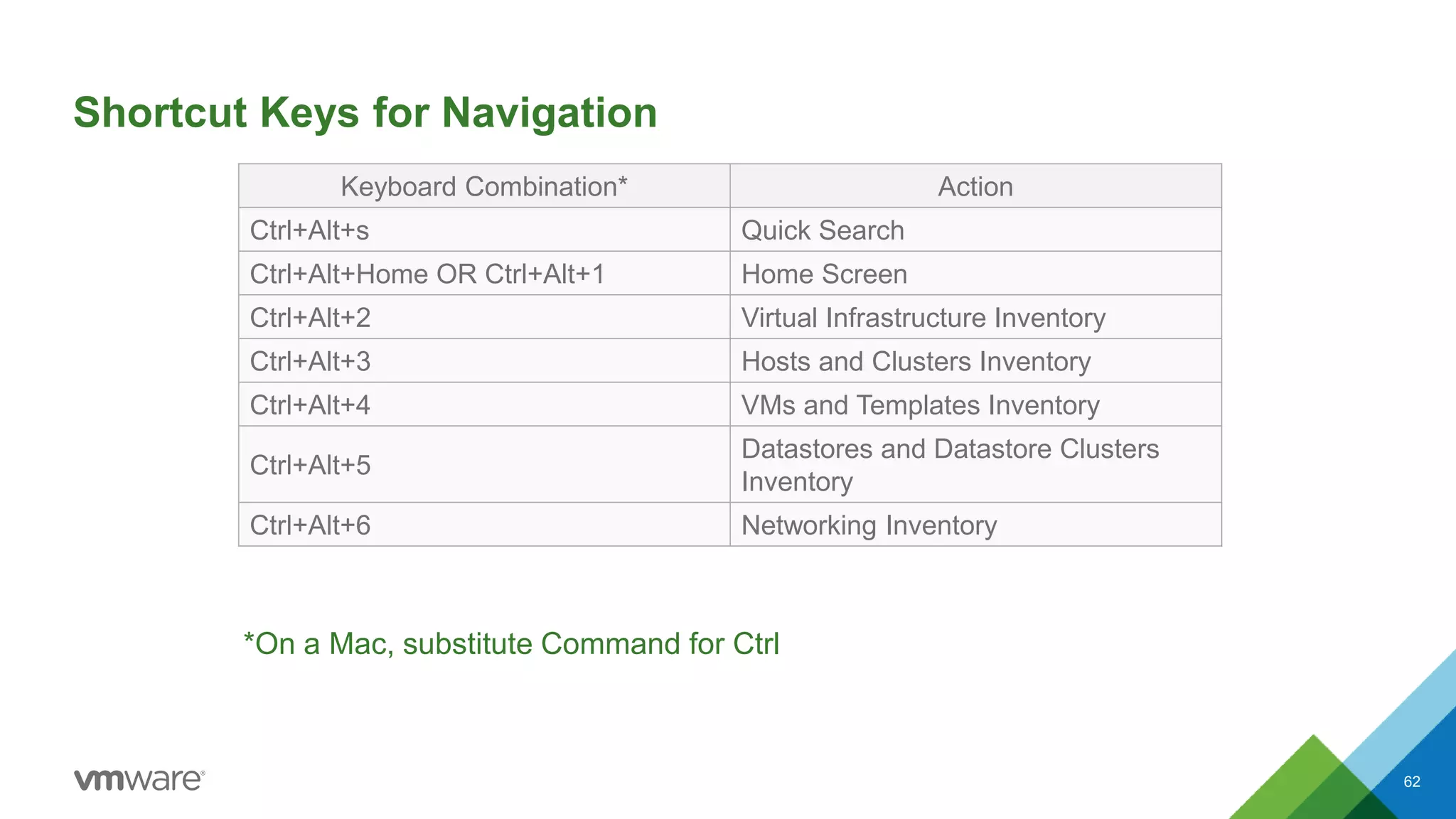
Keyboard Combination* Action
Ctrl+Alt+s Quick Search
Ctrl+Alt+Home OR Ctrl+Alt+1 Home Screen
Ctrl+Alt+2 Virtual Infrastructure Inventory
Ctrl+Alt+3 Hosts and Clusters Inventory
Ctrl+Alt+4 VMs and Templates Inventory
Ctrl+Alt+5
Datastores and Datastore Clusters
Inventory
Ctrl+Alt+6 Networking Inventory
Shortcut Keys for Navigation
*On a Mac, substitute Command for Ctrl
62
Hierarchy
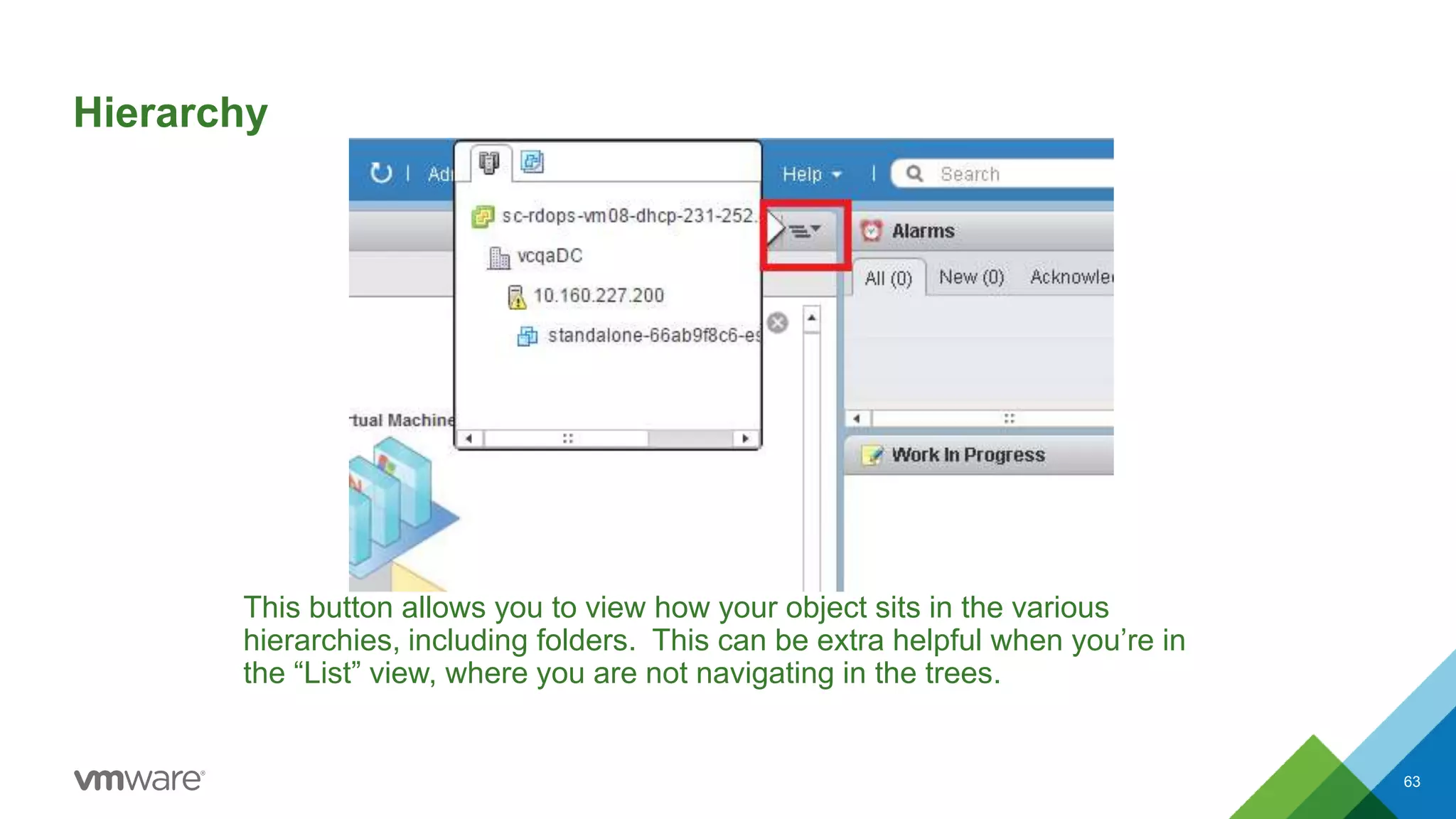
This button allows you to view how your object sits in the various
hierarchies, including folders. This can be extra helpful when you’re in
the “List” view, where you are not navigating in the trees.
63
vSphere 6 Web Client
Quick Notes
65
• Firefox, Chrome, IE11 are all around the same performance. Performance testing on
vSphere 6 shows no browser beating others. IE11 works better with compatibility mode.
• vSphere 6 Web Client can be used to manage vSphere 5.5 vCenter(s) in a mode called
“Mixed-Version” environments.
• Many new settings are available in the webclient.properties file.
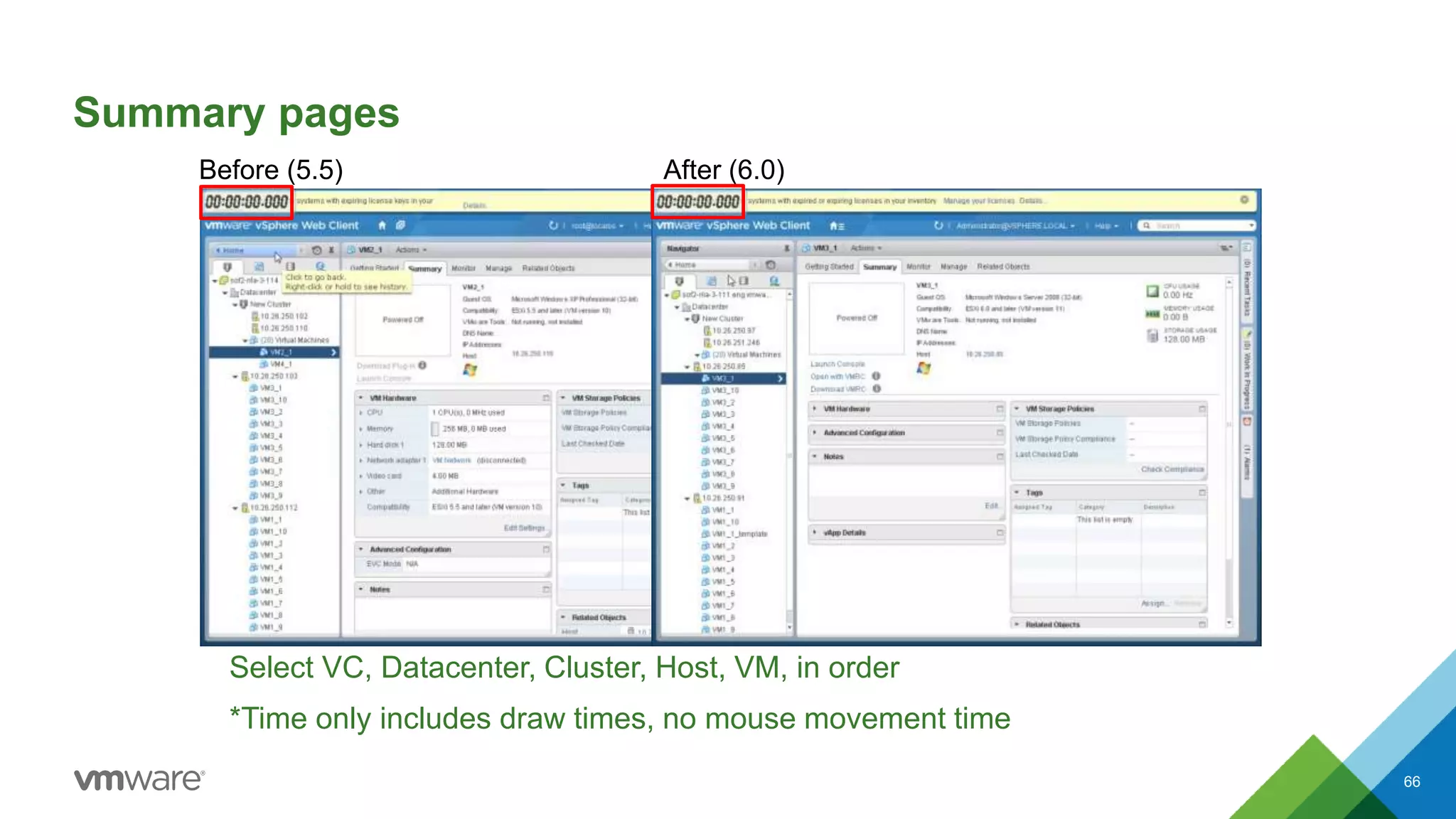
Summary pages
66
Before (5.5) After (6.0)
Select VC, Datacenter, Cluster, Host, VM, in order
*Time only includes draw times, no mouse movement time
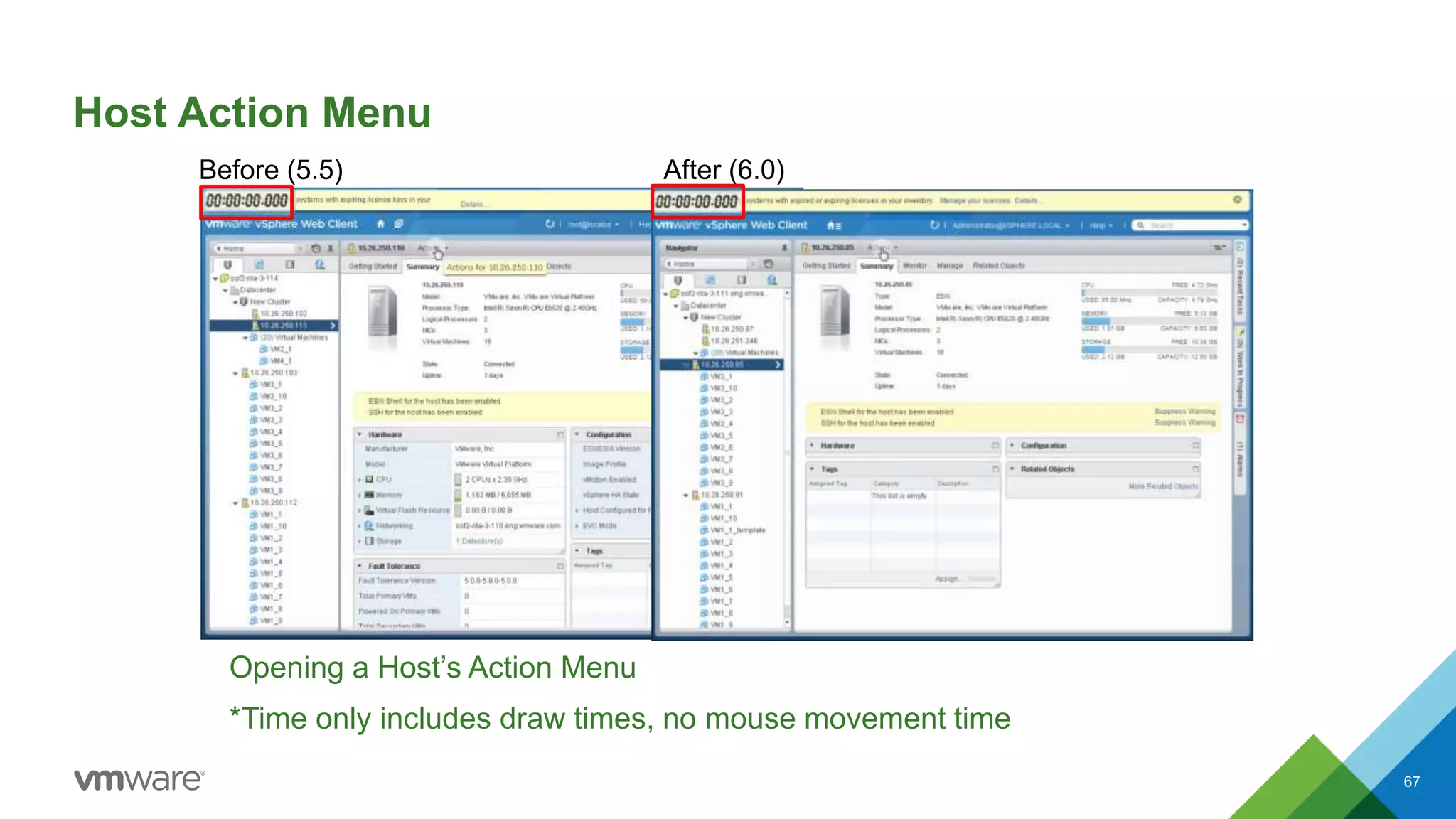
Host Action Menu
67
Before (5.5) After (6.0)
Opening a Host’s Action Menu
*Time only includes draw times, no mouse movement time
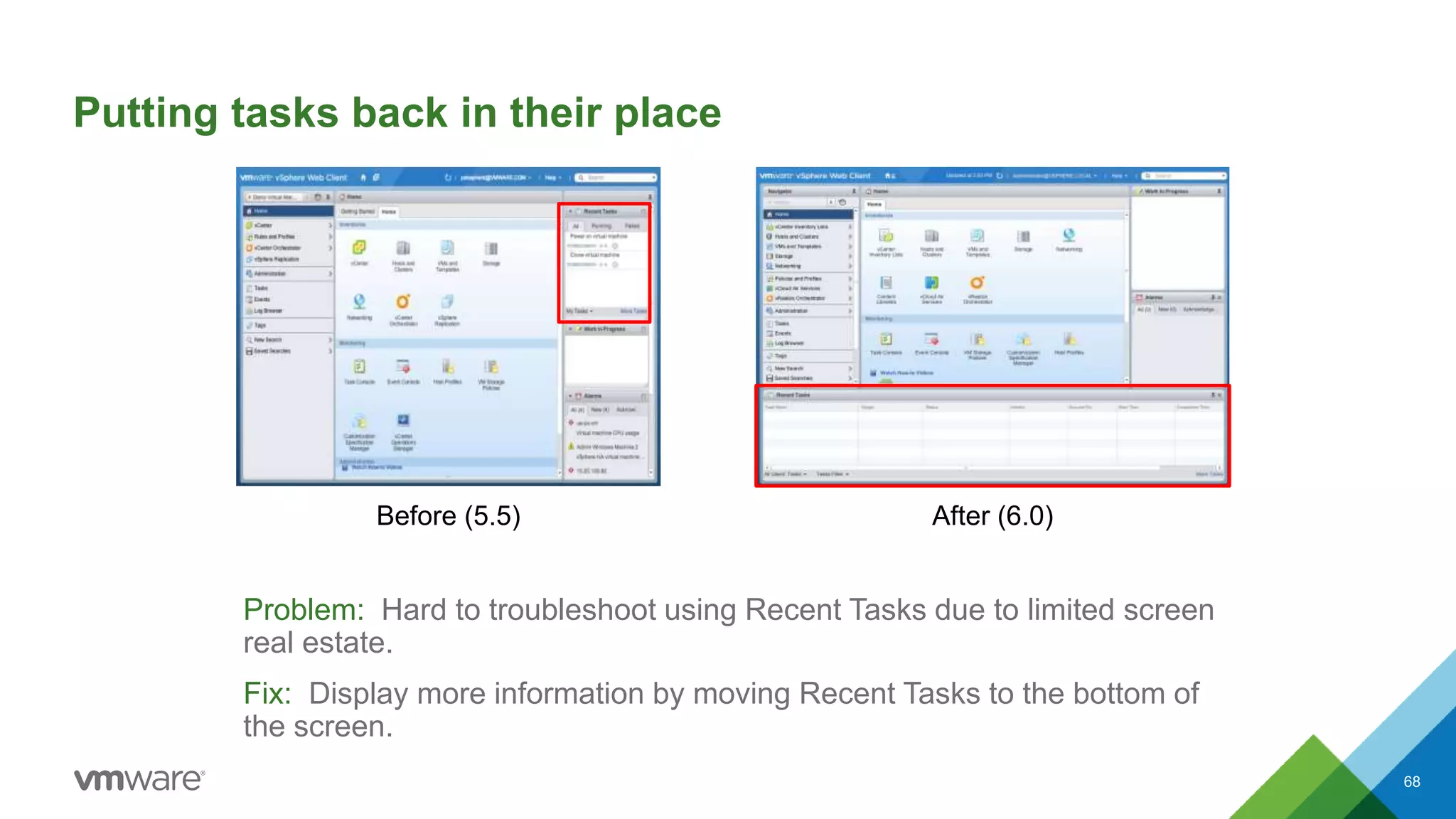
Putting tasks back in their place
Problem: Hard to troubleshoot using Recent Tasks due to limited screen
real estate.
Fix: Display more information by moving Recent Tasks to the bottom of
the screen.
68
Before (5.5) After (6.0)
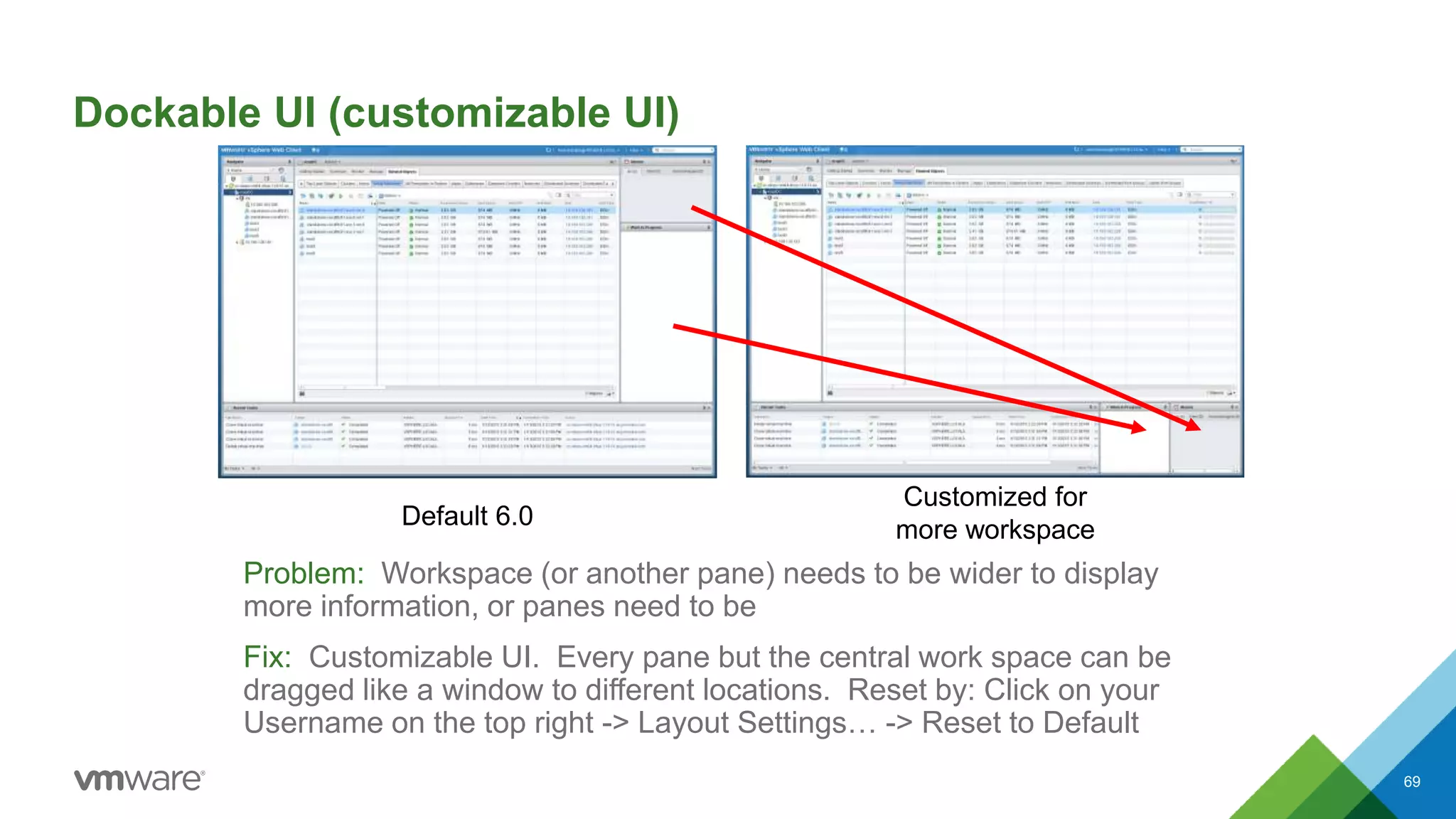
Dockable UI (customizable UI)
Problem: Workspace (or another pane) needs to be wider to display
more information, or panes need to be
Fix: Customizable UI. Every pane but the central work space can be
dragged like a window to different locations. Reset by: Click on your
Username on the top right -> Layout Settings… -> Reset to Default
69
Default 6.0
Customized for
more workspace
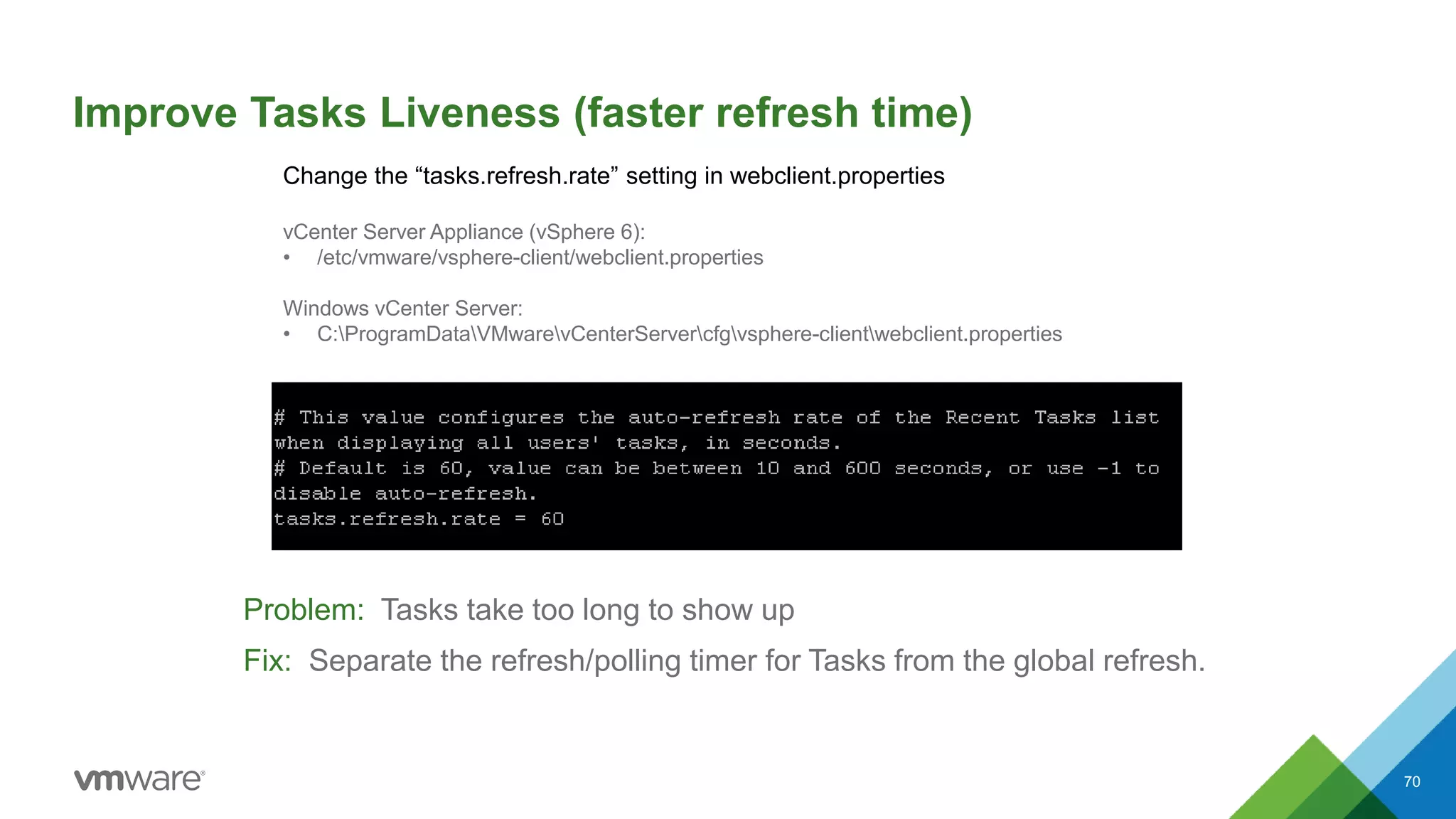
Improve Tasks Liveness (faster refresh time)
Problem: Tasks take too long to show up
Fix: Separate the refresh/polling timer for Tasks from the global refresh.
70
Change the “tasks.refresh.rate” setting in webclient.properties
vCenter Server Appliance (vSphere 6):
• /etc/vmware/vsphere-client/webclient.properties
Windows vCenter Server:
• C:ProgramDataVMwarevCenterServercfgvsphere-clientwebclient.properties
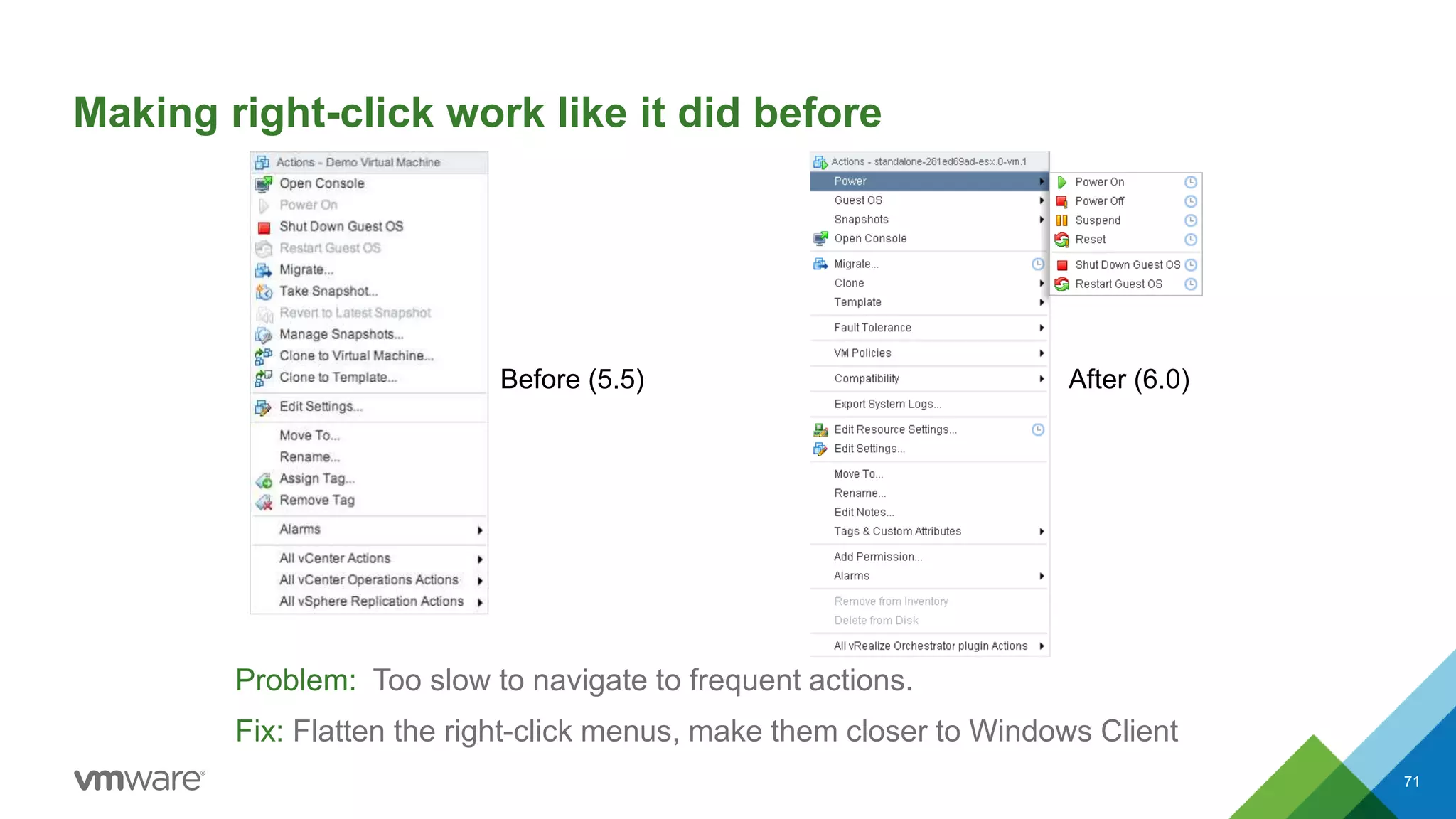
Making right-click work like it did before
Problem: Too slow to navigate to frequent actions.
Fix: Flatten the right-click menus, make them closer to Windows Client
71
Before (5.5) After (6.0)
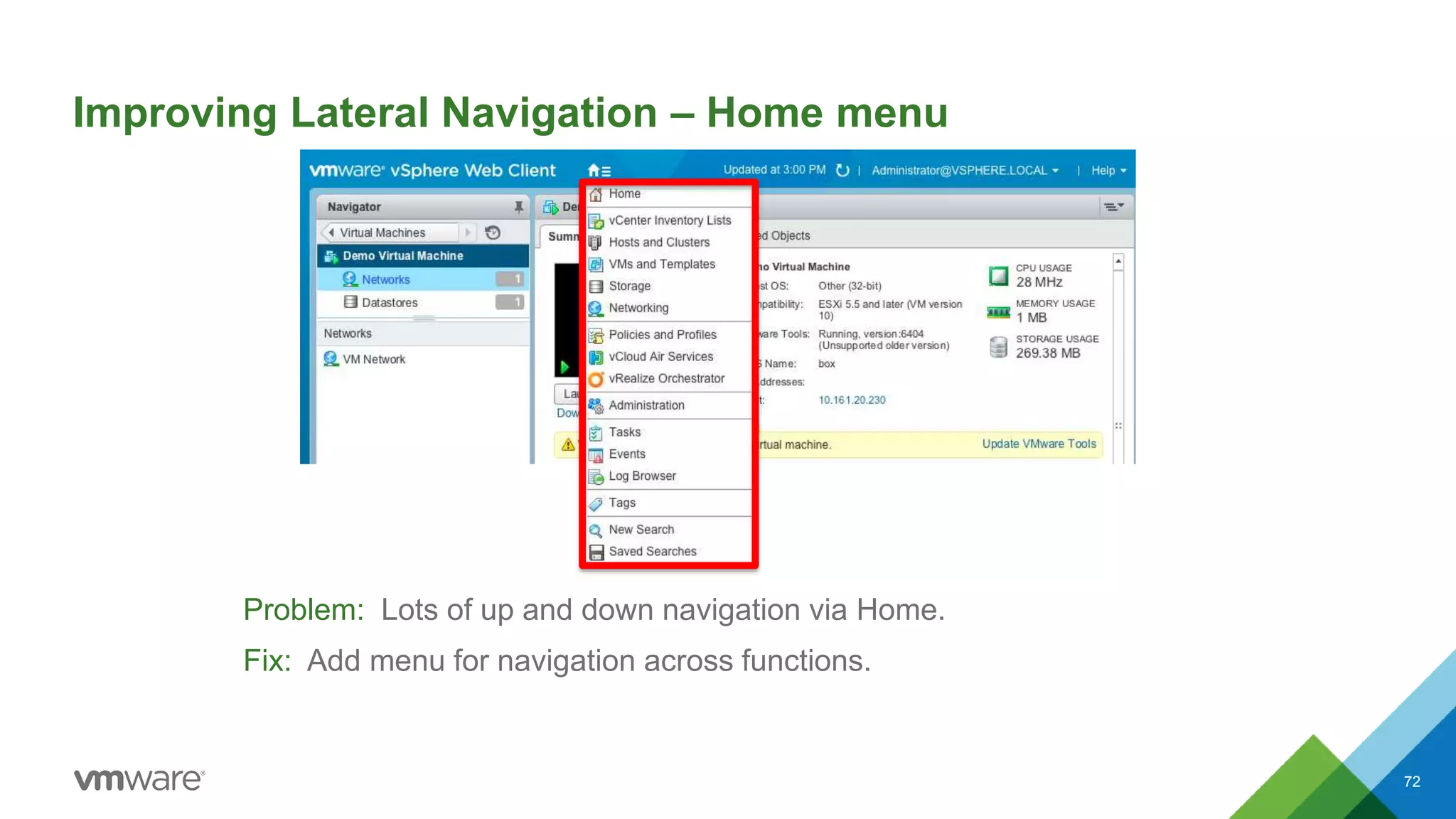
Improving Lateral Navigation – Home menu
Problem: Lots of up and down navigation via Home.
Fix: Add menu for navigation across functions.
72
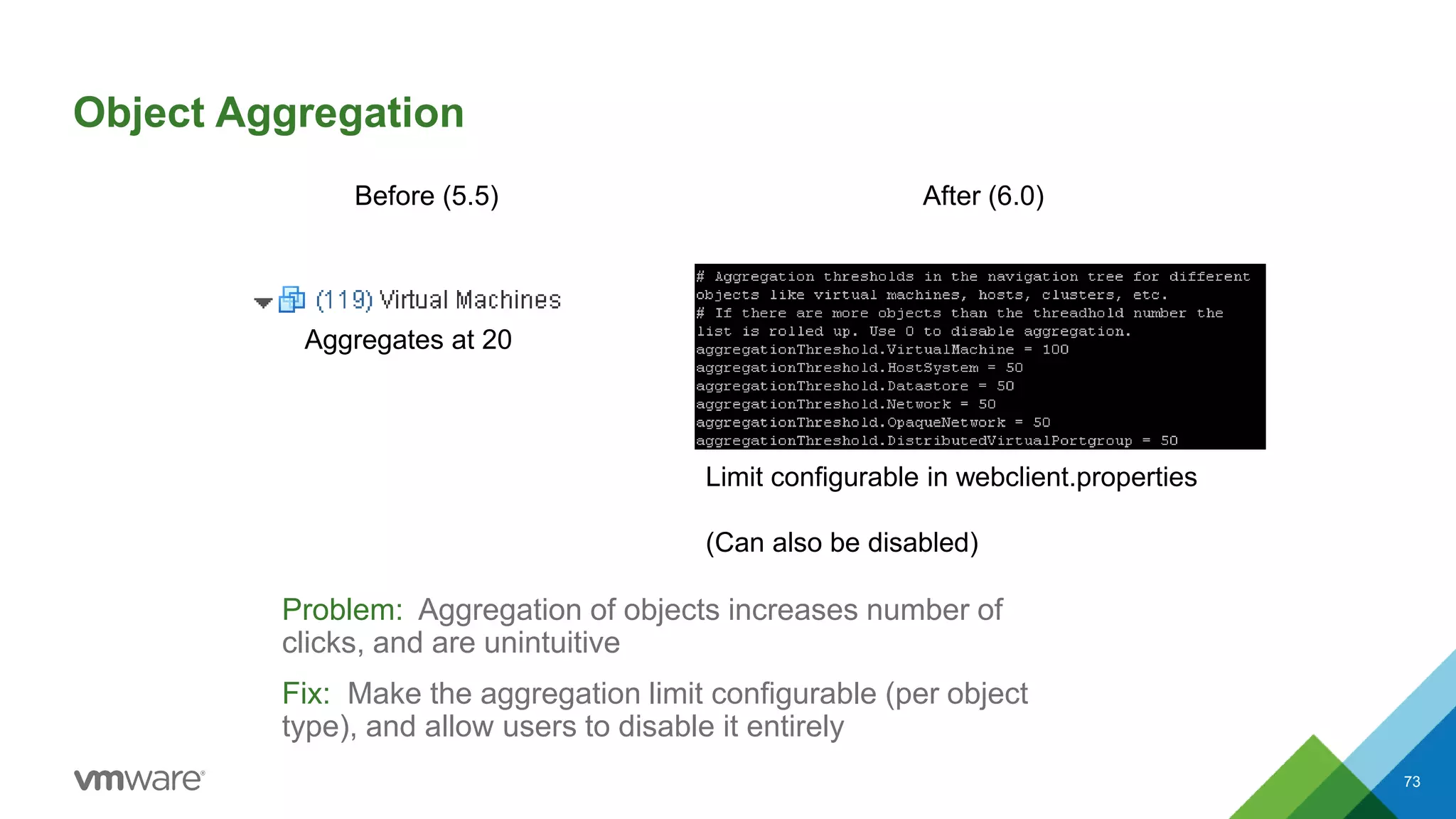
Object Aggregation
Problem: Aggregation of objects increases number of
clicks, and are unintuitive
Fix: Make the aggregation limit configurable (per object
type), and allow users to disable it entirely
73
Aggregates at 20
Limit configurable in webclient.properties
(Can also be disabled)
Before (5.5) After (6.0)
74
Fast feedback:
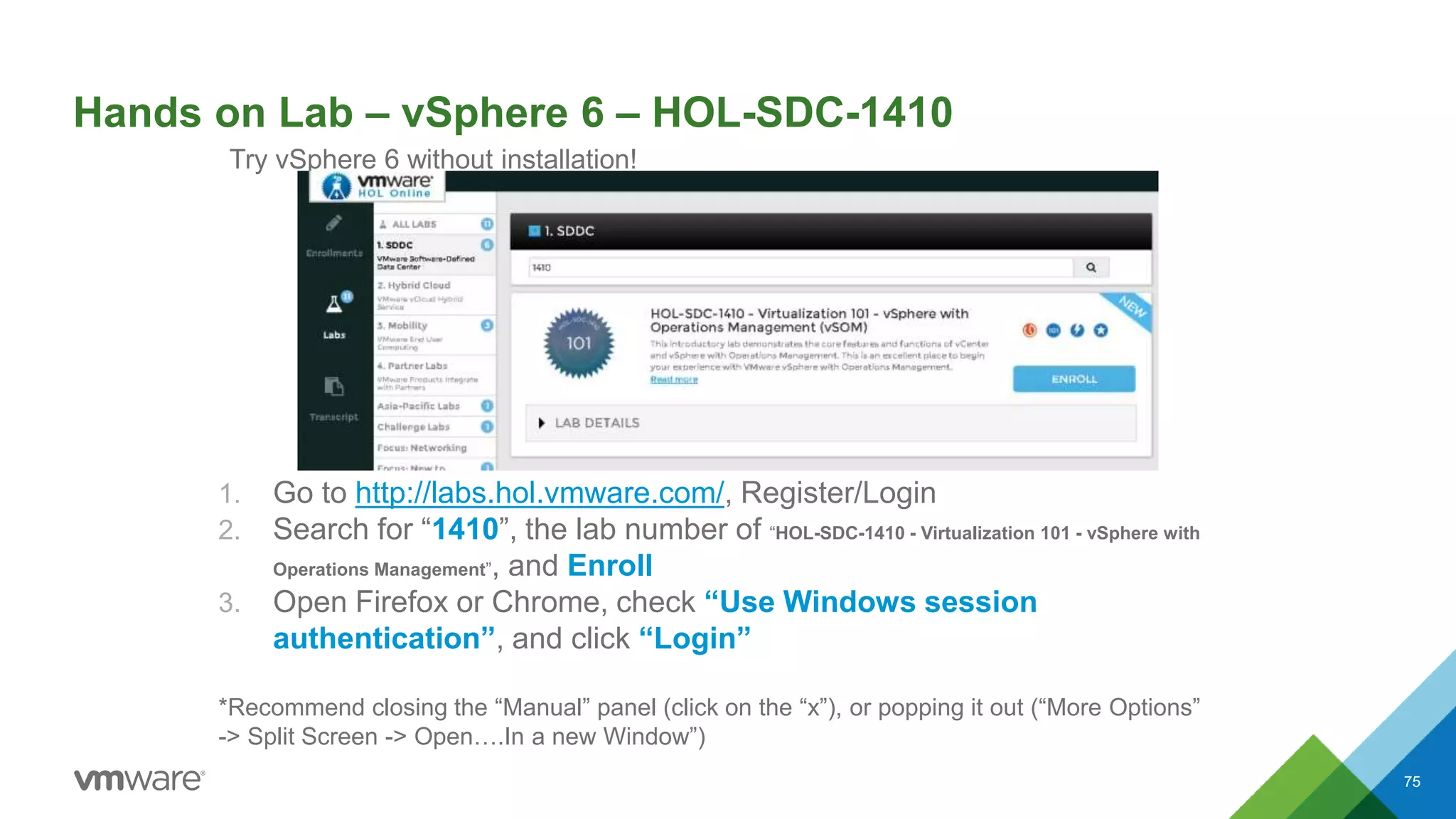
Hands on Lab – vSphere 6 – HOL-SDC-1410
1. Go to http://labs.hol.vmware.com/, Register/Login
2. Search for “1410”, the lab number of “HOL-SDC-1410 - Virtualization 101 - vSphere with
Operations Management”, and Enroll
3. Open Firefox or Chrome, check “Use Windows session
authentication”, and click “Login”
*Recommend closing the “Manual” panel (click on the “x”), or popping it out (“More Options”
-> Split Screen -> Open….In a new Window”)
75
Try vSphere 6 without installation!
Challenge: vSphere Web Client for a month
76
Spend one month using Web Client as your first,
second, and third choice client
Week 1 (Day 1):
1. Read tiny.cc/webclientwiki
2. Hide or Delete your Desktop client shortcut.
When you have a problem, go search the Internet
first for how to do it in Web Client. (VUM
excepted, for now)
Week 2:
1. Uninstall Desktop client.
2. Install it each day you want to use it, and uninstall
at the end of the day.
Week 3-4:
Uninstall Desktop client permanently. Immersion time
is necessary to become accustomed to the differences
End:
Discuss pros/cons with fellow admins, contact Web
Client PM with feedback (positive or negative)
Glossary
Some slides showing vSphere Web Client terms
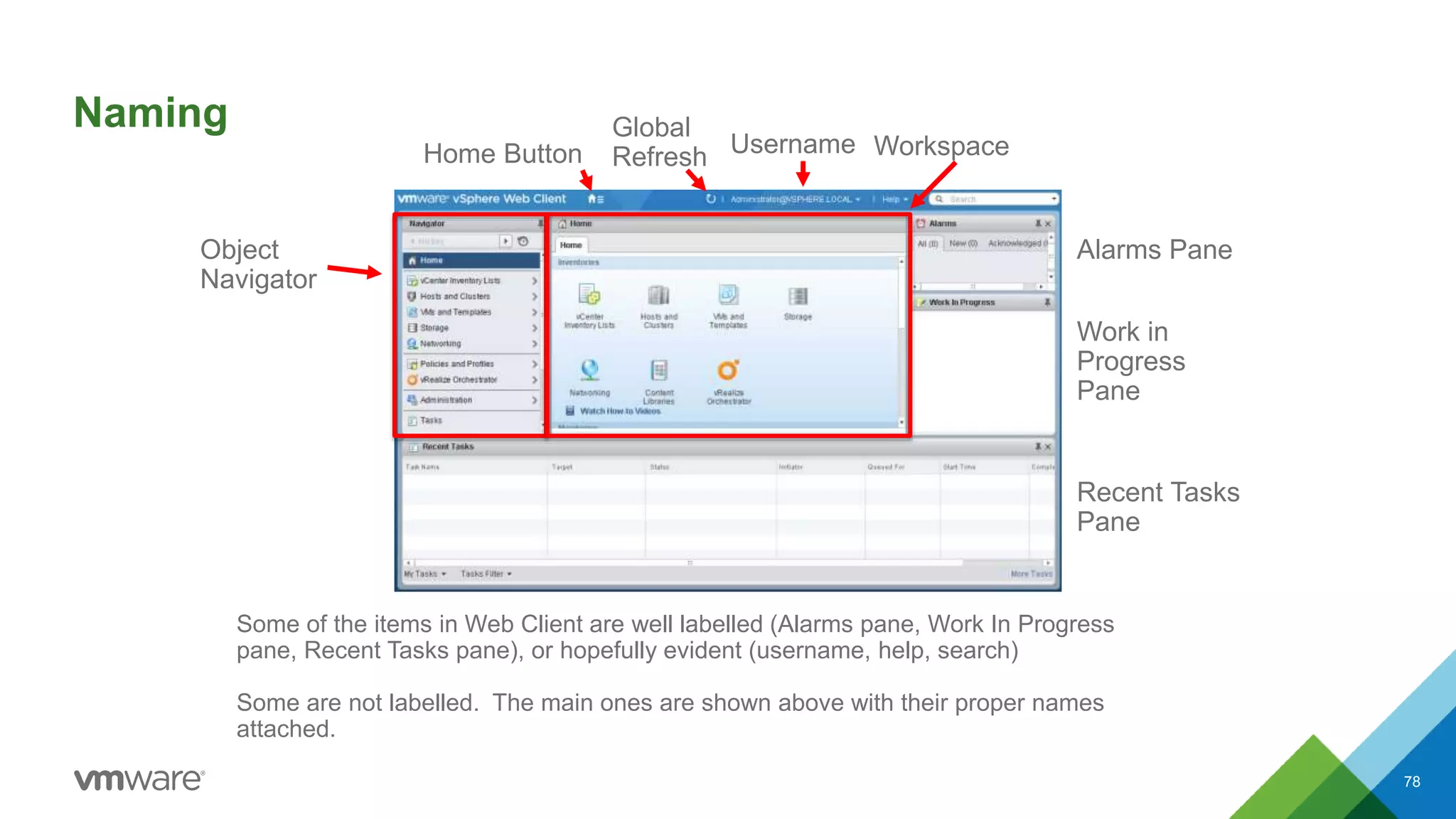
Naming
78
Some of the items in Web Client are well labelled (Alarms pane, Work In Progress
pane, Recent Tasks pane), or hopefully evident (username, help, search)
Some are not labelled. The main ones are shown above with their proper names
attached.
Object
Navigator
WorkspaceHome Button Username
Global
Refresh
Alarms Pane
Work in
Progress
Pane
Recent Tasks
Pane
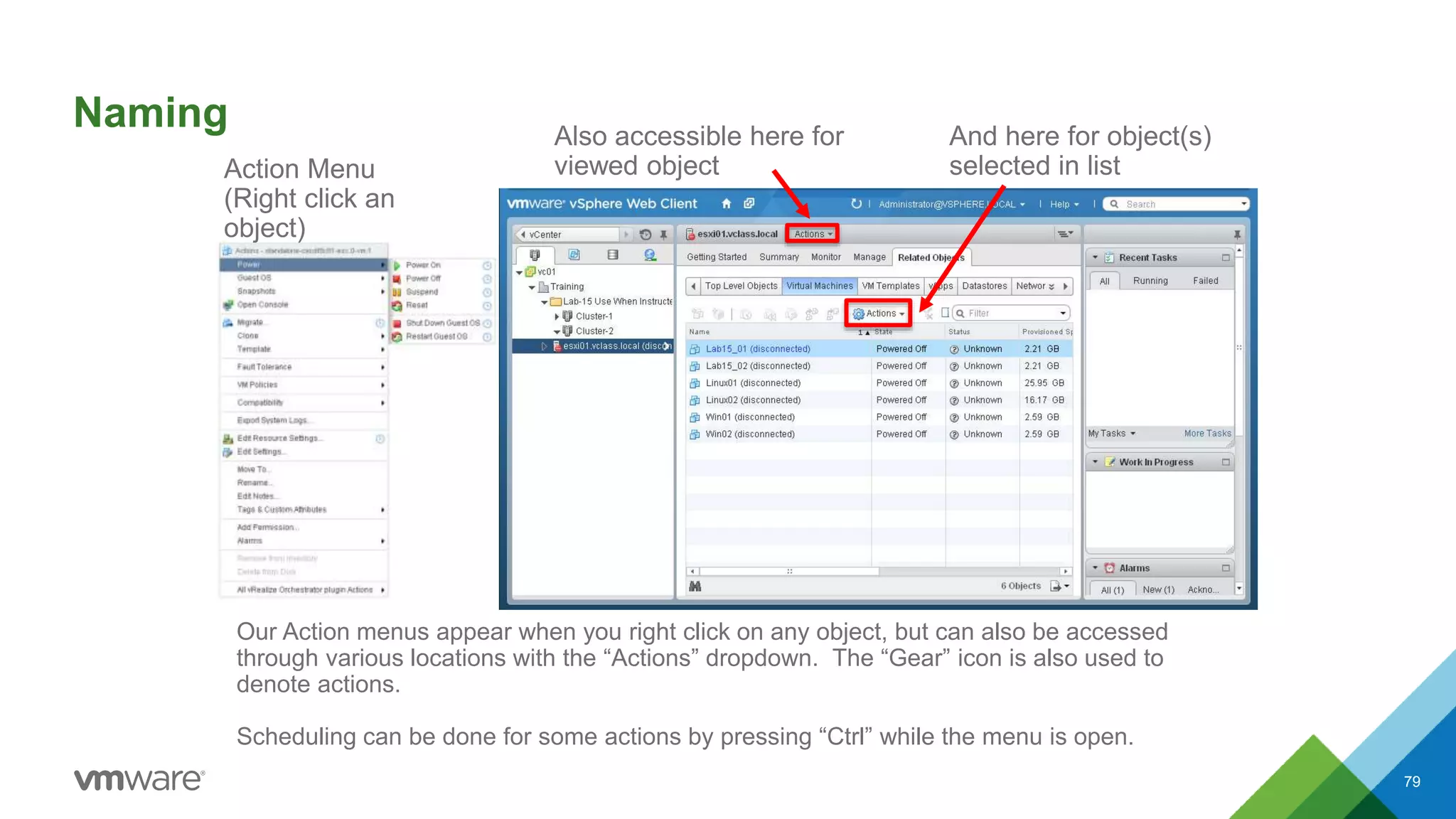
Naming
79
Our Action menus appear when you right click on any object, but can also be accessed
through various locations with the “Actions” dropdown. The “Gear” icon is also used to
denote actions.
Scheduling can be done for some actions by pressing “Ctrl” while the menu is open.
Action Menu
(Right click an
object)
Also accessible here for
viewed object
And here for object(s)
selected in list
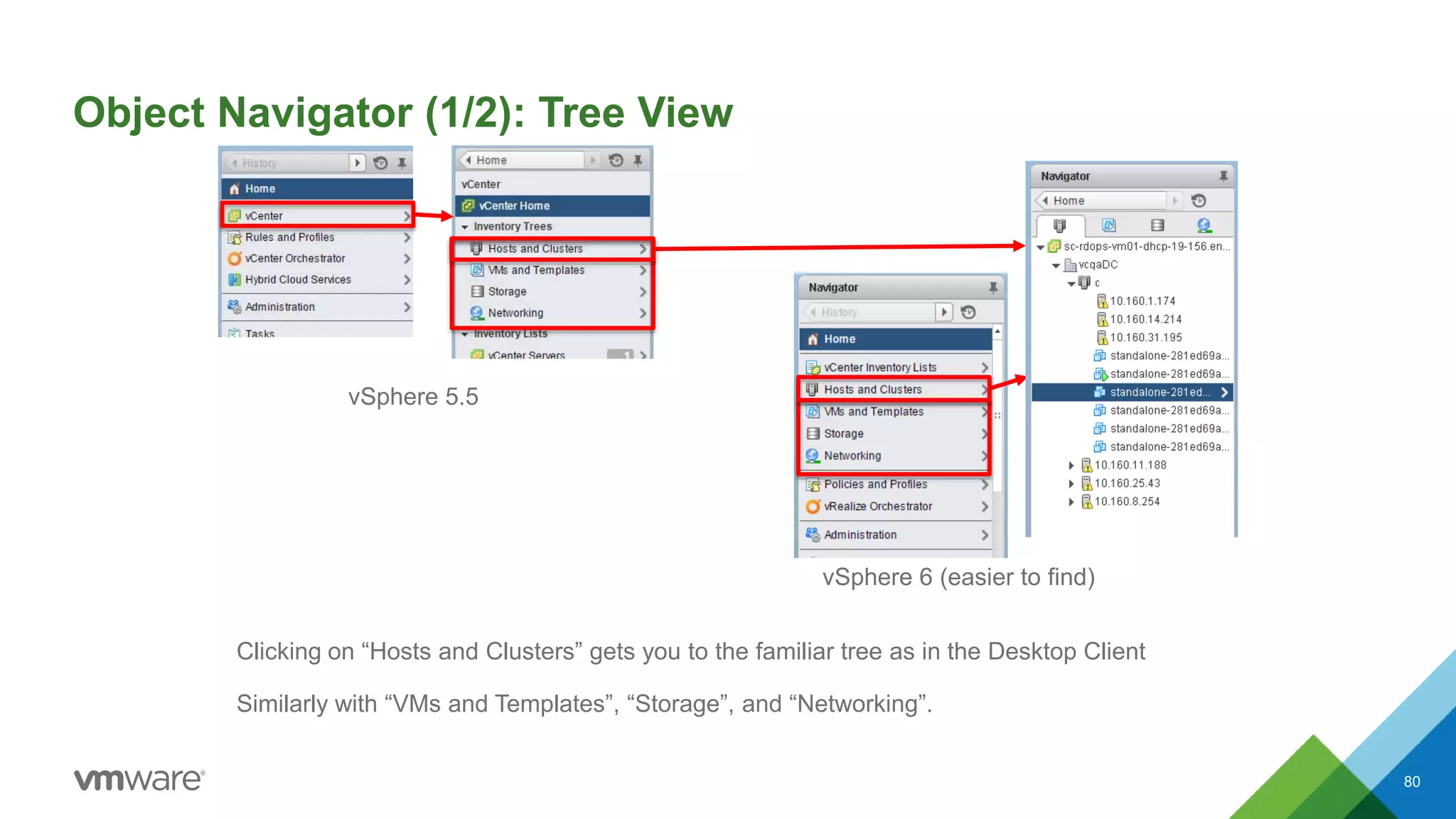
Object Navigator (1/2): Tree View
80
Clicking on “Hosts and Clusters” gets you to the familiar tree as in the Desktop Client
Similarly with “VMs and Templates”, “Storage”, and “Networking”.
vSphere 6 (easier to find)
vSphere 5.5
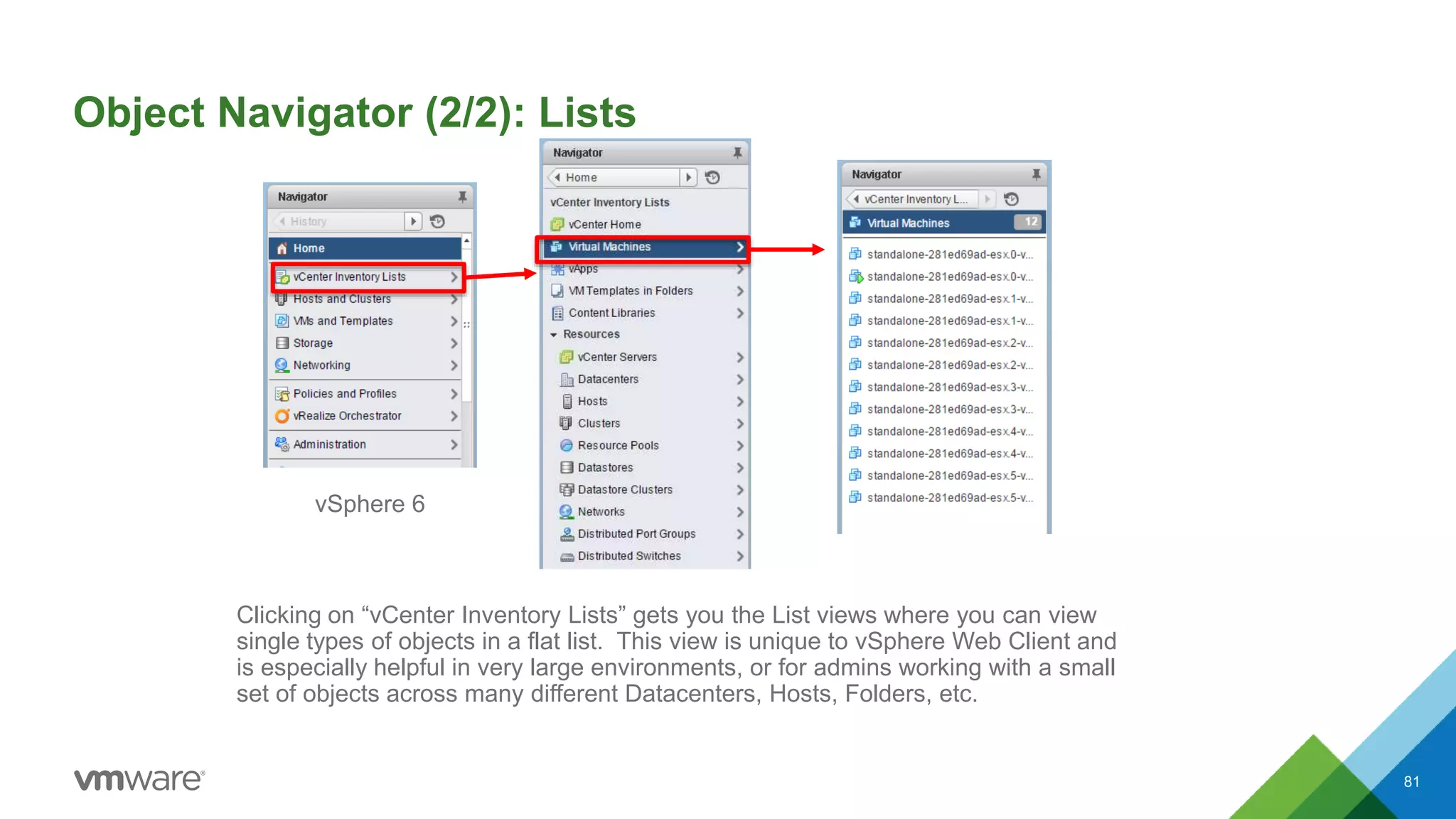
Object Navigator (2/2): Lists
81
Clicking on “vCenter Inventory Lists” gets you the List views where you can view
single types of objects in a flat list. This view is unique to vSphere Web Client and
is especially helpful in very large environments, or for admins working with a small
set of objects across many different Datacenters, Hosts, Folders, etc.
vSphere 6

VMworld 2015: vSphere Web Client- Yesterday, Today, and Tomorrow

  • 1.
    vSphere Web Client– Yesterday, Today and Tomorrow Yavor Boychev, VMware, Inc Dennis Lu, VMware, Inc INF5093 #INF5093
  • 2.
    • This presentationmay contain product features that are currently under development. • This overview of new technology represents no commitment from VMware to deliver these features in any generally available product. • Features are subject to change, and must not be included in contracts, purchase orders, or sales agreements of any kind. • Technical feasibility and market demand will affect final delivery. • Pricing and packaging for any new technologies or features discussed or presented have not been determined. Disclaimer CONFIDENTIAL 2
  • 3.
    Agenda CONFIDENTIAL 3 1 HTML5 2Web Client Improvements in vSphere 6.0 3 Some Cool New Stuff Coming Soon
  • 4.
    The Voice ofOur Customers • “It’s hard to find my way around” • “It’s slooow” • “It’s not on feature parity with the VI Client” • “It’s Flash”
  • 5.
    Introducing the HTML5vSphere Host Client 5 • Troubleshoot individual host or VMs • Conduct basic administrative tasks such as the create/update/delete of host resources • Greenfield deployment Expected Use Cases • Available via the browser (Windows, Linux, Mac) • Negligible host resource requirements • Console access to VM through WebMKS • Iterative development cycle and releases • HTML5 direction for the vSphere clients Host Client attributes Try it out now! Released Fling CONFIDENTIAL
  • 6.
    HTML5 Web Client It’sComing Tech Preview CONFIDENTIAL 6
  • 7.
    Fast Feedback: vSphere6 Web Client 7CONFIDENTIAL
  • 8.
    The Voice ofOur Customers • “It’s hard to find my way around” • “It’s slooow” • “It’s not on feature parity with the VI Client” • “It’s Flash”
  • 9.
    Home Menu AllowsVery Fast Navigation Between Views 9 Lots of up and down navigation Problem Add menu for navigation across functions Solution CONFIDENTIAL
  • 10.
    Action Menus HaveLess Clicks and are More Familiar After (6.0)Before (5.5) Too much mouse traversal, too many clicks – “All vCenter Actions” Problem Flatter, more familiar menu Solution CONFIDENTIAL 11
  • 11.
    Recent Tasks atthe Bottom Allows Room for More Information CONFIDENTIAL 12 Hard to troubleshoot with Recent Tasks due to limited screen real estate Problem Display more information by moving the Recent Tasks at the bottom Solution
  • 12.
    Docking UI AllowsCustomization of Web Client Layout 14 Don’t like the default layout. Want to move things around. Problem Customizable UI. Can move panes around (more columns/data visible). Can restore defaults if needed Solution CONFIDENTIAL
  • 13.
    Docking UI AllowsCustomization of Web Client Layout Don’t like the default layout. Want to move things around. Problem Customizable UI. Can move panes around (more columns/data visible). Can restore defaults if needed Solution CONFIDENTIAL 15
  • 14.
    The Voice ofOur Customers • “It’s hard to find my way around” • “It’s slooow” • “It’s not on feature parity with the VI Client” • “It’s Flash”
  • 15.
    2x Performance onSummary Views 18 Before (5.5) After (6.0) CONFIDENTIAL
  • 16.
    10x Performance onAction Menus 20 Before (5.5) After (6.0) CONFIDENTIAL
  • 17.
    vSphere Web Client– 5 Features You May Not Know About (5.5+) 21 2. History – Right click for more 3. Recent Objects – Jump around quickly 1. Shift+Click – Select multiple objects, batch actions 4. Minimize Wizard – Save Progress (Across sessions!) 5. Browser Bookmark – Save and Share URLs using your browser CONFIDENTIAL
  • 18.
    It’s now muchmore user friendly, snappier and responsive • Hundreds of performance and usability fixes • Coming Soon: Performance improvements in vSphere 5.5 U3 • Coming Soon: More improvements in vSphere 6.0U1
  • 19.
    The Voice ofOur Customers • “It’s hard to find my way around” • “It’s slooow” • “It’s not on feature parity with the VI Client” • “It’s Flash”
  • 20.
    Live Refresh ofRecent Tasks and Alarms 24 2016+ 6.0 U1 Viewing All Users’ Tasks and Alarms has a delay Problem Live Refresh of Recent Tasks and Alarms Solution CONFIDENTIAL
  • 21.
    vSphere Update ManagerUI in Web Client CONFIDENTIAL 25 I still need to switch to the VI Client if I need to use vSphere Update Manager Problem Full blown feature vSphere Update Manager plugin for the Web Client Solution 6.0 U1
  • 22.
    Custom Attributes UIin Web Client 27 Tech Preview Tags are not the same, and I still need to switch to the VI Client if I need to use Custom Attributes Problem Bring Custom Attributes into the Web Client Solution Custom Attributes Portlet CONFIDENTIAL
  • 23.
    Onyx – RecordPowerCLI from Web Client 29 PowerCLI is powerful, but hard to learn Problem Turn recorded Web Client actions into PowerCLI scripts Solution Released Fling https://labs.vmware.com/flings/onyx-for-vsphere-web-client CONFIDENTIAL
  • 24.
    PowerActions – ExecutePowerCLI Directly from Web Client 30 Web Client is more convenient, but PowerCLI is more powerful Problem Bring PowerCLI into the Web Client Solution Released Fling https://labs.vmware.com/flings/poweractions-for-vsphere-web-client CONFIDENTIAL
  • 25.
    Auto Deploy andImage Builder UIs in Web Client 31 Auto Deploy, Image Builder lack full featured UIs Problem Bring them into the Web Client Solution Tech Preview CONFIDENTIAL
  • 26.
    Socialcast Integration forEnterprise Collaboration 32 Web Client lacks integration with common communication+collaboration platforms Problem Integration with Socialcast also provides easy notifications model and integration with 3rd parties like JIRA and PagerDuty Solution Mobile App Available now Summary page – Socialcast portlet Tech Preview CONFIDENTIAL
  • 27.
    Solutions Exchange –Web Client Plug-ins all in One Place 33CONFIDENTIAL
  • 28.
    POLLING text webclient to22333 or Visit pollev.com/webclient
  • 29.
    First Poll 35 Register text webclientto 22333 or Visit pollev.com/webclient CONFIDENTIAL Environment Web Client VI Client vSphere 5.5 (or earlier) A B vSphere 6 C D
  • 30.
    What’s Next? Sneak Peak– Seeking feedback
  • 31.
    More Performance Improvements 37 Performancestill worse than Client for Windows Problem Measure performance everywhere and fix it! Prioritize most used workflows (Opt-In to CEIP!) Solution CONFIDENTIAL
  • 32.
    Web Client Upgrade– Improvements without Touching vCenter 38 Register text webclient to 22333 or Visit pollev.com/webclient A – Don’t care B – Like it C – Love it VOTE! CONFIDENTIAL
  • 33.
    UI Enhancements –Reduce Clicks and Make Things Easier to Find 39 Recent Objects Pane Action buttons on top CONFIDENTIAL
  • 34.
    “Go to” Menu– Speed Up Navigation 40 New “Go to” Menu – Fast access to object’s subtabs Register text webclient to 22333 or Visit pollev.com/webclient A – Don’t care B – Like it C – Love it VOTE! CONFIDENTIAL
  • 35.
    Promote Related Objects– Ease Discovery of Objects 41 New Object tabs + Sub-tabs Hosts -> Hosts, Resource Pools VMs -> VMs, vApps Datastores -> Datastores, Datastore Clusters Networks -> Networks, Distributed Switches CONFIDENTIAL
  • 36.
    Action Labels –Make Actions Easier to Identify 42 Action Labels CONFIDENTIAL
  • 37.
    Hover search –Search for Settings 43 Search Register text webclient to 22333 or Visit pollev.com/webclient A – Don’t care B – Like it C – Love it VOTE! CONFIDENTIAL
  • 38.
    Closing • HTML5 • WebClient improvements in vSphere 6.0 • Some cool new stuff coming soon CONFIDENTIAL 44
  • 39.
  • 40.
    **UNOFFICIAL** Wiki 46 • Containsmany tips/tricks for using vSphere Web Client. Consider contributing! This is a publically accessible website, so do be careful with what you add. • Very useful tips are marked with a * • “Learning Web Client” section highlights differences between Desktop client and Web Client, helping you in the switchover. Short URL: tiny.cc/webclientwiki https://en.wikibooks.org/wiki/VSphere_Web_Client CONFIDENTIAL
  • 43.
    vSphere Web Client– Yesterday, Today and Tomorrow Yavor Boychev, VMware, Inc Dennis Lu, VMware, Inc INF5093 #INF5093
  • 44.
    Reference Slides These slidesshow more of the features of vSphere Web Client. For easy reference, it is a superset of the preceding stuff
  • 45.
    Agenda • Wikibook • Featuresavailable in vSphere 5.5 • Features available in vSphere 6.0 • vSphere 6 feedback • Glossary 51
  • 46.
    vSphere Web ClientFeatures – 5.5
  • 47.
    History Fast way toget back to previous views. Works just like a browser back button. The neighboring right-arrow acts as a forward button. 53
  • 48.
    Recently Visited &Created Objects Super fast way to get to objects you’ve recently worked on. This is great for jumping between a group of objects you’re working on collectively, while saving a lot of navigating time. 54
  • 49.
    Hide All GettingStarted Pages The “Getting Started” pages are great in the beginning. But they can be easily hidden by going to the Help menu, and clicking “Hide All Getting Started Pages”. This becomes “Show All Getting Started Pages” if you want to bring them back later. 55
  • 50.
    Schedule Tasks When performingan action on an object (right click, or through Action menu), you can press “Ctrl” and schedule some actions. The ones that can be scheduled will gain a “clock” icon. Select the action and you will get scheduling options. Can also be created under an objects “Manage -> Scheduled Tasks” tab 56 Right click on an object and hold down “Ctrl” Or within Manage -> Scheduled Tasks
  • 51.
    Batch Actions –Shift+click to select multiple Many Batch Actions are available in vSphere Web Client (Migrate, VM power on/off, Host power on/off, etc). One improvement over Desktop Client, you can select a mix of objects (some on, some off) and apply the “Power On” action, and you will get a dialog notifying you only the applicable subset will be acted on. 57 Select one Shift +Click Perform action (right click, or use Action Menu)
  • 52.
    Bookmarks – savingand sharing URLs The URL for any view in Web Client, objects, administrative views, can be reused. You can bookmark Datacenter -> Monitor -> Issues and use that as your homepage, for example. This may be especially useful for support cases that span multiple calls or people. At the end of a call, bookmark a certain view post the link into the support ticket, which can be used for the next call or by the next person. 58
  • 53.
    Work in Progress– Save Wizards This allows you to minimize wizards, saving your work. This is great for long wizards (some of the networking ones), pausing in the middle of your work to complete another task, or find some information. You can then resume by clicking on the entry in the Work In Progress pane. This is also saved and persists across sessions. *You can also click and drag the title bar to move it, double click it to maximize it, and resize using the bottom right corner 59
  • 54.
    Related Objects Related Objects– This is a new tab, and is somewhat hard to understand and use. Related Objects collects all of the object tabs into one parent tab. Instead of a “VMs” tab showing the VMs on a host, or a “Hosts” tab on a cluster, these objects (and more!) are clustered under “Related Objects” 60
  • 55.
    Saved Searches Our advancedsearch dialog allows you to create very complicated searches, and then you can save them and quickly access them. 61
  • 56.
    Keyboard Combination* Action Ctrl+Alt+sQuick Search Ctrl+Alt+Home OR Ctrl+Alt+1 Home Screen Ctrl+Alt+2 Virtual Infrastructure Inventory Ctrl+Alt+3 Hosts and Clusters Inventory Ctrl+Alt+4 VMs and Templates Inventory Ctrl+Alt+5 Datastores and Datastore Clusters Inventory Ctrl+Alt+6 Networking Inventory Shortcut Keys for Navigation *On a Mac, substitute Command for Ctrl 62
  • 57.
    Hierarchy This button allowsyou to view how your object sits in the various hierarchies, including folders. This can be extra helpful when you’re in the “List” view, where you are not navigating in the trees. 63
  • 58.
  • 59.
    Quick Notes 65 • Firefox,Chrome, IE11 are all around the same performance. Performance testing on vSphere 6 shows no browser beating others. IE11 works better with compatibility mode. • vSphere 6 Web Client can be used to manage vSphere 5.5 vCenter(s) in a mode called “Mixed-Version” environments. • Many new settings are available in the webclient.properties file.
  • 60.
    Summary pages 66 Before (5.5)After (6.0) Select VC, Datacenter, Cluster, Host, VM, in order *Time only includes draw times, no mouse movement time
  • 61.
    Host Action Menu 67 Before(5.5) After (6.0) Opening a Host’s Action Menu *Time only includes draw times, no mouse movement time
  • 62.
    Putting tasks backin their place Problem: Hard to troubleshoot using Recent Tasks due to limited screen real estate. Fix: Display more information by moving Recent Tasks to the bottom of the screen. 68 Before (5.5) After (6.0)
  • 63.
    Dockable UI (customizableUI) Problem: Workspace (or another pane) needs to be wider to display more information, or panes need to be Fix: Customizable UI. Every pane but the central work space can be dragged like a window to different locations. Reset by: Click on your Username on the top right -> Layout Settings… -> Reset to Default 69 Default 6.0 Customized for more workspace
  • 64.
    Improve Tasks Liveness(faster refresh time) Problem: Tasks take too long to show up Fix: Separate the refresh/polling timer for Tasks from the global refresh. 70 Change the “tasks.refresh.rate” setting in webclient.properties vCenter Server Appliance (vSphere 6): • /etc/vmware/vsphere-client/webclient.properties Windows vCenter Server: • C:ProgramDataVMwarevCenterServercfgvsphere-clientwebclient.properties
  • 65.
    Making right-click worklike it did before Problem: Too slow to navigate to frequent actions. Fix: Flatten the right-click menus, make them closer to Windows Client 71 Before (5.5) After (6.0)
  • 66.
    Improving Lateral Navigation– Home menu Problem: Lots of up and down navigation via Home. Fix: Add menu for navigation across functions. 72
  • 67.
    Object Aggregation Problem: Aggregationof objects increases number of clicks, and are unintuitive Fix: Make the aggregation limit configurable (per object type), and allow users to disable it entirely 73 Aggregates at 20 Limit configurable in webclient.properties (Can also be disabled) Before (5.5) After (6.0)
  • 68.
  • 69.
    Hands on Lab– vSphere 6 – HOL-SDC-1410 1. Go to http://labs.hol.vmware.com/, Register/Login 2. Search for “1410”, the lab number of “HOL-SDC-1410 - Virtualization 101 - vSphere with Operations Management”, and Enroll 3. Open Firefox or Chrome, check “Use Windows session authentication”, and click “Login” *Recommend closing the “Manual” panel (click on the “x”), or popping it out (“More Options” -> Split Screen -> Open….In a new Window”) 75 Try vSphere 6 without installation!
  • 70.
    Challenge: vSphere WebClient for a month 76 Spend one month using Web Client as your first, second, and third choice client Week 1 (Day 1): 1. Read tiny.cc/webclientwiki 2. Hide or Delete your Desktop client shortcut. When you have a problem, go search the Internet first for how to do it in Web Client. (VUM excepted, for now) Week 2: 1. Uninstall Desktop client. 2. Install it each day you want to use it, and uninstall at the end of the day. Week 3-4: Uninstall Desktop client permanently. Immersion time is necessary to become accustomed to the differences End: Discuss pros/cons with fellow admins, contact Web Client PM with feedback (positive or negative)
  • 71.
    Glossary Some slides showingvSphere Web Client terms
  • 72.
    Naming 78 Some of theitems in Web Client are well labelled (Alarms pane, Work In Progress pane, Recent Tasks pane), or hopefully evident (username, help, search) Some are not labelled. The main ones are shown above with their proper names attached. Object Navigator WorkspaceHome Button Username Global Refresh Alarms Pane Work in Progress Pane Recent Tasks Pane
  • 73.
    Naming 79 Our Action menusappear when you right click on any object, but can also be accessed through various locations with the “Actions” dropdown. The “Gear” icon is also used to denote actions. Scheduling can be done for some actions by pressing “Ctrl” while the menu is open. Action Menu (Right click an object) Also accessible here for viewed object And here for object(s) selected in list
  • 74.
    Object Navigator (1/2):Tree View 80 Clicking on “Hosts and Clusters” gets you to the familiar tree as in the Desktop Client Similarly with “VMs and Templates”, “Storage”, and “Networking”. vSphere 6 (easier to find) vSphere 5.5
  • 75.
    Object Navigator (2/2):Lists 81 Clicking on “vCenter Inventory Lists” gets you the List views where you can view single types of objects in a flat list. This view is unique to vSphere Web Client and is especially helpful in very large environments, or for admins working with a small set of objects across many different Datacenters, Hosts, Folders, etc. vSphere 6

Editor's Notes

  • #7 6
  • #10 We heard from you
  • #18 13 seconds vs 5 seconds First click plays left video, 2nd click shows 6.0, 3rd click plays 6.0
  • #19 13 seconds vs 5 seconds First click plays left video, 2nd click shows 6.0, 3rd click plays 6.0 Opening a Host’s Action Menu *Time only includes draw times, no mouse movement time
  • #20 6.5sec vs 0.5 sec First click plays left video, 2nd click shows 6.0, 3rd click plays 6.0
  • #21 6.5sec vs 0.5 sec First click plays left video, 2nd click shows 6.0, 3rd click plays 6.0 Opening a Host’s Action Menu *Time only includes draw times, no mouse movement time
  • #22 Bookmark Licensing, or an object for collaboration
  • #37 New features based on your feedback
  • #45 HTML5 – Host Client fling available Web Client improvements in vSphere 6.0 – We heard everyone, and we made a lot of improvements. Try it out in Hands-On-Labs, 1410 Some cool new stuff coming soon – making cool new stuff requires your feedback, so please keep giving it to us
  • #46 Wiki at tiny.cc/webclientwiki Hands on Lab available on the website: Search for “1410” Web Client Challenge: it will take some period to become immersed and used to using Web Client.
  • #66 Measurements in 5.5 had previously recommended IE11 and Chrome over Firefox. Firefox and IE11 may be best to recommend now, due to their friendlier stance on NPAPI. IE11 compatibility mode may be necessary for the Client Integration Plugin to work. Chrome blocks 32 bit plugins. Mixed-version setups require external SSO to be upgraded to vSphere 6 PSC. This type of environment would allow customers to start using the new vSphere Web Client without touching their production vCenter servers. Location of webclient.properties file: vCenter Server Appliance (vSphere 6): /etc/vmware/vsphere-client/webclient.properties Windows vCenter Server: C:\ProgramData\VMware\vCenterServer\cfg\vsphere-client\webclient.properties
  • #67 13 seconds vs 5 seconds
  • #68 6.5sec vs 0.5 sec
  • #70 Recent Tasks and Alarms panes can also be dismissed entirely, while Work in Progress and Navigation panes can be pinned off. Can reset to default. Can also disable this on the entire server using a config file entry.
  • #76 Keep in mind, performance not necessarily representative. Layers of VMs and remote desktop connectivity.