
@AnnStanley
Using Google
Analytics
by Ann Stanley
(Managing Director)
Why Google Analytics
• Website Quantity and Quality – Time on site, Bounce Rate
• Where Visitors come from – Sources, Keywords
• Where users go – Funnels, visitor paths
• How they behave on-site – Searches, Conversions, Exits
• What prospects do – Goals, Transactions
• Results and ROI – Revenue, Ecommerce
Google Analytics is a free tool from Google that provides you with key
insights into customer behaviour across ads and videos, websites and
social tools, tablets and smartphones.
It can provide you with answers to the following:
Getting Started with GA
Setup & Configuration
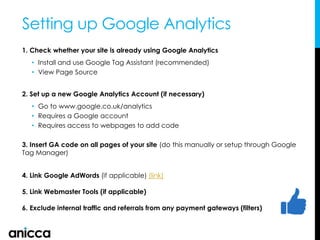
1. Check whether your site is already using Google Analytics
• Install and use Google Tag Assistant (recommended)
• View Page Source
2. Set up a new Google Analytics Account (if necessary)
• Go to www.google.co.uk/analytics
• Requires a Google account
• Requires access to webpages to add code
3. Insert GA code on all pages of your site (do this manually or setup through Google
Tag Manager)
4. Link Google AdWords (if applicable) (link)
5. Link Webmaster Tools (if applicable)
6. Exclude internal traffic and referrals from any payment gateways (filters)
Setting up Google Analytics
Placing GA code on your website
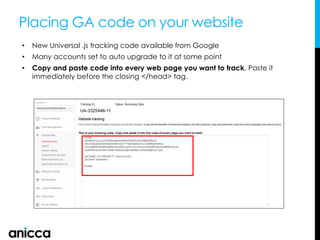
• New Universal .js tracking code available from Google
• Many accounts set to auto upgrade to it at some point
• Copy and paste code into every web page you want to track. Paste it
immediately before the closing </head> tag.
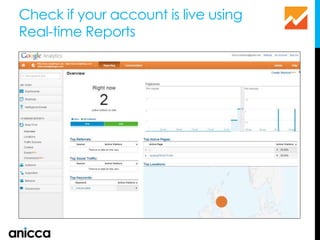
Check if your account is live using
Real-time Reports
Website Conversion Tracking
Understanding what’s driving results
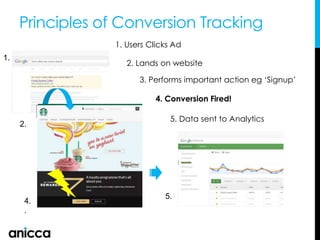
Principles of Conversion Tracking
1. Users Clicks Ad
2. Lands on website
3. Performs important action eg ‘Signup’
4. Conversion Fired!
1.
2.
5. Data sent to Analytics
4.
.
5.
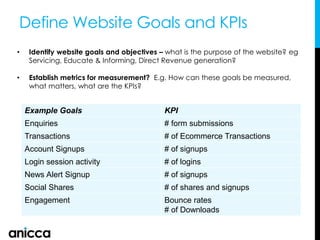
Define Website Goals and KPIs
• Identify website goals and objectives – what is the purpose of the website? eg
Servicing, Educate & Informing, Direct Revenue generation?
• Establish metrics for measurement? E.g. How can these goals be measured,
what matters, what are the KPIs?
Example Goals KPI
Enquiries # form submissions
Transactions # of Ecommerce Transactions
Account Signups # of signups
Login session activity # of logins
News Alert Signup # of signups
Social Shares # of shares and signups
Engagement Bounce rates
# of Downloads
Google Analytics Overview
Understanding Analytics
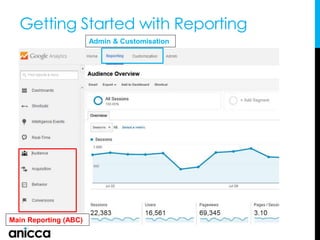
Getting Started with Reporting
Main Reporting (ABC)
Admin & Customisation
Analytics Conversion & Goal Tracking
Goals & Conversion Reporting
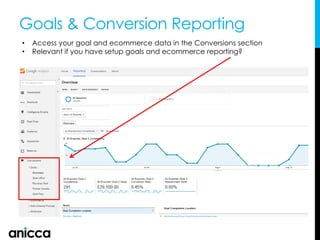
• Access your goal and ecommerce data in the Conversions section
• Relevant if you have setup goals and ecommerce reporting?
Goal Funnel Visualisation Report
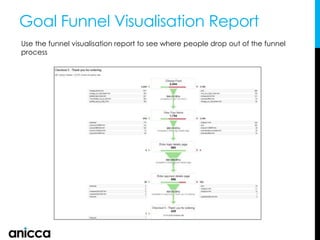
Use the funnel visualisation report to see where people drop out of the funnel
process
Goal Flow Report
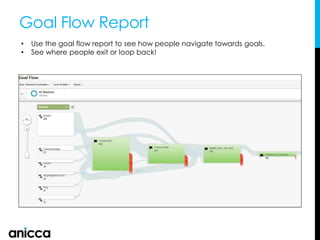
• Use the goal flow report to see how people navigate towards goals.
• See where people exit or loop back!
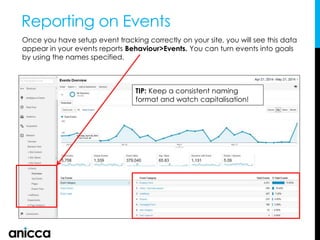
Reporting on Events
Once you have setup event tracking correctly on your site, you will see this data
appear in your events reports Behaviour>Events. You can turn events into goals
by using the names specified.
TIP: Keep a consistent naming
format and watch capitalisation!
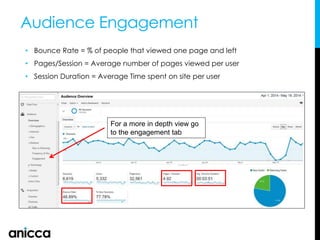
Audience Engagement
• Bounce Rate = % of people that viewed one page and left
• Pages/Session = Average number of pages viewed per user
• Session Duration = Average Time spent on site per user
For a more in depth view go
to the engagement tab
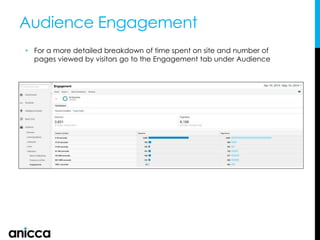
Audience Engagement
• For a more detailed breakdown of time spent on site and number of
pages viewed by visitors go to the Engagement tab under Audience
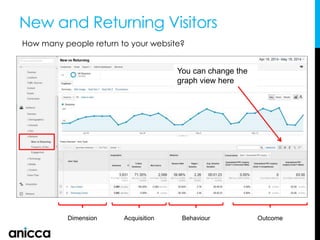
New and Returning Visitors
You can change the
graph view here
Dimension Acquisition Behaviour Outcome
How many people return to your website?
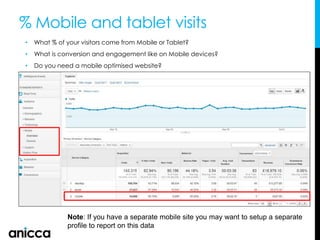
% Mobile and tablet visits
• What % of your visitors come from Mobile or Tablet?
• What is conversion and engagement like on Mobile devices?
• Do you need a mobile optimised website?
Note: If you have a separate mobile site you may want to setup a separate
profile to report on this data
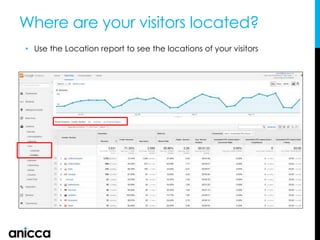
Where are your visitors located?
• Use the Location report to see the locations of your visitors
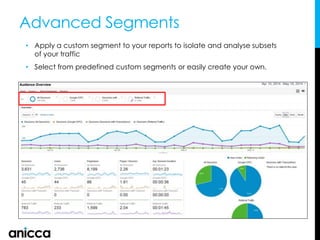
Advanced Segments
• Apply a custom segment to your reports to isolate and analyse subsets
of your traffic
• Select from predefined custom segments or easily create your own.
Acquisition
What drives traffic
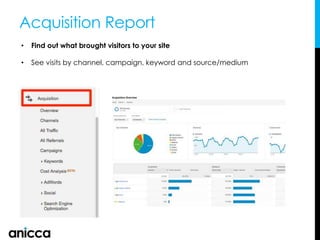
Acquisition Report
• Find out what brought visitors to your site
• See visits by channel, campaign, keyword and source/medium
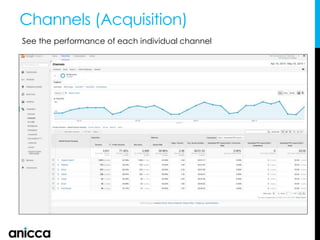
Channels (Acquisition)
See the performance of each individual channel
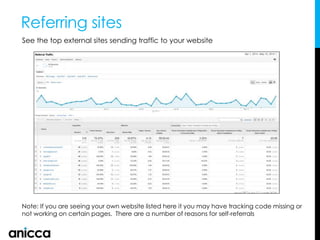
Referring sites
See the top external sites sending traffic to your website
Note: If you are seeing your own website listed here it you may have tracking code missing or
not working on certain pages. There are a number of reasons for self-referrals
Behaviour
Understand what people do
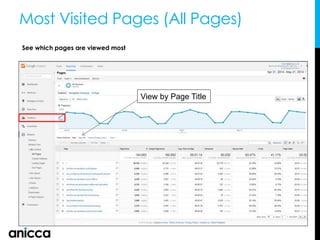
Most Visited Pages (All Pages)
See which pages are viewed most
View by Page Title
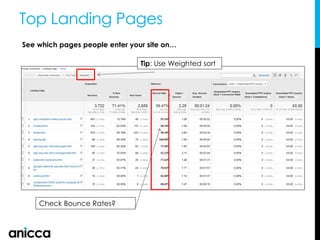
Top Landing Pages
See which pages people enter your site on…
Check Bounce Rates?
Tip: Use Weighted sort
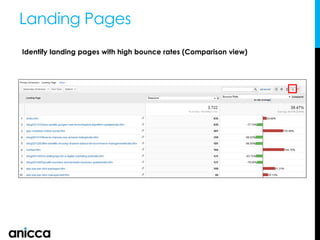
Landing Pages
Identify landing pages with high bounce rates (Comparison view)
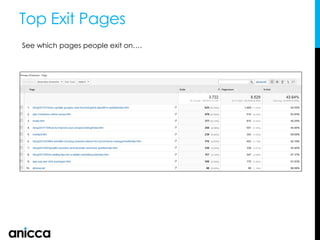
Top Exit Pages
See which pages people exit on….
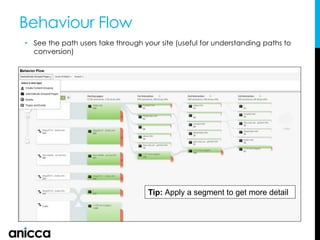
Behaviour Flow
• See the path users take through your site (useful for understanding paths to
conversion)
Tip: Apply a segment to get more detail
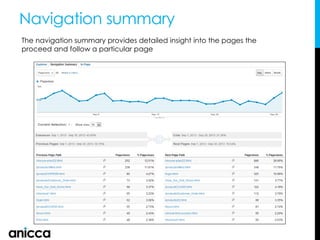
Navigation summary
The navigation summary provides detailed insight into the pages the
proceed and follow a particular page
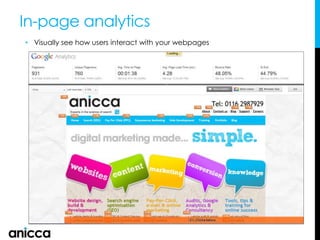
In-page analytics
• Visually see how users interact with your webpages
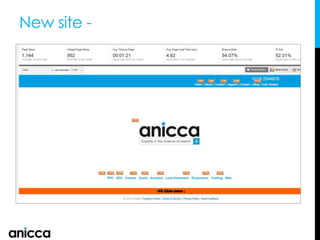
New site -
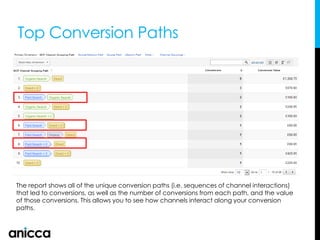
Top Conversion Paths
The report shows all of the unique conversion paths (i.e. sequences of channel interactions)
that led to conversions, as well as the number of conversions from each path, and the value
of those conversions. This allows you to see how channels interact along your conversion
paths.

Understanding google analytics

  • 1.
    @AnnStanley Using Google Analytics by AnnStanley (Managing Director)
  • 2.
    Why Google Analytics •Website Quantity and Quality – Time on site, Bounce Rate • Where Visitors come from – Sources, Keywords • Where users go – Funnels, visitor paths • How they behave on-site – Searches, Conversions, Exits • What prospects do – Goals, Transactions • Results and ROI – Revenue, Ecommerce Google Analytics is a free tool from Google that provides you with key insights into customer behaviour across ads and videos, websites and social tools, tablets and smartphones. It can provide you with answers to the following:
  • 3.
    Getting Started withGA Setup & Configuration
  • 4.
    1. Check whetheryour site is already using Google Analytics • Install and use Google Tag Assistant (recommended) • View Page Source 2. Set up a new Google Analytics Account (if necessary) • Go to www.google.co.uk/analytics • Requires a Google account • Requires access to webpages to add code 3. Insert GA code on all pages of your site (do this manually or setup through Google Tag Manager) 4. Link Google AdWords (if applicable) (link) 5. Link Webmaster Tools (if applicable) 6. Exclude internal traffic and referrals from any payment gateways (filters) Setting up Google Analytics
  • 5.
    Placing GA codeon your website • New Universal .js tracking code available from Google • Many accounts set to auto upgrade to it at some point • Copy and paste code into every web page you want to track. Paste it immediately before the closing </head> tag.
  • 6.
    Check if youraccount is live using Real-time Reports
  • 7.
    Website Conversion Tracking Understandingwhat’s driving results
  • 8.
    Principles of ConversionTracking 1. Users Clicks Ad 2. Lands on website 3. Performs important action eg ‘Signup’ 4. Conversion Fired! 1. 2. 5. Data sent to Analytics 4. . 5.
  • 9.
    Define Website Goalsand KPIs • Identify website goals and objectives – what is the purpose of the website? eg Servicing, Educate & Informing, Direct Revenue generation? • Establish metrics for measurement? E.g. How can these goals be measured, what matters, what are the KPIs? Example Goals KPI Enquiries # form submissions Transactions # of Ecommerce Transactions Account Signups # of signups Login session activity # of logins News Alert Signup # of signups Social Shares # of shares and signups Engagement Bounce rates # of Downloads
  • 10.
  • 11.
    Getting Started withReporting Main Reporting (ABC) Admin & Customisation
  • 12.
  • 13.
    Goals & ConversionReporting • Access your goal and ecommerce data in the Conversions section • Relevant if you have setup goals and ecommerce reporting?
  • 14.
    Goal Funnel VisualisationReport Use the funnel visualisation report to see where people drop out of the funnel process
  • 15.
    Goal Flow Report •Use the goal flow report to see how people navigate towards goals. • See where people exit or loop back!
  • 16.
    Reporting on Events Onceyou have setup event tracking correctly on your site, you will see this data appear in your events reports Behaviour>Events. You can turn events into goals by using the names specified. TIP: Keep a consistent naming format and watch capitalisation!
  • 17.
    Audience Engagement • BounceRate = % of people that viewed one page and left • Pages/Session = Average number of pages viewed per user • Session Duration = Average Time spent on site per user For a more in depth view go to the engagement tab
  • 18.
    Audience Engagement • Fora more detailed breakdown of time spent on site and number of pages viewed by visitors go to the Engagement tab under Audience
  • 19.
    New and ReturningVisitors You can change the graph view here Dimension Acquisition Behaviour Outcome How many people return to your website?
  • 20.
    % Mobile andtablet visits • What % of your visitors come from Mobile or Tablet? • What is conversion and engagement like on Mobile devices? • Do you need a mobile optimised website? Note: If you have a separate mobile site you may want to setup a separate profile to report on this data
  • 21.
    Where are yourvisitors located? • Use the Location report to see the locations of your visitors
  • 22.
    Advanced Segments • Applya custom segment to your reports to isolate and analyse subsets of your traffic • Select from predefined custom segments or easily create your own.
  • 23.
  • 24.
    Acquisition Report • Findout what brought visitors to your site • See visits by channel, campaign, keyword and source/medium
  • 25.
    Channels (Acquisition) See theperformance of each individual channel
  • 26.
    Referring sites See thetop external sites sending traffic to your website Note: If you are seeing your own website listed here it you may have tracking code missing or not working on certain pages. There are a number of reasons for self-referrals
  • 27.
  • 28.
    Most Visited Pages(All Pages) See which pages are viewed most View by Page Title
  • 29.
    Top Landing Pages Seewhich pages people enter your site on… Check Bounce Rates? Tip: Use Weighted sort
  • 30.
    Landing Pages Identify landingpages with high bounce rates (Comparison view)
  • 31.
    Top Exit Pages Seewhich pages people exit on….
  • 32.
    Behaviour Flow • Seethe path users take through your site (useful for understanding paths to conversion) Tip: Apply a segment to get more detail
  • 33.
    Navigation summary The navigationsummary provides detailed insight into the pages the proceed and follow a particular page
  • 34.
    In-page analytics • Visuallysee how users interact with your webpages
  • 35.
  • 36.
    Top Conversion Paths Thereport shows all of the unique conversion paths (i.e. sequences of channel interactions) that led to conversions, as well as the number of conversions from each path, and the value of those conversions. This allows you to see how channels interact along your conversion paths.