Amira Elsayed Ismail
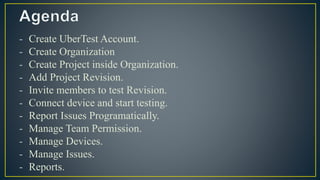
- Create UberTest Account.
- Create Organization
- Create Project inside Organization.
- Add Project Revision.
- Invite members to test Revision.
- Connect device and start testing.
- Report Issues Programatically.
- Manage Team Permission.
- Manage Devices.
- Manage Issues.
- Reports.
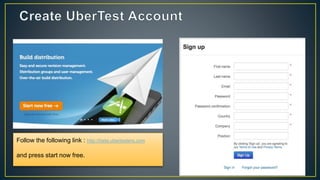
Follow the following link : http://beta.ubertesters.com
and press start now free.
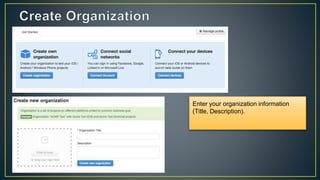
Enter your organization information
(Title, Description).
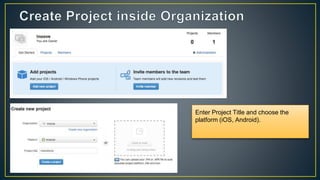
Enter Project Title and choose the
platform (iOS, Android).
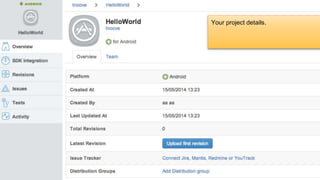
Your project details.
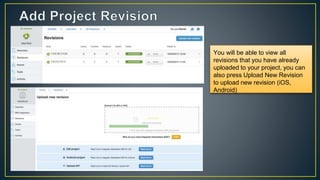
You will be able to view all
revisions that you have already
uploaded to your project, you can
also press Upload New Revision
to upload new revision (iOS,
Android)
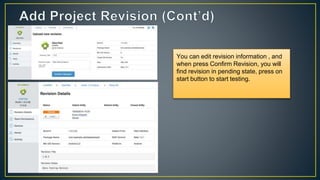
You can edit revision information , and
when press Confirm Revision, you will
find revision in pending state, press on
start button to start testing.
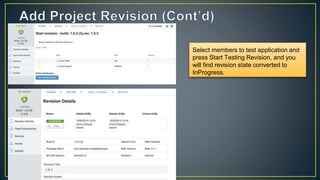
Select members to test application and
press Start Testing Revision, and you
will find revision state converted to
InProgress.
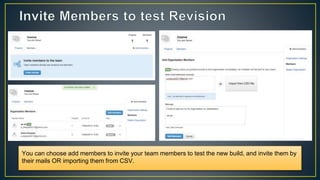
You can choose add members to invite your team members to test the new build, and invite them by
their mails OR importing them from CSV.
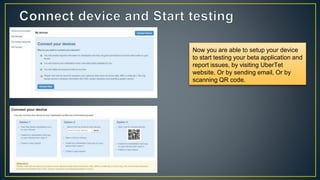
Now you are able to setup your device
to start testing your beta application and
report issues, by visiting UberTet
website, Or by sending email, Or by
scanning QR code.
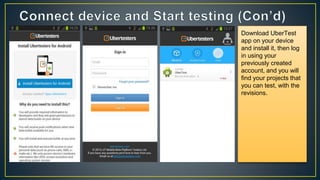
Download UberTest
app on your device
and install it, then log
in using your
previously created
account, and you will
find your projects that
you can test, with the
revisions.
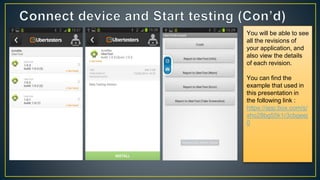
You will be able to see
all the revisions of
your application, and
also view the details
of each revision.
You can find the
example that used in
this presentation in
the following link :
https://app.box.com/s/
xho28bg55k1r3cbgeej
0
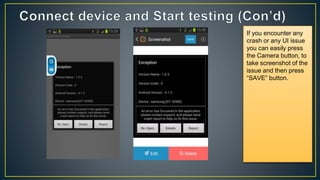
If you encounter any
crash or any UI issue
you can easily press
the Camera button, to
take screenshot of the
issue and then press
“SAVE” button.
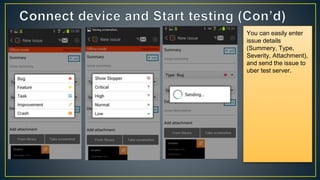
You can easily enter
issue details
(Summery, Type,
Severity, Attachment),
and send the issue to
uber test server.
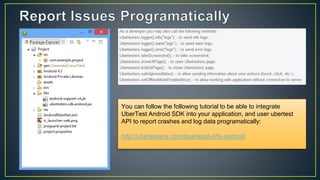
You can follow the following tutorial to be able to integrate
UberTest Android SDK into your application, and user ubertest
API to report crashes and log data programatically:
http://ubertesters.com/download-sdk-android/
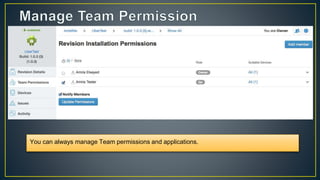
You can always manage Team permissions and applications.
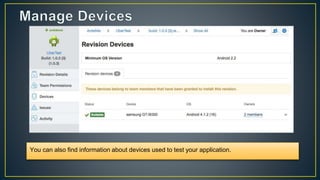
You can also find information about devices used to test your application.
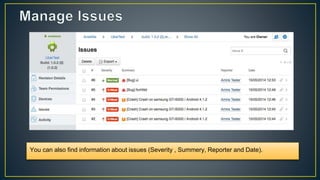
You can also find information about issues (Severity , Summery, Reporter and Date).
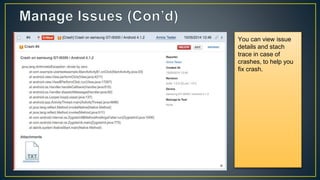
You can view issue
details and stach
trace in case of
crashes, to help you
fix crash.
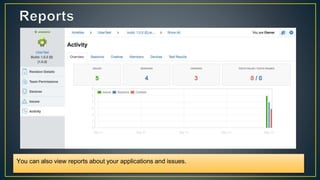
You can also view reports about your applications and issues.
UberTest Quick Guide

UberTest Quick Guide

  • 1.
  • 2.
    - Create UberTestAccount. - Create Organization - Create Project inside Organization. - Add Project Revision. - Invite members to test Revision. - Connect device and start testing. - Report Issues Programatically. - Manage Team Permission. - Manage Devices. - Manage Issues. - Reports.
  • 3.
    Follow the followinglink : http://beta.ubertesters.com and press start now free.
  • 4.
    Enter your organizationinformation (Title, Description).
  • 5.
    Enter Project Titleand choose the platform (iOS, Android).
  • 6.
  • 7.
    You will beable to view all revisions that you have already uploaded to your project, you can also press Upload New Revision to upload new revision (iOS, Android)
  • 8.
    You can editrevision information , and when press Confirm Revision, you will find revision in pending state, press on start button to start testing.
  • 9.
    Select members totest application and press Start Testing Revision, and you will find revision state converted to InProgress.
  • 10.
    You can chooseadd members to invite your team members to test the new build, and invite them by their mails OR importing them from CSV.
  • 11.
    Now you areable to setup your device to start testing your beta application and report issues, by visiting UberTet website, Or by sending email, Or by scanning QR code.
  • 12.
    Download UberTest app onyour device and install it, then log in using your previously created account, and you will find your projects that you can test, with the revisions.
  • 13.
    You will beable to see all the revisions of your application, and also view the details of each revision. You can find the example that used in this presentation in the following link : https://app.box.com/s/ xho28bg55k1r3cbgeej 0
  • 14.
    If you encounterany crash or any UI issue you can easily press the Camera button, to take screenshot of the issue and then press “SAVE” button.
  • 15.
    You can easilyenter issue details (Summery, Type, Severity, Attachment), and send the issue to uber test server.
  • 16.
    You can followthe following tutorial to be able to integrate UberTest Android SDK into your application, and user ubertest API to report crashes and log data programatically: http://ubertesters.com/download-sdk-android/
  • 17.
    You can alwaysmanage Team permissions and applications.
  • 18.
    You can alsofind information about devices used to test your application.
  • 19.
    You can alsofind information about issues (Severity , Summery, Reporter and Date).
  • 20.
    You can viewissue details and stach trace in case of crashes, to help you fix crash.
  • 21.
    You can alsoview reports about your applications and issues.