Moodle Installation
Guide
By : Amira Elsayed Ismail
Agenda
- Moodle installation guide
What is moodle
● Moodle is a free and open-source
learning management system (LMS)
written in PHP and distributed under
the GNU General Public License
● Moodle is used for blended learning,
distance education, flipped classroom
and other e-learning projects in
schools, universities, workplaces and
other sectors
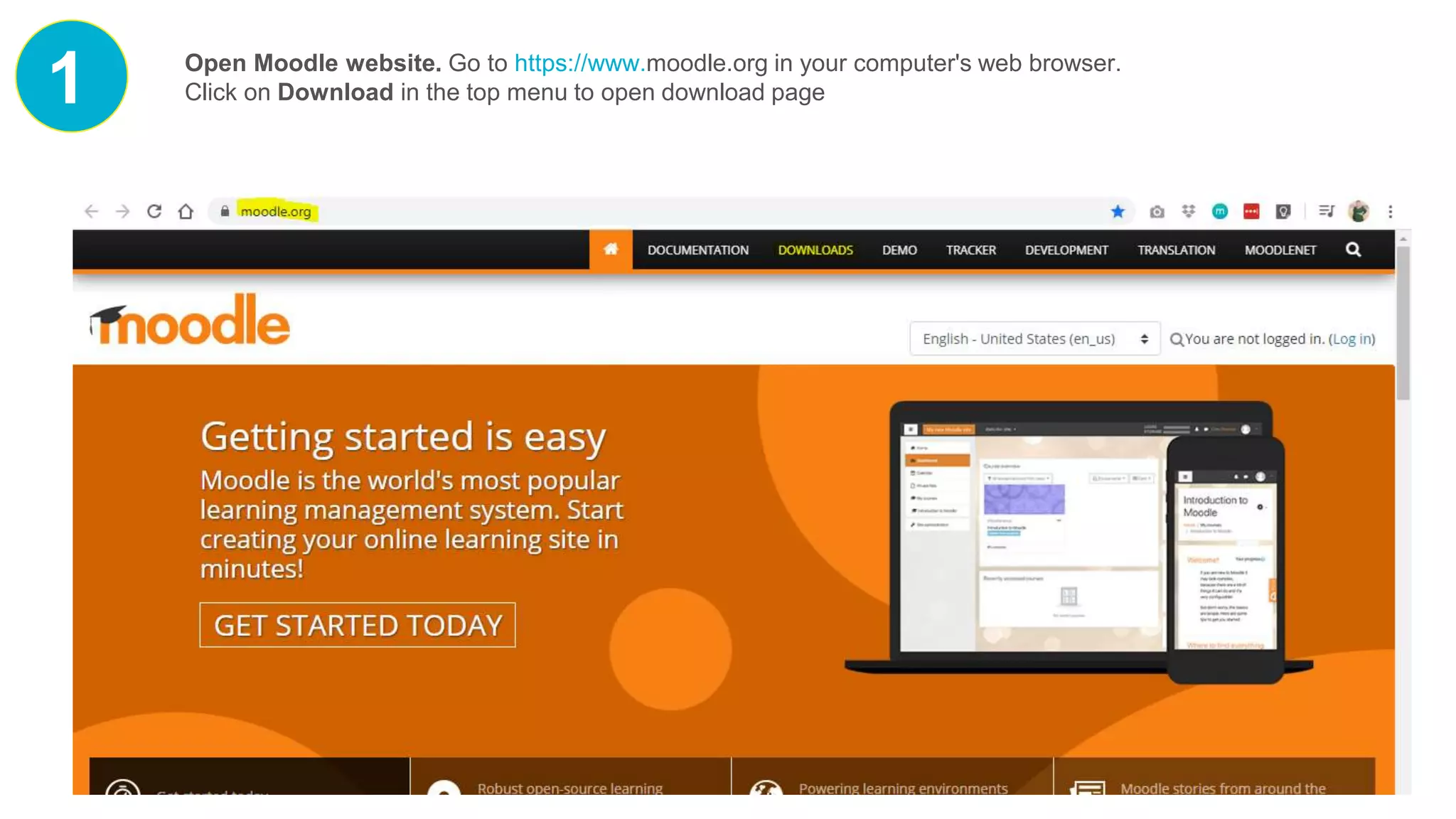
1 Open Moodle website. Go to https://www.moodle.org in your computer's web browser.
Click on Download in the top menu to open download page
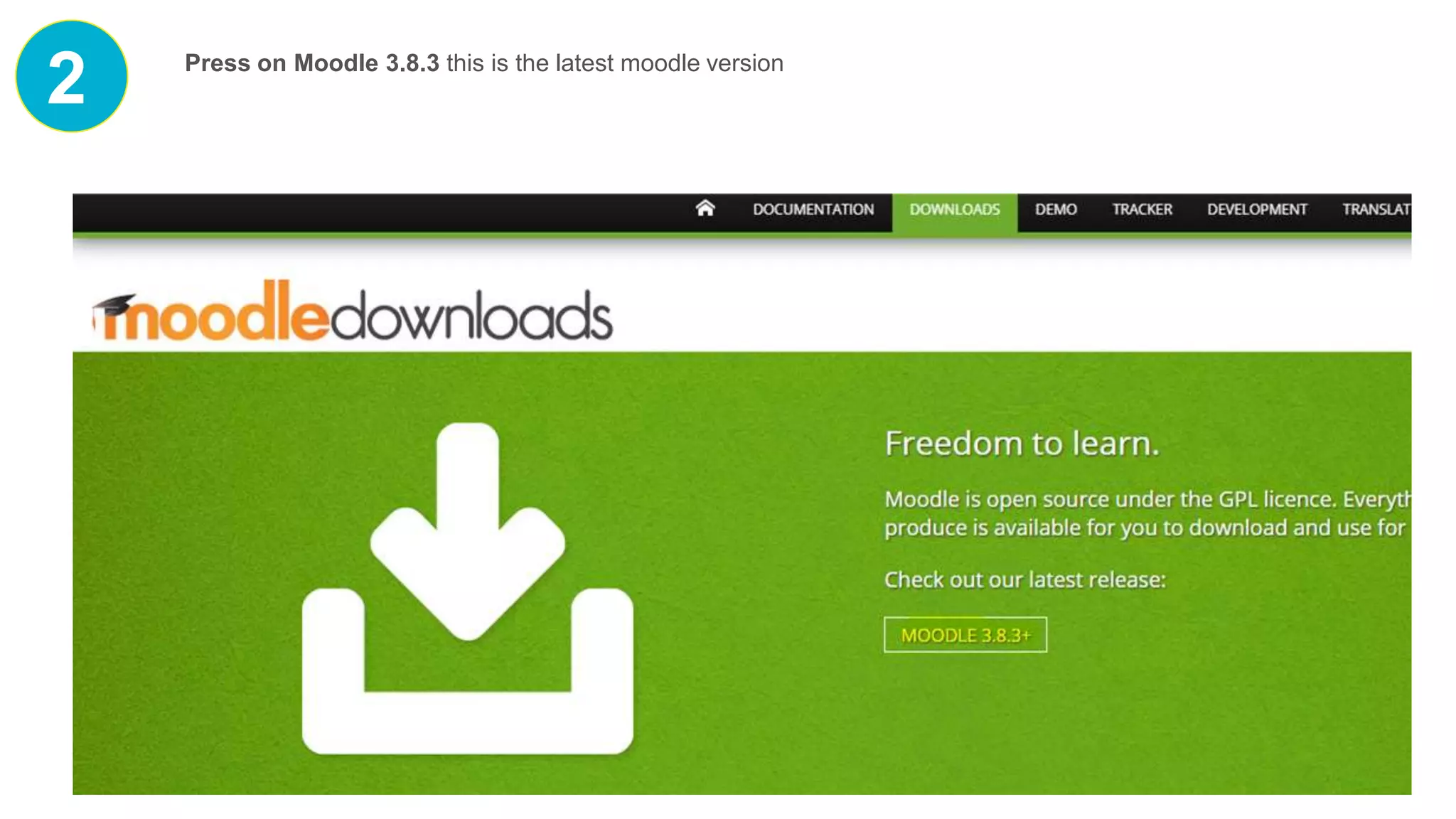
2 Press on Moodle 3.8.3 this is the latest moodle version
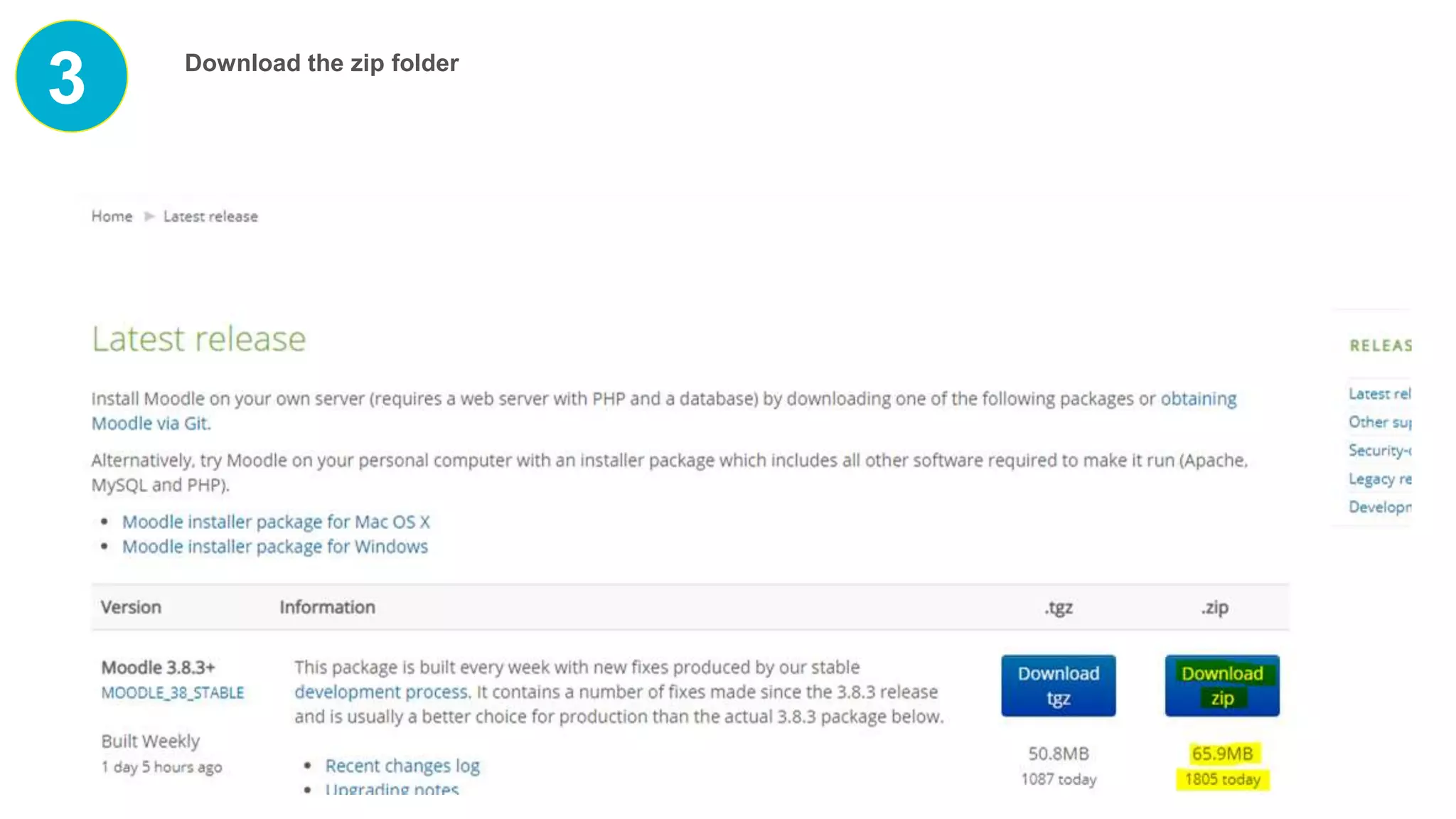
3 Download the zip folder
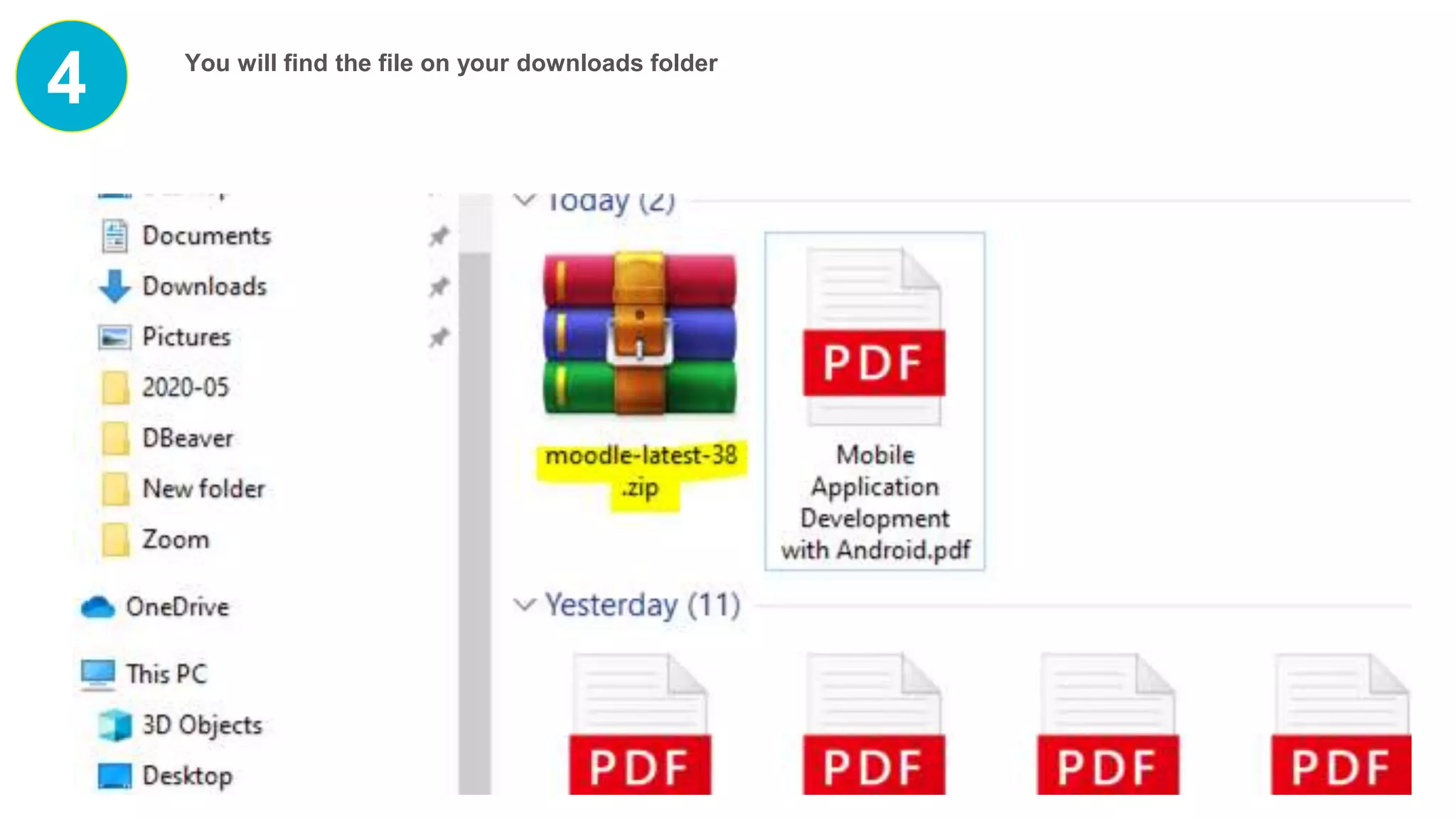
4 You will find the file on your downloads folder
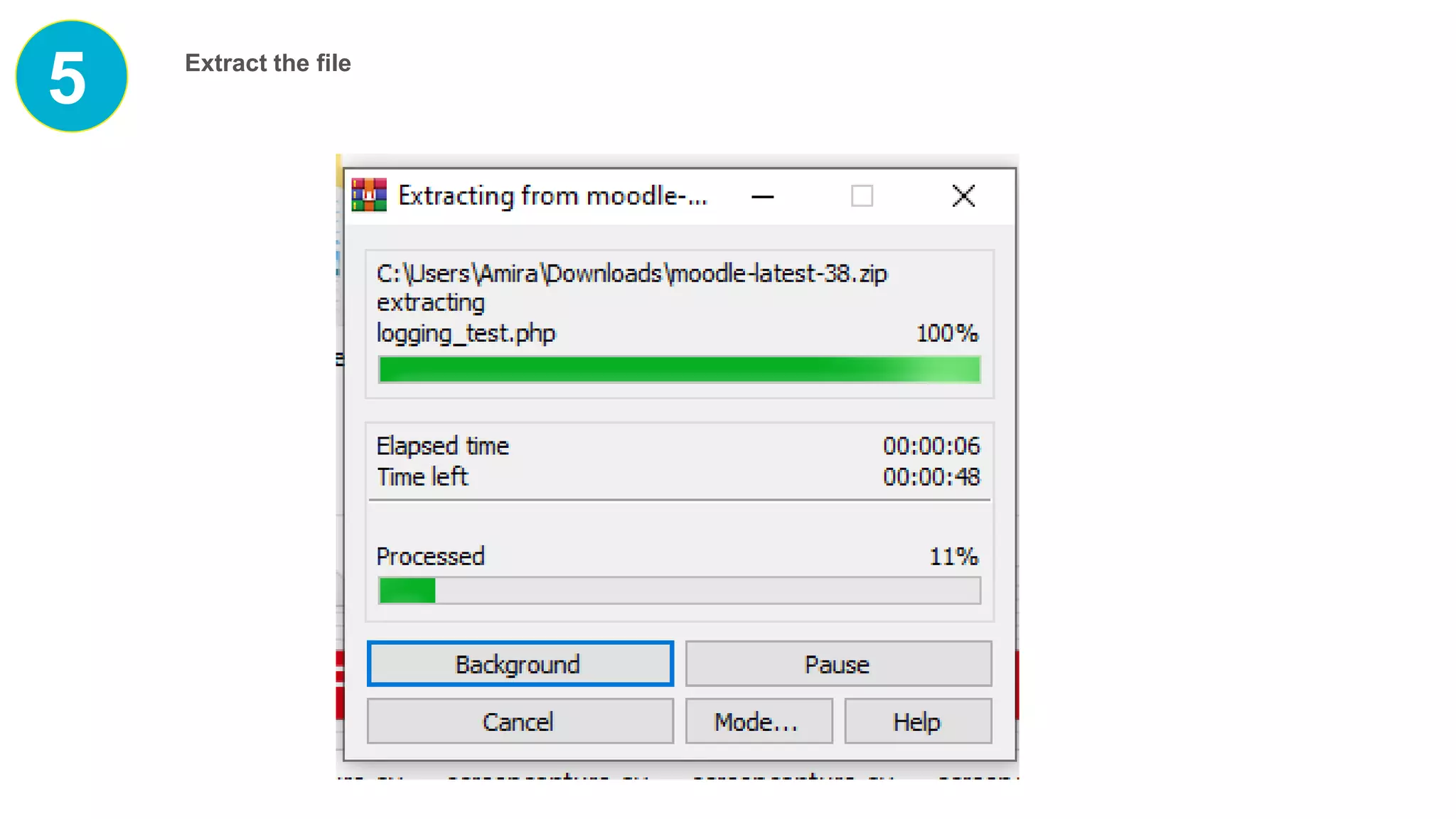
5 Extract the file
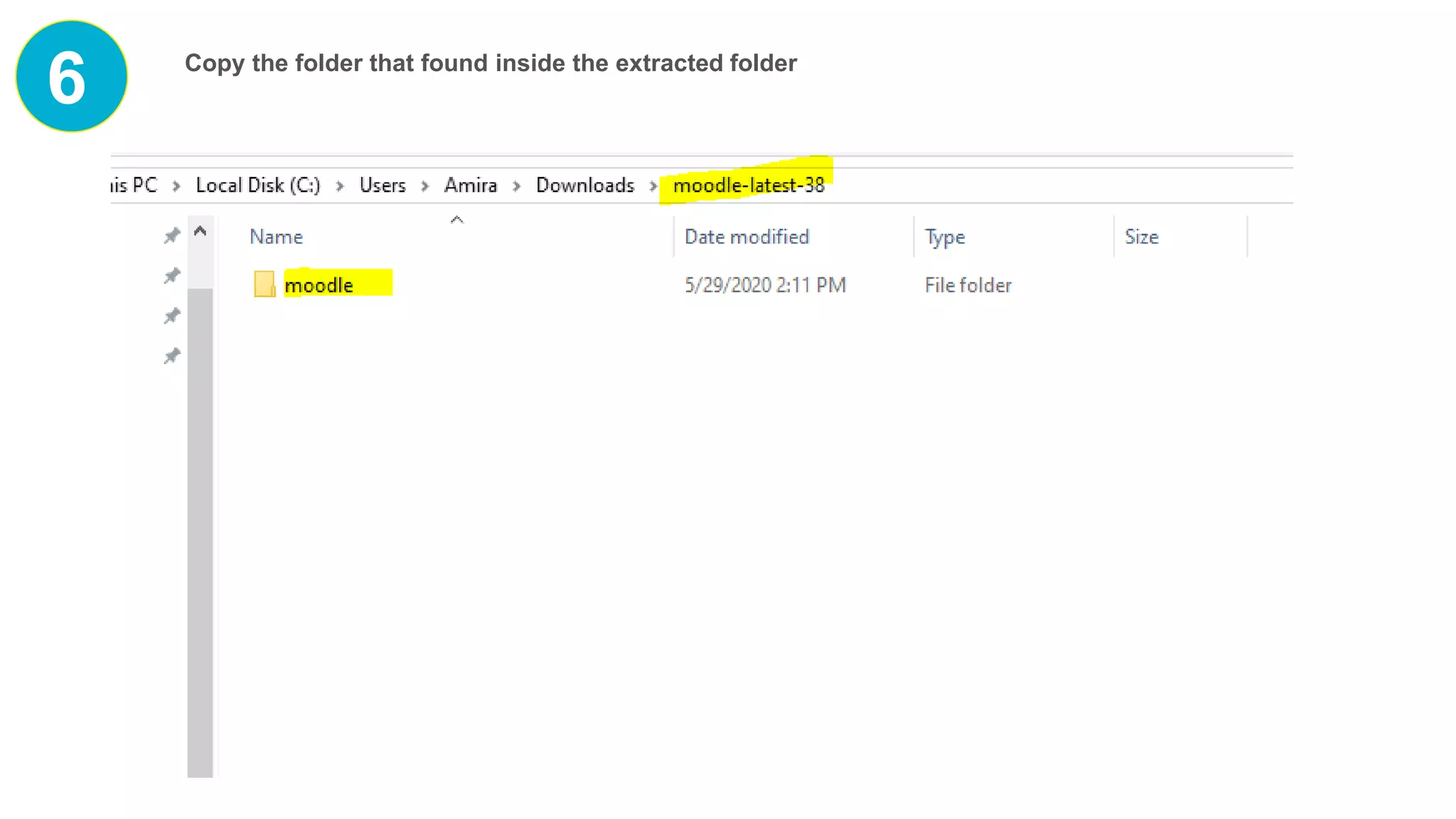
6 Copy the folder that found inside the extracted folder
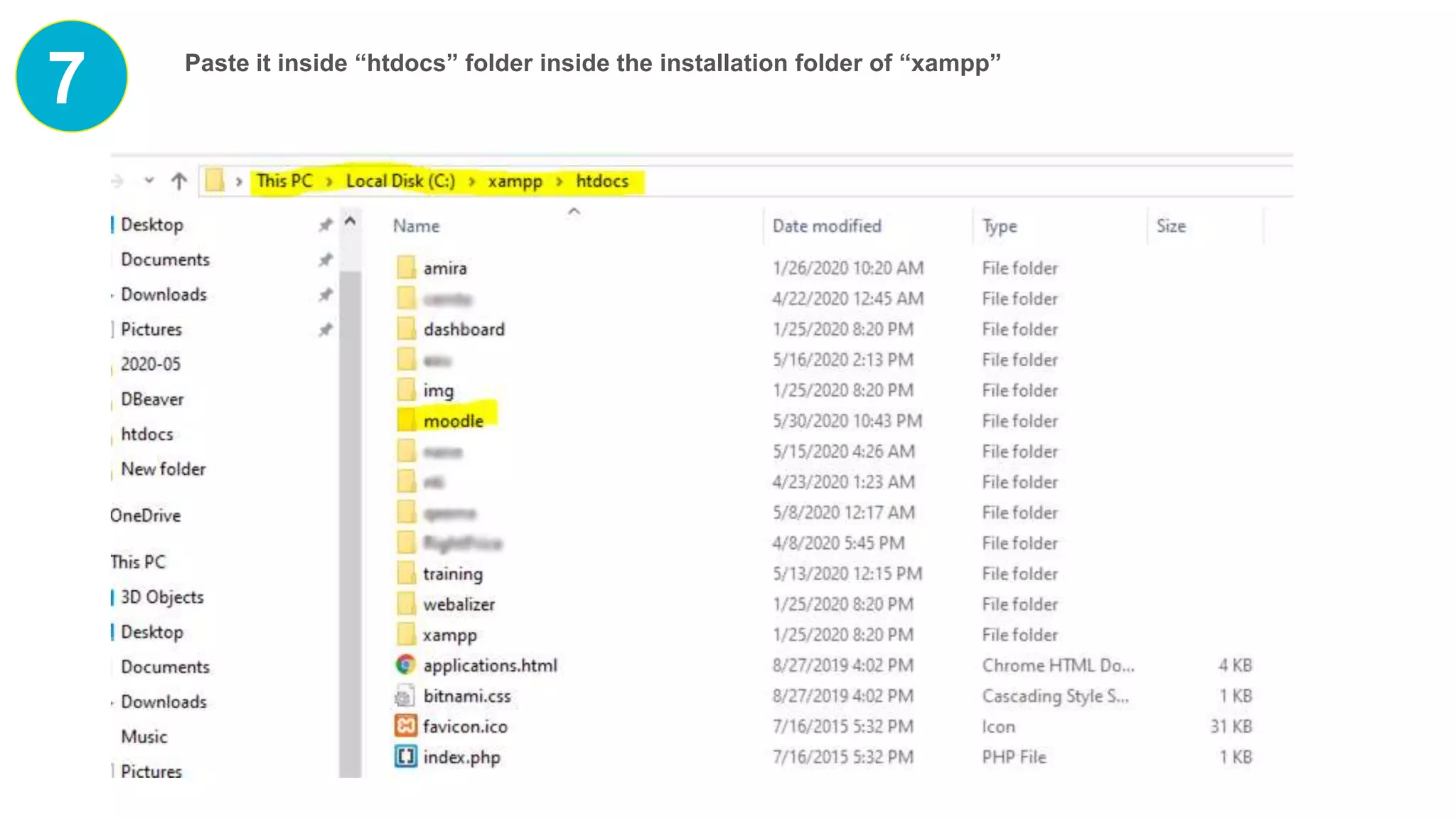
7 Paste it inside “htdocs” folder inside the installation folder of “xampp”
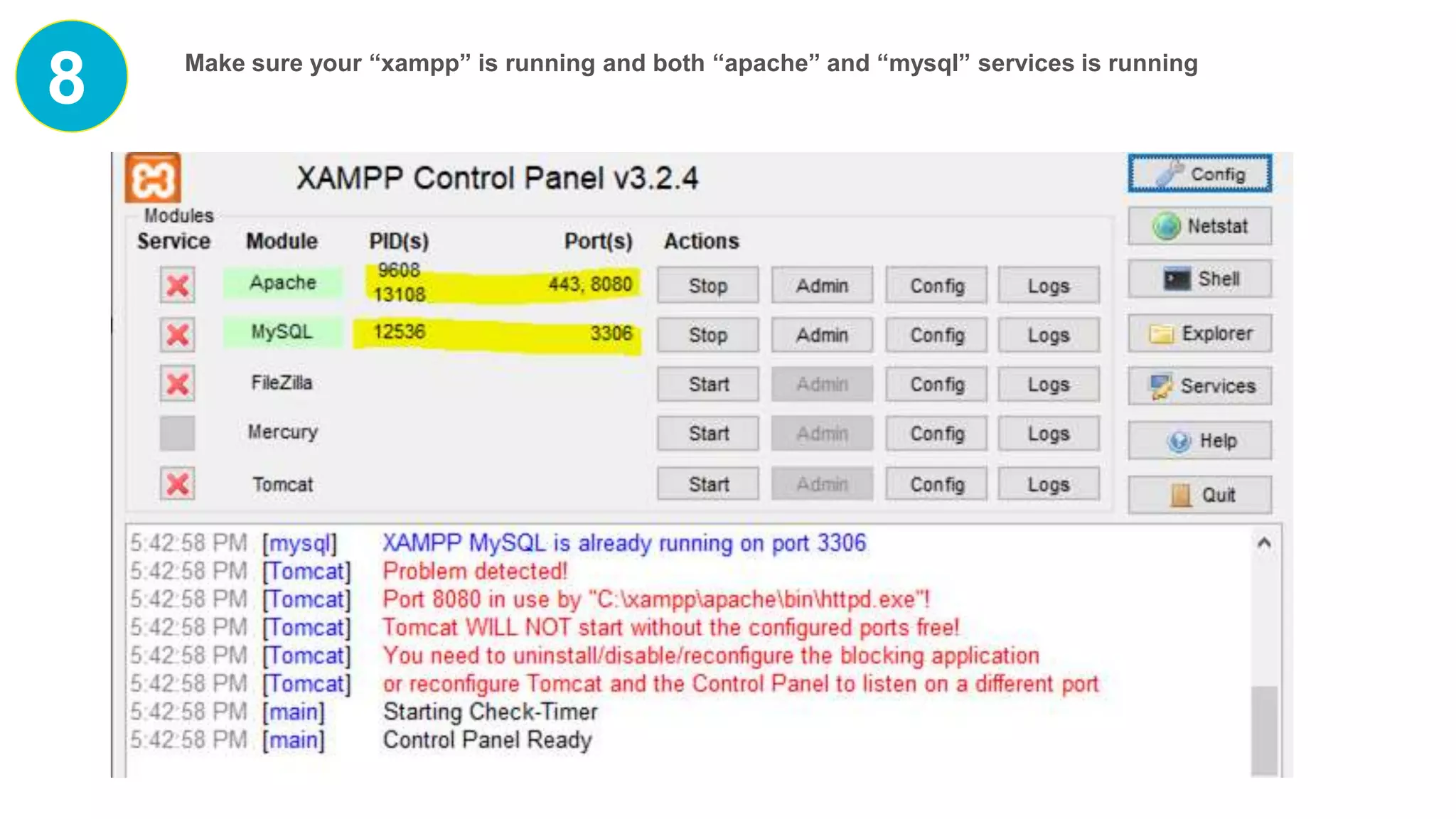
8 Make sure your “xampp” is running and both “apache” and “mysql” services is running
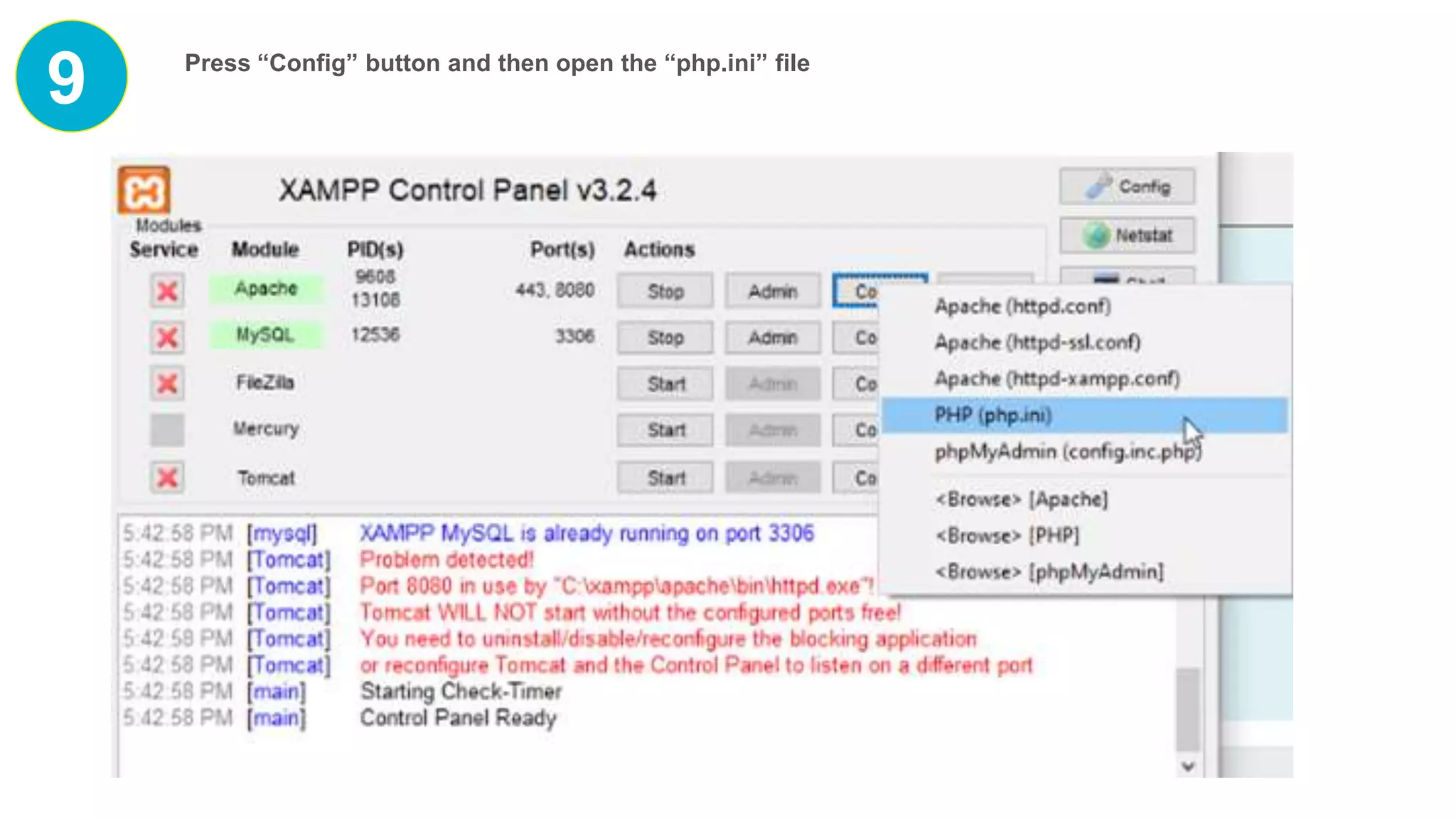
9 Press “Config” button and then open the “php.ini” file
10 Add the highlighted lines to your “php.ini” file , after [PHP] and make sure to save the file and then
stop and restart “Apache” server to allow the changes to affect
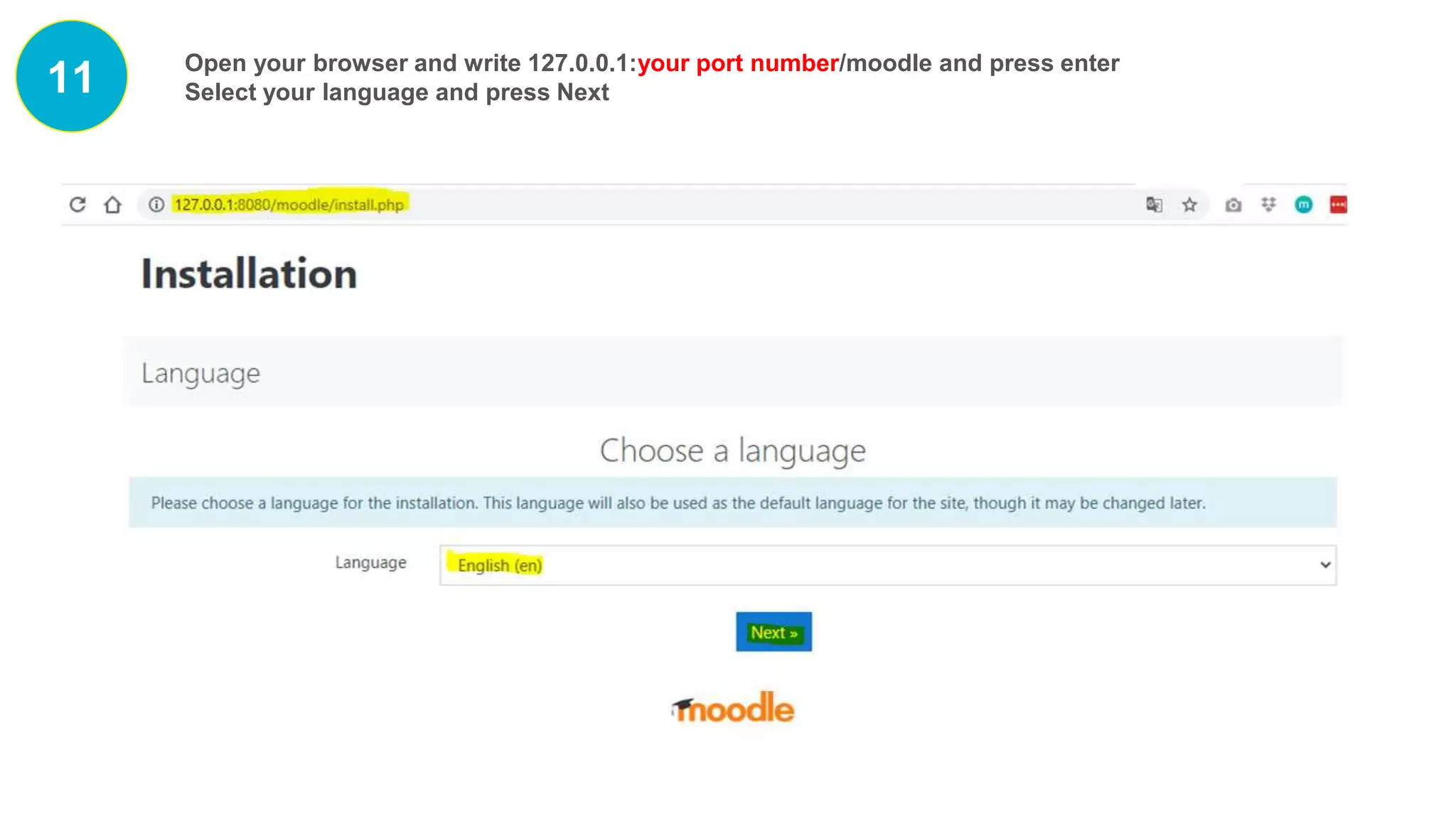
11 Open your browser and write 127.0.0.1:your port number/moodle and press enter
Select your language and press Next
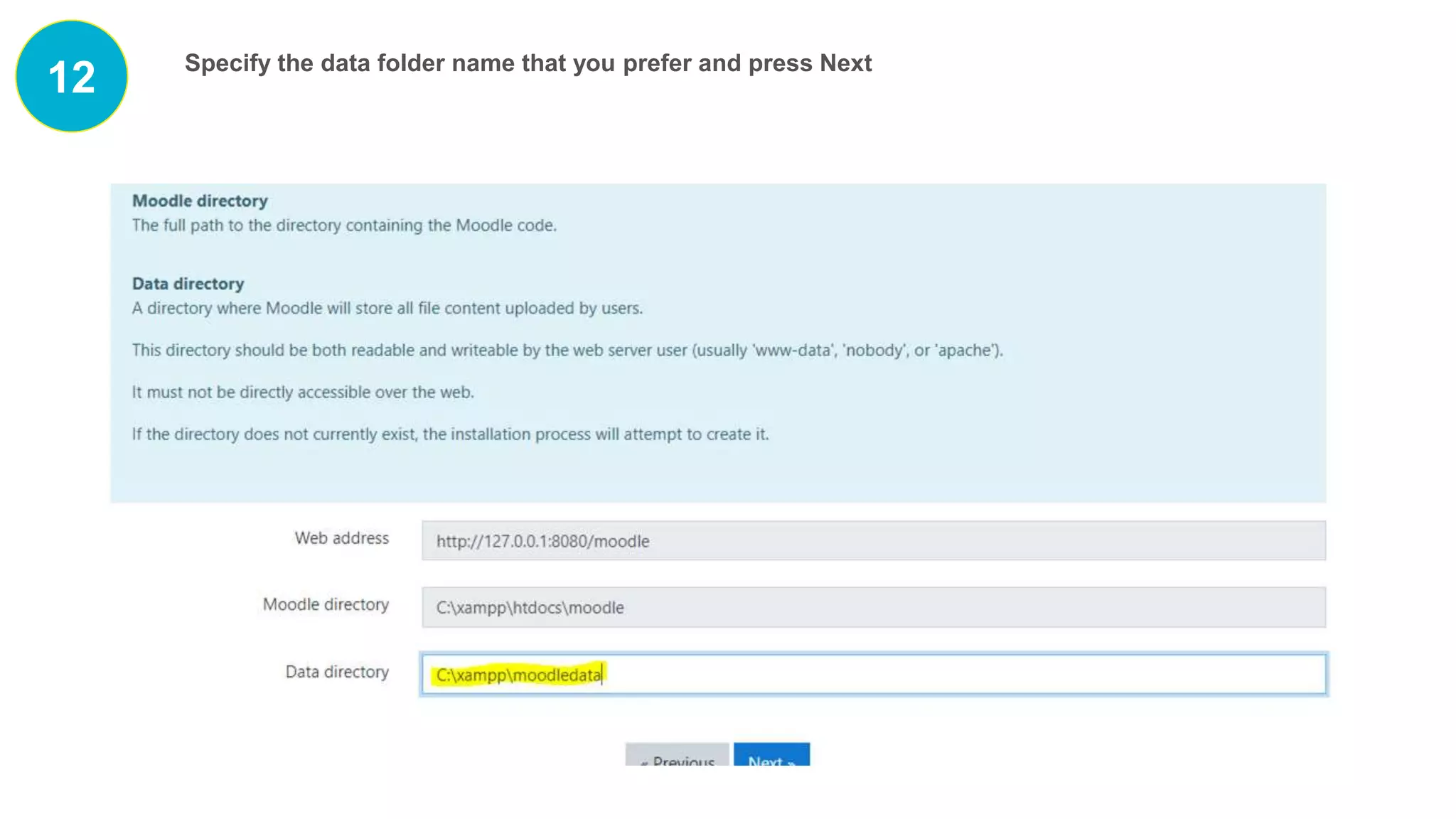
12 Specify the data folder name that you prefer and press Next
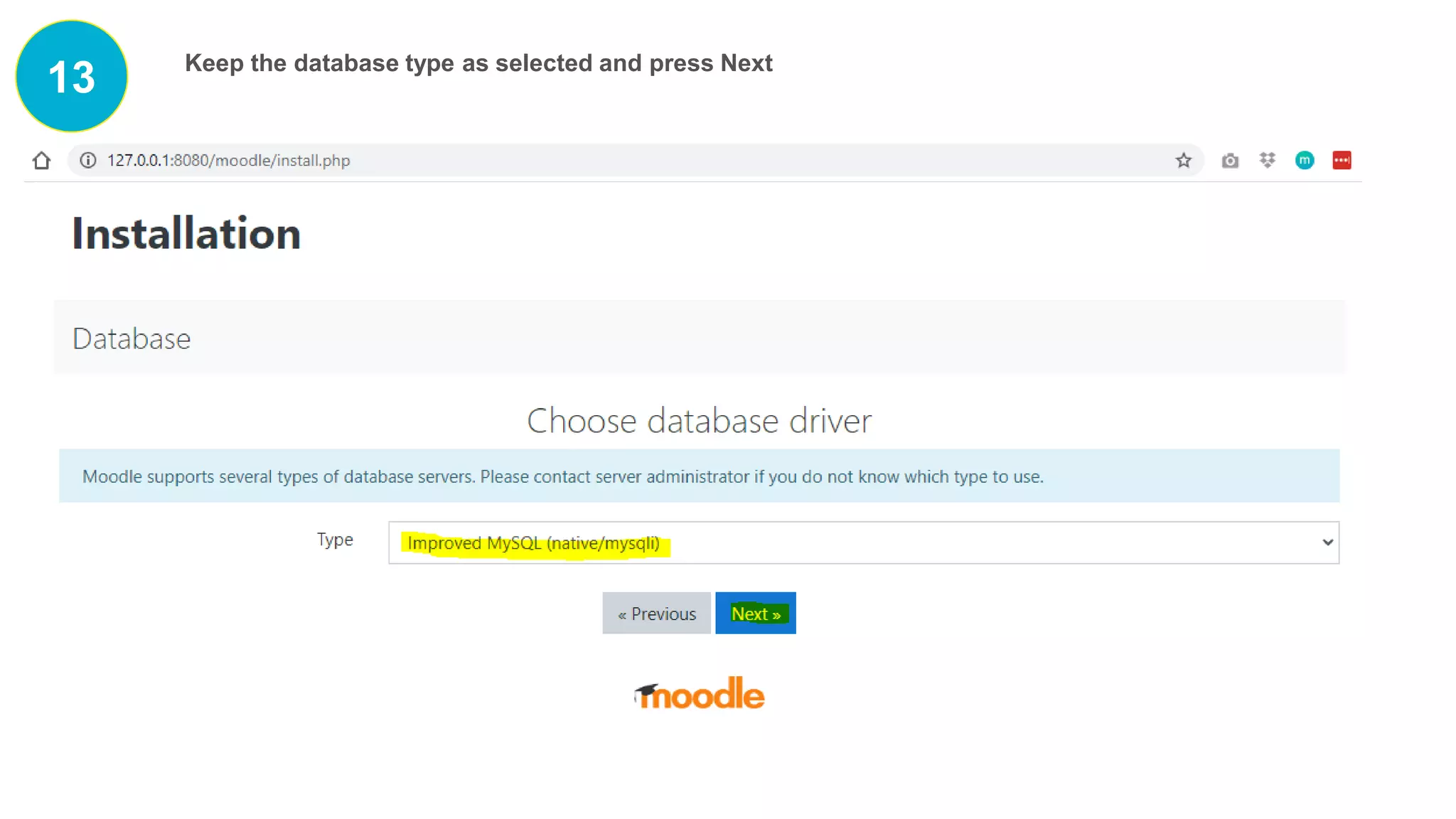
13 Keep the database type as selected and press Next
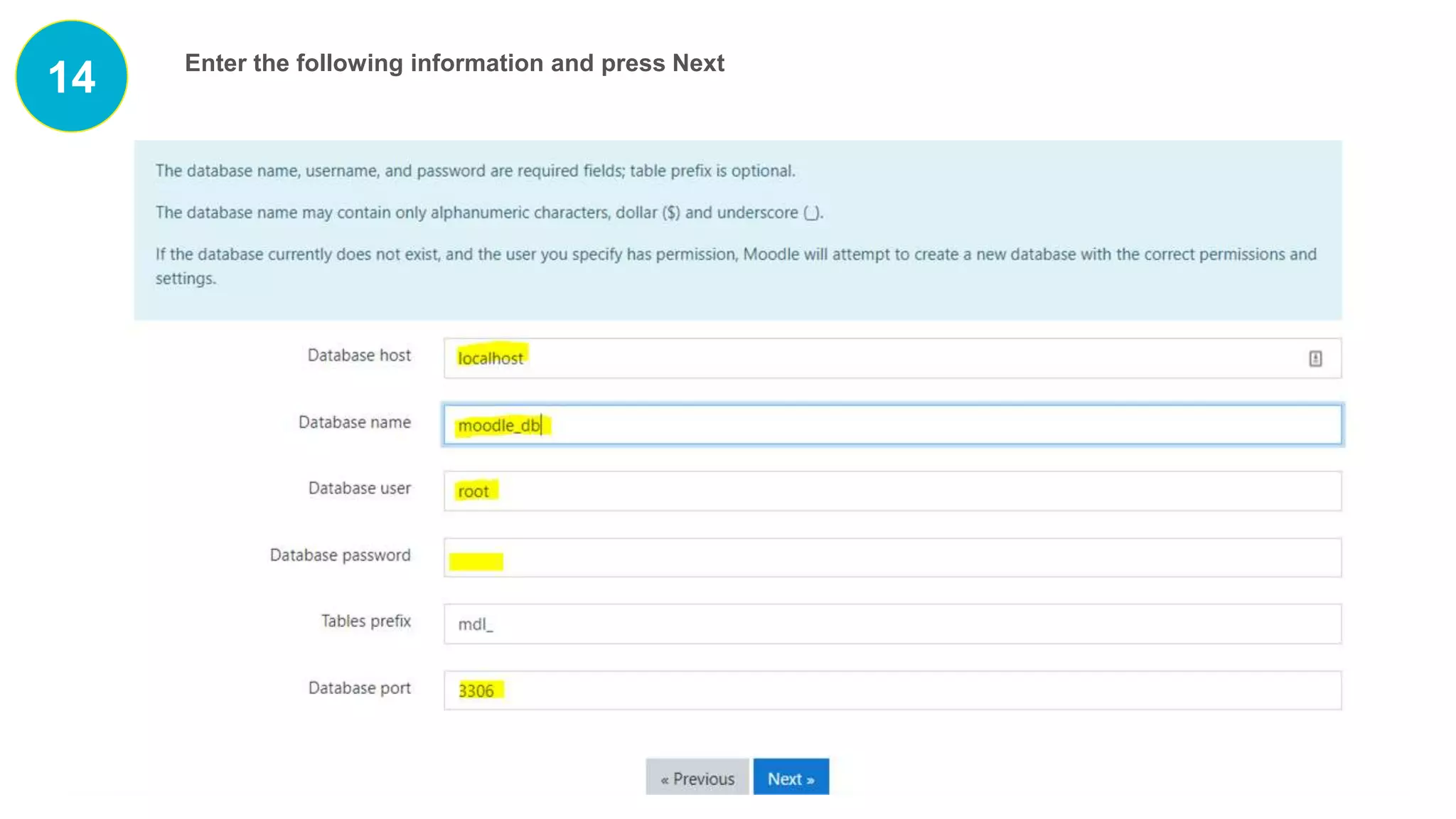
14 Enter the following information and press Next
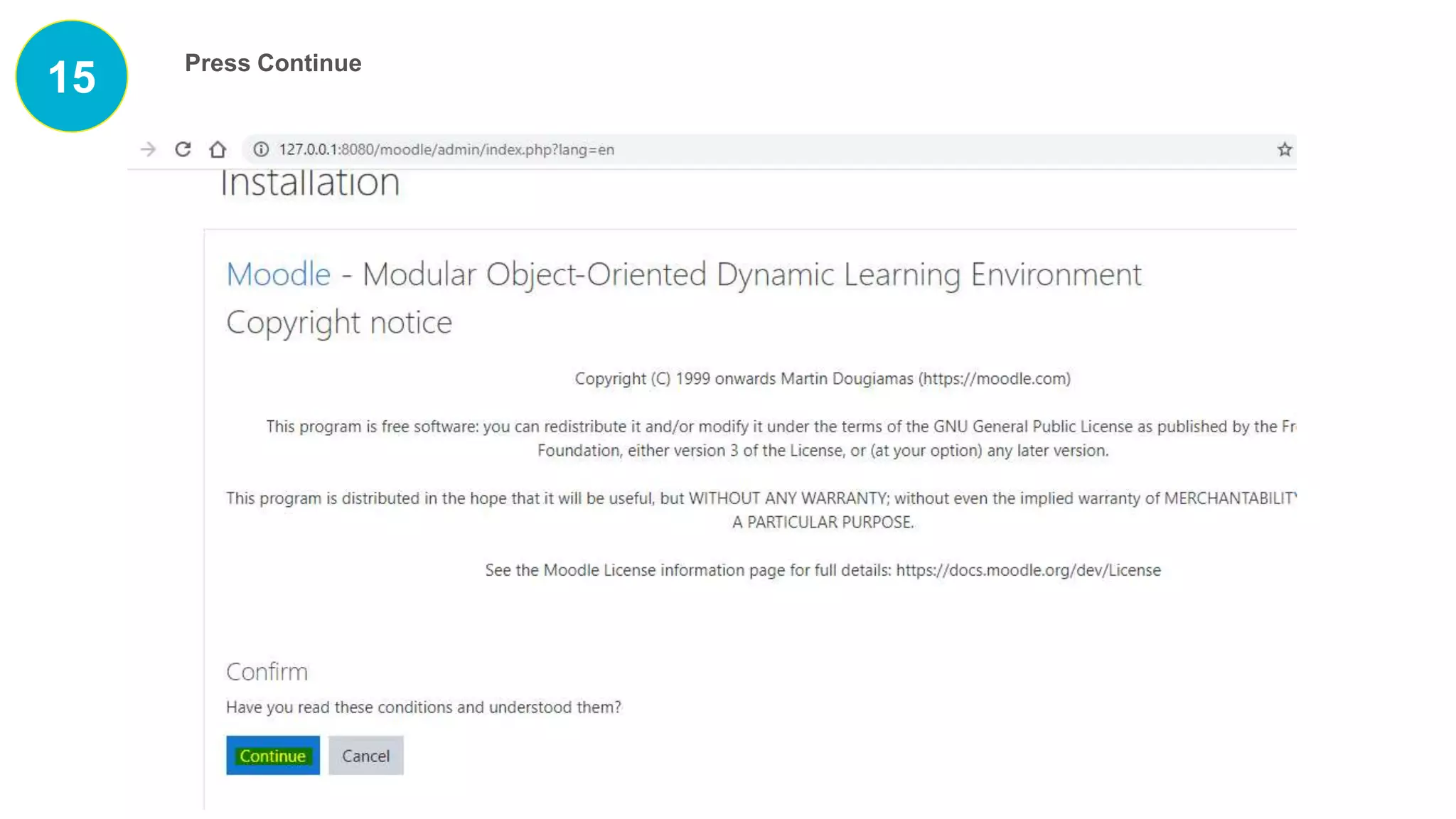
15 Press Continue
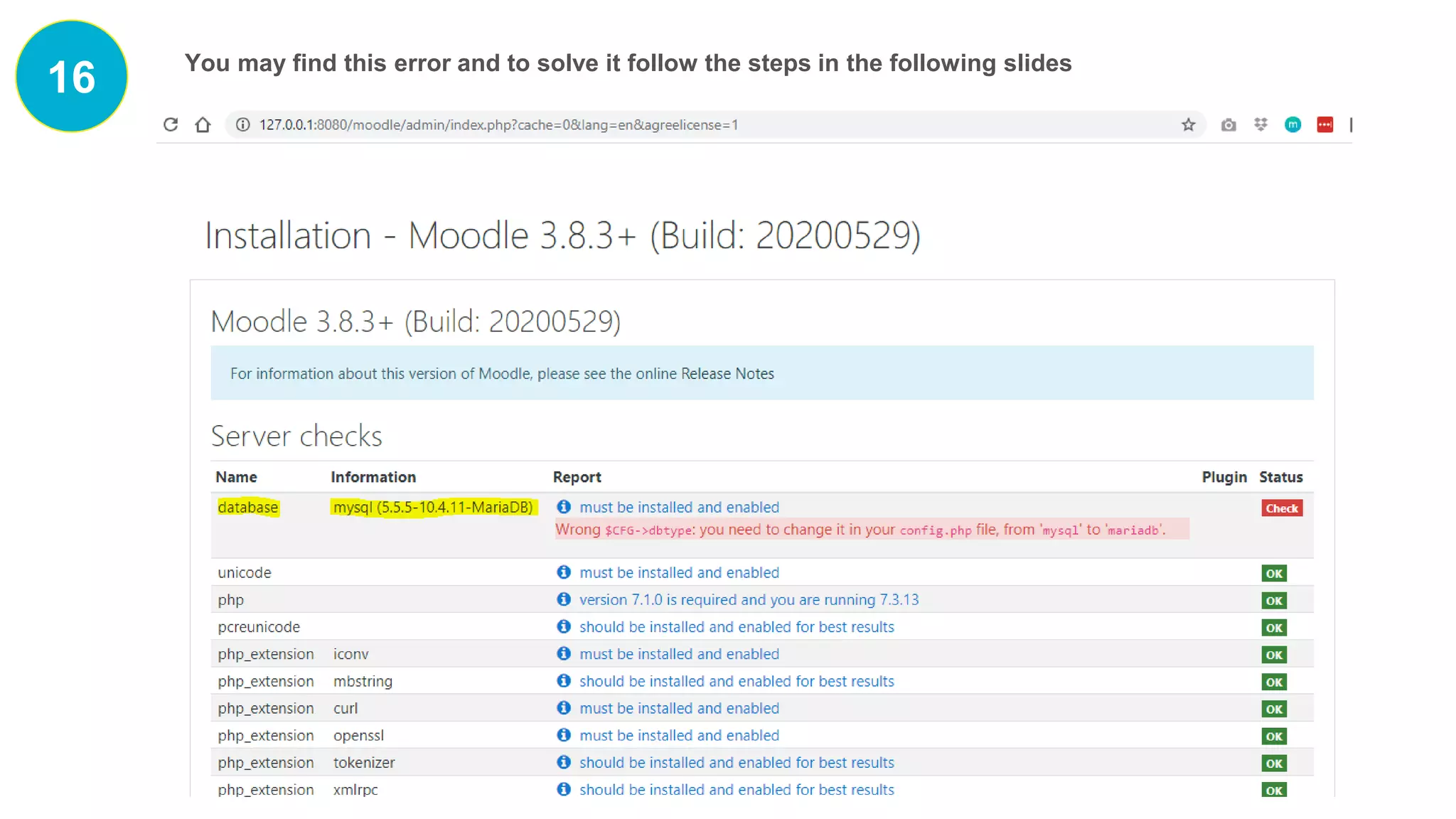
16 You may find this error and to solve it follow the steps in the following slides
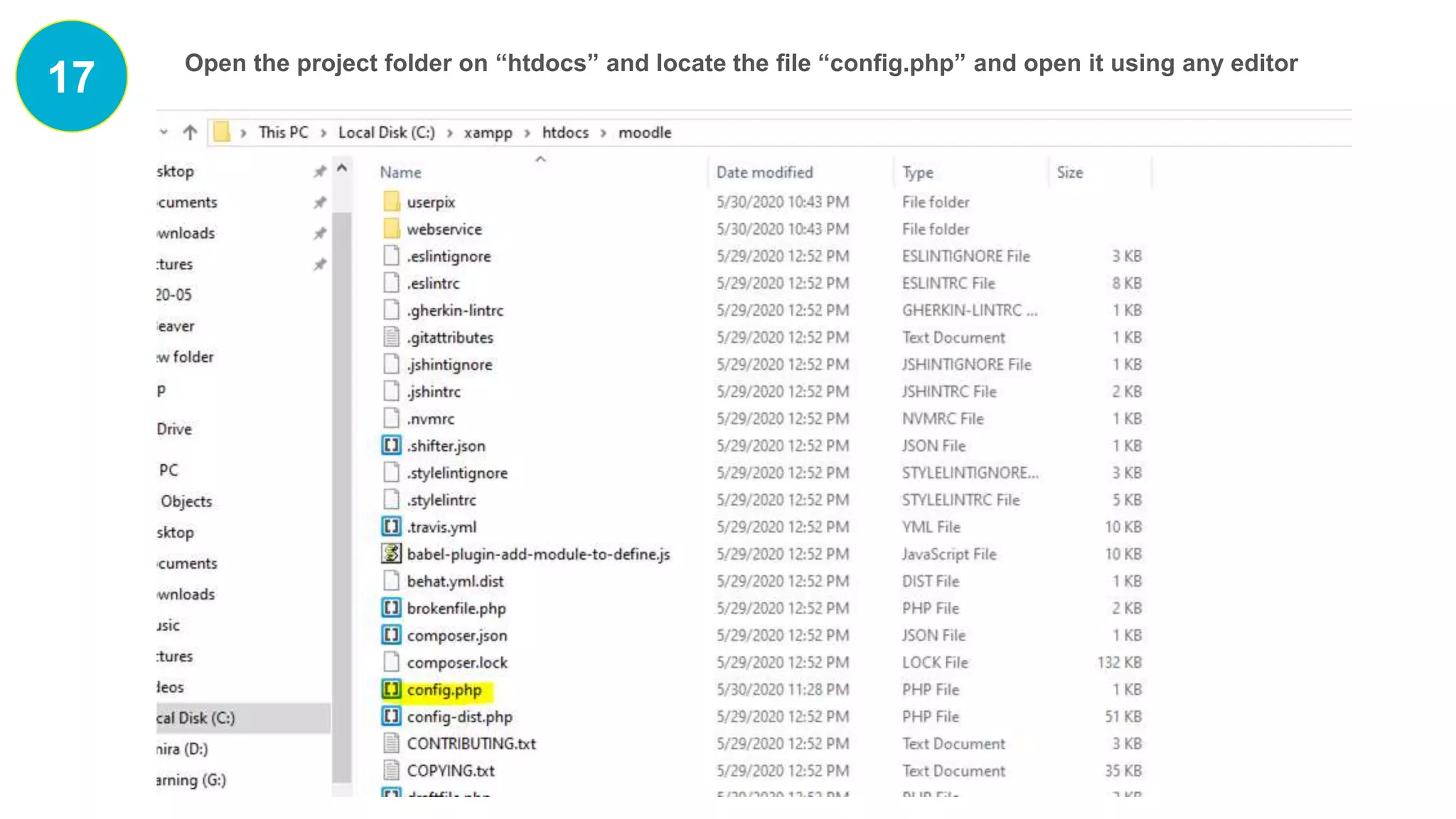
17 Open the project folder on “htdocs” and locate the file “config.php” and open it using any editor
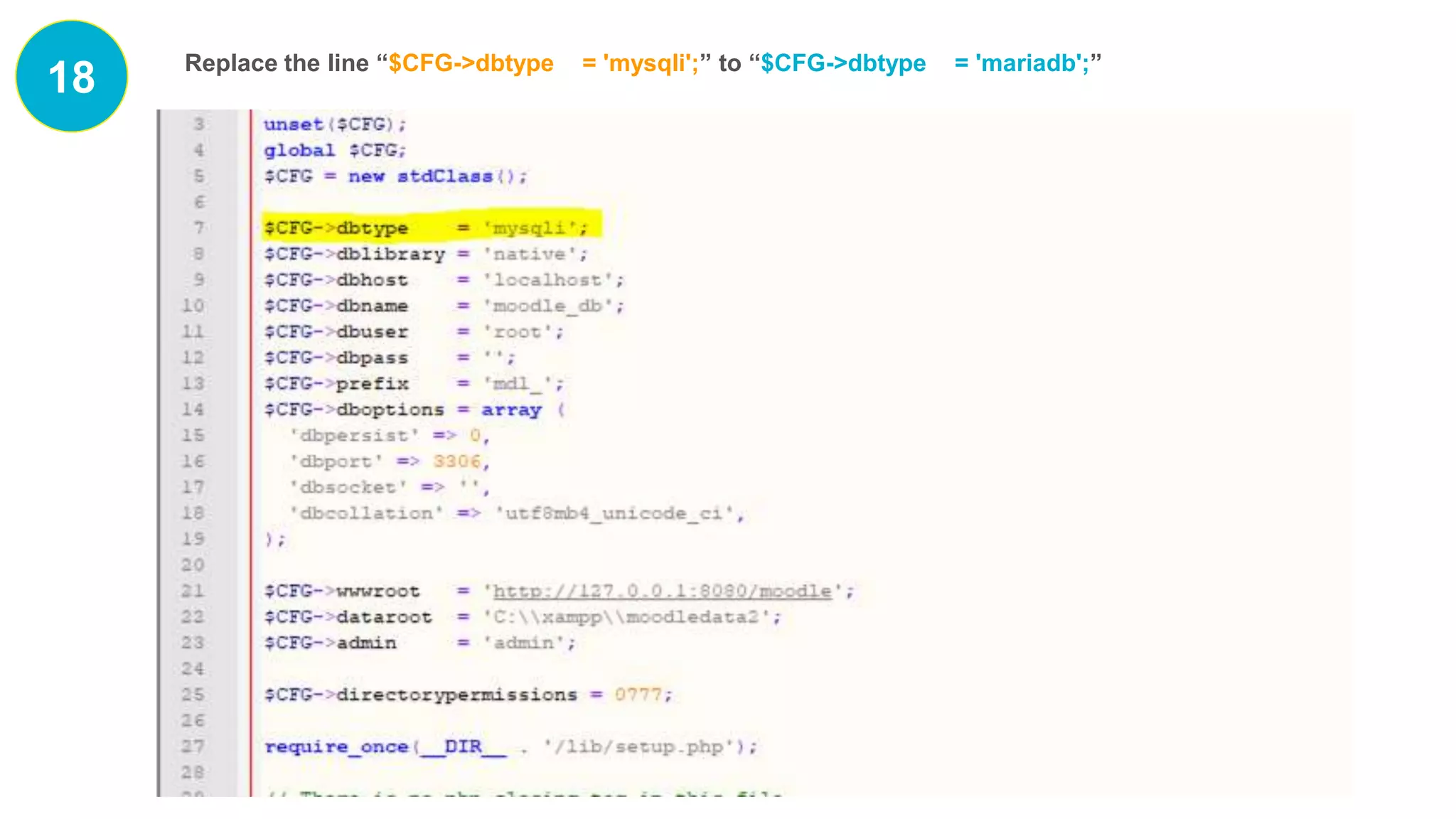
18 Replace the line “$CFG->dbtype = 'mysqli';” to “$CFG->dbtype = 'mariadb';”
19
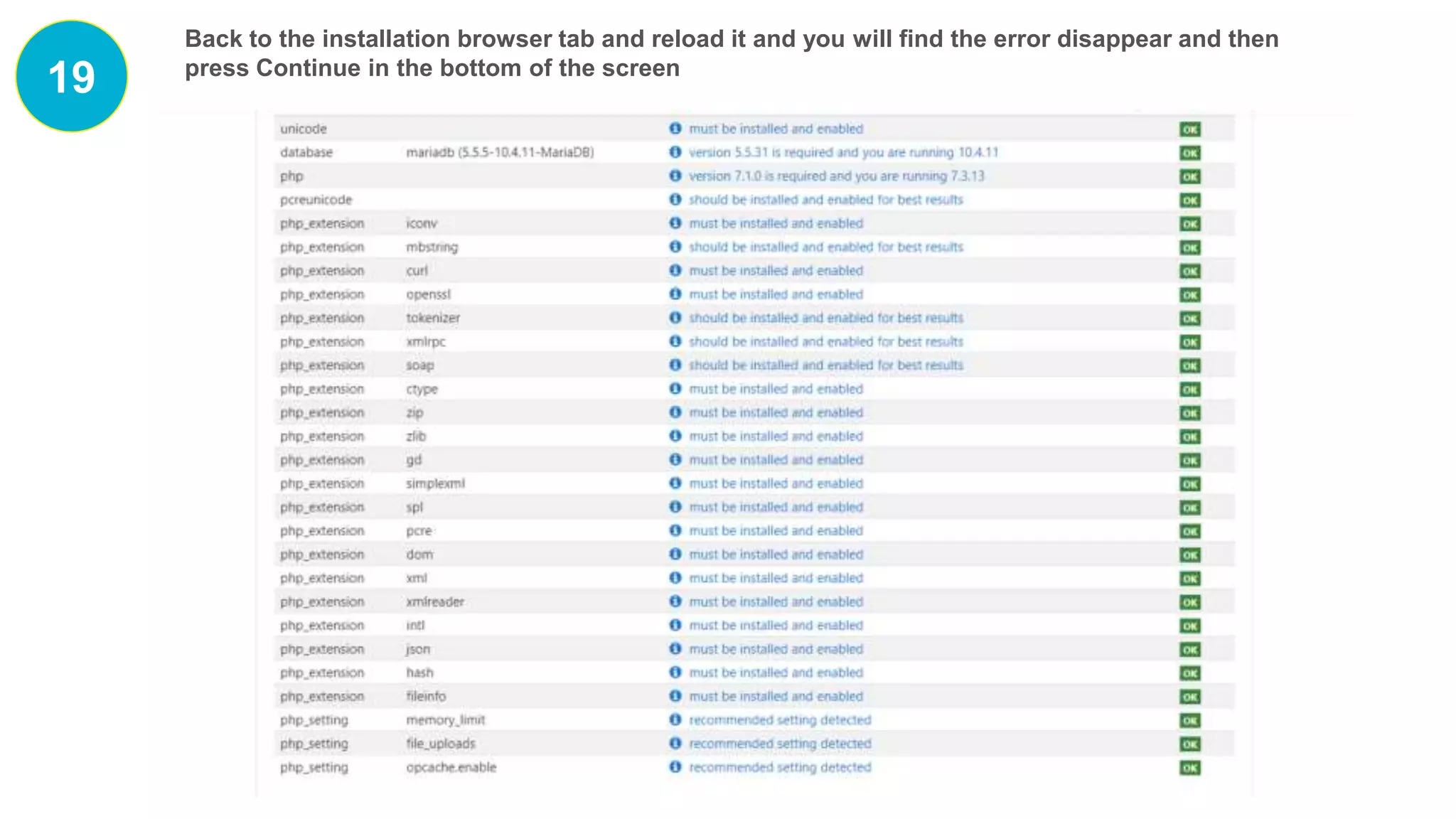
Back to the installation browser tab and reload it and you will find the error disappear and then
press Continue in the bottom of the screen
20
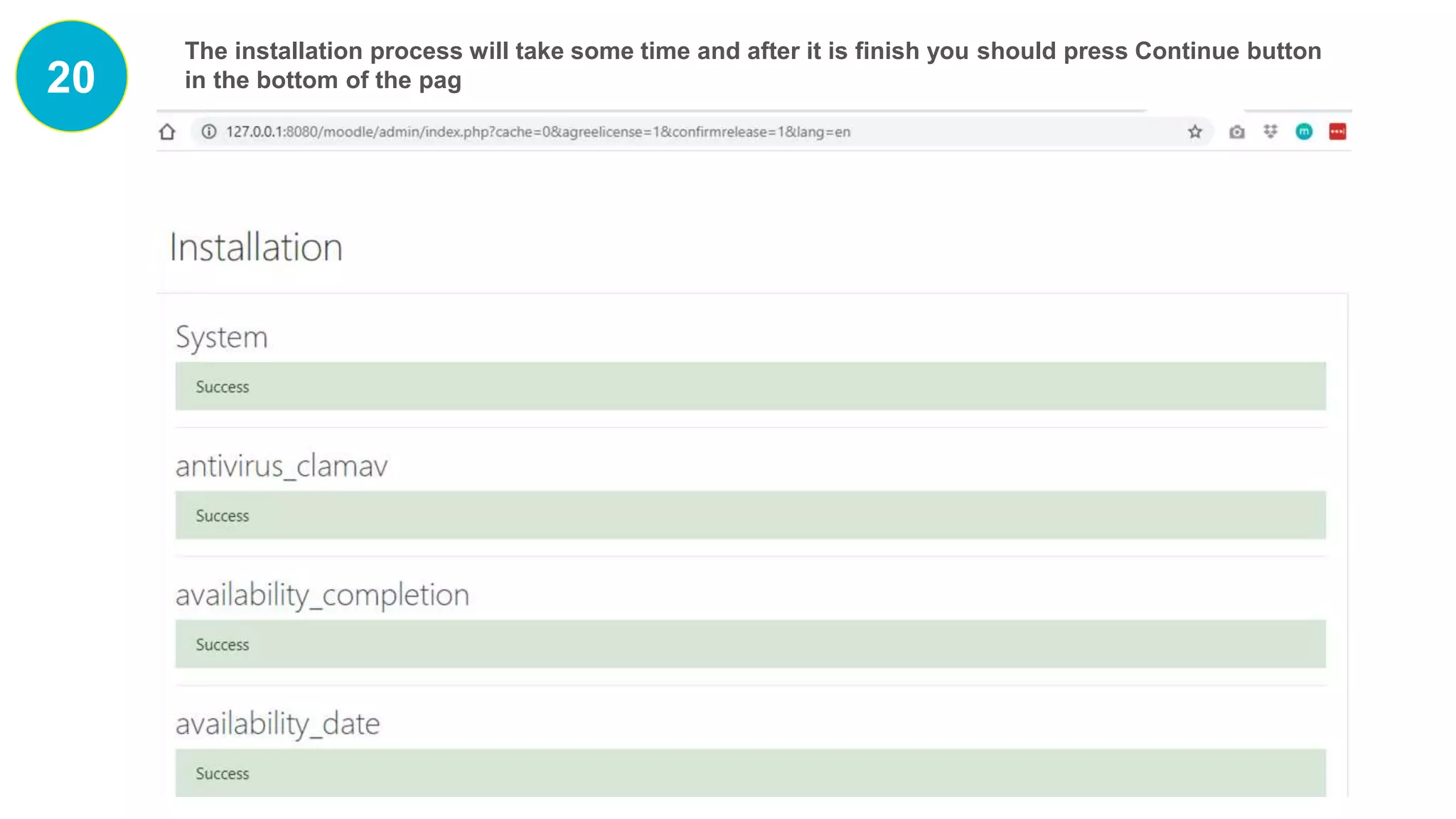
The installation process will take some time and after it is finish you should press Continue button
in the bottom of the pag
21
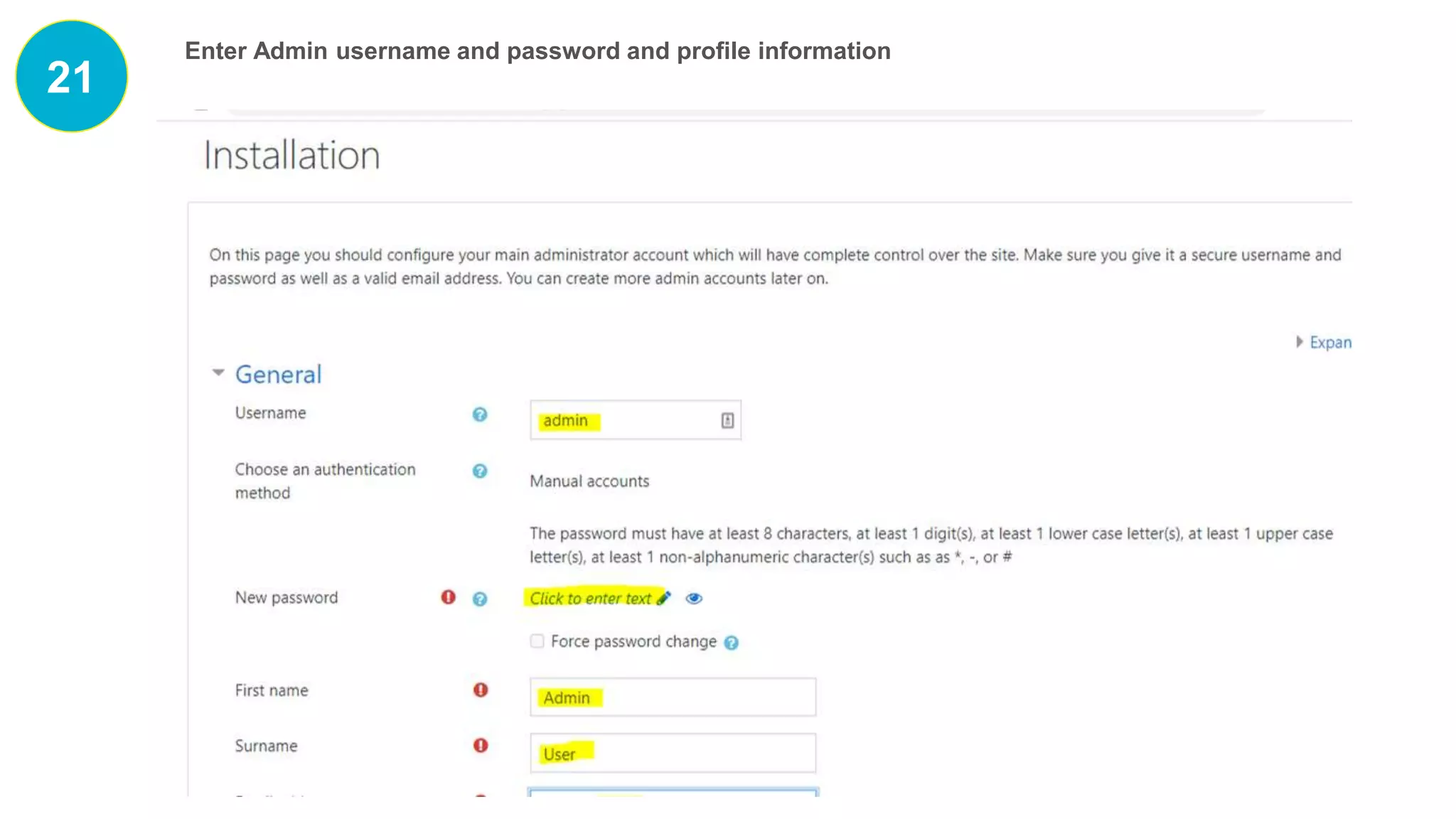
Enter Admin username and password and profile information
22
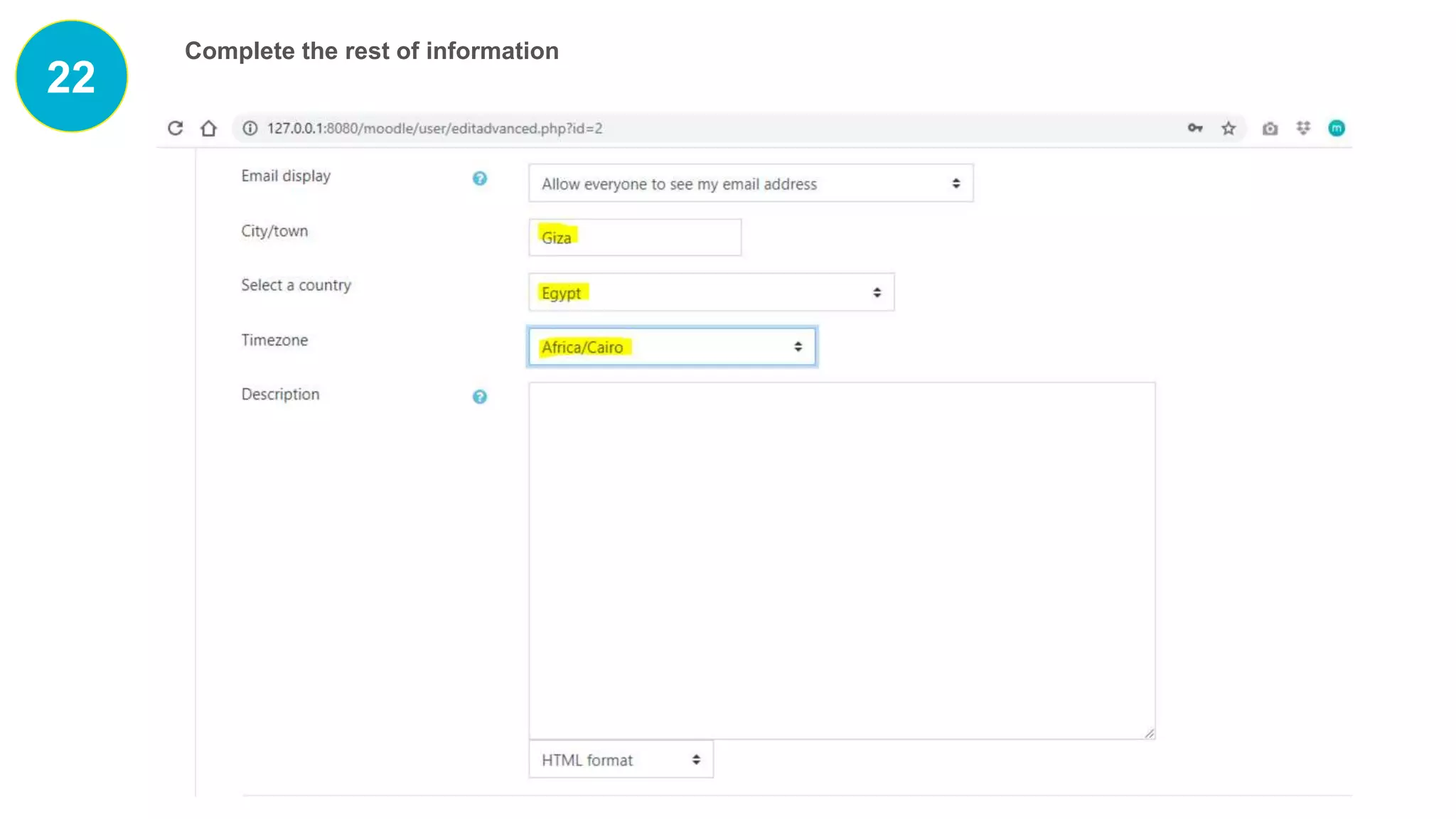
Complete the rest of information
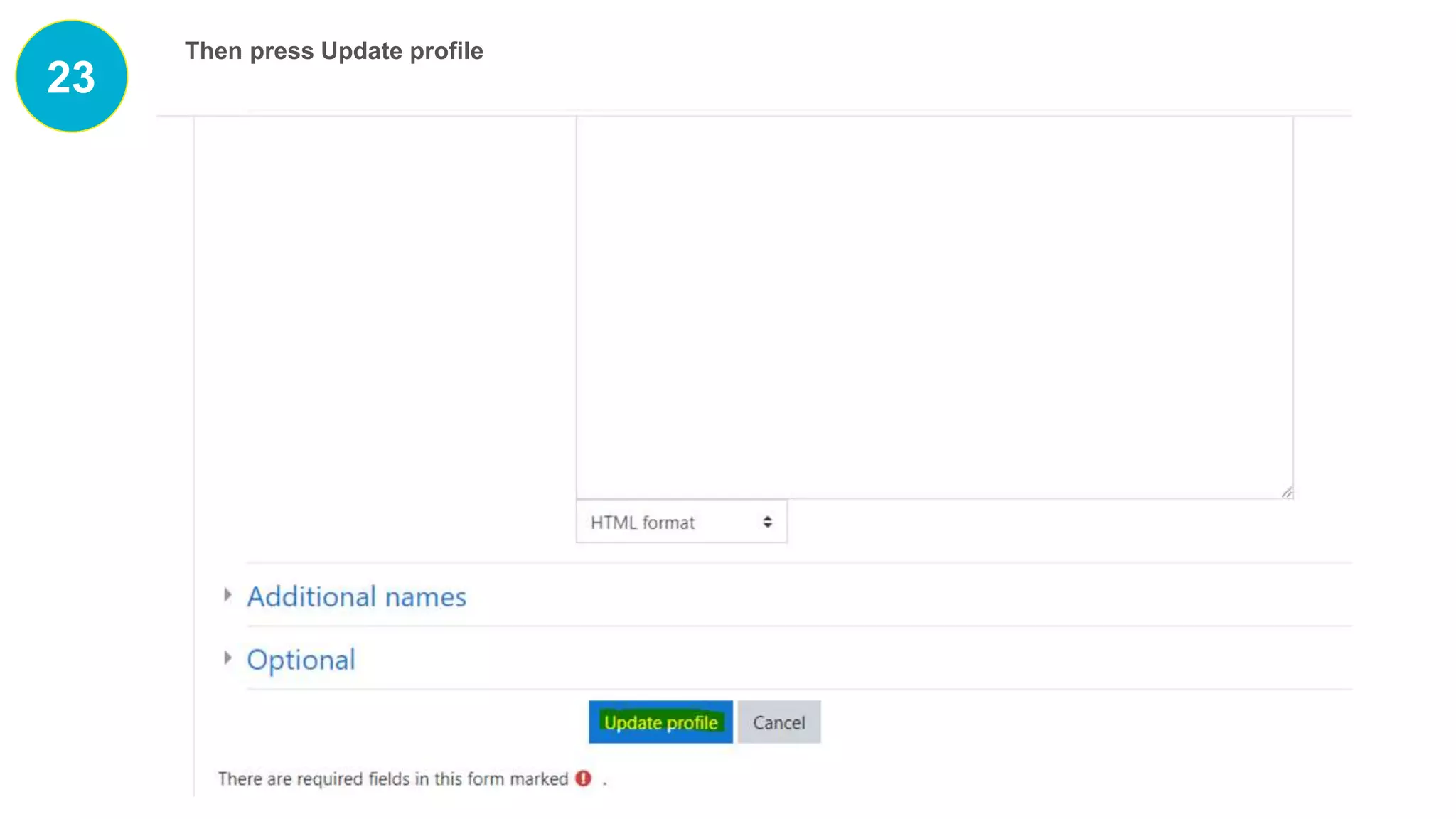
23
Then press Update profile
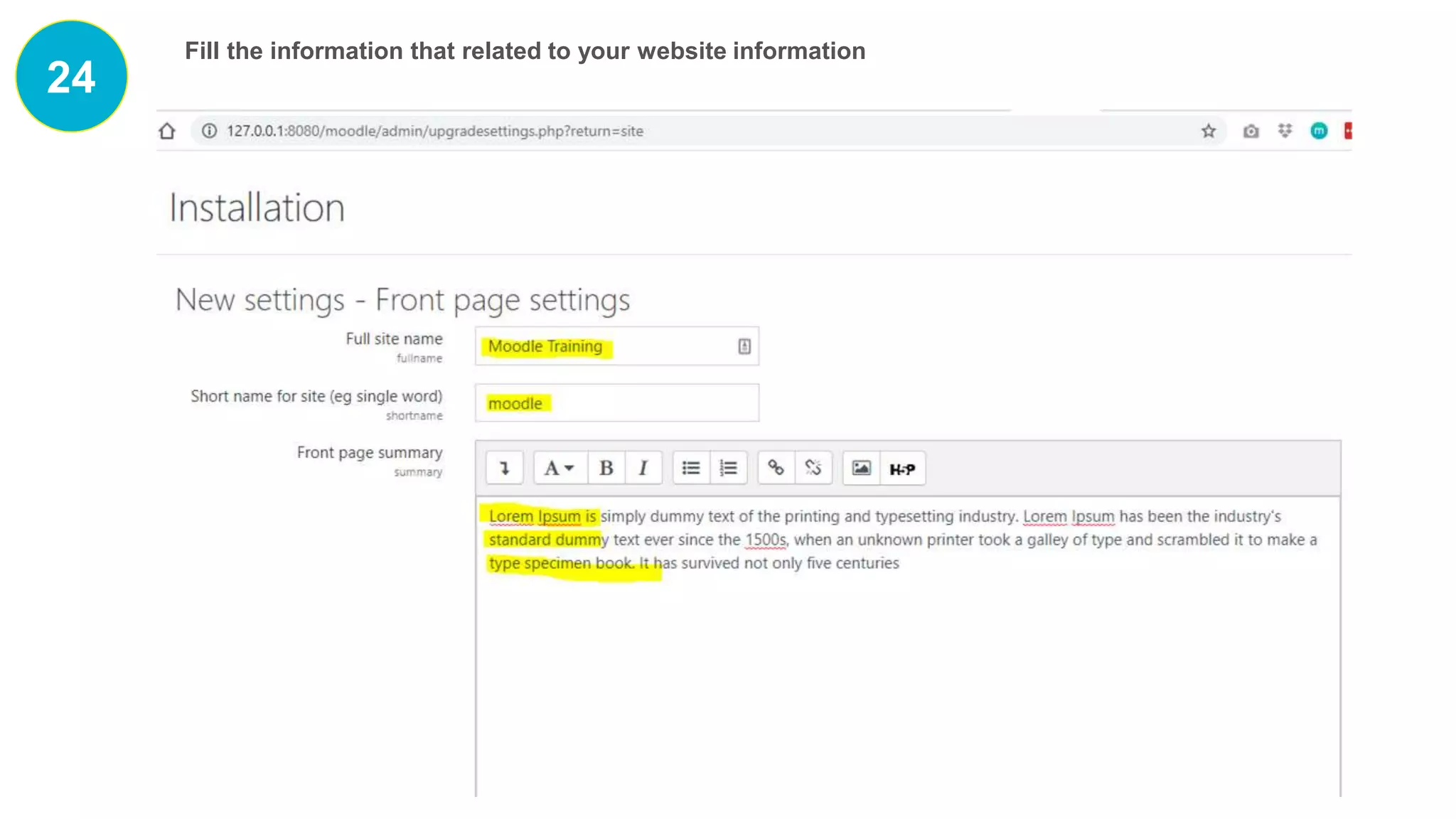
24
Fill the information that related to your website information
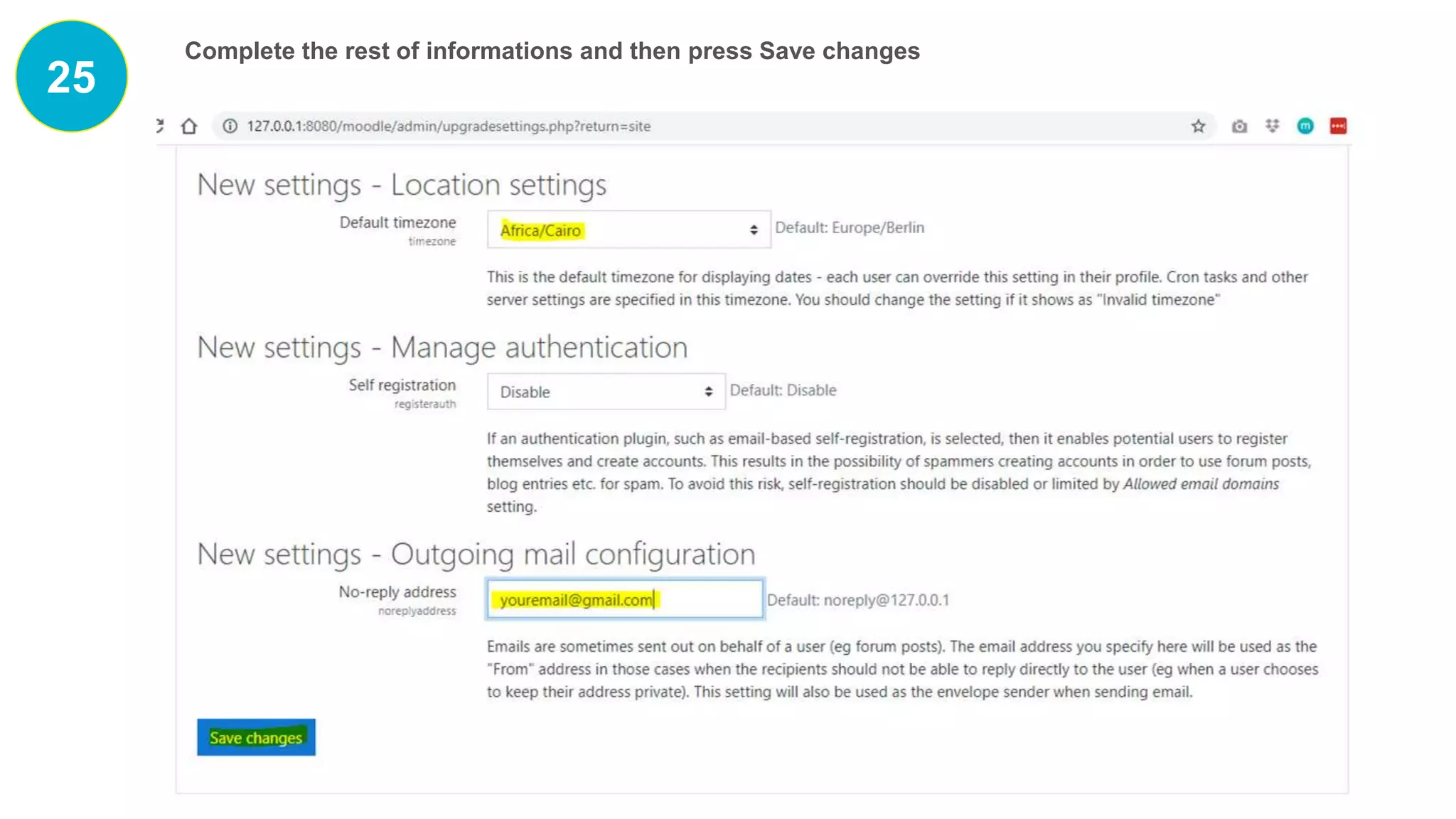
25
Complete the rest of informations and then press Save changes
26
And Congratulation, your moodle website is up and running now
Congratulations
You can also start
adding your
students and
courses
Your Moodle
website is up and
running now on
your local machine
You can now
install themes and
plugins
Get Help
http://stackoverflow.com/
https://moodle.org/login/index.php

Moodle installation guide