https://softuni.bg
Software University
SoftUni
Svetlin Nakov
Android App Test Automation
Appium: Mobile App Testing
1. Appium
 Overview, Architecture, Installation
2. The Android Emulator
3. Appium for Android App Automation
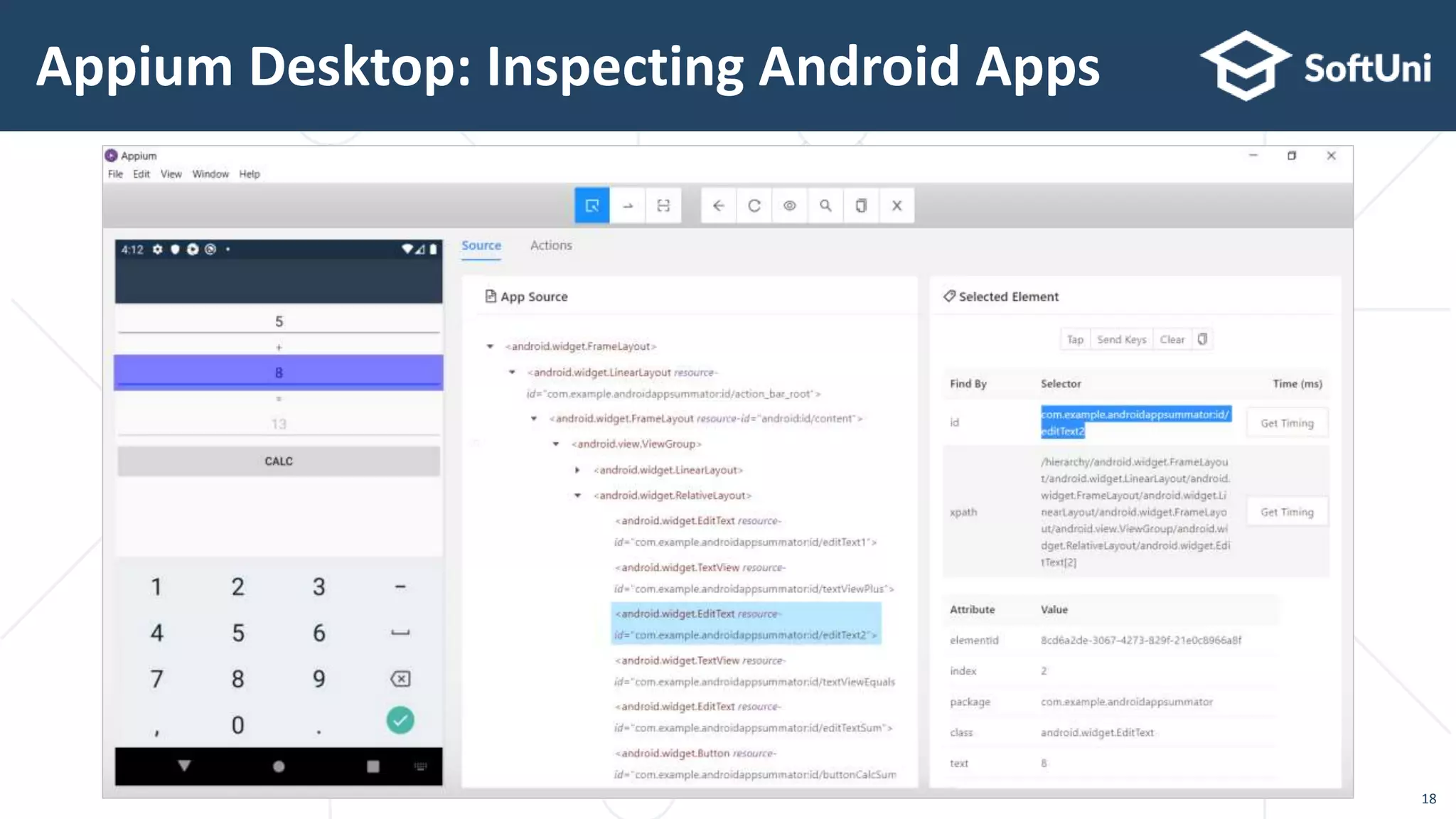
 Inspecting Android apps UI from Appium
 Using AndroidDriver<AndroidElement>
 Using Appium for Android from NUnit
4. Testing on Physical Android Device
Table of Contents
2
Overview, Architecture, Installation
Appium
Appium – Overview
 Appium is open-source UI test automation tool
 UI automation for Android, iOS, Windows, Mac
 Like Selenium WebDriver, but for mobile and desktop apps
 Appium uses the well-known Selenium primitives:
 driver.FindElementBy (name, id, XPath, …)
 element.Text, element.Click(),
element.SendKeys()
 Implicit and explicit waits
4
5
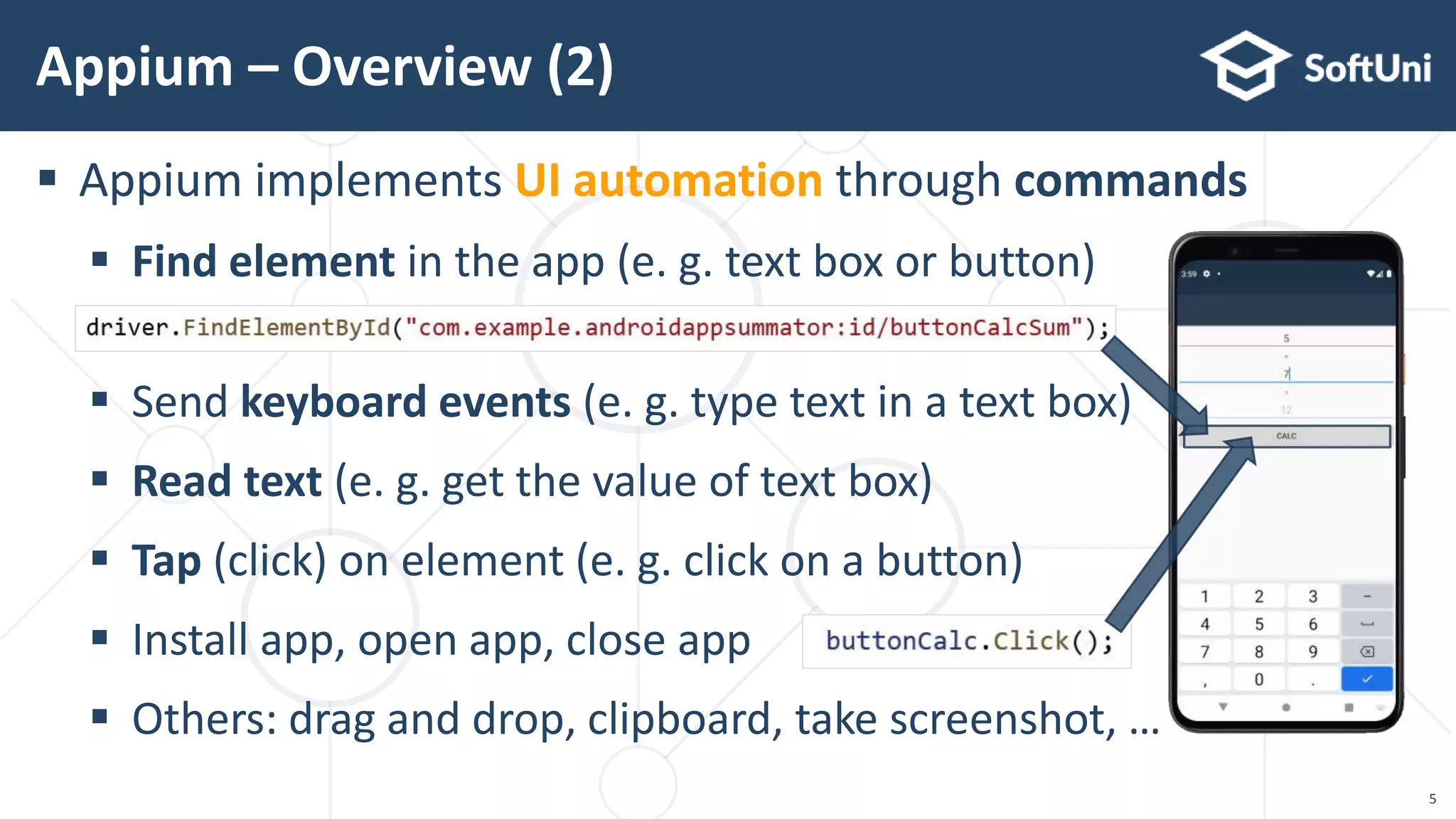
 Appium implements UI automation through commands
 Find element in the app (e. g. text box or button)
 Send keyboard events (e. g. type text in a text box)
 Read text (e. g. get the value of text box)
 Tap (click) on element (e. g. click on a button)
 Install app, open app, close app
 Others: drag and drop, clipboard, take screenshot, …
Appium – Overview (2)
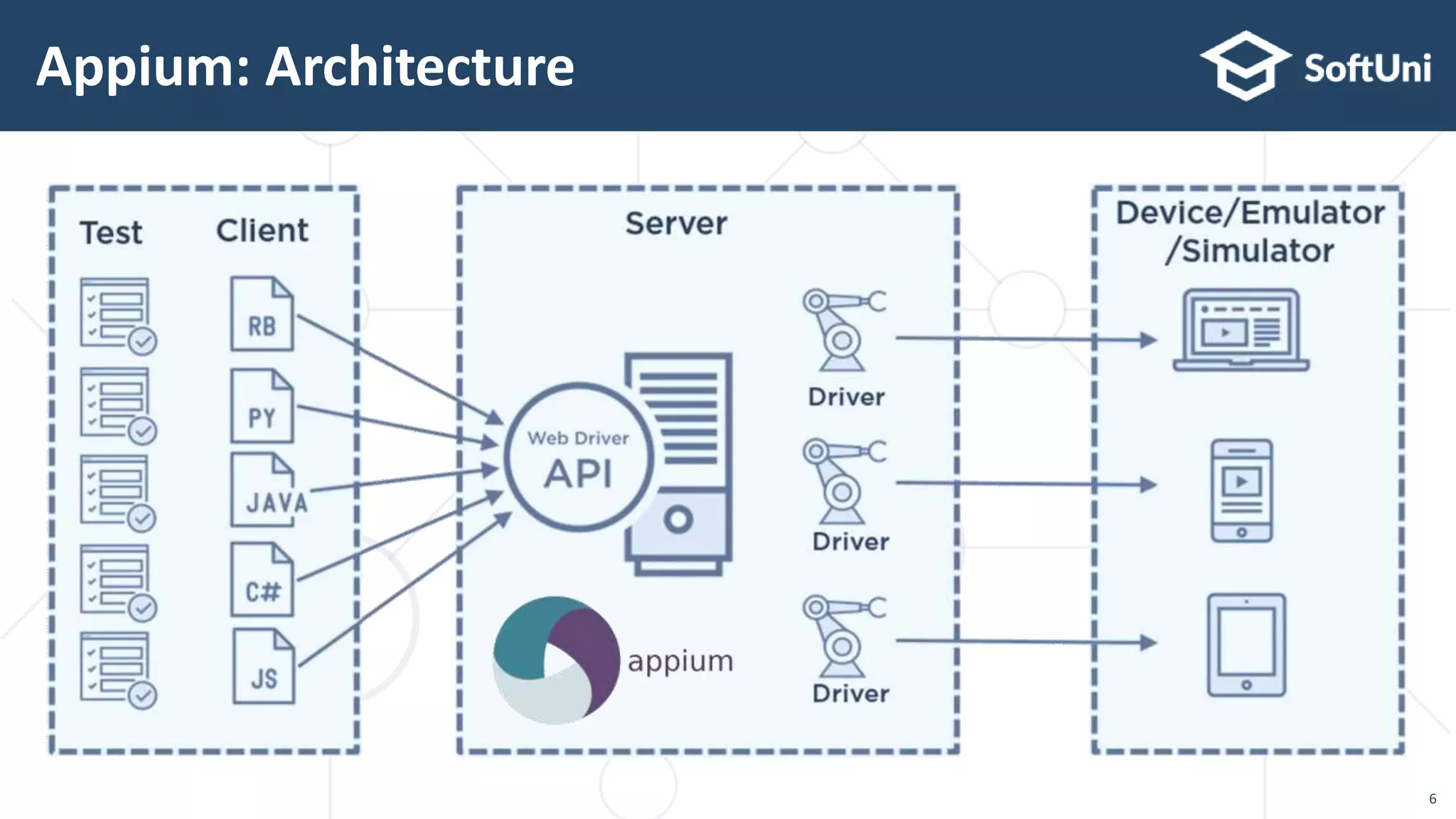
Appium: Architecture
6
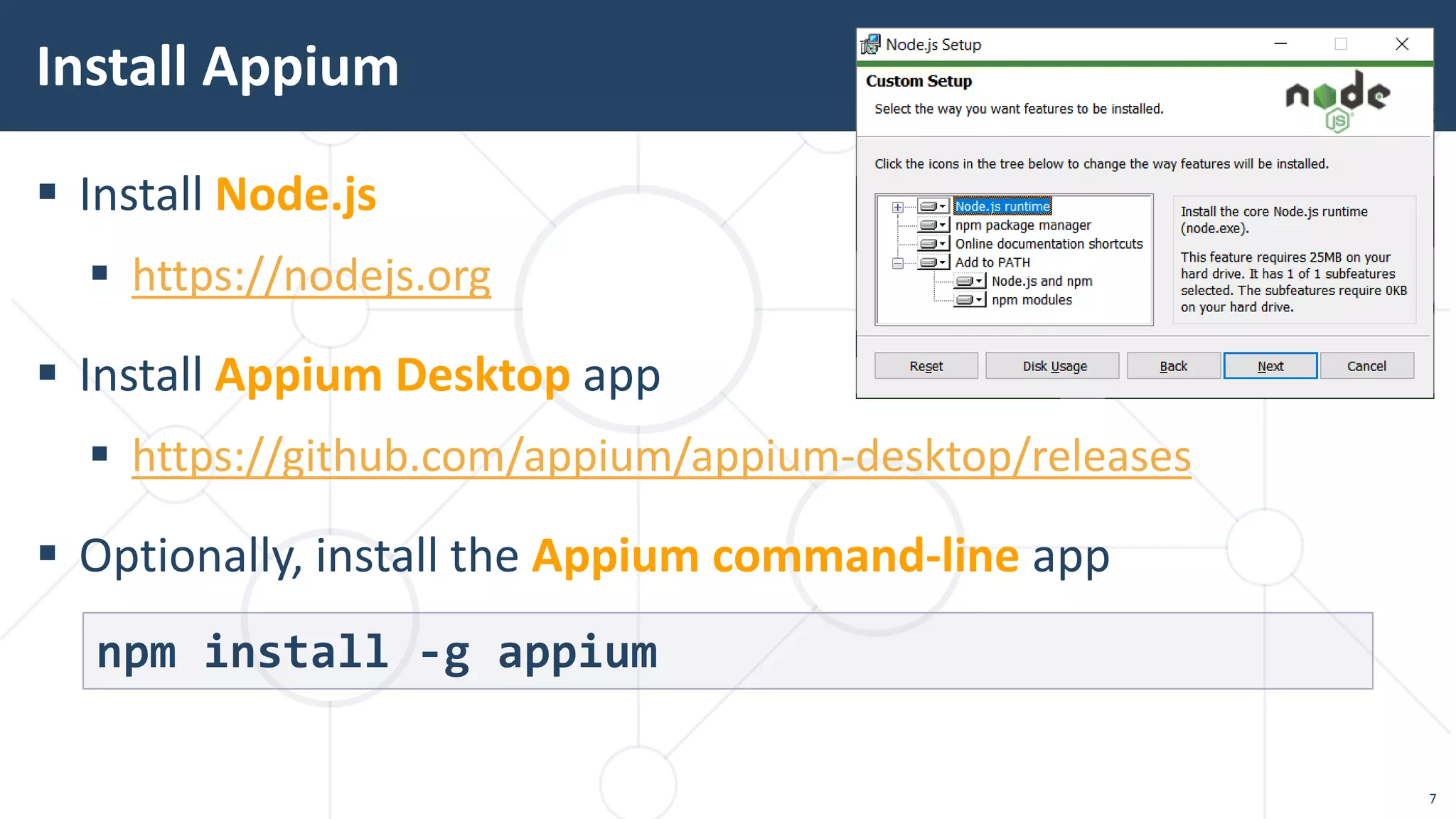
 Install Node.js
 https://nodejs.org
 Install Appium Desktop app
 https://github.com/appium/appium-desktop/releases
 Optionally, install the Appium command-line app
Install Appium
npm install -g appium
7
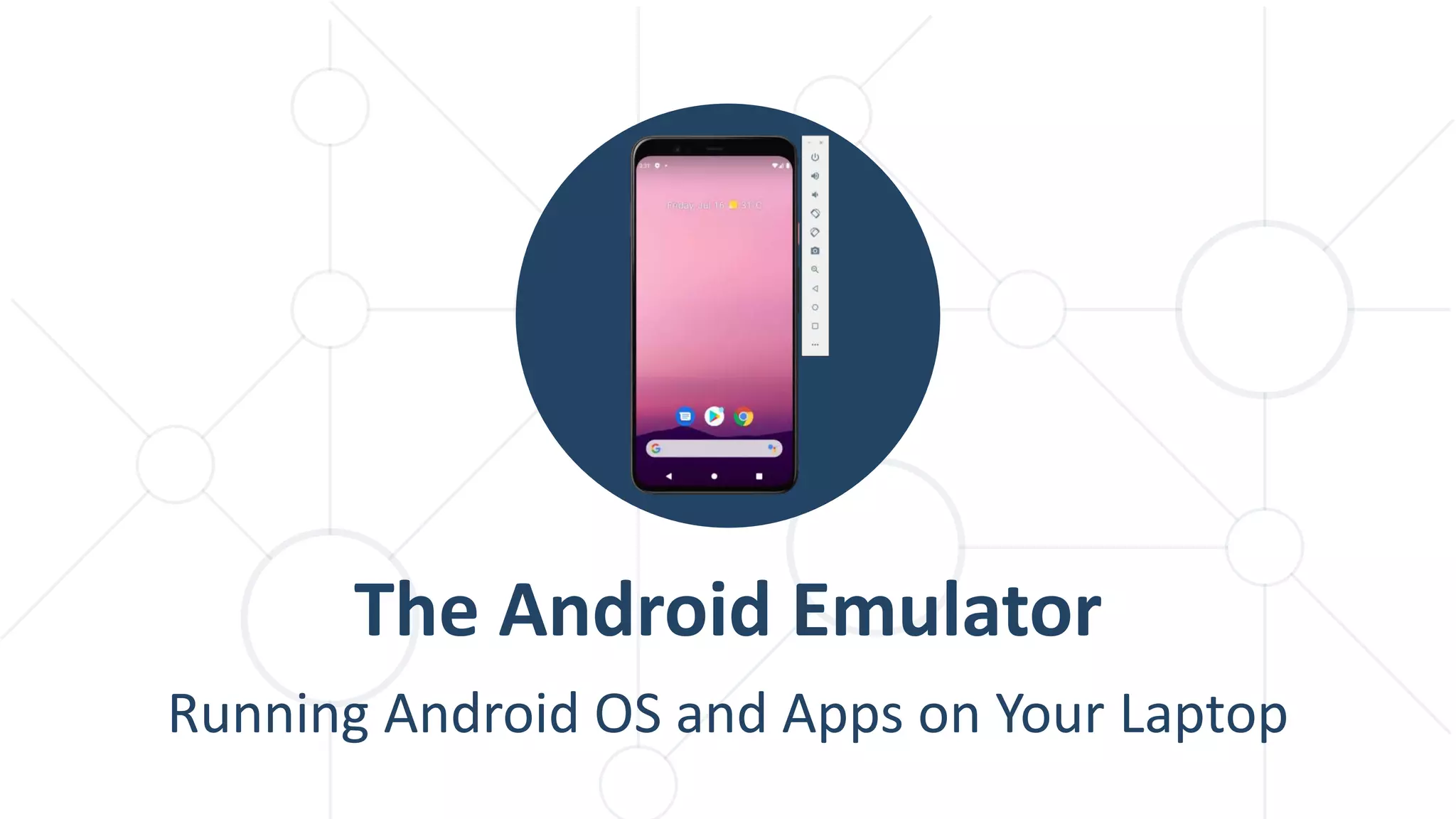
Running Android OS and Apps on Your Laptop
The Android Emulator
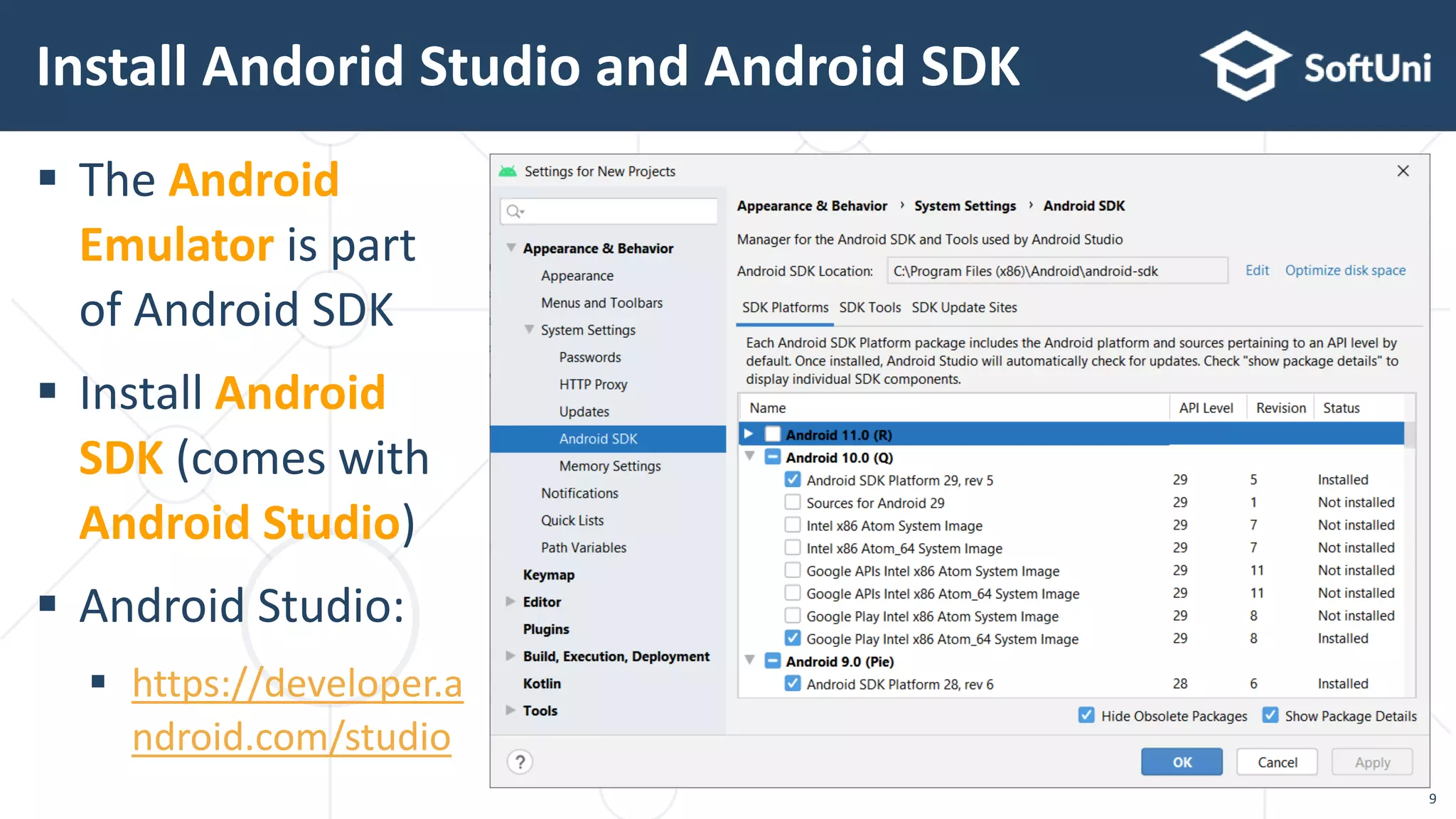
 The Android
Emulator is part
of Android SDK
 Install Android
SDK (comes with
Android Studio)
 Android Studio:
 https://developer.a
ndroid.com/studio
Install Andorid Studio and Android SDK
9
10
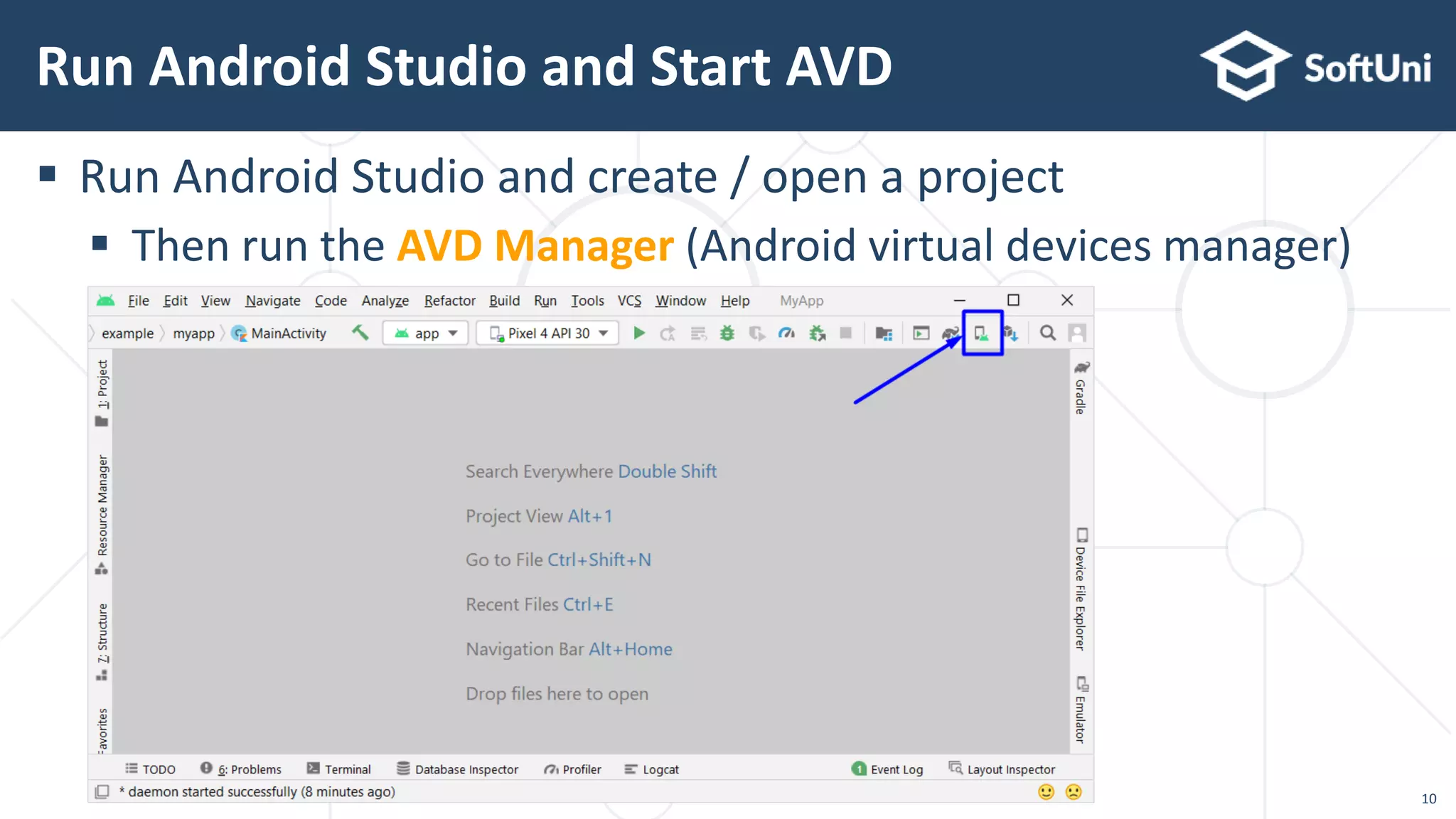
 Run Android Studio and create / open a project
 Then run the AVD Manager (Android virtual devices manager)
Run Android Studio and Start AVD
11
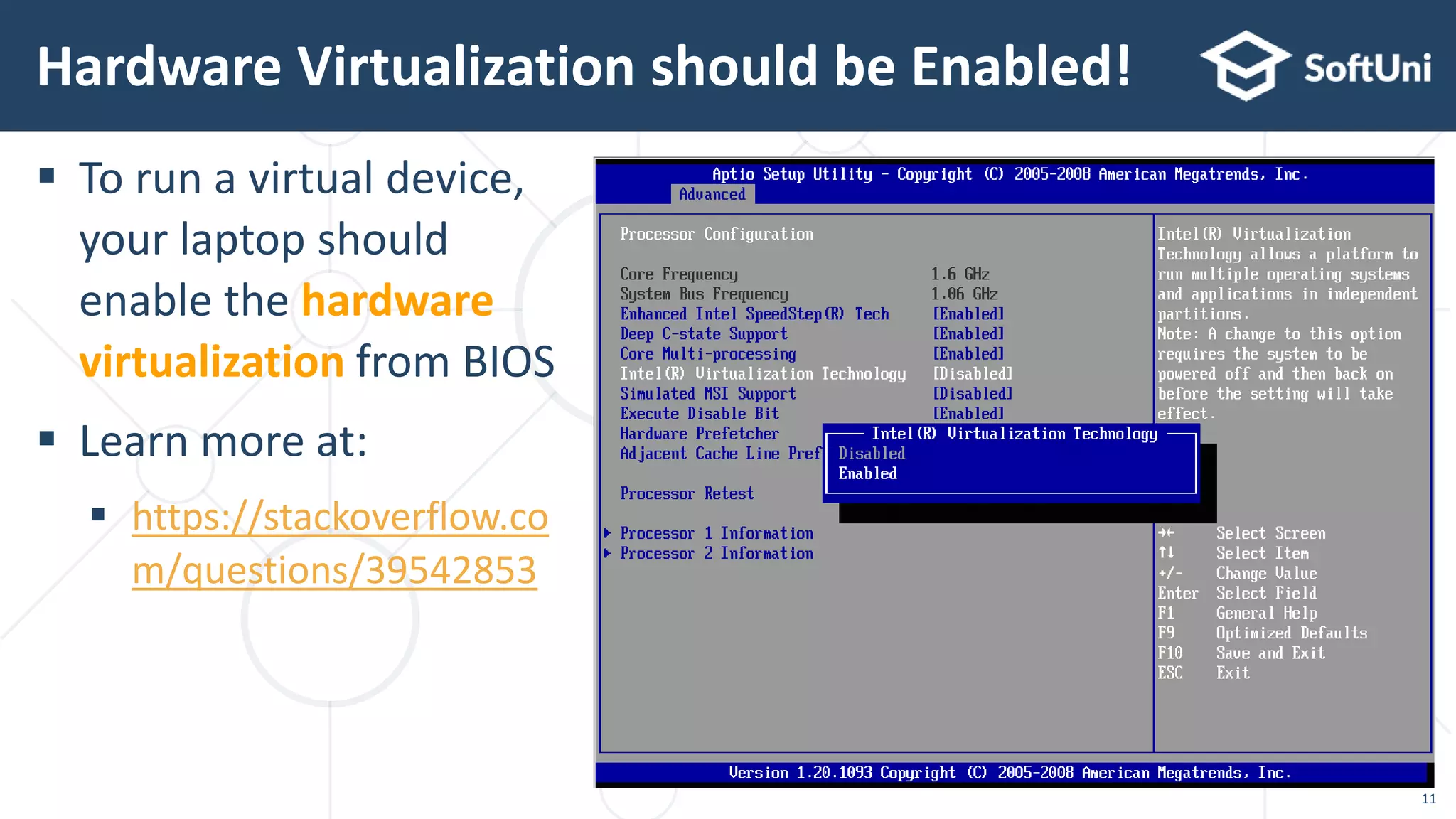
 To run a virtual device,
your laptop should
enable the hardware
virtualization from BIOS
 Learn more at:
 https://stackoverflow.co
m/questions/39542853
Hardware Virtualization should be Enabled!
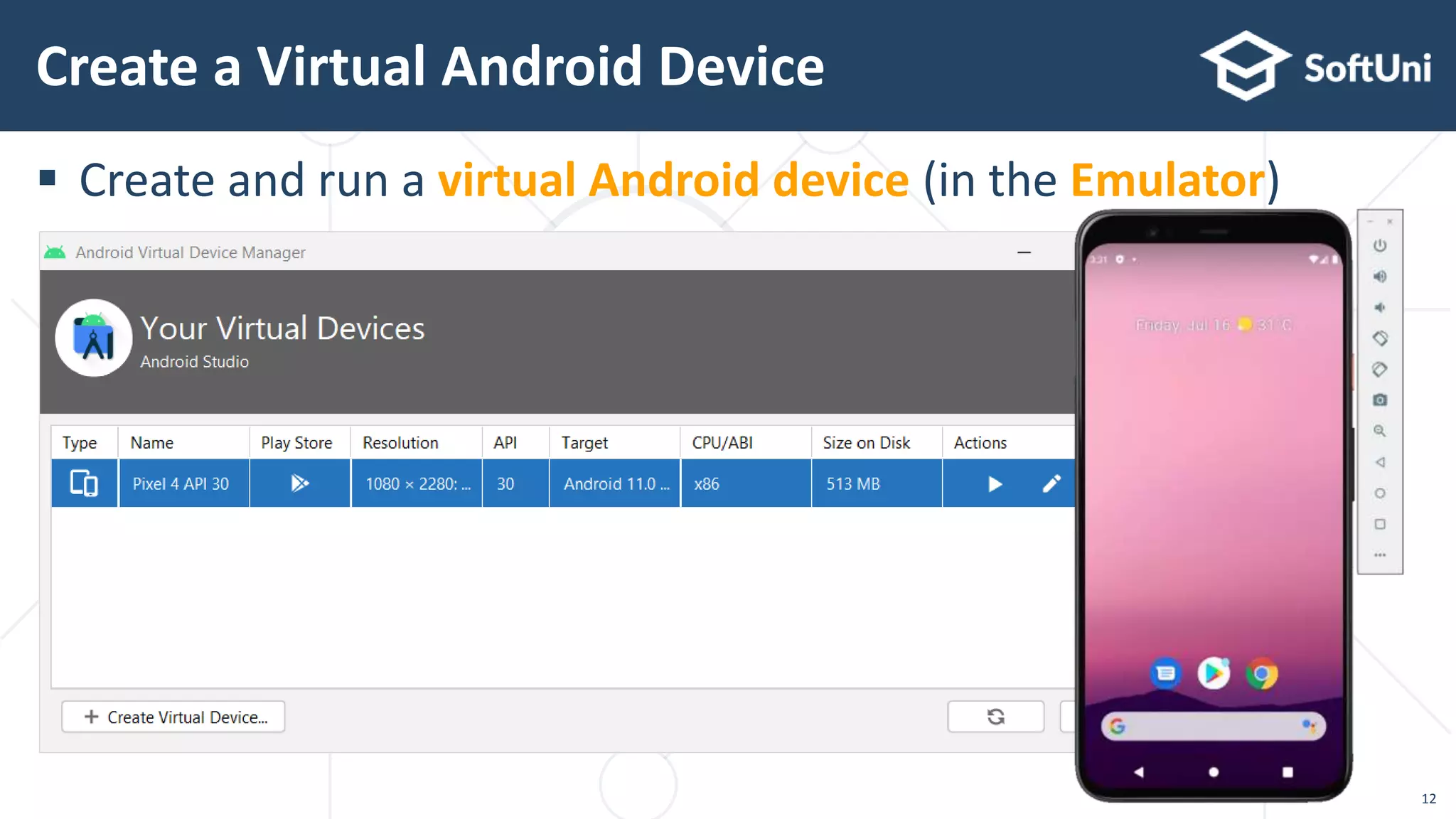
 Create and run a virtual Android device (in the Emulator)
Create a Virtual Android Device
12
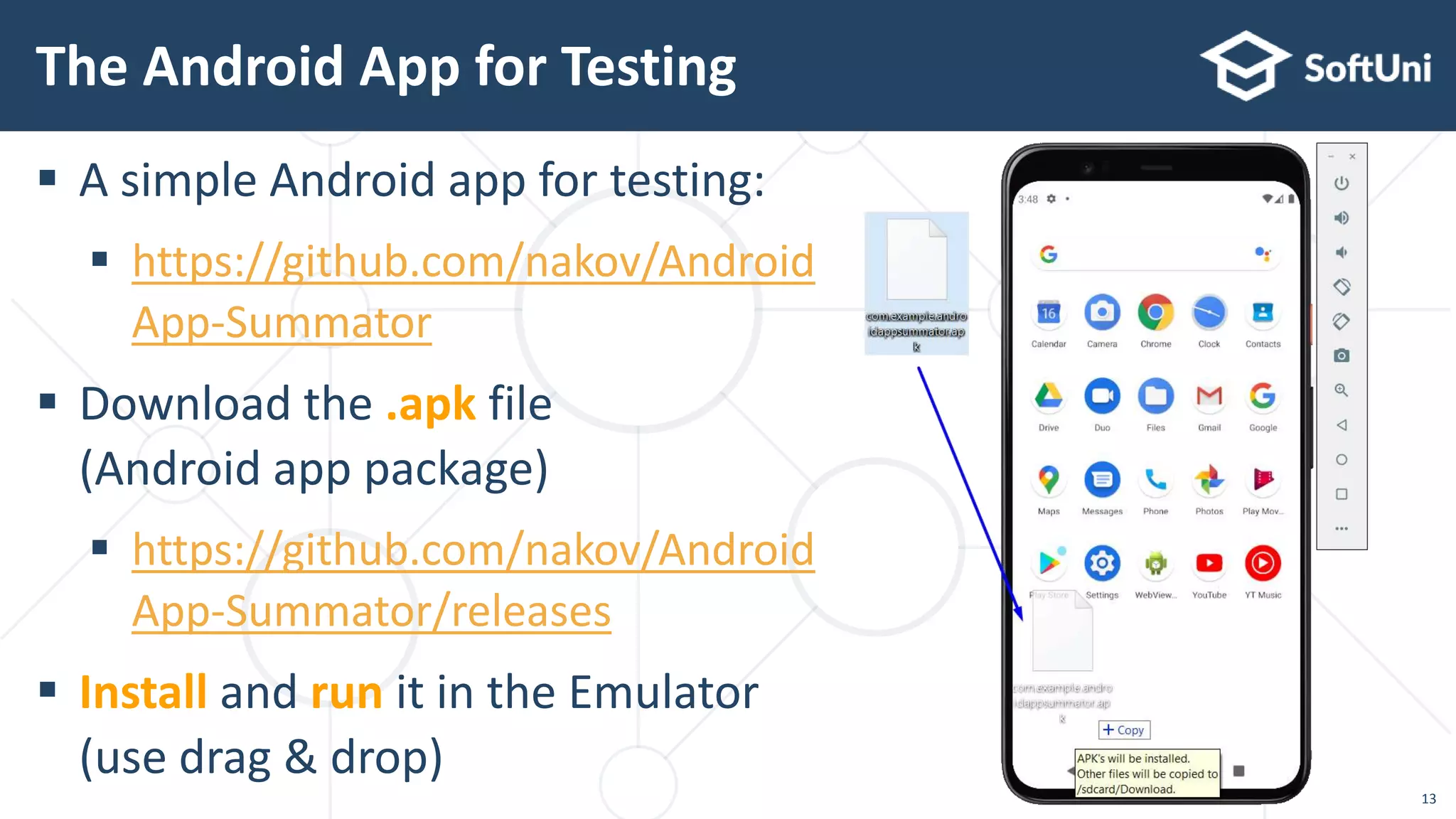
 A simple Android app for testing:
 https://github.com/nakov/Android
App-Summator
 Download the .apk file
(Android app package)
 https://github.com/nakov/Android
App-Summator/releases
 Install and run it in the Emulator
(use drag & drop)
The Android App for Testing
13
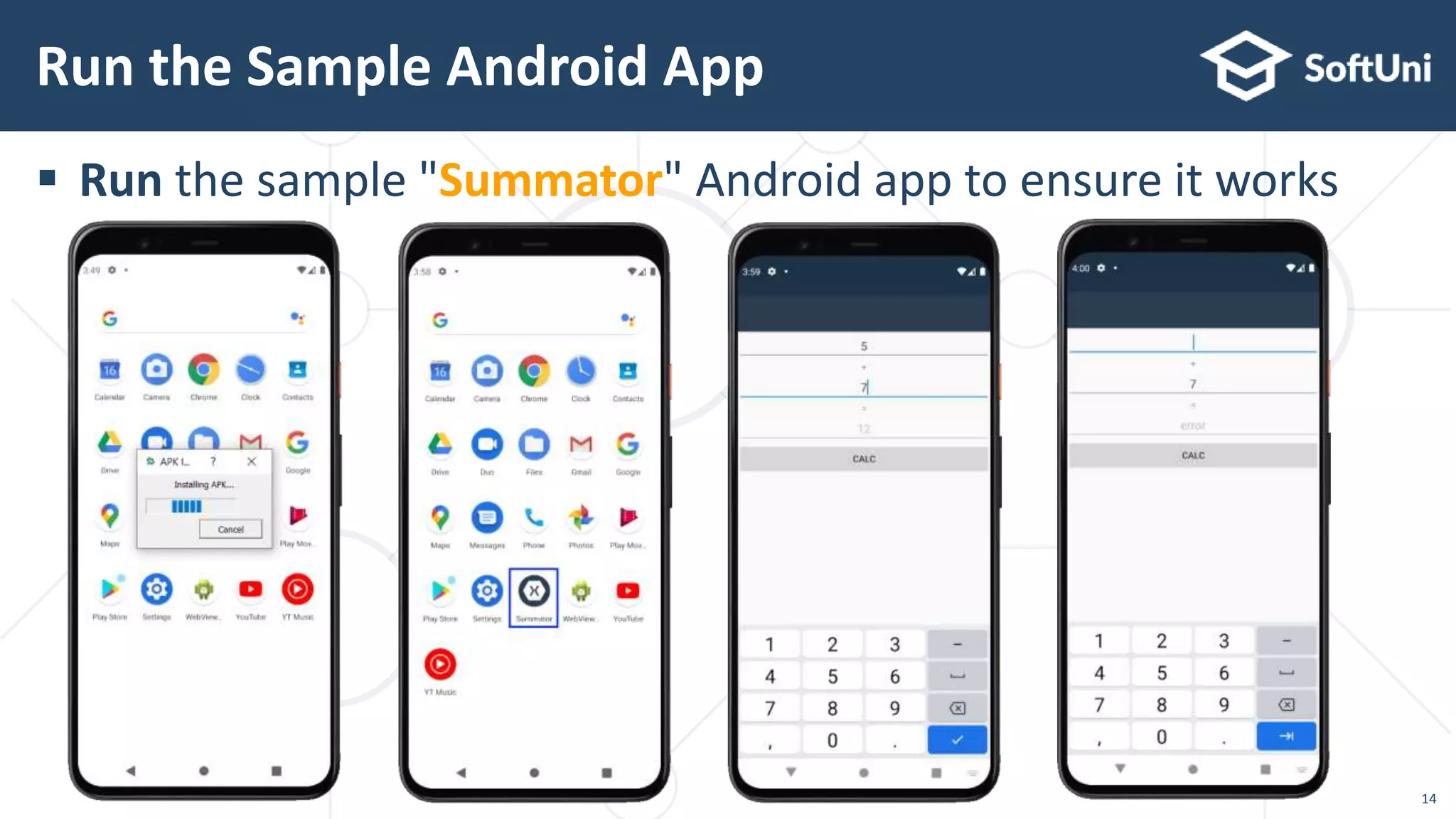
 Run the sample "Summator" Android app to ensure it works
Run the Sample Android App
14
Test Automation for Android Apps
Appium + AndroidDriver
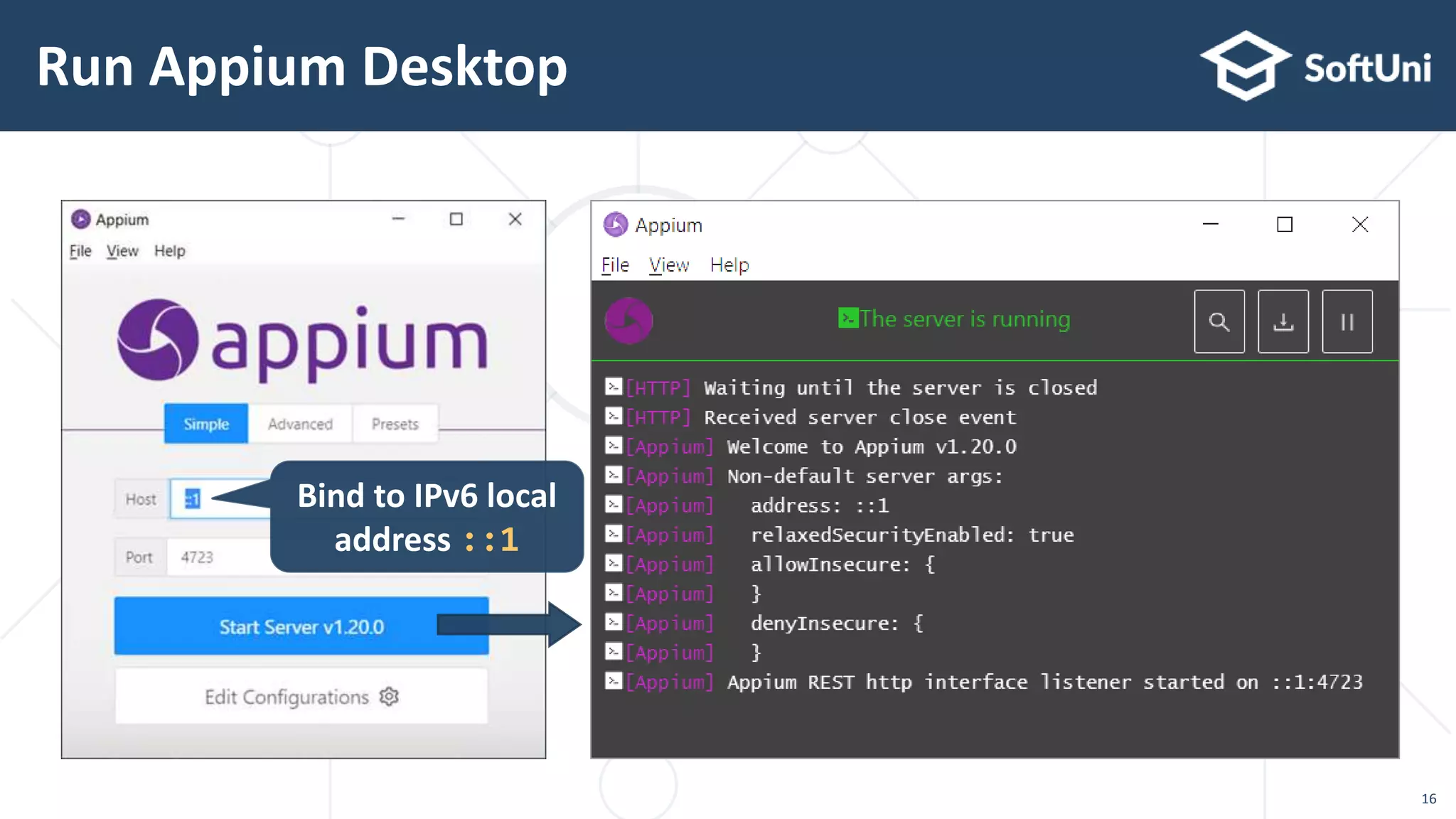
Run Appium Desktop
16
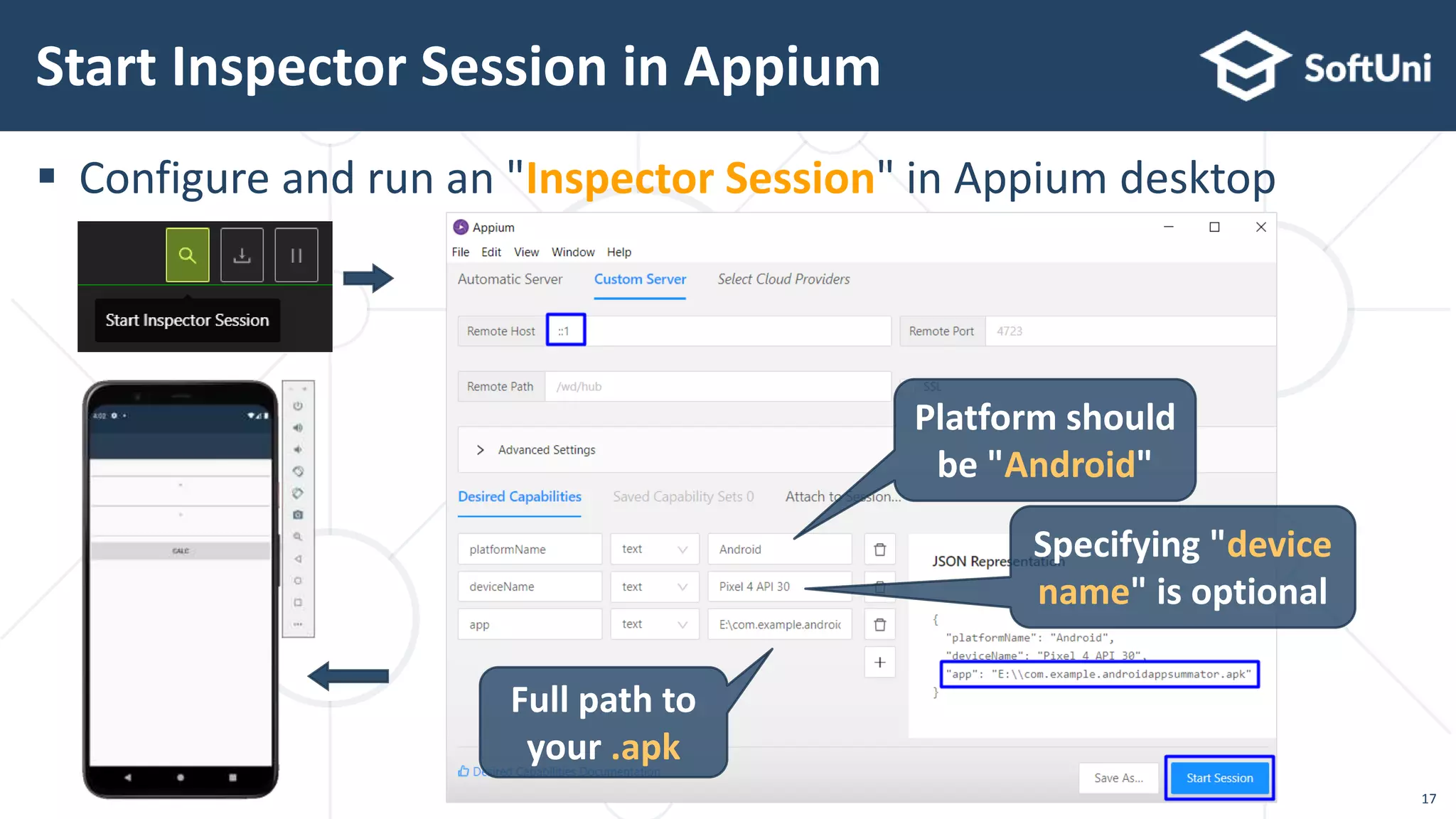
Bind to IPv6 local
address ::1
 Configure and run an "Inspector Session" in Appium desktop
Start Inspector Session in Appium
17
Platform should
be "Android"
Specifying "device
name" is optional
Full path to
your .apk
Appium Desktop: Inspecting Android Apps
18
Writing Appium Tests with C# and NUnit
Appium Tests for Android
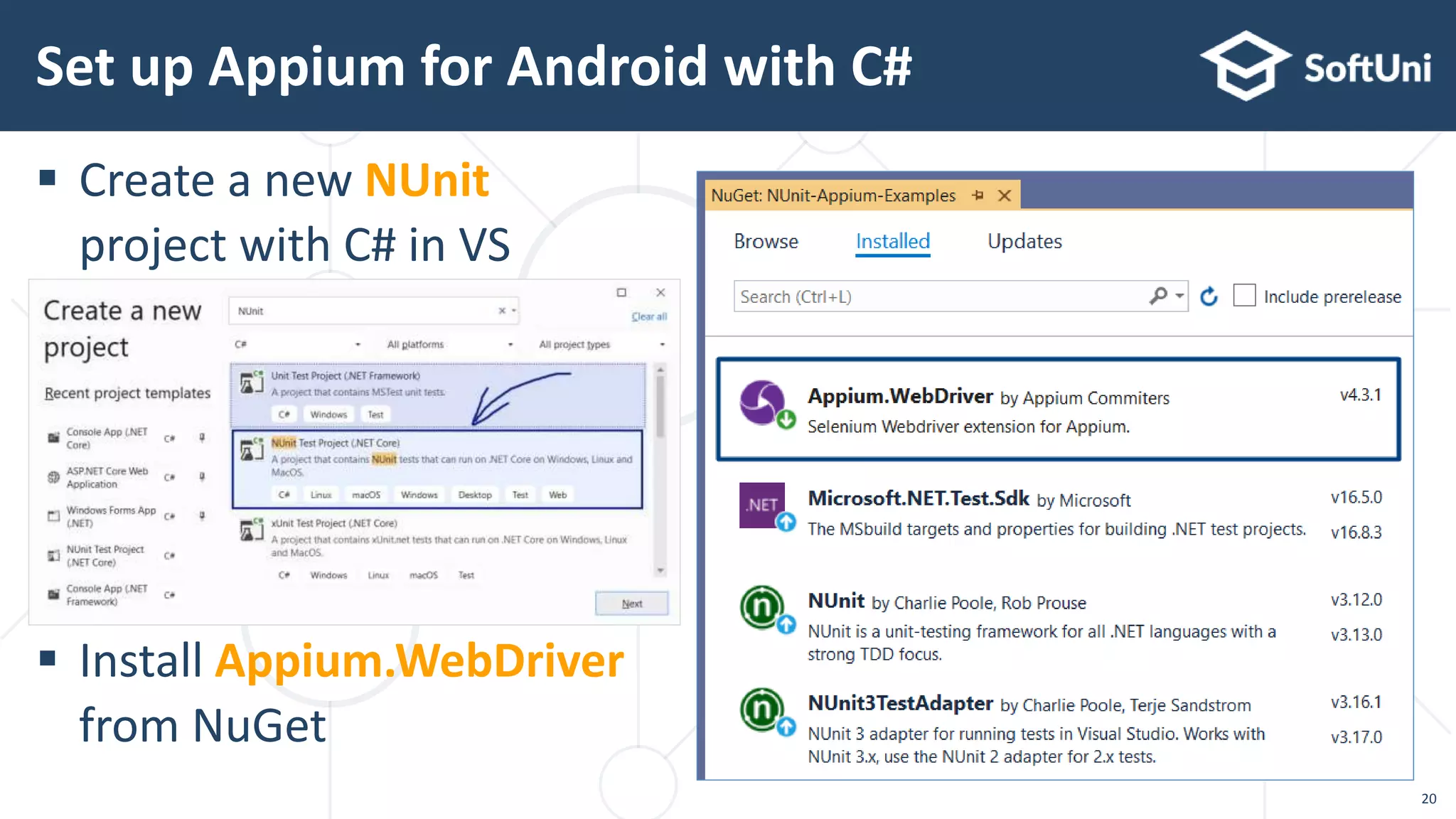
 Create a new NUnit
project with C# in VS
 Install Appium.WebDriver
from NuGet
Set up Appium for Android with C#
20
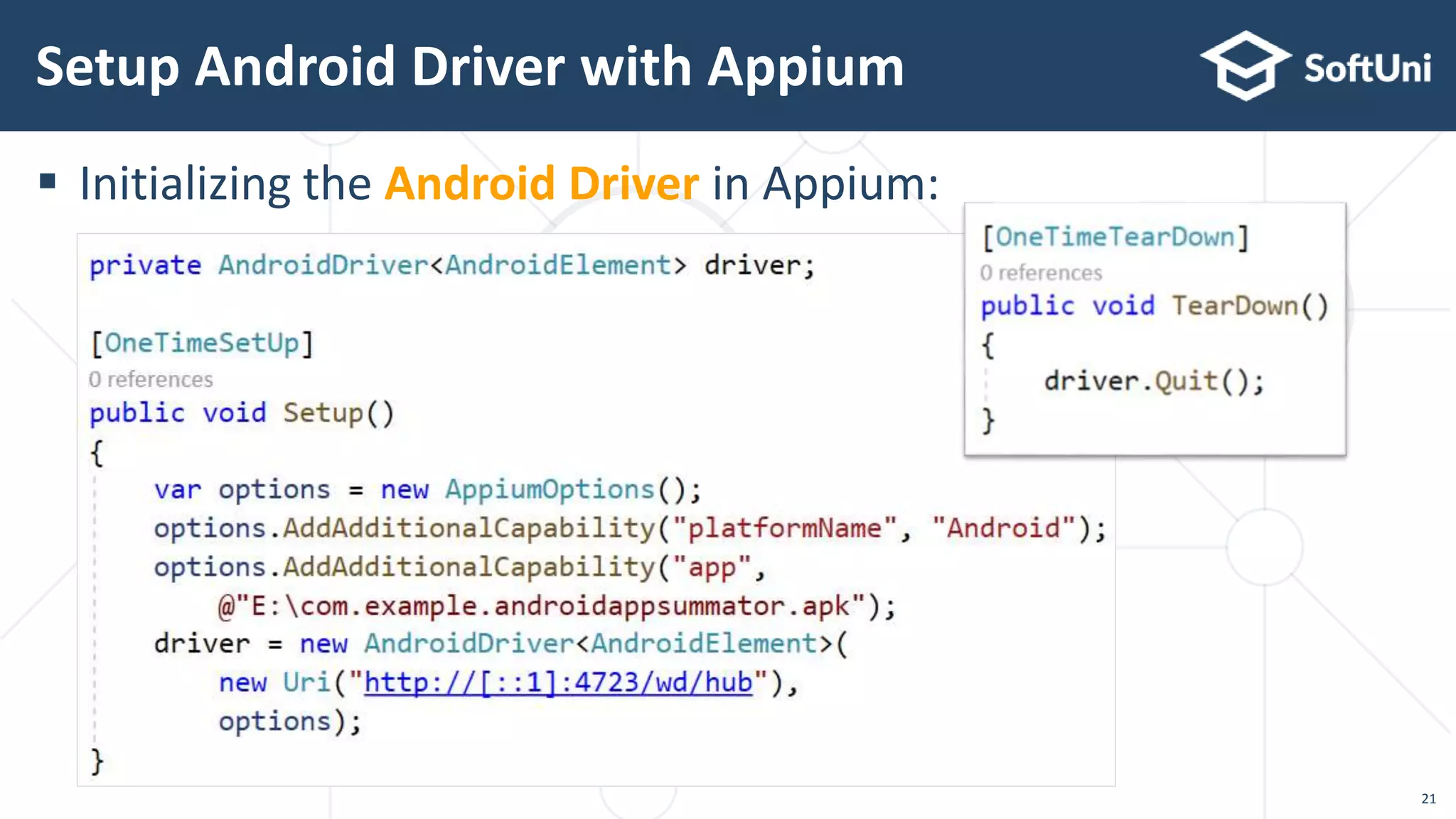
 Initializing the Android Driver in Appium:
Setup Android Driver with Appium
21
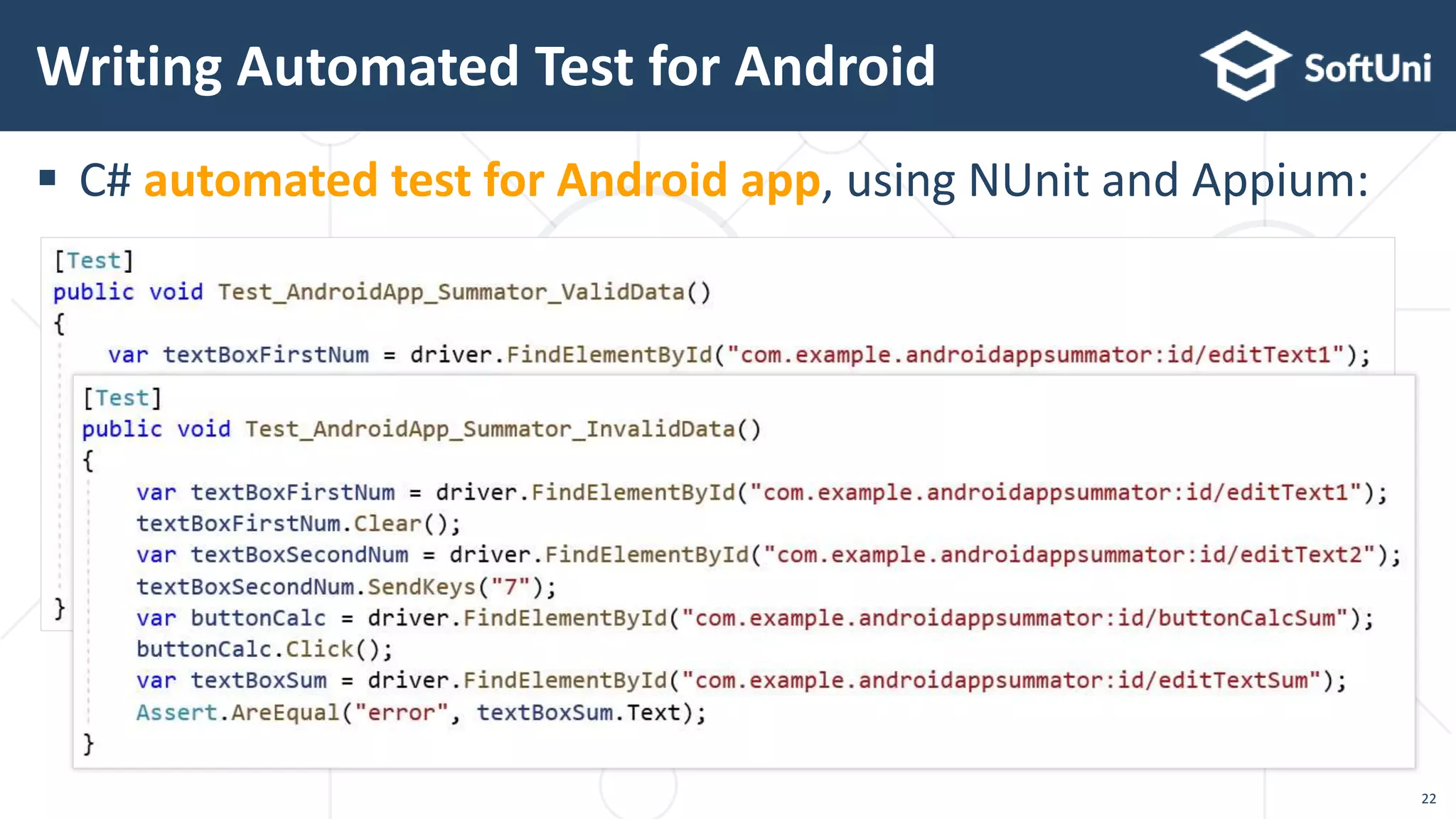
 C# automated test for Android app, using NUnit and Appium:
Writing Automated Test for Android
22
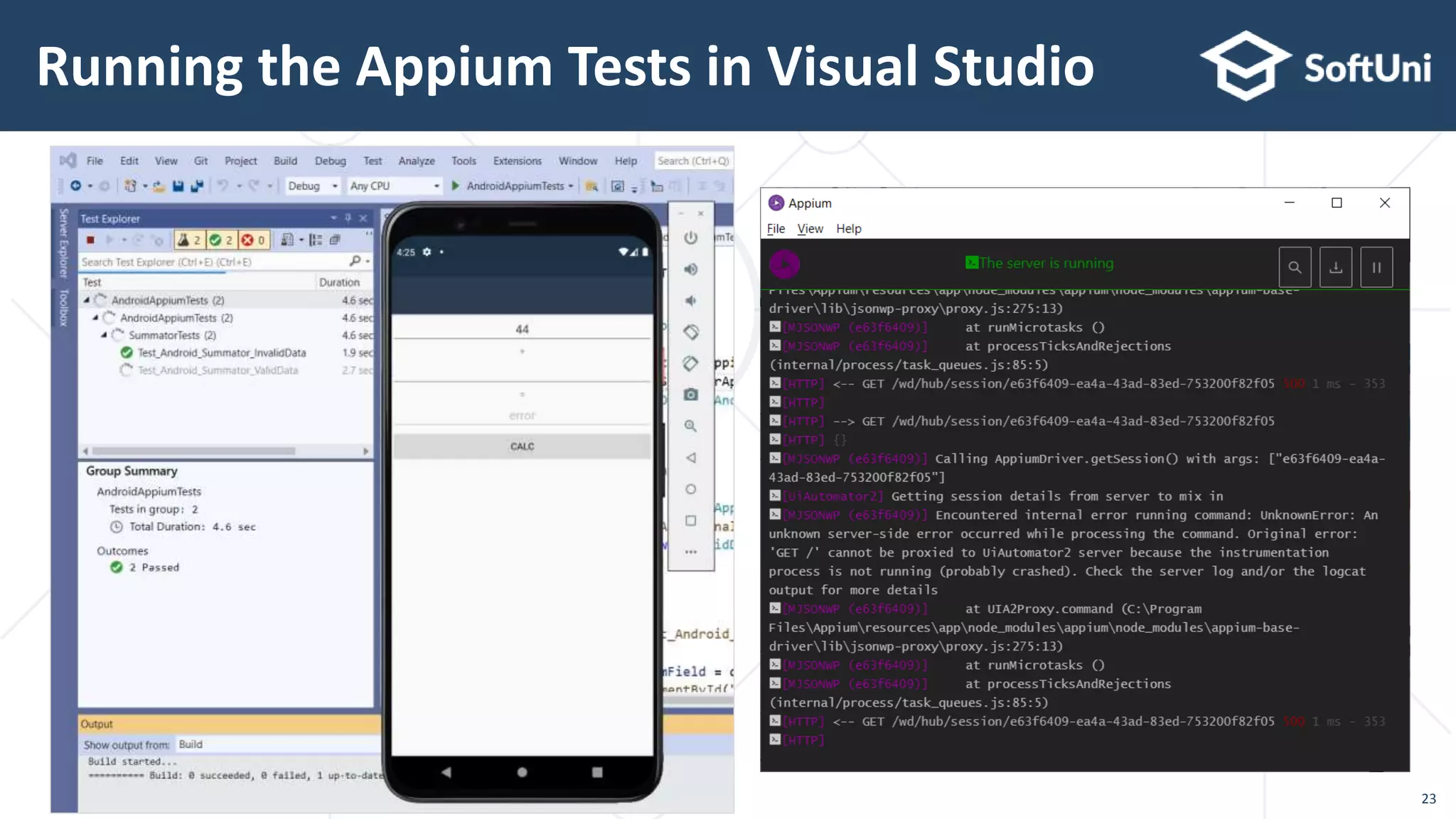
Running the Appium Tests in Visual Studio
23
Live Coding Example
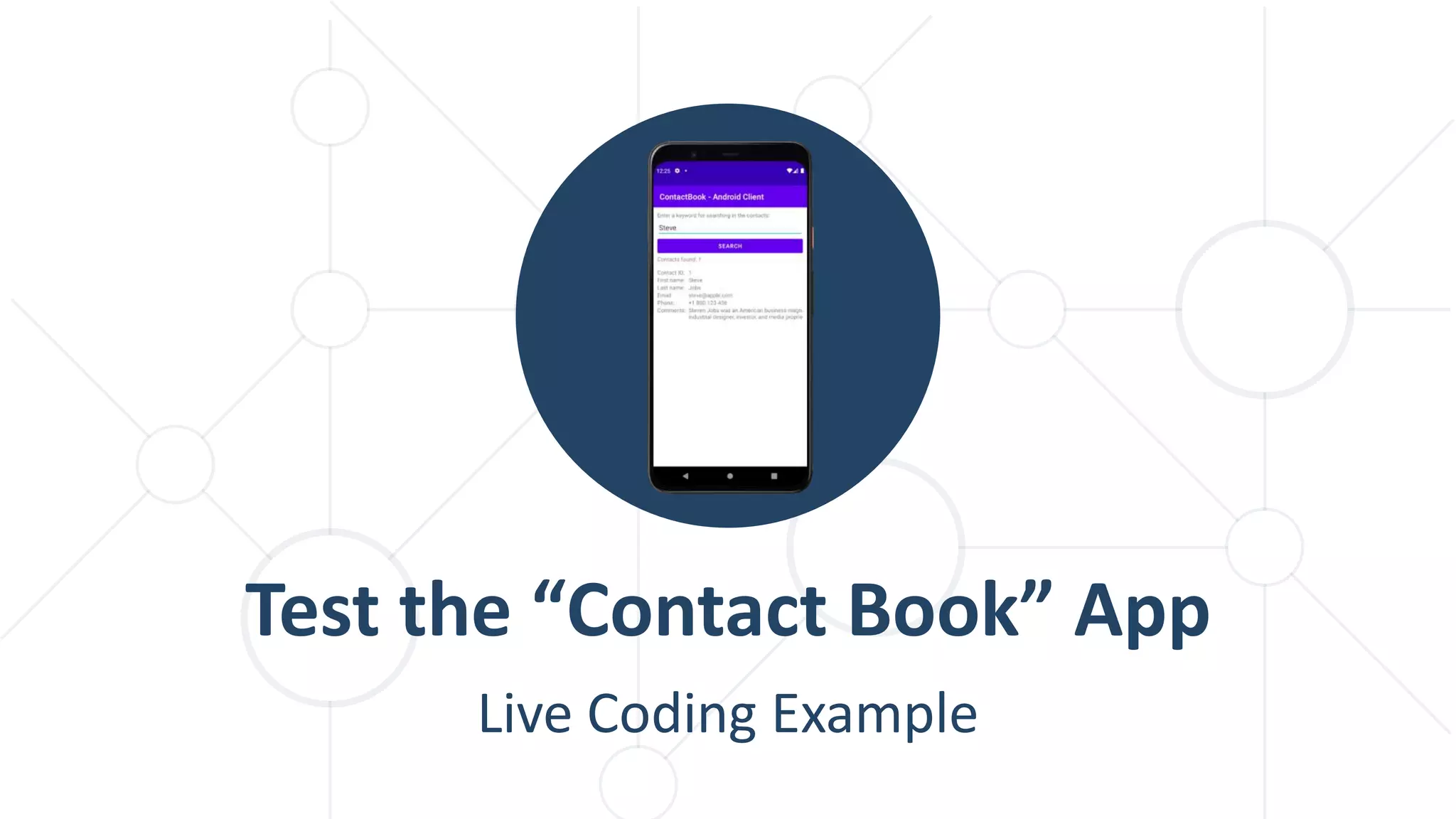
Test the “Contact Book” App
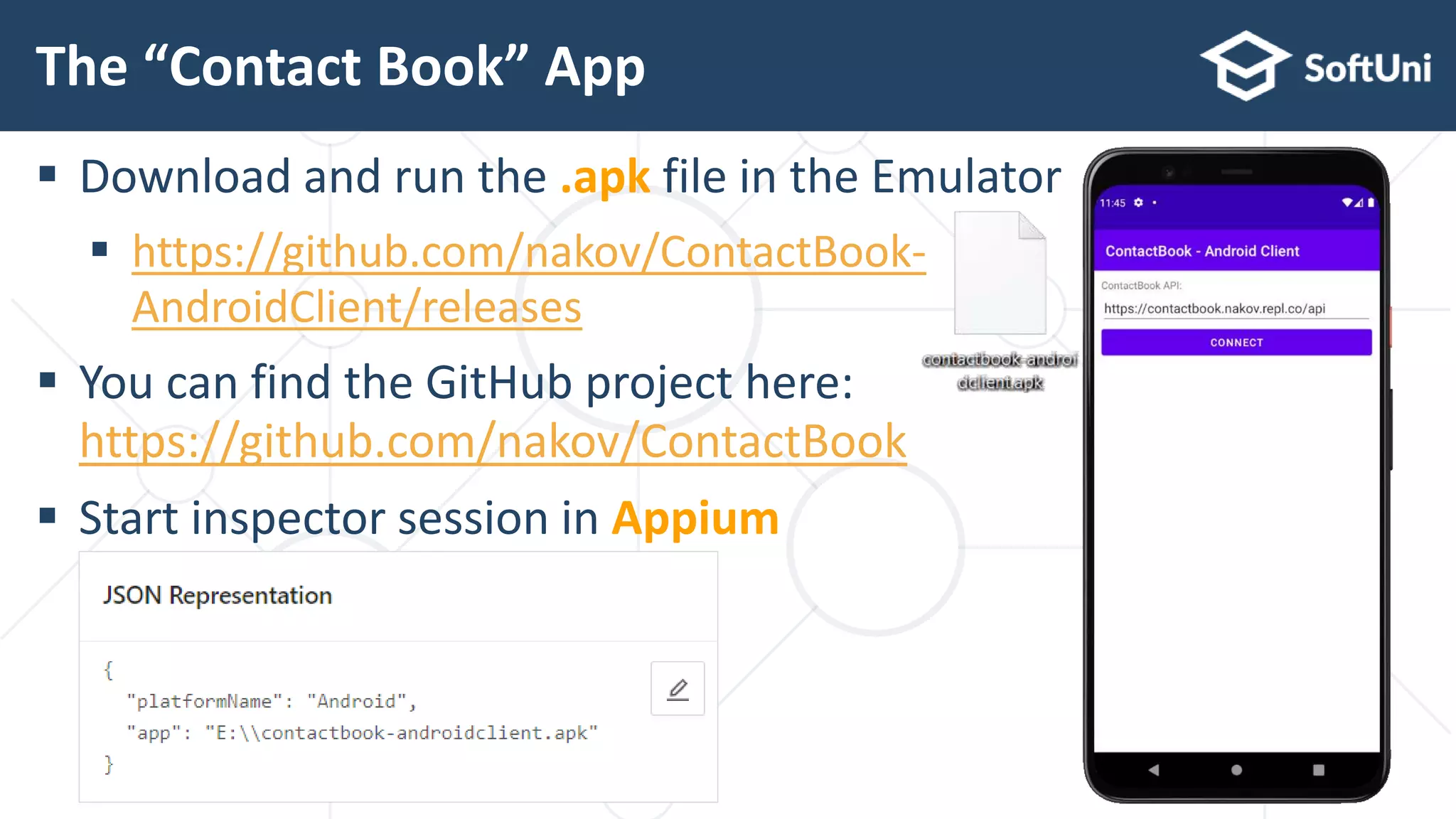
 Download and run the .apk file in the Emulator
 https://github.com/nakov/ContactBook-
AndroidClient/releases
 You can find the GitHub project here:
https://github.com/nakov/ContactBook
 Start inspector session in Appium
The “Contact Book” App
26
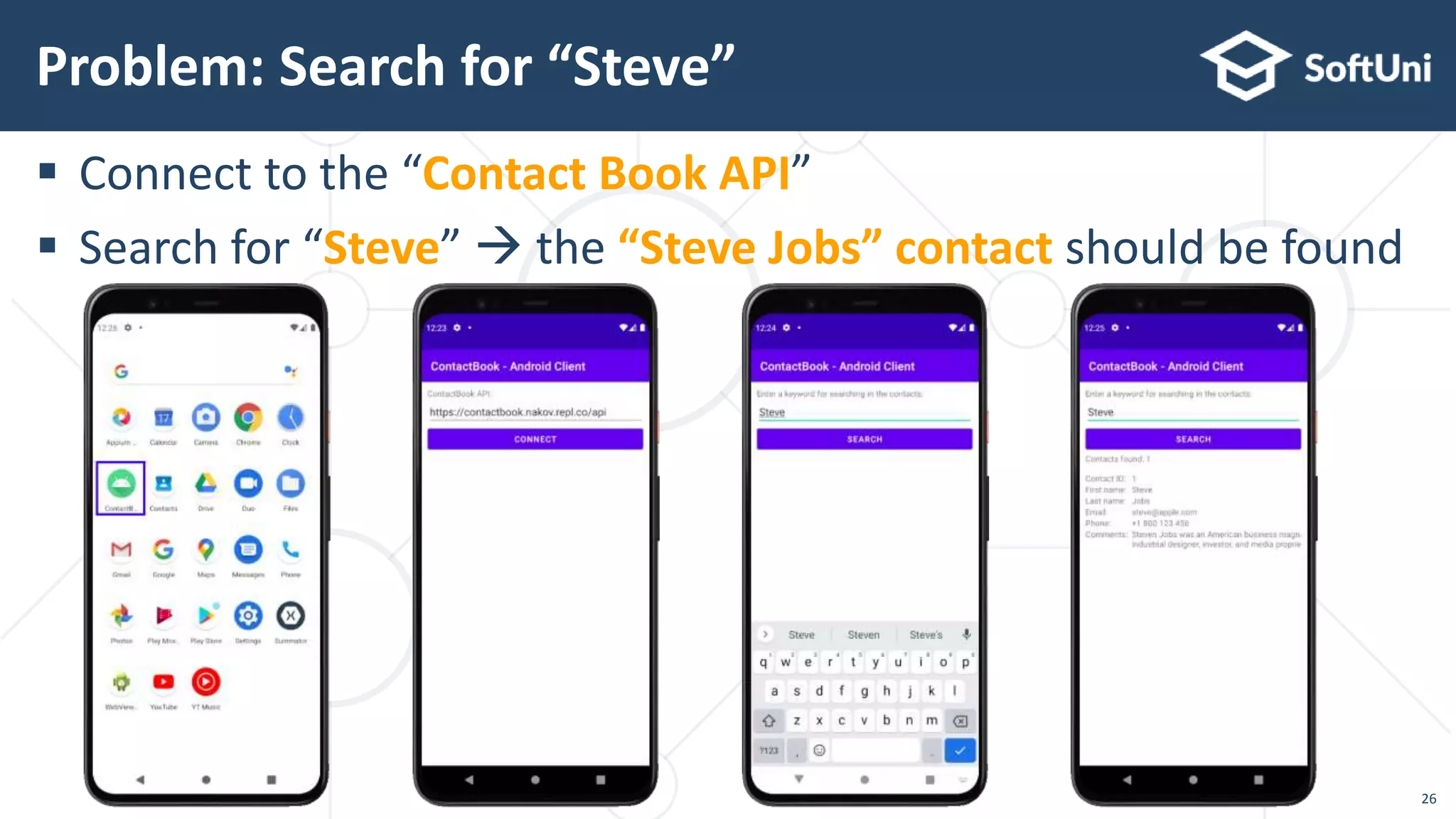
 Connect to the “Contact Book API”
 Search for “Steve”  the “Steve Jobs” contact should be found
Problem: Search for “Steve”
27
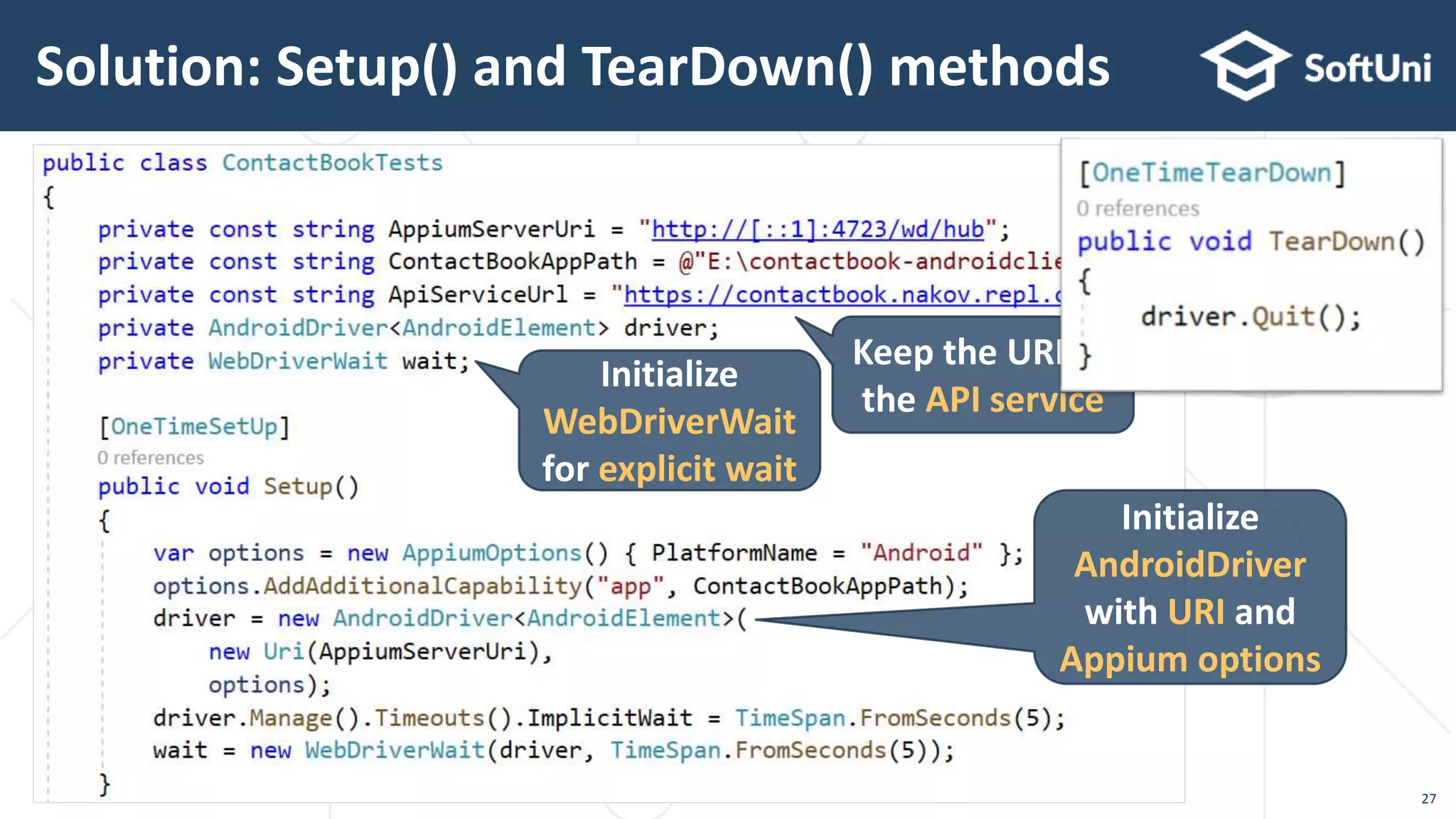
Solution: Setup() and TearDown() methods
Keep the URL of
the API service
Initialize
WebDriverWait
for explicit wait
Initialize
AndroidDriver
with URI and
Appium options
28
Solution: Test Method
Fill in the “Contact
Book API” field
Connect to the
RESTful service
Send “Steve” to
the search field
Click the
[Search] button
29
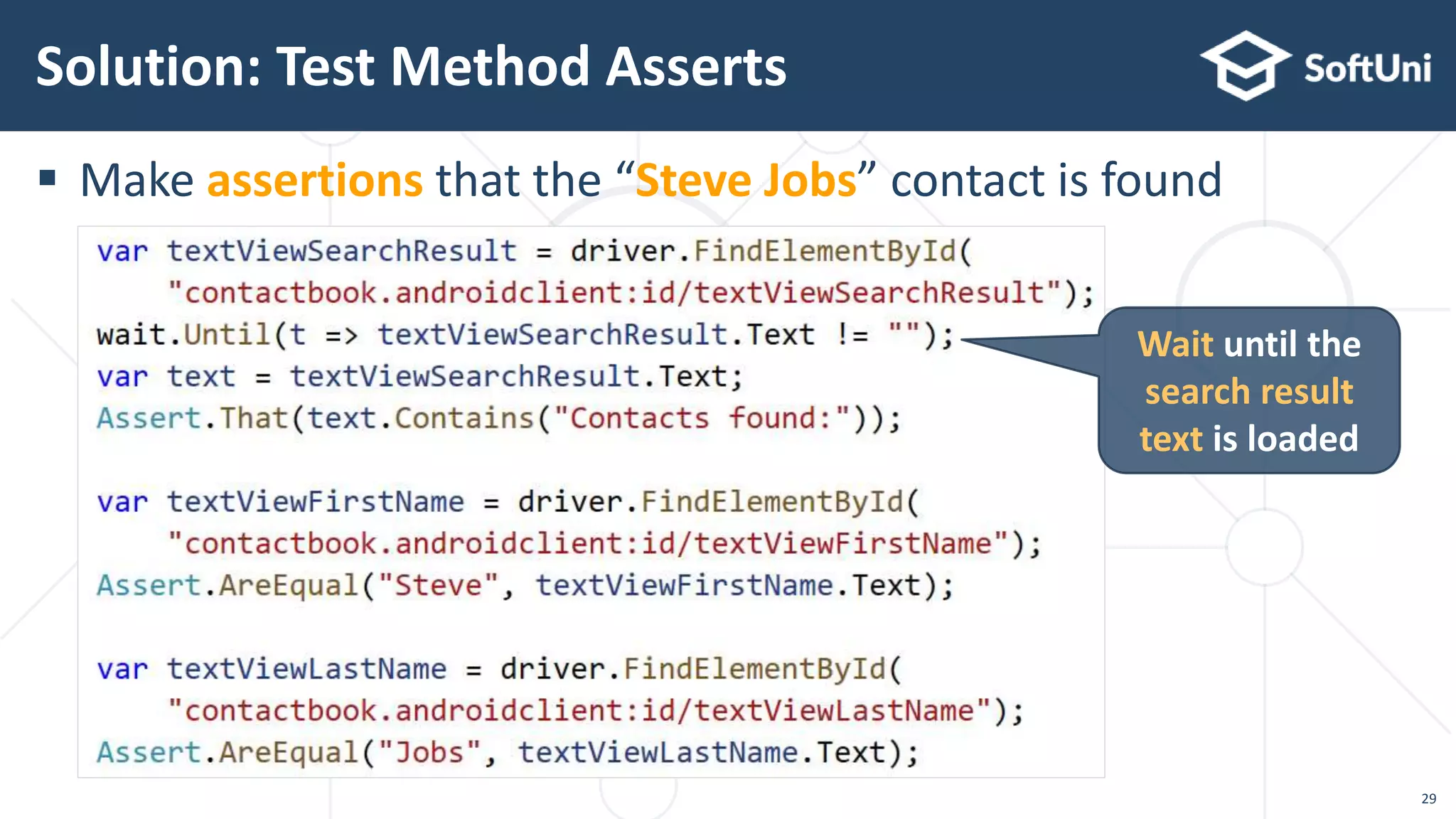
 Make assertions that the “Steve Jobs” contact is found
Solution: Test Method Asserts
Wait until the
search result
text is loaded
30
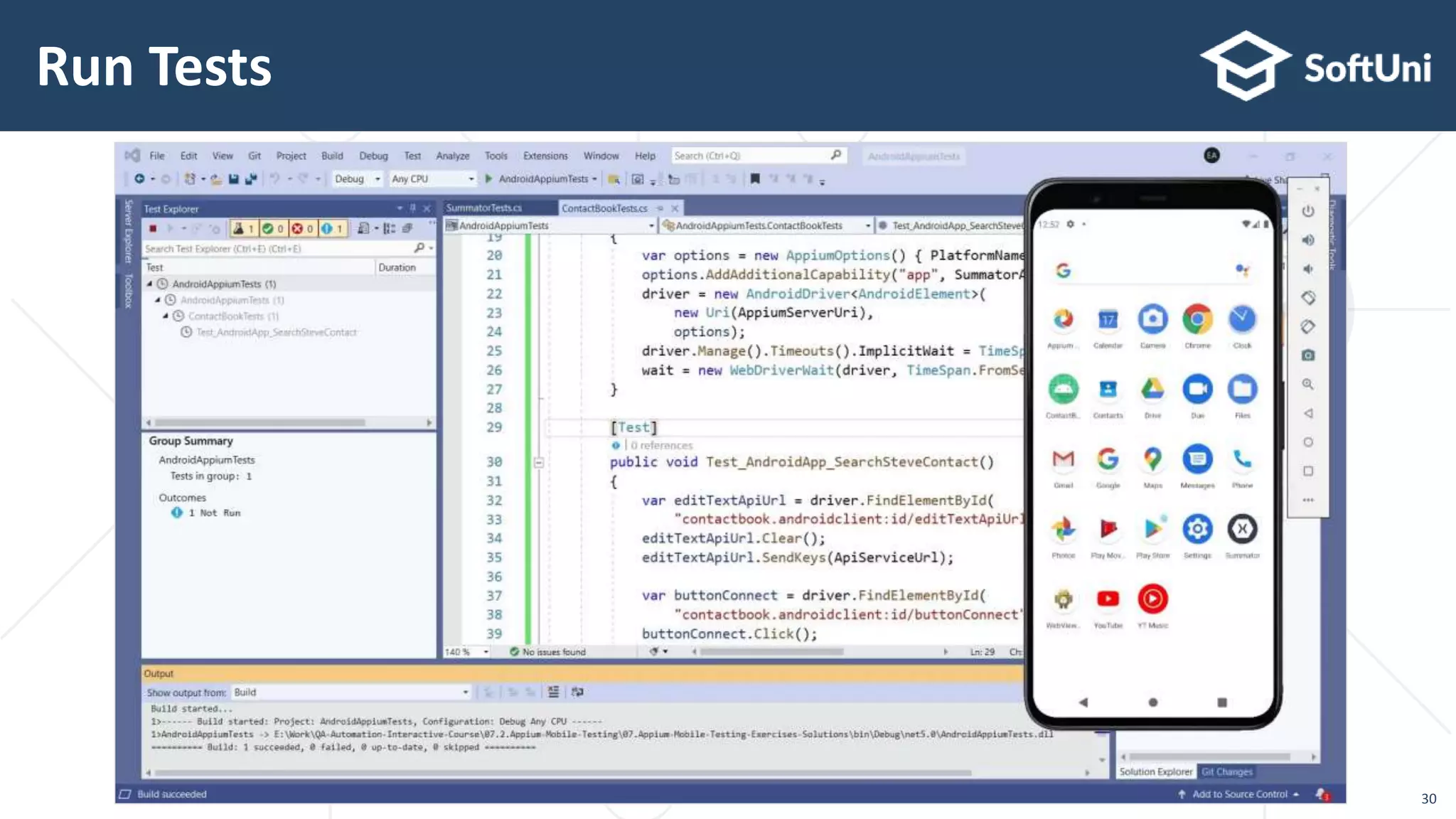
Run Tests
Running Appium Tests on Your Physical Device
Testing on Physical Device
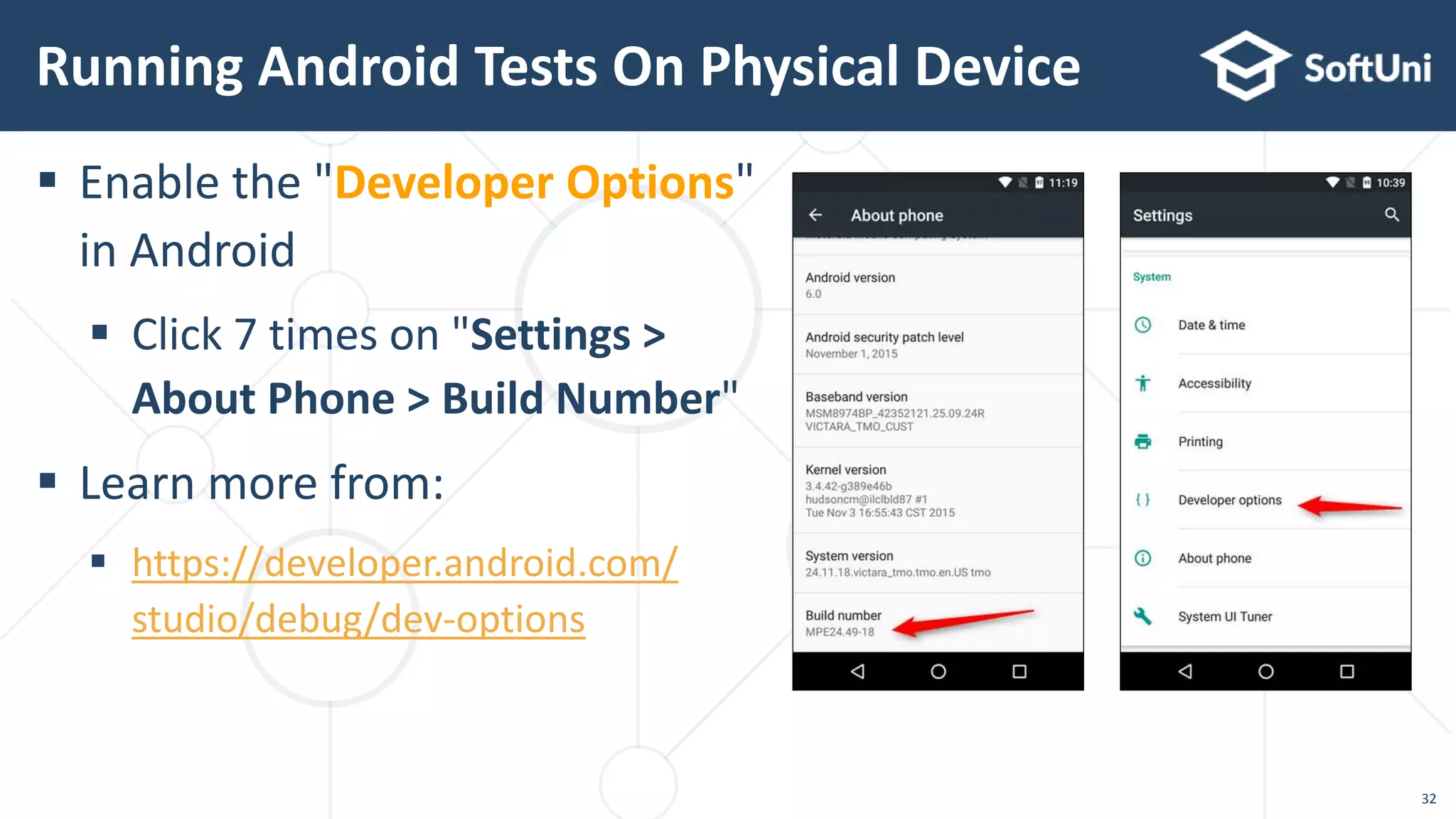
 Enable the "Developer Options"
in Android
 Click 7 times on "Settings >
About Phone > Build Number"
 Learn more from:
 https://developer.android.com/
studio/debug/dev-options
Running Android Tests On Physical Device
32
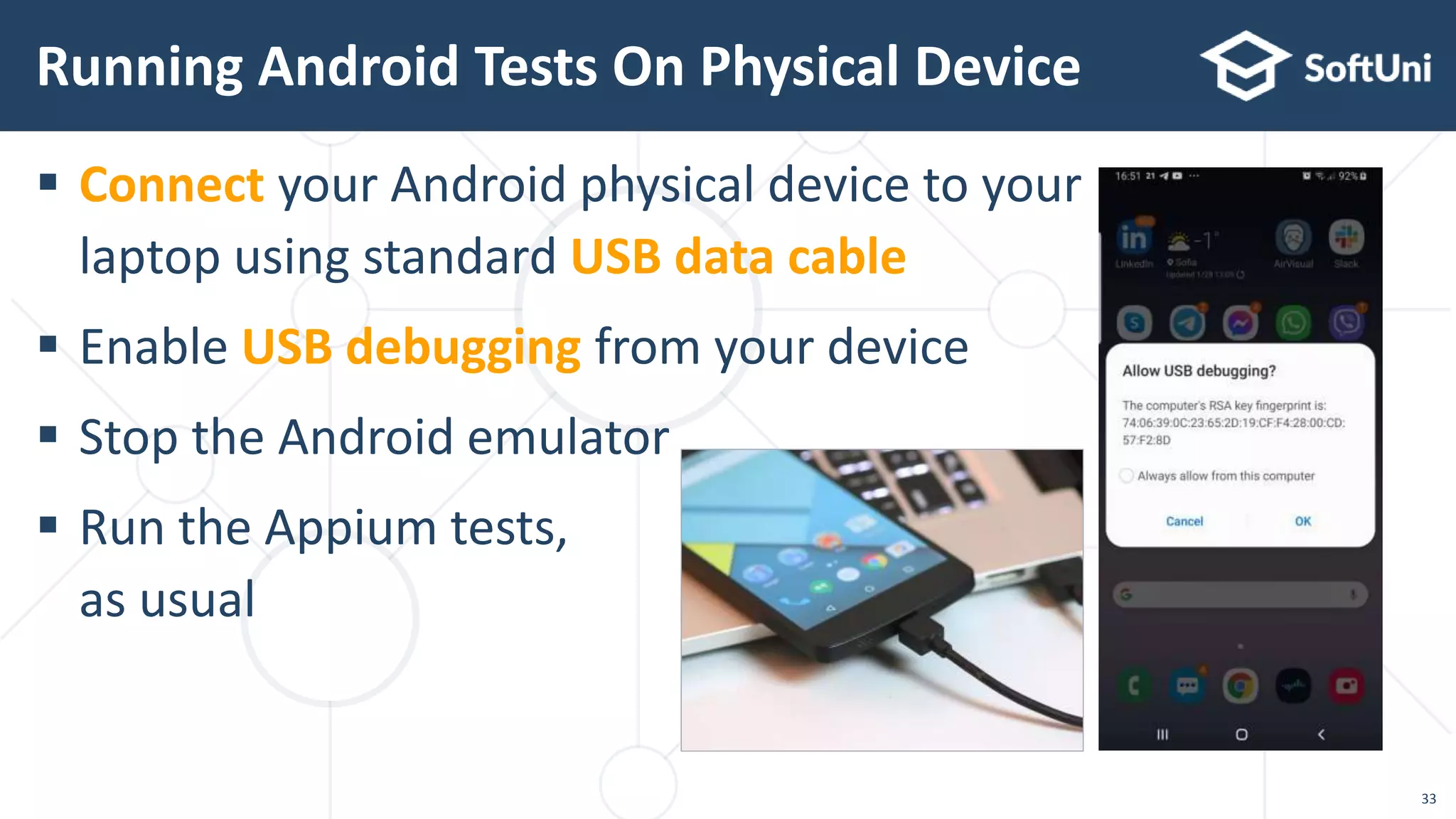
 Connect your Android physical device to your
laptop using standard USB data cable
 Enable USB debugging from your device
 Stop the Android emulator
 Run the Appium tests,
as usual
Running Android Tests On Physical Device
33
 The Android Emulator:
 Android Studio  AVD Manager  create
and run an Android virtual device
 Install and run Android apps
 Appium Desktop  inspect Android UI
 AndroidDriver<AndroidElement>: UI
automation for Android mobile apps
Summary
34
© SoftUni – https://softuni.org. Copyrighted document. Unauthorized copy, reproduction or use is not permitted.

Appium Mobile Testing: Nakov at BurgasConf - July 2021

  • 1.
    https://softuni.bg Software University SoftUni Svetlin Nakov AndroidApp Test Automation Appium: Mobile App Testing
  • 2.
    1. Appium  Overview,Architecture, Installation 2. The Android Emulator 3. Appium for Android App Automation  Inspecting Android apps UI from Appium  Using AndroidDriver<AndroidElement>  Using Appium for Android from NUnit 4. Testing on Physical Android Device Table of Contents 2
  • 3.
  • 4.
    Appium – Overview Appium is open-source UI test automation tool  UI automation for Android, iOS, Windows, Mac  Like Selenium WebDriver, but for mobile and desktop apps  Appium uses the well-known Selenium primitives:  driver.FindElementBy (name, id, XPath, …)  element.Text, element.Click(), element.SendKeys()  Implicit and explicit waits 4
  • 5.
    5  Appium implementsUI automation through commands  Find element in the app (e. g. text box or button)  Send keyboard events (e. g. type text in a text box)  Read text (e. g. get the value of text box)  Tap (click) on element (e. g. click on a button)  Install app, open app, close app  Others: drag and drop, clipboard, take screenshot, … Appium – Overview (2)
  • 6.
  • 7.
     Install Node.js https://nodejs.org  Install Appium Desktop app  https://github.com/appium/appium-desktop/releases  Optionally, install the Appium command-line app Install Appium npm install -g appium 7
  • 8.
    Running Android OSand Apps on Your Laptop The Android Emulator
  • 9.
     The Android Emulatoris part of Android SDK  Install Android SDK (comes with Android Studio)  Android Studio:  https://developer.a ndroid.com/studio Install Andorid Studio and Android SDK 9
  • 10.
    10  Run AndroidStudio and create / open a project  Then run the AVD Manager (Android virtual devices manager) Run Android Studio and Start AVD
  • 11.
    11  To runa virtual device, your laptop should enable the hardware virtualization from BIOS  Learn more at:  https://stackoverflow.co m/questions/39542853 Hardware Virtualization should be Enabled!
  • 12.
     Create andrun a virtual Android device (in the Emulator) Create a Virtual Android Device 12
  • 13.
     A simpleAndroid app for testing:  https://github.com/nakov/Android App-Summator  Download the .apk file (Android app package)  https://github.com/nakov/Android App-Summator/releases  Install and run it in the Emulator (use drag & drop) The Android App for Testing 13
  • 14.
     Run thesample "Summator" Android app to ensure it works Run the Sample Android App 14
  • 15.
    Test Automation forAndroid Apps Appium + AndroidDriver
  • 16.
    Run Appium Desktop 16 Bindto IPv6 local address ::1
  • 17.
     Configure andrun an "Inspector Session" in Appium desktop Start Inspector Session in Appium 17 Platform should be "Android" Specifying "device name" is optional Full path to your .apk
  • 18.
  • 19.
    Writing Appium Testswith C# and NUnit Appium Tests for Android
  • 20.
     Create anew NUnit project with C# in VS  Install Appium.WebDriver from NuGet Set up Appium for Android with C# 20
  • 21.
     Initializing theAndroid Driver in Appium: Setup Android Driver with Appium 21
  • 22.
     C# automatedtest for Android app, using NUnit and Appium: Writing Automated Test for Android 22
  • 23.
    Running the AppiumTests in Visual Studio 23
  • 24.
    Live Coding Example Testthe “Contact Book” App
  • 25.
     Download andrun the .apk file in the Emulator  https://github.com/nakov/ContactBook- AndroidClient/releases  You can find the GitHub project here: https://github.com/nakov/ContactBook  Start inspector session in Appium The “Contact Book” App
  • 26.
    26  Connect tothe “Contact Book API”  Search for “Steve”  the “Steve Jobs” contact should be found Problem: Search for “Steve”
  • 27.
    27 Solution: Setup() andTearDown() methods Keep the URL of the API service Initialize WebDriverWait for explicit wait Initialize AndroidDriver with URI and Appium options
  • 28.
    28 Solution: Test Method Fillin the “Contact Book API” field Connect to the RESTful service Send “Steve” to the search field Click the [Search] button
  • 29.
    29  Make assertionsthat the “Steve Jobs” contact is found Solution: Test Method Asserts Wait until the search result text is loaded
  • 30.
  • 31.
    Running Appium Testson Your Physical Device Testing on Physical Device
  • 32.
     Enable the"Developer Options" in Android  Click 7 times on "Settings > About Phone > Build Number"  Learn more from:  https://developer.android.com/ studio/debug/dev-options Running Android Tests On Physical Device 32
  • 33.
     Connect yourAndroid physical device to your laptop using standard USB data cable  Enable USB debugging from your device  Stop the Android emulator  Run the Appium tests, as usual Running Android Tests On Physical Device 33
  • 34.
     The AndroidEmulator:  Android Studio  AVD Manager  create and run an Android virtual device  Install and run Android apps  Appium Desktop  inspect Android UI  AndroidDriver<AndroidElement>: UI automation for Android mobile apps Summary 34
  • 35.
    © SoftUni –https://softuni.org. Copyrighted document. Unauthorized copy, reproduction or use is not permitted.