New York City
College of Technology
The City University of New York
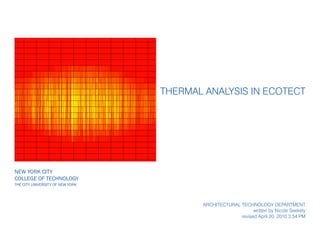
Thermal Analysis in Ecotect
Architectural technology department
written by Nicole Seekely
revised April 20, 2010 3:54 PM
Notes: Material thickness should not be modeled. Zones can be depicted with planar
surface. Be sure you have floors, windows, voids, and partitions assigned properly.
page 2 of 16
Thermal Analysis in Ecotect
For proper thermal analysis,
it is recommended that
you model your geometry
in Ecotect. Importing a
model will result in too much
unnecessary geometry that
will incorrectly inform the
analysis.
All zones in your model
need to be COMPLETELY
enclosed, independently of
other zones around them. In
the example here, the roof of
the green zone, overlaps the
floor of the blue zone - this is
OKAY.
Notes:
page 3 of 16
Thermal Analysis in Ecotect
Make sure all your surface
normals are pointing to the
outside. To check this, go to
Display - Surface Normals.
If the arrows are pointing
inwards, select the element
and use Ctrl+R to reverse
the direction of the normal.
To get rid of the Normals
display, go to Display - Model.
Also, make sure all external
shading devices are on a
non thermal layer such as the
Outside zone.
Notes: You can view the data for the material by double-clicking the material. Click on the
Properties tab to see U-Value, description, and other data. Click on the Layers tab to view
a section of the material and a break-down of the layers.
page 4 of 16
Thermal Analysis in Ecotect
Materials:
For each surface, you should
set a primary and alternative
material. The PRIMARY
material is when the surface
is in contact with the outside.
The ALTERNATIVE material is
when the surface is in contact
with another surface (ie
interior wall).
With the object(s)
selected, go to the Material
Assignments tab. Select both
options when necessary.
Notes: Clicking the arrow to the right of each box will give you recommended values.
page 5 of 16
Thermal Analysis in Ecotect
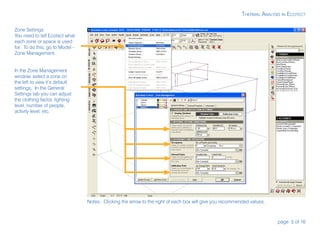
Zone Settings:
You need to tell Ecotect what
each zone or space is used
for. To do this, go to Model -
Zone Management.
In the Zone Management
window, select a zone on
the left to view it’s default
settings. In the General
Settings tab you can adjust
the clothing factor, lighting
level, number of people,
activity level, etc.
Notes:
page 6 of 16
Thermal Analysis in Ecotect
Zone Settings:
Click on the Thermal
Properties tab to further
adjust settings. Select your
HVAC system, thermostat
range, and hours of
operation.
Notes:
page 7 of 16
Thermal Analysis in Ecotect
Before looking at the Thermal
Analysis, you’ll need to
calculate your Inter-zonal
Adjacencies. This will tell you
if Ecotect understands your
model and will inform you of
any errors. Go to Calculate -
Inter-zonal Adjacencies.
All the default settings should
be okay to use.
More than likely, you’ll have
an error that two objects
sharing a face do not have
the same alternate material.
Be sure to go back and fix
this.
Notes:
page 8 of 16
Thermal Analysis in Ecotect
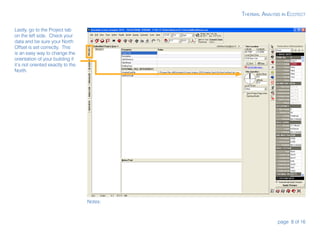
Lastly, go to the Project tab
on the left side. Check your
data and be sure your North
Offset is set correctly. This
is an easy way to change the
orientation of your building if
it’s not oriented exactly to the
North.
Notes:
page 9 of 16
Thermal Analysis in Ecotect
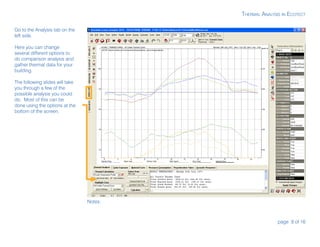
Go to the Analysis tab on the
left side.
Here you can change
several different options to
do comparison analysis and
gather thermal data for your
building.
The following slides will take
you through a few of the
possible analysis you could
do. Most of this can be
done using the options at the
bottom of the screen.
page 10 of 16
Thermal Analysis in Ecotect
Search Data For - Hottest Day
Highlight Zone - Zone 1
Zone Settings - HVAC - Natural Ventilation
With no HVAC system, the inside temperature of Zone 1 is hotter
than the outside temperature at certain hours of the day. It is also
above thermal comfort for most of the day.
Search Data For - Hottest Day
Highlight Zone - Zone 1
Zone Settings - HVAC - Mixed System
Once the temperature goes above the set range, the AC kicks in and
cools the interior.
Hourly Temperature Profile
page 11 of 16
Thermal Analysis in Ecotect
Search Data For - Hottest Day
Highlight Zone - Zone 1
Zone Settings - HVAC - Natural Ventilation
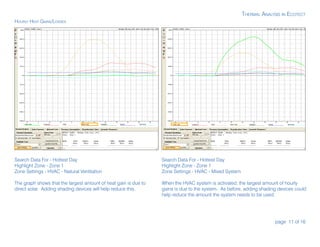
The graph shows that the largest amount of heat gain is due to
direct solar. Adding shading devices will help reduce this.
Search Data For - Hottest Day
Highlight Zone - Zone 1
Zone Settings - HVAC - Mixed System
When the HVAC system is activated, the largest amount of hourly
gains is due to the system. As before, adding shading devices could
help reduce the amount the system needs to be used.
Hourly Heat Gains/Losses
page 12 of 16
Thermal Analysis in Ecotect
Search Data For - Hottest Day
Highlight Zone - Zone 1
Zone Settings - HVAC - Mixed System
Window Material - Single Glazed
The text data shows that the total heat gain due to the HVAC is
22399.45 Btu.
Search Data For - Hottest Day
Highlight Zone - Zone 1
Zone Settings - HVAC - Mixed System
Window Material - Double Glazed Low E
By switching to double glazed, low-E windows, the total heat gain
due to the HVAC is 18440.38 Btu. This is a reduction of over 17%.
Hourly Heat Gains/Losses
page 13 of 16
Thermal Analysis in Ecotect
Highlight Zone - Zone 1
Zone Settings - HVAC - Natural Ventilation
This chart will show you the number of hours and percentage of
time that the zone is in the bounds of the comfort temperature
range with just natural ventilation. Shown here, the temperature is
only comfortable 1/3 of the time. The other 2/3 it would need to be
heated or cooled.
Be sure your hours of operation are set, otherwise the results will
be skewed.
Highlight Zone - Zone 1
Zone Settings - HVAC - Natural Ventilation
Climate: San Francisco
If the building were located in San Francisco instead of New York,
there would be about the same number of hours in the comfort zone.
Temperature Distribution
page 14 of 16
Thermal Analysis in Ecotect
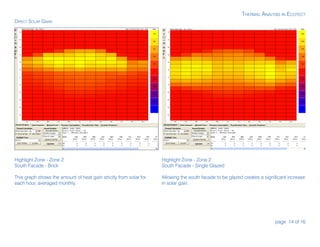
Highlight Zone - Zone 2
South Facade - Brick
This graph shows the amount of heat gain strictly from solar for
each hour, averaged monthly.
Highlight Zone - Zone 2
South Facade - Single Glazed
Allowing the south facade to be glazed creates a significant increase
in solar gain.
Direct Solar Gains
page 15 of 16
Thermal Analysis in Ecotect
Highlight Zone - Zone 1
Zone Settings - HVAC - Natural Ventilation
Another way to view the amount of comfort hours for a zone is
through this calculation. Make sure your zones are set to none or
natural ventilation.
Highlight Zone - Zone 1
Zone Settings - HVAC - Mixed System
If your zone is set to an HVAC system, you can view the amount of
heating or cooling needed per month for that zone. The top chart
shows when the thermostat is set to 78 max. The bottom is at 82
max, thus reducing the cooling load.
Monthly Loads/Discomfort
Notes:
page 16 of 16
Thermal Analysis in Ecotect
Passive Gains Breakdown
This analysis will show you
the areas of biggest concern
for gains/losses in your
building.
Here you can see that
heat loss through the
external fabric is the largest
contributor.

Thermal Analysis in Ecotect

  • 1.
    New York City Collegeof Technology The City University of New York Thermal Analysis in Ecotect Architectural technology department written by Nicole Seekely revised April 20, 2010 3:54 PM
  • 2.
    Notes: Material thicknessshould not be modeled. Zones can be depicted with planar surface. Be sure you have floors, windows, voids, and partitions assigned properly. page 2 of 16 Thermal Analysis in Ecotect For proper thermal analysis, it is recommended that you model your geometry in Ecotect. Importing a model will result in too much unnecessary geometry that will incorrectly inform the analysis. All zones in your model need to be COMPLETELY enclosed, independently of other zones around them. In the example here, the roof of the green zone, overlaps the floor of the blue zone - this is OKAY.
  • 3.
    Notes: page 3 of16 Thermal Analysis in Ecotect Make sure all your surface normals are pointing to the outside. To check this, go to Display - Surface Normals. If the arrows are pointing inwards, select the element and use Ctrl+R to reverse the direction of the normal. To get rid of the Normals display, go to Display - Model. Also, make sure all external shading devices are on a non thermal layer such as the Outside zone.
  • 4.
    Notes: You canview the data for the material by double-clicking the material. Click on the Properties tab to see U-Value, description, and other data. Click on the Layers tab to view a section of the material and a break-down of the layers. page 4 of 16 Thermal Analysis in Ecotect Materials: For each surface, you should set a primary and alternative material. The PRIMARY material is when the surface is in contact with the outside. The ALTERNATIVE material is when the surface is in contact with another surface (ie interior wall). With the object(s) selected, go to the Material Assignments tab. Select both options when necessary.
  • 5.
    Notes: Clicking thearrow to the right of each box will give you recommended values. page 5 of 16 Thermal Analysis in Ecotect Zone Settings: You need to tell Ecotect what each zone or space is used for. To do this, go to Model - Zone Management. In the Zone Management window, select a zone on the left to view it’s default settings. In the General Settings tab you can adjust the clothing factor, lighting level, number of people, activity level, etc.
  • 6.
    Notes: page 6 of16 Thermal Analysis in Ecotect Zone Settings: Click on the Thermal Properties tab to further adjust settings. Select your HVAC system, thermostat range, and hours of operation.
  • 7.
    Notes: page 7 of16 Thermal Analysis in Ecotect Before looking at the Thermal Analysis, you’ll need to calculate your Inter-zonal Adjacencies. This will tell you if Ecotect understands your model and will inform you of any errors. Go to Calculate - Inter-zonal Adjacencies. All the default settings should be okay to use. More than likely, you’ll have an error that two objects sharing a face do not have the same alternate material. Be sure to go back and fix this.
  • 8.
    Notes: page 8 of16 Thermal Analysis in Ecotect Lastly, go to the Project tab on the left side. Check your data and be sure your North Offset is set correctly. This is an easy way to change the orientation of your building if it’s not oriented exactly to the North.
  • 9.
    Notes: page 9 of16 Thermal Analysis in Ecotect Go to the Analysis tab on the left side. Here you can change several different options to do comparison analysis and gather thermal data for your building. The following slides will take you through a few of the possible analysis you could do. Most of this can be done using the options at the bottom of the screen.
  • 10.
    page 10 of16 Thermal Analysis in Ecotect Search Data For - Hottest Day Highlight Zone - Zone 1 Zone Settings - HVAC - Natural Ventilation With no HVAC system, the inside temperature of Zone 1 is hotter than the outside temperature at certain hours of the day. It is also above thermal comfort for most of the day. Search Data For - Hottest Day Highlight Zone - Zone 1 Zone Settings - HVAC - Mixed System Once the temperature goes above the set range, the AC kicks in and cools the interior. Hourly Temperature Profile
  • 11.
    page 11 of16 Thermal Analysis in Ecotect Search Data For - Hottest Day Highlight Zone - Zone 1 Zone Settings - HVAC - Natural Ventilation The graph shows that the largest amount of heat gain is due to direct solar. Adding shading devices will help reduce this. Search Data For - Hottest Day Highlight Zone - Zone 1 Zone Settings - HVAC - Mixed System When the HVAC system is activated, the largest amount of hourly gains is due to the system. As before, adding shading devices could help reduce the amount the system needs to be used. Hourly Heat Gains/Losses
  • 12.
    page 12 of16 Thermal Analysis in Ecotect Search Data For - Hottest Day Highlight Zone - Zone 1 Zone Settings - HVAC - Mixed System Window Material - Single Glazed The text data shows that the total heat gain due to the HVAC is 22399.45 Btu. Search Data For - Hottest Day Highlight Zone - Zone 1 Zone Settings - HVAC - Mixed System Window Material - Double Glazed Low E By switching to double glazed, low-E windows, the total heat gain due to the HVAC is 18440.38 Btu. This is a reduction of over 17%. Hourly Heat Gains/Losses
  • 13.
    page 13 of16 Thermal Analysis in Ecotect Highlight Zone - Zone 1 Zone Settings - HVAC - Natural Ventilation This chart will show you the number of hours and percentage of time that the zone is in the bounds of the comfort temperature range with just natural ventilation. Shown here, the temperature is only comfortable 1/3 of the time. The other 2/3 it would need to be heated or cooled. Be sure your hours of operation are set, otherwise the results will be skewed. Highlight Zone - Zone 1 Zone Settings - HVAC - Natural Ventilation Climate: San Francisco If the building were located in San Francisco instead of New York, there would be about the same number of hours in the comfort zone. Temperature Distribution
  • 14.
    page 14 of16 Thermal Analysis in Ecotect Highlight Zone - Zone 2 South Facade - Brick This graph shows the amount of heat gain strictly from solar for each hour, averaged monthly. Highlight Zone - Zone 2 South Facade - Single Glazed Allowing the south facade to be glazed creates a significant increase in solar gain. Direct Solar Gains
  • 15.
    page 15 of16 Thermal Analysis in Ecotect Highlight Zone - Zone 1 Zone Settings - HVAC - Natural Ventilation Another way to view the amount of comfort hours for a zone is through this calculation. Make sure your zones are set to none or natural ventilation. Highlight Zone - Zone 1 Zone Settings - HVAC - Mixed System If your zone is set to an HVAC system, you can view the amount of heating or cooling needed per month for that zone. The top chart shows when the thermostat is set to 78 max. The bottom is at 82 max, thus reducing the cooling load. Monthly Loads/Discomfort
  • 16.
    Notes: page 16 of16 Thermal Analysis in Ecotect Passive Gains Breakdown This analysis will show you the areas of biggest concern for gains/losses in your building. Here you can see that heat loss through the external fabric is the largest contributor.