The Shell Game 3


         Kevin O'Brien
Washtenaw Linux Users Group
   http://www.lugwash.org
The Bourne-Again Shell (bash)
●   Now that we have looked at some general
    ideas about shells, and looked at the choices
    that are available, it is time to focus on the shell
    we will use for the rest of the series
●   The Bourne-Again Shell (bash) is the default on
    all Linux systems
●   It is as universal as anything can be in the
    world of Unix-like systems
●   So if you only learn one shell, this is the one to
                                                     2
    learn
Bash commands
●   Most Linux commands are separate files
●   You can find them by name on your hard drive
●   You can open a man page for them
●   But bash commands are all internal to bash
●   You cannot find them on your hard drive
●   They do not have a man page
●   Instead, they are all in the man page for bash
                                                 3
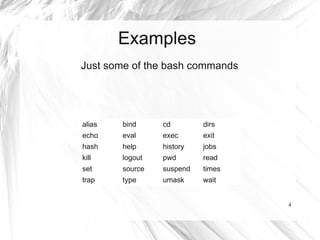
Examples
Just some of the bash commands


alias   bind     cd        dirs
echo    eval     exec      exit
hash    help     history   jobs
kill    logout   pwd       read
set     source   suspend   times
trap    type     umask     wait


                                   4
Navigating
●   A good starting point for bash is learning to
    move around
●   This is done with the cd command
●   Did you note that cd is one of the built-in
    commands in bash?
●   That means the information about it is in the
    bash man page

                                                    5
Cd 1
●   This stands for Change Directory
●   More precisely, it should be Change the
    Current Working Directory
●   This is often the most convenient way to
    execute other commands, even if they could
    be done some other way
●   For example, you could change the working
    directory so that you could then work on a file
    in that directory                             6
Cd 2
●   The syntax for this command is

    cd [option] [directory]

●   The arguments in brackets are themselves
    optional, i.e., you can successfully execute the
    command without specifying either an option
    or a directory

                                                 7
Shortcuts
●   In Unix-like operating systems the current
    directory can be represented by a dot
●   The parent directory is represented by two
    dots
●   The home directory is represented by ~ (called
    a tilde, found in the upper left of the keyboard)


                                                  8
Cd options
●   There are only two, and they are not
    commonly used (-P, -L)
●   These involve either following or not not
    following symbolic links
●   So we won't discuss them further at this time


                                                9
Absolute paths
●   These are paths that begin with the root (/) of
    the system
●   An example might be /home/kevin/Downloads,
    which is where all of my downloaded files go
●   Relative paths are paths relative to the current
    working directory
●   So, if I had a sub-directory of my Downloads
    directory, for example Firefox, I could give it the
    relative path /Firefox if I am in my Downloads10
    directory
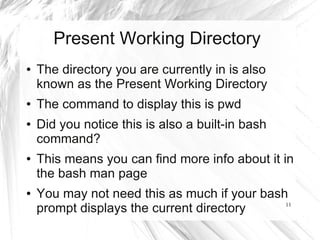
Present Working Directory
●   The directory you are currently in is also
    known as the Present Working Directory
●   The command to display this is pwd
●   Did you notice this is also a built-in bash
    command?
●   This means you can find more info about it in
    the bash man page
●   You may not need this as much if your bash
    prompt displays the current directory     11
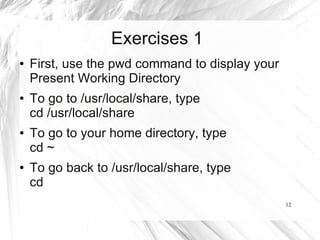
Exercises 1
●   First, use the pwd command to display your
    Present Working Directory
●   To go to /usr/local/share, type
    cd /usr/local/share
●   To go to your home directory, type
    cd ~
●   To go back to /usr/local/share, type
    cd
                                                 12
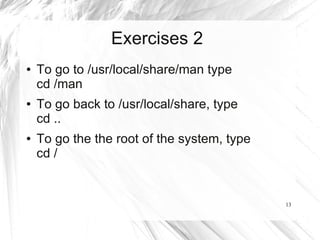
Exercises 2
●   To go to /usr/local/share/man type
    cd /man
●   To go back to /usr/local/share, type
    cd ..
●   To go the the root of the system, type
    cd /


                                             13
Practice these commands
●   To be really proficient you need to have these
    commands memorized
●   They are not all that complicated
●   Navigation is so essential that you don't want
    to be stopping to try and look up how to
    navigate when you are fixing a problem
●   How do you get to Carnegie Hall?

                                                14
Resources
●   The bash man page (you can also read this
    online at http://linux.die.net/man/1/bash)
●   The Bash Reference Manual at
    http://www.gnu.org/software/bash/manual/bas
    href.html
●   You have man pages on your computer, and
    they are there even if you are not connected
    to the Internet. So get to know how to use the
    man pages that are already on your hard 15
    drive.

The Shell Game Part 3: Introduction to Bash

  • 1.
    The Shell Game3 Kevin O'Brien Washtenaw Linux Users Group http://www.lugwash.org
  • 2.
    The Bourne-Again Shell(bash) ● Now that we have looked at some general ideas about shells, and looked at the choices that are available, it is time to focus on the shell we will use for the rest of the series ● The Bourne-Again Shell (bash) is the default on all Linux systems ● It is as universal as anything can be in the world of Unix-like systems ● So if you only learn one shell, this is the one to 2 learn
  • 3.
    Bash commands ● Most Linux commands are separate files ● You can find them by name on your hard drive ● You can open a man page for them ● But bash commands are all internal to bash ● You cannot find them on your hard drive ● They do not have a man page ● Instead, they are all in the man page for bash 3
  • 4.
    Examples Just some ofthe bash commands alias bind cd dirs echo eval exec exit hash help history jobs kill logout pwd read set source suspend times trap type umask wait 4
  • 5.
    Navigating ● A good starting point for bash is learning to move around ● This is done with the cd command ● Did you note that cd is one of the built-in commands in bash? ● That means the information about it is in the bash man page 5
  • 6.
    Cd 1 ● This stands for Change Directory ● More precisely, it should be Change the Current Working Directory ● This is often the most convenient way to execute other commands, even if they could be done some other way ● For example, you could change the working directory so that you could then work on a file in that directory 6
  • 7.
    Cd 2 ● The syntax for this command is cd [option] [directory] ● The arguments in brackets are themselves optional, i.e., you can successfully execute the command without specifying either an option or a directory 7
  • 8.
    Shortcuts ● In Unix-like operating systems the current directory can be represented by a dot ● The parent directory is represented by two dots ● The home directory is represented by ~ (called a tilde, found in the upper left of the keyboard) 8
  • 9.
    Cd options ● There are only two, and they are not commonly used (-P, -L) ● These involve either following or not not following symbolic links ● So we won't discuss them further at this time 9
  • 10.
    Absolute paths ● These are paths that begin with the root (/) of the system ● An example might be /home/kevin/Downloads, which is where all of my downloaded files go ● Relative paths are paths relative to the current working directory ● So, if I had a sub-directory of my Downloads directory, for example Firefox, I could give it the relative path /Firefox if I am in my Downloads10 directory
  • 11.
    Present Working Directory ● The directory you are currently in is also known as the Present Working Directory ● The command to display this is pwd ● Did you notice this is also a built-in bash command? ● This means you can find more info about it in the bash man page ● You may not need this as much if your bash prompt displays the current directory 11
  • 12.
    Exercises 1 ● First, use the pwd command to display your Present Working Directory ● To go to /usr/local/share, type cd /usr/local/share ● To go to your home directory, type cd ~ ● To go back to /usr/local/share, type cd 12
  • 13.
    Exercises 2 ● To go to /usr/local/share/man type cd /man ● To go back to /usr/local/share, type cd .. ● To go the the root of the system, type cd / 13
  • 14.
    Practice these commands ● To be really proficient you need to have these commands memorized ● They are not all that complicated ● Navigation is so essential that you don't want to be stopping to try and look up how to navigate when you are fixing a problem ● How do you get to Carnegie Hall? 14
  • 15.
    Resources ● The bash man page (you can also read this online at http://linux.die.net/man/1/bash) ● The Bash Reference Manual at http://www.gnu.org/software/bash/manual/bas href.html ● You have man pages on your computer, and they are there even if you are not connected to the Internet. So get to know how to use the man pages that are already on your hard 15 drive.