Linux: Introduction
Ohk.
●   Linux – Know anything?


●   What you expect to do by the end of the
    lecture??
Linux : Kernel Not OS !!
●   Kernel : Application layer <=> data layer
    .
●   Linux kernel is the underlying layer below all
    operating systems like android, ubuntu ,
    fedora , OpenInnova , OpenSUSE..

●   Linus Torvalds (1991) – unix like kernel
Different
               Flavors Of Linux.
●   Linux kernel is open-source.
●   Anyone is allowed to pick up the source code
    and modify it to suit his own needs.
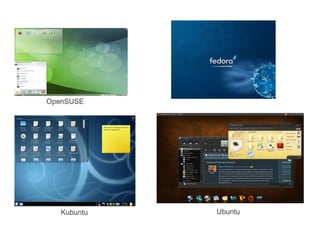
●   Various differences you'll notice :
     from different Window Managers
    (gnome,kde,xfce,lfce )
     to different flavors altogether
        (OpenSUSE,Fedora, Ubuntu )
OpenSUSE


   Kubuntu   Ubuntu
Installing Ubuntu
●   - Install with Wubi- DO NOT DO IT.
      (More trouble than you can afford)
●   - Install in new Partition
        LiveUSB,LiveCD
        Data security and safe.


    Follow the steps given on Ubuntu.com or any
    website.
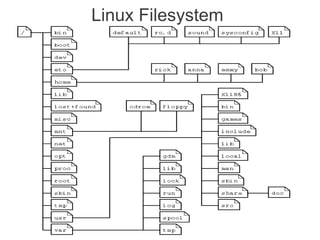
Linux Filesystem
●   /bin - Executable programs.
●   /boot -The startup files , the kernel and grub .
●   /dev - CPU peripherals.
●   /etc - System Configuration (** Control Panel )
●   /home -Your files.
●   /initrd -boot
●   /lib Library files
●   /lost+found Files that were saved during failures are here.
●   /misc   For miscellaneous purposes.
●   /mnt Standard mount point : External temporarily mounted file
    systems, e.g. a CD-ROM or a digital camera.
●   /media Standard mount point : External removable media : pendrives .
●   /net Standard mount point : Entire remote file systems
●   /opt Typically contains extra and third party software.
●   /root   The administrative user's home directory. Note: / and /root.
●   /sbin Programs for use by the system and the system administrator.
●   /tmp    Temporary space , cleaned upon reboot.
●   /usr Programs, libraries, documentation etc. for all user-related
    programs.
●   /var Storage for all variable files and temporary files created by
    users, such as log files, the mail queue, the print spooler area, space
    for temporary storage of files downloaded from the Internet, or to
    keep an image of a CD before burning it.
●   /proc A virtual file system containing information about system
    resources. More information about the meaning of the files in proc is
    obtained by entering the command man proc in a terminal window.
    The file proc.txt discusses the virtual file system in detail.
Who's using it?
●   Usable 2 – your user and superuser(root).
●   You are unable to do most processes like
    installing a new program or execute certain files
●   In order to do so you must give the root
    password.
●   It's the same as the account password that you
    enter during installation.
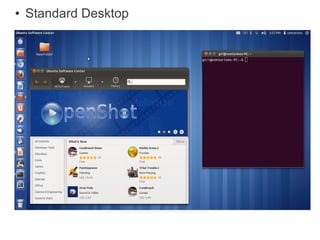
●   Standard Desktop
Some common Software you will Use


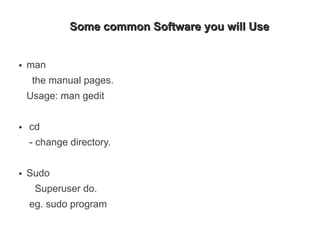
●   man
     the manual pages.
    Usage: man gedit

●   cd
    - change directory.

●   Sudo
     Superuser do.
    eg. sudo program
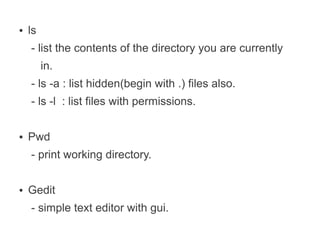
●   ls
    - list the contents of the directory you are currently
         in.
    - ls -a : list hidden(begin with .) files also.
    - ls -l : list files with permissions.

●   Pwd
    - print working directory.

●   Gedit
    - simple text editor with gui.
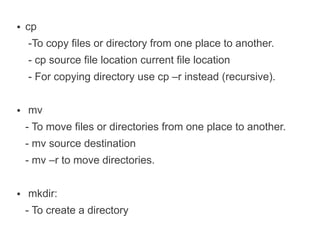
●   cp
    -To copy files or directory from one place to another.
    - cp source file location current file location
    - For copying directory use cp –r instead (recursive).

●   mv
    - To move files or directories from one place to another.
    - mv source destination
    - mv –r to move directories.

●   mkdir:
    - To create a directory
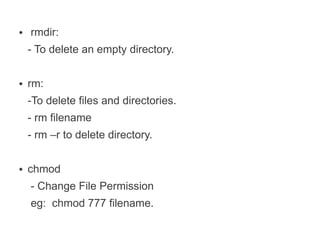
●   rmdir:
    - To delete an empty directory.

●   rm:
    -To delete files and directories.
    - rm filename
    - rm –r to delete directory.

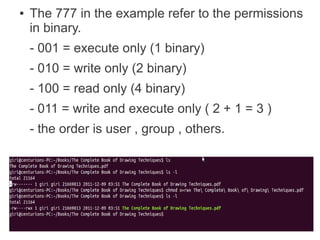
●   chmod
    - Change File Permission
    eg: chmod 777 filename.
●   The 777 in the example refer to the permissions
    in binary.
    - 001 = execute only (1 binary)
    - 010 = write only (2 binary)
    - 100 = read only (4 binary)
    - 011 = write and execute only ( 2 + 1 = 3 )
    - the order is user , group , others.
●   Top
     - system's current running applications.
    - Task manager.

●   head
    - display the first few lines of a file.

●   tail
    - display the last few lines of a file.
●   ssh
    - secure shell : allows you to remotely access
    any other computer allowing this protocol.

●   sftp
    - secure file transfer protocol .

●   nano
    - simple command line text editor.
●   cat
     - Print contents of file to standard out.
     - eg: cat filename.

●   more and less
     - page files one screen at a time
●   apt-get
    - The best way to install anything . Ever.
    eg. Sudo apt-get install program.

●   synaptic
    - Synaptic package manager .
    - Repairs packages .
    - Install more than one at a time.

●   vim
    - complete command line text editor.
●   Some Extra Things to know:
    - Keep Googling.
    - During installation some folders can be
      located to a different partition altogether.
    - Advantage :
      Your linux operating may crash without taking
      all your files with it.

Linux

  • 1.
  • 2.
    Ohk. ● Linux – Know anything? ● What you expect to do by the end of the lecture??
  • 3.
    Linux : KernelNot OS !! ● Kernel : Application layer <=> data layer . ● Linux kernel is the underlying layer below all operating systems like android, ubuntu , fedora , OpenInnova , OpenSUSE.. ● Linus Torvalds (1991) – unix like kernel
  • 4.
    Different Flavors Of Linux. ● Linux kernel is open-source. ● Anyone is allowed to pick up the source code and modify it to suit his own needs. ● Various differences you'll notice : from different Window Managers (gnome,kde,xfce,lfce ) to different flavors altogether (OpenSUSE,Fedora, Ubuntu )
  • 5.
    OpenSUSE Kubuntu Ubuntu
  • 6.
    Installing Ubuntu ● - Install with Wubi- DO NOT DO IT. (More trouble than you can afford) ● - Install in new Partition LiveUSB,LiveCD Data security and safe. Follow the steps given on Ubuntu.com or any website.
  • 7.
  • 8.
    /bin - Executable programs. ● /boot -The startup files , the kernel and grub . ● /dev - CPU peripherals. ● /etc - System Configuration (** Control Panel ) ● /home -Your files. ● /initrd -boot ● /lib Library files ● /lost+found Files that were saved during failures are here. ● /misc For miscellaneous purposes. ● /mnt Standard mount point : External temporarily mounted file systems, e.g. a CD-ROM or a digital camera. ● /media Standard mount point : External removable media : pendrives . ● /net Standard mount point : Entire remote file systems ● /opt Typically contains extra and third party software.
  • 9.
    /root The administrative user's home directory. Note: / and /root. ● /sbin Programs for use by the system and the system administrator. ● /tmp Temporary space , cleaned upon reboot. ● /usr Programs, libraries, documentation etc. for all user-related programs. ● /var Storage for all variable files and temporary files created by users, such as log files, the mail queue, the print spooler area, space for temporary storage of files downloaded from the Internet, or to keep an image of a CD before burning it. ● /proc A virtual file system containing information about system resources. More information about the meaning of the files in proc is obtained by entering the command man proc in a terminal window. The file proc.txt discusses the virtual file system in detail.
  • 10.
    Who's using it? ● Usable 2 – your user and superuser(root). ● You are unable to do most processes like installing a new program or execute certain files ● In order to do so you must give the root password. ● It's the same as the account password that you enter during installation.
  • 11.
    Standard Desktop
  • 12.
    Some common Softwareyou will Use ● man the manual pages. Usage: man gedit ● cd - change directory. ● Sudo Superuser do. eg. sudo program
  • 13.
    ls - list the contents of the directory you are currently in. - ls -a : list hidden(begin with .) files also. - ls -l : list files with permissions. ● Pwd - print working directory. ● Gedit - simple text editor with gui.
  • 14.
    cp -To copy files or directory from one place to another. - cp source file location current file location - For copying directory use cp –r instead (recursive). ● mv - To move files or directories from one place to another. - mv source destination - mv –r to move directories. ● mkdir: - To create a directory
  • 15.
    rmdir: - To delete an empty directory. ● rm: -To delete files and directories. - rm filename - rm –r to delete directory. ● chmod - Change File Permission eg: chmod 777 filename.
  • 16.
    The 777 in the example refer to the permissions in binary. - 001 = execute only (1 binary) - 010 = write only (2 binary) - 100 = read only (4 binary) - 011 = write and execute only ( 2 + 1 = 3 ) - the order is user , group , others.
  • 17.
    Top - system's current running applications. - Task manager. ● head - display the first few lines of a file. ● tail - display the last few lines of a file.
  • 18.
    ssh - secure shell : allows you to remotely access any other computer allowing this protocol. ● sftp - secure file transfer protocol . ● nano - simple command line text editor.
  • 19.
    cat - Print contents of file to standard out. - eg: cat filename. ● more and less - page files one screen at a time
  • 20.
    apt-get - The best way to install anything . Ever. eg. Sudo apt-get install program. ● synaptic - Synaptic package manager . - Repairs packages . - Install more than one at a time. ● vim - complete command line text editor.
  • 21.
    Some Extra Things to know: - Keep Googling. - During installation some folders can be located to a different partition altogether. - Advantage : Your linux operating may crash without taking all your files with it.