
Linux:
             A Getting Started presentation


       by: Nap Ramirez
    email: napramirez@gmail.com
                                   
INTRODUCTION


    What is Linux?

    Linux is an operating system* created
    by Linus Torvalds, with the help of
    developers around the world.


     * An operating system is a special set of programs that
     manages the hardware and software resources of a
     computer.                      
INTRODUCTION


    Why Linux?
    ●   It's free!
    ●   It is Open Source Software.
    ●   It is reliable.

    ●   Perks include:
         ✔   no viruses
         ✔   no need to restart all the time
         ✔   no registration/activation hassles
         ✔   unlimited support
         ✔   a large pool of applications for your preference

                                   
GETTING USED TO...


    The File System
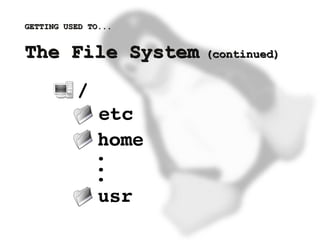
    In Linux, files and directories are
    organized in a hierarchical tree-like
    structure.


GETTING USED TO...


    The File System          (continued)


GETTING USED TO...


    The File System                      (continued)


    ● File system entries can be files or
    directories
          e.g. file: hello.txt
               directory: src/
    ●   Entries are case-sensitive
          e.g. 'hello.txt' is NOT equal to 'HELLO.TXT'
    ●   Hidden entries start with a dot '.'
          e.g. .bash_profile is a hidden file


GETTING USED TO...


    The File System              (continued)


    ● In Linux, files and directories are bound
    to ownership and permissions
    ●   File system entries are owned by users
    ●   Users may have the following permissions:
         ✔   read
         ✔   write
         ✔   execute/entry


GETTING USED TO...


    The File System            (continued)


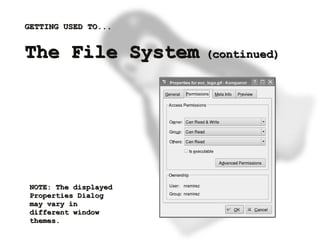
     NOTE: The displayed
     Properties Dialog
     may vary in
     different window
     themes.                
INTRODUCTION TO...


    The Shell
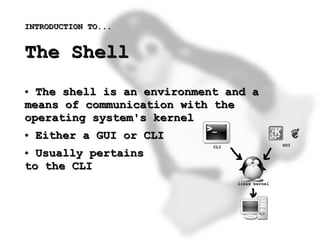
    ● The shell is an environment and a
    means of communication with the
    operating system's kernel
    ●   Either a GUI or CLI
    ● Usually pertains
    to the CLI


GETTING TO KNOW...


    The CLI
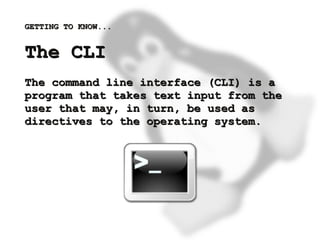
    The command line interface (CLI) is a
    program that takes text input from the
    user that may, in turn, be used as
    directives to the operating system.


LEARNING...


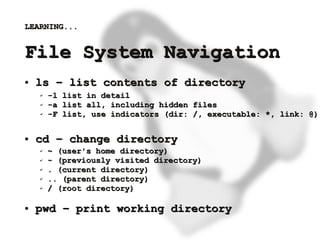
    File System Navigation
    ●   ls – list contents of directory
        ✔   -l list in detail
        ✔   -a list all, including hidden files
        ✔   -F list, use indicators (dir: /, executable: *, link: @)

    ●   cd – change directory
        ✔   ~ (user's home directory)
        ✔   - (previously visited directory)
        ✔   . (current directory)
        ✔   .. (parent directory)
        ✔   / (root directory)

    ●   pwd – print working directory
                                    
LEARNING...


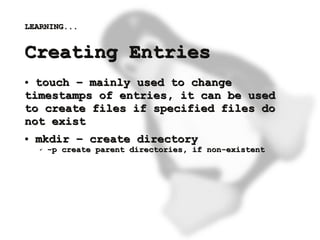
    Creating Entries
    ● touch – mainly used to change
    timestamps of entries, it can be used
    to create files if specified files do
    not exist
    ●   mkdir – create directory
        ✔   -p create parent directories, if non-existent


LEARNING...


    Copying/Moving Entries
    ●   cp – copy entry
        ✔   -r copy recursively


    ●   mv – move entry


LEARNING...


    Deleting Entries
    ●   rm – delete file
        ✔   -r delete recursively


    ●   rmdir – delete empty directory


LEARNING...


    Output Pagers
    Pagers suppress the output of a
    command. This is useful if the output
    doesn't fit the screen. Pagers can be
    used by piping* the output of commands
    into them.

    ●   more
    ●   less
    * Piping is the passing of output of one command into another,
    it is denoted by the pipe character |.
                                   
LEARNING...


    Output Commands
    These commands usually display output
    too big to fit in the screen. They are
    commonly used with pagers.

    ●   echo – displays the specified text
    ● cat – displays the content of the
    specified file
    ● tail – displays the last part of a

    file
    ● head – displays the first part of a


    file                 
LEARNING...


    Editing Text Files
    Many text editors exist in every
    installation. The most popular are:

    ●   vi, vim
    ●   emacs
    ●   joe
    ●   pico, nano


LEARNING...


    Setting Permissions
    ●   chmod <mode> <entry> [-r]
        ✔   Recall that permissions are set for the
                  owner/user (u), group (g), others (o)
        ✔   <mode> is the permissions set for any of
                  the owner/user, group, others
              e.g    `chmod ug+rw .bash_profile`
                     `chmod o-rwx .bash_profile`

    ●   Use `ls -l` to verify the changes


LEARNING...


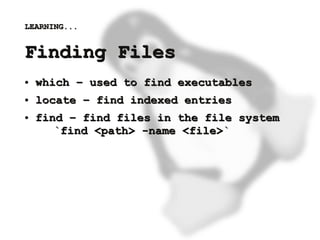
    Finding Files
    ●   which – used to find executables
    ●   locate – find indexed entries
    ●   find – find files in the file system
           `find <path> -name <file>`


LEARNING...


    Archiving Files
    ●   gzip/gunzip
           `gzip <file>`, `gunzip <file>.gz`
    ●   tar
           `tar cf <file>.tar <path>`
           `tar xf <file>.tar`
    ●   zip/unzip
           `zip [-r] <file> <path>`
           `unzip <file>`


LEARNING...


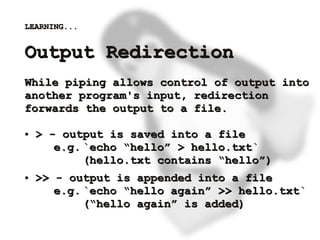
    Output Redirection
    While piping allows control of output into
    another program's input, redirection
    forwards the output to a file.

    ●   > - output is saved into a file
           e.g. `echo “hello” > hello.txt`
                (hello.txt contains “hello”)
    ●   >> - output is appended into a file
           e.g. `echo “hello again” >> hello.txt`
                (“hello again” is added)
                           
LEARNING...


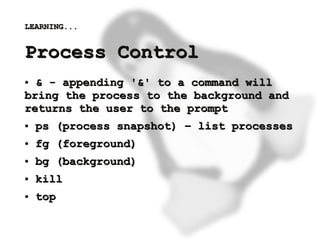
    Process Control
    ● & - appending '&' to a command will
    bring the process to the background and
    returns the user to the prompt
    ●   ps (process snapshot) – list processes
    ●   fg (foreground)
    ●   bg (background)
    ●   kill
    ●   top

                           
WHEN IN DOUBT...


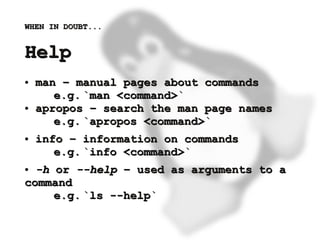
    Help
    ●   man – manual pages about commands
           e.g. `man <command>`
    ●   apropos – search the man page names
           e.g. `apropos <command>`
    ●   info – information on commands
           e.g. `info <command>`
    ● -h or --help – used as arguments to a
    command
         e.g. `ls --help`

                           
MORE LEARNING...


    Extras
    ●   sudo – execute as superuser
          e.g. `sudo chown nap:nap hello.txt`
    ●   df – display disk space usage
          ● -h – human-readable
    ●   du – display file space usage
          ● -sh – human-readable summary


MORE LEARNING...


    Extras
    ●   env – list all environment variables
    ●   export – set variable in the environment
          e.g. `export BASH_HOME=~`
    ●   set/unset – pick environment variables
          ● `set BASH_HOME=”asdf”`
          ● `unset BASH_HOME`


Let's put it to the test!


    Exercise
    Identify the ff commands:
    unzip, strip, touch, finger,    grep, mount, fsck,
    more, yes, fsck, fsck, fsck,    umount, sleep


THE END...


    Thanks!
    Please mail me your feedback!


    ----------------------------
    Nap Ramirez
    napramirez@gmail.com
                        
This work is licensed under the Creative Commons
    Attribution 3.0 License. To view a copy of this
    license, visit
    http://creativecommons.org/licenses/by/3.0/ or send a
    letter to Creative Commons, 171 Second Street, Suite
    300, San Francisco, California, 94105, USA.
                                

Linux: A Getting Started Presentation

  • 1.
    Linux: A Getting Started presentation by: Nap Ramirez email: napramirez@gmail.com    
  • 2.
    INTRODUCTION What is Linux? Linux is an operating system* created by Linus Torvalds, with the help of developers around the world. * An operating system is a special set of programs that manages the hardware and software resources of a   computer.  
  • 3.
    INTRODUCTION Why Linux? ● It's free! ● It is Open Source Software. ● It is reliable. ● Perks include: ✔ no viruses ✔ no need to restart all the time ✔ no registration/activation hassles ✔ unlimited support ✔ a large pool of applications for your preference    
  • 4.
    GETTING USED TO... The File System In Linux, files and directories are organized in a hierarchical tree-like structure.    
  • 5.
    GETTING USED TO... The File System (continued)    
  • 6.
    GETTING USED TO... The File System (continued) ● File system entries can be files or directories e.g. file: hello.txt directory: src/ ● Entries are case-sensitive e.g. 'hello.txt' is NOT equal to 'HELLO.TXT' ● Hidden entries start with a dot '.' e.g. .bash_profile is a hidden file    
  • 7.
    GETTING USED TO... The File System (continued) ● In Linux, files and directories are bound to ownership and permissions ● File system entries are owned by users ● Users may have the following permissions: ✔ read ✔ write ✔ execute/entry    
  • 8.
    GETTING USED TO... The File System (continued) NOTE: The displayed Properties Dialog may vary in different window   themes.  
  • 9.
    INTRODUCTION TO... The Shell ● The shell is an environment and a means of communication with the operating system's kernel ● Either a GUI or CLI ● Usually pertains to the CLI    
  • 10.
    GETTING TO KNOW... The CLI The command line interface (CLI) is a program that takes text input from the user that may, in turn, be used as directives to the operating system.    
  • 11.
    LEARNING... File System Navigation ● ls – list contents of directory ✔ -l list in detail ✔ -a list all, including hidden files ✔ -F list, use indicators (dir: /, executable: *, link: @) ● cd – change directory ✔ ~ (user's home directory) ✔ - (previously visited directory) ✔ . (current directory) ✔ .. (parent directory) ✔ / (root directory) ● pwd – print working directory    
  • 12.
    LEARNING... Creating Entries ● touch – mainly used to change timestamps of entries, it can be used to create files if specified files do not exist ● mkdir – create directory ✔ -p create parent directories, if non-existent    
  • 13.
    LEARNING... Copying/Moving Entries ● cp – copy entry ✔ -r copy recursively ● mv – move entry    
  • 14.
    LEARNING... Deleting Entries ● rm – delete file ✔ -r delete recursively ● rmdir – delete empty directory    
  • 15.
    LEARNING... Output Pagers Pagers suppress the output of a command. This is useful if the output doesn't fit the screen. Pagers can be used by piping* the output of commands into them. ● more ● less * Piping is the passing of output of one command into another, it is denoted by the pipe character |.    
  • 16.
    LEARNING... Output Commands These commands usually display output too big to fit in the screen. They are commonly used with pagers. ● echo – displays the specified text ● cat – displays the content of the specified file ● tail – displays the last part of a file ● head – displays the first part of a   file  
  • 17.
    LEARNING... Editing Text Files Many text editors exist in every installation. The most popular are: ● vi, vim ● emacs ● joe ● pico, nano    
  • 18.
    LEARNING... Setting Permissions ● chmod <mode> <entry> [-r] ✔ Recall that permissions are set for the owner/user (u), group (g), others (o) ✔ <mode> is the permissions set for any of the owner/user, group, others e.g `chmod ug+rw .bash_profile` `chmod o-rwx .bash_profile` ● Use `ls -l` to verify the changes    
  • 19.
    LEARNING... Finding Files ● which – used to find executables ● locate – find indexed entries ● find – find files in the file system `find <path> -name <file>`    
  • 20.
    LEARNING... Archiving Files ● gzip/gunzip `gzip <file>`, `gunzip <file>.gz` ● tar `tar cf <file>.tar <path>` `tar xf <file>.tar` ● zip/unzip `zip [-r] <file> <path>` `unzip <file>`    
  • 21.
    LEARNING... Output Redirection While piping allows control of output into another program's input, redirection forwards the output to a file. ● > - output is saved into a file e.g. `echo “hello” > hello.txt` (hello.txt contains “hello”) ● >> - output is appended into a file e.g. `echo “hello again” >> hello.txt` (“hello again” is added)    
  • 22.
    LEARNING... Process Control ● & - appending '&' to a command will bring the process to the background and returns the user to the prompt ● ps (process snapshot) – list processes ● fg (foreground) ● bg (background) ● kill ● top    
  • 23.
    WHEN IN DOUBT... Help ● man – manual pages about commands e.g. `man <command>` ● apropos – search the man page names e.g. `apropos <command>` ● info – information on commands e.g. `info <command>` ● -h or --help – used as arguments to a command e.g. `ls --help`    
  • 24.
    MORE LEARNING... Extras ● sudo – execute as superuser e.g. `sudo chown nap:nap hello.txt` ● df – display disk space usage ● -h – human-readable ● du – display file space usage ● -sh – human-readable summary    
  • 25.
    MORE LEARNING... Extras ● env – list all environment variables ● export – set variable in the environment e.g. `export BASH_HOME=~` ● set/unset – pick environment variables ● `set BASH_HOME=”asdf”` ● `unset BASH_HOME`    
  • 26.
    Let's put itto the test! Exercise Identify the ff commands: unzip, strip, touch, finger, grep, mount, fsck, more, yes, fsck, fsck, fsck, umount, sleep    
  • 27.
    THE END... Thanks! Please mail me your feedback! ---------------------------- Nap Ramirez napramirez@gmail.com    
  • 28.
    This work islicensed under the Creative Commons Attribution 3.0 License. To view a copy of this license, visit http://creativecommons.org/licenses/by/3.0/ or send a letter to Creative Commons, 171 Second Street, Suite 300, San Francisco, California, 94105, USA.